

You can build a conversational AI Agent in n8n that talks directly to your GA4 property.
This means you can ask any question about your GA4 data in plain English through a chat interface. There is no need to open your GA4 property at all.
The most basic version of this AI agent requires only two nodes:- A Chat Trigger node.
- A Google Analytics node (Get a report).
That’s it. From there, you can expand the workflow with more logic, memory, or even API queries to make it more powerful.
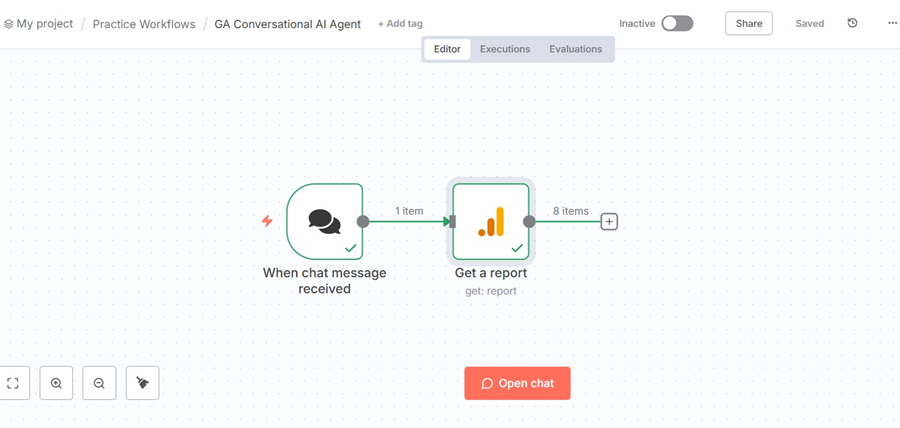
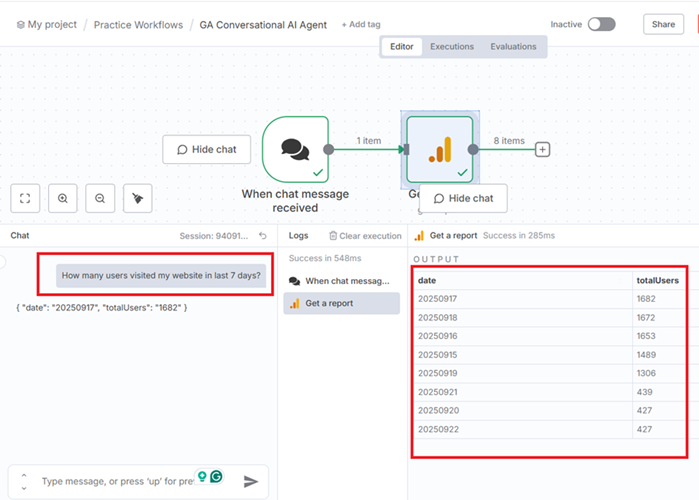
Once you have created this workflow in n8n, click on the ‘Open chat’ button and ask your questions in plain English:
However,
Your ‘Google Analytics’ node in n8n won’t work without first connecting your Google Analytics account to your n8n account.
Now, this is the hard part.
Connecting Google Analytics to n8n is not as simple as signing up with your Google account.
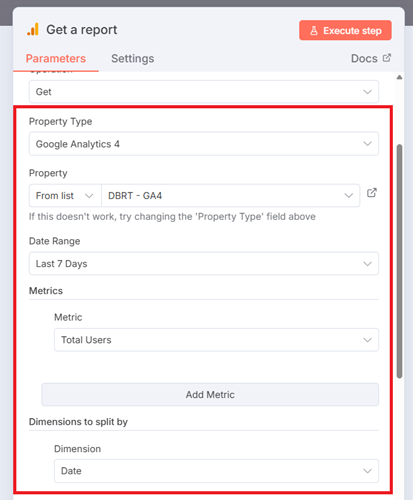
You would need to create OAuth Client Credentials (Client ID and Client Secret from the Google Cloud Console) and then select your GA4 property, date range, metrics and dimensions from the ‘Google Analytics’ node:
Step-1: Create a new Google Cloud Platform account.
Create a new Google Cloud Platform account (if you already don’t have one) with billing enabled.
- While logged into your Google account, navigate to Google Cloud Platform at https://console.cloud.google.com/
- Follow the on-screen instructions and enter your business details and payment information.
Step-2: Create a new Google Cloud Project or select an existing one.
Note: Once you have successfully created your Google Cloud Platform account, Google will automatically create a new project for you called ‘My First Project‘.
Step-3: Enable the Google Analytics APIs.
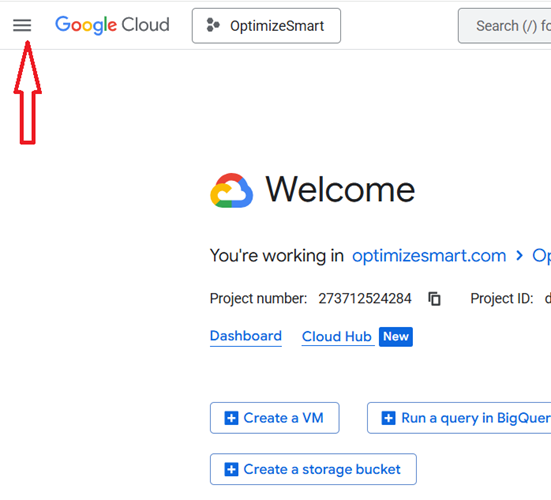
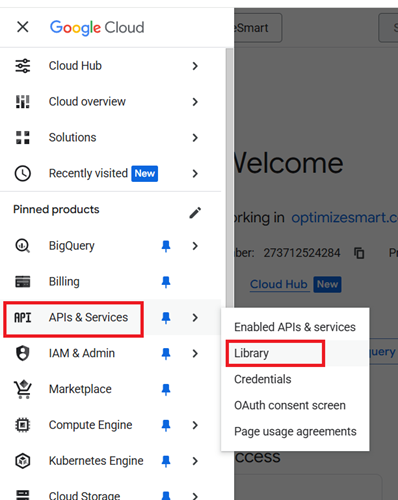
#3.1 Click on the hamburger menu at the top left of your screen:
#3.2 Navigate to APIs & Services > Library.
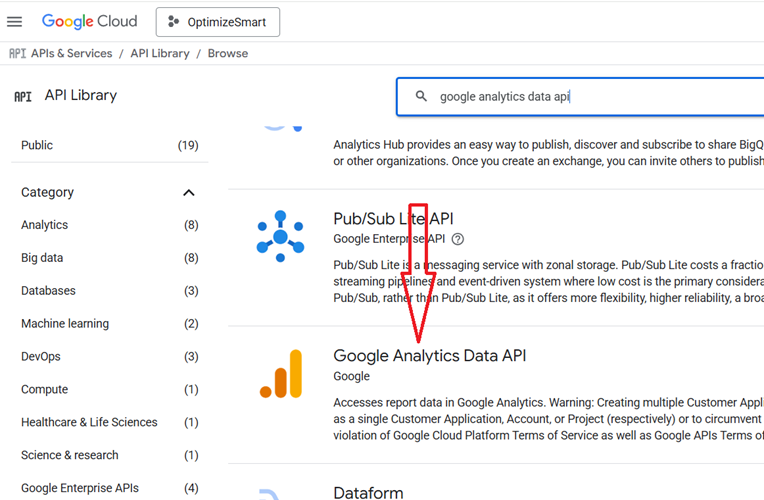
#3.3 Search for "Google Analytics Data API" (for GA4 reporting and data queries), click on it and then enable it:
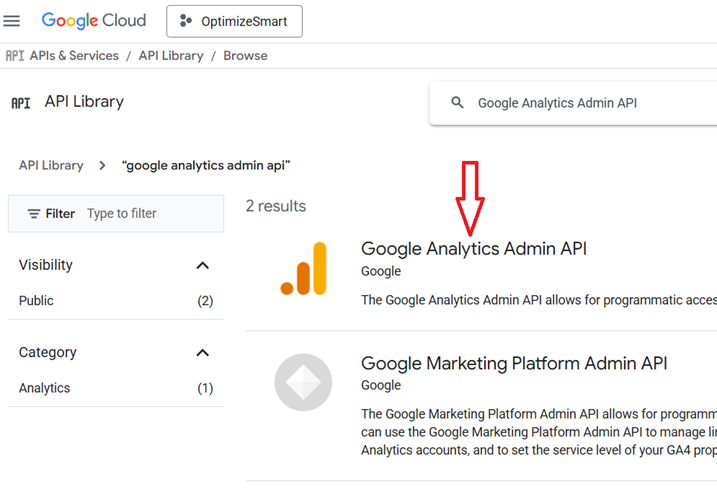
#3.4 Search for "Google Analytics Admin API" (to manage accounts, properties, or user permissions), click on it and then enable it:
Step-4: Create OAuth Client Credentials.
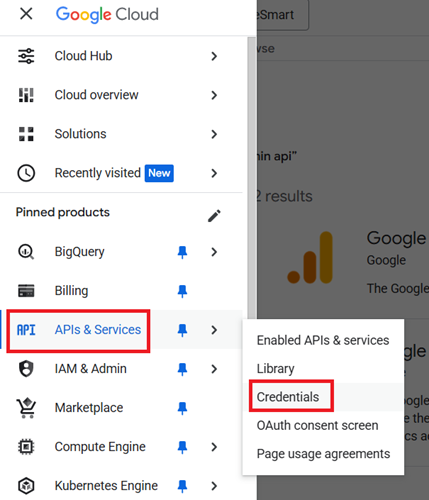
#4.1 Navigate to APIs & Services > Credentials.
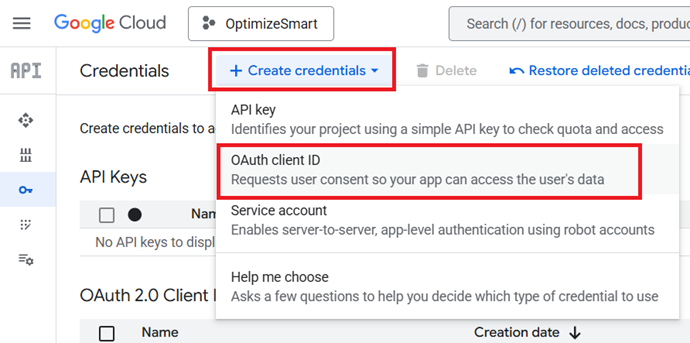
#4.2 Click + Create credentials > OAuth client ID.
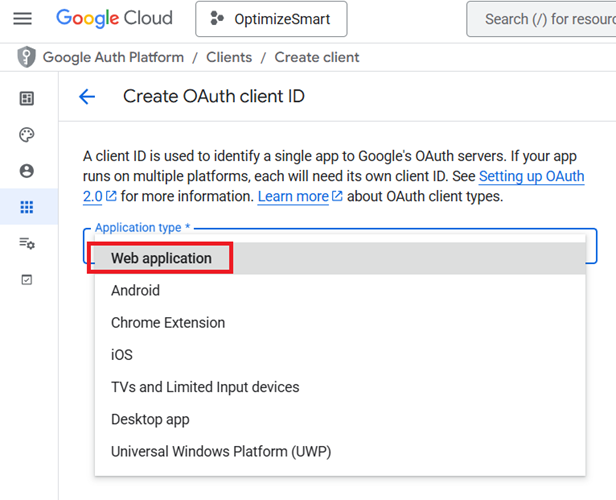
#4.3 Set Application type to ‘Web application’:
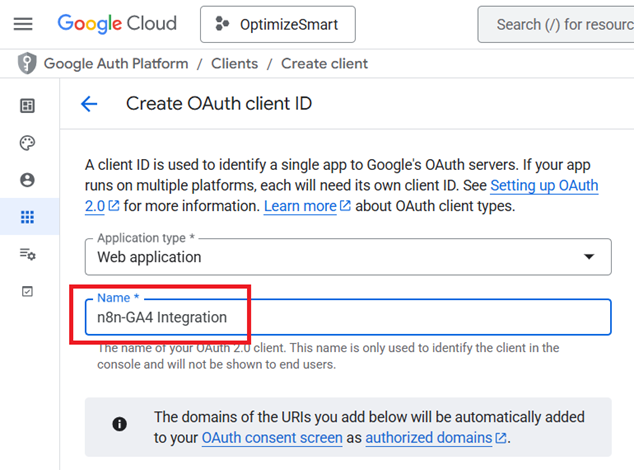
#4.4 Name your credentials. For example ‘n8n-GA4 Integration’.
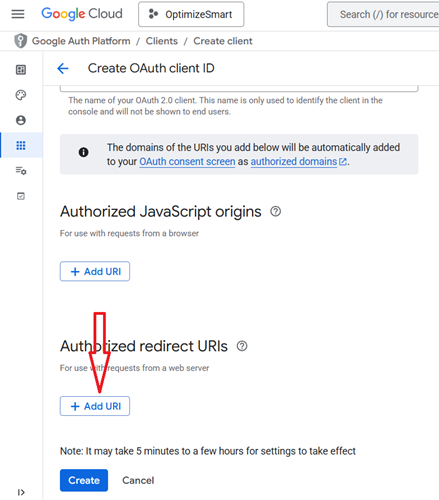
#4.5 Scroll down the screen and click on ‘+Add URI’ button below ‘Authorized redirect URIs’:

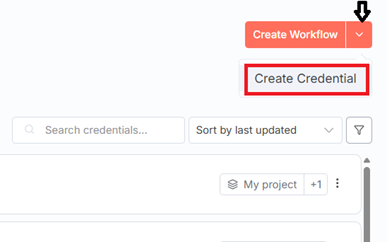
#4.6 Navigate to your n8n account, click on ‘Create Credentials’ from the drop-down menu:
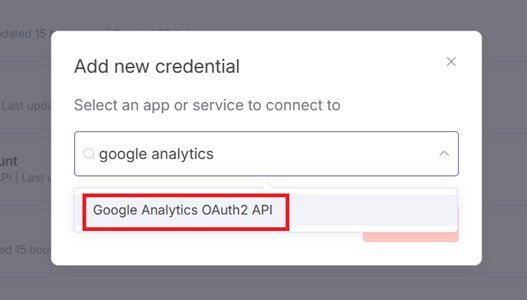
#4.7 Search for ‘Google Analytics’ and click on ‘Google Analytics OAuth2 API’:
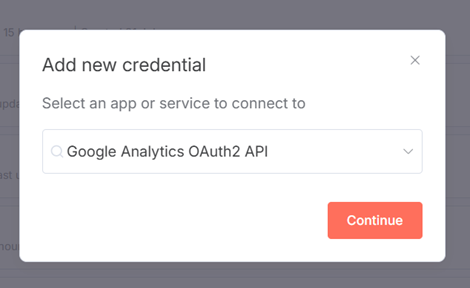
#4.8 Click on the ‘Continue’ button:
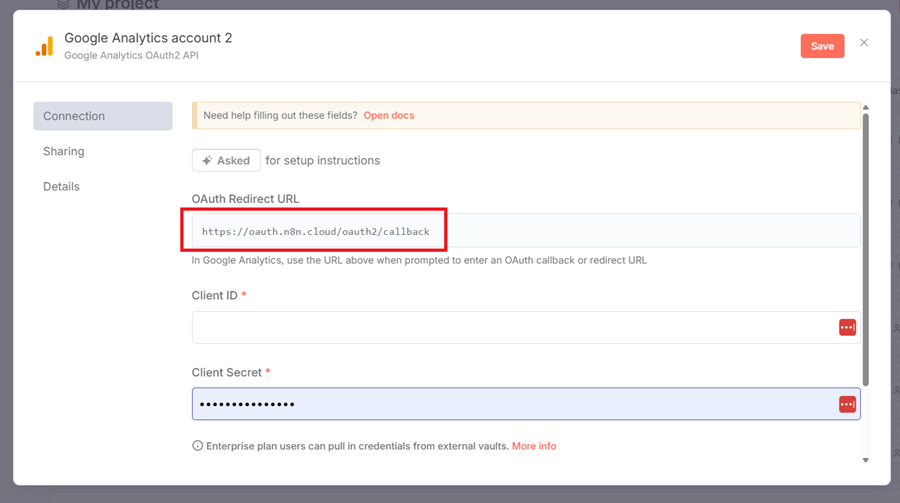
#4.9 Copy the OAuth Redirect URL provided by n8n and then paste this URL into the ‘Authorized redirect URIs’ field in the Google Cloud Console.
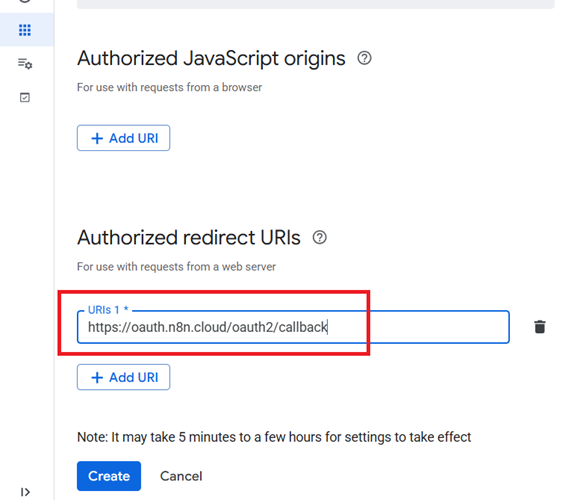
#4.10 Click on the ‘Create’ button.
Step-5: Copy-paste the Client ID and Client Secret.
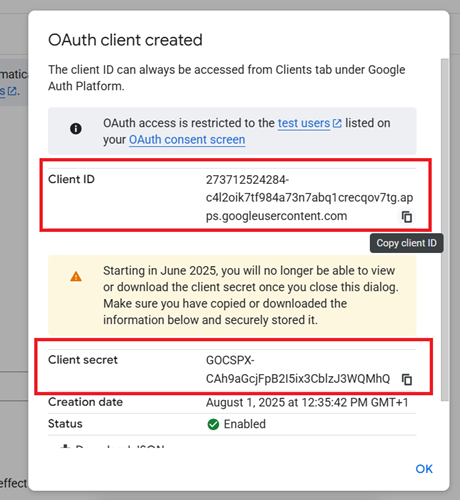
Copy the Client ID and Client Secret from the Google Cloud Console, then paste these values in the Google Analytics OAuth2 credential fields in your n8n account:
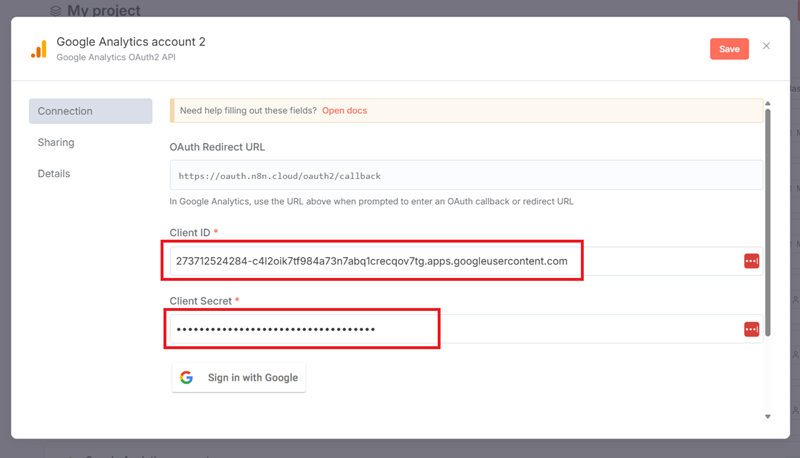
Navigate back to your Google Cloud account and click on the ‘ok’ button:
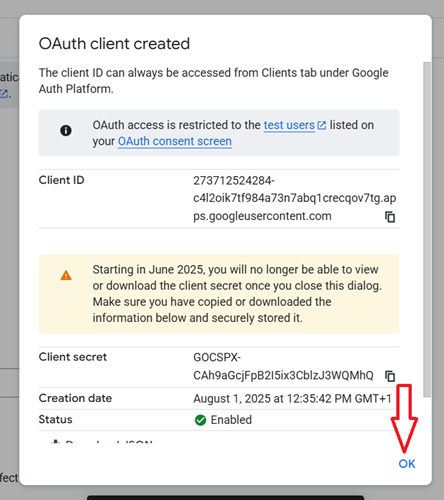
Congratulations!
Your OAuth Client is created:
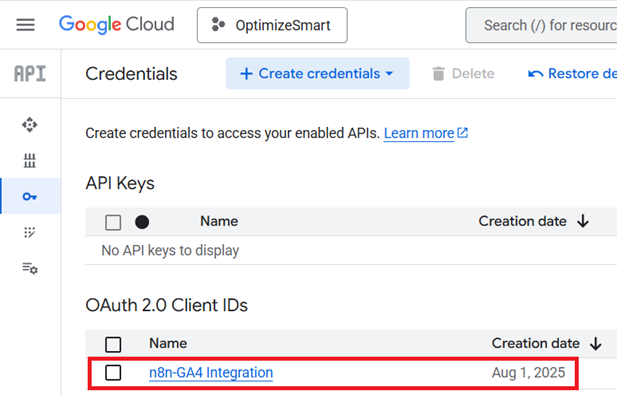
Step-6: ‘Sign in with Google’ to authenticate.
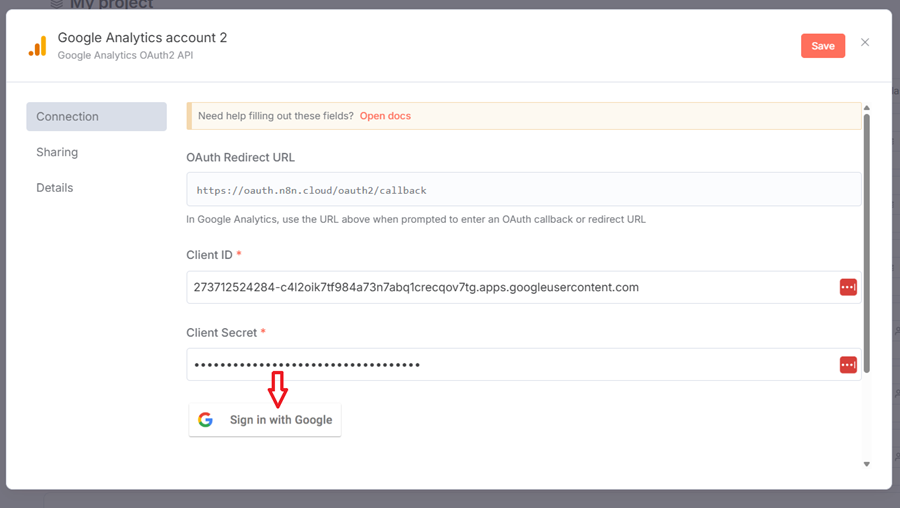
Navigate back to your n8n account and click ‘Sign in with Google’ to authenticate.
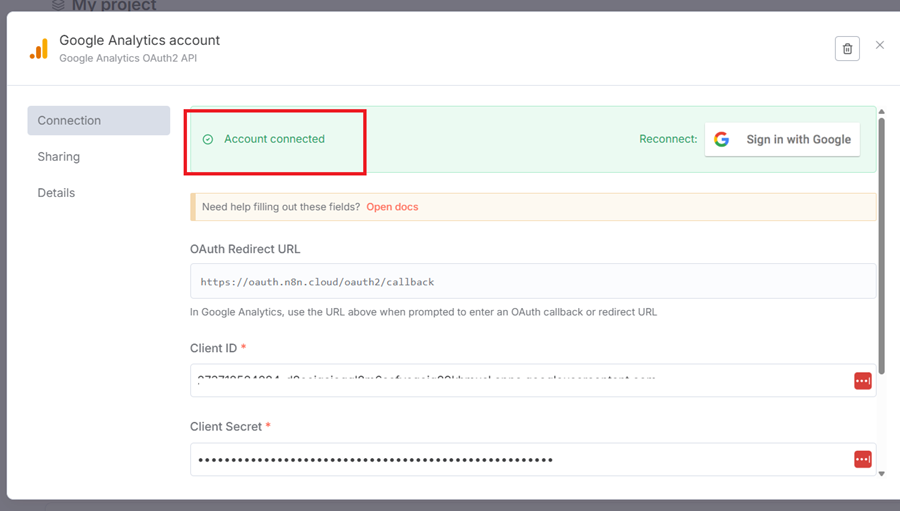
You should now see the ‘Account Connected’ message:
That’s how you can connect your Google Analytics account to n8n.
Caveats regarding GA4 Conversation AI Agent.
#1 If data security or compliance is critical for your organization, run the AI agent on a self-hosted version of n8n. This ensures your data stays internal and is not shared with third parties.
#2 The conversational AI Agent I mentioned earlier is very basic. It is unlikely to answer all of your questions. For advanced use cases, rely on the HTTP Request node to query the official Google Analytics APIs directly.
#3 You need a deep understanding of GA4 event schema, dimensions, metrics and scopes in order to use this AI agent accurately.
Without such knowledge, you won’t be able to frame the right question for AI to give you a useful, actionable answer. To build this knowledge, consider enrolling in my, Sign up for my free GA4 Mastery Course.
Following is an example of a bad prompt because of a lack of knowledge of GA4 Schema:
“Show me sales trends.”Why it fails:
- Doesn’t specify the GA4 metric (purchase_revenue, ecommerce_purchases, etc.).
- No dimension to break trends by (time, region, device, campaign).
- No scope (are we looking at event-level purchases, sessions, or user cohorts?).
- No date range or filters.
Following is an example of a good prompt:
Using GA4 data, show me a month-over-month trend of purchase_revenue for the last 12 months, segmented by deviceCategory, and include only sessions where country equals "United States".Why it works:
- Names a specific metric: purchase_revenue.
- Specifies a time dimension: month-over-month for 12 months.
- Adds a breakdown dimension: deviceCategory.
- Uses a filter: country = United States.
- Context: Assumes GA4 event schema and naming conventions.
The sample logic applies to GA4 BigQuery as well.
If you don’t understand the GA4 BigQuery schema you can’t use AI to correctly query the data.