
Follow the steps below to connect and transfer data from Google Sheets to BigQuery:
Step-1: Navigate to your BigQuery account: https://console.cloud.google.com/bigquery
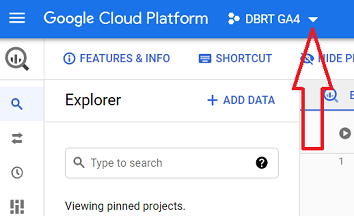
Step-2: Click on the drop-down menu at the top:
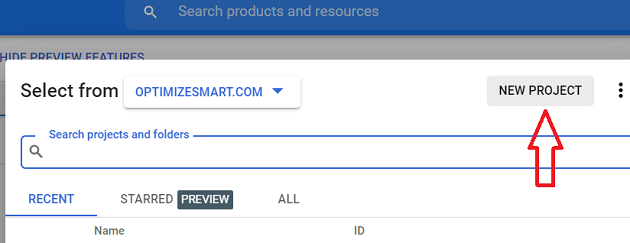
Step-3: Click on the ‘New Project’ button:
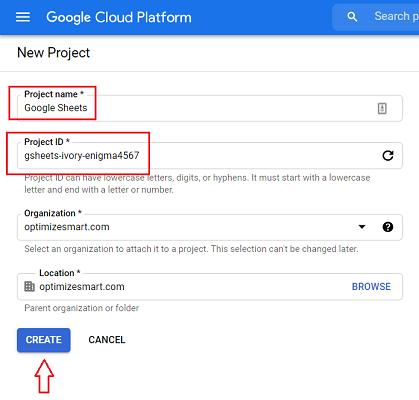
Step-4: Name the project ‘Google Sheets’, rename the project id (by clicking on the ‘edit’ button) to something easily recognizable and then click on the ‘create’ button:
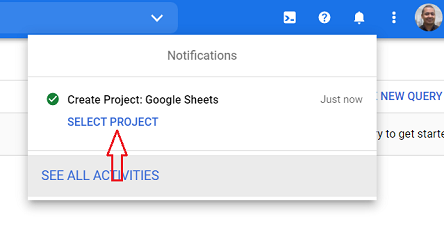
Step-5: Click on the ‘SELECT PROJECT’ link on the top right-hand side of your screen:
Step-6: Click on your project ID:
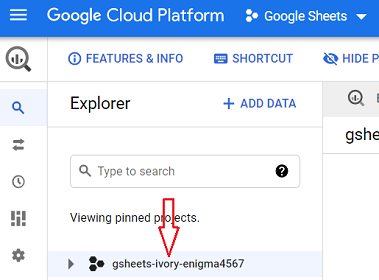
Step-7: Click on the ‘CREATE DATASET’ button on the top right-hand side of your screen:

Step-8: Name your data set (say ‘Google_Sheets_Dataset’) and then click on the ‘Create dataset’ button:

Step-9: Click on the name of your new dataset:

Step-10: Click on the create table button:

We are going to use this table for storing data from Google Sheets.
Step-11: Click on the ‘Create table from’ drop-down menu:

Step-12: Click on the ‘Drive’ option:

You should now see a screen like the one below:

Step-13: Navigate to the Google Sheets whose data you want to send to BigQuery and then copy the sheet URL:

Step-14: Paste the Google sheet URL in the text below ‘Select drive URL’:

Step-15: Set file format to ‘Google Sheet’:

Step-16: Enter the cell range to indicate which sheet and cell range in the Google Sheets to create a table from:


Note: If you entered an incorrect cell range then either you may get unexpected data when you query your table or your query may fail to execute.
Step-17: Enter a table name (say ‘Traffic_Data_Table’):

Now we need to define a schema for our new table.
You won’t be able to query your data table without defining the schema first.
The schema that you define should be based on the data type of the data in your Google Sheets:

Step-18: Click on the ‘+Add field’ button:

Step-19: Enter the name of your field, set the data type and then click on the ‘+Add field’ button to add another field:

Step-20: Repeat step-19 as many times as required and then click on the ‘Create table’ button:

Step-21: Click on the name of your new data table:

Step-22: Click on the ‘QUERY TABLE’ button:

Step-23: Enter your SQL statement(s) and then click on the ‘Run’ button:

If you set up your table schema correctly then your query would run and you should be able to see query results from your Google sheets document:

If your table schema is not set up correctly or the data in your Google Sheets is not formatted correctly or you used an incorrect cell range while creating the table then your query could fail and you would see an error message like the one below:

Note: If you did not set up your table correctly then you would need to delete your table and create a new table:

Step-24: Click on the ‘SAVE RESULTS’ button to save your query results:

Step-25: Choose where to save the results data from the query from the drop-down menu

Let’s select ‘BigQuery table’:

Step-26: Enter the name of the data table where to want to store your query results and then click on the ‘Save’ button:

You should now see a new table listed under the data set ‘Google_Sheets_Dataset’:

Step-27: Click on the name of this data table:

Step-28: Click on the ‘Preview’ tab:

You should now be able to see your previous query results permanently stored as a data table in BigQuery:


Related Articles:
- Google Analytics 4 Page Title, Page Path & Views in BigQuery
- Google Analytics 4 Unique Pageviews in BigQuery.
- Google Analytics 4 Traffic Attribution in BigQuery.
- Finding Real Google Analytics 4 Conversion Paths in BigQuery.
- Tracking Google Analytics 4 UTM Parameters in BigQuery.
- Tracking Google Analytics 4 AI Traffic in BigQuery.
- Tracking peak time for Website Traffic in GA4 BigQuery.
- How to Correctly Work With Google Analytics Data Types in BigQuery.
- Three SQL Query Logic You Must Use For GA4 in BigQuery.
- Four Rules for Google Analytics Data Aggregation in BigQuery.
- Top 10 Optimization Strategies for GA4 SQL in BigQuery.
- How To Correctly Track GA4 Sessions in BigQuery.
- Tracking Google Analytics 4 Engaged Sessions in BigQuery.
- Tracking Google Analytics 4 Total Users in BigQuery.
- Tracking Google Analytics 4 New Users in BigQuery.
- Tracking Google Analytics 4 Returning Users in BigQuery.
- What is BigQuery Data Transfer Service & how it works.
- How to send Custom GA4 Data to BigQuery.
- Connect and transfer data from Google Sheets to BigQuery.
- Query GA4 data in BigQuery without understanding SQL.