

Are you looking for free GA4 training? You are at the right place.
Through this tutorial on Google Analytics 4 (aka GA4), you can learn GA4 from beginners to advanced levels.
What is Google Analytics 4?
Google Analytics 4 (also known as Apps + Web) is the latest version of Google Analytics.
Since it is the 4th version, it is called GA4.
The following are the other three versions of Google Analytics:
- The first version of Google Analytics (also known as GA1) is Classic Google Analytics (ga.js JavaScript library).
- The second version of Google Analytics (also known as GA2) is Universal Analytics (analytics.js JavaScript library)
- The third version of Google Analytics (also known as GA3) is also Universal Analytics, but it uses a different JavaScript library called gtag.js JavaScript library.
Note: GA4 also uses the gtag.js library but uses a new measurement model called the ‘Event+Parameter‘ model.
Through GA4 you can combine mobile app and website usage data for unified reporting and analysis.
Further reading: What is GA4 (Google Analytics 4) – The Apps + Web Property?

How old is Google Analytics 4?
Google Analytics 4 was officially launched on October 14, 2020. So, as of today, GA4 is over three years old.
Is Google Analytics 4 free or paid?
There are two versions of GA4, free and paid. The free version is called the ‘Standard’ version. The paid version is called ‘GA4 360‘.
How much will Google Analytics 4 cost?
The standard version of GA4 is free to use. The pricing for GA4 360 starts at $150,000 per year.
Is Google Analytics 4 any good?
GA4 has been well-received for its advanced features, flexibility, and future-oriented design, but opinions vary among users depending on specific use cases and needs.
How do I learn Google Analytics 4 without a website?
You can learn about Google Analytics 4 without having your own website.
Use the following websites for learning GA4:
1) Google Merchandise Store (shop.googlemerchandisestore.com) – It is an ecommerce website owned by Google.
This website sells Google-branded merchandise (apparel, bags, drinkware, stationery etc.).
2) Google’ Flood-it’ mobile app – It is a mobile gaming app from Google.
For more details, check out this article: How to learn Google Analytics without a website.
How do I learn GA4 without a GA4 property?
Use the two demo properties provided by Google to learn GA4 without having your own GA4 property.
Google provides the following two GA4 demo properties:
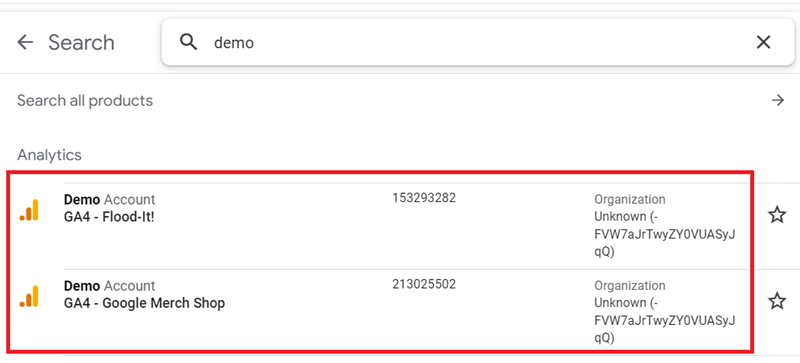
The first GA4 property (‘GA4 Flood-It!’) contains data from Google’s ‘Flood-it’ mobile app.
The second GA4 property (‘GA4 Google Merch Shop’) contains data from the Google Merchandise Store (an ecommerce website that sells Google-branded merchandise).
The Google Analytics demo properties are fully functional GA4 properties provided by Google to the public, free of charge.
You can also see ecommerce data in these properties.
How to access the GA4 demo properties?
Follow the steps below:
#1 Whilst logged into your Google account, navigate to the following page: https://support.google.com/analytics/answer/6367342
#2 Scroll down the page until you see the following section:
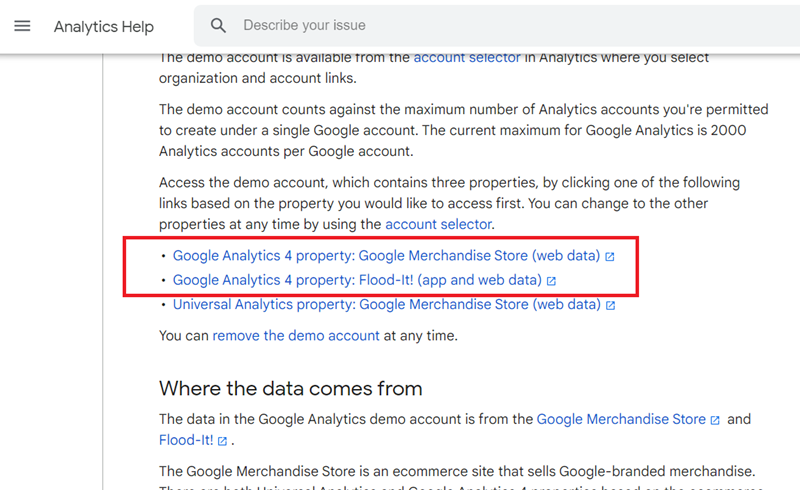
#3 Click on the button below to open the ‘GA4 Google Merch Shop’ property:
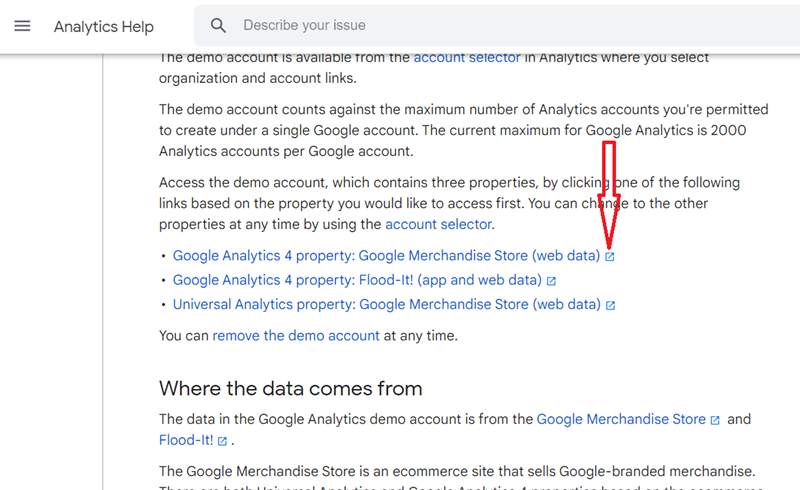
You should now be able to see the home page of your ‘GA4 Google Merch Shop’ property:
#4 Click on the button below to open the ‘GA4 Flood-It!’ property:
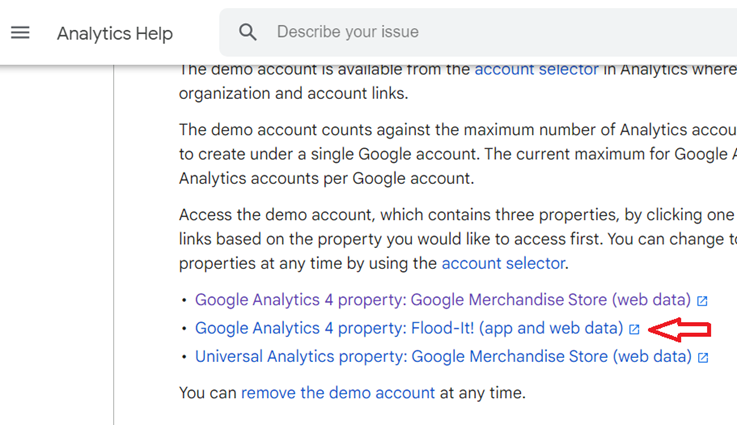
You should now be able to see the home page of your GA4 Flood-it demo property:
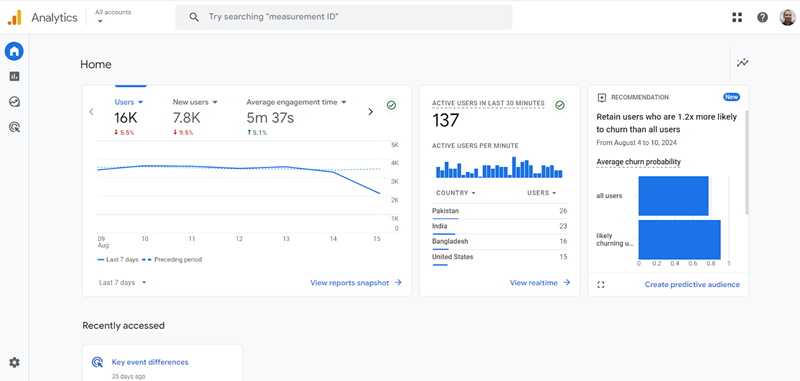
Congratulations, you now have access to the GA4 demo properties.
Take the guided tour of GA4
Follow the steps below:
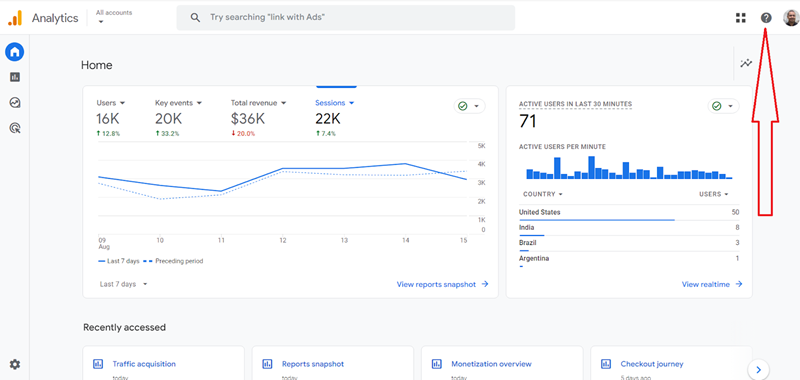
Step-1: Navigate to the home report of ‘GA4 Google Merch Shop’ property and then click on the ? button at the top right hand corner of your screen:
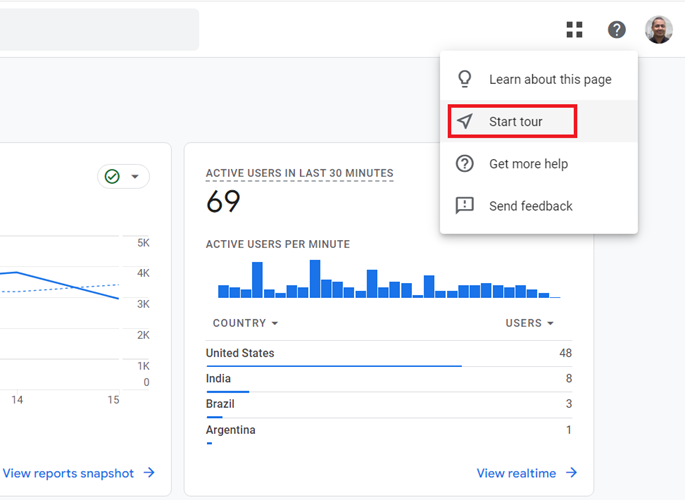
Step-2: Click on the ‘Start Tour’ option:
You should now see a message box like the one below:
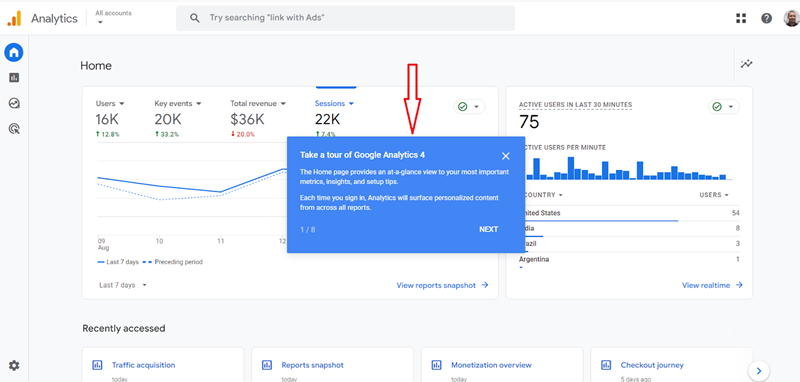
Step-3: Follow the on-screen instructions.
Does GA4 use machine learning?
Yes. The following features (but not limited to) of GA4 use machine learning:
- Predictive metrics.
- Predictive audience.
- Modeled conversions.
- Behavioral modeling in path and funnel reports.
- Custom Insights.
- Automated Insights.
- Anomaly detection.
Does GA4 replace GTM?
No.
GA4 is a web analytics tool which is used to store and report on website traffic data.
Whereas, Google Tag Manager is a tag management tool which is used to add and manage tags on your website.
A tag is a bunch of JavaScript code that is used to collect data from your website or mobile app and then send that data to a third-party tool like Google Analytics, Google Ads, Facebook etc.
Google Analytics tracking code is an example of a tag.
Google Tag Manager does not store or report on website traffic data. Therefore, it does not contain any reports through which you can analyze the website usage data.
GA4 and GTM are often used together as they complement each other.
Further reading: Google Tag Manager vs Google Analytics – Key differences.
Can you use GA4 without Google Tag Manager?
Yes, you can use GA4 without Google Tag Manager.
What is the difference between Google Analytics 4 and 360?
There are two versions of GA4 available: GA4 Standard and GA4 360:
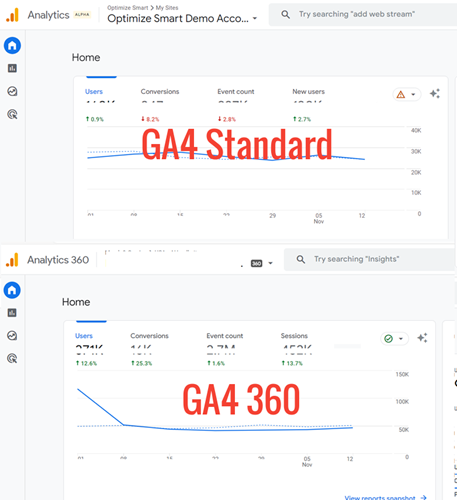
The GA4 standard refers to the free version of the GA4 property. Whereas GA4 360 refers to the paid version of the GA4 property.
GA4 360 is one of the products of the Google Marketing Platform and is a subscription service where you pay monthly fees.
Unlike GA4 360, you can not rely on GA4 standard property for a large amount of data processing and high accuracy.
To learn more about the differences between GA4 standard and GA4 360, check out this article: GA4 vs GA4 360 – Pricing, Limits, Billing and more
Is GA4 better than Adobe Analytics?
GA4 and Adobe Analytics are powerful analytics platforms that help you understand your website or app visitors. However, they have different strengths and weaknesses.
#1 If you use Google products, it makes sense to use GA4 as GA4 natively integrates with other Google products like Google Ads and Google BigQuery.
#2 If you use Adobe products, it makes sense to use Adobe Analytics as Adobe Analytics works well with other Adobe Experience Cloud services like Adobe Target and Adobe Audience Manager.
#3 GA4 offers a free tier, making it accessible for small to medium-sized businesses. Adobe Analytics is not free to use.
#4 Adobe Analytics is more user-friendly than GA4.
#5 GA4 is a relatively new analytics platform, so some features are still in the development stage. Whereas Adobe Analytics is a more mature platform.
#6 Adobe Analytics offers a wider range of features and customization options than GA4 and is better suited for large enterprises.
#7 Both GA4 and Adobe Analytics come with a steep learning curve.
#8 Adobe Analytics usually takes longer to set up and configure than GA4 properly.
How long does it take to switch to Google Analytics 4?
The time it takes to switch to Google Analytics 4 depends upon the following factors (but not limited to):
#1 The size and complexity of your website and/or app.
#2 The size and complexity of your current tracking setup, including the level of customization you have made to your Universal Analytics reports.
If you have a small website/app with a simple tracking setup, you can switch to GA4 in a matter of hours.
However, if you have a large and complex website/app with a complex tracking setup, switching may take you a few days or weeks.
Is switching to GA4 easy?
It is easy if you understand the Google Analytics development environment. Otherwise, it is hard.
Does Google Analytics 4 require coding?
Using GA4 does not require any coding knowledge. But implementing GA4 tracking does.
How long does it take to setup Google Analytics 4?
The time it takes to set up GA4 depends upon your technical expertise, the size and complexity of your website/app and the tracking setup.
How long does it take for Google Analytics 4 to work?
Once you have successfully set up GA4 tracking on your website, you can see data in the real times reports straight away.
However, it usually takes 12 to 24 hrs for the data to appear in other GA4 reports.
How do I install Google Analytics 4?
You can either hardcode the Google Analytics 4 tracking code on your website, or you can use the Google Tag Manager to install GA4.
What are the best practices for using Google Analytics 4?
The following are the best practices for using GA4:
#1 Avoid using a plugin for setting up GA4 tracking. Instead, use Google Tag Manager whenever possible.
#2 Start collecting data in a GA4 property as soon as possible so that you can collect as much data as possible about your website and/or app. Do not postpone this task.
#3 Track only those events you really need. Do not track unnecessary events.
#4 Get professional help when it comes to setting up ecommerce tracking or server side tracking for your website or mobile app. Do not try to do it yourself. You are most likely to screw it up.
#5 Link your GA4 property to your BigQuery project as soon as possible so that you don’t lose user-specific data for inactive website users every 14 months.
#6 Set up a GA4 test property for testing implementation tasks.
#7 Link your GA4 property to your Search Console account as soon as possible to start populating your GA4 reports with search console data.
#8 Link your GA4 property to your Google Ads account as Google Ads data does not flow retroactively into your GA4 reports.
#9 GA4 constantly evolves, so keeping up with the latest changes is very important.
#10 Learn and master digital analytics. Digital analytics is not about GA4, GTM, Looker Studio or BigQuery. It is about analyzing and interpreting data and setting up goals, strategies, and KPIs. It’s about creating a strategic roadmap for your business.
How do I get the most out of Google Analytics 4?
To benefit from GA4 the most, learn and master digital analytics and tools like Google Sheets, BigQuery and Looker Studio.
Use AI tools with Google Sheets to automate and enhance data analysis without the need to memorise formulas and functions.
Google Sheets has many formulas and functions, and using the correct formula and function is a major issue.
It’s hard to memorize and use them all. Correct usage is also a challenge. One mistake can break a formula or function. AI tools can help solve this problem.
You can use the Google Cloud AI platform (to perform tasks like data pre-processing, cleaning, and transformation) with Google Sheets.
Use Google Sheets Add-on (like supermetrics for Google Sheets Add-on, formulabot) and Google Apps Script (which allows you to automate tasks in Google Sheets) with Google Sheets.
Use BigQuery BI Engine to perform data analysis using a drag-and-drop interface.
The BI engine can respond to natural language queries.
It uses Google’s natural language processing (NLP) technology to understand natural language inputs and then converts them into an SQL query that BigQuery can execute.
Another way to use natural language with BigQuery is by using an NLP library like Google Cloud Natural Language API.
This API allows you to extract insights from an unstructured text by applying powerful machine learning models.
You can use this API to perform sentiment analysis, entity recognition, and other NLP tasks on text data stored in BigQuery.
Using natural language makes it easier for non-technical users to perform data analysis in BigQuery, but it is still not the primary way of interacting with BigQuery.
The primary way is still SQL.
However, this should all change with the advancement of technology within a year or two.
If you don’t use AI tools, you will be replaced by one that does.
How to find the keyword data in GA4?
GA4 is NOT a tool for keyword analysis. Because of GDPR and other privacy regulations, it provides even fewer keyword data than Universal Analytics.
Use the following tools for keyword analysis.
#1 Google Search Console—Use this tool to monitor your website’s overall health, determine the keywords that send organic traffic, etc.
#2 SEMRush—Use this tool for keyword research, tracking the ranking of targeted keywords, backlink analysis, competitor analysis, etc.
#3 Keyword Hero – Use this tool to send organic search keyword data to a GA4 property.
Should I use GA4 alternatives?
Businesses that prioritise ease of use (by using tools other than GA4) over functionality (that you get from GA4), especially when it comes to something as crucial as website analytics, almost always backfires in the long run.
Basic tools might be easier to navigate, but they often have limited data processing and data integration capabilities.
They don’t provide advanced features and reports.
Don’t let the user interface fool you into thinking that GA4 is worse than other analytics tools.
GA4 provides more dimensions and metrics than any other analytics tool.
Unless you hate granularity and are interested only in surface-level analysis, there is no point in using any other analytics tool. It would be like downgrading and that too for a fee.
All web analytics tools face the same browser and privacy restrictions as the free tools.
So, no tool is going to provide you with additional/hidden data unless they are breaking the privacy rules and regulations.
Companies buy paid web analytics tools, hoping to get some magical/hidden insight.
But they forget that it is not the tool but the person using that tool that brings the real difference.
For 99% of businesses, the free version of GA4 is all you need.
What are the best tools that supplement GA4?
The following are some of the best tools that supplement GA4:
- Google Tag Manager.
- Google Sheets.
- Google BigQuery.
- Looker Studio.
- Google Search Console.
- Microsoft Clarity.
- SEMRush
- Keyword Hero.
- SEOTesting.com
- ScreamingFrogSEOSpider.
- ObservePoint.
What are the top GA4 tools and resources?
Check the following article, where I have divulged the top GA4 tools, extensions, and resources we frequently employ within our organization: Top GA4 Tools, add-ons and resources.
Google Analytics 4 Account Hierarchy
A Google Analytics Account is made up of one or more GA4 properties.
A GA4 property comprises one or more data streams (aka data sources).
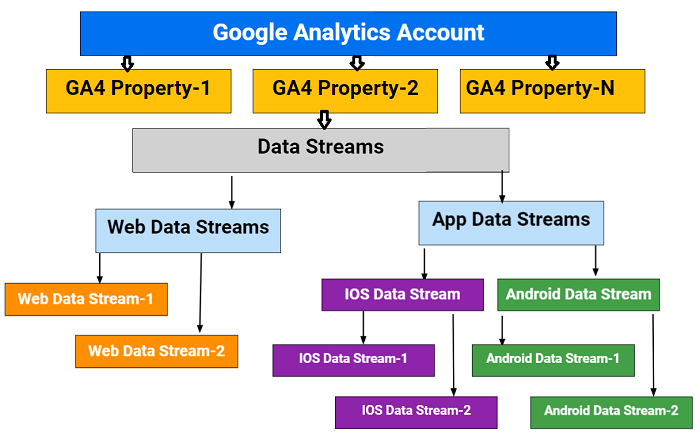
The data stream can be a web data stream or app data stream. The app data stream can be further classified into IOS and Android app data streams.
The web data streams represent a website. In contrast, an app data stream represents a mobile app.
If you want to learn more about how to structure your GA account for GA4, then check out this article: Google Analytics Account Hierarchy (structure explained)
Google Analytics 4 property and view
A Google Analytics 4 property is a GA property which allows you to integrate mobile app and website usage data. A GA4 property can collect data from both your mobile apps and website.
Even if you don’t have a mobile app, Google still recommends that you create and use the GA4 property and run it parallel with your GA3 property, as Google will discontinue GA3 in 2023.
The reporting view that you create in a GA4 property is a GA4 view.
Google Analytics 4 data streams.
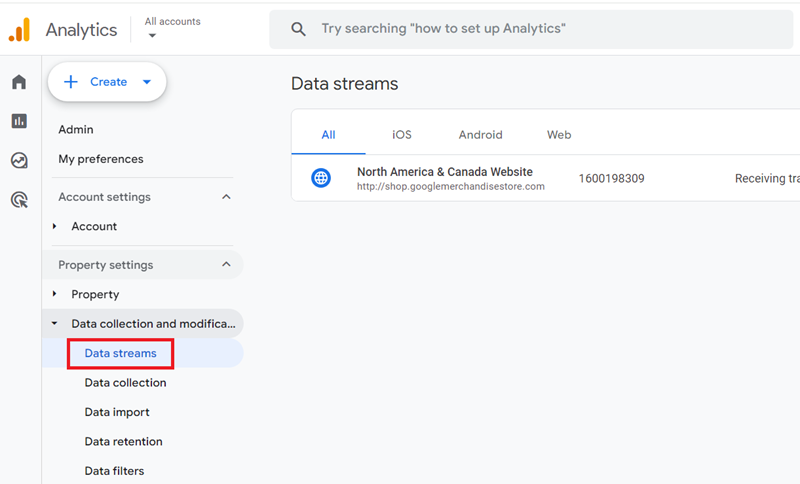
The GA4 property contains one or more data streams.
A data stream is a data source.
When the data source is a website, it is called a web data stream.
When the data source is a mobile app, it is called a mobile app data stream.
There are two types of mobile app data streams:
- IOS app data stream.
- Android app data stream.
A web data stream has: Stream URL, Stream name, Measurement ID, and Stream ID:
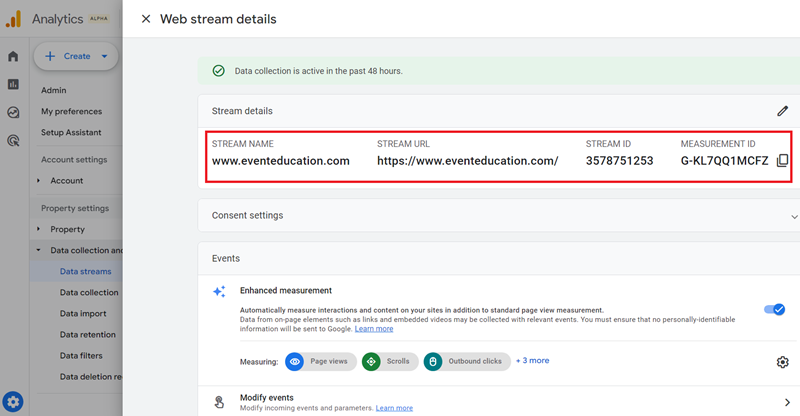
Measurement ID in Google Analytics 4.
A measurement ID is just like a tracking ID. However, unlike a tracking ID, the measurement ID begins with the characters ‘G-’. For example G-SV0HS12BXZ
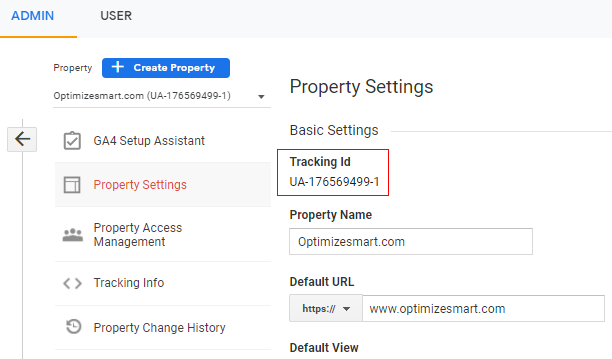
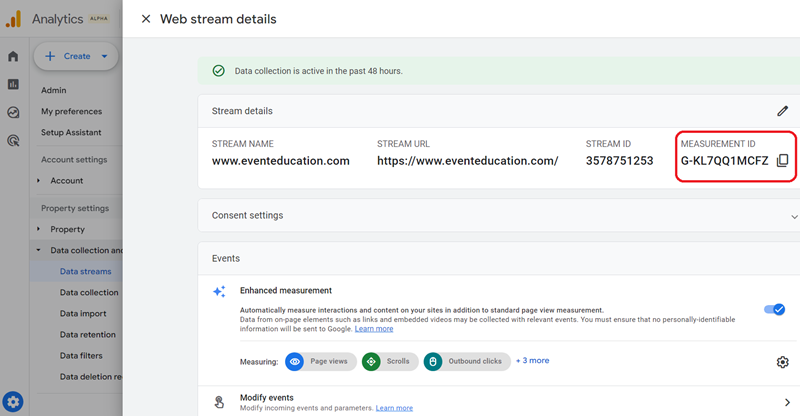
To set up any type of tracking in GA4, you need to use the measurement ID.
This makes understanding the measurement ID so important.
If you want to learn more about the measurement ID then check out this article: Understanding Google Analytics Measurement ID (GA4)
The ‘Event and Parameter’ measurement model of Google Analytics 4
GA4 uses the ‘Event and Parameter’ measurement model to track all types of users’ activities (including ‘pageviews’).
The ‘event and parameter’ measurement model is more flexible than the traditional ‘sessions and pageviews’ model for the following reasons:
#1 It allows you to see integrated data across mobile apps and websites in a single GA4 reporting view.
#2 It allows you to use a single set of metrics and dimensions across mobile apps and websites.
#3 It allows you to automatically track certain types of user interactions (like scrolls, outbound clicks, file downloads, video engagement, site search, etc.).
Google Analytics 4 Sessions.
A GA4 session is a group of events recorded for a user in a given time period.
To learn more about GA4 sessions, check out this article: Understanding Google Analytics 4 Sessions
Google Signals for Google Analytics 4.
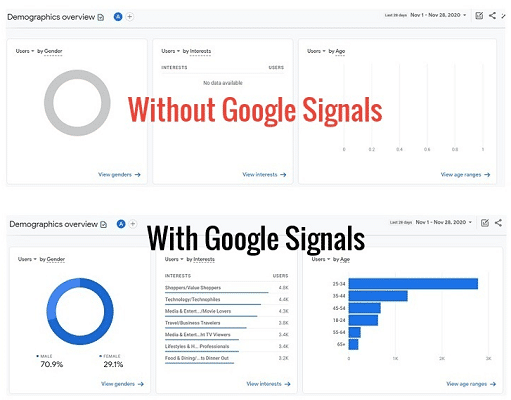
Google Signals is an advertising reporting feature of GA4 through which you can perform the following tasks:
- Collect cross-device data from those website users who have signed in to one of their Google accounts (Gmail, YouTube, etc.) and have turned on ad personalization.
- Analyze demographic data (age, gender and interest) of your users in GA4 reports.
- Track and remarket to more users across different devices and platforms.
Google Signals is not enabled by default; you have to activate it for your GA4 property.
Follow the steps mentioned in this article on how to enable and use Google Signals in GA4: Google Signals GA4 – See demographics (gender, age) in Google Analytics 4
Integrating Google Analytics 4 with Google Ads.
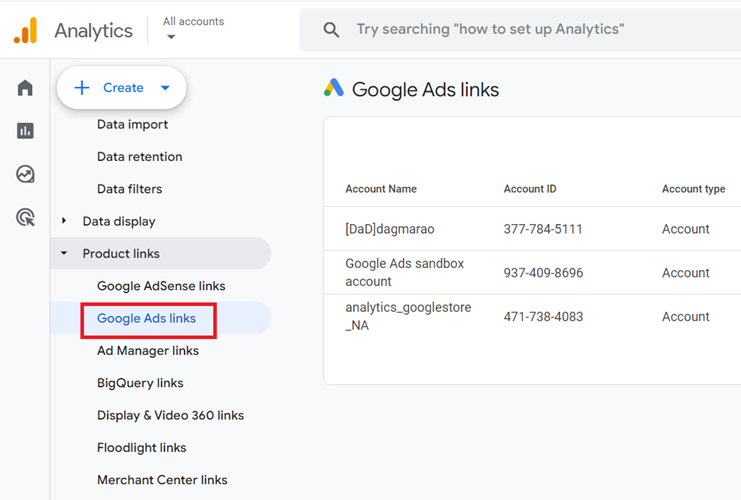
GA4 allows integration with Google Ads.
The following are the main benefits of integrating your GA4 property with your Google Ads account:
#1 In the case of GA3, you could set up a maximum of 20 conversions per reporting view. However, there is no such limit in the case of GA4. You can set up as many conversions as you want and later use them in Google Ads.
#2 Because of the event and parameter-based measurement model of GA4, you can define your remarketing audience in a more detailed manner based on events like a scroll, file download, video play, and custom events, and then later use these audiences in Google Ads.
Follow the steps mentioned in this article in order to connect your GA4 property with your Google Ads account: How to link GA4 (Google Analytics 4) with Google Ads.
Cross-domain tracking in Google Analytics 4.
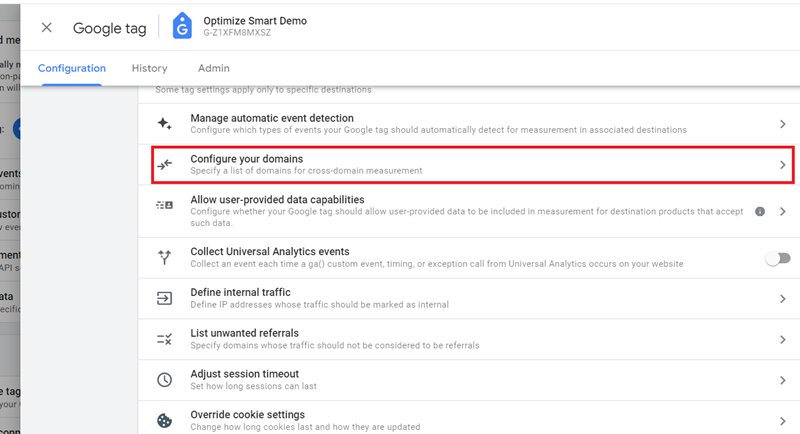
In the context of GA4, cross-domain tracking is the tracking of website users and their activities across two or more domains.
By default, GA4 cannot track website users and their activities across multiple domains.
That is because GA4 uses first-party cookies that can be read by only that domain that issued it.
You would need to set up cross-domain tracking manually.
With cross-domain tracking implemented, when the user navigates to a different domain, analytics cookies are passed from one domain to another using the URL parameter identified as key ‘_gl’.
For example, https://www.abc.com/?_gl=1*abhgfrt7*
This way, you can identify the same user across different domains and get a complete view of the user’s journey.
In order to set up cross-domain tracking in your GA4 property follow the steps mentioned in this article: Cross Domain Tracking in GA4 (Google Analytics 4) Setup Guide
Visualizing Google Analytics 4 data in Looker Studio
You can visualize the GA4 data in Looker Studio by using the Google Analytics connector:
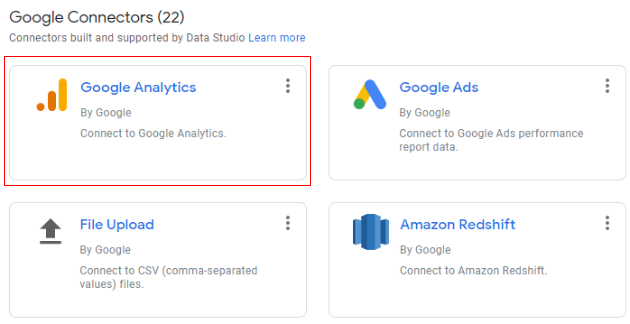
For step-by-step instructions on how to visualize the GA4 data in Looker Studio, check out this article: How to connect GA4 (Google Analytics 4) with Looker Studio
Using BigQuery with Google Analytics 4
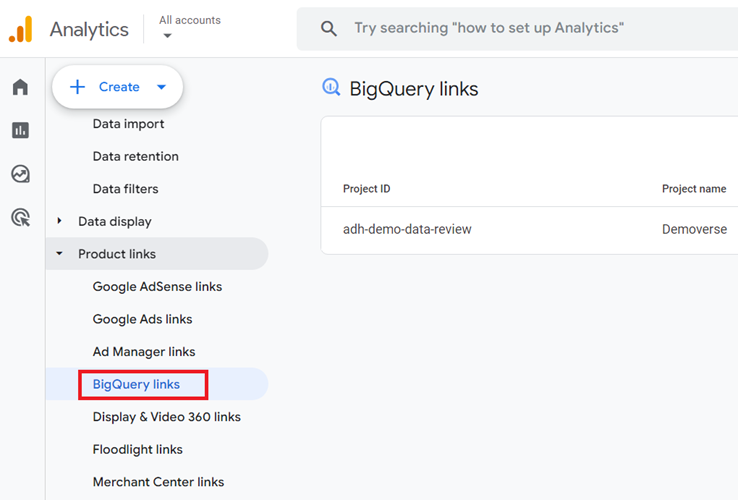
One of the big advantages of using Google Analytics 4 is its free connection to BigQuery.
Earlier, this feature was available to only the Google Marketing Platform users.
Now you can access the raw GA4 data and run SQL queries on it.
The following are other benefits of using BigQuery for GA4:
- No data sampling issues.
- You can connect GA4 data with third-party APIs.
- You can push data from BigQuery to a wide range of visualization tools like Google Data Studio, Tableau, Power BI and Qlik.
Follow the steps mentioned in this article in order to connect your GA4 property with BigQuery: GA4 BigQuery – Connect Google Analytics 4 with BigQuery
Understanding events in Google Analytics 4.
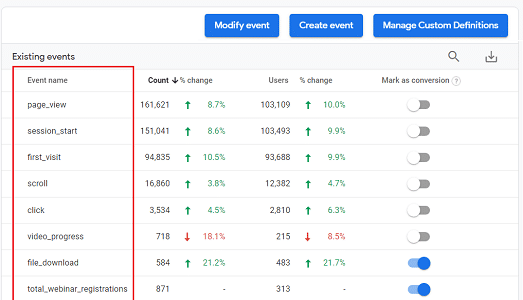
In the context of GA4, an event is a tracked user’s interaction with a web page element embedded on a website and/or mobile app.
In the case of GA4, all user interactions (including pageviews) are tracked as events.
There are four categories of events in GA4:
Check out the following articles to learn more about the events in Google Analytics 4:
- How to set up event tracking in Google Analytics 4 (GA4)
- How to fix duplicate events in GA4.
- How to set up enhanced measurement tracking in GA4 (Google Analytics 4)
- All Events Report in Google Analytics 4 (GA4)
- How to rename events in Google Analytics 4 (GA4)
- events_ & events_intraday_ tables in BigQuery for GA4 (Google Analytics 4)
- pseudonymous_users_ & users_ data tables in BigQuery for GA4 (Google Analytics 4)
What are the event parameters in Google Analytics 4?

Parameters are the additional information about a GA4 event that is sent along with the event.
There are three types of event parameters:
- Automatically collected parameters.
- Custom parameters.
- User properties.
To learn more about event parameters in GA4, check out this article: Understanding Event Parameters in Google Analytics 4 (GA4)
Conversion tracking in Google Analytics 4.
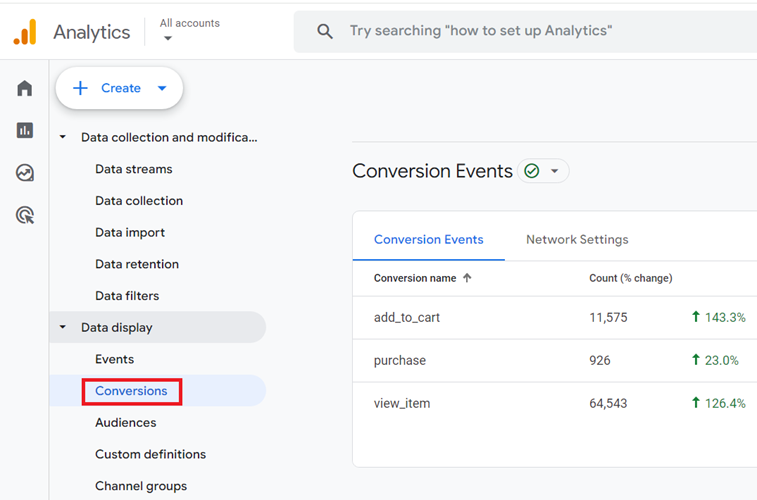
A conversion is a goal or objective for which website/app has been set up.
Your website/app can have one or more objectives like:
- Getting newsletter signups
- Generating leads
- Getting video views
- Generating sales, etc.
These objectives can be tracked as conversions in a GA4 reporting view.
In Google Analytics 4, you can mark any tracked event as a conversion.
This is the simplest way to set up conversions for already available tracked events.
You can also set up conversions in GA4 by creating a new conversion event.
To learn more about conversions in GA4, check out the following articles:
- How to set up conversion tracking in Google Analytics 4
- How to import conversions from GA4 property to your Google Ads account
Ecommerce tracking in Google Analytics 4.
The ecommerce tracking setup in GA4 is quite different from the corresponding tracking setup in GA3 and other Google Analytics versions.
If you want to set up ecommerce tracking in GA4 via GTM then follow the steps mentioned in this article: GA4 (Google Analytics 4) Ecommerce Tracking via GTM – Tutorial
Custom audience in Google Analytics 4.
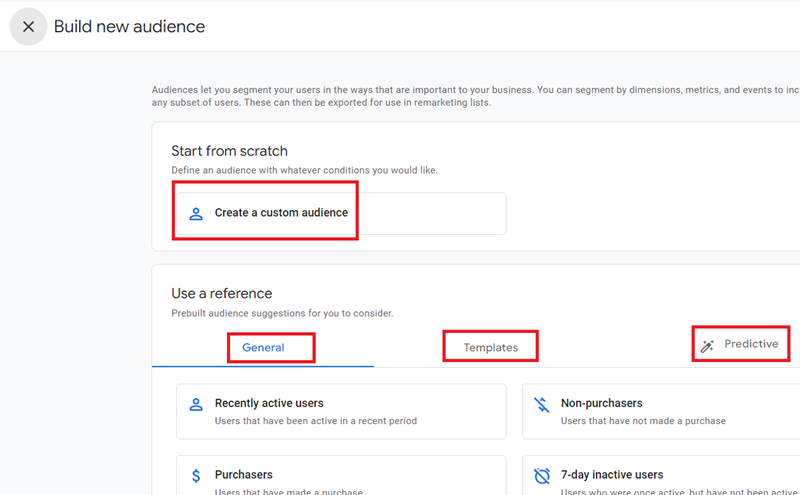
In the context of GA4, an audience is a group of users who all share some common characteristics.
The following are examples of audiences:
- Group of users whose location is ‘London’ (London audience).
- Group of users who visited the website via Facebook Ads (Facebook Ads audience).
A user can be a member of multiple audiences depending on the conditions applied in the audience.
You can use GA4 audiences as remarketing audiences for your Google Ads.
You can create up to 100 audiences per GA4 property.
In order to create and use audiences in GA4, read this article: GA4 Audiences – Creating custom audience in Google Analytics 4
Audience triggers in Google Analytics 4.
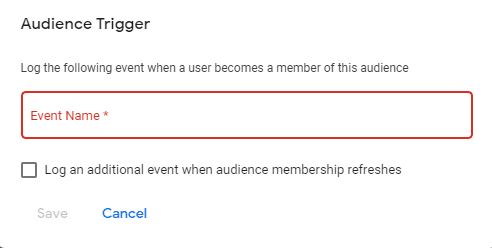
In GA4, you can create audience trigger events that fire when users match the definition of an audience and become members.
Audience triggers are used to create complex conversion events in GA4.
You can create up to 20 audience trigger events per GA4 property.
Follow the steps mentioned in this article in order to create audience trigger events in GA4: Understanding Audience Triggers in Google Analytics 4 (GA4)
Predictive metrics in Google Analytics 4.
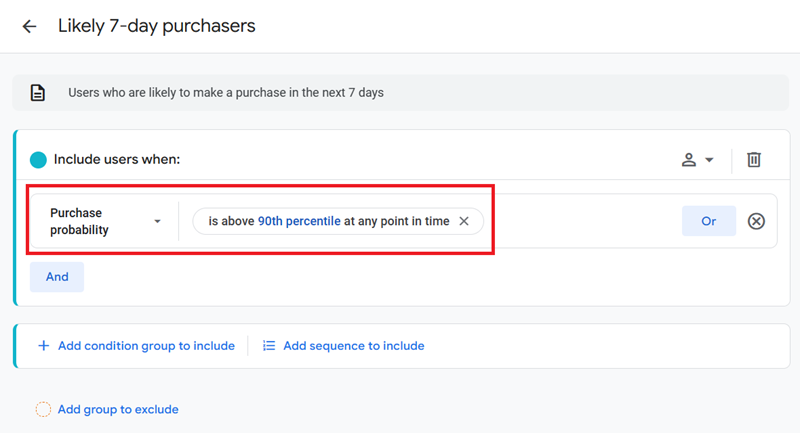
You can identify users and their actions on the website that will likely lead to a purchase or conversion through predictive metrics.
This can help you discover more users who can purchase a product in the next seven days.
You can use predictive metrics in ‘Audience builder’ while creating a custom audience or doing advanced analysis.
There are three types of predictive metrics available in GA4:
- Purchase probability.
- Churn probability.
- Revenue prediction.
To learn more about predictive metrics in GA4, read this article: What are predictive metrics in Google Analytics 4 (GA4).
Predictive audiences in Google Analytics 4.
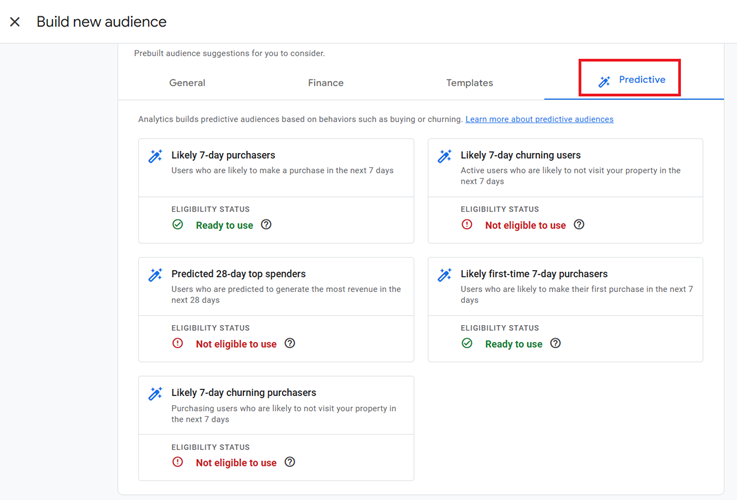
Predictive audiences in Google Analytics 4 help you identify users who are likely to perform a certain action in the near future.
A predictive audience is based on a predictive metric’s condition(s) like purchase probability, churn probability, and revenue predictions.
The following are examples of predictive audiences:
- Likely 7-day purchasers – Users likely to purchase in the next seven days.
- Likely first-time 7-day purchasers – Users likely to make their first purchase in the next seven days.
- Likely 7-day churning users – Active users likely to not visit your website in the next seven days.
- Likely 7-day churning purchasers – Purchasing users likely to not visit your website in the next seven days.
To learn more about predictive audiences in GA4, read this article: How to create and use predictive audiences in Google Analytics 4 (GA4).
Remarketing audiences in Google Analytics 4.
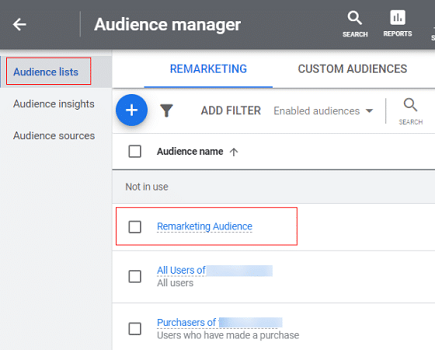
You can create a custom audience in GA4 and then use it for remarketing purposes in Google Ads.
When you use a custom audience for remarketing purposes, it is called the remarketing audience.
However, before you create a remarketing audience in GA4, you need to link your GA4 property with your Google Ads account.
To learn more about remarketing audience, read this article: How to create a remarketing audience in Google Analytics 4 (GA4)
Measurement protocol in Google Analytics 4.
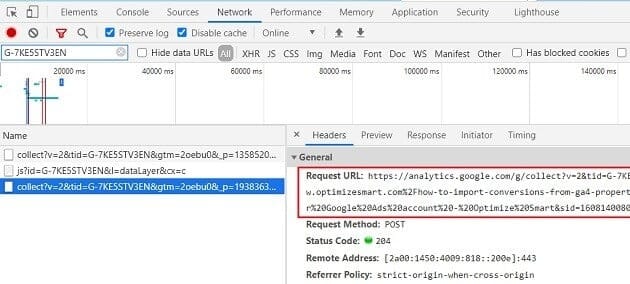
The measurement protocol is a set of rules that your application must follow to send event data directly to the Google Analytics servers from any device/system connected to the internet.
A basic understanding of how measurement protocol works can help you greatly build your foundation in GA4 and debugging GA4 events set up.
To learn more about the measurement protocol, read this article: Understanding GA4 measurement protocol.
Building comparisons (advanced segments) in Google Analytics 4.
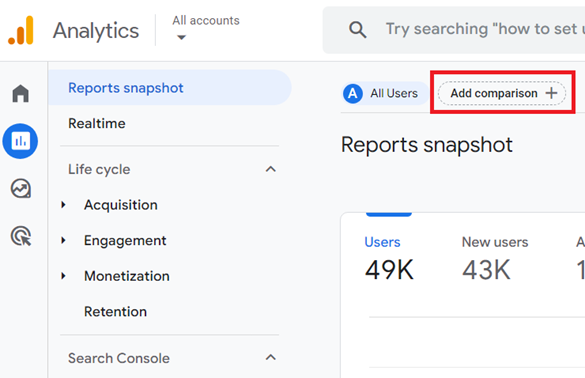
Comparisons in GA4 are just like advanced segments used in Universal Analytics. They allow you to to isolate and analyze a subset of data.
You create comparisons by creating conditions based on dimensions and dimension values.
For example, all users vs users from ‘United States’.
You can apply the comparison to any GA4 report.
To create and apply comparisons to your GA4 report follow the steps mentioned in this article: How to build comparisons (advanced segments) in Google Analytics 4 (GA4)
Automated insights in Google Analytics 4 (GA4).
The automated insights feature of Google Analytics 4 is just like the analytics intelligence feature available in Universal Analytics reporting views:
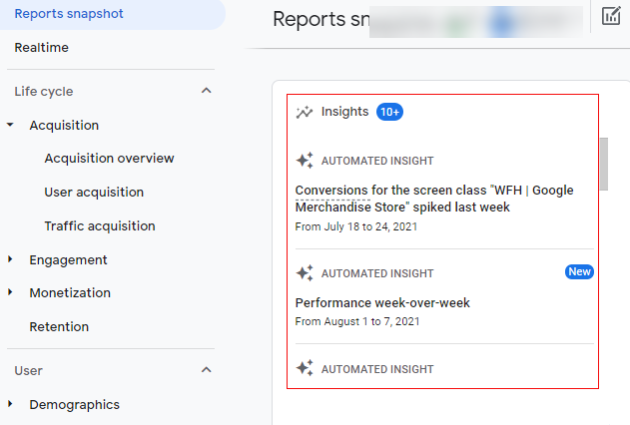
GA4 automatically generate insights for you (based on machine learning) whenever it detects unusual changes or emerging trends in your data.
To learn more about automated insights, read this article: Understanding Automated Insights in Google Analytics 4 (GA4)
Creating custom insights in Google Analytics 4.
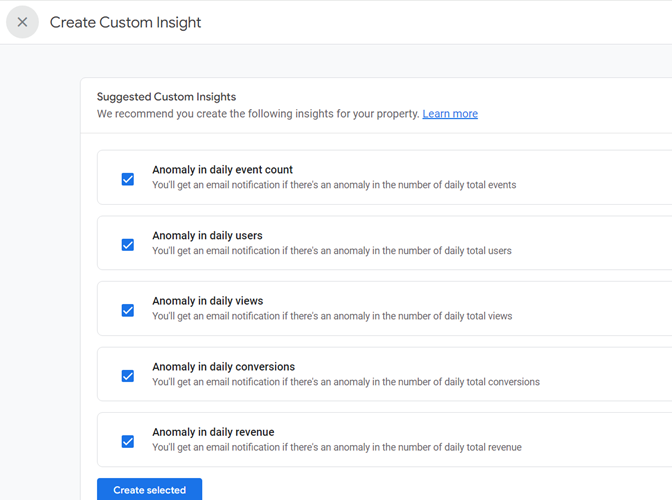
Google Analytics 4 provides two types of insights; automated insights and custom insights.
While GA4 automatically generates automated insights, custom insights are not automatically generated.
You can create up to 50 custom insights per GA4 property.
Follow the steps mentioned in this article to create custom insights in GA4: How to create custom insights in Google Analytics 4 (GA4)
The DebugView report in Google Analytics 4.
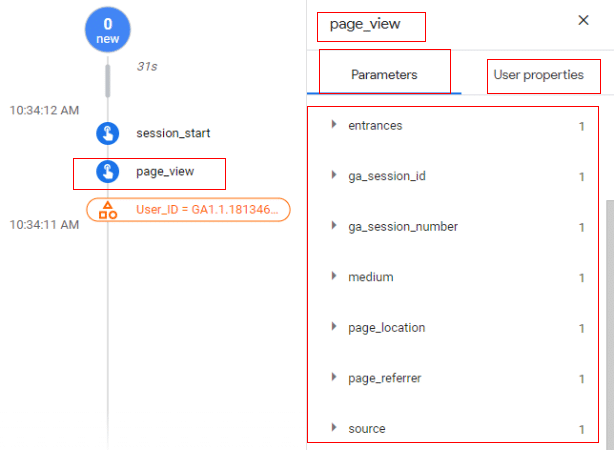
The DebugView report is a special type of real-time report provided by GA4 through which you can troubleshoot your analytics setup issues within the GA4 user interface.
DebugView allows you to monitor your website/app event data in real-time, along with all the custom parameters and user properties.
Note: The DebugView report only shows you real-time events data for the last 30 minutes.
If you want to understand the DebugView report in more detail then read this article: How to use DebugView report in Google Analytics 4 (GA4)
Data filters in Google Analytics 4.
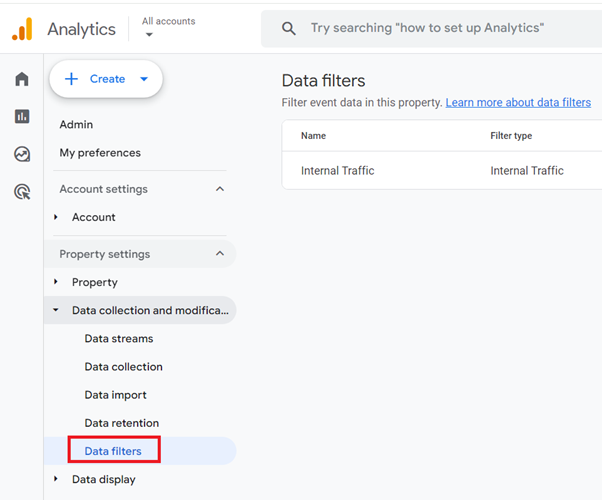
Data filters are one of the features of GA4, through which you can include or exclude certain event data from your GA4 reporting view.
It is important to remember that data filters do not work retroactively.
And once you apply the data filter, the effect on your event data is permanent and can not be reversed.
There are two types of data filters available in GA4:
- Developer traffic – Use this filter to block developer traffic (the traffic generated from your own device while debugging the analytics implementation).
- Internal traffic – Use this filter to block internal traffic (the traffic generated on your website by your own employees, suppliers, and other service providers).
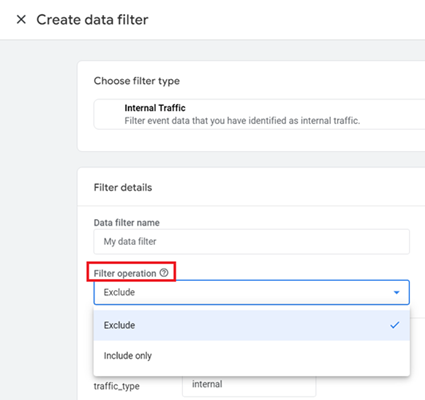
The data filters in GA4 can be further classified into include and exclude filters depending upon the filter operation being used:

Note: You can create up to ten data filters per GA4 property.
To learn more about data filters, check out the following article:
- What are data filters in Google Analytics 4 (GA4)?
- How to block internal traffic in Google Analytics 4 (GA4)
- How to create and test a new data filter in Google Analytics 4 (GA4)
Scroll tracking in Google Analytics 4.
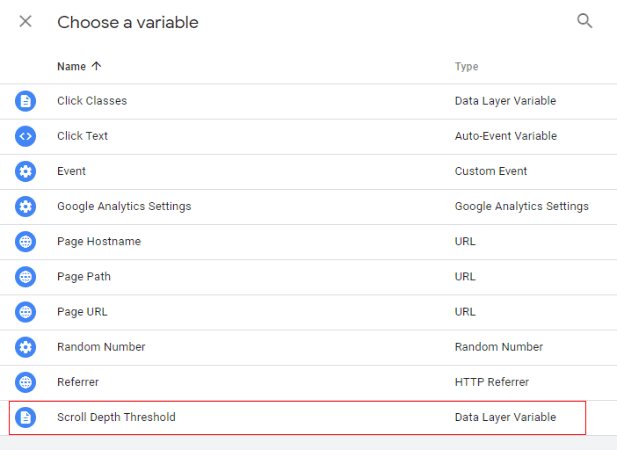
Scroll tracking in GA4 allows you to measure how users engage with your website content.
Google Analytics 4 automatically track scroll events by default through its enhanced measurement feature. But it tracks only 90% scroll events. It does not by default track other scroll depths, like 10%, 25%, 50% and 75%.
These scroll depth events can also play an important role in measuring website user behavior, especially if you have a content-rich website (like a blog).
If you want to set up scroll events for lesser thresholds (10%, 25%, 50% and 75%), you need to set up custom events using the global site tag (gtag.js) or Google Tag Manager.
Follow the steps mentioned in this article to set up scroll tracking in GA4 via GTM: Scroll Depth Tracking in Google Tag Manager – Tutorial.
Site search tracking in Google Analytics 4.
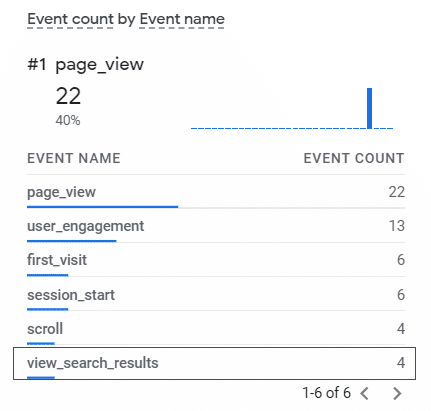
Site search (or internal site search) is a functionality provided by a website in the form of a search box:

Users can search for specific content on your website through this search box.
If your website provides site search functionality, you should set up site search tracking in your GA4 property.
Follow the steps mentioned in this article to set up site search tracking in GA4: GA4 Site Search – Tracking Site Search in Google Analytics 4
Channel groupings in Google Analytics 4.
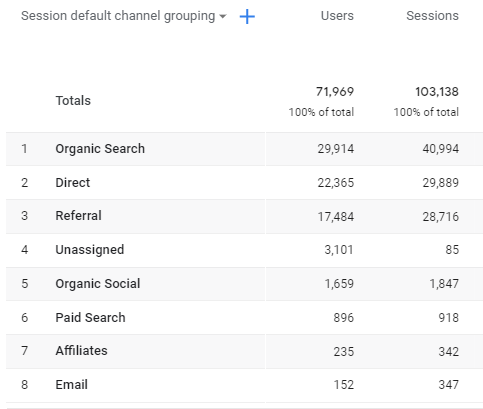
Channel groupings are a rule-based grouping of marketing channels.
In GA4, channel groupings are used to quickly check the performance of a set of marketing channels or a set of traffic sources.
To learn more about channel groupings in GA4, check out this article: Understanding Channel Groupings in Google Analytics 4 (GA4).
Data sampling in Google Analytics 4 (GA4).
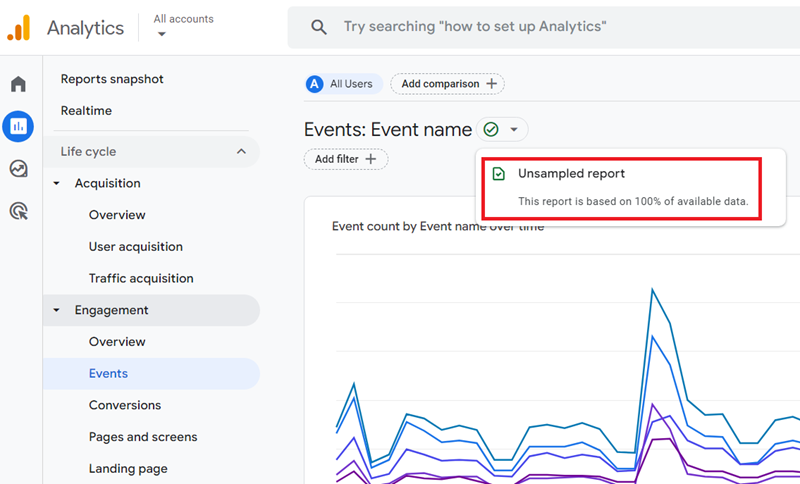
Data sampling is the process of selecting only a subset of traffic data for analysis and reporting.
It is widely used in statistical analysis to analyse large data sets in a cost-efficient manner.
When GA4 analyses the complete traffic data set to produce a report, the produced report is considered unsampled.
The metrics reported by an unsampled report are considered to be highly accurate as they are based on complete traffic data set.
When GA4 analyses only a subset of traffic data to produce a report, the produced report is considered to be sampled.
The metrics reported by a sampled report may not be very accurate as they are based on incomplete traffic data set.
To learn more about data sampling in GA4, check out this article: Understanding Data Sampling in Google Analytics 4 (GA4).
Google Analytics 4 Event Builder.
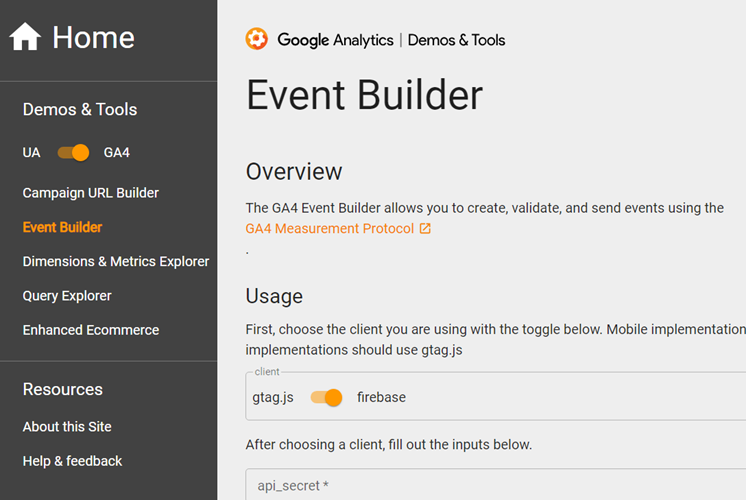
If you want to send offline events data to a GA4 property, you can do that via the Google Analytics 4 Event Builder.
You can create and validate measurement protocol events using the measurement protocol validation server through this tool.
This tool is made up of the following two sections:
- Hit summary
- Event details
To learn more about using the GA4 event builder, read the article: How to use Google Analytics 4 Event Builder.
Funnel Exploration report in Google Analytics 4.
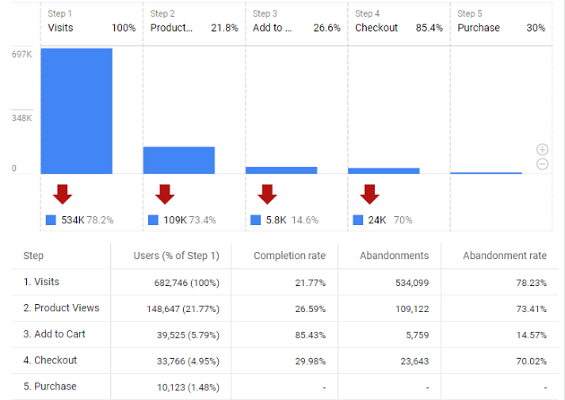
Use the Funnel Analysis report in GA4 to visualize the various steps your users take to complete a task (usually a conversion) and where they drop off in your conversion funnel.
You can find the Funnel Exploration report under Explore.
Learn more about this report from this article: How to use the Funnel Exploration Report in Google Analytics 4 (GA4).
Segment Overlap report in Google Analytics 4.
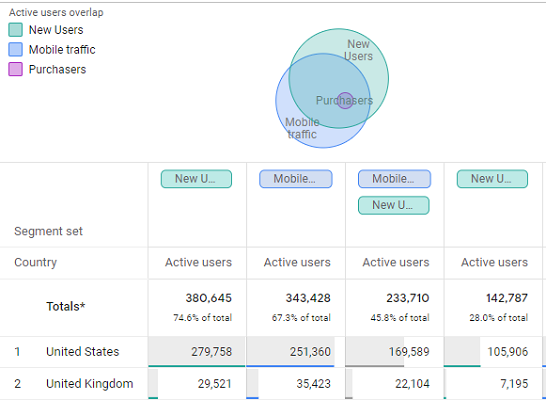
Use the Segment Overlap report to visualize the various user segments and understand how they relate to each other.
You can find this report under Analysis Hub in your GA4 reporting view.
Learn more about the Segment Overlap report from this article: How to use Segment Overlap Report in Google Analytics 4 (GA4).
Path Analysis report in Google Analytics 4.
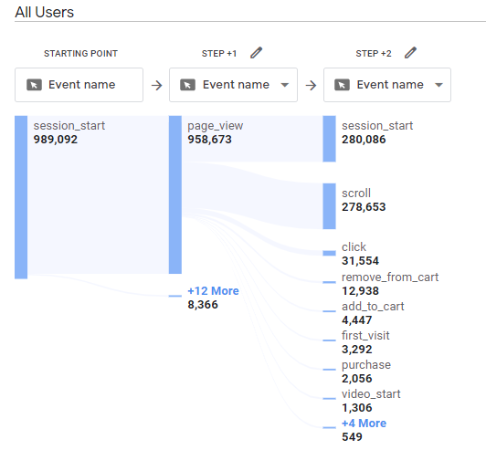
The Path Analysis report is one of the report templates available in the Explore tab of GA4.
Through this analysis technique, you can explore your users’ journey (the steps they took through your website/app) in the form of a tree graph.
You can discover the previous and next actions your users took. You can measure the effects of an event on users’ actions.
You can learn more about Path Analysis in GA4 from this article: How to use path analysis report in Google Analytics 4 (GA4).
User Lifetime Report in Google Analytics 4.
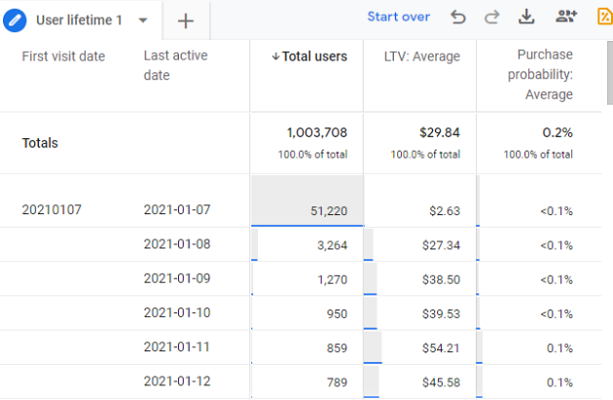
The User Lifetime report is one of the report templates available in the Analysis Hub of GA4.
Through this analysis technique, you can analyze the entire lifetime of your users’ behavior as customers, as long as they have been active on your website or app since or after August 15th 2020.
Through the User Lifetime report, you can get the following information about each user:
- Initial interactions.
- Most recent interactions.
- Lifetime interactions.
- Predictive metrics.
You can learn more about user lifetime in GA via the article: How to use the user lifetime report in Google Analytics 4 (GA4).
Importing data to Google Analytics 4.
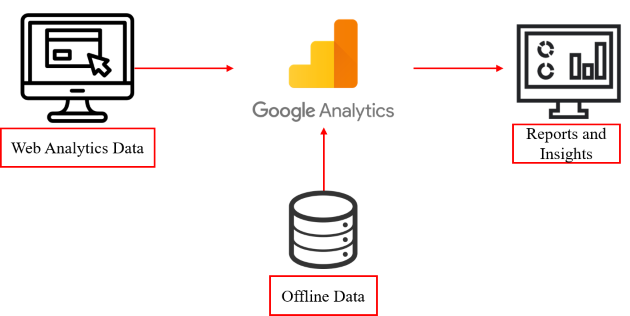
Through the data import feature, you can upload data from external data sources (like CRM, CMS, shopping cart, etc.) and then combine it with the Google Analytics 4 data.
You can upload the data by uploading one or more CSV files to your GA4 property.
To learn more about the GA4 data import feature, check out the article: GA4 Data Import Tutorial.
Google Analytics 4 test property.
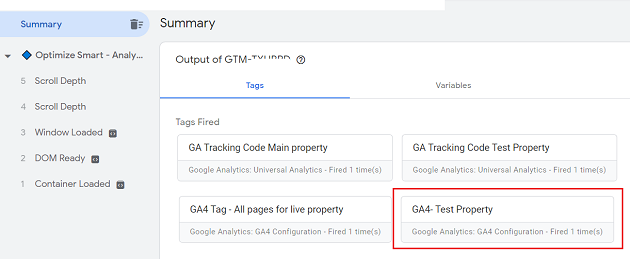
The Google Analytics 4 property comes with only one reporting view.
So whenever you change one of the settings of your GA4 property, you permanently change the way the data is collected, processed and reported in your GA4 reporting view.
If your changes skew your analytics data, then your data is skewed for good.
That’s why you need to create a separate GA4 property just for testing purposes. We call this property a GA4 test property.
To learn more about the GA4 test property, check out this article: Using the GA4 test property.
Excluding unwanted referrals in Google Analytics 4.
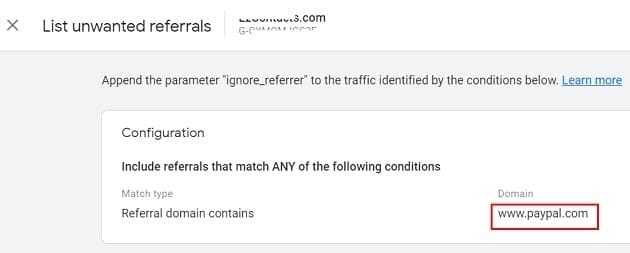
In the Universal Analytics property, we have the referrals exclusion list to exclude the referral traffic from certain domains. In Google Analytics 4, the referrals exclusion list has been replaced by the ‘unwanted referrals’ list.
Unlike in Universal Analytics, GA4 can automatically detect and fix self-referral issues via the feature called ‘Automatic self-referral detection‘.
To learn more about excluding the unwanted referrals in GA4, check out this article: Self-referral Google Analytics 4 – Referral exclusion GA4
Causes of Sudden Spike in Direct Traffic in GA4
Do you sometimes see sudden and massive spikes in direct traffic in your GA4 reports?
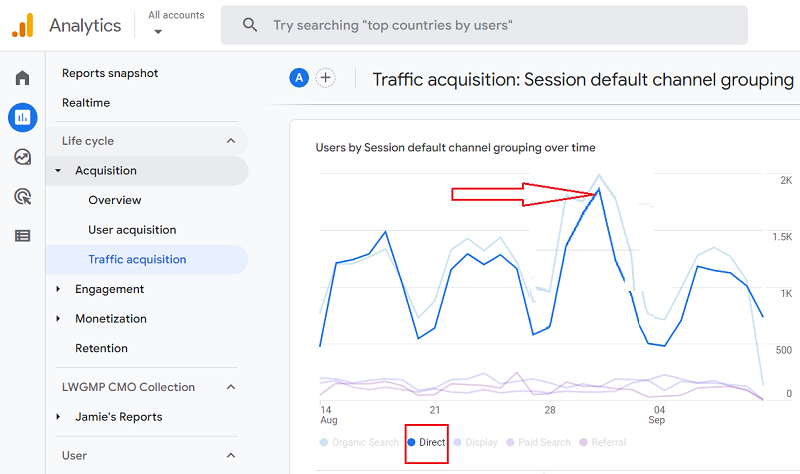
If yes, did it last for a couple of days, or do you see a continued increase in direct traffic, day after day, week after week?
Remember, people will not automatically find your website and visit it directly. They find and visit your website in response to some marketing activity.
So, you need to be aware of this marketing activity if you want to determine the cause of the sudden spike in direct traffic.
Check out this article for more details: Causes of Sudden Spike in Direct Traffic in Google Analytics.
Dimensions in Google Analytics 4.
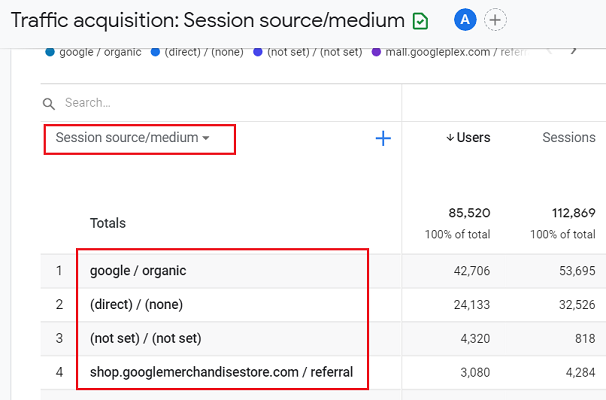
A dimension is one of the attributes of your website/app users.
Each dimension is made up of a name and a value.
For example, ‘Sessions source/medium’ is the dimension name and ‘(direct)/(none) ‘is one of the values of this dimension.
There are two broad categories of dimensions in GA4: Default dimensions and custom dimensions.
Both default dimensions and custom dimensions can be used as either a primary dimension or a secondary dimension.
To learn more about GA4 dimensions, check out this article: GA4 Dimensions Tutorial.
Custom dimensions in GA4.
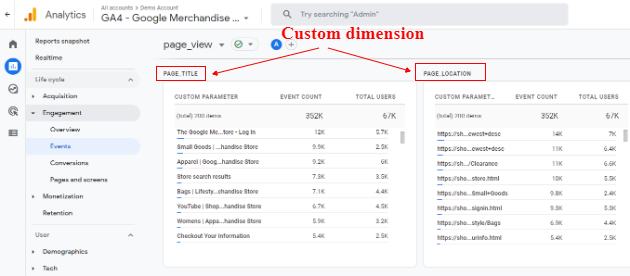
Google Analytics 4 allows you to create your own dimensions to measure the data that cannot be measured by default dimensions.
Such dimension is known as the custom dimension. Technically speaking, a custom dimension is an event parameter.
To learn more about custom dimensions in GA4, check out this article: GA4 Custom Dimensions Tutorial.
Event-scoped custom dimensions in Google Analytics 4.
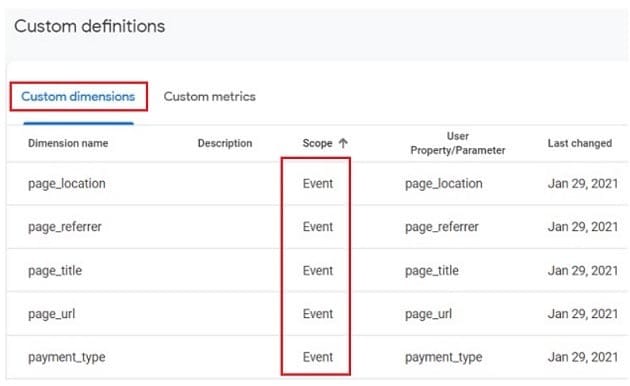
In addition to creating a user scoped custom dimension in GA4, you can also create an event scoped custom dimension.
The dimension which has an event scope is called the event scope dimension.
This dimension gets its value from the event scoped parameter you send along with an event.
To learn more about GA4 event scoped custom dimensions, check out this article: Event Scoped Custom Dimensions in GA4 – Tutorial.
User-scoped custom dimensions (user properties) in Google Analytics 4.
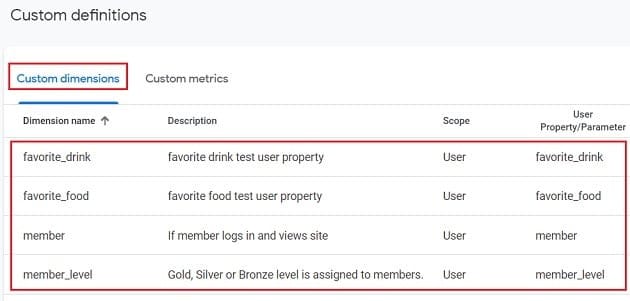
User properties are similar to the user-scoped custom dimensions of Universal Analytics.
They are used to describe the attributes of your website/app users.
There are two types of user properties:
- Predefined user properties.
- Custom user properties.
You can create up to 25 unique user properties per GA4 property.
To learn more about user properties, check out this article: GA4 User Properties (User Scoped Custom Dimensions) – Tutorial.
Metrics in Google Analytics 4 (GA4).
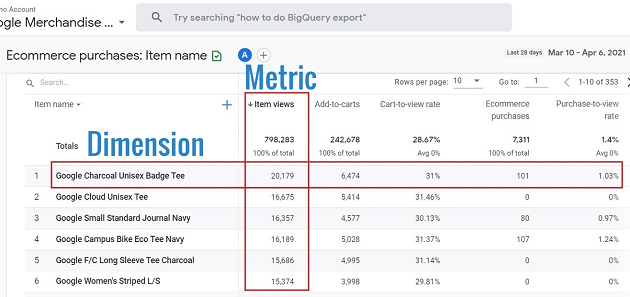
A GA4 metric is (and should be) a number used to measure one of the characteristics of a GA4 dimension.
A dimension can have one or more characteristics.
For example, the following are the characteristics of the dimension called ‘User medium’:
- New users
- Engaged sessions
- Engagement rate
- Engaged sessions per user
Without a dimension, a standalone metric is meaningless to analyze and report.
That is because a dimension provides context to a metric.
To learn more about metrics in GA4 check out this article: GA4 Metrics Tutorial.
Custom metrics in Google Analytics 4.
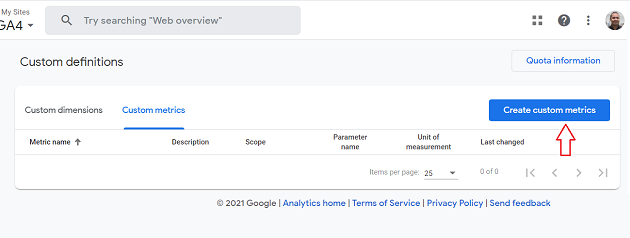
The custom metrics are user-defined metrics in GA4.
You should create and use custom metrics to measure the characteristics of a dimension (whether default or custom dimension) that cannot be measured by any default metric.
To learn more about custom metrics in GA4, check out this article: GA4 Custom Metrics Tutorial.
Installing Google Analytics 4 on the Shopify Store.
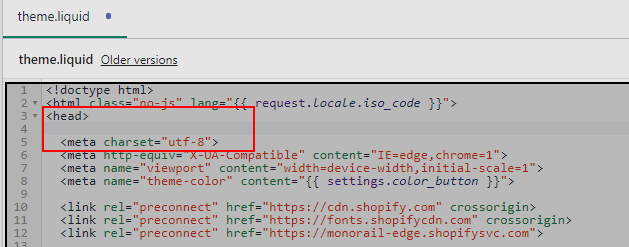
You can install Google Analytics 4 on your Shopify store by making code changes to the ‘theme.liquid’ file.
To learn more, check out this article: How to Install Google Analytics 4 on Shopify.
Google Analytics 4 Annotations.
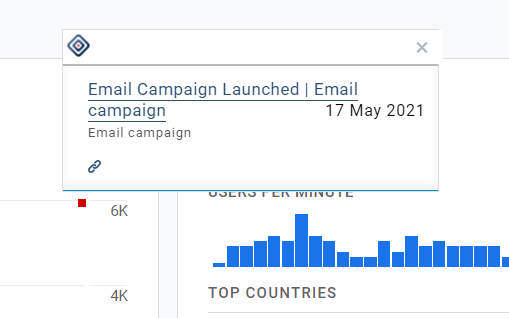
Google Analytics annotations are short notes that you can directly add to your GA reports.
With the help of these notes, you can remember the reason for certain peaks and valleys in your data trends even months from today.
In the case of Universal Analytics, the annotation features are built-in.
But in the case of GA4, you would need to use a third-party tool.
To learn more about adding annotations to your GA4 report, check out this article: Google Analytics 4 Annotations Tutorial.
Setting up GA4 via GTM Server Side Tagging.
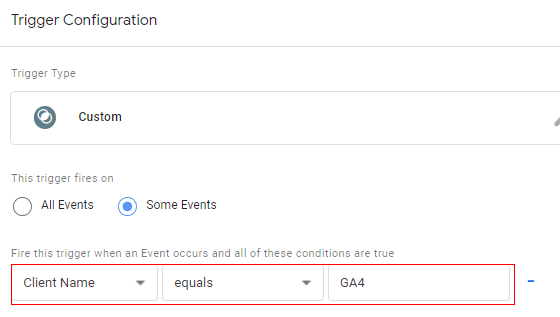
You can deploy Google Analytics 4 via the GTM server-side container.
To learn more, check out this article: How to set up GA4 via GTM Server Side Tagging.
Tracking single-page apps in Google Analytics 4 (GA4).
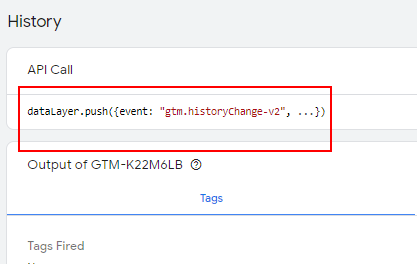
Learn to track single-page apps in Google Analytics 4 (GA4) through this step-by-step guide: How to track single page apps in Google Analytics 4 (GA4).
Connecting and exporting data from Google Analytics 4 to BigQuery.
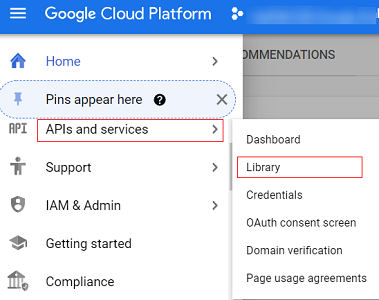
GA4 allows you to link to a BigQuery project where you can run custom queries on the GA4 data sets.
You can export all events from GA4 to BigQuery and then use SQL-like syntax to query the data.
Learn to connect and export data from GA4 to BigQuery through this step by step guide: How to connect and export data from GA4 to BigQuery
Cohort Exploration Report in Google Analytics 4 (GA4).
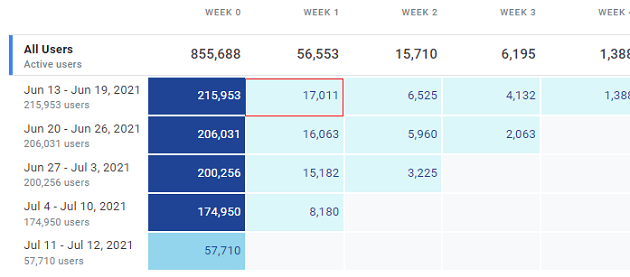
Through the cohort exploration report in GA4, you can do cohort analysis.
The cohort analysis is the analysis of the website users who showed common characteristics, attributes, or experiences in a particular time frame.
This report is available under the ‘Explore’ menu in a GA4 reporting view.
To learn more about cohort exploration in GA4, check out this article: Cohort Exploration Report in Google Analytics 4 (GA4)
Attribution Models in Google Analytics 4.
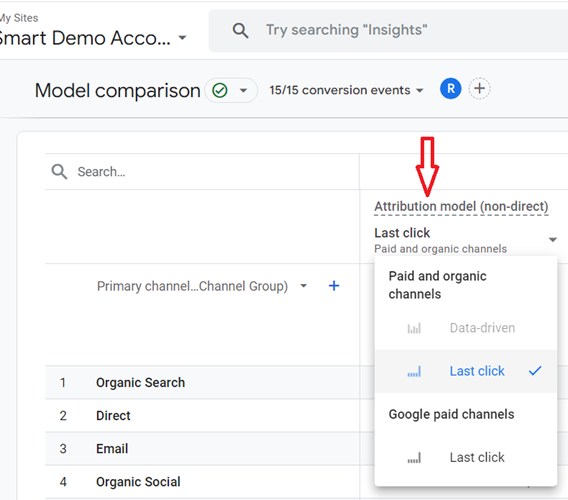
A GA4 attribution model is a rule or set of rules or a data-driven algorithm used to determine how conversion credit should be distributed to various marketing touchpoints on a conversion path.
The following attribution models are available in Google Analytics 4:
- Cross-channel last-click attribution model
- Cross-channel first click attribution model
- Cross-channel linear attribution model
- Cross-channel position-based attribution model
- Time decay attribution model
Note: Currently, the Data-Driven Attribution Model is not available in GA4.
To learn more about GA4 attribution models, check out the following articles:
- Guide to Attribution Models in GA4 (Google Analytics 4).
- How to Change Attribution Models in GA4 (Google Analytics 4)?
Integrating Google Analytics 4 with Google Search Console.
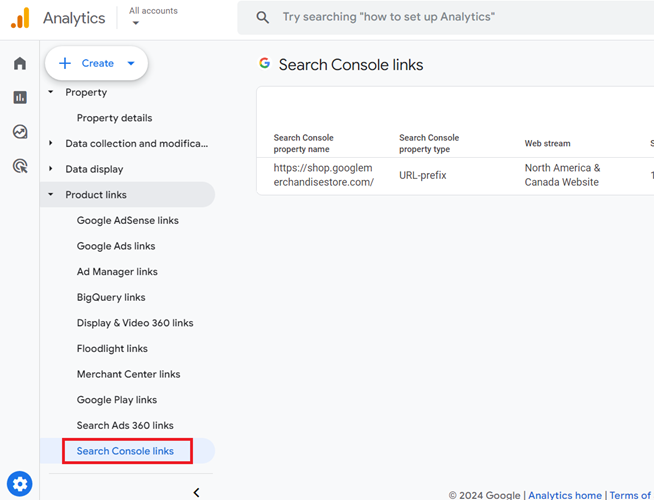
You can connect your GA4 property with your Google Search Console account via the ‘search console linking’ feature in your GA4 admin area.
Such integration allows you to see the search console data in GA4.
To learn more about integrating GA4 with search console, check out this article: How to link Google Search Console to Google Analytics 4 (GA4)
Google Analytics 4 Content Grouping.
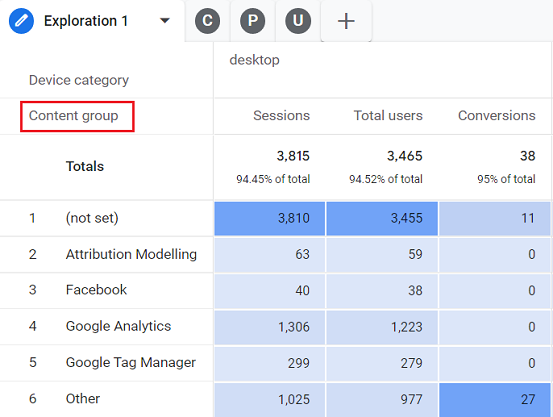
Just like Universal Analytics, GA4 also allows you to create content groups.
The content groups are a set of web pages based on the same topic like Attribution Modelling.
Through content groups, you can check the performance of a set of web pages at the group level.
To learn more about creating content groups in GA4, check out this article: Google Analytics 4 Content Grouping – Create Content Groups in GA4
GA4 Landing Page report.
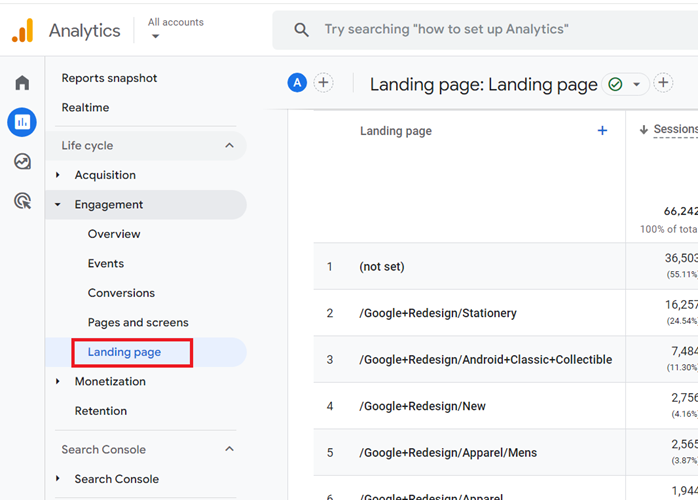
There are two methods you can use to create a landing pages report in GA4:
- Use the exploration report template.
- Customize the Pages and Screens report.
For step by step instructions on creating a landing pages report in GA4, check out this article: How to Create Landing Pages Report in GA4 (Google Analytics 4)
Google Analytics 4 Sub Properties.
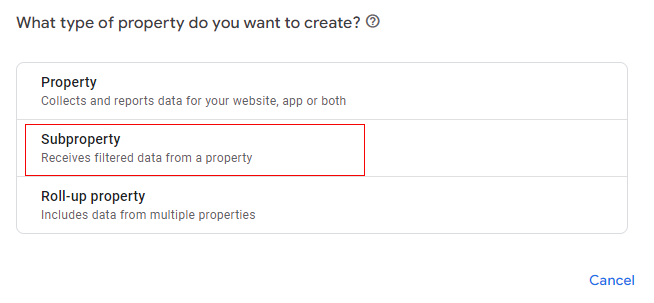
A sub property is a GA4 property which gets its data from another property. This other property is called the source property.
If you want to create a filtered reporting view in GA4, create and use the GA4 sub property.
For step by step instructions on creating and using the GA4 sub-properties, check out this article: Google Analytics 4 Sub Properties Tutorial.
Google Analytics 4 Roll-up Properties.
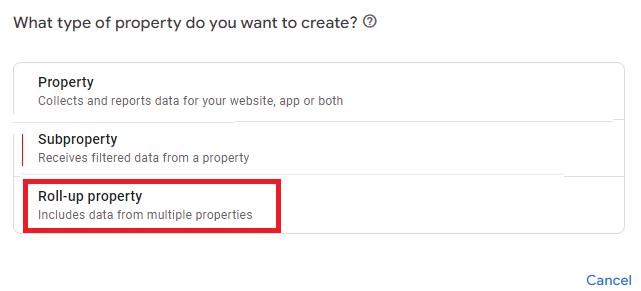
A roll-up property is a GA4 360 property that allows roll-up reporting in GA4.
Roll-up reporting is the reporting of data in an aggregated form from multiple digital properties (websites, mobile apps).
Through roll-up reporting you can aggregate all of your website data into one reporting view and see aggregated global performance metrics.
To learn more about roll-up reporting and properties in GA4, check out this article: Roll up Property in Google Analytics 4 (GA4) – Tutorial
Linking Firebase project to Google Analytics 4 property.

By linking your Firebase project to your GA4 property you can automatically create mobile app data streams in your GA4 property and you can enable data flow between Firebase and GA4.
To get step by step instructions on connecting your Firebase project to GA4, check out this article: GA4 Firebase Integration – Correctly add App data streams to GA4 property
GA4 Google Ads Report.
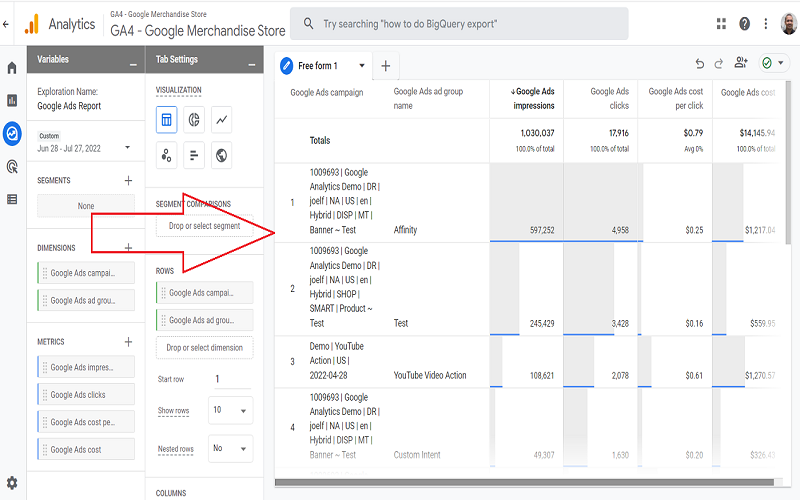
A GA4 property does not provide any pre-built report to measure the performance of Google Ads.
You would need to create this report from scratch by using the exploration report templates.
For step by step instructions on creating this report from scratch, check out this article: How to create Google Ads report in GA4 (Google Analytics 4)
Segmenting GA4 data by data streams.
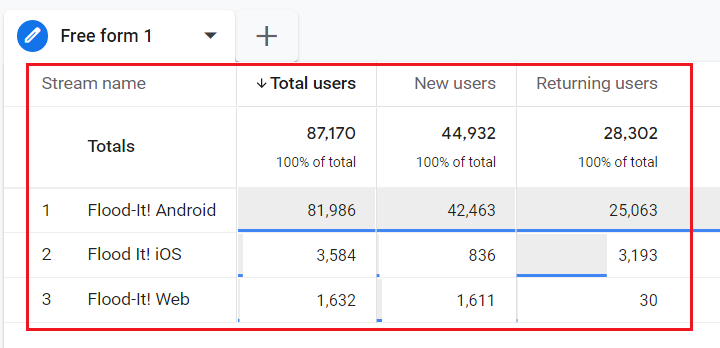
If you have added more than one data stream to your GA4 property, then you can segment the GA4 data by data stream.
This would help you in measuring and comparing the performance of different data streams in one GA4 report.
For step by step instructions on segmenting the GA4 data by data streams, check out this article: How to segment GA4 data by data stream
GA4 BigQuery Export schema.
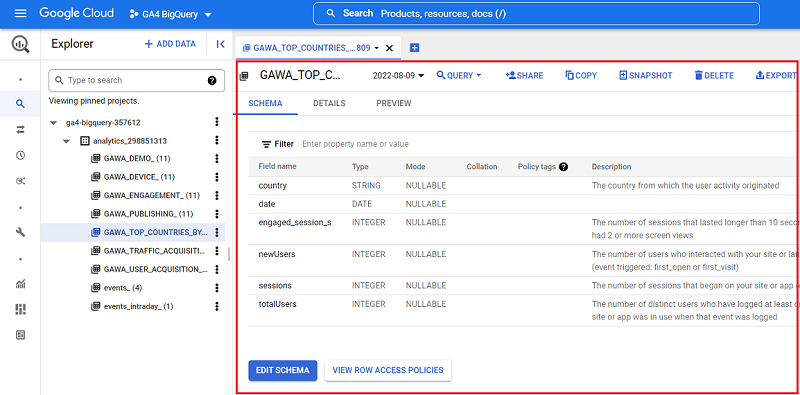
GA4 BigQuery Export schema refers to the format and structure of the GA4 data and the Firebase data that is exported to BigQuery from a GA4 property.
When you send data from a GA4 property to BigQuery, you use the default schema provided by Google.
You do not get the option of creating the data tables you want or setting the fields you want to see in the data table(s).
If you want to see your data tables with only the fields you want then you need to create your own schema (also called Custom Schema).
For step by step instructions on creating your GA4 custom schema, check out this article: BigQuery GA4 schema – Send Custom GA4 data to BigQuery.
Backfilling GA4 data in BigQuery.
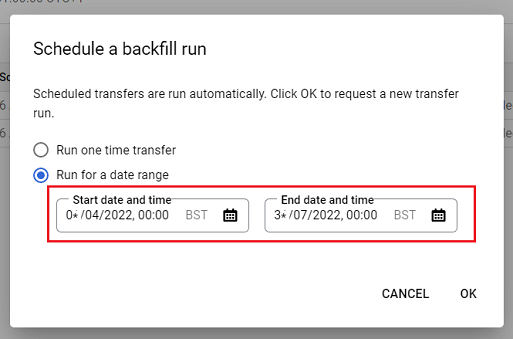
Backfilling GA4 data means importing historical GA4 data into BigQuery.
By default, the GA4 data is imported to BigQuery only from the date you first connected your GA4 property to your BigQuery project.
If you want historical GA4 data in your BigQuery project, then you would need to backfill GA4 data in BigQuery. You can do that by using a third-party solution.
To learn more about backfilling GA4 data in BigQuery, check out this article: How to backfill GA4 data in BigQuery.
Conversion Rate in Google Analytics 4.
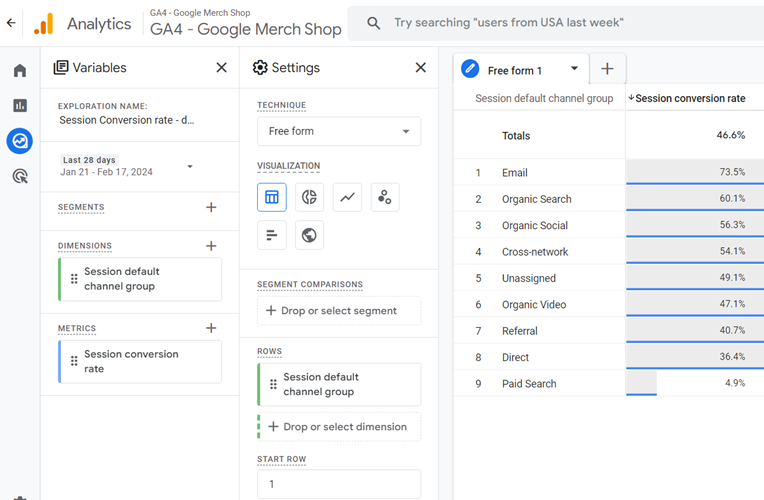
Just like GA3, GA4 also provides conversion rate metrics. However, unlike GA3, GA4 provides a conversion rate based on users (user conversion rate) and sessions (session conversion rate).
To learn more about the conversion rate metrics in Google Analytics 4, check out this article: GA4 Conversion Rate – How to find it and use it.
Understanding the average metrics in Google Analytics 4.
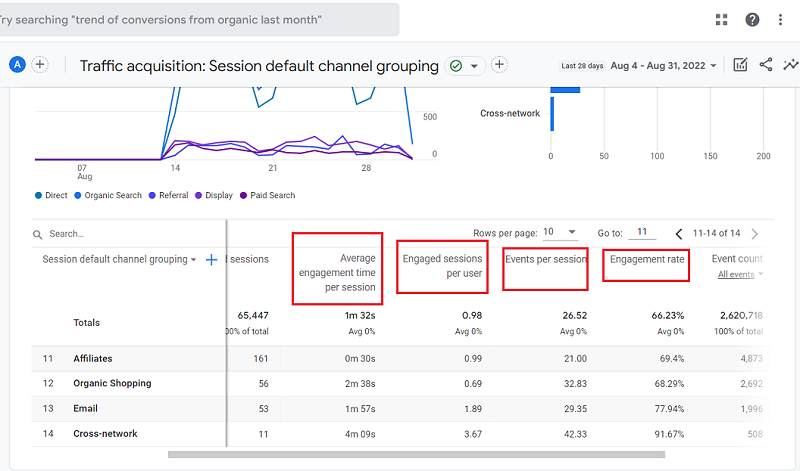
GA4 reports are full of average metrics like ‘average engagement time’, ‘average engagement time per sessions’, ‘engaged sessions per user’ etc.
But average metrics can provide muddy analytics insight if they are not calculated and interpreted correctly.
If you want to learn and calculate the average metrics correctly in your GA4 reports and get above average insight, then read this article: Google Analytics 4 Averages – Learn to Analyze & Report Above Average.
Analyzing the organic search traffic in Google Analytics 4.
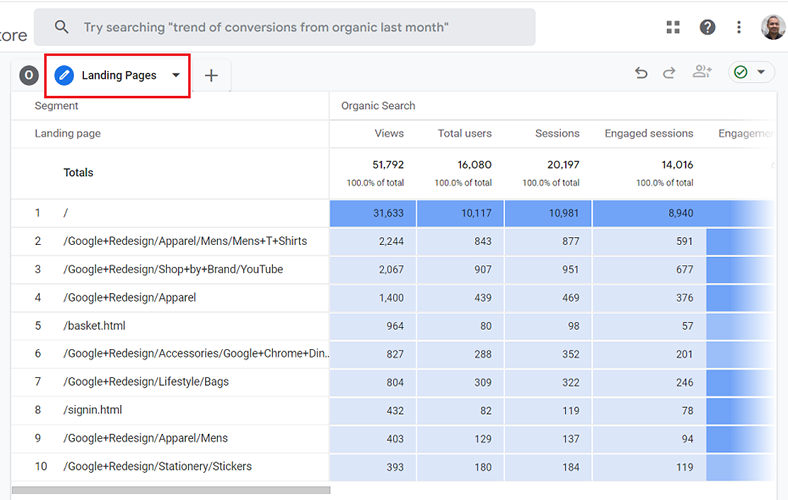
Analysing the organic search traffic in GA4 is not straightforward.
You would need to create custom reports.
I have come up with the following nine exploration reports that could help you with analyzing the organic search traffic in GA4:
- Overview report
- Landing pages report
- Devices report
- Browsers report
- Countries report
- Conversions report
- E-commerce report
- User flow report
- Funnel report
For step by step instructions on creating and using these reports, check out this article: Organic Search Traffic Analysis in GA4 – Complete Guide.
UTM Tracking in Google Analytics 4.
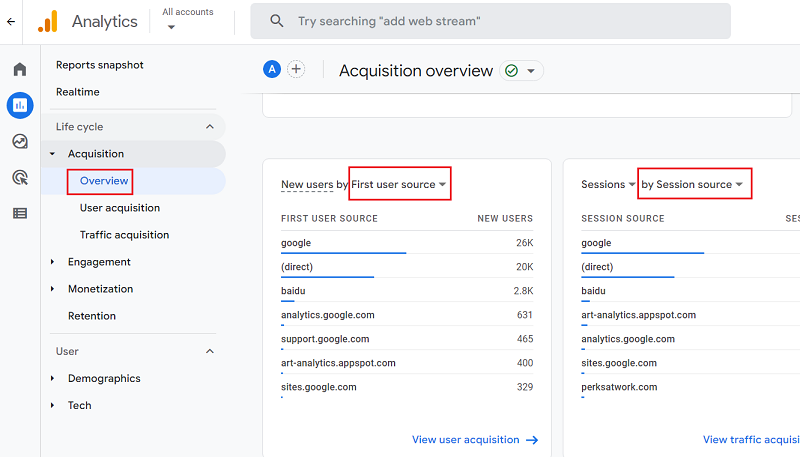
Just like Universal Analytics, GA4 also provides custom campaign tracking via UTM parameters.
Through UTM parameters, you can send detailed information about a marketing campaign to GA4.
For example, through UTM parameters, you can send the following information about an email newsletter campaign to GA4:
#1 The name of the particular newsletter campaign which generated traffic and/or sales on your website.
#2 The name of the particular link within the newsletter campaign that generated traffic and/or sales on your website.
Without UTM parameters, GA4 will only tell you that you generated traffic and/or sales from email.
For step by step guide on learning and using the UTM parameters tracking in GA4, check out this article: Track and see UTM parameters in GA4 (Google Analytics 4) – Campaign Tracking.
GA4 GAIQ Exam Preparation.

Just like GA3, Google also provides the GAIQ exam for GA4. However, unlike GA3, passing the GA4 GAIQ exam is relatively easy.
As long as you are familiar with the GA4 user interface, you should not have much problem passing this exam.
If you want to pass the GA4 GAIQ exam, then check out this article: GAIQ (Google Analytics Individual Qualification) Exam Preparation 2022 (includes GA4).
Form Tracking in Google Analytics 4.
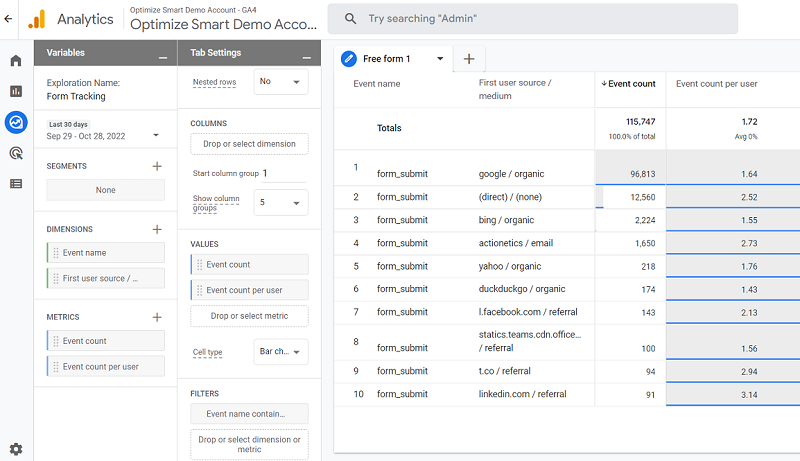
If you have enabled enhanced measurement tracking in your GA4 property, you should see a new setting for form tracking.
This feature allows you to track form submissions in your GA4 property without any additional code or tagging.
For step by step instructions on enabling form tracking in GA4, check out this article: GA4 Form Interactions Tracking – Enhanced measurement
Google Analytics 4 Email Tracking.
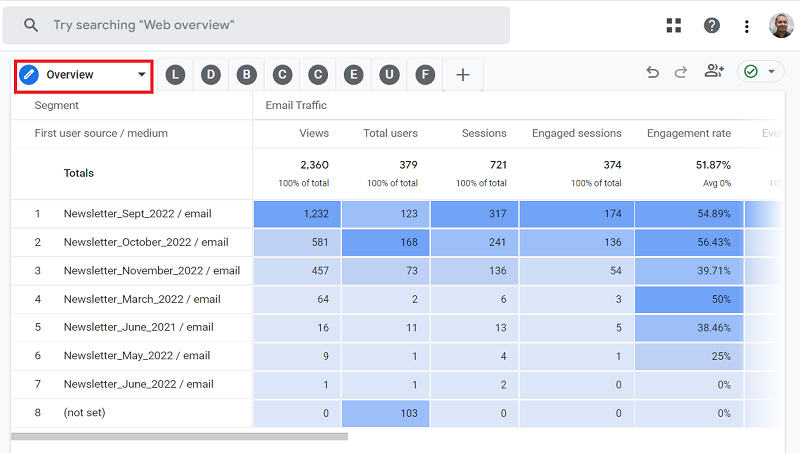
GA4 does not provide any report to track the performance of your email marketing campaigns.
You would need to create this report from scratch using the exploration report templates.
For step by step instructions, check out this article: How to track email campaigns and traffic in GA4.
Tracking web pages with zero traffic in Google Analytics 4.
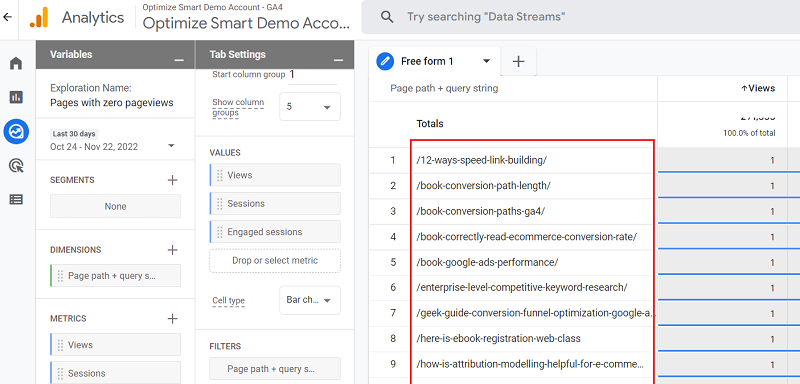
Web pages with zero traffic are those pages which did not get any pageviews in a particular time period.
GA4 does not report on web pages with zero views. However, it reports on pages with zero views on certain days and one or more views on other days.
The web pages which are not viewed by your website visitors do not add any value to your business, traffic or conversions.
By identifying such web pages, you can either update them to increase their search engine ranking position or repurpose their content.
For step-by-step instructions on finding pages with zero traffic in GA4, check out this article: How to track web pages with zero traffic in Google Analytics.
Google Analytics 4 Form Tracking with Google Tag Manager.
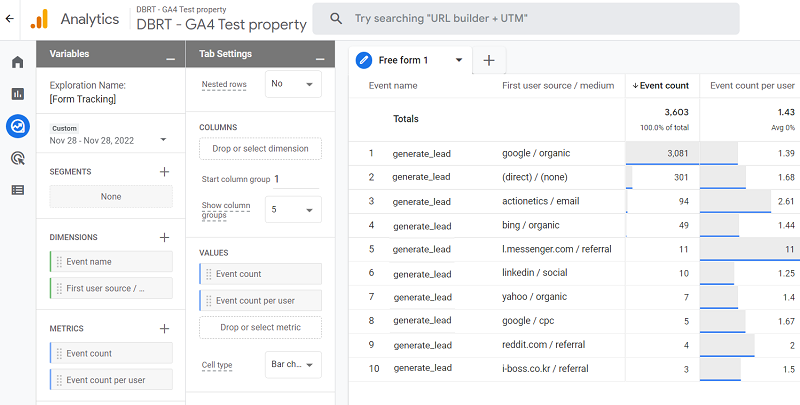
You can track the forms embedded on your website in your GA4 property via GTM.
When a user successfully submits a form, you can fire the ‘generate_lead’ event on the ‘thank you’ page via GTM.
For step-by-step instructions, check out this article: GA4 Form Tracking via Google Tag Manager.
Google Analytics 4 Regex (Regular Expressions).
Regular expressions (aka regex) are used to check for a pattern in a string.
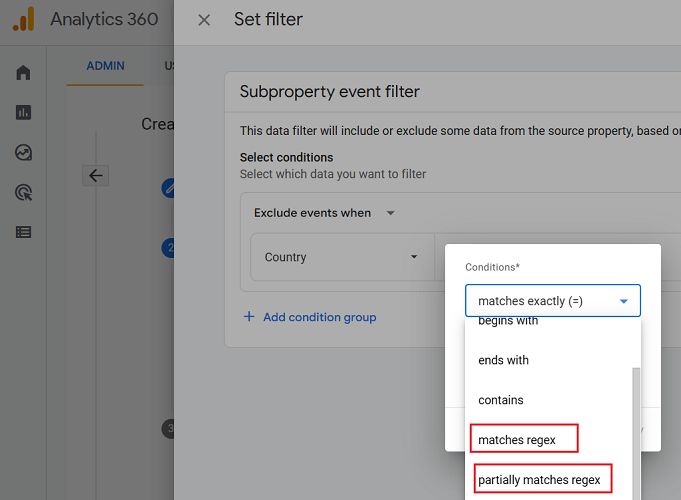
By default, the GA4 property uses fully matches regex.
Fully matches regex means the regex fully matches a pattern in a string.
If you want to use partially matches regex in GA4, you would need to use metacharacters or use the ‘partially matches regex’ option (if available).
You will find regular expressions very useful in GA4 while setting up:
- Subproperties.
- Site search tracking without query parameters.
- Referral Exclusion.
- Data filters in the exploration report.
- Custom Events via GTM.
- Content groups.
- Audiences.
To learn more about the use of regex in GA4, check out this article: Google Analytics 4 Regex (Regular Expressions) Tutorial.
GA4 GDPR Compliance Checklist.
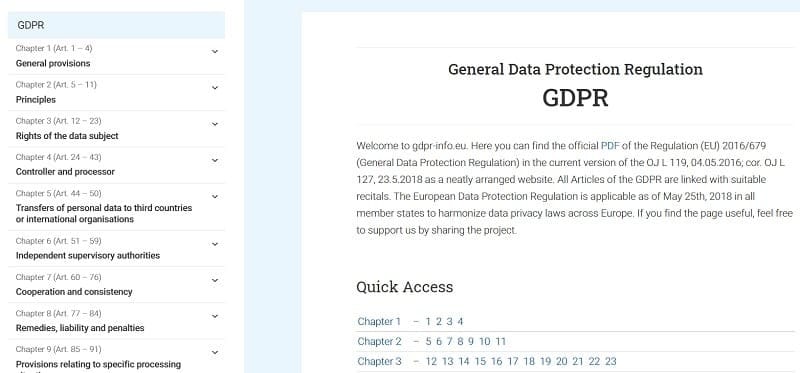
Is your website really GDPR Compliant?
I asked this question because many businesses believe their website is GDPR compliant just because they display a cookie consent pop-up.
But GDPR compliance goes way beyond pop-ups.
Recently a business contacted us. They were fined ($25k) for violating the GDPR guidelines.
All this time, they thought they were compliant. Guess what. Their cookie consent pop-up didn’t help much.
If you are processing the personal data of EU Citizens (and you may not even know about it), then you must comply with GDPR regardless of where you live on this planet.
GDPR Compliance is not easy as displaying a pop-up on the website.
Many companies hire full-time employees (Data Protection Officers) just to maintain GDPR compliance.
That’s why I developed this checklist to become GDPR compliant, esp. with Google Analytics 4.
Learn more – Google Analytics 4 GDPR compliance checklist.
Excluding URL Query Parameters in GA4.
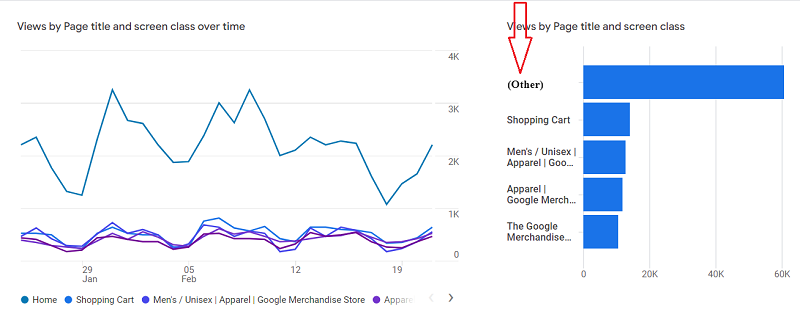
You can reduce the impact of ‘(Other)’ in GA4 Reporting by removing all the unwanted query parameters from your page path before you send the page tracking data to GA4.
Check out this article for more details >> How to Exclude URL Query Parameters in Google Analytics 4.
Removing the (other) row in GA4.
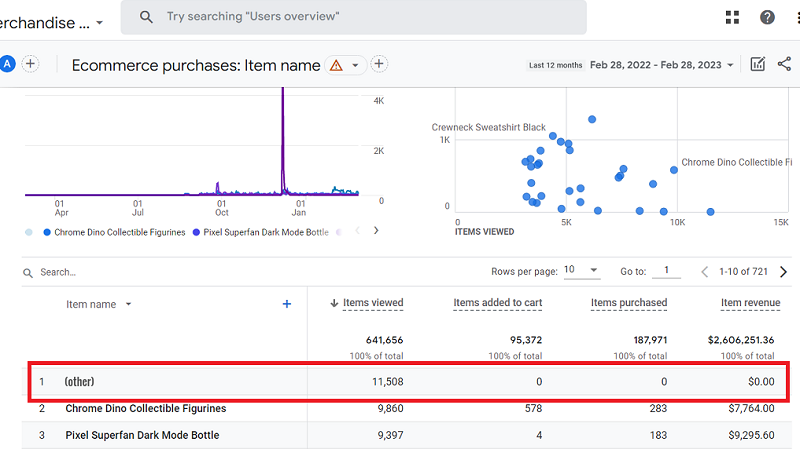
If you want to remove the (other) row from appearing in your GA4 reports, then should work on avoiding cardinality wherever possible.
Use the following methods to remove the (other) row in your GA4 reports:
1) Exclude all unwanted URL query parameters in GA4
2) Avoid high cardinality dimensions.
3) Use pre-defined dimensions wherever possible.
4) Avoid creating complex reports.
5) Use GA4 360.
6) Export GA4 data to BigQuery.
7) Create an exploration report.
8) Use expanded data sets.
9) Avoid data sampling.
To learn more, check out this article: How to remove (other) in GA4 reports and avoid Cardinality.
Fixing unassigned traffic in GA4.
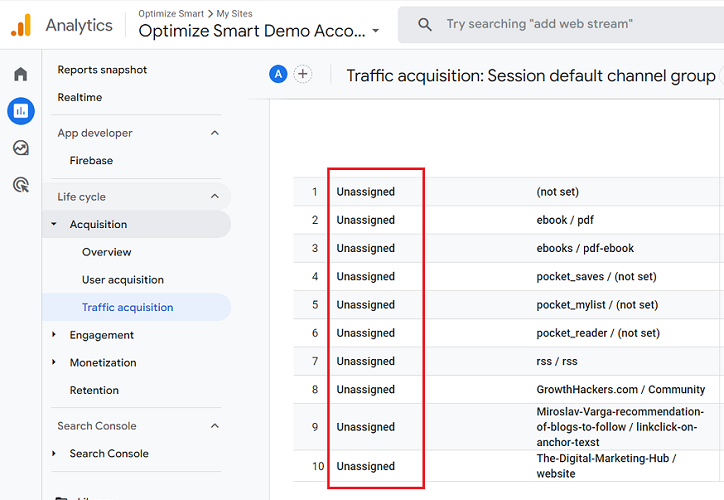
Unassigned traffic in GA4 refers to the website traffic that is not attributed to any specific channel group.
Technically speaking, ‘Unassigned’ is a default channel group dimension in GA4 which can have event scope, user scope or session scope.
Use the following methods to fix the unassigned traffic in GA4:
- Use UTM parameters to tag URLs
- Use auto-tagging to tag URLs
- Always supply source, medium and campaign information when tagging URLs with UTM parameters.
- Create UTM parameters that follow GA4 default channel rules wherever possible.
- Memorize channel rules and definitions for accurate tagging.
- Make sure that the source and medium information is not dropped because of technical issues.
- Missing or unrecorded “session_start” event could cause unassigned traffic.
- In GA4, if you send data through the Measurement Protocol without the ga_session_id parameter, all such traffic would be labelled as unassigned website traffic.
For more details, check out this article: What is unassigned traffic in GA4 and how to fix it.
How to query GA4 data in BigQuery without understanding SQL.
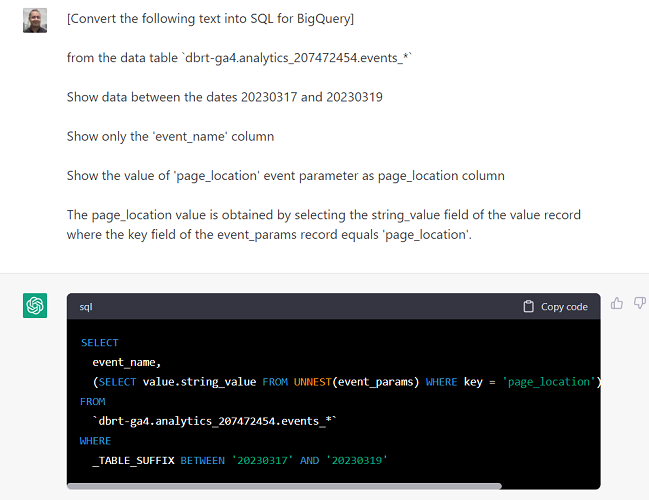
SQL has a complex syntax and structure. You will need to learn and memorize many keywords, operators, and functions.
SQL queries can become progressively harder to understand and debug as they become more complex.
Even small syntax errors or logical mistakes can result in incorrect results.
Complex queries often involve nested subqueries, multiple joins, and complex logic, which can be difficult to follow.
All of this can make SQL hard to learn and use, especially for absolute beginners.
With the advent of AI tools like ChatGPT, it is now possible to convert natural language into SQL queries.
You can learn more about it here: Query GA4 data in BigQuery without understanding SQL.
Removing (not set) in Google Analytics 4.
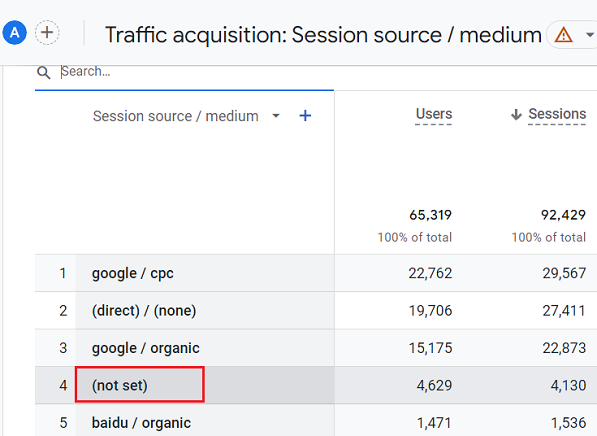
Whenever GA4 does not receive any information for a particular dimension, it uses a placeholder called (not set).
There are many reasons why (not set) may appear in your GA4 reports. But the following are the top reasons:
#1 The number 1 reason for (not set) appearing in your GA4 reports is because you are either not tagging ad URLs or your tagging is incorrect or incomplete.
#2 The second most common reason for (not set) appearing in your GA4 reports is using measurement protocol to send data.
#3 The Server side tracking can also result in (not set) data in GA4 reports if not implemented correctly.
#4 If the session_start event is not correctly tracked or is missing, GA4 might not be able to determine the source or medium for a session. Whenever GA4 is unable to determine the source or medium for a session, it reports (not set) as the value of the source or medium dimension.
#5 Some Adblockers and privacy extensions can cause missing values for a GA4 dimension (like source or medium), thus resulting in (not set) as the value of a dimension.
#6 Traffic from unliked Google Ads account(s) often appears as (not set) in GA4.
To learn more, check out this article: How to remove not set in GA4 (Google Analytics 4).
How to find keywords data in GA4?
GA4 is NOT the tool meant for keywords analysis. It provides even fewer keywords data than Universal Analytics because of GDPR and other privacy regulations.
And if you are into organic and/or paid search marketing, you need access to tons of keyword data.
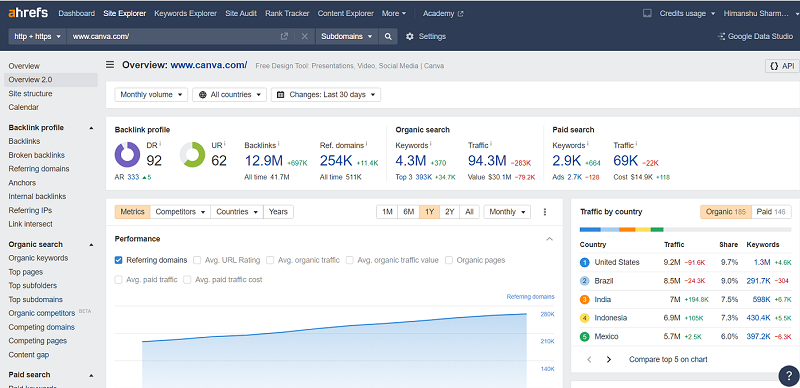
You want to know:
- Which keywords send you the most traffic?
- Which keywords are worth targeting and bidding on?
- Which keywords are your competitors targeting?
- Which keywords send the most traffic to a particular landing page?
You want to:
- Track the ranking of your keywords.
- Check the backlinks, referring domains and overall website health.
- Do keyword research.
- Do website audits to find and fix SEO issues.
GA4 and its alternatives can not provide you with such insight.
GDPR, ever-increasing privacy regulations, and browser restrictions have crippled web analytics tools like GA4 in terms of providing keywords data.
So you can no longer rely just on traditional web analytics tools to optimise your search marketing campaigns.
I use the following tools for keyword analysis:
Microsoft Clarity and GA4 Integration.
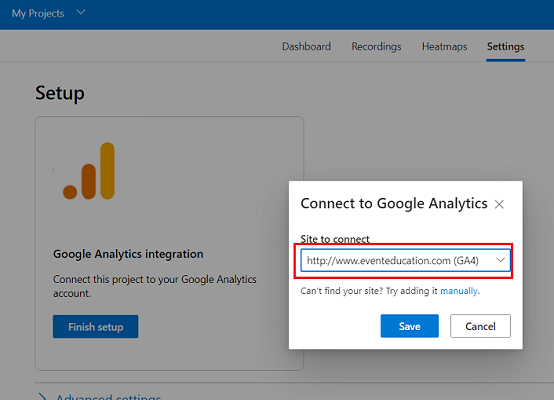
One thing that bugs me greatly is that GA4 does not provide session recordings and heatmaps.
Other tools charge dearly for these features. I am on a mission to reduce my reliance on paid tools. I use too many paid tools. So I found a good alternative.
I now use ‘Microsoft Clarity‘ just for the purpose of getting session recordings and heatmaps.
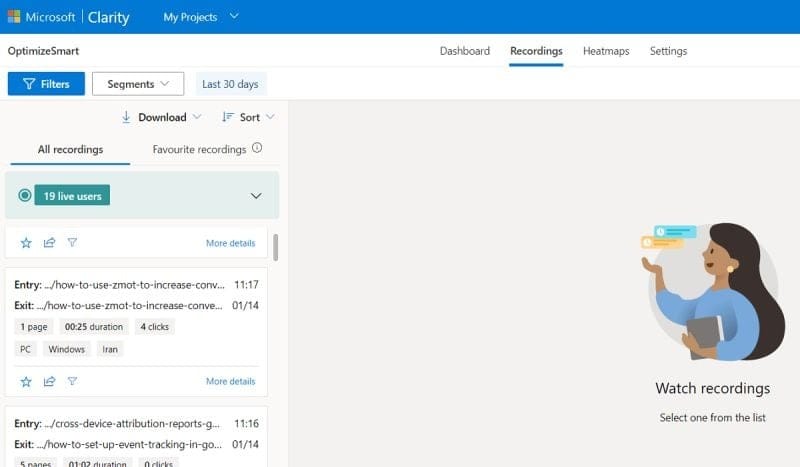
‘Microsoft Clarity’ is a free behavioural analysis tool from Microsoft. It can provide unlimited session recordings and heatmaps.
Many people don’t know, but you can also integrate Microsoft Clarity with GA4. When you integrate Microsoft Clarity with GA4, you can see the GA4 data in clarity.
You can view heatmaps and recordings for popular pages on your website.
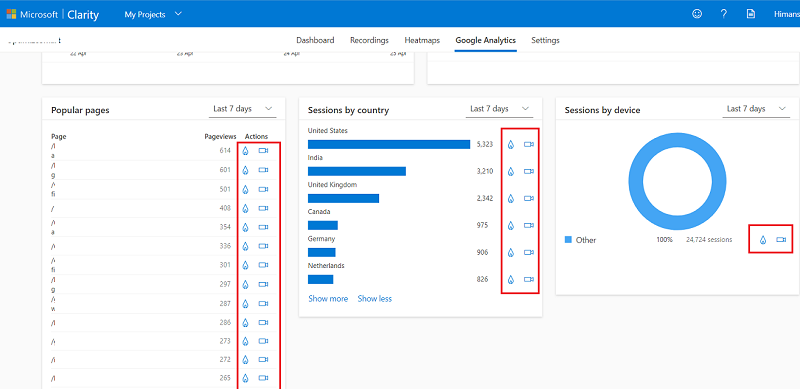
For step-by-step instructions on integration clarity with GA4, check out this article: How to use Microsoft Clarity with GA4 (Google Analytics 4).
Are you looking for GA4 alternative?
Client: We have abandoned GA4 for this ____ tool.
Me: Great.
(A few months later)
Client: We are missing a lot of data that was available in GA4, and that too for free. We want to switch back.
This scenario is more common than you think.
The client gets on a product demo call (aka sales call), and an analytics tool vendor highlights all the current shortcomings of GA4 and then sells their tool as a better replacement.
In the meantime, GA4 continues to improve, and it remains free. The shortcomings that it once had are now gone.
The client sees that GA4 is improving over time and giving more opportunities to collect different types of data, while their ‘paid’ tool continues to report the same set of dimensions and metrics and provide the same set of reports month after month.
Most analytics tool vendors can not compete with Google on innovation.
And people who complain that Google is not innovating GA4 fast enough go check out other companies and their rate of innovation.
Google release more product updates in a month than many companies release in a year.
Just the sheer volume of dimensions and metrics available in GA4 should give you an idea that using any other web analytics tool is likely downgrading, and that too for a fee.
I have used many web analytics tools over the years.
Most of these tools don’t hold a candle to GA in terms of features and usability, and the ones that do, are just too difficult/expensive to use.
All web analytics tools face the same browser and privacy restrictions as the free tools.
People who criticize GA4 do not really understand it. It’s the fear of the unknown, and the vendors are exploiting this fear to sell their own tools.
I used to recommend tools like ‘Matomo‘ or ‘Oribi‘ as GA4 alternatives.
Over time I concluded that you don’t need these tools. In fact, you don’t need any GA4 alternative.
Don’t let the user interface fool you into thinking that GA4 is worse than Universal Analytics or that other analytics tools are now superior.
This is what the vendors of paid web analytics tool wants you to believe so that you ditch GA4 and pay for their tool indefinitely.
Unless GA is banned in your country or is prohibited by your company, there is no point in paying for a web analytics tool.
All web analytics tools face the same browser and privacy restrictions as the free tools and do not provide keyword data.
Companies buy paid web analytics tools hoping to get some magical and hidden insight.
But they forget that it is not the tool but the person using that tool that brings the real difference.
For 99% of businesses, the free version of GA is all you need.
Full page URLs in Google Analytics 4.
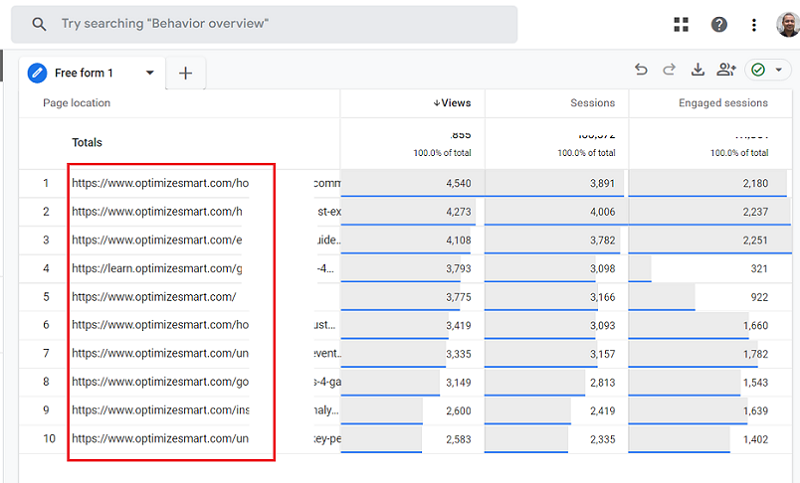
To track subdomain traffic in GA4, you need to view full-page URLs in reports. But by default, only the request URI shows in GA4 reports.
To view the full page URLs follow the steps mentioned in this article >> How to view full page URLs in GA4?
Is your GA4 not working correctly?
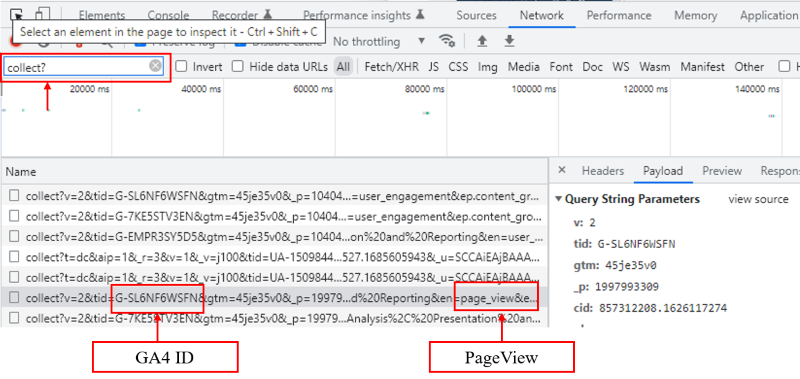
- Delete and disable the cache.
- Use Google Tag Assistant and check ‘where to optimize.’
- Use the developer console and look for the ‘abort’ and ‘command ignored’ error messages.
- Read the GIF Request (Tracking Beacon).
- Check the collect call in the network tab.
- Avoid non-standard implementation of Google.
- Avoid customizing the standard Google Analytics tracking code.
- Look for a broken GTM container tag.
- Avoid non-standard implementation of Google Tag Manager.
- Avoid customizing the GTM container tag.
- Dealing with 307 redirects on Google Analytics Calls.
- Filters Set Up.
- Blocking extensions: Ad blockers and script blockers.
- Iframe tracking.
- Dealing with website environments and publishing.
- Locally hosted gtag.js.
- Google Tag Manager errors.
- No data in the newly created GA4 property.
- Other scripts on the page conflict with the GA script.
- Incorrect placements of code.
- Avoid using plug-ins for Google Analytics implementation.
For step by step instructions check out this article: Google Analytics 4 not working? Here is how to fix it.
Viewing Organic Search Keywords in GA4.
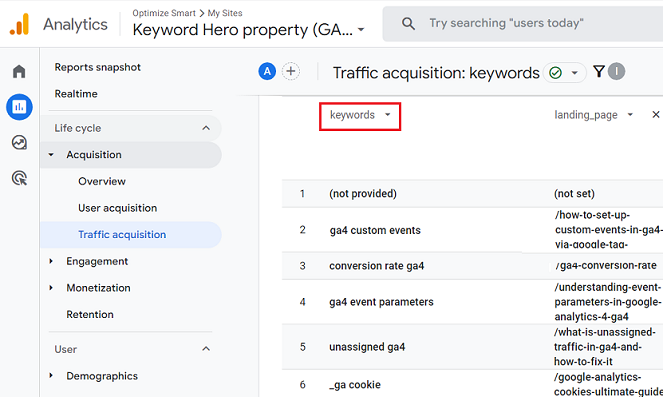
There are two methods to see Organic Search Keywords in GA4:
Method-1: Link your Google Search Console account to your GA4 property and then publish the search console reports.
Method-2: Use a tool like ‘Keyword Hero’ to collect more keyword data in your GA4 property.
For more details, check out this article: How to see Organic Search Keywords in GA4 (Google Analytics 4).
Google Analytics 4 Adsense Integration.
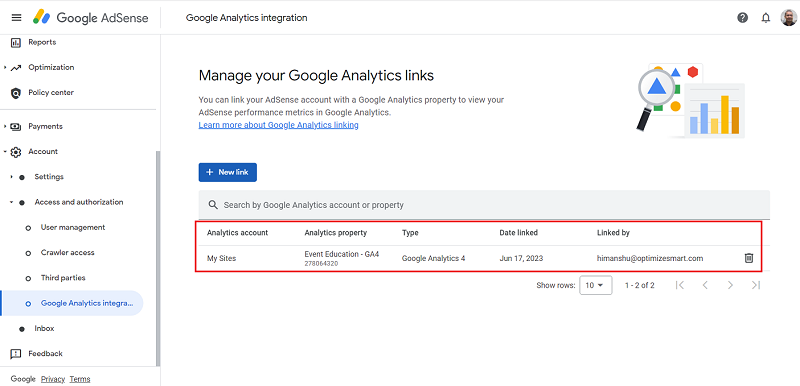
Following are the benefits you can enjoy by connecting your Google Adsense account with your GA4 property:
#1 By establishing this link, you gain the ability to view your AdSense data directly in GA4 by:
- Leveraging Publisher dimensions and metrics.
- Examining the ‘Publisher Ads’ report.
- Using the Exploration reports.
#2 Additionally, you can align your AdSense data with website usage metrics, such as ‘First User Source Medium.’ This connection allows for more profound insights and the ability to identify trends, ultimately assisting you in optimizing your advertising revenue.
For more details on GA4 and Adsense integration, check out this article: How to link Google Analytics 4 with Adsense.
Google Analytics 4 Monetization Reports.
Once you have set up ecommerce tracking in GA4, you can access the various ecommerce reports in your GA4 property under ‘Monetization’.
These reports are called the ‘Monetization’ reports:
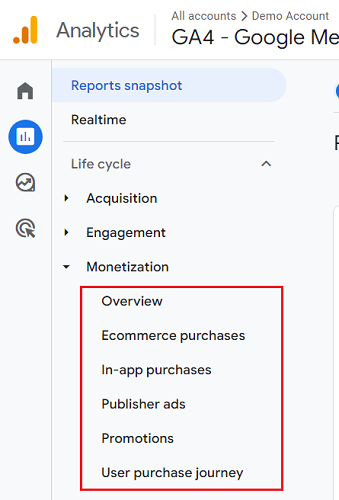
The followfing are the various Monetization Reports:
- Monetization Overview Report.
- Ecommerce Purchases Report.
- In-app purchases Report.
- Publisher ads Report.
- Promotions Report.
- User Purchase Journey Report.
- Order Coupon Report.
- Item list Report.
To learn more about the GA4 Monetization reports, check out this article: Understanding Google Analytics 4 Monetization Reports.
Display full referral URL in Google Analytics 4.
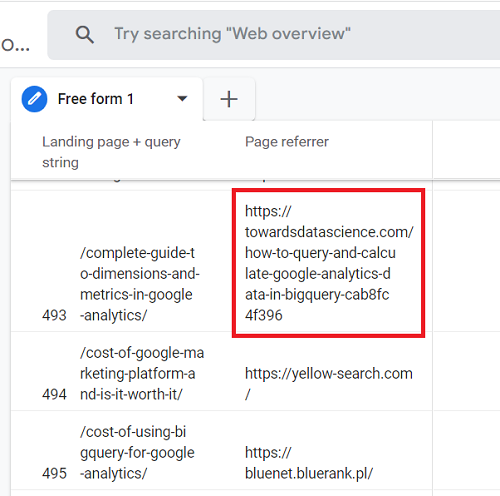
Unlike Universal Analytics, GA4 does not have the ‘Full referrer’ dimension.
So there is no straightforward way to see full referrer URLs in GA4 reports. You would need to create an exploration report.
For step by step instructions, check out this article: How to view full referral URL in GA4 (Google Analytics 4).
Accessing GA4 Sample Data in BigQuery.
If you lack your own GA4 data in BigQuery, you can access and query the GA4 sample data provided in BigQuery Public datasets.
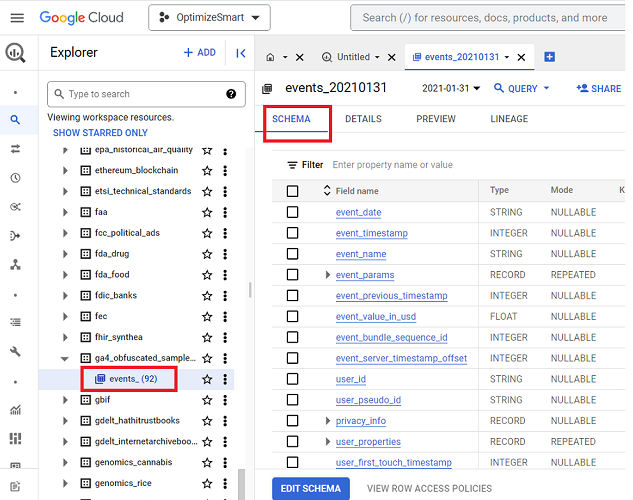
This sample data originates from the Google Merchandise Store, a Google-owned ecommerce site, and Google’s ‘Flood-it’ mobile game app.
Follow the steps mentioned in this article to access GA4 sample data in BigQuery: How to access GA4 Sample Data in BigQuery.
Creating SQL queries for GA4 data in BigQuery via GA4 SQL.
GA4 SQL is a free tool through which you can quickly create SQL queries for your GA4 data.
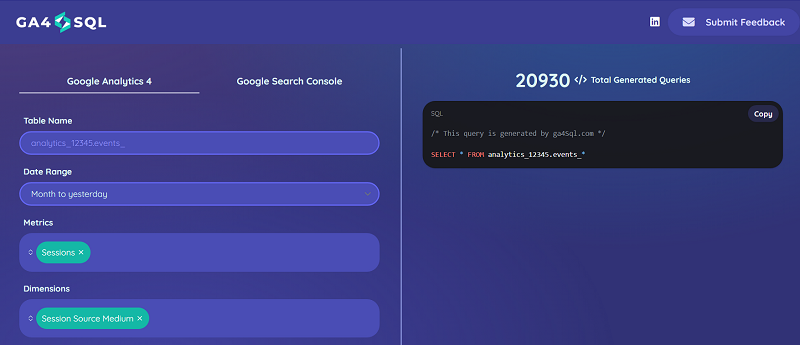
To learn more about how to use this tool, check out this article: Using GA4 BigQuery SQL generator to create SQL queries.
Exporting GA4 data to Google Sheets for free.
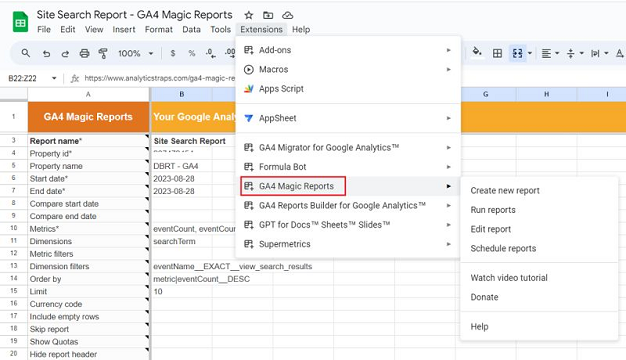
Two free approaches exist for transferring GA4 data to Google Sheets:
Method 1: Directly download the data to Google Sheets via the GA4 reporting interface.
Method 2: Utilize a free Google Sheets add-on to move GA4 data into Google Sheets.
To learn more about these methods, check out this article: How to export GA4 data to Google Sheets for free.
Other Articles on GA4.
- Tracking New, Qualified and Converted Leads in GA4.
- Free GA4 training and tutorial with Certification.
- Understanding GA4 Ecommerce Reports (Monetization Reports).
- GA4 Ecommerce Tracking via GTM: Step-by-Step Setup Guide.
- How to see UTM parameters in GA4 (Google Analytics 4).
- GA4 UTM parameters not working? Here is how to fix it.
- How To Use UTM parameters in GA4 (Campaign Tracking).
- How to track AI traffic in GA4.
- Understanding Google Analytics 4 cookies – _ga cookie.
- GA4 (Google Analytics 4) Measurement Protocol Tutorial.
- GA4 Unassigned Traffic: Causes and How to Fix it Fast.
- GA4 Regex (Regular Expressions) Tutorial.
- GA4 Direct Traffic Spike: Common Causes and How to Fix Them.
- gtag.js – Google Tag in Google Analytics 4 and beyond.
- GA4 Scopes – User, Session, Event & Item scopes.
- GA4 Conversion Tracking (Key Events) Tutorial.
- GA4 (not set) - Guide to fixing (not set) issue.
- GA4 Certification Exam: Questions, Answers for Skillshop (GAIQ).