

What is UTM tracking in GA4 (Google Analytics 4)?
GA4 UTM tracking (also known as GA4 campaign tracking) refers to the tagging of your website URL with UTM parameters.
Note: UTM stands for ‘Urchin Tracking Module’. Urchin was the web analytics tool that Google acquired from ‘Urchin Software Corporation’ in April 2005. This tool was later re-branded as Google Analytics.
Why do you need UTM tracking?
Through UTM tracking, you can send detailed information about a marketing campaign to Google Analytics 4.
For example, through UTM tracking, you can send the following information about a Facebook marketing campaign to GA4:
- The name of the particular Facebook campaign which generated traffic and sales on your website.
- The name of the particular ad set within the Facebook campaign that generated traffic and/or sales on your website.
- The name of the particular ad within the particular Facebook ad set that generated traffic and/or sales on your website.
Without UTM tracking, GA4 will only tell you that you generated traffic and/or sales from Facebook. GA4 won’t tell you which particular campaign, adset or ad copy generated traffic and/or sales on your website.
All you will see, by default, in GA4, is the traffic and sales from dozens of Facebook referrers.
In order to track the performance of each individual Facebook ad campaign in GA4, you would need to add various UTM parameters at the end of the destination URL of each Facebook ad:
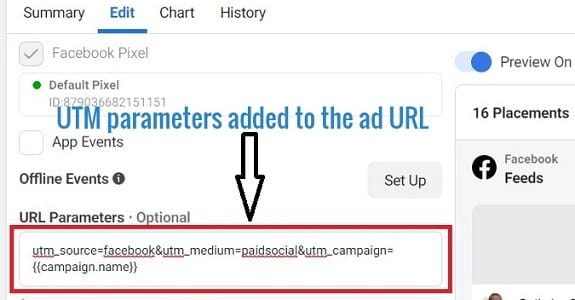

Following is an example of a Facebook ad URL which contains UTM parameters:
https://www.abc.com/book-maths-and-stats/?utm_source=facebook&utm_medium=social&utm_campaign=pdf-book-campaign&utm_content=ad1
These UTM parameters have the power to overwrite the original referrer and send that information to GA4, which cannot be sent otherwise.
Similarly, without UTM tracking, Google Analytics will only tell you that you generated traffic and/or sales from email.
It won’t tell you which particular email newsletter campaign or link within the email generated traffic and/or sales on your website.
Whenever a referrer is dropped or is not passed, Google Analytics is not able to determine the origin of the traffic source and report that traffic as direct traffic.
One effective way to reduce direct traffic in Google Analytics is by using UTM tracking.
Non-web documents (like Microsoft Word, Excel, PowerPoint, PDF, etc.) do not send a referrer.
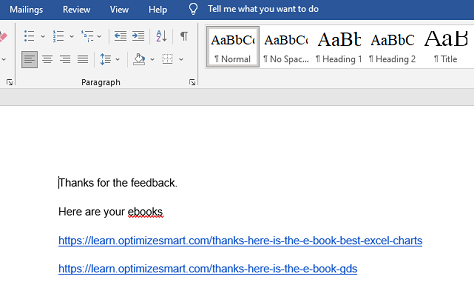
So if a user clicks on a link embedded in a word document to visit your website, then GA4 would start a new session but without a referrer being passed by the user’s web browser.
Hence, the traffic would be reported as direct traffic.
If you want the traffic from the Word document to be reported by GA4, then you would need to use the UTM campaign tracking parameters in the embedded URLs like the one below:
https://www.optimizesmart.com/install-google-analytics-4-on-shopify/?utm_source=ms-word&utm_medium=non-web-document&utm_campaign=channel-grouping-in-google-analytics
Desktop email clients (like Microsoft Outlook) and Instant messenger (like Skype, Facebook Messenger, Whatsapp etc.) do not send a referrer.

So if a user clicks on a link embedded in an Outlook email to visit your website, then GA4 would start a new session but without a referrer being passed by the user’s web browser.
Hence, the traffic would be reported as direct traffic.
If you want the traffic from Outlook to be reported by GA4, then you would need to use the UTM campaign tracking parameters in the embedded URLs like the one below:
https://www.optimizesmart.com/install-google-analytics-4-on-shopify/?utm_source=ms-outlook&utm_medium=email&utm_campaign=channel-grouping-in-google-analytics
Similarly,
Instant messenger (like Skype, Facebook Messenger, Whatsapp etc.) and other online chat rooms do not send a referrer. Traffic from such apps is reported as direct traffic by Google Analytics.
If you want the traffic from instant messengers to be reported by GA4, then you would need to use UTM tracking.
What are UTM parameters in GA4?
UTM parameters (also known as campaign parameters, campaign variables, tags, variables or utm codes) are the parameters recognized by Google for sending detailed information about your marketing campaigns to Google Analytics 4.
The following are the UTM parameters supported by GA4:
- utm_id=<value>
- utm_source=<value>
- utm_medium=<value>
- utm_campaign=<value>
- utm_term=<value>
- utm_content=<value>
- utm_source_platform=<value>
- utm_campaign_id=<value>
- utm_creative_format=<value>
- utm_marketing_tactic=<value>
Each UTM parameter is made up of ‘key=value’ pair.
For example,
If utm_source=facebook
Then ‘utm_source’ is the key, and ‘facebook’ is the value.
Similarly,
If utm_medium = paidSocial
Then ‘utm_medium’ is the key, and ‘paidSocial’ is the value.
A website URL which contains UTM parameters is called a custom campaign.
Following is an example of a custom campaign:
https://www.abc.com/?utm_source=bing&utm_medium=ppc&utm_term=car-insurance&utm_content=text-ad&utm_campaign=car-insurance-promo-feb
‘Keys’ of UTM parameters
The following are the keys of UTM Parameters in GA4:
- utm_id
- utm_source
- utm_medium
- utm_campaign
- utm_term
- utm_content
- utm_source_platform
- utm_campaign_id
- utm_creative_format
- utm_marketing_tactic
All of these keys have special meaning for Google Analytics 4 and are case sensitive.
So ‘utm_source’ is not the same as ‘Utm_source’ or ‘utm-source’, ‘utm_Source’ or ‘UTM_SOURCE’ or ‘utmsource’.
You need to strictly follow the format/syntax of how each key is spelt/written.
So if you use ‘Utm_source’ instead of ‘utm_source’, Google Analytics won’t understand the key, and your custom campaign tracking may not work.
Note: There is no particular order in which UTM parameters’ ‘keys’ should be used in a URL. You can use any order you like.
For example, the following two URLs are the same as far as custom campaign tracking is concerned:
https://www.abc.com/?utm_source=bing&utm_medium=ppc&utm_term=car-insurance&utm_content=text-ad&utm_campaign=car-insurance-promo-feb
https://www.abc.com/?utm_term=car-insurance&utm_content=text-ad&utm_campaign=car-insurance-promo-feb&utm_source=bing&utm_medium=ppc
‘Values’ of UTM parameters
The value of a UTM parameter should depend on the key being used.
For example,
The ‘utm_source’ key is used to send information related to traffic sources to Google Analytics.
So its value should be something which denotes the traffic source (i.e. the origin of the traffic).
utm_id (Campaign ID).
‘utm_id’ is a key of a UTM parameter which is used to send information related to the unique identification number of your campaign to Google Analytics 4.
Its value should be a uniquely identified number like 17099389748.
Learn more: utm_id (Campaign ID) in Google Analytics 4.
utm_source (campaign traffic source).
‘utm_source’ is key of a UTM parameter which is used to send information related to the traffic source of a custom campaign to Google Analytics 4.
Its value should be something which denotes the traffic source (i.e. the origin of the traffic).
Learn more: utm_source (campaign traffic source) in Google Analytics 4
utm_medium (campaign traffic medium).
‘utm_medium’ is a key of a UTM parameter which is used to send information related to the traffic medium of a custom campaign to GA4.
Its value should be something which denotes the traffic medium (i.e. the category of the traffic).
Learn more: utm_medium (campaign traffic medium) in Google Analytics 4.
utm_campaign (campaign name).
‘utm_campaign’ is a key of a UTM parameter which is used to send the name of the custom campaign to GA4.
For example:
utm_campaign=Book+promo+Sept2025
utm_campaign=Sept_Bumper_Sales2025
utm_campaign=Analytics-Training-Course
Learn more: utm_campaign (campaign name) in Google Analytics 4.
utm_term (campaign term).
‘utm_term’ a key of a UTM parameter which is used to send the information related to the campaign term (paid search keyword) to GA4.
Learn more: utm_term (campaign term) in Google Analytics 4.
utm_content (campaign content).
‘utm_content’ is a key of a UTM parameter which is used to send information related to campaign content (ad version) to GA4.
For example.
If you have two banner ads with the same ad copy and call to action but different graphics, you can use the ‘utm_content’ key and set different values for each.
So, you can later determine which ad version was more effective in terms of driving traffic and sales.
Learn more: utm_content (campaign content) in Google Analytics 4.
utm_source_platform.
The ‘utm_source_platform’ is a key of a UTM parameter which is used to send the name of the marketing platform which sent traffic to your website when you are using a multi-platform ad network.
GA4 often reports the following values for the ‘utm_source_platform’ key:
- Google Ads.
- Manual.
- Shopping Free Listing.
- Search Ads 360.
- Display & Video 360 etc.
Learn more: utm_source_platform in Google Analytics 4.
utm_campaign_id.
The ‘utm_campaign_id’ is a key of a UTM parameter which is required for sending information related to the unique identification number of your campaign for GA4 data import.
Learn more: utm_campaign_id in Google Analytics 4.
utm_creative_format.
The ‘utm_creative_format’ is a key of a UTM parameter which is just like the ‘utm_content‘ key and is used to send information related to campaign content (ad version) to GA4
Just like the ‘utm_content’ key, you can also use the ‘utm_creative_format’ key to differentiate ad creatives.
Learn more: utm_creative_format in Google Analytics 4.
utm_marketing_tactic.
The ‘utm_marketing_tactic’ UTM parameter is used to send information related to your marketing tactics like your targeting strategies (prospecting, remarketing), bid strategies, buying strategies etc to GA4.
Learn more: utm_marketing_tactic in Google Analytics 4.
Tagging URLs for accurate tracking of campaign performance.
Tagging URLs ensures accurate tracking of campaign performance by passing detailed source, medium, campaign, and content data to GA4.
It helps identify traffic origins, measure effectiveness across platforms, and differentiate between various marketing tactics.
This enhances attribution, optimizes ad spend, and improves data-driven decision-making for better campaign insights in GA4.
What is a tagged URL?
A URL which contains UTM parameters is called a ‘tagged URL’. ‘Tagging a URL’ means adding UTM parameters to it.
Following is an example of a tagged URL:
https://www.abc.com/?utm_source=bing&utm_medium=ppc&utm_term=car-insurance&utm_content=text-ad&utm_campaign=car-insurance-promo-feb
Another example of a tagged URL:
https://www.abc.com/fold1?ThemeId=8904&iPathId=38715&utm_source=bing&utm_medium=ppc&utm_term=car-insurance&utm_content=text-ad&utm_campaign=car-insurance-promo-feb
However,
The following URL is not a tagged URL as it does not contain UTM parameters:
https://www.abc.com/fold1?ThemeId=8904&iPathId=38715
How to create a tagged URL?
In order to create a tagged URL, you will need to create a query string.
A query string is the part of the URL which comes after the ‘?’ character.
For example, in the URL:
https://www.abc.com/fold1?ThemeId=8904&iPathId=38715
The query string is:
ThemeId=8904&iPathId=38715
Consider another URL:
https://www.abc.com?gclid=CLjTpNrg8NIC
Here, the query string is:
gclid=CLjTpNrg8NIC
Consider another URL:
https://www.google-analytics.com/collect?v=1&tid=UA-123456-2&cid=36009a59-2a05-49e7-b826-2b884d0f935b&t=pageview&dp=%2Fhome
Here, the query string is:
v=1&tid=UA-123456-2&cid=36009a59-2a05-49e7-b826-2b884d0f935b&t=pageview&dp=%2Fhome
Consider another URL:
https://www.abc.com/?utm_source=bing&utm_medium=ppc&utm_term=car-insurance&utm_content=text-ad&utm_campaign=car-insurance-promo-feb
Here, the query string is:
utm_source=bing&utm_medium=ppc&utm_term=car-insurance&utm_content=text-ad&utm_campaign=car-insurance-promo-feb
The query string is made up of one or more parameters and each parameter is made up of ‘key=value’ pair.
For example, in the URL:
https://www.abc.com/fold1?ThemeId=8904&iPathId=38715
The query string is:
ThemeId=8904&iPathId=38715
This query string is made up of the following two parameters:
- ThemeId=8904
- iPathId=38715
The parameter ‘ThemeId=8904’ is made up of the key called ‘ThemeId’ and the value called ‘8904’
Similarly,
The parameter ‘iPathId=38715’ is made up of the key called ‘iPathId’ and the value called ‘38715’
Consider another URL:
https://www.google-analytics.com/collect?v=1&tid=UA-123456-2&cid=36009a59-2a05-49e7-b826-2b884d0f935b&t=pageview&dp=%2Fhome
Here, the URL is made up of the following five parameters:
- v=1
- tid=UA-123456-2
- cid=36009a59-2a05-49e7-b826-2b884d0f935b
- t=pageview
- dp=%2Fhome
The parameter ‘v=1’ is made up of the key called ‘v’ and the value called ‘1’
Similarly,
The parameter ‘tid=UA-123456-2’ is made up of the key called ‘tid’ and the value called ‘UA-123456-2’
Consider another URL:
https://www.abc.com/?utm_source=bing&utm_medium=ppc&utm_term=car-insurance&utm_content=text-ad&utm_campaign=car-insurance-promo-feb
Here, the query string is:
utm_source=bing&utm_medium=ppc&utm_term=car-insurance&utm_content=text-ad&utm_campaign=car-insurance-promo-feb
This query string is made up of the following five UTM parameters:
- utm_source=bing
- utm_medium=ppc
- utm_term=car-insurance
- utm_content=text-ad
- utm_campaign=car-insurance-promo-feb
Here, the variable ‘utm_source=bing’ is made up of the key called ‘utm_source’ and the value called ‘bing’
Similarly, the variable ‘utm_medium=ppc’ is made up of the key called ‘utm_medium’ and the value called ‘ppc’
Consider another URL:
https://www.abc.com/fold1?ThemeId=8904&iPathId=38715&utm_source=bing&utm_medium=ppc&utm_term=car-insurance&utm_content=text-ad&utm_campaign=car-insurance-promo-feb
Here, the query string is:
ThemeId=8904&iPathId=38715&utm_source=bing&utm_medium=ppc&utm_term=car-insurance&utm_content=text-ad&utm_campaign=car-insurance-promo-feb
This query string is made up of the following seven parameters:
- ThemeId=8904
- iPathId=38715
- utm_source=bing
- utm_medium=ppc
- utm_term=car-insurance
- utm_content=text-ad
- utm_campaign=car-insurance-promo-feb
Out of these seven parameters, the following five are UTM parameters:
- utm_source=bing
- utm_medium=ppc
- utm_term=car-insurance
- utm_content=text-ad
- utm_campaign=car-insurance-promo-feb
In a URL, two or more parameters are separated via the ampersand sign ‘&’.
That’s why you see the ‘&’ after every parameter in the URL below:
https://www.abc.com/fold1?ThemeId=8904&iPathId=38715&utm_source=bing&utm_medium=ppc&utm_term=car-insurance&utm_content=text-ad&utm_campaign=car-insurance-promo-feb
Not all URL parameters are the same.
There are two different types of URL parameters:
- Dynamic URL parameters
- Campaign tracking parameters
What are dynamic URL parameters?
Dynamic URL Parameters are the parameters which are dynamically added to your web page URL (by your web server) during runtime/page load so that the page renders correctly.
If you remove one of these parameters, then your web page may not display and/or function correctly.
URLs which contain dynamic parameters are called dynamic URLs.
A web page which has got dynamic URL is auto-generated during run time. That is why such web pages are also called ‘dynamic web pages’.
Following is an example of a URL which contains dynamic parameters:
https://www.amazon.com/gp/product/B01LT80TN4/ref=s9u_simh_gw_i3?ie=UTF8&fpl=fresh&pd_rd_i=B01LT80TN4&pd_rd_r=38GB3XMHBJ1RGP0EKPT0&pd_rd_w=0kCGp&pd_rd_wg=xY0dy&pf_rd_m=ATVPDKIKX0DER&pf_rd_s=&pf_rd_r=VVTMWVTJ&pf_rd_t=36701&pf_rd_p=1cf9d009-59436&pf_rd_i=desktop
It is not really hard to identify URLs which contain dynamic parameters. They are usually abnormally long and contain characters like %, ?, &, + etc.
What are campaign tracking parameters?
Campaign Tracking Parameters are the parameters that are used to pass additional information about a click via a URL.
Depending upon the platform being used, there can be different types of campaign tracking parameters.
For example, the campaign tracking parameters recognized by Google fall into two categories:
- UTM parameters (commonly used for tracking non-google ads campaigns)
- GCLID parameters (commonly used for tracking google ads campaigns)
A quick recap of parameters.
Following is an example of a URL:
https://www.abc.com/
Following is an example of a URL with dynamic parameters:
https://www.abc.com/fold1?ThemeId=8904&iPathId=38715
Following is an example of a URL with UTM parameters:
https://www.abc.com/?utm_source=bing&utm_medium=ppc&utm_term=car-insurance&utm_content=text-ad&utm_campaign=car-insurance-promo-feb
Following is an example of a URL with both dynamic parameters and UTM parameters:
https://www.abc.com/fold1?ThemeId=8904&iPathId=38715&utm_source=bing&utm_medium=ppc&utm_term=car-insurance&utm_content=text-ad&utm_campaign=car-insurance-promo-feb
Note (1): A URL which contains both dynamic and UTM parameters is still considered a ‘custom campaign’. As long as the UTM parameters have been added to the URL, the URL is a custom campaign.
Note (2): You can hide UTM parameters from a URL and can still use the UTM parameters in the background. The simplest way to do that is to use a URL shortener tool like bit.ly or use the ‘lookup table‘ in Google Tag Manager.
What is an un-tagged URL?
A URL which does not contain UTM parameters is called an ‘un-tagged URL’.
Following is an example of an un-tagged URL:
https://www.abc.com/
Another example of an un-tagged URL:
https://www.abc.com/fold1?ThemeId=8904&iPathId=38715
What is an auto-tagged URL?
A URL which contains ‘GCLID’ parameter is called an auto-tagged URL.
GCLID stands for ‘Google Click ID’. It is a unique ID used by Google Analytics to track and display Google Ads clicks in your reports.
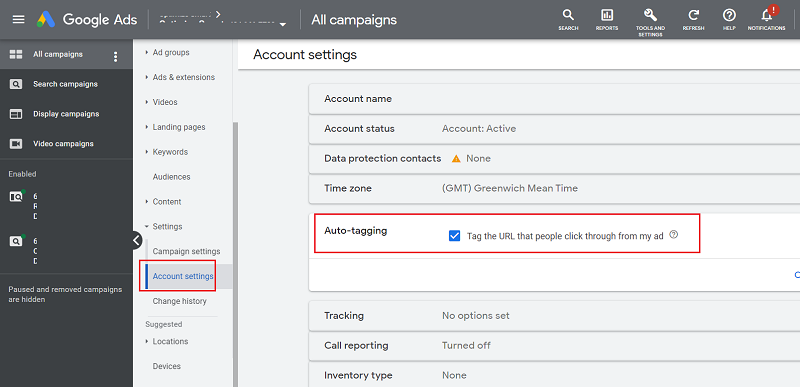
The ‘GCLID’ parameters are automatically added to the end of the destination URLs of your Google ads by Google (provided the auto-tagging feature is turned on).
Following is an example of an auto-tagged URL:
https://www.abc.com?gclid=CLjTpNrg8NIC
Another example of an auto-tagged URL:
https://www.abc.com?ThemeId=8904&iPathId=38715&gclid=CLjTpNrg8NIC
Google strongly recommend that you use auto-tagging.
Note: The GCLID parameter is not a UTM parameter, though it is used to track the performance of Google Ads campaigns.
What is a manually tagged URL?
A manually tagged URL is the one which contains campaign tracking parameters but not GCLID parameter.
Following is an example of a manually tagged URL:
https://www.abc.com/?utm_source=bing&utm_medium=ppc&utm_term=car-insurance&utm_content=text-ad&utm_campaign=car-insurance-promo-feb
Another example:
https://www.abc.com/fold1?ThemeId=8904&iPathId=38715&utm_source=bing&utm_medium=ppc&utm_term=car-insurance&utm_content=text-ad&utm_campaign=car-insurance-promo-feb
However, the following URLs are not manually tagged URLs:
https://www.abc.com/fold1?ThemeId=8904&iPathId=38715
https://www.abc.com?gclid=CLjTpNrg8NIC
https://www.abc.com?ThemeId=8904&iPathId=38715&gclid=CLjTpNrg8NIC
https://www.abc.com/?utm_source=bing&utm_medium=ppc&utm_term=car-insurance&utm_content=text-ad&utm_campaign=car-insurance-promo-feb&gclid=CLjTpNrg8NIC
We used the words ‘manually tagged’ only in the context of the ‘auto-tagging’ feature of Google Ads.
Tagging a URL means adding tracking parameters to it. You can do this tagging manually or automatically.
When you are not using the auto-tagging feature of Google Ads to tag a URL, you are manually tagging the URL.
Note: Adding UTM parameters via the URL builder tool is also referred to as manual tagging.
Google Analytics Campaign URL builder tool.
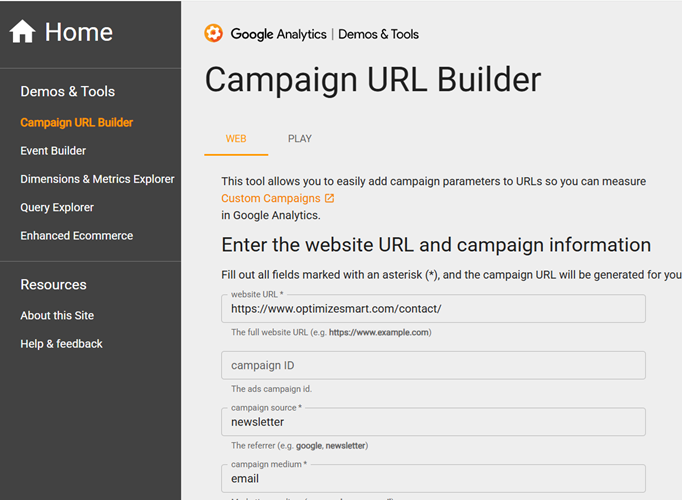
Through the campaign URL builder tool, you can easily and correctly add UTM parameters to the end of your URLs.
If you want to tag URLs for ads on the Android mobile app then click on the ‘PLAY’ tab to use the ‘Play Campaign URL Builder tool‘:
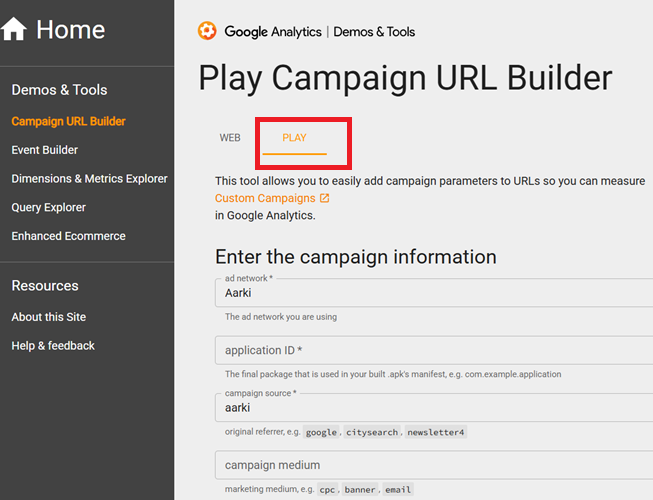
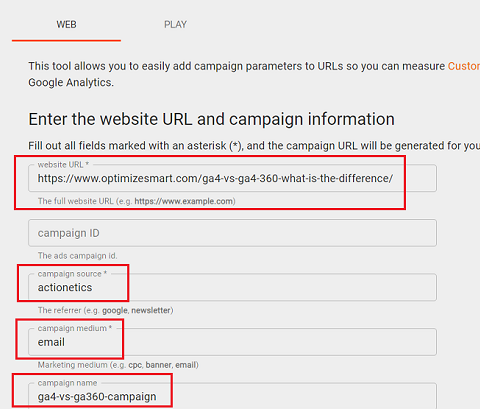
Note: When you use the URL builder tool to tag a URL, you just need to enter the ‘values’ of your UTM parameters. The ‘keys’ are automatically added by the URL builder.
Follow the steps below to use the Google Analytics Campaign URL builder tool:
Step-1: Navigate to https://ga-dev-tools.google/ga4/campaign-url-builder/
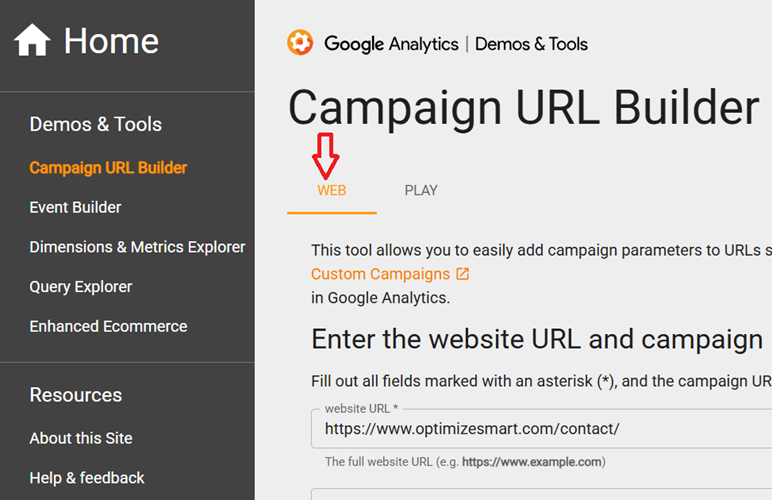
Step-2: Make sure that you are using the campaign URL builder for the web. Use this options only if you are planning to tag URLs for a website:
Step-3: Enter your website URL in the ‘Website URL’ text box and then enter the values of your UTM parameters one by one:
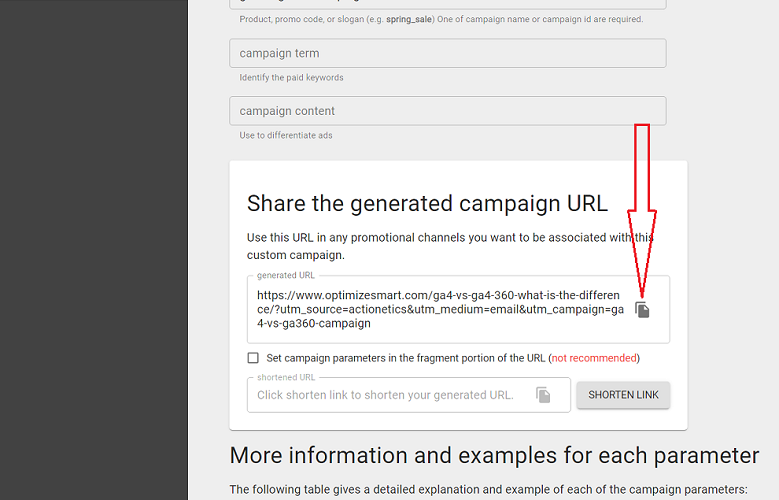
Step-4: Scroll down and then click on the ‘Copy Campaign URL‘ button:
You are less likely to make a mistake while tagging URLs if you use the campaign URL builder tool. This is the advantage of using this tool.
Note: If you use Google Ads auto-tagging, then you don’t need to use the campaign URL builder tools. The auto-tagging feature will automatically add the GCLID parameter to the end of your ad URLs.
Avoid tagging internal links with UTM parameters
An internal link is a URL which when clicked, takes a user from one web page to another web page and both the source and destination web pages are hosted on the same website/domain.
For example,
A link from a product category page (hosted on your website) to a product detail page (also hosted on your website) is an internal link.
Similarly,
A link from one of the web pages of your sub-domain (say blog.abc.com) to a page hosted on your primary domain (abc.com) is an internal link.
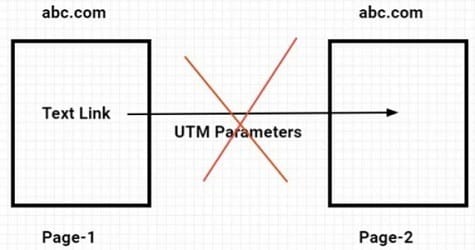
In short, use UTM parameters to tag only external links.
Links that don’t need tagging
If you are using the auto-tagging feature of Google Ads, then you don’t need to tag the URLs of your ads.
Any traffic source/medium that Google Analytics can automatically detect and report on does not need to be tagged.
For example, GA4 can automatically detect traffic from all well-known search engines. So you don’t need to tag links for search engines.
Tag an external link only when you want to send some extra information to Google Analytics.
For example, when a user visits your website from Facebook, GA automatically detects the Facebook referrer and ties the user’s activities with the referrer.
So you don’t need to tag Facebook links just for that purpose.
However, if you want to know exactly which Facebook campaign sent traffic to your website, then tag the Facebook ad URLs.
Note: It is not required that the UTM parameters should remain appended to a URL until the end of a Google Analytics session. They just need to be present when a landing page loads for the first time in a web browser.
Personally identifiable information and UTM parameters.
The following are examples of personally identifiable information (or PII):
- Names
- Email address
- Ip address
- Phone number
- House address etc
Google Analytics terms of service, prohibits sending PII to Google Analytics server via UTM tracking parameters.
For example, the following use of UTM parameters is against the Google Analytics terms of service and could result in account suspension:
https://www.abc.com/?utm_source=facebook&utm_medium=1844ESky-HarborCirS-Phoenix-AZ85034-USA&utm_term=john@gmail.com&utm_content=82.23.186.447&utm_campaign=car-insurance-promo-feb
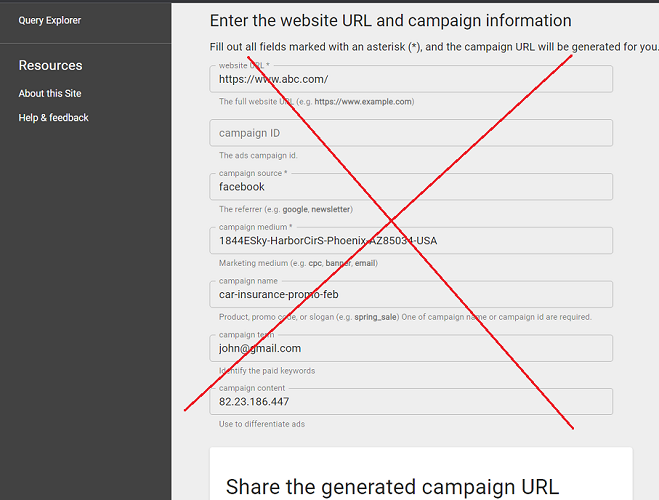
The URL above is used to send the house address, email address and IP address of a user to the Google Analytics server and thus violates Google Analytics terms of service.
Where to add the UTM parameters?
We add UTM parameters to external links.
An external link is a URL which when clicked, takes a user from one web page to another web page and both the source and destination web pages are hosted on different websites/domains.
For example, a link from a Facebook ad to a product detail page hosted on your website is an external link.
Testing UTM parameters.
Enter your tagged URL in your web browser address bar and then press the enter key:

If all the parameters remain intact, then most likely, your UTM parameters are working correctly.
Use the DebugView report, if you want to test UTM parameters in GA4
In the DebugView report, you can view each campaign UTM parameter for a page_view event in real time.
UTM parameters not working and how to fix them?
In the following cases, your UTM parameters won’t work:
- You are using a UTM parameter that is not supported by GA4.
- UTM parameters are not formatted correctly.
- UTM parameters are not appended to the URL correctly.
- GA4 is not able to capture the UTM parameters.
- UTM parameters do not strictly follow the channel rules for manual traffic.
- You are tagging internal links.
To learn more, check out this article: GA4 UTM parameters not working? Here is how to fix it.
Filtering GA4 Reports by UTM Parameters.
You can filter GA4 reports by UTM parameters by creating/editing an exploration report.
For example: Page Referrer contains [add your UTM source]Page Referrer contains [add your UTM medium]Page Referrer contains [add your UTM campaign]
For more details: Filter Google Analytics 4 Reports by UTM Parameters.
Impact of Apple IOS 17 on UTM tracking.
Tagging your ad URLs with UTM parameters is more important than ever if you wish to continue to track the performance of Google and Facebook ads in GA4 reports.
Apple’s iOS 17 update includes a new feature called ‘Link Tracking Protection‘, which automatically removes ‘gclid’ and ‘fbclid’ tracking parameters when a user uses the Safari private mode or uses Apple’s native Mail app or Messages. However, the UTM parameters are not removed.
Without ‘gclid’ and ‘fbclid’ tracking parameters in place, traffic from Google/FB ads could be reported as direct/organic in your GA4 reports.
Other than that, iOS 17 update will also affect Google’s ability to track the performance of your Google Ads and Facebook’s ability to track the performance of Facebook Ads.
The majority of Facebook users use the native Facebook app. So Facebook advertisers are unlikely to be impacted much by this update.
But this update may not be good news for Google Ads advertisers if the users are clicking on ads in Safari private mode as it will automatically disable the autotagging feature of Google ads, which provides a wealth of information to Google.
Let’s hope and pray that Apple does not drop UTM parameters in future IOS updates. Because that could really cripple the conversion attribution.
Related article: How to see UTM parameters in GA4.
Other Articles on GA4.
- Tracking New, Qualified and Converted Leads in GA4.
- Free GA4 training and tutorial with Certification.
- Understanding GA4 Ecommerce Reports (Monetization Reports).
- GA4 Ecommerce Tracking via GTM: Step-by-Step Setup Guide.
- How to see UTM parameters in GA4 (Google Analytics 4).
- GA4 UTM parameters not working? Here is how to fix it.
- How To Use UTM parameters in GA4 (Campaign Tracking).
- How to track AI traffic in GA4.
- Understanding Google Analytics 4 cookies – _ga cookie.
- GA4 (Google Analytics 4) Measurement Protocol Tutorial.
- GA4 Unassigned Traffic: Causes and How to Fix it Fast.
- GA4 Regex (Regular Expressions) Tutorial.
- GA4 Direct Traffic Spike: Common Causes and How to Fix Them.
- gtag.js – Google Tag in Google Analytics 4 and beyond.
- GA4 Scopes – User, Session, Event & Item scopes.
- GA4 Conversion Tracking (Key Events) Tutorial.
- GA4 (not set) - Guide to fixing (not set) issue.