

,
Set up GA4 Ecommerce tracking via GTM with this step-by-step guide. Learn how to track transactions, product views, and more for accurate ecommerce insights.
Note: Ecommerce events can also be implemented using a global site tag (gtag.js).
With Google Analytics 4 properties, ecommerce implementation is a bit different compared to Universal Analytics.
What is GA4 Ecommerce Tracking?
Google Analytics 4 (GA4) Ecommerce Tracking is a feature through which you can track and analyze ecommerce activities on websites and mobile apps.
The e-commerce activities include viewing product details, adding items to shopping carts, making purchases, etc.
Why do you need GA4 Ecommerce Tracking?
The following are some of the key reasons why you need to implement GA4 e-commerce tracking:
- GA4 E-commerce tracking provides insights into customer behaviour on your websites and/or mobile apps.
- The ecommerce reports are used to evaluate marketing campaign effectiveness in terms of generating sales.
- E-commerce reports show customer interactions with products, including views, additions to the cart, and purchases.
- Data from the ecommerce reports helps identify popular products and customer preferences.
- Insights from e-commerce tracking are crucial for decision-making to improve online sales and improve user experience.
- By using e-commerce tracking, businesses can tailor their websites and marketing strategies to meet customer needs better, aiding growth.
- Operators of online stores or apps need more than just shopping cart analytics; GA4 E-commerce tracking is not something nice to have, but a mandatory requirement.
- Through e-commerce tracking, you can correlate sales data with website usage metrics such as sessions, engagement rate, and traffic sources.
- Analyzing correlations between sales data and website usage is key to evaluating the effectiveness of landing pages and marketing campaigns.
- Without GA4 E-commerce tracking, identifying the sales impact of specific landing pages or campaigns is challenging.

CAVEAT: Google’s GA4 E-commerce advice may cause tracking issues.
If you follow the Google documentation on GA4 ecommerce tracking, you could exceed the data API quota limits, the daily BigQuery export limits and deal with (other) and data sampling issues.
For example, if you follow the Google documentation, you will invariably fire multiple ‘add to cart’ events in certain scenarios.
When tracking the addition of multiple items to a cart, Google’s documentation suggests firing an “add_to_cart” event for each item added.
This approach can result in multiple events being fired if a user adds several items to their cart in succession.
So, when you follow Google’s advice on ecommerce tracking, it could result in:
>> Higher event volumes recorded in your GA4 property, which could trigger data sampling in GA4.
>> High cardinality, resulting from numerous unique events, can lead to data being grouped into the “(other)” category, reducing the granularity of reports and potentially obscuring important details.
>> Exceeding the daily BigQuery export limits, which could result in paused exports and data gaps.
>> Exceeding the API quota limit which means further API requests are blocked until the quota is reset. This can lead to incomplete data collection and reporting gaps.
The best practice is to minimize the number of events you track (without losing critical information) in a GA4 property so you don’t easily hit the API quota or BigQuery export limits.
Instead of tracking separate events for similar user actions, track state changes.
Firing a single “add_to_cart” event with updated quantity information is the most efficient and accurate approach.
By sending a single event with the total quantity added, you avoid unnecessary event volume while still capturing the essential information about the user’s action.
Here is how it works.
A user adds an item to the cart, triggering an ‘add_to_cart’ event.
The user updates the cart quantity.
Instead of firing multiple ‘add_to_cart’ events, use an event parameter to track the updated quantity.
Using ‘cart_quantity_updated’ as an event parameter avoids the need to fire multiple events for quantity updates, thus preventing duplicate events.
// Initialize cart state (if not already defined)
window.cartState = window.cartState || {};
// Function to track state changes for add-to-cart
function trackAddToCartState(productId, productName, productPrice, quantity) {
 // Update or add the product in the cart state
 if (window.cartState[productId]) {
   // Update the quantity for the existing product
   window.cartState[productId].quantity += quantity;
 } else {
   // Add a new product to the cart
   window.cartState[productId] = {
     item_name: productName,
     price: productPrice,
     quantity: quantity
   };
 }
 // Calculate the total quantity of all items in the cart
 const totalQuantity = Object.values(window.cartState).reduce(
   (sum, item) => sum + item.quantity,
   0
 );
 // Fire a single 'add_to_cart' event with the updated cart state
 gtag('event', 'add_to_cart', {
   currency: 'USD', // Replace with your site's currency
   value: calculateCartValue(Object.values(window.cartState)), // Optional: total cart value
   cart_quantity_updated: totalQuantity, // Custom parameter for total cart quantity
   items: Object.keys(window.cartState).map((id) => ({
     item_id: id,
     item_name: window.cartState[id].item_name,
     price: window.cartState[id].price,
     quantity: window.cartState[id].quantity
   }))
 });
 console.log('Cart updated and add_to_cart event fired:', window.cartState);
}
// Utility function to calculate total cart value
function calculateCartValue(items) {
 return items.reduce((total, item) => total + item.price * item.quantity, 0);
}
// Example usage:
// Adding a new item
trackAddToCartState('P001', 'Product Name', 20.99, 1);
// Updating the quantity of an existing item
trackAddToCartState('P001', 'Product Name', 20.99, 2);
This approach is especially useful for high-traffic e-commerce websites.
That’s why tracking state changes is so important.
Google’s documentation doesn’t explicitly address tracking state changes in this context. It does not always represent the most efficient or accurate method for all ecommerce tracking scenarios. It’s more like a starting point for GA4 ecommerce tracking. That’s why you may need outside expert help.
Tracking viewing an item from a list.
To track when a user views an item from a list, push the ‘view_item_list’ event and the associated item details to the data layer.
Google tag configuration:
Once the above code is pushed to the DataLayer, configure your Google Tag Manager tag like the one below.
Tag Type: GA4 event
Event Name: view_item_list
Event Parameters:
items – {{Ecommerce Items}}
item_list_id – {{Ecommerce Item List ID}}
item_list_name – {{Ecommerce Item List Name}}
Here,
{{Ecommerce Items}} = ecommerce.items
{{Ecommerce Item List ID}} = ecommerce.item_list_id
{{Ecommerce Item List Name}} = ecommerce.item_list_name
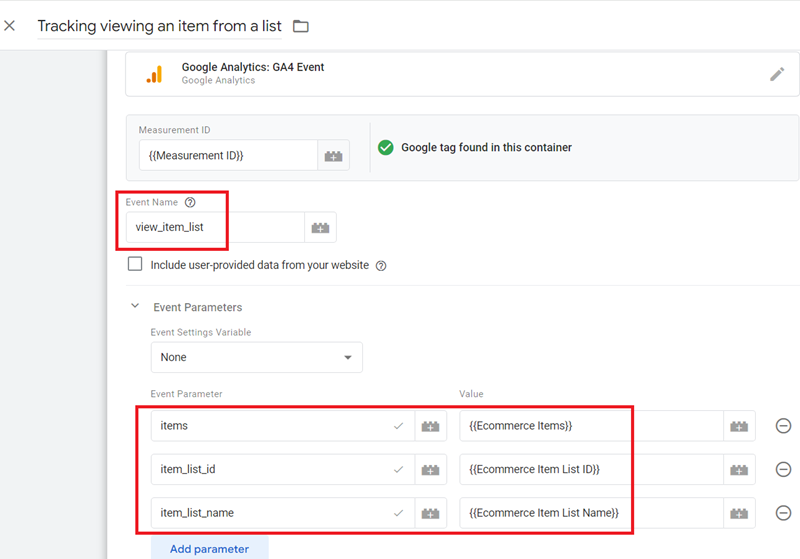
Note: You do not need to check the “Send ecommerce data” box if you have already manually configured individual ecommerce parameters in your GA4 event tag.
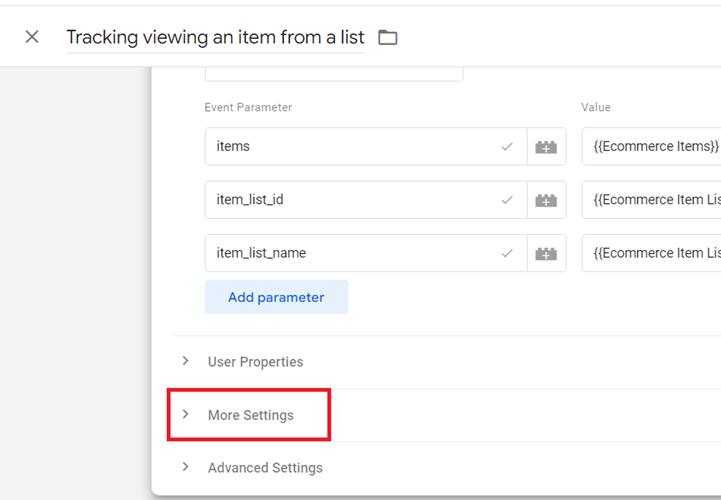
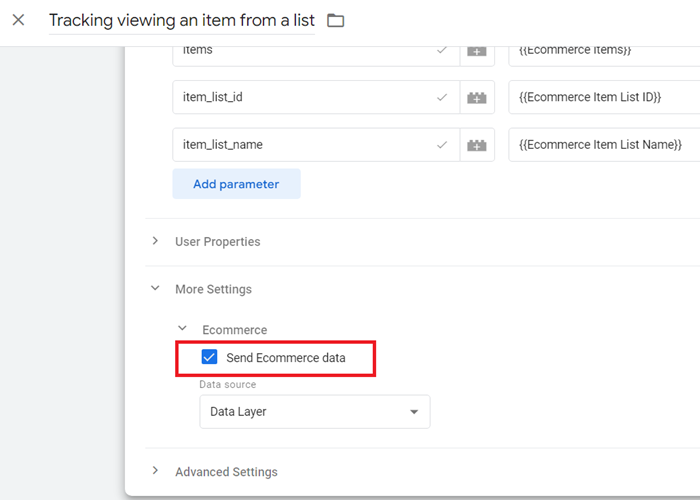
If you have already manually set up individual ecommerce parameters in your GA4 event tag (like we have aready done), you have essentially done the work that the “Send ecommerce data” feature automates.
The advantage of manually configuring individual ecommerce parameters gives you more control over exactly what data is sent and how it is formatted.
Trigger configuration:
Create a trigger with the following configuration:
Trigger Type: Custom Event
Event Name: view_item_list
This trigger fires on: All Custom Events
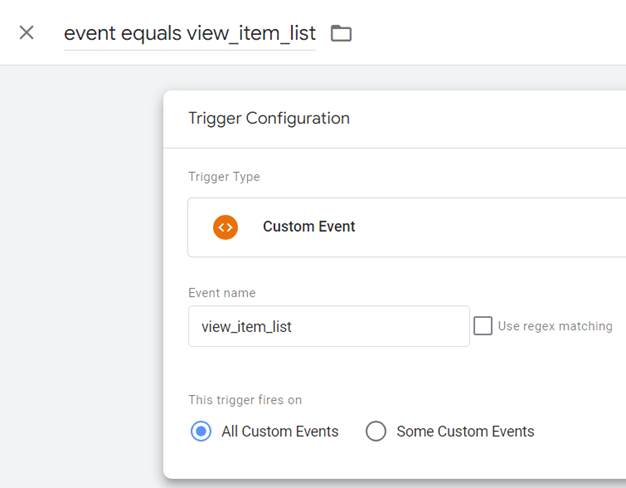
Your final tag configuration should look like the one below:
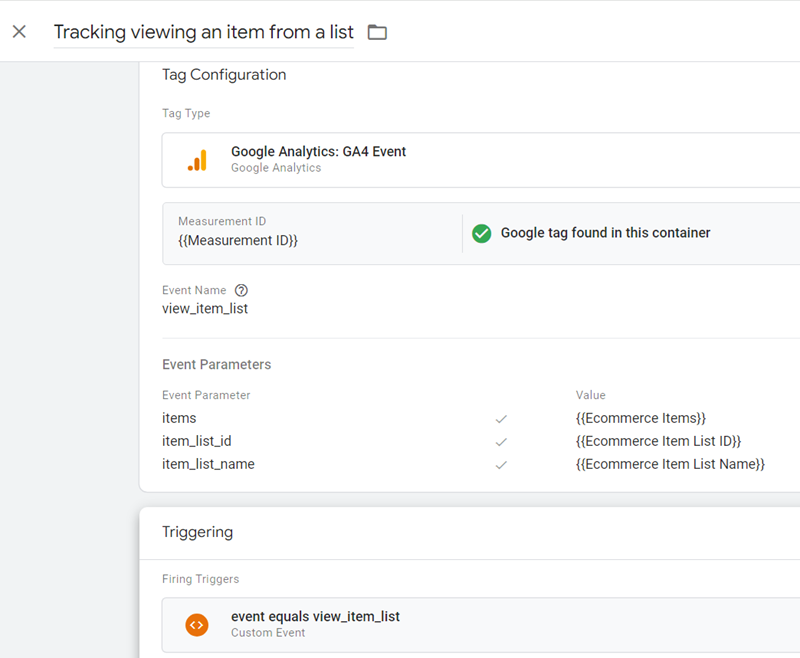
We need to fire this tag on the pages where a list of products is displayed, generally on the home page, category pages, etc.
Tracking selecting an item from a list.
To track when a user selects an item from a list, push the ‘select_item’ event and the associated item details to the data layer.
Google tag configuration:
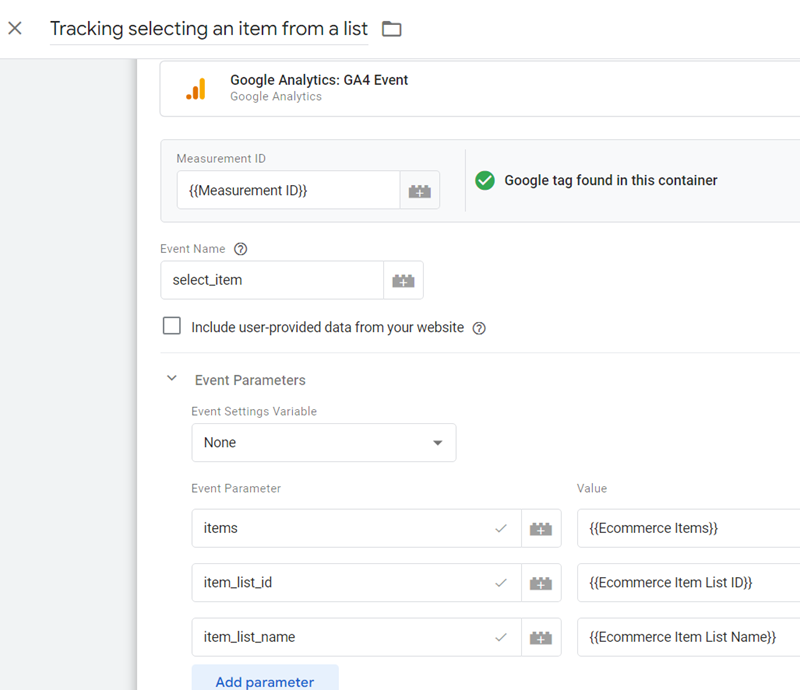
Once the above code is pushed to the DataLayer, configure your Google Tag Manager tag as shown below.
Tag Type: GA4 event
Event Name: select_item
Event Parameters:
items – {{Ecommerce Items}}
item_list_id – {{Ecommerce Item List ID}}
item_list_name – {{Ecommerce Item List Name}}
Here,
{{Ecommerce Items}} = ecommerce.items
{{Ecommerce Item List ID}} = ecommerce.item_list_id
{{Ecommerce Item List Name}} = ecommerce.item_list_name
Trigger configuration:
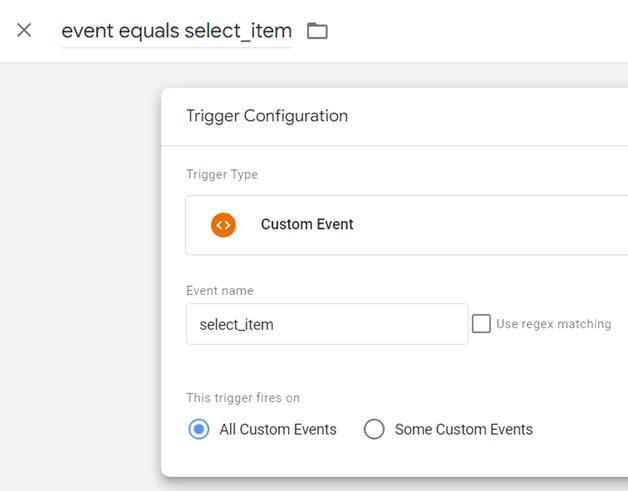
Create a trigger with the following configuration:
Trigger Type: Custom Event
Event Name: select_item
This trigger fires on: All Custom Events
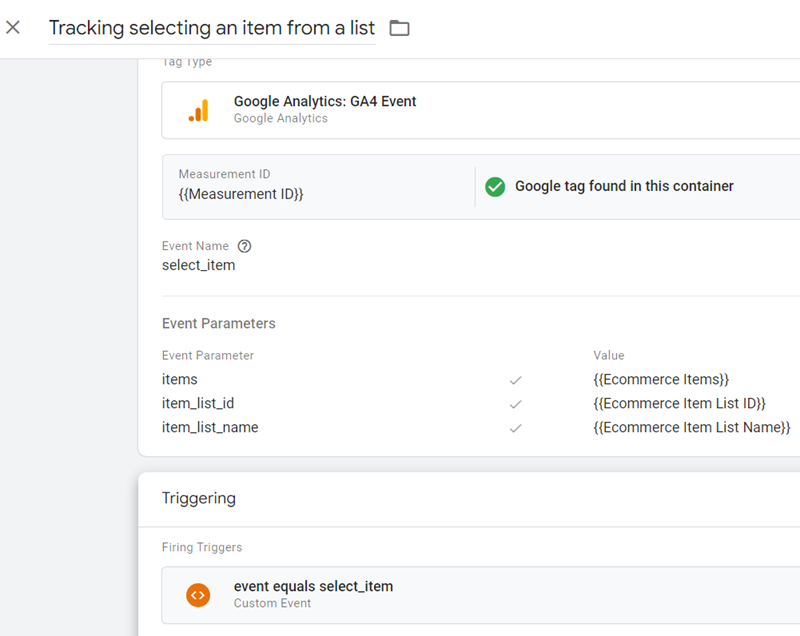
Your final tag configuration should look like the one below:
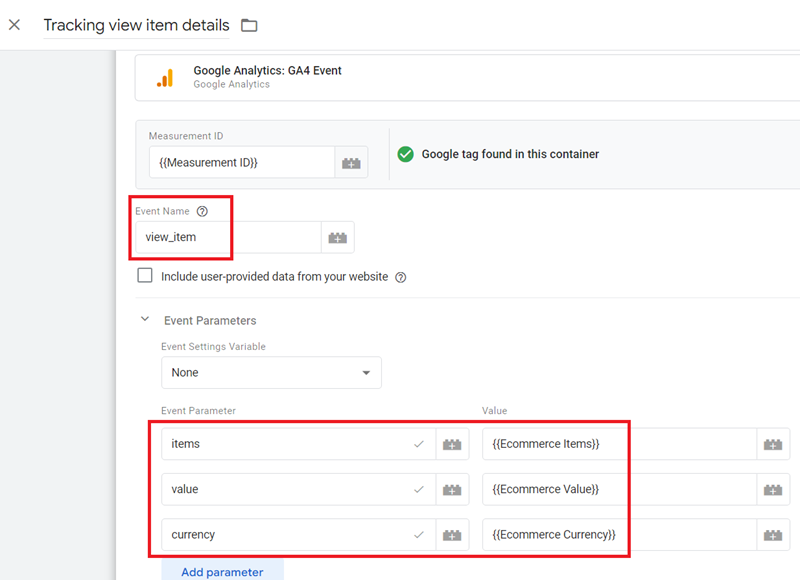
Tracking view item details.
To track when a user views an item’s details, push the ‘view_item’ event and the associated item details to the data layer.
Google tag configuration:
Once the above code is pushed to the DataLayer, configure your Google Tag Manager tag as shown below.
Tag Type: GA4 event
Event Name: view_item
Event Parameters:
items – {{Ecommerce Items}}
value – {{Ecommerce Value}}
currency – {{Ecommerce Currency}}
Here,
{{Ecommerce Items}} = ecommerce.items
{{Ecommerce Value}} = ecommerce.value
{{Ecommerce Currency}} = ecommerce.currency
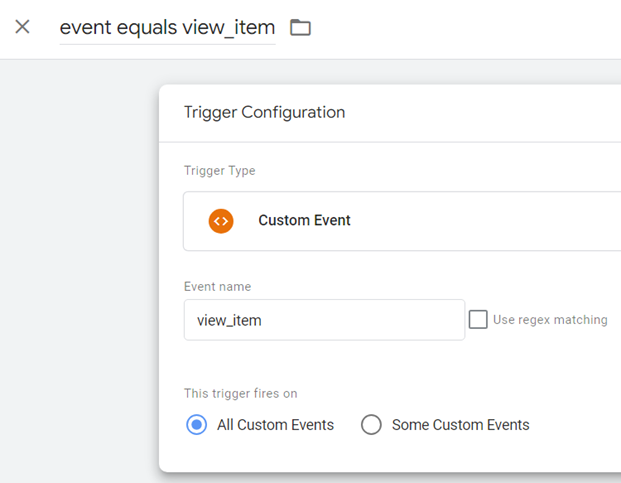
Trigger configuration:
Create a trigger with the following configuration:
Trigger Type: Custom Event
Event Name: view_item
This trigger fires on: All Custom Events
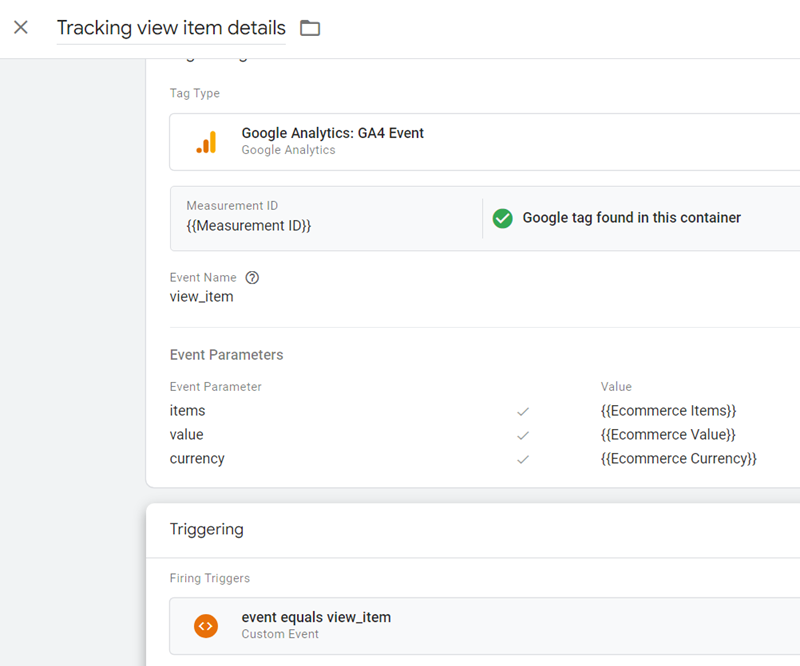
Your final tag configuration should look like the one below:
Tracking Add to cart.
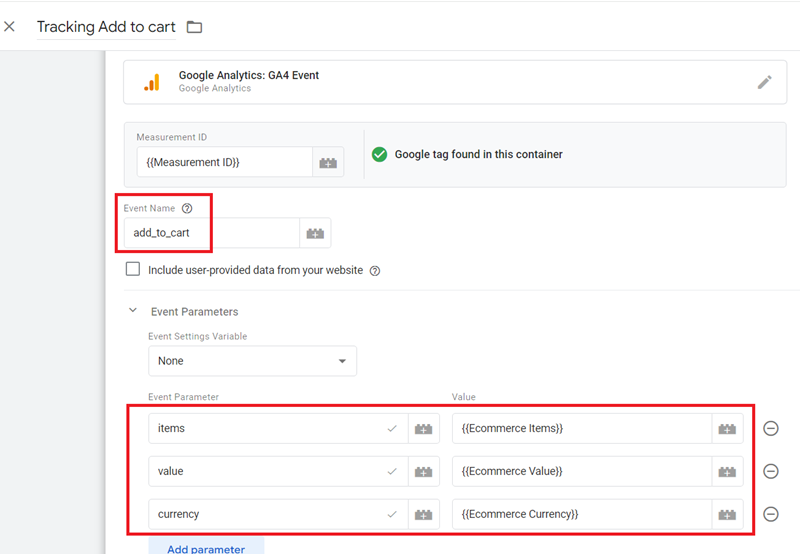
To track when a user adds an item to their shopping cart, push the ‘add_to_cart’ event and the associated item details to the data layer when the user adds one or more items to their shopping cart on your website or app.
Google tag configuration:
Once the above code is pushed to the DataLayer, configure your Google Tag Manager tag as shown below.
Tag Type: GA4 event
Event Name: add_to_cart
Event Parameters:
items – {{Ecommerce Items}}
value – {{Ecommerce Value}}
currency – {{Ecommerce Currency}}
Here,
{{Ecommerce Items}} = ecommerce.items
{{Ecommerce Value}} = ecommerce.value
{{Ecommerce Currency}} = ecommerce.currency
Trigger configuration:
Create a trigger with the following configuration:
Trigger Type: Custom Event
Event Name: add_to_cart
This trigger fires on: All Custom Events
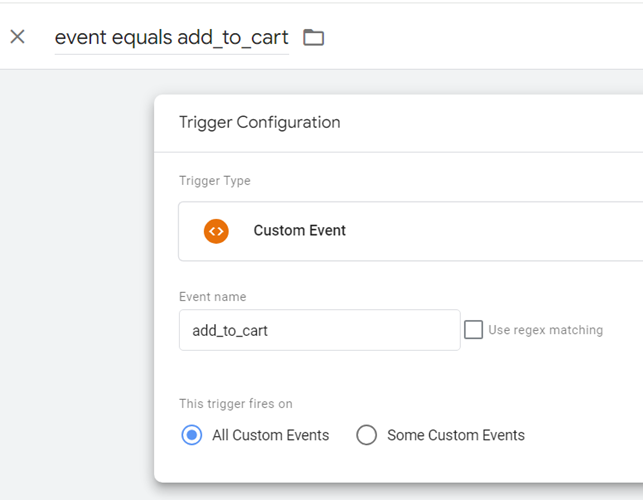
Your final tag configuration should look like the one below:
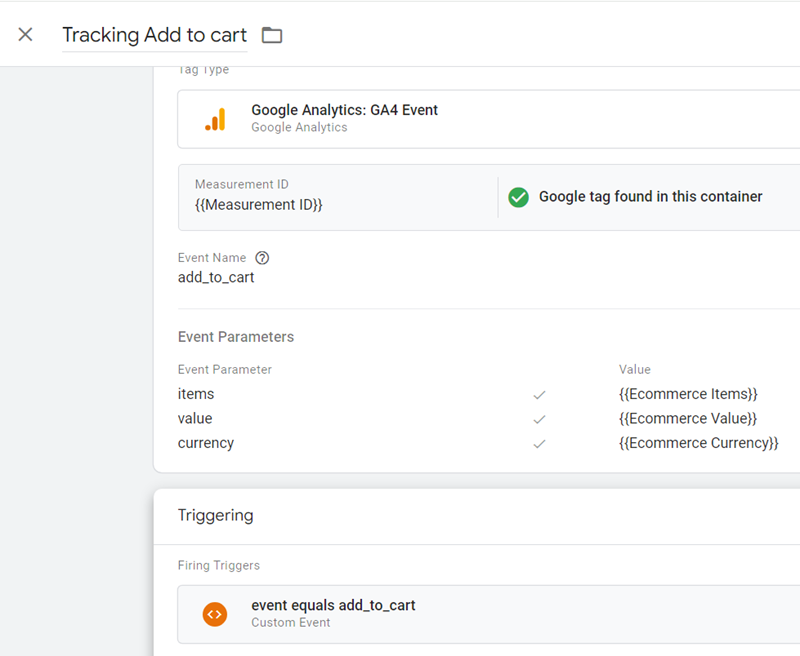
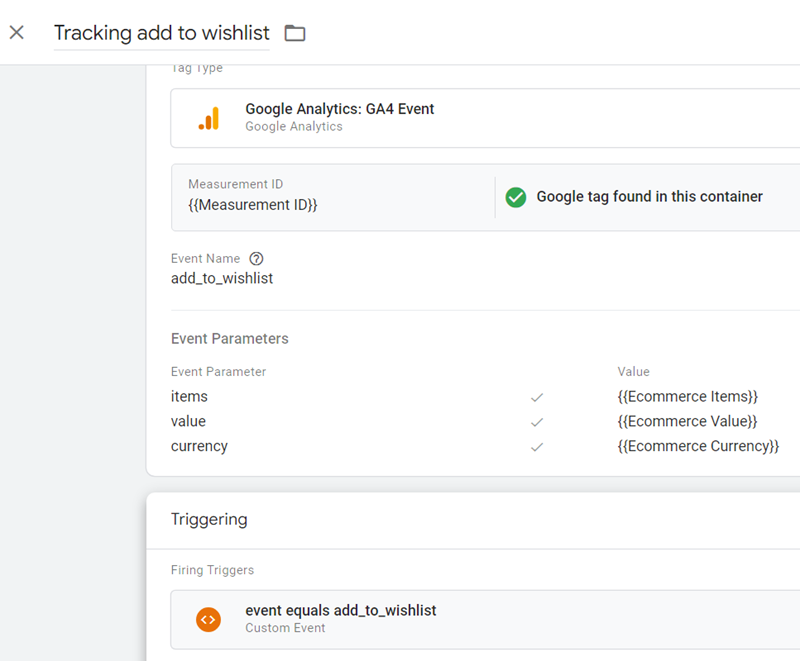
Tracking add to wishlist.
To track when a user adds an item to their wish list, push the ‘add_to_wishlist’ event and the associated item details to the data layer when the user adds one or more items to their wish list on your website or app.
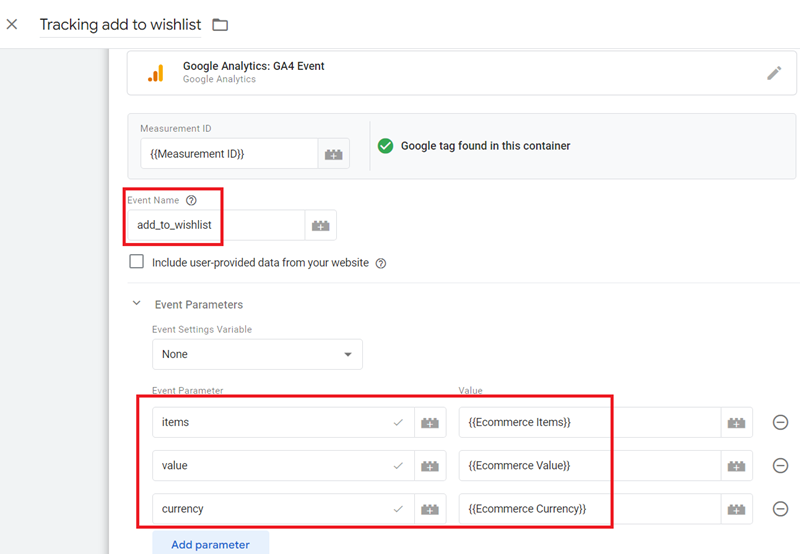
Google tag configuration:
Once the above code is pushed to the DataLayer, configure your Google Tag Manager tag as shown below.
Tag Type: GA4 event
Event Name: add_to_wishlist
Event Parameters:
items – {{Ecommerce Items}}
value – {{Ecommerce Value}}
currency – {{Ecommerce Currency}}
Here,
{{Ecommerce Items}} = ecommerce.items
{{Ecommerce Value}} = ecommerce.value
{{Ecommerce Currency}} = ecommerce.currency
Trigger configuration:
Create a trigger with the following configuration:
Trigger Type: Custom Event
Event Name: add_to_wishlist
This trigger fires on: All Custom Events
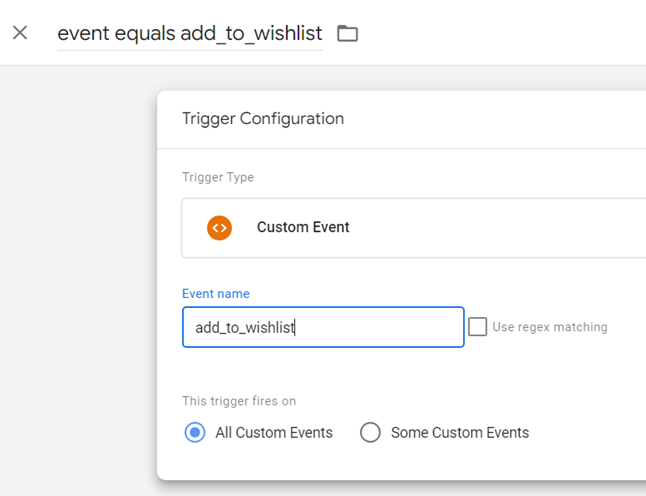
Your final tag configuration should look like the one below:
Tracking view to shopping cart.
To track when a user views a shopping cart, push the ‘view_cart’ event and the associated item details to the data layer.
Google tag configuration:
Once the above code is pushed to the DataLayer, configure your Google Tag Manager tag as shown below.
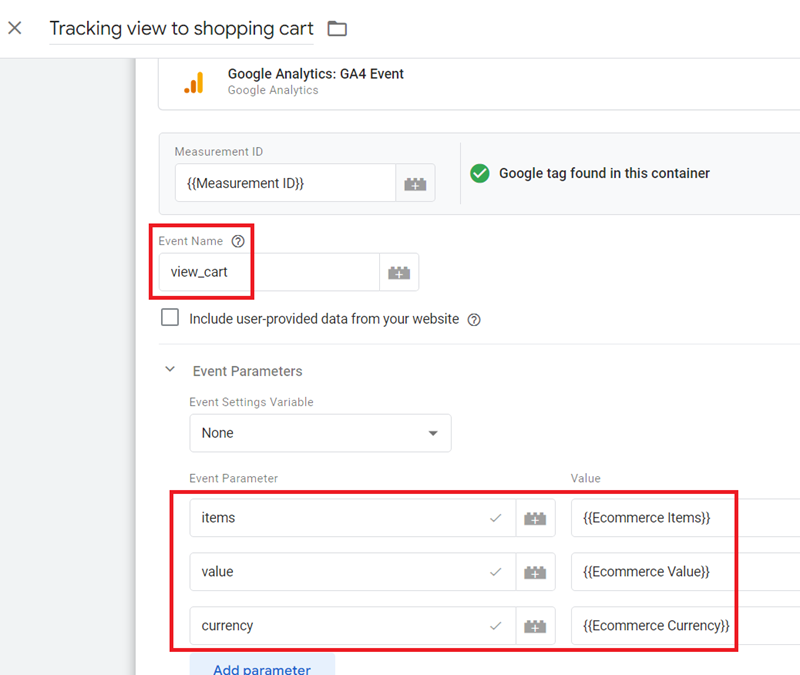
Tag Type: GA4 event
Event Name: view_cart
Event Parameters:
items – {{Ecommerce Items}}
value – {{Ecommerce Value}}
currency – {{Ecommerce Currency}}
Here,
{{Ecommerce Items}} = ecommerce.items
{{Ecommerce Value}} = ecommerce.value
{{Ecommerce Currency}} = ecommerce.currency
Trigger configuration:
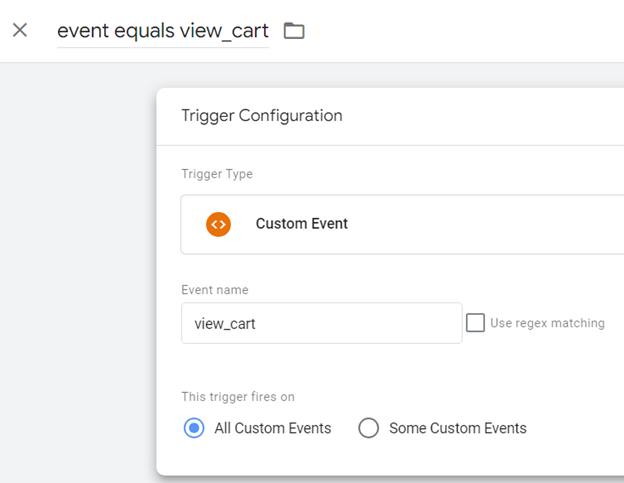
Create a trigger with the following configuration:
Trigger Type: Custom Event
Event Name: view_cart
This trigger fires on: All Custom Events
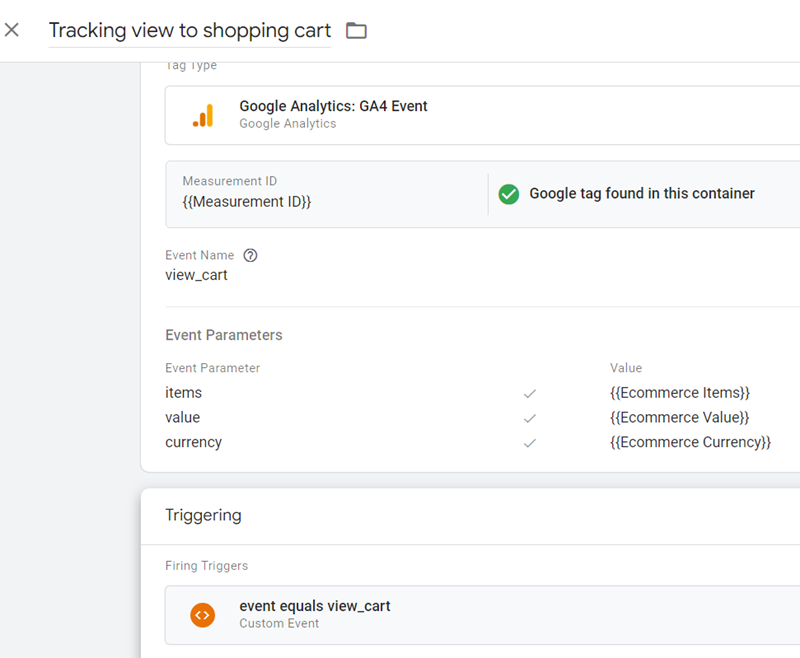
Your final tag configuration should look like the one below:
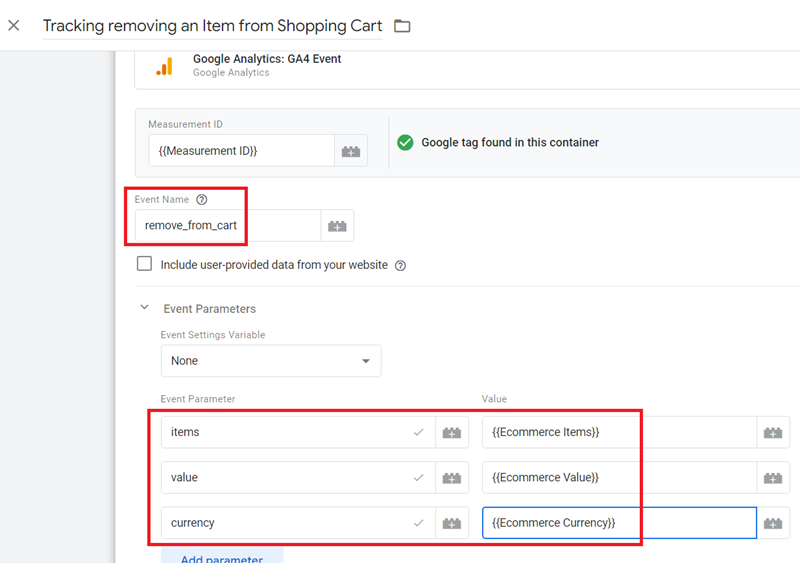
Tracking removing an Item from Shopping Cart.
To track when a user removes an item from their shopping cart, push the ‘remove_from_cart’ event and the associated item details to the data layer when a user removes one or more items from their shopping cart on your website or app.
Google tag configuration:
Once the above code is pushed to the DataLayer, configure your Google Tag Manager tag as shown below.
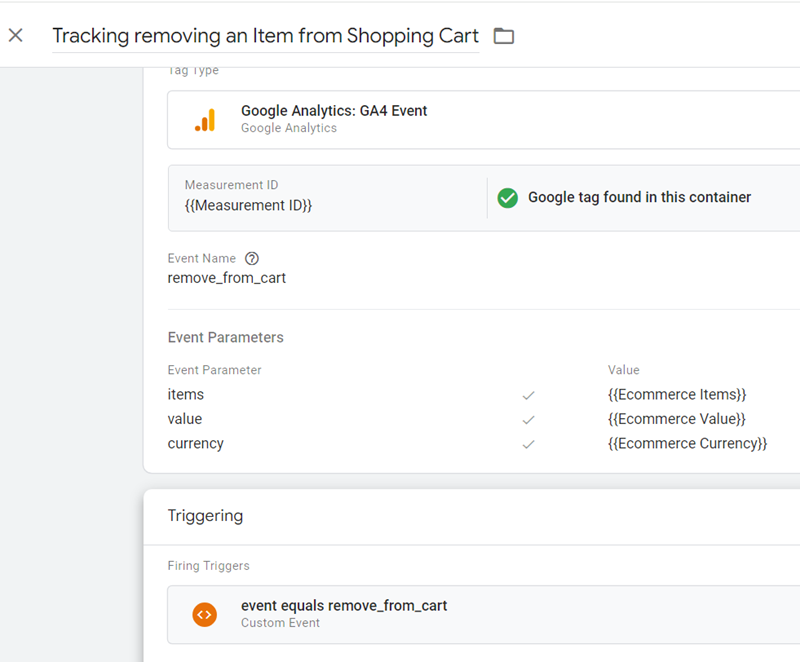
Tag Type: GA4 event
Event Name: remove_from_cart
Event Parameters:
items – {{Ecommerce Items}}
value – {{Ecommerce Value}}
currency – {{Ecommerce Currency}}
Here,
{{Ecommerce Items}} = ecommerce.items
{{Ecommerce Value}} = ecommerce.value
{{Ecommerce Currency}} = ecommerce.currency
Trigger configuration:
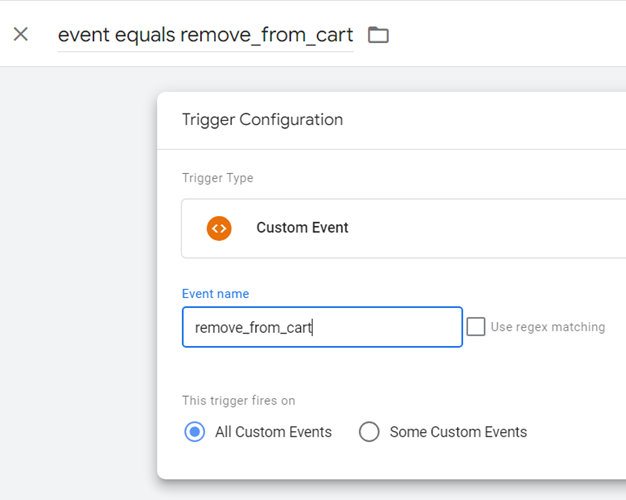
Create a trigger with the following configuration:
Trigger Type: Custom Event
Event Name: remove_from_cart
This trigger fires on: All Custom Events
Your final tag configuration should look like the one below:
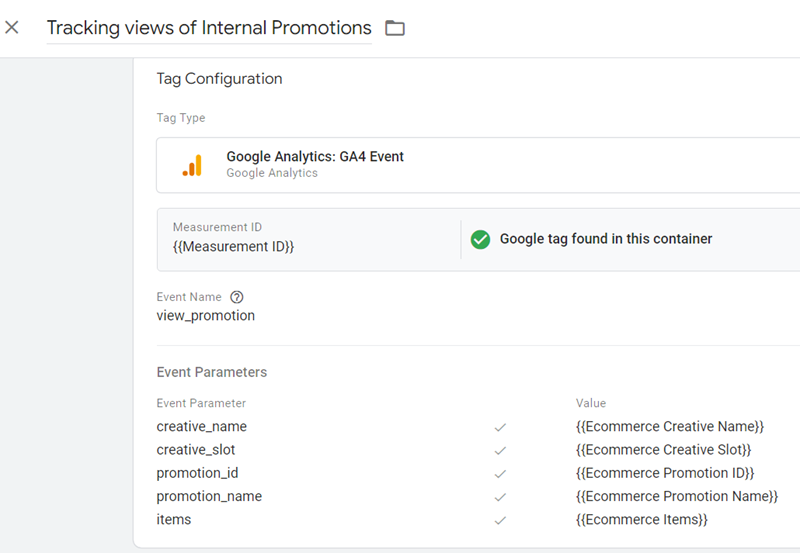
Tracking views of Internal Promotions.
To track when a user views an Internal promotion, push the ‘view_promotion’ event and the associated item details to the data layer.
Google tag configuration:
Once the above code is pushed to the DataLayer, configure your Google Tag Manager tag as shown below.
Tag Type: GA4 event
Event Name: view_promotion
Event Parameters:
creative_name – {{Ecommerce Creative Name}}
creative_slot – {{Ecommerce Creative Slot}}
promotion_id – {{Ecommerce Promotion ID}}
promotion_name – {{Ecommerce Promotion Name}}
items – {{Ecommerce Items}}
Here,
{{Ecommerce Creative Name}} = ecommerce.creative_name
{{Ecommerce Creative Slot}} = ecommerce.creative_slot
{{Ecommerce Promotion ID}} = ecommerce.promotion_id
{{Ecommerce Promotion Name}} = ecommerce.promotion_name
{{Ecommerce Items}} = ecommerce.items
Trigger configuration:
Create a trigger with the following configuration:
Trigger Type: Custom Event
Event Name: view_promotion
This trigger fires on: All Custom Events
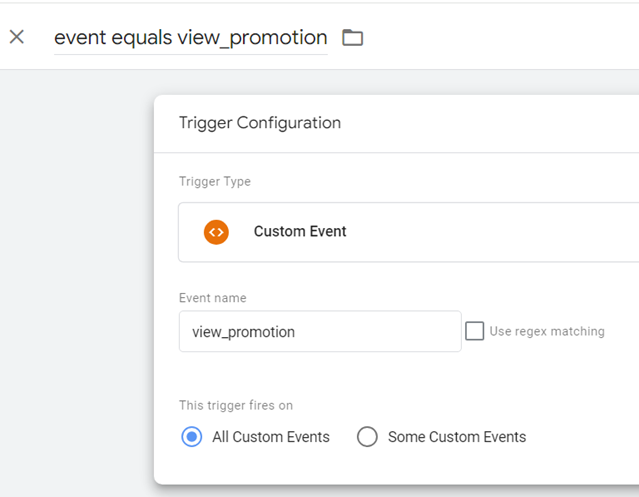
Your final tag configuration should look like the one below:
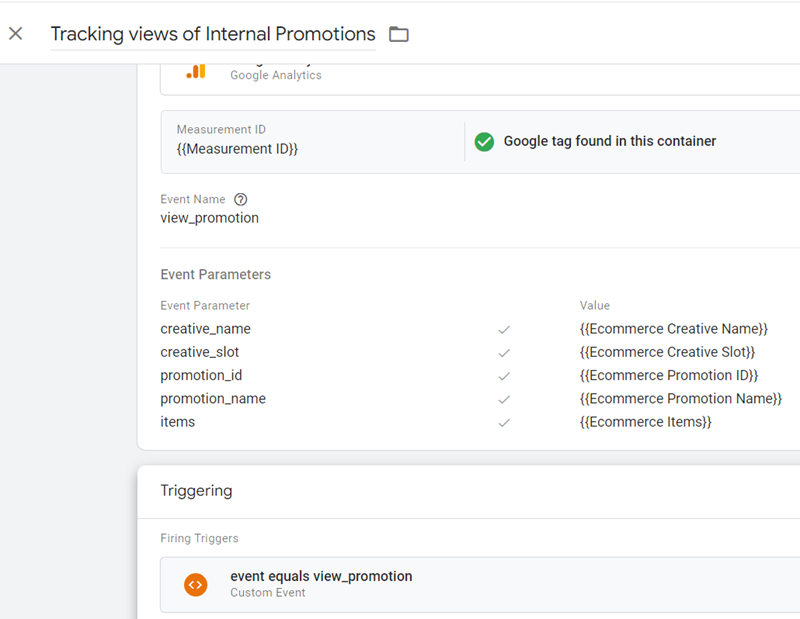
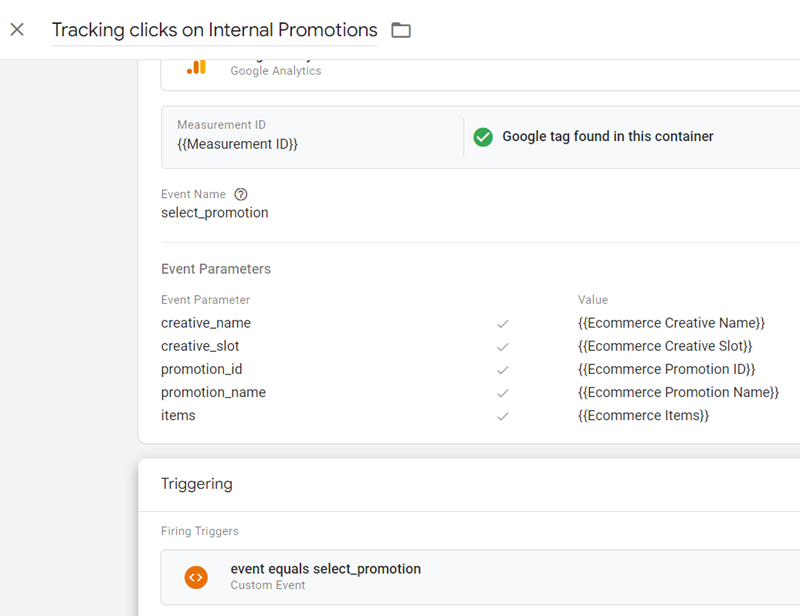
Tracking clicks on Internal Promotions.
To track when a user clicks on an Internal promotion, push the ‘select_promotion’ event and the associated item details to the data layer.
Google tag configuration:
Once the above code is pushed to the DataLayer, configure your Google Tag Manager tag as shown below.
Tag Type: GA4 event
Event Name: select_promotion
Event Parameters:
creative_name – {{Ecommerce Creative Name}}
creative_slot – {{Ecommerce Creative Slot}}
promotion_id – {{Ecommerce Promotion ID}}
promotion_name – {{Ecommerce Promotion Name}}
items – {{Ecommerce Items}}
Here,
{{Ecommerce Creative Name}} = ecommerce.creative_name
{{Ecommerce Creative Slot}} = ecommerce.creative_slot
{{Ecommerce Promotion ID}} = ecommerce.promotion_id
{{Ecommerce Promotion Name}} = ecommerce.promotion_name
{{Ecommerce Items}} = ecommerce.items
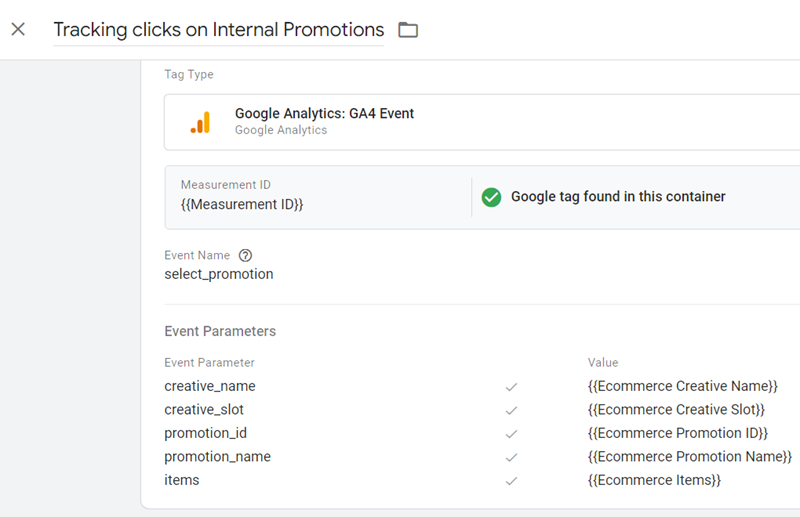
Trigger configuration:
Create a trigger with the following configuration:
Trigger Type: Custom Event
Event Name: select_promotion
This trigger fires on: All Custom Events
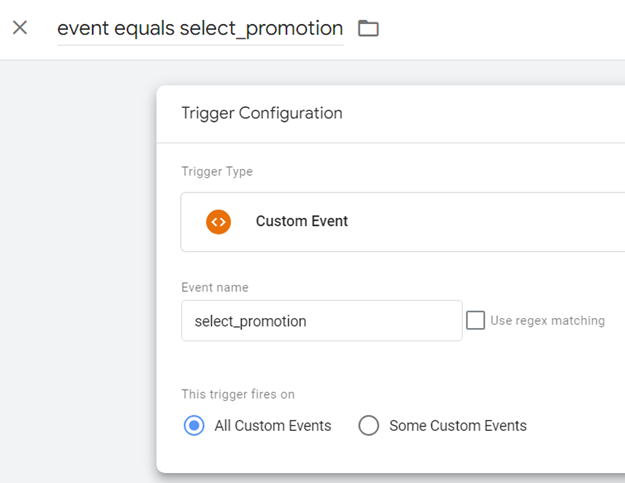
Your final tag configuration should look like the one below:
Measuring Checkout steps in GA4.
To measure the first step in a checkout process in GA4, push the ‘begin_checkout’ event and the associated item details to the data layer on the page where the user initiates the checkout process.
This is typically the page where the user clicks a button or link to start the checkout process, such as a “Proceed to Checkout” button on the shopping cart page.
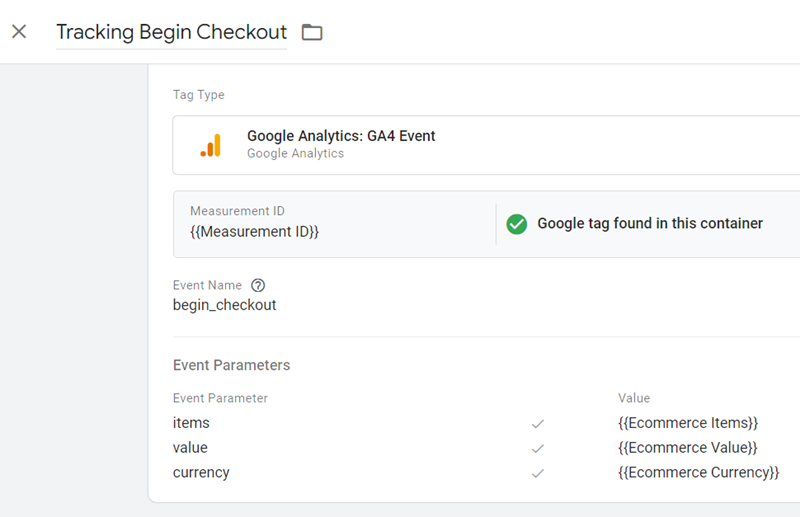
Google tag configuration:
Once the above code is pushed to the DataLayer, configure your Google Tag Manager tag as shown below.
Tag Type: GA4 event
Event Name: begin_checkout
Event Parameters:
items – {{Ecommerce Items}}
value – {{Ecommerce Value}}
currency – {{Ecommerce Currency}}
Here,
{{Ecommerce Items}} = ecommerce.items
{{Ecommerce Value}} = ecommerce.value
{{Ecommerce Currency}} = ecommerce.currency
Trigger configuration:
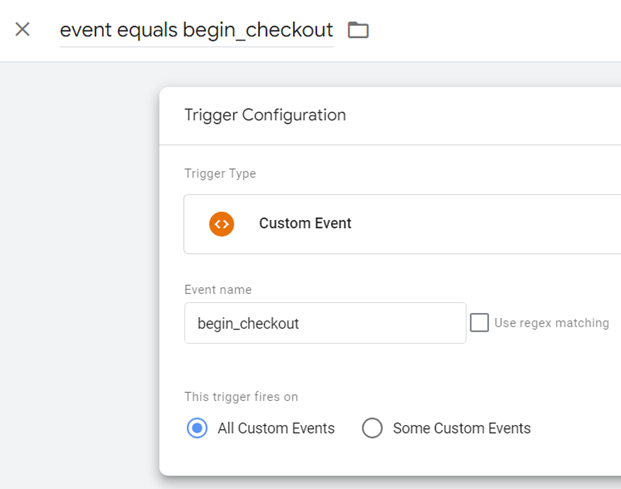
Create a trigger with the following configuration:
Trigger Type: Custom Event
Event Name: begin_checkout
This trigger fires on: All Custom Events
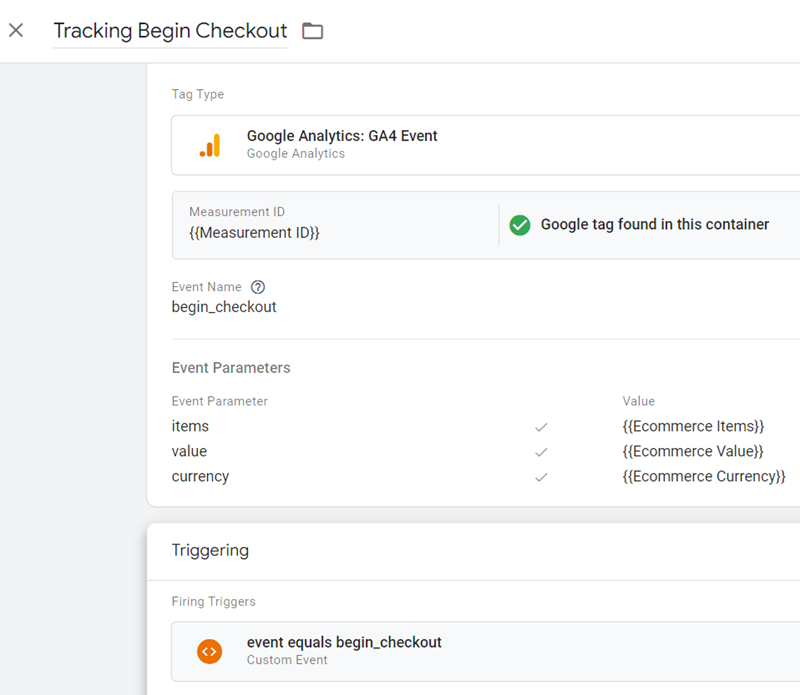
Your final tag configuration should look like the one below:
Tracking coupons in GA4.
To add a coupon to the ‘begin_checkout’ event in GA4, you can include the coupon code at the order or item level within the ‘items’ array.
Adding a Coupon code at the Order Level
To add a coupon code that applies to the entire order, include the ‘coupon’ parameter in the ecommerce object of the ‘begin_checkout’ event:
Adding a Coupon code at the Item Level
To add a coupon that applies to specific items, include the ‘coupon’ parameter within the relevant item objects in the ‘items’ array:
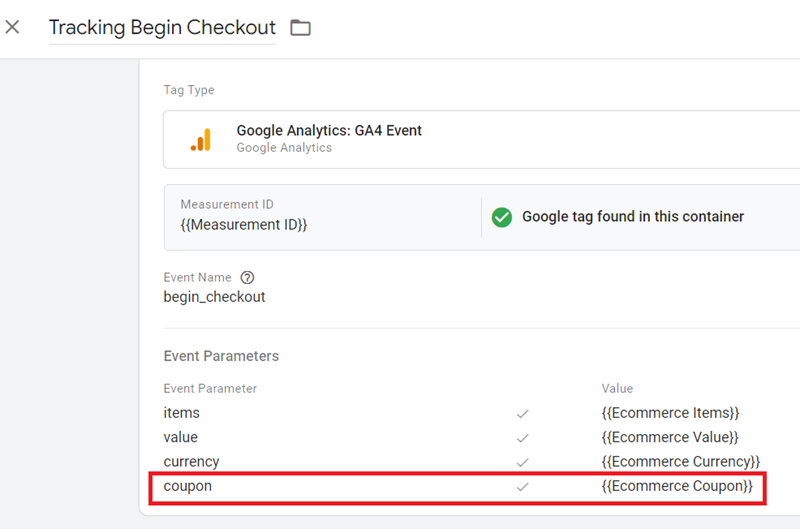
Google tag configuration:
Once the above code is pushed to the DataLayer, configure your Google Tag Manager tag as shown below.
Tag Type: GA4 event
Event Name: begin_checkout
Event Parameters:
items – {{Ecommerce Items}}
value – {{Ecommerce Value}}
currency – {{Ecommerce Currency}}
coupon – {{Ecommerce Coupon}}
Here,
{{Ecommerce Items}} = ecommerce.items
{{Ecommerce Value}} = ecommerce.value
{{Ecommerce Currency}} = ecommerce.currency
{{Ecommerce Coupon}} = ecommerce.coupon
Trigger configuration:
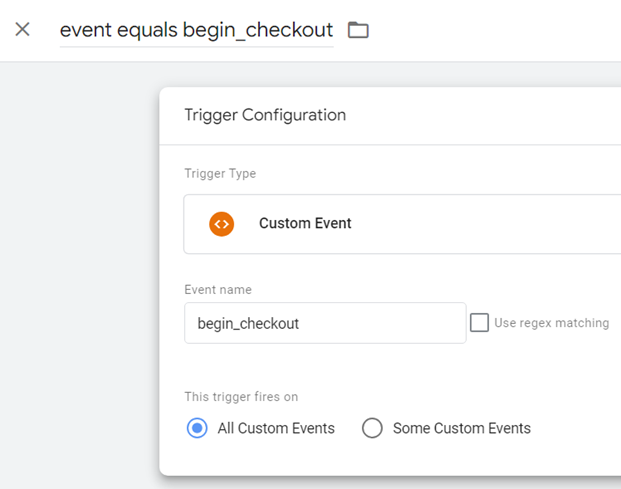
Create a trigger with the following configuration:
Trigger Type: Custom Event
Event Name: begin_checkout
This trigger fires on: All Custom Events
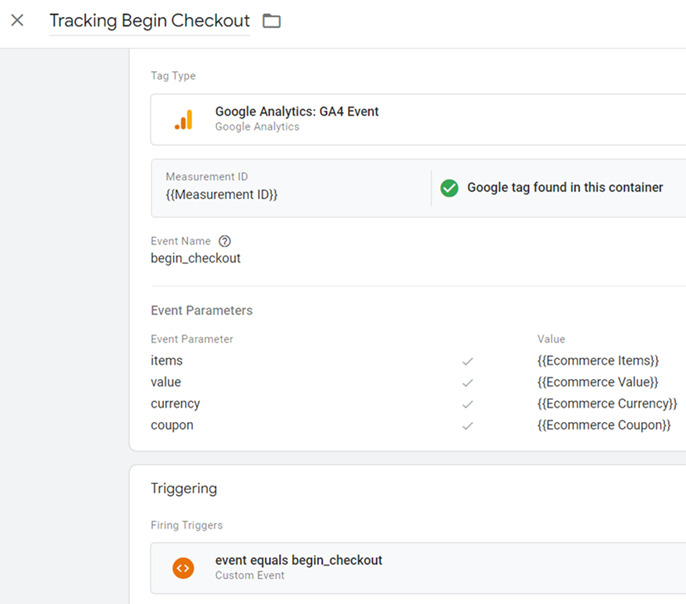
Your final tag configuration should look like the one below:
Tracking Shipping Information.
When a user proceeds to the next step in the checkout process and adds shipping information, push the ‘add_shipping_info’ event and the associated item details to the data layer.
Use the ‘shipping_tier parameter’ to specify the user’s delivery option, such as “Ground”, “Air”, or “Next-day”:
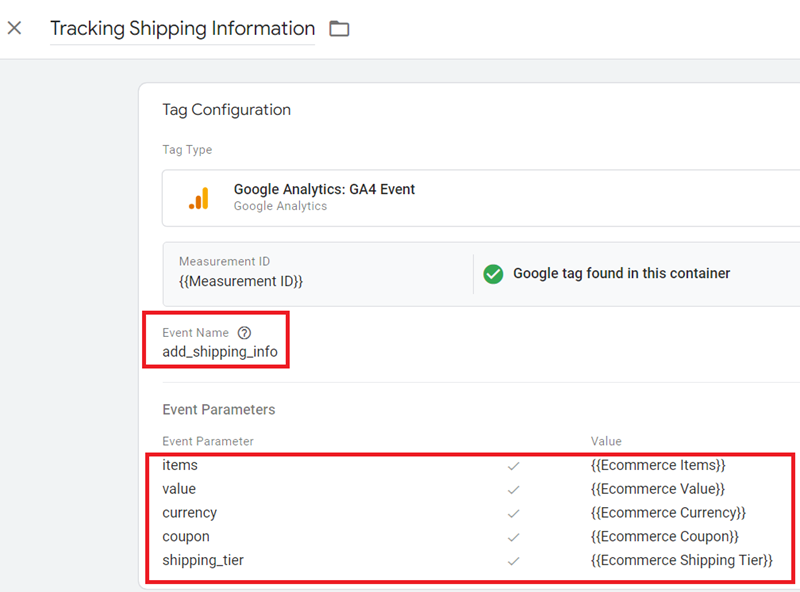
Google tag configuration:
Once the above code is pushed to the DataLayer, configure your Google Tag Manager tag as shown below.
Tag Type: GA4 event
Event Name: add_shipping_info
Event Parameters:
items – {{Ecommerce Items}}
value – {{Ecommerce Value}}
currency – {{Ecommerce Currency}}
coupon – {{Ecommerce Coupon}}
shipping_tier – {{Ecommerce Shipping Tier}}
Here,
{{Ecommerce Items}} = ecommerce.items
{{Ecommerce Value}} = ecommerce.value
{{Ecommerce Currency}} = ecommerce.currency
{{Ecommerce Coupon}} = ecommerce.coupon
{{Ecommerce Shipping Tier}} = ecommerce.shipping_tier
Trigger configuration:
Create a trigger with the following configuration:
Trigger Type: Custom Event
Event Name: add_shipping_info
This trigger fires on: All Custom Events
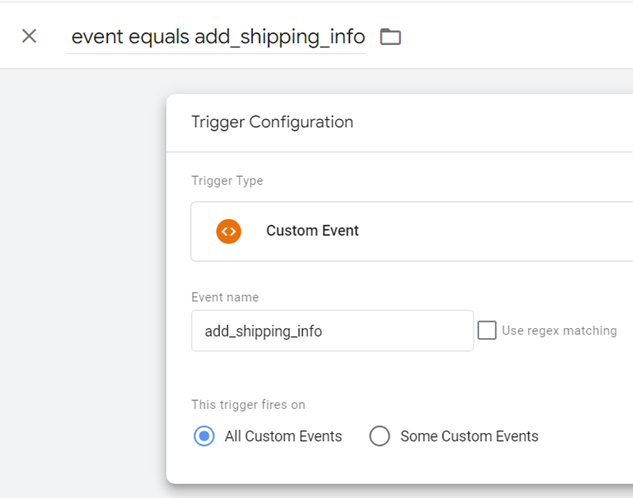
Your final tag configuration should look like the one below:
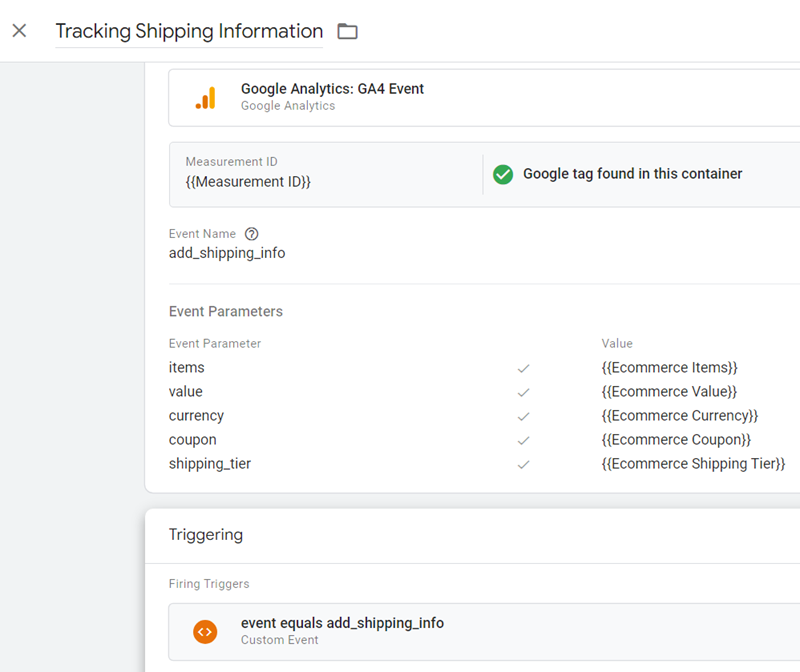
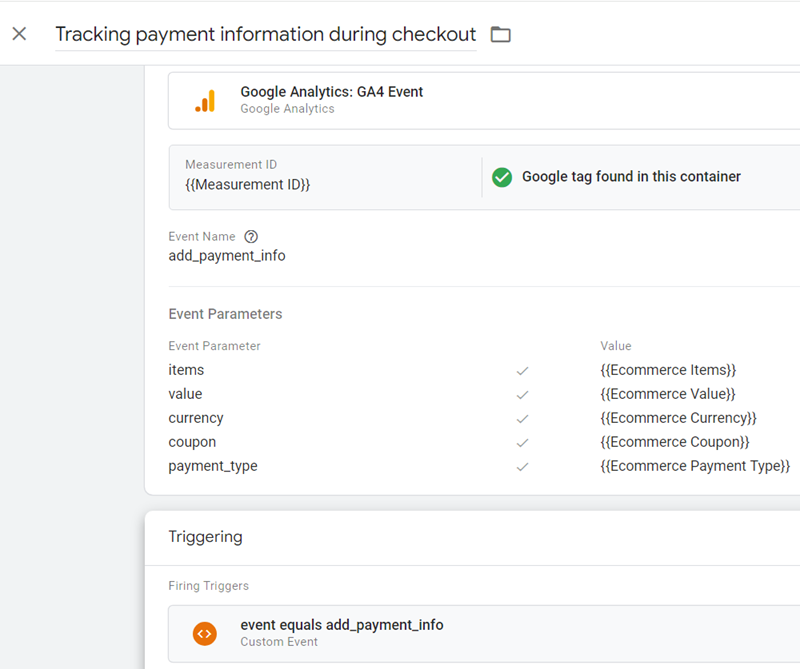
Tracking payment information during checkout.
Send the ‘ add_payment_info’ event to track when users submit their payment information during checkout.
This event can be enhanced by including the ‘payment_type’ parameter, which specifies the customer’s method of payment.
Here’s how you might implement this in your data layer:
Google tag configuration:
Once the above code is pushed to the DataLayer, configure your Google Tag Manager tag as shown below.
Tag Type: GA4 event
Event Name: add_payment_info
Event Parameters:
items – {{Ecommerce Items}}
value – {{Ecommerce Value}}
currency – {{Ecommerce Currency}}
coupon – {{Ecommerce Coupon}}
payment_type – {{Ecommerce Payment Type}}
Here,
{{Ecommerce Items}} = ecommerce.items
{{Ecommerce Value}} = ecommerce.value
{{Ecommerce Currency}} = ecommerce.currency
{{Ecommerce Coupon}} = ecommerce.coupon
{{Ecommerce Payment Type}} = ecommerce.shipping_tier
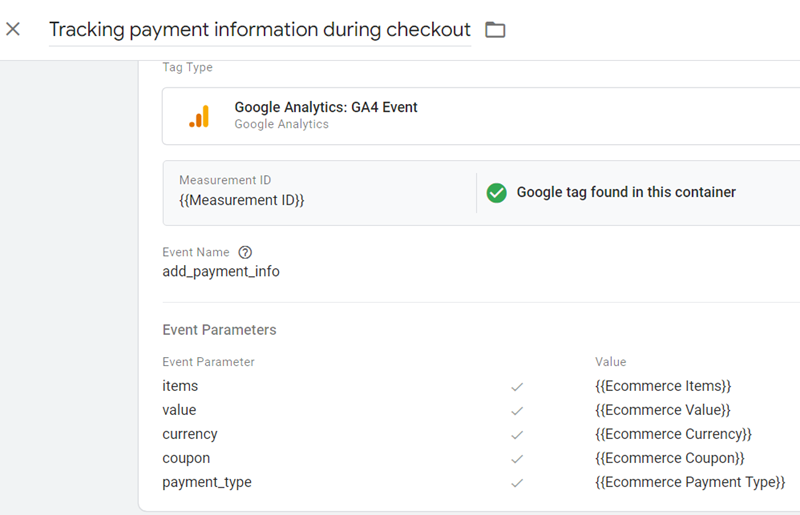
Trigger configuration:
Create a trigger with the following configuration:
Trigger Type: Custom Event
Event Name: add_payment_info
This trigger fires on: All Custom Events
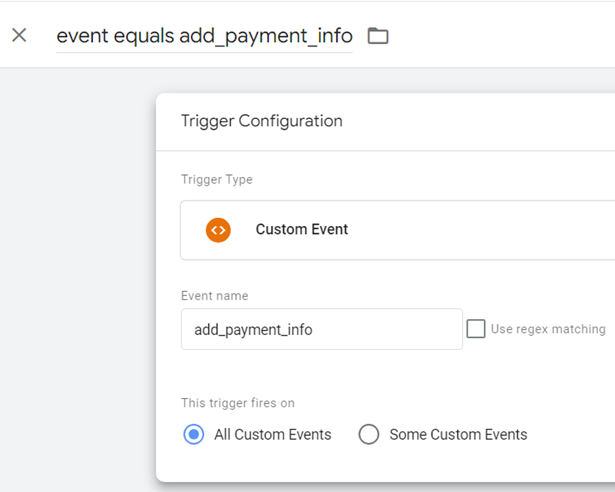
Your final tag configuration should look like the one below:
Tracking Purchases in GA4.
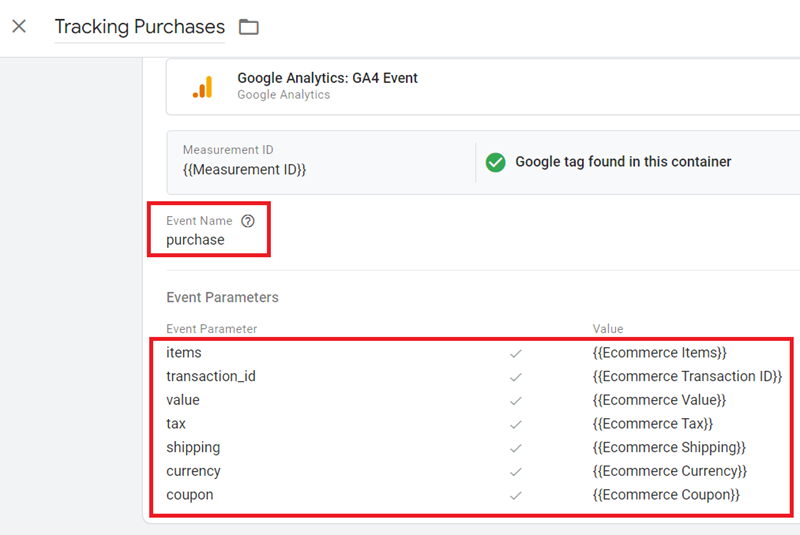
To measure a purchase in GA4, push the ‘purchase’ event and the associated item details to the data layer on the order confirmation page.
Google tag configuration:
Once the above code is pushed to the DataLayer, configure your Google Tag Manager tag as shown below.
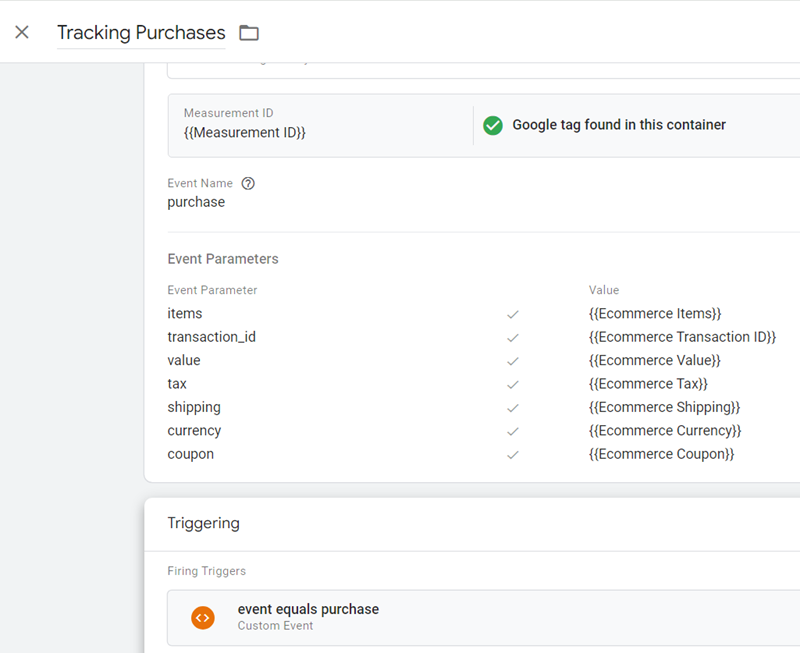
Tag Type: GA4 event
Event Name: purchase
Event Parameters:
items – {{Ecommerce Items}}
transaction_id – {{Ecommerce Transaction ID}}
value – {{Ecommerce Value}}
tax – {{Ecommerce Tax}}
shipping – {{Ecommerce Shipping}}
currency – {{Ecommerce Currency}}
coupon – {{Ecommerce Coupon}}
Here,
{{Ecommerce Items}} = ecommerce.items
{{Ecommerce Transaction ID}} = ecommerce.transaction_id
{{Ecommerce Value}} = ecommerce.value
{{Ecommerce Tax}} = ecommerce.tax
{{Ecommerce Shipping}} = ecommerce.shipping
{{Ecommerce Currency}} = ecommerce.currency
{{Ecommerce Coupon}} = ecommerce.coupon
Trigger configuration:
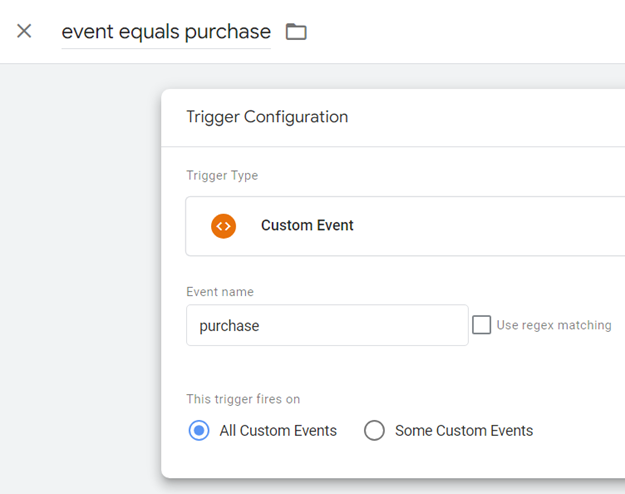
Create a trigger with the following configuration:
Trigger Type: Custom Event
Event Name: purchase
from recurring products and services, typically collected viaThis trigger fires on: All Custom Events
Your final tag configuration should look like the one below:
Subscription & Recurring Revenue Analytics in GA4.
Recurring revenue analytics is the analysis of sales from recurring products and services, typically collected via subscription payments.
Because most subscription renewals (beyond the first payment) are not triggered by direct user actions on your website or app, they should be tracked server-side using the GA4 Measurement Protocol.
When a user first signs up, assign a unique user_id and send it with GA4 events to link recurring revenue to that user across devices and sessions.
You can use an internal login identifier as the basis for user_id, but the value must not contain personally identifiable information (PII) such as names, email addresses, phone numbers, or IP addresses.
Collecting PII in GA4 violates Google policies and can result in account termination and data loss, so ensure user_id is an opaque, anonymous identifier.
Use user_id to aggregate recurring revenue per user over time.
When a user makes the initial subscription purchase, send a GA4 purchase event that includes both user_id and a unique transaction_id from your billing system.
For all subsequent subscription renewals, send purchase events server-side via the GA4 Measurement Protocol with a new transaction_id for each billing cycle, the recurring revenue amount, and the same user_id so renewals can be attributed to the same user. When a subscription is cancelled, simply stop sending additional renewal purchase events for that user.
If your billing system generates monthly invoices, have your backend send a GA4 Measurement Protocol request each time a payment is successfully processed.
Each request should include the invoice or order identifier as transaction_id, the charged amount as value, currency, and the relevant item details in the items array for ecommerce reporting.
Recommendation on transaction IDs in GA4.
Do not update or overwrite the original transaction for each renewal. Instead, assign a unique transaction_id for every recurring charge associated with a user.
- If you continually update the first transaction rather than creating new ones, you lose the ability to see individual renewals over time in GA4 reports and BigQuery.
- If you reuse the same transaction_id for multiple renewals, GA4 may treat later hits as duplicates, and you can run into duplicate transaction issues or under-reported revenue.
By keeping transaction_id unique per charge and consistently sending user_id, you can analyze all subscription payments for a given user over their lifetime.
In GA4, you can analyze user-level subscription behavior using User Explorer and by building audiences or comparisons based on user_id, while still respecting privacy and non-PII requirements.
GA4 does not support CRM-like lookups of specific individuals, but user_id helps reduce duplication and gives more accurate recurring revenue analytics across sessions and devices.
If some customers book or prepay well in advance (for example, two months ahead), send the GA4 purchase event at the time the sale should be recognized in your reporting, not necessarily when the booking form was first submitted.
Record sales on the actual revenue recognition date (for example the charge or start of service) whether the sale is user-generated or triggered later by your billing system.
Missing Revenue in Google Analytics 4?
Sometimes, you may not see revenue data in your GA4 reports and may assume that the e-commerce tracking set-up is not correct.
There is a good possibility that you do not have permission to access revenue-related metrics for the GA4 property.
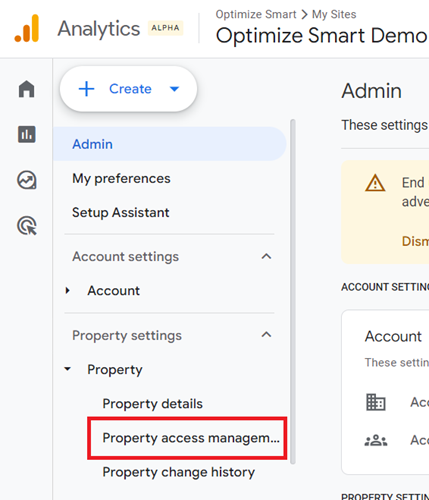
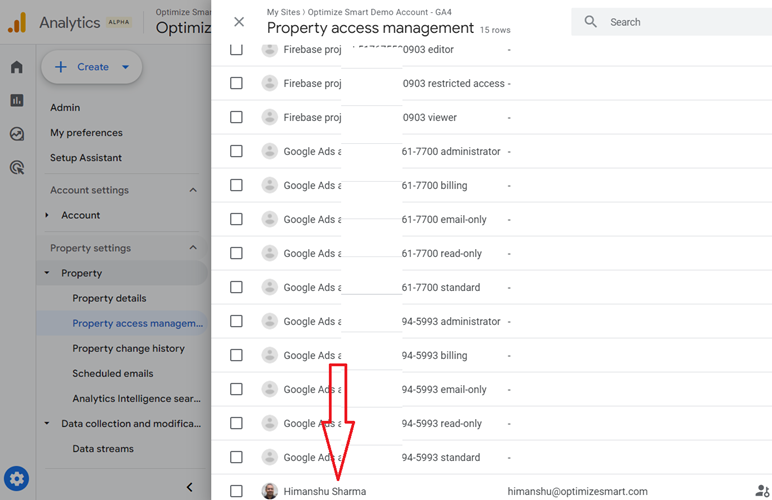
Ask your administrator to confirm that the following checkbox is not selected for you under Property > Property Access Management > {Your username} > Data restrictions (GA4 properties only).
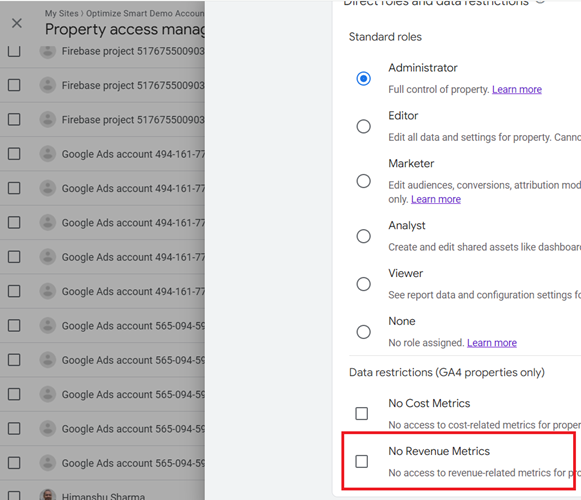
When the ‘No Revenue Metrics’ checkbox is selected for you, ecommerce reports tend not to be accurate for you, and you can not access any of the ‘revenue-related metrics’ in your GA4 reports.
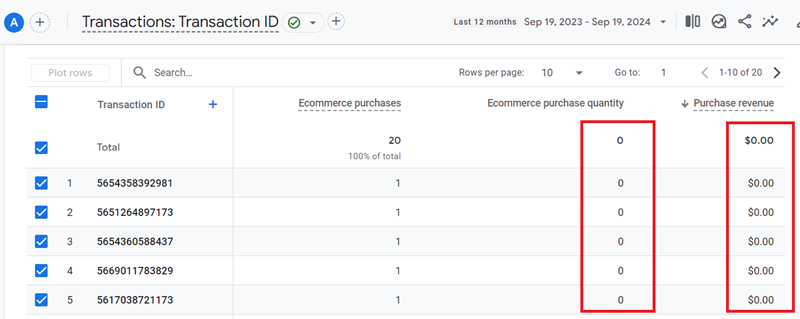
For example, when the ‘No Revenue Metrics’ checkbox is selected for you, the transactions report may appear like the one below, with no data for ‘Ecommerce purchase quantity’ and ‘Purchase revenue’ metrics.
Fix Missing Revenue in GA4 [Checklist]
Follow the checklist below to find and fix missing revenue in GA4.
| SNO. | Category | Checklist Item | Example | Why it results in missing revenue |
|---|---|---|---|---|
| 1 | Purchase Event | Event name is purchase. | Sending order instead of purchase. | GA4 only registers revenue when the event name is exactly purchase. |
| 2 | Purchase Event | transaction_id, value, and currency are included. | {transaction_id: “T123”, value: 49.99, currency: “USD”}. | Revenue data won’t register without these core event parameters. |
| 3 | Purchase Event | Currency is in 3-letter ISO format (e.g. USD). | Using “currency”: “$” instead of “currency”: “USD”. | GA4 doesn’t process invalid currency values like “$” or “€”. |
| 4 | Product Data | items is an array of objects, not a single object. | [{“item_id”: “123”, “price”: 9.99}] not just {“item_id”: “123”, “price”: 9.99″}. | GA4 won’t read product data unless the structure is correct. |
| 5 | Product Data | Each item includes item_id, item_name, price, quantity. | {item_id: “A1”, item_name: “T-Shirt”, price: 19.99, quantity: 2}. | Missing product fields prevent GA4 from calculating item revenue. |
| 6 | Event Parameter Naming | Using exact GA4 event parameter names, no custom labels. | Using order_id instead of transaction_id. | Custom names like order_id are ignored by GA4. |
| 7 | Event Parameter Naming | Numeric values are clean (no commas or symbols). | Sending “value”: “1,000” instead of “value”: 1000″. | GA4 may fail to parse improperly formatted numbers. |
| 8 | Event Firing | Purchase event fires on confirmation/thank-you page. | No tag triggered when user reaches thankyou.html. | If the event never fires, no revenue is recorded. |
| 9 | Event Firing | Tag verified via GTM Preview or browser DevTools. | GTM Preview shows no purchase event firing. | Firing issues often go unnoticed without verification. |
| 10 | Event Firing | Event appears in GA4 Engagement > Events report. | No purchase event listed in GA4 Events table. | If not visible, GA4 didn’t receive the purchase data. |
| 11 | Permissions | You have access to Revenue metrics in GA4. | Your role only allows viewing sessions, not revenue. | Restricted access can hide revenue from your view. |
| 12 | Permissions | No Modify Events rule affecting value, currency, or items. | A modify rule removes “currency” from every event. | Modifications can strip required event parameters from events. |
| 13 | Processing Delay | 24–48 hours have passed since event occurred. | Event happened today but report checked same day. | GA4 delays may make it seem like data is missing. |
| 14 | Consent Mode | Consent mode is implemented correctly. | Consent not granted disables analytics_storage. | Without consent, GA4 may not track or store revenue data. |
| 15 | Consent Mode | Users declining consent are accounted for. | A user declines all cookies before purchasing. | Users opting out won’t trigger revenue-related tracking. |
| 16 | Privacy Settings | Ads personalization not disabled for key regions. | Ads personalization turned off for EEA. | Disabling personalization blocks ad and revenue attribution. |
| 17 | Cross-Domain | Cross-domain tracking is working on checkout. | Checkout domain is checkout.shop.com but not linked to main site. | If not configured, GA4 sees the session as new and loses attribution. |
| 18 | Cross-Domain | session_start fires before purchase. | user_engagement fires first due to late page_view. | Without a session start, attribution is broken or dropped. |
| 19 | Client-Side Issues | Ad blockers or browser settings aren’t interfering. | GA4 request blocked by Brave browser or Ghostery. | Ad blockers can prevent GA4 scripts from executing. |
| 20 | Custom Events | Custom events mapped to standard purchase. | Firing checkout_success without mapping to purchase. | Custom names not mapped won’t trigger revenue metrics. |
| 21 | BigQuery / Looker | Data is un-nested and scoped properly. | Not unnesting the items array when querying item revenue. | Incorrect structure or scope leads to 0 revenue in custom reports. |
| 22 | Advanced | Firewall or WAF is not blocking GA4 requests. | WAF blocks /collect requests from Google Analytics. | Blocked requests never reach GA4, resulting in data loss. |
| 23 | Advanced | No data thresholding in low-volume segments. | Revenue missing from report filtered by user_id. | Thresholding hides sensitive data when volume is low. |
| 24 | Advanced | GA4 quota limits not exceeded. | Daily event volume exceeds 1 million and GA4 throttles data. | Exceeding quotas may delay or drop data including revenue. |
| 25 | Advanced | Data filters aren’t removing valid purchase data. | Internal traffic filter incorrectly includes live users. | Filters may accidentally exclude valid transactions. |
| 26 | Measurement Protocol | Required event parameters missing in Measurement Protocol requests. | Sending a purchase event with only transaction_id and no value or currency. | GA4 will not register revenue unless all required event parameters are included in the payload. |
| 27 | Measurement Protocol | Incorrect API secret or measurement ID used. | Using a test API secret or incorrect Measurement ID in POST request. | GA4 will silently drop the request if the API secret or measurement ID is invalid. |
| 28 | Measurement Protocol | Invalid payload formatting or data types. | Sending value as a string instead of a number. | Incorrect data types or payload structure can cause the entire request to be rejected by GA4. |
| 29 | Measurement Protocol | Missing client_id or user_id in the payload. | Sending a hit without including a client_id. | GA4 requires either a client_id or user_id to associate events with users. Without it, the hit is discarded. |
| 30 | Measurement Protocol | Timestamp too old or too far in the future. | Sending a timestamp_micros value older than 72 hours. | GA4 will reject events with timestamps that fall outside the accepted window. |
| 31 | Server-Side Tagging | purchase event not forwarded from server container. | Tag in server container is set to only fire page_view, not purchase. | If the server container doesn’t receive or forward the purchase event, GA4 won’t record revenue. |
| 32 | Server-Side Tagging | Incomplete event parameter forwarding to GA4. | value and currency are stripped during server-side event transformation. | Missing required event parameters in the forwarded request will cause GA4 to ignore the event. |
| 33 | Server-Side Tagging | Consent signals not respected or passed incorrectly. | Consent denied on client-side but not forwarded to server container. | If consent isn’t handled properly, server-side events may be dropped by GA4. |
| 34 | Server-Side Tagging | Event duplication due to both client and server firing the same purchase event. | GA4 receives two identical purchase events, one from client and one from server. | GA4 de-duplicates events using event_id. If missing, it may log duplicates or ignore both. |
| 35 | Server-Side Tagging | Server endpoint is misconfigured or blocked. | Server container hosted on a misconfigured custom domain or blocked by firewall. | GA4 requests never reach the server endpoint or are blocked before processing. |
How to find and fix duplicate transactions in GA4?
What are duplicate transactions in Google Analytics 4 (GA4)?
Two or more transactions with the same transaction ID are called duplicate transactions.
A transaction ID is a unique identifier that distinguishes one transaction (aka purchase order) from another.
You can use the order confirmation number as the transaction ID.
Why are duplicate transactions in GA4 bad?
Duplicate transactions can lead to inaccurate ecommerce metrics like inflated revenue, incorrect ecommerce conversion rate, inflated average order value and incorrect data in purchase and checkout journey reports.
This happens because each duplicate transaction is counted as a separate purchase.
How to find duplicate transactions in GA4 (Google Analytics 4)
Follow the steps below to find duplicate transactions in GA4:
Step-1: Login to your GA4 property.
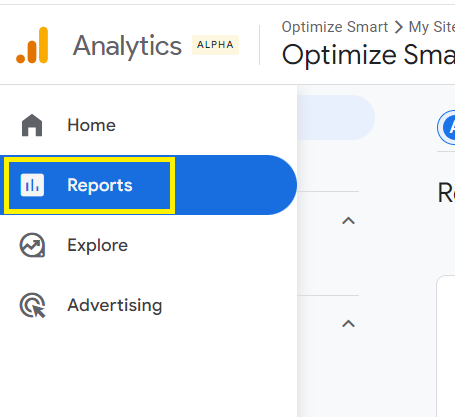
Step-2: Click on ‘Reports’:
Step-3: Navigate to the ‘Transactions’ report under ‘Monetization’:
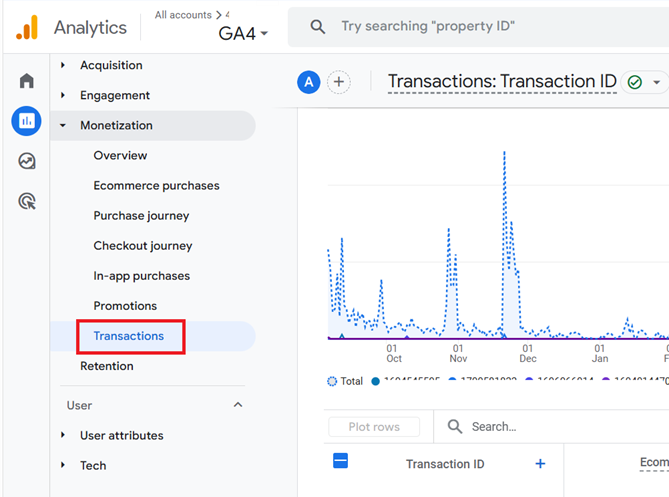
Step-3: Change the data range of the report to the last 31 days.
Step-4: Look at the ‘Ecommerce Purchases’ column of the report. They should all be 1.
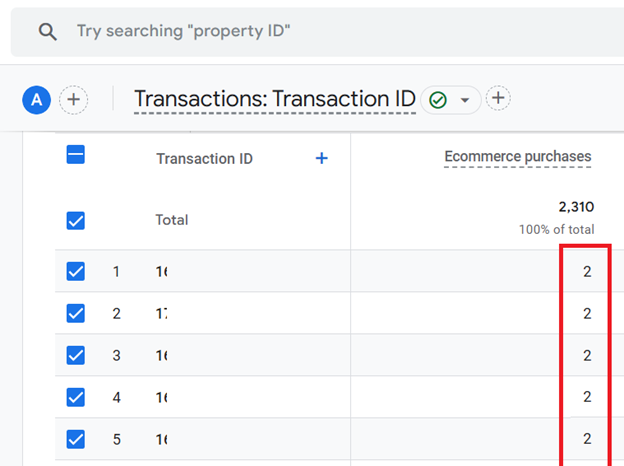
If you find any value greater than 1, you have got duplicate transactions issue.
Step-5: Once you have discovered duplicate transactions, download this report, forward it to your developer and ask them to fix the duplicate transactions.
Step-6: Check the ‘Transactions’ report at least once a week to make sure that no new duplicate orders have been recorded in your GA4 property.
Causes of duplicate transactions in GA4
GA4 automatically de-duplicates transactions with the same transaction ID from the same user.
However, if the same transaction ID is used for different users, such transactions are not automatically de-duplicated by GA4.
The following are the most common causes of duplicate transactions:
- Duplicate Data Layer events.
- Misconfiguration of GTM triggers.
- Double tagging.
- Unusual users’ actions.
- Incorrect server-side tagging configuration.
#1 Duplicate Data Layer events.
Duplicate dataLayer events can be a major contributor to duplicate transactions in GA4.
When the same e-commerce event (like ‘purchase’) is pushed to the dataLayer multiple times, it can trigger multiple event firings and ultimately lead to duplicate transaction records.
For example, if a confirmation page is coded to push the transaction event to the dataLayer on each page load, and a user refreshes the page, the same transaction will be recorded multiple times in GA4
#2 Misconfiguration of GTM triggers.
Misconfiguration of triggers in Google Tag Manager can be a significant source of duplicate transactions.
If triggers are not set up correctly, they can fire under unintended circumstances, leading to multiple event submissions and inaccurate data.
For example, if a click trigger is meant to fire only when the ‘Place order’ button is clicked but is configured too broadly, it might fire on other clicks on the same page, leading to duplicate transactions.
Similarly, if a ‘page view’ trigger is used to fire a transaction event but is not configured to recognise when a page view should NOT lead to an event submission (e.g., when a user revisits the confirmation page), it can cause duplicate transactions.
If multiple triggers are configured to fire the same tag and their conditions overlap, it can result in duplicate event submissions to GA4.
#3 Double tagging.
Double tagging is a common cause of duplicate transactions in GA4.
When the same event, like a “purchase,” is fired multiple times through different tracking methods (GTM, gtag.js, measurement protocol, plugin, GA4 UI, etc.), it can result in duplicate event submissions and inaccurate data.
#4 Unusual users’ actions.
Unusual user actions can also lead to duplicate transactions.
For example:
#1 A user refreshes the page while the transaction is still being processed, leading to another transaction recording upon successful completion.
#2 The user used the browser’s back button to navigate back to the checkout page and then completed the transaction again, resulting in a duplicate entry.
#3 The user repeatedly clicks the purchase button because of a poor internet connection or a bad habit.
#5 Incorrect server-side tagging configuration.
Incorrect server-side tagging configuration can lead to duplicate transactions in GA4 when transactions are mistakenly sent more than once.
This can be caused by issues like misconfigured triggers, incorrect handling of API responses, or failure to account for idempotency in the tagging setup.
For example, suppose the server-side logic does not properly handle response statuses or lacks idempotency checks.
In that case, it might resend transaction data to GA4, believing the first attempt failed when it actually succeeded.
How to fix Duplicate transactions (Orders) in GA4
- Follow the best practices for creating transaction IDs.
- Implement logic in your website’s code to check if an event with the same transaction ID has already been pushed to the dataLayer before pushing it again.
- Ensure that the code pushing ecommerce events to the dataLayer is only executed under the correct conditions.
- Fix misconfigurations of triggers in Google Tag Manager that lead to duplicate transactions.
- Fix double tagging issues.
- Track state changes to avoid duplicate transactions in GA4.
- Implement server-side verifications of transaction IDs to ensure they have not been processed previously.
- Use idempotency keys for API driven transactions.
- Use debouncing techniques to prevent duplicate transactions.
- Use throttling techniques to prevent duplicate transactions.
#1 Follow the best practices for creating transaction IDs.
#1.1 The transaction IDs in GA4 can be alphanumeric and, therefore, can include numbers, letters, and special characters.
However, the only special character allowed in GA4 transaction IDs is the underscore _.
Dashes (-) and spaces are not allowed in GA4 transaction IDs.
#1.2 A transaction ID must be unique within the last 31 days.
If a transaction ID is used again within this 31-day period, it will be considered a duplicate and may not be recorded or analysed correctly.
#1.3 The maximum length for a transaction ID in GA4 is 256 characters.
#1.4 Google recommends adding a unique transaction ID with each ‘purchase’ event.
#1.5 The transaction IDs should not include any personally identifiable information (PII) (i.e. the data that could be used to identify individual customers). A transaction ID without PII data ensures compliance with GDPR and safeguards customer privacy.
#1.6 When implementing ecommerce tracking in GA4, do not send an empty string (“”) as the transaction ID. If you send an empty string as the transaction ID, GA4 will deduplicate all such purchase events.
#1.7 Use the order IDs used by your shopping cart (like ‘Shopify) as your transaction IDs. That way, it would become easier to match your GA4 e-commerce data with your shopping cart data.
#2 Implement logic in your website’s code to check if an event with the same transaction ID has already been pushed to the dataLayer before pushing it again.
For example,
Step-1: Use a JavaScript object or array to track transaction IDs that have already been pushed to the dataLayer.
Step-2: Before pushing a new transaction event to the dataLayer, check if the transaction ID has already been processed. If not, proceed to push the event and mark the transaction ID as processed.
When a user completes a purchase, you call pushTransactionToDataLayer with the transaction details.
Suppose the user somehow triggers the purchase event again (e.g., by refreshing the page, clicking the purchase button multiple times due to interface lag, etc.).
In that case, the logic prevents a duplicate dataLayer.push() call for the same transaction ID.
#3 Ensure that the code pushing ecommerce events to the dataLayer is only executed under the correct conditions.
For example, only once when the confirmation page loads for the first time.
This approach ensures that even if the user refreshes the confirmation page, navigates away and returns, or otherwise reloads the page during their session, the e-commerce event for that specific transaction is only pushed to the dataLayer once.
This prevents duplicate transaction data from inflating your analytics reports.
#4 Fix misconfigurations of triggers in Google Tag Manager that lead to duplicate transactions.
A common mistake is using triggers that are too broad, causing tags to fire more often than intended.
For example, if a transaction tag fires every time the confirmation page is refreshed, this can lead to duplicate transactions.
#5 Fix double tagging issues.
Fix double tagging issues by ensuring the same ecommerce event is not fired multiple times by different tracking methods (gtag.js, GTM, measurement protocol, third-party plugin, GA4 UI, etc.).
#6 Track state changes to avoid duplicate transactions in GA4.
For example,
If a user repeatedly performs an action (e.g., clicking the “purchase” button multiple times), tracking state changes helps you avoid counting each click as a separate purchase event, which could inflate your revenue metric and provide an inaccurate view of user behaviour.
Set an Initial State: When the page loads, initialize a state to track whether the transaction has been initiated.
Change State on Action: When the user clicks the “purchase” button, check the state before proceeding. If a transaction is not already in progress, proceed and change the state.
Reset State Appropriately: After the transaction is complete or if it fails, reset the state to allow for future transactions. This could be set on the confirmation page or after an error handling routine.
#7 Implement server-side verifications of transaction IDs to ensure they have not been processed previously.
This serves as a fail-safe against duplicate transactions that might slip through front-end defences.
For example, to implement server-side verification of transaction IDs in PHP, you would typically interact with a database to check if a given transaction ID has already been processed.
Below is a simplified PHP example demonstrating how you might perform this check using a MySQL database.
Prerequisites
- You should have a MySQL database with a table for storing transaction details.
- The PHP script needs to connect to your MySQL database.
This script checks if a transaction ID has already been processed before proceeding. If not, it attempts to insert the transaction into the database, marking it as processed. It assumes you’re sending a POST request with JSON data that includes a transactionId.
The example code above demonstrates the core logic for preventing duplicate transaction processing using server-side PHP code.
#8 Use idempotency keys for API driven transactions.
For API-driven transactions, use idempotency keys to ensure that the purchase request is only processed once, even if it is received multiple times.
In API-driven transactions, an idempotency key is a unique identifier that prevents a server from processing the same request (such as making a payment) multiple times.
#9 Use debouncing techniques to prevent duplicate transactions.
Debouncing ensures that a function (such as an event tracking call) does not execute until a certain amount of time has passed since the last time the function was executed.
This technique can prevent rapid, repeated clicks from causing duplicate purchase events.
Here is an example of how you can implement a debouncing function to prevent duplicate purchase events from being tracked.
First, let’s define a generic debounce function. This function will delay the execution of the given function until after a specified wait time has elapsed since the last time it was invoked.
Now, let’s apply this debounce function to a hypothetical purchase button.
We assume that when the purchase button is clicked, it calls a function sendPurchaseEvent that would normally send the purchase event to GA4:
In this setup, if a user clicks the “Purchase” button, the sendPurchaseEvent function will only be called after 60 seconds have passed without any further clicks.
If the user clicks multiple times within the 60-second interval, the timer resets, and the function call is delayed until the clicking stops. This effectively prevents rapid, repeated clicks from causing duplicate purchase events.
Note: To prevent user confusion and frustration during the debounce period, provide immediate visual feedback (e.g., disabling the button or showing a loader animation) to indicate that the user’s action has been registered and is being processed.
#10 Use throttling techniques to prevent duplicate transactions.
Implementing throttling techniques can also effectively prevent rapid, repeated actions (such as multiple clicks on a “Submit” or “Purchase” button) from causing duplication in your event tracking.
A throttling function limits the number of times a function can be executed in a certain amount of time.
Below is an example of a JavaScript function implementing throttling to prevent duplicate transaction events in GA4:
The throttle function creates a throttled version of a specified function (sendTransactionEvent in this case) that can only be triggered once every specified limit (300,000 milliseconds or 5 minutes).
If invoked multiple times within the limit, it only executes after the limit period expires from the last invocation.
This approach effectively mitigates the risk of recording duplicate transactions due to user actions like multiple clicks, thereby maintaining the integrity and accuracy of your transaction data in GA4.
Note: If you maintain the exact same code on your staging website, the e-commerce data sent from the staging website should go to your GA4 test property rather than the live GA4 property.
Debouncing vs. Throttling to avoid duplicate purchases in GA4
Imagine an e-commerce website with a “Complete Purchase” button.
When clicked, it triggers a function to process the transaction and record the purchase event.
You want to avoid duplicate purchase events if the user clicks the button multiple times quickly, either by accident or because they are impatient while waiting for the confirmation page to load.
Use debouncing to wait until the user has finished making rapid clicks, processing the purchase only after they have stopped.
This is particularly useful for ensuring that a single intentional action is captured.
Example use case: Ensuring the purchase is only processed after the user stops clicking, avoiding unintended multiple transactions.
Use throttling to control the rate of function execution during continuous clicks, ensuring the purchase is processed immediately but not too frequently.
Example use case: Preventing multiple transactions during a short, continuous series of clicks.
Debouncing delays the function execution until there’s a pause in the event triggering the function.
Whereas, throttling controls the execution frequency to a fixed rate, ensuring the function executes at regular intervals.
In summary, choose debouncing when you need the function to run once after the events have paused or stopped and choose throttling when you need to guarantee that a function runs periodically throughout a series of events.
Tracking Refunds in GA4.
If your business issues a lot of refunds (for example a large ecommerce store), you must send refund events to GA4 so that refunded revenue is removed from your ecommerce reports and your sales figures align with your shopping cart or backend system.
Otherwise, your ecommerce platform might report sales of 10k in the last month while GA4 still shows 18k because refunds were never sent.
Almost all popular shopping carts (like Shopify) adjust their own sales data when refunds are processed, but GA4 will not automatically know about those refunds unless you send corresponding refund events.
Once a customer completes an order, GA4 records a purchase event; if that order is later refunded or cancelled, you must send a structured refund event (client-side or server-side) so GA4 can subtract the refunded revenue.
Refund vs reverse in GA4.
In GA4, both “refund” and “reverse” generally mean removing revenue from a previously recorded purchase event.
- Use reverse to remove sales for unfulfilled or test orders (for example fraud, QA orders, or double-charged purchases).
- Use refund to remove sales for genuine customer refund requests while keeping the original purchase for behavioral analysis.
In practice, both scenarios are implemented with a refund event in GA4 that references the original transaction_id and, optionally, item details. You can implement this event:
- Via your ecommerce platform and GTM (client-side data layer).
- Via your backend using the GA4 Measurement Protocol (recommended for reliability).
- Via a third-party connector that sends properly formatted GA4 ecommerce events.
Full vs partial refunds in GA4.
A full refund removes the entire revenue associated with a transaction in GA4. Whereas, a partial refund removes only part of the revenue for a transaction.
Refund tracking in GA4 can be implemented by pushing the ‘refund’ event into the dataLayer.
The ‘refund’ event must include a transaction ID to be correctly associated with the original purchase.
For a full refund, push the ‘refund’ event with the transaction ID to the data layer:
To track a partial refund in GA4 include both the transaction ID and specific item details of the refunded items in the dataLayer.push event.
Including detailed item information in GA4’s refund tracking allows for calculating specific metrics like the Item Refund Amount and the adjusted Item Revenue after refunds.
This granularity provides deeper insights into refund patterns by showing which products are most frequently returned and their overall impact on revenue, enabling better inventory and sales strategy adjustments.
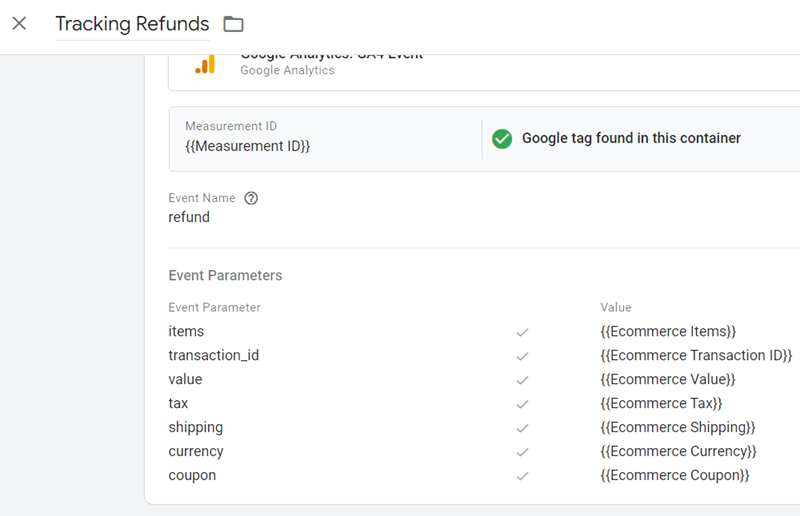
Google tag configuration:
Once the above code is pushed to the DataLayer, configure your Google Tag Manager tag as shown below.
Tag Type: GA4 event
Event Name: refund
Event Parameters:
items – {{Ecommerce Items}}
transaction_id – {{Ecommerce Transaction ID}}
value – {{Ecommerce Value}}
tax – {{Ecommerce Tax}}
shipping – {{Ecommerce Shipping}}
currency – {{Ecommerce Currency}}
coupon – {{Ecommerce Coupon}}
Here,
{{Ecommerce Items}} = ecommerce.items
{{Ecommerce Transaction ID}} = ecommerce.transaction_id
{{Ecommerce Value}} = ecommerce.value
{{Ecommerce Tax}} = ecommerce.tax
{{Ecommerce Shipping}} = ecommerce.shipping
{{Ecommerce Currency}} = ecommerce.currency
{{Ecommerce Coupon}} = ecommerce.coupon
Trigger configuration:
Create a trigger with the following configuration:
Trigger Type: Custom Event
Event Name: refund
This trigger fires on: All Custom Events
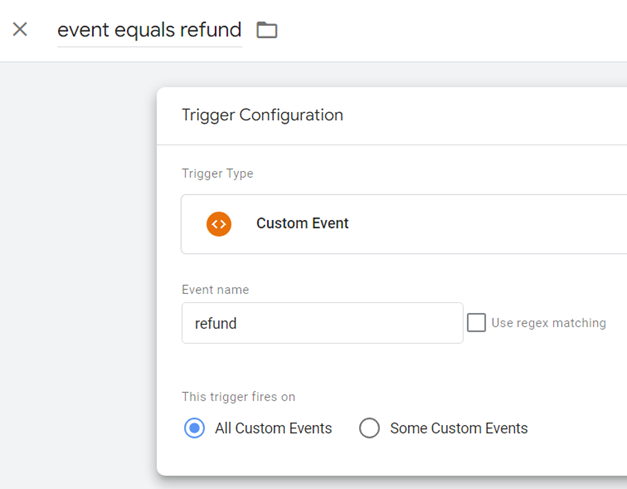
Your final tag configuration should look like the one below:
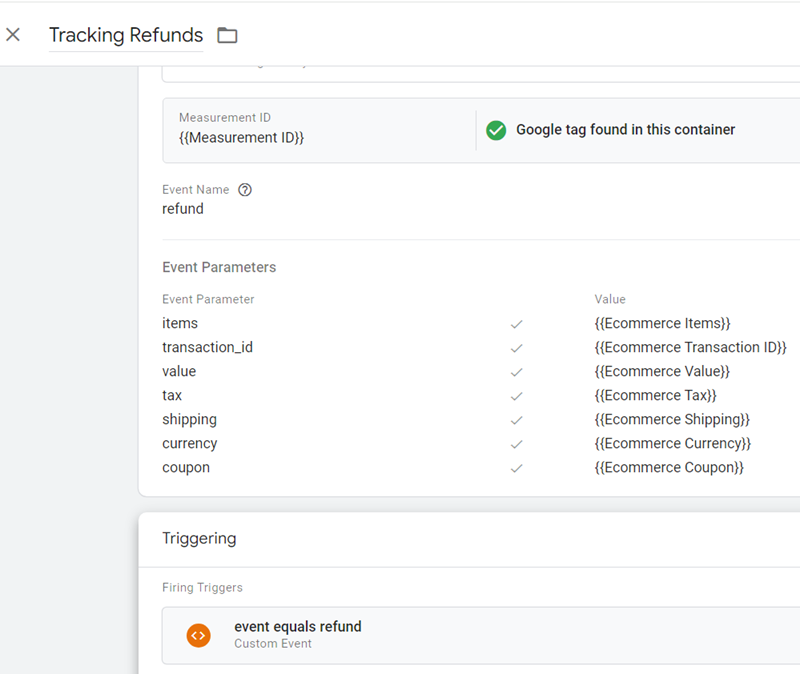
If you see negative values for the ‘Purchase revenue’ or ‘Total revenue’ metrics or $0 value for the ‘Gross purchase revenue’ metric in GA4, it could be because of the refund transaction(s).
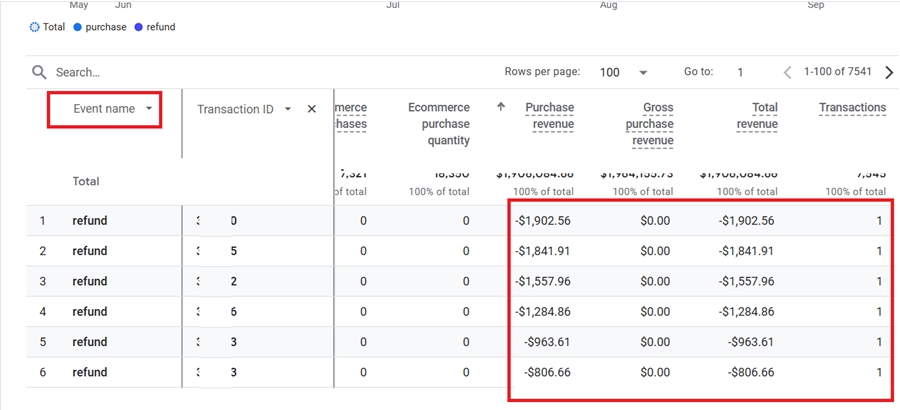
Both the ‘Purchase revenue’ and ‘Total revenue’ metrics take refunds into account.
In GA4, both the ‘Purchase revenue’ and ‘Total revenue’ metrics take refunds into account (which is created by firing the ‘refund’ event).
However, the ‘Gross purchase revenue’ metric does not take refund into account. But its value would be zero in case of the refund transaction.
So if you see negative values for the ‘Purchase revenue’ or ‘Total revenue’ metrics or $0 value for the ‘Gross purchase revenue’ metric, apply a secondary dimension called ‘Event name’ to check whether the transaction is recorded because of the ‘purchase’ or ‘refund’ event.
Refund is a type of transaction in GA4.
In GA4, a refund is counted as a transaction, and it impacts your total transaction count.
So, not all transactions are purchase events. They could also include refund events.
So, there are two categories of GA4 transactions:
- Purchase transactions.
- Refund transactions.
When reporting on e-commerce data, make sure that you segment the data based on purchases and refunds.
This segmentation allows for a clear distinction between revenue-generating transactions and refunds, providing a more precise picture of your e-commerce performance.
It is also equally important to segment the e-commerce data for web and app by using the ‘Stream name’ dimension if you also use mobile apps in addition to a website.
If you want to report on the total number of refunds and refund amount in GA4 reports, then use the ‘Refunds’ and ‘Refund amount’ metrics:
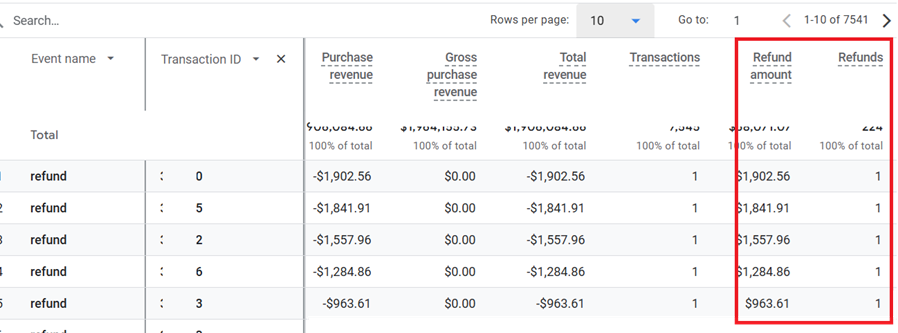
However, these metrics are not available by default in standard reports. You will have to customize your report to add them.
Important points to remember regarding GA4 refunds.
#1 If you need to remove fraudulent or test purchases entirely from GA4 (not just refund the revenue), use GA4 data deletion requests targeted at those specific purchase events; refunds alone will not remove the original event from the dataset.
#2 Refunds often arrive days or weeks after the purchase; GA4 will still adjust revenue but acquisition reports may show refunds under “Unassigned” in some views because the refund event itself often lacks a traffic source context.
#3 Refunds do not “undo” attribution; they simply reduce revenue associated with the affected transactions while attribution for the original purchase remains.
Top 7 GA4 Ecommerce Tracking Mistakes Developers Make.
Beware of these 7 common implementation mistakes in your GA4 ecommerce tracking:
- Not looking at the ‘Event count per user’ metric’ for ecommerce events.
- Not tracking state changes.
- Not using a throttling function.
- Not using debouncing techniques.
- Not clearing the ecommerce data in the data layer.
- Not including all relevant event parameters with each ecommerce event.
- Not involving client’s web developers/IT team.
Mistake #1: Not looking at the ‘Event count per user’ metric’ for ecommerce events.
It is common to see inflated ecommerce events in a GA4 property because most developers do not set up ecommerce tracking correctly.
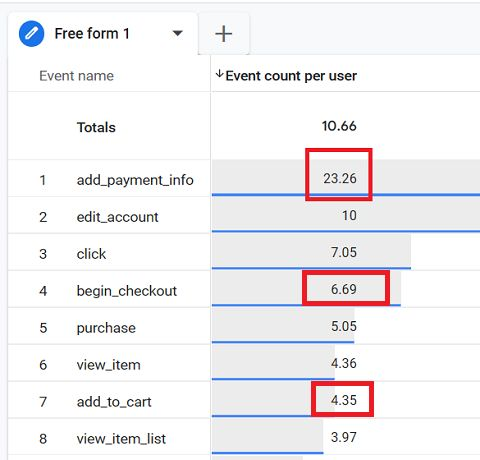
A quick way to check for duplicate ecommerce events in GA4 is to look at the ‘Event Count Per user’ metric.
A high event count per user can be a sign of duplicate ecommerce events.
For example, it is very unlikely for a typical user to add payment information 23 times repeatedly.
Mistake #2: Not tracking state changes.
It is common to see inflated ecommerce events in a GA4 property because most developers do not track state changes but rather send duplicate events to GA4.
If a user repeatedly performs an action (e.g., clicking an “add to cart” button multiple times), tracking state changes helps you avoid counting each click as a separate event, which could inflate your ‘add to cart’ metric and provide an inaccurate view of user behaviour.
Consider a scenario where a user is adjusting the quantity of an item in their shopping cart:
Without State Change Tracking:
You might send an ‘add_to_cart’ event whenever the user changes the quantity.
If the user increases the quantity from 1 to 5, one unit at a time, this might result in 5 separate ‘add_to_cart’ events, leading to duplicate events.
With State Change Tracking:
You can send a single custom event, like ‘cart_quantity_updated’, along with parameters that reflect the old and new quantities.
This provides a more accurate view of the user’s actions without creating duplicate events.
Tracking state changes rather than sending duplicate events in GA4 can provide a more accurate representation of user interactions on your website.
Below, I provide a simple example using JavaScript that checks whether an item has already been added to the cart before sending an event to GA4.
This example assumes you’re working in a browser environment where session storage is available:
You can use a data layer to manage and track state changes effectively.
The data layer can hold information about the current state and can be used to trigger specific tags based on changes to that state.
GA4 allows for custom parameters with events, enabling you to send additional information about the state change (e.g., the old and new quantities).
Let’s assume you want to track how users update the item quantities in their shopping carts.
Here’s how you could structure the event data with custom parameters to capture both the old and new quantities:
Your ecommerce tracking in GA4 is unlikely to be ever accurate if you do not track state changes.
Mistake #3: Not using a throttling function.
A throttling function is another good method to prevent sending duplicate ecommerce events to GA4.
For example, a throttling function ensures that the ‘purchase’ event is not fired more than once when the order confirmation page reloads by a user. This would prevent duplicate ‘purchase’ events.
Following is an example of how you could implement a simple throttling function in JavaScript which ensures that a ‘purchase’ event isn’t sent to GA4 more than once within a specified time frame, such as when a user may accidentally or intentionally reload an order confirmation page:
Your ecommerce tracking in GA4 is unlikely to be ever accurate if you do not use a throttling function.
Mistake #4: Not using debouncing techniques.
Implementing debouncing techniques can effectively prevent rapid, repeated actions from causing duplication in your ecommerce tracking.
Debouncing ensures that a function does not execute until a certain amount of time has passed since the last time the function was executed.
This technique can be useful for preventing rapid, repeated clicks, say on a ‘Complete Order’ button, from causing duplicate ‘purchase’ events.
The following example shows how to implement a debounce function in JavaScript to prevent duplicate purchase events from being fired due to repeated clicks on a ‘complete order’ button:
Difference between Debouncing and Throttling.
Debouncing delays the function execution until there is a pause in the event triggering the function. Whereas, throttling controls the execution frequency to a fixed rate, ensuring the function executes at regular intervals.
Mistake #5: Not clearing the ecommerce data in the data layer.
Always clear the ecommerce data in the data layer before pushing a new transaction event in GA4.
dataLayer.push({ ‘ecommerce’: null }); // Clear previous data
By clearing past data, you ensure the new transaction event reflects the current state, preventing contamination from previous actions like adding or removing items.
Mixed data points from different transactions can cause errors in tracking and reporting.
Example:
Suppose a customer adds a laptop-x1 and then later removes it, only to add a different model (laptop-y2) to their cart.
If the ecommerce data isn’t cleared before the new transaction data is pushed, both laptops might incorrectly appear in the transaction details, leading to errors in sales tracking:
When adding a new item (laptop-y2) after clearing the data, ensure that only the relevant, current items are reflected in the data layer.
This action keeps the cart and inventory data accurate.
Mistake #6: Not including all relevant event parameters with each ecommerce event.
Each e-commerce event in GA4 requires specific event parameters to be included. If these event parameters are missing or incorrectly configured, GA4 will display “(not set)” as a placeholder value.
For example,
If the ‘item_name’ parameter is not included in the ‘add_to_cart’ event, the item name will appear as “(not set)” in the e-commerce reports.
Mistake #7: Not involving the client’s web developers/IT team.
Are you trying to install GA4 ecommerce tracking all by yourself?
Q. Can you code a server-side language (like PHP)?
Q. Do you know how to programmatically query a database?
Q. Do you understand the Google Analytics development environment like the back of your hand?
Q. Do you understand your client’s development environment/database?
If the answer to any of the above questions is ‘NO’ then you won’t be able to install ecommerce tracking all by yourself.
Often, marketers who attempt to install ecommerce tracking have developed a false belief that they can set up all types of tracking by themselves through GTM.
That they can somehow become independent from the IT/Web developer.
They overestimate their abilities because Google has been preaching to them for years that GTM makes you independent of web developers.
Even when you have adequate knowledge of HTML, DOM, and JavaScript, you would still need the help of the client’s web developers/IT to add server-side code to your data layers or to query their database for you.
Without adding server-side code to GTM data layers, you can not implement ecommerce tracking in GA4.
Shopping Cart Analytics Tutorial to understand ecommerce tracking.
What is a Shopping Cart in Ecommerce?
In the context of online shopping (ecommerce), a shopping cart is a software (ecommerce platform) that makes shopping (esp. of multiple items at a time) possible on your website / mobile app.
A shopping cart is an online equivalent of the shopping basket you use in grocery stores/shopping malls.
In the offline world, you put all the goods you want to buy in your shopping basket/cart/ trolley and then drive it to the checkout, where a salesperson process your orders, apply coupon codes, add applicable sales tax, tell you the total amount due and then collect payment.
In the online world, a shopping cart software does all the jobs of the salesperson and much more:
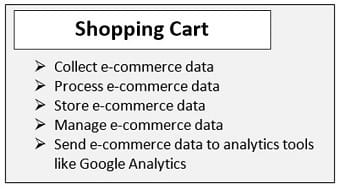
A shopping cart system/software provides the following functionality to your website/mobile app:
- Lets your online customers add one or more products to a shopping basket.
- Guides customers, step by step, in completing the checkout on your website.
- Processes orders by applying coupon codes, adding applicable taxes, calculating shipping amount and then reporting the total amount due.
- Authorises and collects payment, with the help of a payment gateway (like PayPal).
What are the different types of shopping carts?
There are three categories of shopping carts:
- Commercial shopping carts
- Custom-made shopping carts
- Open-source shopping carts
What are Commercial shopping carts?
Commercial shopping carts are ready-made/pre-built shopping carts. These are usually SAAS (software as a service) products, whose functionality you can borrow by paying monthly/yearly subscription fees.
These pre-built shopping carts can be used to easily build, host and manage your online store.
Examples of the best commercial shopping carts:
- Shopify – https://www.shopify.co.uk/
- Magento – https://magento.com
- Bigcommerce– https://www.bigcommerce.com/
- 3d Cart – http://www.3dcart.co.uk
- Volusion – https://www.volusion.com/
What are custom made shopping carts?
As the name suggests, these shopping cart systems/software are custom-made (made to order, bespoke).
What are Open-source shopping carts?
Open-source shopping carts are like a free version of ready-made shopping carts.
But unlike ready-made shopping carts, you can access the source code and can do a great deal of customization on your cart.
Through open-source shopping cart, you can set up your online store for free, provided you are ready to do all of the installation and customization on your own. You can also hire a developer to do the installation and customization for you.
Overall, open-source shopping carts are generally much cheaper to use and maintain than commercial ready-made shopping carts.
Comparing e-commerce Shopping Carts: Commercial vs. Custom Made Shopping Carts
The following are the advantages of using commercial shopping carts over custom-made shopping carts:
#1 You don’t need to hire a web developer to create and maintain your shopping cart.
If you create your own shopping cart, then it would cost you several thousand dollars or even a hundred thousand dollars + you will have to bear the lifelong cost of its maintenance and upgrade, which in itself can cost hundreds/thousands of dollars a month.
#2 Ready-made shopping carts are cheaper and easier to use (in comparison to custom-made shopping carts) + they come with zero maintenance.
All of the maintenance is carried out by the shopping cart provider. You don’t have to worry about maintaining your shopping cart, fixing bugs etc.
#3 You can start using ready-made shopping carts straight away.
Since ready-made shopping carts are ‘ready-made’, you can start using them straight away.
On the other hand, you can use a custom-made shopping cart only when it is bug-free and ready to be used on a commercial level, which can take several weeks or months of rigorous testing.
#4 You can cancel the shopping cart subscription at any time.
Since the majority of ready-made shopping cart providers charge subscription fees, you can ditch their shopping cart, whenever you want, just by cancelling their subscription.
This is not the case with custom-made shopping carts.
Once you have got a custom-made shopping cart, once you have made a huge investment in it, you are stuck with it, whether or not you need it in the future.
#5 Ready-made shopping carts usually come with a lot of extra built-in functionality, add-ons and integration with third-party tools (like Google Analytics, get response etc).
You can take advantage of all this extra functionality at little to no extra cost.
If you try to replicate all of this functionality in your custom shopping cart, then it may cost you tens of thousands of dollars or even hundreds of thousands of dollars extra.
Both in the short term and in the long run, a custom shopping cart is likely to cost you much more than a ready-made shopping cart.
Many shopping carts come with a built-in CMS (Content Management System). For example, Shopify has its own built-in CMS.
Note: You don’t need to create a brand new website, in order to use a shopping cart. You can integrate a shopping cart with your existing website.
The following are the advantages of using custom-made shopping carts over ready-made shopping carts:
#1 Since it is custom-made, you can get whatever functionality you desire, in your shopping cart.
#2 No need to wait for updates to your shopping cart software
Since you have full control over your shopping cart functionality, you don’t need to wait for updates (quite common in the case of ready-made shopping carts) for fixing bugs or to make your cart compatible with the latest version of a third party tool/CMS.
#3 You get more security and full ownership of your customers and sales data.
A custom shopping cart is usually hosted on your own web server. In this way, it provides more security and full ownership of your customers and sales data.
For government and financial institutions, and for many big companies, data security and customers’ privacy are much more important than the development and running cost of a shopping cart.
So you won’t find them using ready-made shopping carts. Almost all of them use custom-made shopping carts.
#4 You get complete ownership.
When you use a custom-made shopping cart, you actually own your cart, source code, all its design, functionality, database, all of its front and back end systems.
You get complete ownership. In the case of a ready-made shopping cart, you don’t own anything.
You are just borrowing the cart’s functionality. You can use the cart, only as long as you pay your monthly subscription fees.
#5 You can fully integrate your shopping cart with your existing systems
The biggest advantage of using a custom-made shopping cart is that you can fully integrate your shopping cart with your existing systems (CRM, phone call tracking system, accounting software, point of sales system, payment gateways, email marketing platform, data warehouse or any third-party solution).
This is usually not the case with ready-made shopping carts. If you are using a ready-made shopping cart, you may have to compromise on data integration, system design and functionality.
If you are a large organisation, then custom-made shopping carts provide the best solution.
#6 Customized Reporting.
Another big advantage of using a custom-made shopping cart is the customized reporting it provides.
You can choose to get the sales data in the format, that best match your business needs and analytics goals.
If you are using a ready-made shopping cart, then you get generic reporting, which may not meet your business needs and analytics goals.
Advantages of Open-source shopping carts.
In the following cases, open-source shopping carts are the best option for your business:
#1 You are just starting out in ecommerce and you don’t wish to invest a lot of money in an ecommerce solution.
#2 You have got developers available who can do the regular maintenance of your shopping cart and keep it running bug-free.
#3 You are planning to create a custom-made shopping cart but you don’t wish to write the shopping cart’s code, from scratch. In that case, you can use the source code of your open source shopping cart and build your cart’s functionality on top of that.
Examples of popular open-source shopping carts:
- Open Cart – http://www.opencart.com/ – a PHP based ecommerce solution.
- Prestashop – http://www.prestashop.com/-a PHP based ecommerce solution based on smarty template engine.
- Zen Cart – http://www.zen-cart.com/
- osCommerce – http://www.oscommerce.com/
- WooCommerce – https://www.woothemes.com/woocommerce/ – a very popular ecommerce solution for WordPress websites.
- Drupal Commerce – https://drupalcommerce.org/
What is Shopping Cart Analytics and what are its advantages?
Shopping cart analytics is the analysis of the shopping cart data.
Through shopping cart analytics, you can understand and fix multi-device and multi-channel attribution issues and accurately track sales data, across devices and platforms.
Thus shopping carts play a very important role in conversion optimization.
In order to understand and implement ecommerce tracking in Google Analytics, you first need to understand how the shopping cart interacts with Google Analytics.
Therefore it is imperative, to develop a great understanding of what shopping carts really are, how do they work and integrate with third-party solutions like Google Analytics, Google Merchant Center, Salesforce, phone call tracking solutions, etc.
Wrong selection of a shopping cart or the inability to take full advantage of it, can very easily break your conversion optimization efforts, your analytics and even the SEO of your website.
What is abandoned cart analytics?
Abandoned cart analytics is the analysis of the abandonment of e-commerce shopping carts by website users.
According to Statista, the average online shopping cart abandonment rate is 80%. So for every 100 potential clients, 80 of them may abandon your shopping cart today.
One of the top reasons for high CPA (cost per acquisition) for e-commerce stores is shopping cart abandonment.
According to Statista, the following are the top reasons for users abandoning your website's shopping cart:
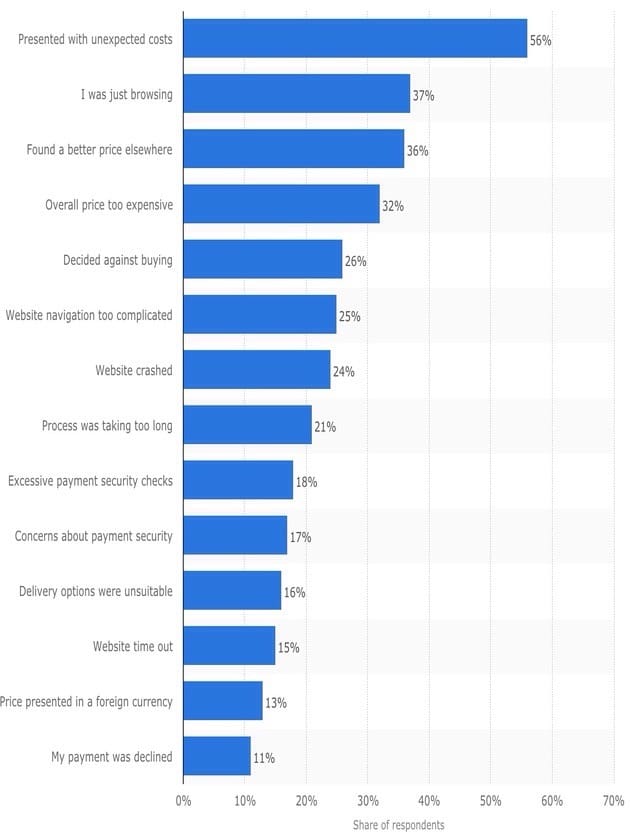
By focusing on the top reasons for users abandoning your website shopping cart, you can greatly reduce cart abandonment. The other powerful method to reduce cart abandonment is re-targeting.
How does a shopping cart work with Google Analytics?
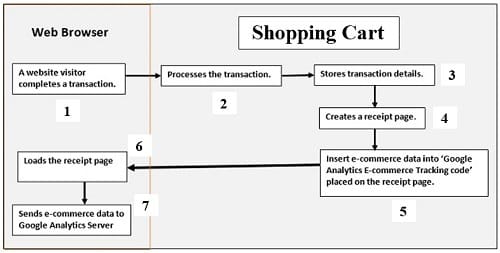
Stage #1: A website visitor completes a transaction.
Stage #2: Your ecommerce platform (aka shopping cart) processes the transaction (verify credit card details via a payment gateway).
Stage #3: Your shopping cart stores transaction details.
Stage #4: shopping cart creates an order confirmation page (generally a ‘thank you’ page).
Stage #5: shopping cart insert ecommerce data into the Google Analytics ecommerce tracking code (which is placed on the order confirmation page).
Stage #6: shopping cart sends the order confirmation page to the visitor’s web browser.
Stage #7: As soon as the page is loaded into the visitor’s web browser, the Google Analytics Ecommerce tracking code is executed which then sends the ecommerce data to Google Analytics server.
Google Analytics server then processes the collected ecommerce data and sends it to your GA account. That’s how the ecommerce data becomes available in various GA reports.
Can you sell products without using an ecommerce shopping cart?
If you are selling just one item on your website or if you expect only 1 item to sell per transaction, you can then sell products, only by using a payment gateway (like PayPal, Stripe etc). There is no need to use a shopping cart.
Note: If you are selling directly via a payment gateway, then you need to create and host a payment form and then integrate this form with a payment gateway.
But using just a payment gateway for selling online has its own disadvantages:
#1 Unlike shopping cart software, a payment gateway usually can’t be used to: apply coupon codes, applicable taxes, do shipping rate calculations or keep track of every order.
#2 A payment gateway will send very limited ecommerce data (if any) to Google analytics. So your ecommerce reporting is going to be very limited.
These are the points you need to keep in mind when you are deciding, whether to use a shopping cart (with payment gateway integration) or just a payment gateway, for selling online.
Analytics features your shopping cart must have
Following are the analytics features that your shopping cart solution must have and/or the features you should consider using straightaway:
- Provide powerful ecommerce analytics.
- Integrate with accounting software.
- Integrate with POS (point of sales) system.
- Integrate with Google Analytics and Google Tag Manager.
- Integrate with CRM solutions.
- Integrate with a phone call tracking solution.
#1 Provide powerful ecommerce analytics
Your shopping cart must provide powerful ecommerce analytics solutions like sales dashboards, product reports etc.
Shopping cart handles sales data much better than Google Analytics and can thus provide more accurate sales and product performance reports.
All of this can help you greatly in making informed business and marketing decisions and in making sure that your Google Analytics is tracking ecommerce data accurately.
#2 Integrate with accounting software (like Quickbooks).
Through such integration you can import: sales orders, purchase orders, invoices etc from your shopping cart into your accounting software. You can push inventory out of your accounting software into your shopping cart.
You can automatically and accurately sync all of your shopping cart data with your accounting data and can thus produce very accurate financial reports which can help you in making data-driven business and marketing decisions.
For example, you can integrate both BigCommerce and Shopify with QuickBooks.
#3 Integrate with POS (point of sales) system.
Through such integration you can sync your offline sales data with online sales data, fix your online-offline attribution issues and get a better picture of the customer purchase journey.
Both BigCommerce and Shopify provide integration with the POS system.
#4 Integrate with Google Analytics and Google Tag Manager.
If your shopping cart can integrate with GA/GTM, you can then easily set up ecommerce tracking in Google Analytics.
Almost all popular pre-built shopping carts, provide integration with Google Analytics and Google Tag manager these days.
Shopping carts that do not provide such integration must be avoided at all costs.
Once your shopping cart has been integrated with Google Analytics, it can send ecommerce data to Google Analytics server, thus allowing you to analyse and correlate ecommerce data with website usage metrics (like sessions, bounce rate etc) in Google Analytics reports.
#5 Integrate with CRM solutions (like salesforce).
Through such integration, you can track your website customers in your CRM. You can add your website customers as contacts and keep track of their purchasing behaviour.
For example, you can integrate Shopify with Salesforce. There are many apps available for such integration.
#6 Integrate with a phone call tracking solution (like Call Tracking Metrics).
Through such integration, you can sync your call tracking data with your shopping cart data. Zapier let you integrate, call tracking metrics data with Shopify data.
What are Point of Sales (POS) systems?
POS (or Point of Sale) system is a combination of hardware and software through which offline transactions are carried out in retail/physical stores.
It usually comprises of:
- Desktop computer with POS software installed on it.
- Cash drawer.
- Receipt printer.
- Barcode scanner.
- Debit/credit card reader.
In big retail stores/shopping malls, the POS system can also include a conveyor belt and weight scale.
They often use ‘all in one units’, in which the monitor has got a computer built-in and it uses touch-screen technology.
POS software is used to process transactions, manage product inventory, store customers and sales data, create sales reports, etc.
What are the different types of POS systems?
There are two types of POS systems:
- Traditional hardwired POS system is used by most retailers.
- Cloud-based POS system – It is POS software that can be used and accessed from anywhere via the internet. What that means you can access a cloud-based POS system via any desktop, tablet or mobile device as long as it is connected to the internet.
You can accept POS transactions via mobile phones and tablets.
Shopify provides a cloud-based POS system.
Advantages of using cloud-based POS systems.
Through cloud-based POS software, you can:
- Accept payments anywhere (online, offline, in-store, trade show, via phone, via iPad etc) and then sync it with your shopping cart inventory.
- Track debit/credit card payments made using an external card terminal
- Track customers’ purchase history (which can include both online and offline purchases).
- Accept two or more payments types (like cash + credit card) in a single transaction.
- Provide and track gift cards that can be redeemed online or offline (in-store).
- Track sales activity of each staff member.
Thus, cloud-based POS systems provide an excellent way to track online and offline conversions and fix multi-device and multi-channel attribution issues.
Tracking Google Analytics Paypal Referral, and other payment gateways.
What is a payment gateway?
A payment gateway is a service through which you can accept credit/debit cards and other forms of electronic payments on your website.
Stripe is an example of a payment gateway:
The use of a payment gateway can create tracking issues in Google Analytics
Many businesses use PayPal and other third party payment gateways to accept online payments. But this can create tracking issues in Google Analytics.
Whenever a customer leaves your website to make payment via a third party payment gateway and later return to your website from the gateway website, Google Analytics often attribute sales to the payment gateway instead of the original traffic source.
This is quite common in the case of PayPal.
You can often find PayPal.com appearing as a top referrer in Google Analytics Referral report.
The following are the methods through which you can minimize self-referral issues while using payment gateways.
I used the word ‘minimize’ because often it is not possible to completely eliminate such tracking issues.
#1 Use a Custom Shopping Cart and Custom Payment Gateway.
The best way to minimize self-referral issues while using a payment gateway is, not to use any third-party payment gateway to accept online payments.
You should seriously consider using a custom shopping cart and custom payment gateway that is developed especially to meet your business needs.
There are many advantages of using custom made shopping cart but the ones which are worth highlighting are:
#1 Your customers will never leave your website to make payment and there will be little to no self-referral issues.
#2 You no longer need to depend on any third-party shopping carts and/or payment gateway or wait for updates/fixes for the foreseeable future.
It would be a one time cost for you to develop your own shopping cart but will be cheaper for your business in the long run.
#2 Use a Direct Payment Gateway.
The best way to track original referrals while using third party payment gateways is not to use external payment gateways.
There are two types of payment gateways:
- External Payment Gateways
- Direct Payment Gateways
If you are using an external payment gateway, then your customers must leave your website to complete a transaction.
But if you use direct payment gateways, then your customers can complete transactions without leaving your website.
Consider using only a direct payment gateway. It will cost you more than an external gateway but help you in minimizing self-referral issues.
And most importantly help you from not losing transaction data in Google Analytics.
The following are examples of external Payment gateways:
The following are examples of direct Payment gateways:
- PayPal Payflow Pro
- PayPal Payments Pro
- WorldPay (Direct)
- Authorize.net
- Shopify Payments
#3 Provide Several Payment Options to Users.
Don’t just rely on services like PayPal to accept online payments. Use other payment options like wire transfer, payment upon pick-up, pay by phone, etc.
There are many businesses that just rely on services like PayPal for accepting all of their online payments and they are the ones that hit the hardest from PayPal self-referral issues in Google Analytics.
Why Google Analytics and Shopping Cart Sales data don’t match and how to fix it?
If your Google Analytics sales data does not match with your shopping cart sales data then it is not just you who face such a problem. It is a very common issue, faced by many online retailers.
Unfortunately, this issue can be minimized but in certain cases, it can not be 100% fixed.
The following are the common reasons for your GA sales data not matching your shopping cart data:
Almost all popular shopping carts (like Shopify) provide a mechanism to handle:
- cancelled orders
- unfulfilled orders
- test orders
- promotions (promo codes, discounts) and
- refund (partial or full).
They then adjust the sales data accordingly to reflect the changes.
This is not the case with Google Analytics.
This is the main reason, why your GA sales data, does not match with your shopping cart sales data.
Once a user is served an order confirmation page, a transaction and corresponding sales are recorded by GA.
If the user later cancels the order, demand for refund or the order is not fulfilled for some reason (maybe credit card was declined) then these changes do not automatically reflect back in GA ecommerce reports.
Similarly, it is common for web developers to place test orders on websites while testing an application/ functionality.
While many developers, eventually delete the test orders from Shopping cart, they are still recorded and reported by GA.
Test orders can greatly inflate your revenue metrics and skew the entire ecommerce data.
So, before you trust your sales data, it is very important that you identify and deduct test orders from your analysis.
I once detected test orders worth $40k.
Usually, when you see unexpected sales from a region or traffic source, you should make sure that it is not the sales generated via test orders.
Note: You can fix a test/cancelled order by reversing it in GA.
Tip: Ask your developer to regularly provide a list of all the test transactions (order IDs) placed on the website.
According to my experience, up to a 10% data discrepancy between GA and shopping cart sales data is normal.
Anything above 15% is a cause for concern.
#2 Incorrect ecommerce tracking code on the order confirmation page.
If your ecommerce tracking is not set up correctly on the order confirmation page then it may not send accurate data or all of the ecommerce data to GA.
Since shopping cart software does not use ecommerce tracking, for collecting sales data, they won’t be negatively affected, if the ecommerce tracking in your Google Analytics is not working correctly.
They can continue to report accurate sales data.
So, incorrect ecommerce tracking set up can create discrepancies between GA and shopping cart sales data.
Tip: Test your ecommerce implementation at least once a month and make sure everything is working, the way it should. Then compare your GA ecommerce data with your shopping cart sales data, to find the level of data discrepancy.
#3 You are not sending all of the ecommerce data to Google Analytics.
The level of data discrepancy between GA sales data and shopping cart sales data will be higher if you are not sending all of the ecommerce data to Google Analytics.
The ecommerce tracking code in Google Analytics is made up of many fields.
Example of such fields are: ‘id’, ‘affiliation’, ‘revenue’ etc.
Some of these fields are required to be used, in the ecommerce tracking code. Others are optional.
For example, using the ‘id’ field in ecommerce tracking code is required by Google. Whereas, using the ‘tax’ field in the ecommerce tracking code is optional.
However, whether a particular field is required or optional, you make sure that no field is omitted from your ecommerce tracking code.
When you choose not to use certain optional fields in your ecommerce tracking code, you are not sending all of the ecommerce data to Google Analytics.
This can result in say ‘shipping cost’ not being tracked in GA, as the ‘shipping’ field was omitted in the ecommerce tracking code.
Now in GA, revenue is calculated as:
Total Revenue = Total Product Revenue + Total Tax + Total Shipping
When you choose not to pass shipping cost to GA, then it is not taken into account while computing the revenue metrics.
Similarly, if you choose, not to pass tax amount to GA, then it is not taken into account while computing the revenue metrics.
The more optional fields you omit in the ecommerce tracking code, the more data discrepancy you may see between GA and shopping cart sales data.
So use all optional fields and send all of the ecommerce data to GA.
#4 Your GA4 property has data sampling issues.
Data sampling issues in Google Analytics can easily skew your analytics data.
If your GA property has data sampling issues, the reported data could be off by 10 to 80%.
For example, GA may report that your website sales in the last month was $750k when it was actually over $1 million.
You can use three methods to fix data sampling issues:
#1 Use query partitioning. In query partitioning, a user’s query is broken into multiple queries in such a way that each individual query does not trigger data sampling. You can do query partitioning manually or programmatically by using a tool like ‘Analytics Canvas’.
#2 Use open source analytics tool called ‘Matomo (Piwik)‘. It provides unsampled data.
#3 Use Google Analytics Premium. However, it will cost you $150k per year.
Note: Avoid applying advanced segments or secondary dimension to your GA reports when comparing GA and shopping cart sales data. Advanced segments are known to create data sampling issues.
#5 Your Google Analytics tracking code does not always fire.
Sometimes your Google Analytics tracking code is not fired/executed because a user has disabled JavaScript or is using a software/ browser plugin, which does not let Google Analytics execute the tracking code.
In such cases, GA will not record sales data but your shopping cart can still record sales data.
Sometimes your Google Analytics tracking code is not executed because of some server-side issues.
In such cases also, GA will not record sales data but your shopping cart can still record sales data.
A typical ecommerce website updates all the time and ecommerce tracking can break any day, any time, without any prior notice.
That is why I suggested assessing the quality of your ecommerce data at least once a month by comparing it with your shopping cart sales data.
#6 You are comparing apples to oranges.
If you are going to compare sales data between GA and the shopping cart, then make sure that your data is at least comparable.
Use the unfiltered GA view for the start; otherwise, your comparison could be impractical.
For example, if your GA view filter is excluding all traffic from mobile devices, then the mobile sales data won’t be reported in the view.
So when you compare this sales data with your shopping cart, it won’t match.
So look at your sales data in an unfiltered view.
Use the same data range for both GA and shopping cart, before you start the comparison.
When you look at the analytics data for long data ranges (6 months or more), you could be comparing apples to oranges.
This is because so much would have changed during that time frame, from website size to your analytics setup.
Maybe 6 months ago, you did not have ecommerce tracking installed, or maybe you started correctly tracking ecommerce data only a month ago.
If that is the case, then 1 year’s worth of sales data from GA won’t match with your shopping cart sales data.
We often forget changes made to Google Analytics account, new analytics set up, while doing data comparison.
All such changes can easily create data discrepancy issues.
#7 Data temporarily out of sync.
It is common for GA and shopping cart sales data to be temporarily out of sync. This is because they both track sales data using different methods and at slightly different times.
If both GA and your shopping cart are configured to report data in different time zones then the data would be temporarily out of sync.
So make sure that both your GA and shopping cart are configured to report data in the same time zone and you compare the data from two sources, at least after 24 hours have elapsed.
So for example, you don’t compare yesterday’s data, today because GA/shopping cart may still be collecting the sales data, for that day.
#8 Currency conversion issues.
Both GA and your shopping cart can handle currency conversions differently.
If your website supports multiple currencies during checkout, this could create data discrepancy issues between GA and your shopping cart.
#9 Cross-domain tracking issues.
If you have not set up cross-domain tracking or the tracking has not been set up correctly, then Google Analytics may not report all of the sales data. But your shopping cart can still report all of the sales data.
So cross-domain tracking issues can easily skew your ecommerce reporting in GA and thus resulting in data mismatch, between GA and your shopping cart.
#10 Your shopping cart does not fully support Google Analytics.
There are many shopping carts (usually old custom made) that still do not fully support Google Analytics.
Because of this lack of proper support/integration, they are unable to send all of the ecommerce data to Google Analytics.
This can create discrepancies between your GA and shopping cart sales data so make sure you either update your shopping cart or use popular shopping cart service providers like Shopify.
#11 Google Analytics is not an accounting software.
Last but not least, Google Analytics was never designed to act as accounting software so we can’t expect 100% accuracy in sales data from it.
Also, it is highly unlikely that the GA sales data will exactly match with your shopping cart/accounting software data if your website receives a lot of cancellations, refunds, and unfulfilled orders on a daily/weekly/monthly basis and/or you provide promo codes, discounts, etc.
Whenever there is a trade-off between GA and shopping cart sales data, trust the shopping cart data.
This is because the probability that your shopping cart data is less accurate is much lower than that of the GA.
Use GA sales data as a guide only.
Other Articles on GA4.
- Tracking New, Qualified and Converted Leads in GA4.
- Free GA4 training and tutorial with Certification.
- Understanding GA4 Ecommerce Reports (Monetization Reports).
- GA4 Ecommerce Tracking via GTM: Step-by-Step Setup Guide.
- How to see UTM parameters in GA4 (Google Analytics 4).
- GA4 UTM parameters not working? Here is how to fix it.
- How To Use UTM parameters in GA4 (Campaign Tracking).
- How to track AI traffic in GA4.
- Understanding Google Analytics 4 cookies – _ga cookie.
- GA4 (Google Analytics 4) Measurement Protocol Tutorial.
- GA4 Unassigned Traffic: Causes and How to Fix it Fast.
- GA4 Regex (Regular Expressions) Tutorial.
- GA4 Direct Traffic Spike: Common Causes and How to Fix Them.
- gtag.js – Google Tag in Google Analytics 4 and beyond.
- GA4 Scopes – User, Session, Event & Item scopes.
- GA4 (not set) - Guide to fixing (not set) issue.
- GA4 Certification Exam: Questions, Answers for Skillshop (GAIQ).