

What is the measurement protocol in GA4?
The measurement protocol (MP) is a set of rules your application must follow to send raw event data from your client or server directly to your GA4 property.
The measurement protocol is not a substitute for automatic data collection that you get via gtag.js, Google Tag Manager and/or Google Analytics for Firebase SDK.
The primary purpose of GA4 MP is to allow developers to augment automatic data collection and not replace them.
The primary purpose is to allow developers to enhance web and app data streams by sending events directly to Google Analytics servers via HTTP requests.
In other words, the primary purpose of the GA4 MP is to allow developers to send additional data to GA4 for analysis and reporting purposes.
So if you only use GA4 MP to send event data to the GA server, only partial reporting will be available to you.
You can not use measurement protocol in GA4 to create a new user or change any existing data in your GA4 property.
User creation in GA4 is only based on events and user properties that are automatically collected when users interact with your website or app.
The GA4 MP is used only to enrich the existing data.
You can deploy measurement protocol client side and/or server side. Similarly, you can implement measurement protocols for app streams and/or web streams.

What is a Client?
The client is the device that your user directly interacts with.
It could be a computer, a smartphone, a tablet PC, a digital appliance (washing machine, coffee machine, slot machine), a point-of-purchase system, or any other device that can be connected to the internet.
When you use a web browser (like Google Chrome) to visit a website, the browser (and, by extension, your device) acts as a client. The client sends a request to the server to access the data on a web page.
Google recommends that you use GA4 MP for those clients for which automatic data collection is not available (via gtag, GTM or Firebase SDK).
Types of clients
In the context of GA4 MP, there are two types of clients: Web Clients and Mobile Clients.
A web client refers to a web application (usually a web browser or website). For example, if you’re using Google Chrome on your laptop to access a website, then Google Chrome is the web client.
Note: Web clients are platform-independent as long as the device has a web browser.
A mobile client refers to a mobile application which runs on a smartphone or tablet device. For example, if you’re using the Facebook app on your smartphone, the Facebook app is the mobile client.
What is a Server?
The server refers to your backend system that provides the necessary resources or data requested by a client.
For example, the computer where a website’s files are hosted is the server.
When the server receives a request for a web page from a client, it sends the necessary files to the client’s web browser.
Use Cases for GA4 Measurement Protocol
#1 GA4 MP allows developers to track users’ interactions data that is NOT automatically collected via gtag, GTM or Firebase SDK.
This can include user interactions from web-connected devices (like a point-of-sale system) or offline events.
Note: You don’t need measurement protocol if you want to send event data from a device or application (like your website or mobile app) for which automatic data collection is available.
#2 The measurement protocol is used and beneficial for implementing cross-device tracking and measuring offline conversions online.
Thus the use of measurement protocol helps in understanding the purchase journey of your customers and in fixing online-offline attribution issues.
#3 Through GA4 MP, you can track user interactions both on the client side and server side.
Introduction to HTTP Requests and Responses
In order to understand the measurement protocol request, you first need to understand HTTP Requests and HTTP Responses.
All web browsers and web servers communicate with each other by sending HTTP requests and HTTP responses.
A web browser communicates with a web server by sending an HTTP request for each requested resource (like HTML document, image, CSS, etc.).
The web server communicates back to the web browser by sending an HTTP response for each HTTP request.
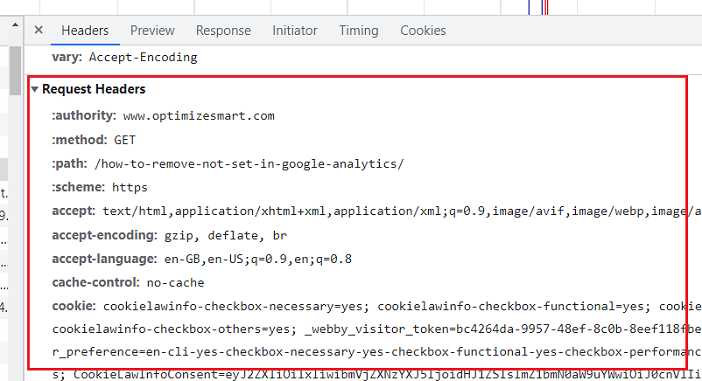
Here is what an HTTP request looks like:
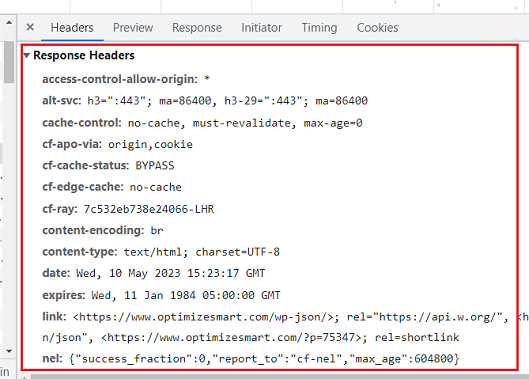
Here is what an HTTP response looks like:
To see HTTP requests and responses, follow the steps below:
Step-1: Open the Google Chrome browser.
Step-2: Navigate to a web page.
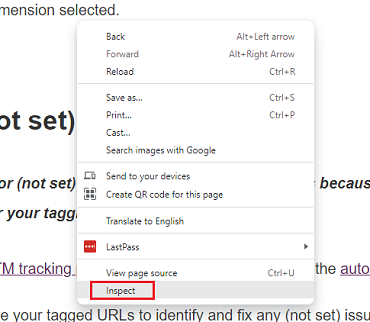
Step-3: Right-click on the page and then click on ‘Inspect’ from the drop-down menu.
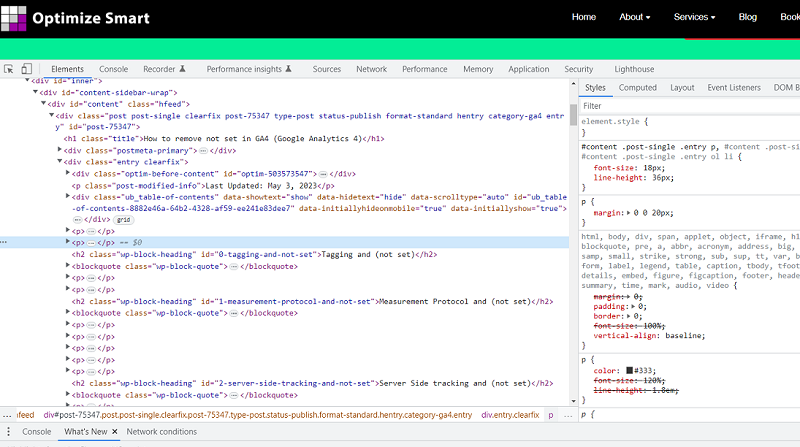
This will open up the ‘Chrome Developers Tool’:
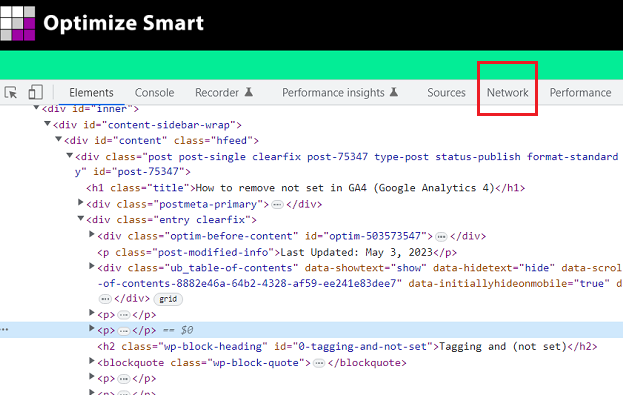
Step-4: Click on the ‘Network’ tab:
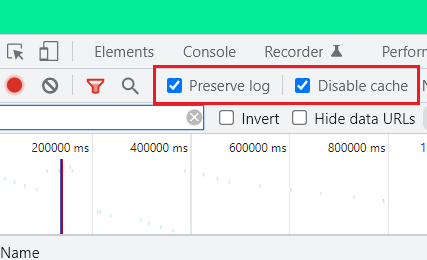
Step-5: Select the two checkboxes ‘Preserve log‘ and ‘Disable cache‘:
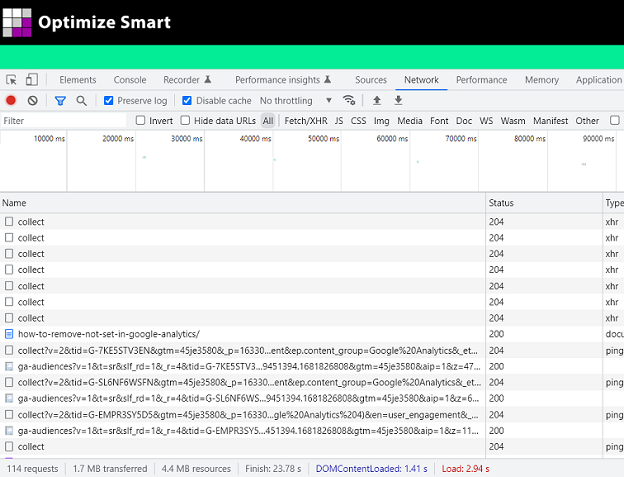
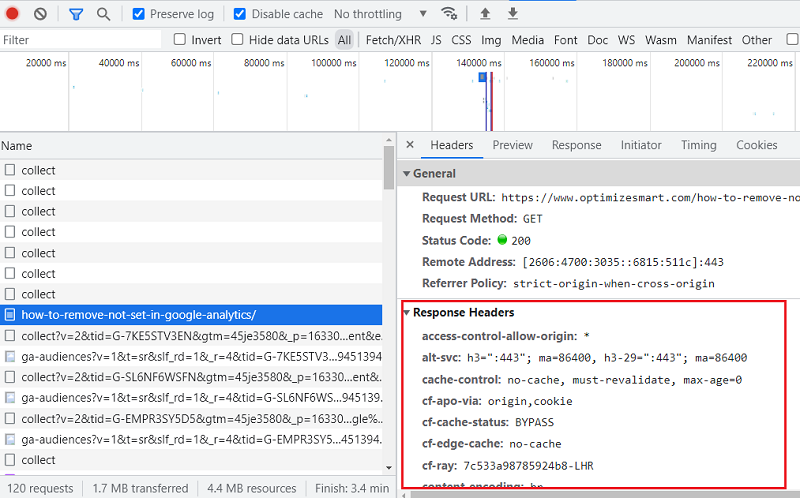
Step-6: Refresh the web page. You should now see a screen like the one below:
Step-7: Click on the URL of your web page:
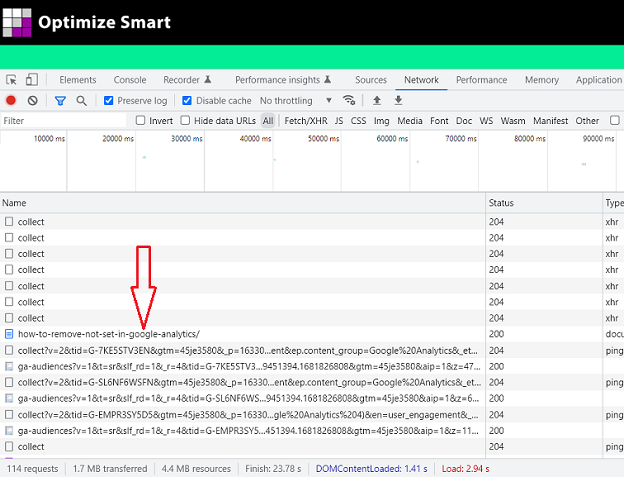
You should now be able to see the response headers on the right-hand side of your developer console window:
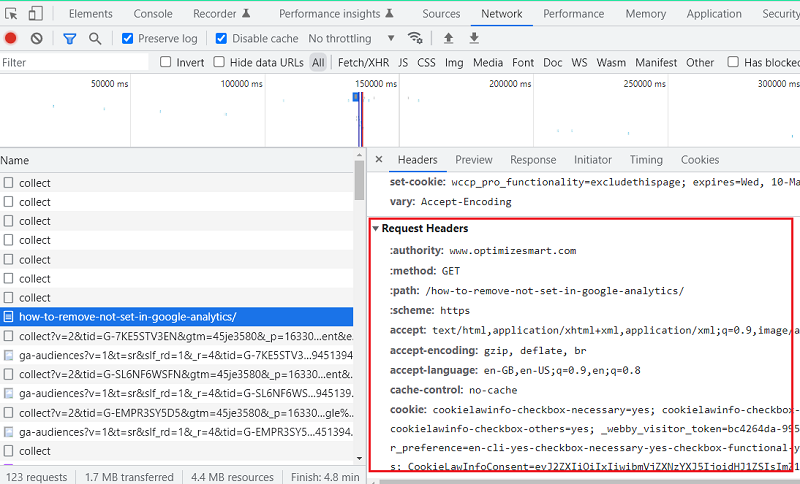
Step-8: Scroll down to see the request headers:
Introduction to User-Agent
In the GA4 MP, the user agent plays an important role in providing information about the user’s device and browser.
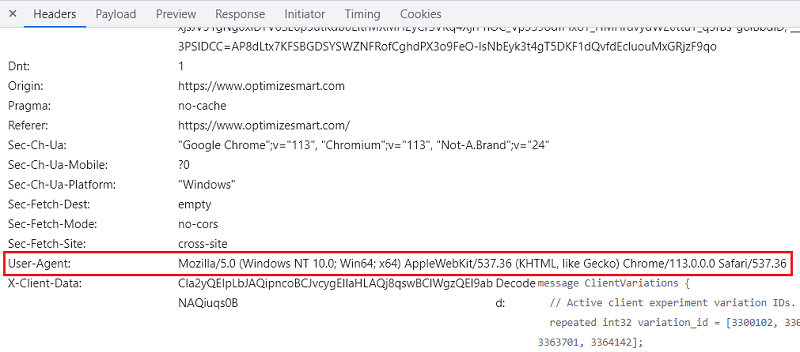
User-agent is a string that your web browser sends to a web server in order to identify itself.
Following is an example of a user-agent:
Mozilla/5.0 (Windows NT 10.0; Win64; x64) AppleWebKit/537.36 (KHTML, like Gecko) Chrome/113.0.0.0 Safari/537.36
You can see the user-agent under ‘Request Header’:
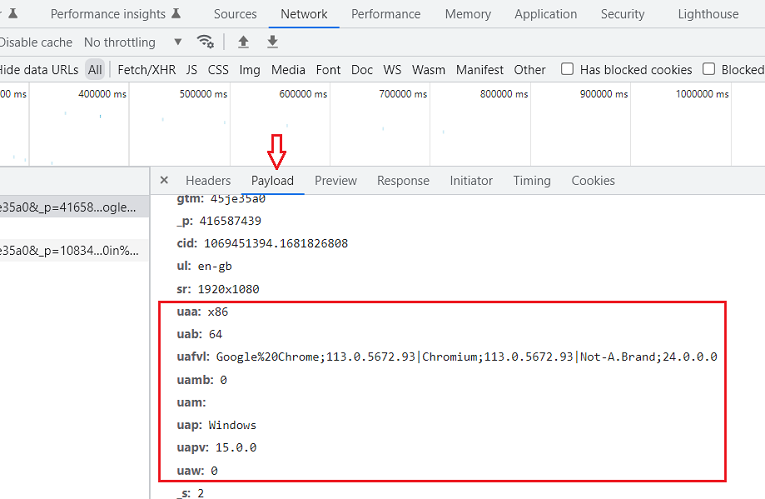
The GA4 MP extract data from the user-agent to populate the values of the following MP parameters:
- uaa (User Agent Architecture) – It indicates the architecture of the device or browser making the MP request.
- uab (User Agent Bitness) – It indicates the number of bits for the user’s browser or device.
- uafvl (User Agent Full Version List) – It indicates the full version information of the user’s web browsers.
- uamb (User Agent Mobile Brand) – It indicates the branding or manufacturer of the user’s mobile device.
- uap (User Agent Platform) – It indicates the operating system of the device or browser making the request.
- uapv (User Agent Platform Version) – It indicates the version number of the operating system running on the user’s device.
- uaw (User Agent Width) – It indicates the width of the user’s device screen or viewport in pixels.
Measurement Protocol Request
In order to make an HTTP request to the GA server (for sending the raw hit data directly), you need to format your HTTP request according to the measurement protocol.
This formatted HTTP request is called the measurement protocol request.
In the context of GA4, the terms “Measurement Protocol request” and “Measurement Protocol call (MP Call)” are often used interchangeably, referring to the same concept. They both refer to the act of sending data to the GA server using the Measurement Protocol.
It is important to remember that the measurement protocol request from automatic data collection like GTM can be different from the custom measurement protocol request.
In order to see what a measurement protocol request from GTM looks like, follow the steps below:
Step-1: Navigate to the ‘Admin’ section of your GA4 reporting view.
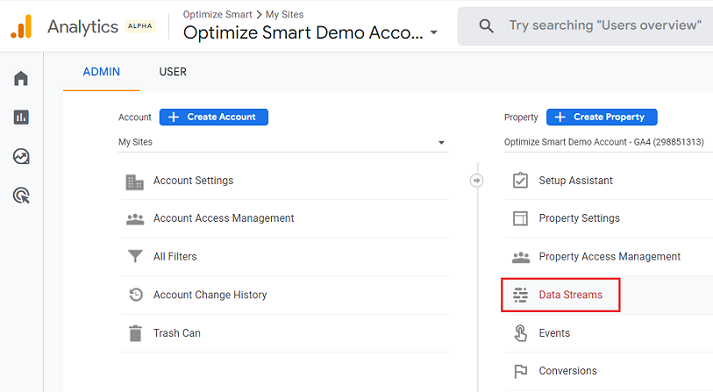
Step-2: Click on ‘Data Streams’ under the ‘Property’ column:
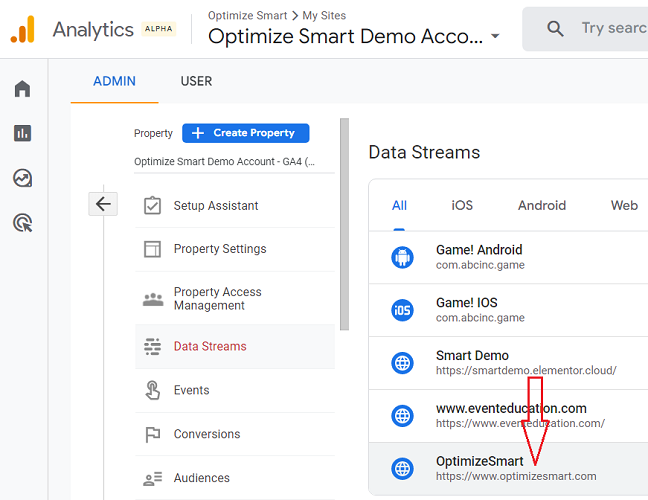
Step-3: Click on the name of the web data stream to which you want to send the event data via measurement protocol:
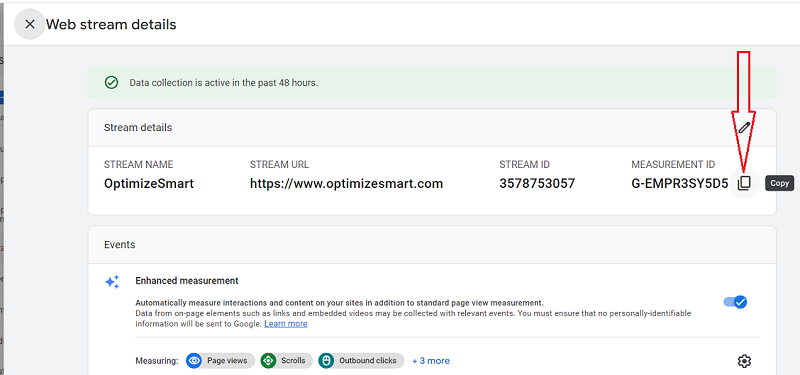
Step-4: Click on the copy button to copy the measurement ID and then save the value at some safe place for easy access later on.
Step-5: Open the Google Chrome browser and then navigate to the web page where you have installed Google Analytics 4.
Step-6: Right-click on the page and then click on ‘Inspect’ from the drop-down menu.
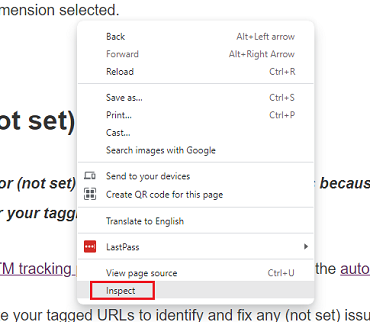
This will open up the ‘Chrome Developers Tool’:
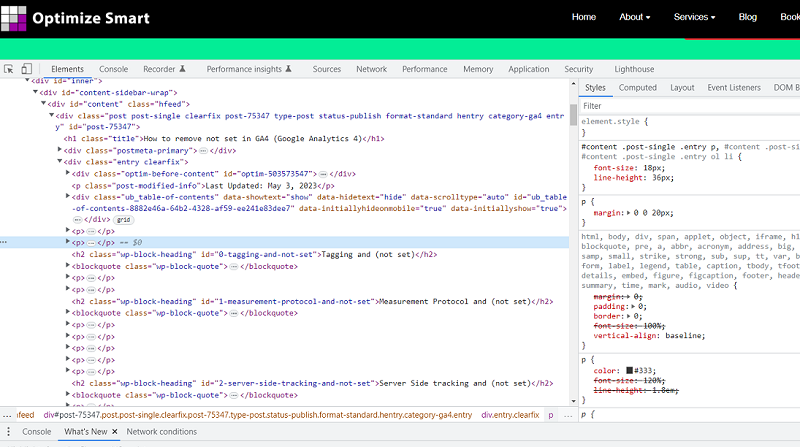
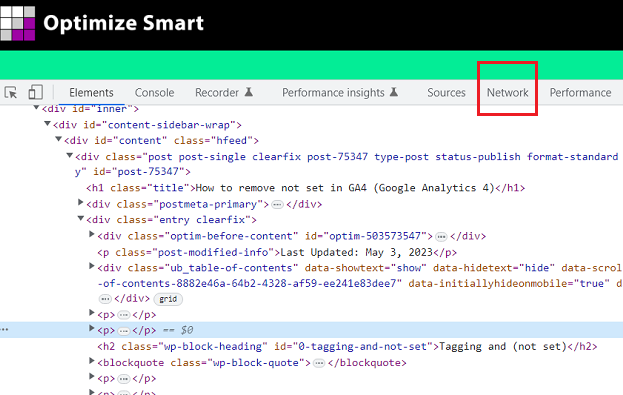
Step-7: Click on the ‘Network’ tab:
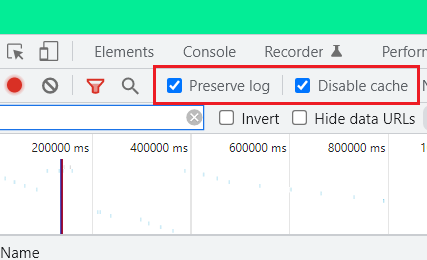
Step-8: Select the two checkboxes ‘Preserve log‘ and ‘Disable cache‘:
Step-9: Refresh the web page. You should now see a screen like the one below:
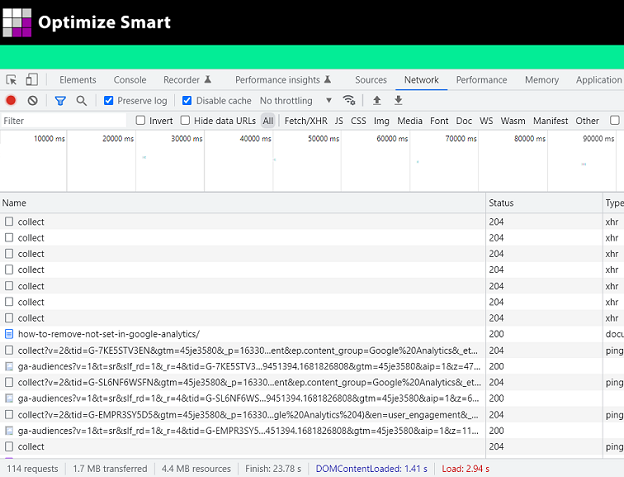
Step-10: Enter your measurement ID in the ‘Filter’ text box. You should now see a screen like the one below:
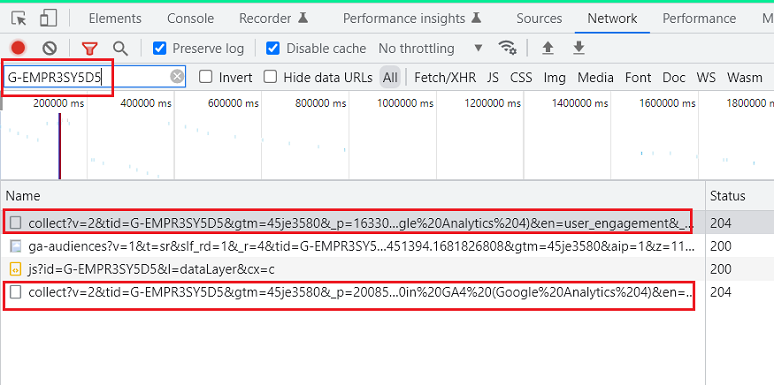
All the network requests starting from collect?v= are measurement protocol requests.
Step-11: Click on one of the protocol requests. On the right-hand side of the developers’ window, you should now be able to see the full measurement protocol request:
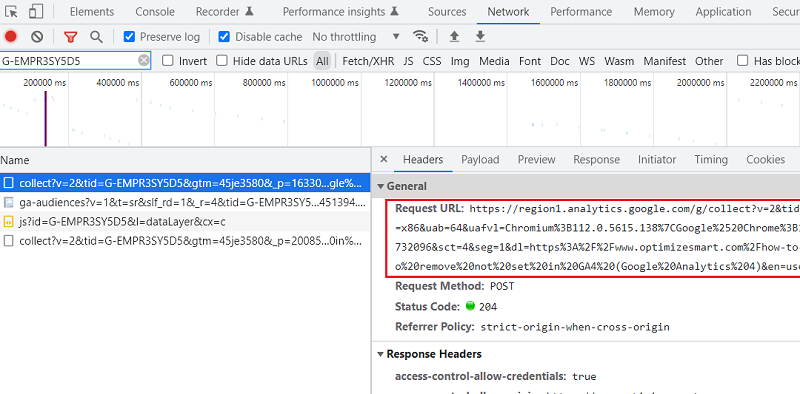
Here is what the full measurement protocol request from GTM looks like:
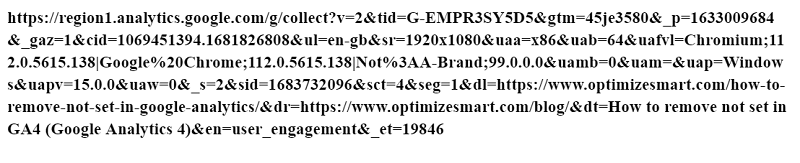
Introduction to Transport
Each measurement protocol request is made up of ‘transport’ and ‘payload data’.
Transport defines where and how to send the payload data.
The following are examples of transport:
- https://analytics.google.com/g/collect
- https://www.google-analytics.com/mp/collect
- https://region1.analytics.google.com/g/collect
- https://www.google-analytics.com/j/collect
- https://stats.g.doubleclick.net/g/collect
- https://stats.g.doubleclick.net/j/collect
- https://px.ads.linkedin.com/collect
Here is what the transport looks like (highlighted text) in the measurement protocol request from GTM:
Transport is made up of:
#1 POST method – which defines how to send the payload data.
#2 Location of the GA server – which defines where to send the payload data.
#3 URL endpoint – this is used to define whether single or multiple hits should be sent to the GA server or whether to send the payload data to the measurement protocol validation server. Examples of URL endpoints ‘/collect‘, ‘/debug‘, ‘/batch‘.
Note: All data must be sent securely via HTTPS.
/collect
Use this endpoint to send event data to a GA4 property.
Data sent to this endpoint is processed and stored in the GA4 property associated with the measurement ID.
/debug
Use this endpoint to send event data to the measurement protocol validation server for the purpose of debugging and troubleshooting.
When data is sent to this endpoint, it is not processed or stored in the GA4 property.
Instead, it returns a response code that provides information about the validity of the event data.
/batch
Use this endpoint to send multiple events in a single HTTP request to reduce the number of requests made to the GA server.
This endpoint is useful when you have a large number of events to send at once, as it improves efficiency by combining multiple events into a single request.
The batched events are processed and stored in the GA4 property associated with the measurement ID.
Introduction to Payload Data
Each measurement protocol request is made up of ‘transport’ and ‘payload data’.
Transport defines where and how to send the payload data. Whereas, Payload defines the data you send.
Payload data is the data you send to the Google Analytics server using the measurement protocol.
Payload data is made up of two parts.
In the context of GA4, the payload data is made up of the following two parts:
- Query parameters.
- A JSON POST body.
Query Parameters
Query parameters are part of the query string and are made up of key=value pairs. These pairs are separated by ampersand (&) characters.
A query string is part of the request URL, which comes after the ‘?’ Character.
Syntax of Query String:
Query_parameter1&Query_parameter2&Query_parameter3
or
key1=value1&key2=value2&key3=value3
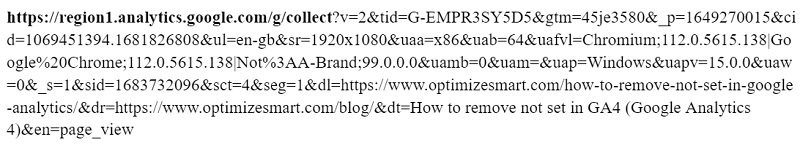
Following is an example of a request URL which contains the query string (the bold text):

This query string is made up of the following parameters (called the query parameters):
- v=2
- tid=G-EMPR3SY5D5
- gtm=45je3580
- _p=1649270015
- cid=1069451394.1681826808
- ul=en-gb
- sr=1920×1080 etc
As you can see, each query parameter is made up of ‘key = value’ pairs and is separated from another parameter via the & character.
Here, ‘v’,’tid’,’gtm’,’_p’,’cid’,’ul’ and ‘sr’ are examples of the keys.
‘2’, ‘G-EMPR3SY5D5′, ’45je3580’, ‘1649270015’, ‘1069451394.1681826808’, ‘en-gb’ and ‘1920×1080’ are examples of values.
In the context of GA4, query parameters are often used to define the context and configuration of the data being sent, such as by specifying the API secret key and measurement ID:
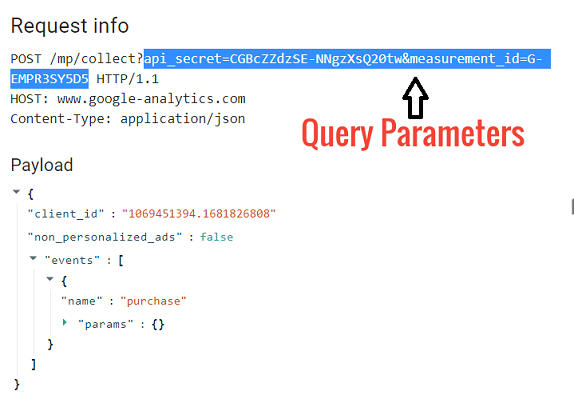
Note: All query parameters must be set on the same line. They should not have any spaces between them. Comments are not allowed in the query parameters.
A JSON POST body.
While query parameters are often used in GA4 to define the context and configuration of the data being sent, the JSON POST body holds the actual payload data.
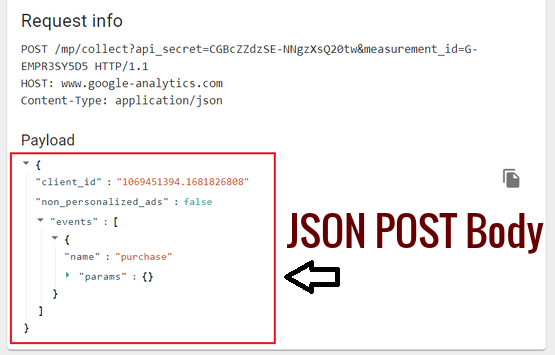
The JSON (JavaScript Object Notation) POST body is a structured data object that is included in the body of an HTTP POST request.
In GA4, this JSON object contains the actual payload data that you want to send to the GA server.
It includes information such as event parameters, user properties, and other relevant data points.
All values you sent via GA4 MP must be both UTF-8 encoded and URL encoded.
For example, / is encoded to %2F
If the values are not encoded correctly, then they will be replaced with Unicode replacement character xFFFD
Note: You can learn more about URL encoding from here: http://www.w3schools.com/tags/ref_urlencode.asp
How to analyze the payload data sent to a GA server?
In order to analyze (i.e. parse) the payload data sent to a GA server, follow the steps below:
Step-1: Open the Google Chrome browser and then navigate to the web page where you have installed Google Analytics 4.
Step-2: Right-click on the page and then click on ‘Inspect’ from the drop-down menu.
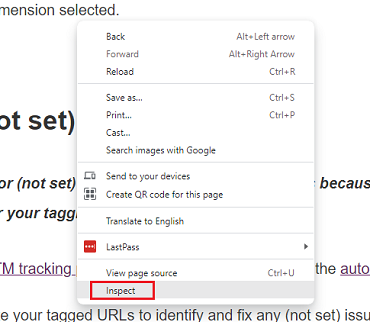
This will open up the ‘Chrome Developers Tool’:
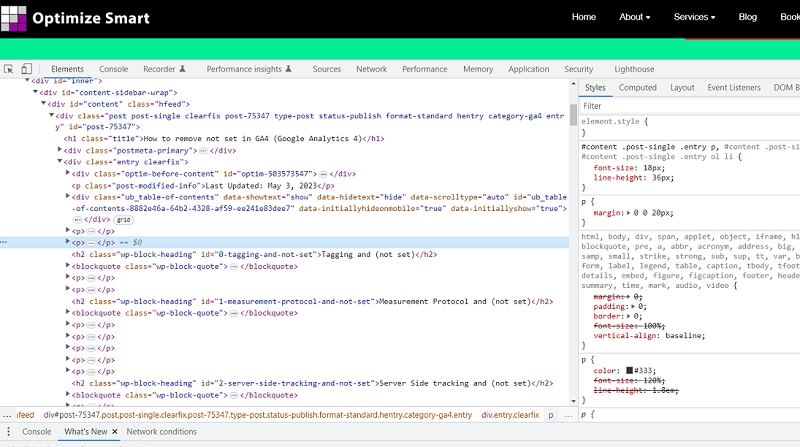
Step-3: Click on the ‘Network’ tab:
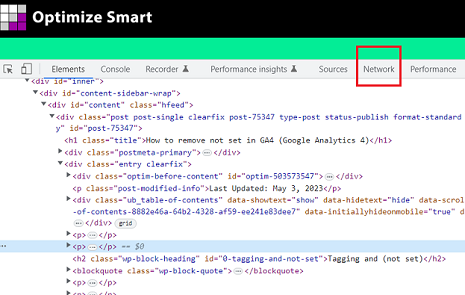
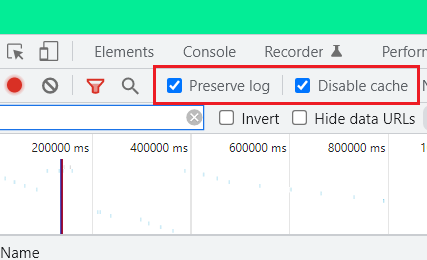
Step-4: Make sure that the following two checkboxes are selected: ‘Preserve log‘ and ‘Disable cache‘:
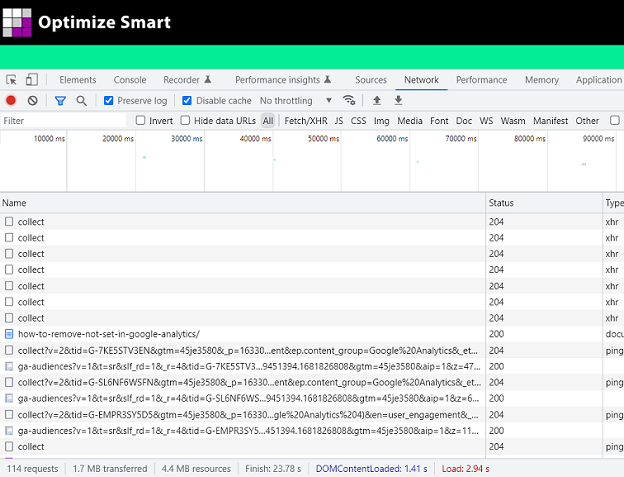
Step-5: Refresh the web page. You should now see a screen like the one below:
Step-6: Enter your measurement ID in the ‘Filter’ text box. You should now see a screen like the one below:
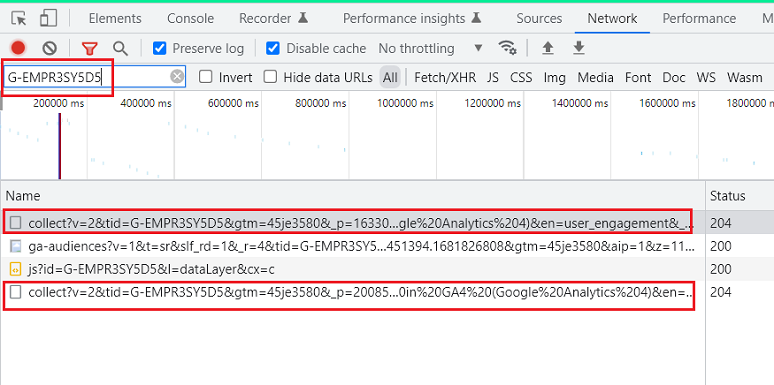
All the network requests starting from collect?v= are measurement protocol requests.
Step-7: Click on one of the protocol requests. On the right-hand side of the developers’ window, you should now be able to see the full measurement protocol request:
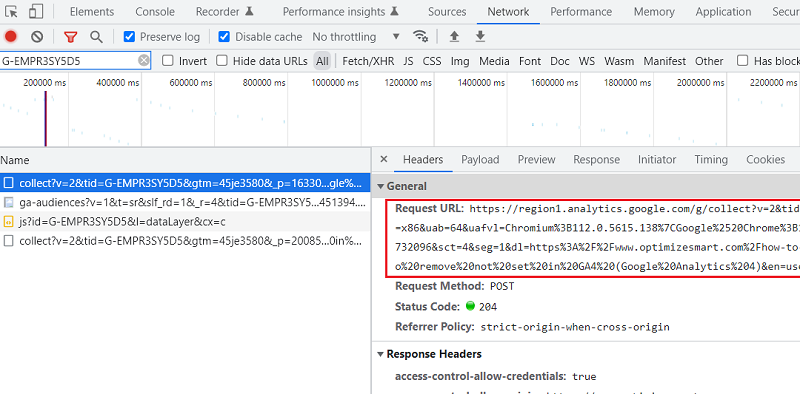
Step-8: Click on the ‘Payload’ tab:
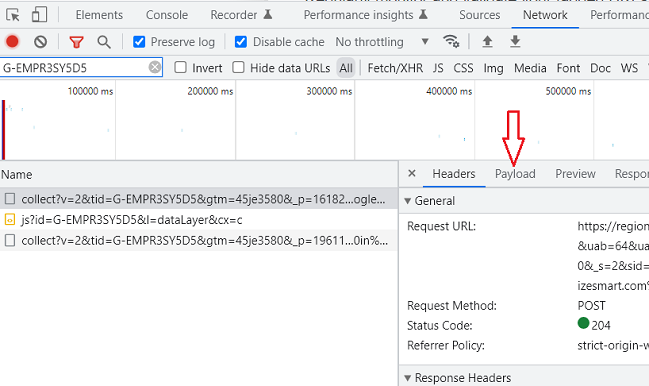
You should now be able to see the payload data sent to the GA server in easy to read format:
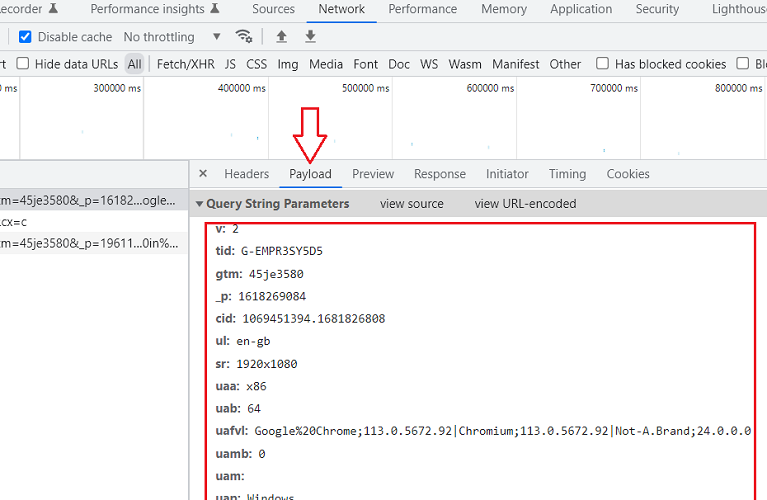
You should now be able to easily read all the query parameters in your measurement protocol request.
Commonly used parameters in payload data
#1 Measurement Protocol Version
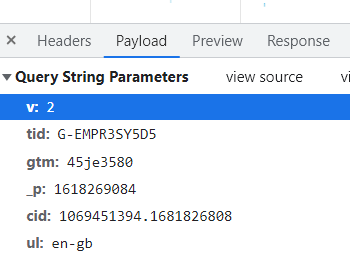
‘v’ is used to denote the measurement protocol version.
The value of this key for GA4 is 2
#2 Measurement ID
The ‘tid’ key indicates the measurement ID (and not the tracking ID) in the case of GA4.
For example:
tid: G-EMPR3SY5D5
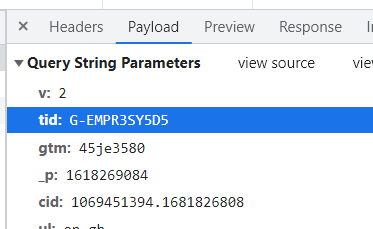
By including the ‘tid’ key with its associated value in the GA4 MP request, the request provides information about the measurement ID of the data stream where you sent the payload data.
#3 GTM Hash
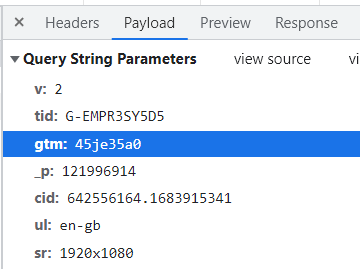
The ‘gtm’ key indicates the gtm hash. It is a value that is created by hashing the container ID of your GTM container.
It serves as a unique identifier for the container within the context of the GA4 Measurement Protocol.
To generate the “gtm” hash, you can take the container ID of your GTM container and apply a hashing algorithm (such as MD5 or SHA-1) to it.
The resulting hash value is then used as the ‘gtm’ parameter in the Measurement Protocol requests.
For example:
gtm: 45je35a0
#4 Fingerprint
The _p key (short for “fingerprint”) indicates a random number that is generated on the client side when the event is sent. It ensures that each event is uniquely identified and processed by GA4.
For example:
_p: 1618269084
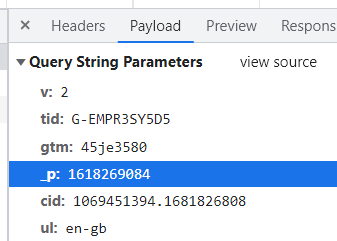
The ‘_p’ parameter is not used to track user behaviour or to collect any other personal information. It is simply a way to prevent duplicate events from being sent to GA4.
#5 Client ID
The ‘cid’ key (short for “client id”) indicates the Client ID associated with the user or device that sent the event data.
The cid key is used to uniquely identify a user or device in GA4.
For example:
cid: 1069451394.1681826808
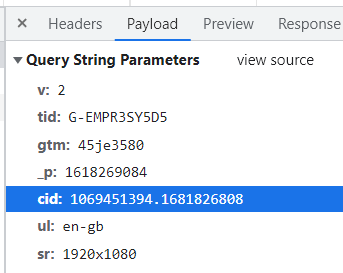
The value ‘1069451394.1681826808’ is the specific client ID assigned to the user or device.
By including the ‘cid’ key with its associated value in the GA4 MP request, the request provides information about the client id to GA4.
#6 User’s language
The ‘ul’ key (short for “user language”) indicates the user’s language and regional settings.
For example:
ul: en-gb
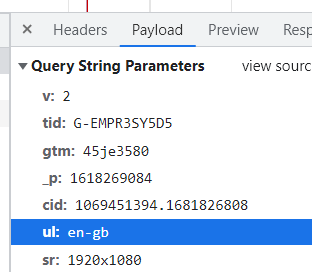
In this case, ‘ul: en-gb’ indicates that the user’s language preference is English (en), and the regional setting is United Kingdom (gb).
By including the ‘ul’ key with its associated value in the GA4 MP request, the request provides information about the user’s language and regional settings to GA4.
#7 Screen Resolution
The ‘sr’ key (short for “screen resolution”) indicates the screen resolution of the user’s device.
For example:
sr: 1920×1080
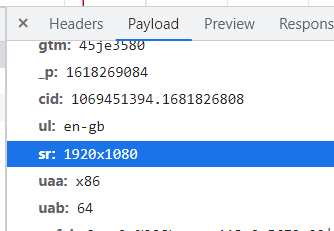
In this case, ‘sr: 1920×1080’ indicates that the screen resolution of the user’s device is 1920X1080.
By including the ‘sr’ key with its associated value in the GA4 MP request, the request provides information about the user’s screen resolution to GA4.
#8 User Agent Architecture
The ‘uaa’ key (short for “user agent architecture”) indicates the user agent architecture. It is used to specify the architecture of the device or browser making the request.
For example:
uaa: x86
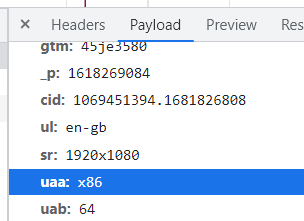
In this case, ‘uaa: x86’ indicates that the user’s device or browser has an x86 architecture.
The x86 architecture is a common architecture used in many desktop and laptop computers, as well as servers.
By including the ‘uaa’ key with its associated value in the GA4 MP request, the request provides information about the user’s device or browser architecture to GA4.
#9 User Agents Bitness
The ‘uab’ (short for “user agent bitness”) key indicates the number of bits for the user’s browser or device.
For example:
uab: 64
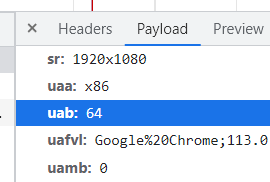
In this case, ‘uab: 64’ indicates that the user’s browser is running in a 64-bit environment.
Modern computer systems commonly operate with either 32-bit or 64-bit architectures.
A 64-bit architecture allows for larger memory addressing and can handle more complex operations compared to a 32-bit architecture.
By including the ‘uab’ key with its associated value in the GA4 MP request, the request provides information about the user’s browser architecture to GA4.
#10 User agent full version list
The ‘uafvl’ key (short for “user agent full version list”) indicates the full version information of the user’s web browsers.
It contains a list of browser names and their respective versions separated by the pipe character (|). Each browser version is URL-encoded.
For example:
uafvl: Google%20Chrome;113.0.5672.92|Chromium;113.0.5672.92|Not-A.Brand;24.0.0.0
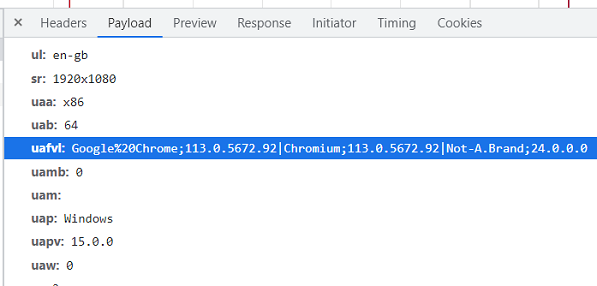
In this case, the ‘uafvl’ key provides the following information:
- Google Chrome: Version 113.0.5672.92
- Chromium: Version 113.0.5672.92
- Not-A.Brand: Version 24.0.0.0
The version information provided in the ‘uafvl’ key allows GA4 to track and analyze data based on the specific browser versions used by the users.
This information can be used to understand browser compatibility, identify potential issues related to specific browser versions, and optimize the website or app experience accordingly.
#11 User Agent Mobile Brand
The ‘uamb’ key (short for “user agent mobile brand”) indicates the branding or manufacturer of the user’s mobile device.
For example:
uamb: 0
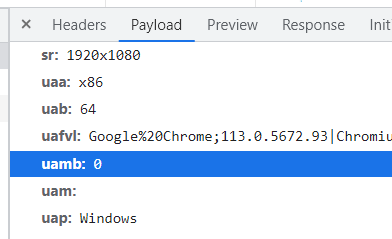
In this case, ‘uamb: 0’ indicates that no specific mobile device branding is provided.
By including the ‘uamb’ key with its associated value in the GA4 MP request, the request provides information about the user’s mobile device branding to GA4.
#12 User Authentication Method
The ‘uam’ key (short for “user authentication method”) indicates how the user is authenticated on the website.
The possible values for ‘uam’ key are:
- Email – the user was authenticated using an email address and password.
- Social – the user was authenticated through a social media platform, such as logging in with a Facebook or Google account.
- Single_sign_on – the user was authenticated through a single sign-on (SSO) system
- Phone – the user was authenticated using a phone number.
- Multi_factor_authentication – the user was authenticated through multi-factor authentication to verify their identity
For example:
uam:
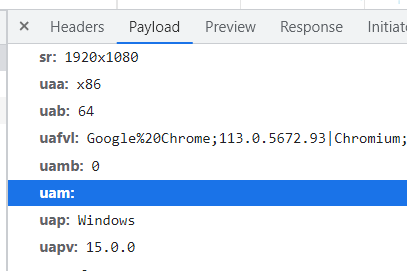
In this case, ‘uam:’ parameter indicates the user was not required to authenticate or the authentication method is unknown or not applicable.
#13 User Agent Platform
The ‘uap’ key (short for “user agent platform”) indicates the operating system of the device or browser making the request.
For example:
uap: Windows
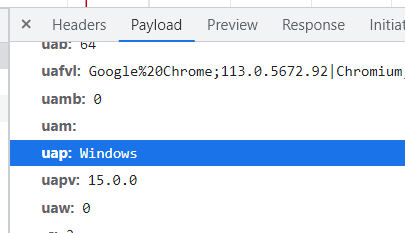
In this case, ‘uap: Windows’ indicates that the user’s device is running a Windows operating system.
By including the ‘uap’ parameter with its associated value in the MP request, the request provides information about the user’s operating system to GA4.
#14 User Agent Platform Version
The ‘uapv’ key (short for “user agent platform version”) indicates the version number of the operating system running on the user’s device.
For example:
uapv: 15.0.0
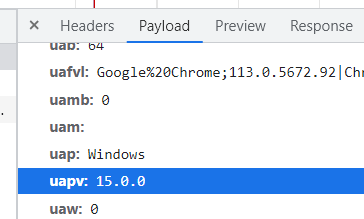
In this case, ‘uapv: 15.0.0’ indicates that the user’s Windows operating system has version 15.0.0.
By including the ‘uapv’ parameter with its associated value in the MP request, the request provides information about the version of the user’s operating system to GA4.
#15 User Agent Width
The ‘uaw’ key (short for “user agent width”) indicates the width of the user’s device screen or viewport in pixels.
For example:
uaw: 0
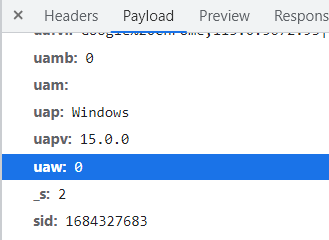
In this case, ‘uaw: 0’ indicates that the width of the user’s device screen or the viewport is not available or not provided in the request.
By including the ‘uaw’ parameter with its associated value in the MP request, the request provides information about the user’s device width to GA4.
#16 Event Sequence Number
The ‘_s’ key (short for “sequence number”) indicates the event sequence number. It indicates the sequence or order of the event within a session.
Each event within a session is assigned a unique sequence number to help determine the chronological order of the user’s interactions.
For example:
_s: 2
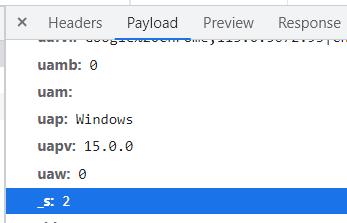
In this case, ‘_s=2’ indicates that the current event is the second one in the sequence within the session.
By including the ‘_s’ parameter with its associated value in the MP request, the request provides information about the event sequence number to GA4.
#17 Session ID
The ‘sid’ key (short for “session id”) indicates the unique session ID associated with the user’s current session. It is used to identify and track individual user sessions.
For example:
sid: 1683882415
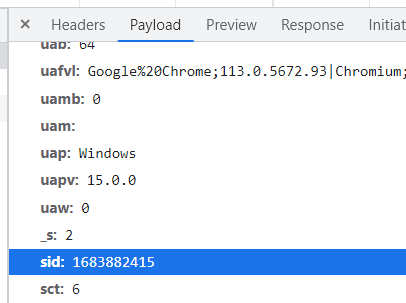
In this case, ‘sid: 1683882415’ indicates that the user’s current session is identified by the session ID “1683882415”.
The session ID is generated by Google Analytics and is unique to each session.
By including the ‘sid’ parameter with its associated value in the GA4 MP request, the request associates the event with the specific session identified by that session ID.
This allows GA4 to track the user’s interactions within the session and analyze user behaviour based on session-level metrics.
The session ID is an important component in understanding user engagement, session duration, conversion tracking, and other session-based metrics in GA4.
It helps differentiate between multiple sessions from the same user and provides insights into user behaviour within a specific session.
#18 Session Count
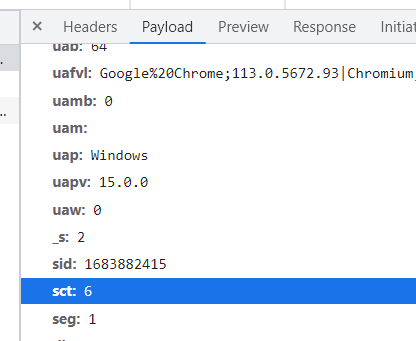
The ‘sct’ key (short for “session count”) indicates the number of sessions counted for a user.
For example:
sct: 6
#19 Session Engaged
The ‘seg’ key (short for “sessions engaged”) indicates whether a session is engaged or not.
An Engaged session is a GA session in which a user has actively interacted with your website/app for at least 10 seconds.
The GA session in which a conversion event is fired, or two or more pageviews/screenviews are fired is also reported as an engaged session.
The value of this parameter is of type boolean, either 0 (i.e. not an engaged session) or 1 (i.e. an engaged session).
For example:
seg: 1
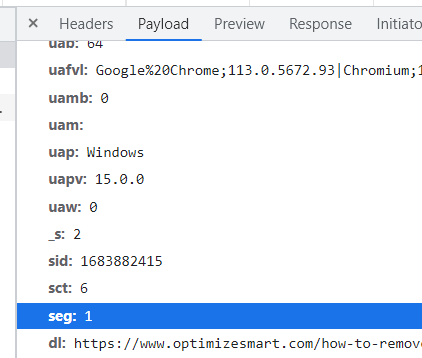
In this case ‘seg: 1’ parameter indicates that the session is engaged session.
#20 Document Location
The ‘dl’ key (short for “document location”) indicates the URL of the webpage or document that the event is associated with.
For example:
dl: https%3A%2F%2Fwww.optimizesmart.com%2Fhow-to-remove-not-set-in-google-analytics%2F
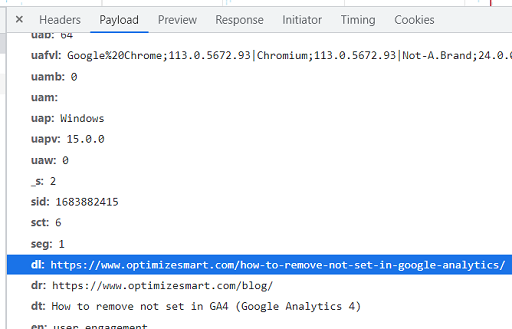
In this case, the value of ‘dl’ is https%3A%2F%2Fwww.optimizesmart.com%2Fhow-to-remove-not-set-in-google-analytics%2F, which is URL-encoded.
When decoded, the actual URL is https://www.optimizesmart.com/how-to-remove-not-set-in-google-analytics/.
By including the ‘dl’ parameter with its associated value in the GA4 MP request, the request provides information about the URL of the webpage or document where the event occurred to GA4.
#21 Document Referrer
The ‘dr’ key (short for “document referrer”) indicates the URL of the referring webpage or source that led the user to the current webpage.
For example:
dr: https%3A%2F%2Fwww.optimizesmart.com%2Fblog%2F
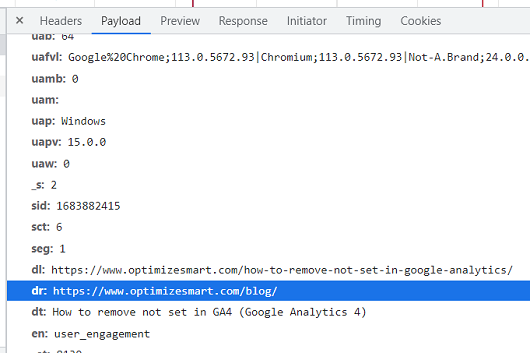
In this case, the value of ‘dr’ key is https%3A%2F%2Fwww.optimizesmart.com%2Fblog%2F, which is URL-encoded.
When decoded, the actual referrer URL is https://www.optimizesmart.com/blog/.
#22 Document Title
The ‘dt’ key (short for “document title”) indicates the title of the webpage or document that the event is associated with.
For example:
dt: How%20to%20remove%20not%20set%20in%20GA4%20(Google%20Analytics%204)
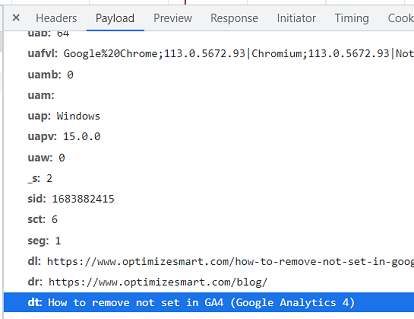
In this case, the value of ‘dt’ key is How%20to%20remove%20not%20set%20in%20GA4%20(Google%20Analytics%204), which is URL-encoded.
When decoded, the actual document title is “How to remove not set in GA4 (Google Analytics 4)”.
#23 Event Name
The ‘en’ key (short for “event name”) indicates the name or type of the event being tracked.
For example:
en: user_engagement
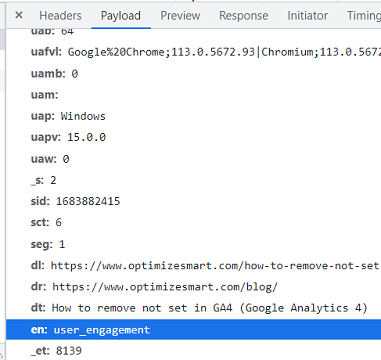
In this case, the value of the ‘en’ key is user_engagement. This suggests that the event being tracked in GA4 is related to user engagement.
The following are the example of various possible values for ‘en’ parameter:
- en: page_view
- en: user_engagement
- en: view_search_results
- en: click
- en: scroll
- en: video_start
- en: video_progress
- en: video_complete
- en: file_download
The ‘en’ parameter allows you to categorise and group different types of events in GA4 based on their names.
It helps in organising and analysing the data collected from various user interactions on your website or mobile app.
#24 Engagement Time
The ‘_et’ key (short for “Engagement Time”) indicates the total time in milliseconds that a user is considered to be engaged during a session.
For example:
_et: 8139
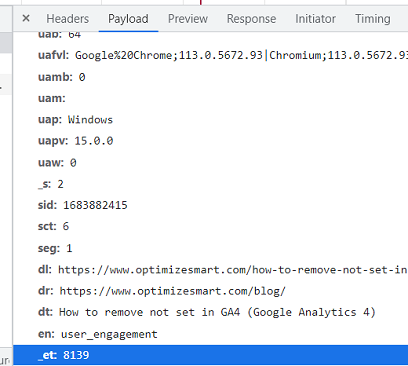
In this case, ‘_et: 8139’ parameter means that the user was engaged with the page for 8139 milliseconds or approximately 8.1 seconds.
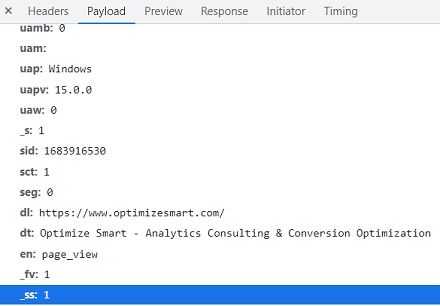
#25 Session Start
‘_ss’ key is used to denote session start i.e. whether the current event started a new session.
The value of this key is of type boolean, either 0 (i.e. did not start the new session) or 1 (i.e. started the new session).
For example:
_ss: 1
Measurement Protocol Rules
Measurement protocol rules are the rules regarding:
- Formatting the protocol requests.
- Length and format of the payload data.
- Length and format of each parameter.
- Parameters which can be sent together and which can’t be sent together.
- Parameters which are required for particular event type.
- Parameters which can be sent for a particular event type.
- Allowed key and value pairs.
- Valid keys.
- Valid event types.
- Length and format of each value.
- Supported data types.
- Format of transport.
Rules for using Protocol Parameters
There are rules regarding which event parameters can be sent together and which event parameters can’t be sent together in a GA4 MP request. There are rules regarding the length and format of parameters.
Each parameter has a specific type that requires a particular format.
Each payload data must contain a valid event type. Each event type must have its own set of required parameters set.
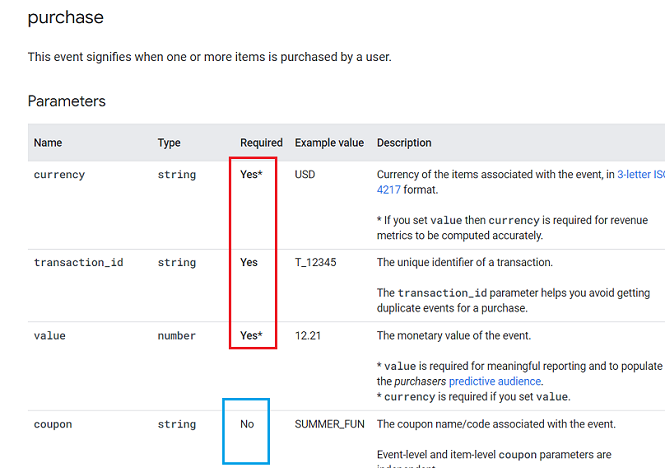
For example, let us suppose you want to send a ‘purchase’ event via Measurement Protocol.
Now you would like to know which parameters can be sent together with the ‘purchase’ event. You would like to know which parameters are required and which are optional.
Follow the steps below:
Step-1: Navigate to this page: https://developers.google.com/analytics/devguides/collection/protocol/ga4/reference/events
Step-2: Click on the ‘purchase’ event from the navigation menu on the right-hand side:
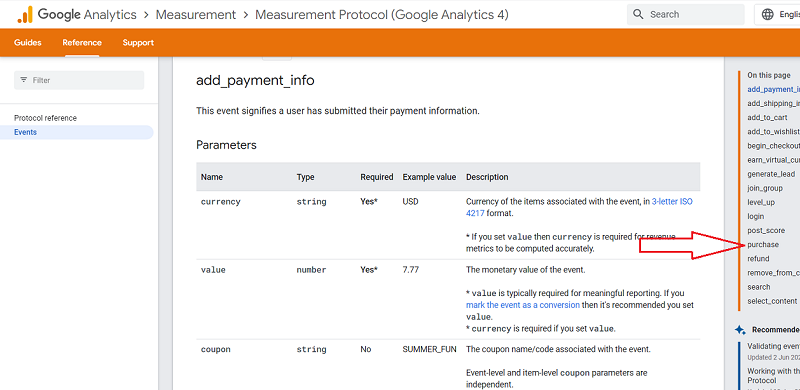
You should now see a screen like the one below, which lists all the required and optional parameters that can be sent with the ‘purchase’ event:
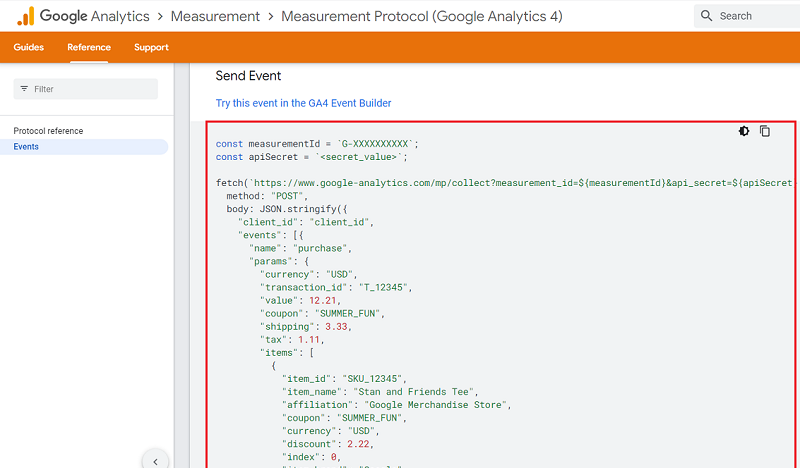
If you scroll down, you can also see an example of how to send the ‘purchase’ event via MP:
For more details regarding the MP parameters rules, refer to GA4 Measurement Protocol Events Reference.
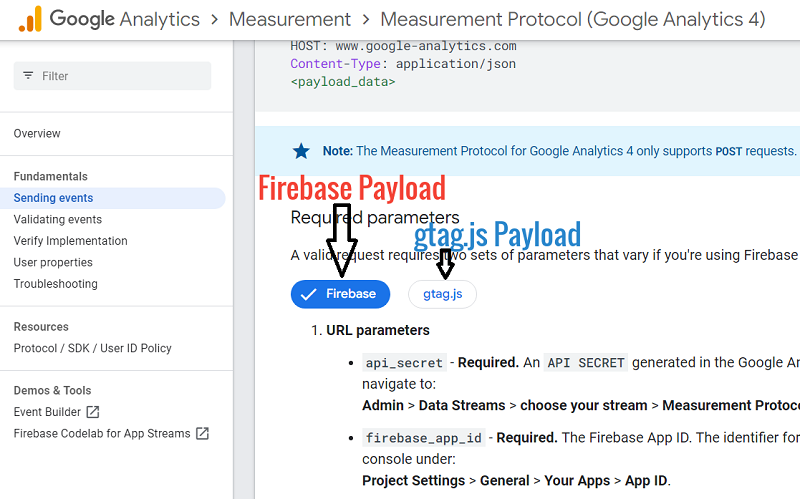
In the context of GA4, there are two types of payloads.
- Firebase Payload.
- gtag.js Payload.
Firebase payload.
The Firebase payload data (also known as the ‘Firebase client’) is used for sending data from mobile apps to GA4.
The Firebase payload data is made up of the following query parameters and JSON POST Body:
Query parameters
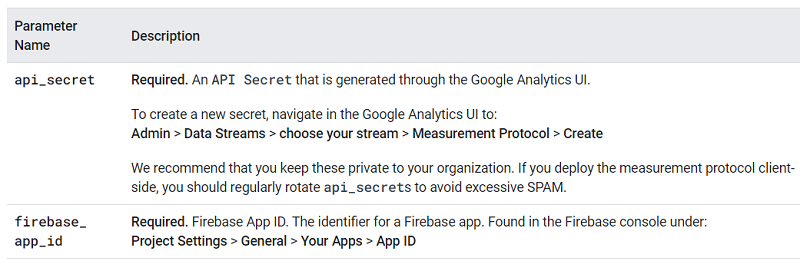
JSON post body
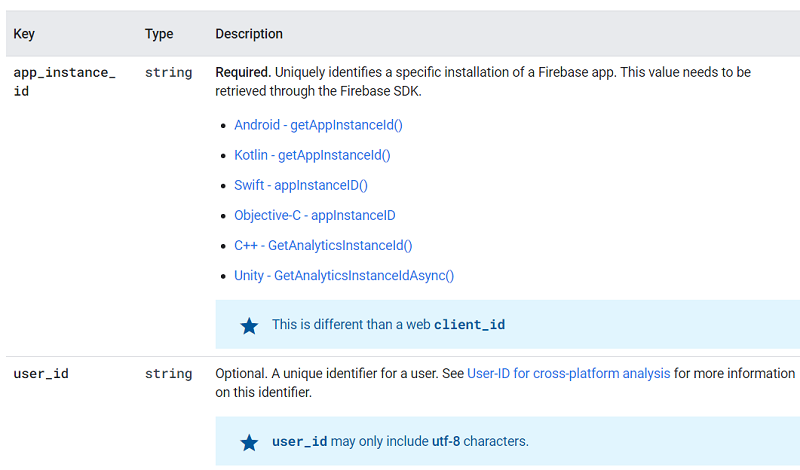
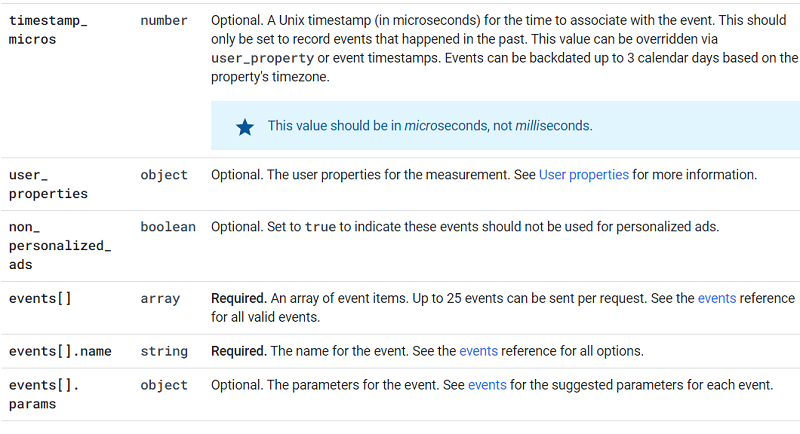
gtag.js payload
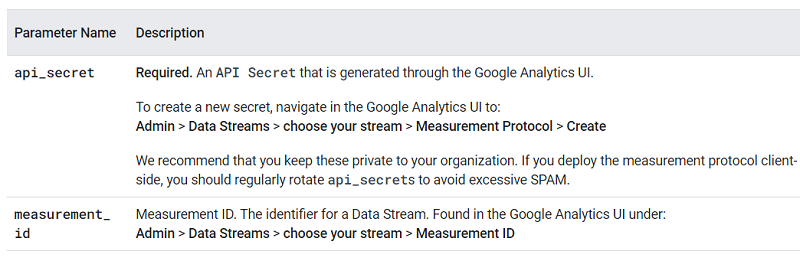
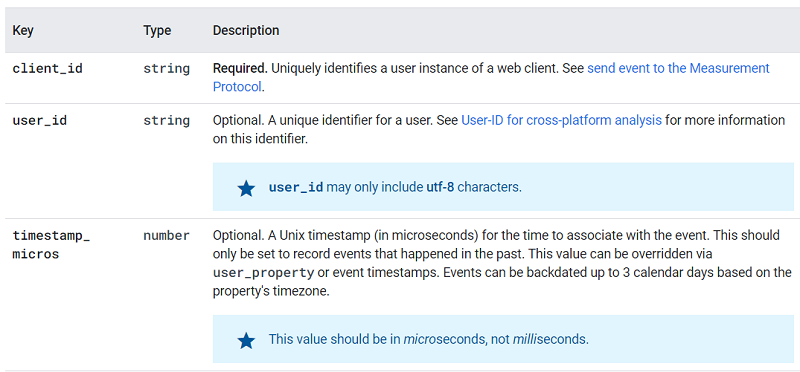
The gtag.js payload data (also known as the ‘gtag.js client’) is used for sending data from websites to GA4.
The gtag.js payload data is made up of the following query parameters and JSON POST Body:
Query Parameters
JSON post body
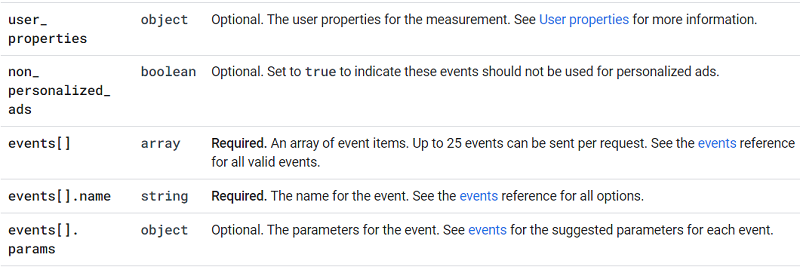
API Secret Key
The Universal Analytics measurement protocol request is easy to abuse as any person can use it to send unauthorized data to your GA property.
To stop this protocol abuse in GA4, Google came up with the concept of API Secret Key.
When you use measurement protocol to send event data to a GA4 property, you need to use the API Secret Key. This key is data stream specific. So it can not be used across data streams or properties.
This key is used as a security feature so that spammers can not abuse the protocol request.
Otherwise, any person can use measurement protocol to send event data to your GA4 property. They just need to know your measurement ID.
Google recommends that you keep the API secret keys private to your organisation.
You are able to revoke API secret key if you believe it has been compromised.
Note: API Secret key is case-sensitive.
To generate the API secret key, follow the steps below:
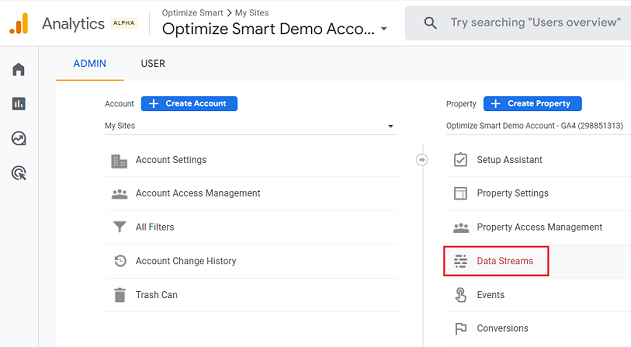
1. Navigate to the admin section of your GA4 property.
2. Click on ‘Data Streams’ under the ‘Property’ column:
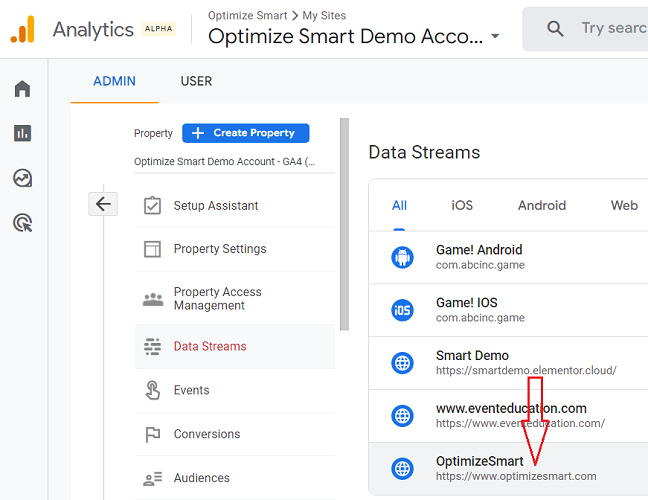
3. Click on the name of the web data stream to which you want to send the event data via measurement protocol:
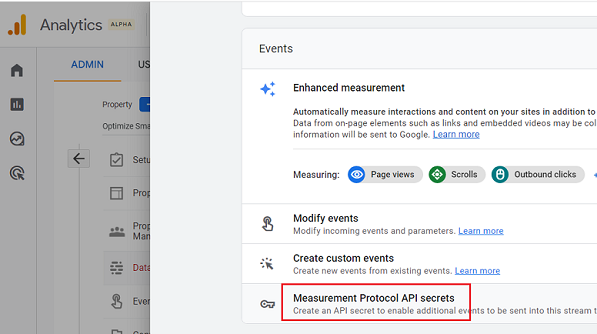
4. Click on Measurement Protocol API secrets:
5. Click on the ‘Create’ button:
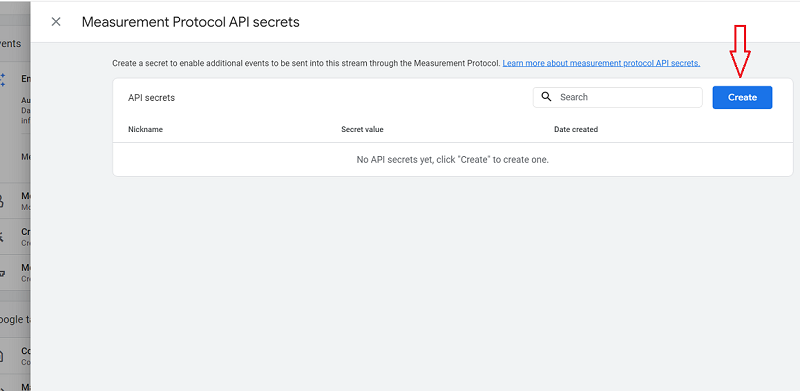
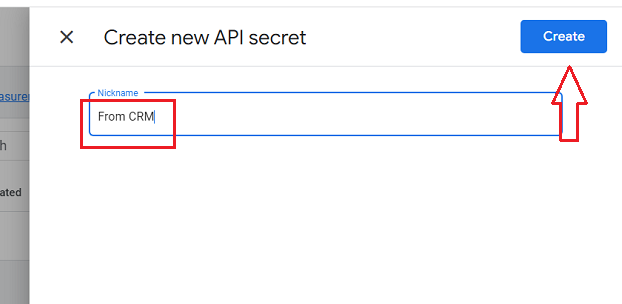
6. Give your new API secret key a descriptive name based on the data source you are sending the data from.
So if you are sending data from your CRM, you can use a name like ‘From CRM’. Then click on the ‘Create’ button:
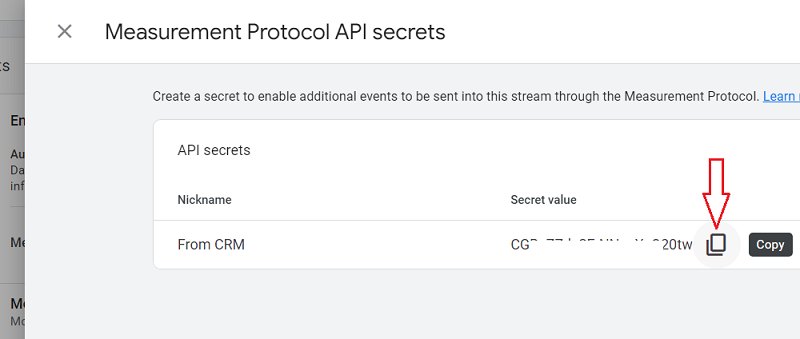
7 Click on the ‘Copy’ button to copy the value of the secret key and then save the value at some safe place for easy access later on.
Firebase APP ID
The Firebase App ID (firebase_app_id) is a unique identifier assigned to each app within a Firebase project.
It is used to uniquely identify a specific app within the Firebase project.
The App ID is required when sending data from a mobile app via measurement protocol to GA4.
To retrieve the Firebase APP ID, follow the steps below:
Step-1: Login to Firebase Console https://console.firebase.google.com/ and then click on the Firebase project whose app id you want to retrieve:
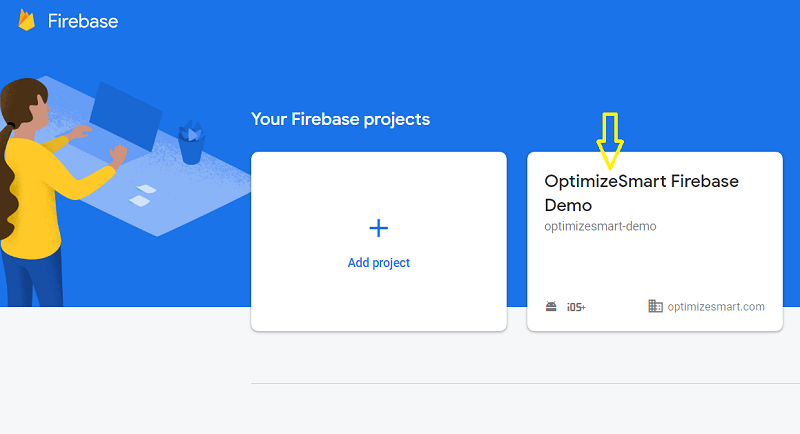
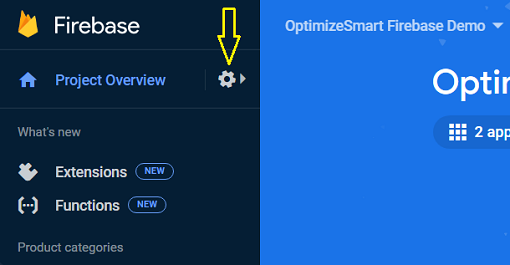
Step-2: Click on the wheel button:
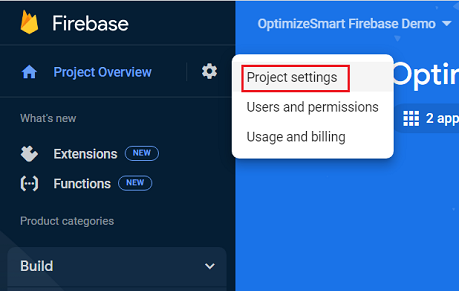
Step-3: Click on ‘Project Settings’:
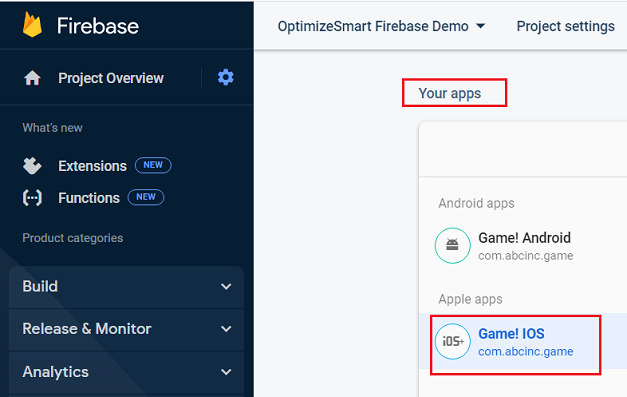
Step-4: Scroll down to the section ‘Your Apps’ and then click on the App whose app id you want to retrieve:
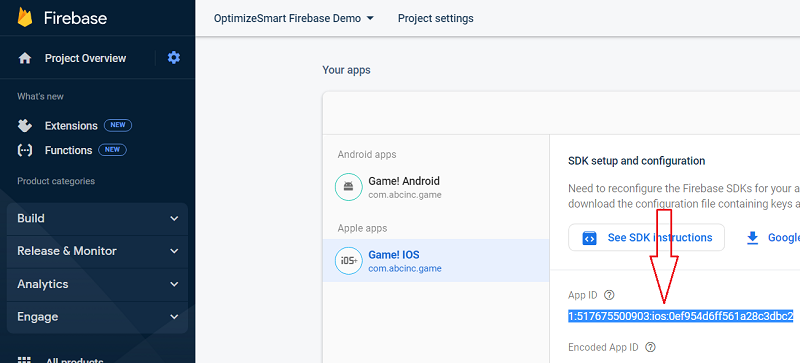
Step-5: Copy the app id and keep it as a safe place for future reference:
Firebase App Instance ID
The Firebase App Instance ID (also known as the Firebase Installation ID or FID) is a unique identifier assigned to each app instance or installation of a specific app.
It represents an individual installation of an app on a user’s device.
The App Instance ID (app_instance_id) is required when sending data from a mobile app via measurement protocol to GA4.
You can retrieve the value of the Firebase App Instance ID through the Firebase SDK.
The specific method may vary slightly depending on the platform (e.g., Android, iOS) and the version of the Firebase SDK you are using.
- Android – getAppInstanceId()
- Kotlin – getAppInstanceId()
- Swift – appInstanceID()
- Objective-C – appInstanceID
- C++ – GetAnalyticsInstanceId()
- Unity – GetAnalyticsInstanceIdAsync()
Measurement ID
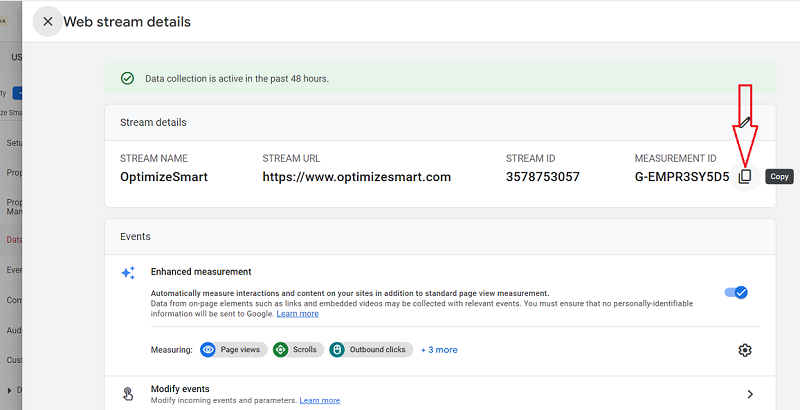
Measurement ID is an identifier for a GA4 web data stream.
Measurement ID is required when sending data from a website via measurement protocol to GA4.
Follow the steps below to find your measurement ID:
Step-1: Navigate to the admin section of your GA4 property and then click on ‘Data Streams’ under the ‘Property’ column:
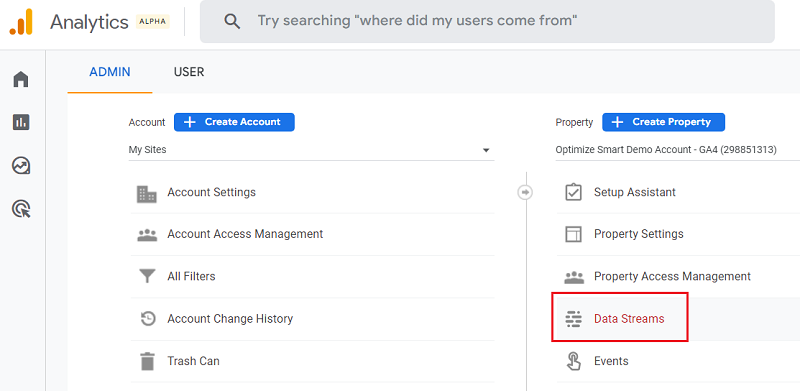
Step-2: Click on the web data stream whose measurement ID you want to retrieve:
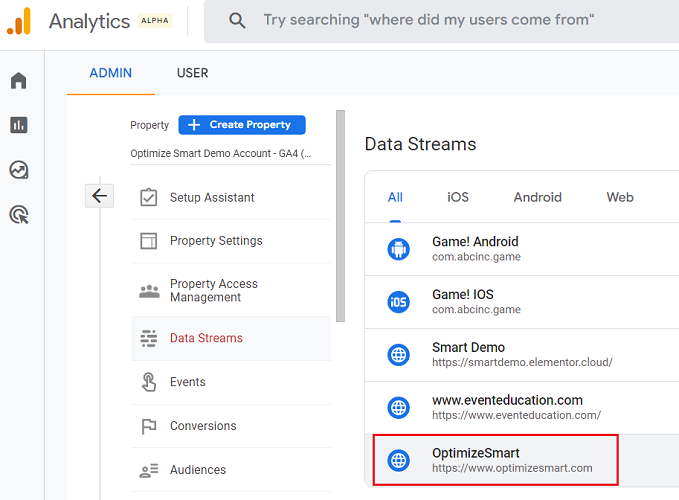
Step-3: Click on the ‘Copy’ button to copy the value of the measurement ID and then save the value at some safe place for easy access later on.
Client ID
In the context of GA4, a website user is technically a client ID.
Whenever a user visits your website for the first time, a client ID is assigned to him.
When the same user later returns to your website, GA4 checks for his client ID.
If the client ID is present, GA4 labels the user as a returning user and starts a new session.
If the Client ID is not present, GA4 labels the user as a new user and generates a new client ID.
That’s how with the help of client IDs, GA4 can detect new and returning users.
Client ID is a combination of a unique random number and the first timestamp (i.e. the time of the first visit).
For example 35355923.1458015265
Since you can not use measurement protocol in GA4 to create a new user, you will need a client id to send data from a website via MP to GA4.
Note: User creation in GA4 is based on events and user properties that are collected when users interact with your website or app.
Limitations of the measurement protocol in GA4
The following are the limitations of the GA4 measurement protocol, which you must be aware of:
#1 You need to format your data according to the measurement protocol (MP) before you can send it to your GA4 property.
So, for example, if you want to send event data from your point of purchase system to your GA4 property, then you first need to format the data according to the measurement protocol.
Similarly, if you want to send event data from a slot machine, then you first need to format the data according to the measurement protocol. Without such formatting, you can’t send data to GA4.
#2 The Measurement Protocol does not return an error code if the payload data is not formatted correctly or if the data in the payload is incorrect.
Similarly, the Measurement Protocol does not return an error code if the payload data is not processed by the GA server.
#3 The measurement protocol is not a substitute for automatic data collection that you get via gtag.js, Google Tag Manager and/or Google Analytics for Firebase SDK.
The primary purpose of GA4 MP is to allow developers to augment automatic data collection (via gtag, GTM, and Firebase SDK) and not replace them.
The primary purpose is to allow developers to enhance web and app data streams by sending events directly to Google Analytics servers via HTTP requests.
In other words, the primary purpose of the GA4 MP is to allow developers to send additional data to GA4 for analysis and reporting purposes.
So if you only use GA4 MP to send even data to the GA server, only partial reporting will be available to you.
#4 You can not use GA4 MP to create a new user or change any existing data in your GA4 property.
User creation in GA4 is only based on events and user properties that are automatically collected when users interact with your website or app.
#5 You can not use GA4 MP to send geographic event data to the GA server. Geographic information is only available through automatic data collection.
#6 It is not possible to send event data in an aggregate form via the GA4 MP. The Measurement Protocol is designed to send individual event hits or user properties to GA4.
Each hit that is sent via the Measurement Protocol is considered a separate event by GA4, and GA4 processes each hit individually to generate reports.
#7 The GA4 MP only supports the POST request.
#8 All applications that use the Measurement Protocol must follow the Measurement Protocol, SDK, and User ID Feature Policy. According to this usage policy:
- You must have the proper authorization to use GA4 MP.
- You must obtain consent from your end users or provide them with the opportunity to opt-out from the GA4 MP features you use.
- You must not use GA4 MP to send personally identifiable information (PII) to GA server.
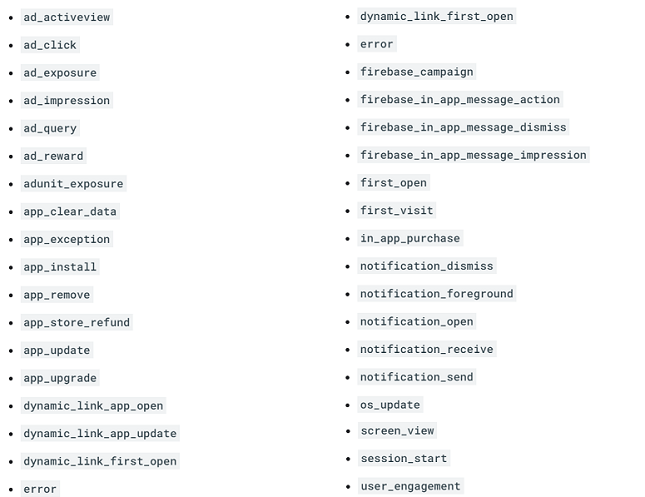
#9 Some event and parameter names are reserved for use via automatic data collection and cannot be sent through the measurement protocol.
For example, the following event names are reserved and can not be used to send data via MP:
The following event parameter names are reserved and cannot be used:
- firebase_conversion
Even parameter names cannot begin with:
- _ (underscore)
- firebase_
- ga_
- google_
- gtag.
#10 Some user property names are reserved for use via automatic data collection and cannot be sent through the measurement protocol.
For example, the following user property names are reserved and can not be used to send data via MP:
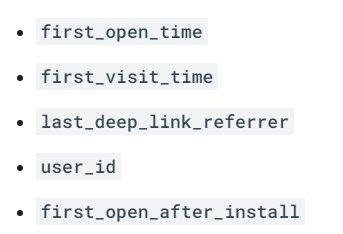
User property names cannot begin with:
- _ (underscore)
- firebase_
- ga_
- google_
#11 A GA4 MP request can have a maximum of 25 events.
#12 The post body of measurement protocol request must be smaller than 130KB.
#13 MP Events can have a maximum of 25 parameters and 25 user properties.
#14 The names of MP events must not be more than 40 characters. They must start with an alphabet and may only contain alpha-numeric characters and underscores.
#15 The names of MP event parameters must not be more than 40 characters. They must start with an alphabet and may only contain alpha-numeric characters and underscores.
#16 The values of MP event parameters must not be more than 100 characters.
#17 The names of user properties must not be more than 24 characters.
#18 The values of user properties must not be more than 36 characters.
#19 Item parameters must not have more than 10 custom parameters.
#20 One of the top reasons for (not set) appearing in your GA4 reports is the use of measurement protocol to send data.
When using the GA4 MP, you may not always provide all the data that you typically get from automatic data collection.
If certain data, such as traffic source, medium, or browser information, is not included in the Measurement Protocol request, GA4 will use the placeholder (not set) for those dimensions in your reports.
Ensure that you include all necessary parameters (like session id) in your Measurement Protocol requests.
Make sure the parameter values are formatted correctly, as GA4 may not be able to process incorrectly formatted values, leading to (not set) entries.
How to Use Measurement Protocol
To use the measurement protocol, you need to do the following three things:
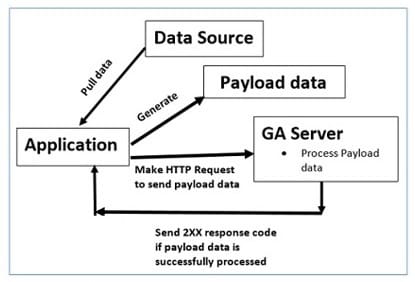
#1 Ask your developer to write an application (program) that can pull data from your desired external data source (like a point of purchase system etc.):

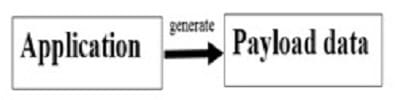
#2 Your application must convert the retrieved data into the payload data according to the measurement protocol:
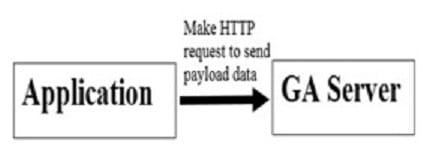
#3 Your application must make an HTTP POST request to the endpoint (Google Analytics server) to send the payload data to the GA server.
The HTTP request should be made up of user agent, transport and payload data:
When GA receives the HTTP request from your application, it tries to process the payload data in the HTTP request.
If GA successfully processes the payload data, then its server will send 2XX response code back to your application:
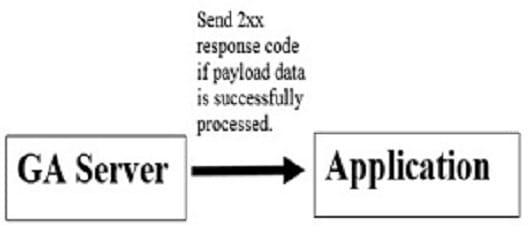
If GA is not successful in processing the payload data, then its server does not send any error code back to your application.
The diagram below illustrates the whole process of creating a measurement protocol hit:
Following is the architectural overview from Google on how measurement protocol works:
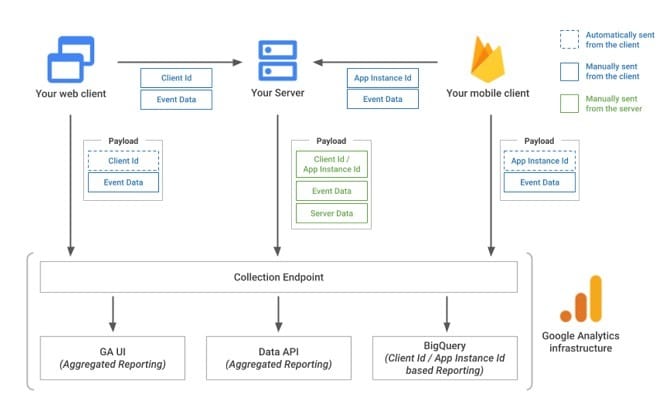
From the chart above, we can conclude the following:
#1 When you send data from a web client (aka website) to a GA data collection endpoint, the payload data contains the client id and event data.
#2 When you send data from an app client (aka mobile application) to a GA data collection endpoint, the payload data contains the app instance id and event data.
#3 When you send data from your web server to a GA data collection endpoint, the payload data contains the client id/app instance id, event data and server data.
#4 The GA data collection endpoint can be a GA User Interface, GA Data API or BigQuery.
Introduction to Measurement Protocol Events
In the context of GA4, events can be broadly categorised into two categories:
#1 Measurement Protocol Events (MP Events) – These are the events sent via measurement protocol to GA4.
#2 Automatically Collected Events – These are the events automatically tracked via automatic data collection.
The MP events can be further classified into:
#1 MP App events – These are the MP events sent from a mobile app to GA4.
#2 MP Web events – These are the MP events sent from a website to GA4.
Sending Measurement Protocol Events
To send an MP event, make an HTTP POST request to the following endpoint:
POST /mp/collect HTTP/1.1
HOST: www.google-analytics.com
Content-Type: application/json
<payload_data>
Note: The GA4 MP only supports POST requests.
Use Firebase payload if you want to send data from your mobile app to GA4.
Use gtag.js payload if you want to send data from your website to GA4.
Introduction to Measurement Protocol Validation Server
The Measurement Protocol Validation Server is a tool provided by Google to validate and test Measurement Protocol requests. It is designed to ensure that your MP events are valid and that the data sent through MP is properly formatted.
The MP Validation Server allows you to simulate sending MP requests to GA servers without actually storing or processing the data.
By using the Validation Server, you can send a test request to a specific data collection endpoint and receive a response that indicates whether the request is valid or if there are any errors or issues with the data being sent.
The response provides feedback and validation messages, which can assist in troubleshooting and identifying any problems in the MP implementation.
Limitations of Measurement Protocol Validation Server
The Measurement Protocol Validation Server, while a useful tool for testing and validating MP requests, has certain limitations that you must consider:
#1 The Validation Server primarily focuses on basic syntax and formatting validation of MP requests. It does not perform in-depth validation of the data itself or verify the accuracy of the data being sent. It may not catch all potential issues or discrepancies in the payload data.
#2 The Validation Server is a standalone tool designed for testing purposes only. It does not retain the data or provide any long-term storage or analysis capabilities. It does not provide direct insights or reporting capabilities within the Google Analytics platform.
#3 The Validation Server does not fully simulate the actual processing and behaviour of data in a live Google Analytics environment.
Accessing Measurement Protocol Validation Server
When you send MP events to the MP Validation server, your URL endpoint should be /debug/mp/collect (and not /mp/collect).
You can either call the Validation Server directly or use the validation server indirectly via the GA4 Event Builder.
The GA4 Event Builder allows you to interactively create MP events and uses the Validation Server to validate them.
Introduction to GA4 Event Builder
The GA4 event builder is an online tool which is used to create, validate, and send events using the GA4 Measurement Protocol.
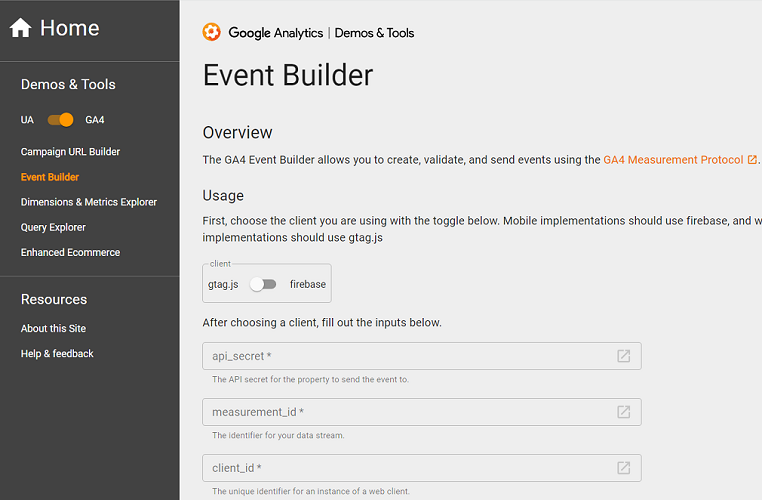
Prerequisites for using the GA4 Event Builder
You need to have your API secret key, measurement ID and client ID handy before you can use the GA4 event builder tool.
How to use the GA4 Event Builder
#1 Navigate to GA4 Event Builder https://ga-dev-tools.google/ga4/event-builder/
#2 Click on the ‘Login’ button and then log in with your Google account.
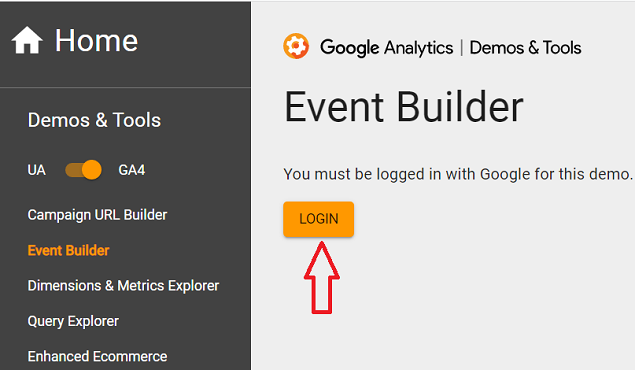
Once you have logged in, you should see a screen like the one below:
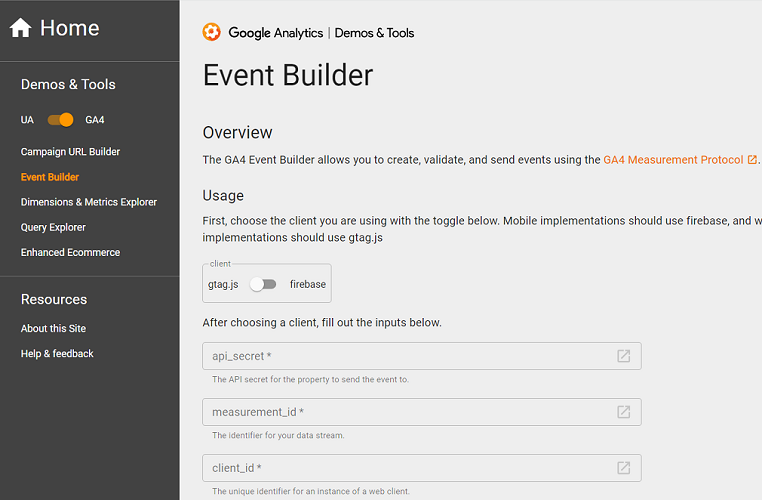
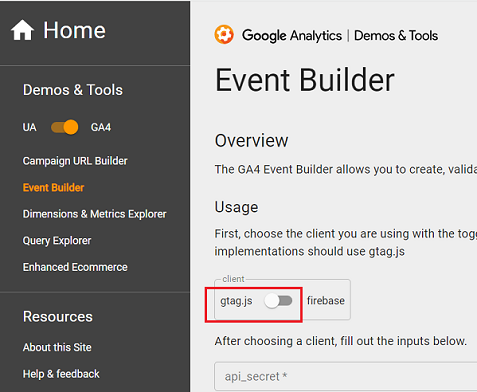
#3 Choose the client based on whether you want to send event data to a mobile app or website.
If you want to send event data to a mobile app, then choose ‘firebase’ as a client. Otherwise, use gtag.js as a client.
We will choose gtag.js as a client:
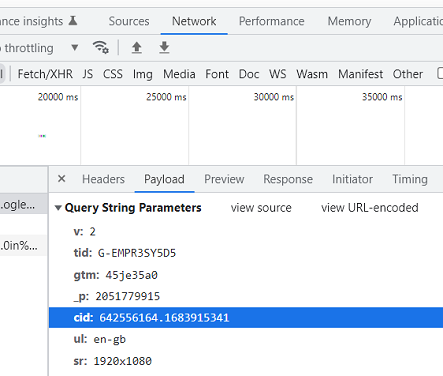
#4 After choosing a client, enter your API Secret Key, measurement id and client id (of the active GA4 session).
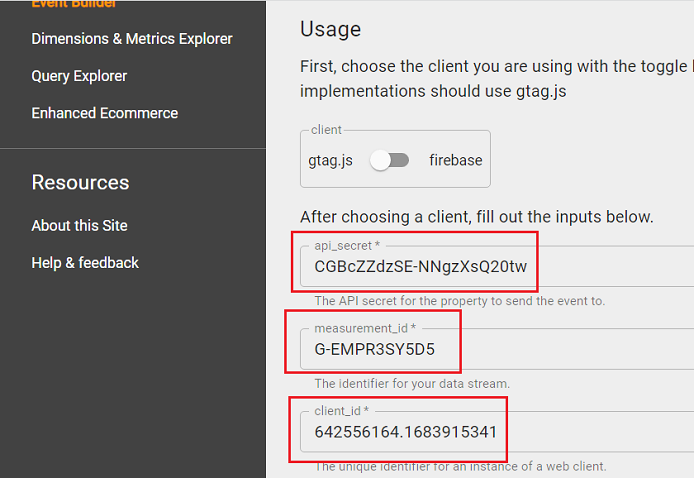
You can retrieve client id from the payload data:
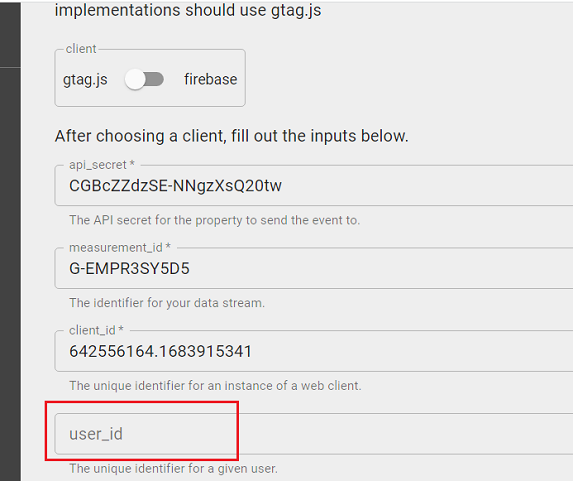
#5 Enter user id (optional):
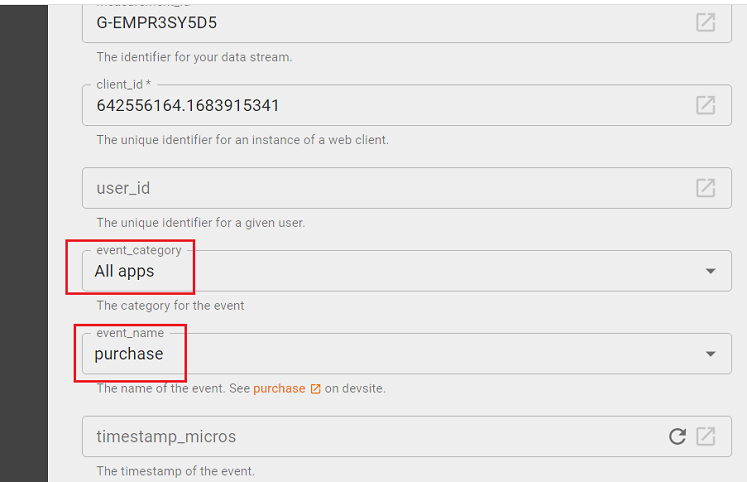
#6 Scroll down and then select the event category and event name from the drop-down menus:
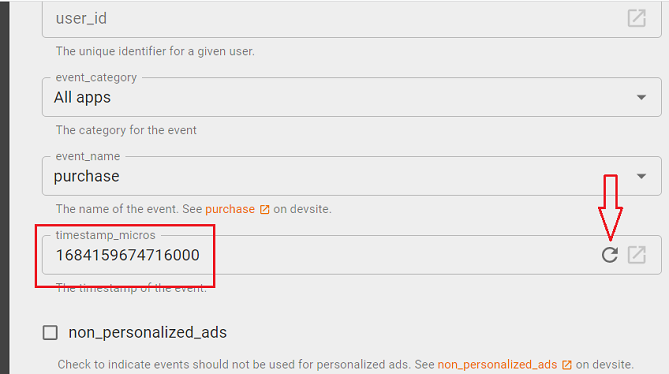
#7 Enter timestamp micros (optional) if you want to record events that happened in the past (up to 3 calendar days based on the GA4 property’s timezone):
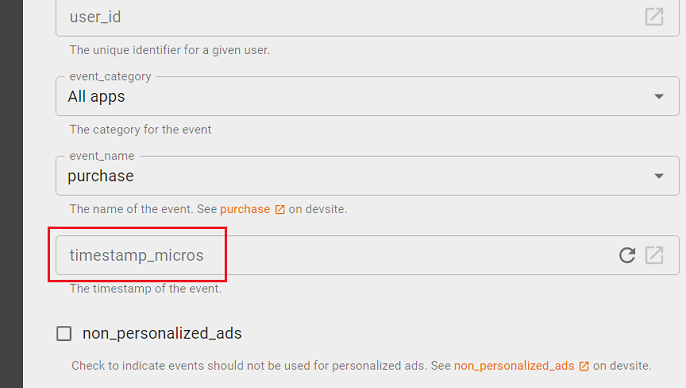
A timestamp micro is a Unix timestamp (measured in microseconds) for the time associated with the event.
If you want to set the timestamp micro to now, then click on the circle button next to it:
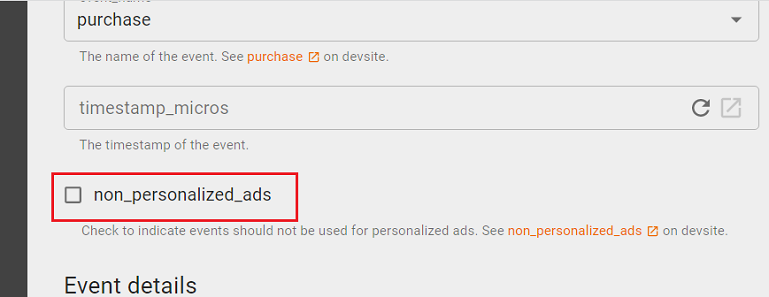
#8 Click on the checkbox ‘non_personalized_ads’ to indicate these events should not be used for personalized ads (optional):
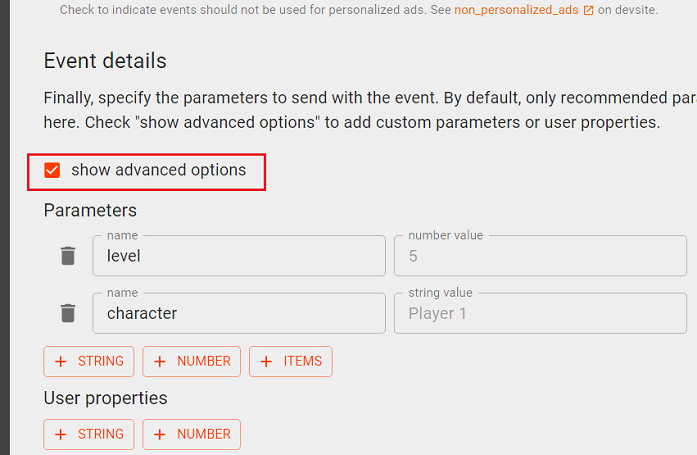
#9 Click on the ‘Show advanced options’ checkbox to send custom parameters/user properties along with the events (optional):
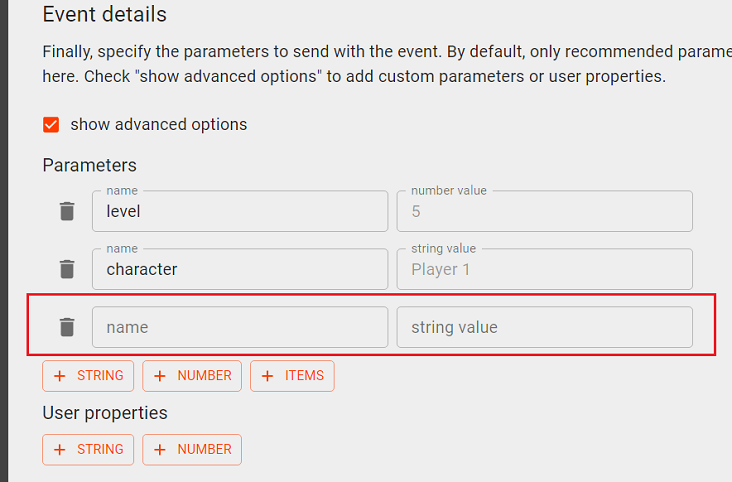
Click on the ‘+STRING’ button to add a new custom parameter of type ‘string’:
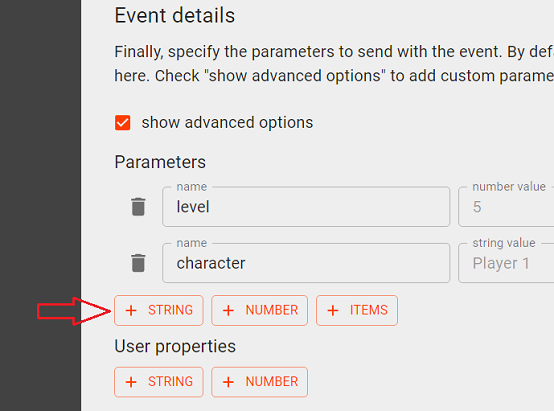
You should now see a new row added to the screen:
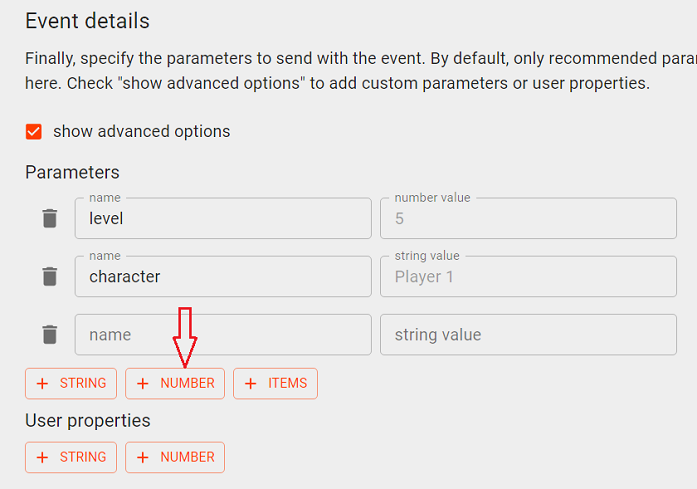
Click on the ‘+NUMBER’ button to add a new custom parameter of type ‘number’:
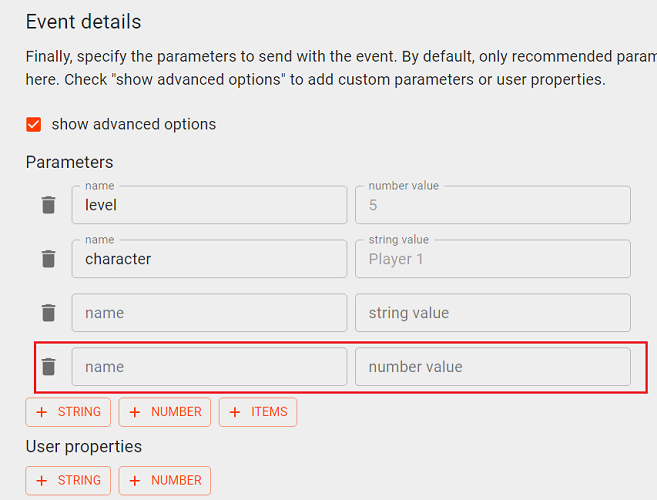
You should now see a new row added to the screen:
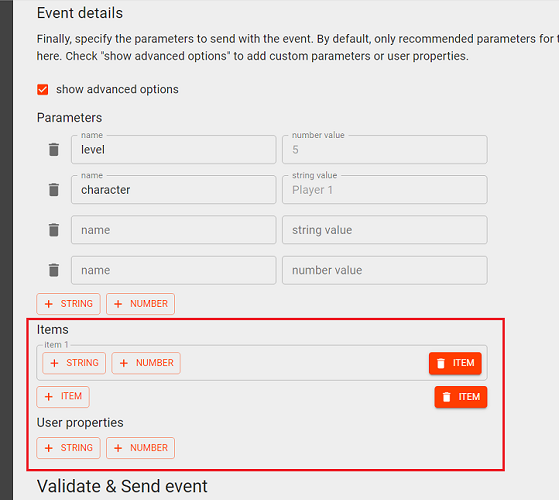
Click on the ‘+ITEMS’ button to add a new item parameter:
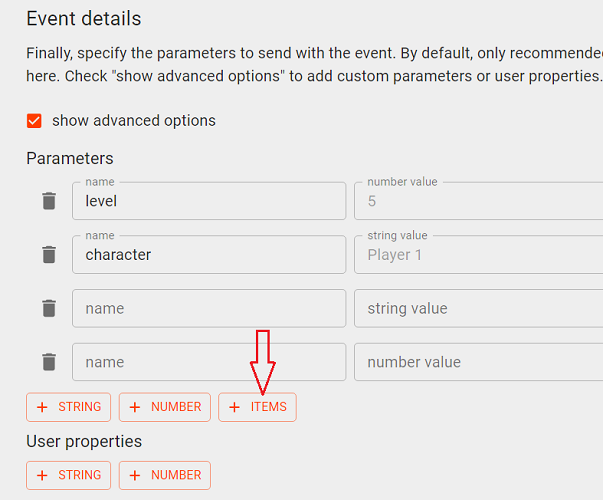
Your screen should now look like the one below:
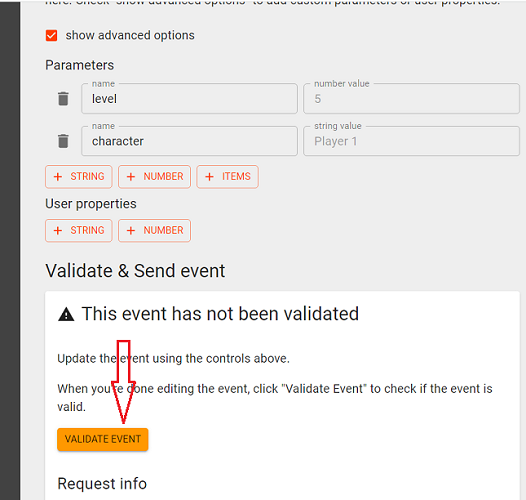
#10 Scroll down and then click on the ‘VALIDATE EVENT’ button:
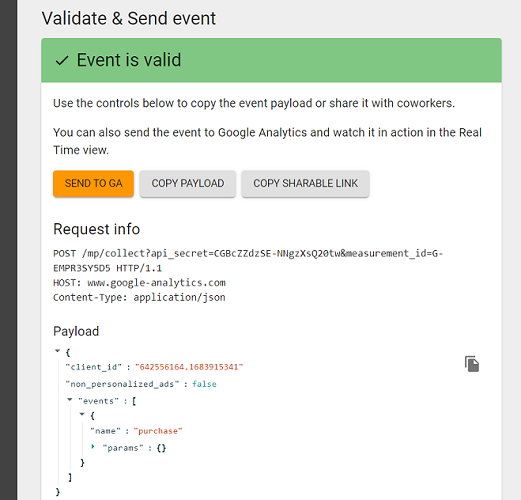
If your event is valid, you should see the ‘Event is Valid’ message:
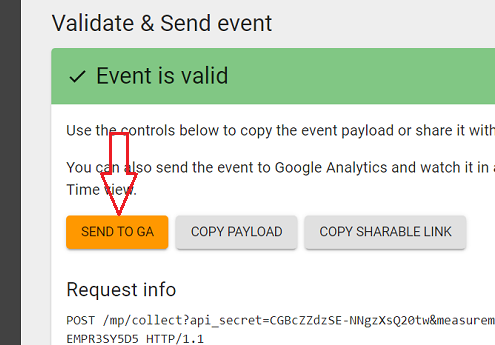
#11 Click on the ‘SEND TO GA’ button to send the MP event to GA4:
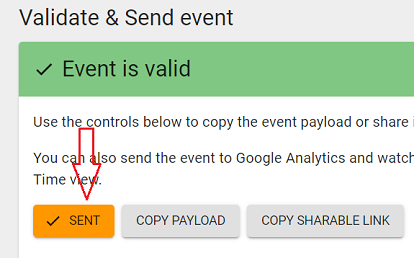
You should now see the ‘SENT’ message:
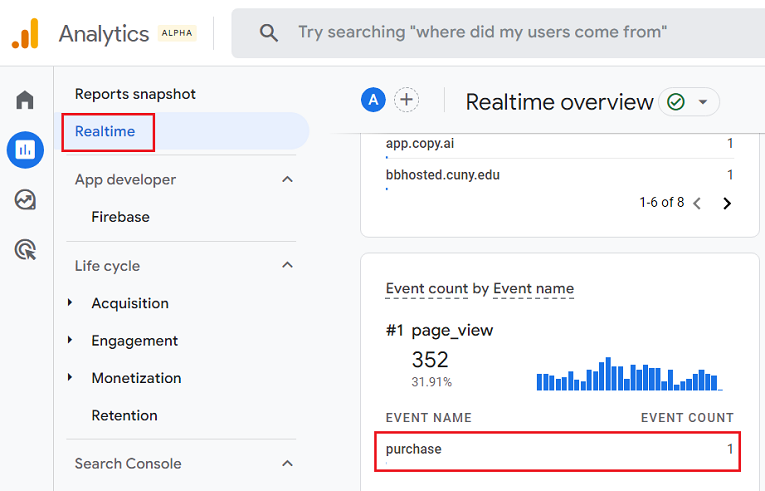
#12 Navigate to the Real Time report in your GA4 property. You should now be able to see the ‘Purchase’ event:
Note(1): It could take up to 24 hours for this event to propagate from the real-time report to the standard reports.
Note(2): If you want to create MP events faster then follow the steps below:
Step-1: Navigate to the GA4 Measurement Protocol Reference: https://developers.google.com/analytics/devguides/collection/protocol/ga4/reference/events
Step-2: Click on the event you want to create from the right hand side menu:
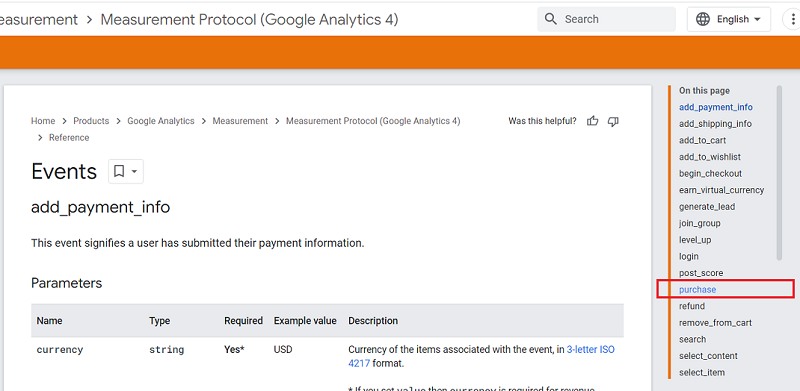
You should now see a screen like the one below:
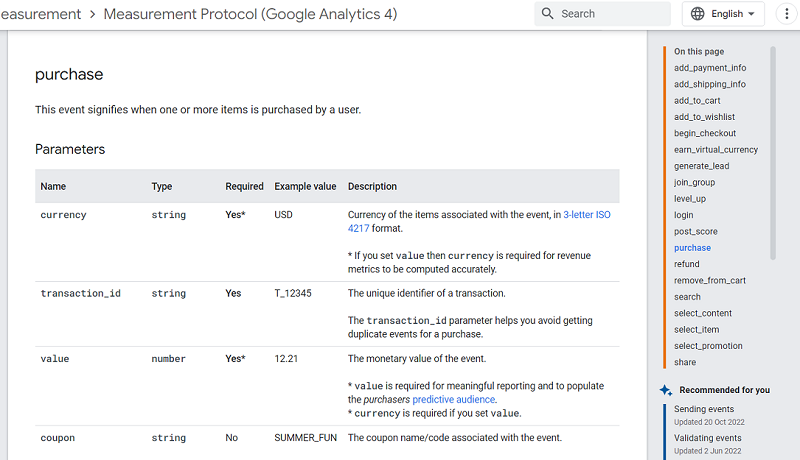
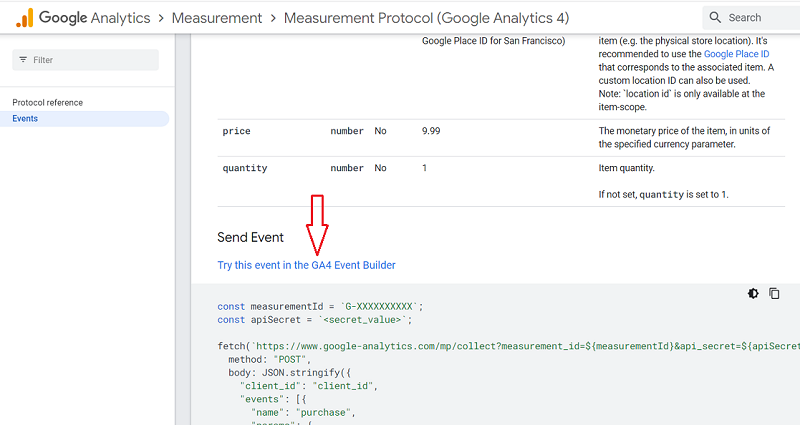
Step-3: Scroll down and then find and click on the link ‘Try this event in the GA4 Event Builder’:
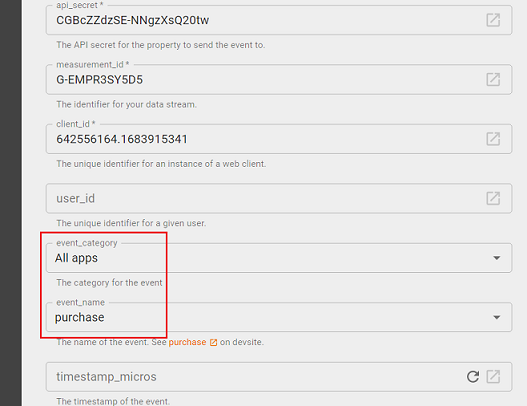
You will now be automatically redirected to the GA4 Event Builder tool with the basic event data prepopulated:
Other Articles on GA4.
- Tracking New, Qualified and Converted Leads in GA4.
- Free GA4 training and tutorial with Certification.
- Understanding GA4 Ecommerce Reports (Monetization Reports).
- GA4 Ecommerce Tracking via GTM: Step-by-Step Setup Guide.
- How to see UTM parameters in GA4 (Google Analytics 4).
- GA4 UTM parameters not working? Here is how to fix it.
- How To Use UTM parameters in GA4 (Campaign Tracking).
- How to track AI traffic in GA4.
- Understanding Google Analytics 4 cookies – _ga cookie.
- GA4 (Google Analytics 4) Measurement Protocol Tutorial.
- GA4 Unassigned Traffic: Causes and How to Fix it Fast.
- GA4 Regex (Regular Expressions) Tutorial.
- GA4 Direct Traffic Spike: Common Causes and How to Fix Them.
- gtag.js – Google Tag in Google Analytics 4 and beyond.
- GA4 Scopes – User, Session, Event & Item scopes.
- GA4 Conversion Tracking (Key Events) Tutorial.
- GA4 (not set) - Guide to fixing (not set) issue.