

Learn the causes of GA4 unassigned traffic and discover quick, effective solutions to fix it, ensuring accurate data tracking and attribution for your site.
What is unassigned traffic in GA4 (Google Analytics 4)?
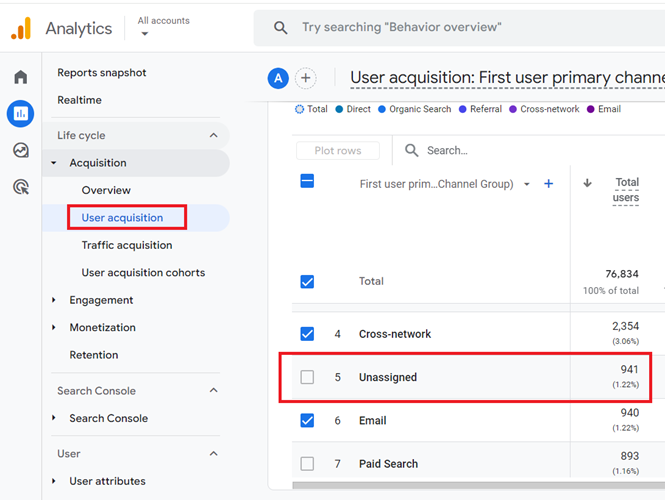
Unassigned traffic in GA4 (Google Analytics 4) refers to the website traffic that is not attributed to any one of the following default channel groups:
- Affiliates
- Audio
- Cross-network
- Direct
- Display
- Mobile Push Notifications
- Organic Search
- Organic Shopping
- Organic Social
- Organic Video
- Paid Other
- Paid Search
- Paid Shopping
- Paid Social
- Paid Video
- Referral
- SMS
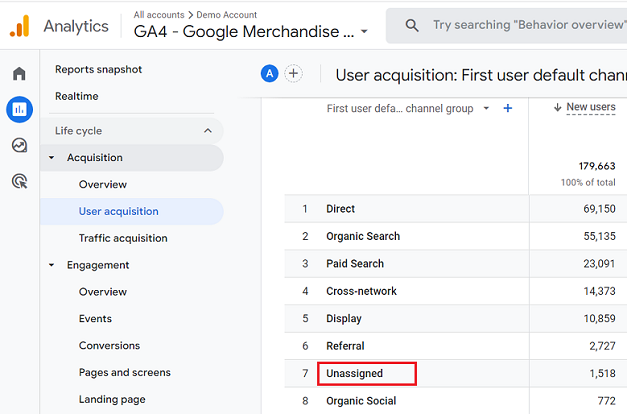
Google uses certain rules (called ‘channel rules‘) to group similar website traffic sources (usually that all belong to the same traffic medium).

For example,
Consider the following traffic sources:
- google (as in google / organic)
- yahoo (as in yahoo / organic)
- bing (as in bing / organic)
- aol (as in aol / organic), etc.
Since they all have the same traffic medium, ‘organic’, they will be grouped together under the channel group ‘organic search’.
Consider the following traffic sources:
- google / cpc
- bing / cpc
Since they all have the same traffic medium, ‘cpc’, they will be grouped together under the channel group ‘paid search’.
Likewise, Google follows several other channel rules to group similar website traffic sources.
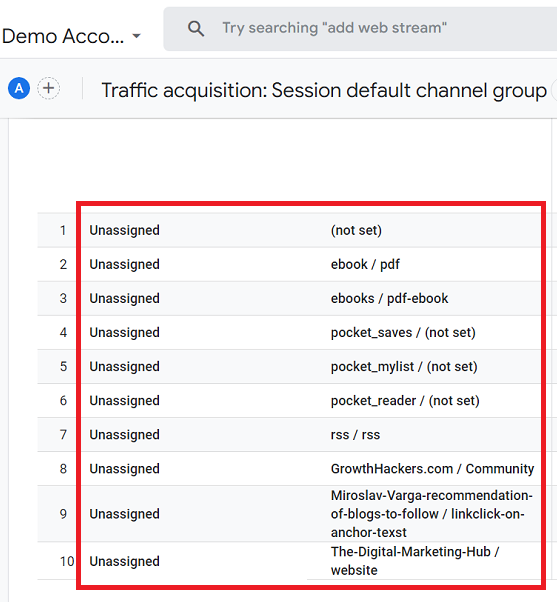
Consider the following traffic sources:
- (not set)
- ebook / pdf
- ebooks / pdf-ebook
- pocket_saves / (not set)
- pocket_mylist / (not set)
- pocket_reader / (not set)
- rss / RSS
- GrowthHackers.com / Community
- Miroslav-Varga-recommendation-of-blogs-to-follow / linkclick-on-anchor-texst
- The-Digital-Marketing-Hub / website
All these traffic sources have either user-defined sources and mediums or they are (not set).
Google does not have any pre-defined channel rules to group such types of traffic sources.
So what it will do is group these traffic sources under the ‘unassigned’ channel group:
Unassigned is the channel group that Google uses when there are no other channel rules that match the event data.
Technically speaking, ‘Unassigned’ is a default channel group dimension in GA4 which can have event scope, user scope or session scope.

Difference between direct traffic and unassigned traffic.
A lot of users assume that direct traffic and unassigned traffic are the same, but they are not.
Direct traffic is a recognized channel alongside others like organic search or social. It can be partially reduced through improved tracking.
Whereas Unassigned traffic represents traffic that could not be assigned to any recognized channel, including direct. It can often be significantly reduced by fixing tracking issues and correctly implementing UTM parameters.
How to see the unassigned traffic in GA4?
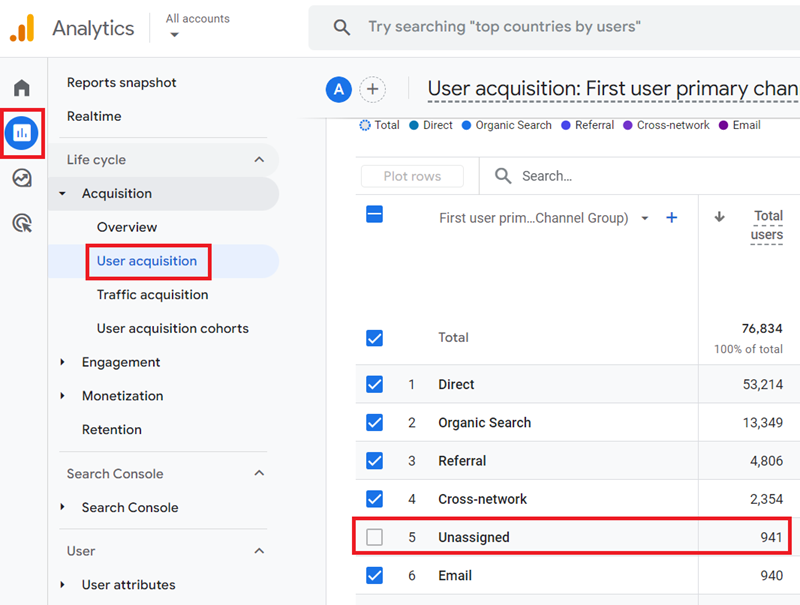
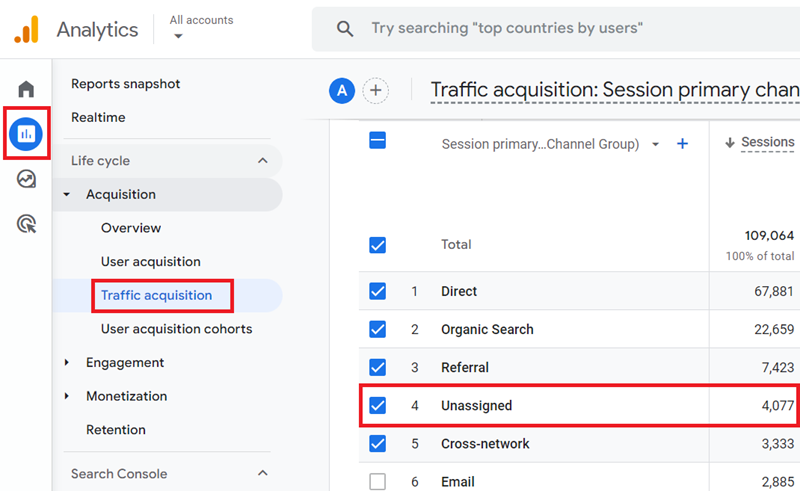
The easiest way to view unassigned traffic in a GA4 property is by navigating to the ‘Use Acquisition’ report or the ‘Traffic Acquisition’ report.
Follow the steps below:
Step-1: Navigate to the User Acquisition report and then scroll down until you see the data table. There, you can see the unassigned channel group:
Step-2: Navigate to the Traffic Acquisition report and then scroll down until you see the data table. There, you can see the unassigned channel group:
When is unassigned traffic a cause for concern?
First of all, expect some of your website traffic to be labelled as unassigned.
This is because it is not always possible to completely eliminate the unassigned traffic issues from your GA4 property.
According to my experience, the unassigned traffic is a cause for concern if unassigned is one of the top 5 default channel groups in terms of sessions or if more than 20% of your overall website traffic is labelled as unassigned.
How to find the cause of unassigned traffic in GA4?
Follow the steps below:
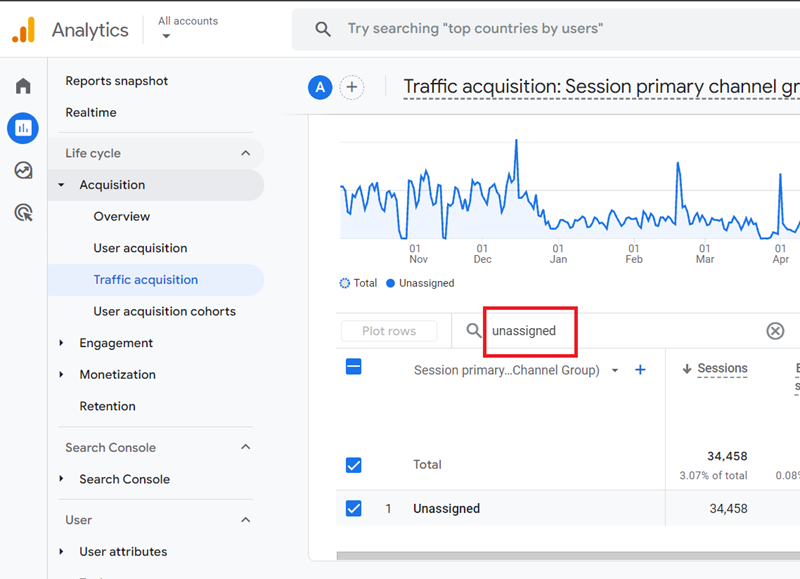
Step-1: Navigate to the Traffic Acquisition report and then scroll down until you see the data table.
Step-2: Type ‘unassigned’ in the search box and then press the enter key to filter out unassigned traffic:
Step-3: Click on the + button to apply a secondary dimension to the report:
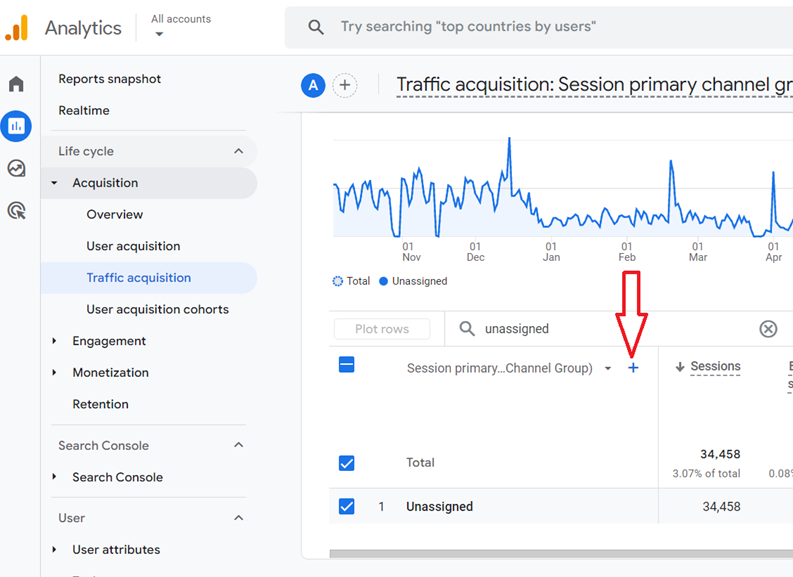
You should now see a screen like the one below:

Step-4: Type ‘Session Source‘ in the search box and then click on ‘session source / medium‘ from the drop-down list:
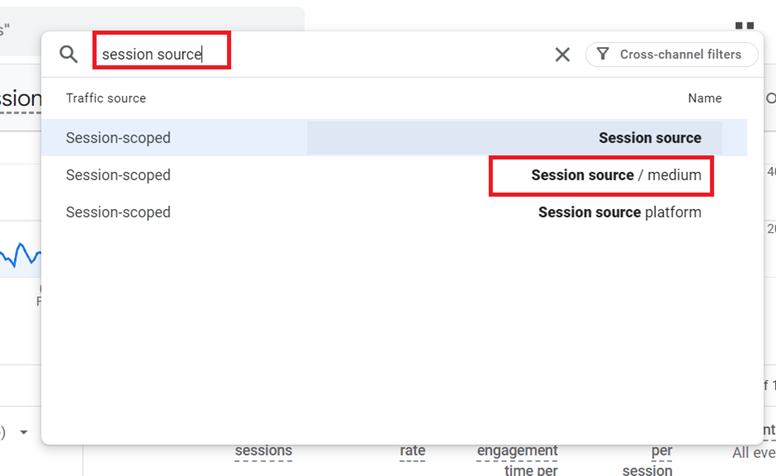
You should now see a data table like the one below:
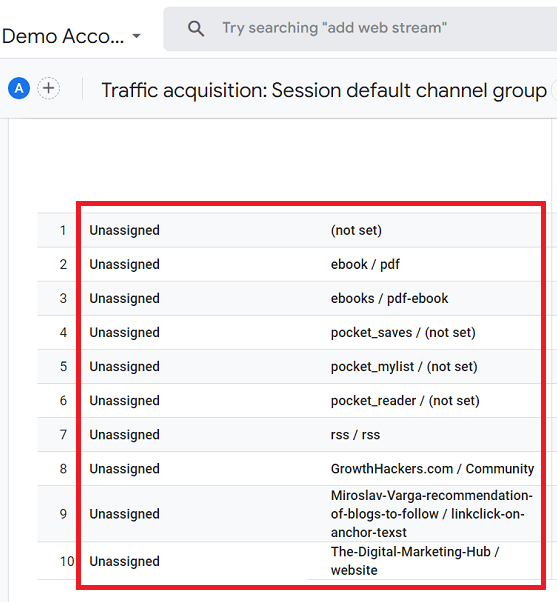
You can now see the traffic sources which are causing the unassigned website traffic to appear in your GA4 reports.
How to fix the unassigned traffic in GA4?
Note: It is not always possible to completely eliminate the unassigned traffic issues because of variety of factors out of your control. But you can certainly minimize them.
Use the following methods to fix the unassigned traffic in GA4:
- Exclude today and yesterday from your date range before analyzing unassigned traffic issues.
- Extend your GA4 session timeout setting.
- Some of your pages are not tagged lead to unassigned traffic.
- Aim for your GA4 configuration tag to fire in less than one second.
- Use UTM parameters to tag URLs.
- Always supply source, medium and campaign information when tagging URLs with UTM parameters.
- Create UTM parameters that strictly follow GA4 default channel rules wherever possible.
- Use both auto-tagging and manual tagging to tag URLs.
- Use system-defined traffic sources and system-defined traffic mediums wherever possible.
- Memorize channel rules and definitions for accurate tagging.
- Make sure that the traffic source and medium information are not dropped because of technical issues.
- Make sure that the ‘session_start’ event is triggered whenever a new session starts.
- Always send measurement protocol requests with all the required parameters.
- Make sure that the GA4 configuration tag fires before any event tag.
- Use the standard implementation of GA4 and GTM to avoid unassigned traffic.
- Minimize the use of Audience triggers.
- Incorrect GTM server side tagging can create unassigned traffic.
- Regularly audit your tracking implementation and UTM usage.
- Fix (not set) issues.
- Send original attribution data with recurring purchases.
- Fix implementation issues related to Google’s Advanced Consent Mode.
- Use persistent logins to preserve session attribution data.
- Encourage your users to prefer your mobile app.
- Minimise Session Fragmentation.
- Fix A/B testing implementation issues.
- Reduce spambot attacks.
#1 Exclude today and yesterday from your date range before analyzing unassigned traffic issues.
You could temporarily see unassigned channel group in your GA4 reports for the first 24 to 48 hrs as GA4 has not completed data processing.
To get a more accurate picture of unassigned traffic:
- Exclude today and yesterday from your date range.
- Set your date range to end at least 48 hours ago.
#2 Extend your GA4 session timeout setting.
Extending the GA4 session timeout to 7 hours and 55 minutes can help reduce unassigned traffic in specific situations where long gaps in user activity lead to the creation of new sessions.
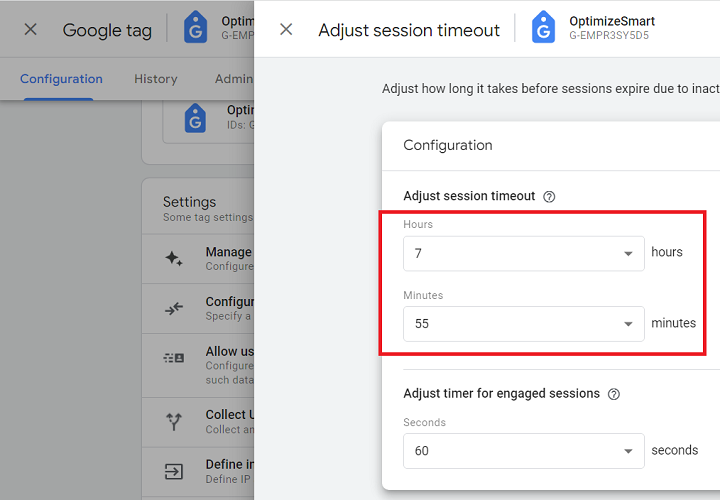
GA4 defaults to a session timeout of 30 minutes.
If no user activity occurs for 30 minutes, the current session ends and any subsequent activity starts a new session.
But sometimes GA4 may initiate a new session without traffic source information.
Extending the session timeout to 7 hours and 55 minutes reduces the chances of sessions being prematurely cut off, which can help retain the original session data, ensuring traffic source/medium, landing page, and other session-level information are preserved across the entire user journey.
#3 Some of your pages are not tagged lead to unassigned traffic.
When web pages lack correct tagging (e.g., missing GA4 tracking code or incorrect implementation), GA4 cannot accurately attribute the traffic source.
This often results in the traffic being categorized as “unassigned” or having a source/medium of “(not set) / (not set)”.
When you log in to Google Tag Manager (GTM), you may see the following notification:
Container quality: Needs Attention. Some issues are detected that may need your attention.
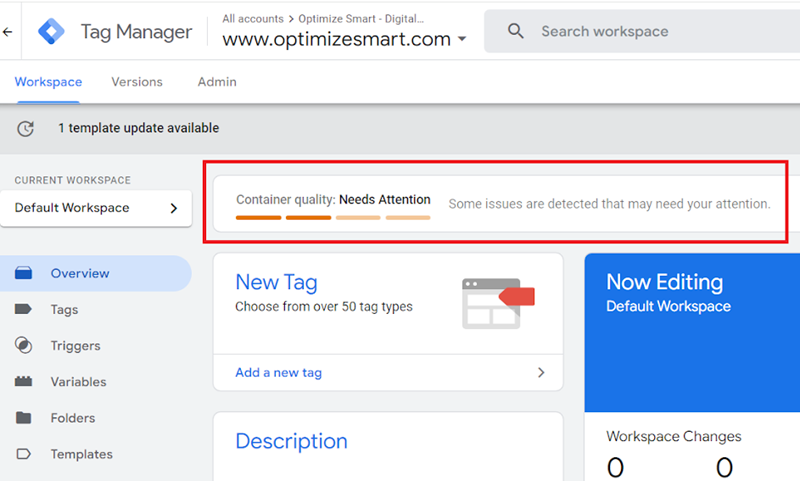
If you see a notification like this, click on the ‘View 1 issue’ (or something similar) link:
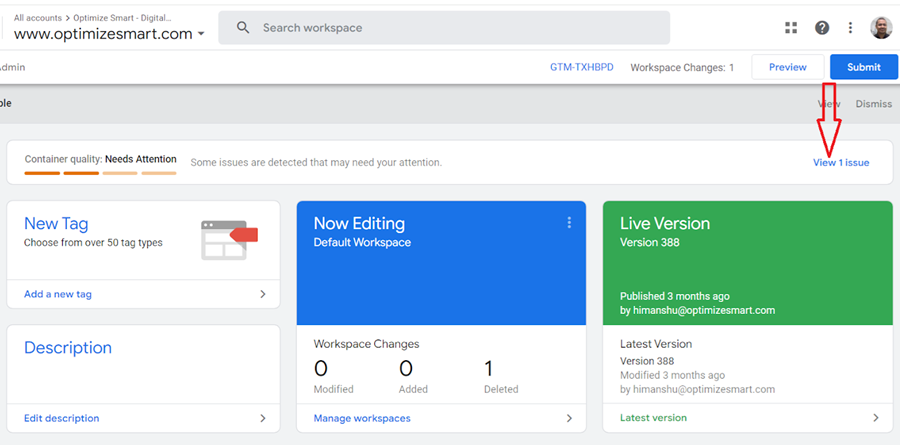
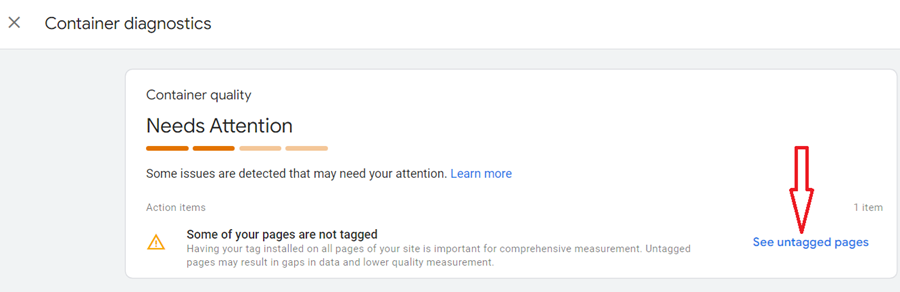
You will now see the ‘Container diagnostic’ window with the following message:
Some of your pages are not tagged. Having your tag installed on all pages of your site is important for comprehensive measurement. Untagged pages may result in gaps in data and lower quality measurement.
Click on the link ‘See untagged pages’ to see the list of links which Google assume to be untagged:
You will now see the ‘Tag Coverage Summary’ report with the following four tabs ‘Included pages’, ‘Not tagged’, ‘No recent activity’ and ‘Tagged’:
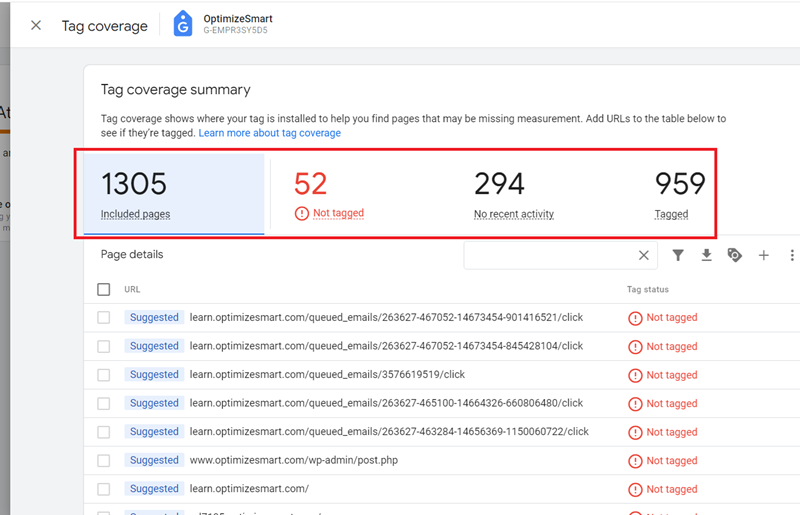
The ‘Tag Coverage’ summary report provided by Google is not very reliable and is prone to producing false positives and false negatives.
This means that the report might incorrectly indicate that a page is not tagged when it actually is (false negative) or suggest that a page is tagged when it is not (false positive).
The Tag Coverage Summary report may also suggest tagging for pages that do not necessarily require it, such as those with dynamic URLs, non-content pages or other irrelevant pages.
Because of these potential issues, the Tag Coverage Summary report should be used as a general guide rather than a definitive source of truth.
I use the Screaming Frog SEO Spider to be 100% sure whether my web pages are tagged.
It is a website crawler primarily used as a technical SEO audit tool, but I also use it for tag auditing and tracking web pages with zero pageviews in GA4.
The advantage of using Screaming Frog over tag auditing tools like ‘Google Tag Assistant’ and ‘Ghostery’ is that we can scan the entire website (regardless of its size) for missing Google tags in one go.
This is particularly useful for identifying missing Google tags across a large website with thousands or tens of thousands of pages.
To learn more about fixing the missing tags issues, check out this article: Some of your pages are not tagged in GTM/GA4 [Fixed].
#4 Aim for your GA4 configuration tag to fire in less than one second.
Aim for your GA4 configuration tag (aka Google Tag) to fire in less than one second. This can help reduce unassigned traffic in GA4 as traffic source/medium information is less likely to get lost.
The timing of the GA4 configuration tag firing is crucial for accurate attribution and session data.
The GA4 configuration tag is responsible for initializing the GA4 tracking and setting up essential session parameters, including traffic source information and landing page data.
If the configuration tag is delayed and other events like user_engagement or scroll fire first, GA4 may not have the necessary context to correctly attribute the session.
Without the configuration tag firing first, GA4 might not capture the original source/medium information, leading to:
- Sessions being marked as “unassigned” in channel groupings.
- Source/medium appearing as “(direct) / (none)” or “(not set)”.
Here is what you can do to speed up the firing of the GA4 configuration tag:
- Make your web pages load faster, esp. on mobile devices.
- Place GTM container code as high as possible in the <head> section of your web pages so that Google Tag Manager (GTM) starts loading as early as possible.
- Make sure that the GA4 Configuration tag is triggered on All Pages and fires before any GA4 event tag.
- Minimize GTM container size by removing unnecessary tags, triggers, and variables. Use built-in variables when possible.
- Delay the firing of non-essential tags in favour of the GA4 configuration tag.
- Use Server-side tagging, as it can help speed up the firing of the GA4 configuration tag.
#5 Use UTM parameters to tag URLs.
When you use UTM parameters to tag URLs (known as manual tagging), you help GA4 to accurately identify the source, medium, and campaign information for each user.
Through manual tagging, you decrease the chances of losing source, medium and/or campaign information, which leads to a lot less unassigned traffic being reported in GA4.
#6 Always supply source, medium and campaign information when tagging URLs with UTM parameters.
In other words, always use the following UTM parameters: utm_source, utm_medium and ‘utm_campaign’
For example, the following URL is tagged correctly as it uses the following UTM parameters: utm_source, utm_medium and ‘utm_campaign’
https://www.abc.com/book-maths-and-stats/?utm_source=facebook&utm_medium=paid-fb-ad&utm_campaign=pdf-book-campaign&utm_content=ad1
When you don’t supply source, medium and/or campaign information via UTM parameters, it results in the traffic source or traffic medium being reported as (not set), which can lead to traffic being reported as ‘unassigned’ in GA4 reports.
#7 Create UTM parameters that strictly follow GA4 default channel rules wherever possible.
Your UTM parameters should strictly follow the channel rules for manual traffic wherever you can so that your website traffic is attributed to one of Google‘s default channel groups.
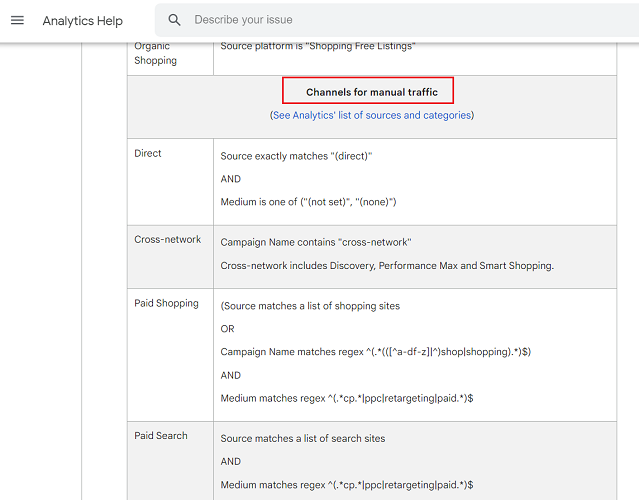
For example, consider the following URL of a Facebook ad:
https://www.abc.com/book-maths-and-stats/?utm_source=facebook&utm_medium=fb-ad&utm_campaign=pdf-book-campaign&utm_content=ad1
Here, fb-ad is not a system-defined traffic medium.
So Google will label all the website traffic from this URL under the ‘unassigned’ channel group.
But this is not what you want. You want this traffic to be grouped under the ‘paidsocial‘ channel.
To do that, rewrite the UTM parameters like the one below:
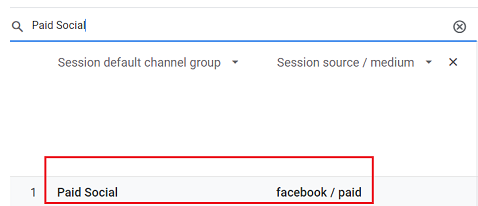
https://www.abc.com/book-maths-and-stats/?utm_source=facebook&utm_medium=paid&utm_campaign=pdf-book-campaign&utm_content=ad1
Here, paid is a system-defined traffic medium:
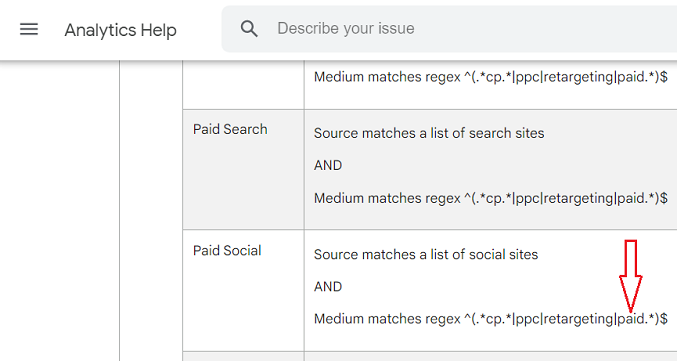
So Google will now label all the website traffic from this URL under the ‘Paid Social‘ channel group:
You can use utmprep.com tool to create UTM parameters that strictly follow the ga4 default channel rules.

#8 Use both auto-tagging and manual tagging to tag URLs.
By using both auto-tagging (for Google Ads) and manual tagging (for non-Google sources), you create a tracking setup that minimizes the chances of traffic being categorized as unassigned.
If one type of parameter is stripped (by an adblocker, privacy extension or because of some technical reason), you may still retain some tracking information through the other.
Note: If you use manual tagging and auto-tagging together, then the source, medium, and other traffic classification dimensions use the auto-tagged values.
#9 Use system-defined traffic sources and system-defined traffic mediums wherever possible.
A system-defined source is one that is already defined/recognized by GA4 as a traffic source.
The following are examples of system-defined traffic sources in GA4:
- bing
- duckduckgo
- yahoo etc.
A system-defined medium is one that is already defined/recognized by GA4 as a traffic medium.
The following are examples of system-defined traffic mediums in GA4:
- organic
- cpc
- referral
- (none)
- affiliate etc.
The more user-defined traffic sources and/or medium you will use, the higher will be the unassigned website traffic in GA4.
So, use system-defined traffic sources and system-defined traffic mediums wherever possible when tagging your URLs with UTM parameters.
Otherwise, you will continue to see a lot of unassigned website traffic.
#10 Memorize channel rules and definitions for accurate tagging.
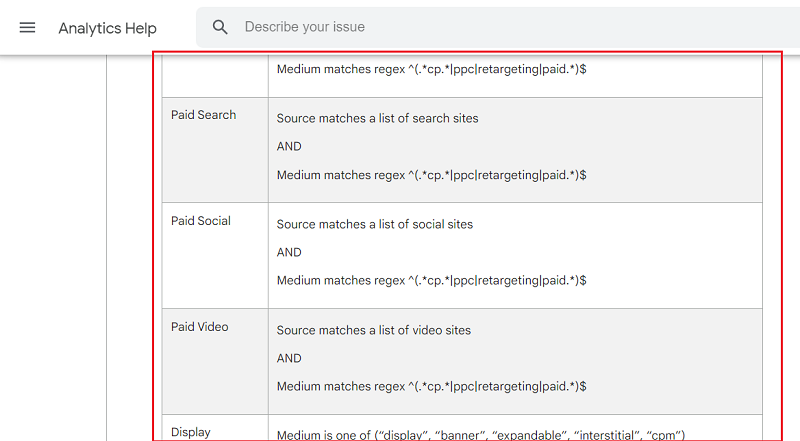
It is very important to know how Google groups similar traffic sources and how it defines a particular marketing channel.
This knowledge will help you tremendously in tagging URLs that follow GA4 default channel rules.
Bookmark this URL for easy reference: https://support.google.com/analytics/answer/9756891?hl=en
#11 Make sure that the traffic source and medium information are not dropped because of technical issues.
The source, medium, and campaign information can be dropped because of the following technical issues (but not limited to):
#1 Some redirects can strip UTM/GCLID parameters, causing GA4 to lose the source, medium, and campaign information. Ensure that the UTM parameters are preserved during the redirect process.
#2 Ad blockers and other privacy settings can cause GA4 to lose the source, medium, and campaign information.
#3 Missing or incorrect GA4 implementation can lead to unassigned traffic. Make sure the GA4 tag is firing correctly on all pages of your website.
#12 Make sure that the ‘session_start’ event is triggered whenever a new session starts.
In GA4, the ‘session_start ‘event should be triggered whenever a new session starts.
Without the ‘session_start’ event, GA4 might not recognize user interactions as belonging to a distinct session and may have difficulty attributing interactions to a specific source or medium.
This can result in source/medium data appearing as (not set) / (not set), leading to “unassigned” traffic.
Note: There is always a possibility of a certain percentage of GA4 sessions missing the ‘session_start’ event for no apparent reason, and you may not always be able to fix this issue.
#13 Always send measurement protocol requests with all the required parameters.
When sending the measurement protocol request, each event must contain ‘client_id’ and ‘session_id’ parameters, and these parameters must match the parameters of the currently active GA4 session.
Otherwise, the traffic source will be (not set), which will lead to ‘unassigned’ traffic.
The ‘timestamp_micros’ parameter ensures that the event is associated with the correct session, even if it has timed out.
It lets GA4 know the exact moment the event occurred relative to other events in the session.
Without the ‘timestamp_micros’ parameter, GA4 may not have enough context to attribute the event to the correct source/medium. As a result, you’ll see the source/medium as (not set) / (not set).
Ensure you send the ‘timestamp_micros’ parameter for events related to sessions that might have timed out.
#14 Make sure that the GA4 configuration tag fires before any event tag.
In GA4, the configuration tag establishes the initial connection between your website (or app) and your GA4 property. It acts as the foundation for all other event tags.
Without the configuration tag firing first, subsequent event tags may not have the context they need to properly attribute sessions and traffic sources.
If an event tag fires before the configuration tag, it tries to send data to GA4 without the foundational parameters set by the configuration tag.
As a result:
- The event might not be tied to the correct user (due to missing or incorrect client_id).
- The event may not have the necessary session context (session_id).
- Traffic source attribution might be missing or inaccurate, leading to the source/medium being displayed as (not set) / (not set) and eventually ‘unassigned’ traffic.
Ensure that your GA4 configuration tag has a higher firing priority than your event tags in GTM.
So, even if both the tags are set to fire on the same trigger, the configuration tag will fire first.
#15 Use the standard implementation of GA4 and GTM to avoid unassigned traffic.
Many businesses use plugins to install GA4 and/or e-commerce tracking on their website.
They then complain about unassigned traffic and incomplete/incorrect e-commerce data appearing in the reports.
There are only two standard ways (the one recommended by Google) to install GA4 on a website. It is either via gtag.js or Google Tag Manager.
Any other implementation is considered a non-standard implementation of GA4 by Google.
So, when you install GA4 via a plugin, a CDP (like segment), or some third-party product, these are all non-standard implementations.
Even the non-standard implementation of GTM can make a regular GA4 set-up non-standard.
There is only one recommended way to install Google Tag Manager on a website.
Add one part of the container tag code (the JavaScript part) in the … section of a web page and the other part (the iframe part) in the body section of a web page (immediately after the opening tag.
When you deploy the GTM container code in any other way (say via a plugin or adding the container code somewhere else on a page), your GTM set-up is no longer a standard implementation.
Often, a non-standard tracking setup behaves unexpectedly.
If you are unfamiliar with the GA4/GTM development environment, you could make your testing and debugging unnecessarily difficult.
The Google documentation is not designed to support non-standard implementation of GTM and GA4.
A non-standard implementation may not support all of the features of GA4.
It could add latency to the data collection process. So, your data appears even slower than normal in your reports.
A non-standard implementation may be incompatible with certain browsers and devices, which could result in data not being tracked correctly.
This is because the native tracking is designed to work with a wide range of browsers and devices, while a non-standard implementation may not be.
Implementing GA4 using the recommended methods ensures that you’re adhering to best practices set by Google, which minimizes potential issues like ‘unassigned’ traffic.
The standard implementation methods are designed to handle many foundational setups automatically, reducing the likelihood of errors.
Conversely, when you deviate from these standard implementations and install GA4/GTM via a plugin, CDN, or third party, there is always a higher chance of missing important events or parameters.
For example, the ‘session_start’ event could be missing (a pretty common issue with non-standard implementations).
A non-standard implementation might not fully capture all users’ interactions or might not send data in the format GA4 expects, resulting in gaps in your data.
It is important to note that sending GA4 data via measurement protocol, server-side tracking or using a headless solution are all also examples of non-standard implementations. But at least they are supported by Google.
Whenever you encounter a hard-to-fix tracking issue, ask yourself, are you using a non-standard implementation? Stop using it if you can.
#16 Minimize the use of Audience triggers.
The use of audience triggers in GA4 can greatly increase the volume of unassigned traffic.
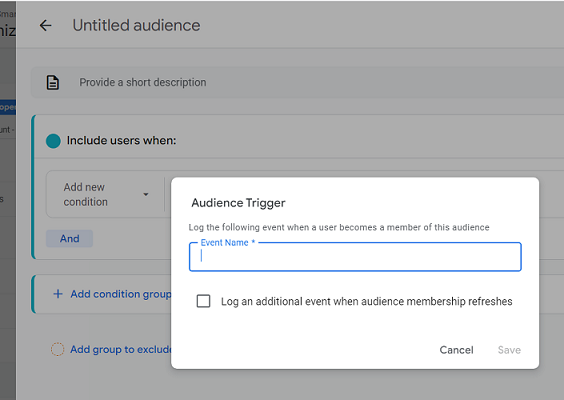
Audience triggers in GA4 are designed to automatically send events when a user matches the criteria of a specific audience.
For example, if a user visits a website and matches the conditions of an audience defined as ‘High-Value Shoppers’, GA4 can trigger an event.
If the event generated by the audience trigger isn’t tied to an existing session (perhaps because the session has ended or because the criteria are met at a point outside of the user’s current session), the source/medium can default to (not set) / (not set), which then translates to ‘Unassigned’ in certain reports in GA4.
Following is the example of an audience trigger where the trigger isn’t tied to an existing GA4 session:
Consider the following scenario.
You visited my website last week.
Today, I decided to add you to my audience because you reached a key milestone (like being our member for X days).
You are no longer on the website and generating any sessions.
As soon as you are added to my audience, an audience trigger event will be recorded, but the source/medium defaults to (not set) / (not set), which then translates to ‘Unassigned’.
So, minimize the use of audience triggers.
#17 Incorrect GTM server side tagging can create unassigned traffic.
It is common for the unassigned traffic to considerably increase when setting up GTM server-side tagging.
The most common reasons for this behaviour are:
- An event tag fires before the Google Tag.
- The ‘page_view’ event fires before the ‘session_start’ event.
- Cookies and Client Identification Settings in GA4 Client in Server GTM was set to “Server Managed”.
- Not all tags in server-side GTM have the server_container_url configured.
- Misalignment between client-side and server-side tracking.
- Misalignment between client-side and server-side consent handling.
- Not testing server side tracking by blocking client side GTM.
Solutions:
#17.1 An event tag fires before the Google Tag.
In server-side tagging, event tags are more likely to fire before the Google tag compared to client-side tagging due to the different way event data is processed and passed between the client and server.
In client-side tagging, both the Google tag and event tags fire within the user’s browser.
In server-side tagging, events are first sent to the server (your server-side GTM container), where they are processed and then forwarded to GA4 or other platforms. This adds an extra layer of processing, which can introduce timing delays.
Because of this asynchronous processing in server-side tagging, there can be situations where event tags are sent to the server and processed faster than the Google tag (or page_view event), especially if the Google tag is delayed.
If the page on the client side has slow loading times or is bogged down with heavy JavaScript, the Google tag (typically responsible for sending the page_view event) might fire after the event tags.
In server-side tagging, if a user interacts with the page (e.g., clicks a button or scrolls) before the page fully loads and before the Google tag fires, the user engagement or click events may be sent to the server-side container first.
In this scenario, the event tags will reach the server and get processed faster than the Google tag.
Since the Google tag (and thus the page_view event) hasn’t fired yet, the session might not be fully initialised in GA4, leading to unassigned traffic or incomplete session data.
In client-side tagging, both the Google tag and event tags are typically fired in rapid succession since they all rely on the same browser environment.
However, in server-side tagging, events are passed to the server in different requests, and each event is processed independently by the server.
Due to network latency or server-side processing time differences, some events may get processed faster than the initial page_view event, leading to event tags firing before the Google tag in GA4.
Make sure that the GA4 configuration tag fires before any event tag.
#17.2 The ‘page_view’ event fires before the ‘session_start’ event.
Change the GA4 Configuration Tag in the Client-side GTM container to fire on All initialization events instead of All Pages.
This way, the ‘session_start’ event fires before the ‘page_view’ event.

#17.3 Cookies and Client Identification Settings in GA4 Client in Server GTM was set to “Server Managed”.
Change the Cookies and Client Identification Settings in GA4 Client in Server GTM to JavaScript-managed:
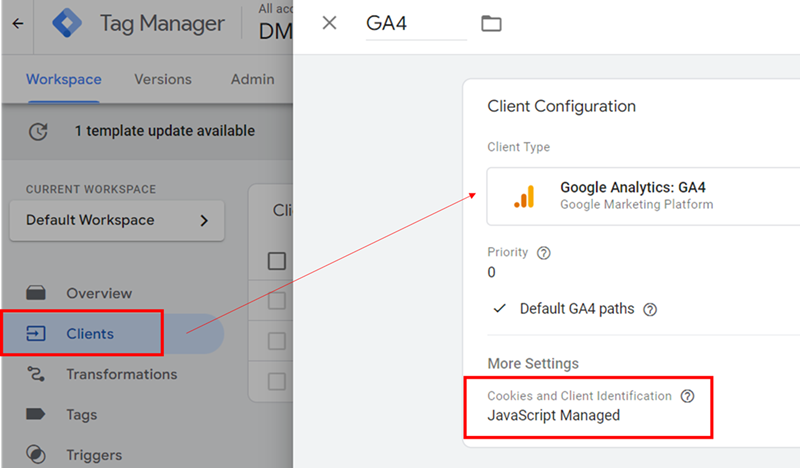
This should resolve the unassigned traffic issues related to server-side tagging.
The downside to ‘JavaScript-managed’ as opposed to ‘Server-managed’ is that some browsers might expire the cookies prematurely.
Now, you need to choose between the downside that some browsers might expire the cookies prematurely vs. fixing unassigned traffic.
I would rather go for the latter option, as unassigned traffic is pretty much useless for data analysis.
You should remember the primary reason for tracking website usage data. It is not to collect more or less data but to analyze data in order to gain insights and make informed decisions.
The quality and accuracy of the data are far more important than the quantity.
#17.4 Not all tags in server-side GTM have the server_container_url configured.
Suppose a tag doesn’t have the server_container_url configured.
In that case, it will bypass the server-side container and instead send data directly to the client-side GA4 endpoint or other endpoints (if configured), which can result in missing or incomplete session data because the tag isn’t being processed as intended in the server-side setup.
When a tag doesn’t pass through the server-side container, GA4 may be unable to assign traffic source/medium data correctly, leading to unassigned traffic in GA4.
#17.5 Misalignment between client-side and server-side tracking.
Misalignment between client-side and server-side tracking can lead to unassigned traffic issues in GA4 because the data captured and processed by the client-side and server-side setups may differ or be incomplete.
When these systems are not correctly synced, essential information such as traffic source, medium, or session identifiers may not be correctly captured or passed from one system to the other, leading to inaccurate or missing attribution.
For example, client-side tracking can automatically capture data from UTM parameters from the URLs in most cases. However, server-side tracking does not automatically capture data from UTM parameters.
The server-side container might receive the event but without the source/medium details, which could lead to unassigned traffic.
To send UTM parameters server-side in GTM, you need to capture them client-side first and then explicitly pass them to your server container.
If referrer data is not passed from the client-side to the server-side container, GA4 may lack the information necessary to correctly attribute the session.
Sometimes, server-side tracking setups can treat each event as a new session if the session identifiers (like cookies or GA4’s client ID) are not aligned between client-side and server-side tracking.
This can result in fragmented sessions and unassigned traffic, where the system cannot determine the original traffic source for each session.
Let us suppose a user visits an e-commerce website from a Google Ads campaign.
The user’s browser receives a GA4 client ID when the first page loads, which is stored in a cookie.
This ID is used to identify the user across their session and track all events (e.g., page views, add-to-cart, purchase) under the same session.
The client-side GA4 tag fires, capturing the user’s session and associating it with the Google Ads source through UTM parameters.
All events are tracked under this session, and the user’s journey is correctly attributed to the Google Ads campaign.
Let us suppose, the website is using server-side GTM to handle tracking.
When an event occurs (like a page view or purchase), the client-side tracking sends data to the server-side container for additional processing.
The server-side container is expected to forward the session data, including the client ID, to GA4.
Suppose the server-side setup is not correctly configured to pass the client ID from the client-side tracking to the server.
Each time an event is sent to the server-side container, it generates a new client ID (or does not use a consistent client ID at all).
As a result, every time the user interacts with the website (e.g., views a product, adds to cart, or completes a purchase), the server-side setup treats each event as a new session because it doesn’t recognise the same client ID from the client-side tracking.
As a result, GA4 receives multiple events with different client IDs for what should be a single session.
Each event (e.g., page view, add-to-cart, and purchase) is now tracked as a separate session.
This fragmentation of sessions leads to incorrect session counts and makes it difficult to attribute traffic correctly.
The original traffic source (Google Ads) may not be consistently assigned to all events, leading to unassigned traffic in GA4.
In some cases, events may even show (not set) as the traffic source/medium, if the server-side setup cannot link the events back to the original session.
In short, misalignment of session identifiers (like the client ID) between client-side and server-side tracking can cause each event to be treated as a new session, leading to fragmented sessions and unassigned traffic in GA4.
#17.6 Misalignment between client-side and server-side consent handling.
When using Consent Mode, both client-side and server-side implementations need to be aligned.
If consent is handled differently on the server compared to the client, it can lead to unassigned traffic issues.
When consent handling is misaligned, traffic source information might be collected on the client-side but not processed on the server-side or missing from server-side data due to consent restrictions not being correctly applied.
To minimize unassigned traffic due to consent handling misalignment:
- Use a robust consent management platform that works across both client and server-side environments.
- Ensure consistent consent state communication between client and server.
- Regularly audit and test both client and server-side consent handling to identify and rectify any discrepancies.
- Use server-side logic to respect consent choices, particularly when forwarding data to third-party services.
#17.7 Not testing server side tracking by blocking client side GTM.
By blocking or disabling client side GTM container, you can isolate and verify the functionality of server-side tracking.
You can check what events are being passed and not passed in the absence of client side GTM.
Why is this important?
Because we live and operate in a world of ad blockers, VPNs and tracking restrictions.
You can simulate scenarios where ad blockers, browsers, VPNs or privacy tools might block client-side tracking.
It will help you identify any dependencies on client-side scripts that need to be addressed.
And above all, you can validate the robustness of your server-side implementation.
Use all popular web browsers and ad blockers to test your server side tracking setup.
For example, how your server side tracking set-up works in the Brave web browser.
Maybe then you will look for ways to reduce your dependency on client-side tracking or prevent client-side GTM containers from being blocked.
One of the most effective ways to prevent GTM from being blocked by ad-blockers or privacy extensions is to serve the GTM container script from a custom domain instead of the default googletagmanager.com domain.
By using CNAME masking, you can host the GTM script under your own domain, making it look like it’s part of your website’s infrastructure instead of a third-party tracking tool.
Many ad blockers or script blockers target common third-party domains (like googletagmanager.com), but they are less likely to block scripts coming from your custom domain.
#18 Regularly audit your tracking implementation and UTM usage.
Regularly audit your tracking implementation and UTM usage, as there is always a possibility that unassigned traffic issues can return in your GA4 reports.
Regular audits can reveal new tracking issues that may have arisen due to website updates, changes in marketing campaigns, or modifications to your tracking setup.
These audits help catch problems early before they significantly impact your data quality.
#19 Fix (not set) issues.
The unassigned traffic issue and the (not set) issue in GA4 are closely related, and addressing one often helps mitigate the other.
For example, when GA4 cannot attribute a session to a specific source/medium, it often results in (not set) values for those dimensions.
Traffic with (not set) source/medium typically gets categorized as “Unassigned” in the Default Channel Grouping.
For more details, check out this article: How to remove not set in GA4 (Google Analytics 4).
#20 Send original attribution data with recurring purchases.
Recurring purchases often show as unassigned in GA4.
Recurring payments typically happen automatically without the user visiting the website, so GA4 can’t capture the usual traffic source information.
When the renewal occurs, there is often no recent user session to attribute the purchase to, leading GA4 to categorize it as unassigned.
Use server-side GTM or the Measurement Protocol to send transaction data to GA4 for recurring purchases.
The Measurement Protocol may be sufficient if you’re only sending data to GA4.
If you need more control or want to send data to multiple platforms, use server-side GTM.
When a user first signs up, assign them a unique user ID. Use this ID to link recurring order events to the original customer.
Whenever a recurring purchase is processed, send transaction data to GA4 via the Measurement Protocol along with the original user ID and transaction ID.
When sending recurring order events to GA4, aim to include the original attribution data (source, medium, campaign, etc.) from when the user first subscribed.
Consistently apply a user ID across all events to help GA4 connect recurring purchases to the original user journey.
#21 Fix implementation issues related to Google’s Advanced Consent Mode.
Under certain conditions, Google’s Advanced Consent Mode can contribute to an increase in unassigned traffic in your GA4 reports.
Advanced Consent Mode adapts the behaviour of tracking scripts depending on whether the user has given consent for cookies or not.
If a user denies consent, GA4 will still try to measure traffic, but certain identifiers like cookies (which track traffic source, user sessions, and medium) will not be used.
Without cookies, GA4 has limited data to work with, which may result in traffic source/medium data being incomplete or missing altogether.
Consequently, the session might end up in the unassigned or (not set) category.
Even though Advanced Consent Mode tries to use signals like pings (server-to-server communication) to estimate some traffic attributes, the accuracy may suffer without cookies, leading to a higher likelihood of unassigned or (not set) traffic.
Advanced Consent Mode can sometimes cause session fragmentation.
Consent Mode can sometimes cause session fragmentation when users first load a page and interact with it before providing consent.
This means GA4 might record an initial session without critical identifiers (due to lack of consent), and if the user later grants consent, GA4 could start a new session with more complete data.
The initial session might lack key traffic source information and could result in unassigned traffic, as that session’s origin would be unclear.
#23 Use persistent logins to preserve session attribution data.
Use persistent logins to maintain user web sessions. This approach helps track user behavior more accurately over time.
There is a good reason why you stay logged in once you log in to your Google, Facebook, LinkedIn or X account.
It’s all about preserving session attribution data.
Ideally your user session should not time out. Let your user session continue for days, weeks, months or even years.
You get the most accurate data on the customer journey when your customers log in and remain logged in.
Currently, GA4 does not allow sessions that don’t timeout.
So you will have to use propriety tracking if you want to maintain analytics sessions that don’t timeout until a user logs out.
Regardless, encourage your users to log in to maintain consistent user identification across sessions and devices.
#24 Encourage your users to prefer your mobile app.
Mobile apps face fewer browser restrictions than web apps.
This includes fewer limitations on data storage, more control over user identification and less vulnerability to ad blockers and privacy extensions.
So, you are more likely to preserve session attribution data in a mobile app than on a web app.
Encourage your users to prefer your mobile app.
You can offer them incentives like a steeper discount if they make a purchase via your mobile app.
#25 Minimise Session Fragmentation.
Session fragmentation refers to the breaking up of a single user’s session into multiple separate sessions due to various factors.
Most of the unassigned and (not set) issues in GA4 occur because of session fragmentation.
To learn more about session fragmentation, check out this article: Session Fragmentation Is Ruining Your GA4 Attribution Data.
#26 Fix A/B testing implementation issues.
A/B testing can contribute to unassigned traffic in GA4 if it is not properly configured and tracked.
In A/B testing, users are typically split into different groups that experience different versions (or variants) of a page.
If the GA4 tracking configuration differs between the variants, this can lead to inconsistent data collection.
For example, if the tracking on one variant is missing or misconfigured (e.g., missing UTM parameters, source/medium tags, or a delayed GA4 tag firing), GA4 might fail to attribute traffic to the correct source/medium, causing some sessions to appear as unassigned.
Ensure that GA4 tracking is consistent across all A/B test variants, including correct configuration of UTM parameters and traffic source attribution.
All versions should have the same or synchronized GA4 tagging.
If there are delays in firing tracking tags (which can happen with some A/B testing tools), it might result in lost or missed traffic data, potentially leading to unassigned traffic.
If there are inconsistencies between how A/B tests are handled on the server-side versus the client-side, it could create gaps in attribution data, contributing to unassigned traffic.
Incorrect integration between the A/B testing tool and GA4 could potentially cause some traffic to be unassigned.
#27 Reduce spambot attacks.
Spambot attacks can increase the volume of unassigned traffic.
Traffic from spambots often exhibits patterns that do not match GA4’s predefined channel definitions, leading to unassigned traffic.
To reduce spambot attacks, check out this article: How to Stop Google Analytics Spam – Remove Referral Spam.
Other Articles on GA4.
- Tracking New, Qualified and Converted Leads in GA4.
- Free GA4 training and tutorial with Certification.
- Understanding GA4 Ecommerce Reports (Monetization Reports).
- GA4 Ecommerce Tracking via GTM: Step-by-Step Setup Guide.
- How to see UTM parameters in GA4 (Google Analytics 4).
- GA4 UTM parameters not working? Here is how to fix it.
- How To Use UTM parameters in GA4 (Campaign Tracking).
- How to track AI traffic in GA4.
- Understanding Google Analytics 4 cookies – _ga cookie.
- GA4 (Google Analytics 4) Measurement Protocol Tutorial.
- GA4 Unassigned Traffic: Causes and How to Fix it Fast.
- GA4 Regex (Regular Expressions) Tutorial.
- GA4 Direct Traffic Spike: Common Causes and How to Fix Them.
- gtag.js – Google Tag in Google Analytics 4 and beyond.
- GA4 Scopes – User, Session, Event & Item scopes.
- GA4 Conversion Tracking (Key Events) Tutorial.
- GA4 (not set) - Guide to fixing (not set) issue.