
Follow me on LinkedIn - AI, GA4, BigQuery

In Feb 2023, Google announced a new feature called ‘Bulk Data Export’ that allows you to schedule a daily export of your Search Console data to your BigQuery project.
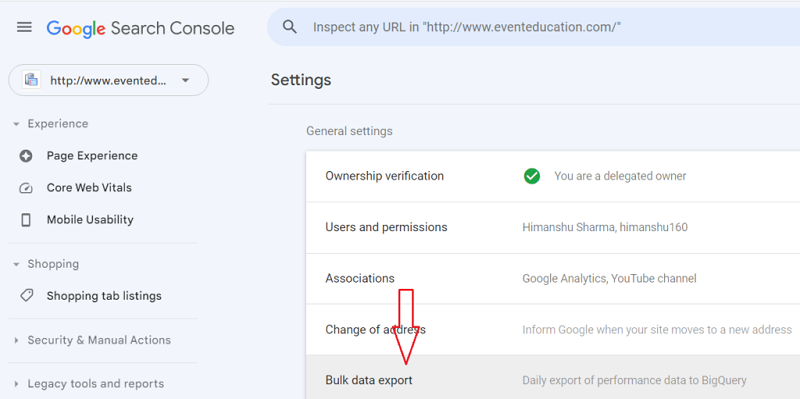
google search console bulk data

By using the Search Console Bulk Data Export feature, I am able to unlock millions of new organic search keywords in my BigQuery project.
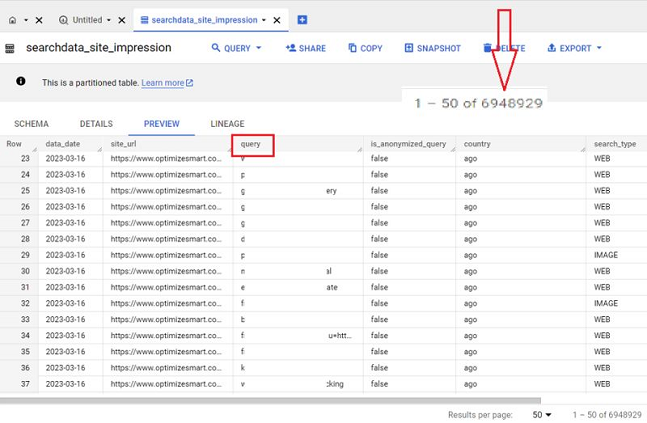
organic keywords data in bigquery project

Table of Contents

Limitations of Google Search Console Keywords data 

GA4 hardly provides any keyword data on its own. The organic keywords data provided by Google Search Console User Interface (UI) is also limited.

Following are the top limitations of the search console with regard to the keywords data:

1) With or without filters applied, the maximum number of rows of data viewable at a time in the Search Console UI is 1,000 rows.

2) Search Console UI reports only top data rows and not all data rows.

3) Search Console keeps data for the last 16 months. But when I started exporting search console data to BigQuery, in just a couple of weeks, I got access to approx. 6.9 million organic search keywords:

The Search Console BigQuery integration allows access to more keyword data than Search Console UI ever will.

If you are not exporting search console data to BigQuery, you are missing out big time.

Prerequisites for sending Search Console data to BigQuery

Before you can send Google Search Console data to your BigQuery project:

  1. You would need a Google Cloud Platform account with billing enabled.
  2. You would need a BigQuery project with billing enabled where you are going to store the search console data.
  3. You would need access to an active Google Search Console account with ‘owner‘ permission.
  4. Your search console account must be collecting search data for your website.

Note: You don’t need to create a new dataset in your BigQuery project to store the search console data. Once you set up the bulk data export, Google will automatically create a dataset named ‘searchconsole’ in your BigQuery project.

How to set up a new bulk data export?

Follow the steps below to set up a new bulk data export:

Step-1: Navigate to your BigQuery account: https://console.cloud.google.com/bigquery  

Step-2: Make sure that you are in the correct project where you want to store the search console data:

correct project

Step-3: Click on the burger menu at the top left-hand side of your screen:

burger menu

Step-4: Navigate to IAM and admin > IAM:

IAM

Step-5: Click on the ‘GRANT ACCESS’ button:

GRANT ACCESS

You should now see a screen like the one below:

add principals

Step-6: In New Principals, paste the following service account name:

search-console-data-export@system.gserviceaccount.com

paste the following service account name

Step-7: Click on the ‘Select a role’ drop-down menu:

Select a role

You should now see a screen like the one below:

You should now see a screen like the one below

Step-8: Search for ‘BigQuery Job User’ and then select the first option:

BigQuery Job User role

Step-9: Click on the ‘+ ADD ANOTHER ROLE’ button:

ADD ANOTHER ROLE

Step-10: Select ‘BigQuery Data Editor’ from the drop-down menu and then click on the ‘Save’ button:

BigQuery Data Editor role

You should now be able to see the new principal listed under ‘VIEWS BY PRINCIPALS’:

VIEWS BY PRINCIPALS

Step-11: Click on the project drop-down menu:

Click on the project drop down menu

Step-12: Copy your project ID:

Copy your project ID

Step-13: Login to your Google Search Console account with ‘owner’ permission.

Step-14: Scroll down and then find and click on ‘Settings’:

google search console settings

Step-15: Click on ‘Bulk Data Export’ under ‘General Setting’:

Bulk Data

Step-16: Enter your BigQuery project id and then click on the ‘Continue’ button:

Enter your BigQuery project id

Step-17: Click on ‘Set up export’ button:

Set up export search console

Step-18: Click on the ‘Done’ button:

setup completed successfully

Step-19: After 48 hrs have elapsed, navigate to the Google Cloud Platform at https://console.cloud.google.com/

Step-20: Click on the navigation menu at the top left:

Click on the navigation menu at the top left

Step-21: Scroll down until you find ‘BigQuery’ and then click on ‘SQL Workspace’:

SQL Workspace

You should now see a screen like the one below:

Welcome to your SQL Workspace

Step-22: Click on your project id:

Click on your project id

Step-23: Click on ‘Search Console’ data set:

Click on ‘Search Console data set

You should now see two data tables named ‘searchdata_site_impression’ and ‘searchdata_url_impression’:

data tables named ‘searchdata site impression and ‘searchdata url impression

These data tables contain search console data.

That’s how you can export search console data to your BigQuery project.