
Follow the steps below to check for any change in the GA4 BigQuery schema:
Step-1: Make sure you have connected your GA4 property with a BigQuery project and collected at least a couple of days of data.
Step-2: Navigate to the ‘GA4 BigQuery Composer‘ (the custom ChatGPT I created to automate SQL generation for GA4 data in BigQuery).
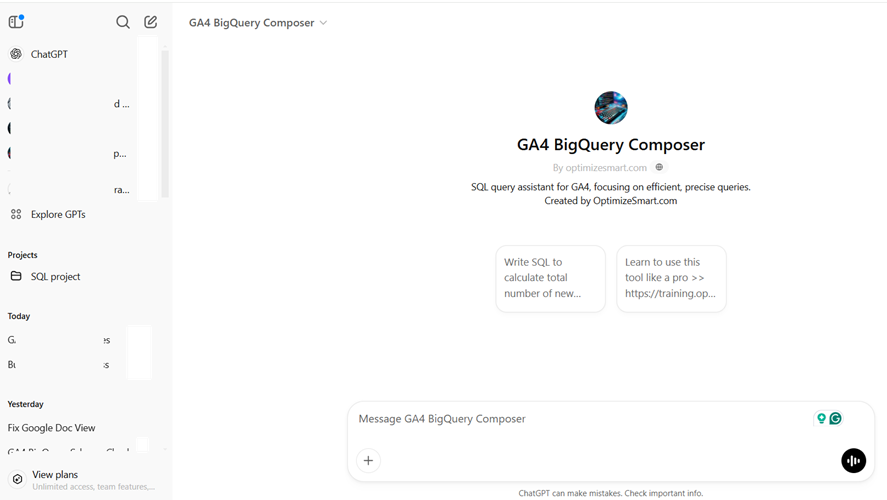
Step-3: Enter the following text prompt:
Check for the change in the GA4 BigQuery schema. Use the following table ID: <add your table ID here>

Step-4: Composer will now automatically create the SQL code for you. Copy the code.

Step-5: Navigate to the SQL query editor of your BigQuery project and paste the copied SQL code.

Step-6: Check the size of your SQL code. Ideally, it should NOT be in GB or TB.

Step-7: If you don’t see any error message for your SQL, click on the ‘Run‘ button to execute the code. The query results will appear at the bottom window.

That’s how you can track GA4 BigQuery Schema change.
If you want to learn to automate SQL generation via text prompts in ChatGPT, enrol in my GA4 BigQuery course.
Why tracking changes in GA4 BigQuery Schema is important?
GA4 BigQuery export schema refers to the format and structure of the GA4 data and the Firebase data that is exported to BigQuery.
Google often adds new fields, removes old ones, and modifies existing ones within the BigQuery schema.
These changes can be ‘breaking’, meaning your existing queries and analyses built on the prior schema may no longer work correctly.
Unfortunately, Google isn’t always transparent about these schema changes. While they announce major alterations, minor updates can sneak in unnoticed.
You need a consistent understanding of the data structure for accurate data analysis.
Failing to track schema changes can lead to misinterpretations, wasted time debugging queries, and inaccurate conclusions.
Therefore, checking for changes in the GA4 BigQuery schema is essential for maintaining robust and reliable data analysis using GA4 data.
