
Follow me on LinkedIn - AI, GA4, BigQuery

External links (also known as ‘Outbound links’) are links to other websites from your website.

An external link is a URL that, when clicked, takes a user from one web page to another web page, and both the source and destination web pages are hosted on different websites/domains.

For example, a link to your LinkedIn profile from your ‘About Us’ page is an external link.

Introduction to GA4 outbound link/click tracking.

Through the GA4 ‘outbound clicks’ tracking feature, you can track clicks on external links in your GA4 property without any additional code or tagging.

Once you have enabled the ‘Outbound clicks’ tracking feature under ‘Enhanced Measurement’ in your GA4 property, GA4 automatically start tracking clicks on external links (i.e. outbound clicks):

Once you have enabled the ‘Outbound clicks tracking feature

Note: Outbound link tracking is also known as ‘exit tracking’.

Understanding the ‘click’ event.

Once you have enabled the ‘Outbound clicks’ tracking feature under ‘Enhanced Measurement’ in your GA4 property, whenever a user clicks on an external link on your website, GA4 fires an event called ‘click’.

You can see the ‘click’ event in your GA4 property via the ‘Events’ report:

the ‘Events report

You should check how the ‘click’ events are being recorded in the GA4 BigQuery data table and what event parameters are being passed along with this event type.

click event in ga4 bigquery data table

Take a close look at the various event parameters which are sent along with the ‘click’ events:

  1. ga_session_id
  2. page_title
  3. page_referrer
  4. page_location
  5. link_url
  6. ga_session_number
  7. batch_ordering_id
  8. outbound
  9. link_classes
  10. engagement_time_msec
  11. ignore_referrer
  12. session_engaged
  13. content_group
  14. engaged_session_event
  15. batch_page_id
  16. link_domain

While creating a text prompt to generate SQL, we will refer to these event parameters (esp, ‘link_url’ and ‘page_location’).

Outbound Link Tracking report ga4 bigquery

Step-1: Make sure that the ‘Outbound clicks’ tracking feature under ‘Enhanced Measurement’ is enabled in your GA4 property and that you have collected at least a couple of days of ‘click’ event data in your BigQuery data set.

Step-2: Navigate to your GA4 BigQuery data table and run a query to check how the ‘click’ events are being recorded and what event parameters are being passed along with this event type. This will give you a good idea of what scroll-tracking data to extract.

Step-3: Calculate the values of the ‘Page’ column by extracting the values from the ‘page_location’ event parameter for each ‘event_name’ top level field where ‘event_name’ is ‘click’.

Step-4: Calculate the values of the ‘Outbound Link’ column by extracting the values from the ‘link_url’ event parameter for each ‘event_name’ top level field where ‘event_name’ is ‘click’.

Step-5: Calculate the values of the ‘Clicks’ column by counting the total number of ‘click’ events for each ‘page_location’ event parameter.

Step-6: Sort the table in descending order for ‘Clicks’ column.

Step-7: The top row of the data table should show ‘Total’ under the ‘Page’ column, any empty string under the ‘Outbound Link’ column and the total number of ‘clicks’ across all ‘page_location’ under the ‘Clicks’ column.

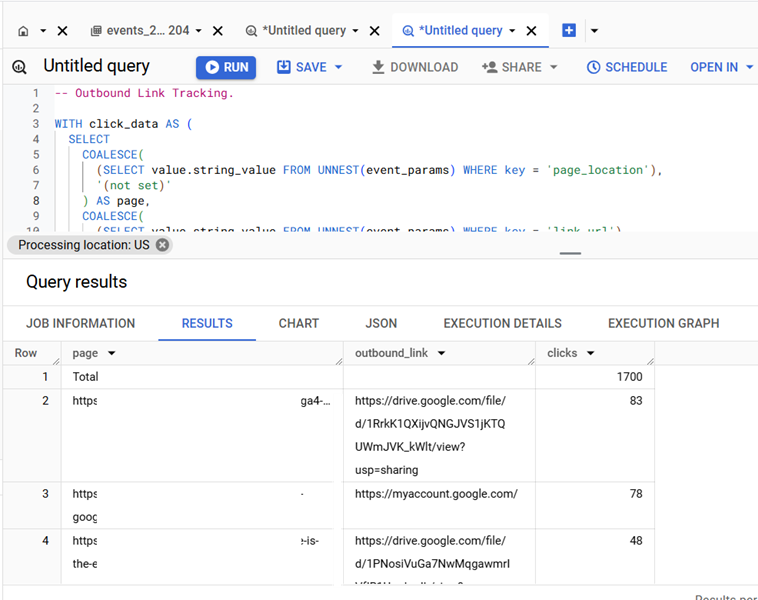
Once you understand the logic, creating an ‘Outbound Link Tracking’ report is easy.

The SQL below is automatically generated via a text prompt in ChatGPT.

-- Outbound Link Tracking.

WITH
  click_data AS (
    SELECT
      COALESCE(
        (
          SELECT value.string_value
          FROM UNNEST(event_params)
          WHERE key = 'page_location'
        ),
        '(not set)') AS page,
      COALESCE(
        (
          SELECT value.string_value
          FROM UNNEST(event_params)
          WHERE key = 'link_url'
        ),
        '(not set)') AS outbound_link,
      COUNT(*) AS clicks
    FROM `dbrt-ga4.analytics_207472454.events_*`
    WHERE
      _TABLE_SUFFIX BETWEEN '20241001' AND '20241031'
      AND event_name = 'click'
    GROUP BY page, outbound_link
  ),
  total_row AS (
    SELECT
      'Total' AS page,
      '' AS outbound_link,
      SUM(clicks) AS clicks
    FROM click_data
  )
SELECT *
FROM total_row
UNION ALL
SELECT *
FROM click_data
ORDER BY clicks DESC;

If you want to learn to automate SQL generation via text prompts in ChatGPT, enrol in my GA4 BigQuery course.

Instead of teaching you SQL, I teach you to create effective text prompts in chatGPT, which will automatically create your desired SQL.

The focus is entirely on teaching the underlying logic (instead of the actual SQL). So that you can scale across ‘N’ SQL use cases and generate consistent outputs repeatedly with 100% accuracy.

[No prior knowledge of BigQuery or SQL required.]

  1. GA4 BigQuery Attribution Tutorial.
  2. How to backfill GA4 data in BigQuery.
  3. How to send data from Google Search Console to BigQuery.
  4. Google Advanced Consent Mode and GA4 BigQuery Export.
  5. Google Analytics 4 BigQuery Tutorial for Beginners to Advanced.
  6. Prompt Engineering for GA4 BigQuery SQL Generation.
  7. How to create a new BigQuery project.
  8. How to create a new Google Cloud Platform account.
  9. How to overcome GA4 BigQuery Export limit.
  10. BigQuery Cost Optimization Best Practices.
  11. event_timestamp vs user_first_touch_timestamp GA4 BigQuery.
  12. GA4 BigQuery Video Tracking Report.
  13. Counting GA4 Sessions in BigQuery? Watch for These Caveats.
  14. Calculating User Paths in GA4 BigQuery.
  15. Calculating Conversion Paths in GA4 BigQuery.
  16. Don’t Aggregate Unconsented Events in GA4 BigQuery.
  17. How to track file downloads in GA4 BigQuery.
  18. How to create GA4 Content Group Report in BigQuery.
  19. How to create GA4 Site Search Tracking report in BigQuery.
  20. How to track outbound / external links in GA4 BigQuery data table.