

GA4 cookies are the backbone of user tracking, and understanding how they work is essential for optimizing your analytics setup.
These cookies hold key information about user sessions, behaviors, and traffic sources.
However, with browsers like Chrome and Safari imposing strict limits on cookie lifespans, relying on outdated cookie knowledge could lead to inaccurate data.
What are Google Analytics 4 cookies?
Google Analytics 4 cookies are primarily first-party cookies used to collect data, identify users, identify sessions, and define metrics.
The GA4 cookies can also be used to implement cross-domain tracking, cross-device tracking, ecommerce tracking or any other specialised tracking in GA4.
The GA4 cookies are set by the Google Analytics JavaScript library called ‘gtag.js’ (aka Google Tag).
The Google Tag sets the following first-party cookies:
#1 _ga cookie – used to identify unique users and expires after two years.
#2 _gat cookie – used to throttle the request rate, and it expires after one minute. If Google Analytics is set up using GTM, this cookie is set as _dc_gtm_<property-id>.
#3 _gid cookie (also known as a session cookie) – used to identify the user and expires in 24 hours.
These cookies are set on the top-level domain so that users can be automatically tracked across subdomains without any extra configuration.

Update: Google changed the GA4 cookie format without any prior notice.
Google changed the GA4 cookie format in the first week of May 2025 without any prior notice or warning.
Old format: GA1.1.860784081.1732738496
New format: GS2.1.s1747323152$o28$g0$t1747323152$j60$l0$h69286059
If your tracking setup relies on directly accessing GA cookies, client IDs, or session IDs, you should immediately audit those implementations. This change may silently break data collection, attribution, or integrations that depend on specific cookie formats.
Who is likely affected:
>> Multiple users have reported that their Measurement Protocol (MP) setups have stopped working. Check your MP setup.
>> Many server-side GTM setups extract the session or client ID from GA cookies to enrich data. If they are not using GA4’s get APIs or are parsing cookies directly, they are at risk.
>> APIs or middleware designed to forward client data to GA4, BigQuery, or other analytics platforms may break if they rely on cookie-parsed IDs.
>> Some attribution engines (especially marketing automation or multi-touch attribution tools) rely on _ga cookie formats for user stitching. They may now fail to associate sessions correctly.
>> Tools that use GA’s client ID or session ID to match a web session to a lead may now collect invalid or missing IDs.
>> Some 3rd-party platforms (like segment.com, RudderStack, or custom CDPs) may have integrations that assume a fixed GA cookie format.
>> Standard reports in GA4, even without any custom implementation.
GA4 rely on cookies to fetch session information, even in standard, out-of-the-box implementations using gtag.js.
Now, with the new GS2 cookie format, the structure of these cookies has changed.
That means even Google’s own client-side library (gtag.js) needs to parse this new format to extract the same values.
If there’s a bug, delay, or misalignment in how GA4 reads the new cookie, it can affect session attribution even in default reports, no custom setup required.
That’s why many users are now seeing spikes in “unassigned” traffic and broken session continuity.
As a long-term fix, avoid relying on GA cookie internals as it prevents breakage from undocumented changes.
Characteristics of the new GA4 Cookie format (GS2)
New format: GS2.1.s1747323152$o28$g0$t1747323152$j60$l0$h69286059
This cookie string follows the GS2 format, which is designed to be flexible, debuggable, and resilient to changes:
- GS2 uses prefix tags (e.g., s, t) instead of fixed positions, so Google can add new fields without breaking existing parsers.
- Each value includes a label (e.g., t1747323152), making cookies easier to understand and debug.
- The format prefix (GS2) clearly indicates the version, enabling smooth transitions to future versions like GS3 or GS4.
- GS2 uses dollar signs ($) as separators, and every value begins with a prefix character.
- The order of parameters is not fixed. Empty values can be skipped, eliminating the need for placeholder positions.
- Unknown or missing fields don’t break parsing. Parsers can safely ignore unrecognised prefixes.
- GS2 follows key-value conventions found in JSON and URL query parameters, making it compatible with modern data handling standards.
GS2 is used in GA4 for session-related cookies under _ga*_, not for the original _ga cookie.

The _ga cookie is part of Google Analytics’ core legacy system, originally introduced with Universal Analytics (UA).
Its format (GA1.1.xxx.xxx) has not changed to maintain backward compatibility and continue to support client ID tracking, which identifies unique users across sessions and visits.
GS1 and GS2 formats coexist because Google is gradually transitioning cookie structures within GA4.
Some GA4 setups still use GS1. Others have adopted GS2, especially those using newer features or configurations.
This coexistence allows Google to roll out updates progressively without breaking older or partially upgraded implementations.
The cookie format for the original _ga cookie is unlikely to change.
It’s very unlikely that Google will change the cookie format for the original _ga cookie because that could break tracking for millions of websites.
The _ga cookie is used on millions of websites worldwide, many of which still depend on its format for identifying users, performing analytics, and integrating with other tools.
Changing its format could break legacy integrations, such as:
- Third-party platforms and plugins.
- Server-side analytics setups.
- Custom tracking or reporting tools.
- CRM or ad systems relying on the Client ID.
The _ga cookie only stores the Client ID (not session or event data). This simple role doesn’t require the more advanced structure used in GS1/GS2.
The GA1.1.x.x format has been consistent and stable since the early days of Universal Analytics. Changing it would force developers to update parsing logic everywhere with no clear benefit.
Avoid Cookie Parsing whenever you can, but remember you can’t completely avoid it.
Avoid cookie parsing, especially with the new GA4 cookie format, because it is no longer straightforward.
The old _ga cookie had a predictable structure, but the new GS2.1 format uses labelled parameters, making regex-based extraction fragile and error-prone.
This increases the risk of incorrect session stitching, breaks easily with format updates, and adds technical debt.
Since Google may change the structure again, relying on parsing creates maintenance challenges and exposes your tracking to silent failures.
You can not completely avoid GA4 cookie parsing because real-world constraints often make it “impractical” or even “impossible”. Cookie parsing is often necessary to keep your session and attribution data accurate.
GA4 relies on certain pieces of information to correctly group events into sessions.
Specifically, it needs a client_id to identify the user, a session_id to tie the event to a specific session, and a timestamp (timestamp_micros) to know when the event occurred.
Without this data, GA4 treats the event as sessionless and categorizes it as “unassigned,” which breaks attribution reporting.
While GA4 provides a way to access this information through its frontend API, gtag(‘get’), this doesn’t always work.
In real-world situations, such as when consent management tools like ‘OneTrust’ block Google scripts, the API can’t run, and cookies become the only remaining source of this critical data.
Similarly, sessions can break when users move across multiple domains unless cookies are synchronized.
And for older websites or systems built before GA4’s current setup, using cookies is often the only feasible way to avoid an expensive rebuild.
Server-side tracking also acts as a backup when client-side tracking fails, but it still needs client context to work correctly.
If Google’s scripts are blocked, you often lose access to the GA frontend API, but many consent platforms still allow the GA cookies to persist.
That means your only option to keep attribution accurate is to manually read the client’s cookies and send the data (like client_id and session_id) to your server.
This situation is especially common in setups like Segment or Google Tag Manager Server-Side, which require these identifiers to be passed in.
It’s even more critical in complex journeys, such as users who click through an email and don’t carry any session data with them or offline conversions from a point-of-sale system with no browser context.
In those cases, cookies are often the only way to “revive” the session and tie the conversion back to the original source.
Even though Google’s messaging discourages cookie parsing, it’s unavoidable in such scenarios.
Marketing teams that rely on multi-touch attribution tools need _ga values to stitch together the user journey. If that data isn’t available, those tools simply don’t work.
The new GA4 session cookie format did not eliminate the need for cookie parsing altogether; it just created a new problem of parsing logic to match the new format.
The core issue here is that Google is advocating for a future without cookies, but GA4 still depends on session data that mostly lives in cookies.
Cookie parsing remains necessary until Google offers a full-featured server-side SDK that manages sessions and attribution correctly.
GTM variable template to extract key session parameters from the new cookie format.
To help you adapt to the new cookie format, you can use the ‘GA4 Cookie Parser’ GTM variable template (created by Július Selnekovič) to extract key session parameters from the new cookie format.
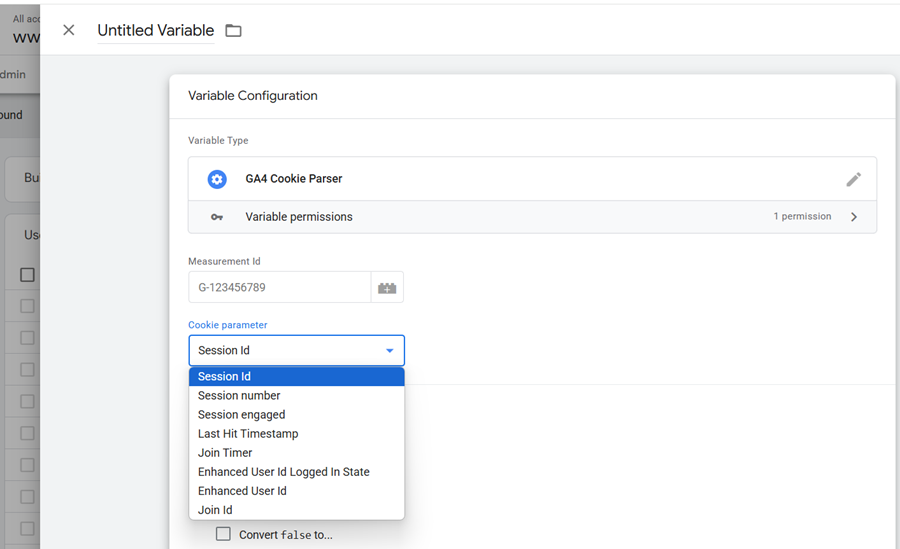
Follow the steps below to import and start using this template:
Step-1: Navigate to GitHub and download the ‘GA4 Cookie Parser.tpl’ file (this is the GTM variable template).
Step-2: Navigate to your GTM container.
Step-3: Navigate to Templates > Variable Templates > New.
Step-4: In the editor, open the menu (⋮) and select Import.
Step-5: Upload the ‘GA4 Cookie Parser.tpl’ file.
Step-6: Review the code and permissions, then click Save.
Step-7: Go to Variables > New.
Step-8: Choose your new custom variable template.
Step-9: Give your variable a name and select the values you want to extract. These values could be: Session ID, Session Number, Session Engaged, Last Hit Timestamp, Join Timer, Enhanced User ID (hash),Logged-in State, Join ID.
Step-10: Save the variable.
Step-11: Reference this variable in tags or triggers. For example, passing the Session ID to a GA4 custom dimension or into a server-side tag.
What is the difference between _ga and _gid cookies?
Both cookies are used to distinguish users. However, the _ga cookie lasts longer (2 years) than the _gid cookie (24 hours).
In other words, the _ga cookie is used for long-term user identification, while the _gid cookie is used for short-term user identification.
Using only the _ga cookie for both long-term and short-term tracking isn’t ideal because Google Analytics separates them to optimise performance and accuracy.
The _ga cookie tracks users across multiple sessions for long-term trends, while the _gid cookie is designed for short-term, session-based tracking.
Google Analytics ensures accurate session counts and daily user tracking by having a separate _gid cookie (expiring after 24 hours).
If only _ga cookie were used, it would blur the distinction between sessions on the same day, making it harder to capture real-time behaviour and session metrics.
Additionally, separating cookies helps reduce processing overhead and improves reporting efficiency.
The _gid cookie is vital for real-time insights and session-specific data, while _ga focuses on broader user behaviour over time.
This approach also supports privacy by allowing different tracking levels based on user consent.
In short, using both cookies ensures optimised, accurate reporting for session and user tracking, which would be harder to achieve with just the _ga cookie alone.
If _gid cookie is used to distinguish users, why is it called a session cookie?
The _gid cookie is not strictly a “session” cookie in the traditional sense but behaves similarly due to its short lifespan.
True session cookies typically expire when the browser is closed.
The _gid cookie, while short-lived, persists for 24 hours regardless of browser closure.
The _gid cookie is commonly referred to as a session cookie because of its short lifespan (typically 24 hours) and its focus on tracking user behaviour within a single day or session.
While it does help distinguish users, its primary function is tied to session-level tracking rather than long-term user identification.
Are GA4 cookies first-party or third-party?
GA4 mainly sets first-party cookies.
However, it can also set third-party cookies (DoubleClick cookies) if a website uses GA4 display advertiser features like remarketing.
What’s the difference between data retention and cookie expiration in the context of GA4?
Cookie expiration determines how long cookies remain stored on a user’s device before being automatically deleted.
For example, the _ga cookie typically expires after 2 years, while the _gid cookie expires after 24 hours.
Cookie expiration applies to data stored on users’ browsers.
Data retention refers to the length of time GA4 keeps user-level and event-level data for inactive website users on its servers before permanently deleting it.
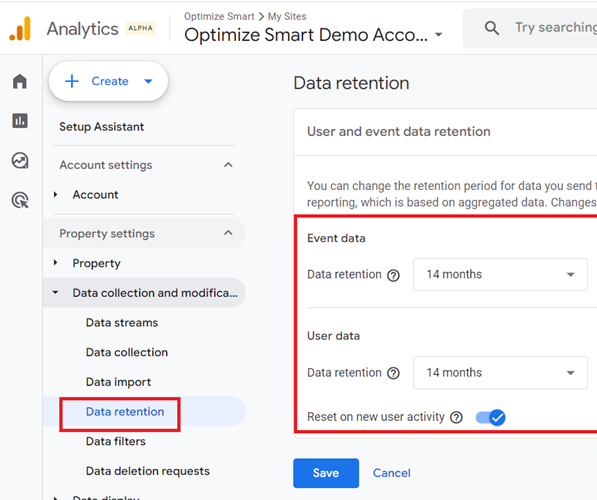
Data retention applies to data stored on Google’s servers.
GA4 Data retention and Cookie Expiration are interconnected.
Though data retention and cookie expiration are not the same thing, they are interconnected in how they contribute to the overall effectiveness of tracking and data analysis.
The related data may be deleted due to data retention policies, even if a cookie is valid.
Cookies primarily store user identifiers, but the real insight comes from the data associated with those identifiers. If data is deleted but the cookie is still active, the cookie cannot provide meaningful insights.
For example, a persistent cookie may track a user for years.
Still, if the data retention policy only stores data for 14 months, older data is no longer accessible, even if the cookie remains active.
Both cookie expiration and data retention are crucial to leveraging user tracking and analysis effectively.
In GA4, data retention can be extended or “reset” with new user activity.
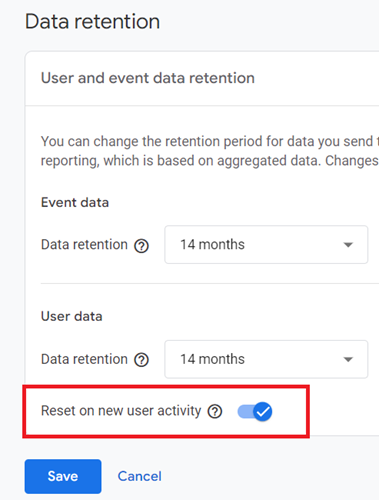
For example,
If your data retention is set to 14 months and a user returns to the website within that period, the retention window for their data will reset, allowing the data to be kept for another 14 months from the date of their new activity.
Can I customise GA4 cookie settings?
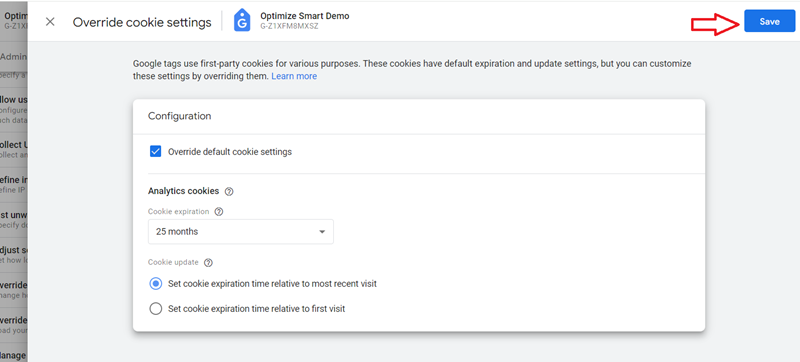
Yes, you can customise GA4 cookie settings, including expiration time and update frequency, through the GA4 admin panel.
Many GA4 users do not know that they can override default expiration settings for analytics cookies from within the GA4 user interface and extend the cookie’s lifespan for years or even decades.
As a result, they miss out on having tons of valuable tracking data.
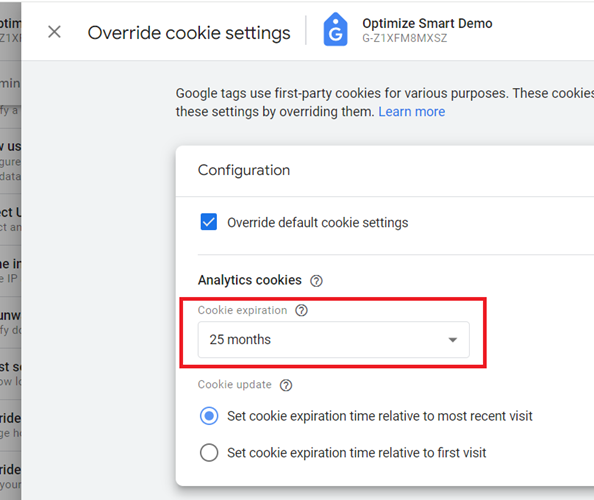
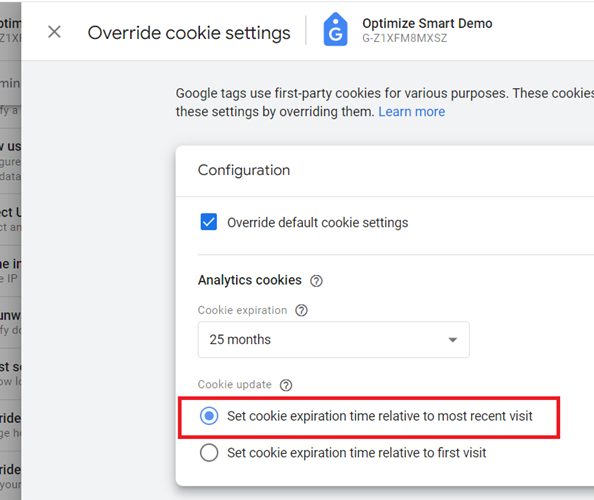
By default, the GA4 analytics cookies expire after 24 months (2 years). But you can set them to expire after 25 months and also set cookie expiration time relative to the most recent visit.
When you configure these two settings together, here is what happens:
- The cookie is initially set to expire after 25 months.
- Every time the user visits your website, the expiration date is reset to 25 months from that visit.
This means that as long as a user returns to your website at least once every 25 months, their cookie will continue to persist indefinitely.
Theoretically, this could extend the cookie’s lifespan for years or even decades as long as the user keeps visiting periodically.
For businesses with long sales cycles, extending the tracking period means more accurate attribution of marketing efforts and, as a result, a more accurate picture of marketing ROI.
A longer cookie lifespan can greatly reduce the risk of losing historical user data due to cookie expiration.
Extending the cookie life ensures that their data remains part of your analytics.
If your privacy policy, local laws and analytics needs allow, you should definitely take advantage of this powerful feature while it is still available.
How can I customise GA4 cookie settings?
Follow the steps below:
#1 Navigate to the admin section of your GA4 property.
#2 Click on ‘Data Streams’ and then click on your web data stream.
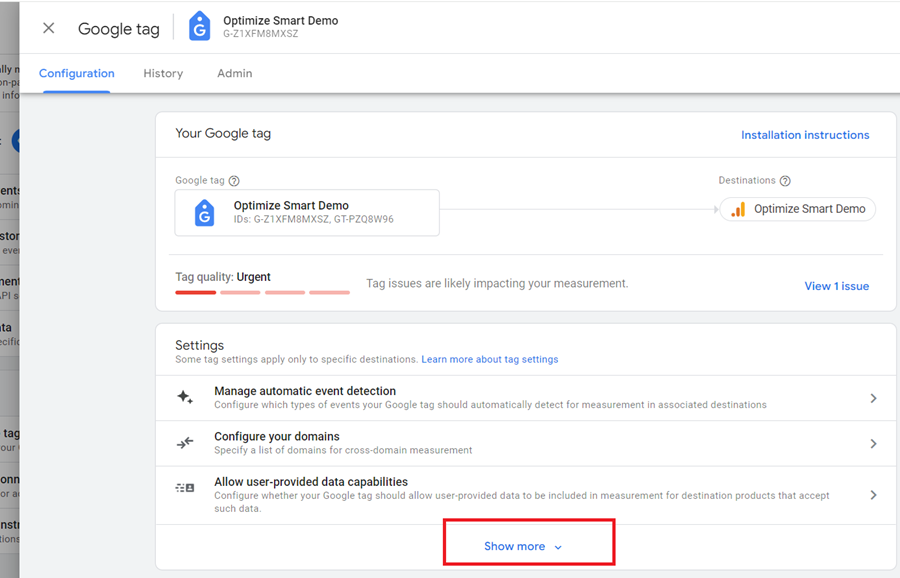
#3 Scroll down and click on ‘Configure tag settings’.

#4 Click on the ‘Show more’ link:
#5 Scroll down and click on ‘Override cookie settings’:
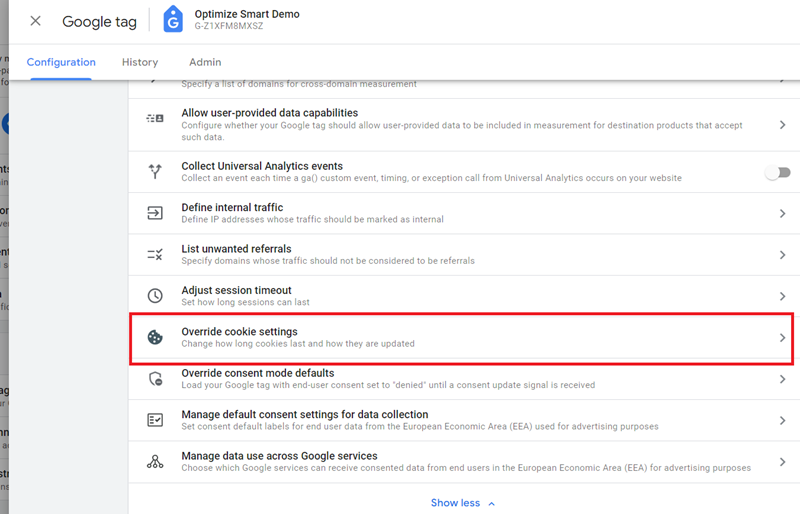
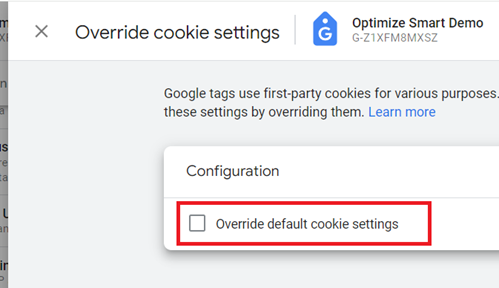
#6 Click on the checkbox ‘Override default cookie settings’:
#7 Set cookie expiration to 25 months from the drop-down menu:
#8 Make sure the checkbox ‘Set cookie expiration time relative to most recent visit’ is selected:
#9 Click on the ‘Save’ button:
Web Browsers impact the lifespan of first-party and third-party cookies.
Browser limitations on cookie lifespan impose a practical cap that can override the settings in GA4 or any other analytics platform.
These browser-imposed limits effectively create a practical cap on cookie lifespans, regardless of the settings in GA4 or other analytics platforms.
For example:
>> Even if GA4 is configured to set cookies for 2 years, Chrome will limit this to 400 days (approximately 14 months). This means that, in theory, any expiration setting beyond 400 days has no effect in Chrome.
>> Safari’s ITP caps first-party cookies to 7 days of inactivity. Even if GA4 sets a cookie for a year or more, Safari will delete it after 7 days of user inactivity. Additionally, ad click-through cookies (first-party) are even more restricted and may be deleted after 24 hours.
>> Third-party cookies used by analytics platforms are increasingly being blocked altogether.
Although browsers cap cookie lifespan, setting longer expiration dates in GA4 can still be beneficial in scenarios where browser restrictions don’t apply immediately or do not apply at all.
Even in browsers like Safari, the cookies can be refreshed if users frequently visit your website.
In such cases, setting longer expiration dates can help maintain continuity for users who engage with your website frequently enough to refresh their cookies before they expire.
Not all users may have the strictest privacy settings or tracking prevention features enabled in their browsers. In such cases, cookies with longer lifespans can still be valuable.
How to view GA4 cookies set by a website?
To view GA4 cookies set by a website in Google Chrome, follow the steps below:
Step-1: Open your website in Google Chrome.
Step-2: Right-click anywhere on the page and select “Inspect” or press Ctrl+Shift+I (Windows/Linux) or Cmd+Option+I (Mac) to open Developer Tools.
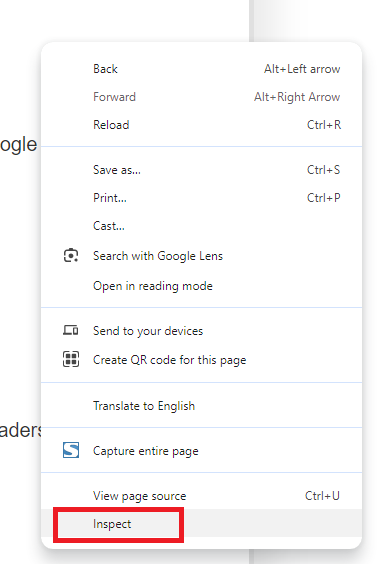
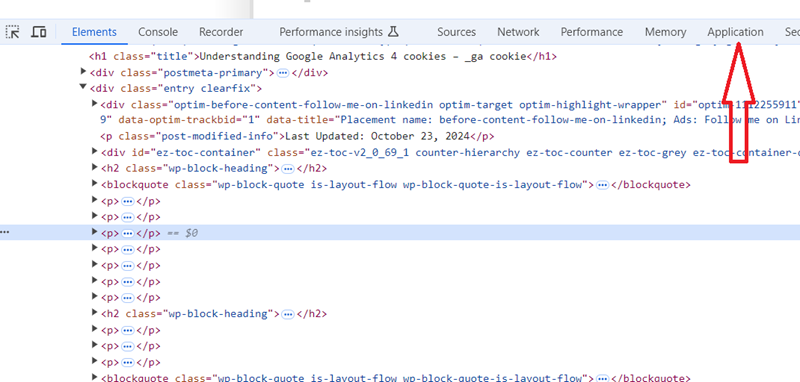
Step-3: Click on the “Application” tab in the Developer Tools panel.
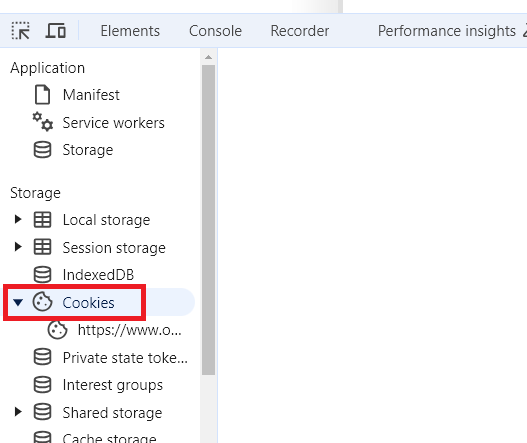
Step-4: In the left sidebar, under “Storage”, expand the “Cookies” section.
Step-5: Click on your website’s domain name under the Cookies section.

Step-6: Look for cookies with names starting with “_g”.
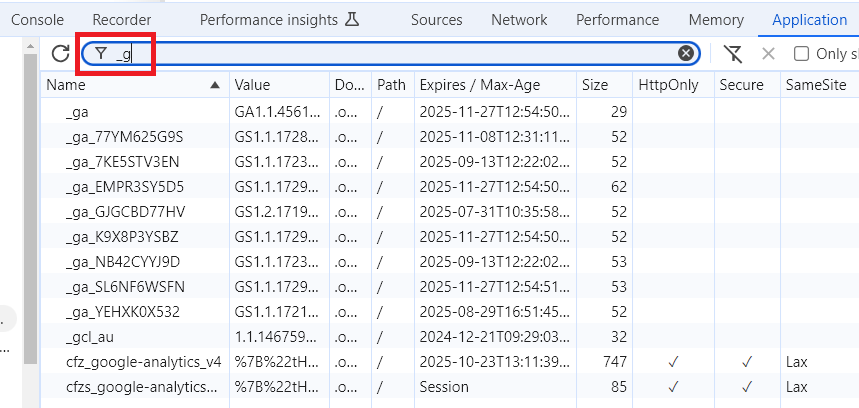
All the cookies starting with _ga, _gid and/or _gat are GA4 cookies.
Step-7: view each cookie’s: Name, Value, Domain, Expiration date, Size and Attributes (e.g., Secure, HttpOnly, etc.).
Based on the provided cookie information (check the screenshot above), the following is the purpose of each cookie:
GA1.1.456137084.1711299963:
This is the main Google Analytics 4 (GA4) cookie used to distinguish unique users.
It stores a unique client ID and helps track user behavior across sessions.
_ga_77YM625G9S,
_ga_7KE5STV3EN,
_ga_EMPR3SY5D5,
_ga_GJGCBD77HV,
_ga_K9X8P3YSBZ,
_ga_NB42CYYJ9D,
_ga_SL6NF6WSFN,
_ga_YEHXK0X532:
These are GA4 cookies used for storing session state data.
Each one likely corresponds to a different GA4 property or data stream, allowing for tracking across multiple analytics configurations on the same domain.
_gcl_au: This is a Google Ads cookie used for conversion linking across domains. It helps track ad clicks and conversions across different websites.
cfz_google-analytics_v4: This appears to be a custom cookie related to Google Analytics 4, possibly set by a third-party tool or plugin. It stores various engagement metrics and session data, including:
- Engagement duration
- Engagement start time
- Counter values
- Session counter
- GA4 client ID
- Last engagement time
- GA4 session ID
cfzs_google-analytics_v4: Another custom cookie related to GA4, storing page view count data. This is a session cookie, meaning it expires when the browsing session ends.
These cookies work together to provide comprehensive tracking and analytics capabilities for the website, allowing for user identification, session tracking, and engagement measurement across multiple GA4 properties and data streams.
GA4 Cookies and Google Basic Consent Mode
In basic consent mode, Google tags do not fire, and no data is collected unless the user provides consent for data collection.
If a user grants cookie consent, GA4 cookies are set, and the user’s data is sent to Google.
If a user denies cookies or ignores the consent banner, no GA4 tracking cookies are set, which can lead to data gaps for non-consented users.
Consent type and its impact in Basic Consent Mode.
GA4 Cookies and Google Advanced Consent Mode
In advanced consent mode, Google tags may still load before the consent banner appears, but if a user denies cookie consent, GA4 cookies do not fire. However, ‘cookieless pings’ are sent to Google.
These cookieless pings enable limited data collection (like basic anonymized event data, but not user-identifiable data) without using cookies.
Google uses machine learning to model user behavior and conversions for non-consented users.
This process is known as data modeling and helps estimate non-consented users’ behavior using patterns observed from consented users.
Consent type and its impact in Advanced Consent Mode.
What is a Cookie?
A cookie is a text file that is used to:
- Store information about user preferences, user location, and other details.
- Protect users’ data from unauthorised access.
- Maintain certain websites’ functionality.
- Serve personalised ads to users and make advertising more effective via re-marketing.
- Collect Google Analytics data and other tracking data.
Where cookies are stored?
Cookies are stored on the user’s device (such as a computer, smartphone, or tablet) within the web browser they are using.
Each browser maintains its own storage area for cookies, and these cookies are specific to the device and browser where they were set.
Understanding Cookie storage limits.
# Cookies can only contain text data.
# The typical limit for the maximum size of a single cookie across most modern browsers is 4096 bytes (4 KB).
# The different browser has a different limit set for cookie storage.
- Google Chrome: 4096 bytes per cookie.
- Firefox: 4097 bytes per cookie.
- Microsoft Edge: 4096 bytes per cookie
- Internet Explorer: 5117 bytes per cookie.
# In general, a browser can accept a maximum of 300 cookies and up to 180 cookies (and sometimes even more) per domain.
# The limit for total cookie storage per domain is usually 81920 bytes (80 KB).
# Different browsers can have slightly different limits for cookies, which can evolve as browsers are updated.
# To ensure compatibility across most browsers, it’s recommended to:
- Not exceeding 30 cookies per domain.
- Keeping cookie sizes under 4095 bytes each.
Cookies are not programs.
Cookies do not contain executable code and cannot perform functions on their own.
Cookies themselves are passive; they don’t actively do anything. They simply store text data that can be retrieved and used by websites.
How can cookies be enabled/disabled?
Cookies can be enabled or disabled both by users and programmatically.
Users can enable or disable cookies directly through their browser’s privacy or settings menu.
Most modern browsers allow users to:
- Block all cookies – Prevent websites from setting any cookies.
- Block third-party cookies – Prevent cookies from external domains (e.g., advertisers) while allowing first-party cookies (from the website they visit).
- Allow cookies – Enable cookies, either by default or for specific websites.
- Clear cookies – Users can also clear cookies anytime by deleting their browser’s stored data.
- Cookie/Consent banner – Users can accept or reject cookies via the cookie/consent banner.
Programmatic control of cookies:
- Developers can set, read, and delete cookies programmatically using JavaScript.
- When sending a response to the client, cookies can also be controlled programmatically from the server side (e.g., with HTTP headers).
- Developers can choose to disable cookies for certain requests, users or under specific conditions (such as GDPR compliance).
Can a website directly change browser-level cookie settings?
Websites cannot directly change browser-level cookie settings (such as blocking all cookies, blocking third-party cookies, or clearing all cookies).
If a user has disabled cookies in their browser settings, a website cannot override this decision.
A website does not have the ability to modify or override these settings programmatically due to security and privacy reasons.
Can I determine the number of users who have cookies enabled or disabled?
You cannot directly determine the exact number of users who have cookies enabled or disabled through traditional methods in web analytics or JavaScript because cookie settings are controlled by the browser, and websites don’t have direct access to this information.
However, there are indirect ways to infer whether cookies are enabled or disabled for users.
If your website uses a Consent Management Platform (CMP), you can track how many users accept or reject cookies.
By reviewing the data from the CMP, you can estimate how many users have opted out, giving you a rough idea of the percentage of users who might have cookies disabled.
How are cookies classified?
Cookies are classified based on ownership, lifespan, purpose, storage method and security properties.
Cookies based on ownership (origin)
- First-Party Cookies.
- Second-Party Cookies.
- Third-Party Cookies.
Cookies based on lifespan (expiration)
- Session Cookies.
- Persistent Cookies.
Cookies based on purpose (functionality)
- Strictly Necessary (Essential) Cookies.
- Performance (Analytics) Cookies.
- Functionality Cookies.
- Targeting or Advertising Cookies.
- Security Cookies.
Cookies based on storage method
- Supercookies.
- Flash cookies
Cookies based on security properties
- HttpOnly Cookies.
- Secure Cookies.
What are First-Party Cookies?
These cookies are issued by the website being visited, and only the website which issued the first-party cookies can read them.
They are typically used for website functionality, such as remembering user preferences or login sessions. But can also be used for data collection.
For example, a cookie from example.com that keeps a user logged in on example.com.
What are Second-Party Cookies?
Second-party cookies are first-party cookies shared between trusted partners.
While technically first-party cookies, the data from these cookies is exchanged between two parties.
For example, A travel website sharing cookie data with a partner airline for joint promotions.
What are Third-Party Cookies?
These cookies are issued by the website(s) other than the website being visited.
For example, a Google Ads cookie that tracks you across multiple websites to show relevant ads.
What are Session Cookies?
These cookies are used to store data temporarily during a session, such as items in a shopping cart.
Session cookies are automatically deleted once the browser is closed.
What are Persistent Cookies?
These cookies remain stored on the user’s device after a session ends or even after a user closes the web browser.
They have an expiration date and are used to remember users’ preferences or actions across multiple sessions.
They are used for long-term storage, such as remembering login details.
What are Strictly Necessary (Essential) Cookies?
Strictly necessary cookies are required for the basic operation of a website, such as enabling logins or managing shopping carts. They cannot be disabled by users.
For example, a cookie that keeps a user logged in to a website.
What are Performance (Analytics) Cookies?
Performance cookies collect data about how users interact with a website.
GA4 cookie is an example of a performance cookie.
What are Functionality Cookies?
These cookies store user preferences and enable personalized features, like language settings or preferred themes.
For example, a cookie that remembers your language preference on a website.
What are Targeting or Advertising Cookies?
These cookies track user behaviour across different websites to deliver personalised ads based on their browsing habits.
For example, a Google Ads cookie.
What are Security Cookies?
These cookies are used for security purposes to authenticate users, prevent fraudulent use of login credentials, and protect user data from unauthorised parties.
For example, a cookie that verifies a user’s identity during a secure login process.
What are Supercookies?
Unlike regular cookies, which are stored in a browser and can be deleted by users, supercookies are stored at a deeper level, often at the network level, making them much harder to detect and remove.
Supercookies are more difficult to delete because they are stored outside the typical cookie storage mechanisms (e.g., in HTTP headers or injected by ISPs).
Internet service providers (ISPs) often deploy supercookies to track users across different websites, devices, and even browsers, circumventing normal cookie management tools.
What are Flash Cookies?
Flash cookies (or Local Shared Objects) are pieces of data that websites using Adobe Flash may store on your computer. They can persist after you clear regular cookies.
For example, a cookie storing your preferences for a Flash-based video player.
What are HttpOnly Cookies?
HttpOnly cookies are a special type of cookie that cannot be accessed by client-side scripts like JavaScript, which helps prevent cross-site scripting (XSS) attacks.
What are Secure Cookies?
These cookies can only be transmitted over HTTPS connections, ensuring that the data is encrypted during transmission.
For example, a cookie that stores login credentials only on secure pages (HTTPS).
Note(1): Cookies (both first and third-party cookies) can be set with or without an expiration date.
Note(2): You cannot directly modify the expiration of cookies that have already been set on users’ devices. Any changes to cookie expiration would only apply to new cookies or when existing cookies are updated during subsequent user visits to your website.
What’s the difference between temporary and persistent cookies?
The cookies set without an expiration date are known as temporary cookies.
Such cookies expire when you end the web session or close the browser window.
The cookies set with an expiration date are known as persistent cookies.
Such cookies expire only on the expiration date and can remain on your computer even when you have ended the web session or closed your browser window.
Cookies Set By Google
Google sets different types of cookies for different purposes.
The following are the types of cookies set by Google on a user’s hard disk:
- Preference cookie (PREF) is used to store users’ preferences (like preferred language or any type of customization).
- Security cookies (like ‘SID’ and ‘HSID’) are used to protect users’ data from unauthorized access.
- Advertising cookies (like ‘id’) used to serve personalized ads to users and to make advertising more effective
- Analytics cookies (like _utma, _utmb, _ga, etc.) are used to collect Google Analytics data.
Cookies and JavaScript Libraries
Google Analytics uses cookies based on the JavaScript library being used.
Google Analytics has four types of JavaScript libraries for tracking website usage data:
- Google Analytics 4 (gtag.js)
- Universal Analytics (gtag.js)
- analytics.js (used in Universal Analytics)
- AMP HTML
Google Analytics Cookies are created as soon as you visit a website on which a valid Google Analytics tracking code is installed and fired.
Since all cookies are browser-specific, Google Analytics will set a different set of cookies if you return to a website via another web browser.
If a GA cookie already exists, it is updated to collect users’ data. So if you try to create a cookie that already exists, it will be overwritten.
Note: Google Analytics does not store and does not allow any personally identifiable information in its cookies.
Understanding Top-Level Domains
The top-level domain is the highest domain level.
For example, in the case of the following domains:
- www.abc.com
- music.abc.com
- asian.music.abc.com
The highest domain level is abc.com.
So the top-level domain is abc.com
The second highest domain levels are: www.abc.com and music.abc.com
The third highest domain level is asian.music.abc.com
Note: Ideally, ‘.com’ should be the highest domain level. But Google Analytics can not set up a cookie at ‘.com’ level.
Creating gtag.js Cookies
To create gtag.js cookies, you need to create a tracking object using the ‘config’ command.
Syntax: gtag(‘config’, ‘GA_TRACKING_ID’);
Note: Google Analytics 4 can also collect data even without any cookies through the GA4 measurement protocol.
Viewing Google Analytics Cookies
The Google Analytics cookies are set as soon as a user loads your web page in his browser (provided the web page contains valid Google Analytics tracking code and it fires on page load).
To view the analytics.js cookies, follow the steps below:
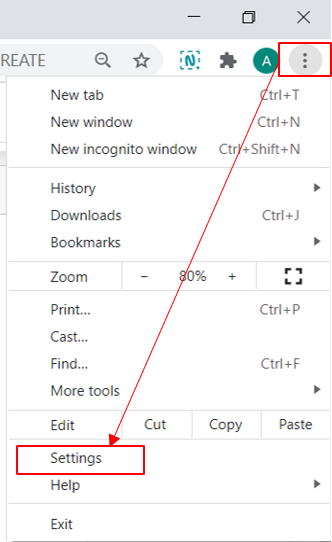
Step-1: Click on the 3 dots at the left corner of your Chrome browser and then click on settings.
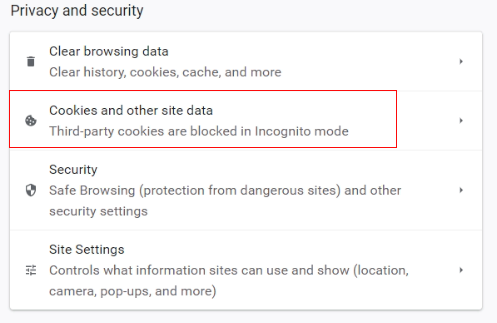
Step-2: Scroll Down and click on ‘Cookies and other site data‘ in Privacy and Security.
Step-3: Scroll Down and Click on “See all cookies and site data”.

Step-4: Look for your website domain and click on it.
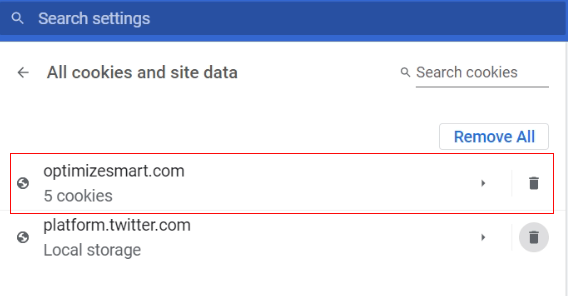
Step5: Click on “_ga” and in content, you will find your Google Analytics 4 cookie.
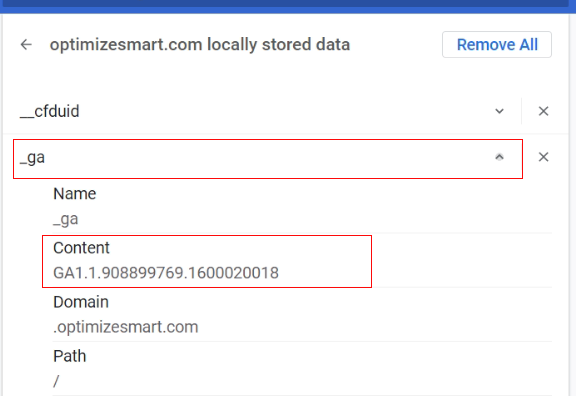
_ga cookie is made up of the following four fields:

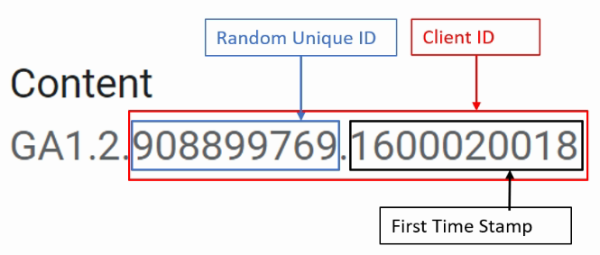
The first field is the version number like GA1.
The second field is the number of components at the domain separated by a dot.
By default, the _ga cookie is set on the top-level domain with the root level (/) path.
So if you have set a cookie at the top-level domain like optimizesmart.com then the second field would have a value of 2 as there are 2 components separated by a dot.
One component is ‘optimizesmart’ and the second component is ‘com’.
If you have set up a cookie at the sub-domain level, like analytics.optimizesmart.com, then the second field would have a value of 3 as there are now three components separated by a dot.
The first component is ‘analytics’.
The second component is ‘optimizesmart’.
The third component is ‘com’
The third field is a random unique ID (randomly generated number). Here 908899769 is the random unique id.
The fourth field is the first timestamp, i.e. the time when the cookie was first set for the user. Here 1600020018 is the first timestamp.
The third and fourth fields together make the client ID. So the client ID would be 908899769.160020018.
Cookies and Client ID
Google Analytics identifies unique users across GA4 sessions through client ID.
The client ID is stored in the Google Analytics cookie.
The GA cookie is set when a person visits your website for the first time. Google Analytics sends the client ID with each hit to associate hits with a user.
A GA cookie can exist only on the device and browser where it has been set.
Since the client ID is stored in a GA cookie, the client ID will also exist only on the device and browser where it has been set.
Because of this reason, by default, GA can’t identify unique users across different web browsers and devices.
Also, note that cookies are site-specific. The default Google Analytics implementation will track the subdomain user’s activity.
If a user travels between the site and the subdomain, they will still maintain the same cookie.
However, cross-domain tracking is different; cookies will not be shared unless you have set up cross-domain tracking correctly on your website.
If you want to retrieve the client ID from _ga cookie, then use the following call back function:
ga(function(tracker) {var clientId = tracker.get(‘clientId’);});
If you want to collect client IDs in GA reports, then you can do that by creating a new custom dimension with user scope:
ga(‘set’, ‘dimension1’,clientId); for Universal Analytics
gtag(‘set’, ‘parameter_name’, clientId); for Google Analytics 4 (here parameter name is the name you have set for the user scope custom dimension in GA4.
Identifying unique users across different web browsers and devices is known as ‘Cross-Device Tracking’.
If users can log in on your website, then you can implement cross-device tracking with the help of a User ID.
Cookies and User ID
User ID is a unique random number used to uniquely identify users across different web browsers and devices.
According to Google’s terms of service, the User ID must not contain any personally identifiable data like the user’s name, email address, etc.
User ID is different from client ID in that client ID is generated by Google Analytics. Whereas a User ID is generated by your users’ authentication system (like Website Login).
To send user ID data to Google Analytics, use the ‘set’ command method like the one below:
gtag(‘set’, ‘userId’, ‘USER_ID’);
here, the value of USER_ID is of type string. For example:
gtag(‘set’, ‘userId’, ‘DTS234554134’});
You can also send user ID data to GA while creating the tracking object:
gtag(‘config’, ‘STREAM_ID’, {
‘user_id’: ‘id’
});
There are two important points that you need to remember about using user IDs:
#1 The user IDs must be set after the tracking object has been created. Otherwise, the user IDs will not be associated with your web property.
#2 The user IDs must be set before you send any hit data to GA. Otherwise, user IDs won’t be set for all subsequent hits that occur on a page.
Note: You can also set up user IDs for mobile apps.
Attributes of _ga Cookie
_ga cookie has got the following attributes:
- Cookie name
- Cookie domain
- Cookie path
- Cookie expires
You can modify _ga cookie by changing its attributes.
Note: Google recommends not to directly access the _ga cookie as the cookie format might change without warning, which could lead to script errors and incorrect data.
#1 Cookie name.
The cookie name is the name of the google analytics cookie, which is _ga by default.
If you want to change this cookie name to something else, you can do this by setting the cookieName field. For example:
gtag(‘config’, ‘Stream_ID’, {‘cookieName’: ‘optimizesmart’});
The cookieName field accepts values of type text.
#2 Cookie Domain.
Cookie domain is the domain at which the Google Analytics cookie _ga is set up.
By default, the cookie is set on the top-level domain.
So, if you set a cookie at the top-level domain like www.optimizesmart.com, the cookie domain would be ‘optimizesmart.com’. (without ‘www.’ Prefix).
If you want to set _ga cookie at the sub-domain level like music.optimizesmart.com, then set the cookieDomain field as:
gtag(‘config’, ‘Stream_ID’, {‘cookieDomain’: ‘music.optimizesmart.com’});
If you want to set _ga cookie at the sub-sub-domain level like asian.music.optimizesmart.com, then set the cookieDomain field as:
gtag(‘config’, ‘Stream_ID’, {‘cookieDomain’: ‘asian.music.optimizesmart.com’});
Note: The cookieDomain field accepts values of type text.
The cookie domain needs to be an ancestor of the current domain.
In the case of cross-domain tracking, the cookie domain needs to be an ancestor of the current domain.
For example, if the current domain is www.abc.com, you can set the cookie at abc.com as abc.com is the ancestor of www.abc.com.
But you can’t set a cookie at music.abc.com because it is not the ancestor of www.abc.com.
Similarly, you can’t set a cookie on some other website like ‘example.com’ because it is not the ancestor of www.abc.com.
Note: When you set an incorrect value for cookieDomain, the _ga cookie is not set.
Setting cookies on localhost.
If you want to set _ga cookie on localhost, then set the value of cookieDomain to ‘none’. For example:
gtag(‘config’, ‘Stream_ID’, {‘cookieDomain’: ‘none’});
Automatic cookie domain configuration
If you want google analytics to automatically determine and set the _ga cookie at the top-level domain or automatically set the value of cookieDomain to ‘none’ when you use localhost, then use ‘auto’ as the value of cookieDomain.
For example:
gtag(‘config’, ‘Stream_ID’, {‘cookieDomain’: ‘auto’});
You can also write this line of code as:
gtag(‘config’, ‘Stream_ID’,‘auto’);
The advantage of using an automatic cookie domain configuration is that you can track users across all sub-domains without any additional configuration.
#3 Cookie Path.
Cookie Path is the path at which the cookie is set up.
The _ga cookie is set on the top-level domain with the root level (/) path by default.
If you want to modify the _ga cookie path from the default ‘/’ to say ‘/lib’, then set the ‘cookiePath‘ field to ‘/lib’:
gtag(‘config’, ‘Stream_ID’, {‘cookiePath’: ‘/lib/’});
Note: Google does not recommend changing the cookie path.
#4 Cookie Expires
Cookie Expires is the time in seconds after which the _ga cookie will expire.
By default, a _ga cookie expires after two years from the date it was last refreshed.
Every time a new hit is sent to google analytics, the cookie is refreshed.
You can set your own cookie expiration time by using the cookieExpires field:
gtag(‘config’, ‘Stream_ID’, {‘cookieExpires’: 180});
Here we set the _ga cookie to expire after 180 seconds.
Note: The cookieExpires field accepts values of type integer.
Making _ga cookie a ‘browser session’ based cookie.
If you set the _ga cookie to expire after 0 seconds, then the cookie turns into a browser session-based cookie and expires once the current browser session ends.
For example:
gtag(‘config’, ‘Stream_ID’, {‘cookieExpires’: 0});
Note: The biggest drawback of the _ga cookie is that you can’t dig out session or campaign-specific data from the cookie, as all of these calculations happen in the backend on GA servers.
Other Articles on GA4.
- Tracking New, Qualified and Converted Leads in GA4.
- Free GA4 training and tutorial with Certification.
- Understanding GA4 Ecommerce Reports (Monetization Reports).
- GA4 Ecommerce Tracking via GTM: Step-by-Step Setup Guide.
- How to see UTM parameters in GA4 (Google Analytics 4).
- GA4 UTM parameters not working? Here is how to fix it.
- How To Use UTM parameters in GA4 (Campaign Tracking).
- How to track AI traffic in GA4.
- Understanding Google Analytics 4 cookies – _ga cookie.
- GA4 (Google Analytics 4) Measurement Protocol Tutorial.
- GA4 Unassigned Traffic: Causes and How to Fix it Fast.
- GA4 Regex (Regular Expressions) Tutorial.
- GA4 Direct Traffic Spike: Common Causes and How to Fix Them.
- gtag.js – Google Tag in Google Analytics 4 and beyond.
- GA4 Scopes – User, Session, Event & Item scopes.
- GA4 Conversion Tracking (Key Events) Tutorial.
- GA4 (not set) - Guide to fixing (not set) issue.