
Follow me on LinkedIn - AI, GA4, BigQuery

What is BigQuery Data Transfer Service?

The BigQuery data transfer service is used to automatically send data from a data source to a BigQuery project on a regular basis.
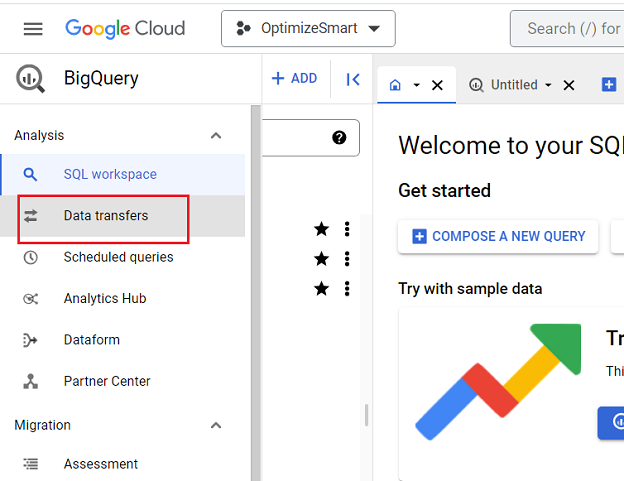
data transfers bigquery

When you create a new project in BigQuery, you can then either manually import data to one of its data tables, or you can automate the data transfer on a regular basis.

If you want to automate the data transfer on a regular basis (which you most likely would like to do), then you would need to create one or more data transfers for your BigQuery project:
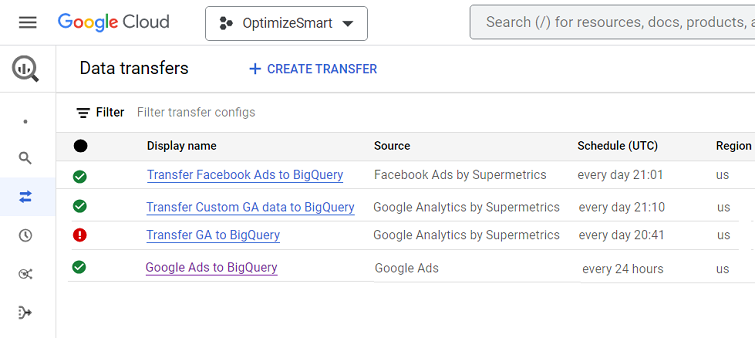
create one or more data transfers for your BigQuery project

For example, you can create a data transfer which automatically extracts data from your GA4 property and then send it to your BigQuery project on a pre-defined schedule.

Similarly, you can create one or more data transfers per data source.

So you can create one or more data transfers for Google Ads, Facebook Ads, Linkedin ads, Google Search Console etc.

So, one BigQuery project can automatically get data from several data sources on a regular basis.

Note: You cannot use the BigQuery Data Transfer Service to transfer data out of BigQuery.

How to access the BigQuery Data Transfer Service

You can access the BigQuery Data Transfer Service via the following tools:

#1 Google Cloud Console – It is an intuitive and user friendly web based interface through which you can easily set up, manage, and monitor data transfers without the need to write code or use command-line tools.

#2 bq command-line tool – It is a command-line tool for BigQuery, which is used to create, configure, and manage data transfers.

#3 BigQuery Data Transfer Service API – It is used to create, manage, and monitor data transfers programmatically. The API is more flexible than the Google Cloud console, as you can use it to create custom data transfers unavailable in the console.

#4 Third-party paid tools – You can use third-party paid tools like ‘Supermetrics’ to integrate with BigQuery Data Transfer Service and automate data transfer into BigQuery from various data sources. 

These tools can make it easier to create and manage data transfers, even custom data transfers.

Second, they can provide additional features and functionality that are not available in the BigQuery Data Transfer Service API.

Types of Data Transfers in BigQuery

There are two types of data transfers in BigQuery: first-party data transfers and third-party data transfers.

What are first-party data transfers?

First-party data transfers are transfers that Google provides for moving data from Google services (like ‘Google Ads’, ‘youtube channel’, ‘Google Cloud Storage’, ‘Merchant Center’ etc.) into BigQuery.

First-party data transfers are typically free. 

What are third-party data transfers?

Third-party data transfers are transfers that third-party vendors provide for moving data from both Google and non-Google services into BigQuery.

Typically you have to pay monthly or annual subscription fees to use third-party data transfers.

Advantages of third-party data transfers over first-party

The following are the key advantages of using third-party data transfers over first-party data transfers:

  1. No-code platform.
  2. Access to a wide variety of data sources.
  3. Unified Interface and experience.
  4. Access to a wide variety of pre-configured connectors.
  5. Custom made Connectors.
  6. Pre-configured Templates and Schemas.
  7. Custom schemas

#1 No-code platform.

Third-party data transfer solutions are popular largely because of their convenience and efficiency. 

With just a few clicks, you can easily set up even complex data transfers without writing a single line of code.

#2 Access to a wide variety of data sources.

There are two types of data sources:

  1. Originating data source (where the data is coming from).
  2. Destination data source (where the data is sent to).

When you use a third-party vendor (like ‘Supermetrics’), you can send data from a wider variety of originating and destination data sources, not just those within a specific ecosystem (like Google’s). 

This means you can pull and send data from diverse platforms, including CRM systems, marketing platforms, databases, and more. 

You can send data from both Google and non-google services to BigQuery, Google Sheets, Looker Studio etc. 

#3 Unified Interface and experience.

Third-party vendors provide a single interface to manage data transfers from multiple data sources, offering a unified experience. 

Instead of navigating different first-party interfaces for each platform, users can manage all data transfers in one place.

#4 Access to a wide variety of pre-configured connectors.

The third-party tools often come with a suite of pre-configured connectors for popular data sources. 

For example, if you want to transfer data from Facebook Ads to BigQuery, there’s likely a ready-made connector for that.

#5 Custom made Connectors.

You can also request a custom connector from third-party vendors if you have a specific data source that isn’t directly supported.

Many vendors offer the option even to build custom connectors. They allow for the development of custom connectors using APIs or SDKs.

#6 Pre-configured Templates and Schemas.

Many third-party vendors provide predefined templates or schemas that match the data source. This ensures data is structured correctly in the destination and reduces setup time.

If a source changes its data format or schema, third-party tools can adapt and transform data to match the desired target schema in the destination.

#7 Custom schemas.

The biggest advantage of using a third-party tool (like ‘supermetrics’) for data transfer is that you can create and use your own schema (called ‘custom schema’) while creating a data transfer without writing a single line of code.

In other words, you can create custom data transfers by using a third-party paid tool.

Or you can learn Python and create and troubleshoot your own custom data transfers.

Introduction to Schemas

Before you can create a data transfer in BigQuery, you should decide the format in which the data should be extracted from a data source. 

We decide on this format by defining the schema (structure) of our data tables.

There are two types of schemas: 

  1. Default (standard) schema
  2. Custom schema
select schema supermetrics

What are default schemas?

When you don’t create a custom schema before creating a data transfer, then the default schema is used.

This schema is either defined by the data source you use, the data transfer service you use or the connector you use for extracting data from a data source.

For example,

If you are using the Supermetrics connector to pull data from a data source (like Google Analytics 4) and you did not create a custom schema before creating a data transfer, then the default schema (provided by the Supermetrics connector) will be used.

As a result, the Supermetrics Google Analytics connector will automatically create a set of tables in the specified dataset, but it won’t give you any option for creating the data tables you want or setting the fields you want to see in the data table(s).

Similarly, if you create a data transfer service via a first-party data transfer service, then the default schema is used.

For example, when you send data from a GA4 property to BigQuery via native integration, you use the default schema (i.e. structure) provided by Google. 

As a result, Google automatically creates a set of tables (events_‘ and ‘events_intraday_) in the pre-built dataset (“analytics_<property_id>“).

However, you do not get the option of creating the data tables you want or setting the fields you want to see in the data table(s):

You do not get the option of creating the data tables you want

When you use the default schema, you have no control over the fields (columns) that appear in your data tables and no control over the number and type of data tables you see in your dataset.

no control over the number and type of data tables you see in your dataset

What are Custom Schemas?

The biggest advantage of using a third-party tool (like ‘supermetrics’) for data transfer is that you can create and use your own schema while creating a data transfer without writing a single line of code.

In other words, you can create custom data transfers by using a third-party paid tool.

If you want to see your data tables with only the fields you want, then you need to first create your own schema (also called the Custom Schema) and then use the custom schema while creating the data transfer.

When you use a paid connector like ‘supermetrics’, you can create a custom schema and use it while creating a data transfer.

The same reasoning applies to other data sources like Google Ads, Facebook Ads, Linkedin ads etc.

Or you can learn Python and create and troubleshoot your own custom data transfers.

You can replicate almost any functionality provided by a third-party data transfer service.

But can you? Should you?

In the end, it’s all about ease of use and saving time for more important tasks like data analysis.

The custom schema that you create depends on the data source being used.

For example, if you are using GA4 as a data source, then you define a schema by selecting the dimensions and metrics you want to see in your data table. 

Then you add one or more queries to it.

The GA4 data that you send to BigQuery via custom schema is called the custom GA4 data.

Advantages of using custom schemas over default schemas

Following are the key advantage of using custom schemas over default schemas while creating data transfers in BigQuery:

#1 When you use the default schema, you have no control over the fields (columns) that appear in your data tables and no control over the number and type of data tables you see in your dataset.

If you want to see your data tables with only the fields you want, then you need to first create your own schema (also called the Custom Schema) and then use the custom schema while creating the data transfer.

A custom schema allows you to tailor the data structure precisely to your organization’s needs, ensuring that the data model aligns closely with your reporting requirements.

#2 By defining a custom schema, you can introduce data validation rules that ensure incoming data adheres to specific standards, enhancing its accuracy and reliability.

#3 When you use custom schema, you can filter out unnecessary data or aggregate data at a higher level to reduce data volumes. The less data you store, the less it costs. Less data often means simpler data structures and tables, which can be easier to manage and understand.

#4 Custom schemas designed with query performance in mind (e.g., by optimizing data types, indexing certain fields, etc.) can lead to faster query execution. 

Summarized or aggregated data can significantly improve query performance. 

Instead of querying millions of rows, you might only need to access a few thousand aggregated records. Faster queries can also mean reduced computing costs.

Long story short, when you rely on first-party data transfer solutions (that often come with default schemas), you are not really saving any money.

In fact, you could be losing a lot more on data storage and processing.

Introduction to data backfill

Data backfill refers to the process of loading historical data into BigQuery from your data source that was not previously captured by a data transfer.

When you set up a data transfer, you specify a start date for the transfer. If this date is earlier than the current date, the service will automatically “backfill” data from the data source starting from the specified date.

Related Articles:

Advantages of data backfill

Data backfill can be used in the following scenarios (but not limited to) to ensure your BigQuery dataset is complete and up-to-date:

#1 Fill data gaps

A backfill operation allows you to fill in gaps in your transferred data due to outages, ensuring that your dataset is complete and that all historical data is included.

If your data source experiences an outage, data transfer to BigQuery may be interrupted, causing gaps in your data. 

Once the data source is back online, you can initiate a backfill operation from when the outage started to when it ended to fill these gaps.

#2 Get back data from missing data periods

If there are periods where your data source didn’t collect data, or if the data was deleted, corrupted, or not transferred for any reason, a backfill operation can be used to reload the data for these periods, provided the data is still available at the source.

#3 Load new historical data

If new historical data becomes available in your data source that wasn’t previously transferred to BigQuery, you can use a backfill operation to load this data into your BigQuery dataset. 

This can occur, for example, when a new column is added to a data table in your data source, and you want to load historical data for that column.

How much does BigQuery Data Transfer Service cost?

You can find details about the First-party data transfers (transfers that Google provides) pricing from here: https://cloud.google.com/bigquery/pricing#bqdts 

For third-party data transfers (transfers that third-party vendors provide) pricing, refer to the pricing documentation provided by your vendor.

Typically you have to pay monthly or annual subscription fees to use third-party data transfers.

Note: Once data is transferred to BigQuery, standard BigQuery storage and query pricing applies.

Realated Article: Guide to BigQuery Cost Optimization.

Prerequisites for creating a data transfer service in BigQuery

Before you can create a data transfer service in BigQuery:

#1 You will need access to a BigQuery project

A BigQuery project is a project with BigQuery API enabled.

bigquery project 1

Remember, we create data transfer for a particular project:

#2 You will need to enable the BigQuery Data Transfer API.

You get the option to enable the BigQuery data transfer API only when you are creating your very first data transfer via the Google Cloud console:

create a data transfer google bigquery
enable bigquery data transfer api

Once you have enabled the BigQuery Data Transfer API, you don’t need to enable it over and over again for subsequent data transfers.

#3 You would need access to a dataset (also called the destination dataset). 

destination for data transfer

This dataset acts as a destination for your data transfer.

Before you create a data transfer, decide the dataset you will use. If you need to create a new dataset, then do so before you create a new data transfer.

#4 You would need access to a data source:

access to data source

We pull data into BigQuery from this data source. 

Following are examples of data sources:

  • Amazon S3
  • Campaign Manager
  • Google Ads
  • Google Analytics 4 by Supermetrics 
  • Google Merchant Center etc

These data sources can also be a third party connector (like a Supermetrics connector) which pulls data from a data source. 

#5 You need to know the format in which the data should be extracted from a data source.

Before you create a new data transfer, you need to know in advance the format in which the data should be extracted from a data source.

We decide on this format by defining the schema (structure) of our data tables.

If you don’t use a custom schema, then the default schema will be used.

standard schema

How to edit a data transfer in BigQuery via cloud console

Once you have created a data transfer, you can edit it by changing any or all of the following settings:

  1. Display Name.
  2. Schedule Options.
  3. Destination Dataset.
  4. Configuration (schema, account).
  5. Change the notification options.

To edit your data transfer service, follow the steps below:

Step-1: Navigate to https://console.cloud.google.com/bigquery 

Step-2: Make sure that you are in the correct project:

Make sure that you are in the correct project 1

Step-3: Click on ‘Data Transfers’ from the left navigation menu:

Click on ‘Data Transfers

Step-4: Click on the name of the data transfer service you want to edit:

Click on the name of the data transfer service

You should now see a screen like the one below:

You should now see a screen like the one below

Step-5: Click on the ‘EDIT’ button at the top right-hand side of your screen:

Click on the ‘EDIT button at the top right hand side

You can now do the following:

#1 Change the display name of your data transfer service:

Change the display name of your data transfer service

#2 Change the Schedule options:

Change the Schedule options

#3 Change the destination dataset:

Change the destination dataset

#4 Change the data source configuration settings (like changing the schema or data source):

Change the data source configuration settings

#5 Change the notification options

Change the notification options

Step-6: Once you have edited your data transfer service then, click on the ‘Save’ button to save the changes you made:

click on the ‘Save button to save the changes you made

In addition to editing your data transfer service, you can also delete it, disable it or schedule a backfill:

delete disable schedule backfill data transfer

You can also delete or disable a data transfer service from the three dots ‘Action’ menu:

delete or disable a data transfer service from the three dots ‘Action menu
  1. Google Analytics 4 Page Title, Page Path & Views in BigQuery
  2. Google Analytics 4 Unique Pageviews in BigQuery.
  3. Google Analytics 4 Traffic Attribution in BigQuery.
  4. Finding Real Google Analytics 4 Conversion Paths in BigQuery.
  5. Tracking Google Analytics 4 UTM Parameters in BigQuery.
  6. Tracking Google Analytics 4 AI Traffic in BigQuery.
  7. Tracking peak time for Website Traffic in GA4 BigQuery.
  8. How to Correctly Work With Google Analytics Data Types in BigQuery.
  9. Three SQL Query Logic You Must Use For GA4 in BigQuery.
  10. Four Rules for Google Analytics Data Aggregation in BigQuery.
  11. Top 10 Optimization Strategies for GA4 SQL in BigQuery.
  12. How To Correctly Track GA4 Sessions in BigQuery.
  13. Tracking Google Analytics 4 Engaged Sessions in BigQuery.
  14. Tracking Google Analytics 4 Total Users in BigQuery.
  15. Tracking Google Analytics 4 New Users in BigQuery.
  16. Tracking Google Analytics 4 Returning Users in BigQuery.
  17. What is BigQuery Data Transfer Service & how it works.
  18. How to send Custom GA4 Data to BigQuery.
  19. Connect and transfer data from Google Sheets to BigQuery.
  20. Query GA4 data in BigQuery without understanding SQL.