

What are Conversions in Google Analytics 4 (GA4)?
A conversion is a goal/objective for setting up a website or mobile app. A conversion is what you are trying to achieve through your website/app.
There can be one or many purposes for which you have set up your website or app.
These purposes can be something like:
- Selling products
- Generating leads
- Branding
- Selling advertising
- Collecting donations
- Fighting for a cause, etc.
If one of your website goals is to generate orders, then the ‘number of ecommerce transactions’ could be defined as a conversion.
Similarly, if one of your website goals is to increase newsletter sign-ups, then the ‘number of newsletter signups’ could be defined as a conversion.

In GA4, conversions are known as ‘Key events’. However, any key event imported to Google Ads is labelled as a ‘Conversion’.
In other words, conversions are those key events imported to Google Ads.
However, unless explicitly stated, whenever I use the word ‘conversions’, I mean ‘key events’.
Previously, in GA4, you could mark important events as conversions:
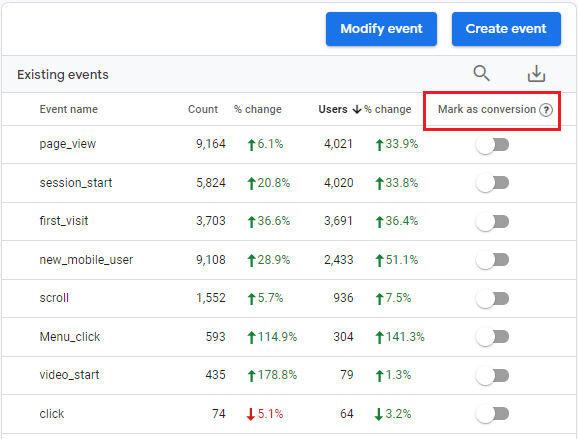
Google Ads also uses the ‘Conversions’ metric, which is processed differently than in GA4.
This used to create considerable discrepancies between the Google Ads and GA4 conversion count.
To fix this problem, in March 2024, Google renamed GA4 Conversions to ‘Key Events’.
Going forward, you mark important events as ‘Key Events’ in GA4 by clicking on the ‘Star’ button:
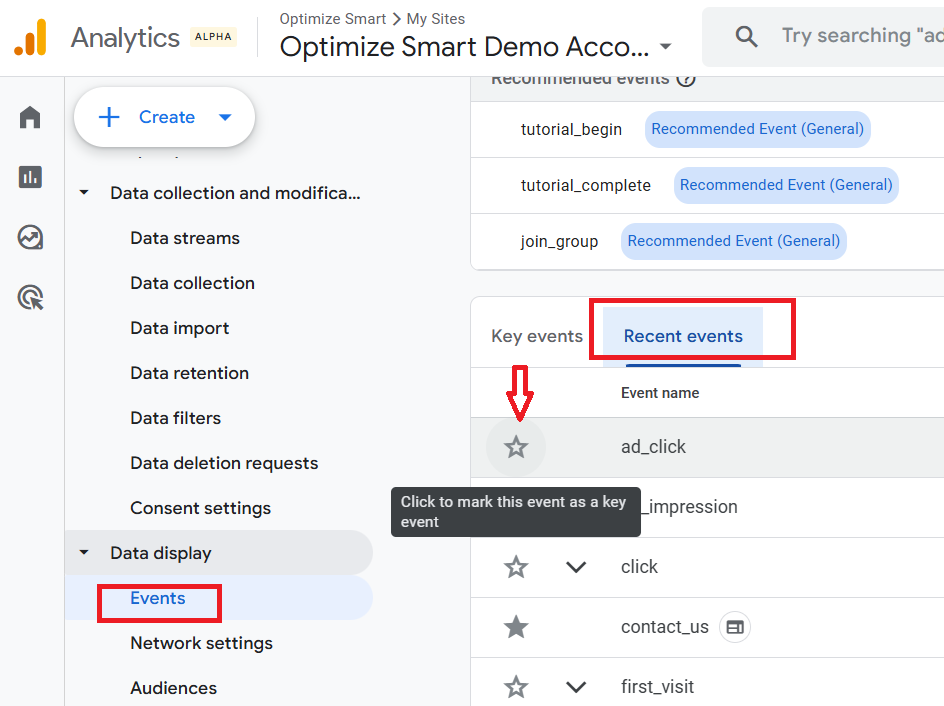
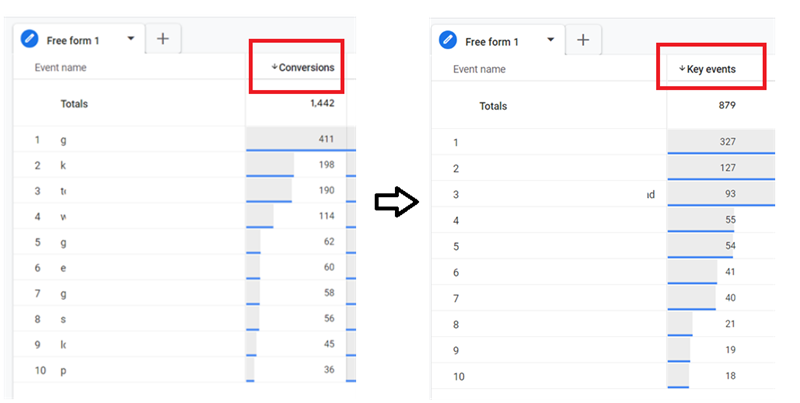
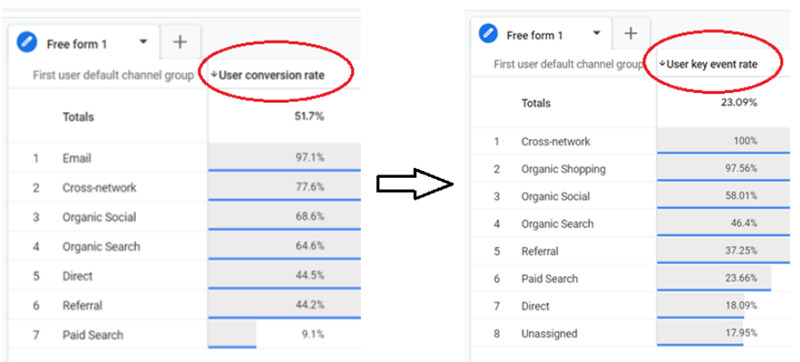
Since ‘Key events’ replaces’ conversions’ in a GA4 property, all metrics related to conversions have been renamed.
For example,
‘Conversions’ metric is renamed to ‘Key Events’:
‘session conversion rate’ is renamed to ‘session key event rate’.

‘User conversion rate’ is renamed to ‘User key event rate’
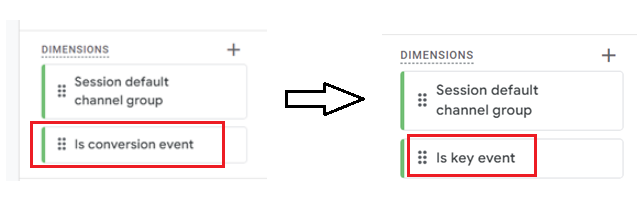
The ‘Is conversion event’ dimension is renamed to the ‘Is key event’:
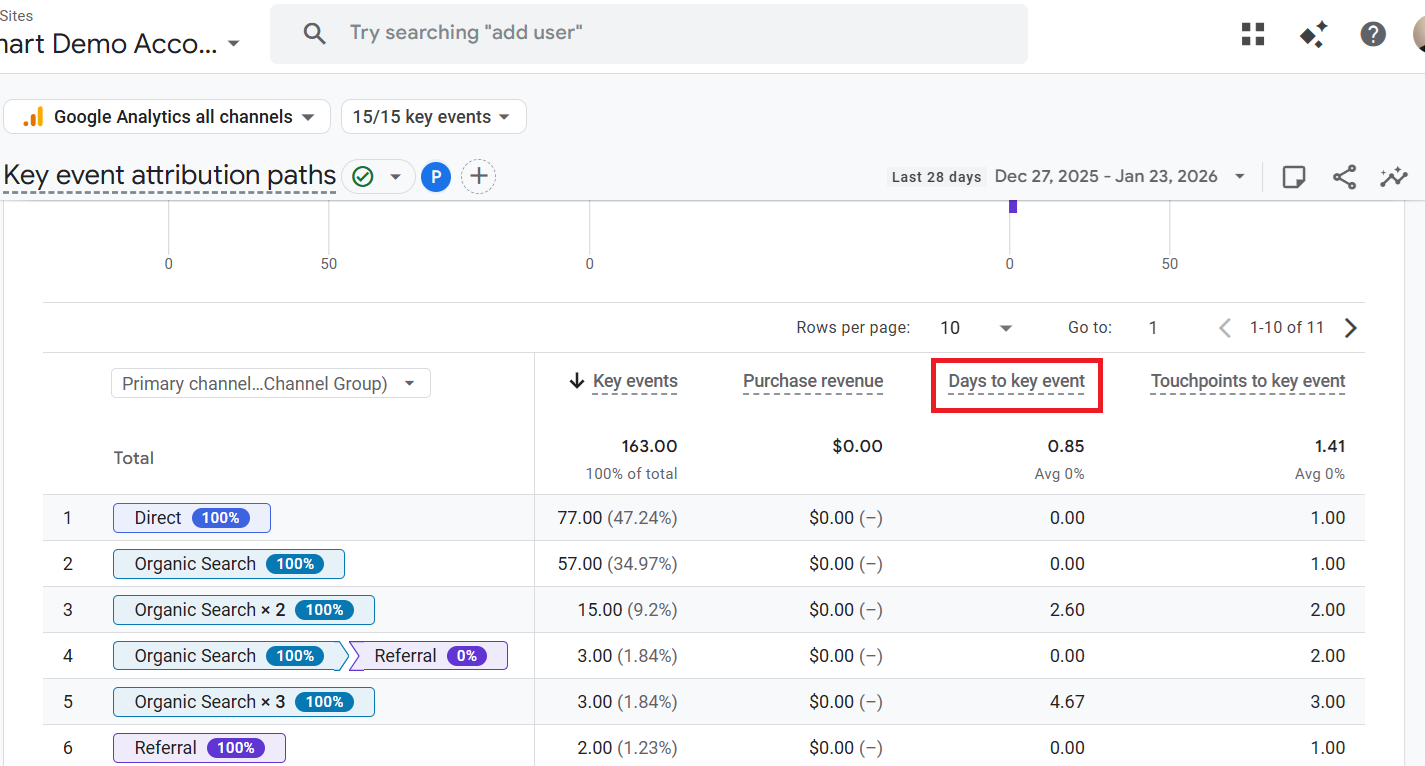
The ‘Days to Conversion’ metric is renamed to ‘Days to key event’:
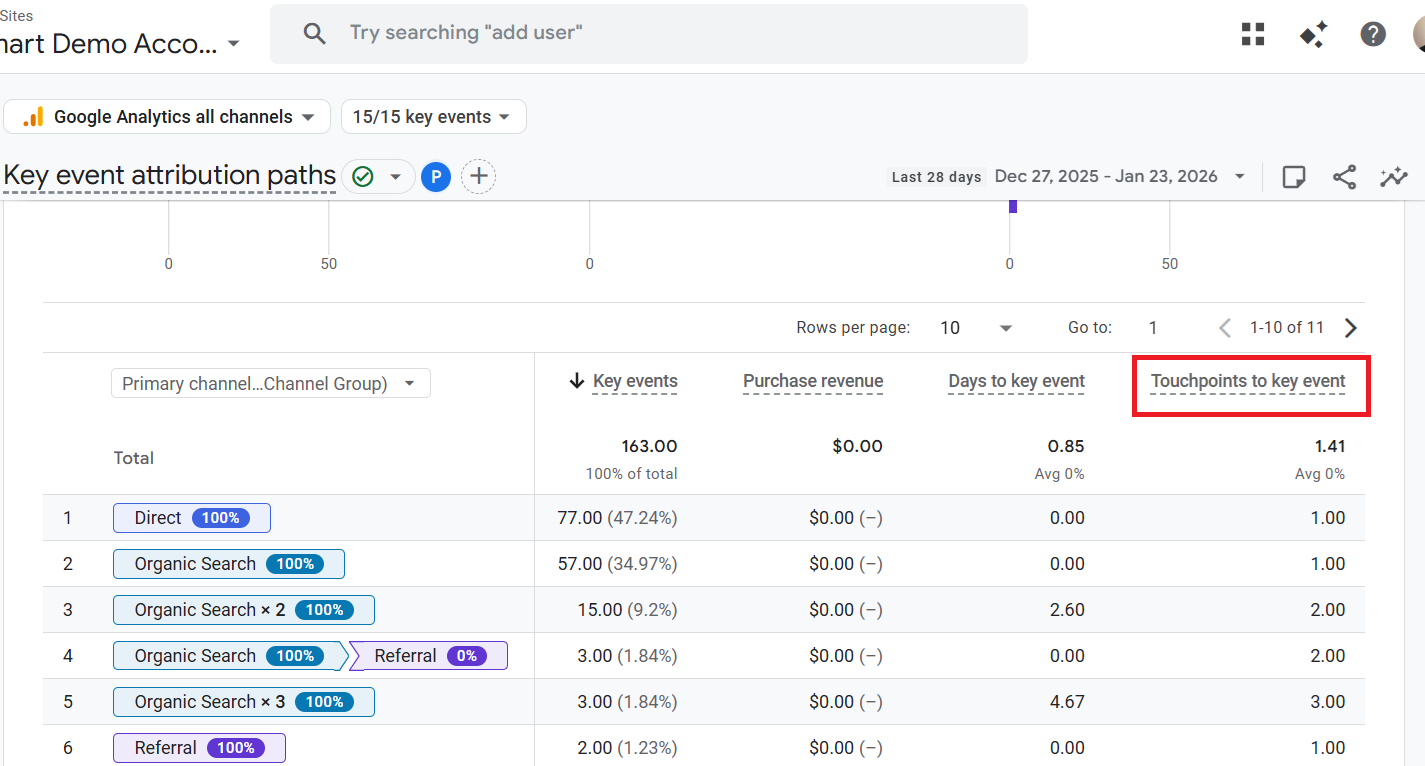
The ‘Touchpoints to conversion’ metric is renamed to ‘Touchpoints to key event’:
Note: You don’t need to change your existing tracking setup to accommodate the name change, and it will not affect your existing tracking or reporting.
Google has automatically renamed ‘conversions’ to ‘key events’ wherever you were using the ‘conversions’ metric.
For example, if you were using the ‘conversions’ metric in the formula meant for a calculated metric, your formula now uses the ‘key events’ automatically:
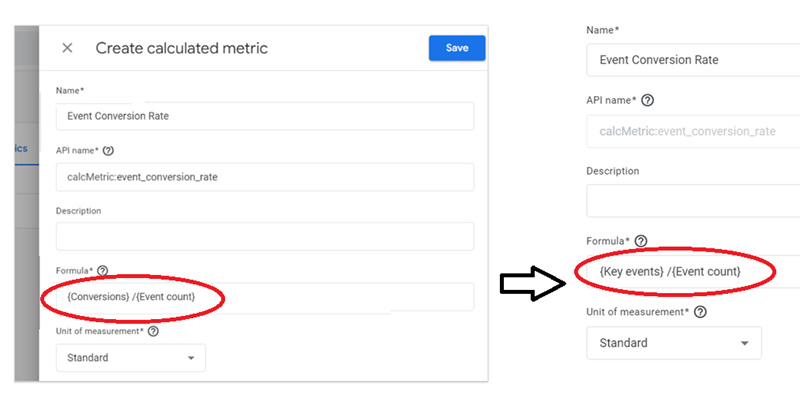
Going forward, you will need to mark events as ‘key events’ to track them as conversions in your GA4 property.
However, the term ‘conversions’ will still be used in your GA4 property, but only for Google Ads conversions.
Any key event imported into Google Ads will be labelled as ‘conversions’ in GA4. In other words, conversions are the key events imported into Google Ads.
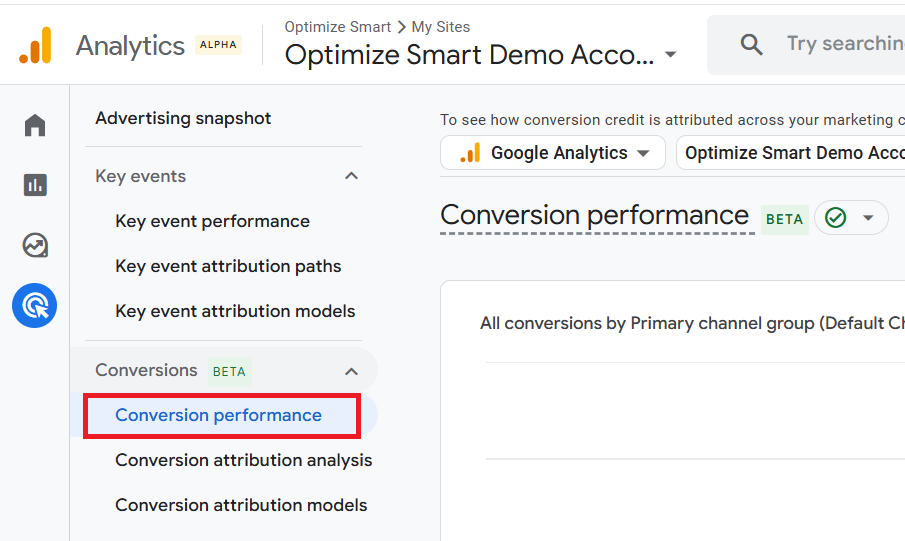
You can see the conversion data in GA4 through the ‘Conversion Performance’ report:
Note: A GA4 event can be both a Key Event and a Conversion.
Transactional and Non-Transactional Conversions.
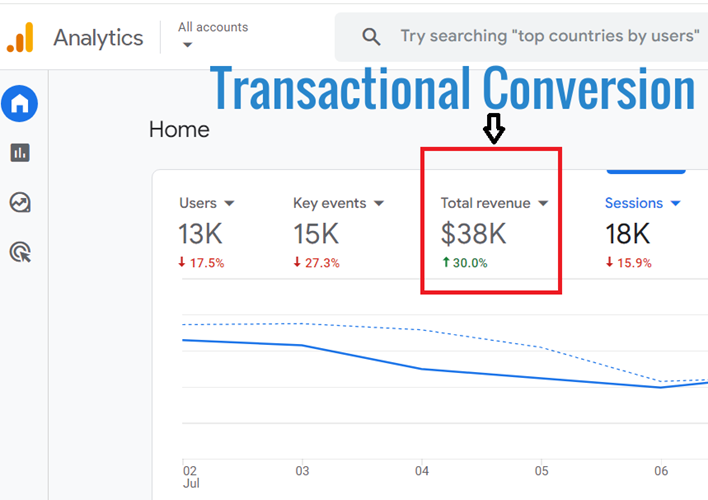
When a key event is directly tied to a transaction, it is called a transactional conversion.
GA4 report transactional conversion as ‘Total revenue’:
When a key event is not directly tied to a transaction, it is called a non-transactional conversion.
For example, ‘newsletter sign-ups’ is a non-transactional conversion.
Note: GA4 does not inherently categorise key events as transactional or non-transactional conversions. This distinction is more for your own conceptual understanding. You can track any event as a key event, and it’s up to you to interpret its significance in relation to your business goals.
Macro and Micro Conversions.
Both transactional and non-transactional key events can be further classified into macro conversions and micro conversions.
The primary purpose of setting up a website is macro conversion, while other minor purposes are micro conversions.
For example, if your main purpose of setting up a website is to generate sales, then the ‘number of ecommerce transactions’ can be your macro conversion.
The other minor purposes, like ‘newsletters signup’, ‘building user engagement’, ‘providing customer support’, etc. can be your micro conversions.
Note: GA4 does not inherently categorise key events as micro or macro conversions. GA4 treats all tracked key events equally. This distinction is more for your own conceptual understanding of major and minor goals related to your business.
What is Conversion Tracking, and why is it important?
The process of recording conversions via a web analytics tool like GA4 is called conversion tracking.
The advantage of conversion tracking is that once you have conversion data in your GA4 property, you can correlate it with your website usage data (like sessions, traffic sources, pageviews, etc.) and measure the performance of various marketing channels in terms of generating sales and leads.
Without conversion tracking set up, you may never know which marketing channel generates conversions, which does not, or which marketing campaign is worth further investment.
Without conversion tracking set up, there is no point in carrying out web analytics because you may never know whether or not your measurement and optimisation efforts are impacting the business bottomline.
Types of Conversion Tracking in Google Analytics 4.
There are two categories of conversion tracking in GA4:
#1 Ecommerce Tracking.
#2 Goal Tracking.
The process of recording transactional conversions via GA4 is called ‘ecommerce tracking’.
In order to set up ecommerce tracking in GA4, you would need to add ecommerce tracking code /data layers on your website/mobile app.
The process of recording non-transactional conversions via GA4 is called ‘goal tracking’.
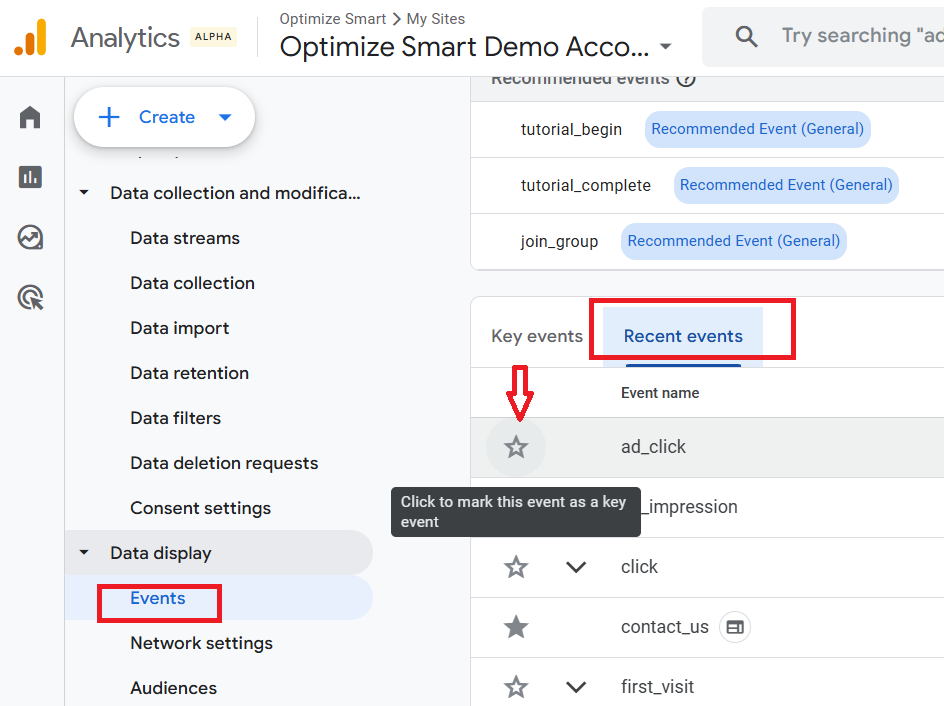
You can set up goal tracking in GA4 by marking a logged event as a ‘key event’:
Note: The following events are by default marked as key events in GA4: ‘purchase’, ‘app_store_subscription_convert’, ‘app_store_subscription_renew’, and ‘first_open’.
When to set up Ecommerce Tracking?
If you manage an ecommerce website, you must set up ecommerce tracking to get ecommerce data (revenue, transactions, ecommerce conversion rate, etc.) into your GA4 reports.
Without an ecommerce tracking setup, you will never get a complete picture of your ecommerce website's performance.
You will never be able to correlate ecommerce data with website usage data.
Related Article: GA4 Ecommerce Tracking via GTM: Step-by-Step Setup Guide.
Note: If you manage a non-ecommerce website, you don’t need ecommerce tracking set up.
When to set up Goal Tracking?
Goal tracking is useful for both ecommerce and non-ecommerce websites. However, if you manage a non-ecommerce website, you must set up goal tracking.
For an ecommerce website, setting up goal tracking is optional but recommended.
Without a goal-tracking setup, you will never get a complete picture of the performance of your non-ecommerce website.
You will never be able to correlate conversion data with website usage data.
You will not be able to measure the performance of your website, mobile app, and/or marketing campaigns in completing non-transactional conversions on your website.
Setting up conversion tracking in GA4 for already logged events.
Google Analytics 4 lets you mark any logged event as a key event. This is the simplest way to set up conversion tracking in GA4.
Let us suppose you want to track the ‘contact_us’ event as a conversion.
Follow the steps below:
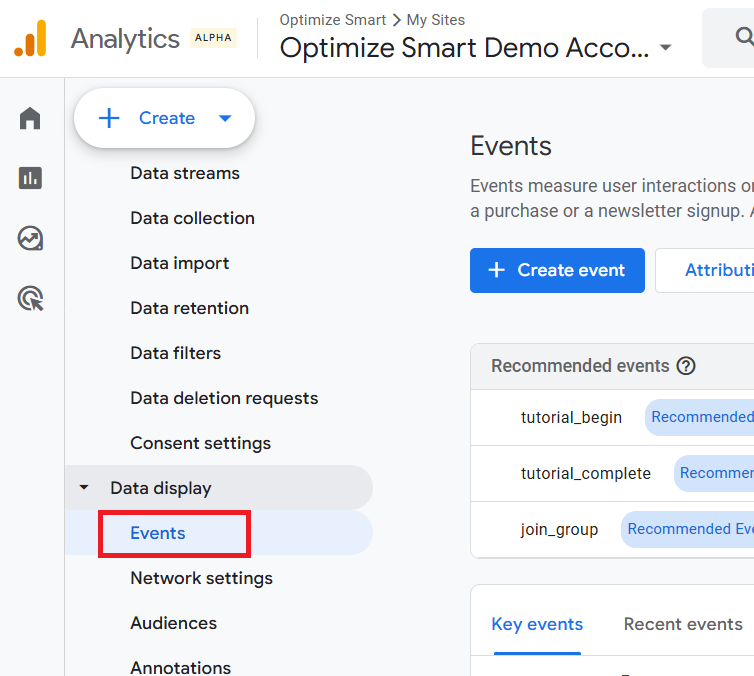
Step-1: Navigate to the admin area of your GA4 property and then click on ‘Events’ under ‘Data Display’:
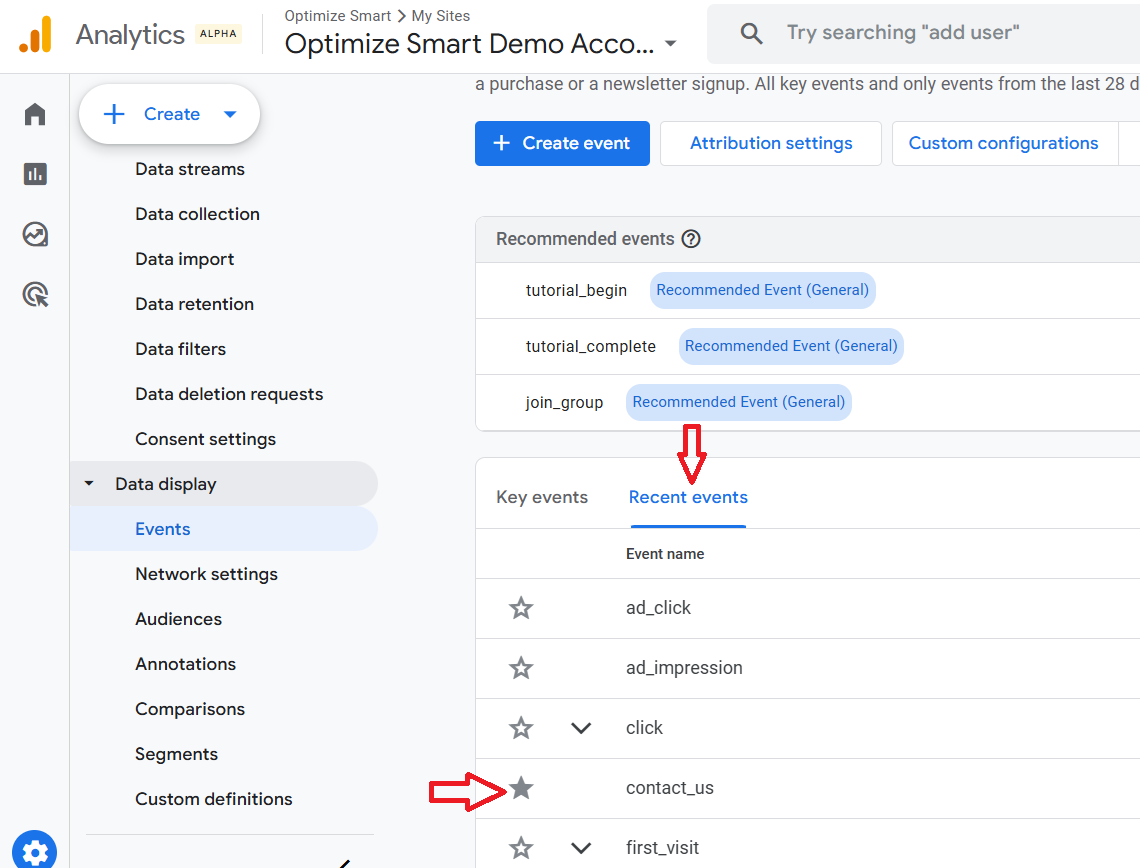
Step-2: Click on the ‘Recent events’ tab, find the contact_us’ event and click on the star next to it to mark the event as a key event:
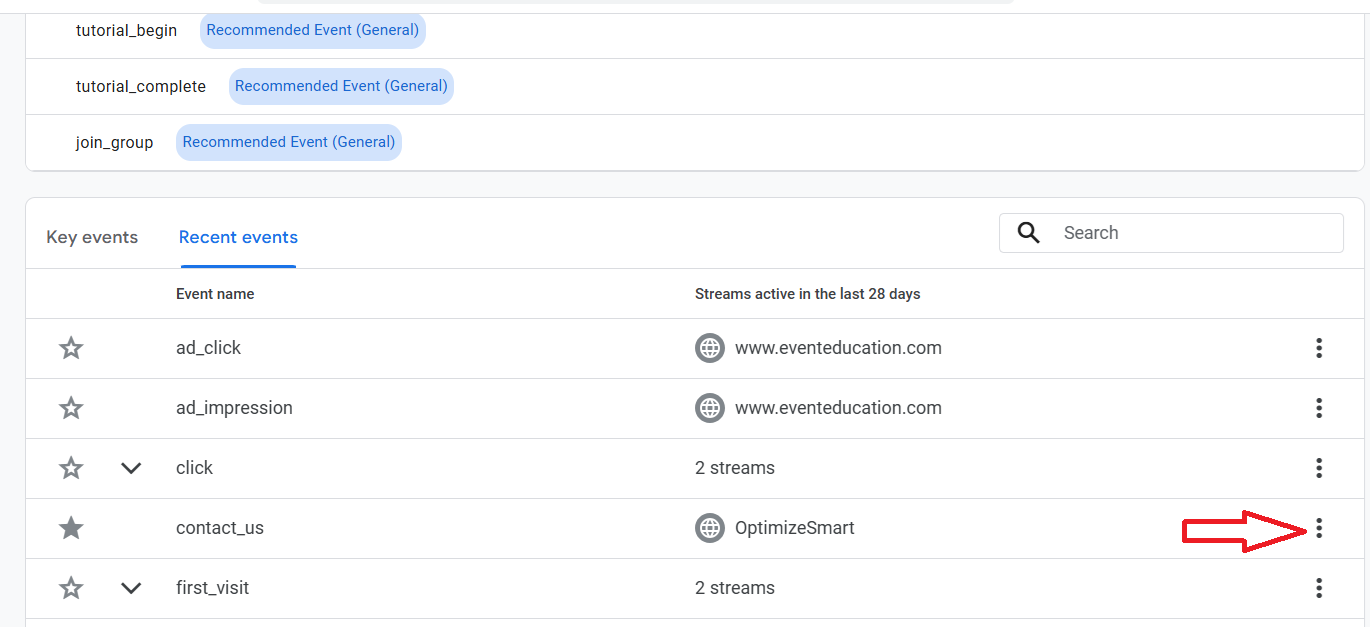
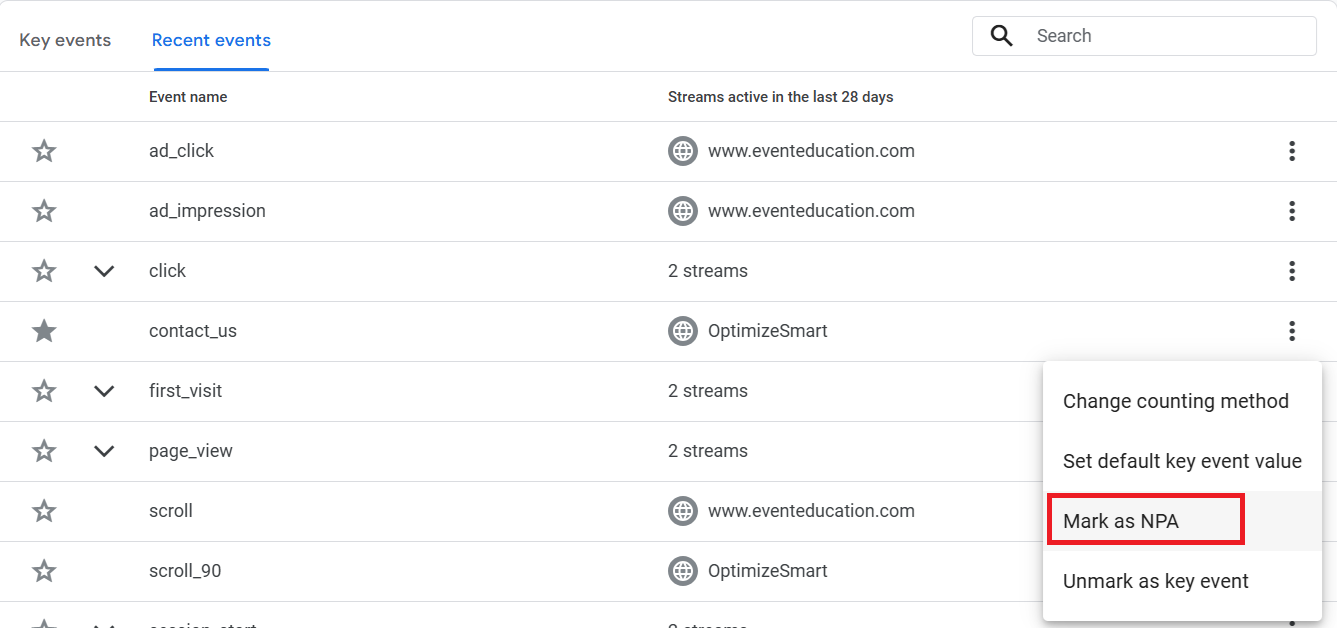
Step-3 (optional): To exclude the ‘contact_us’ event from ad personalization and use it only for measurement purposes, click on the three dots menu and then click on ‘Mark as NPA’.
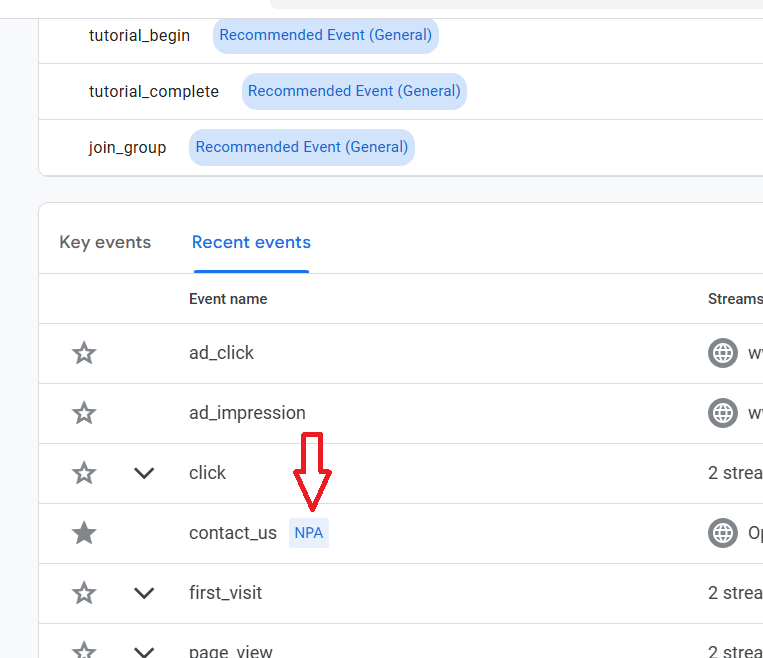
You should now see the ‘NPA’ label next to the ‘contact_us’ event, which means this event is designated NPA (no personalized ad):
Step-4: Click on the ‘Key events’ tab. You should now be able to see the ‘contact_us’ event listed under ‘Key events’.
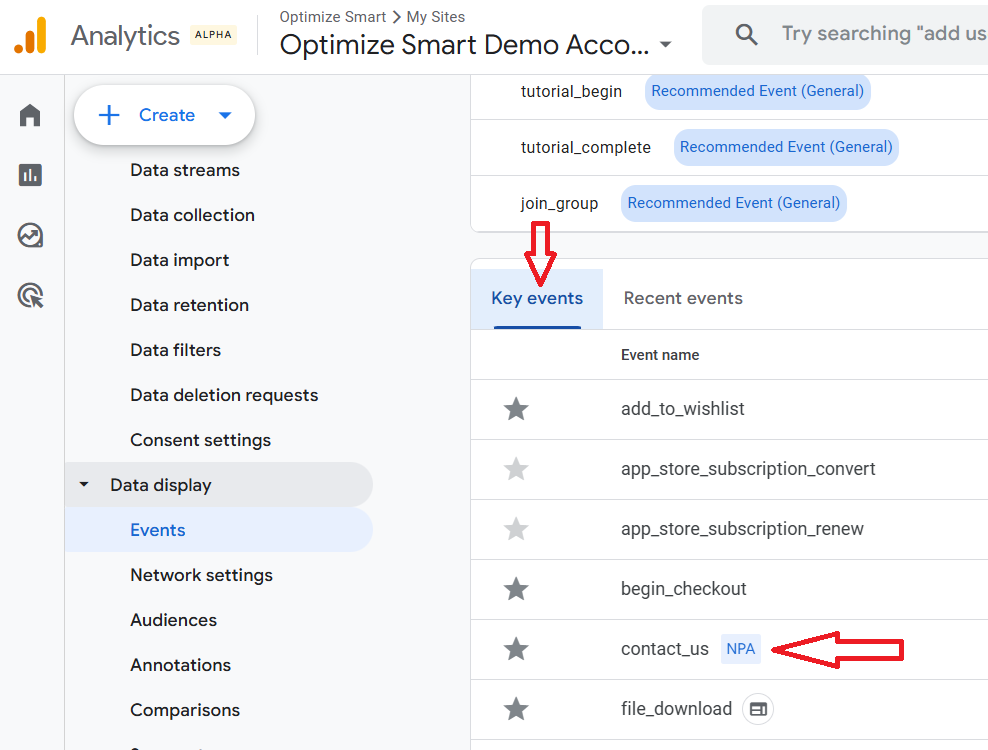
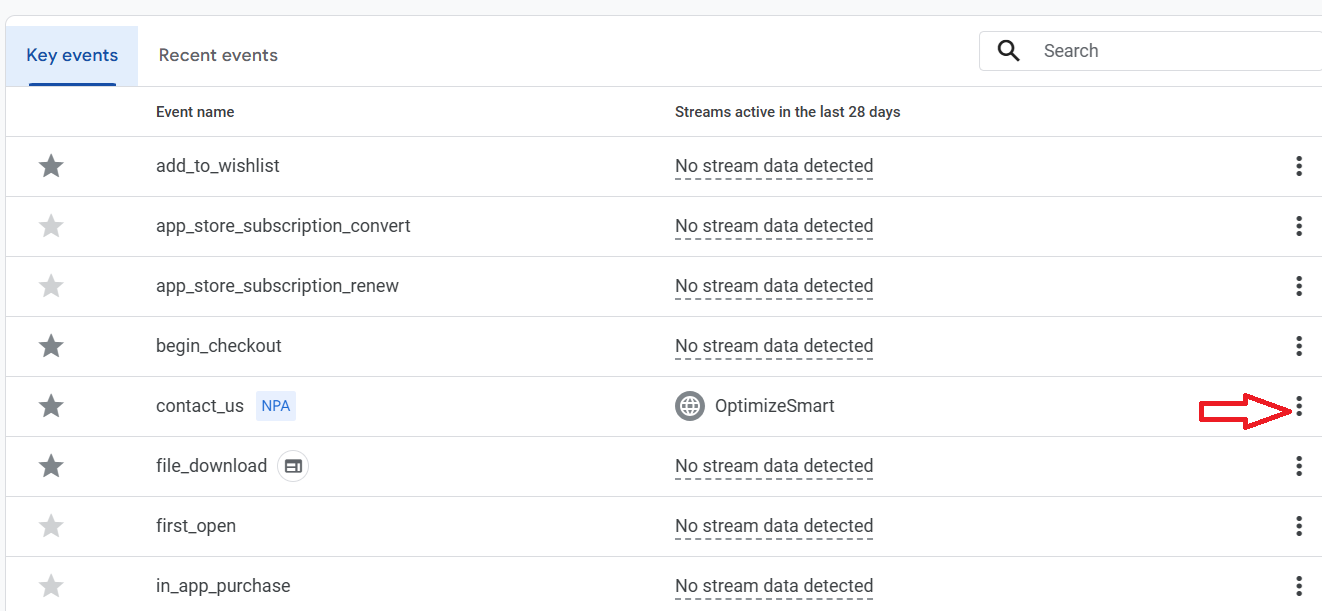
Step-5: Click on the three dots menu next to the ‘contact_us’ event:
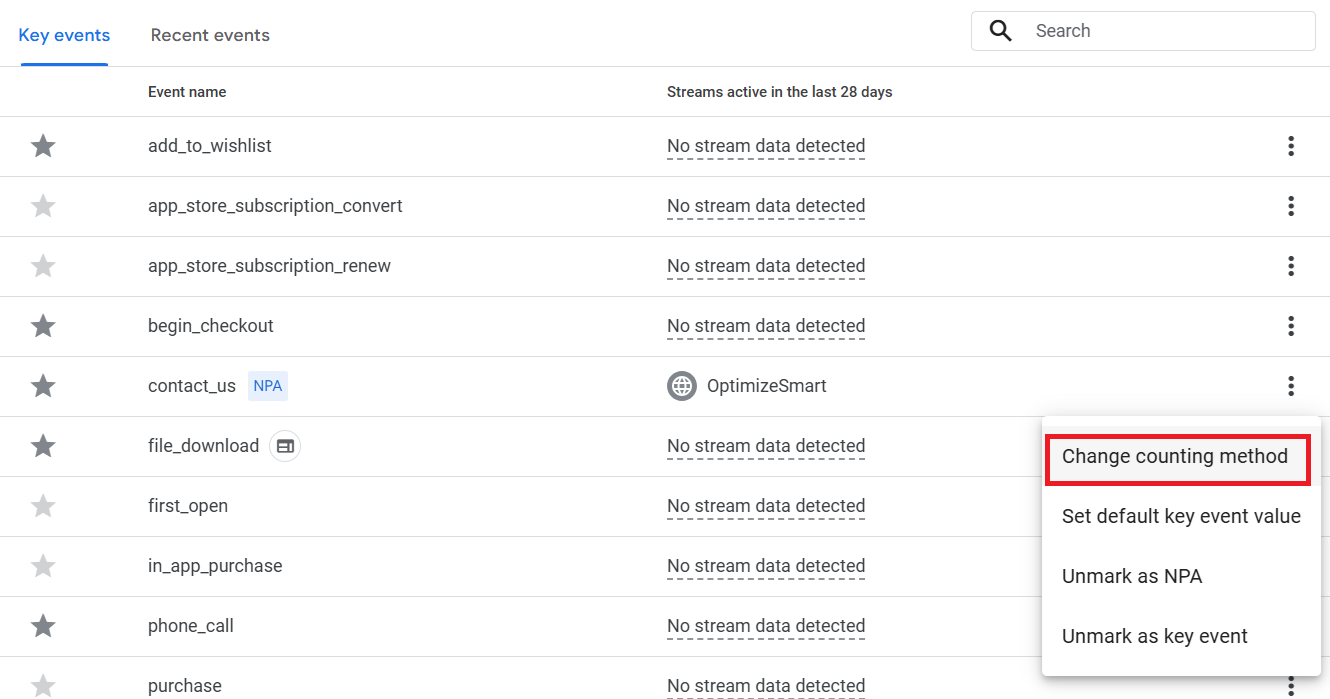
Step-6: Click on the ‘Change counting method’:
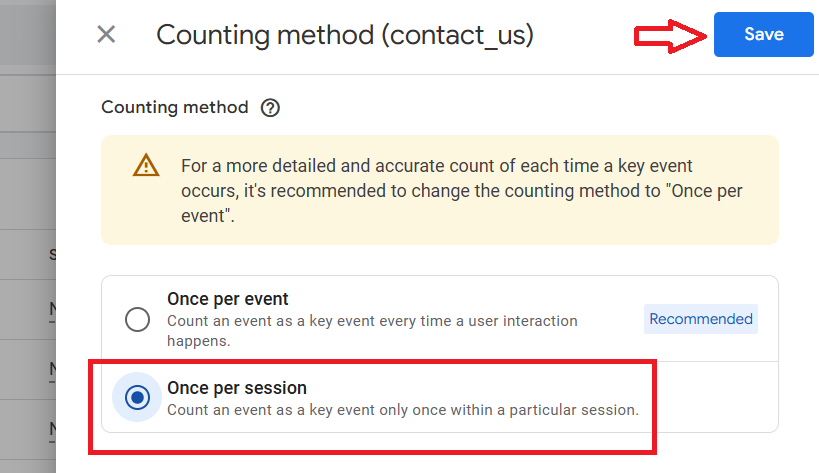
Step-7: Set the counting method to ‘Once per session’ and click the ‘Save’ button.
You should now see an icon next to the ‘contact_us’ event:
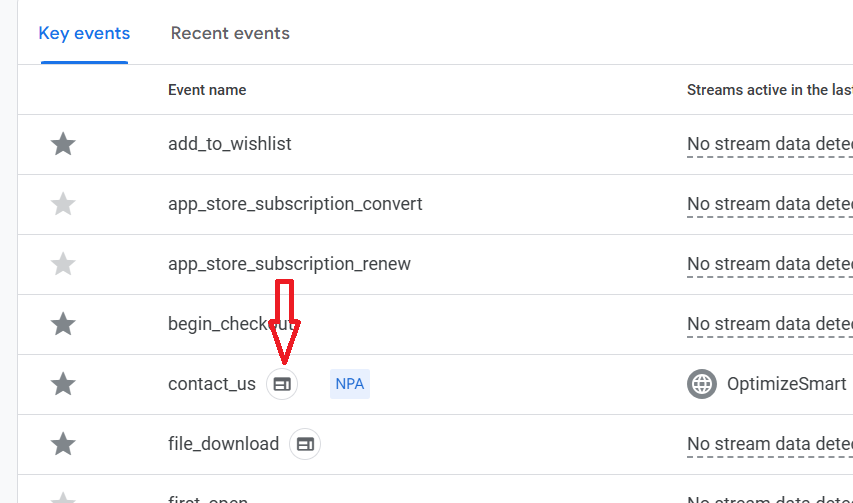
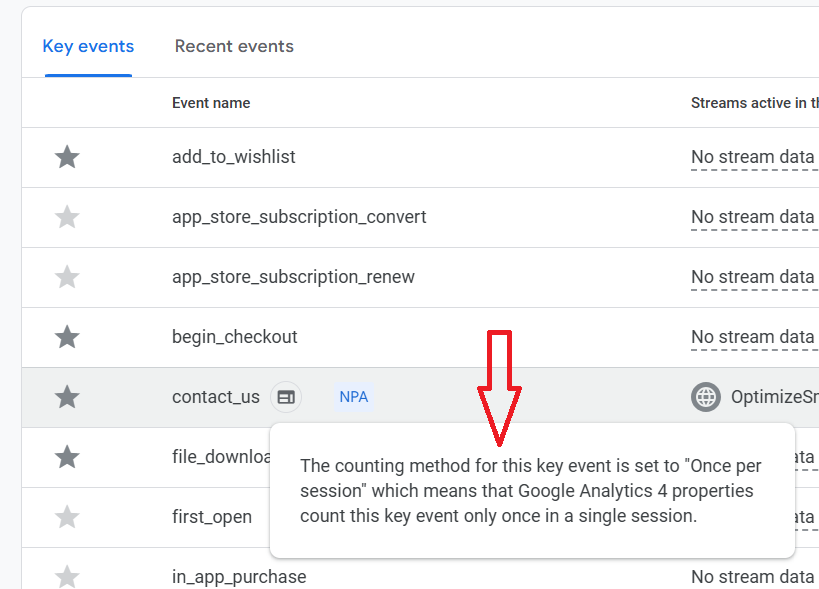
If you hover over the icon, you will see the following message box, which indicates that the counting method has been changed to ‘Once per session’:
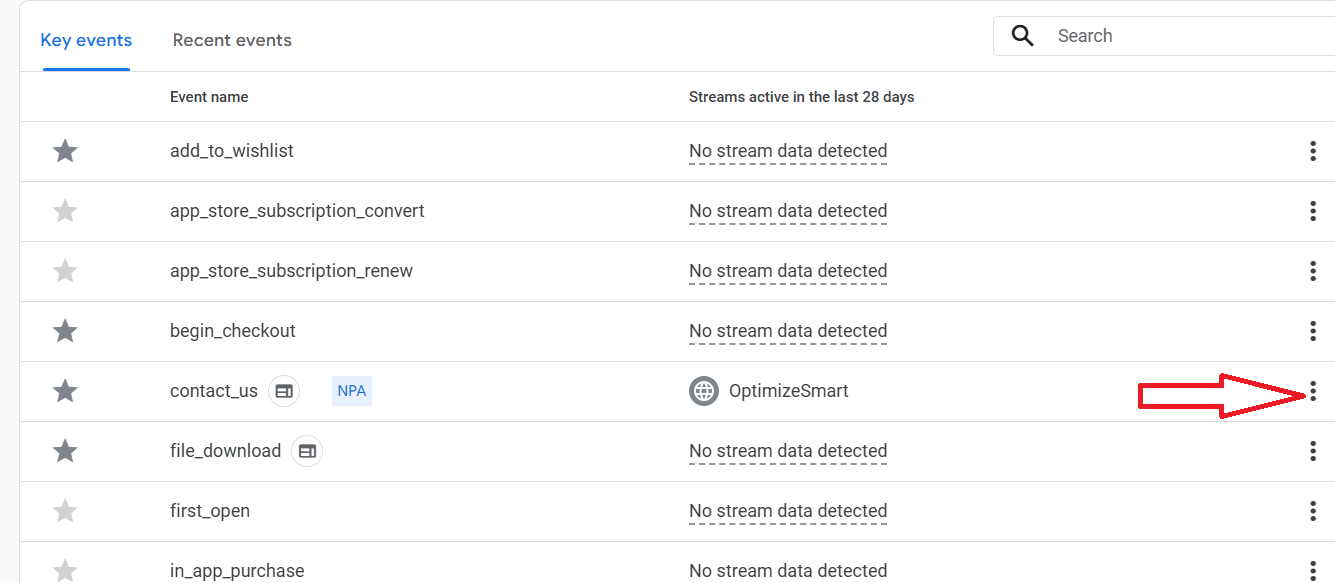
Step-8: Click on the three dots menu next to the ‘‘contact_us’ event once again:
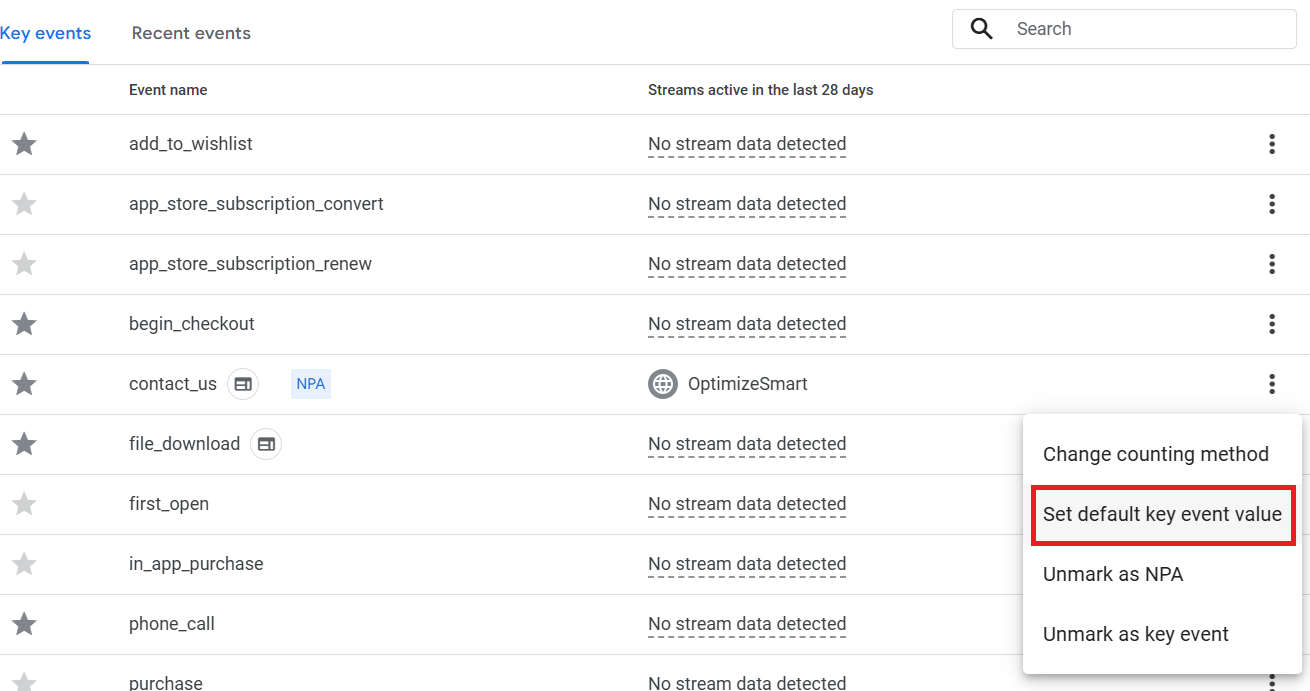
Step-9: Click on the option ‘Set default key event value’:
Step-10: Click on the option ‘Set a default key event value’, enter the Monterey value associated with your key event (by determining what the key event is worth to your business) and click on the ‘Save’ button:
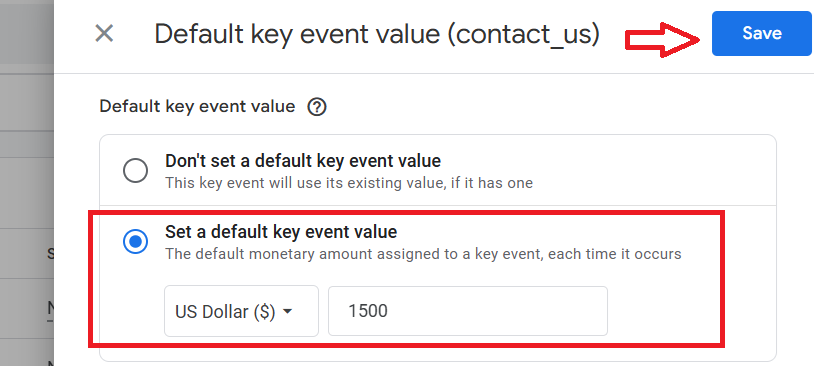
Note: You should only set the key event value for non-transactional key events. Otherwise, you could inflate the sales data.
That’s how you can set up conversion tracking in GA4 for already logged events.
Length of event name and conversion tracking.
The Google documentation on the length of the event name in GA4 is a bit misleading.
The documentation seems to suggest that “_c” is appended to the length of the event name to mark the event as a key event.
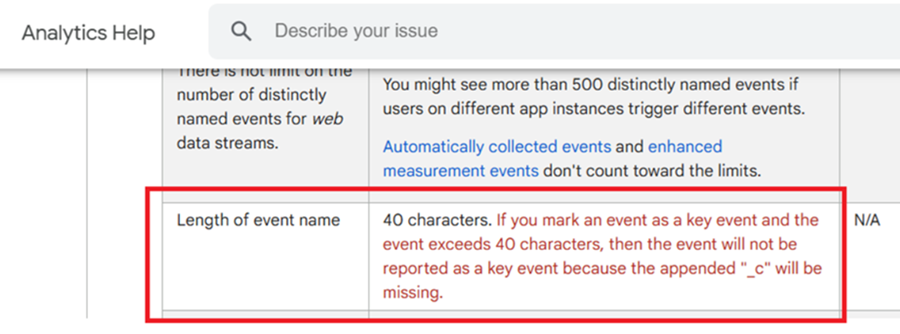
So, one might conclude that the length of an event name should not exceed 38 characters, leaving room for the “_c” suffix.
In GA4, when an event is marked as a key event, the “_c” is not actually appended to the event name itself. Instead, it is added as a parameter (“_c=1”) to the network request.
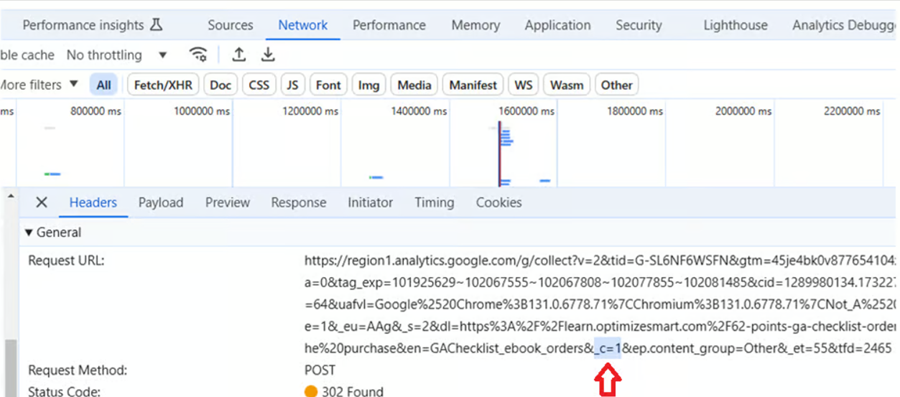
If an event name exceeds 40 characters, only the first 40 characters are used in the matching condition for the conversion events list.
This matching is done client-side in the browser or app.
This clarification is important because it means users can utilize the full 40 characters limit for event names without worrying about leaving space for a “_c” suffix.
The documentation should be updated for accuracy to reflect that “_c” is appended to the network request instead of the event name.
If an event name exceeds 40 characters in GA4, it will still be recorded as an event with the event name truncated to the first 40 characters. But it won’t be recorded as a key event.
Setting up conversion tracking in GA4 by creating a new key event (not recommended).
GA4 also give you the option to set up conversion tracking by first creating a new key event and then logging that event:
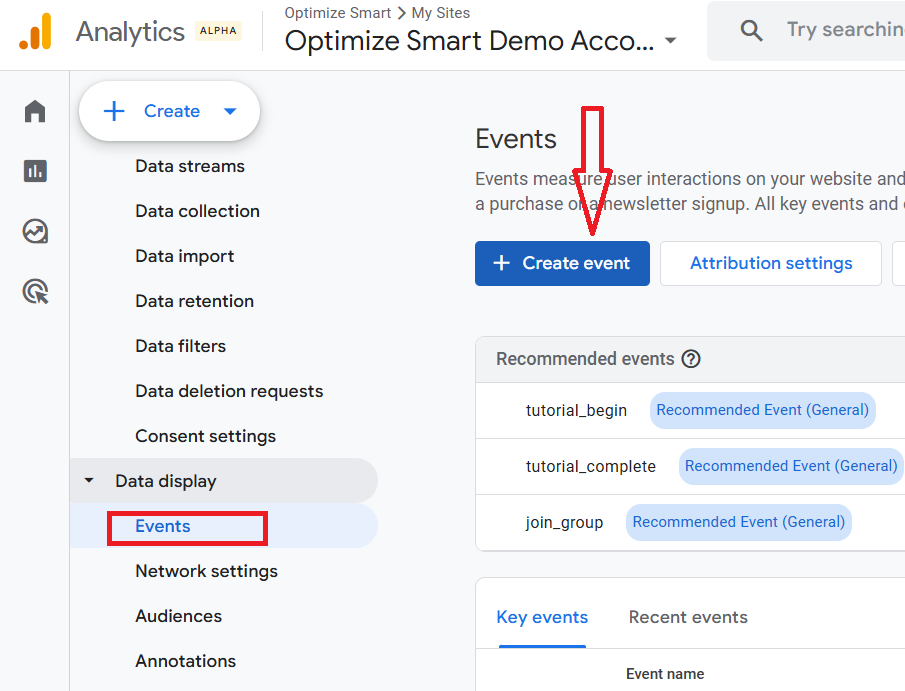
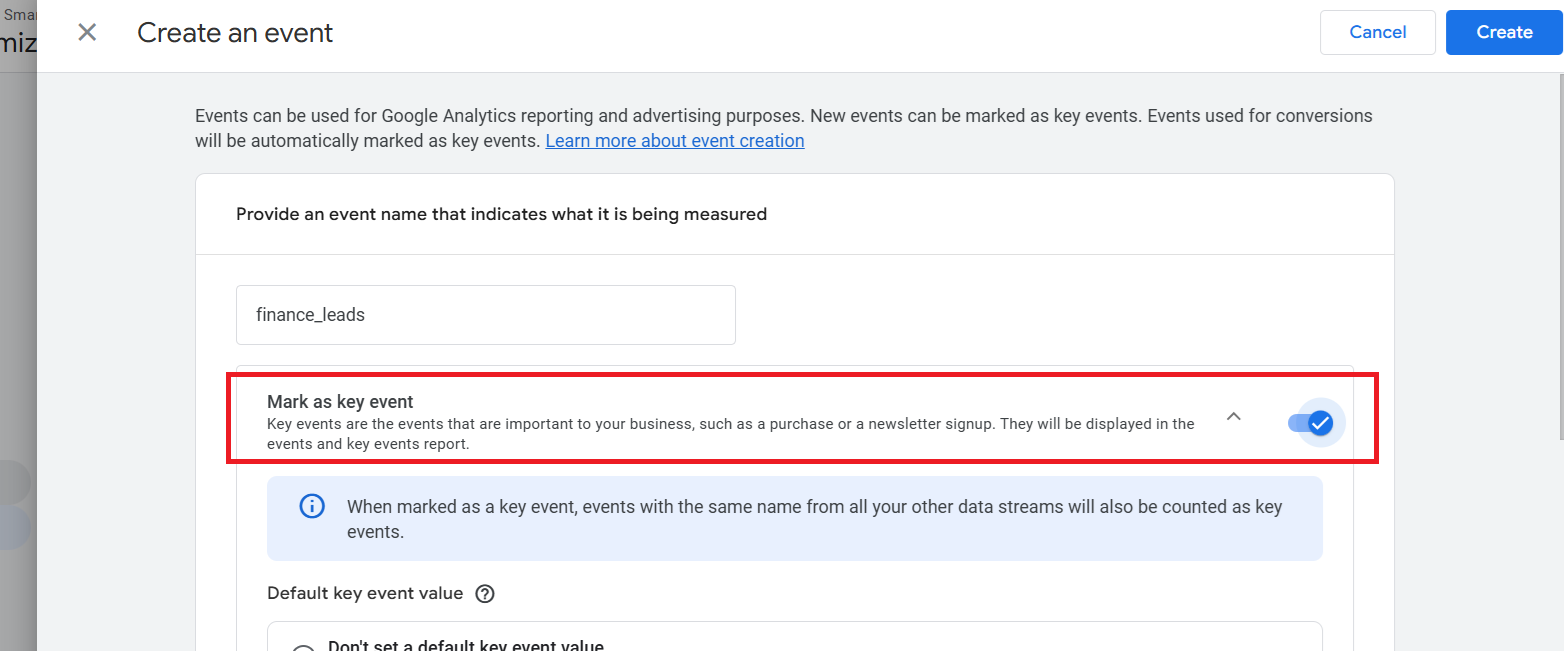
However, this approach is not recommended because unless your event is logged, you will continue to see (not set) values for your key event.
The best practice is to log your desired event first and then mark it as a ‘key event’.
This best practice approach has several advantages:
- It ensures data is collected for the event before marking it as important.
- It allows you to verify that the event is tracked correctly before designating it as a key event.
- It prevents the appearance of “(not set)” values in your reports, which can occur if you mark an event as a key event before any data has been collected for it.
Understanding GA4 conversion counting methods.
GA4 provides the following conversion counting methods:
- Once per event.
- Once per session.
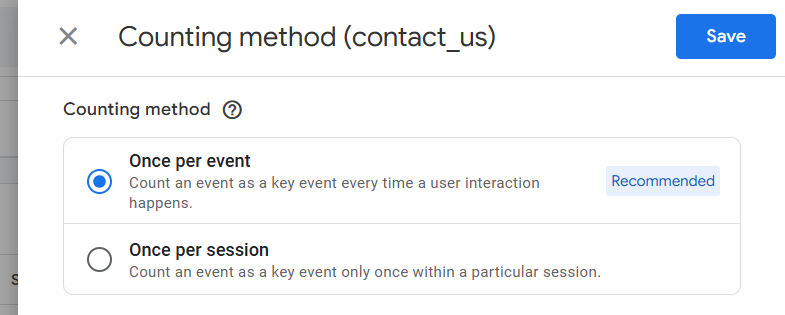
The counting method is set for each conversion, which means you can have conversions that are counted per session, per event or both within the same GA4 property.
The default counting method for new conversions is ‘Once per event’, which is also Google's recommended option.
You can quickly tell which counting method each of your key events uses by following the steps below:
Step-1: Navigate to the admin area of your GA4 property and then click on ‘Key events’ under ‘Data display’.
Step-2: Look at the column with the ‘Key event name’ header. If you see an icon next to the key event, it means its counting method is set to ‘once per session’:
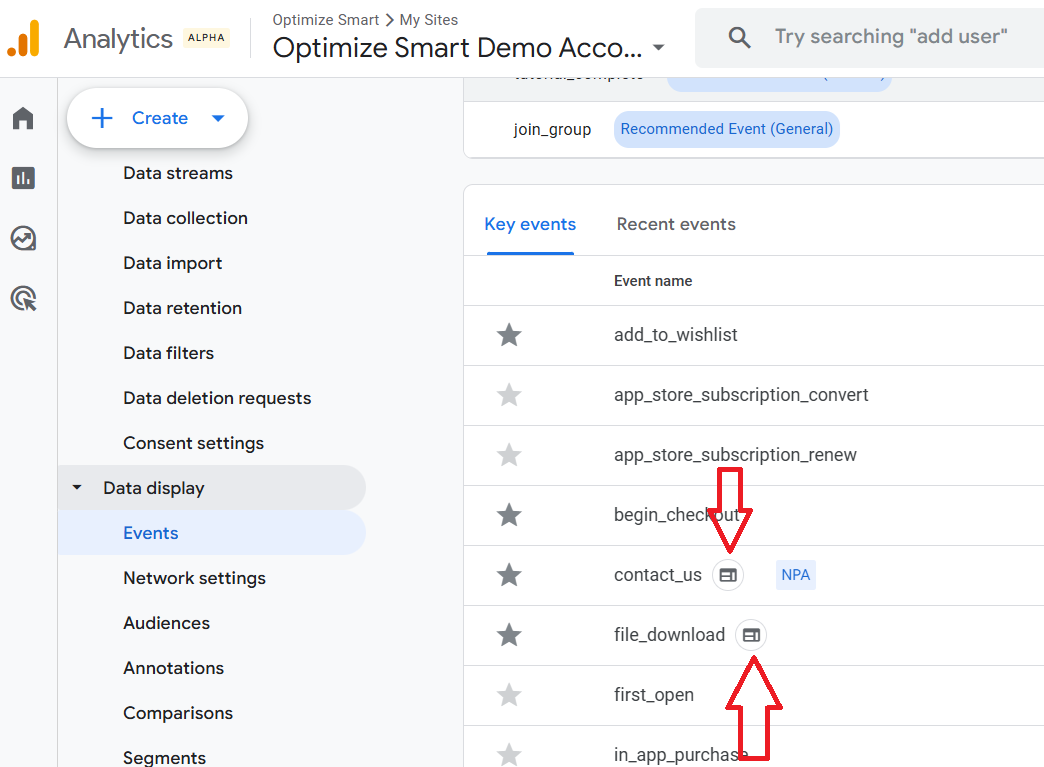
Note(1): You can change the counting method of a key event at any time. But it is a best practice to stick with one counting method.
Note(2): It’s important to note that any changes to the conversion counting method will only apply to future key events and won’t apply to historical data.
‘Once per event’ or ‘Once per session’ counting method for Key events?
Google recommends the ‘once per event’ counting method, but you should use the ‘once per session’ method to avoid inflating the count for non-transactional key events.
The ‘Once per event’ counting method is useful only for tracking users’ actions that provide significant value to the business's bottom line each time they occur, such as multiple purchases.
If the conversion is typically a one-time action per session, where repeats in the same session are less relevant (like a newsletter signup, download or form submission), using the ‘once per event’ counting method can inflate conversion count especially if your GA4 property is already suffering from duplicate events issues.
That’s why so many GA4 properties report inflated conversion counts.
Most of them use the ‘once per event’ counting method and, to make matters worse, suffer from duplicate-event issues.
Understand the context in which duplicate events occur to determine whether they are due to user behaviour, technical issues, or both.
The ‘Once per session’ counting method provides a more accurate reflection of user behaviour and conversion performance.
Also,
Use the longest possible session timeout setting, which works well for your business (like 7 hours, 55 min) to avoid duplicate conversion count, esp. when dealing with conversions that should typically occur once per session.
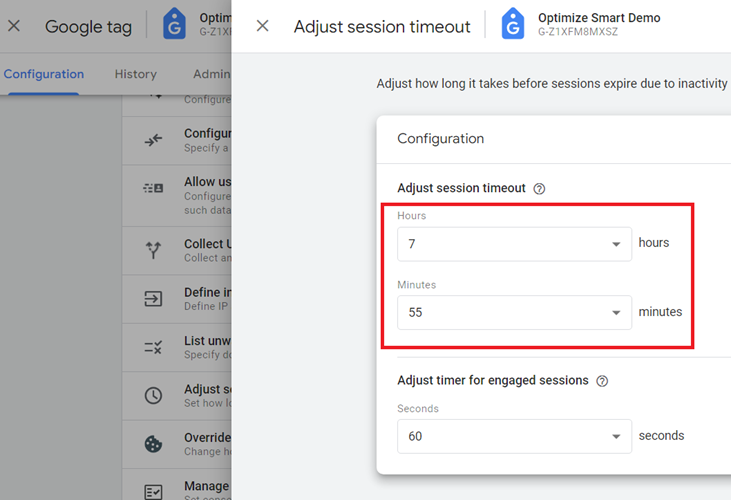
By extending the session duration, you reduce the likelihood that the same conversion is counted multiple times across sessions.
Longer sessions can provide a better view of the user journey, capturing extended interactions and behaviours that might otherwise be split into separate sessions.
Note: The ‘Once per event’ counting method can inflate conversion counts in both GA4 and Google Ads.
How to check for duplicate key events in GA4?
Here is how you can quickly and regularly check for duplicate key events in GA4.
Create a ‘Conversion tracking setup check’ exploration report in GA4, as shown in the screenshot below.
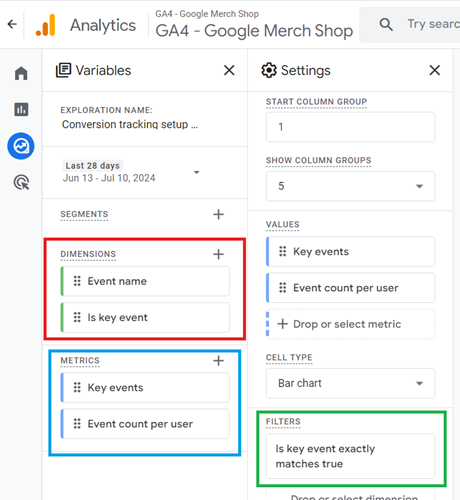
Ideally, the ‘event count per user’ for a key event should be one or close to one.
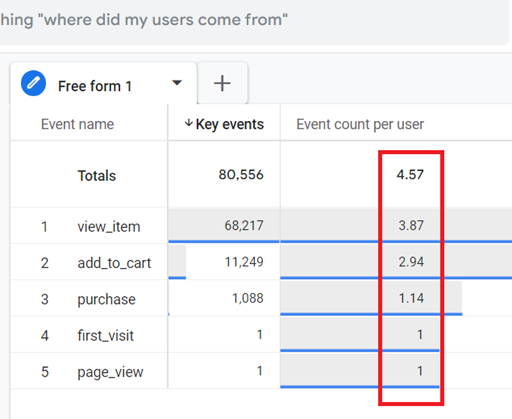
If the ‘event count per user’ for a key event is 2 or more, it is most likely a duplicate conversion count, and you need to find and fix the duplicates.
There could be some edge cases, like you are tracking ‘purchase’ as a key event, where an event count per user of two or greater is acceptable.
But for most key events, the event count per user should be less than two, ideally one.
So, if you track ebook downloads as key events, ideally, the event count per user for this conversion should be 1.
Most users have set up conversion tracking in their GA4 properties all wrong because they follow Google’s advice.
Google recommends the ‘once per event’ counting method, but you should use the ‘once per session’ method to avoid inflating the conversion count for non-transactional key events.
The correct way to set a default value for a key event in GA4.
A key event value (aka conversion value) is a monetary amount you assign to a key event. It is set using the ‘currency’ and ‘value’ event parameters.
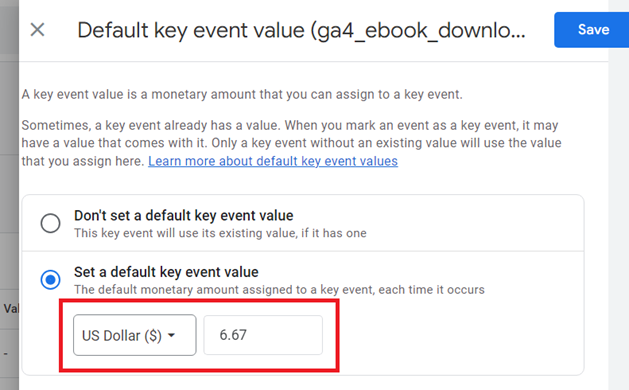
A key event can have an existing value, no value or a default value each time it occurs.
When you set a default value for a key event, the default value is used only when the event parameters ‘currency’ and ‘value’ are not set for the key event.
In other words, the default value isn’t applied if the key event already has a value.
The key event value does not work retroactively.
You should set the key event value only for non-transactional key events. Otherwise, you could inflate the sales data.
When a key event is directly tied to a transaction, it is called a transactional key event (also known as a transactional conversion).
GA4 report transactional key events as ‘purchase’.
However, other key events can also be used for transactions depending on how you set up your tracking.
When a key event is not directly tied to a transaction, it is called a non-transactional key event (aka non-transactional conversion).
For example, ‘ newsletter sign-ups’ is a non-transactional key event.
To compute the true default value for your non-transactional key event, you will need to determine its real worth to your business.
For example, how many people who sign up for your newsletter eventually buy products from your website?
Let us suppose that after a deep analysis, you found out that 10 people out of 150 (who signed up for the newsletter) eventually ended up buying products from your website, and they bought products worth $1000
So the average value of a newsletter sign-up is $1000/150 = $6.67
Conversion Volume in GA4.
In the context of GA4, Conversion volume refers to the total number of key events, whether transactional or non-transactional.
The following are examples of conversion volume in the context of GA4:
- Number of orders placed on the website.
- Number of newsletter signups.
- Revenue.
- Leads etc.
How to find conversion data in GA4?
Before you can find conversion data, you need to set up conversion tracking in your GA4 property, and more than 24 hrs have elapsed.
Through the key events report in GA4, you can find conversion data in GA4.
The ‘Key Events’ report is no longer available in GA4 by default.
Earlier, it was available under ‘Reports’ > ‘Engagement’:
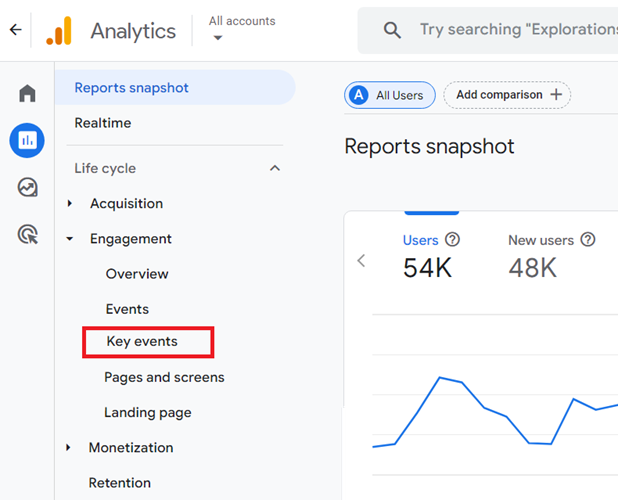
But you can still create and use this report via the exploration report template.
Follow the steps below to create the ‘Key Events’ report in GA4:
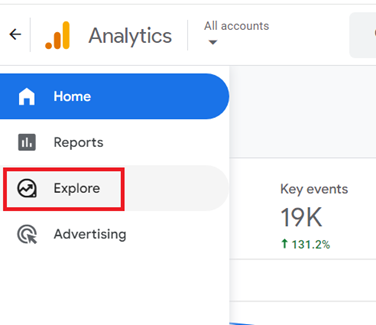
Step-1: Login to your GA4 property and then click on ‘Explore’:
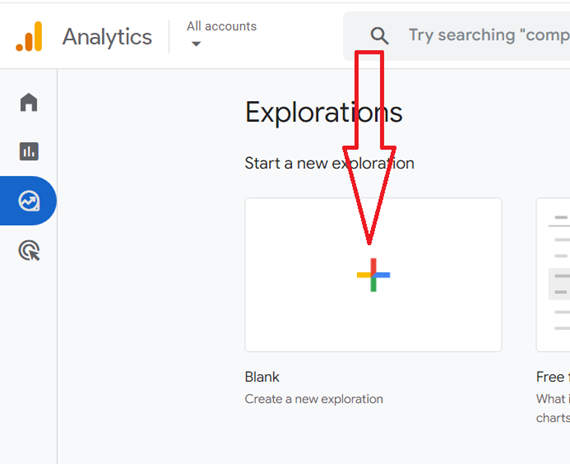
Step-2: Click on the ‘Blank’ template:
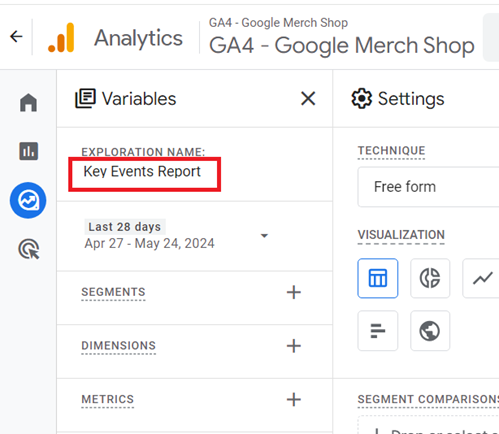
Step-3: Name your report ‘Key Events Report’.
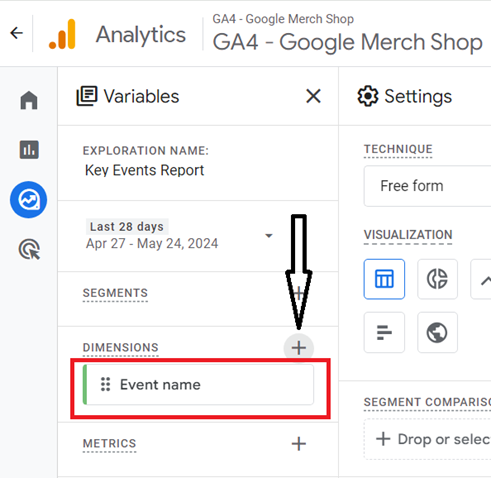
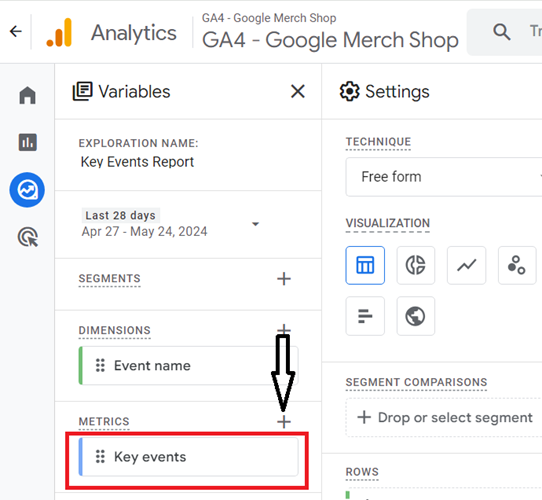
Step-4: Add the ‘Event name’ dimension by clicking on the + button:
Step-5: Add the ‘key events’ metric by clicking on the + button:
Step-6: Double-click on the dimension ‘Event Name’ so that it is automatically added to the Rows section:
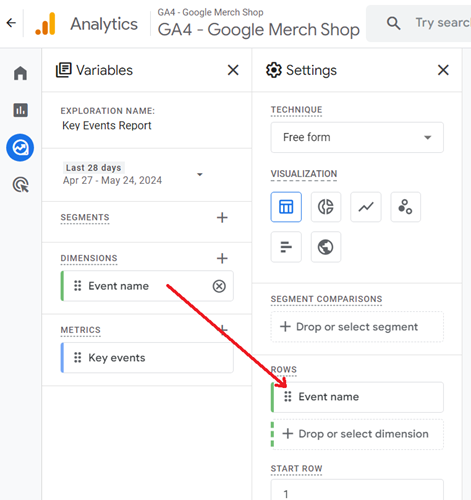
Note: When you double-click on the dimension, you won’t see any change to the canvas on the right. But the dimension has been added to the canvas. Only when you start adding metrics to the canvas will you start seeing the dimension(s) added to the canvas.
Step-7: Double-click on the ‘Key events’ metric so that it is automatically added to the blank canvas on the right:
You should now see a screen like the one below:
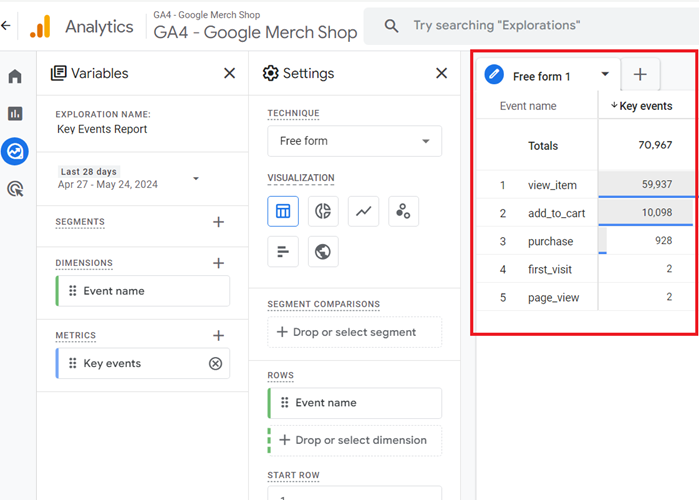
That’s how you can create the ‘Key events’ report in GA4.
Introduction to Conversion Rate (Key Event Rate) in GA4.
The conversion rate (also known as key event rate) in GA4 is the percentage of users who took a desired action on your website or app.
It could also be the percentage of sessions in which one or more desired actions took place on your website or app.
Types of GA4 conversion rate (Key Event Rate).
Google Analytics 4 (GA4) provides the following types of metrics for measuring conversion rate:
- Session Key Event Rate.
- User Key Event Rate.
- Event conversion rate (requires custom calculation).
- Ecommerce conversion rate (requires custom calculation).
What is the Session Key Event Rate in GA4?
The GA4 Session key event rate is the percentage of sessions in which one or more key events were triggered.
The following is the formula to calculate the Session key event rate:
Session key event rate = Number of sessions in which one or more key events were triggered in a particular time period / total number of sessions recorded in the same time period.
For example,
Suppose the number of sessions in which one or more key events were triggered in the last 30 days = 50
The total number of sessions recorded in the last 30 days = 1000
Then, the Session key event rate would be calculated as = 50 / 1000 = 5%
Note: Once you have set up conversion tracking in your GA4 property, the ‘Session key event rate’ metric is populated automatically in your GA4 reports.
The ‘Session key event rate’ metric has session scope.
The ‘Session key event rate’ metric has session scope.
This means this metric is calculated only once per session, regardless of how many times the key event might occur within the session.
Imagine you are analyzing data for your online store and want to understand how often sessions on your website lead to a ‘newsletter signup’, ‘ file download’, or ‘purchase’.
You have set the ‘newsletter signup’, file download’ and ‘purchase’ events as key events in GA4.
Scenario:
- In one day, your website recorded 1000 sessions.
- In 20 of those sessions, at least one purchase is made. In 10 of those 20 sessions with purchases, multiple purchases were made.
- In 25 out of 1000 sessions, users signed up for your newsletter.
- In 5 out of 1000 sessions, users downloaded a file on your website.
- There are no sessions in which 2 or more key events were of different conversion types.
Calculation of ‘Session key event rate’:
The ‘Session key event rate’ metric focuses on whether each unique session triggered a key event and not on the number of key events per session or the type of key event (‘newsletter signup’, file download’ and ‘purchase’).
So the number of sessions in which one or more key events were triggered = 20 sessions with at least one purchase + 25 sessions in which users signed up for your newsletter + 5 sessions in which users downloaded a file = 50 sessions.
Since there are no sessions in which there are 2 or more key events of different conversion types, the number of sessions in which one or more key events were triggered = 50
The Session key event rate is calculated as = 50 / 1000 = 5%
Now consider another scenario:
- In one day, your website recorded 1000 sessions.
- In 20 of those sessions, at least one purchase is made.
- In 10 of those 20 sessions with purchases, multiple purchases were made.
- In 15 of those 20 sessions with purchases, users signed up for your newsletter.
- In 25 out of 1000 sessions, users signed up for your newsletter.
- In 5 out of those 25 sessions with signups, users downloaded a file on your website.
To calculate the Session key event rate in this scenario, we need to identify the total number of unique sessions in which at least one key event was triggered.
The key difference in this scenario is the overlap between sessions with different types of key events.
First, calculate the number of unique sessions with one or more key events.
20 sessions with purchases (including those with newsletter signups and potentially those with file downloads, given the data).
Given that 15 out of 25 newsletter signup sessions are already counted among the purchase sessions, we have 10 sessions that are unique to newsletter signups not accounted for in the purchase sessions.
All file download activities were accounted for within the newsletter signup sessions.
So, we have:
- 20 sessions (purchases, including those with signups and downloads)
- 10 additional sessions (unique newsletter signups)
For a total of 20 + 10 = 30 unique sessions with at least one key event.
Therefore, the Session key event rate is calculated as:
(30/1000) × 100 = 3%
How to find the Session Key Event Rate in GA4?
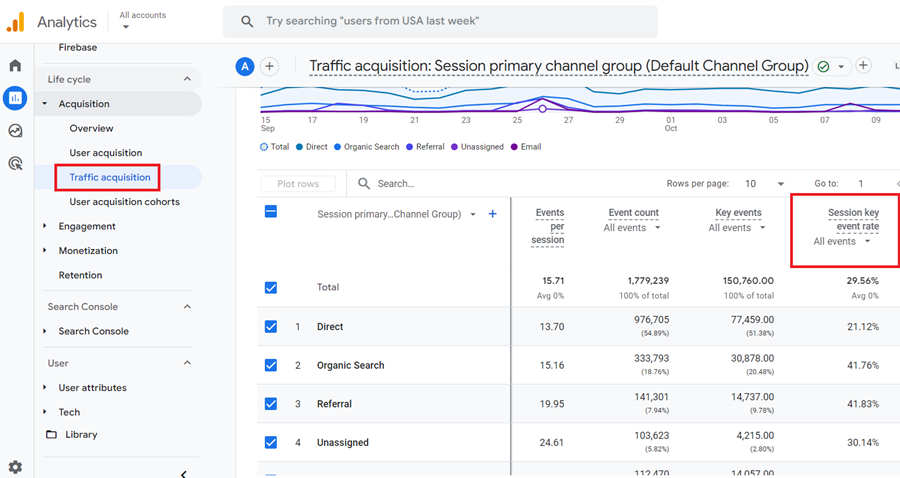
You can find the session key event rate in GA4 by navigating to Reports > Acquisition > Traffic acquisition and then scrolling down to the data table:
How to use the Session Key Event Rate in GA4?
Let’s calculate the Session key event rate for default channel groups in GA4:
Follow the steps below
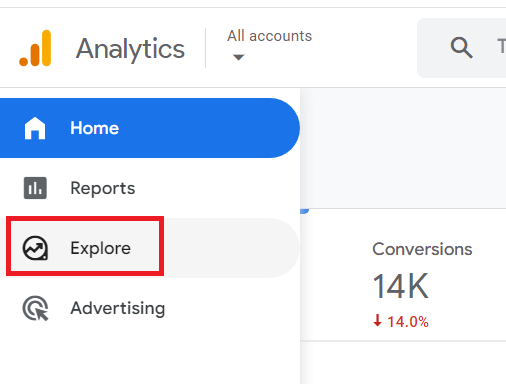
Step-1: Navigate to ‘Explore’ in your GA4 property:
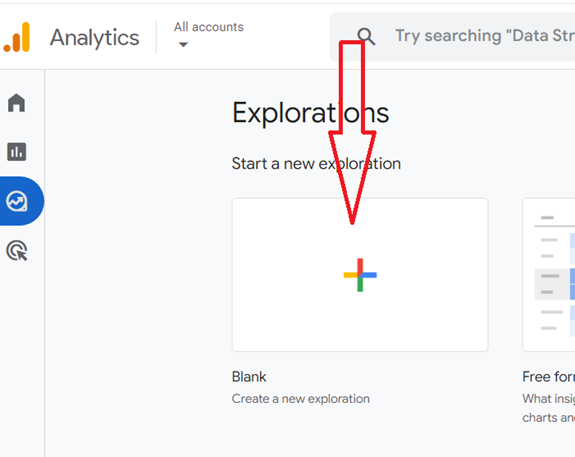
Step-2: Click on the ‘BLANK’ report template to create a new exploration report from scratch.
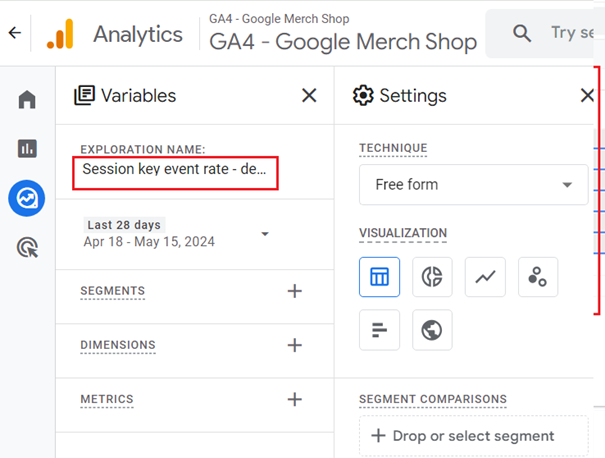
Step-3: Name your report ‘Session key event rate – default channel group’:
Step-4: Import the following dimension and metric to your report:
Dimension – Session default channel group
Metric – Session key event rate
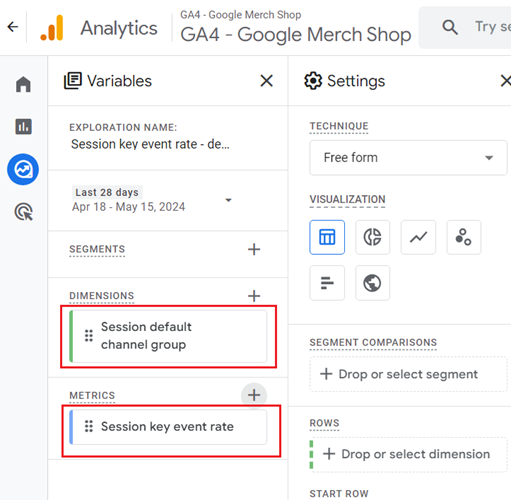
Step-5: Double-click on the dimension ‘Session default channel group’ to add it to the canvas on the right. Similarly, double-click on the metric ‘Session key event rate’ to add it to the canvas on the right.
Your screen should now look like the one below:
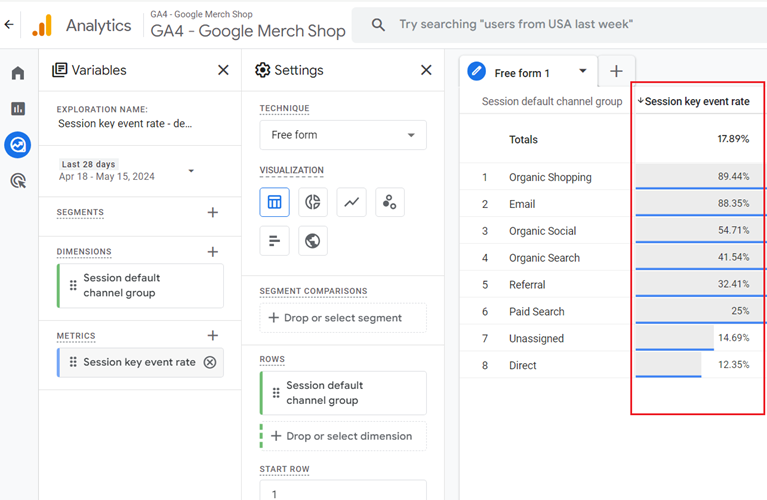
That’s how you can use the ‘Session key event rate’ metric.
How to find Sessions with Key events?
Sessions with key events are the sessions in which one or more key events were triggered.
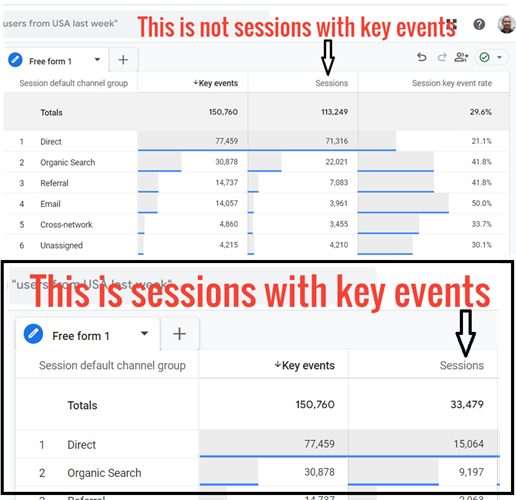
When you correlate the ‘Key events’ metric with the ‘Sessions’ metric in your GA4 reports, you still see total sessions, not sessions with one or more key events.
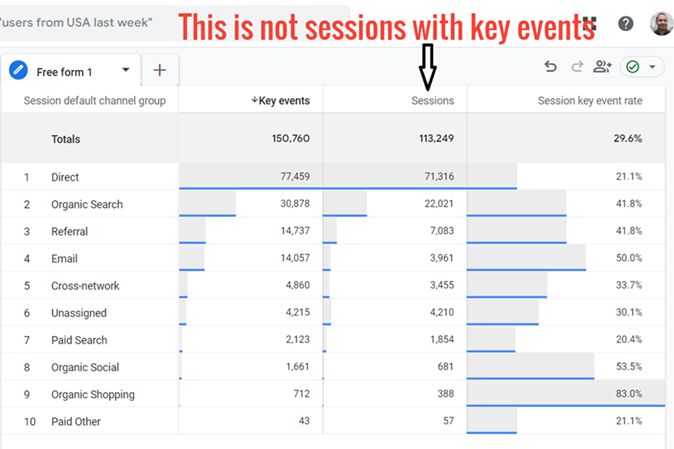
However, you need to know the sessions with key events to determine how the ‘session key event rate’ metric is calculated.
To find sessions with key events, follow the steps below:
Step-1: Create a new blank exploration report in your GA4 property.
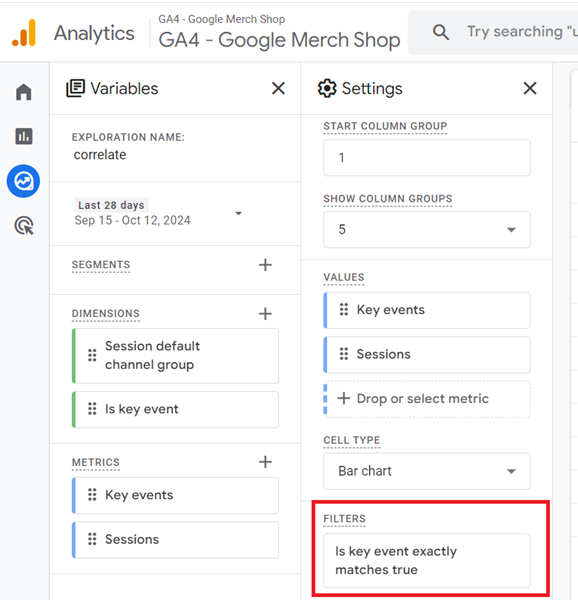
Step-2: Import the following dimensions to the report: ‘Session default channel group’ and ‘Is key event’.
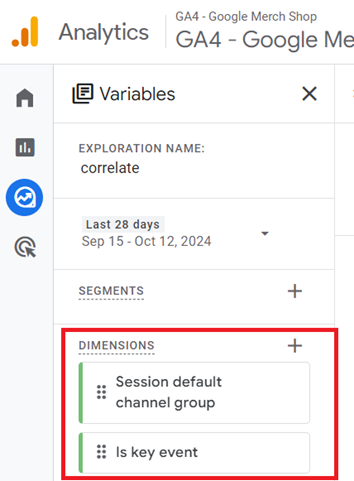
Step-3: Import the following metrics to the report: ‘Key events’ and ‘Sessions’:
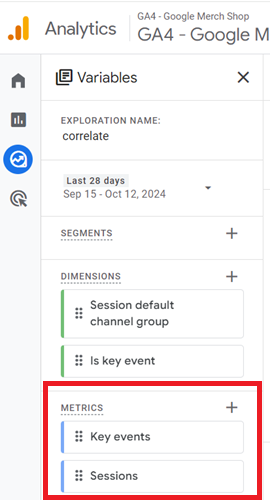
Step-4: Add the dimension ‘Session default channel group’ and the metrics ‘Key events’ and ‘Sessions’ to the report, one by one.
Step-5: Apply the following dimension filter to the report to filter out sessions with key events:
‘Is key event’ exactly matches ‘true’
You should now see a report like the one below, which shows the sessions with key events:
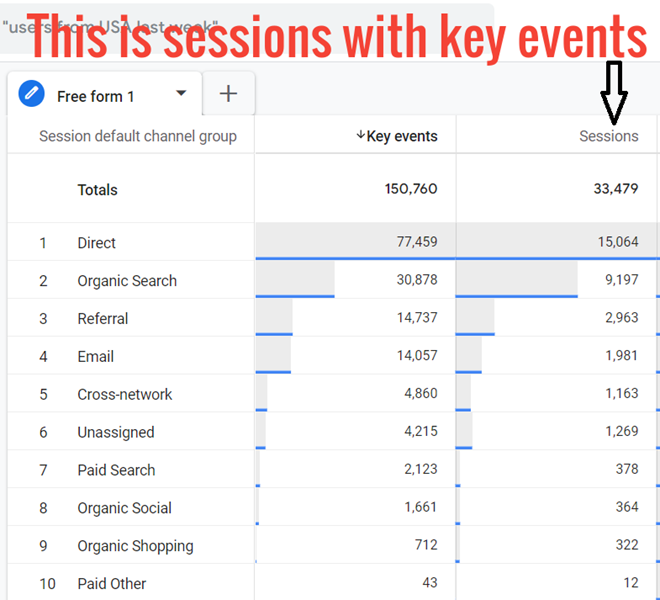
Let’s determine whether our calculations are correct.
Consider the following Scenario:
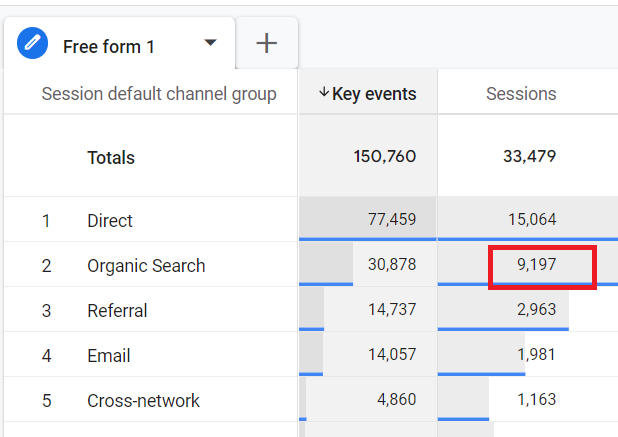
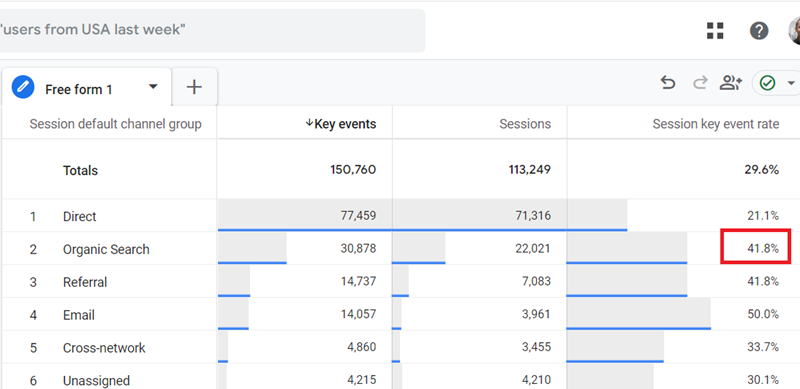
Sessions with key events for ‘organic search’ = 9197
Total sessions for ‘organic search’ = 22021
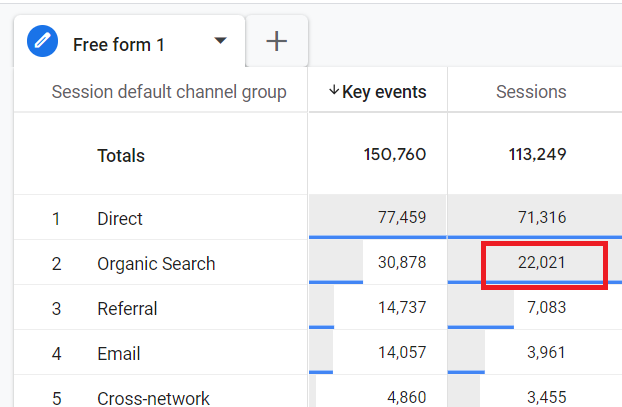
So, the Session Key Event rate for ‘organic search = 9197/22021 = 41.76% (which matches the number in the screenshot below):
Following is the summary of what is and is not considered sessions with key events in GA4:
What is the User Key Event Rate in GA4?
The GA4 User Key Event rate (formerly known as ‘user conversion rate’) is the percentage of users who triggered one or more key events (aka conversion events).
The following is the formula to calculate the User Key Event Rate:
User Key Event Rate = Number of users who triggered one or more key events in a particular time period / total number of users in the same time period.
For example,
Suppose the number of users who triggered one or more key events in the last 30 days = 50
The total number of users in the last 30 days = 2000
Then, the User Key Event Rate would be calculated as = 50 / 2000 = 2.5%
Note: Once you have set up conversion tracking in your GA4 property, the ‘User Key Event Rate’ metric is populated automatically in your GA4 reports.
The ‘User Key Event Rate’ metric has a user scope.
The ‘User Key Event Rate’ metric has a user scope. This means this metric is calculated only once per user, regardless of how many times a user triggers a conversion event.
Scenario:
- You have set the ‘newsletter signup’, file download’ and ‘purchase’ events as key events in GA4.
- Over the course of a week, your website has 2000 unique users.
- Out of 2000 users, 25 users made a purchase at least once during that week. Out of those 25 users, 20 users made several purchases on different days within the same week.
- Out of 2000 users, 25 users signed up for your newsletter. Out of those 25 users, 15 users signed up for your newsletter as well as downloaded files.
Calculation of ‘User Key Event Rate’:
The ‘User Key Event Rate’ metric focuses on whether each unique user triggered a key event and not on the number of key events per user or type of key event (‘newsletter signup’, file download’ and ‘purchase’).
So, the total number of users who triggered one or more key events in a week
= 25 users who made a purchase at least once during the week + 25 users who signed up for your newsletter during the week.
= 50 users
So, assuming no overlap between the purchasers and newsletter sign-ups/file downloads, 50 users triggered one or more key events in a week.
Therefore, the User Key Event Rate is calculated as = 50 / 2000 = 2.5%
How to find User Key Event Rate in GA4?
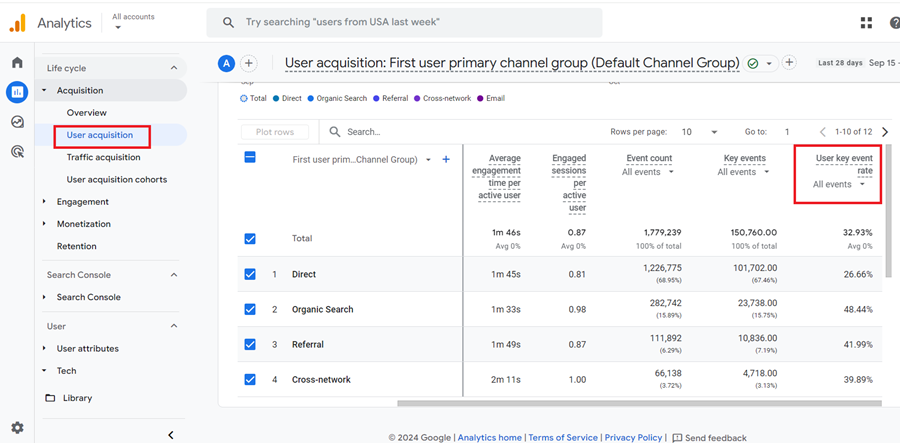
You can find the user key event rate in GA4 by navigating to Reports > Acquisition > User acquisition and then scrolling down to the data table:
How to use the User Key Event Rate in GA4?
Let’s calculate the User Key Event Rate for default channel groups in GA4:
Follow the steps below:
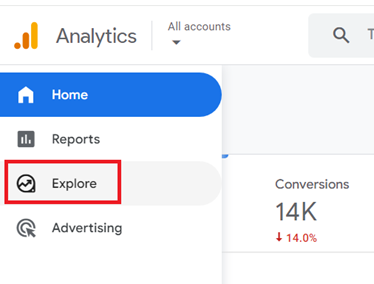
Step-1: Navigate to ‘Explore’ in your GA4 property:
Step-2: Click on the ‘BLANK’ report template to create a new exploration report from scratch.
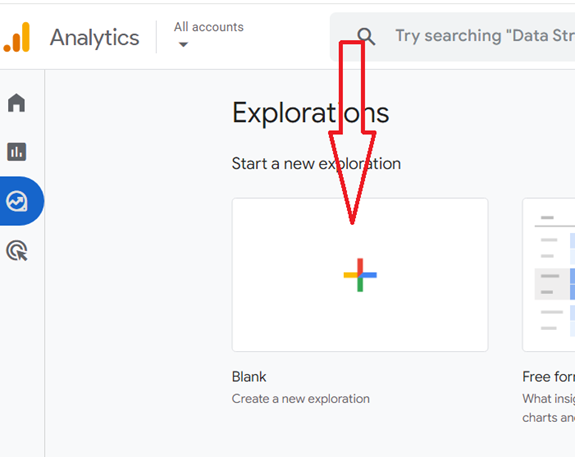
Step-3: Name your report ‘User Key Event Rate – default channel group’:
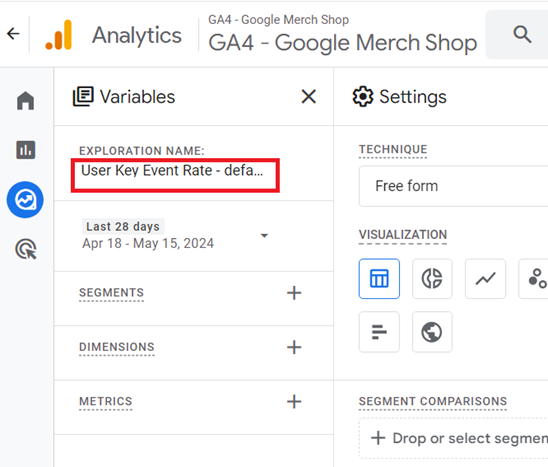
Step-4: Import the following dimension and metric to your report:
Dimension – First user default channel group
Metric – User key event rate
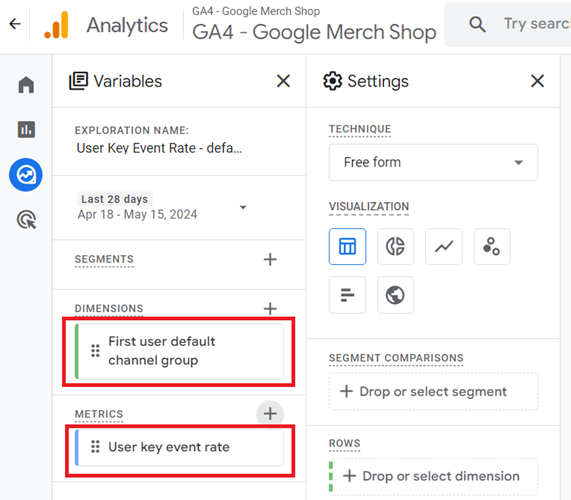
Step-5: Double-click on the dimension ‘First user default channel group’ to add it to the canvas on the right. Similarly, double-click on the metric ‘User key event rate’ to add it to the canvas on the right.
Your screen should now look like the one below:
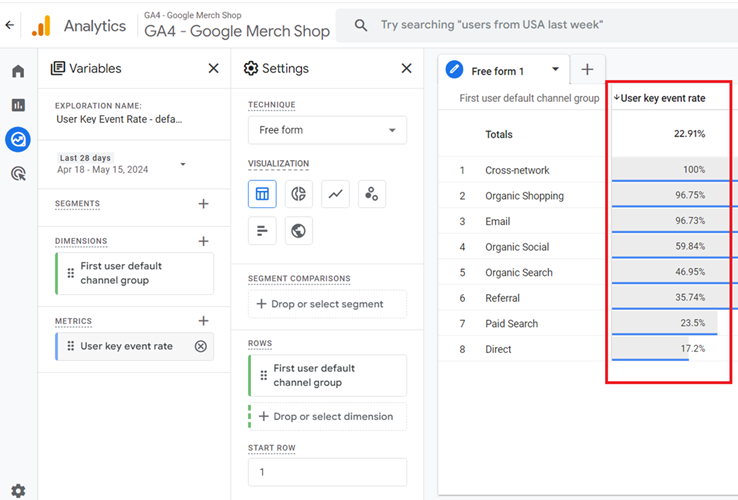
That’s how you can use the ‘User key event rate’ metric.
How to find users with Key events?
Users with key events are the users who trigger one or more key events.
When you correlate the ‘Key events’ metric with the ‘Users’ metric in your GA4 reports, you still see total users, not users with one or more key events.
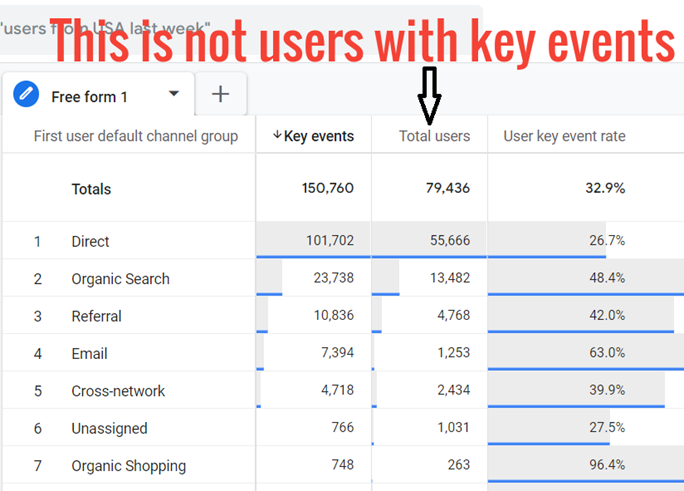
However, you need to know the users with key events to determine how the ‘user key event rate’ metric is calculated.
To find users with key events, follow the steps below:
Step-1: Create a new blank exploration report in your GA4 property.
Step-2: Import the following dimensions to the report: ‘First user default channel group’ and ‘Is key event’.
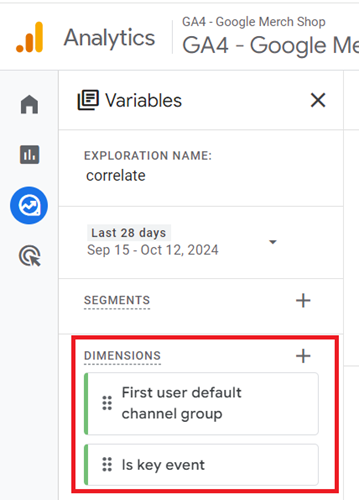
Step-3: Import the following metrics to the report: ‘Key events’ and ‘Total users’:
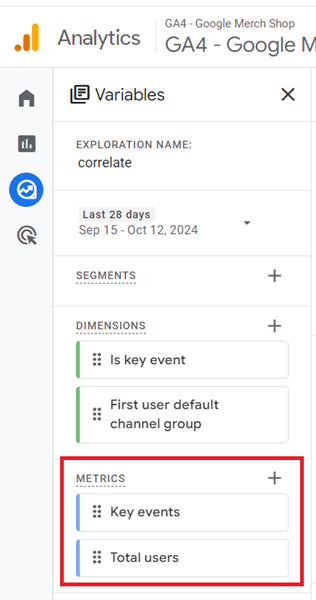
Step-4: Add the dimension ‘First user default channel group’ and the metrics ‘Key events’ and ‘Total users’ to the report, one by one.
Step-5: Apply the following dimension filter to the report to filter out users with key events:
‘Is key event’ exactly matches ‘true’
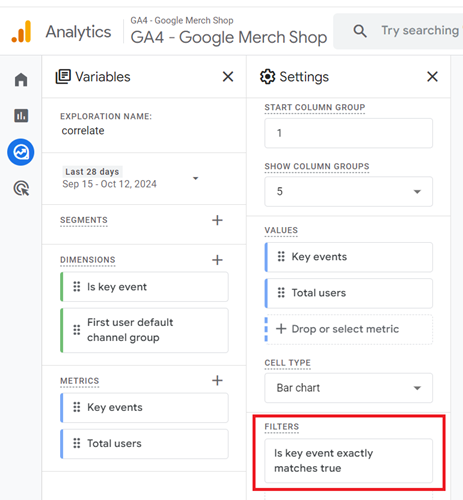
You should now see a report like the one below, which shows the users with one or more key events:
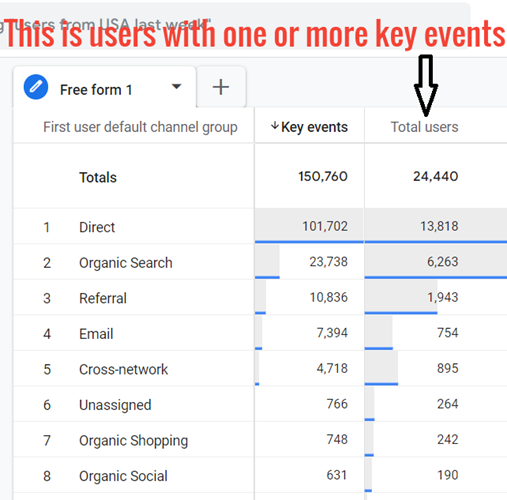
Let’s determine whether our calculations are correct.
Consider the following Scenario:
Users with key events for ‘organic search’ = 6263
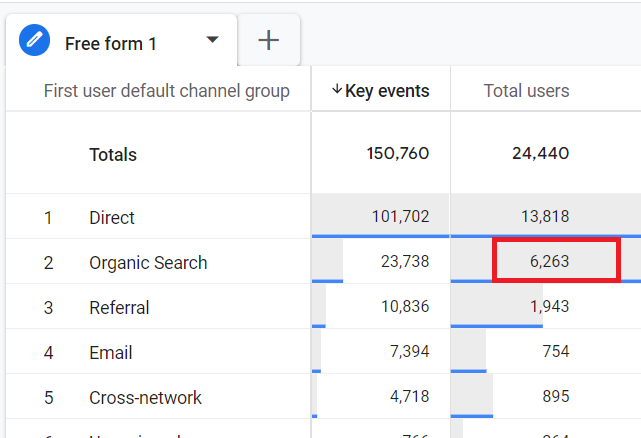
Total users for ‘organic search’ = 13482
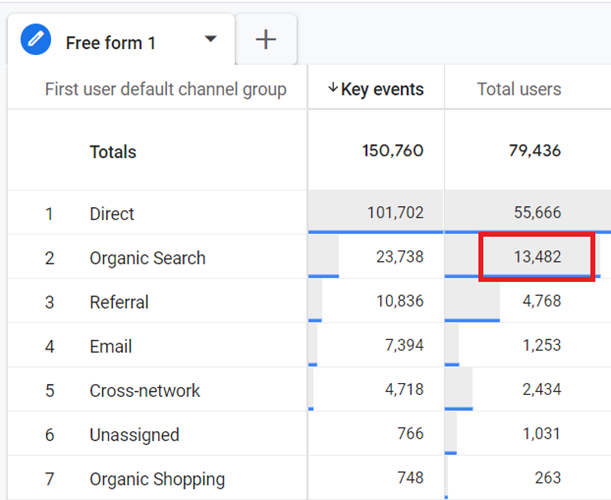
So, the User Key Event rate for ‘organic search = 6263/13482 = 46.45%
User/session key event rate 100%?
GA4 Event Rate 100% means user key event rate of 100% or, session key event rate of 100% or both.
In GA4, all the metrics and dimensions used in a report must share the same scope to provide meaningful data.
The screenshot below shows a user key event rate of 100% for each event name.
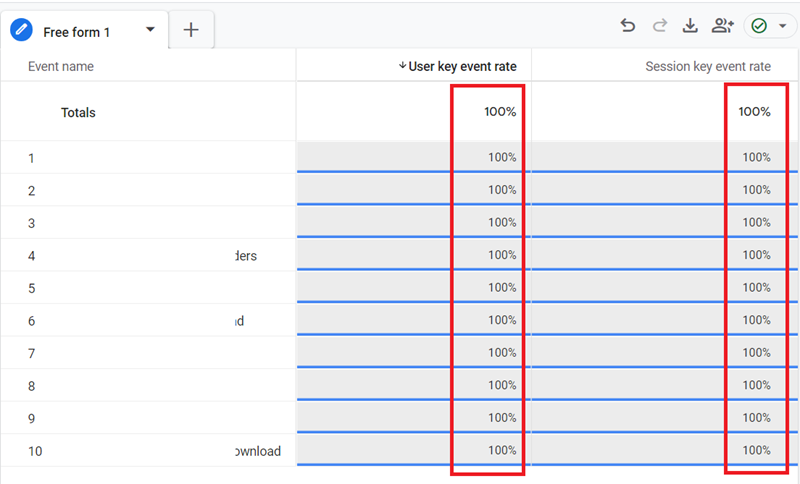
You see such a result because the ‘event’ scope of the ‘event name’ dimension does not align with the ‘user’ scope of the metric ‘user key event rate’.
In GA4, all the metrics and dimensions used in a report must share the same scope to provide meaningful data.
The ‘event name’ dimension is event-scoped, meaning it applies to individual events rather than users.
However, the ‘user key event rate’ is a user-scoped metric, which measures the percentage of users who triggered one or more key events (aka conversions).
This mismatch in scope can lead to misleading or redundant results, such as showing a 100% user key event rate for all events.
The same reasoning applied to the ‘session key event rate’ metric.
The following is a more detailed explanation:
The user key event rate is the percentage of users who triggered one or more key events.
The ‘user key event rate’ metric has user scope.
This means this metric is calculated only once per user, regardless of how many times a user triggered a key event.
Consider the following scenario:
You have set the ‘newsletter signup’, ‘file download’, and ‘purchase’ events as key events in GA4.
Over the course of a week, your website has 2000 unique users.
Out of 2000 users, 25 users made a purchase at least once during that week.
Out of those 25 users, 20 users made several purchases on different days within the same week.
Out of 2000 users, 25 users signed up for your newsletter.
Out of those 25 users, 15 users signed up for your newsletter as well as downloaded files.
Calculation of ‘User Key Event Rate’:
The ‘User Key Event Rate’ metric focuses on whether each unique user triggered a key event and not on the number of key events per user or type of key event (‘newsletter signup’, ‘file download’, and ‘purchase’).
So, the total number of users who triggered one or more key events in a week
= 25 users who made a purchase at least once during the week + 25 users who signed up for your newsletter during the week.
= 50 users
So, assuming no overlap between the purchasers and newsletter sign-ups/file downloads, 50 users triggered one or more key events in a week.
Therefore, the user key event rate is calculated as = 50 / 2000 = 2.5% .
The ‘user key event rate’ metric already considers all key events, regardless of individual event names.
So, querying the ‘event name’ dimension with the ‘user key event rate’ metric provides redundant information like a 100% user key event rate.
Since the user key event rate considers any key event for the chosen user, it won’t provide specific insights into the key event rate for a particular event named in the “event name” dimension.
This can lead to misinterpretations if you assume the user key event rate only reflects the named event.
You cannot analyze the key event rates for specific events using the ‘user key event rate’ metric.
The same reasoning applies to the ‘session key event rate’ metric.
To ensure accurate reporting, match the scope of metrics and dimensions used in your report.
For example, if you are using a user-scoped metric like ‘user key event rate’, you should pair it with user-scoped dimensions like ‘First user default channel group’:
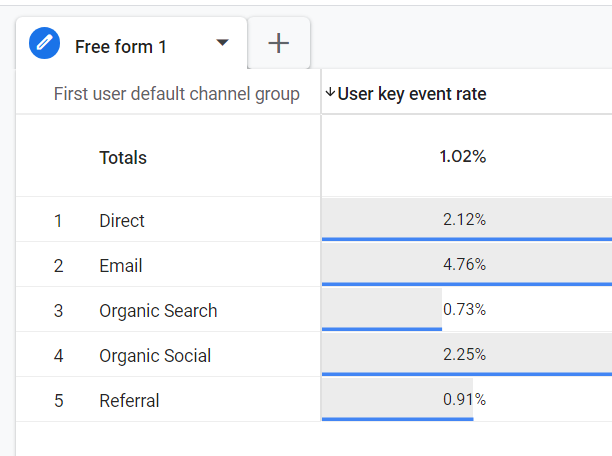
Similarly,
If you are using a session-scoped metric like ‘session key event rate’, you should pair it with session-scoped dimensions like ‘Session default channel group’:
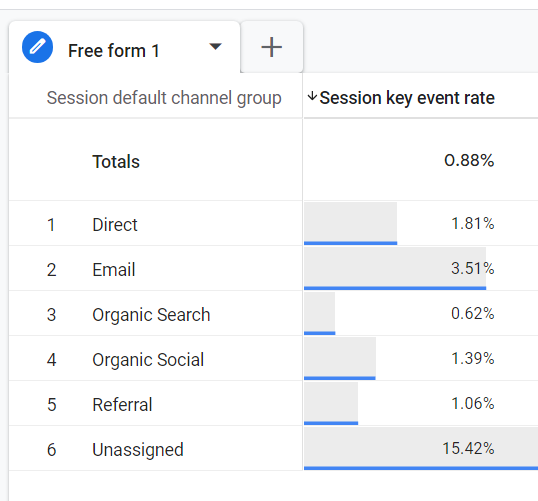
That’s how you can avoid showing the GA4 event rate 100% in your reports.
Event Conversion Rate in GA4.
The event conversion rate is the percentage of events that resulted in one or more key events.
The following is the formula to calculate the event conversion rate in GA4:
Event Conversion Rate = Key Events / Event Count
To calculate and report on the event conversion rate in GA4, follow the steps below:
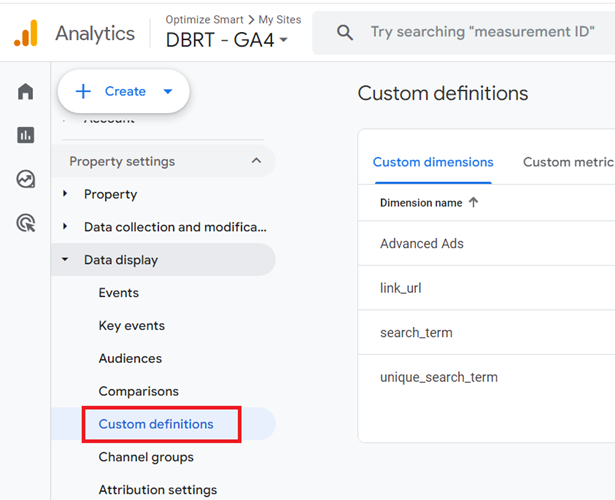
Step-1: Navigate to the admin section of your GA4 property and then click on ‘Custom Definitions’ under ‘Data Display’:
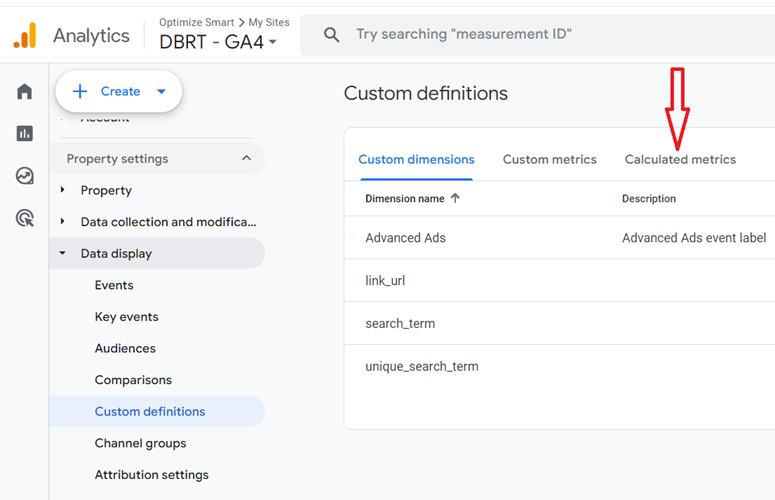
Step-2: Click on the tab ‘Calculated metrics’:
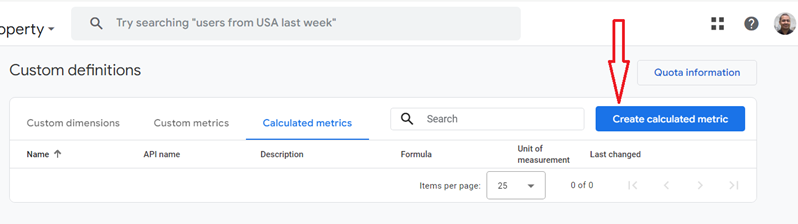
Step-3: Click on the button ‘Create calculated metric’:
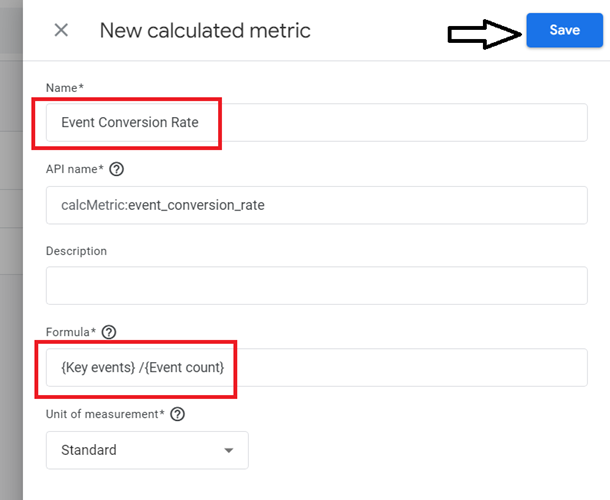
Step-4: Name your calculated metric ‘Event Conversion Rate’, enter the following formula: {Key events} /{Event count} and then click on the ‘Save’ button:
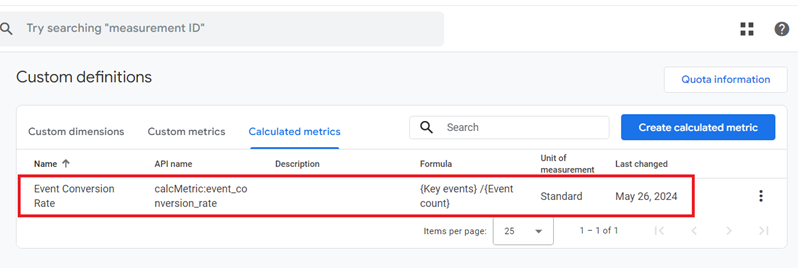
You should now see your new metric listed under ‘Calculated metrics’:
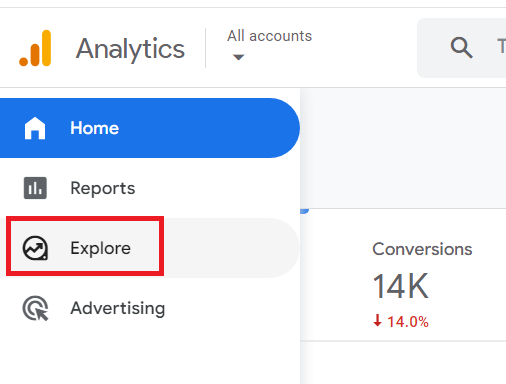
Step-5: Navigate to ‘Explore’ in your GA4 property:
Step-6: Click on the ‘BLANK’ report template to create a new exploration report from scratch.
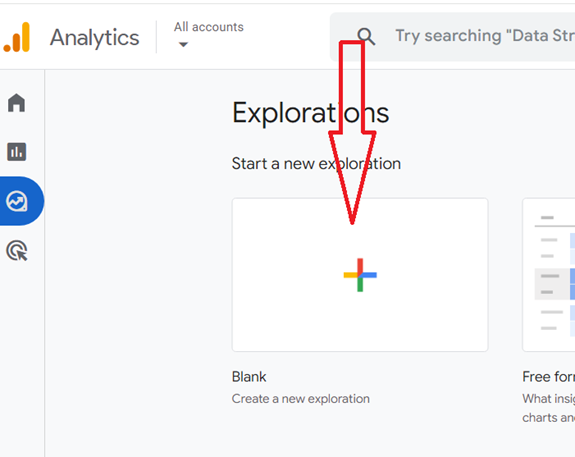
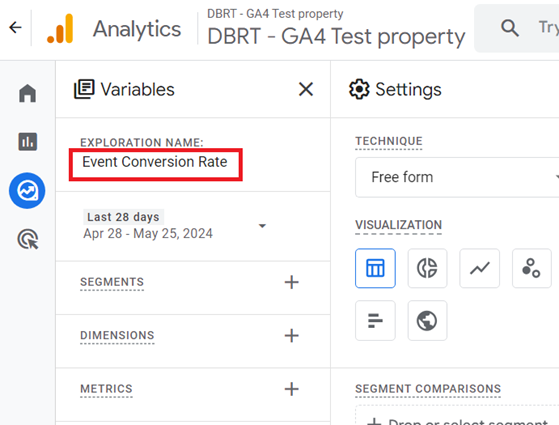
Step-7: Name your report ‘Event Conversion Rate’:
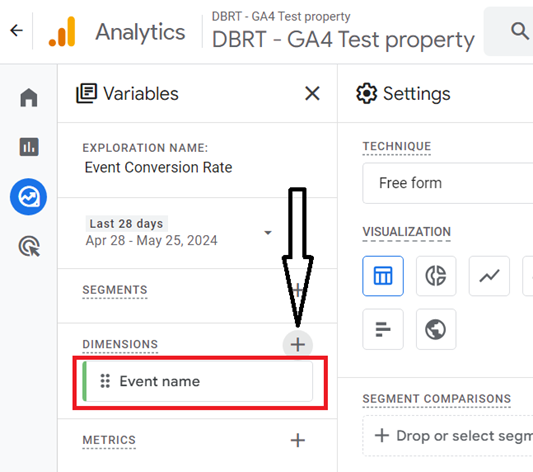
Step-8: Import the ‘Event name’ dimension to the report by clicking on the + button:
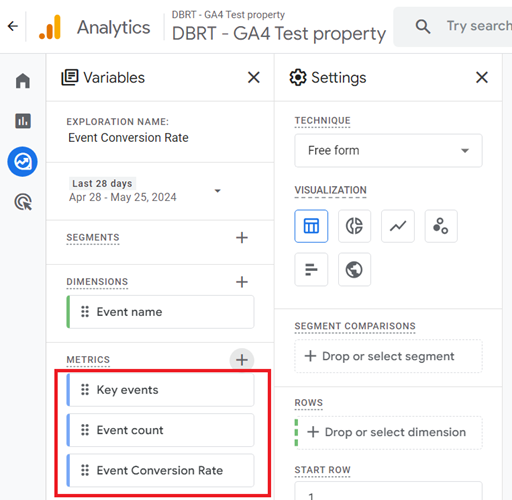
Step-9: Import the following metrics to your report one by one: ‘Key events’, ‘Event count’ and ‘Event conversion rate’:
Step-10: Add the imported dimension and metrics to the report canvas on the right by double-clicking them one by one. You should now see a report like the one below:
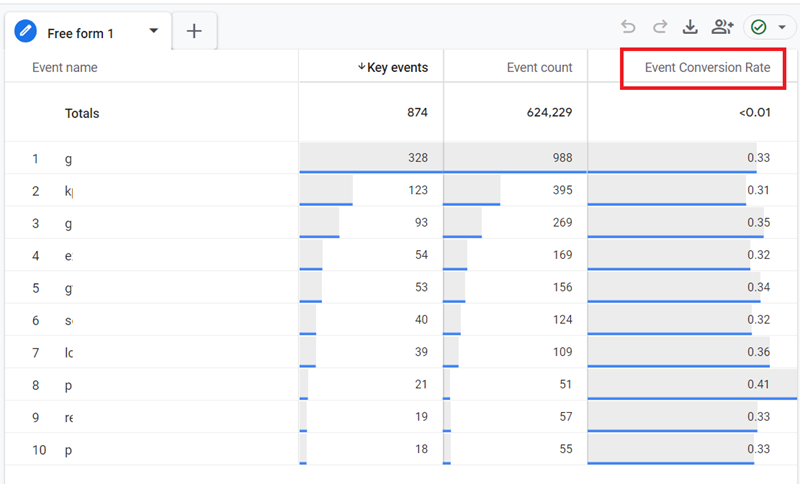
That’s how you can calculate the event conversion rate in GA4.
Other Articles on GA4.
- Tracking New, Qualified and Converted Leads in GA4.
- Free GA4 training and tutorial with Certification.
- Understanding GA4 Ecommerce Reports (Monetization Reports).
- GA4 Ecommerce Tracking via GTM: Step-by-Step Setup Guide.
- How to see UTM parameters in GA4 (Google Analytics 4).
- GA4 UTM parameters not working? Here is how to fix it.
- How To Use UTM parameters in GA4 (Campaign Tracking).
- How to track AI traffic in GA4.
- Understanding Google Analytics 4 cookies – _ga cookie.
- GA4 (Google Analytics 4) Measurement Protocol Tutorial.
- GA4 Unassigned Traffic: Causes and How to Fix it Fast.
- GA4 Regex (Regular Expressions) Tutorial.
- GA4 Direct Traffic Spike: Common Causes and How to Fix Them.
- gtag.js – Google Tag in Google Analytics 4 and beyond.
- GA4 Scopes – User, Session, Event & Item scopes.
- GA4 Conversion Tracking (Key Events) Tutorial.
- GA4 (not set) - Guide to fixing (not set) issue.
- GA4 Certification Exam: Questions, Answers for Skillshop (GAIQ).
- GA4 User Properties (User Scoped Custom Dimensions) – Tutorial.
- Tracking Organic Traffic in GA4 - Complete Guide.
- Tracking Events in GA4 (Google Analytics 4).
- GTM Server Side Tagging - Setup Guide.
- Using Subfolder for GTM Server Side Tagging (Same Origin Tracking).