

Understanding Referrer.
To understand how direct traffic works, you first need to understand the concept of the referrer.
To understand the referrer, you first need to understand HTTP and HTTPS.
HTTP (Hypertext Transfer Protocol) is a protocol (set of rules) used by web browsers and web servers to communicate with each other. Whereas HTTPS (Hypertext Transfer Protocol Secure) is simply a secure version of HTTP.
A web browser (such as Google Chrome) communicates with a web server by sending requests for each resource. Such requests are called HTTP requests.
The requested resource could be:
- HTML document
- Image file
- CSS file
- JavaScript file, etc.
The following is an example of an HTTP request.
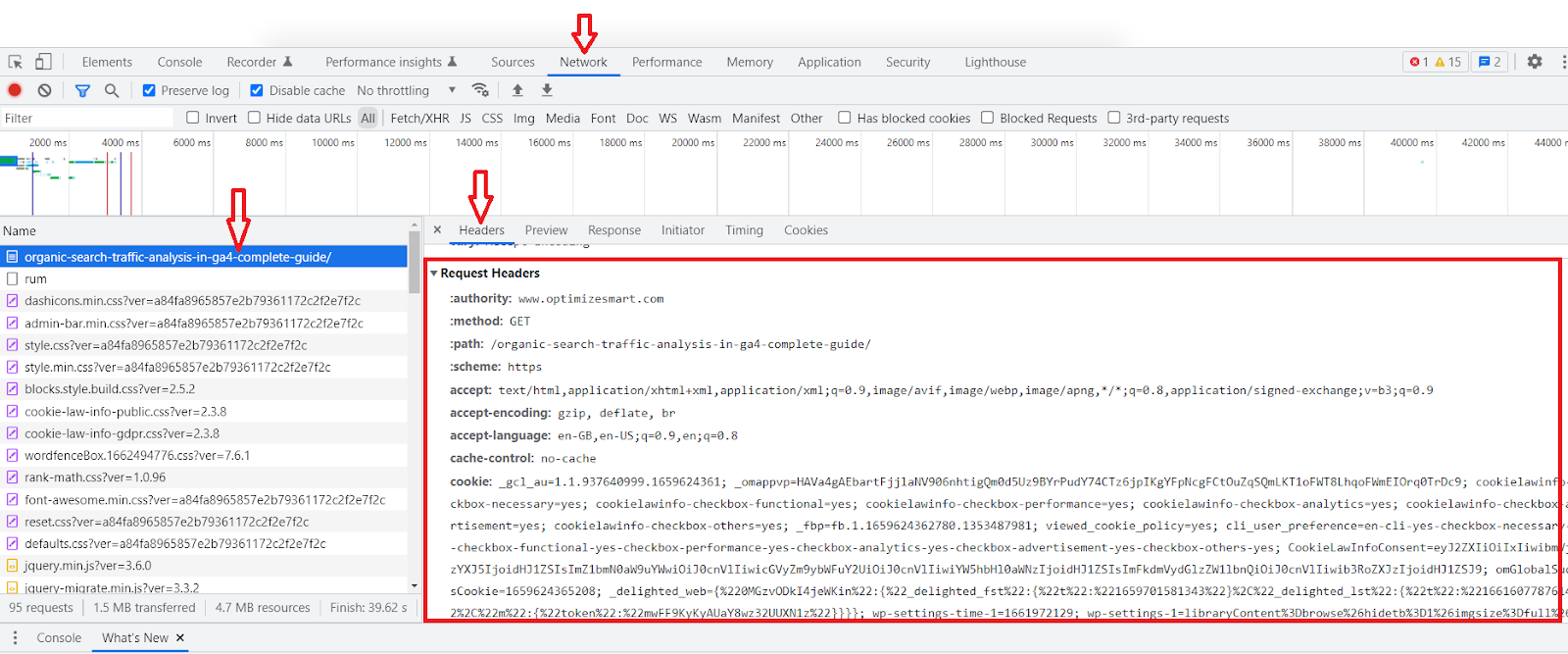
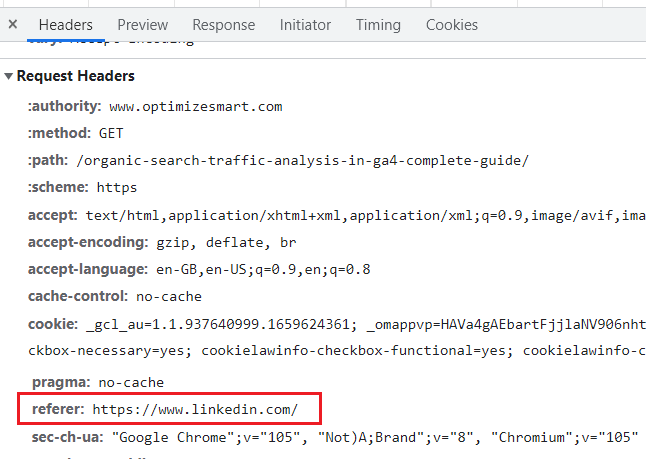
As you can see from the screenshot above, the referrer is just one of the HTTP request headers, and in this case, it is Linkedin.
A referrer is like a source of your website traffic.
For example, when a user visits your website from facebook.com, then GA4 reports facebook.com as a referrer.
Similarly,
When a user visits your website from abc.com, then GA4 reports abc.com as a referrer.
The data which reports on a referrer is called the referral data.

Referral traffic vs Direct Traffic in GA4.
Referral traffic is a GA4 session that starts with a referrer being passed by the users' web browsers.
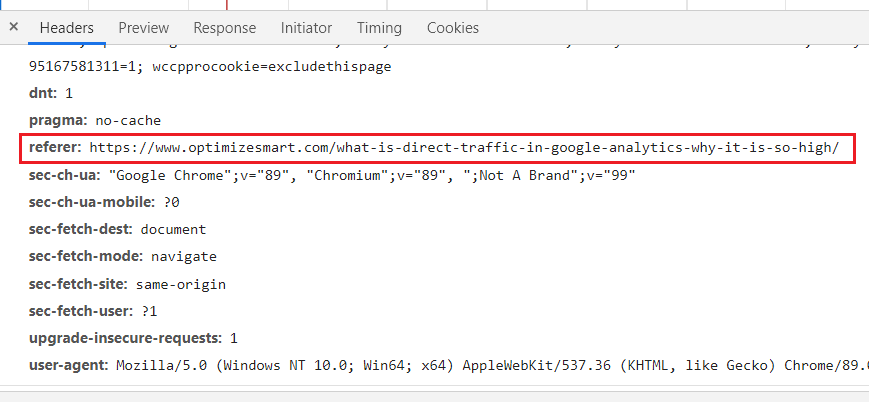
Technically speaking, traffic from any website to your website is referral traffic (as long as a referrer is being passed by a user’s web browser).
But in the context of GA4, traffic from search engines and most PPC/CPM ads (like Google Ads), is not reported as referral traffic.
When a GA4 session starts without a referrer being passed by the user's web browser, it is reported as 'direct traffic'.
All other definitions of direct traffic (like direct traffic is the traffic that comes from bookmarks or traffic from typed URLs etc.) are lame, as they do not accurately describe what direct traffic really is.
When does GA4 report direct traffic?
In the following cases (but not limited to), a referrer is not passed to a website, and hence the traffic is reported as direct traffic by GA4:
- 'Type-in' traffic
- Traffic from bookmarks
- Traffic from mobile apps
- Traffic from non-web documents
- Traffic from desktop email clients
- Traffic from the instant messenger (IM) or online chat rooms
- Traffic from incorrectly tagged marketing campaigns
- Traffic from web browsers that do not send referrer data
- Traffic from redirected URLs that do not send referrer data
- Traffic from IOS 'open in...'
- Traffic from a link that uses the 'rel=noreferrer' attribute
- Traffic from the firewall which does not send referrer data
- HTTPS to HTTP redirect
Type-in traffic.
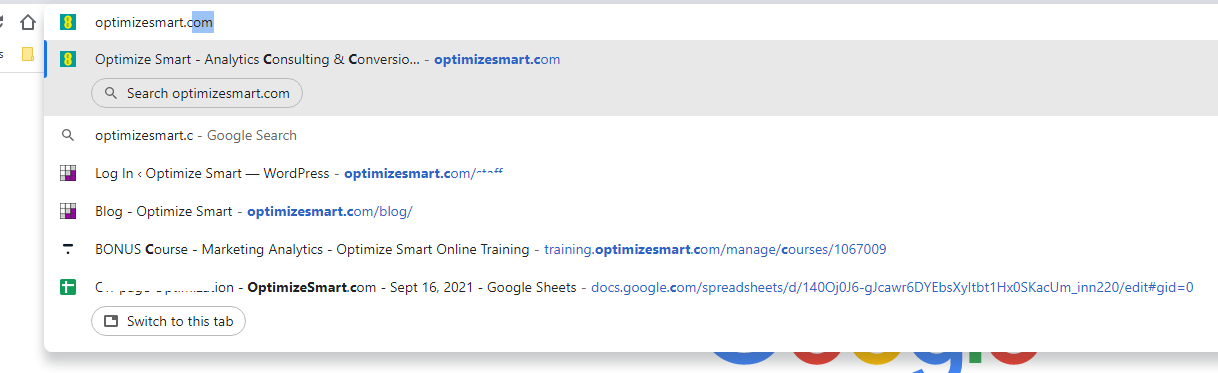
The following are examples of various type-in traffic:
- Users visit your website by typing your brand name followed by .com in the browser address bar.
- Users copy and paste the website URL from another source into the browser address bar to visit your website.
- Users visit your website by typing your brand name and then clicking on one of the URLs suggested by their web browser.
Sometimes people try to visit your website by typing your brand name followed by .com in the browser address bar.
They do so under the assumption that this will be your website address.
If they succeed in visiting your website, all such traffic is reported as direct traffic by Google Analytics.
Sometimes people copy and paste the website URL from another source into the browser address bar.
If they succeed in visiting your website, all such traffic is reported as direct traffic by Google Analytics.
Sometimes people try to visit your website by typing your brand name and then clicking on one of the URLs suggested by their web browser.
If they succeed in visiting your website, all such traffic is reported as direct traffic by Google Analytics.
Traffic from bookmarks and mobile apps.
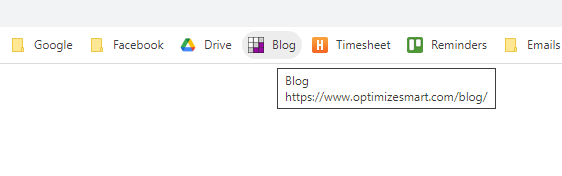
If a user visits your website from a bookmark, then GA4 may start a new session without a referrer being passed by the user’s web browser.
Hence, the traffic would be reported as direct traffic by GA4.
The majority of mobile apps do not send a referrer.
Hence, the traffic from such apps is reported as direct traffic by GA4.
Traffic from non-web documents.
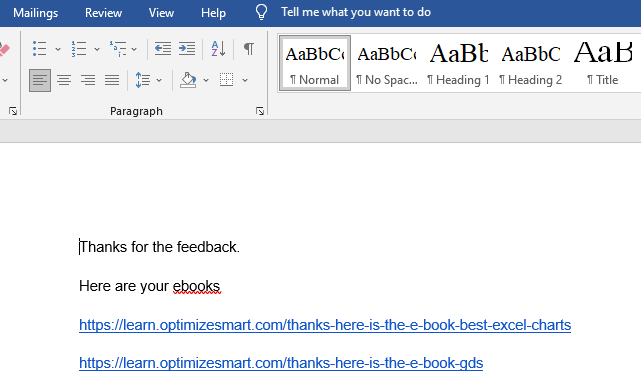
Non-web documents (like Microsoft Word, Excel, PowerPoint, PDF, etc.) do not send a referrer.
Traffic from such documents is reported as direct traffic by GA4.
So if a user clicks a link embedded in a Word document to visit your website, GA4 would start a new session, but without a referrer being passed by the user’s browser.
Hence, the traffic would be reported as direct traffic.
Traffic from desktop email clients.
Desktop email clients (like Microsoft Outlook) do not send a referrer. Traffic from such email clients is reported as direct traffic by GA4.
So if a user clicks a link embedded in an Outlook email to visit your website, GA4 would start a new session, but without a referrer being passed by the user’s browser.
Hence, the traffic would be reported as direct traffic.
Traffic from instant messenger or online chat rooms.
Instant messengers (such as Skype and Google Hangouts) and other online chat rooms do not send a referrer.
Traffic from such apps is reported as direct traffic by GA4.
So if a user clicks a link shared by another user on Skype to visit your website, GA4 would start a new session, but without a referrer being passed by the user’s browser.
Hence, the traffic would be reported as direct traffic.
Traffic from incorrectly tagged marketing campaigns.
The following is an example of an incorrectly tagged marketing campaign:

Incorrectly tagged marketing campaigns can cause referrer data to drop, resulting in traffic being reported as direct traffic.
For example,
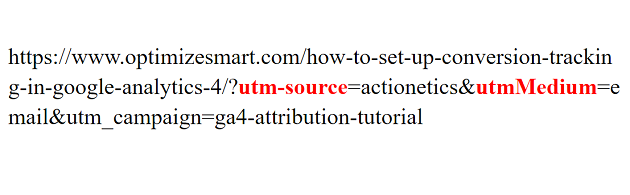
If you share a tagged link on Twitter with 'utmSource=twitter' as one of the campaign tracking parameters, GA4 will report all Twitter traffic as direct traffic.
This is because GA4 would completely ignore the referrer as ‘utmSource’ is not a valid campaign tracking variable.
utm_source is the valid campaign tracking variable.
Similarly,
If you share a tagged link on Twitter and use 'utm_source=facebook' as one of the campaign tracking parameters, GA4 will report all Twitter traffic as Facebook traffic.
Traffic from web browsers that do not send referrer data.
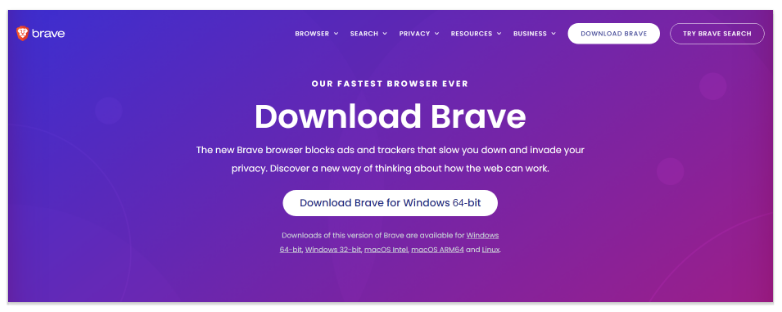
The sending of referrer data depends entirely on the web browser your website users use. If a user's web browser does not pass referrer data, there is no way to retrieve it.
For example, by default, the ‘Brave’ web browser does not send referrer data.
Whenever a referrer is not passed or is dropped because of technical reasons, GA4 is not able to determine the origin of the traffic source and report that traffic as direct traffic.
Sometimes, a user's browser privacy settings, add-ons, or ad-blockers can cause the referrer to drop and not pass.
Private browsing, incognito mode, in-private browsing, and similar settings do not allow browsers to pass referrer data.
Traffic from redirected URLs that do not send referrer data.
The sending of referrer data also depends upon the redirect method being used.
For example, 302 redirects, meta and JavaScript redirects often cause the referrer to be dropped.
Whereas 301 redirects have better cross-browser compatibility in passing referrer data.
That’s why you should give preference to 301 redirects wherever you can.
Traffic from open in, rel=noreferrer and firewalls.
Traffic from IOS ‘Open in’:
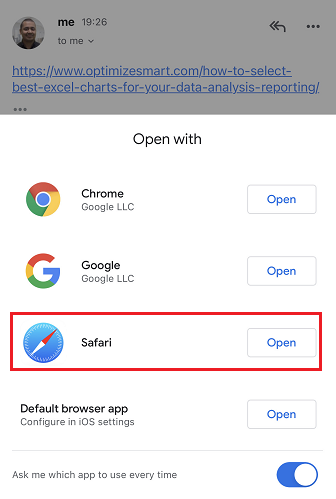
When you use an option like 'open in Safari' or 'open in Chrome' in IOS (Apple's mobile operating system), the referrer data is not passed.
All such traffic is reported as direct traffic by GA4.
Traffic from a link that uses the 'rel=noreferrer' attribute:
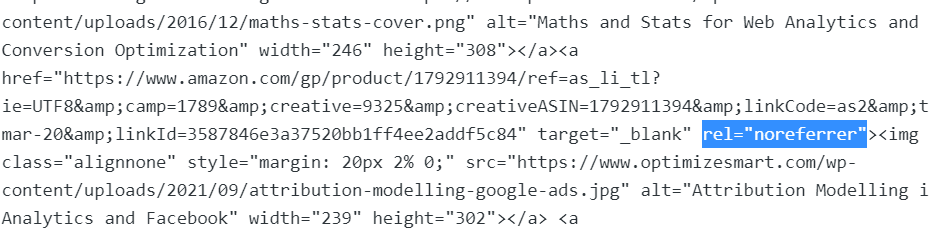
A referrer is not passed in the case of traffic that came from a link that uses the 'rel=noreferrer' attribute.
Traffic from a firewall that does not send referrer data.
Sometimes your users’ firewall settings can cause the referrer to drop.
All such traffic is reported as direct traffic by GA4.
HTTPS to HTTP redirect.
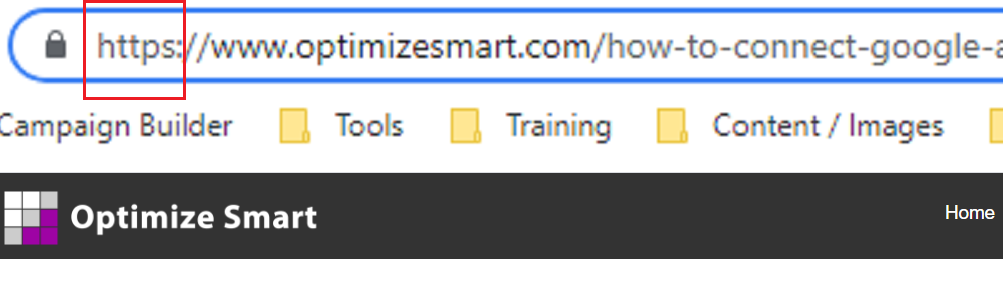
During an HTTPS-to-HTTP redirect, the referrer is not passed. All such traffic is reported as direct traffic by GA4.
So if your website is on HTTP and someone visits it from an HTTPS website, the user’s web browser will not send referrer data to your GA4 property.
This is done in order to follow the secure protocol, which states that:
"If a website is accessed from an HTTP Secure (HTTPS) connection and a link points to anywhere except another secure location, then the referrer field is not sent".
Source: https://en.wikipedia.org/wiki/HTTP_referer
However,
If your website is on HTTPS and someone visits it from another HTTPS website, the user’s web browser will send referrer data to your GA property.
This is because both websites use a secure connection.
Following is the visual summary of when referrer data is passed and not passed in the case of HTTPS and HTTP connections:
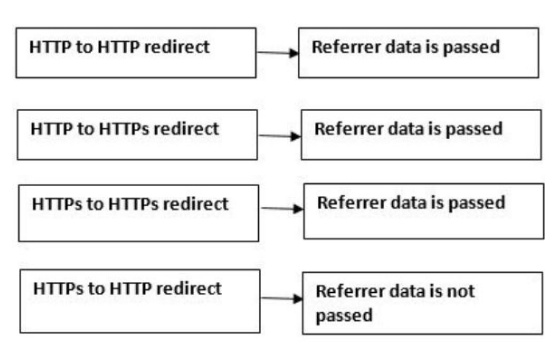
Every major website, browser and search engine moved to secure connections (HTTPS) a long time ago.
So,
If your website is still on HTTP, you could lose most of your referrer data in the near future.
That’s why it is important to use HTTPS (secure connection) for your website.
Direct traffic is a demand.
Most of the real direct traffic is demand created by investment in marketing.
People will not automatically find your website and visit it directly.
They find and visit your website in response to some online or offline marketing activity.
This marketing activity can also include word-of-mouth publicity.
If the majority of your website sales and conversions are attributed to direct traffic, you may get the impression that it is just your brand power driving sales, not the marketing campaigns. However, this is generally not the case.
If you are still in doubt, pause all your marketing campaigns for a week or two and monitor how this affects direct traffic to your website.
Your direct traffic will most likely go down.
Customers generally do not convert on their very first visit to a website. A return visit is most likely to happen before a conversion takes place on the website.
One of the most common and easiest ways to return to a website is to type part of the website URL into the browser address bar:
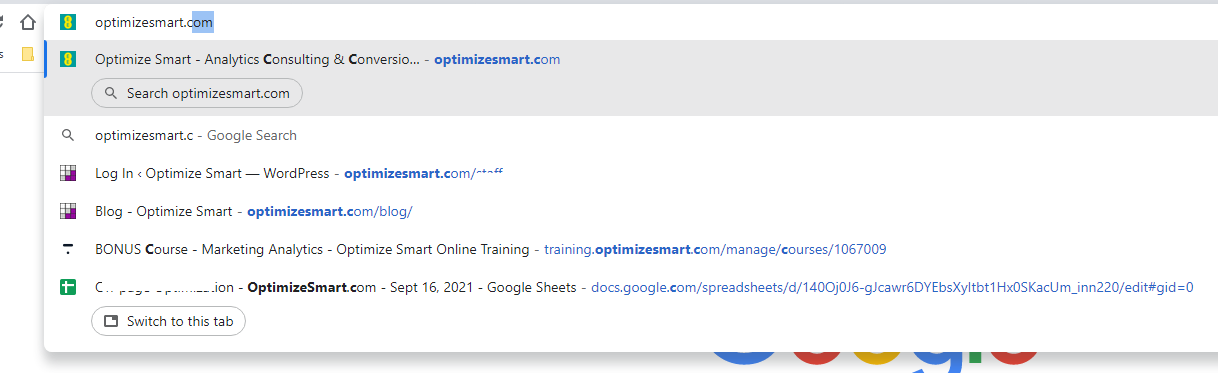
The web browser then auto-fills the remaining part of the URL, and the user ends up directly visiting the website.
Because of this user behaviour, direct traffic can end up being attributed to a lot of traffic, sales and other conversions by web analytics tools like GA4.
Customers do not always access your website directly and then make a purchase straight away.
They are generally exposed to multiple marketing channels or touchpoints before accessing your website directly and making a purchase.
So, if you are unaware of the role of prior marketing channels, you will assign conversion credit to direct traffic.
Do you sometimes see sudden and massive spikes in direct traffic in your GA4 reports?
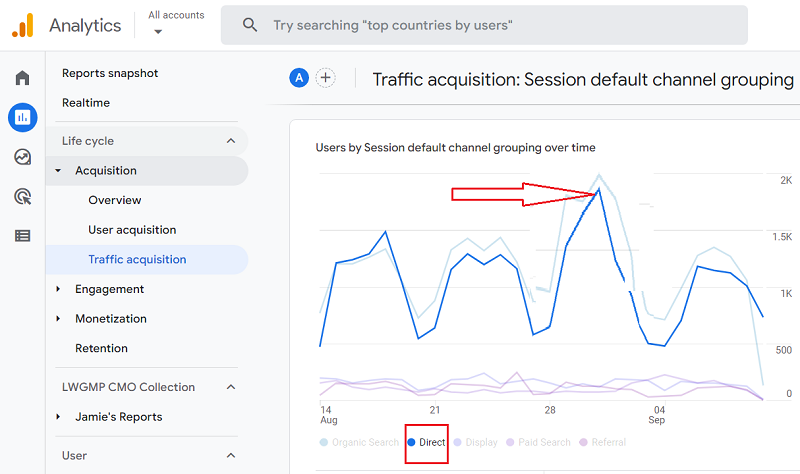
If yes, was it just a few days’ event, or do you see a continued increase in direct traffic over weeks and months?
The following could be the top reasons for sudden and massive spikes in direct traffic that lasted only a few days:
- Brand mention by an influencer.
- Offline promotion.
- You ran campaigns with missing or incorrect UTM parameters.
- Attacks by spambots.
- Website scans by consent management platform (CMP).
- Misconfigured A/B tests.
- Change in Caching Configuration.
#1 Brand mention by an influencer.
Your brand/website was mentioned on a popular website or by an influencer with a massive social media following.
#2 Offline promotion.
Someone in your company ran TV or radio ads or conducted another offline marketing activity, which caused sudden, massive spikes in direct traffic.
Remember, people will not automatically find your website and visit it directly. They find and visit your website in response to some marketing activity.
#3 You ran campaigns with missing or incorrect UTM parameters.
Marketing campaigns (especially email marketing campaigns) with missing or incorrect UTM tracking parameters can cause sudden, massive spikes in direct traffic.
#4 Attacks by spambots.
If you see a sudden, massive spike in direct traffic with a very low engagement rate and/or an average engagement time per session, your website is likely under attack by a spambot.
#5 Website scans by consent management platform (CMP).
Regular website scans by your CMP (like Cookiebot) can cause sudden spikes in direct traffic.
You should monitor the timing of these scans and correlate them with any unusual traffic patterns to ensure they are not misinterpreted as real user activity.
#6 Misconfigured A/B tests.
An A/B test involves redirecting users to different URLs or variants (version A and version B). If the redirects are not configured correctly, it could result in GA4 labelling the sessions as direct traffic.
This issue arises due to the loss of referrer information during the redirection process.
Sometimes, the JavaScript used by your A/B testing tools can conflict with GA4’s tracking code, resulting in direct traffic.
#7 Change in Caching Configuration.
Caching May Cause Traffic to Be Reported as Direct in GA4.
Caching is storing frequently accessed data in a temporary location (browser cache, server cache) to reduce the time and resources required to access the data in the future.
Both the HTML of a web page (including the head section) and JavaScript files can be cached by web browsers and servers.
Even when a page (including the head section) is served from cache, the JavaScript on the page, including the Google Analytics tracking code, will still be executed.
The execution of JavaScript does not inherently depend on whether the HTML was served from the cache.
The main issue with caching in the context of GA4 is not about the GA4 tracking code being executed but rather about the preservation of referral data and/or tracking parameters in URLs (such as UTM parameters), leading to direct traffic attribution.
Note: While caching issues can result in direct traffic attribution, it is important to clarify that stripping UTM parameters only impacts traffic labelled as direct if the referrer is also lost. GA4 can still recognize the referrer, even without UTM tags.
Steps to stop caching from causing the website traffic to be reported as direct traffic in GA4?
#1 Avoid caching URLs with tracking parameters (e.g., ?utm_source) and do not apply cache-busting query strings (e.g., ?v=1234) to these pages. GA4 treats each unique URL (with different query parameters) as a separate landing page, which can cause data fragmentation and misattribution as direct traffic.
#2 Set a shorter cache duration for HTML documents than for CSS or JavaScript files, as they are more likely to change and include tracking parameters.
#3 Ensure your caching configurations treat example.com/page and example.com/page?utm_source=google as different pages.
#4 Ensure your caching configurations don’t strip out necessary tracking parameters or headers.
#5 For SPAs (Single Page Applications), where URLs may change without a full page reload, use client-side JavaScript to ensure GA4 captures virtual pageviews and dynamically updates tracking parameters.
#6 Regularly test your cache setup to ensure that updated content is served as expected and that tracking parameters are not stripped or mishandled.
If the sudden and massive spike in direct traffic continues for weeks or months, then ask yourself the following questions:
- Has overall website traffic increased in the last month, or is it only direct traffic that continues to increase week after week?
- Have you recently made any changes to the admin settings of your GA4 property?
- What changes have you made to your tracking setup in the last month?
- What changes have you made to your website in the last month?
- Has your website recently started getting a lot of traffic from spambots?
Q1 Has overall website traffic increased in the last month, or is it only direct traffic that continues to increase week after week?
If overall website traffic has increased in the last month and direct traffic has increased in proportion to it, then a spike in direct traffic may not be cause for concern.
It is common for most websites to have direct traffic as one of their top five traffic sources:
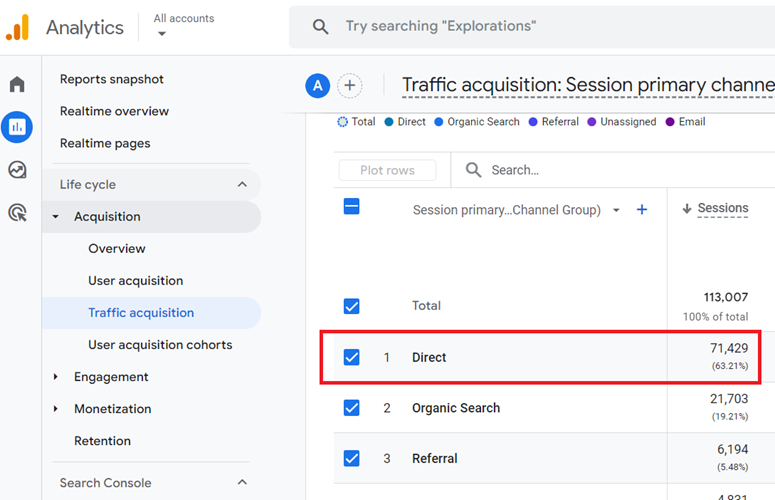
However, if overall website traffic has not increased significantly, but direct traffic has increased considerably, it may be cause for concern.
Check whether traffic from other marketing channels, like Google organic, email, paid search, etc., has declined.
If yes, then maybe all such traffic is now being reported as direct traffic. This could be because of a tracking issue.
Q2. Have you recently made any changes to the admin settings of your GA4 property?
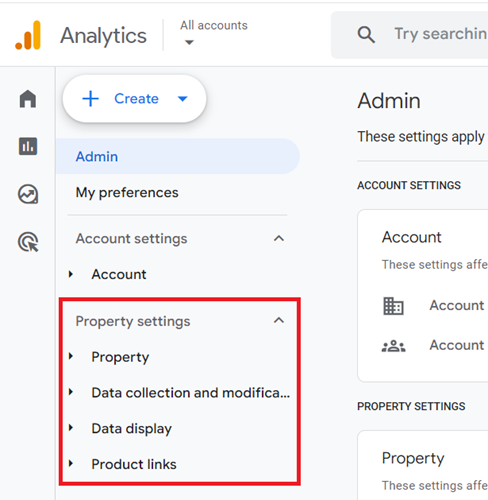
For example,
- Did you change the domains’ configuration for cross-domain measurement?
- Did you make any changes to the way internal traffic is defined?
- Did you change the ‘list unwanted referrals‘?
- Did you change the session timeout setting?
- Did you change the override cookie settings?
- Did you change the override consent mode defaults?
- Did you change the Manage default consent settings for data collection?
- Did you change the Manage data use across Google services?
- Did you recently combine your Google Tags or add or remove destinations?
- Did you recently set up Google consent mode?
- Do you have a lot of pages on your website with missing or incorrect Google Tag?
- Did you change the event data retention setting?
If the answer to any of the above questions is yes, then that could be the reason for a sudden spike in direct traffic.
#2.1 Did you change the domains’ configuration for cross-domain measurement?
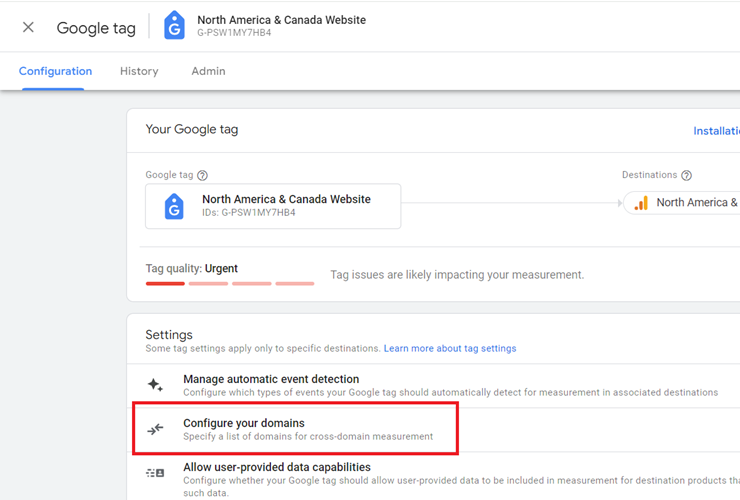
Cross-domain tracking misconfigurations can lead to the loss of referral data, causing traffic to be attributed as direct.
#2.2 Did you make any changes to the way internal traffic is defined?
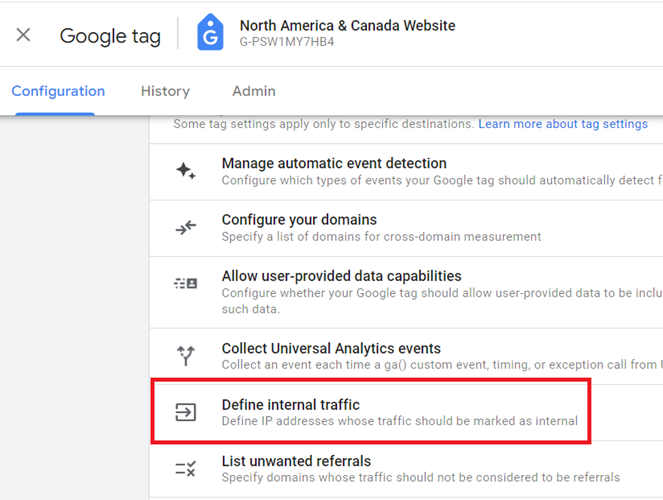
Changes in internal traffic definitions may lead to incorrect traffic filtering, inflating direct traffic by mislabeling internal visits.
#2.3 Did you change the ‘list unwanted referrals‘?
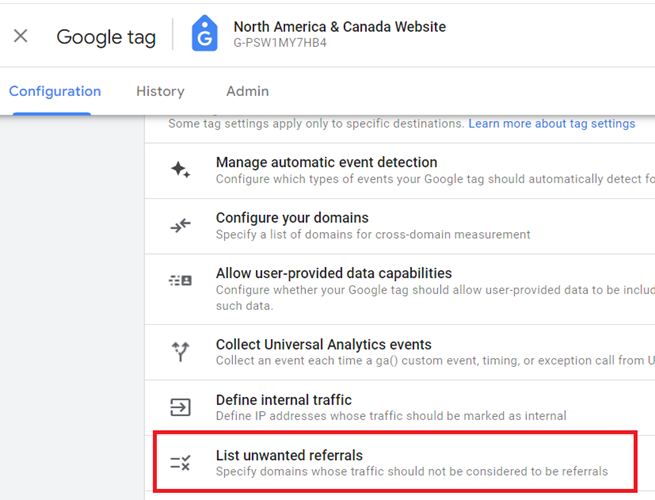
If referral sources are incorrectly listed as unwanted, their traffic may be classified as direct instead of from the correct traffic source.
#2.4 Did you change the session timeout setting?
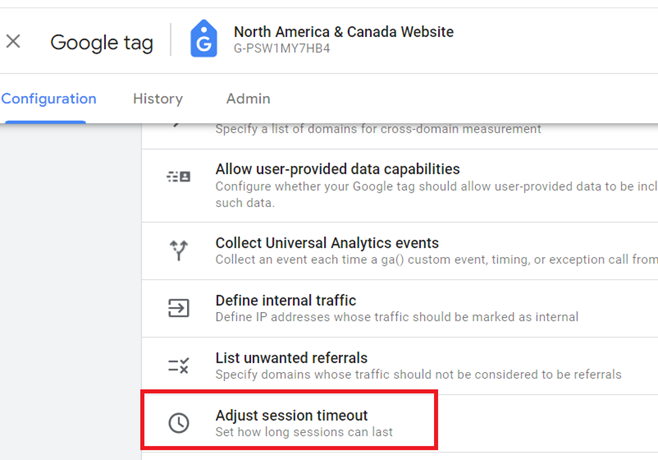
Shortening session timeouts can break user sessions, causing new sessions without correct attribution, resulting in direct traffic spikes.
#2.5 Did you change the override cookie settings?
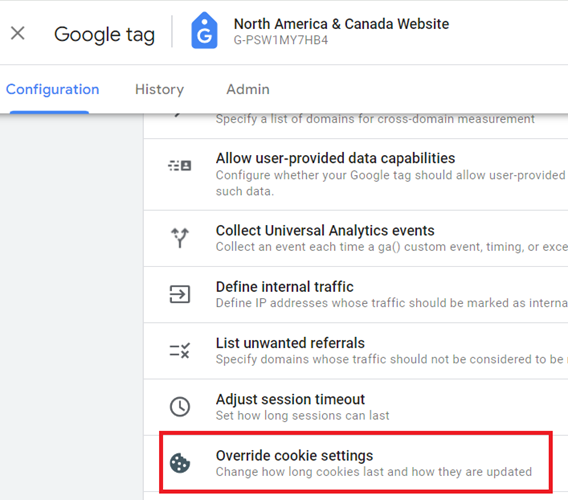
Changes to cookie settings can interfere with tracking user sessions across visits and domains, leading to direct traffic misattribution.
#2.6 Did you change the override consent mode defaults?
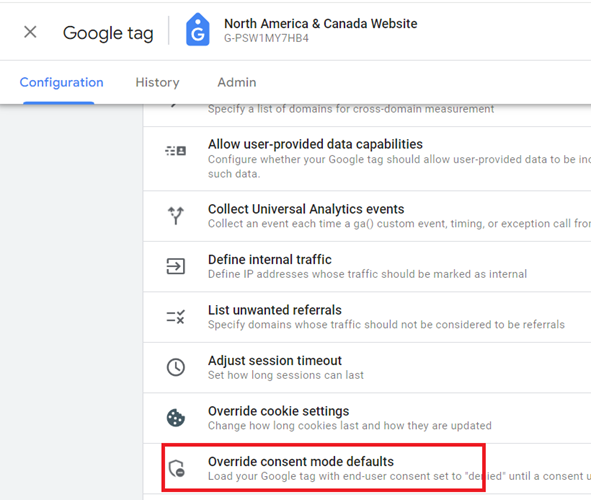
Consent mode changes can affect how data is collected and whether traffic is attributed correctly, potentially increasing direct traffic.
#2.7 Did you change the Manage default consent settings for data collection?
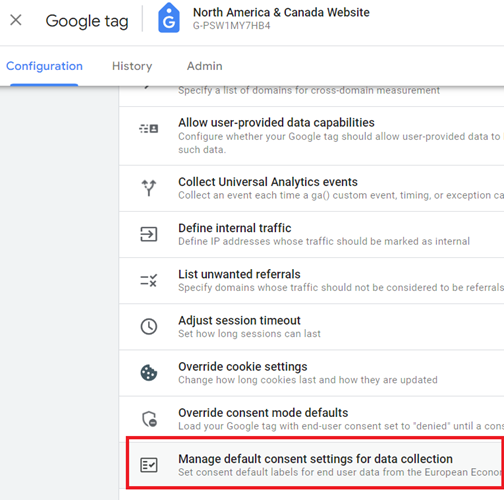
If data collection is restricted, some referral or source information might not be tracked, attributing traffic as direct.
#2.8 Did you change the Manage data use across Google services?
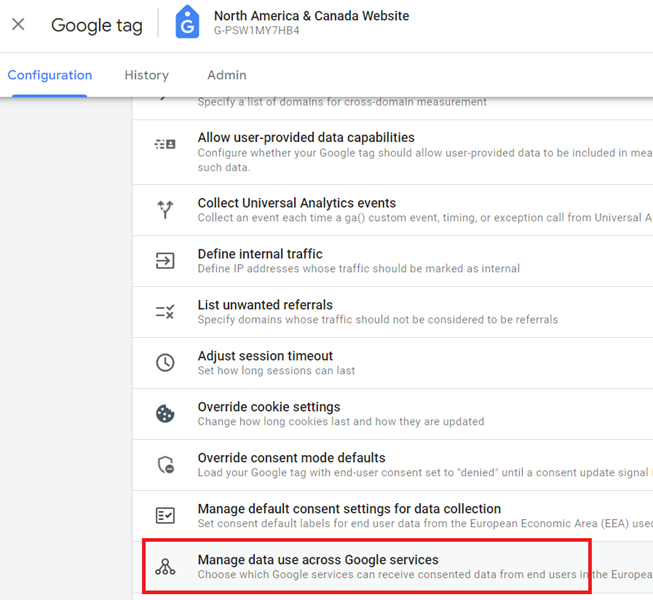
Adjusting data usage across services can impact how GA4 shares and receives data, potentially affecting traffic attribution.
#2.9 Did you recently combine your Google Tags or add or remove destinations?
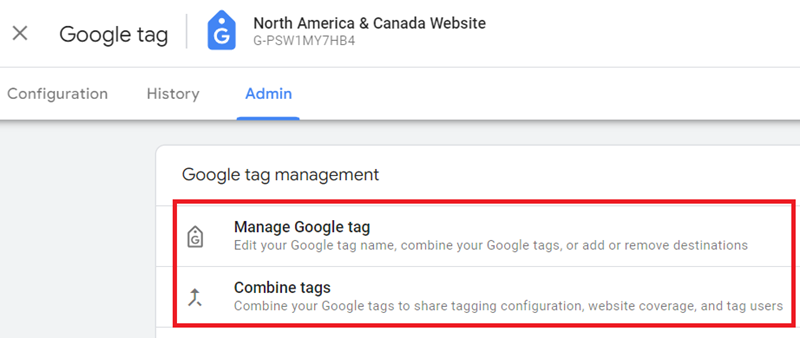
Modifying tags or adding/removing destinations may lead to incomplete tracking, causing attribution issues and spikes in direct traffic.
#2.10 Did you recently set up Google consent mode?
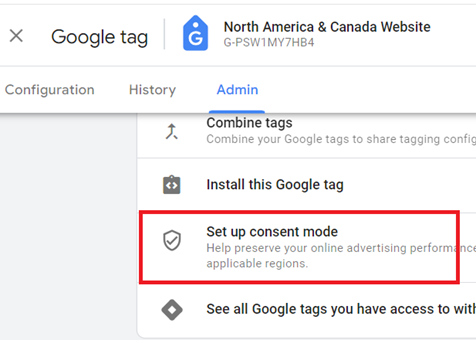
Setting up Consent Mode can impact data collection and cause traffic attribution problems if not implemented correctly.
#2.11 Do you have a lot of pages on your website with missing or incorrect Google Tag?
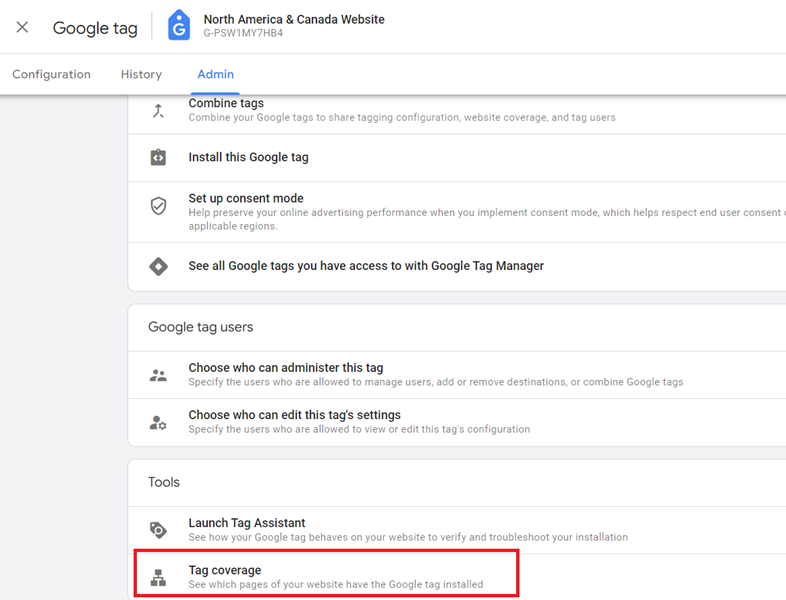
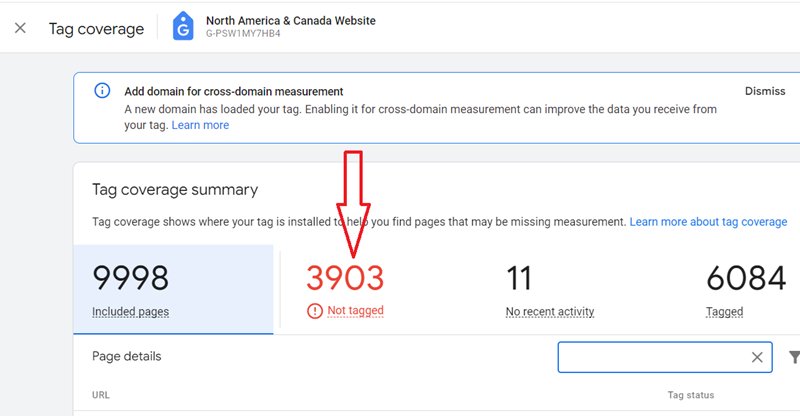
Missing or incorrect tags prevent correct tracking of user sessions and referral data, leading to misattribution as direct traffic.
Related Article: Some of your pages are not tagged in GTM/GA4 [Fixed].
#2.12 Did you change the event or user data retention setting?
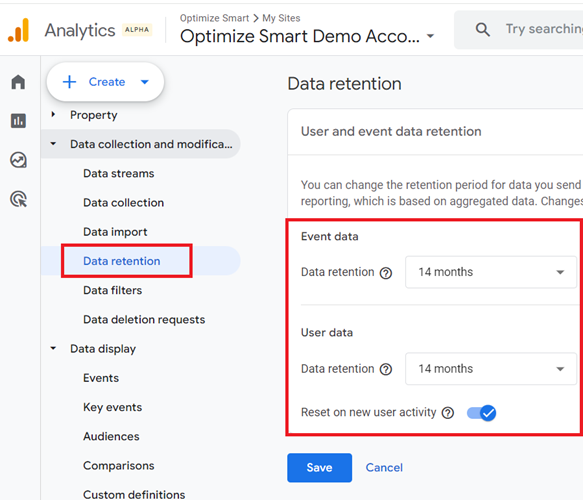
Reducing data retention can lead to session attribution problems over time, where previously identifiable users are misattributed as direct.
Q3. What changes have you made to your tracking setup in the last month?
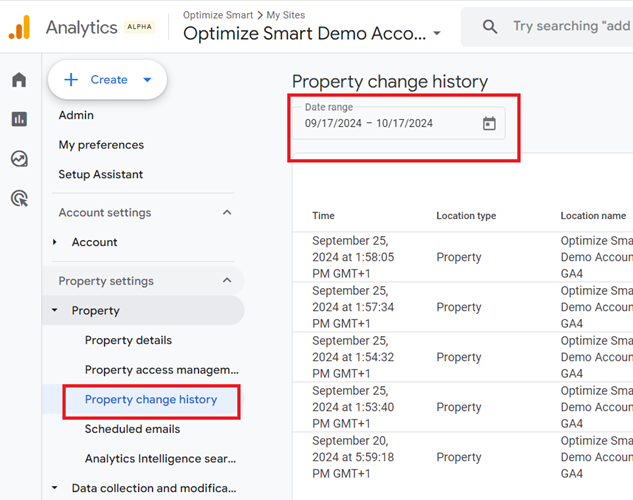
Look at the ‘Property Change History‘ to see the list of changes made to a GA4 property in a particular time period:
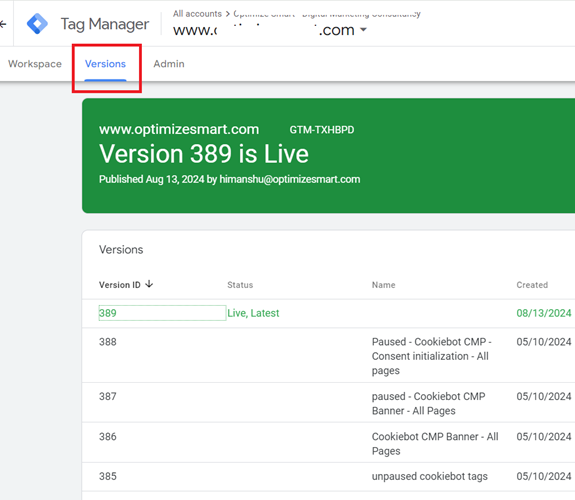
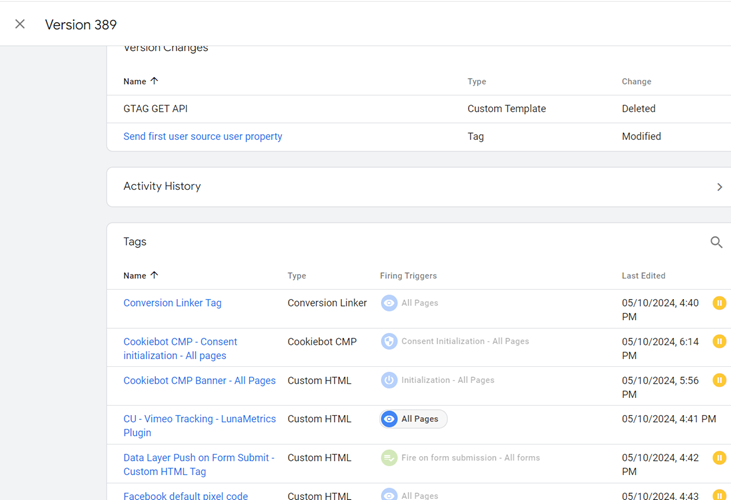
Click on the ‘Versions’ tab in your GTM container to see the list of changes made to your GTM container.
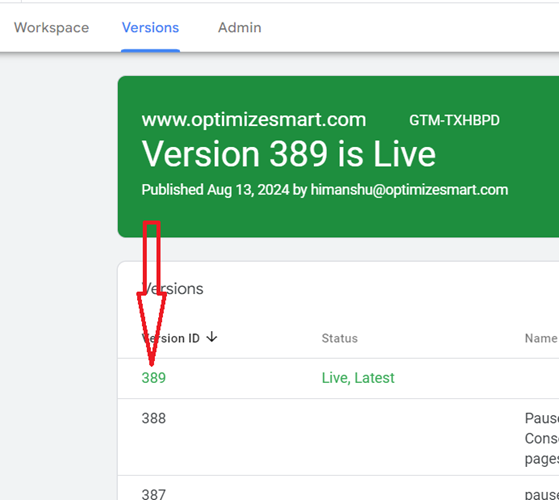
To see more detailed changes for a specific version, click on a version in the list.
Q4. What changes have you made to your website in the last month?
Most marketers use the ‘last edited date’ displayed next to tags/triggers in their GTM container to determine the last change.
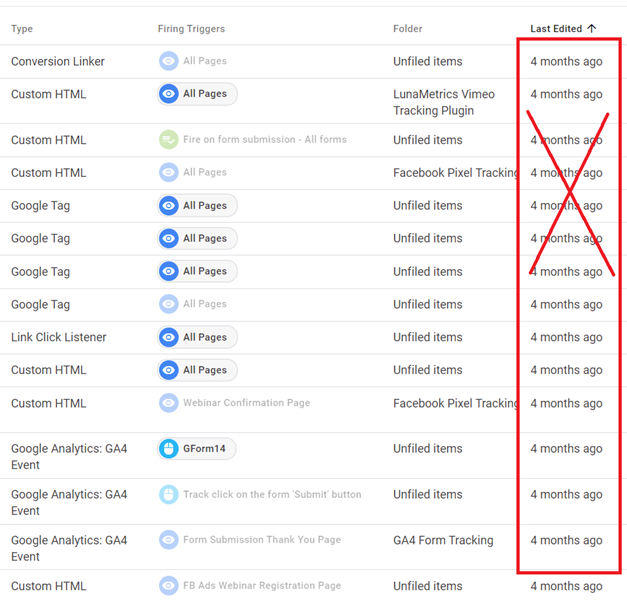
But that’s not how changes occur in reality.
The GTM changes are not just limited to changes directly made to tags/triggers/variables in the GTM container. Any code change on the website can negatively impact the functionality of existing tags/triggers/variables.
Your GA4 GTM Tracking setup can break without anyone touching your GTM container and then your client: “Our website tracking has broken. We haven’t made any changes to the GTM container.”
Me: “Yes, you did. It’s not technically possible for website tracking to stop working without something changing, whether in GTM or your website’s code.”
Don’t let the ‘Last edited’ date in your GTM container fool you into thinking that was the last time a tag/trigger was edited.
Clients don’t realise that changes in GTM are not limited to direct edits made in the GTM container.
GTM tags, triggers, and variables are deeply intertwined with your website’s code. Any code change on the website can unintentionally break tracking.
For example:
1) GTM relies heavily on the data layers to pass information to tags.
If the client’s dev team modifies the code that populates the data layer, it can break existing tags. GTM Tags may no longer receive the data they need to fire correctly.
2) GTM Triggers activate based on specific website events.
If your website’s event code changes, triggers may stop firing as expected.
3) GTM Variables can be defined using JavaScript code.
If the underlying JavaScript changes, variables may fail or return incorrect values.
4) Tags themselves may contain custom JavaScript code or configurations that can be affected by changes in the surrounding codebase.
The Hard Truth >> Your GA4 GTM Tracking setup can break without anyone touching your GTM container.
Any change to your website’s HTML, CSS, or JavaScript can have a ripple effect on tags, triggers, and variables, even if the ‘Last Edited’ date in GTM hasn’t changed.
So, don’t rely solely on the ‘Last Edited’ date to determine the cause of tracking issues.
Instead, always consider:
- Third-party scripts.
- Deployment cycles.
- Website code changes.
Q5. Has your website recently started getting a lot of traffic from spambots?
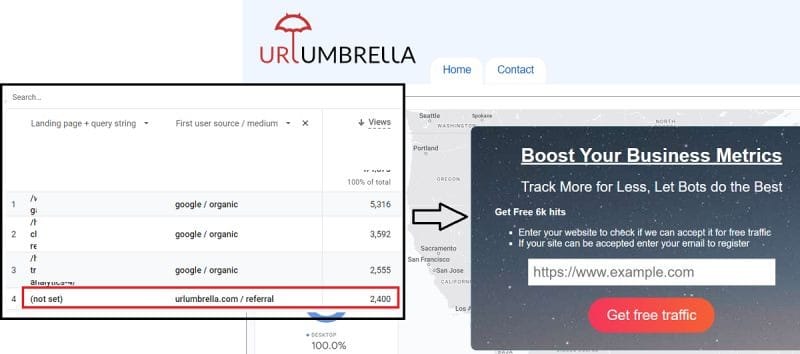
The following are the signs of spam traffic:
- Lot of sessions with missing ‘session_start’ events.
- Little to no user engagement (engaged sessions, very low engagement rate).
- Landing pages reporting (not set).
Some spambots visit websites to send fake traffic (mainly fake referral traffic).
These bots can crawl hundreds and thousands of websites daily and send HTTP requests to websites with fake referrer headers.
They create and send fake referrer headers to avoid being detected as bots.
The fake referrer header contains the website URL which spammers want to promote.
How to determine the source of Direct Traffic?
Whenever GA4 is not able to determine the referrer, it reports the traffic as direct traffic. So the source of direct traffic is already lost.
So, when a person asks how to determine the source of direct traffic, your data analysis should be geared towards identifying patterns and behaviours that can help reduce direct traffic, obtaining some referrer data, and not identifying definitive origins.
#1 Navigate to Reports → Acquisition → Traffic acquisition in your GA4 property.
#2 Filter for Direct (look at the last 28 days of data).
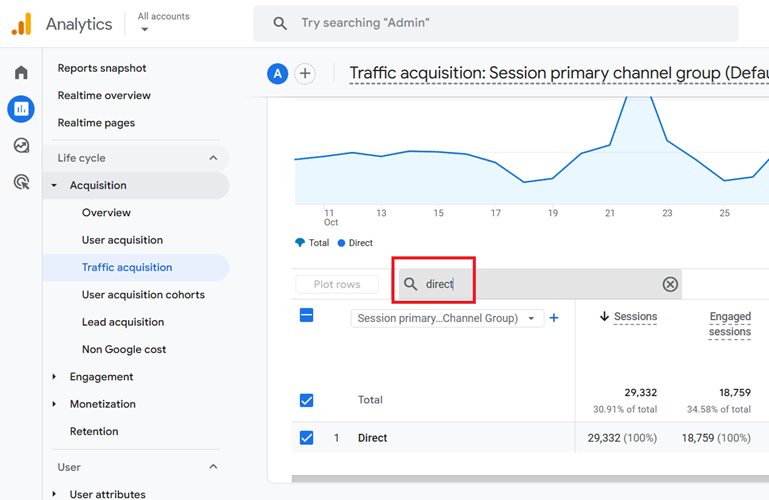
#3 Apply the following secondary dimensions one by one:
- Event Name.
- Country/Region.
- Landing Page / Query String.
- Browser.
- Device Brand.
- Device Category.
- Device Model
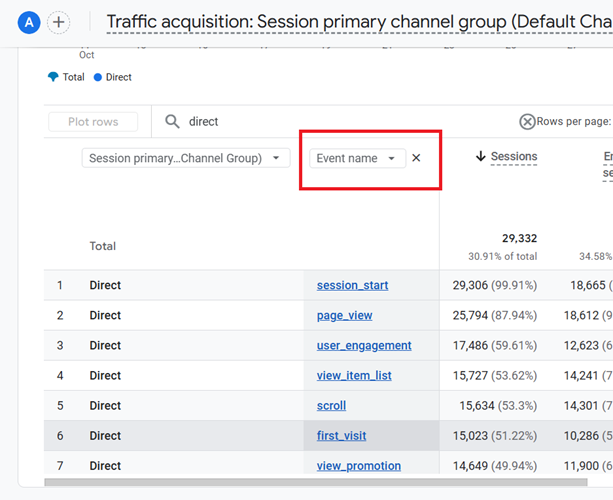
Event Name – Discover which events most commonly occur during direct sessions (e.g., page_view, conversion events).

Country/Region – Identify geographic trends that might indicate bot behaviour, corporate intranet visits, or localised campaigns driving direct visits.
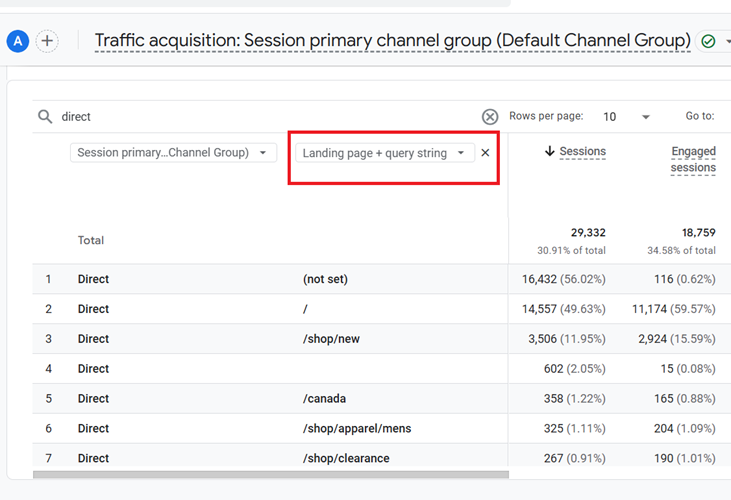
Landing Page + Query String – Identify which web pages visitors are directed to; spikes on campaign pages may indicate faulty tagging or dark traffic from emails/messages.
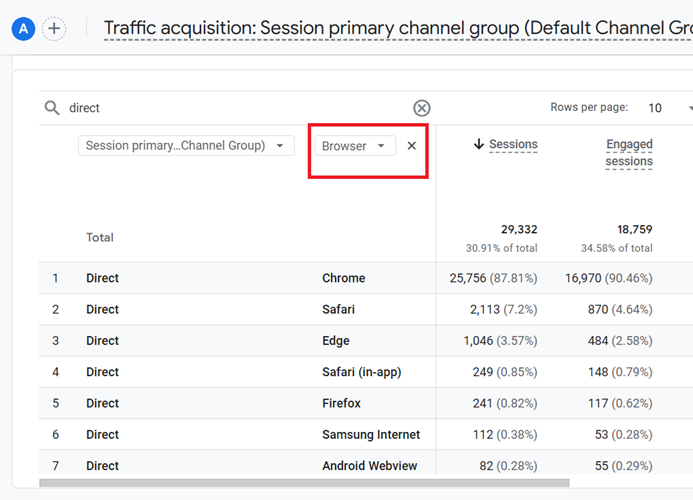
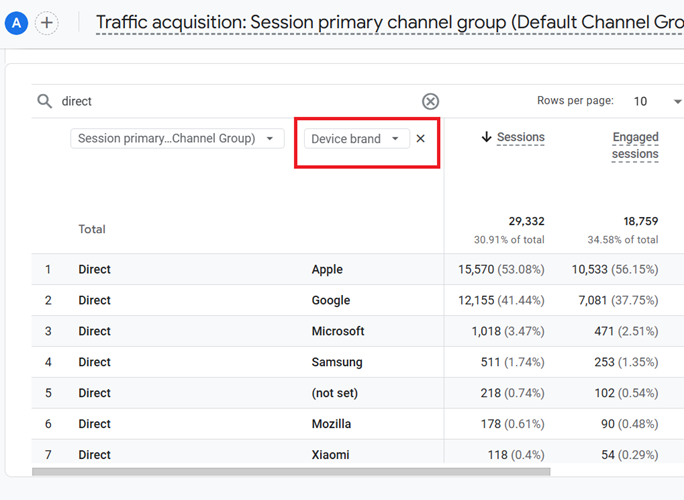
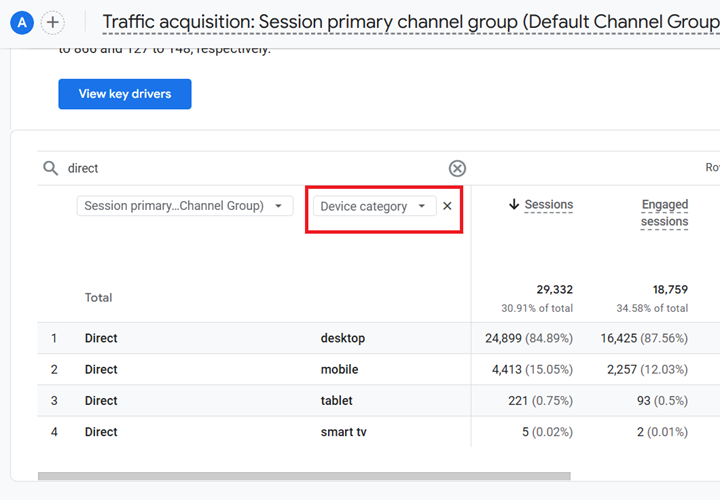
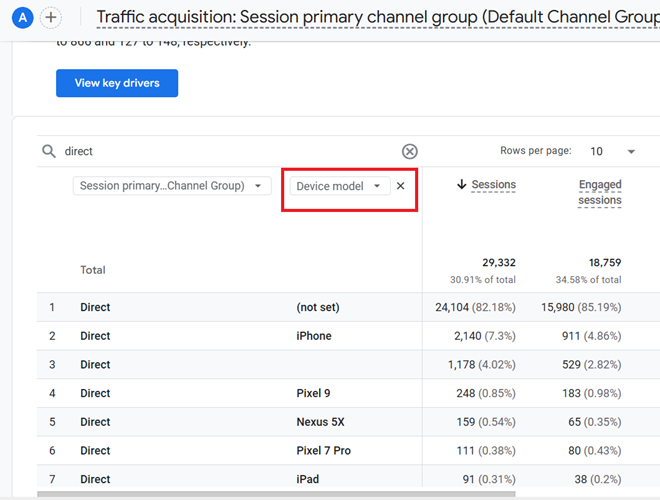
Browser, Device Brand, Device Category, Device Model – Compare device and browser trends to reveal patterns, such as mobile or specific device types being overrepresented in direct traffic, perhaps due to certain apps/platforms stripping referrers.
Let us suppose that the majority of direct traffic came from Apple Mobile devices.
If you are running paid ads on Mobile devices, make sure they are tagged with the correct UTM parameters.
Other than that, the direct traffic could be due to privacy reasons. Many GA4 implementations see a large proportion of direct traffic attributed to iOS (Apple) devices.
You can gain such insight, which could help reduce direct traffic.
18 Methods to Reduce Direct Traffic in GA4.
Use the following methods to reduce direct traffic in GA4 (Google Analytics 4):
- Tag the URLs of all marketing campaigns.
- Tag each marketing campaign correctly.
- Make sure all pages of your website contain a valid Google Analytics tracking code that fires on page load.
- Keep browser referral issues, privacy settings and add-ons in mind.
- Migrate your website to HTTPS.
- Block the internal traffic.
- Segment your direct traffic into two categories.
- Look for correlations between your direct visits and marketing campaigns.
- Use phone call tracking solutions.
- Avoid using headless solutions
- Use a TV attribution model.
- Devise new ways to capture referrer data.
- Embed shortened tagged URLs in non-HTML documents.
- Do not use the “rel=”noreferrer”” attribute on your website links.
- Avoid having Google Analytics cookies reset.
- Check your company’s firewall settings.
- Do not just rely on Google Analytics to capture referral data.
- Use a direct payment gateway.
#1 Tag the URLs of all marketing campaigns.
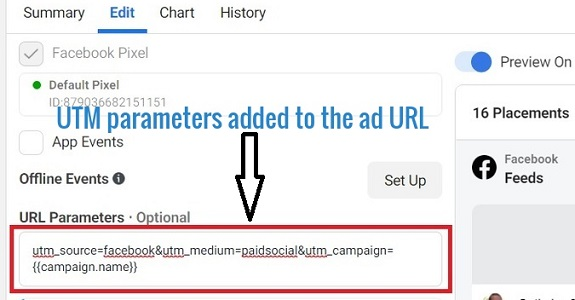
One of the most widely used methods to clean up direct traffic is to tag every URL of your marketing campaigns with the following campaign tracking parameters:
- utm_source
- utm_medium
- utm_term
- utm_content
- utm_campaign
The following is an example of a tagged URL:
https://www.optimizesmart.com/google-analytics-cookies-ultimate-guide/?utm_source=facebook&utm_medium=paidsocial&utm_campaign=article-promotion
The same URL, when untagged, will look like the one below:
https://www.optimizesmart.com/google-analytics-cookies-ultimate-guide/
Sometimes, a referrer is dropped due to technical reasons.
Whenever a referrer is dropped, Google Analytics cannot determine the origin of the traffic source and will report that traffic as direct traffic.
One effective way to ensure the referrer is not dropped is to tag the URLs of your marketing campaigns with campaign tracking parameters.
Also, make sure that you always tag the URLs you share via email or social media.
#2 Tag each marketing campaign correctly.
Use the Google Campaign URL Builder tool to tag campaign URLs correctly:
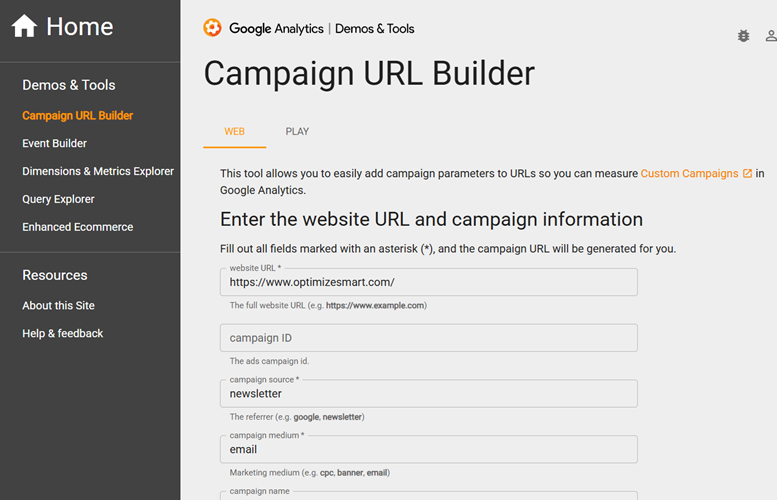
If you manually tag a URL, you are likely to make a mistake.
For example,
If you use incorrect campaign parameters (like ‘UTMSource=facebook‘) then Google Analytics will completely ignore the referrer and treat the referral traffic as direct traffic.
Similarly,
If you share a tagged link on Twitter with ‘utm_source=facebook’, then all the Twitter traffic will be reported as Facebook traffic by Google Analytics.
#3 Ensure that all pages of your website contain a valid Google Analytics Tracking Code.
Make sure all pages of your website contain a valid Google Analytics tracking code that fires on page load.
Otherwise, traffic from your own web pages can be reported as either direct traffic or self-referral traffic by Google Analytics.
For example, consider the following scenario:
A user lands on your website via a web page ‘A’, which does not contain a GA tracking code.
Then he navigates to web page ‘B’, which contains a valid GA tracking code.
Now, if your domain name is in the referral exclusion list (or list unwanted referrals), then the traffic from web page A to web page B will be reported as direct traffic by GA.
If your domain name is not in the referral exclusion list (or list unwanted referrals), then the traffic from web page A to web page B will be reported as self-referral traffic by GA.
You should conduct a site-wide tag audit to identify all web pages that lack GA tracking codes.
#4 Keep browser referral issues, privacy settings and add-ons in mind.
Keep browser referral issues, privacy settings, and add-ons in mind to capture as much referrer data as possible.
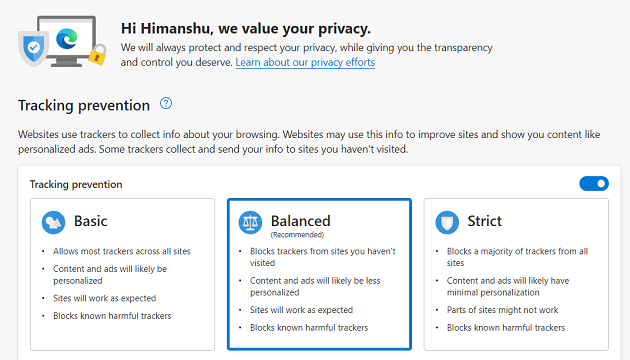
When redirecting visitors and search engines, keep the following factors in mind:
- Browser cookie policies, esp. regarding third-party cookies.
- The default privacy settings used by different browsers.
- Your company’s firewall settings.
- Ad blockers and add-ons which disable GA, third-party cookies or trackers.
Note: Always use server-side redirects (301) instead of meta and JavaScript redirects. Avoid redirect chains, as a referrer may drop during several redirects.
#5 Migrate your website to HTTPS.
You should move your website to a secure connection (HTTPS://) as soon as possible.
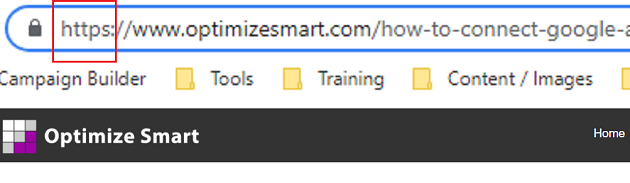
Migrate to HTTPS, even if your website is not an ecommerce site and you are not collecting any sensitive personal data.
That way, you will be able to track referrer data from HTTPS websites, which you won’t be able to do otherwise.
To move your website to a secure connection, you would need to get an SSL certificate for your domain.
You can get this certificate for free from Cloudflare.com, or you can purchase it from companies like comodo:

Just make sure that the certificate you purchase supports mobile, your CDN supports SSL, and all of your images, CSS files, JavaScript files, etc., use HTTPS as well.
When you receive the SSL certificate, migrate your website from HTTP to HTTPS using 301 redirects.
That way, you don’t lose organic search traffic.
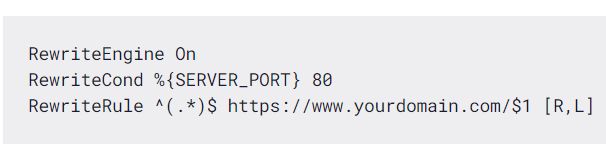
You can redirect all HTTP traffic to HTTPS traffic by adding the following code to your .htaccess file:
Note: Hire a professional SEO for the migration work unless you know exactly what you are doing. Otherwise, you may end up losing a lot of organic search traffic.
Once your website is moved to a secure connection, Google Chrome will display the lock icon next to your website address in the browser address bar.

For more information on obtaining the SSL certificate, please contact your web host.
#6 Block the Internal Traffic.
Internal traffic is the traffic generated to your website by your employees, contractors and other service providers.
Since these people are not your target market, you should not track their activities on your website in GA.
Often, internal traffic is incorrectly reported as direct traffic by Google Analytics.
For example, let us suppose your developers are heavily involved in testing or updating product catalogues every day.
Now they will visit your website all day, every day. All such traffic is likely to be reported as direct traffic by Google Analytics.
A popular method for blocking internal traffic is to apply IP-based filters to a GA reporting view. However, I do not recommend this method.
The IP-based filters are not effective because IP addresses change frequently, and most people do not use static IPs.
So you may continue to work under the impression that you are already blocking internal traffic in GA when that is not the case.
Install and enable the Google Analytics opt-out add-on on all of your desktop/laptop computers.
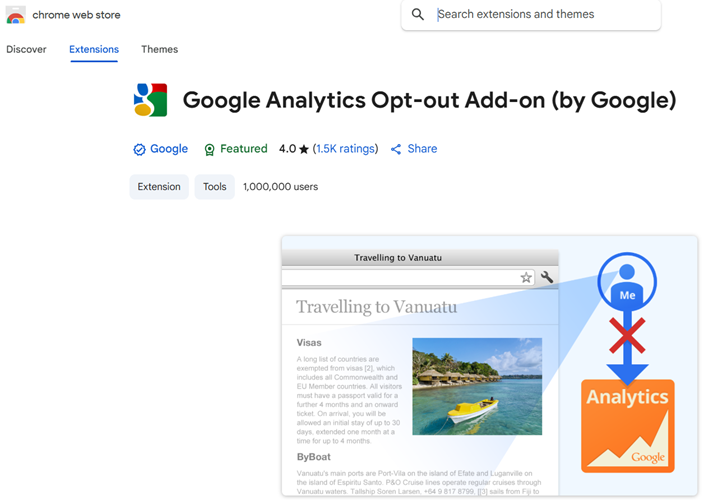
I use this extension all of the time. It is a Chrome extension that disables Google Analytics.
Therefore, regardless of how many times you or your staff visit your website, Google Analytics will not record those visits.
It is independent of IP addresses. So a change in IP address won’t affect this extension. This extension is also available for other web browsers.
However, make sure you use only the browsers or machines on which you have installed this extension to access your website.
Avoid visiting the website on tablets or mobile devices whenever possible, as this extension won’t work on those devices.
Ask all employees and contractors to install the Google Analytics opt-out add-on on their desktop or laptop computers.
Your web developers and web designers are most likely to visit your website frequently. So make sure that at least they use the ‘Google Analytics Opt-out Add-on’.
#7 Segment your direct traffic into two categories.
The first category includes ‘Tablet and desktop’ direct visits. The second category includes ‘Mobile’ direct visits.
You can create these categories by using custom segments in Google Analytics:
Doing such a type of segmentation will give you a good idea of what your direct traffic is made up of and how you can minimise it.
#8 Look for a correlation between your direct visits and marketing campaigns.
Often, when we launch a new marketing campaign (especially offline campaigns, such as TV Ads), there is a considerable increase in direct traffic to the website.
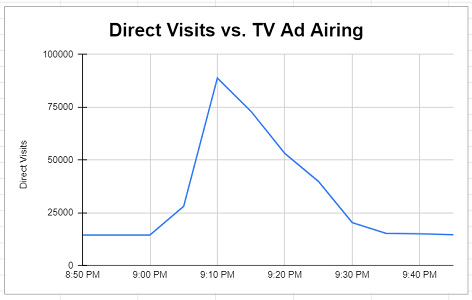
You need to note down all such changes in direct traffic.
So that you can later attribute traffic and conversions from direct traffic to the correct marketing campaign.
#9 Use a Phone Call Tracking solution.
Let us suppose your website has been set up mainly to generate leads through phone calls.
This is a common scenario for websites that sell high-priced items, such as properties, cars, yachts, and consultation services.
You often need to schedule a call with the prospect to close the sale.
However, if you do not implement a commercial phone call tracking solution (such as CallTrackingMetrics), you will miss out on all the referral data.
Then you would not know which marketing channel or keyword generated the phone calls, or where to invest time and money.
Do not just rely on Google Analytics to capture referrer data.
#10 Avoid using headless solutions.
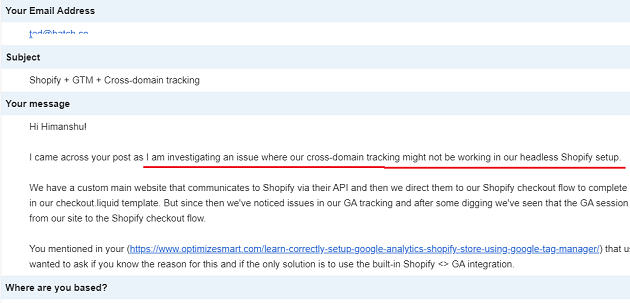
‘Headless’ is a type of website architecture that separates the front-end of a website from the back-end.
The front-end refers to the user interface, and the back-end refers to the website’s core functionality.
In the case of ‘headless’ architecture, the front-end and back-end are decoupled systems that communicate via an API layer.
Headless websites are primarily used because they offer a superior user experience across various devices and platforms compared to traditional websites.
However, I do not recommend using headless solutions.
Since the front end is not tightly coupled with the backend, it can cause many tracking issues.
Most legacy tracking solutions, such as GA4 and GTM, are not designed for headless websites.
So when you use such tracking solutions on a headless website, you can get a lot of data collection issues like:
- A very high volume of direct traffic because of the loss of referrer data.
- Missing or incorrect e-commerce data.
- Page titles not matching page paths.
- Cross-domain tracking not working.
- Referral exclusion not working.
It is common for headless websites to be plagued with attribution issues.
And all of this happens because you are trying to use JavaScript to communicate between the front-end and back-end systems.
For headless websites, you should be using APIs to create all types of communications between the front-end and the back-end.
However, since API integration is the recommended method, you would be overdependent on developers for all your tracking needs.
Although headless tech has been around for almost a decade, its widespread adoption remains limited.
You make conversion attribution tracking unnecessarily harder for yourself when you move away from the mainstream solutions, into experimental tech like headless.
There is very little information available about troubleshooting data collection and data integration issues related to headless solutions.
There are no industry best practices, no known and proven workarounds, hardly any official documentation, and hardly any discussion on forums.
You are pretty much on your own if something goes wrong with your tracking.
Most businesses would be better off sticking to traditional websites and traditional e-commerce.
Businesses that rely on headless solutions (such as Amazon) typically have a team of full-stack web developers, and everything is custom-built and maintained in-house.
If you want to advertise profitably for the foreseeable future and continue to get attribution data in your analytics reports, then avoid using headless solutions.
#11 Use a TV Attribution Model.
Suppose you are a business that advertises its products or services on TV, and you want to measure the impact of TV advertising on website traffic and sales.
In that case, you should seriously consider using a TV attribution model.
The TV attribution model is an algorithmic attribution model that uses machine learning and statistical modelling to assign conversion credit to various marketing touchpoints.
TV ads drive website traffic and sales. If you monitor your GA real-time reports during and after a TV ad, you are likely to see a huge uplift in direct traffic.
However, there is no easy way to prove that the uplift is due to the TV ad and not to some other marketing activity.
Suppose you are running several TV ads on various ad networks.
In that case, it becomes even more difficult to understand the impact of a particular ad network, TV program and ad slot on website traffic and sales.
The TV attribution model tool comes in handy here.
Through the TV attribution model tool, you can correlate TV ad airing with your website traffic, sales and other online users’ activities in real time.
This attribution model is not something which you can create in standard Google Analytics. It is beyond its capabilities.
#12 Device new ways to capture referral data.
Be innovative and devise new ways to capture referrer data. Do not just rely on your web analytics tool to capture referrer data.
For example, you can capture referrer data through lead generation forms, on-page surveys, email surveys, contests, over the phone, etc.
Ask your website visitors how they found your website, service or product.
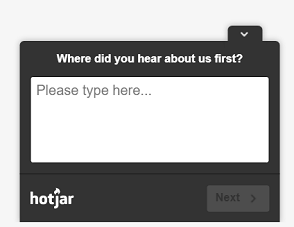
#13 Embed shortened tagged URLs in non-HTM documents.
If the URL you embed in a non-HTML document (Word, Excel, PowerPoint, PDF, etc.) or in an email contains clearly visible campaign tracking parameters, it reduces the likelihood that your target audience will click or share it.
People do not like their activities (such as clicking a link) being tracked.
So, when they see a URL with campaign tracking parameters, they may immediately feel tracked.
Some people either don’t share such URLs or remove the campaign tracking parameters before sharing. Not to mention, the campaign tracking parameters make a URL look ugly.
If you are deploying content via non-HTML documents (Word, Excel, PowerPoint, PDF, etc.) and/or desktop email clients, then the best way to embed tagged URLs is through a URL-shortening service like bit.ly.
For example, consider the following URL with a campaign tracking parameter:
https://www.optimizesmart.com/google-analytics-cookies-ultimate-guide/?utm_source=microsoft-word&utm_medium=non-html-document&utm_campaign=article-promotion
Now, if you want to share this URL via a non-HTML document, then first shorten it via a service like Bit.ly and then embed it: https://bit.ly/1ibcdZl
I use the custom medium ‘non-HTML document’ when tagging the URLs embedded in non-HTML documents.
This is the advantage of tagging URLs in non-HTML documents.
#14 Do not use rel=”noreferrer” on your website links.
Make sure there is no rel=”noreferrer” on your website links, especially if you are an affiliate.
#15 Avoid Google Analytics cookies from being reset.
Make sure your code does not reset Google Analytics cookies, resulting in a direct visit.
This is one of the most overlooked issues and is often hard to diagnose.
#16 Check your company’s firewall settings.
Check your company’s firewall settings to make sure that the referrer is not dropped.
#17 Do not just rely on Google Analytics to capture referral data.
Do not rely solely on Google Analytics to capture referral data, especially if you are tracking mobile apps.
There are numerous third-party tools (such as Tune) available that can track referral data more accurately than Google Analytics.
#18 Use a direct payment gateway.
A payment gateway is a service through which you can accept credit/debit cards and other forms of electronic payments on your website.
Stripe is an example of a payment gateway.
Whenever a customer leaves your website to make payment via a third-party payment gateway and later returns to your website from the gateway website, Google Analytics often attributes sales to the payment gateway instead of the original traffic source.
There are two types of payment gateways:
- External Payment Gateways
- Direct Payment Gateways
If you use an external payment gateway, your customers must leave your website to complete a transaction.
However, if you use direct payment gateways, your customers can complete transactions directly on your website.
The best way to track original referrals when using third-party payment gateways is to avoid external payment gateways.
Consider using only a direct payment gateway.
It will cost you more than an external gateway, but help you in minimizing self-referral issues.
And most importantly, help you not lose transaction data in GA4.
The following are examples of direct Payment gateways:
- PayPal Payflow Pro
- PayPal Payments Pro
- WorldPay Direct
- Authorize.net
- Shopify Payments
Direct Traffic Stealing Conversions from Google Ads in GA4.
The more direct traffic is recorded in your GA4 property, the higher the probability that Google Ads and/or Organic search will NOT get credit for conversions.
This is because attribution models used by GA4 exclude direct visits from receiving conversion credit unless the conversion path consists entirely of direct visits.
Let’s say you’re running a website with traffic coming from Google Ads, Organic search, and genuine Direct traffic.
However, an issue is causing referrer data to be lost, leading to Google Ads and Organic search visits being misclassified as Direct traffic in GA4.
Before referrer data loss.
Traffic Composition:
Google Ads traffic: 1,000 users
Organic search traffic: 2,000 users
Direct traffic: 500 users
Conversion Attribution:
Google Ads conversions: 50
Organic search conversions: 100
Direct traffic conversions: 10
After referrer data loss due to misclassification.
Traffic Composition:
Google Ads traffic: 700 users (300 misclassified as Direct)
Organic search traffic: 1,500 users (500 misclassified as Direct)
Direct traffic: 1,300 users (500 genuine + 300 from Google Ads + 500 from Organic search)
Conversion Attribution:
Google Ads conversions: 35 (loss of 15 conversions)
Organic search conversions: 75 (loss of 25 conversions)
Direct traffic conversions: 55 (includes 40 conversions misattributed from Google Ads and Organic search)
Key observations.
- Direct traffic conversions increased artificially from 10 to 55, but most of these conversions are not truly direct.
- Google Ads and Organic search lost attribution credit because the attribution model in GA4 excluded Direct traffic conversions from their paths.
- As Direct traffic increases, the probability that Google Ads and Organic search traffic won’t receive conversion credit also increases due to misclassification.
Compare the number of new users from your Google Ads traffic with new users from direct traffic over the same period.
Look for any spikes in direct traffic that coincide with a decline in Google Ads traffic.
If there is a noticeable increase in direct traffic while Google Ads traffic drops, it likely indicates that some Google Ads traffic is being misclassified as direct.
This issue can significantly affect both traffic and conversion attribution.
Similarly,
Compare new user trends for both Google organic search and direct traffic over the same period.
If you notice an increase in direct traffic alongside a decrease in Google organic search traffic, it suggests that some organic traffic may be incorrectly labelled as direct.
That’s why it is very important that you minimize the loss of referrer data to reduce direct traffic.
So that you can retain traffic and conversion attribution.
Other Articles on GA4.
- Tracking New, Qualified and Converted Leads in GA4.
- Free GA4 training and tutorial with Certification.
- Understanding GA4 Ecommerce Reports (Monetization Reports).
- GA4 Ecommerce Tracking via GTM: Step-by-Step Setup Guide.
- How to see UTM parameters in GA4 (Google Analytics 4).
- GA4 UTM parameters not working? Here is how to fix it.
- How To Use UTM parameters in GA4 (Campaign Tracking).
- How to track AI traffic in GA4.
- Understanding Google Analytics 4 cookies – _ga cookie.
- GA4 (Google Analytics 4) Measurement Protocol Tutorial.
- GA4 Unassigned Traffic: Causes and How to Fix it Fast.
- GA4 Regex (Regular Expressions) Tutorial.
- GA4 Direct Traffic Spike: Common Causes and How to Fix Them.
- gtag.js – Google Tag in Google Analytics 4 and beyond.
- GA4 Scopes – User, Session, Event & Item scopes.
- GA4 Conversion Tracking (Key Events) Tutorial.
- GA4 (not set) - Guide to fixing (not set) issue.
- GA4 Certification Exam: Questions, Answers for Skillshop (GAIQ).
- GA4 User Properties (User Scoped Custom Dimensions) – Tutorial.
- Tracking Organic Traffic in GA4 - Complete Guide.
- Tracking Events in GA4 (Google Analytics 4).