

Learn to fix GA4 (not set) issues through this step by step guide.
Note: The (not set) and unassigned traffic issues in GA4 are closely related, and addressing one often helps mitigate the other. Also, make sure to read this article: GA4 Unassigned Traffic: Causes and How to Fix It Fast.
What does “(not set)” mean in GA4?
GA4 uses a placeholder called (not set) whenever it does not receive any information for a particular dimension.
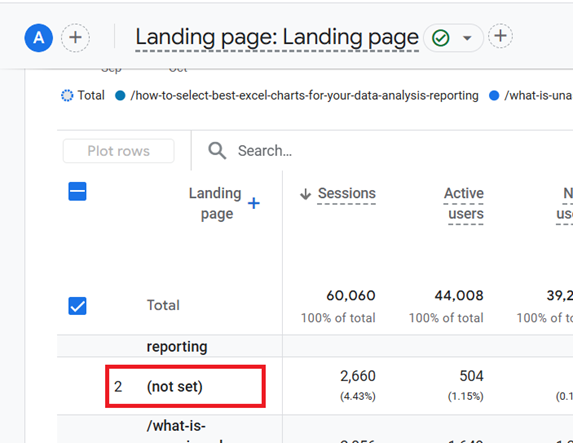
For example:
- “(not set)” can appear in the Source/Medium report when GA4 can’t determine the traffic source for a session.
- The Landing Page dimension may show “(not set)” when the ‘page_view’ event is missing for a session.
- “(not set)” in the Campaign dimension can occur when campaign tracking parameters are missing or incorrect.
- “(not set)” in the Page Title dimension can happen when the page title is missing from the HTML.

GA4 Landing Page (not set).
GA4 uses a placeholder called ‘(not set)’ whenever it does not receive any information for the ‘Landing Page’ dimension:
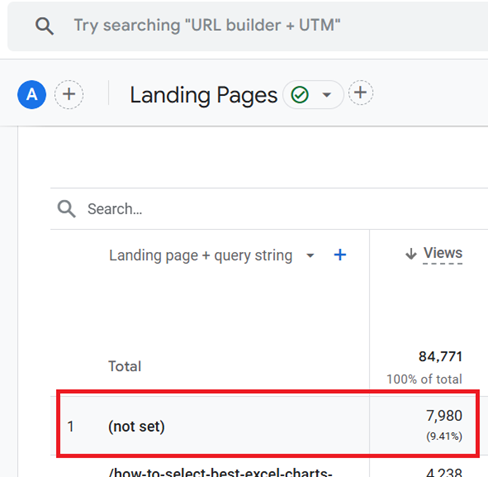
The following are 10 methods to fix (not set) Landing page issues in GA4.
- Exclude Today and Yesterday from the Date Range.
- Extend GA4 Session Timeout Setting.
- Ensure GA4 Configuration Tag Fires Quickly.
- Use Standard GA4 Implementation.
- Verify page_view Event Fires on Landing.
- Configure Server-Side Tagging Correctly.
- Configure Measurement Protocol Correctly.
- Avoid Immediate Redirects .
- Avoid Redirects to Homepage Instead of 404 Page.
- Filter Out Spambot Traffic.
#1 Exclude Today and Yesterday from the Date Range.
“(not set)” values may temporarily appear due to incomplete data processing in the last 24-48 hours.
Smaller GA4 properties may complete data processing faster, but larger properties might require up to 72 hours.
- When analysing “(not set)” landing pages, exclude today and yesterday from the date range.
- Set the date range to end at least 48 hours before data analysis. For example, if today is October 1, 2024, set the range to end on September 29, 2024 or earlier.
#2 Extend GA4 Session Timeout Setting.
A GA4 session can start without a page_view, leading to potential “(not set)” values.
Extending the GA4 session timeout setting reduces the likelihood of a new session starting without a page_view.
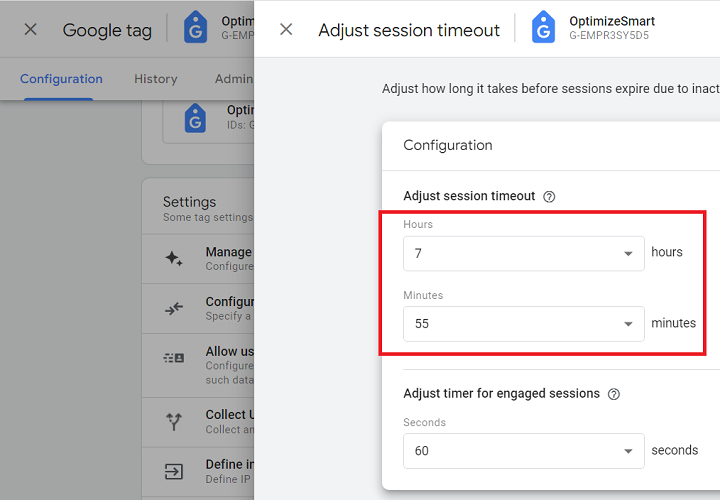
Increase the session timeout from 30 minutes to 7 hours 55 minutes, the maximum allowed by GA4.
This prevents early session expiration, allowing the page_view event to set the landing page before other events trigger a new session.
#3 Ensure GA4 Configuration Tag Fires Quickly.
The GA4 Configuration tag (or Google Tag) fires the page_view event. If it takes longer than a second to fire, other events, such as user_engagement, might fire first, causing “(not set)” landing pages.
Slow page load times, complex GTM setups, network latency, and large content can delay firing.
- Improve page load speed, especially on mobile devices.
- Place the GTM container code at the top of the section.
- Trigger the GA4 Configuration tag on all pages and ensure it fires before other GA4 event tags.
- Minimise container size by removing unnecessary elements (tags, triggers, and variables) and use Server-side tagging if possible.
#4 Use Standard GA4 Implementation.
A standard GA4 implementation (hardcoded Google Tag or GTM) ensures the page_view event fires at the correct time and sets the landing page correctly.
Non-standard GA4 implementations (e.g., plugins, CDPs) can disrupt the event order, increasing the likelihood of “(not set)” values.
Plugins or CDPs can reorder or alter event timing, causing issues.
- Avoid using plugins or CDPs (like ‘segment’) to deploy Google tags.
- Use GTM or a hardcoded tag directly, as this reduces timing issues that can cause “(not set)” landing pages.
#5 Verify page_view Event Fires on Landing.
To correctly attribute landing pages, the page_view event must fire when a user lands on the website.
Use Google Tag Assistant and developer tools to check that the page_view event fires as expected on initial load across browsers (Chrome, Firefox, Safari) and devices (desktop, mobile, tablet).
#6 Configure Server-Side Tagging Correctly.
Incorrect GTM server-side tagging can delay the page_view event, resulting in “(not set)” values.
Misconfigured user consent or privacy settings can also prevent the page_view event from being sent to GA4.
- Ensure the server-side GTM is configured to prioritise the page_view event so GA4 captures it as the first event.
- Set up a trigger in Server-Side GTM that only fires ‘user_engagement’ events when they don’t start a session.
#7 Configure Measurement Protocol Correctly.
Misconfigured Measurement Protocol requests, missing parameters, or an incorrectly formatted page_location parameter can lead to “(not set)” for the Landing Page dimension.
The page_location parameter is crucial for setting the landing page in GA4.
- Ensure the page_view event is sent as the first event of each session.
- Include the page_location parameter in each Measurement Protocol request, formatted correctly, and send requests with all required parameters.
#8 Avoid Immediate Redirects.
GA4 determines the landing page based on the first ‘page_view’ event of a session.
If the redirect happens immediately before the ‘page_view’ event can fire, GA4 may not be able to capture the original landing page, leading to (not set) landing pages.
Set a short delay (e.g., 1 second) before redirects to allow the page_view event to register.
This can be done with a custom HTML tag in GTM to delay the redirect, ensuring the initial page load is captured.
#9 Avoid Redirects to Homepage Instead of 404 Page.
Redirecting users to the homepage instead of a 404 page can result in “(not set)” for landing pages, as GA4 may not capture the initial page_view.
If a redirect occurs before the page_view event fires, GA4 may not capture the initial page.
If other events fire before page_view, it may lead to “(not set)” values.
- Use a custom 404 error page that logs a page_view event, allowing GA4 to capture the initial landing page.
- If you must redirect to the homepage, set a brief delay (1 second) before the redirect.
#10 Filter Out Spambot Traffic.
Spambots may send fake traffic without triggering page_view events, resulting in “(not set)” landing pages.
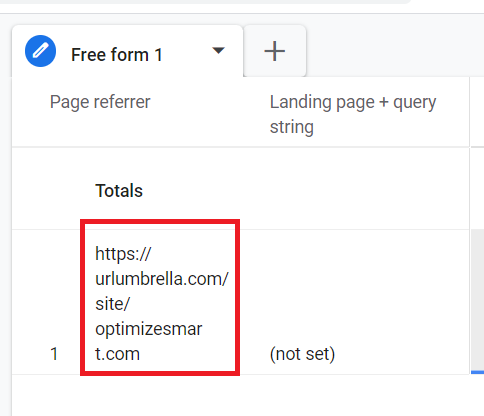
- Identify spambot traffic by analyzing irregular patterns.
- Filter out all such traffic from your reports before you analyze the (not set) landing pages.
FAQs about (not set) landing pages in GA4.
Q1. What are the most common causes of “(not set)” in the Landing Page report?
- Delayed or missing page_view event.
- Immediate redirects.
- Session timeout issues.
- Privacy settings and ad blockers.
- Misconfigured tags in GTM.
- Single page applications (SPAs).
Q2. Does using redirects contribute to “(not set)” in the Landing Page?
Yes, if a redirect happens before the page_view event fires.
Q3. Can delayed tag firing cause “(not set)” in the Landing Page?
Yes, esp. if the Google tag or the page_view event is delayed and as a result, other events like user_engagement fire first.
Q4. Does adjusting session timeout settings in GA4 reduce “(not set)” instances in the Landing Page?
Yes. Increasing the session timeout to 7 hours 55 minutes reduces the likelihood of a new session starting without a page_view event.
Q5. If the Landing Page is “(not set)” but other pages show data, what does that mean?
This situation usually indicates that the session began without a page_view event firing.
Q6. How does using a Single Page Application (SPA) affect “(not set)” in the Landing Page?
SPAs can increase “(not set)” instances in the Landing Page dimension despite the built-in GA4 functionality to track SPAs.
Q7. Can I completely eliminate “(not set)” Page Titles in GA4?
It is unlikely that you can 100% eliminate the issue of (not set) landing pages because of various factors that could be outside of your control, but you can certainly minimise this issue.
GA4 Source/Medium (not set).
Whenever GA4 is unable to determine the source or medium for a session, it reports (not set) as the value of the source or medium dimension:
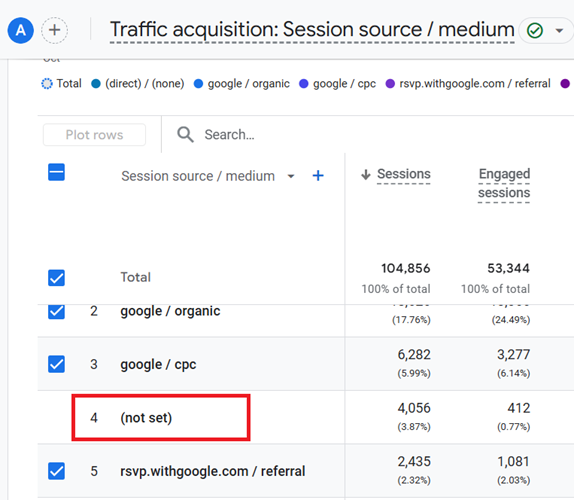
By implementing the following measures, you can minimize the GA4 Source/Medium not set issues:
Using Audience triggers in GA4 can significantly increase the volume of (not set) source/medium.
Audience triggers automatically send events when a user meets the criteria for a specific audience.
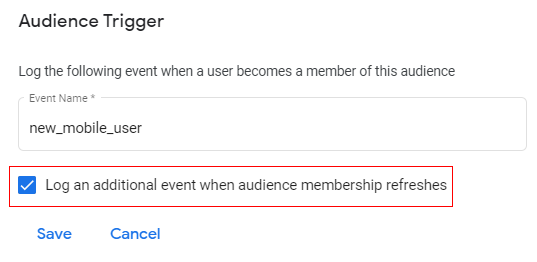
For example,
If a user visits a website and meets the criteria for the ‘High-Value Shoppers’ audience, GA4 can trigger an event.
If the event generated by the audience trigger isn’t tied to an existing session, the source/medium can default to (not set) / (not set).
This can happen because the session has ended or because the audience criteria are met outside the user’s current session.
The following is an example of an audience trigger that isn’t tied to an existing session.
Consider the following scenario.
You visited my website last week.
Today, I decided to add you to my audience because you reached a key milestone (like being our member for X days).
You are no longer on the website and generating any sessions.
As soon as you are added to my audience, an audience trigger event will be recorded, but the source/medium defaults to (not set) / (not set).
So, minimize the use of audience triggers in GA4.
If you must use audience triggers, focus on tying them to the current session. That way, you can avoid/minimize (not set) source/medium issues.
For example,
Set up an audience trigger that fires an event when a “High-Value Shopper” adds an item to their cart during their current session.
This ensures the event is tied to the active session and captures source/medium information.
Source and Medium for non-key events in GA4 are (not set).
The source and medium for non-key events in GA4 are usually “(not set)“.
This is because GA4 typically does not automatically capture source and medium information for non-key events.
In GA4, source and medium information is most relevant at points of entry and key conversion actions.
Since source and medium information is most relevant at points of entry, GA4 automatically captures this information for certain non-key events that mark significant entry points in the user journey.
These entry-point events typically include ‘first_visit’, ‘session_start’, and other similar non-key events.
For non-key events that occur early in the user journey but are not designated as entry points (e.g., custom events triggered early), you need to configure GA4 or use Google Tag Manager (GTM) to explicitly capture source and medium information.
Non-key events that occur deeper within the user journey (such as interactions with specific features, content, or elements on the site) typically do not automatically capture source and medium information.
There is no official explanation from Google regarding why they don’t capture source and medium information for every single event.
While there is no official explanation, it is reasonable to infer that it would significantly increase the volume of data collected, which can lead to increased storage requirements and processing overhead.
Also, capturing such information might not provide additional valuable insights.
However,
GA4 does automatically capture source and medium information for key events.
Since key events are significant user interactions (like conversions, purchases, or sign-ups) where the source and medium of the traffic are highly relevant for attribution analysis, GA4 automatically capture source and medium information.
The following is a detailed explanation:
Points of Entry:
First Visit (first_visit):
This event marks the first time a user visits your website or app.
GA4 captures source and medium information to identify how the user initially arrived. This data is crucial for understanding the effectiveness of acquisition channels.
Session Start (session_start):
This event signifies the beginning of a new session. GA4 captures source and medium information to attribute sessions to the correct traffic source, ensuring accurate session-level attribution.
Non-Key Events:
Deeper users’ interactions:
Non-key events that occur deeper within the user journey typically do not automatically capture source and medium information.
This is because these interactions are often not directly related to the initial source of the traffic, and capturing this information might not provide additional valuable insights.
Custom configuration needed:
For non-key events that occur early in the user journey but are not specifically designated as entry points (like custom events triggered early), you need to configure GA4 or use Google Tag Manager (GTM) to explicitly capture source and medium information.
How GA4 handles source/medium for Key Events.
Key Event Configuration:
For events marked as key events (e.g., conversions, transactions), GA4 ensures that source and medium data are captured to facilitate accurate attribution analysis.
Automatic Capture:
GA4 automatically captures source and medium information for entry-point events (‘first_visit’, ‘session_start’) because these events are pivotal for understanding where users are coming from.
Example Scenario:
#1 First Visit: A user finds your website through a Google search and visits your website for the first time. The ‘first_visit’ event captures ‘google / organic’ as the source/medium.
#2 Session Start: The user starts a new session. The ‘session_start’ event captures ‘google / organic’ as the source/medium.
#3 Non-Key event early in the journey: Suppose you have a custom event called ‘view_landing_page’ that occurs early in the user journey. This event will not automatically capture the ‘source/medium’ information unless configured to do so.
#4 Non-Key event later in the journey: The user plays a video (‘video_play’ event) or scrolls down the page (‘scroll’ event). These deeper interactions in the journey will also not be captured automatically for ‘source/medium’.
Summary:
#1 GA4 automatically captures source and medium information for key entry-point events like ‘first_visit’ and ‘session_start’.
#2 Key events automatically capture source and medium information because they are critical for attribution analysis.
#3 Source and medium information are not automatically captured for non-key events, especially those occurring deeper in the user journey.
#4 Non-key events generally show “(not set)” for source and medium because GA4 does not automatically capture this information.
#5 Additional configuration using GA4 settings or Google Tag Manager is required to capture source and medium information for non-key events.
#6 In GA4, source and medium information are most relevant at points of entry and key conversion actions.
GA4 Page Title (not set).
GA4 uses a placeholder called ‘(not set)’ whenever it does not receive any information for the ‘Page title and screen class’ dimension:
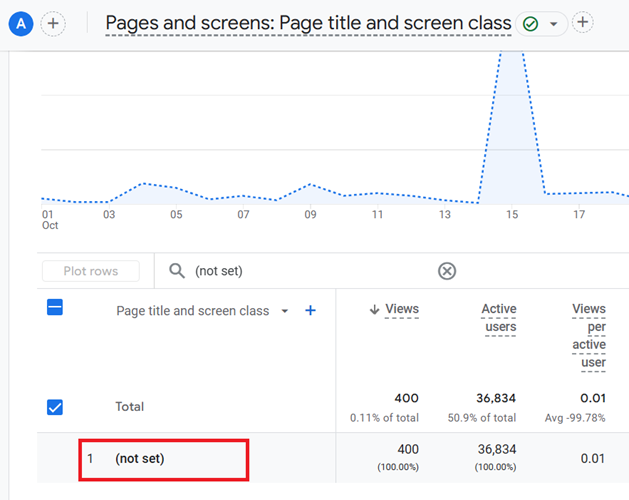
By implementing the following measures, you can minimize the GA4 title tag (not set) issues:
FAQs about (not set) Page Titles in GA4.
Q1. What causes “(not set)” in the Page Title dimension in GA4?
“(not set)” appears in the Page Title dimension when GA4 doesn’t receive a page_title value from the page_view event.
Common causes include missing or empty <title> tags, GA4 tags firing before the page title is fully loaded, and Single-Page Applications (SPAs), where the title may not update correctly due to dynamic content.
Q2. How can I ensure the page_view event fires correctly to avoid “(not set)” Page Titles?
Use Google Tag Assistant or developer tools to confirm the page_view event fires on every page with the page_title parameter.
Make sure page_view is the first event triggered in a session to capture the Page Title accurately.
Q3. How can I identify pages with “(not set)” titles in GA4?
In GA4, navigate to Reports -> Engagement -> Pages and screens, select ‘Page Title and screen class’ as the primary dimension and ‘Page path and screen class’ as a secondary dimension.
Apply a (not set) filter to the ‘Page Title and screen class’ to find pages with missing titles.
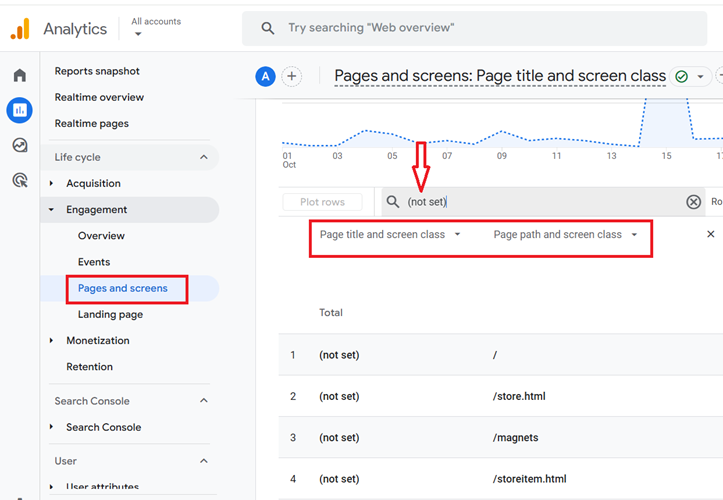
Q4. Does the order of events affect the Page Title dimension?
Yes. If events like user_engagement fire before page_view, GA4 may miss the Page Title, resulting in “(not set)”.
Configure page_view to fire immediately upon page load.
Q5. How does page load speed result in “(not set)” Page Titles?
If the GA4 configuration tag fires before the page title is fully loaded or set, the title information may not be captured.
This is particularly common in slower-loading pages or Single-Page Applications (SPAs) where content changes dynamically.
Q6. Can using third-party plugins or scripts cause “(not set)” in Page Title?
Yes.
Non-standard GA4/GTM implementations, like setting up GA4/GTM via a plugin, CDP, or third-party script can interfere with the page_view event timing or modify the title, causing “(not set)” if they load before GA4 captures the title.
Set up GA4 directly via GTM or hardcoded tags to avoid these issues.
Q7. Are “(not set)” Page Titles more common in Single-Page Applications (SPAs)?
Yes. SPAs are more prone to “(not set)” values because they load content dynamically without full page reloads.
Custom tracking may be necessary to ensure page_view updates with each title change.
Q8. Can Measurement Protocol issues lead to “(not set)” Page Titles?
Yes.
Missing or incorrectly formatted page_title parameters in Measurement Protocol requests can result in “(not set)”.
Ensure page_title is included and formatted correctly in each request, and aim to send page_view as the first event.
Q9. Does using redirects contribute to “(not set)” Page Titles?
Yes, redirects can cause “(not set)” if the page_view event doesn’t fire first.
Add a short delay of one second before redirects to allow GA4 to capture the Page Title.
Q10. How can I use DebugView to troubleshoot “(not set)” Page Titles?
Use GA4’s DebugView to monitor page_view events in real time and confirm Page Titles are being captured.
Q11. How can I handle data processing delays that cause “(not set)” in Page Titles?
GA4 can take up to 48 hours to fully process data, so temporarily excluding today and yesterday from the date range can provide more accurate insights when analysing Page Title data.
Q12. Can I use a fallback mechanism for missing Page Titles?
Yes, you can create a custom dimension in GA4 using JavaScript to capture document.title as a fallback when the Page Title is missing, which helps reduce occurrences of “(not set)”.
Q13. How long should I wait before troubleshooting “(not set)” Page Title issues?
GA4 may take up to 48 hours to fully process data.
Wait 24-48 hours after making tracking adjustments before troubleshooting “(not set)” issues to ensure complete data availability.
Q14. Can I completely eliminate “(not set)” Page Titles in GA4?
While you can significantly reduce “(not set)” values with the correct tracking setup, some may still be unavoidable due to factors like privacy settings, browser restrictions, or network delays.
GA4 Session Google Ads campaign (not set).
GA4 uses a placeholder called ‘(not set)’ whenever it does not receive any information for a Google Ads dimension.
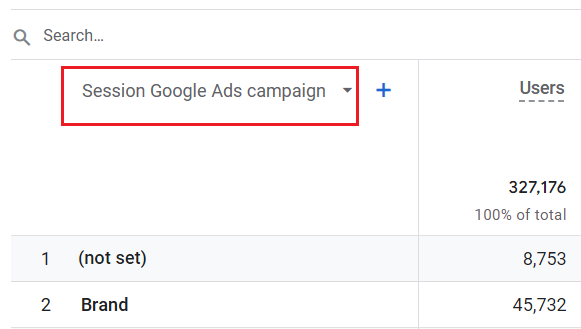
If you need to tag Google Ads, then use the auto-tagging feature instead of manual tagging.
The auto-tagging feature helps GA4 identify the source, medium, and campaign for a session.
Without auto-tagging enabled, GA4 may not be able to attribute the session to a specific source or medium.
If, for some reason, you decide not to use the auto-tagging feature, then tag the Google Ads URLs manually via UTM parameters.
Otherwise, traffic from Google Ads may appear as (not set) in GA4.
Traffic from unliked Google Ads account(s) often appears as (not set) in GA4.
You can then see the value of (not set) for a Google Ads dimension.
Make sure to link the GA4 property with Google Ads.
GA4 Content group (not set).
GA4 uses a placeholder called ‘(not set)’ whenever it does not receive any information for the ‘Content group’ dimension:
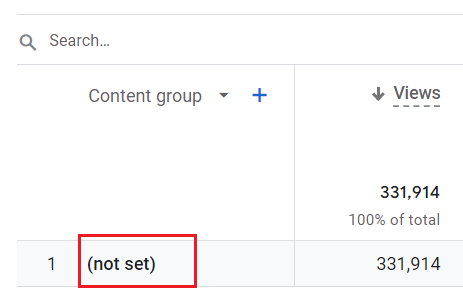
So if you have not set up content grouping in GA4, then the value of the ‘content group’ dimension will remain (not set).
You also need to make sure that you have set up content grouping correctly in GA4 by:
#1 Sending the ‘content_group’ parameter (and not the ‘content group’ parameter or ‘Content_Group’ parameter). Remember, event parameter names are case-sensitive.
#2 Firing the GA4 configuration tag after the content_group is pushed to the data layer.
If your GA4 events send the content_group parameter with an empty value, then GA4 displays (not set)’ as the value for the ‘Content group’ dimension.
The automatically collected events do not accept the content_group event parameter.
So when you combine the content group dimension with automatically collected events, the value of the content group dimension can be reported as (not set).
Note: The automatically collected events session_start or first_visit do not accept custom parameters. So when you send a custom parameter with these events, the parameter will appear as (not set).
GA4 Browser (not set).
GA4 uses a placeholder called ‘(not set)’ whenever it does not receive any information for the ‘Browser’ dimension:
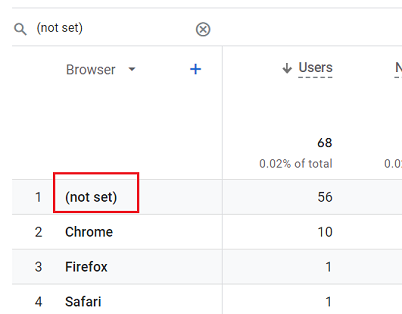
The ‘Browser’ dimension represents the web browser (Chrome, Firefox, Safari, or Edge) used by a user.
Apply ‘First user source /medium’ as a secondary dimension to the report:
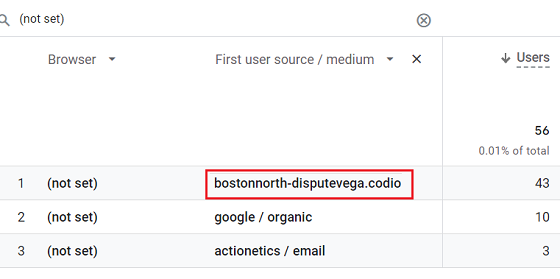
If you see an unusual traffic source/medium, it could indicate traffic from spambots.
If you are getting a lot of traffic from spambots, that could also result in (not set) appearing for the Browser dimension in your GA4 reports.
Note: Some web browsers, extensions, or VPN services might manipulate or obscure the user agent string, which can make it difficult for GA4 to accurately identify the web browser being used, thus resulting in (not set) appearing for the Browser dimension in your GA4 reports.
GA4 Country (not set).
GA4 uses a placeholder called ‘(not set)’ whenever it does not receive any information for the ‘Country’ dimension:
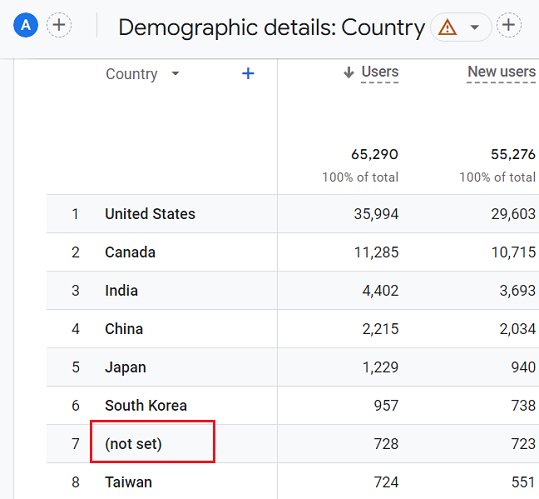
GA4 typically derives the user’s country based on their IP address.
If the IP address is not tracked, GA4 cannot determine the user’s location, which can lead to (not set) values for the Country dimension.
Users browsing your website via VPNs, proxies, or similar tools that obfuscate their IP addresses can make it difficult for GA4 to accurately determine their location.
The Measurement Protocol does not allow you to send or override the user IP address or user agent.
This means you cannot manually specify these values when sending events through the Measurement Protocol.
You will need to rely on automatic data collection for tracking IP addresses and user agents.
For similar reasons, you can also see the (not set) values for other location-based dimensions like ‘city’.
GA4 Item name (not set).
GA4 uses a placeholder called ‘(not set)’ whenever it does not receive any information for the ‘Item name’ dimension:
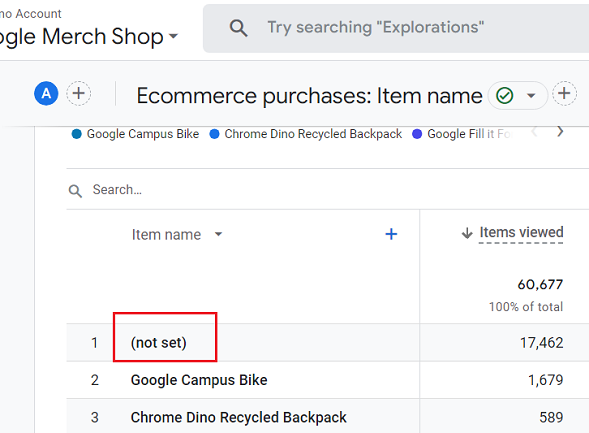
In GA4, event-scoped and item-scoped dimensions only apply to the specific event with which they are sent. They do not carry over or apply to other events in the same session, including subsequent and previous events.
This could result in (not set) values in your reports if an event-scoped or custom-scoped dimension is not explicitly included with every relevant event.
Let’s say you have an ecommerce website, and you are tracking views of different products.
You send an ‘item_view’ event to GA4 whenever a user views a product.
With each ‘item_view’ event, you also send the ‘item_name’ as an event parameter.
Now, if you are tracking a ‘purchase’ event but do not include the ‘item_name’ with the purchase event, the ‘item_name’ for the purchase event would be reported as (not set) in GA4.
To ensure ‘item_name’ is reported for the ‘purchase’ event, you would need to include it with the ‘purchase’ event.
As a best practice, include all relevant event-scoped and item-scoped dimensions with each event you send to GA4.
This requires careful planning and management of your event and e-commerce tracking setup, and thorough testing to confirm that all event data is correctly recorded.
GA4 Custom Dimension (not set).
Custom dimensions in GA4 are not retroactive. That means they only start collecting data from the time they are registered and configured in your GA4 property.
Registering a custom dimension in GA4 is the process of creating a new dimension that GA4 does not automatically track.
Custom dimensions allow you to collect and analyze data that GA4 does not automatically track.
Once you’ve registered a custom dimension, you can include it as a parameter in your event data.
Any event data that was sent prior to the registration of the custom dimension won’t include data for that dimension, even if the corresponding event parameter was being sent to GA4.
So if you started sending an event parameter to GA4 on June 1st, but did not register it as a custom dimension until June 6th, then the custom dimension data would only start being recorded from June 6th onwards.
For the period between June 1st and June 6th, GA4 reports would show (not set) for that custom dimension because it had not yet been registered.
So if you plan to use certain event parameters in your reports, be sure to register them as custom dimensions as soon as you start sending them to GA4. This will ensure you collect all the data you need from the outset.
GA4 Measurement Protocol and (not set).
The second most common reason for (not set) appearing in your GA4 reports is the use of the measurement protocol to send data.
When using the Measurement Protocol, you may not always provide all the data that the standard GA4 tracking code collects automatically.
If certain data, such as traffic source or medium, is not included in the Measurement Protocol request, GA4 will use the placeholder (not set) for those dimensions in your reports.
Ensure that you include all necessary parameters (such as source and medium) in your Measurement Protocol requests.
Make sure the parameter values are formatted correctly, as GA4 may not be able to process incorrectly formatted values, leading to (not set) entries.
Regularly monitor your measurement protocol requests to identify and fix any (not set) issues that may impact your GA4 data.
GA4 Server Side tracking and (not set).
The Server side tracking can also result in (not set) data in GA4 reports if not implemented correctly.
If your server-side tracking implementation is incomplete or does not capture all user interactions, GA4 may not receive the necessary data for certain dimensions, resulting in (not set) values in your reports.
When using server-side tracking, you must include all relevant parameters in your requests to GA4.
If the values for the parameters you send from the server are not formatted correctly or don’t match GA4’s expected format, GA4 might not be able to process the data, resulting in (not set) values.
Regularly monitor your server-side tracking implementation to identify and fix any (not set) issues that may impact your GA4 data.
How to remove the GA4 Campaign (not set), First User Campaign (not set) or Session Campaign (not set)?
GA4 uses a placeholder called ‘(not set)’ whenever it does not receive any information for the ‘Campaign’ , ‘First User Campaign’ or ‘Session Campaign’ dimensions:
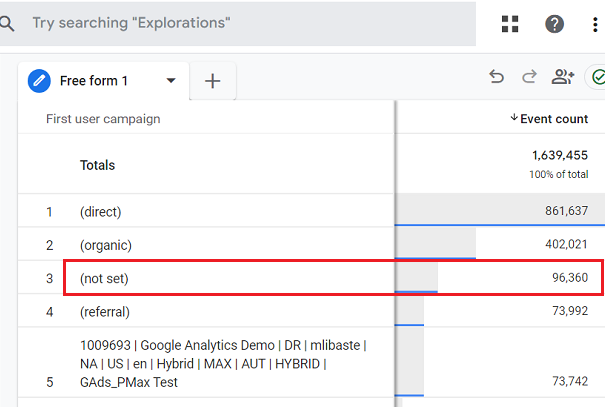
‘utm_campaign’ key is used to send the name of the custom campaign to GA4.
Make sure that you always provide the value of the ‘utm_campaign’ key whenever you tag URLs with UTM parameters.
You can see the values of the ‘utm_campaign’ key in GA4 through the following dimensions:
- Campaign
- First user campaign
- Session campaign.
Why does (not set) appear in GA4 reports?
The following are the top reasons for (not set) appearing in your GA4 reports:
What is the difference between “(not set)” and “(other)” in GA4?
“(not set)” appears when GA4 cannot assign a value to a dimension due to missing, delayed, or incomplete data. Whereas “(other)” appears when a dimension exceeds GA4’s row limit in a report.
By avoiding high cardinality dimensions (i.e. the dimensions with more than 500 unique values in one day), you can remove the “(other)” rows appearing in your reports.
Can “(not set)” be completely eliminated in GA4 reports?
You can minimise (not set) from appearing in your GA4 reports, but in most situations you can not eliminate it 100%. There will always be some (not set) issues.
Some “(not set)” values are inevitable due to factors beyond our control, such as privacy restrictions, ad blockers, platform limitations, etc.
Is “(not set)” always indicating a tracking error?
No, “(not set)” does not always indicate a tracking error because it can also result from factors beyond our control, such as data processing delays, privacy restrictions, ad blockers, platform limitations, etc.
How does “(not set)” affect data accuracy in GA4?
“(not set)” can impact data accuracy by making your GA4 reports incomplete or inaccurate.
What’s the best approach to troubleshooting “(not set)” issues in GA4?
- Wait for up to 72 hours for GA4 to fully process data after making changes or implementing new tracking.
- Check if the issue persists after this waiting period.
- Determine the dimensions which still show “(not set)” values.
- Look for patterns or commonalities among affected dimensions.
- Verify that campaign URLs are correctly tagged with UTM parameters.
- Verify that all tags and triggers are configured correctly and that the required events (e.g., page_view) are firing in the correct order.
- If using Measurement Protocol, verify that all required parameters are being sent correctly.
- Review server-side tagging for implementation issues.
- Recognize that some “(not set)” values could be due to privacy restrictions or platform limitations.
- Regularly audit GA4 configurations, GTM tags, and campaign URLs for tracking accuracy.
How can I identify the source of “(not set)” values across multiple dimensions in GA4?
Identifying the source of “(not set)” values for a particular dimension is similar to identifying the source of “(not set)” values across multiple dimensions. However, there are some nuances when dealing with multiple dimensions.
When analysing multiple dimensions, you should look for patterns or correlations between “(not set)” values across different dimensions. This might reveal systemic issues that affect multiple areas of data collection.
Determine if certain traffic sources, geographic locations, or device types contribute to “(not set)” across dimensions.
For example, if “(not set)” is high for both Source/Medium and Device Category, it may be due to ad blockers or privacy settings.
GA4’s Exploration reports become more valuable when analysing multiple dimensions, allowing you to create custom reports that show relationships between different “(not set)” occurrences.
Other Articles on GA4.
- Tracking New, Qualified and Converted Leads in GA4.
- Free GA4 training and tutorial with Certification.
- Understanding GA4 Ecommerce Reports (Monetization Reports).
- GA4 Ecommerce Tracking via GTM: Step-by-Step Setup Guide.
- How to see UTM parameters in GA4 (Google Analytics 4).
- GA4 UTM parameters not working? Here is how to fix it.
- How To Use UTM parameters in GA4 (Campaign Tracking).
- How to track AI traffic in GA4.
- Understanding Google Analytics 4 cookies – _ga cookie.
- GA4 (Google Analytics 4) Measurement Protocol Tutorial.
- GA4 Unassigned Traffic: Causes and How to Fix it Fast.
- GA4 Regex (Regular Expressions) Tutorial.
- GA4 Direct Traffic Spike: Common Causes and How to Fix Them.
- gtag.js – Google Tag in Google Analytics 4 and beyond.
- GA4 Scopes – User, Session, Event & Item scopes.
- GA4 Conversion Tracking (Key Events) Tutorial.
- GA4 (not set) - Guide to fixing (not set) issue.
- GA4 Certification Exam: Questions, Answers for Skillshop (GAIQ).
- GA4 User Properties (User Scoped Custom Dimensions) – Tutorial.
- Tracking Organic Traffic in GA4 - Complete Guide.
- Tracking Events in GA4 (Google Analytics 4).
- GTM Server Side Tagging - Setup Guide.
- Using Subfolder for GTM Server Side Tagging (Same Origin Tracking).
- Understanding Event Parameters in Google Analytics 4 (GA4).
- How to Uninstall GTM Server Side Tagging.