

Understanding GA4 regex is crucial for unlocking the full potential of Google Analytics 4’s data filtering and customization capabilities.
With regex, you can create precise audience segments, filter reports, and track complex user behaviors that would otherwise go unnoticed.
However,
GA4’s RE2 regex engine comes with unique limitations that can trip up even experienced users.
Mastering its nuances allows you to wield more control over your analytics setup.
Learn how to use GA4 Regex (Regular Expressions) for better data analysis. Simplify complex filtering and improve accuracy in your Google Analytics reports.
In this tutorial, I explain the building blocks of Regular Expressions (or REGEX) so you can understand and use them in Google Analytics 4 (GA4) and Google Tag Manager.
What is regex in GA4 (Google Analytics 4)?
A regular expression (also called a ‘regex’) in GA4 is a sequence of characters used to check for a pattern in a string.
For example, ^Colou?r$ is a regular expression that matches both the string: ‘color’ and ‘colour’.
Regex allows advanced matching and substitution operations that would be difficult or impossible to achieve using other methods.
Using regex, you can create more sophisticated and accurate reports in GA4 and carry out advanced data analysis.

Google Analytics 4 uses JavaScript regex.
Regular expressions are categorized based on the type of syntax and computer language used for their creation.
Implementation of regex functionality using a particular type of syntax and computer language is called a regex engine.
There are many types of regex engines available. The most popular among them are:
- JavaScript
- PHP
- Python
- Ruby
- Java
- C++
- Golang
- .NET
Different regex engines support different types of syntax, and the meaning of metacharacters (characters with special meanings in a regex) may change depending on the regex engine used.
Thus, a regular expression considered valid under one regex engine may not be considered valid under another.
Whenever you test a regex using a regex tester tool (like regex101.com), you get the option to select the flavour (aka regex engine) under which you want to test your regular expression:
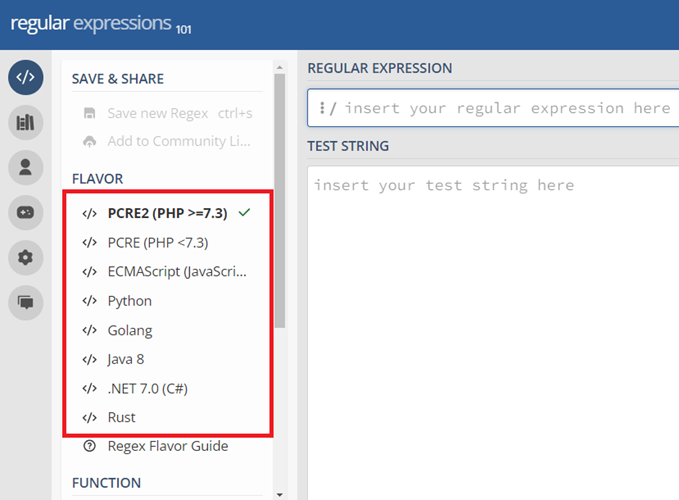
Since the regex engine used by GA4 and Google Tag Manager is JavaScript, you should always select ‘JavaScript’ as the flavour before testing your regular expressions for GA4/GTM.
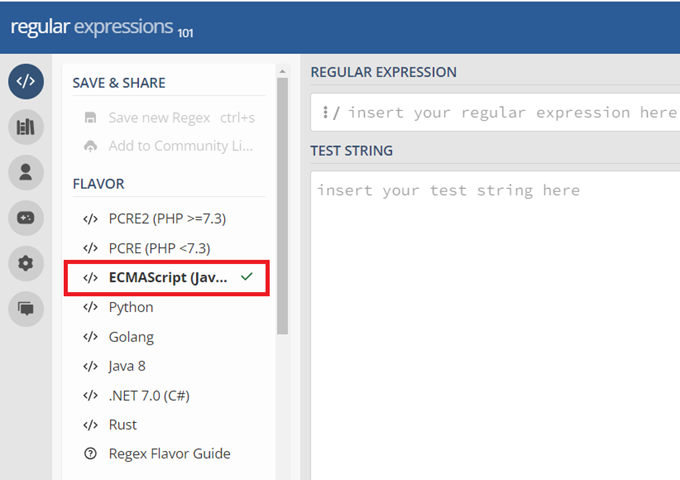
Google Analytics 4 uses fully matched JavaScript Regex.
Fully matched regex means the regex fully matches a pattern in a string.
Let us suppose you provided the regex ‘car’.
This regex fully matches only one pattern in a string: ‘car’.
By default, the GA4 property uses fully matched regex.
If you want to use partially matched regex in GA4, you would need to use metacharacters.
Partially matched regex means the regex partially matches a pattern in a string.
Let us suppose you provided the regex ‘car’.
This regex partially matches the following patterns in a string: ‘carbohydrates’, ‘carbon’, ‘caramel’, ‘caravan’, ‘cardiac’ etc.
By default, the GA3 (Universal Analytics) property uses partially matched regex.
Your regex in GA4 will not work if you don’t understand this.
By default, a GA4 property uses fully matched JavaScript regex, which makes using regular regex pretty difficult.
A fully matched regex means the regex fully matches a pattern in a string.
What that means,
A literal string can work as a fully matched regex in GA4, suggesting that GA4 can interpret the input as a straightforward string match rather than a regular expression.
So you can provide the following regex https://www.perplexity.ai/, and it will work if it exactly matches the following string: https://www.perplexity.ai/
Similarly, you can provide the following regex Canada , and it will work if it exactly matches the following string: Canada
Let us suppose you want to filter out the names of all countries in your GA4 report that begin with ‘Ca’.
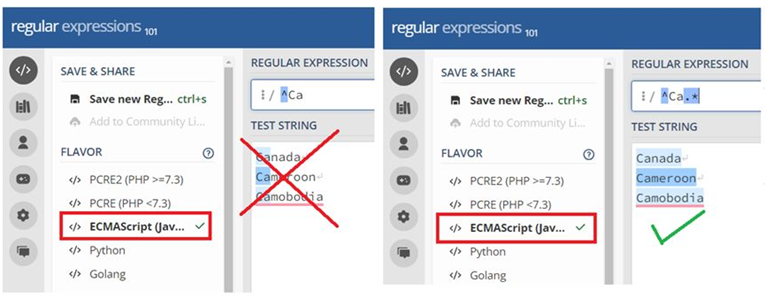
So, you created the following regex: ‘^Ca’.
Normally, this regex would match any string that starts with ‘Ca’.
But if you use this regex in GA4, it will not work.
Because GA4 supports only fully matched regex, and ‘^Ca’ is a partially matched regex.
To make it a fully matched regex, you will need to rewrite this regex like the one below:
^Ca.*
This regex would match any string that starts with ‘Ca’ like ‘Canada’, ‘Cameroon’, ‘Camobodia’ etc.
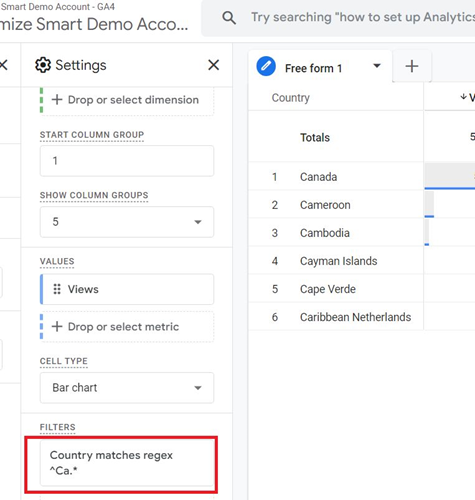
Any regex builder (including chatgpt) you use will most likely not create a fully matched regex for you. You will most likely need to manually convert a partially matched regex into a fully matched regex.
This makes creating and using regex in GA4 difficult and time-consuming.
Google Analytics 4 uses fully matched JavaScript Regex that uses the RE2 syntax.
RE2 is a fast and efficient regular expression (regex) engine developed by Google.
The RE in RE2 stands for “regular expression,” while the 2 indicates that it’s the second version of a regular expression engine used by Google.
RE2 is designed for high performance and stability.
RE2 restricts certain advanced features found in other regex engines to maintain efficiency and prevent performance issues.
These limitations include no support for backreferences, lookahead/lookbehind assertions, or certain complex conditional expressions.
RE2 is used in a variety of Google’s products and services, including GA4, GTM, Google Code Search, and Google Ads.
GA4 uses the RE2 syntax, which has some key limitations compared to other more feature-rich regex engines.
The main limitations of RE2 syntax used in GA4 are the following:
#1 RE2 does not support backreferences (e.g., \1, \2) or named backreferences.
#2 Positive and negative lookahead/look-behind assertions are not supported.
#3 RE2 does not allow recursive calls to the entire regex or named groups.
#4 Conditional expressions like (?(condition)then|else) are not supported.
#5 While basic greedy and lazy quantifiers are supported, some advanced forms like possessive quantifiers (e.g., x*+, x++, x?+) are not available.
#6 RE2 does not support atomic grouping (?>…).
Other Limitations
#7 Google Analytics 4 can only support regular expressions with up to 256 characters.
#8 Regular expressions in GA4 are case-sensitive by default.
#9 GA4 uses fully matched regex by default, which means the entire string must match the pattern, not just a part of it.
GA4 regex is made up of characters and metacharacters.
Metacharacters are the building blocks of a regex. These are the characters that have special meanings in a regex.
The following metacharacters are compatible with GA4, adhering to the RE2 syntax:
- Back Slash (\) – is used to escape from the normal way a subsequent character is interpreted.
- Caret (^) – is used to denote the beginning of a regular expression.
- Dollar ($) – is used to denote the end of a regular expression or the end of a line.
- Square Brackets ([]) – is used to check for any single character in the character set specified in [].
- Parentheses (()) – is used to check for a string.
- Question Mark (?) – is used to check for zero or one occurrence of the preceding character.
- Plus (+) – is used to check for one or more occurrences of the preceding character.
- Asterisk/Multiply (*) – is used to check for any number of occurrences (including zero occurrences) of the preceding character.
- Dot (.) – is used to check for a single character (any character that can be typed via a keyboard) other than a line break character (\n).
- Pipe Symbol (|) – is used to create the logical OR condition.
- Curly Brackets ({}) – is used to check for 1 or more occurrences of the preceding character.
- White Spaces – is used to create white space in a regular expression.
The following metacharacters are not compatible with GA4:
- Forward Slash (/) – is used to mark the beginning and end of a regular expression.
- Exclamation Mark (!) – is used to create the logical NOT condition.
- \n – check for a newline character.
- \r – check for a carriage return character.
- \t – check for a tab character.
- \s – check for a whitespace character.
- \S – check for a non-whitespace character.
- \d – check for a number.
- \D – check for a character other than a number.
- \w – check for a carriage return character.
- \W – check for a non-word character.
The metacharacters work within the constraints of GA4’s RE2 engine, so it’s important to build regex patterns accordingly.
How to correctly create a regex in GA4?
To create an accurate Regex in GA4, follow the best practices:
- Use the “|” (pipe) symbol wisely.
- Use .* when unsure about all possible combinations.
- Avoid using spaces in regular expressions.
- Regular expressions in GA4 are case-sensitive.
- GA4 can support regular expressions with up to 256 characters.
- Use comments when using regex in custom JavaScript tags.
- Don’t create regex that don’t match a specified pattern.
- The GA4 compatible regex that you create should adhere to RE2 syntax limitations.
- Avoid manually creating GA4 regex.
- Always test your regex within GA4.
- Use GA4 regex filter options as they allow for more flexibility and simpler regex patterns.
#1 Use the “|” (pipe) symbol wisely.
Since “|” represents the ‘or’ condition, it is not wise to use the pipe symbol at the beginning or end of the regular expression, which may then spoil your required dataset.
For example,
This regex ‘/error|/‘ is intended to match the word ‘error’, but because of the pipe at the end, it also matches: “error occurred.”
Similarly,
This regex ‘|error/‘ is intended to match ‘error’, but because of the pipe at the beginning, it also matches: “System error”
#2 Use .* when unsure about all possible combinations.
If you are unsure about all the possible combinations in a regex, use “.*” to find a list of all possible combinations in your data set.
#3 Avoid using spaces in regular expressions.
White spaces in a regular expression can ruin the results you are expecting.
In regex, spaces are not ignored; they are treated as characters to be matched in the string.
This means that if you include a space in your regex, it will look for that space in the target string.
For example, the regex /cat / will match “A cat “. But it won’t match “A cat” because there’s no space after ‘cat’.
To avoid such issues, ensure that you only include spaces in your regular expressions when they are actually needed as part of the pattern you are trying to match.
#4 Regular expressions in GA4 are case-sensitive.
For example, the regular expression ^Cat would match “Cat” but not “cat” or “CAT“.
#5 Google Analytics 4 can support regular expressions with up to 256 characters.
If your regular expression exceeds 256 characters, it won’t work. Hence, make sure to keep your regex character limit below 256.
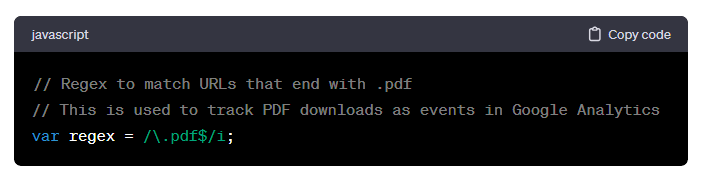
#6 Use comments when using regex in custom JavaScript tags.
If you use regular expressions in custom JavaScript tags using Google Tag Manager, always remember to add comments in front of regular expressions.
This makes it easier for others (or yourself in the future) to understand the intent behind the regex.
#7 Don’t create regex that don’t match a specified pattern.
In GA4, don’t create a regex that does not match a specified pattern. Instead, you create a regex that matches a specified pattern and then use the ‘does not match regex’ filter.
#8 The GA4 compatible regex that you create should adhere to RE2 syntax limitations.
The following are the key limitations of RE2 Syntax in GA4:
- No Backreferences – RE2 does not support backreferences (e.g., \1, \2) or named backreferences.
- No Lookaheads or Lookbehinds – Positive and negative lookaheads/lookbehinds are not supported.
- No Recursion – Recursive calls to the entire regex or named groups are not allowed.
- No Conditional Expressions – Expressions like (?(condition)then|else) are not supported.
- Limited Quantifiers – While basic greedy and lazy quantifiers are supported, advanced ones like possessive quantifiers (x*+, x++, x?+) are not available.
- No Atomic Grouping – The atomic grouping syntax (?>…) is not supported.
- Character Limit – Regular expressions in GA4 must not exceed 256 characters.
- Case-Sensitive by Default – GA4 regex is inherently case-sensitive unless modified.
- Full Match Required – GA4 enforces full-string matches, meaning the regex must match the entire input rather than just a portion.
#9 Avoid manually creating GA4 regex.
Use tools like GA4 Regex Builder to create GA4 compatible regular expressions.
#10 Always test your regex within GA4.
Do not automatically assume that just because a regex is valid according to a traditional regex testing tool (like regex101.com), it will also work well in GA4.
The most accurate way to test GA4 regex is to use the dimension filter found in the Exploration report template in your GA4 property.
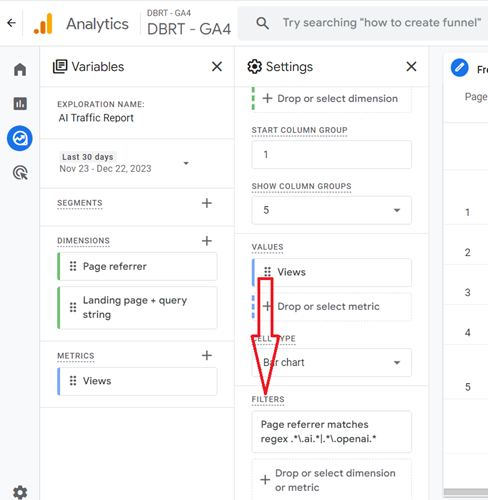
#11 Use GA4 regex filter options as they allow for more flexibility and simpler regex patterns.
You can often use simpler regex patterns, avoiding complex constructions by taking advantage of the regex filter options available in the GA4 User Interface.
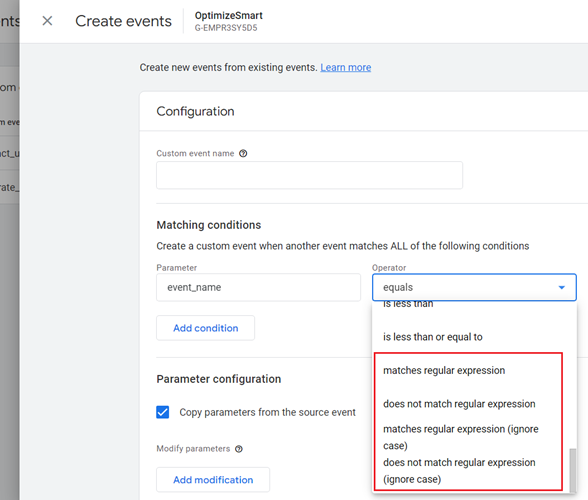
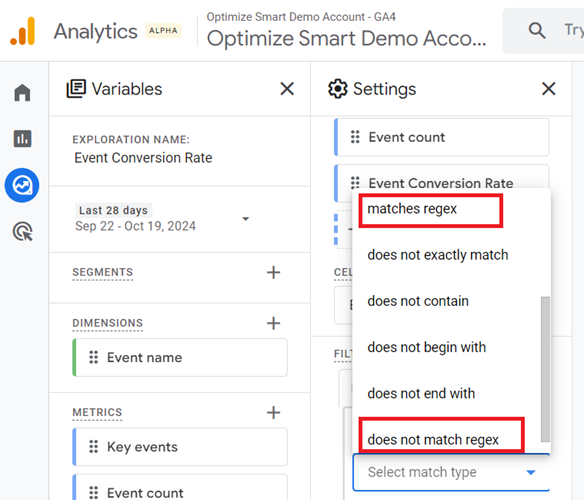
GA4 provided the following filter options via its user interface:
- Matches regex.
- Matches regex (ignore case).
- Partially matches regex.
- Does not matches regex.
- Does not match regex (ignore case).
- Does not partially match regex.
- Matches regex
- Fully matches the entire string.
- Case-sensitive by default.
- Example: ^Ca.*$ matches “Canada” but not “CANADA” or “UCA”.
- Matches regex (ignore case)
- Fully matches the entire string.
- Case-insensitive.
- Example: ^ca.*$ matches both “Canada” and “CANADA”.
- Partially matches regex
- Matches if any part of the string matches the pattern.
- Case-sensitive.
- Example: Ca matches “Canada”, “UCA”, but not “CANADA”.
- Does not match regex
- Excludes strings that fully match the pattern.
- Case-sensitive.
- Example: ^Ca.*$ excludes “Canada” but includes “CANADA” or “USA”.
- Does not match regex (ignore case)
- Excludes strings that fully match the pattern.
- Case-insensitive.
- Example: ^ca.*$ excludes both “Canada” and “CANADA”.
- Does not partially match regex
- Excludes strings that contain any part matching the pattern.
- Case-sensitive.
- Example: Ca excludes “Canada”, “UCA”, but includes “CANADA”.
How to create a regex fast in GA4?
You should use AI tools like ChatGPT to quickly generate GA4 regex.
However, ChatGPT has limitations when it comes to GA4 compatibility.
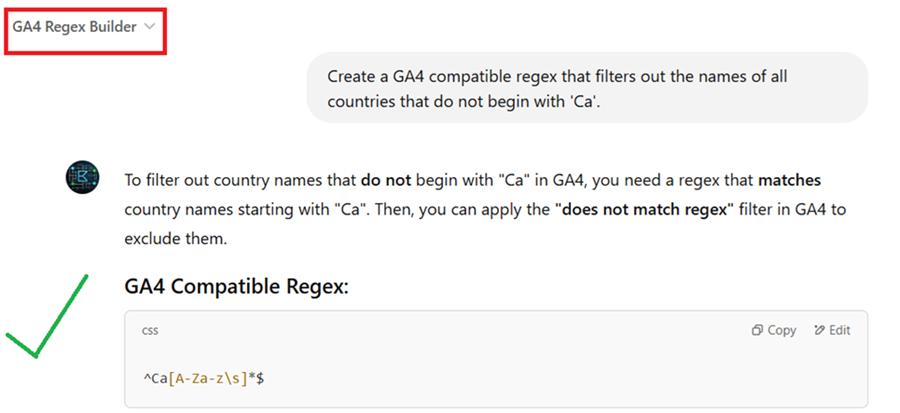
By default, it creates a partially matched regex that doesn’t account for RE2 syntax restrictions.
This means you would need to manually convert partial matches into full matches and ensure compliance with RE2 limitations.
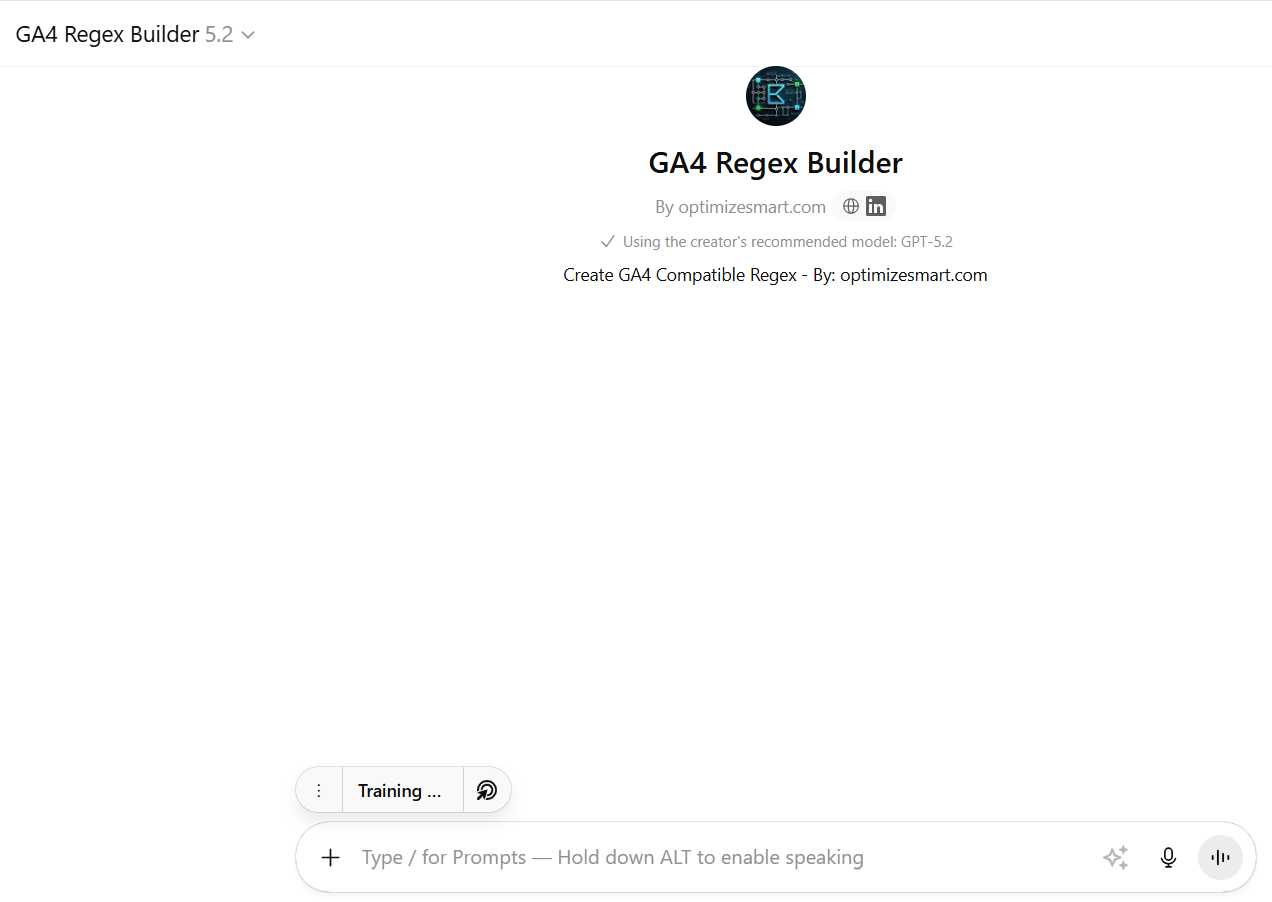
To solve this issue, I developed a custom ChatGPT called ‘GA4 Regex Builder‘ that generates GA4-compatible regex effortlessly.
The biggest problem in using regex is creating the correct regex.
Crafting a pattern that is specific enough to match only the desired text and general enough to cover all relevant cases can be tricky.
A small error or oversight in regex can lead to unexpected matches or failures to match, and these issues can be hard to pinpoint.
Overly complex or inefficient regex can lead to performance issues, especially when processing large amounts of text.
Regex syntax can be intimidating for beginners, and it often requires significant time to learn and understand fully.
Here, ‘GA4 Regex Builder‘ can help.
You no longer need a PHD in regex to use it.
How to test regex in GA4?
The best way to test GA4 regex is not chatgpt or a traditional regex testing tool (like regex101.com).
The most accurate way to test GA4 regex is to use the dimension filter found in the Exploration report template in your GA4 property.
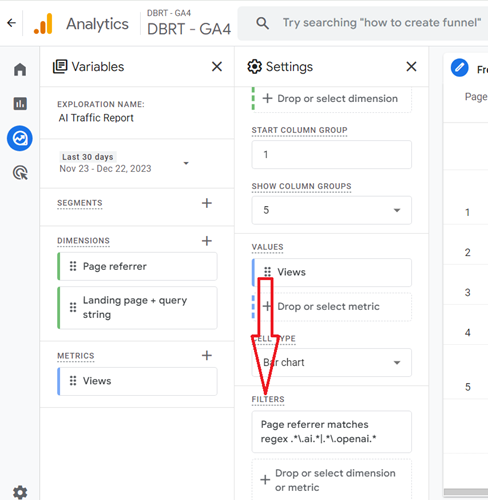
This method ensures that you are testing in the exact environment where the regex will be applied.
This is because GA4 supports only fully matched regex and not partially matched regex, and most regex testing tools and AI chatbots rely on partially matched regex.
If you still want to use a traditional regex testing tool, make sure that you use the ‘JavaScript’ regex engine and that your regex fully matches a string, as GA4 supports only fully matched regex.
Common pitfalls to avoid while testing GA4 regex.
#1 Don’t assume partial matches will work; always aim for full matches.
#2 Be cautious with wildcards, quantifiers, and metacharacters, as they behave differently in full-match scenarios.
#3 Remember that GA4 regex is case-sensitive by default and must adhere to RE2 syntax limitations.
Where can regex be used in GA4?
There are many cases where regular expressions are very useful in GA4. Some such cases are:
- Setting up subproperties in GA4.
- Setting up site search tracking without query parameters.
- Setting up Referral Exclusion in GA4.
- Setting up data filters in the exploration report in GA4.
- Setting up GA4 Custom Events via GTM.
- Setting up Content groups in GA4.
- Setting up audiences in GA4.
- Creating and modifying events in the GA4 UI.
- Creating and modifying custom channel groups.
#1 Setting up subproperties in GA4 using regex.
If you want to create a filtered reporting view in GA4 and you have access to GA4 360 (paid version of GA4), then you can create a subproperty.
A subproperty is like a typical GA4 property, but it gets its data from another property (also called the source property).
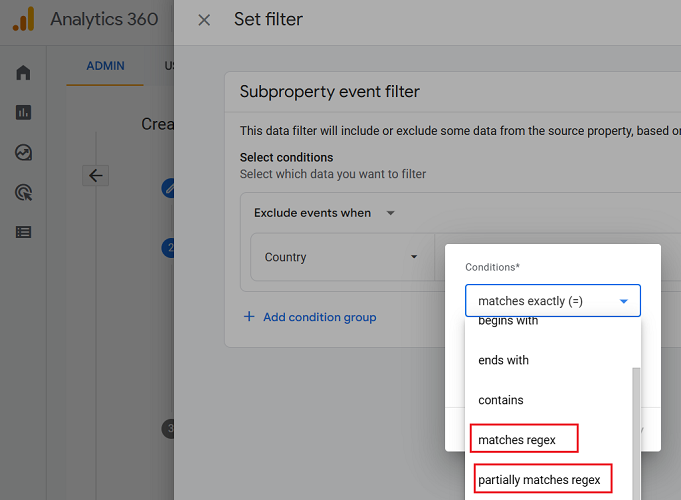
To create a subproperty, you will need to use event filter(s).
To create an event filter, you will need to specify one or more conditions.
You can use regex while defining the conditions:
#2 Setting up site search tracking without query parameters using regex.
GA4 automatically tracks site searches once you have enabled Enhanced Measurement Tracking in your GA4 property.
However, there could be a situation in which the site search feature is installed on your website in such a way that the default site search tracking feature provided by GA4 won’t work for you.
In that case, you would need to use GTM to set up site search tracking in your GA4 property.
Let us suppose you have the site search feature installed on your website, but the search term appears in the search URL without a query parameter.
For example:
https://www.optimizesmart.com/search/attribution+modelling
Instead of
https://www.optimizesmart.com/?s=attribution+modelling
In that case, you won’t be able to benefit from the default site search tracking capability of GA4.
You would need to use GTM to set up site search tracking.
While setting up site search tracking via GTM, you need to use regex to extract the search term from the search URL.
#3 Setting up Referral Exclusion in GA4 using regex.
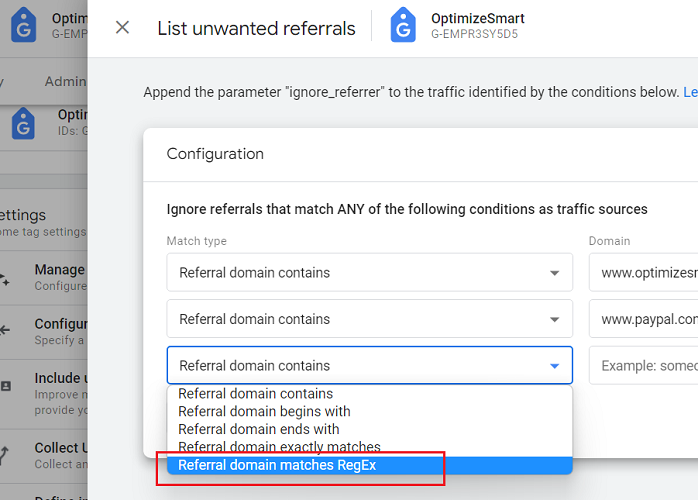
Google Analytics 4 allows you to set condition(s) that identify unwanted referrals and prevent them from being reported as referral traffic.
This way, you don’t see the referral traffic from certain domains (like your own domain or from a payment gateway like PayPal) in your GA4 reports.
This functionality is called the referral exclusion list in the earlier version of Google Analytics (Universal Analytics).
In the case of GA4, the ‘referral exclusion list’ is known as the “List unwanted referrals”
You can use regex while setting up ‘List unwanted referrals’:
#4 Setting up data filters in the exploration report in GA4 using regex.
You can use regex while setting up data filters in an exploration report.
#5 Setting up GA4 Custom Events via GTM using regex.
There are four categories of events in GA4:
- Automatically collected events.
- Enhanced measurement events.
- Recommended events.
- Custom events.
Custom events are the events that you create and use.
Custom events can be any interaction on your website that is not tracked by default.
For example, button clicks, sign-up events, form submissions, etc.
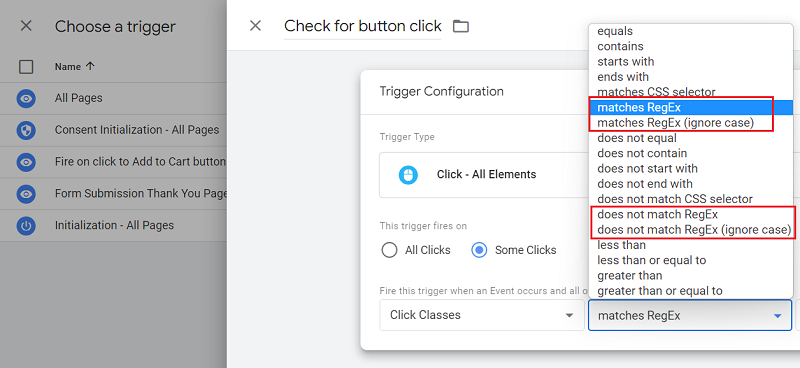
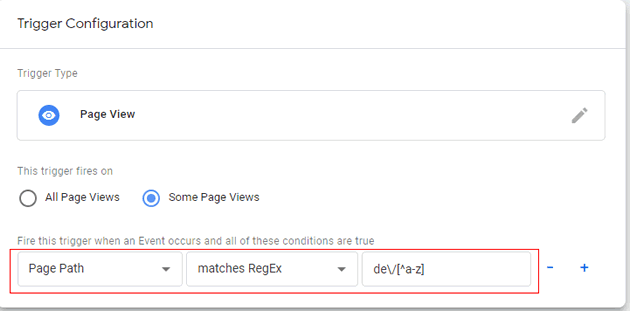
When you set up a custom event via GTM, you create a trigger that fires when the event occurs, and all trigger conditions are true.
You can use regex while creating the trigger conditions:
#6 Setting up Content groups in GA4 using regex.
In the context of GA4, a content group is a set of web pages that are based on the same theme.
So, in the case of a blog, a content group can be a set of web pages based on the same topic, e.g. Attribution Modelling.
In the case of an ecommerce website, a content group can be a set of web pages that sell similar products, e.g. shoes.
Content groups allow you to measure the performance of a set of web pages at the content category or product category level.
Content groups are especially useful if you have a big website with hundreds or thousands of web pages, and you can realistically measure the web pages’ performance only at the group level and not at the individual page level.
While setting up content groups in GA4, you will need to identify all the web pages which will be part of the content group. You can identify such web pages via regular expressions.
For example:
In order to identify all the web pages on my website that belong to the ‘Attribution Modelling’ content group, I can use the following regular expression:
attribution|model|modelling|online|offline|nonline#7 Setting up audiences in GA4 using regex.
In the context of GA4, an audience is a group of users that you can club together based on any combinations of attributes or experiences in a particular time frame.
The audiences feature in GA4 allows you to segment your users based on the dimensions, metrics, and events important to your business.
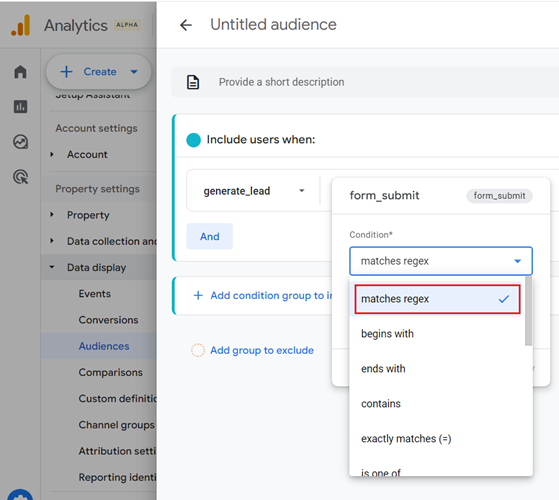
While creating/editing an audience, you need to set up one or more conditions that define the audience criteria. You can use regex while setting up these conditions:
#8 Creating and modifying events in the GA4 User Interface using regex.
You can use regex while creating/modifying events in the GA4 user interface (UI):
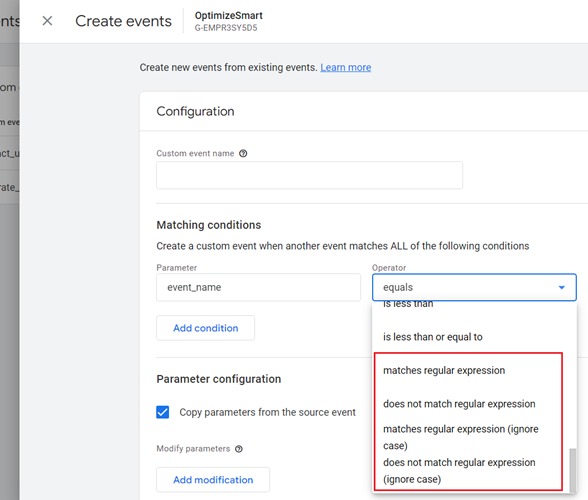
This is a game changer as you now have more control over the event definition.
#9 Creating and modifying custom channel groups using regex.
You can use regex to define channel conditions when adding or editing channels in a custom channel group.
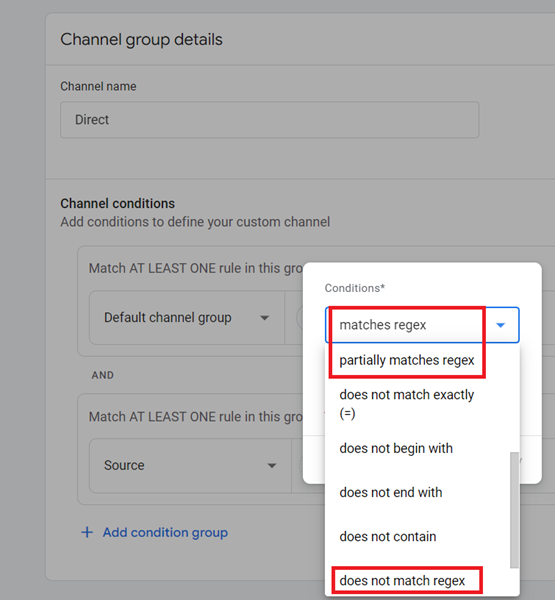
Understanding the various metacharacters.
Metacharacter – Forward Slash
Forward Slash (/) has a special meaning in a regex.
It is used to mark the beginning and end of a regular expression.
For example:
/shop/
The regular expression /shop/ matches the pattern ‘shop’ in a string.
So this regular expression will match the following patterns in a string:
- “I’m going to the shop to buy some milk.”
- “The shop is open from 9am to 5pm.”
- “I need to stop by the shop to pick up some bread.”
These strings all contain the exact substring ‘shop’, so the regular expression would match them.
Note that this regular expression will only match the exact string ‘shop’.
It will not match ‘shopping’, ‘shopper’, or any other string that contains ‘shop’ as a substring.
If you want to match any string that contains ‘shop’ as a substring, you can use the . character, which matches any single character (except for the newline).
/shop./
/^[a-z]+$/
In this example, the regular expression /^[a-z]+$/ is used to match a string that consists only of lowercase letters.
The ^ character indicates the beginning of the string, and the $ character indicates the end of the string.
The [a-z] character class matches any lowercase letter, and the + character indicates that one or more of the preceding characters should be matched.
Here are some examples of strings that would match this regular expression:
- “abc”
- “def”
- “ghijklmnopqrstuvwxyz”
These strings all consist only of lowercase letters, so they would be matched by the regular expression.
The regex /^[a-z]+$/ will not match strings “abc123” or “ABC” because they both contain characters other than lowercase letters.
/colou?r/
The regular expression /colou?r/ is a pattern that matches the string ‘colour’ or ‘color’.
It uses the metacharacter ?, which indicates that the preceding character or character class should be matched 0 or 1 time.
In this case, the ? character is placed after the ‘u’ in ‘colou’, indicating that the ‘u’ is optional.
This means that the regular expression will match both the string ‘colour’ and the string ‘color’.
Metacharacter – Back Slash
‘\’ is the escaping character (also known as back slash) that is used to escape from the normal way a subsequent character is interpreted.
Through escaping character, you can convert a regular character into a metacharacter or turn a metacharacter into a regular character.
‘n’ is a regular character.
But if you add escaping character (back slash) before it, then it would become a metacharacter: \n, which is a new line character.
If you use the regex /abcd\n/, it won’t match the string abcd\n3456 because \n would be treated as a newline character instead of a regular character.
Using the regex /abcd\\n/ will match the string abcd\n3456 because \n would be treated as a regular character instead of the newline character.
‘s’ is a regular character.
But if you add escaping character (back slash) before it, then it would become a metacharacter: \s, which is used to check for whitespace characters.
The regular expression /\s/ will match any white space character in the string “Hello world!“.
Using the regex /abcd\s/ won’t match the string abcd\s3456 because \s would be treated as a metacharacter instead of a regular character.
Using the regex /abcd\\s/ will match the string abcd\s3456 because \s would be treated as a regular character instead of the metacharacter.
How to make a forward slash a regular character?
If you want regex to treat forward slash as a forward slash and not some special character, then you need to use it along with the escaping character (back slash) like this: \/
So if you want to check for a pattern, say /shop in the string /shop/collection/men/
then your regex should be: /\/shop/
Using the regex //shop/ won’t match any pattern in the string /shop/collection/men/ because /s would be treated as a metacharacter instead of a regular forward slash.
How to make ‘?’ a regular character?
‘?‘ is a metacharacter.
To make it a regular character, you need to add escaping character before \?
So if you want to check for a question mark in the string colou?r
then your regex should be: /colou\?r/
If you use the regex /colou?r/, it would match the string color or colour and not colou?r as then ? will be treated as a metacharacter.
Metacharacter – Caret ^
‘^’ – This is known as ‘Caret’ and is used to denote the beginning of a regular expression.
/^\/Colou?r/ => Check for a pattern which starts with ‘/Color’ or ‘/Colour’.
The regular expression /^\/Colou?r/ consists of three parts:
The start-of-line anchor ^ indicates that the regular expression should only match if the pattern appears at the beginning of a string.
The forward slash “/” is a literal character that the regular expression will try to match.
The string “Colou” is a literal string that the regular expression will try to match.
The question mark (?) and the letter “r“:
The question mark indicates that the preceding character (in this case, the letter “u”) is optional. It will match zero or one occurrence of the preceding character.
The letter “r” is a literal character that the regular expression will try to match.
Together, this regular expression will match strings that start with a forward slash “/”, followed by the characters “co”, followed by zero or one occurrence of the character “u”, and then the character “r”.
For example,
This regular expression would match the following strings:
“/Colour”: This string starts with “/Colour”.
“/Color”: This string starts with “/Color”.
/Colour/?proid=3456/review
/Color-red/?proid=3456/review
This regular expression would not match the following string:
“/coloura”: This string does not start with a forward slash.
/^[nN]ov(ember)? 28(th)?$/
The regular expression /^[nN]ov(ember)? 28(th)?$/ consists of several parts:
- The start-of-line anchor ^: This indicates that the regular expression should only match if the pattern appears at the beginning of a string.
- The character set [nN]: This matches either the lowercase letter "n" or the uppercase letter "N".
- The string "ov": This is a literal string that the regular expression will try to match.
- The group (ember)?: This group consists of the string "ember" and the question mark (?). The question mark indicates that the preceding string is optional. It will match zero or one occurrence of the preceding string.
- The string " 28": This is a literal string that the regular expression will try to match.
- The group (th)?: This group consists of the string "th" and the question mark (?). The question mark indicates that the preceding string is optional. It will match zero or one occurrence of the preceding string.
- The end-of-line anchor $: This indicates that the regular expression should only match if the pattern appears at the end of a string.
Together, this regular expression will match strings that start and end with either "nov" or "Nov", optionally followed by "ember", followed by " 28", optionally followed by "th".
For example, this regular expression would match the following strings:
- "Nov 28": This string starts and ends with "Nov 28".
- "Nov 28th": This string starts and ends with "Nov 28th".
- "nov ember 28": This string starts and ends with "nov ember 28".
- "Nov ember 28th": This string starts and ends with "Nov ember 28th".
It would not match the following strings:
- "Nov": This string does not end with "28".
- "Nov 28th 29th": This string does not end with "28th".
/^\/elearning\.html/ => Check for a pattern which starts with ‘/elearning.html’.
The regular expression /^\/elearning\.html/ consists of three parts:
- The start-of-line anchor ^: This indicates that the regular expression should only match if the pattern appears at the beginning of a string.
- The forward slash "/": This is a literal character that the regular expression will try to match.
- The string "elearning.html": This is a literal string that the regular expression will try to match.
Together, this regular expression will match strings that start with a forward slash "/", followed by the characters "elearning.html".
For example, this regular expression would match the following string:
- "/elearning.html": This string starts with "/elearning.html".
It would not match the following strings:
- "/elearning": This string does not end with ".html".
- "elearning.html": This string does not start with a forward slash.
/^\/.*\.php/ => Check for a pattern which starts with any file with .php extension.
The regular expression /^\/.*\.php/ consists of three parts:
- The start-of-line anchor ^: This indicates that the regular expression should only match if the pattern appears at the beginning of a string.
- The forward slash "/": This is a literal character that the regular expression will try to match.
- The group .*\.php: This group consists of the following two parts:
- The dot (.) and the asterisk (*): The dot matches any single character, and the asterisk indicates that the preceding character (in this case, the dot) can be matched zero or more times. This group will therefore match any string of characters.
- The string ".php": This is a literal string that the regular expression will try to match.
Together, this regular expression will match strings that start with a forward slash "/", followed by any string of characters, followed by the characters ".php".
For example, this regular expression would match the following strings:
- "/abc.php": This string starts with "/abc.php".
- "/path/to/file.php": This string starts with "/path/to/file.php".
/^\/product-price\.php/ => Check for a pattern which starts with ‘/product-price.php’.
The regular expression /^\/product-price\.php/ consists of three parts:
- The start-of-line anchor ^: This indicates that the regular expression should only match if the pattern appears at the beginning of a string.
- The forward slash "/": This is a literal character that the regular expression will try to match.
- The string "product-price.php": This is a literal string that the regular expression will try to match.
Together, this regular expression will match strings that start with a forward slash "/", followed by the characters "product-price.php".
For example, this regular expression would match the following string:
- "/product-price.php": This string starts with "/product-price.php".
Caret also means NOT when used after the opening square bracket.
/[^a]/ => Check for any single character other than the lowercase letter ‘a’.
The regular expression /[^a]/ consists of two parts:
- The character set [^a]: This matches any single character that is NOT the letter "a". The caret (^) inside the square brackets indicates that the character set should match any character that is NOT in the set.
- The forward slash "/": This indicates the end of the regular expression.
Together, this regular expression will match any single character that is NOT the letter "a".
For example, this regular expression would match the following string:
- “bcd”
- “defg”
- “hijkl
/[^B]/ = > Check for any single character other than the uppercase letter ‘B’.
For example: the regex /product-[^B]/ will match the following strings:
/shop/men/sales/product-b
/shop/men/sales/product-c
/[^1]/ => Check for any single character other than the number ‘1’.
For example: the regex /proid=[^1]/ will match the string:
/men/product-b?proid=3456&gclid=153dwf3533
but will not match the string:
/men/product-b?proid=1456&gclid=153dwf3533
/[^ab]/ => Check for any single character other than the lowercase letters ‘a’ and ‘b’.
For example: the regex /location=[^ab]/ will match the string:
/shop/collection/prodID=141?location=canada
but will not match the string:
/shop/collection/prodID=141?location=america
/shop/collection/prodID=141?location=bermuda
/[^aB]/ => Check for any single character other than the lower case letter ‘a’ and uppercase letter ‘B’.
Here are a few examples of strings that will all be matched by this regular expression:
- "c": This string consists of a single character that is not "a" or "B".
- "xyz": This string consists of three characters that are not "a" or "B".
- "123": This string consists of three characters that are not "a" or "B".
- "#$%&": This string consists of four characters that are not "a" or "B".
/[^1B]/ => Check for any single character other than the number ‘1’ and uppercase letter ‘B’
Here are a few examples of strings that will all be matched by this regular expression:
- "a": This string consists of a single character that is not "1" or "B".
- "xyz": This string consists of three characters that are not "1" or "B".
- "123": This string consists of three characters that are not "1" or "B".
- "#$%&": This string consists of four characters that are not "1" or "B".
/[^Dog]/ => Check for any single character other than the following: uppercase letter ‘D’, lowercase letter ‘o’ and the lowercase letter ‘g’.
For example: the regex /location=[^Dog]/ will match:
/shop/collection/prodID=141?location=canada
/shop/collection/prodID=141?location=denmark
but will not match:
/shop/collection/prodID=141?location=Denver
/shop/collection/prodID=141?location=ontario
/shop/collection/prodID=141?location=greenland
/[^123b]/ => Check for any single character other than the following characters: number ‘1’, number ‘2’, number ‘3’ and lowercase letter ‘b’.
Here are a few examples of strings that will all be matched by this regular expression:
- "a": This string consists of a single character that is not "1", "2", "3", or "b".
- "xyz": This string consists of three characters that are not "1", "2", "3", or "b".
- "#$%&": This string consists of four characters that are not "1", "2", "3", or "b".
/[^1-3]/ => Check for any single character other than the following: number ‘1’, number ‘2’ and number ‘3’.
For example: the regex /prodID=[^1-3]/ will match:
/shop/collection/prodID=45321&cid=1313
/shop/collection/prodID=5321&cid=13442
but will not match:
/shop/collection/prodID=12321&cid=1313
/shop/collection/prodID=2321&cid=1313
/shop/collection/prodID=321&cid=1313
/[^0-9]/ => Check for any single character other than the number.
For example: the regex /de\/[^0-9]/ will match all those pages in the de/ folder whose name doesn’t start with a number:
/de/school-london
/de/general/
but will not match:
/de/12fggtyooo
/[^a-z]/ => Check for any single character which is not a lowercase letter.
For example: the regex /de\/[^a-z]/ will match all those pages in the de/ folder whose name doesn’t start with a lowercase letter:
/de/1london-school/de/?productid=423543
but will not match:
/de/school/london
/[^A-Z]/ => Check for any single character which is not an upper case letter.
Here are a few examples of strings that will all be matched by the regular expression /[^A-Z]/:
- "a": This string consists of a single character that is not an uppercase letter.
- "xyz": This string consists of three characters that are not uppercase letters.
- "123": This string consists of three characters that are not uppercase letters.
Metacharacter – Dollar $
‘$’ – It is used to denote the end of a regular expression or end of a line.
Examples
/Colou?r$/ => Check for a pattern which ends with ‘Color’ or ‘Colour’
/Nov(ember)?$/ => Check for a pattern which ends with ‘Nov’ or ‘November’
/elearning\.html$/ => Check for a pattern which ends with ‘elearning.html’
/\.php$/ => Check for a pattern which ends with .php
/product-price\.php$/ => Check for a pattern which ends with ‘product-price.php’
Metacharacter – Square Bracket []
‘[]’ – This square bracket is used to check for any single character in the character set specified in [].
Examples
/[a]/ => Check for a single character which is a lowercase letter ‘a’.
/[ab]/ => Check for a single character which is either a lower case letter ‘a’ or ‘b’.
/[aB]/ => Check for a single character which is either a lower case letter ‘a’ or uppercase letter ‘B’.
/[1B]/ => Check for a single character which is either a number ‘1’ or an uppercase letter ‘B’.
/[Dog]/ => Check for a single character which can be any one of the following: uppercase letter ‘D’, lower case letter ‘o’ or the lowercase letter ‘g’.
/[123b]/ => Check for a single character which can be any one of the following: number ‘1’, number ‘2’, number ‘3’ or lowercase letter ‘b’.
/[1-3]/ => Check for a single character which can be any one number from 1, 2 and 3.
/[0-9]/ => Check for a single character which is a number.
/[a-d]/ => Check for a single character which can be any one of the following lowercase letter: ‘a’, ‘b’, ‘c’ or ‘d’.
/[a-z]/ => Check for a single character which is a lowercase letter.
/[A-Z]/ => Check for a single character which is an upper case letter.
/[A-T]/ => Check for a single character which can be any uppercase letter from ‘A’ to ‘T’.
/[home.php]/ => Check for a single character which can be any one of the following characters:
lowercase letter ‘h’,
lowercase letter ‘o’,
lowercase letter ‘m’,
lowercase letter ‘e’,
special character ‘.’,
lower case letter ‘p’,
lowercase letter ‘h’ or
lowercase letter ‘p’
Note: If you want to check for a letter regardless of its case (upper case or lowercase) then use the regex /[a-zA-Z]/.
Metacharacter – Parenthesis ()
‘()’ – This is known as parenthesis and is used to check for a string.
Examples
/(a)/ => Check for string ‘a’
/(ab)/ => Check for string ‘ab’
/(dog)/ => Check for string ‘dog’
/(dog123)/ => Check for string ‘dog123’
/(0-9)/ => Check for string ‘0-9’
/(A-Z)/ => Check for string ‘A-Z’
/(a-z)/ => Check for string ‘a-z’
/(123dog588)/ => Check for string ‘123dog588’
Note: () is also used to create and store variables. For e.g. /^ (.*) $/
Metacharacter – Question Mark ?
‘?’ is used to check for zero or one occurrence of the preceding character.
For example:
/[a]?/ => Check for zero or one occurrence of the lowercase letter ‘a’.
The regular expression /[a]?/ consists of two parts:
- The character set [a]: This matches a single character, the letter "a".
- The question mark (?): This indicates that the preceding character set or pattern is optional. It will match zero or one occurrence of the preceding character set or pattern.
Together, this regular expression will match zero or one occurrence of the letter "a".
For example, the following strings will all be matched by this regular expression:
- “” (empty string, no occurrences of “a”)
- “a” (one occurrence of “a”)
- “abc” (one occurrence of “a”)
/[dog]?/ => Check for zero or one occurrence of the lowercase letter ‘d’, ‘o’ or ‘g’.
The regular expression /[dog]?/ consists of two parts:
- The character set [dog]: This matches a single character that is either "d", "o", or "g".
- The question mark (?): This indicates that the preceding character set or pattern is optional. It will match zero or one occurrence of the preceding character set or pattern.
Together, this regular expression will match zero or one occurrence of the characters "d", "o", or "g".
For example, the following strings will all be matched by this regular expression:
- “” (empty string, no occurrences of “d”, “o”, or “g”)
- “d” (one occurrence of “d”)
- “o” (one occurrence of “o”)
- “g” (one occurrence of “g”)
/[^dog]?/ => Check for zero or one occurrence of a character which is not the lowercase letter ‘d’, ‘o’ or ‘g’.
The regular expression /[^dog]?/ consists of two parts:
- The character set [^dog]: This matches any character that is NOT "d", "o", or "g". The caret (^) inside the square brackets indicates that the character set should match any character that is NOT in the set.
- The question mark (?): This indicates that the preceding character set or pattern is optional. It will match zero or one occurrence of the preceding character set or pattern.
Together, this regular expression will match zero or one occurrence of any character that is NOT "d", "o", or "g".
For example, the following strings will all be matched by this regular expression:
- “” (empty string, no occurrences of characters that are not “d”, “o”, or “g”)
- “a” (one occurrence of a letter that is not “d”, “o”, or “g”)
- “!” (one occurrence of a punctuation mark that is not “d”, “o”, or “g”)
- “a!” (one occurrence each of a letter and a punctuation mark that are not “d”, “o”, or “g”)
- “a!0” (one occurrence each of a letter, a punctuation mark, and a digit that are not “d”, “o”, or “g”)
/[0-9]?/ => Check for zero or one occurrence of a number.
The regular expression /[0-9]?/ consists of two parts:
- The character set [0-9]: This matches any single digit between 0 and 9, inclusive. The range 0-9 inside the square brackets indicates that the character set should match any character that is within that range.
- The question mark (?): This indicates that the preceding character set or pattern is optional. It will match zero or one occurrence of the preceding character set or pattern.
Together, this regular expression will match zero or one occurrence of any single digit between 0 and 9, inclusive.
For example, the following strings will all be matched by this regular expression:
- “” (empty string, no occurrences of digits)
- “0” (one occurrence of “0”)
- “9” (one occurrence of “9”)
/[^a-z]?/ => Check for zero or one occurrence of a character which is not a lowercase letter.
The regular expression /[^a-z]?/ consists of two parts:
- The character set [^a-z]: This matches any character that is not a lowercase letter in the alphabet. The caret (^) inside the square brackets indicates that the character set should match any character that is NOT in the set.
- The question mark (?): This indicates that the preceding character set or pattern is optional. It will match zero or one occurrence of the preceding character set or pattern.
Together, this regular expression will match zero or one occurrence of any character that is NOT a lowercase letter in the alphabet.
For example, the following strings will all be matched by this regular expression:
- “abc123” – This string would match the regular expression because it contains a number which is not a lowercase letter. The match would be the 1 character.
- “Abc” – This string would match the regular expression because it contains an uppercase letter which is not a lowercase letter. The match would be the A character.
This regular expression will NOT match the following string:
- "abc"- This string would not match the regular expression because it does not contain any characters that are not lowercase letters.
Metacharacter – Plus +
‘+‘ is used to check for one or more occurrences of the preceding character.
For example:
/[a]+/ => Check for one or more occurrences of the lowercase letter ‘a’.
For example, the following strings will all be matched by this regular expression:
- “a” (one occurrence of “a”)
- “aa” (two occurrences of “a”)
- “aaa” (three occurrences of “a”)
/[dog]+/ => Check for one or more occurrences of letters ‘d’, ‘o’ or ‘g’ (in any order).
For example, the following strings will all be matched by this regular expression:
- “d” (one occurrence of “d”)
- “o” (one occurrence of “o”)
- “g” (one occurrence of “g”)
- “dog” (one occurrence each of “d”, “o”, and “g”)
- “god” (one occurrence each of “g”, “o”, and “d”)
- “godog” (two occurrences each of “g”, “o”, and “d”)
/[548]+/ => Check for one or more occurrences of numbers ‘5’, ‘4’ or ‘8’ (in any order).
For example, the following strings will all be matched by this regular expression:
- “5” (one occurrence of “5”)
- “4” (one occurrence of “4”)
- “8” (one occurrence of “8”)
- “548” (one occurrence each of “5”, “4”, and “8”)
- “854” (one occurrence each of “8”, “5”, and “4”)
- “854458” (two occurrences each of “8”, “5”, and “4”)
/[0-9]+/ => Check for one or more occurrences of a number.
For example, the following strings will all be matched by this regular expression:
- “0” (one occurrence of “0”)
- “9” (one occurrence of “9”)
- “01” (one occurrence each of “0” and “1”)
- “09” (one occurrence each of “0” and “9”)
- “0123456789” (one occurrence each of “0” through “9”)
/[a-z]+/ => Check for one or more occurrences of a lowercase letter.
For example, the following strings will all be matched by this regular expression:
- “a” (one occurrence of “a”)
- “z” (one occurrence of “z”)
- “ab” (one occurrence each of “a” and “b”)
- “az” (one occurrence each of “a” and “z”)
- “abcdefghijklmnopqrstuvwxyz” (one occurrence each of “a” through “z”)
/[^a-z]+/ => Check for one or more characters which are not lowercase letters.
For example, the following strings will all be matched by this regular expression:
- “0” (one occurrence of a digit that is not a lowercase letter)
- “!” (one occurrence of a punctuation mark that is not a lowercase letter)
- “0!” (one occurrence each of a digit and a punctuation mark that are not lowercase letters)
- “0!A” (one occurrence each of a digit, a punctuation mark, and an uppercase letter that are not lowercase letters)
/[a-zA-z]+/ => Check for one or more occurrences of uppercase and lowercase letters.
For example, the following strings will all be matched by this regular expression:
- “a” (one occurrence of “a”)
- “z” (one occurrence of “z”)
- “A” (one occurrence of “A”)
- “Z” (one occurrence of “Z”)
- “ab” (one occurrence each of “a” and “b”)
- “az” (one occurrence each of “a” and “z”)
- “AZ” (one occurrence each of “A” and “Z”)
- “aA” (one occurrence each of “a” and “A”)
- “abcdefghijklmnopqrstuvwxyzABCDEFGHIJKLMNOPQRSTUVWXYZ” (one occurrence each of “a” through “z” and “A” through “Z”)
/[a-z0-9]+/ => Check for one or more occurrences of lowercase letters and numbers.
For example, the following strings will all be matched by this regular expression:
- “a” (one occurrence of “a”)
- “z” (one occurrence of “z”)
- “0” (one occurrence of “0”)
- “9” (one occurrence of “9”)
- “ab” (one occurrence each of “a” and “b”)
- “az” (one occurrence each of “a” and “z”)
- “09” (one occurrence each of “0” and “9”)
- “a0” (one occurrence each of “a” and “0”)
- “abcdefghijklmnopqrstuvwxyz0123456789” (one occurrence each of “a” through “z” and “0” through “9”)
/[A-Z0-9]+/ => Check for one or more occurrences of uppercase letters and numbers.
For example, the following strings will all be matched by this regular expression:
- “A” (one occurrence of “A”)
- “Z” (one occurrence of “Z”)
- “0” (one occurrence of “0”)
- “9” (one occurrence of “9”)
- “AB” (one occurrence each of “A” and “B”)
- “AZ” (one occurrence each of “A” and “Z”)
- “09” (one occurrence each of “0” and “9”)
- “A0” (one occurrence each of “A” and “0”)
- “ABCDEFGHIJKLMNOPQRSTUVWXYZ0123456789” (one occurrence each of “A” through “Z” and “0” through “9”)
/[^9]+/ => Check for one or more occurrences of characters but not the number 9.
For example, the following strings will all be matched by this regular expression:
- “a” (one occurrence of a letter that is not “9”)
- “!” (one occurrence of a punctuation mark that is not “9”)
- “a!” (one occurrence each of a letter and a punctuation mark that are not “9”)
- “a!0” (one occurrence each of a letter, a punctuation mark, and a digit that are not “9”)
/31+/ => Check for one or more occurrences of the numbers 3 and 1 in sequence.
For example, the following strings will all be matched by this regular expression:
- “31” (one occurrence of “31”)
- “311” (two occurrences of “31”)
- “3111” (three occurrences of “31”)
However, the following strings will not be matched:
- “” (an empty string, zero occurrences of “31”)
- “3” (one occurrence of “3”, but not followed by “1”)
- “1” (one occurrence of “1”, but not preceded by “3”)
Metacharacter – Multiply *
‘*‘ is used to check for any number of occurrences (including zero occurrences) of the preceding character.
For example:
/[a]*/ => Check for zero or more occurrences of the lowercase letter ‘a’.
For example, the following strings will all be matched by this regular expression:
- “” (an empty string, zero occurrences of “a”)
- “a” (one occurrence of “a”)
- “aa” (two occurrences of “a”)
- “aaa” (three occurrences of “a”)
/[dog]*/ => Check for zero or more occurrences of letters ‘d’, ‘o’ or ‘g’ (in any order).
For example, the following strings will all be matched by this regular expression:
- “” (an empty string, zero occurrences of “d”, “o”, or “g”)
- “d” (one occurrence of “d”)
- “g” (one occurrence of “g”)
- “o” (one occurrence of “o”)
- “dog” (one occurrence each of “d”, “o”, and “g”)
- “god” (one occurrence each of “g”, “o”, and “d”)
- “ogd” (one occurrence each of “o”, “g”, and “d”)
/[548]*/ => Check for zero or more occurrences of numbers ‘5’, ‘4’ or ‘8’ (in any order).
For example, the following strings will all be matched by this regular expression:
- “” (an empty string, zero occurrences of “5”, “4”, or “8”)
- “5” (one occurrence of “5”)
- “4” (one occurrence of “4”)
- “8” (one occurrence of “8”)
- “54” (one occurrence each of “5” and “4”)
- “85” (one occurrence each of “8” and “5”)
- “548” (one occurrence each of “5”, “4”, and “8”)
/[0-9]*/ => Check for zero or more occurrences of a number.
For example, the following strings will all be matched by this regular expression:
- “” (an empty string, zero occurrences of “0” through “9”)
- “0” (one occurrence of “0”)
- “9” (one occurrence of “9”)
- “89” (one occurrence each of “8” and “9”)
- “1234” (one occurrence each of “1”, “2”, “3”, and “4”)
/[a-z]*/ => Check for zero or more occurrences of a lowercase letter.
For example, the following strings will all be matched by this regular expression:
- “” (an empty string, zero occurrences of “a” through “z”)
- “a” (one occurrence of “a”)
- “z” (one occurrence of “z”)
- “az” (one occurrence each of “a” and “z”)
- “abc” (one occurrence each of “a”, “b”, and “c”)
/[^a-z]*/ => Check for zero or more characters which are not lowercase letters.
For example, the following strings will all be matched by this regular expression:
- “” (an empty string, zero occurrences of any characters other than “a” through “z”)
- “0” (one occurrence of a digit that is not a lowercase letter)
- “Z” (one occurrence of an uppercase letter that is not a lowercase letter)
- “!” (one occurrence of a punctuation mark that is not a lowercase letter)
- “0Z!” (one occurrence each of a digit, an uppercase letter, and a punctuation mark that are not lowercase letters)
/[a-zA-z]*/ => Check for zero or more occurrences of uppercase and lowercase letters.
For example, the following strings will all be matched by this regular expression:
- “” (an empty string, zero occurrences of “a” through “z”)
- “a” (one occurrence of “a”)
- “z” (one occurrence of “z”)
- “A” (one occurrence of “A”)
- “Z” (one occurrence of “Z”)
- “az” (one occurrence each of “a” and “z”)
- “azAZ” (one occurrence each of “a”, “z”, “A”, and “Z”)
/[a-z0-9]*/ => Check for zero or more occurrences of lowercase letters and numbers.
For example, the following strings will all be matched by this regular expression:
- “” (an empty string, zero occurrences of “a” through “z” or “0” through “9”)
- “a” (one occurrence of “a”)
- “z” (one occurrence of “z”)
- “0” (one occurrence of “0”)
- “9” (one occurrence of “9”)
- “az” (one occurrence each of “a” and “z”)
- “09” (one occurrence each of “0” and “9”)
- “abc123” (one occurrence each of “a”, “b”, “c”, “1”, “2”, and “3”)
/[A-Z0-9]*/ => Check for zero or more occurrences of uppercase letters and numbers.
For example, the following strings will all be matched by this regular expression:
- “” (an empty string, zero occurrences of “A” through “Z” or “0” through “9”)
- “A” (one occurrence of “A”)
- “Z” (one occurrence of “Z”)
- “0” (one occurrence of “0”)
- “9” (one occurrence of “9”)
- “AZ” (one occurrence each of “A” and “Z”)
- “09” (one occurrence each of “0” and “9”)
- “ABC123” (one occurrence each of “A”, “B”, “C”, “1”, “2”, and “3”)
/[^9]*/ => Check for zero or more occurrences of characters but not the number 9.
For example, the following strings will all be matched by this regular expression:
- “” (an empty string, zero occurrences of any characters other than “9”)
- “a” (one occurrence of a letter that is not “9”)
- “0” (one occurrence of a digit that is not “9”)
- “!” (one occurrence of a punctuation mark that is not “9”)
- “a0!” (one occurrence each of a letter, a digit, and a punctuation mark that are not “9”)
/31*/ => Check for zero or more occurrences of the numbers 3 and 1 in sequence.
For example, the following strings will all be matched by this regular expression:
- “” (an empty string, zero occurrences of “31”)
- “3” (one occurrence of “3”)
- “1” (one occurrence of “1”)
- “31” (one occurrence of “31”)
- “311” (two occurrences of “31”)
- “3111” (three occurrences of “31”)
Metacharacter – Dot .
‘.’ is used to check for a single character (any character that can be typed via a keyboard) other than a line break character (\n).
Here are some examples of strings that would match the regular expression /./:
- a
- 1
- #
- hello
- goodbye
- 123
- abc
Similarly, the regular expression: /Action ., Scene2/ would match the following strings:
- Action 1, Scene2
- Action A, Scene2
- Action 9, Scene2
- Action &, Scene2
Here are some examples of strings that would not match the regular expression /Action ., Scene2/
- Action123, Scene2 (contains more than one character after Action)
- Action , Scene2 (contains a space character after Action instead of a single character)
- Action,Scene2 (does not contain a space character after the comma)
- Action Scene2 (does not contain a comma)
- Scene2, Action (characters are not in the correct order)
Metacharacter – Pipe Symbol |
The metacharacter ‘|’ is used to create the logical OR condition.
For example:
The regular expression /His|Her/ will match any string that contains either the string ‘His‘ or the string ‘Her‘.
Here are some examples of strings that would match this regular expression:
- His
- Her
- His book
- Her book
- His or Her book
Here are some examples of strings that would not match this regular expression:
- HisHer (does not contain either His or Her as separate strings)
- HisOrHer (does not contain either His or Her as separate strings)
- book (does not contain either His or Her)
- Hers (does not contain either His or Her)
- this is his book (does not contain either His or Her)
Another example:
The regular expression /his|her|^their|its*|our+/ will match any string that contains any of the following patterns:
- The string ‘his‘
- The string ‘her‘
- The string ‘their‘ at the start of the string
- Zero or more occurrences of the string ‘its‘
- One or more occurrences of the string ‘our‘
Here are some examples of strings that would match this regular expression:
- his
- her
- their book
- their cat
- its cat
- its cat and its dog
- our cat
- our cat and our dog
Here are some examples of strings that would not match this regular expression:
- hiss (does not contain his or her as separate strings)
- herr (does not contain his or her as separate strings)
- book (does not contain his, her, their, its, or our)
- cat (does not contain his, her, their, its, or our)
- cat and dog (does not contain his, her, their, its, or our)
Metacharacter – Exclamation !
The metacharacter exclamation symbol ‘!’ is used to create the logical NOT condition. It is used to negate a character set and that’s why is also known as the negation or not metacharacter.
Note: The exclamation symbol has a different meaning when used inside of a character set. In that case, it does not act as a metacharacter.
Examples
- /![a-z]/ => Check for a single character which is not a lowercase letter.
- /[!a-z]/ => Check for a single character, either ‘!’ or a lowercase letter. Here ‘!’ is not treated as a metacharacter because it is used inside the character set.
- /!(abc)/ => Check for a string which is not the string ‘abc’.
- /(!abc)/ => Check for the string ‘!abc’. Here ‘!’ is not treated as a metacharacter because it is used inside the character set.
- /![0-9]/ => Check for a single character which is not a number.
- /[!0-9]/ => Check for a single character which is either ‘!’ or a number. Here ‘!’ is not treated as a metacharacter because it is used inside the character set.
- /a!b/ => Check for the string ‘a!b’. Here ‘!’ is not treated as a metacharacter because it is used inside the character set.
Metacharacter – Curly Brackets {}
{} is used to check for 1 or more occurrences of the preceding character.
It is just like the metacharacter ‘+’ but it provides more control over the number of occurrences of the preceding character you want to match.
For example:
1{1} => check for 1 occurrence of the character ‘1’. This regex will match 1
1{2} => check for 2 occurrences of the character ‘1’. This regex will match 11
1{3} =>check for 3 occurrences of the character ‘1’. This regex will match 111
1{4} => check for 4 occurrences of the character ‘1’. This regex will match 1111
1{1,4} =>check for 1 to 4 occurrences of the character ‘1’. This regex will match 1,11, 111, 1111
[0-9]{2} => check for 2 occurrences of a number or in other words, check for two digits number like 12
[0-9]{3} => check for 3 occurrences of a number or in other words check for three digits number like 123
[0-9]{4} => check for 4 digits number like 1234
[0-9]{1,4} => check for 1 to 4 digits number.
[a]{1} => check for 1 occurrence of the character ‘a’. This regex will match a
[a]{2} => check for 2 occurrences of the character ‘a’. This regex will match aa
[a]{3} =>check for 3 occurrences of the character ‘a’. This regex will match aaa
[a]{4} => check for 4 occurrences of the character ‘a’. This regex will match aaaa
[a]{1,4} =>check for 1 to 4 occurrences of the character ‘a’. This regex will match a,aa,aaa,aaaa
[a-z]{2} => check for 2 occurrences of a lower case letter. This regex will match aa, bb, cc etc
[A-Z]{3} => check for 3 occurrences of a upper case letter. This regex will match AAA, BBB, CCC etc
[a-zA-Z]{2} => check for 2 occurrences of a letter (doesn’t matter whether it is upper case or lower case). This regex will match aa, aA, Aa, AA etc
[a-zA-Z]{1,4} => check for 1 to 4 occurrences of a letter (doesn’t matter whether it is upper case or lower case). This regex will match aaaa, AAAA, aAAA, AAAa etc
(rock){1} => check for 1 occurrence of the string ‘rock’. This regex will match: rock
(rock){2} => check for 2 occurrence of the string ‘rock’. This regex will match: rockrock
(rock){3} => check for 3 occurrence of the string ‘rock’. This regex will match: rockrockrock
(rock){1,4} => check for 1 to 4 occurrence of the string ‘rock’. This regex will match: rock, rockrock, rockrockrock, rockrockrockrock
Metacharacter – White Spaces
To create white space in a regular expression, just use the white space.
For e.g.
/(Himanshu Sharma)/ => Check for the string ‘Himanshu Sharma’
/Himanshu Sharma/ => Check for the string ‘Himanshu Sharma’
Inverting Regex in JavaScript
Inverting a regex means inverting its meaning.
You can invert a regex in JavaScript by using positive and negative lookaheads.
Use positive lookahead if you want to match something that is followed by something else.
Use negative lookahead if you want to match something not followed by something else.
Positive Lookahead starts with (?= and ends with )
Negative Lookahead starts with (?! and ends with )
For example, the regex de\/[^a-z] will match all those pages in the de/ folder whose name doesn’t start with a lower case letter:
/de/1london-school/de/?productid=423543
but will not match:
/de/school/london
The invert of this regular expression would be: match all those pages in the de/ folder whose name starts with a lower case letter:
For example: the regex de\/(?![^a-z]) will match:
/de/school/london
but will not match:
/de/1london-school/de/?productid=423543
Note: JavaScript only supports lookaheads and not lookbehind. Google Analytics doesn’t support either lookahead or lookbehind.
More Regex Examples
^(*\.html)$ => Check for any number of characters before .html and store them in a variable.
^dog$ => Check for the string ‘dog’
^a+$ => Check for one or more occurrences of a lower case letter ‘a’
^(abc)+$ => Check for one or more occurrences of the string ‘abc’.
^[a-z]+$ => Check for one or more occurrences of a lower case letter.
^(abc)*$ => Check for any number of occurrences of the string ‘abc’.
^a*$ => Check for any number of occurrences of the lower case letter ‘a’
#. Find all the files which start from ‘elearning’ and which have the ‘.html’ file extension
^elearning* \.html$
#. Find all the PHP files
^*\.php$
Advantages of using REGEX in Google Tag Manager.
There are many cases where regular expressions are very useful in Google Tag Manager.
Some such cases are:
- Setting up complex triggers in GTM.
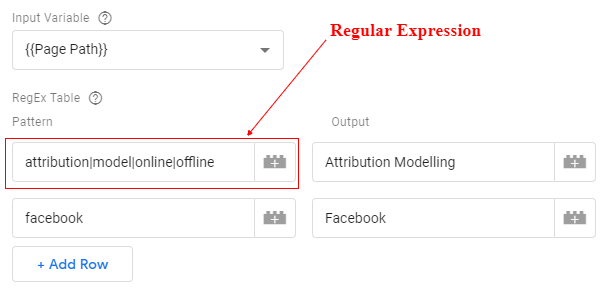
- Using the regex table variable in Google Tag Manager.
- Using regex in a custom JavaScript variable.
#1 Setting up complex triggers in GTM:
#2 Using the regex table variable in Google Tag Manager.
#3 Using regex in a custom JavaScript variable.
You can use regex in custom JavaScript variables like when Tracking Site Search without Query Parameter in Google Tag Manager:
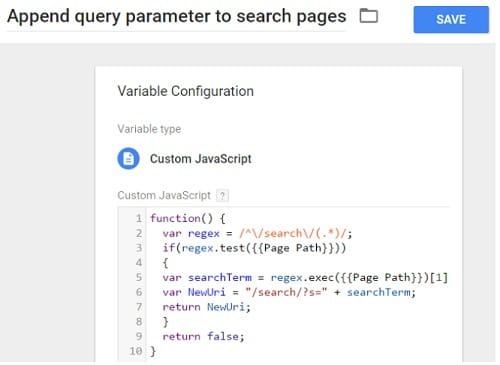
Testing Regular Expressions (REGEX)
Whether you consider yourself a beginner or advanced in the use of regex, you should always test your regular expressions.
You can test regular expressions through the following:
- RegExp Tester chrome extension.
- Regex101.com online tool.
- GTM debug console window for testing regex used in triggers and variables.
- Using RegExpObject to test regex in GTM during run time.
Testing Regex Method #1: RegExp Tester Chrome extension.
RegExp Tester is a chrome extension which is used to create and validate regular expressions (or regex):
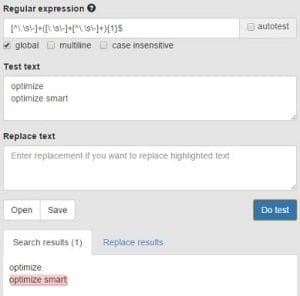
Here the highlighted search result (i.e. optimize smart) is the pattern that matches my regex.
Here my regex job is to filter out two words keyword phrases.
Testing Regex Method #2: Regex101.com online tool.
Regex101.com is an online tool used for creating and testing regular expressions.
Following is the interface of the ‘Regex101’ tool:
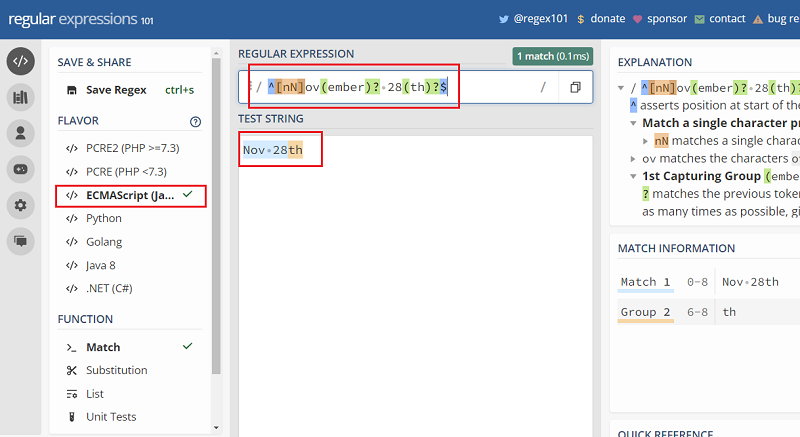
Note: Use the ‘ECMAScript (JavaScript)’ flavour as Google Analytics accept JavaScript regular expressions.
Testing Regex Method #3: GTM debug console window.
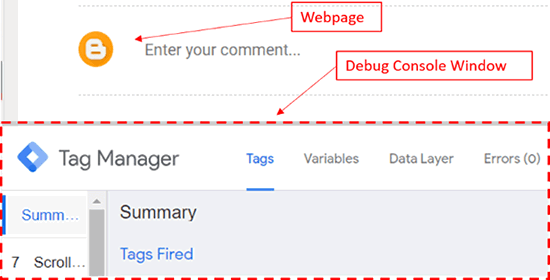
For GTM, you can use the debug console window to test the regex used in triggers and variables:
Testing Regex Method #4: Using ‘RegExp’ to test regex in GTM during run time.
RegExp is a regular expression object which is used to store a regular expression in JavaScript.
For example:
var regex = /^\/search\/(.*)/;
Here,
‘regex’ (as in var regex) is a regular expression object which is used to store the regular expression “/^\/search\/(.*)/“
‘test’ and ‘exec’ Methods of the ‘RegExp’ object
Both ‘test’ and ‘exec’ are the methods of the ‘RegExp’ object and are often used in Google Tag Manager to test regular expressions using run time.
‘test’ method is used to test for a match in a string.
It returns a boolean value: ‘true’ if it finds a match otherwise, it returns ‘false’
Syntax: RegExpObject.test(string to be searched)
For example:
function() {
  var regex = /^\/search\/(.*)/;
  var pagePath = '/search/enhanced ecommerce tracking/';
  if(regex.test(pagePath)
  {
  var searchTerm = regex.exec(pagePath)[1];
  var NewUri = "/search/?s=" + searchTerm;
  return NewUri;
  }
  return false;
}‘exec’ method (as in regex.exec) also tests for a match in a string.
But unlike ‘test’, it returns the array which contains the matched text, if it finds the match.
Otherwise, it returns NULL.
Syntax: RegExpObject.exec(string to be searched)
‘exec’ method returns an array of all matched text.
So for the regex ^\/search\/(.*) and pagePath = ‘/search/enhanced ecommerce tracking/’
The regex.exec(pagePath) = [‘/search/enhanced ecommerce tracking/’, ‘enhanced ecommerce tracking/’];
The regex.exec(pagePath)[0] = [‘/search/enhanced ecommerce tracking/’];
The regex.exec(pagePath)[1] = [‘enhanced ecommerce tracking/’];
So when we use regex.exec(pagePath)[1] we can extract the search string from the request URI.
Other Articles on GA4.
- Tracking New, Qualified and Converted Leads in GA4.
- Free GA4 training and tutorial with Certification.
- Understanding GA4 Ecommerce Reports (Monetization Reports).
- GA4 Ecommerce Tracking via GTM: Step-by-Step Setup Guide.
- How to see UTM parameters in GA4 (Google Analytics 4).
- GA4 UTM parameters not working? Here is how to fix it.
- How To Use UTM parameters in GA4 (Campaign Tracking).
- How to track AI traffic in GA4.
- Understanding Google Analytics 4 cookies – _ga cookie.
- GA4 (Google Analytics 4) Measurement Protocol Tutorial.
- GA4 Unassigned Traffic: Causes and How to Fix it Fast.
- GA4 Regex (Regular Expressions) Tutorial.
- GA4 Direct Traffic Spike: Common Causes and How to Fix Them.
- gtag.js – Google Tag in Google Analytics 4 and beyond.
- GA4 Scopes – User, Session, Event & Item scopes.
- GA4 Conversion Tracking (Key Events) Tutorial.
- GA4 (not set) - Guide to fixing (not set) issue.
- GA4 Certification Exam: Questions, Answers for Skillshop (GAIQ).
- GA4 User Properties (User Scoped Custom Dimensions) – Tutorial.
- Tracking Organic Traffic in GA4 - Complete Guide.