

Your GA4 and Looker Studio reports may be all wrong if you don’t understand the concept of scopes.
Most GA4 users confidently create and present reports like the one below. However, only the top 1% can identify the intricacies and potential issues in this report:
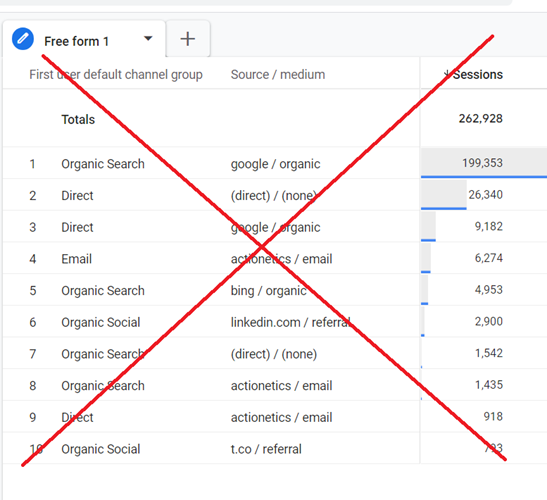
The ‘First User Default Channel Group‘ dimension has a ‘user’ scope. The ‘source/medium’ dimension has the ‘event’ scope.
Combining these two dimensions with different scopes creates a mismatch in the detail level they represent, resulting in inaccurate data.
Pair the “First User Default Channel Group” with the ‘First user source/medium‘ dimension.
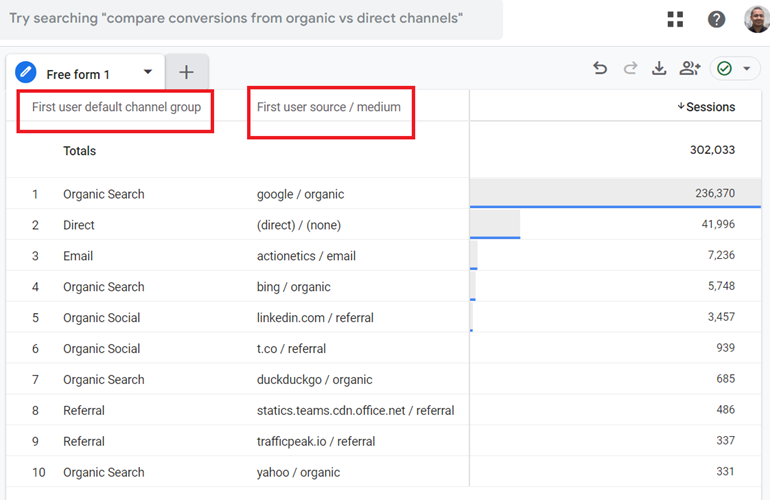
But does this really fix the problem?
Are we now seeing accurate data in our report?
No.
The other issue with this report is that you can’t query the “First User Default Channel Group” dimension or the “First user source/medium” dimension with the “sessions” metric:
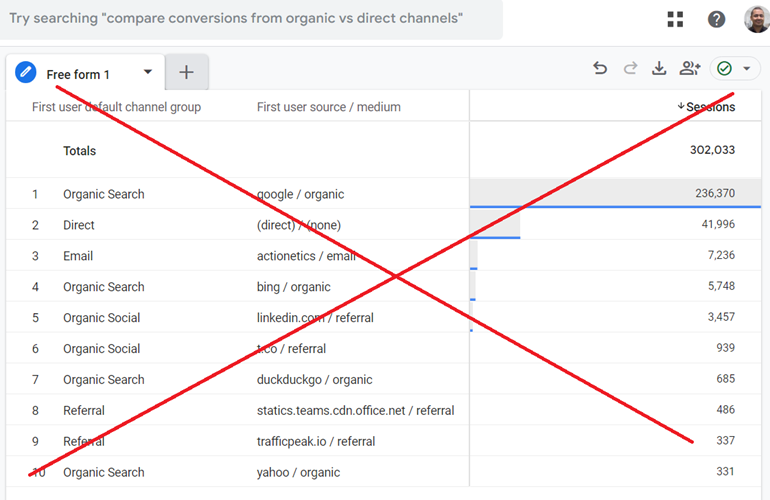
This is because these dimensions and metrics belong to different scopes.
‘First User Default Channel Group’ and ‘First User Source/Medium’ are user-scoped dimensions.
‘Sessions’ is a session-scoped metric.
User-scoped dimensions aggregate data across all sessions for a user, while session-scoped metrics focus on individual sessions.
User-scoped dimensions provide a big-picture view of a user, while session-scoped metrics zoom in on individual sessions.
That’s why mixing user-scoped dimensions with session-scoped metrics can lead to inaccurate data in your reports.

GA4 scopes for dimensions and metrics.
GA4 supports four different scopes for dimensions and metrics: user, session, event and item scope.
Each scope represents a different level of data aggregation and context.
These scopes should never be mixed in GA4 reports. Mixing them will result in a ‘scope mismatch’ error.
GA4 should have a system to warn users instantly when they mix different scopes.
GA4 can let you query dimensions and metrics with different scopes without showing any error message.
This leads to users creating and presenting inaccurate reports with great confidence.
The golden rule for creating accurate GA4 reports.
“In GA4, reports should only be created with all the dimensions and metrics belonging to the same scope.”
Let’s re-create our report so that all the dimensions and metrics belong to the same scope:
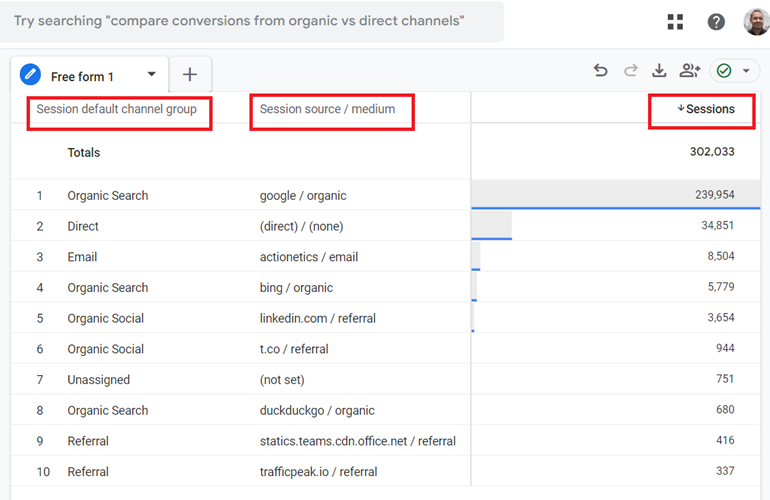
Here, the two dimensions (‘Session default channel group’ and ‘Session source/medium’) and the metric (‘Sessions’) have the same ‘Session’ scope.
The scopes in GA4 are hierarchical.
Scoping in GA4 refers to the level at which dimensions and metrics are aggregated and analysed.
GA4 supports four different levels (aka scopes): user, session, event and item.
Each scope represents a different level of data aggregation and context, and they should not be mixed in reports to ensure accurate and meaningful data analysis.
The ‘user’ scope is the highest level, followed by the ‘session’, ‘event’ and ‘item’ scopes.
The scopes in GA4 are hierarchical, meaning that data at a higher scope level (e.g., user) encompasses data at lower levels (e.g., session, event, item).
- User Scope: The highest level encompasses all sessions and events for a user.
- Session Scope: Encompasses all events within a single session.
- Event Scope: Focuses on individual user interactions within a session.
- Item Scope: Specific to individual products or services within e-commerce events.
The importance of scoping in GA4.
Understanding GA4 scopes is essential for accurate data analysis and reporting in GA4.
For example, combining metrics and dimensions from different scopes can lead to inaccurate data and misleading reports.
The concept of scoping has always been present in Google Analytics, but it has become much more crucial and prominent in GA4.
GA4 provides warnings, such as incompatible requests, when you use a combination of dimensions and metrics that should not be queried together:
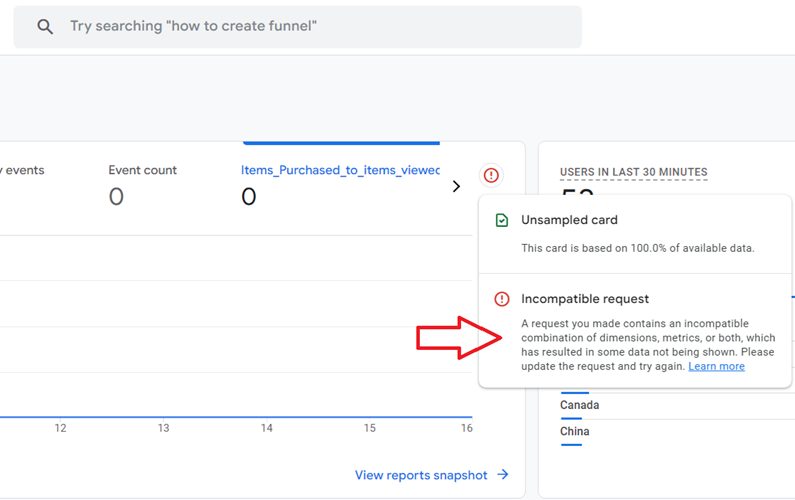
The GA4 user interface can also prevent you from selecting certain dimensions and metrics by disabling them in exploration reports.
However, as you know by now, GA4 does not always prevent you from querying dimensions and metrics of different scopes.
GA4 processes data at a more granular level (event-centric) than Universal Analytics’ session-centric approach.
This increased granularity makes scope mismatches even more impactful on report accuracy.
By focusing on scope matching, you can ensure that your reports reflect user behaviour at the intended level of detail.
How to fix GA4 Incompatible Request?
A GA4 Incompatible Request occurs when a user attempts to generate a report via the GA4 user interface or data API using a combination of dimensions and metrics that cannot be queried together.
This incompatibility can lead to errors and prevent the data from being displayed in the report.
Sometimes in a GA4 report, you may not see any data and think the website tracking has broken.
But what could have really happened is that you made an ‘Incompatible Request‘, which prevented data from being shown.
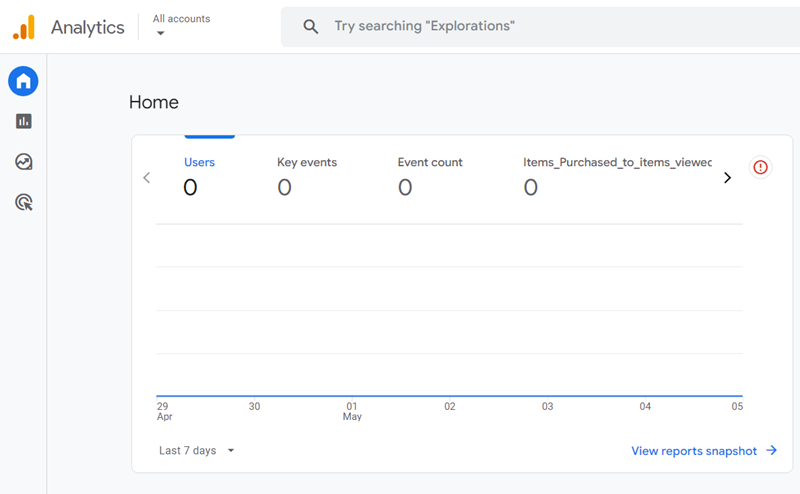
Whenever you try to query dimensions and/or metrics that can not be queried together via the UI or the data API, it could result in some or all of the data not being shown.
The data is not visible in the screenshot above because the metric ‘items_Purchased_to_items_viewed_rate‘ metric is incompatible with other metrics ‘, users’, ‘Key events’ and/or ‘event count’.
GA4 UI may show you an Incompatible request warning when you click the red exclamation mark button.
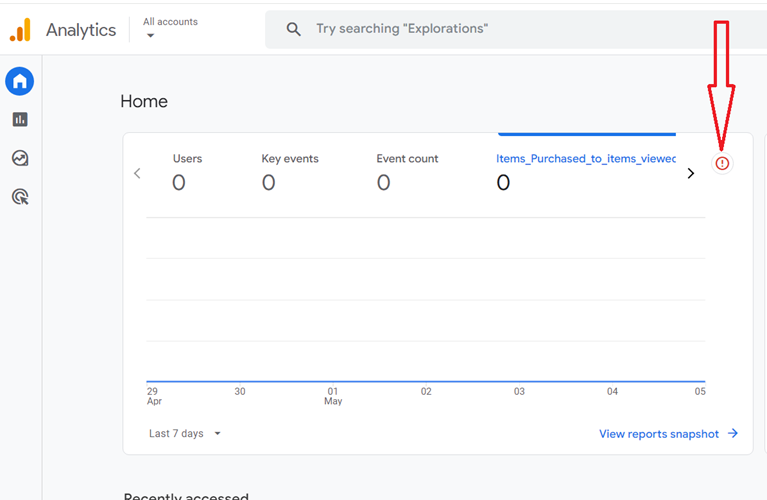
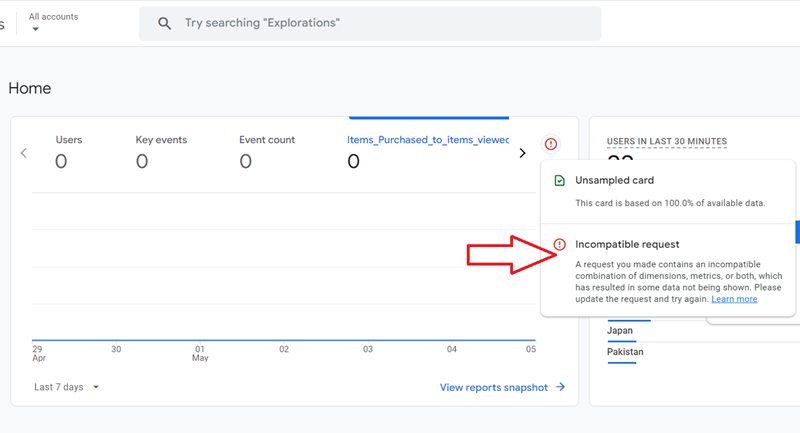
Note(1): In some interfaces, like GA4 exploration reports, incompatible dimensions and metrics are automatically greyed out, preventing them from being selected together. This helps avoid the generation of incompatible requests.
Note(2): GA4 often does not show any warning when you are using the GA4 Data API. In the API, incompatible requests often result in empty or partial responses or misleading results (e.g., rows returned but with 0s or nulls).
Follow the steps below to fix the GA4 Incompatible Request.
#1 Refer to GA4 Dimensions & Metrics Explorer to find compatible combinations of dimensions and metrics.
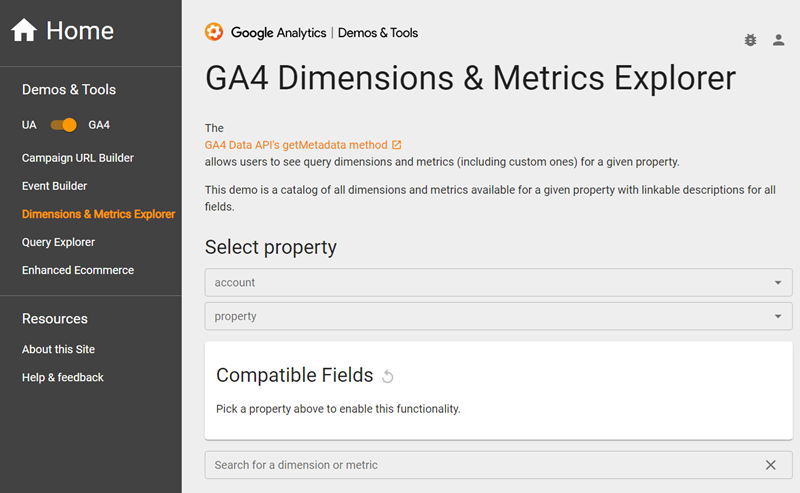
#2 Use BigQuery. You can overcome the limitation of incompatible requests by using GA4 with BigQuery.
One of the biggest advantages of using BigQuery is that it does not have the same limitations as the GA4 user interface and API regarding which dimensions and metrics can be queried together.
When you use BigQuery, you can manipulate GA4 data in ways that are many times not possible when using the GA4 user interface or the data API.
That means you can perform more advanced data segmentation and analysis when using GA4 with BigQuery.
#3 Sometimes, changing the type of report or the way data is visualized (For example, from a line chart to bar chart) can circumvent issues arising from GA4 incompatible requests.
How to quickly determine the scope of any dimension or metric in GA4?
This will help you avoid mixing dimensions and metrics of different scopes in your reports.
The GA4 data model clearly defines data scopes for dimensions.
For example:
User-scoped dimensions are usually prefixed with ‘First user’ (like ‘First user source/medium’).
Note: There are some user-scoped dimensions that are not prefixed with ‘First user’ like ‘country’, ‘city’, ‘Signed in with user ID’ etc.
User-scoped dimensions typically represent user attributes that remain relatively constant.
For example:
- Country.
- City.
- User ID.
- Membership Level.
- Subscription plan.
If a dimension reflects a user characteristic unlikely to change frequently, it most likely has user scope.
Session-scoped dimensions are prefixed with ‘Session’ (like ‘Session source/medium’).
Event-scoped dimensions do not have a prefix (like ‘source/medium’). That’s how you know they are event-scoped.
Item-scoped dimensions in GA4 do not have a specific prefix, but you can choose a descriptive name during creation.
The built-in item scoped dimensions in GA4 (like ‘Item name’, ‘Item brand’, ‘Item affiliation’, etc) are easy to recognise because the entire name itself signifies the item-related nature of the data.
It is important to remember that the item-scoped dimensions that I listed do have ‘Item’ in their names, but they are not prefixes. It’s just the dimension name.
GA4 User-scoped dimensions.
User-scope means the value of the dimension is calculated and sent once for each user.
GA4 User-scoped dimensions provide insights into where new users are coming from. They capture data associated with a user’s first interaction with your website or app.
User-scoped dimensions capture and retain information about a user across all their sessions and events.
In other words, the value of a user-scoped dimension usually does not usually change with each session or interaction.
Categories of GA4 user-scoped dimensions.
There are two categories of GA4 user-scoped dimensions:
#1 GA4 Built-in user-scoped dimensions – These are ready-to-use dimensions available in the GA4 reporting interface or data API.
#2 GA4 custom user-scoped dimensions – These are user-defined user-scoped dimensions.
GA4 Built-in user-scoped dimensions.
The following table provides a brief description of the various GA4 built-in user-scoped dimensions:
GA4 custom user-scoped dimensions.
The custom user-scoped dimensions are user-defined dimensions.
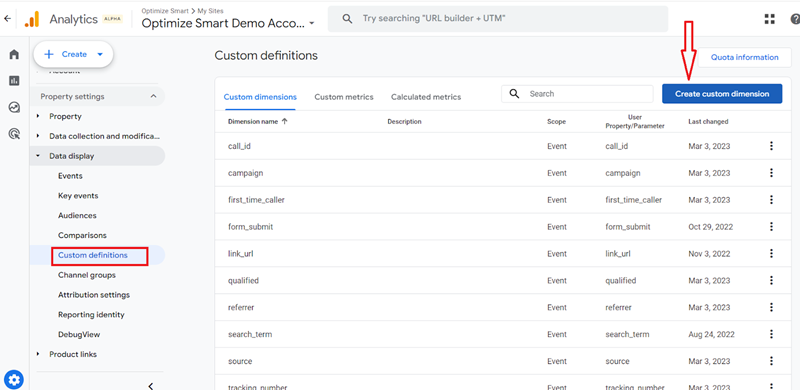
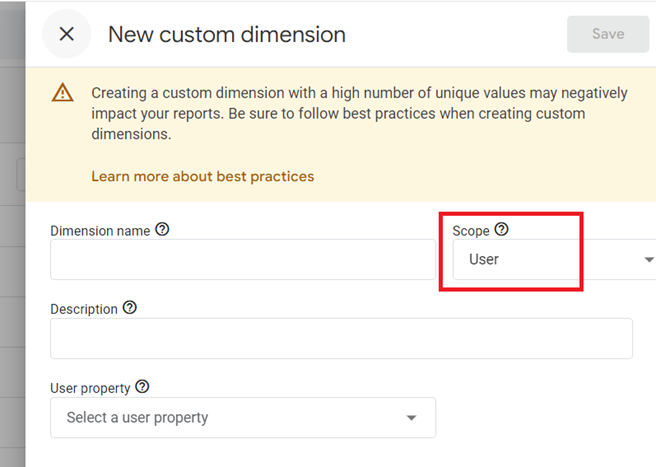
If a built-in user-scoped dimension does not capture any specific detail relevant to your business, create its corresponding custom user-scoped dimension.
Following is an example to illustrate the point:
You run an e-learning platform and want to track a user’s “enrollment status” (enrolled, waitlisted, etc.) across their interactions. A built-in user-scoped dimension might not capture this specific detail.
You can create an “enrollment_status” custom user-scoped dimension to capture this specific detail.
By creating and populating the “enrollment_status” custom user-scoped dimension, you can now:
- Segment users based on their enrollment status (enrolled users vs. waitlisted).
- Analyse how enrollment status affects user engagement with your platform content.
- Identify trends in user enrollment behaviour.
How to identify user-scoped dimensions in GA4?
User-scoped dimensions are usually prefixed with ‘First user’ (like ‘First user source/medium’).
That’s how you can easily spot them:
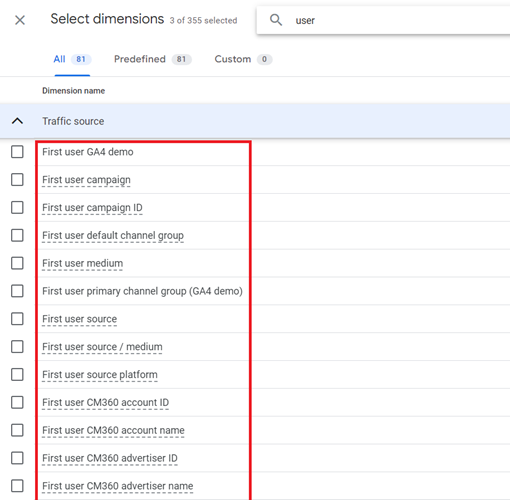
Note: There are some user-scoped dimensions that are not prefixed with ‘First user’ like ‘country’, ‘city’, ‘Signed in with user ID’ etc.
User-scoped dimensions typically represent user attributes that remain relatively constant.
This includes things like:
- Country
- City
- Language preference
- User ID (if available)
- Membership level
- Subscription plan
If a dimension reflects a user characteristic unlikely to change frequently, it most likely has user scope.
Example of User-Scoped Dimension in GA4: First User Source/Medium.
The First User Source/Medium dimension in GA4 captures the source (e.g., organic search, social media) and the specific medium within that source (e.g., organic search keyword, social media post) through which a user first discovered your website or app.
This dimension is user-scoped because it remains constant (or relatively constant) across all the user sessions.
When combined with various metrics, the “First User Source/Medium” dimension can offer valuable insights into user acquisition strategies and user behavior based on how they initially found you.
For example, consider the following data table:
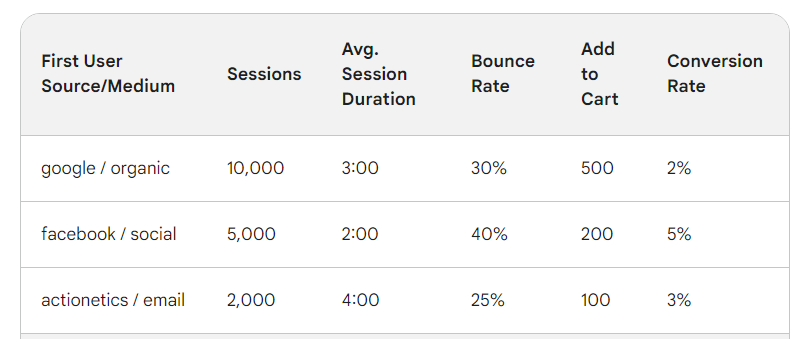
We can draw the following conclusions from this data table:
#1 Organic search seems to be a strong channel for attracting more engaged users (longer session duration) but might have a lower conversion rate than other channels. Investigate your organic search traffic sources (keywords, landing pages) to optimize for conversions.
#2 Social media (Facebook in this case) might be driving a higher conversion rate, but with a shorter session duration and higher bounce rate. This suggests users might arrive at specific product pages but not explore your site further.
#3 Email marketing shows a high engagement (long session duration) and a decent conversion rate. However, the overall volume of users acquired through email is lower. Consider expanding your reach while maintaining engagement.
Consider the following scenario:
You run a subscription-based service and want to track the “Subscription Plan” (e.g., Free, Basic, Premium) for each user visiting your website.
You set up a user-scoped custom dimension called “Subscription Plan.”
User Journey:
First Visit:
- A user named Amit visits your website for the first time.
- During this visit, Amit subscribes to the “Free” plan.
- The “Subscription Plan” dimension is set to “Free” for Amit.
Subscription Upgrade:
- A month later, Amit upgraded his subscription to the “Premium” plan.
- The “Subscription Plan” dimension is updated to “Premium” for Amit.
- This update reflects his current subscription status and will remain consistent in future visits unless he changes his plan again.
Subsequent Visits:
- Amit returns to your website multiple times after upgrading to the “Premium” plan.
- Each time Amit visits, GA4 recognises him as the same user from his previous visits.
- The “Subscription Plan” dimension for Amit remains “Premium,” reflecting his current subscription status.
You can analyse Amit’s behaviour over time, with the “Subscription Plan” consistently showing as “Premium.”
This allows you to segment and analyse users based on their current subscription plans, providing insights into usage patterns and engagement levels across different plans.
Google recommends that you use a user-scoped custom dimension (also known as user properties) to identify static or slowly changing attributes of your website/app users, such as changes in the subscription plan, membership level, game difficulty level, etc.
You can create a user-scoped custom dimension by registering a parameter with user scope in the GA4 user interface.
GA4 User-scoped dimensions vs Attribution.
For user-scoped dimensions, GA4 assigns conversion credit using the ‘paid and organic channels last-click attribution model’.
This model attributes the conversion to the last non-direct click from paid or organic channels before the conversion event.
Imagine a user:
- First, discover your website through google organic search (First User Source: google).
- Later sees a display ad (paid channel) but doesn’t click on it.
- Then clicks on a link in an email and makes a purchase.
In this scenario:
- The “First User Source” dimension would still show “google” because that’s how the user first discovered your website, regardless of the attribution model used.
- The conversion (purchase) would be attributed to the ‘email’.
However, it is important to clarify that user-scoped dimensions themselves do not use a ‘paid and organic channels last-click attribution model’.
This is because the values of user-scoped dimensions do not change based on user behaviour or the attribution model you choose. They are calculated and sent once per user.
User-scoped dimensions in GA4 function entirely separately from attribution models.
User-scoped dimensions are unaffected by changes to the reporting attribution model (you select under Data Display > Attribution Settings):
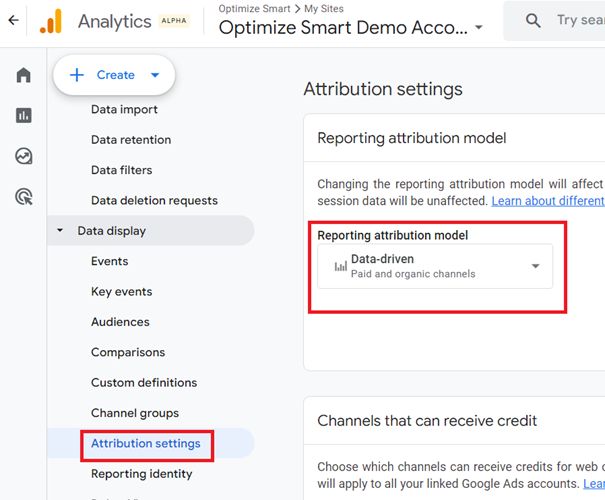
GA4 User-scoped metrics?
GA4 does not have user-scoped metrics in the traditional sense, even when these metrics aggregate data specific to individual users across all their sessions.
For example, the following metrics seem user-specific but still do not qualify as user-scoped metrics:
Lifetime Value: This metric requires calculating total revenue or other actions across sessions, which can keep increasing as the user interacts more.
Total Purchases, Events, Conversions: These metrics depend on the user’s activity during each session and can grow with new purchases, events triggered, or conversions completed.
Total Sessions: While seemingly user-specific, it reflects the total number of visits, which keeps increasing as the user returns.
For GA4 metrics to be user-scoped, it needs to represent data that remains constant across all user sessions.
The examples I listed (Lifetime Value, Total Purchases, etc.) focus on aggregating data across sessions, but this data itself can change with each session.
GA4 Session-scoped dimensions.
Session-scope means the value of the dimension is calculated and sent once for each session.
This means that each time a user starts a new session, the session-scoped dimensions are recalculated based on the context of that particular session.
GA4 Session-scoped dimensions provide insights into where both new and returning users are coming from when they start new sessions, such as the source and medium through which the user arrived during that session.
Session-scoped dimensions in GA4 primarily capture information specific to the current session, not necessarily across all sessions or user journeys. They provide context about the user’s interaction within that specific visit.
Example:
Dimension: Session source/medium
Value: “google / organic” (for the first session), “direct / (none)” (for the second session)
If a user first visits your website through an organic search on Google, the “Session source/medium” dimension will be set to “google / organic” for that session.
If the same user returns to your website directly (by typing the URL into the browser) in a subsequent session, the “Session source/medium” dimension will be updated to “direct / (none)” for that session.
However, if the user first visits your website through an organic search on Google and then returns to your website directly midway through the session, the “Session source/medium” dimension will remain “google / organic”
Note: GA4 does not start a new session if the traffic source, medium, or campaign changes mid-session.
Importance of Session-scoped dimensions.
Session-scoped dimensions help analyse how users interact with your website or app during specific sessions, which can be useful for:
- Traffic Analysis: Understanding where users are coming from during each session.
- Behavior Analysis: Analyzing user behaviour within specific sessions to identify patterns or issues.
- Conversion Tracking: Tracking conversions and key events within individual sessions.
GA4 Built-in session-scoped dimensions.
GA4 has only one category of session-scoped dimensions called the GA4 Built-in session-scoped dimensions.
These are ready-to-use dimensions available in the GA4 reporting interface or data API.
The following table provides a brief description of the various GA4 Built-in session-scoped dimensions:
Note: In GA4, you can not create custom session-scoped dimensions. GA4 supports three scopes for custom dimensions: event scope, user scope, and item scope.
How to identify session-scoped dimensions in GA4?
Session-scoped dimensions are always prefixed with ‘Session’ (like ‘Session source/medium’).
That’s how you can easily spot them:
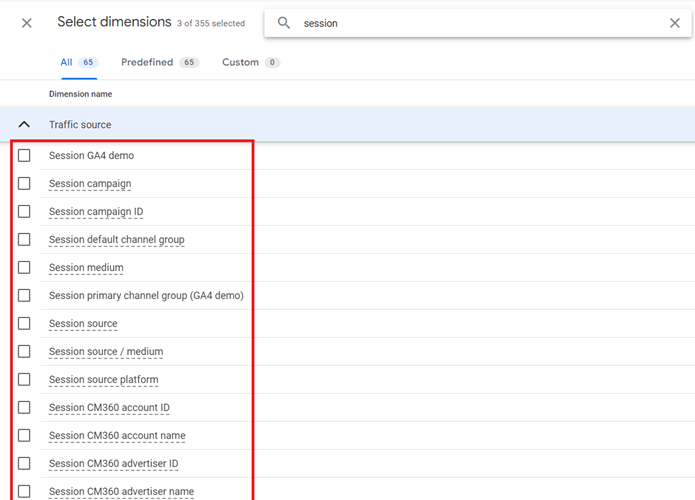
Example of GA4 Session-Scoped Dimension: Session source/medium.
Unlike the ‘First User source/medium’ (user-scoped dimension), the ‘Session source/medium dimension’ in GA4 captures each user session’s traffic source and medium.
This means it can change depending on how a user finds your website or app within a particular session.
When combined with various metrics, the “Session source/medium” dimension can offer valuable insights into user acquisition channels, campaign performance, user journey within a session, content and marketing optimisation, and user engagement levels for different traffic sources.
For example, consider the following data table:
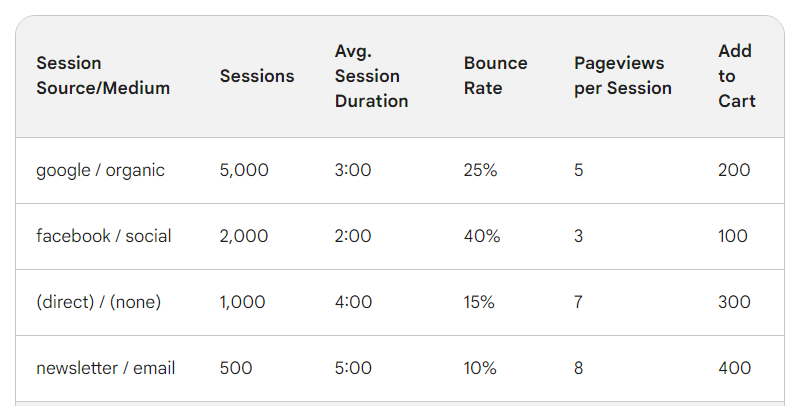
We can draw the following conclusions from this data table:
#1 Organic Search (google / organic) drives a significant number of sessions (5,000), suggesting it’s a strong acquisition channel.
#2 The high bounce rate for Facebook social traffic (40%) might indicate a content mismatch between social media ads and landing pages.
#3 Users with direct traffic have the longest session duration and most pageviews, indicating familiarity and deeper exploration within the session.
#4 While driving a smaller audience (500 sessions), ‘Email Marketing (newsletter/email)’ users show high engagement with more ‘pageviews per session’, suggesting they navigate through more content after arriving via an email newsletter. The email traffic also resulted in the highest ‘add to carts’ (400), indicating this channel is most effective at driving users towards the purchase intent stage.
GA4 Session-scoped dimensions vs Attribution.
GA4 assigns conversion credit for session-scoped dimensions using the ‘paid and organic channels last-click attribution model’.
This model attributes the conversion to the last non-direct click from paid or organic channels before the conversion event.
Consider the following user journey:
Session 1 (facebook / referral): A user clicks on a link shared in a Facebook post and browses your website for a while but doesn’t make a purchase (Session source/medium: “facebook / referral”).
Session 2 (google / organic): Later in the day, the user performs a Google search for your brand and clicks on an organic search result, leading them back to your website (Session source/medium: “google / organic”). This time, they complete a purchase.
In this case, the conversion (purchase) would be attributed to “google / organic” since it was the last non-direct click before the conversion event, even though the Facebook post sparked the user’s initial interest.
However, it is important to clarify that session-scoped dimensions themselves do not use a ‘paid and organic channels last-click attribution model’.
This is because the values of session-scoped dimensions do not change based on user behaviour or the attribution model you choose. They are calculated and sent once per session.
Session-scoped dimensions in GA4 function entirely separately from attribution models.
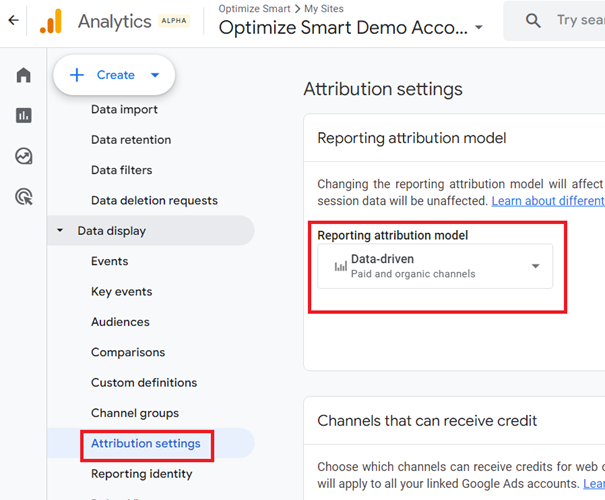
Session-scoped dimensions are unaffected by changes to the reporting attribution model (you select under Data Display > Attribution Settings):
GA4 Session-scoped metrics.
GA4 built-in metrics are typically session-scoped. This means they focus on quantifiable aspects of user behaviour within individual sessions on your website or app.
While GA4 Session-scoped metrics don’t provide a single, unchanging value for a user, they can still be very insightful when combined with user-scoped dimensions.
But you should not be mixing dimensions and metrics of different scopes. So, you should not be combining session-scoped metrics with user-scoped dimensions.
Combining Scopes (the correct approach):
The following are examples of how you can leverage session-centric metrics and user-scoped dimensions together in GA4 without directly mixing them within a single report row to gain valuable insights into user behaviour across multiple sessions:
Example-1: Analyzing Purchase Behavior by Country.
User-Scoped Dimension: “country” (This captures the user’s country)
Session-Centric Metrics:
- Average Order Value: This calculates the average amount spent per purchase order within each country segment.
- Purchase Key Event Rate: This reflects the percentage of sessions that resulted in a purchase event (e.g., “purchase_complete”), analyzed within each country segment.
By segmenting user data by “country” and then analyzing “Average Order Value” and “Purchase Key Event Rate” within each segment, you can gain insights into how users from different geographical regions behave in terms of purchase behavior across multiple sessions.
This helps you understand if users from specific countries tend to spend more per purchase or have a higher rate of completing the purchase event.
Example-2: Analyzing App Feature Usage by Device Category.
User-Scoped Dimension: “Device Category” (This captures the broad category of the user’s device – mobile, tablet, desktop)
Session-Centric Metrics:
- Average Time Spent on Feature X: This measures the average time users spend on a specific app feature (e.g., a game level) within each device category segment.
- Event Completions for Feature Y: This tracks the number of completions for a specific app feature event (e.g., completing a tutorial) within each device category segment.
By segmenting user data by “Device Category” and then analyzing “Average Time Spent on Feature X” and “Event Completions for Feature Y” within each segment, you can understand how users on different device categories (mobile, tablet, desktop) engage with specific app features across multiple sessions.
This helps you identify if certain features are more popular or easier to use on specific device categories and optimize the user experience accordingly.
GA4 Event-scoped dimensions.
Event-scope means the value of the dimension is calculated and sent for each event.
GA4 Event-scoped dimensions provide insights into the context surrounding a specific user event (e.g., purchase, video play). They capture details specific to user actions (events) on your website or app.
For example:
- Product category for a purchase event
- Video title for a video play event
- Button text for a click event. etc
Event-scoped dimensions apply only to the event they are associated with, not to the entire session.
There are two categories of GA4 event-scoped dimensions:
#1 GA4 Built-in event-scoped dimensions – These are ready-to-use dimensions available in the GA4 reporting interface or data API.
#2 GA4 custom event-scoped dimensions – These are user-defined event-scoped dimensions.
GA4 Built-in event-scoped dimensions.
The following table provides a brief description of the various GA4 Built-in event-scoped dimensions:
GA4 custom event-scoped dimensions.
The custom event-scoped dimensions are user-defined dimensions.
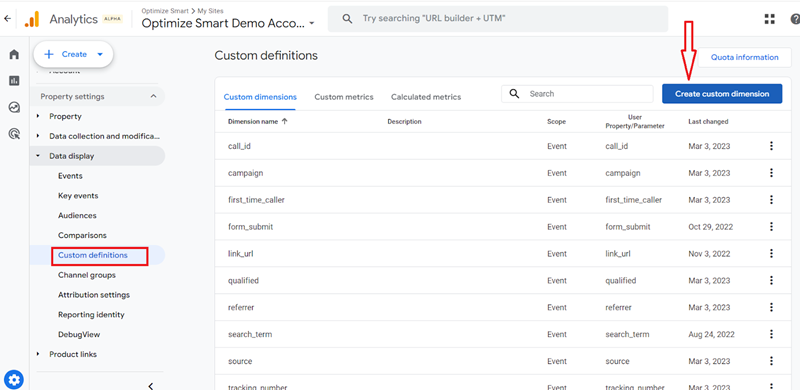
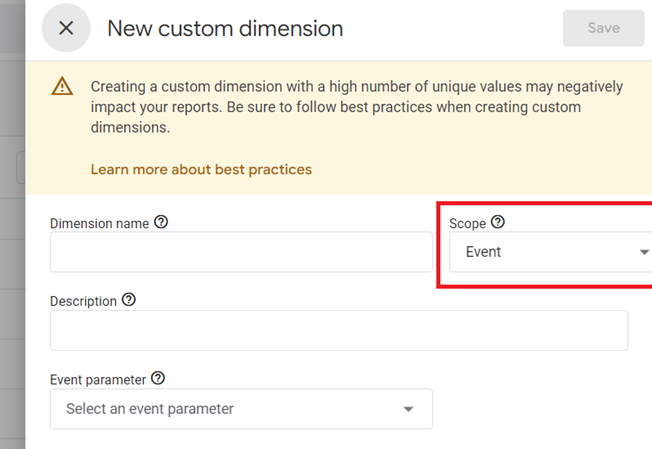
If a built-in event-scoped dimension does not capture the detail relevant to your business, create its corresponding custom event-scoped dimension.
Let’s say you run an e-commerce website and want to track clicks on a “Subscribe” button to understand how often users engage with this call to action.
GA4 does not have a built-in event-scoped dimension specifically for tracking “Subscribe” button clicks.
Therefore, you need to create a custom event-scoped dimension to capture this detail.
How to identify event-scoped dimensions in GA4?
GA4 Event-scoped dimensions do not have a prefix (like ‘source/medium’).
That’s how you know they are event-scoped:
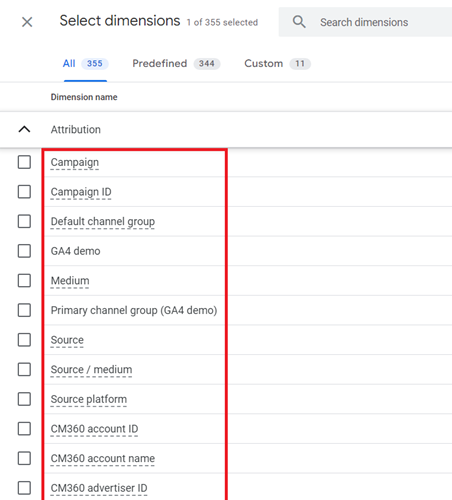
Note: The source and medium for non-key events in GA4 are “(not set)”.
GA4 Event-scoped dimensions vs Attribution.
For event-scoped dimensions, by default, GA4 assigns conversion credit using data driven attribution model.
Event-scoped dimensions are affected by changes to the reporting attribution model (you select under Data Display > Attribution Settings):
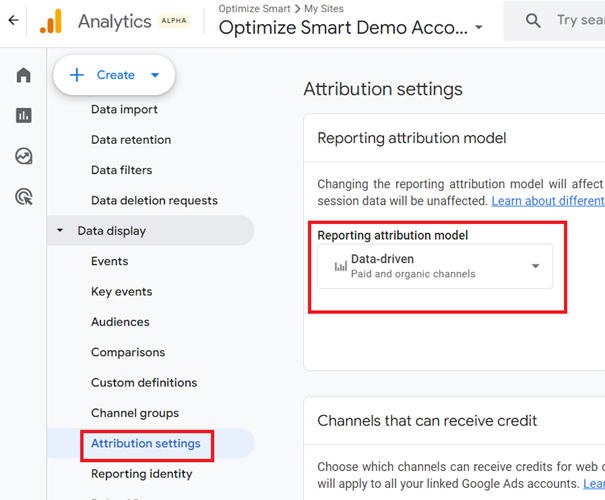
However, it is important to clarify that event-scoped dimensions themselves do not use the reporting attribution model.
This is because the values of event-scoped dimensions do not change based on user behaviour or the attribution model you choose.
Consider the following user journey:
#1 Clicks a Facebook ad: The user clicks a social media ad on Facebook, directing them to your website. This interaction is captured by the session-scoped dimension “Session Source/Medium” with the value “facebook / referral.”
#2 Browses “clothing” category: While browsing the website, the user specifically interacts with the “clothing” category. This detail is captured by the event-scoped custom dimension “product_category” with the value set to “clothing” for the specific event of browsing that category.
#3 Signs up for newsletter: The user completes a key event by signing up for your newsletter.
The value “clothing” remains constant, reflecting the product category the user browsed, regardless of the user’s prior actions or the attribution model chosen.
Even though the user arrived through a Facebook ad, the attribution model you’ve selected (e.g., last click, data-driven) determines how credit for the newsletter signup (key event) is ultimately assigned.
GA4 Event-scoped metrics.
Event scope means the value of a metric is calculated for each event.
Most built-in metrics in GA4 have a session-scope, but for some odd reason, GA4 allows creating custom metrics only with event scope.
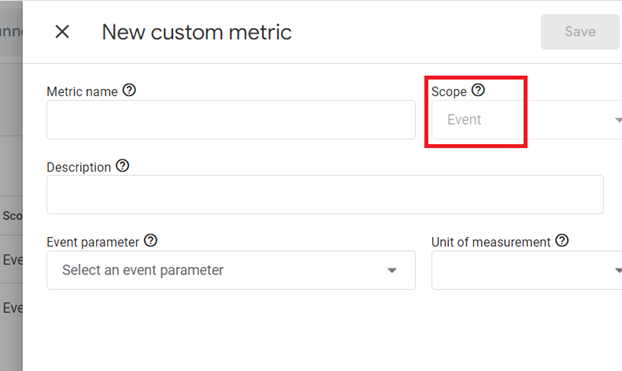
GA4 has a disconnect between the session-centric nature of its built-in metrics and the event-scoped approach for custom metrics.
While GA4 doesn’t offer built-in session-scoped custom metrics, there are ways to address session-level needs.
In some cases, you can leverage event data to create custom metrics that indirectly reflect session-like behaviour.
For example, you can calculate the number of events per session by grouping events based on a unique session identifier.
GA4 Item-scoped dimensions.
The GA4 Item scoped dimensions are used to capture detailed information about individual products or services within e-commerce events.
There are two categories of GA4 item scoped dimensions:
#1 GA4 Built-in item scoped dimensions – These are ready-to-use dimensions available in the GA4 reporting interface or data API.
#2 GA4 custom item scoped dimensions – These are user-defined item-scoped dimensions.
GA4 Built-in item scoped dimensions.
The following table provides a brief description of the various GA4 Built-in item scoped dimensions:
GA4 custom item scoped dimensions
The custom item scoped dimensions are user-defined dimensions.
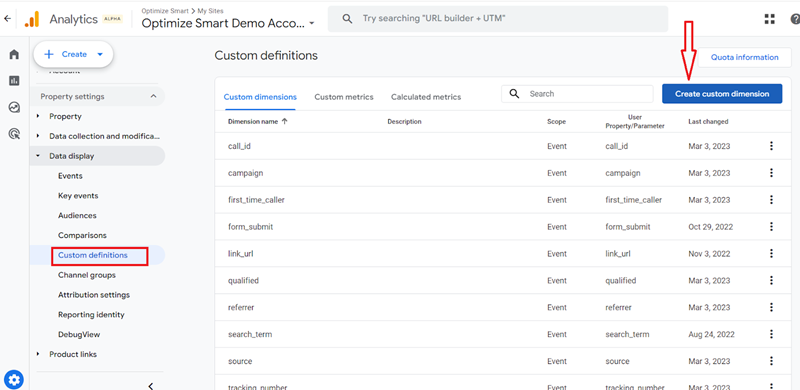
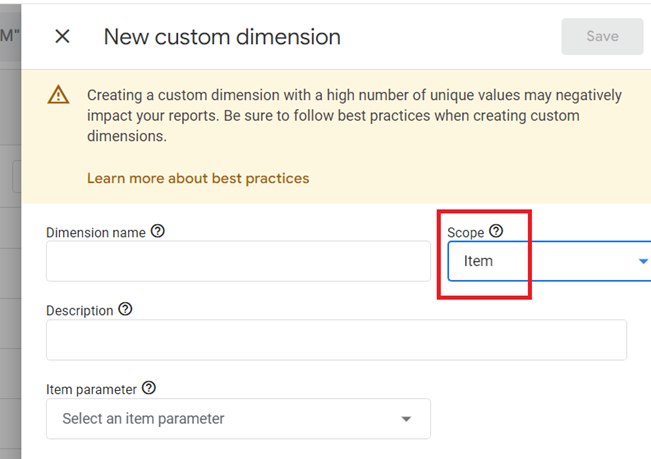
If a built-in item scoped dimension does not capture any product-specific detail relevant to your business, create its corresponding custom item scoped dimension.
Following is an example to illustrate the point:
Let us suppose you sell handmade furniture.
While the built-in “Item category” dimension might capture “Tables,” it wouldn’t tell you the specific type (coffee table, dining table, etc.).
You can create a custom item-scoped dimension named “furniture_type” to capture details like “Coffee Table” or “Dining Table” for each furniture item.
How to identify item-scoped dimensions in GA4?
Unlike session-scoped dimensions, which are prefixed with “session” (e.g., “session source/medium”), item-scoped dimensions do not have a specific prefix.
Instead, they are identified by their inclusion within the items array in e-commerce events.
You may come across the following built-in item-scoped dimensions in your GA4 property:
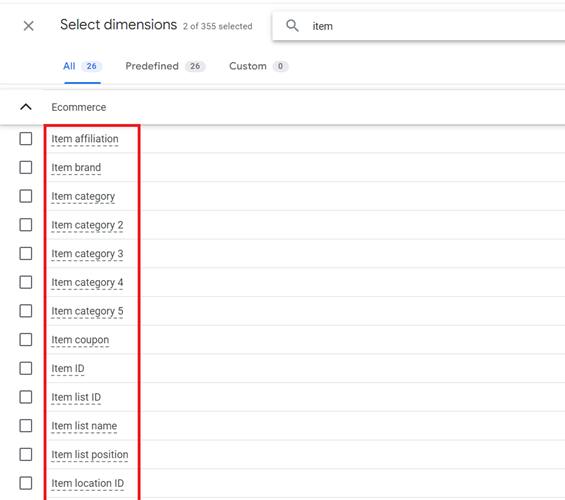
You may assume that the built-in item-scoped dimensions that I listed use a prefix because they have ‘Item’ in their names, but they are not prefixes. It’s just the dimension name.
The entire name itself signifies the item-related nature of the data.
Item-scoped custom dimensions must be included within the items array of ecommerce events in GA4.
This array serves as a container specifically for item-level data associated with the event.
Following is an example of how to include an item-scoped custom dimension in the items array:
Let’s assume you want to track a custom dimension called ‘product_color’ for each item in your e-commerce events.
Here’s how you can do it in the context of a ‘purchase’ event using the data layer push method.
window.dataLayer = window.dataLayer || [];
window.dataLayer.push({
  event: 'purchase',
  ecommerce: {
    transaction_id: 'T12345',
    affiliation: 'Online Store',
    value: 59.99,
    currency: 'USD',
    tax: 5.00,
    shipping: 7.00,
    items: [
      {
        item_id: 'P12345',
        item_name: 'Product 1',
        item_category: 'Category A',
        item_variant: 'Variant 1',
        product_color: 'Red', // Custom dimension
        price: 29.99,
        quantity: 1
      },
      {
        item_id: 'P67890',
        item_name: 'Product 2',
        item_category: 'Category B',
        item_variant: 'Variant 2',
        product_color: 'Blue', // Custom dimension
        price: 30.00,
        quantity: 1
      }
    ]
  }
});
Here, the custom dimension ‘product_color’ is added to each item in the items array.
The Data Layer Push method ensures that the data is pushed to the data layer, which Google Tag Manager can then use to send the information to GA4.
GA4 Item-scoped Metrics.
The GA4 item-scoped metrics allow you to analyse the performance of individual products or items within e-commerce events. These metrics are used to measure the characteristics of item-scoped dimensions.
In other words, item-scoped metrics measure how your products perform based on the details captured by the item-scoped dimensions.
Imagine a library with books categorised by genre (item-scoped dimension).
Metrics like “number of times borrowed” or “average loan duration” (item-scoped metrics) would analyse how individual books perform within each genre category.
Examples of GA4 Item-Scoped Metrics:
Example to understand the various GA4 Scopes.
Imagine you run an online store and want to see how customers find your website.
Consider the following user journey:
- A customer named Jamie finds your website through a Facebook ad. Jamie clicks on the ad, visits your website, looks at some t-shirts, and signs up for your newsletter.
- A few days later, Jamie returns to your website directly, changes the colour of a t-shirt to blue, adds the blue t-shirt to the cart, and makes a purchase.
- A week later, Jamie clicks on a Twitter ad, views a white-coloured t-shirt, adds it to the cart, and bookmarks the page. During this third session, Jamie clicks on an internal promotion link to view the t-shirt again.
- During the 4th session, Jamie uses the bookmark to return, changes the quantity of the white t-shirt to two, and completes the purchase.
Jamie’s Path:
Session 1: Paid social → first visit → session start → view item → signup
Session 2: Direct → session start → change product color (custom event) → add to cart (key event) → purchase (key event)
Session 3: Paid social → session start → internal promotion with UTM parameters → view item → add to cart (key event)
Session 4: Direct → session start → increase item quantity (custom event) → purchase (key event)
Results in GA4:
User-Scoped Dimensions:
First user source/medium is assigned at the user level and shows the source/medium from the user’s first session.
Session-Scoped Dimensions:
Session source/medium is assigned at the session level and shows what originated the session. Direct entrances are attributed to the last known source/medium.
Event-Scoped Dimensions:
The table below shows the number of key events for each event triggered in the previous examples.
It also includes the key event paths that the user took to trigger each key event.
Note: The ‘first_view’ event, ‘view_item’ event, ‘change_product_color’ event, and ‘increase_item_quantity’ events are not marked as key events and thus do not have key event paths.
Item-Scoped Dimensions:
Items are included in the items array within each e-commerce event and capture data at the item level.
To track when Jamie changes the product colour, you might create a custom event like this:
window.dataLayer = window.dataLayer || [];
window.dataLayer.push({
  event: 'change_product_color',
  ecommerce: {
    items: [
      {
        item_id: 'P12345',
        item_name: 'T-shirt',
        item_category: 'Apparel',
        item_variant: 'Size M',
        product_color: 'Blue' // Custom dimension
      }
    ]
  }
});
To track when Jamie increases the item quantity, you might create a custom event like this:
window.dataLayer = window.dataLayer || [];
window.dataLayer.push({
  event: 'increase_item_quantity',
  ecommerce: {
    items: [
      {
        item_id: 'P67890',
        item_name: 'White T-shirt',
        item_category: 'Apparel',
        item_variant: 'Size L',
        product_color: 'White', // Custom dimension
        quantity: 2
      }
    ]
  }
});
The conversion credit for source/medium applies only to events marked as key events.
In the example below, we used the default data-driven attribution model, which assigns different conversion credit weights to each touchpoint along the user’s path to a key event.
How to Mix GA4 Dimensions & Metrics of Different Scopes?
When you conduct a downward analysis, mixing dimensions and metrics of different scopes is not problematic in GA4 reports. It is problematic when you conduct upward analysis or mix dimensions of different scopes.
You can go down in the hierarchy from users > sessions > events but not upwards when mixing dimensions and metrics of different scopes in GA4 reports.
The hierarchy of scopes in GA4 can be visualized as:
1) User (highest level)2) Session3) Event (lowest level)
This hierarchy reflects the way data is structured and collected in GA4.
Downward Analysis:
>> You can mix user-scoped dimensions with session or event-scoped metrics.
>> You can mix session-scoped dimensions with event-scoped metrics.
This is because lower-level entities (events, sessions) always belong to higher-level entities (users).
Upward Analysis:
>> You should not directly attribute event-scoped dimensions to session or user-scoped metrics.
>> You should not directly attribute session-scoped dimensions to user-scoped metrics.
This is because higher-level entities can contain multiple lower-level entities, making direct attribution problematic.
For example, an event (e.g., page_view) is not tied to a single user in a one-to-one manner. It belongs to many users.
Similarly, a session can contain multiple events, so there is no single “Session” value to apply at the event level.
Mixing Dimensions of Different Scopes.
You should avoid mixing dimensions of different scopes as it could result in inaccurate data.
The downward and upward analysis rule does not apply when mixing dimensions of different scopes because dimensions don’t behave like metrics.
For example, The ‘First User Default Channel Group’ dimension has a ‘user’ scope. The ‘source/medium’ dimension has the ‘event’ scope.
Combining these two dimensions with different scopes creates a mismatch in the detail level they represent, resulting in inaccurate data.
“Do not mix dimensions and metrics of different scopes” is a simplified guideline to help marketers and analysts avoid creating incorrect reports.
But when mixing scopes is not avoidable, remember the upward and downward analysis approach.
Other Articles on GA4.
- Tracking New, Qualified and Converted Leads in GA4.
- Free GA4 training and tutorial with Certification.
- Understanding GA4 Ecommerce Reports (Monetization Reports).
- GA4 Ecommerce Tracking via GTM: Step-by-Step Setup Guide.
- How to see UTM parameters in GA4 (Google Analytics 4).
- GA4 UTM parameters not working? Here is how to fix it.
- How To Use UTM parameters in GA4 (Campaign Tracking).
- How to track AI traffic in GA4.
- Understanding Google Analytics 4 cookies – _ga cookie.
- GA4 (Google Analytics 4) Measurement Protocol Tutorial.
- GA4 Unassigned Traffic: Causes and How to Fix it Fast.
- GA4 Regex (Regular Expressions) Tutorial.
- GA4 Direct Traffic Spike: Common Causes and How to Fix Them.
- gtag.js – Google Tag in Google Analytics 4 and beyond.
- GA4 Scopes – User, Session, Event & Item scopes.
- GA4 Conversion Tracking (Key Events) Tutorial.
- GA4 (not set) - Guide to fixing (not set) issue.
- GA4 Certification Exam: Questions, Answers for Skillshop (GAIQ).
- GA4 User Properties (User Scoped Custom Dimensions) – Tutorial.
- Tracking Organic Traffic in GA4 - Complete Guide.
- Tracking Events in GA4 (Google Analytics 4).
- GTM Server Side Tagging - Setup Guide.
- Using Subfolder for GTM Server Side Tagging (Same Origin Tracking).