

What is Google Tag?
The Google tag is just a new name for the global site tag (gtag.js).
Global site tag or gtag.js is the latest JavaScript library from Google.
Unlike ‘ga.js’ or ‘analytics.js’, the global site tag is not strictly a Google Analytics library as it supports Google Ads conversion tracking and tracking for many other Google products. So, ‘gtag.js’ is not the next version of ‘analytics.js’
Earlier, Google used the ‘analytics.js’ library to measure users’ interactions with your website, the ‘firebase.js’ library to measure users’ interactions with your mobile apps, and the ‘conversion.js’ library to measure Google Ads conversion, etc.
The purpose of ‘gtag.js’ is to replace all of these libraries with one single library, and hence ‘gtag.js’ is being promoted as ‘one tag to rule them all’.
To keep the size of ‘gtag.js’ small, this library calls other libraries internally. For example, ‘gtag.js’ calls ‘analytics.js’ and ‘conversions.js’ internally.
This has also been done to maintain backward compatibility. Had Google completely rewritten ‘gtag.js’ from scratch, it would most likely not remain compatible with previous tracking methods.
‘gtag.js’ will continue to call other libraries internally for another big reason: to remain lightweight.
Google’s objective with gtag.js (aka Google Tag) is to use one JavaScript Library for tracking all of its products.
The Google tag is used to measure the effectiveness of your website and ads.
Through Google Tag, you can send data from your website to connected destinations, such as GA4 and Google Ads.

Examples of Google Tag:
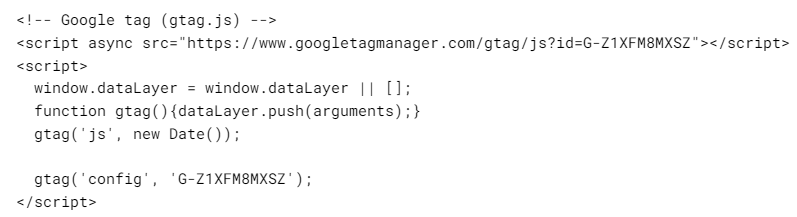
#1 Javascript code for installing Google Analytics 4:
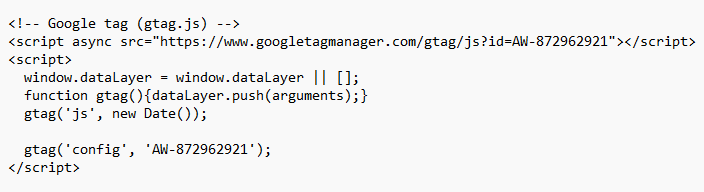
#2 Javascript code for installing Google Ads Conversion Tracking:
Key benefits of using Google tag.
#1 You can use a single Google tag for multiple Google products and services, eliminating the need to manage separate tags for each product or service.
#2 The Google tag leverages advanced techniques to address data collection challenges like ad blockers and cookie restrictions, leading to improved data quality.
#3 Google can introduce new features and functionalities to the Google tag without requiring users to update their code, ensuring they stay up-to-date with the latest advancements.
What is Google Tag ID?
A Google tag ID is an identifier used to connect a specific Google tag to your website.
The following are examples of tag IDs:
G-XXXXXXXXXX – This format is commonly used for GA4 properties.
Example: G-Z1XFM8MXSZ

AW-XXXXXXXXX – This format is typically used for Google Ads conversion tracking.
Example: AW-872962921
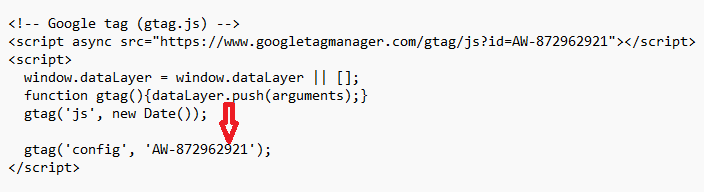
GT-XXXXXXXXX – This format is typically used for other Google tags managed through GTM.
So, a tag ID in a Google tag can be a GA4 measurement ID, Google Ad conversion tracking ID or some other Google tag ID.
How to find Google Tag ID in Google Analytics 4?
Follow the steps below:
#1 Navigate to the Admin section of your GA4 property.
#2 Click on ‘Data Stream’ under ‘Data collection and modification’.
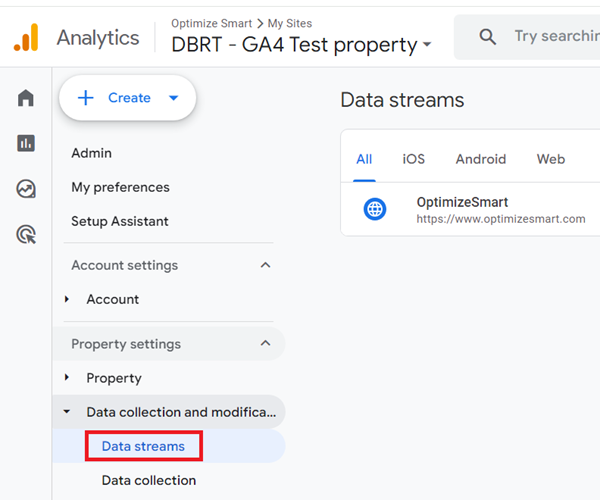
#3 Click on the name of your web data stream.
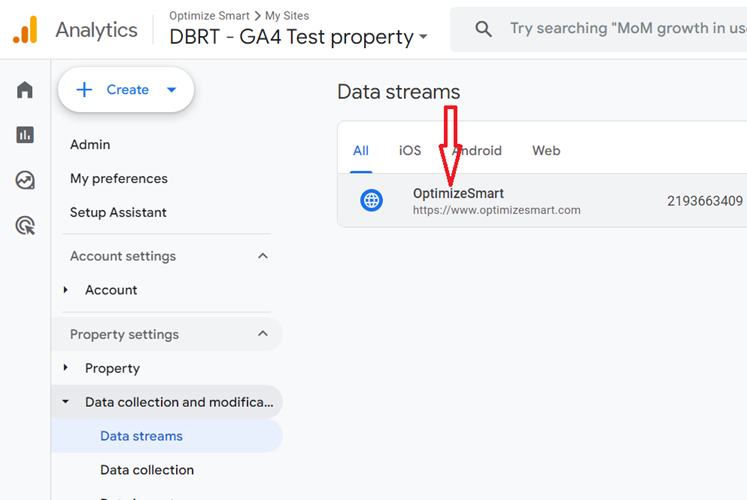
#4 Scroll all the way down and then click on ‘Configure tag settings’.

You can now see your Google Tag ID:
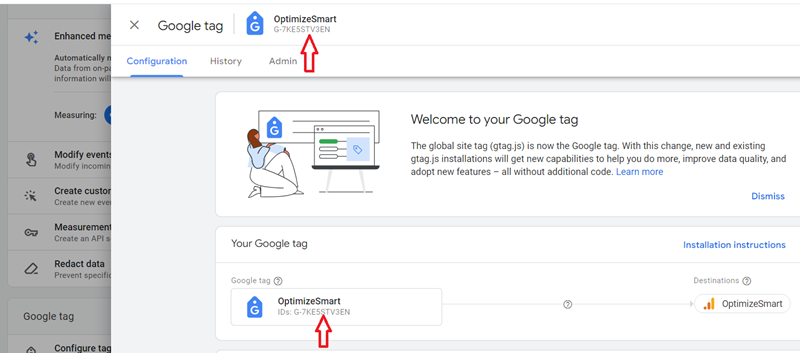
Note: This Google tag ID is the same as the measurement ID of your web data stream.
How to find Google Tag ID in Google Ads?
Follow the steps below:
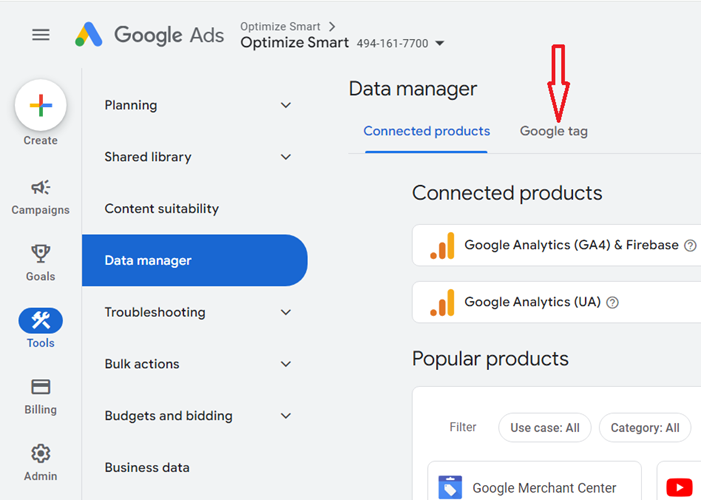
#1 Navigate to ‘Tools’ > ‘Data Manager’ > ‘Google tag’ in your Google Ads account:
#2 Scroll down to see the Google Tag ID:
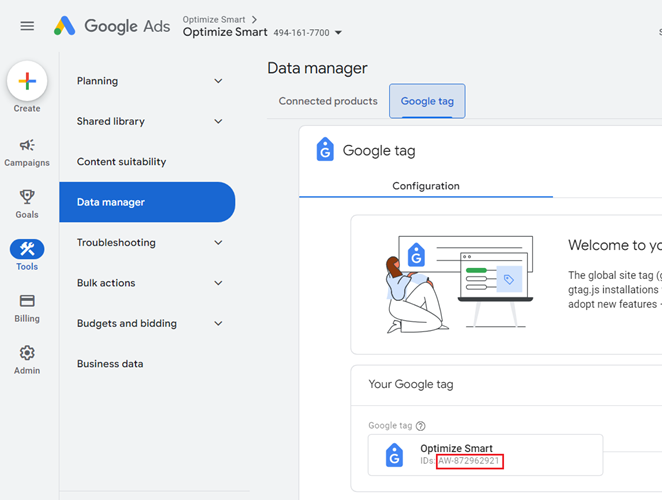
Note: This Google tag ID is the same as your Google Ads conversion tracking ID.
How to find Google Tag ID in Google Tag Manager?
Note: To see Google tag IDs in Google Tag Manager, you need to manage a Google Ads, GA4 or Google tag in a container.
Follow the steps below:
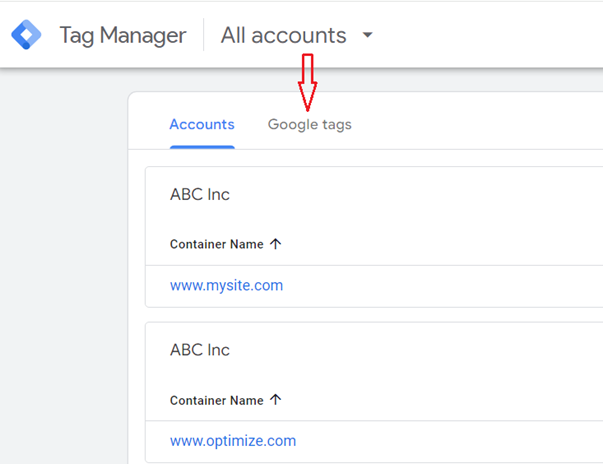
#1 Navigate to https://tagmanager.google.com/#/homeThe following
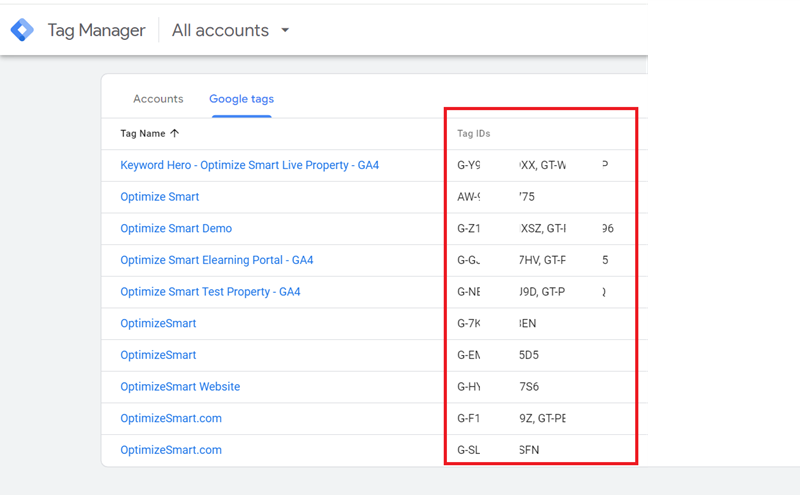
#2 Click on the ‘Google tags’ tab to view the Google tags you have previously set up.
You should now be able to see the tag IDs:
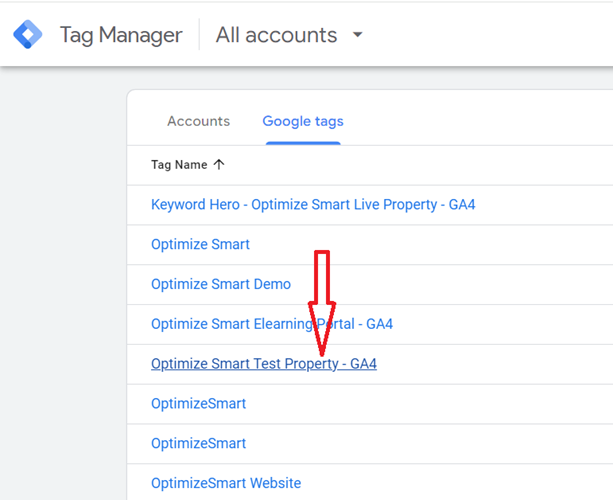
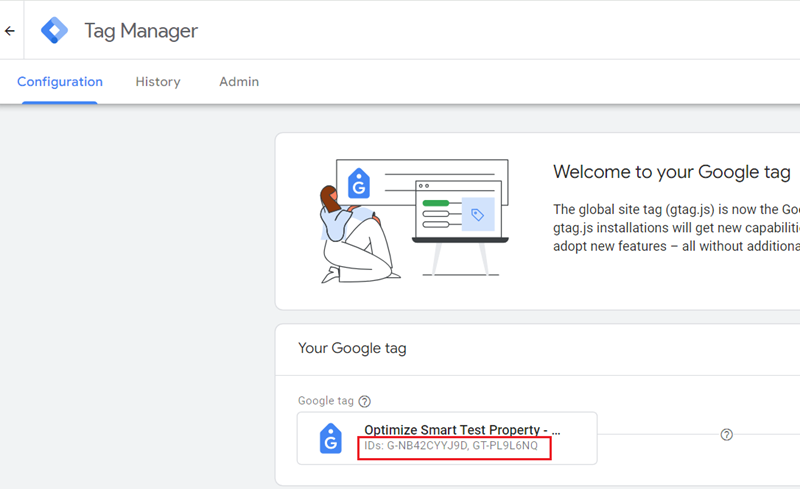
#3 Click on the tag name to edit the Google tag settings.
How to use Google Tag?
The following is the general overview of using Google Tag:
#1. Set up a Google tag on every page of your website. There are two primary ways to do this: individual platform setup and Google Tag Manager setup (recommended).
#2 Once you have set up the Google tag, configure its settings. You can do this via GA4, Google Ads, and Google Tag Manager.
Configuring the Google tag settings includes:
- Manage automatic event detection.
- Configure your domains.
- Allow user-provided data capabilities.
- Collect Universal Analytics events.
- Define internal traffic.
- List unwanted referrals.
- Adjust session timeout.
- Override cookie settings.
- Manage data use across Google services.
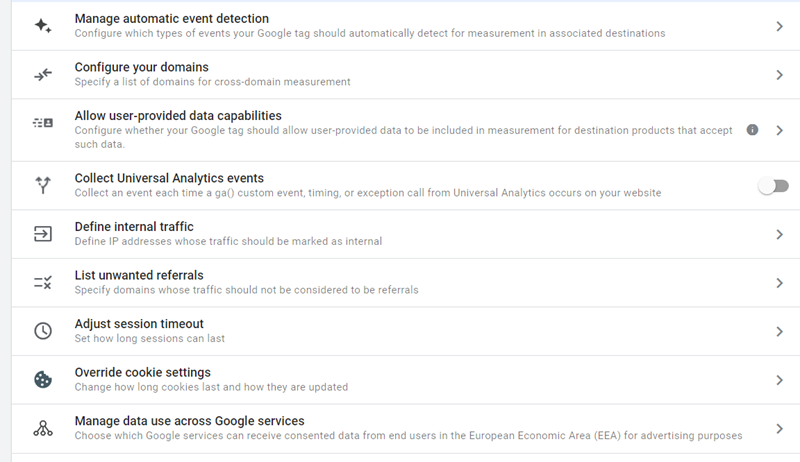
#3 Once you have set up and configured your Google Tag, you can manage it via GA4, Google Ads, and Google Tag Manager.
Managing the Google Tag includes:
- Editing your Google tag name or adding or removing destinations.
- Combining your Google tags.
- Installing your Google Tag on other platforms.
- Setting up consent mode.
- Managing Google Tag users. You can choose which users are allowed to administer, view, or edit tag configuration.
- Troubleshooting your Google Tag installation via tag assistant.
- Using the ‘Tag Coverage’ report to check your website pages which have Google tags installed.
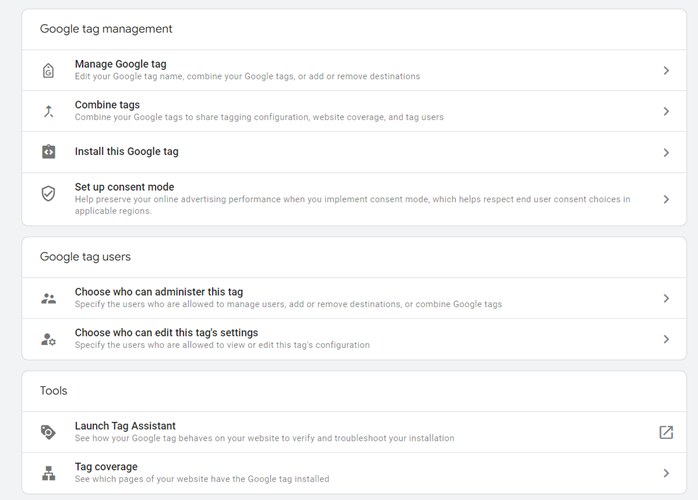
Note: While technically possible, it is not recommended to configure and manage the Google Tag simultaneously via Google Ads, GA4, and GTM. This can lead to conflicting configurations and an increased risk of errors.
Setting up Google Tag.
You need to install a Google tag on all your website’s pages to track website and ad performance.
There are two primary ways to set up the Google tag:
- Individual Platform Setup.
- GTM setup (recommended).
#1 Individual Platform Setup
If your tracking requirements are straightforward, you can set up the Google tag directly within ‘one’ of your chosen platforms (e.g., GA4 or Google Ads).
You can later add the other platform (e.g., Google Ads) as a destination in your initial platform’s (e.g., GA4) tag settings, eliminating the need for separate Google tags.
#2 GTM setup (recommended)
You can set up Google Tag via GA4, Google Ads and Google Tag Manager. However, the most comprehensive way to do so is via Google Tag Manager (GTM).
Both Google Ads and GA4 lack the comprehensive features and functionalities GTM offers for managing the Google Tag.
Setting up complex tag configurations, managing multiple tags, and utilising advanced features like firing rules are not possible directly through Google Ads or GA4.
How to set up Google Tag via Google Tag Manager (GTM).
Follow the steps below:
#1 Navigate to your GTM container and then click on the ‘New’ button to create a new tag:
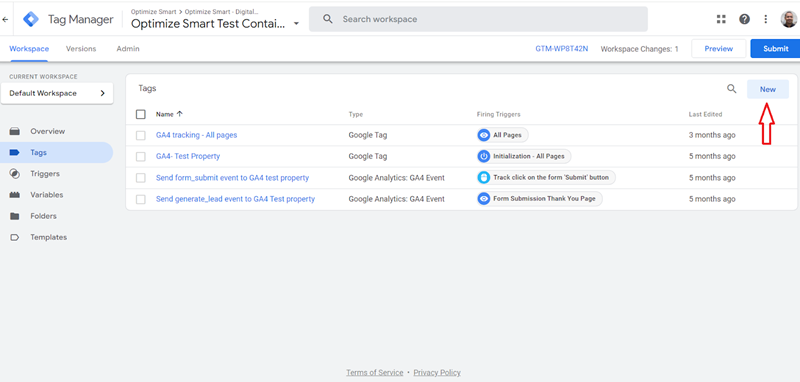
#2 Name your Google tag and then click on ‘Choose a tag type to begin setup…’
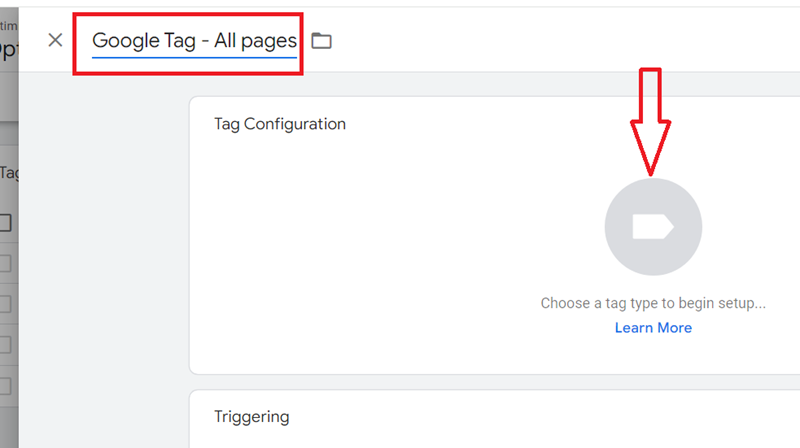
#3 Click on ‘Google Tag’:
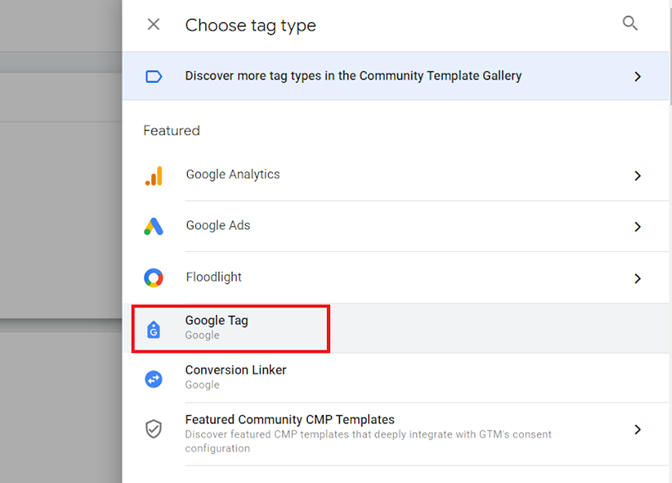
You should now see a screen like the one below:
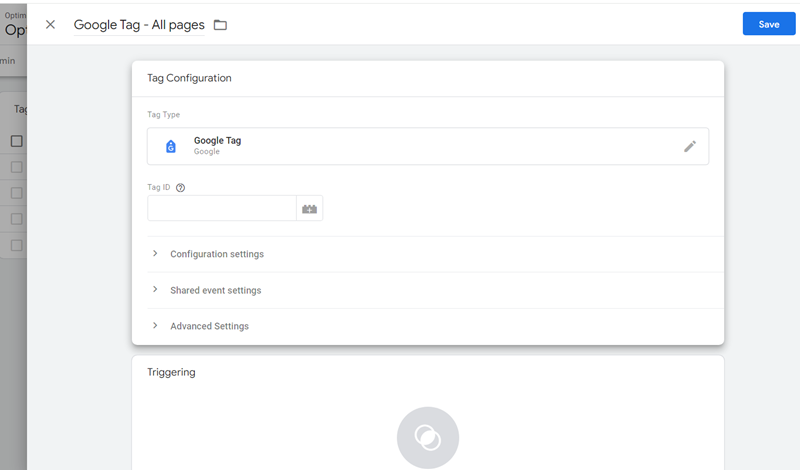
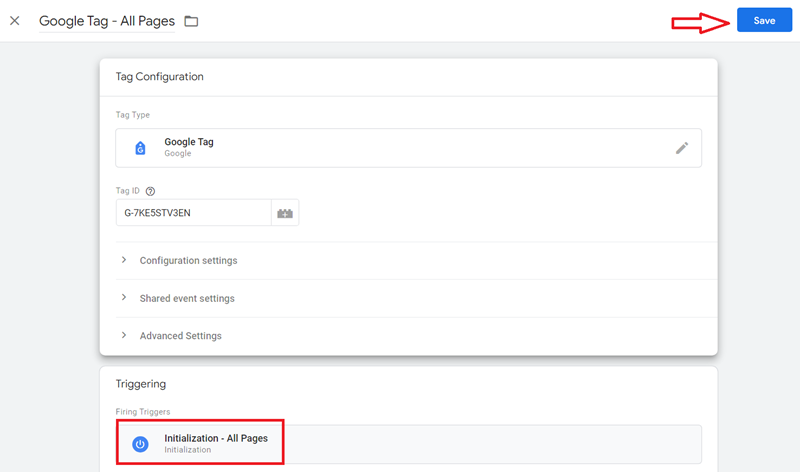
#4 Enter ‘Tag ID’ and configure Google tag settings (‘Configuration settings’, ‘shared event settings’, ‘advanced settings’):
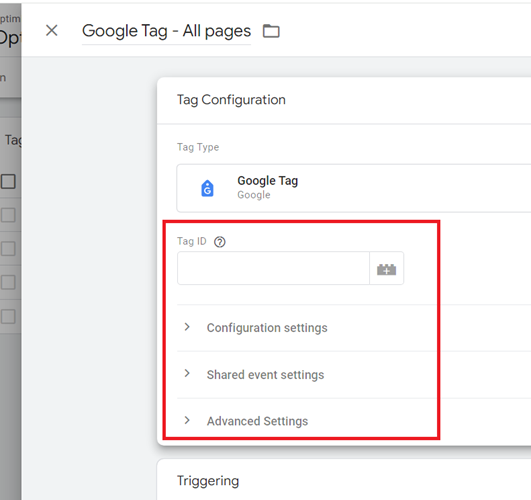
Note: A tag ID in a Google tag can be a ‘GA4 measurement ID’, ‘Google Ad conversion tracking ID’ or some other Google tag ID.
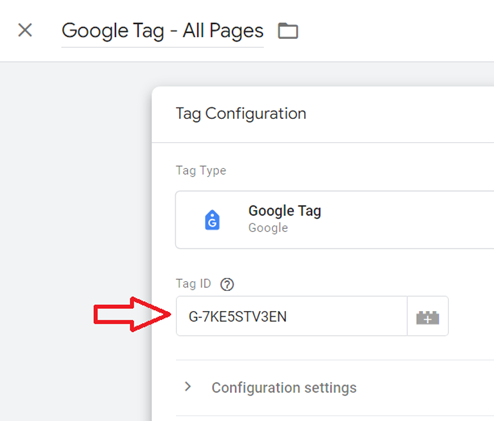
#5 Chose a trigger to make the Google tag fire and then click on the ‘Save’ button:
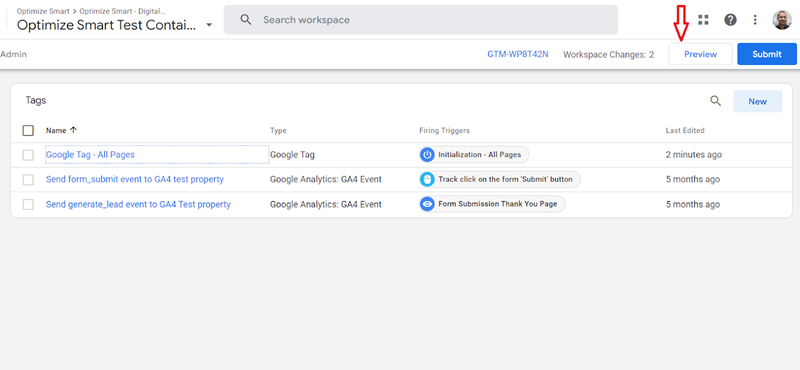
#6 Click on the ‘Preview’ button:
A new browser tab will open with Google Tag Assistant (URL starting with https://tagassistant.google.com/)
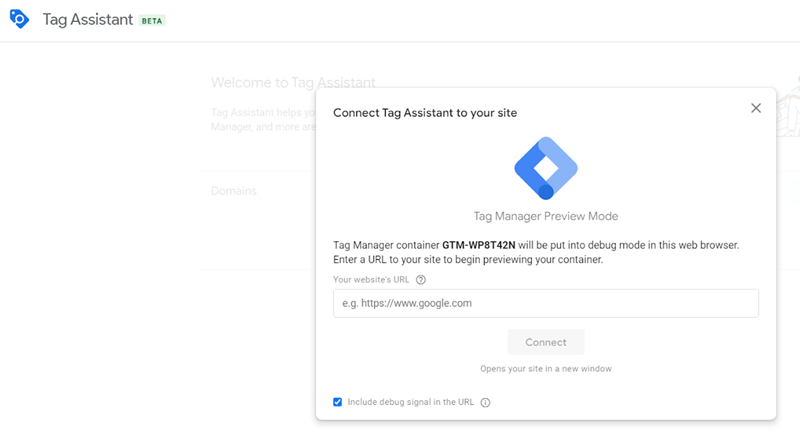
#7 Enter your website URL and then click on the ‘Connect’ button:

You should now be automatically redirected to your website:

#8 Switch back to the tab which shows the Google Tag Assistant and then click on the ‘Continue’ button:
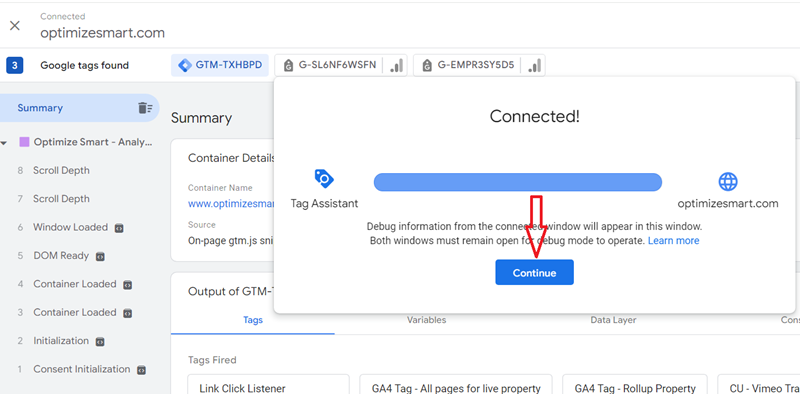
#9 Check if you see your Google Tag under the ‘Tags Fired’ section:
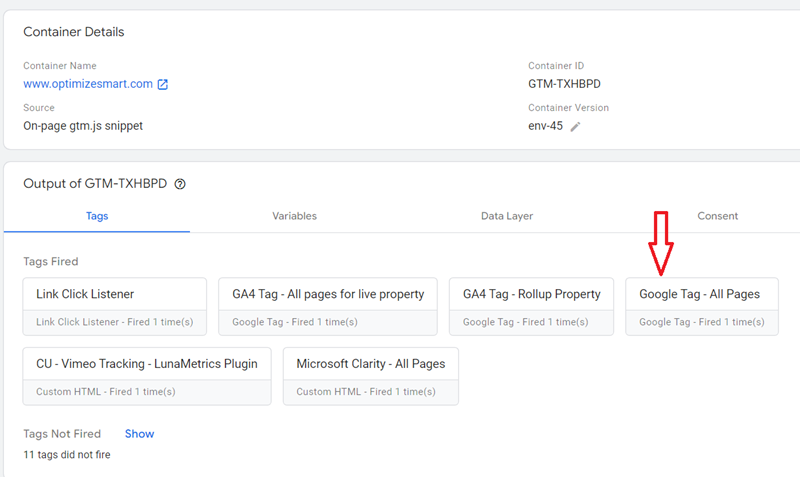
If you can’t find your Google Tag, make sure you are using the correct Google Tag ID; Google Tags fire on all the pages of your website and the GTM container code is installed on all of your web pages.
Avoid using multiple tag IDs within a single Google tag.
A single Google tag can have multiple tag IDs as long as they belong to the same platform.
For example, you can use multiple measurement IDs within the ‘tag id’ field of a Google Tag in Google Tag Manager.
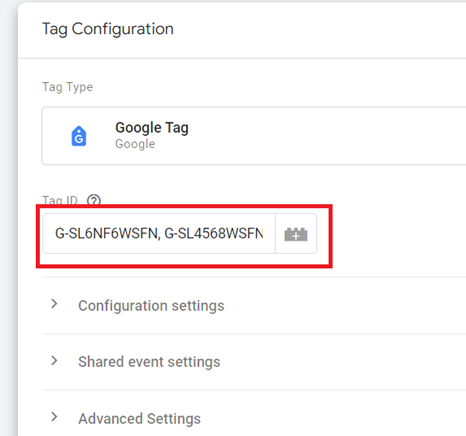
However, you should avoid using multiple tag IDs within a single Google tag, as they often do not work.
What will happen if you use tag IDs that belong to different platforms?
Your Google tag configuration would cause issues.
For example, you should not enter both the GA4 Measurement ID and the Google Ads Conversion ID in the same “tag ID” field of a Google tag in GTM:
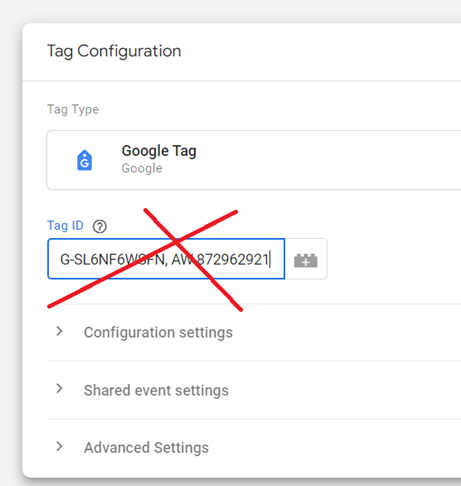
Each platform uses its own unique ID, and GTM needs to understand which platform to send data to based on the tag’s configuration.
If you need to track different types of data like GA4 Measurement and Google Ads conversions tracking, you would typically set up separate Google tags with their respective IDs within Google Tag Manager to ensure accurate tracking and functionality.
So, one Google tag would use the measurement ID within the ‘tag id’ field of a Google tag.
The second Google Tag would use the Google Ads conversion ID within the ‘tag id’ field of a Google Tag.
What is a destination and a destination ID?
A Google tag itself doesn’t directly specify where the collected data is sent.
It defines the types of data to be collected (e.g., page views, clicks) and how they are collected.
A destination specifies the target platforms (e.g., GA4, Google Ads) where the collected data should be sent.
When configuring a Google tag, you specify a destination by including a destination ID, an identifier representing the connected Google product.
For example,
For Google Ads, the destination ID is the same as the conversion tracking ID (e.g., AW-98765345), and for GA4, the destination ID is the same as your web data stream’s Measurement ID (e.g., G-12345689).
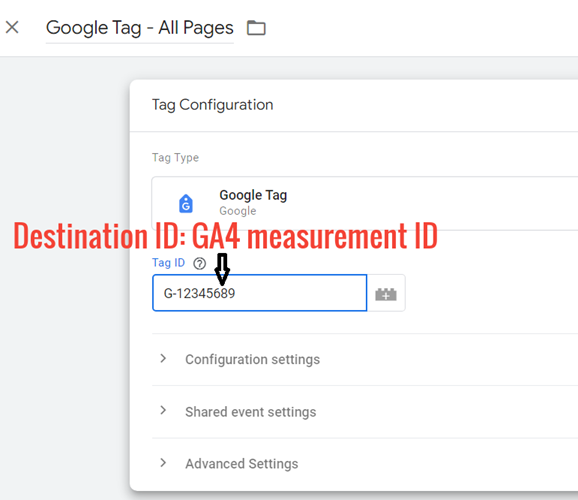
Destinations allow you to send data from a single Google tag to multiple destinations.
This eliminates the need for separate Google tags with identical configurations for each platform.
The destination does not receive data?
Suppose Google Tag Assistant confirms your Google Tag is present on a page, but you see no data in the associated platform (e.g., GA4).
In that case, your Google Tag may not be connected to the associated platform (aka destination). You need to verify the destination connection.
Note: At present, only GA4 web data streams and Google Ads accounts can be used as destinations.
Other Articles on GA4.
- Tracking New, Qualified and Converted Leads in GA4.
- Free GA4 training and tutorial with Certification.
- Understanding GA4 Ecommerce Reports (Monetization Reports).
- GA4 Ecommerce Tracking via GTM: Step-by-Step Setup Guide.
- How to see UTM parameters in GA4 (Google Analytics 4).
- GA4 UTM parameters not working? Here is how to fix it.
- How To Use UTM parameters in GA4 (Campaign Tracking).
- How to track AI traffic in GA4.
- Understanding Google Analytics 4 cookies – _ga cookie.
- GA4 (Google Analytics 4) Measurement Protocol Tutorial.
- GA4 Unassigned Traffic: Causes and How to Fix it Fast.
- GA4 Regex (Regular Expressions) Tutorial.
- GA4 Direct Traffic Spike: Common Causes and How to Fix Them.
- gtag.js – Google Tag in Google Analytics 4 and beyond.
- GA4 Scopes – User, Session, Event & Item scopes.
- GA4 Conversion Tracking (Key Events) Tutorial.
- GA4 (not set) - Guide to fixing (not set) issue.
- GA4 Certification Exam: Questions, Answers for Skillshop (GAIQ).
- GA4 User Properties (User Scoped Custom Dimensions) – Tutorial.
- Tracking Organic Traffic in GA4 - Complete Guide.
- Tracking Events in GA4 (Google Analytics 4).
- GTM Server Side Tagging - Setup Guide.