

Introduction to Firebase.
Firebase is a mobile app development platform. We use Firebase to add mobile app data streams to our GA4 property.
Firebase provides many products and extensions (both free and paid) to build, release and monitor apps as well as optimize your app experience for user engagement.
The following are examples of various Firebase products for building apps:
- Cloud Firestore
- Firebase Realtime Database
- Firebase Remote Config
- Firebase Extensions BETA -
- App Check
- Cloud Functions for Firebase
- Firebase Authentication
- Firebase Cloud Messaging
- Firebase Hosting
- Cloud Storage for Firebase
- Firebase Machine Learning BETA
The following are examples of various Firebase products for releasing and monitoring apps:
- Firebase Crashlytics
- Google Analytics for Firebase
- Firebase Performance Monitoring
- Firebase Test Lab
- App Distribution
The following are examples of various Firebase products for optimizing apps for user engagement:
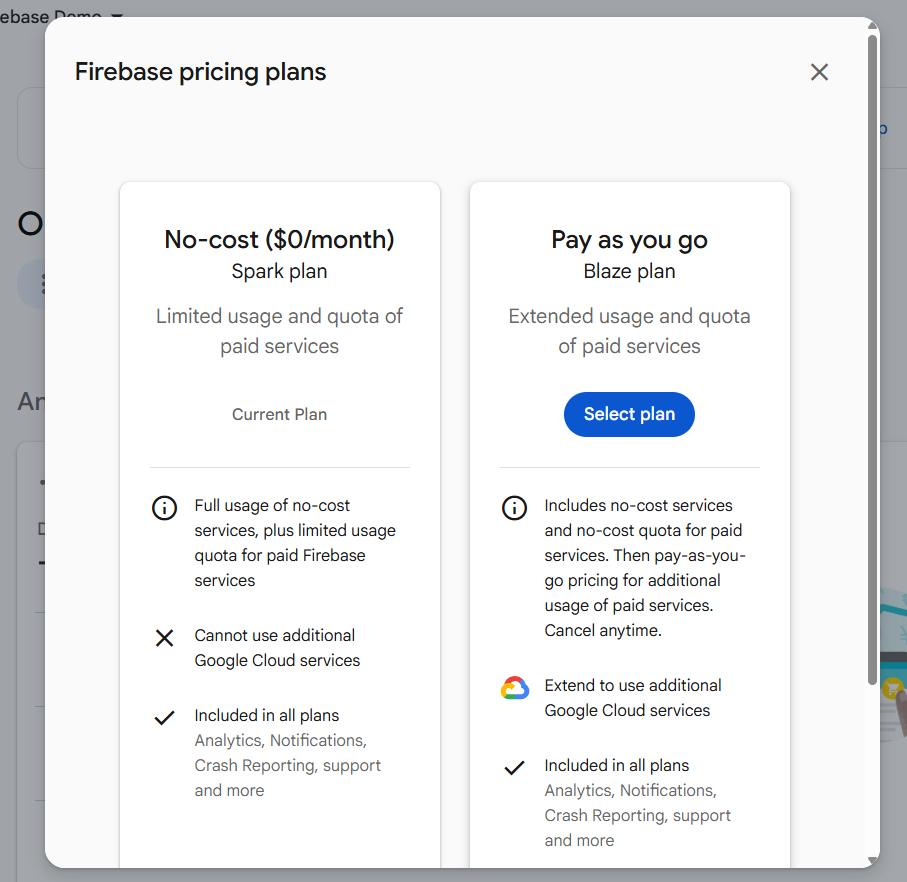
Firebase billing plans.
Firebase comes with two plans:
#1 Spark plan - Free to use
#2 Blaze plan - pay as you go.
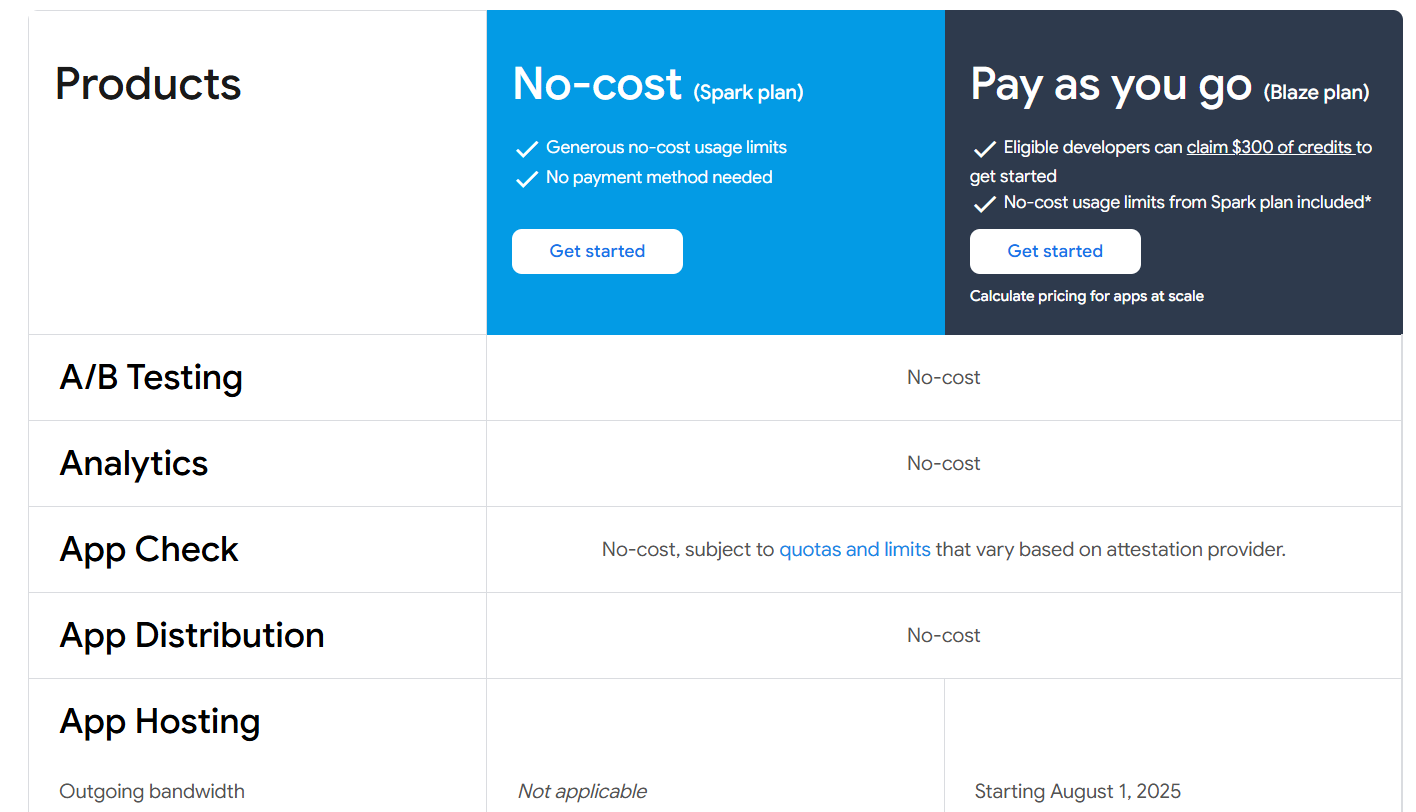
You can learn more about Firebase pricing from here: https://firebase.google.com/pricing

Introduction to Firebase projects.
In order to use Firebase, you would need to create and use one or more projects. These projects are called Firebase Projects.
You can create a new Firebase project via Firebase Console.
In order to use a Firebase project, you would need to add/register one or more apps to it.
These apps could be your mobile apps (IOS, Android) and/or your web apps.
Note: The Firebase project acts as a container for all the registered apps.
All apps registered under the same Firebase project share the same resources and services, and each app has access to them.
For example,
All Apps registered to the same Firebase project are associated with the same GA4 property, where each Firebase App is a separate data stream in that property.
Similarly,
All Apps registered to the same Firebase project share the same backends (like Firebase Hosting, Authentication, Realtime Database, Cloud Storage, etc.).
Firebase projects and Google Cloud.
A Firebase project is actually a Google Cloud project with additional Firebase-specific configurations and services enabled.
Since a Firebase project is a Google Cloud project, what that means:
#1 Whenever you create a new Firebase project in the Firebase console, you are also creating a Google Cloud project in the background.
#2 Whenever you delete a Firebase project in the Firebase console, you also delete the corresponding Google Cloud project in the background.
#3 You can interact with your Firebase project via Firebase Console, Google Cloud Console and Google APIs Console.
#4 Billing, permissions and unique identifiers (like project name, project ID) for a Firebase project are shared across Firebase and Google Cloud.
#5 You can use products and APIs from both Firebase and Google Cloud in a Firebase project.
#6 You may need to use Google Cloud Console (instead of the Firebase Console) for certain tasks or products related to your Firebase project.
How to plan a Firebase GA4 integration setup.
In order to send mobile app data to your GA4 property, you would need to link your Firebase project to your GA4 property.
However, your Firebase GA4 integration setup depends on your current setup.
Your current situation could be one of the following:
#1 You own mobile app(s) but not a website.
#2 You own both mobile app(s) and a website.
#3 You do not own a mobile app but you own a website.
You own mobile app(s) but not a website.
#1 Your current situation -> You own mobile app(s) but not a website. You don't have either the Firebase project or the GA4 property.
Recommended implementation path
1) Create a new firebase project.
2) Add firebase to your mobile apps (Android App, Apple App).
3) Link your Firebase project to Google Analytics. When you link your Firebase project to Google Analytics, you get the option to either create a new GA4 property or to link to an existing GA4 property.
4) Create new GA4 property from within the Firebase.
The moment your Firebase project is connected to your new GA4 property, Google will automatically create corresponding mobile app data streams in your GA4 property.
You don’t need to manually create mobile app data streams in your GA4 property.
Note: You don’t need to create a web data stream in your GA4 property as you don’t own a website.
#2 Your current situation -> You own mobile app(s) but not a website. You have the Firebase project but not the GA4 property.
Recommended implementation path
1) Open the Firebase project you want to connect to the GA4 property.
2) Make sure that Firebase is added to your mobile apps.
3) Link your Firebase project to Google Analytics. When you link your Firebase project to Google Analytics, you get the option to either create a new GA4 property or to link to an existing GA4 property.
4) Create new GA4 property from within the Firebase.
#3 Your current situation -> You own mobile app(s) but not a website. You have both the Firebase project and GA4 property.
Recommended implementation path
1) Open your Firebase project that you want to connect to your existing GA4 property.
2) Make sure that Firebase is added to your mobile apps.
3) Link your Firebase project to Google Analytics. When you link your Firebase project to Google Analytics, you get the option to either create a new GA4 property or to link to an existing GA4 property.
4) Link to your existing GA4 property.
You own both mobile app(s) and a website.
#1 Your current situation -> You own both mobile app(s) and a website. You don't have either the Firebase project or the GA4 property.
Recommended implementation path
1) Create a new Firebase project.
2) Add Firebase to your mobile apps (Android App, iOS App).
3) Create a new GA4 property from within the GA user interface.
4) Add a new web data stream to your GA4 property.
5) Navigate back to your Firebase project and then link your Firebase project to your existing GA4 property.
When you link your Firebase project to Google Analytics, you get the option to either create a new GA4 property or to link to an existing GA4 property.
6) Link to your existing GA4 property.
REMEMBER: The moment your Firebase project is connected to your GA4 property, Google will automatically create corresponding mobile app data streams in your GA4 property.
You don’t need to manually create mobile app data streams in your GA4 property.
#2 Your current situation -> You own both mobile app(s) and a website. You have the Firebase project but not the GA4 property.
Recommended implementation path
1) Open the Firebase project you want to connect to a GA4 property.
2) Make sure that Firebase is added to your mobile apps.
3) Create new GA4 property from within the GA user interface.
4) Add a new web data stream to your GA4 property.
5) Navigate back to your Firebase project and then link your Firebase project to your existing GA4 property.
When you link your Firebase project to Google Analytics, you get the option to either create a new GA4 property or to link to an existing GA4 property.
6) Link to the existing GA4 property.
#3 Your current situation -> You own both mobile app(s) and a website. You have both the Firebase project and the GA4 property.
Recommended implementation path
1) Open the Firebase project you want to connect to your existing GA4 property.
2) Make sure that Firebase is added to your mobile apps.
3) Navigate to your existing GA4 property and make sure that a web data stream is added to it.
4) Navigate back to your Firebase project and then link your Firebase project to your existing GA4 property.
When you link your Firebase project to Google Analytics, you get the option to either create a new GA4 property or to link to an existing GA4 property.
5) Link to the existing GA4 property.
You do not own a mobile app, but you own a website.
#1 Your current situation -> You do not own a mobile app but you own a website. You don't have either the Firebase project or the GA4 property.
Recommended implementation path
1) You don’t need a Firebase project as you don’t own a mobile app.
2) Create a new GA4 property from within the GA user interface.
3) Add a new web data stream to your GA4 property.
#2 Your current situation -> You do not own a mobile app but you own a website. You don't have the Firebase project but you have the GA4 property.
Recommended implementation path
1) You don’t need a Firebase project as you don’t own a mobile app.
2) Add a new web data stream to your GA4 property.
How to create a new Firebase project.
Follow the steps below to create a new Firebase project:
Step-1: Navigate to the Firebase console while logged in to your Google account: https://console.firebase.google.com/
Note: Use that Google account which is also connected to your GA4 property.
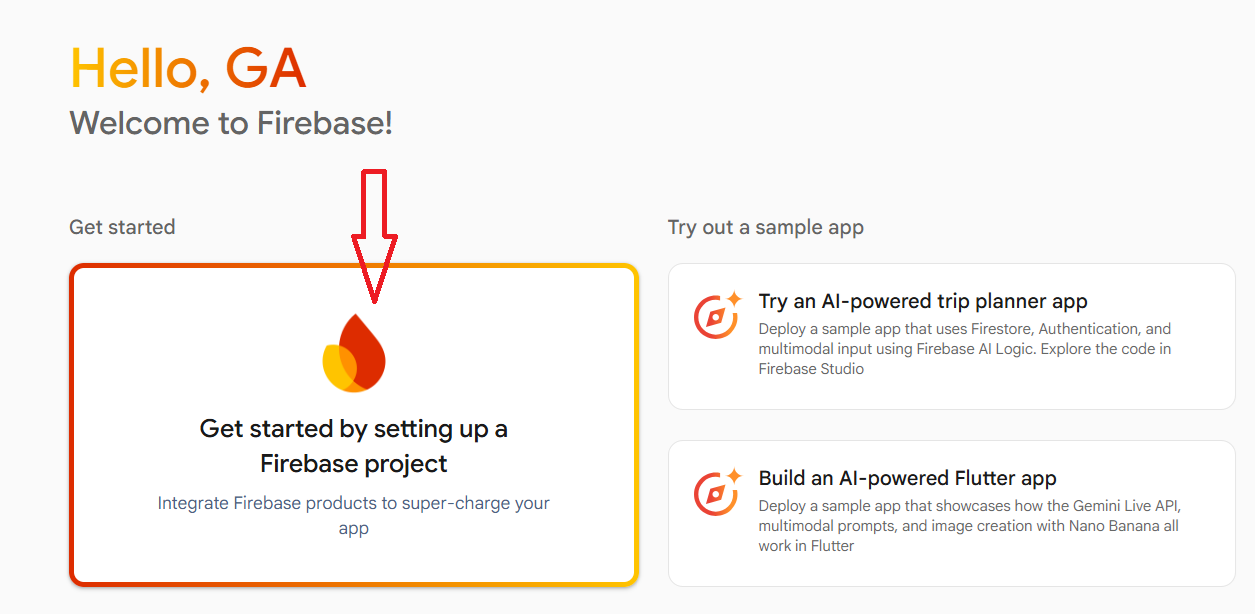
Step-2: Click on the ‘Get started by setting up a Firebase project’ button:
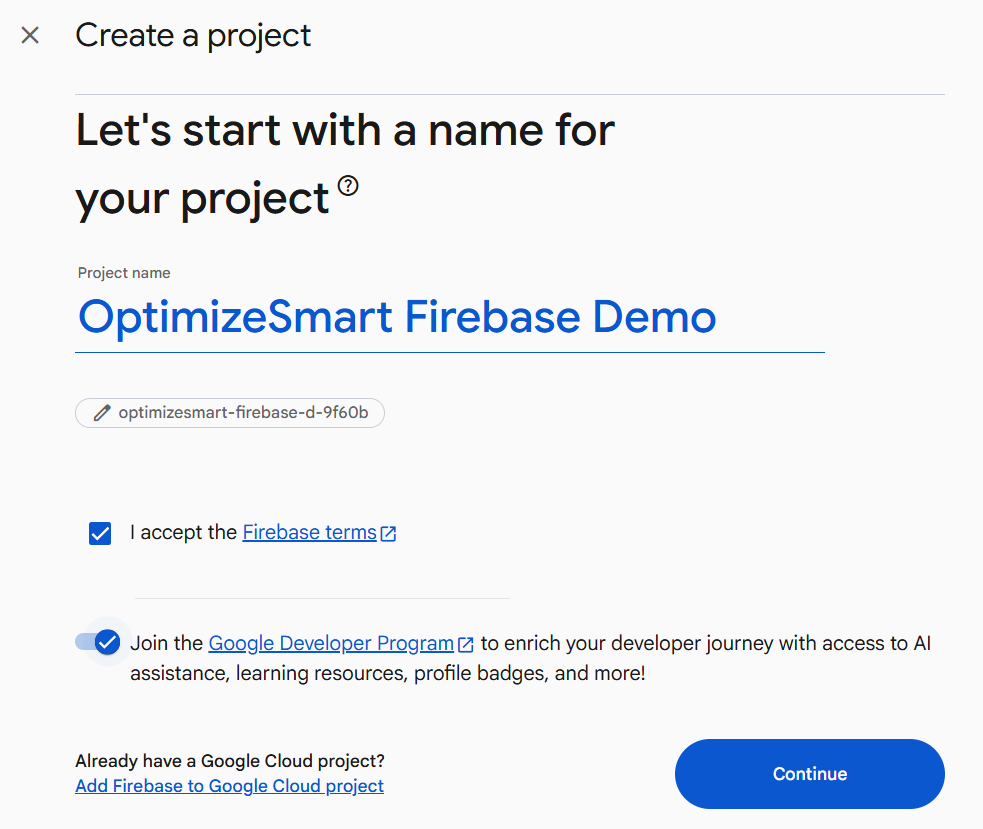
Step-3:
- Give your project a name
- Read and accept the Firebase terms
- Join the Google Developer Program (optional)
- Click on the ‘Continue’ button.
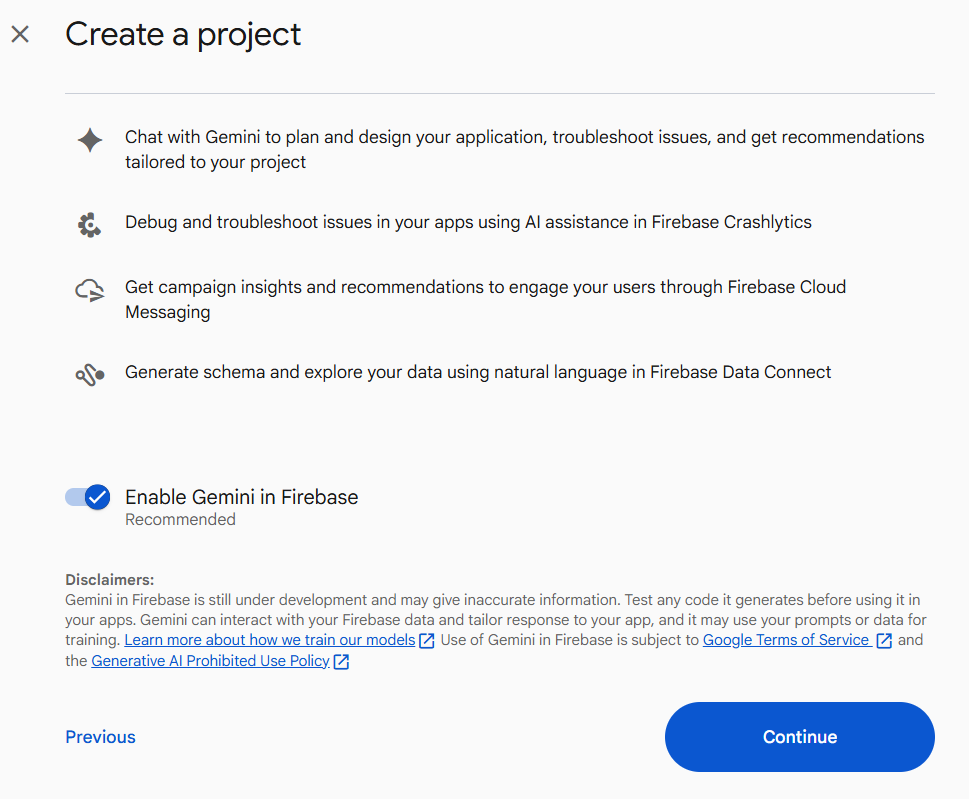
Step-4: Keep the setting ‘Enable Gemini in Firebase’ enabled and click on ‘Continue’:
Step-5: Turn off the button ‘Enable Google Analytics for this project’ and then click on the ‘Create Project’ button:
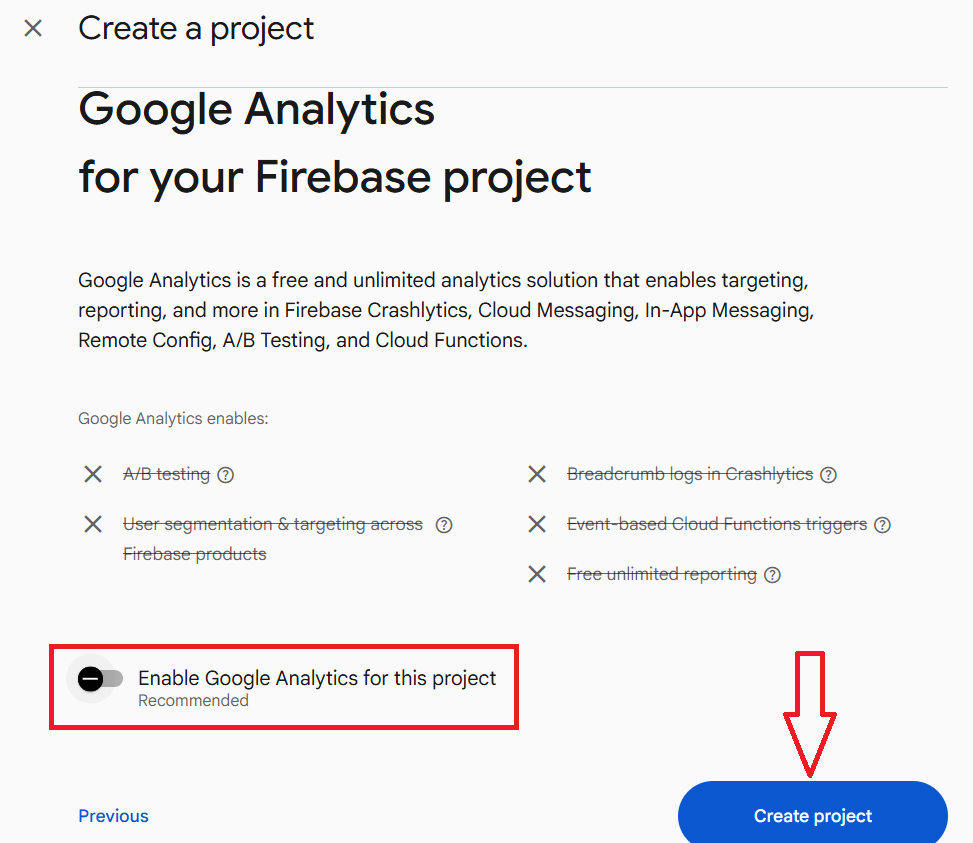
We will connect Firebase to Google Analytics later.
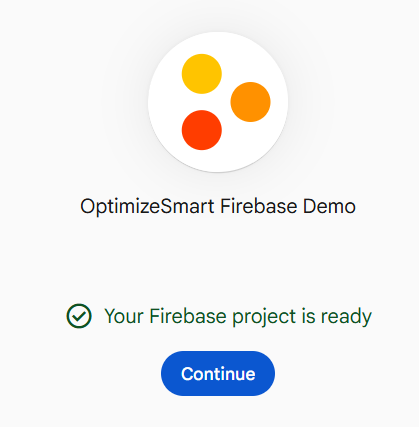
Step-6: Click on the ‘Continue’ button:
You should now see a screen like the one below:
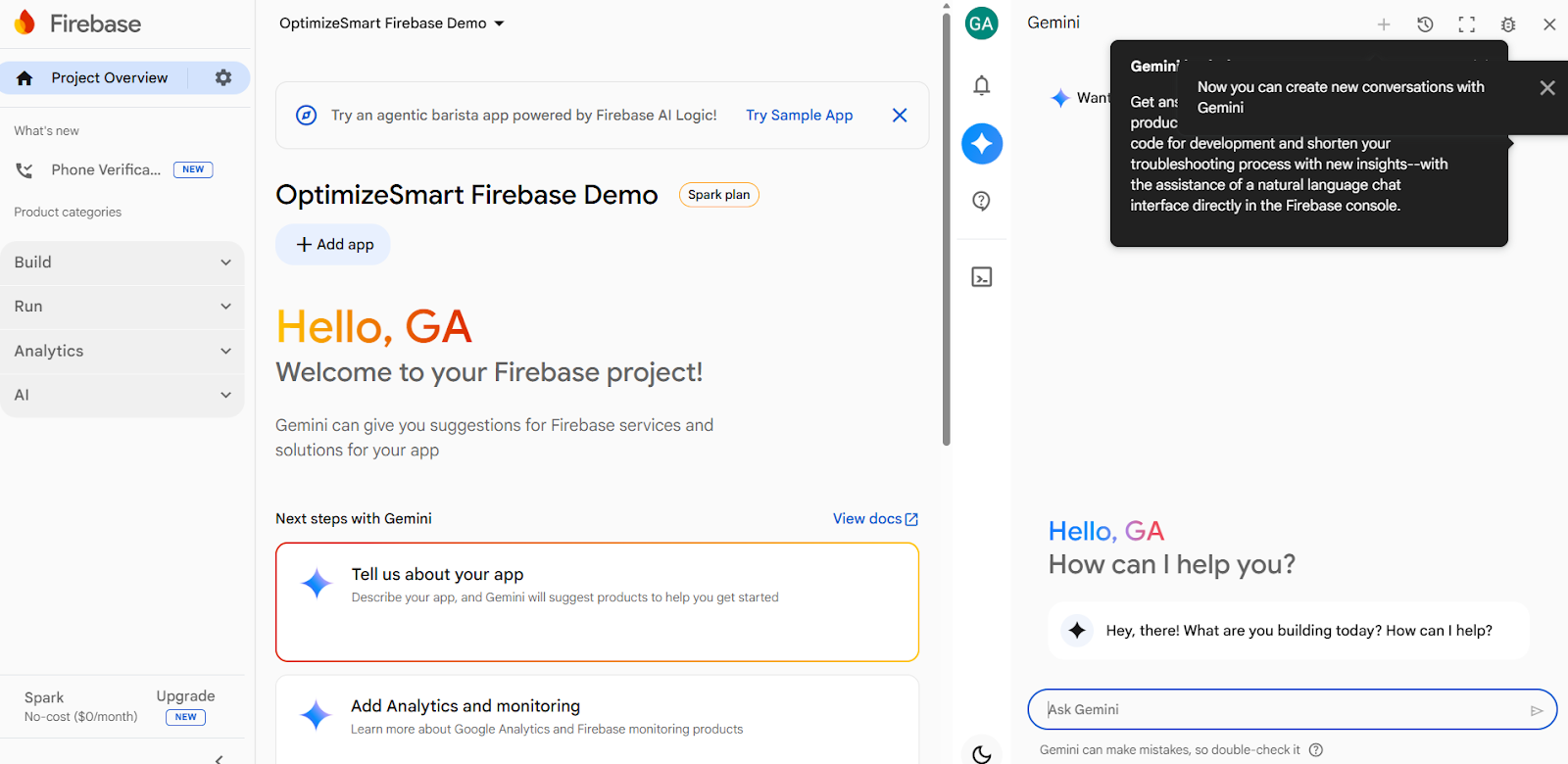
We will now add Firebase to our mobile apps (iOS and Android).
How to add Firebase to your Apple app?
Follow the steps below to add Firebase to your Apple app:
Step-1: Go through the official documentation on how to add Firebase to your Apple Project.
You would need the help of a mobile app developer here.
Step-2: Navigate to the 'project overview' page of your Firebase Console and then click on the ‘+ Add APP’ button:
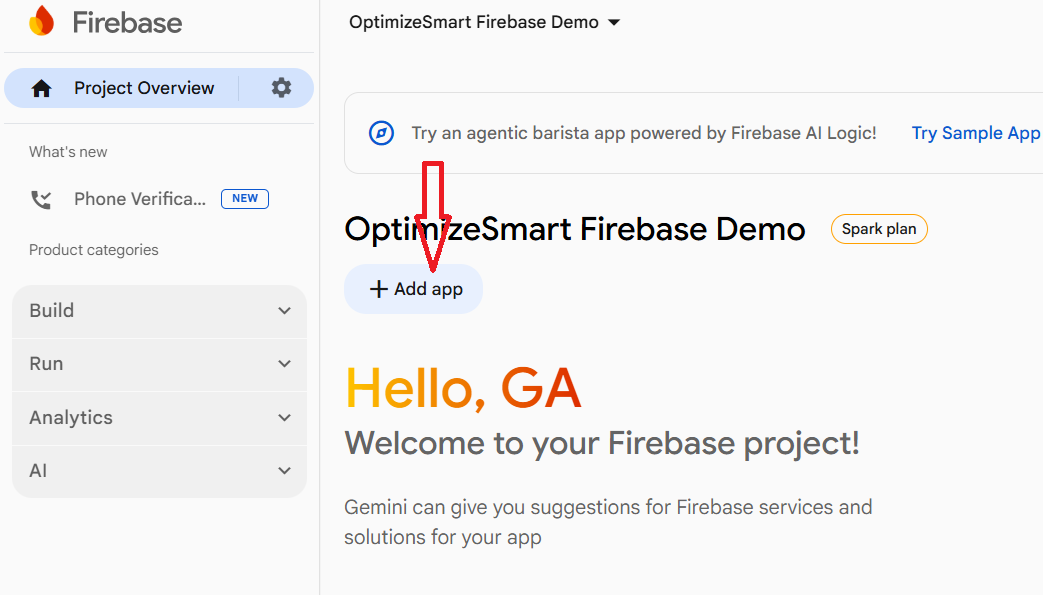
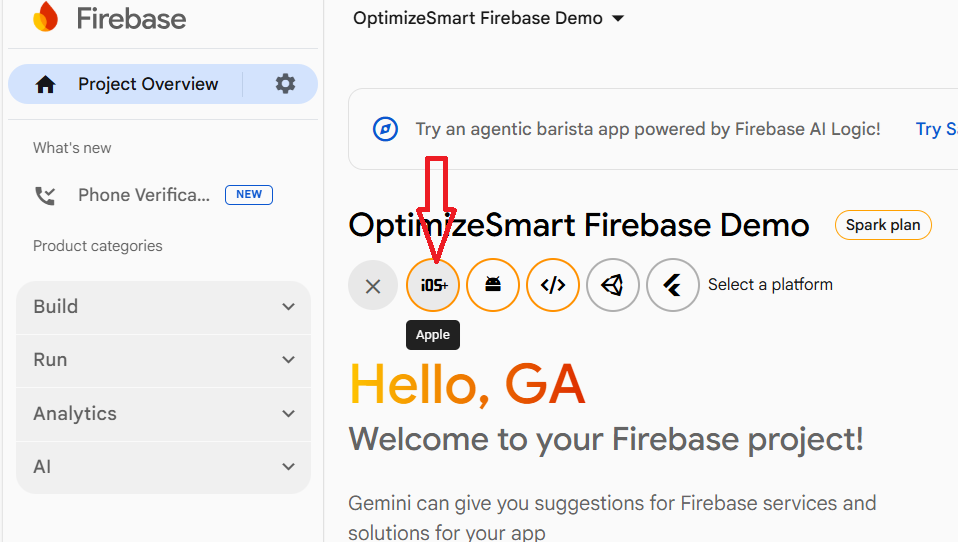
Step-3: Click on ‘IOS+’ button:
Step-4:
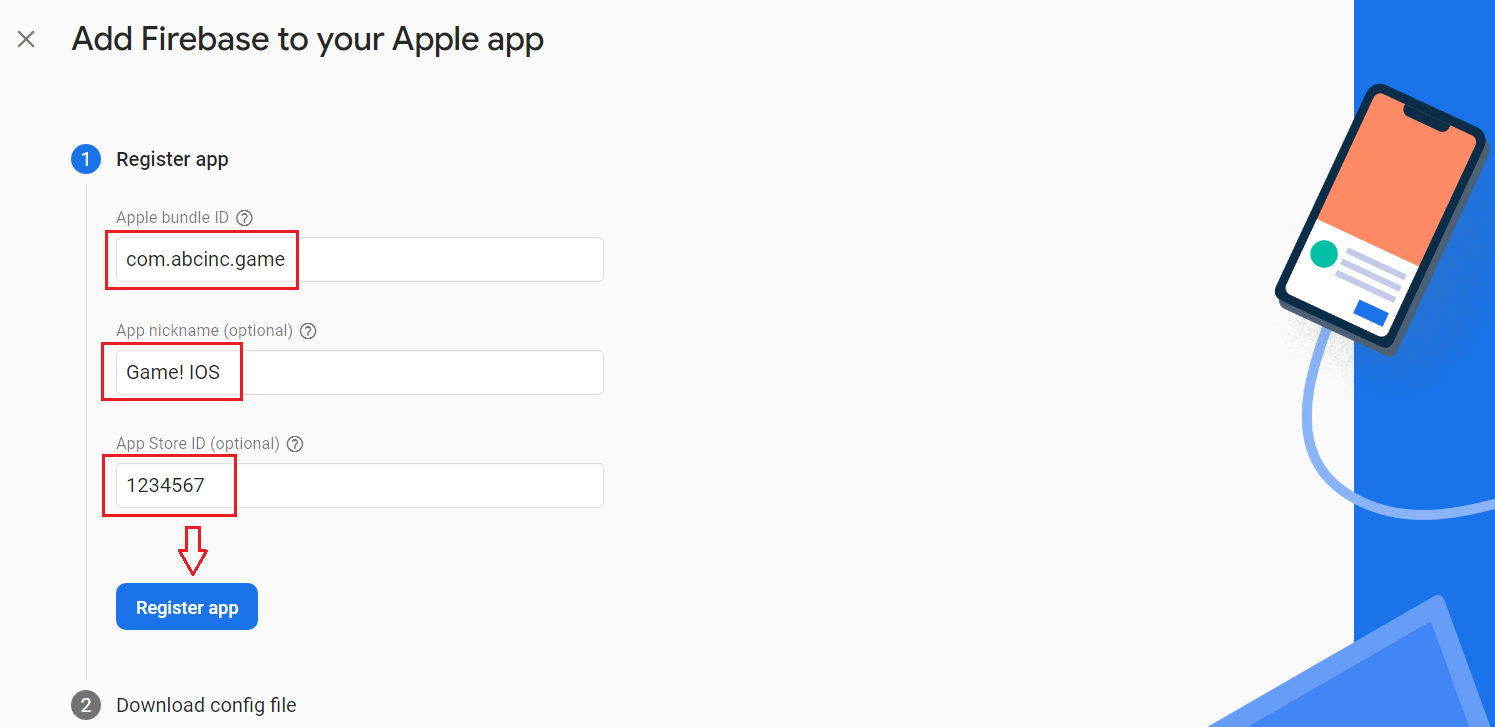
- Add Apple Bundle ID (You can find your bundle identifier in the ‘General’ tab for your app's primary target in Xcode)
- Add App nickname (this name would be used throughout the Firebase console to represent this app. Note: Nicknames aren't visible to users).
- Add your App Store ID (You can find your App Store ID in your app’s URL. In the example below, 123456789 is the App Store ID. https://itunes.apple.com/us/app/yourapp/id123456789 ).
- Click on the ‘Register App’ button.
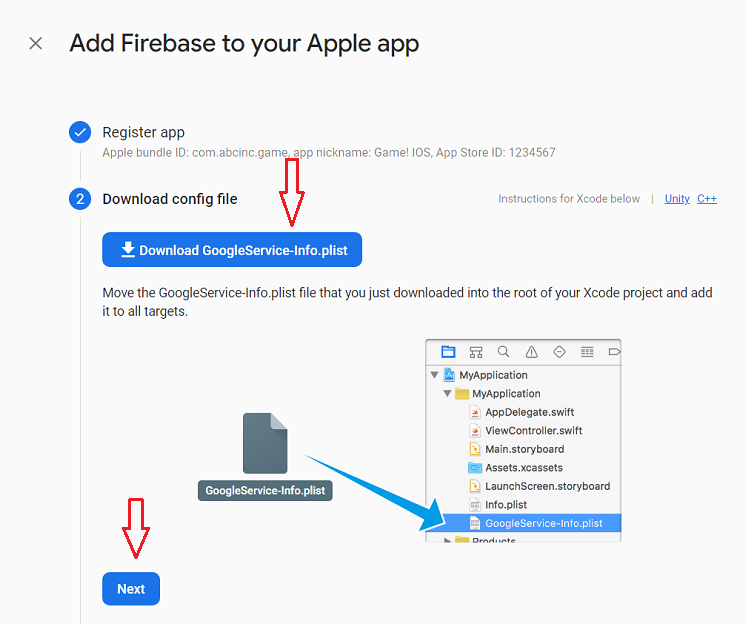
Step-5: Download the configuration file and then click on the ‘Next’ button:
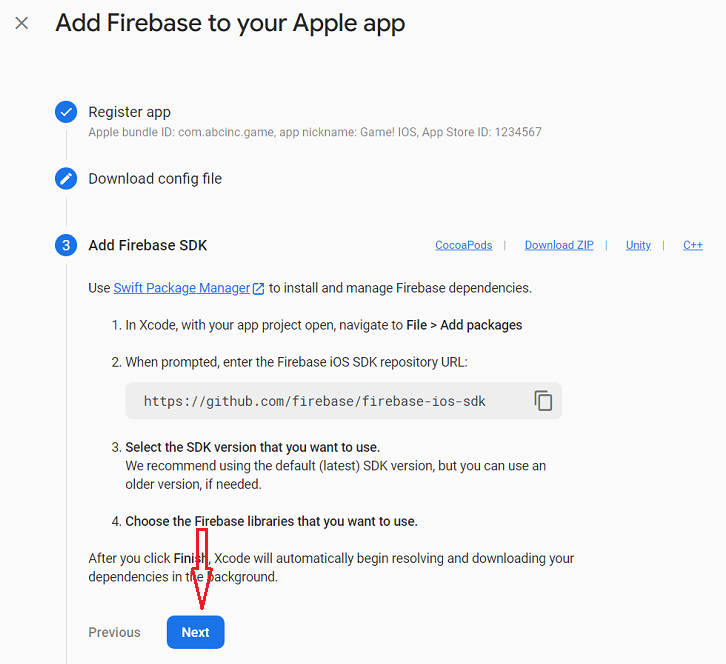
Step-6: Follow the on-screen instructions to add the Firebase SDK to your IOS app and then click on the ‘Next’ button:
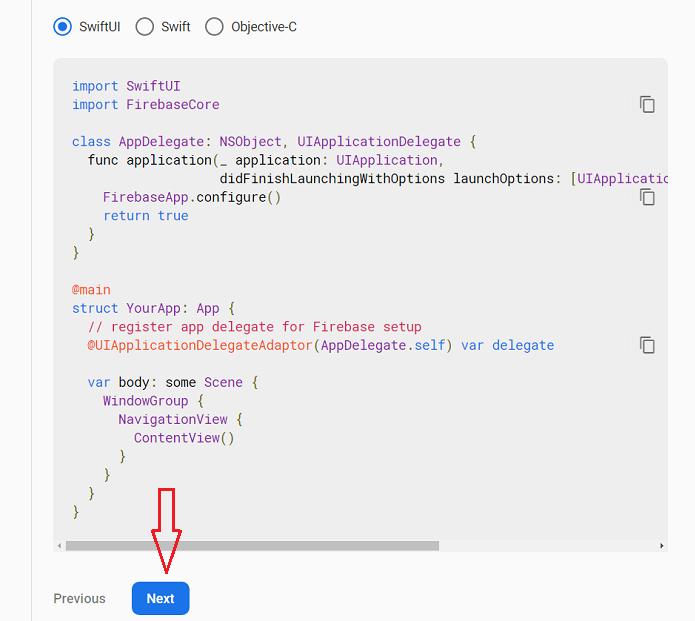
Step-7: Add the relevant initialization code to your app’s main entry point:
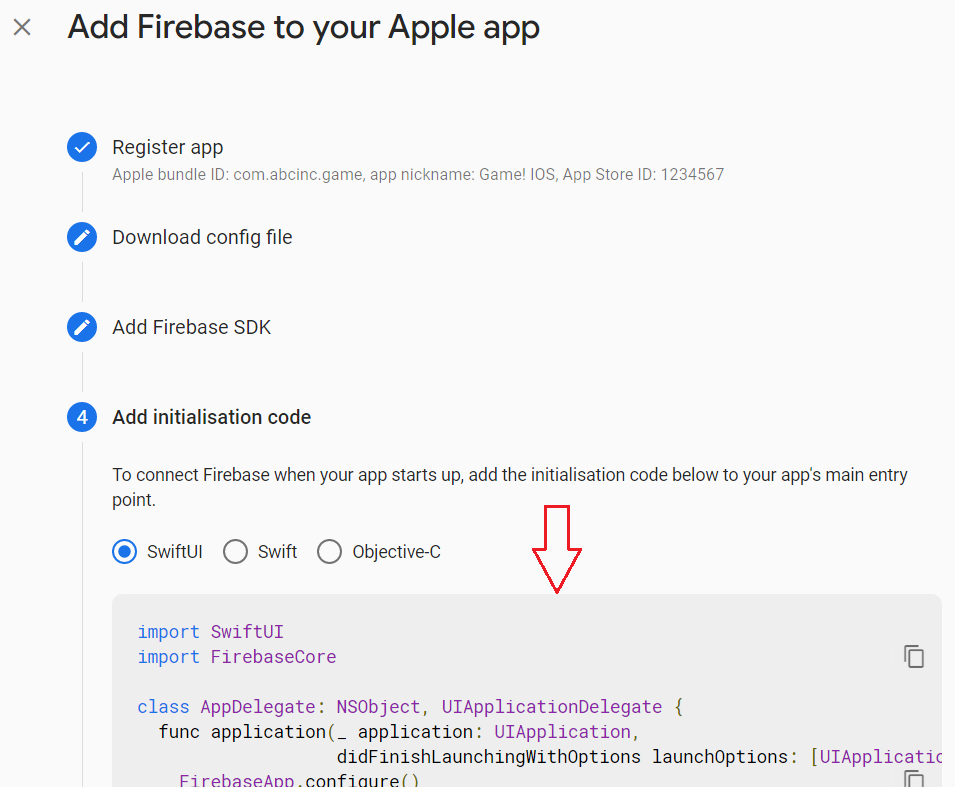
Step-8: Scroll down and then click on the ‘Next’ button:
Step-9: Click on the ‘Continue to Console’ button:
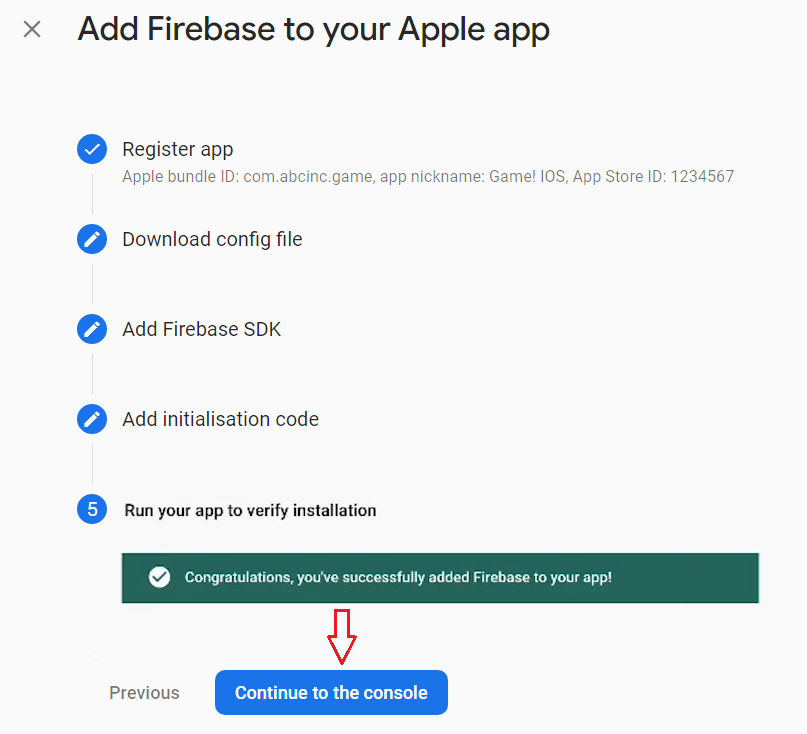
Congratulations!
You have successfully added Firebase to your Apple app.
You should now see your IOS app added to the project overview page:
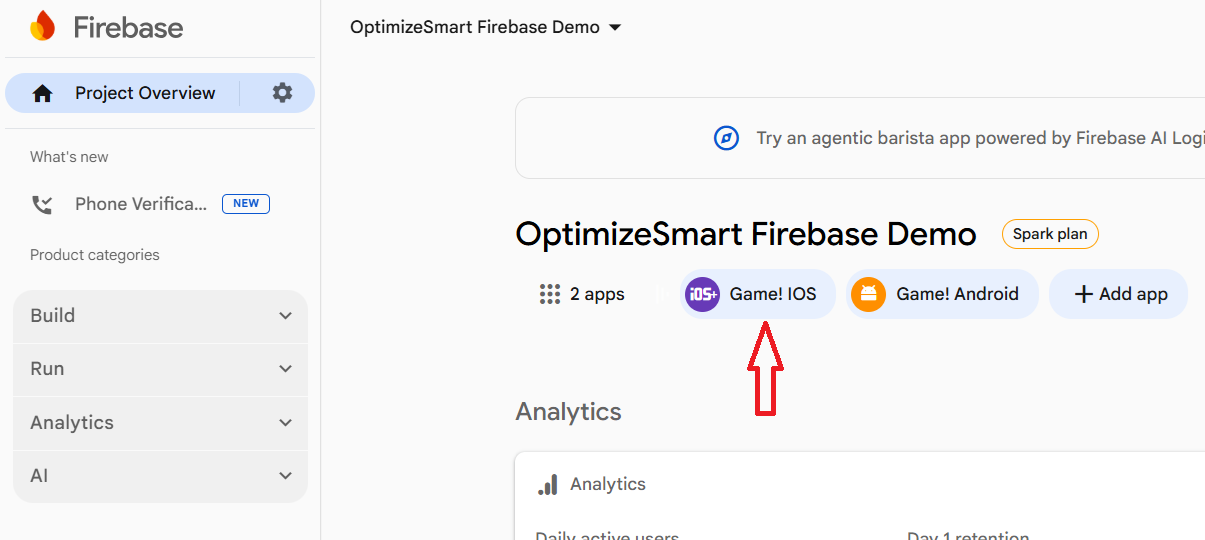
How to add Firebase to your Android app?
Follow the steps below to add Firebase to your Android app:
Step-1: Go through the official documentation on how to add Firebase to your Android Project.
You would need the help of a mobile app developer here.
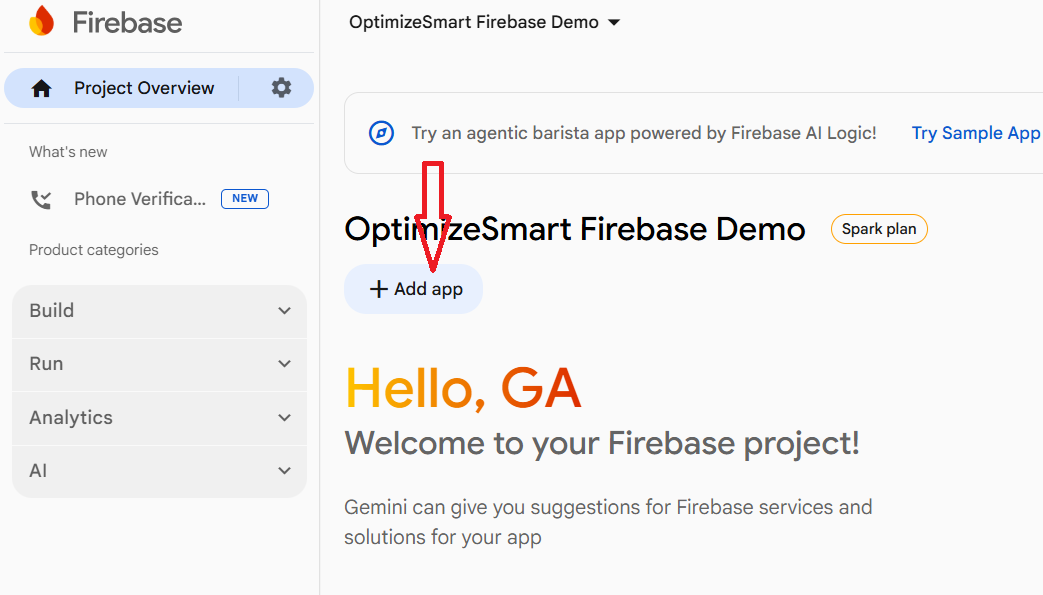
Step-2: Navigate to the project overview page of your Firebase Console and then click on the ‘+Add app’ button:
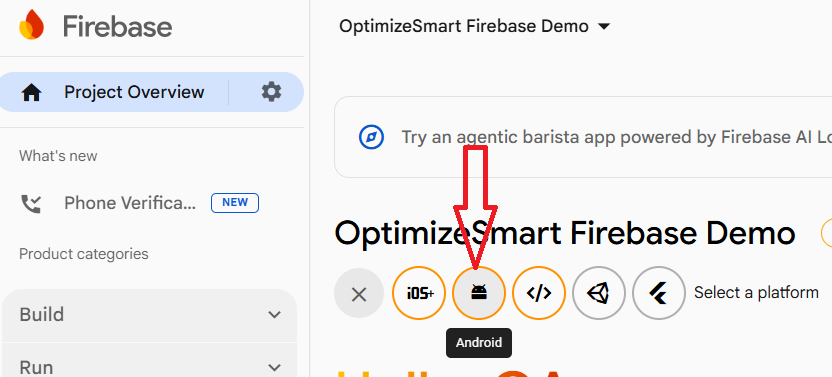
Step-3: Click on the ‘Android’ button:
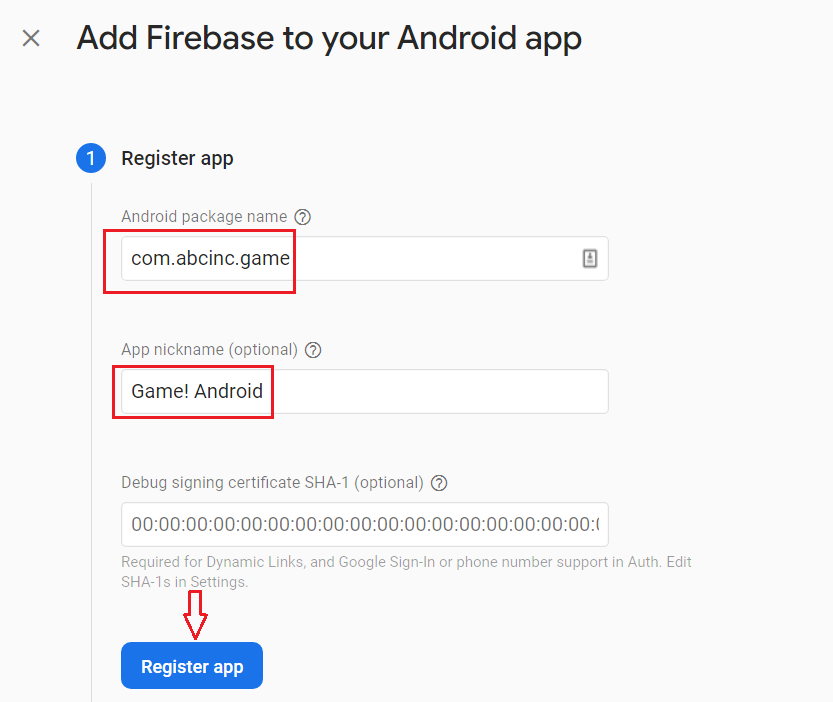
Step-4:
- Add Android Package name (Your package name is generally the applicationID in your app-level build.gradle file)
- Add App nickname (this name would be used throughout the Firebase console to represent this app. Note: Nicknames aren't visible to users).
- Add Debug signing certificate SHA-1 (optional) (See this page for information on using keytool to get the SHA-1 hash of your signing certificate ).
- Click on the ‘Register App’ button.
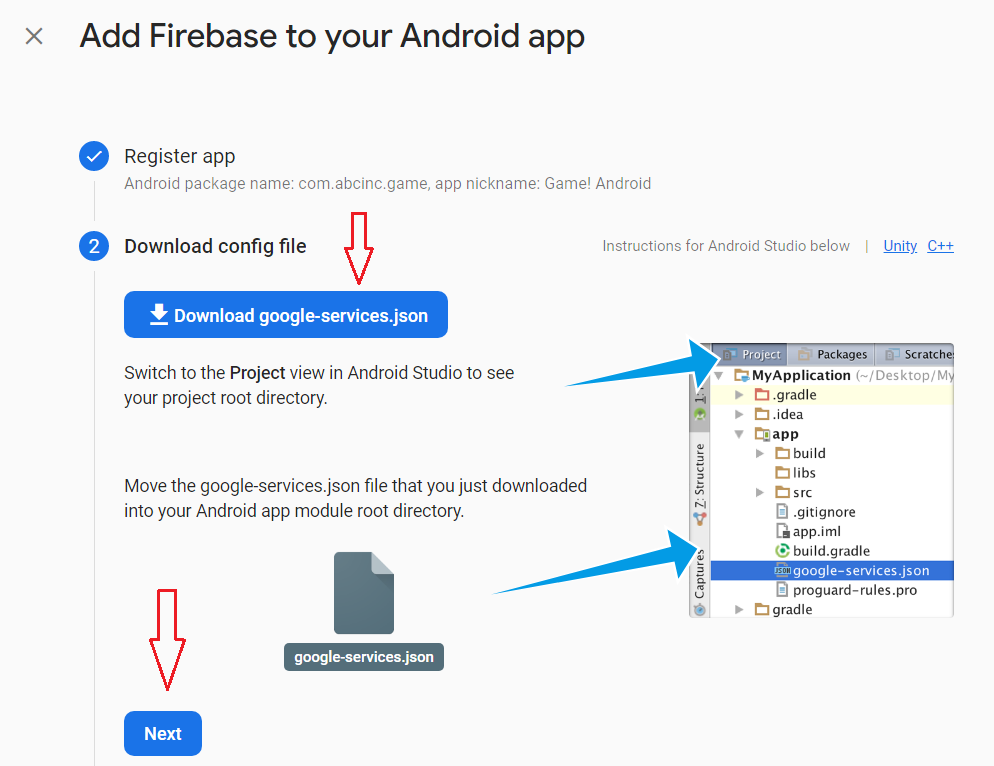
Step-5: Download the configuration file and then click on the ‘Next’ button:
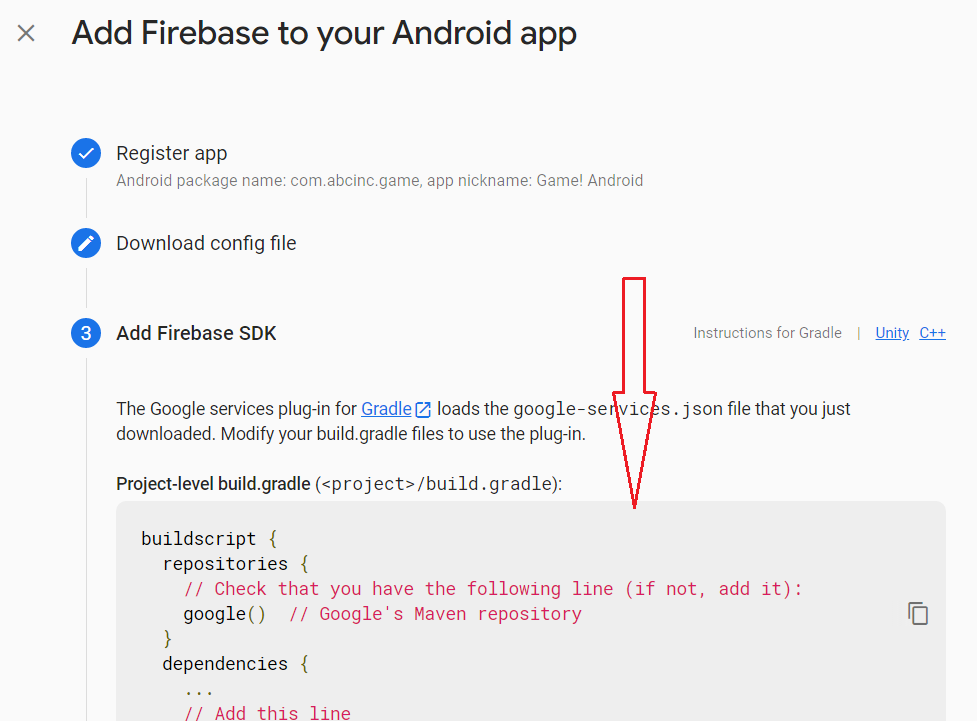
Step-6: Follow the on-screen instructions to add the Firebase SDK to your Android app:
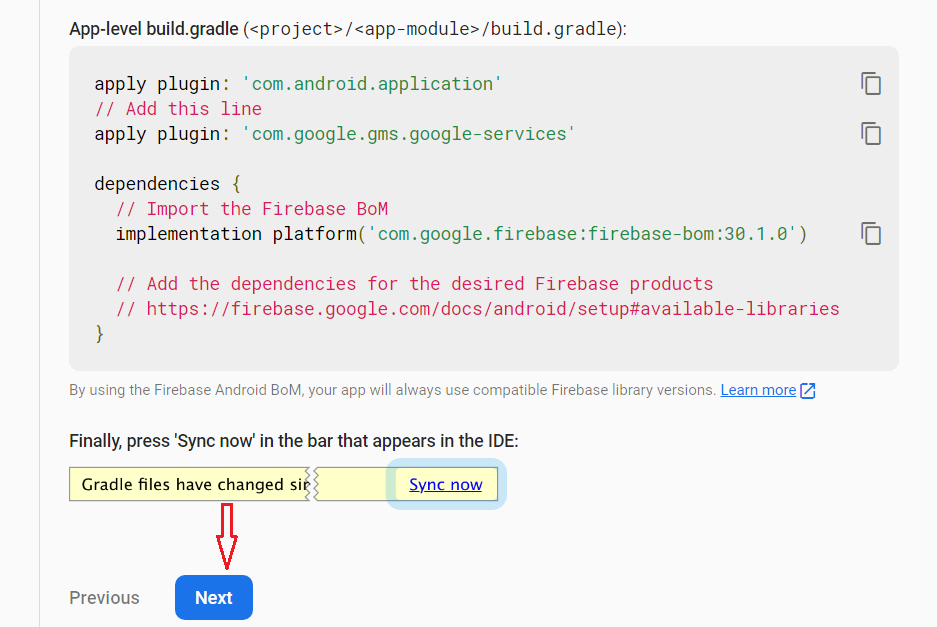
Step-7: Scroll down and then click on the ‘Next’ button:
Step-8: Click on the ‘Continue to Console’ button:
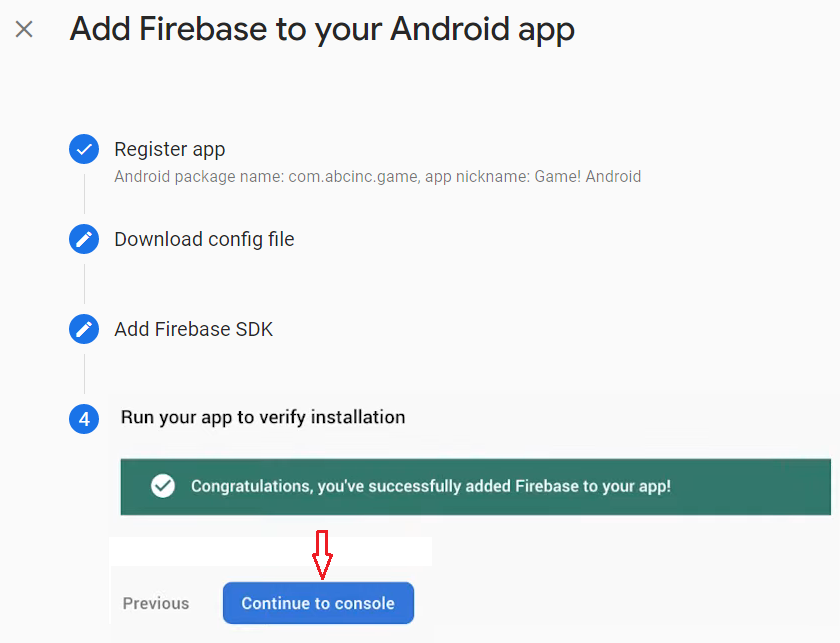
Congratulations!
You have successfully added Firebase to your Android app.
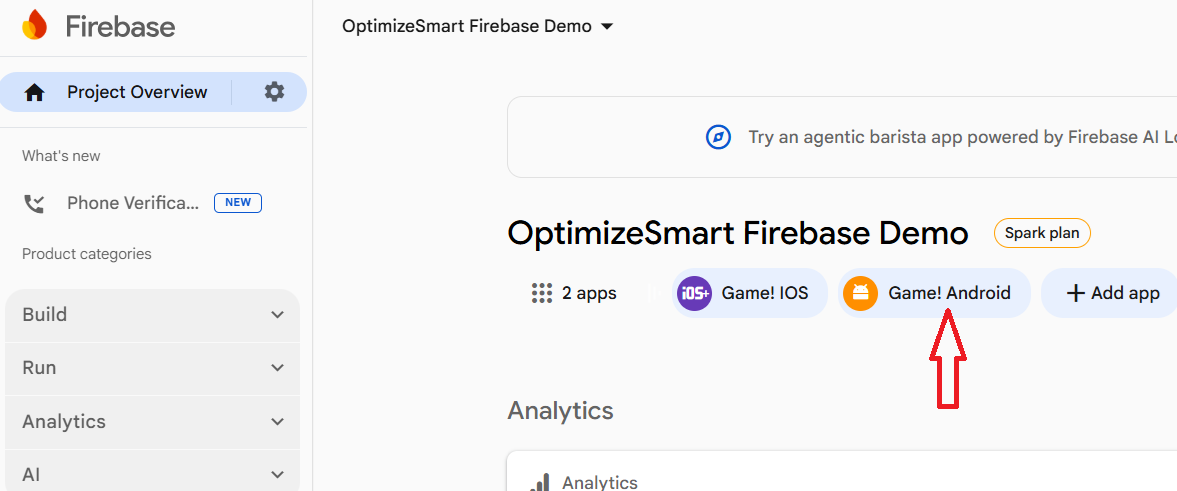
You should now see your Android app added to the project overview page:
How to correctly add app data streams to a GA4 property.
Many people add mobile app data streams from the user interface of the GA4 property:
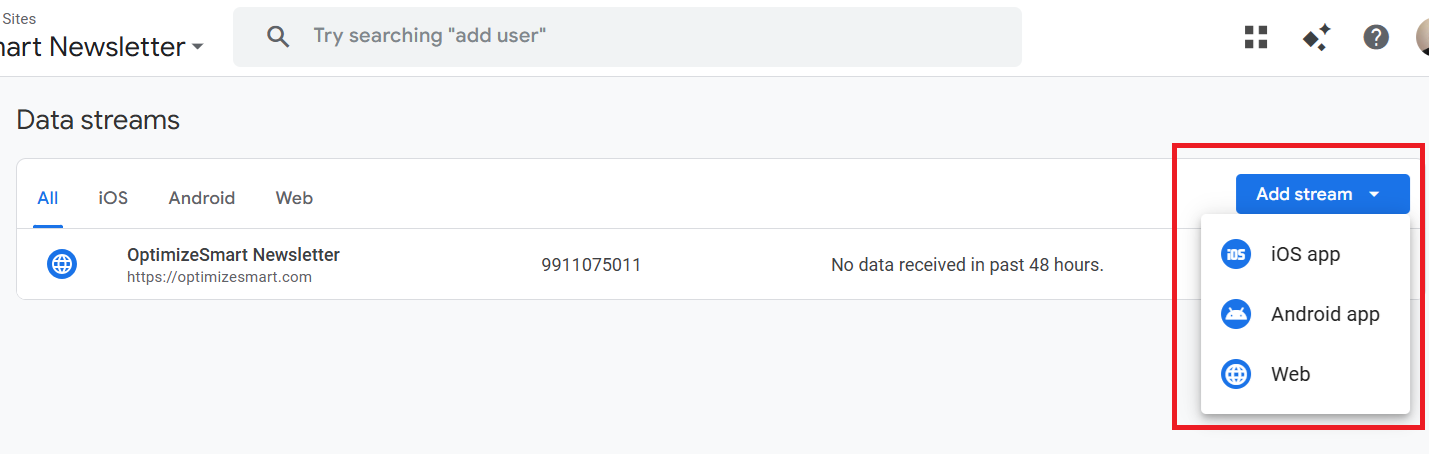
But this is not the correct way.
When you create a mobile app stream from a GA4 property, you do not get the option to link to an existing Firebase project.
Instead, the following things happen automatically:
1) A new Google Cloud project is automatically created.
2) A new Firebase project is automatically created.
3) The new Firebase project is automatically connected to your GA4 property.
And your mobile apps are most likely not added to this new Firebase project.
What you should do instead is to find and link your existing Firebase project (to which you added your mobile apps) to your GA4 property:
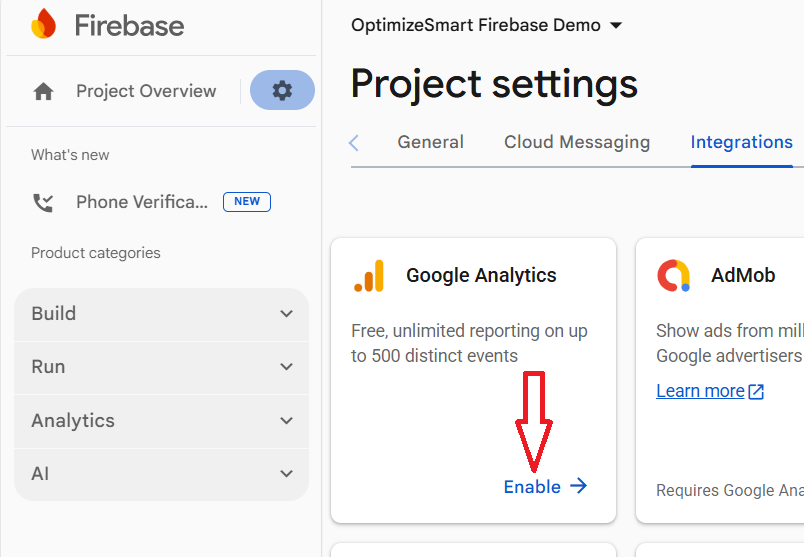
The moment your Firebase project is connected to your existing GA4 property, Google will automatically create corresponding mobile app data streams in your GA4 property.
Advantages of connecting a Firebase project to a GA4 property.
The following are the key advantages of linking your Firebase project to your GA4 property:
#1 The moment your Firebase project (to which mobile apps have been added) is connected to your GA4 property, Google will automatically create corresponding mobile app data streams in your GA4 property.
#2 Firebase GA4 integration allows you to combine mobile app and website data into one GA4 reporting view.
#3 You get access to a wide range of GA4 exploration report templates (like free form, funnel exploration, path exploration, etc.), which are not available in Firebase Analytics.
How to connect a Firebase project to a GA4 property.
Follow the steps below to connect an existing Firebase project to an existing GA4 property:
Step-1: Navigate to Firebase Console: https://console.firebase.google.com/
Step-2: Click on the Firebase project you want to connect to your existing GA4 property:
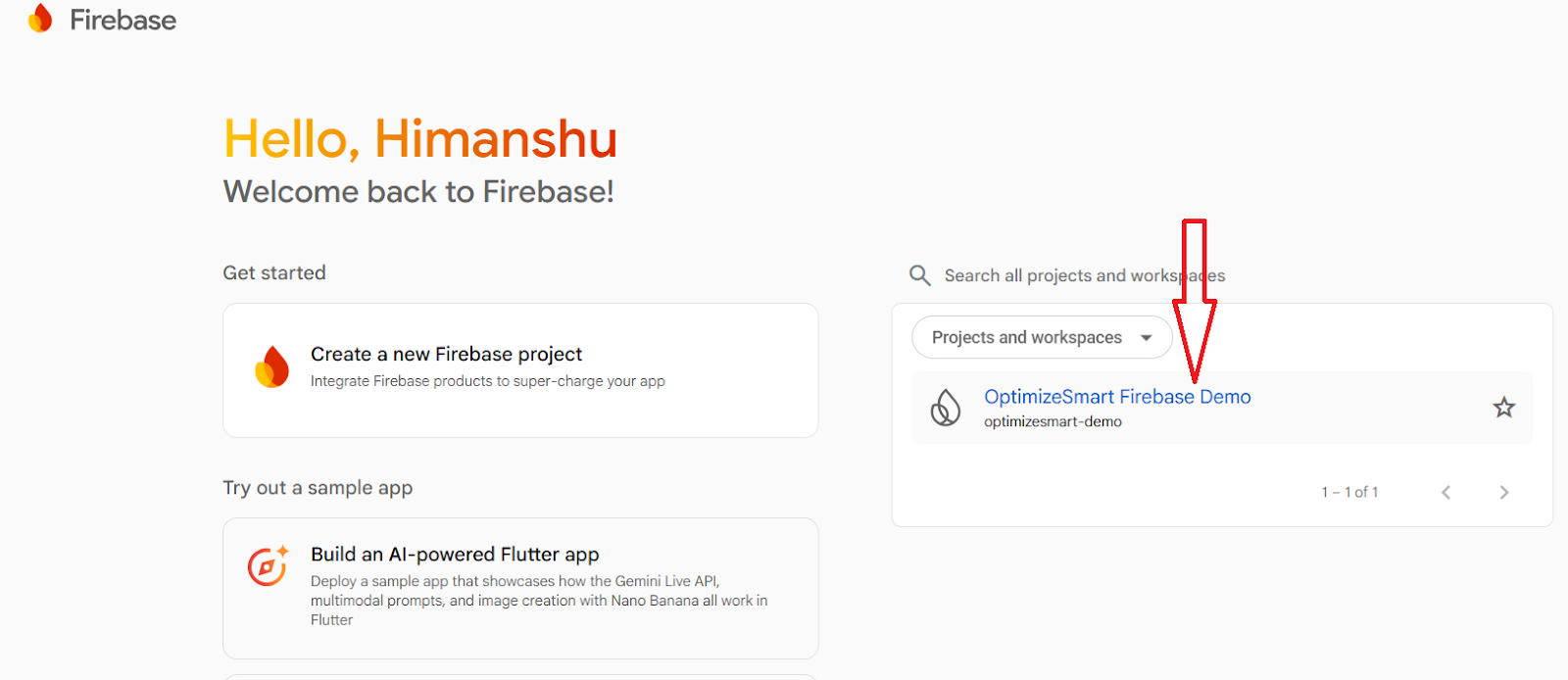
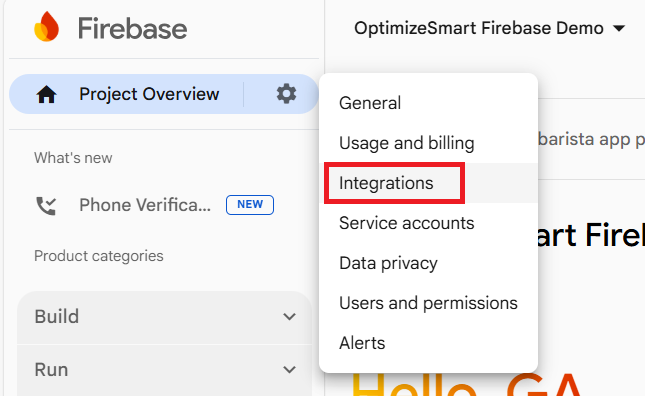
Step-3: Click on the wheel next to ‘Project Overview’:
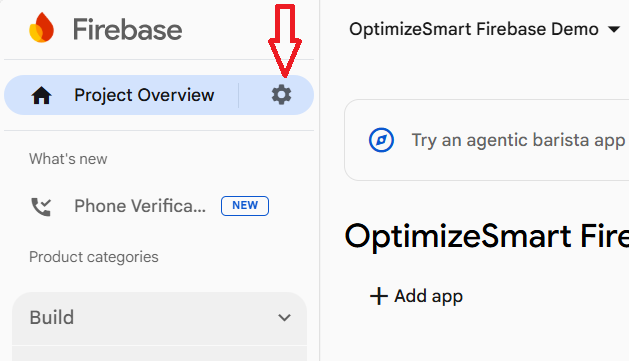
Step-4: Click on ‘Integrations’:
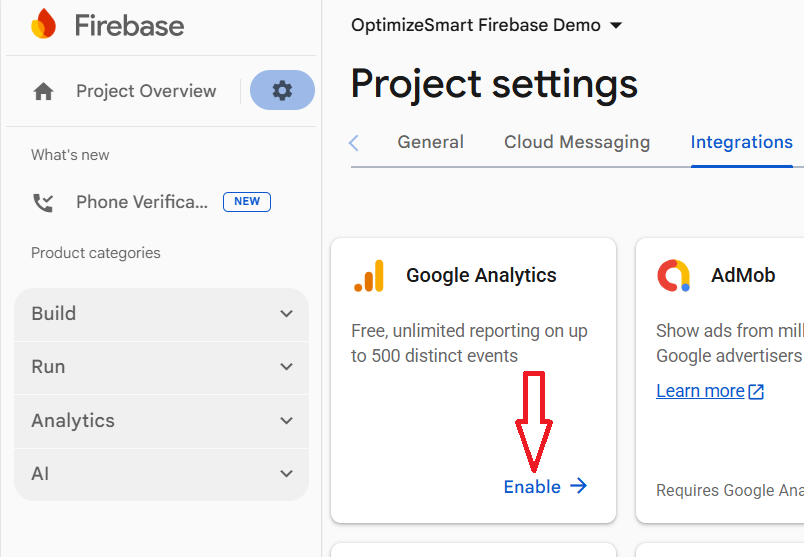
Step-5: Click on the ‘Enable’ button under ‘Google Analytics:
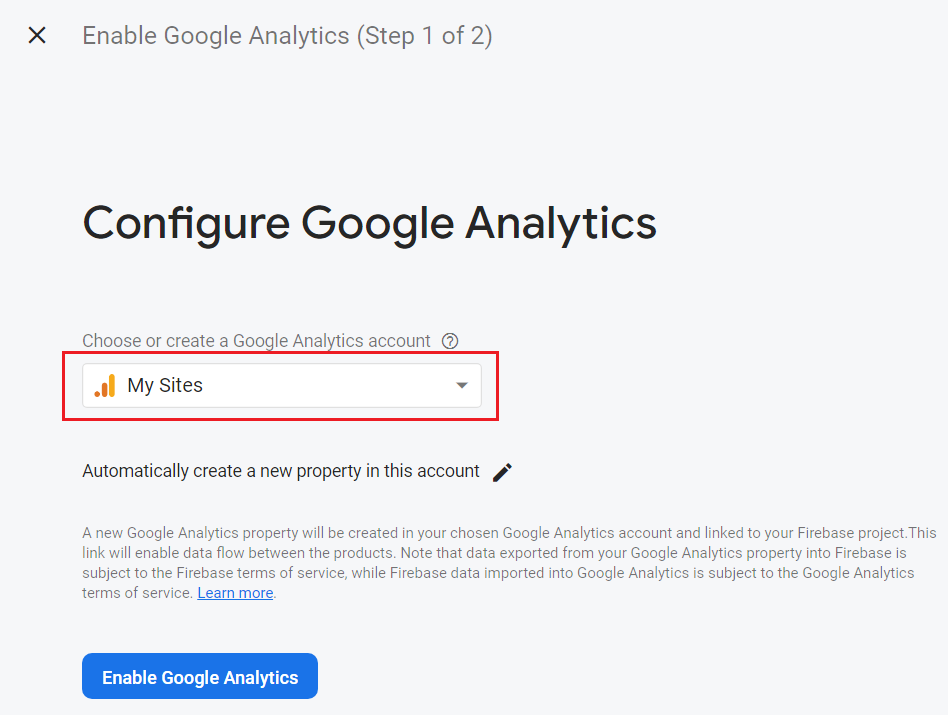
Step-6: Select your Google Analytics account from the drop-down menu:
Step-7: Click on the pencil icon next to ‘Automatically create a new property in this account’:
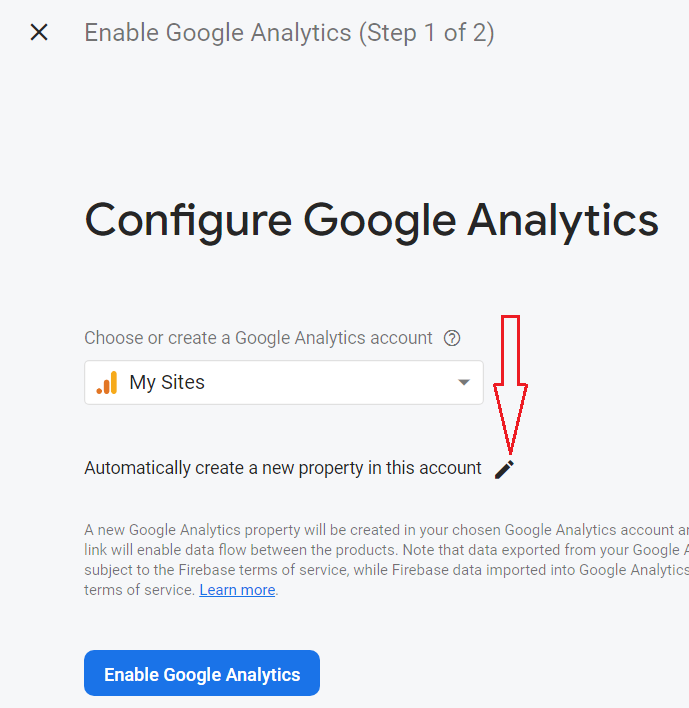
Step-8: Select your GA4 property from the ‘Analytics property’ drop-down menu and then click on the ‘Enable Google Analytics’ button:
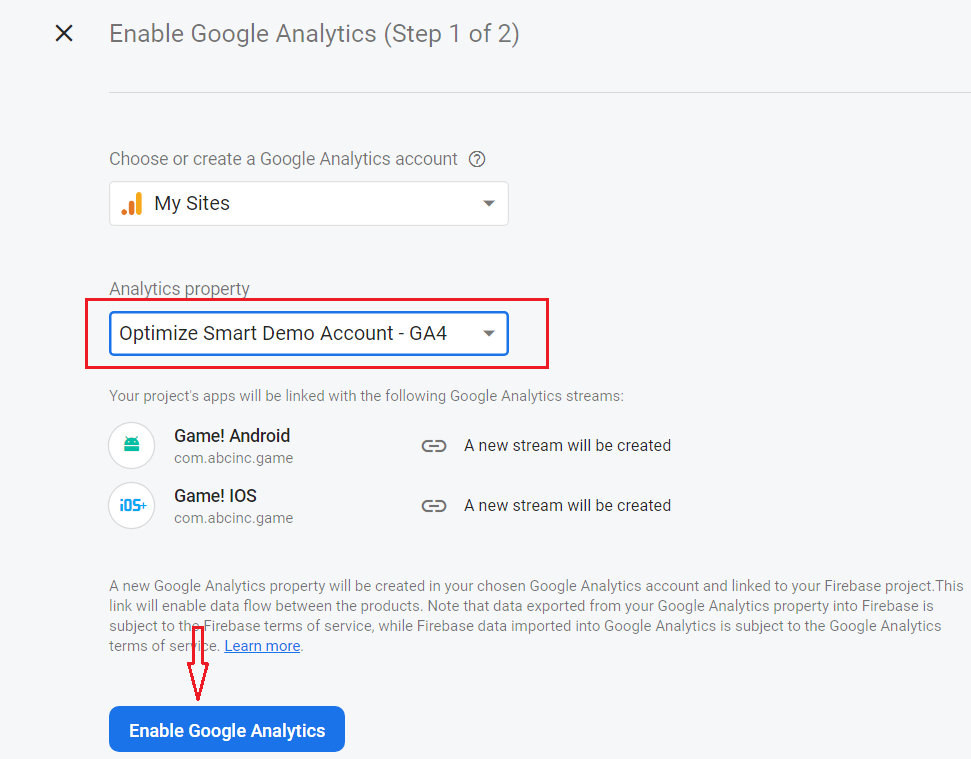
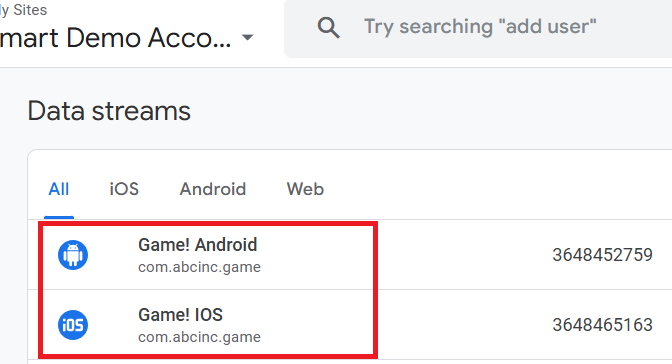
As soon as you click on the ‘Enable Google Analytics’ button, two new mobile app data streams will be automatically be created in the background in the selected GA4 property:
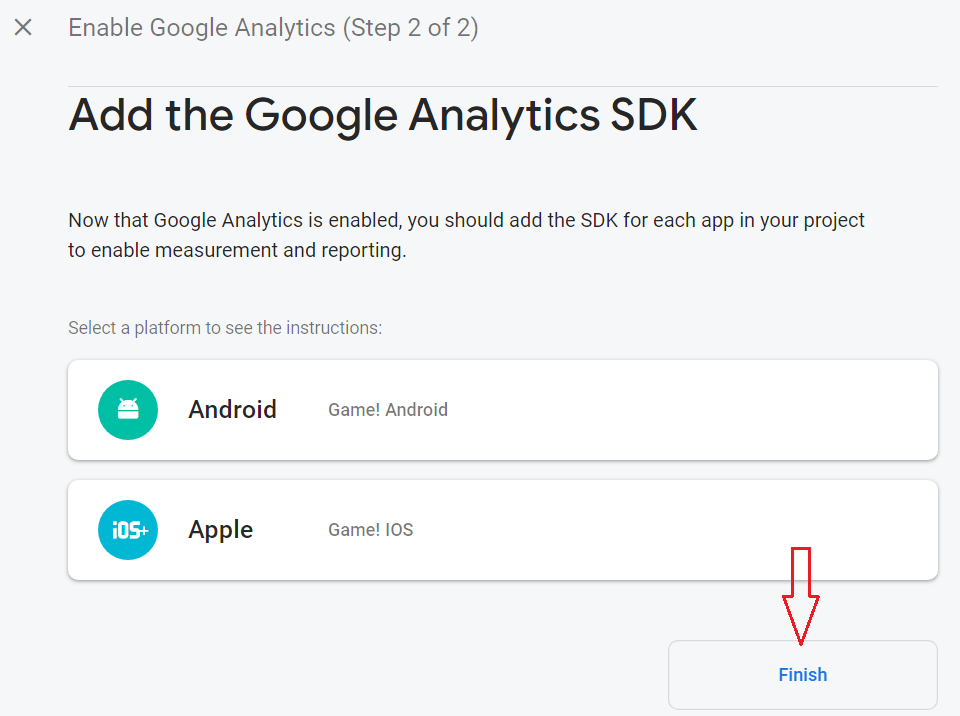
Step-10: Click on the Finish button:
Congratulations!
Your Firebase project is now successfully connected to your GA4 property.
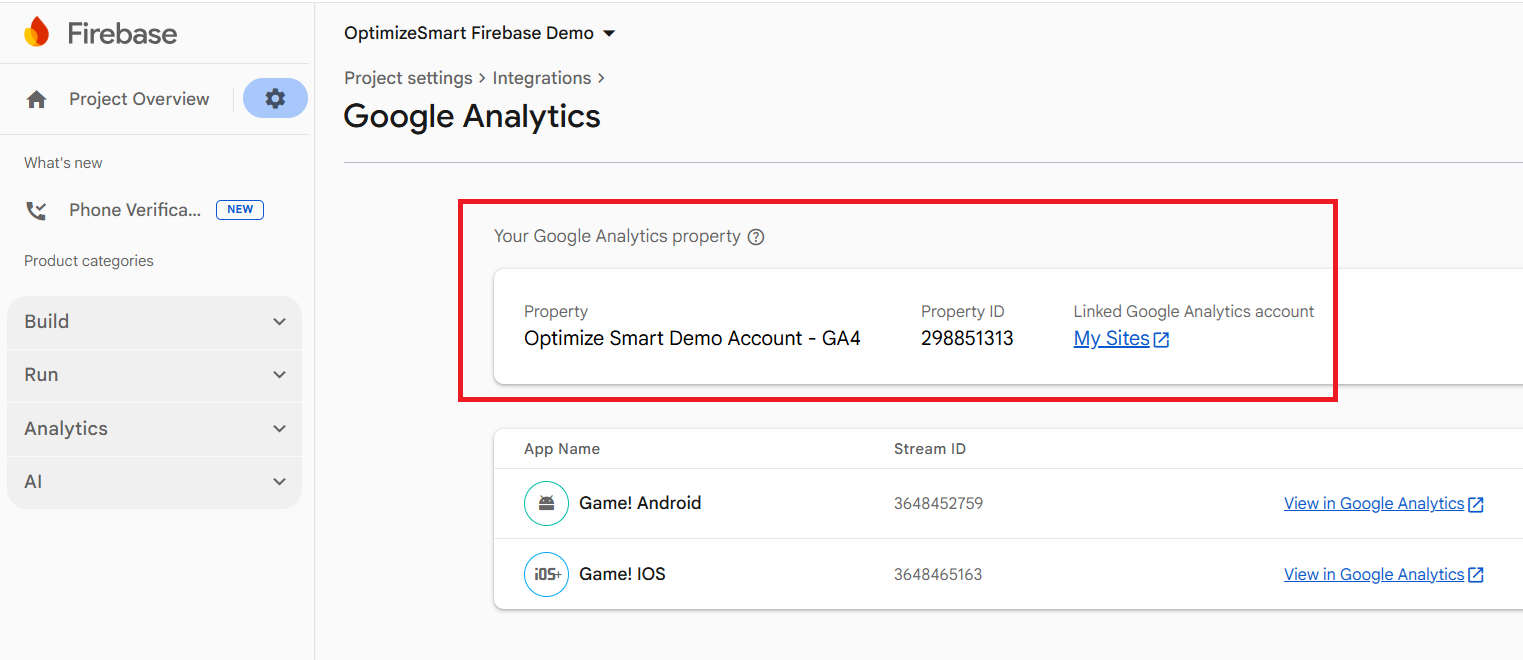
This new connection between your Firebase project and GA4 property enables data flow between them.
Note: The data exported from your GA4 property into your Firebase project is subject to the Firebase terms of service.
Similarly,
The data exported from your Firebase project to your GA4 property is subject to the Google Analytics terms of service.
Walkthrough of the Firebase console.
Through the Firebase console, you can manage Firebase products, apps, and project-level settings.
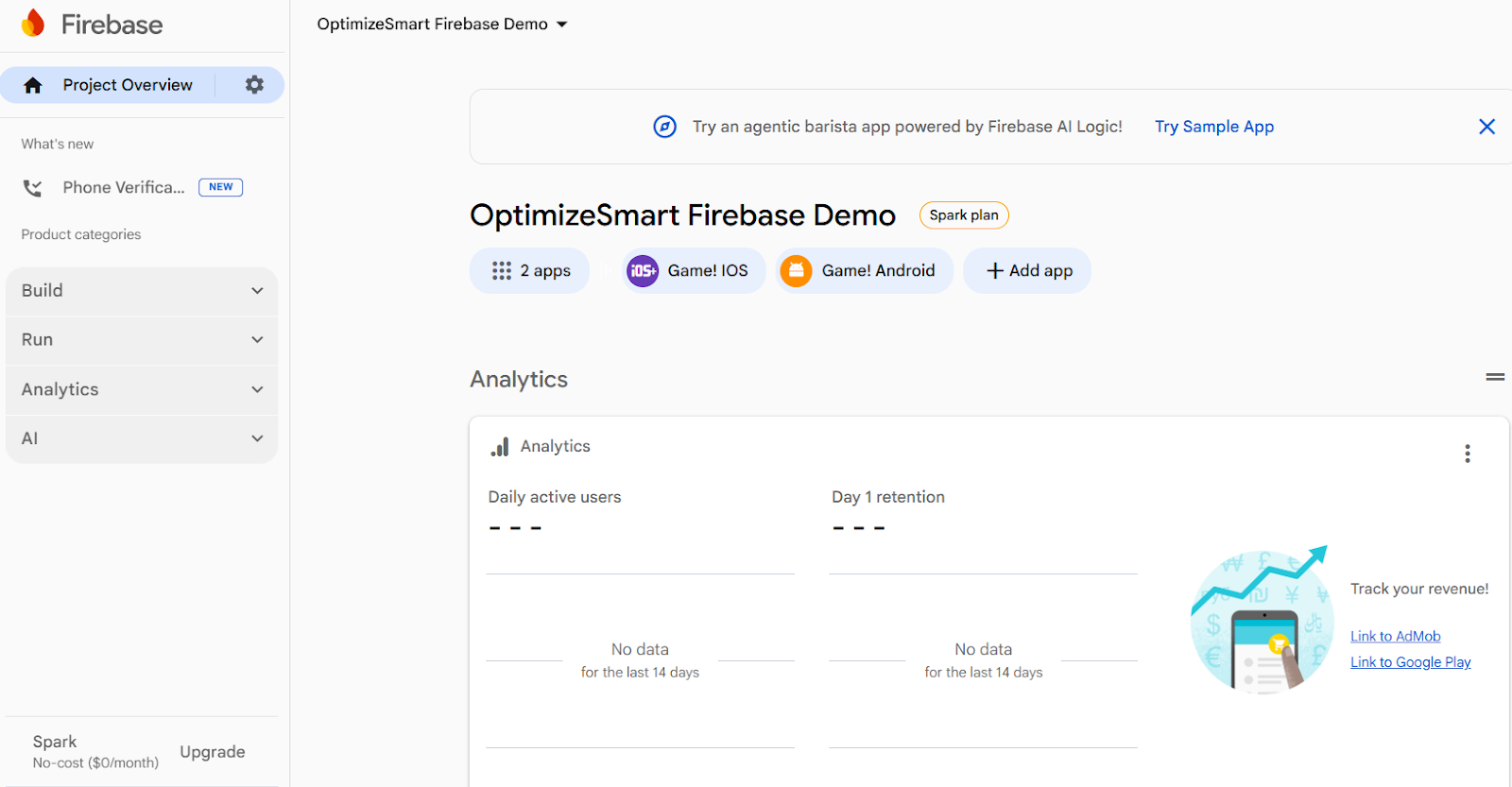
Following is the project overview page of your Firebase console, which has still not started collecting data, but your mobile apps have been added to the Firebase project:
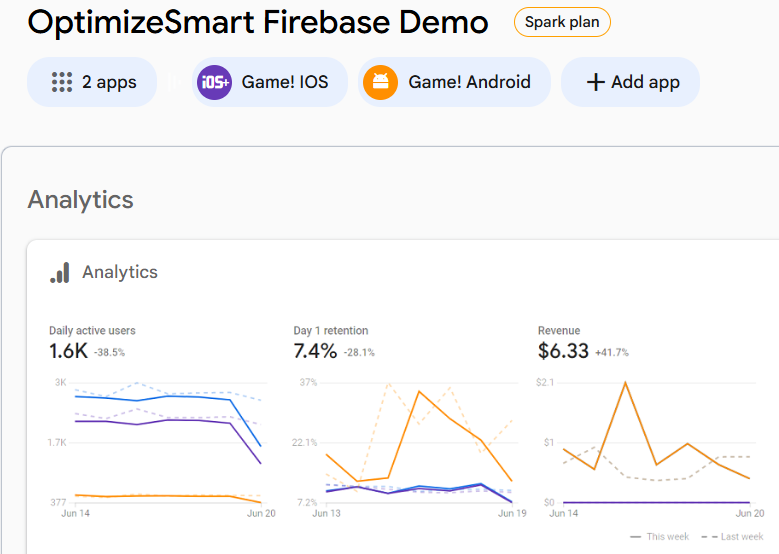
Once your Firebase project starts collecting data, the main area of the console changes into a dashboard that displays stats on the products you use:
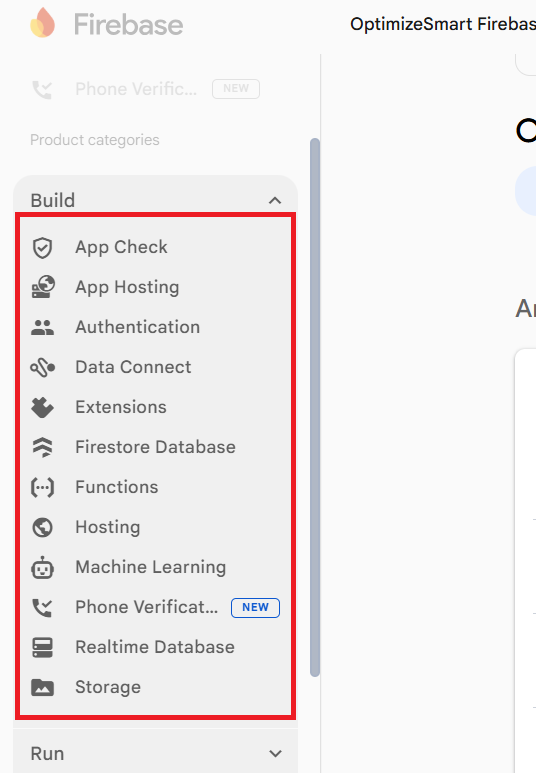
The left-side panel of the Firebase console lists the Firebase products:
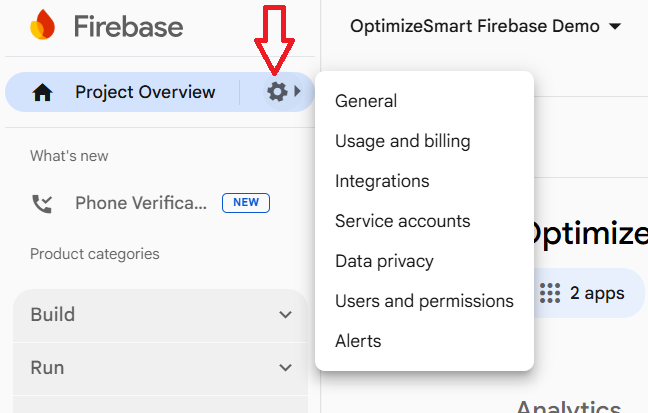
Click on the wheel button at the top of the left-hand side panel in order to change project settings, users and permissions and billing:
The middle part of the Firebase console displays buttons that launch setup workflows to register/manage different types of apps:
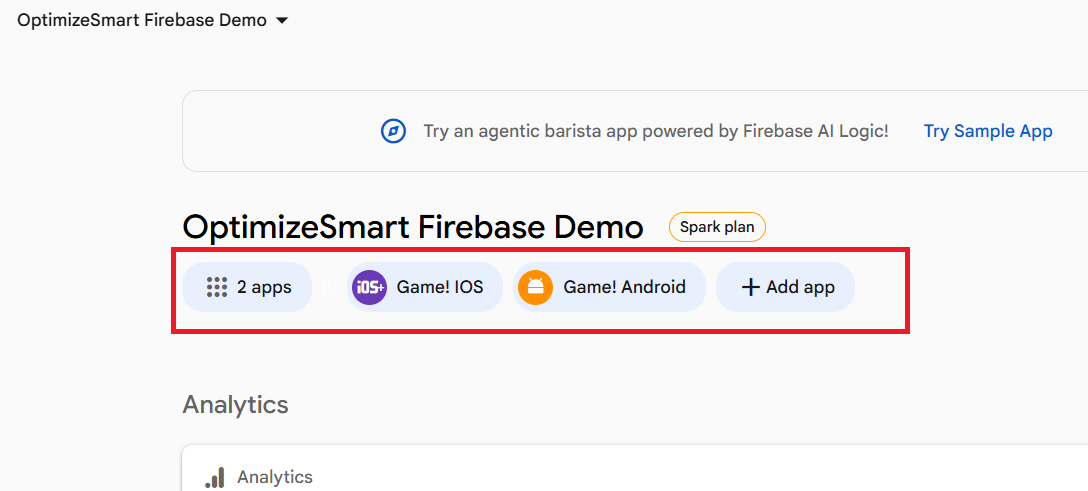
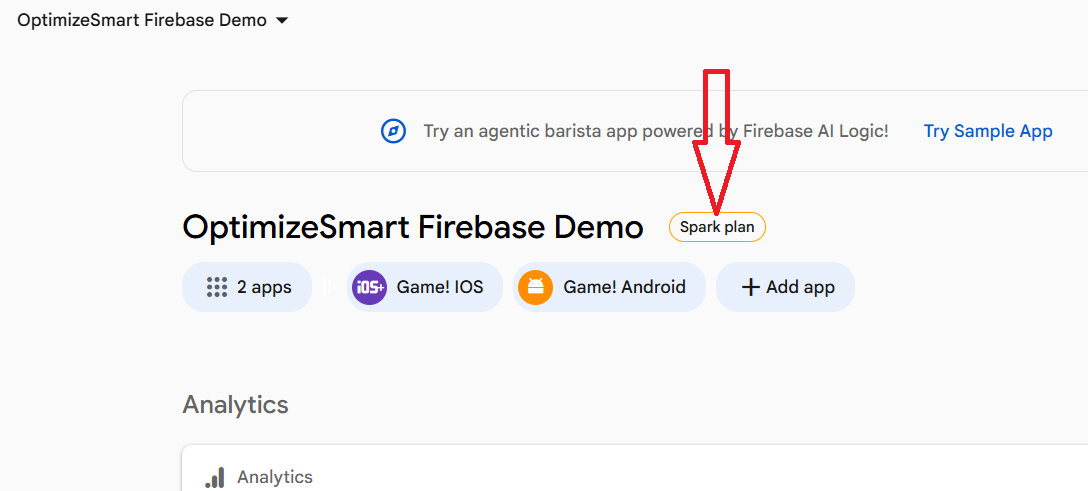
Click on the ‘Spark plan’ button to upgrade from free to a paid Firebase plan:
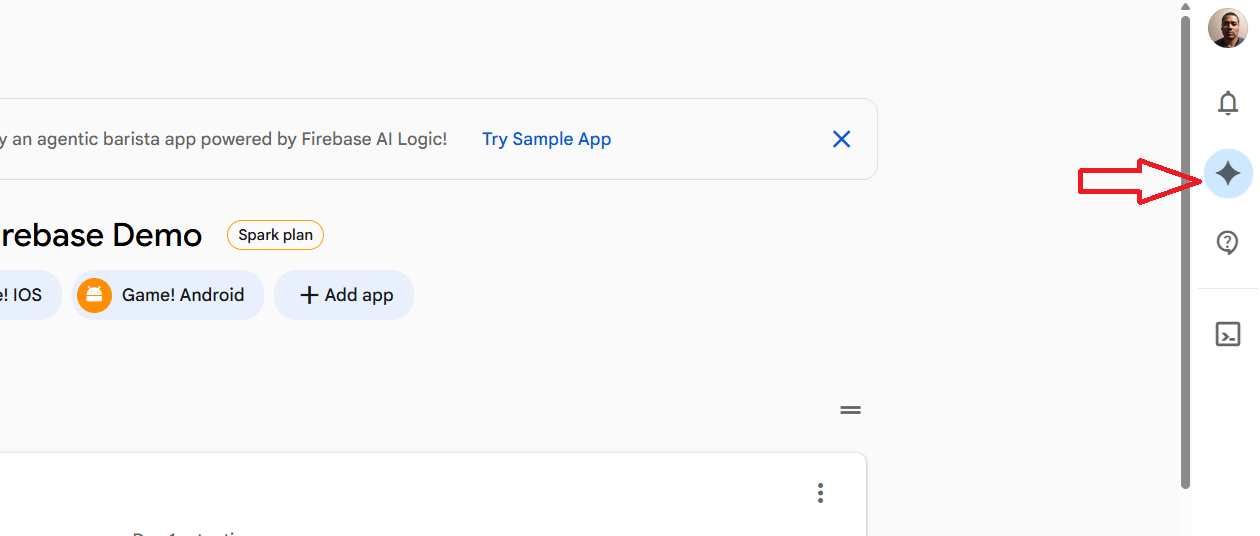
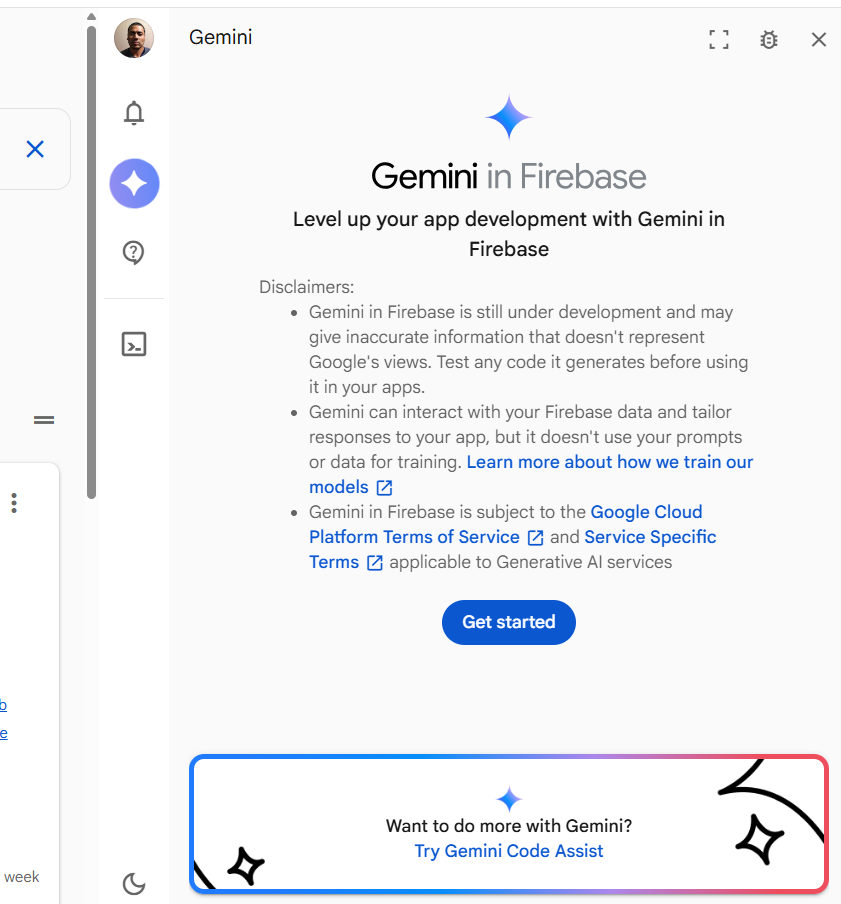
To use Gemini in Firebase, click on the ‘Chat with Gemini’ button:
Tracking App Uninstalls in GA4.
Due to Apple’s privacy restrictions, GA4 does not directly track iOS app uninstalls.
However, you can use alternative methods to infer app uninstalls on IOS devices.
For example,
You can track user inactivity or failure to engage with your app over time to infer potential churn (users who stop using the app).
GA4’s “user_engagement” event offers a valuable alternative for estimating user inactivity on iOS devices.
The “user_engagement” event fires periodically when the app is in the foreground, and the user is actively engaged, which can indicate recent app usage.
Set a reasonable inactivity threshold to identify potential uninstalls.
If a user hasn’t triggered a “user_engagement” event for a significant period (e.g., 30-60 days), this may indicate a potential uninstall, but infrequent use should also be considered.
Create a custom event named “potential_uninstall” (or similar) that fires when a user meets the inactivity criteria.
Step 1: Define Inactivity Criteria.
Determine the period of inactivity that will indicate a potential uninstall.
For instance, you might decide that if a user hasn’t triggered any “user_engagement” event for 30 days, it may indicate an uninstall.
Step 2: Set Up User Property.
- Create a User Property:
- Go to your GA4 property.
- Navigate to Configure > Custom Definitions > Create Custom Dimensions.
- Define a user property named last_engagement.
- Update User Property on Engagement:
- Implement logic in your app to update the last_engagement property every time a “user_engagement” event is triggered.
- For instance, you could use Firebase functions or app-side logic to update this property with the current date.
Step 3: Create a Firebase Function to Track Inactivity.
- Set Up Firebase Cloud Functions:
- If not already done, set up Firebase Cloud Functions for your app.
- Write a Cloud Function to Check Inactivity:
- Write a function that runs daily to check for users who haven’t had any engagement for the defined period (e.g., 30 days).
- Here’s an example of what the function might look like:
const functions = require('firebase-functions');

const admin = require('firebase-admin');

admin.initializeApp();


exports.checkInactivity = functions.pubsub.schedule('every 24 hours').onRun(async (context) => {

    const db = admin.firestore();

    const usersRef = db.collection('users');

    const now = new Date();

    const threshold = new Date(now.setDate(now.getDate() - 30)); // Change 30 to 60 if needed


    const inactiveUsers = await usersRef.where('last_engagement', '<', threshold).get();


    inactiveUsers.forEach(async (doc) => {

        // Trigger potential_uninstall event

        await admin.analytics().logEvent('potential_uninstall', { user_id: doc.id });

    });


    return null;

});
Step 4: Log the “Potential Uninstall” Event.
- Implement Event Logging:
- Use Firebase Analytics to log a custom event named potential_uninstall.
Step 5: Analyze the “Potential Uninstall” Event in GA4.
- Verify Event Logging:
- Check the Firebase console to ensure that the potential_uninstall events are being logged correctly.
- Create a Custom Report:
- In GA4, create a new exploration report and configure it to show the potential_uninstall Events.
- You can also set up alerts or audiences based on these events for further analysis or targeted re-engagement campaigns.
GA4 offers an event named “app_remove” to track uninstalls, but it is limited to Android devices.
The “app_remove” event is listed as one of the automatically collected events in GA4.
Sending data from one mobile app to multiple GA4 properties.
Here is how you can send data from one mobile app to multiple GA4 properties.
Each Firebase project can be linked to only one GA4 property.
Therefore, to send data to multiple GA4 properties, you will need to create multiple Firebase projects and link each to a different GA4 property.
Suppose you have a mobile app that needs to segment analytics data based on different regions (US, EU, Asia).
Step-1: Create Firebase Projects:
Project 1: Create a Firebase project named “AppAnalyticsUS” for tracking analytics related to users in the United States.
Project 2: Create another Firebase project named “AppAnalyticsEU” for tracking analytics related to users in Europe.
Project 3: Create a third Firebase project named “AppAnalyticsAsia” for tracking analytics related to users in Asia.
Step-2: Link the Firebase project to the corresponding GA4 property:
Link “AppAnalyticsUS” Firebase project to “US Analytics” GA4 property.
Link “AppAnalyticsEU” Firebase project to “EU Analytics” GA4 property.
Link “AppAnalyticsAsia” Firebase project to “Asia Analytics” GA4 property.
Step-3: Integrate the Firebase SDK into your mobile app codebase for each Firebase project.
Ensure that each instance of the Firebase SDK is initialized with the appropriate Firebase configuration (i.e., different google-services.json or GoogleService-Info.plist files for each project).
Step-4: Implement logging events and user properties in your mobile app using Firebase Analytics.
Events and user properties logged from the app will be sent to the GA4 properties linked to the corresponding Firebase project.
WARNING:
Integrating multiple Firebase SDKs in a single app can significantly increase complexity and lead to conflicts. Multiple SDK instances can impact app performance and increase the app size.
Therefore, the best approach is to avoid situations where you need to send data to multiple GA4 properties.
Easy Alternative: Instead of using multiple SDKs, you can use a single Firebase project and a single GA4 property.
Then use BigQuery export to partition the data by criteria such as region or user segments.
Hard Alternative: You can implement server-side tracking where your app sends data to your own server, which then distributes it to the appropriate GA4 properties using the Measurement Protocol.
You Can’t Trust Firebase for App Conversions.
When you use Firebase Analytics and are heavily involved in multi-channel marketing, you can not rely on the APP conversions attributed to Google Ads.
In GA4, all app conversions (key events from mobile apps) always use the ‘Google Paid Channels’ attribution model.
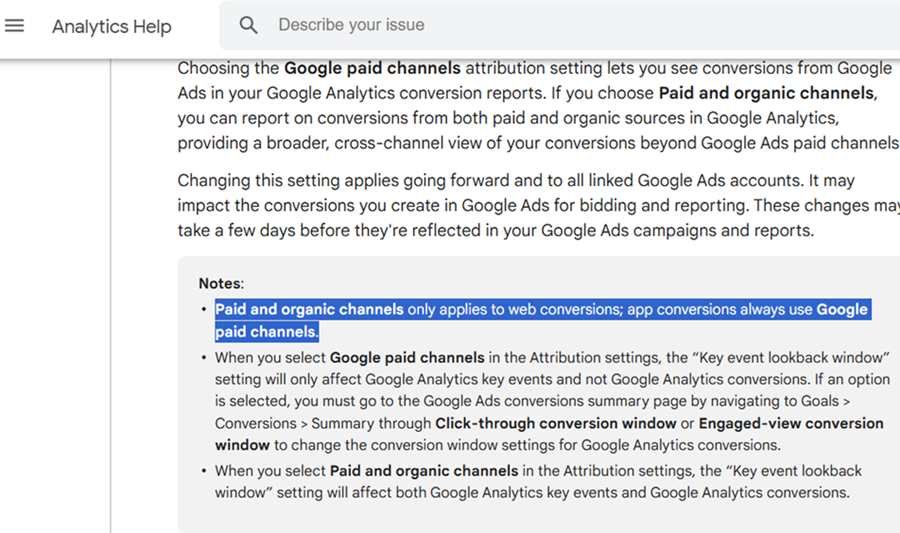
That means most of the time, only Google Ads paid channels are eligible to receive conversion credit.
Only when there is no interaction with Google Ads in a conversion path are other channels, like organic search or email, eligible for conversion credit.
For example, consider the following conversion path:
>> A user searches for your app on Google, clicks the organic search result and downloads the app. The user explores the app but doesn’t make any purchases.
>> Two days later, the user receives an email with a discount offer, clicks the email link, and browses through in-app products, but still doesn’t purchase.
>> A day after, the user sees a social media ad, clicks it, and adds a product to their in-app cart but doesn’t complete the purchase.
>> Later that evening, the user sees a Google Ad while browsing and clicks on it but doesn’t perform any significant actions in the app.
>> The next day, the user directly opens the app (direct traffic) and completes the purchase.
Despite Organic Search, Email Campaigns, Social Media Ads, and Direct Traffic playing significant roles in the conversion path, Google Ads (the weakest touchpoint) receives full conversion credit.
This happens because the ‘Google Paid Channels’ attribution model prioritizes any interaction from Google Ads over all other channels, regardless of its influence or position in the path.
Long story short, you can not rely on the APP conversions attributed to Google Ads if you are heavily involved in multi-channel marketing.
To get a more accurate picture of your marketing efforts:
- Use a Mobile Measurement Partner (MMP).
- Carry out attribution Modelling in BigQuery.
#1 Use a Mobile Measurement Partner (MMP).
Firebase tracks how app users were acquired primarily within the Google ecosystem.
Whereas,
MMPs track how app users were acquired across all ecosystems (Google Ads, Facebook Ads, TikTok, Snapchat, Apple Search Ads, and other platforms).
Unlike Firebase, MMPs do not favour one marketing channel over the other. So their conversion attribution will be much more accurate.
Does that mean Firebase is useless for mobile app analysis?
No. Firebase primarily focuses on what happens after the app is installed:
>> How users engaged with the app.>> What actions did they perform (e.g., app open, in-app purchases, engagement with features)?>> Retention, session duration, churn analysis, etc.
Firebase primarily measures user behaviour and engagement, while MMP primarily measures user acquisition.
So, it’s not one or the other; you need to use both tools.
#2 Carry out attribution Modelling in BigQuery.
Recreate conversion paths in BigQuery by analyzing events, user interactions, and touchpoints across multiple channels.
For example, you can see how Organic Search, Email, Social Media, and Google Ads collectively contributed to a conversion rather than relying on Google Ads-biased attribution.
With BigQuery, you can apply your own attribution logic (e.g., time decay) to give more balanced conversion credit to all contributing channels.
Other Articles on GA4.
- Tracking New, Qualified and Converted Leads in GA4.
- Free GA4 training and tutorial with Certification.
- Understanding GA4 Ecommerce Reports (Monetization Reports).
- GA4 Ecommerce Tracking via GTM: Step-by-Step Setup Guide.
- How to see UTM parameters in GA4 (Google Analytics 4).
- GA4 UTM parameters not working? Here is how to fix it.
- How To Use UTM parameters in GA4 (Campaign Tracking).
- How to track AI traffic in GA4.
- Understanding Google Analytics 4 cookies – _ga cookie.
- GA4 (Google Analytics 4) Measurement Protocol Tutorial.
- GA4 Unassigned Traffic: Causes and How to Fix it Fast.
- GA4 Regex (Regular Expressions) Tutorial.
- GA4 Direct Traffic Spike: Common Causes and How to Fix Them.
- gtag.js – Google Tag in Google Analytics 4 and beyond.
- GA4 Scopes – User, Session, Event & Item scopes.
- GA4 Conversion Tracking (Key Events) Tutorial.
- GA4 (not set) - Guide to fixing (not set) issue.
- GA4 Certification Exam: Questions, Answers for Skillshop (GAIQ).
- GA4 User Properties (User Scoped Custom Dimensions) – Tutorial.
- Tracking Organic Traffic in GA4 - Complete Guide.
- Tracking Events in GA4 (Google Analytics 4).
- GTM Server Side Tagging - Setup Guide.
- Using Subfolder for GTM Server Side Tagging (Same Origin Tracking).
- Understanding Event Parameters in Google Analytics 4 (GA4).
- How to Uninstall GTM Server Side Tagging.
- How to remove (other) in GA4 reports and avoid Cardinality.
- Creating GA4 Assistant via Claude for your customers.
- How To Set Up User ID in GA4 - Cross Device Tracking.
- GA4 Mobile App Tracking - Firebase Integration.
- How to use DebugView report in Google Analytics 4 (GA4).
- How to Track Phone Calls in Google Analytics 4.
- How to detect GTM Server Side Tagging.