

What is a User ID in GA4?
GA4 User ID is a unique alphanumeric string (e.g., GdffTeeD453589) assigned to a user to identify them across devices/ browsers and across multiple sessions.
User-ID is one of the methods used by Google to identify users on your website.
The following are the other methods used by Google:
- Google Signals (uses data from those website users who have signed in to one of their Google accounts and have turned on ad personalization).
- Device ID (uses the client ID for websites or the app Instance ID for mobile apps).
- Data Modeling (estimates users’ activity when identifiers such as cookies or User ID aren’t fully available).
The User-ID feature in GA4 allows you to track user activity across sessions and devices by linking a unique identifier to each user.
It is important to remember that each user ID is considered a distinct user in GA4.
To implement the User ID feature, you need to create and consistently use a unique ID for each user, typically assigned during login (like Login ID). The ID should be less than 256 characters.
It’s important to comply with Google Analytics Terms of Service while using user IDs.
This includes not using any personally identifiable information in the IDs and informing users about the use of these identifiers in your Privacy Policy.
Ensure that the user ID doesn’t include details that can reveal the user’s identity to others.

Advantages of using User ID in GA4.
The following are the key advantages of using User ID in GA4:
#1 The usage of the user ID feature makes cross-device measurement possible in GA4 for the logged-in users. Which, in turn, helps to fix cross-device attribution issues. This is the biggest benefit of using user IDs.
#2 Through the User ID feature, GA4 can more accurately identify the number of unique users and their engagement activities (click on links, page navigation, screen navigation, etc) across multiple devices and/or sessions. Unlike Client ID, the User ID can exist on multiple devices.
If a user accesses your website from multiple devices/browsers, without a User ID implementation, GA may count the same user multiple times.
For example,
If a user logs in to your website on a smartphone and later makes a purchase on a company laptop, in GA without a User ID implementation, the number of unique users could be counted as two.
However, after the User ID implementation, the number of unique users would be counted as one. This is because the same logged-in user can then be uniquely identified across devices.
#3 You can attribute user engagement spread across multiple devices and sessions to a single user in your GA reports. Thus, the User ID helps resolve attribution modelling issues.
#4 Through the User ID feature, you can get a holistic view of the users’ purchase journey.
#5 User ID is a great feature to segment and analyze the logged-in users and compare logged-in with logged-out users, as these users generally engage with your website very differently than those who are not logged in.
Limitations of User ID in GA4.
When using the User-ID feature, keep in mind the following limitations:
#1 The User-ID feature is not useful for you if users can not login to your website and/or mobile app.
#2 The User-ID feature must be used in accordance with the Analytics SDK / User-ID Feature Policy.
#3 The user IDs sent to GA4 should not exceed 256 characters in length.
#4 The data collected in your GA4 property before implementing User-ID will not be reprocessed or linked to a user ID.
#5 User-ID data collected in one property cannot be shared with or transferred to other properties.
#6 When user IDs are collected, and your GA4 property is connected to BigQuery, the data is automatically sent to BigQuery, regardless of user consent.
Note: Do not register User ID as a custom dimension, as the User ID custom dimension can easily become a high cardinality dimension and cause data to aggregate under the (other) row.
What can you use as a User ID?
Google Analytics cannot generate unique IDs for you to use as User IDs. You also can not use Client IDs as User IDs.
It doesn’t work that way.
In order to implement the User ID feature, you need to generate your own unique IDs and assign IDs to new and returning users through your user authentication system.
This user authentication system is usually your website login, the system through which users can log in and log out.
The unique ID that you use to identify a logged-in user (also known as login ID) on your website can be sent as a User ID to your GA account.
However, the login ID should not contain personally identifiable information (PII), such as a name or email address.
If your login ID contains PII, you may need to either remove that information from the Login IDs or completely rewrite the Login IDs before you send the Login IDs as User IDs to GA4.
This is because the User ID usage policy requires that the User ID not contain PII.
If you do not follow this usage policy, then Google may terminate your GA account.
In order to implement User ID, you would need to write code that can pull login IDs or other unique IDs from your authentication system and then place them in your Google Analytics tracking code.
That way, the User IDs can be sent to the GA server along with the event/hit data.
Consequently, any website which assigns login IDs to its users is a good candidate for implementing the User ID feature.
How to set up user ID in GA4.
Follow the steps below to set up User IDs in GA4:
Step-1: Ask your developer to hard-code the following data layer on the website (above the GTM container code), which fires the ‘login’ event and pushes the Login ID as the user ID to the data layer once a user successfully logs in.
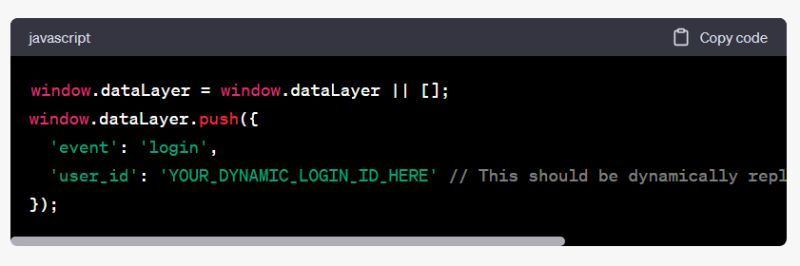
Note(1): Do not push default values like ‘none’ or ‘null’ for the user ID in GA4. If you include default values, GA4 will count them as unique users, inflating your user count and skewing your data.
Note(2): Hardcode the data layer code above the GTM container code so the data layer is available even when you use the ‘All pages’ GTM trigger. For single-page apps, the location of the data layer code does not matter.
Step-2: Ensure the developer correctly pushes the User ID into the dataLayer upon successful login via ‘GTM preview and debug’ mode. The user ID should be sent only when the user logs in.
- Make sure you are logged out of your website.
- Navigate to Google Tag Manager.
- Click on the ‘Preview’ button.
- Enter your website URL and click on the ‘Connect’ button.
- Click on the ‘Continue’ button.
- Navigate to your website and refresh it.
- Login to your website.
- You should now see a ‘login’ event under the ‘Summary’ section.
- Click on the ‘login’ event and search for the ‘user id’ parameter in the data layer push.
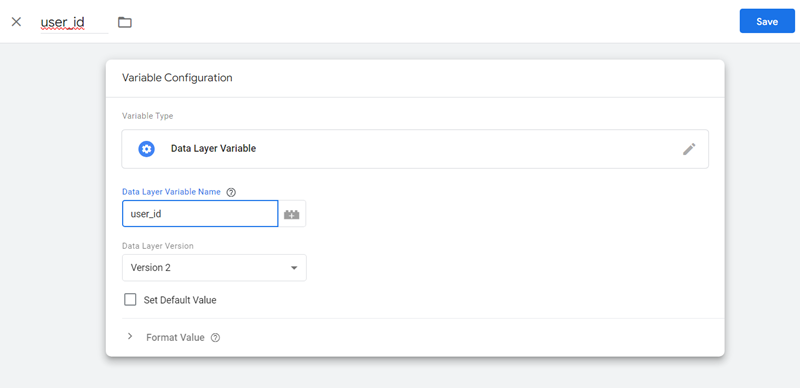
Step-3: Navigate to your GTM container and create a new data layer variable which fetches the user ID from the data layer hardcoded on your website. This step is required to use ‘user id’ in GTM tags and/or triggers.
- Open Google Tag Manager and select “Variables”.
- In the “User-Defined Variables” section, click “New”.
- Choose “Variable Configuration” and then “Data Layer Variable”.
- Name the variable at the top.
- In the “Data Layer Variable Name” field, enter the user ID parameter that you pushed into the data layer (like “user_id”).
- Click “Save”.
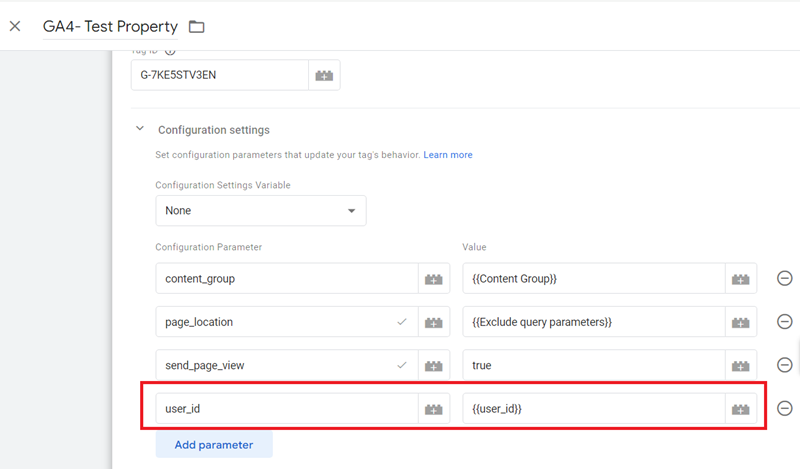
Step-4: Update your Google Tag:
- In Tag Manager, go to “Tags”.
- Choose your Google tag.
- Under “Configuration settings”, add a new row with these details:
- Event Parameter: user_id
- Value: Choose the Data Layer variable you just created.
- Click “Save”.
- Click “Submit” to apply your changes.
Step-5: Create/update the ‘Event Settings’ variable:
- In the tag manager, go to ‘Variables’.
- Scroll down to the section ‘User-Defined Variables’.
- Click on the ‘New’ button.
- Choose the variable type ‘Google Tag: Event Settings’.
- Click on the ‘Add parameter’ button.
- Event Parameter: user_id
- Value: Choose the Data Layer variable you just created.
- Click “Save”.
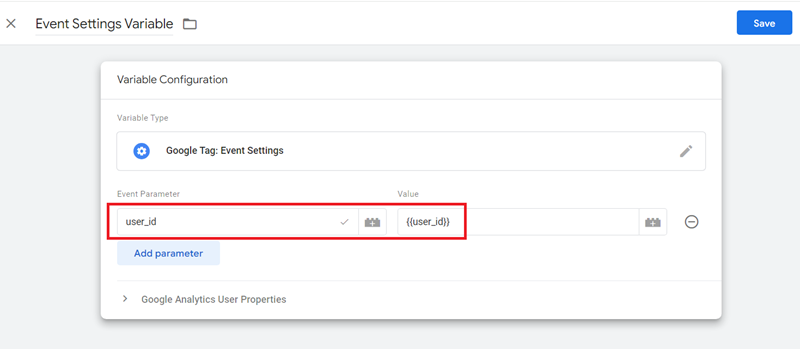
Use the data layer variable you created in the previous step as the value of the ‘user_id’ configuration parameter.
Step-5: Update all your GA4 Event tags one by one to add the ‘user_id’ configuration parameter to them:
- Edit a GA4 event tag.
- Click on the “Event Parameters” drop-down menu.
- Select the event settings variable from the “Event Settings Variable” drop-down menu.
- Click “Save”.
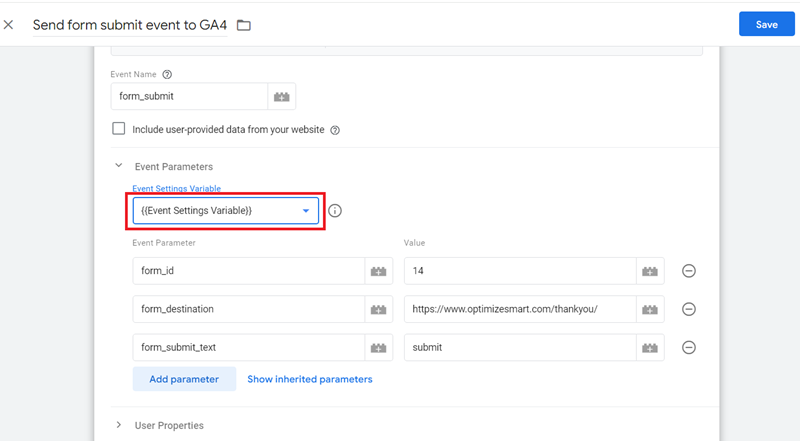
Sometimes, the user ID is not available to an event even when it is available to Google Tag. So, just to be on the safe side, we also pass the user ID with every event.
Step-6: Refresh the GTM preview mode, navigate to Google Tag (under the ‘Tags fired’ section) and then check for the ‘user_id’ parameter with a certain value.
Step-7: Navigate to the GA4 debugView report and check one or more GA4 event tags to confirm they also send the ‘user_id’ parameter. The user ID should appear in the debugView report.
Step-8: If everything works correctly, publish the changes in your container.
Step-9: Set up the reporting identity of your GA4 property with the User-ID option:
- Go to the Admin section of your property.
- Under the “Data display” category, click on “Reporting Identity”.
- Choose one of the following options:
- Blended: This option uses user ID, Google signals, device ID, and modelled data for evaluation.
- Observed: This uses user ID, Google signals, and device ID for evaluation.
Note(1): In GA4, when you include User ID in your reporting identity, it enables the de-duplication of user IDs across all reports. This means that each user is counted only once, regardless of the number of sessions or devices they use. This feature provides a more accurate, unified view of user interactions across platforms and devices, enhancing the quality and reliability of your reports' data.
Note(2): Starting February 12, 2024, Google signals will no longer be part of the reporting identity. This update will affect all GA4 properties but will only change reporting features.
Step-10: After 24 to 48 hours have elapsed, navigate to the ‘user explorer’ report, where you should be able to see the user id data.
Two important considerations when implementing User ID to avoid skewing users’ data in GA4.
#1 Only push the ‘user_id’ parameter to a data layer when a user has actually logged in
Only push the ‘user_id’ parameter to a data layer when a user has actually logged in, and you have a valid and unique identifier for them.
When a user is not logged in, omit the ‘user_id’ parameter entirely.
If you use any placeholder value like ‘guest user’, ‘not logged in’, ‘logged out’ or an empty string, GA4 will treat this placeholder value as an actual ID.
As a result, all users who haven’t signed in will be grouped under the same user_id, skewing user counts in GA4 reports.
Specifically, it will cause GA4 to treat them as the same user, resulting in reports showing a single total for all non-signed-in users, even though there are multiple distinct users.
GA4 won’t treat an undefined user_id as a valid user identifier.
But if undefined is enclosed in quotes, it becomes a string, which becomes a placeholder value and is hence treated as a user id.
If this string (“undefined”) is sent for multiple users, GA4 will treat all these users as having the same user_id.
As a result, all these users will be grouped together, leading to inaccurate reports that treat multiple users as a single user.
As a best practice, push ‘user_id’ to the data layer only if the user logged in.
Otherwise, omit the ‘user_id’ parameter entirely.
Following is a simplified version of the JavaScript code that pushes the user_id parameter into the dataLayer only when a user logs in:
// Example function to check if the user is logged in

function isUserLoggedIn() {

   return !!localStorage.getItem('authToken');

   // Assuming user is logged in if 'authToken' exists

}


// Example function to get the user_id after login

function getUserId() {

   return localStorage.getItem('user_id');

   // Example: Retrieving 'user_id' from localStorage

}


// Push user_id to the dataLayer only if the user is logged in

if (isUserLoggedIn()) {

   window.dataLayer = window.dataLayer || [];


   window.dataLayer.push({

      'event': 'userLogin',

      'user_id': getUserId()

   });

}
#2. When a user logs out, you should remove or reset the user_id from the data layer.
When a user logs out, you should remove or reset any user-specific data, such as the user_id, from the dataLayer and clear the authToken or any other login-related data stored in the browser (e.g., in localStorage or sessionStorage).
If the user_id remains in the dataLayer after logout, subsequent page views, interactions, or events could be incorrectly attributed to the logged-out user.
This could lead to inaccurate analytics, as GA4 would continue tracking the activity under the previous user’s ID, skewing metrics such as user count, session count, and event attribution.
Following is a simplified version of the JavaScript code that pushes a logged-out event to the data layer and resets/remove user_id from the data layer:
// Example function to handle user logout

function userLogout() {

   // Clear user authentication data (e.g., authToken and user_id)

   localStorage.removeItem('authToken');

   localStorage.removeItem('user_id');


   // Push a logout event to the dataLayer

   window.dataLayer = window.dataLayer || [];


   window.dataLayer.push({

      'event': 'userLogout', // Event to track logout in GA4

      'user_id': null // Reset or remove user_id from dataLayer

   });


   console.log("User logged out and 'user_id' removed from dataLayer.");

}
Implementing User ID without a login.
You can implement User ID features in many ways other than through a login system
For example, Walt Disney World tracks offline customers through a special wristband known as the ‘magic band’.
This colourful, harmless, innocent-looking band, which is used to enter the parks, check in to Disney hotels, and buy food and merchandise, is actually a sort of tracking device (in my opinion) through which the company collects the browsing and buying behaviour of their offline customers.
Then, through the measurement protocol and User ID feature, this offline customer data is linked to online data to provide a holistic view of the customer journey.
Similarly,
If someone uses a loyalty card to make a purchase at a supermarket, the card can be scanned to generate a unique user ID, which can later be sent to GA via the measurement protocol.
Other widely used authentication systems are:
- Biometric identification (like retinal scan, fingerprint scan, iris recognition, voice recognition, signatures, etc.).
- Punching cards to record attendance (like the attendance of employees).
- Wristbands (like the one used by Disney).
- Retail loyalty cards (used by many supermarket chains).
- Online and offline Coupons.
User IDs can also be set for all of these authentication systems using a measurement protocol, but the implementation will not be easy.
Once the User ID feature is implemented, GA4 combines and reports all hits with the same User ID, regardless of the device they originate from. This makes cross-device measurement possible in Google Analytics 4.
Note: You can implement the User ID feature for both websites and mobile applications.
Here is how you can filter out User ID data in GA4.
Navigate to ‘Explore’ > ‘User Explorer’ in your GA4 property.
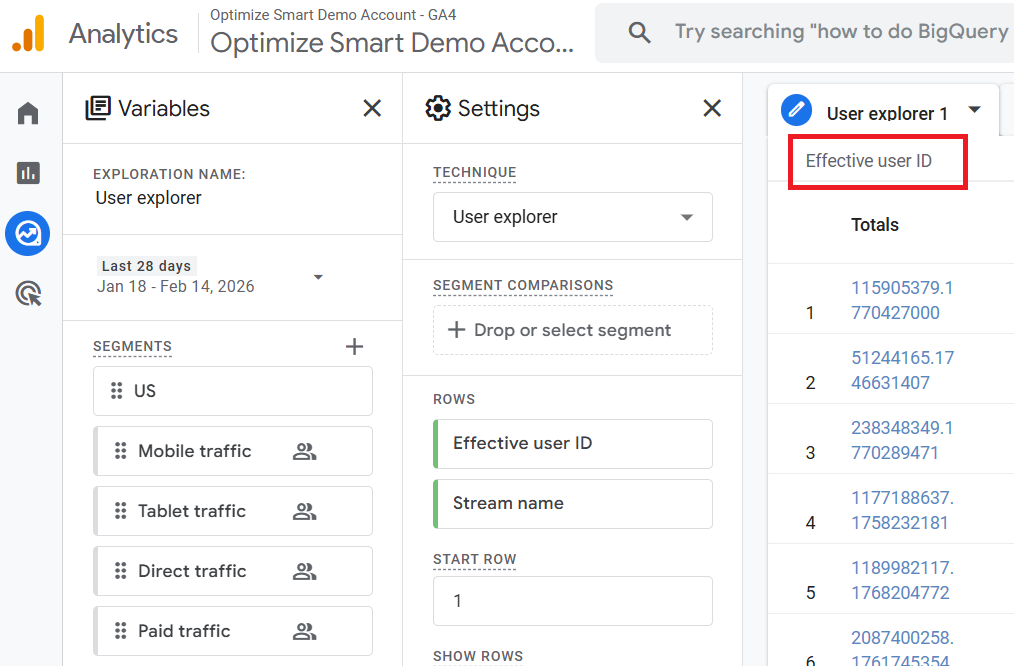
There you would find a dimension called ‘Effective User ID’:
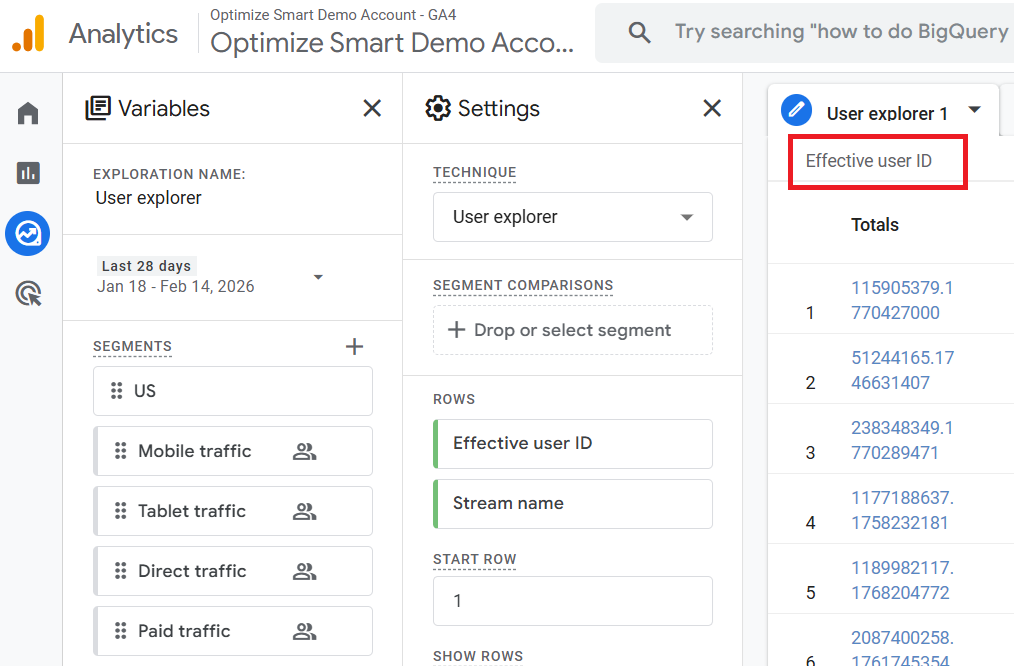
This dimension reports the User ID if available. Otherwise, it reports on the Device ID.
The Device ID is either the app instance ID for a mobile app or the client ID for a website.
So, when you look at the values of this dimension, you can see both the user IDs and device IDs.
GA4 does not allow you to use the ‘Effective User ID’ dimension in the dimension filter.
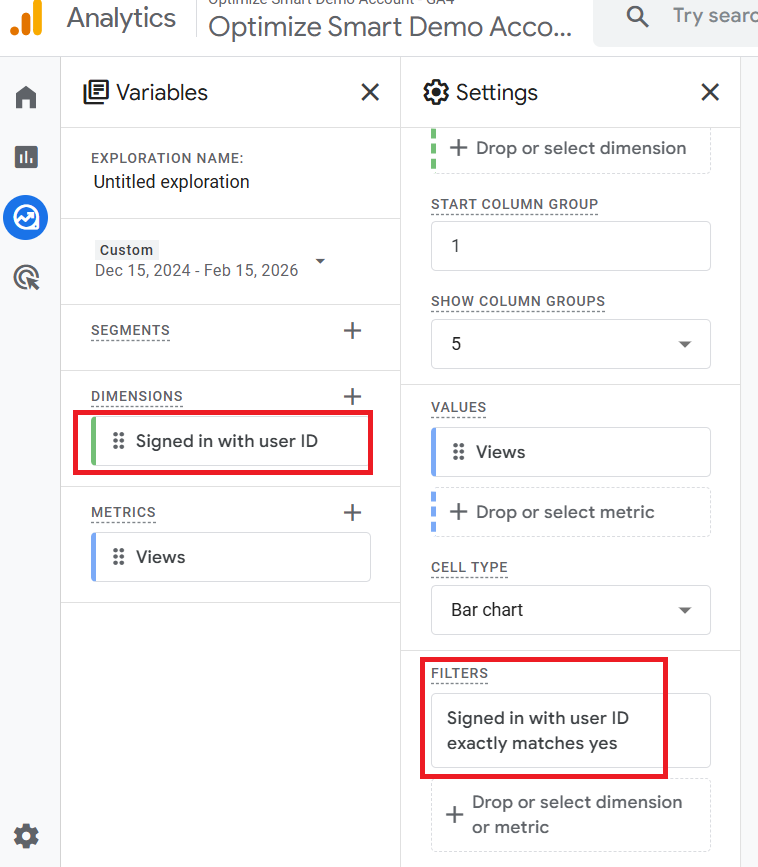
So you will have to use another dimension called ‘Signed in with user ID‘ while creating the reporting filter in the ‘user explorer’ report.
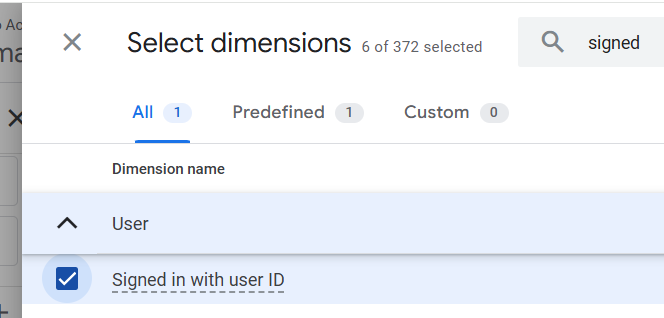
This dimension returns ‘yes’ if a user signed in with a user ID.
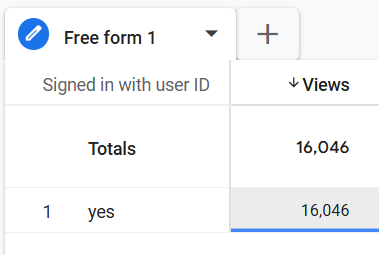
Use this dimension to filter out all the data related to user IDs.
What can you do with User IDs in GA4?
Using User-ID, you can:
- Compare signed-in and non-signed-in users
- View detailed information about users.
- Monitor and understand user behaviour.
- Create Remarketing Audiences based on User-ID Data.
- Combine User ID data with first-party data in BigQuery.
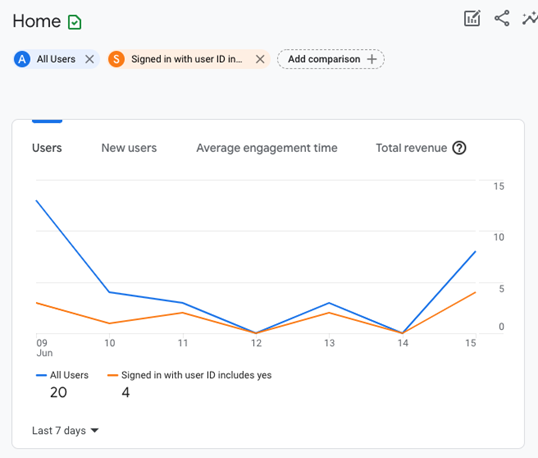
#1 Compare signed-in and non-signed-in users:
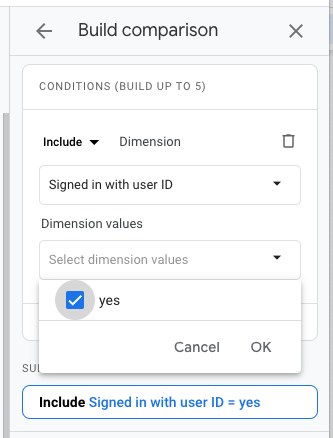
- Build a comparison using the “Signed in with user ID” dimension.
- Set the dimension value to “yes” to differentiate between users who are signed in and those who are not.
#2 View detailed information about users.
You can view detailed information about individual users, including acquisition details, summary metrics, and a timeline of their activities on your website or app.
#3 Monitor and understand user behaviour.
Monitor user properties in real-time, troubleshoot issues, and understand user behaviour on your website or app.
#4 Create Remarketing Audiences based on User-ID Data.
- You can create audiences for remarketing purposes using user ID data.
- If your GA4 and Google Ads accounts are linked, these audiences will be available in your Google Ads shared library.
#5 Combine User ID data with first-party data in BigQuery.
GA4 BigQuery Export includes both the Client ID (as user_pseudo_id) and the User ID (as user_id) in its schema, enabling detailed user-level analysis.
You can use BigQuery Export to combine your GA4 data with first-party data (like CRM data) for measuring offline conversions.
Additional Points:
- When using User-ID, GA4 only includes the user identifier and the device identifier for the last device used by each logged-in user.
- Without User-ID, GA4 includes all device and user identifiers in the audience information sent to Google Ads.
How GA4 handles sessions when the User ID feature is turned on.
GA4 manages sessions where User-ID isn’t immediately available in the following way:
Before a User Signs In:
- If a user interacts with your website or mobile app before signing in, GA4 initially tracks these actions using a session ID.
- Once the user signs in, GA4 links the session (including previous events) to the user ID provided at sign-in.
After a User Signs Out:
When a user signs out, GA4 stops linking any new events to their user ID.
For example, consider the following scenario:
- A user visits your website and triggers two events (Event 1 and Event 2) without a user ID.
- The user signs in, triggering another event (Event 3).
- At this point, all three events (Events 1, 2, and 3) are connected to the user’s ID.
- If the user signs out and triggers another event (Event 4), this new event won’t be associated with the user ID. However, Events 1, 2, and 3 will still be linked to that user.
Difference between GA4 User ID and Client ID.
In the context of GA4, ‘Client ID’ and ‘User ID‘ are not one and the same thing.
The following are the key differences between ‘Client ID’ and ‘User ID’:
Difference #1.
Client ID represents a unique combination of browser and device used to access your website.
A User ID represents a unique identifier for a user, typically obtained from a login system. Thus, a User ID represents a unique user.
Difference #2.
Client ID is created and assigned by the GA4 cookie _ga.
User IDs are created and assigned by people like you and me.
Difference #3.
The Client ID is assigned to a unique browser-device pair, not necessarily a unique user of your website.
User IDs are generally assigned only to logged-in users.
Difference #4.
A Client ID is made up of a unique random number and the first timestamp (i.e. the time of the first visit). For example: 124562358.46738999.
User ID is made up of alphanumeric characters. It does not include the first timestamp. For example: df45346424
Difference #5.
A Client ID can exist only on the device/browser on which it has been set up. Because of this attribute, it cannot be used to measure across devices.
User ID can exist across devices and browsers. Because of this attribute, a User ID can be used to measure across devices.
Difference #6.
Client ID cannot accurately identify the number of unique users, as a unique user can be counted multiple times when they switch devices/browsers.
User ID can more accurately identify the number of unique users of your website, as a unique user is counted only once, even if they switch devices/browsers.
Difference #7.
Using a client ID creates attribution issues as it exists only on the device/browser on which it was set up.
Thus, you can’t attribute user engagement spread across multiple devices and sessions to a single user in your GA4 reports.
Using a User ID helps resolve attribution issues because it persists across devices/browsers.
Thus, you can attribute user engagement spread across multiple devices and browsers to a single user in your GA4 reports.
Difference #8.
On a single device/browser, a client ID can provide a better picture of the customer purchase journey than a User ID, as through the client ID feature, you can track users and their activity from the very first time they visit your website.
Through the User ID feature, you can’t track users and their activity from the very first time they visit your website until they decide to sign up and log in.
Understanding Client ID in GA4.
The Google Analytics Client ID is a combination of a unique random number and the first timestamp (i.e. the time of the first visit).
Example of a client ID: 1368576646.1596648643
A Client ID represents a unique browser-device pair and is created and assigned by GA4 cookie _ga.
This cookie is tied to the specific browser and device combination used to access your website.
This means that if a single user visits your site from different devices (phone, laptop, etc.) or browsers (Chrome, Firefox, etc.), they will be assigned a separate Client ID for each browser-device combination.
The _ga cookie is made up of the following four fields:
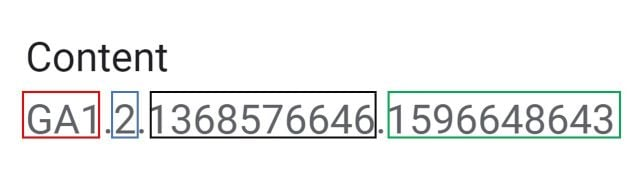
The first field is the current version number of the cookie, like GA1.
The second field is the number of components at the domain, separated by a dot.
The _ga cookie is set on the top-level domain with the root level (/) path by default.
So if you have set a cookie at the top-level domain like optimizesmart.com then the second field would have a value of 2 as there are 2 components separated by a dot. One component is ‘optimizesmart’ and the second component is ‘com’.
Similarly, if you have set up a cookie at the sub-domain level, like analytics.optimizesmart.com, then the second field would have a value of 3 as there are now three components separated by a dot. The first component is ‘analytics’. The second component is ‘optimizesmart’. The third component is ‘com’
The third field is a random unique ID (a randomly generated number). Here, 1368576646 is the random unique ID.
The fourth field is the first timestamp, i.e., when the cookie was first set for the user. Here, 1596648643 is the first timestamp.
The third and fourth fields together make the client ID.
So, the client ID would be 1368576646.1596648643
GA4 uses Client ID to identify users as new and returning.
GA4 uses Client ID to identify each user of your website.
When someone visits your website, GA4 checks for the presence of the _ga cookie, which stores the Client ID.
If the cookie is found and the Client ID is valid, GA4 recognises the user as returning and starts a new session for that specific browser-device pair.
If the cookie is missing or the Client ID is invalid (e.g., expired cookie, cleared browsing data), GA4 assumes it is a new user and generates a new Client ID for this browser-device combination.
The key thing to remember is that the Client ID is tied to the browser-device pair. A user with multiple devices will have a separate Client ID for each device.
Therefore, GA4 might not be able to capture a single user across different browsers/devices.
You will need to implement User IDs to identify unique users across devices.
Finding client ID via Google Developer Console.
Follow the steps below:
Step-1: Navigate to a web page on your website.
Step-2: Right-click on the web page and then select ‘Inspect’:
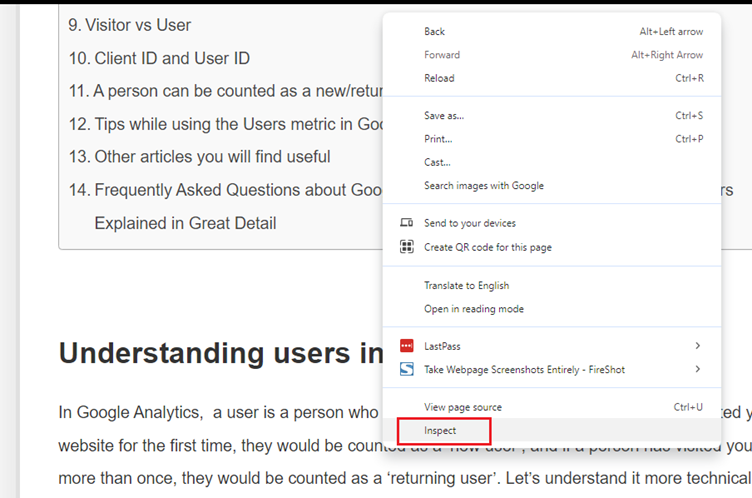
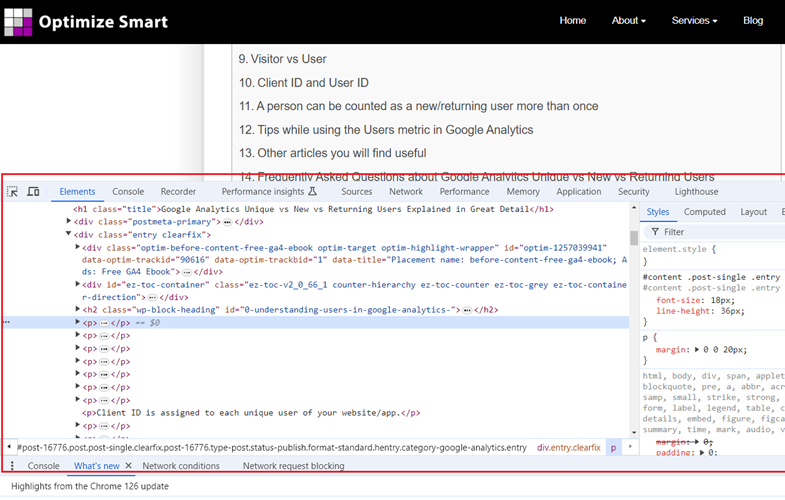
You should now see the developer console window like the one below:
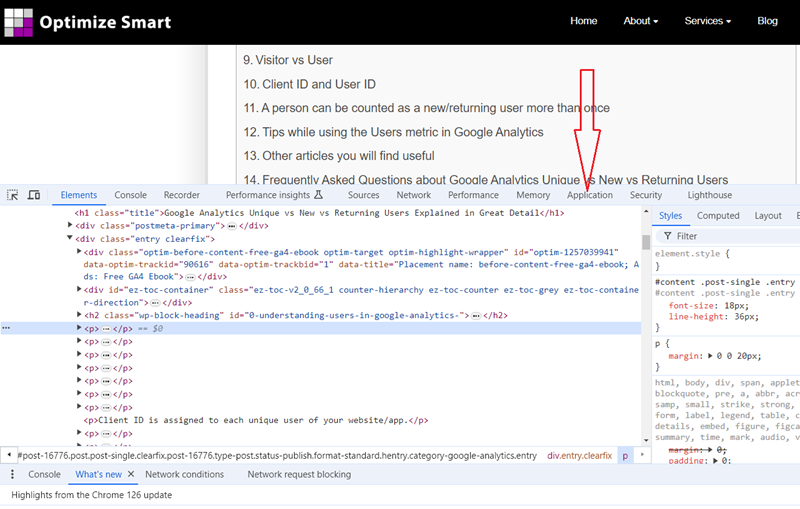
Step-3: Click on the ‘Application’ tab:
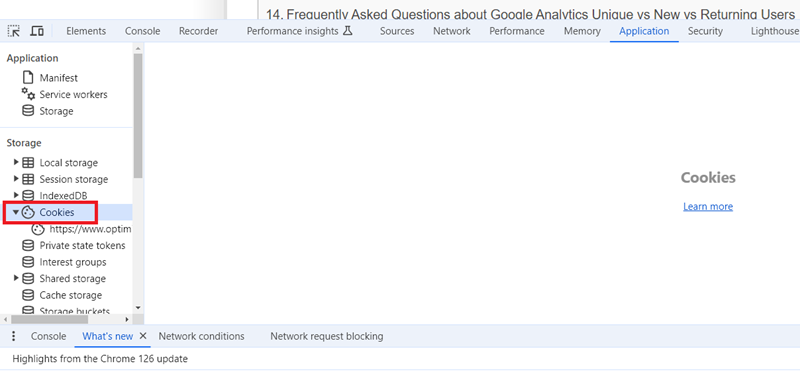
Step-4: Expand the ‘Cookies’ dropdown under the ‘Storage’ section:
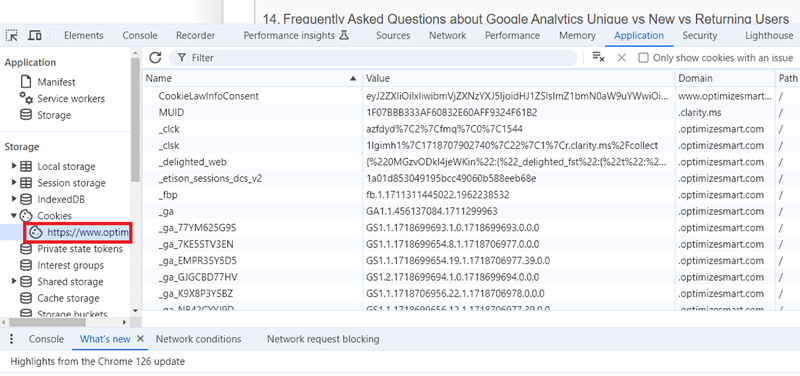
Step-5: Click on your domain name to see the list of cookies installed by it:
Step-6: Look at the value of the cookie named ‘_ga’. This value contains the client ID:
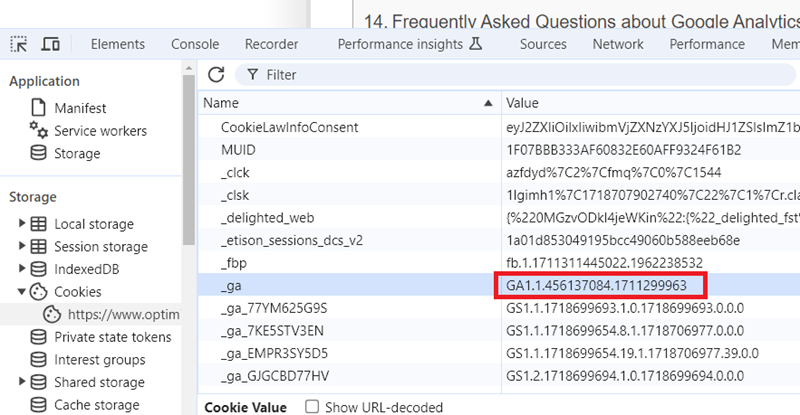
The value of _ga cookie is: GA1.1.456137084.1711299963
Here, the client ID is: 456137084.1711299963
That’s how you can find the client ID via the Google Developer Console.
Finding client ID in a GA4 property
If you are tracking only the web data stream in your GA4 property and not tracking user IDs, then you can use the dimension ‘Effective user ID’ to find the client IDs.
Follow the steps below to find client IDs in your GA4 property:
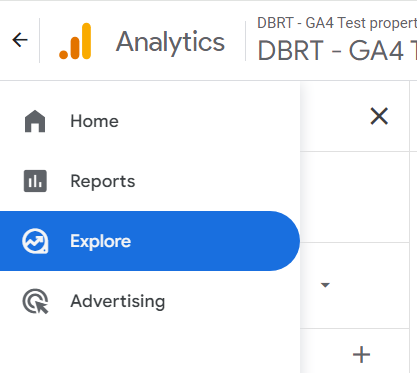
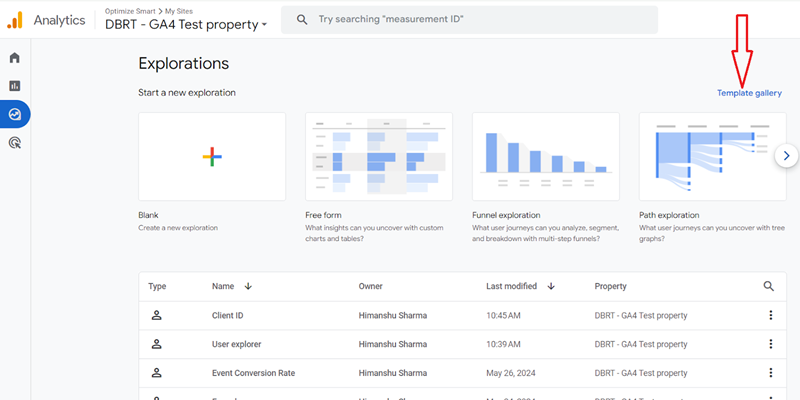
Step-1: Login to your GA4 property and click on ‘Explore’:
Step-2: Click on the ‘Template Gallery’ link to see a full list of all the exploration report templates available.
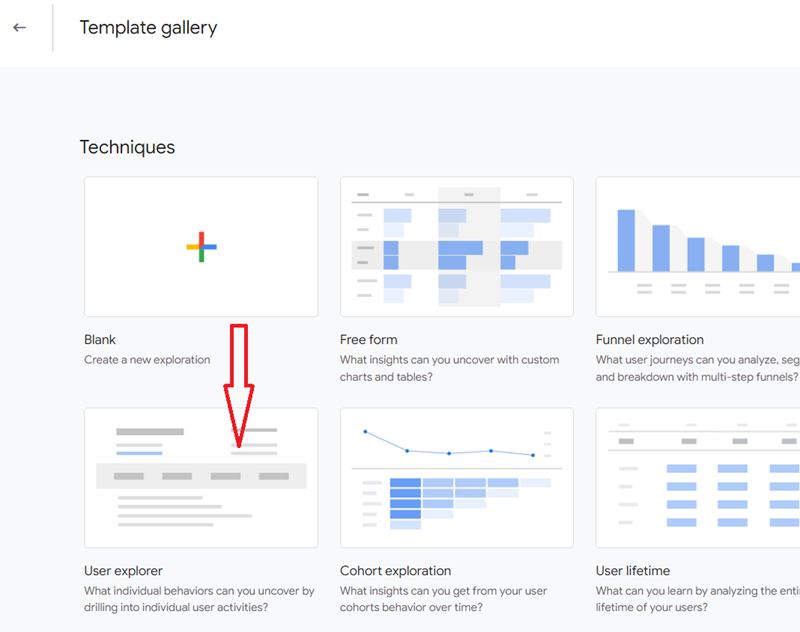
Step-3: Click on ‘User Explorer’:
You should now be able to see the list of client IDs as the values of the ‘Effective user ID’ dimension:
Note: If you are tracking both web and app data streams or tracking user IDs, then the ‘Effective user ID’ dimension will not report only on client IDs.
This is because the ‘Effective user ID’ dimension uses the User ID if one is available; otherwise, it uses the Device ID. The Device ID is either the ‘app instance ID’ for a mobile app or the ‘client ID’ for a website.
You will need to use Google Tag Manager to send client IDs to your GA4 property.
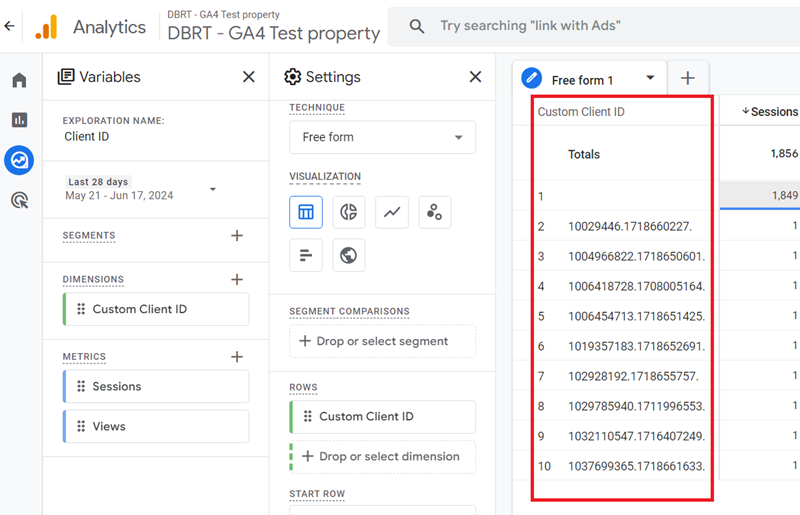
For more details on sending Google Analytics Client ID via GTM (Google Tag Manager), check out this article: GA4 User Properties (User Scoped Custom Dimensions) – Tutorial.
Other Articles on GA4.
- Tracking New, Qualified and Converted Leads in GA4.
- Free GA4 training and tutorial with Certification.
- Understanding GA4 Ecommerce Reports (Monetization Reports).
- GA4 Ecommerce Tracking via GTM: Step-by-Step Setup Guide.
- How to see UTM parameters in GA4 (Google Analytics 4).
- GA4 UTM parameters not working? Here is how to fix it.
- How To Use UTM parameters in GA4 (Campaign Tracking).
- How to track AI traffic in GA4.
- Understanding Google Analytics 4 cookies – _ga cookie.
- GA4 (Google Analytics 4) Measurement Protocol Tutorial.
- GA4 Unassigned Traffic: Causes and How to Fix it Fast.
- GA4 Regex (Regular Expressions) Tutorial.
- GA4 Direct Traffic Spike: Common Causes and How to Fix Them.
- gtag.js – Google Tag in Google Analytics 4 and beyond.
- GA4 Scopes – User, Session, Event & Item scopes.
- GA4 Conversion Tracking (Key Events) Tutorial.
- GA4 (not set) - Guide to fixing (not set) issue.
- GA4 Certification Exam: Questions, Answers for Skillshop (GAIQ).
- GA4 User Properties (User Scoped Custom Dimensions) – Tutorial.
- Tracking Organic Traffic in GA4 - Complete Guide.
- Tracking Events in GA4 (Google Analytics 4).
- GTM Server Side Tagging - Setup Guide.
- Using Subfolder for GTM Server Side Tagging (Same Origin Tracking).
- Understanding Event Parameters in Google Analytics 4 (GA4).
- How to Uninstall GTM Server Side Tagging.
- How to remove (other) in GA4 reports and avoid Cardinality.
- Creating GA4 Assistant via Claude for your customers.
- How To Set Up User ID in GA4 - Cross Device Tracking.
- GA4 Mobile App Tracking - Firebase Integration.
- How to use DebugView report in Google Analytics 4 (GA4).
- How to Track Phone Calls in Google Analytics 4.
- How to detect GTM Server Side Tagging.