

Event parameters in Google Analytics 4 (GA4) are additional information about an event that is sent along with the event.
There are three types of event parameters in GA4.
- Automatically collected parameters.
- Custom parameters.
- User properties.
Automatically collected parameters.
Some parameters are automatically collected by GA4. Such parameters are called automatically collected parameters.
For example, by default, GA4 records the following parameters with every event:
- language
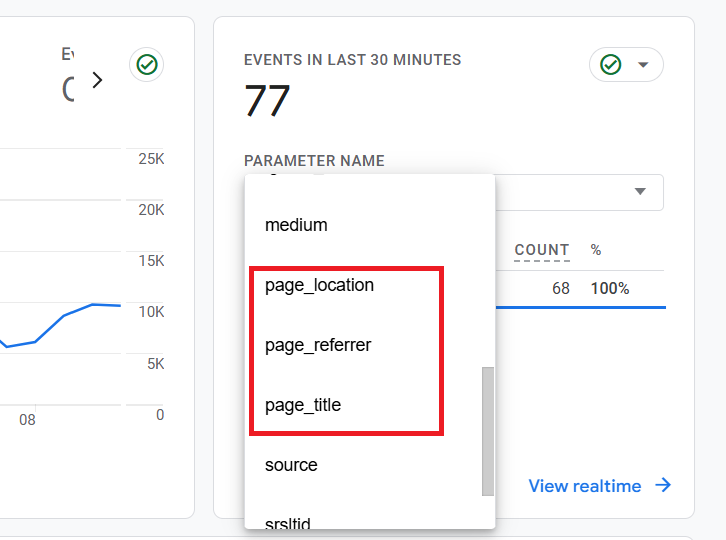
- page_location
- page_referrer
- page_title
- screen_resolution

How to see automatically-collected parameters in GA4 reports
Follow the steps below:
Step-1: Navigate to your GA4 reporting view.
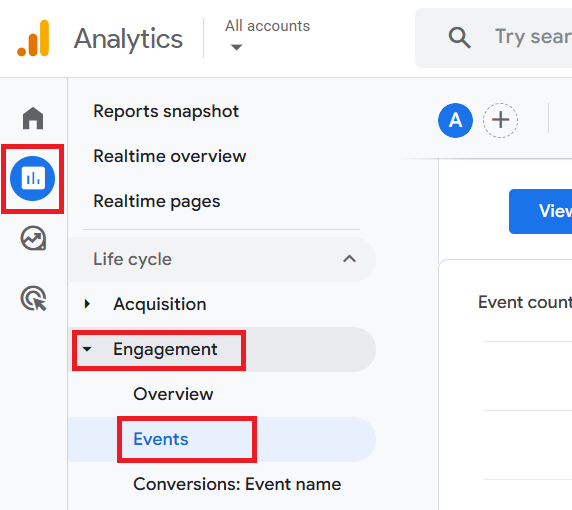
Step-2: Navigate to ‘Reports’ > ‘Engagement’ > ‘Events’:
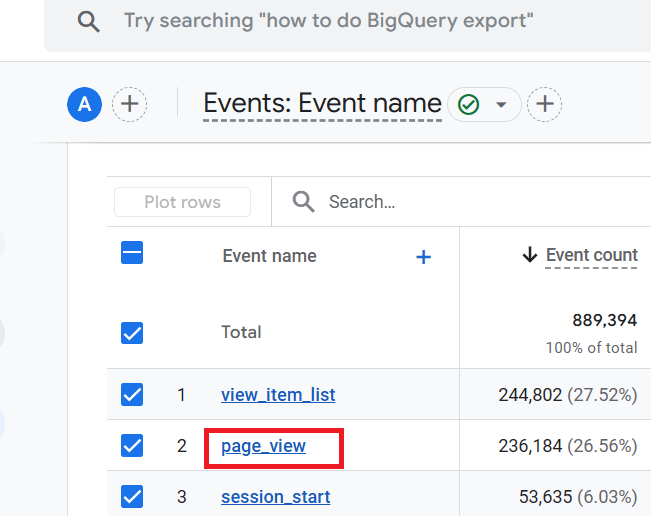
Step-3: Scroll down the ‘Events’ report and then click on an event name. Let’s click on the ‘page_view’ event:
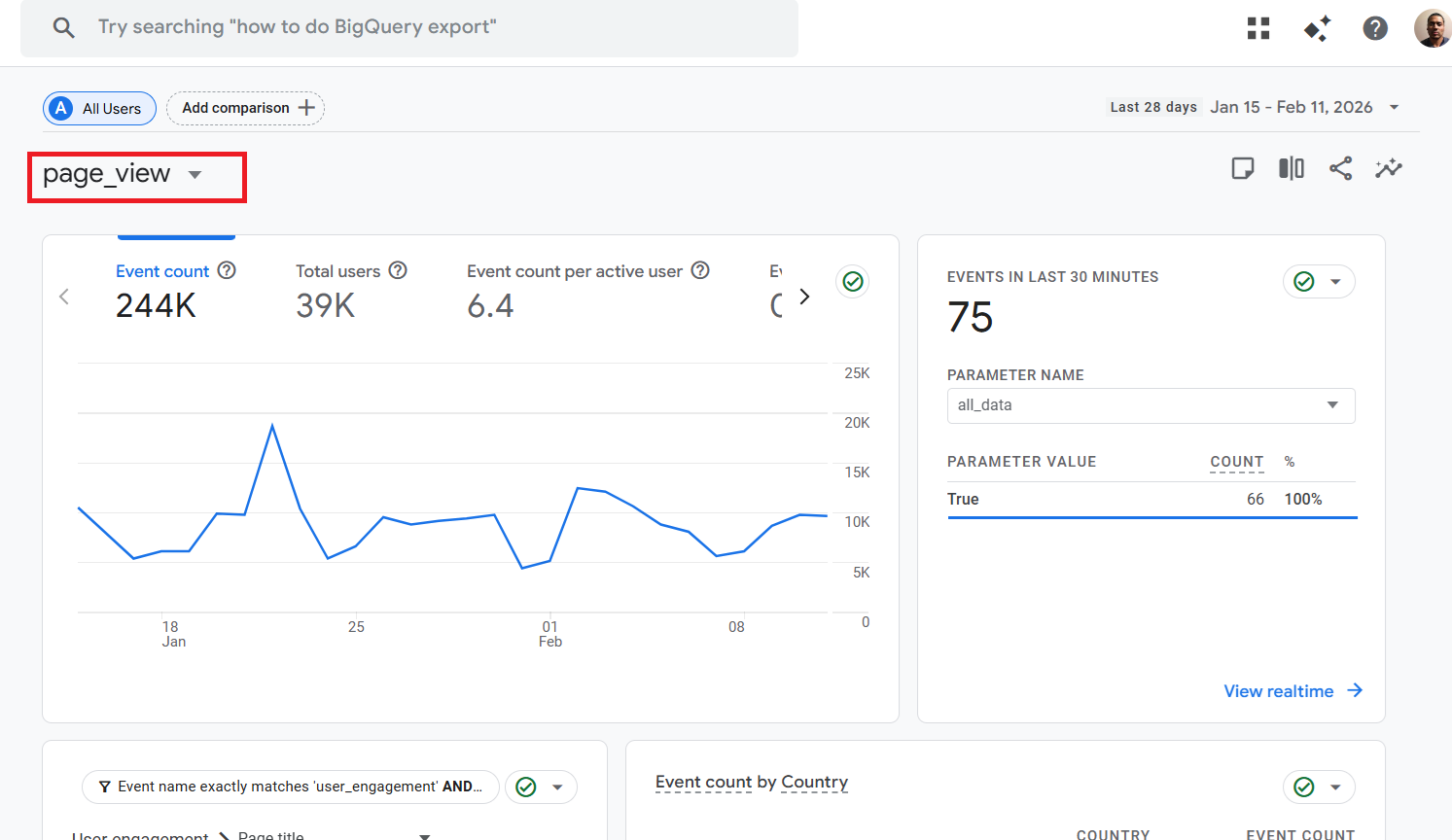
You should now see the detailed report about the ‘page_view’ event:
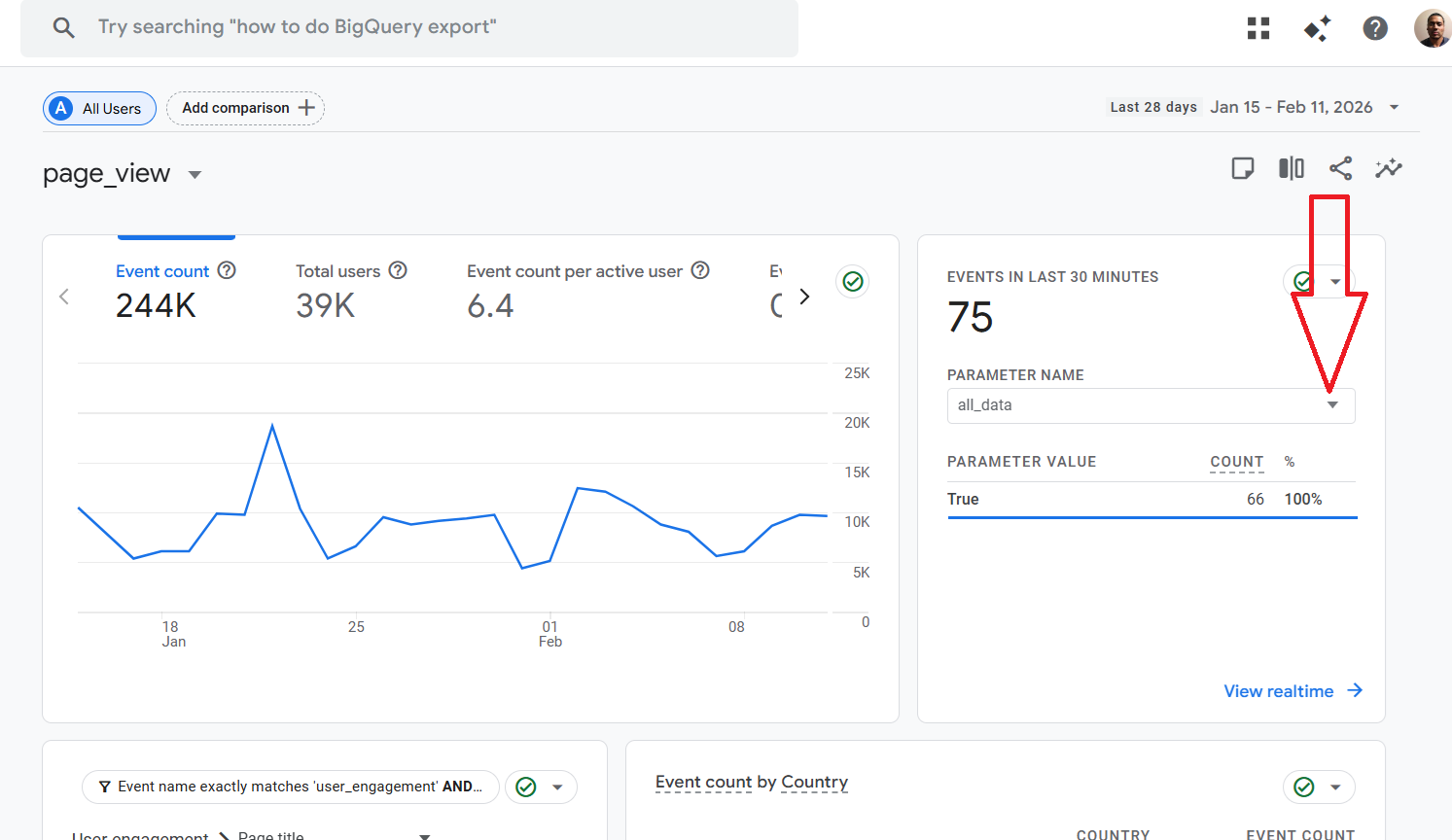
Step-4: Find and click on the ‘PARAMETER NAME’ drop-down menu on the right-hand side:
Step-5: Scroll down the drop-down list, and then you should be able to see all the automatically collected parameters:
Custom parameters.
You can also manually send one or more parameters along with an event via GTM. Such parameters are called ‘Custom parameters’.
There are two types of custom parameters:
- Text parameters
- Number parameters
#1.1 Text parameters.
The value of such parameters is not a number.
You can register text parameters as custom dimensions in the GA4 user interface. But you should not register them as custom metrics.
If you want to use text parameters in your GA4 reports, you need to register them as custom dimensions in the GA4 user interface.
#1.2 Number parameters.
The value of such parameters is a number.
You can register number parameters as custom metrics in the GA4 user interface. But you should not register them as custom dimensions.
If you want to use number parameters in your GA4 reports, you need to register them as custom metrics in the GA4 user interface.
Note: Event category, Event action, Event label and Event Value parameters are used in GA3 but not in GA4. However, you can still pass such information about an event in GA4. You just don’t use the ‘category-action-label-value‘ format in GA4.
User properties.
User properties are like user-scoped custom dimensions of Universal Analytics. They are used to describe the attributes of your website/app users.
There are two types of user properties:
- Predefined user properties.
- Custom user properties.
#3.1 Predefined user properties.
These are automatically collected user properties.
You don’t need to write any special code or add a tag to collect such user properties.
You also don’t need to register them in the GA4 user interface before you can use them in your reports.
The following are examples of predefined user properties:
- Age
- Country
- Gender
- Interests
- Language
- Device category etc.
#3.2 Custom user properties.
These are the user properties defined by you.
You would need to register them in the GA4 user interface before using them in your reports.
Note: You can create up to 25 unique user properties per GA4 property.
To learn more about user properties, check out this article: GA4 User Properties (User Scoped Custom Dimensions) – Tutorial.
Best practice for naming custom events and parameters.
Use lower case for event/parameter names. And if your name has got two or more words, then separate the words by an underscore.
For example:
- webinar_signups (instead of Webinar Signups).
- excel_chart_optins (instead of Excel Chart options).
- website_leads (instead of website-leads).
The following event names are reserved and cannot be used as the name of custom events:
- ad_activeview
- ad_click
- ad_exposure
- ad_impression
- ad_query
- adunit_exposure
- app_clear_data
- app_install
- app_update
- app_remove
- error
- first_open
- first_visit
- in_app_purchase
- notification_dismiss
- notification_foreground
- notification_open
- notification_receive
- os_update
- screen_view
- session_start
- user_engagement
The following parameter name is reserved and cannot be used as a name for custom parameters:
- firebase_conversion.
Your parameter names can not begin with:
- google_
- ga_
- firebase_
Best practice for naming user properties.
The following user property names are reserved and cannot be used as the names for custom user properties:
- first_open_time
- first_visit_time
- last_deep_link_referrer
- user_id
- first_open_after_install
Your user property names can not begin with:
- google_
- ga_
- firebase_
Accessing the values of event parameters in GA4 reports.
Create a custom dimension or custom metric to access the different values assigned to an event parameter in your GA4 reports.
If the value of an event parameter represents categorical data (like product categories, user types), then register the event parameter as a custom dimension.
If the value of an event parameter represents numerical data (like purchase value, session duration), then register the event parameter as a custom metric.
Limits to consider for event parameters.
There are limits to consider regarding event parameter names and values:
- You can have up to 25 parameters per event.
- Parameter names are limited to 40 characters.
- Parameter values are limited to 100 characters (with exceptions for specific parameters).
Note(1): Specific event parameters like ‘page_location’, ‘page_referrer’, and ‘page_title’ have higher limits for their values.
- ‘page_location’ parameter – 1,000 character limit
- ‘page_referrer’ parameter – 420 character limit
- ‘page_title’ parameter – 300 character limit
Note(2): GA4 won’t log (i.e. record) events and event parameters that exceed the aforementioned limits.
When setting up a custom event parameter, it is essential to consider the range of potential values that can be assigned to it.
Let’s say you’re tracking product views on an e-commerce website and create a custom event called “product_viewed“.
You might include the following parameters:
- product_id.
- product_category
- product_price
product_id: A unique identifier for each product.
This parameter can have a large number of distinct values, depending on the size of your product catalogue.
This could be an example of a high-cardinality parameter (with more than 500 possible values), which can negatively impact report performance (e.g., by introducing the (other) row or by causing data sampling) if used as a custom dimension.
product_category: The category the product belongs to (e.g., electronics, clothing, home goods).
This parameter has a limited set of possible values (e.g., electronics, clothing, home goods). It is suitable for creating a custom dimension to analyse product performance by category.
product_price: The price of the product.
This parameter stores numeric data and is ideal for creating a custom metric to calculate the average product price or total revenue.
How to send an event along with a parameter to GA4?
Let’s track clicks on a button as an event and then send this custom event to GA4 via GTM.
Let’s also pass the button caption as additional information, along with the event, via a parameter.
This exercise will help you better understand the concept of events and parameters.
Follow the steps mentioned in this article: Tracking Events in GA4 (Google Analytics 4) >> Setting up GA4 Custom event via Google Tag Manager.
Measurement protocol and event parameters.
The measurement protocol is a set of rules that your application must follow to send event data directly to the Google Analytics servers from any device/system connected to the internet.
A basic understanding of how the measurement protocol works can greatly help you interpret event parameters.
You can find more details about the measurement protocol from here: GA4 (Google Analytics 4) Measurement Protocol Tutorial.
Other Articles on GA4.
- Tracking New, Qualified and Converted Leads in GA4.
- Free GA4 training and tutorial with Certification.
- Understanding GA4 Ecommerce Reports (Monetization Reports).
- GA4 Ecommerce Tracking via GTM: Step-by-Step Setup Guide.
- How to see UTM parameters in GA4 (Google Analytics 4).
- GA4 UTM parameters not working? Here is how to fix it.
- How To Use UTM parameters in GA4 (Campaign Tracking).
- How to track AI traffic in GA4.
- Understanding Google Analytics 4 cookies – _ga cookie.
- GA4 (Google Analytics 4) Measurement Protocol Tutorial.
- GA4 Unassigned Traffic: Causes and How to Fix it Fast.
- GA4 Regex (Regular Expressions) Tutorial.
- GA4 Direct Traffic Spike: Common Causes and How to Fix Them.
- gtag.js – Google Tag in Google Analytics 4 and beyond.
- GA4 Scopes – User, Session, Event & Item scopes.
- GA4 Conversion Tracking (Key Events) Tutorial.
- GA4 (not set) - Guide to fixing (not set) issue.
- GA4 Certification Exam: Questions, Answers for Skillshop (GAIQ).
- GA4 User Properties (User Scoped Custom Dimensions) – Tutorial.
- Tracking Organic Traffic in GA4 - Complete Guide.
- Tracking Events in GA4 (Google Analytics 4).
- GTM Server Side Tagging - Setup Guide.
- Using Subfolder for GTM Server Side Tagging (Same Origin Tracking).
- Understanding Event Parameters in Google Analytics 4 (GA4).
- How to Uninstall GTM Server Side Tagging.
- How to remove (other) in GA4 reports and avoid Cardinality.
- Creating GA4 Assistant via Claude for your customers.
- How To Set Up User ID in GA4 - Cross Device Tracking.
- GA4 Mobile App Tracking - Firebase Integration.
- How to use DebugView report in Google Analytics 4 (GA4).
- How to Track Phone Calls in Google Analytics 4.
- How to detect GTM Server Side Tagging.