

What is phone call tracking in GA4?
In GA4, “phone call tracking” means treating call‑related actions as events so you can report on and optimise them like any other conversion.
Examples of call‑related actions you might track in GA4 include:
- Clicking a phone number link on your website (a tel: link or call button).
- Tapping a click‑to‑call CTA in a mobile header or sticky bar.
- Calling a tracking number shown on a landing page (via dynamic number insertion).
- Calling a number shown in an ad extension (Google Ads call extension or call‑only ad).
- Using a click‑to‑call button inside a webchat or widget.
- Requesting a callback via a form, which then triggers an outbound call from your team.
- Completed inbound calls that meet certain criteria (e.g. answered, longer than X seconds, marked as a lead).
- Missed or abandoned calls (rings but isn't answered, or drops quickly).
Phone call tracking in GA4 is not a special built‑in feature.
It’s a manual setup where you (and/or a call-tracking software) send one or more events representing call-related actions, then use those events in your GA4 reports.
When your call tracking software integrates with your GA4 property, you can automatically import phone call data into the GA4 property.
Once you have imported the call data into GA4, you can then correlate the call data with your website usage metrics (sessions, page views, traffic sources, traffic medium, etc.).
This way, you can use phone call data to optimise your online marketing campaigns.

Who really needs phone call tracking and why?
Phone call tracking is especially useful for websites that are set up primarily to generate leads by phone.
This is quite common for websites that sell high-priced items like properties, cars, yachts, swimming pools, and consultation services.
You often need to get on a call with the prospect in order to close the sale.
Now, if you are running marketing campaigns for such websites, then you have to attribute phone calls to the correct traffic source.
Otherwise, you would not know which keyword or marketing channel resulted in a phone call or a sale.
Understanding exactly which marketing channels and keywords are driving phone calls is invaluable.
Attributing phone calls to the correct marketing channels/keywords lets you increase the budget for those that drive phone calls and reduce it for those that do not.
If phone calls are an important part of your lead/sales generation process, phone call tracking is one of the most effective ways to address your online and offline attribution issues.
For example,
If you are running TV ad campaigns, you can determine both the volume and quality of calls generated by TV ads and calculate ROI using your phone call tracking software.
If the ROI from TV ads turns out to be negative, you can then choose to make changes to your TV ads or shut down the whole campaign.
Similarly, attributing phone calls to the correct keywords means you are able to bid more aggressively on the keywords that work and reduce bids on the keywords that do not.
You need to treat phone calls as a marketing channel.
Just like organic search, paid search, and social media, a phone call is also a marketing channel.
Once you start treating phone calls as a marketing channel, you look into investing in it as a marketing channel.
You optimise it for conversions, and phone calls become an important part of your multi-channel funnel analysis.
A phone call conversion can be a sale or a lead resulting from a call. The percentage of phone calls which resulted in conversion is called the phone call conversion rate.
Here is how Phone Call Tracking works in general.
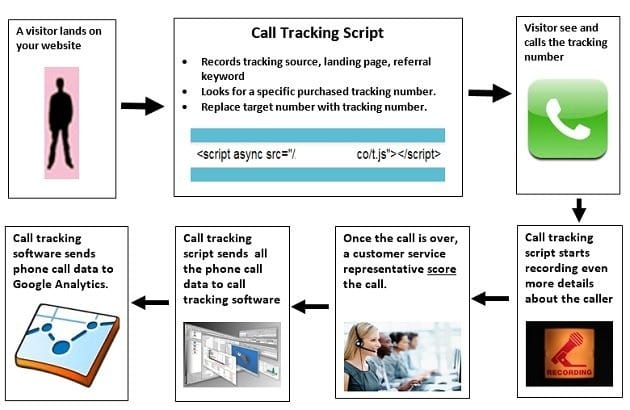
#1 As soon as a visitor lands on your website, the call tracking script (which is deployed on your website) records the following: Call tracking source (source of the phone call), Landing page and Keywords used (if any). The call-tracking source can be direct traffic, Google organic traffic, Google Ads traffic, Meta traffic, YouTube, TV ads, radio ads, print ads, etc.
#2 The call tracking script looks for the traffic source-specific tracking number, which you purchased in your call tracking account. If the script can find that number, it replaces the target number (the hardcoded number on your website) with the tracking number. For example:
- If a visitor lands on your website via Google organic search, then they may see a Google organic tracking number (i.e. the phone number meant for tracking calls from Google organic search traffic) instead of the phone number hardcoded on your website.
- If a visitor lands on your website via Google paid search (Google Ads), then they may see a Google Ads tracking number (i.e. the phone number meant for tracking calls from Google Ads traffic) instead of the phone number that is hardcoded on your website.
- Similarly, if a visitor lands on your website via Facebook, they may see the Facebook tracking number, the Direct traffic number (in the case of direct traffic), and so on.
#3 The visitor calls the tracking number (instead of the hardcoded phone number on your website), and the call-tracking script starts recording additional details about the caller (such as the actual phone conversation, call duration, etc.).
#4 Once the website visitor completes the call, your CSR (customer service representative) scores the call using your call tracking software.
#5 The call tracking script sends all the phone call data to the call tracking software.
#6 The call tracking software can then be used to send phone call data to third-parties like GA4, Google Ads, Meta Ads, Salesforce etc.
Note: Your phone call tracking software sends some (and not all) of the phone call data to your Google Analytics 4 property as events.
How to Track Phone Calls in Google Analytics 4 (GA4).
Follow the steps below:
#1 Sign up for the free 14 days trial of CallRail from here: https://www.callrail.com/
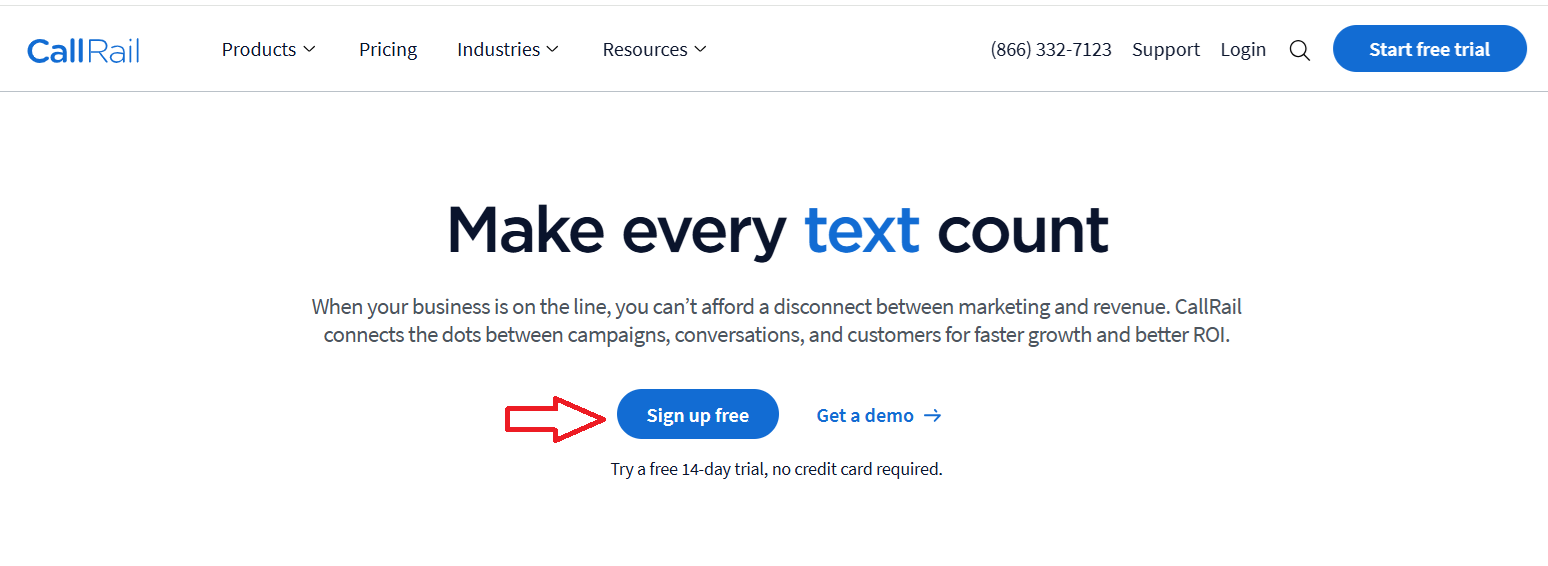
#2 Once you have signed up, verify your email address.
Note: CallRail currently supports call tracking in the US, Canada, UK and Australia. If you want to create tracking numbers in any country they serve outside the US or Canada, you must contact support to enable international features on your account.
#3 Navigate to https://app.callrail.com/
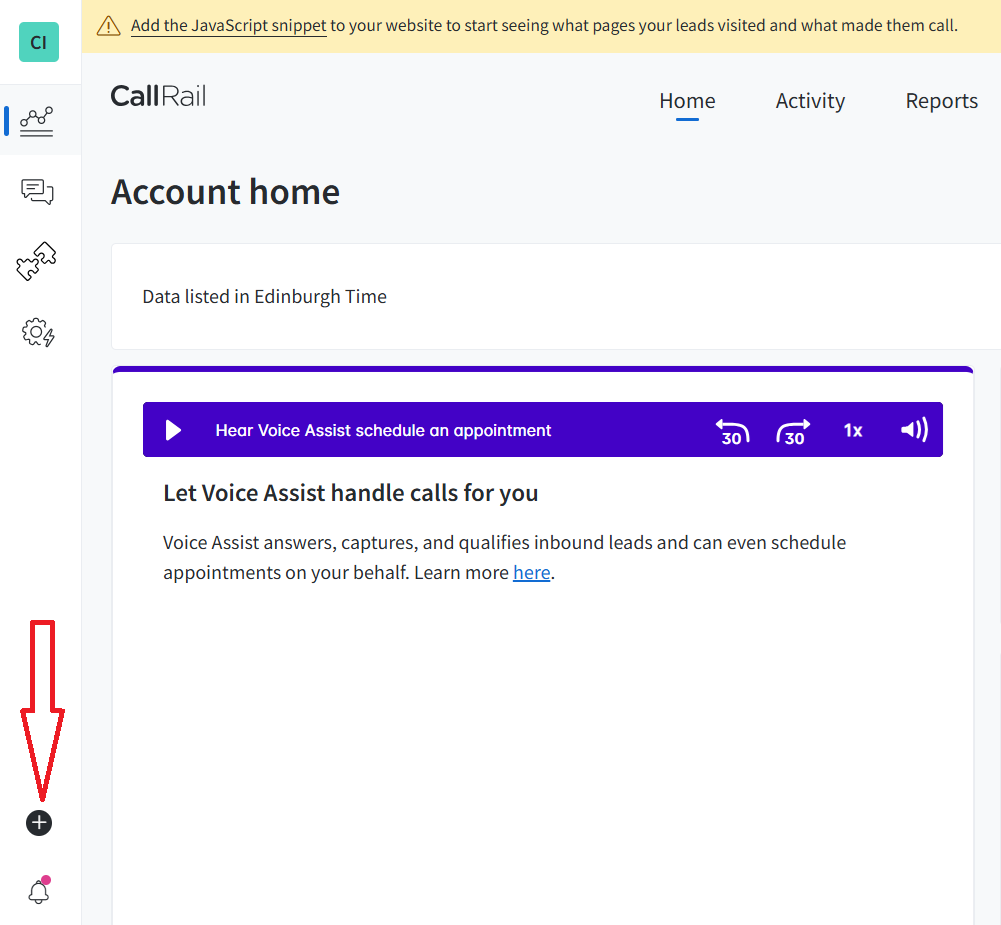
#4 Hover your mouse over the + button at the bottom left-hand corner of your screen:
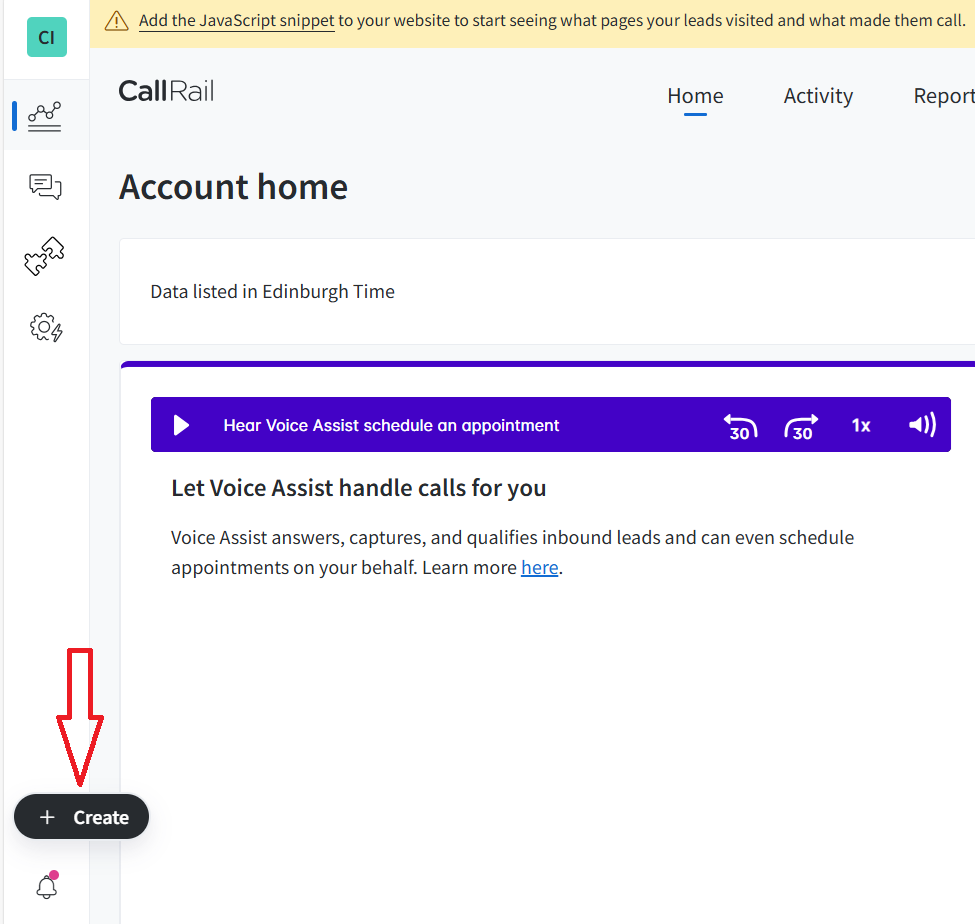
#5 Click on the ‘Create’ button:
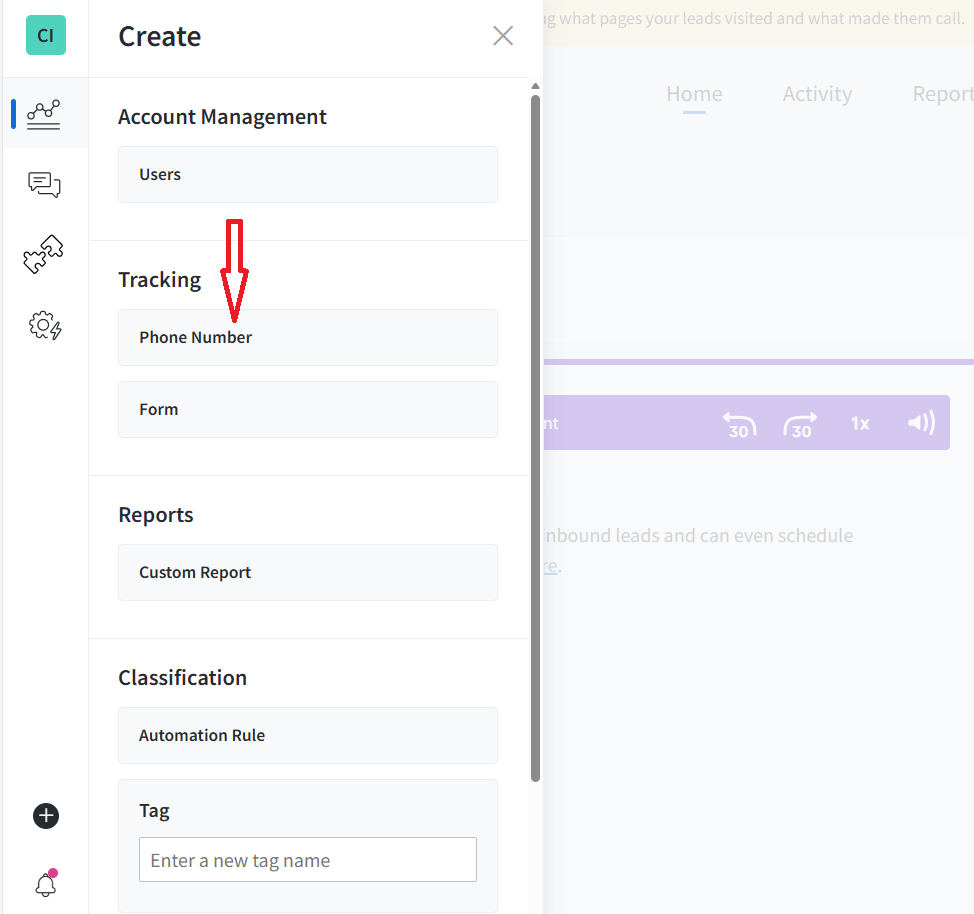
#6 Click on ‘Phone Number’:
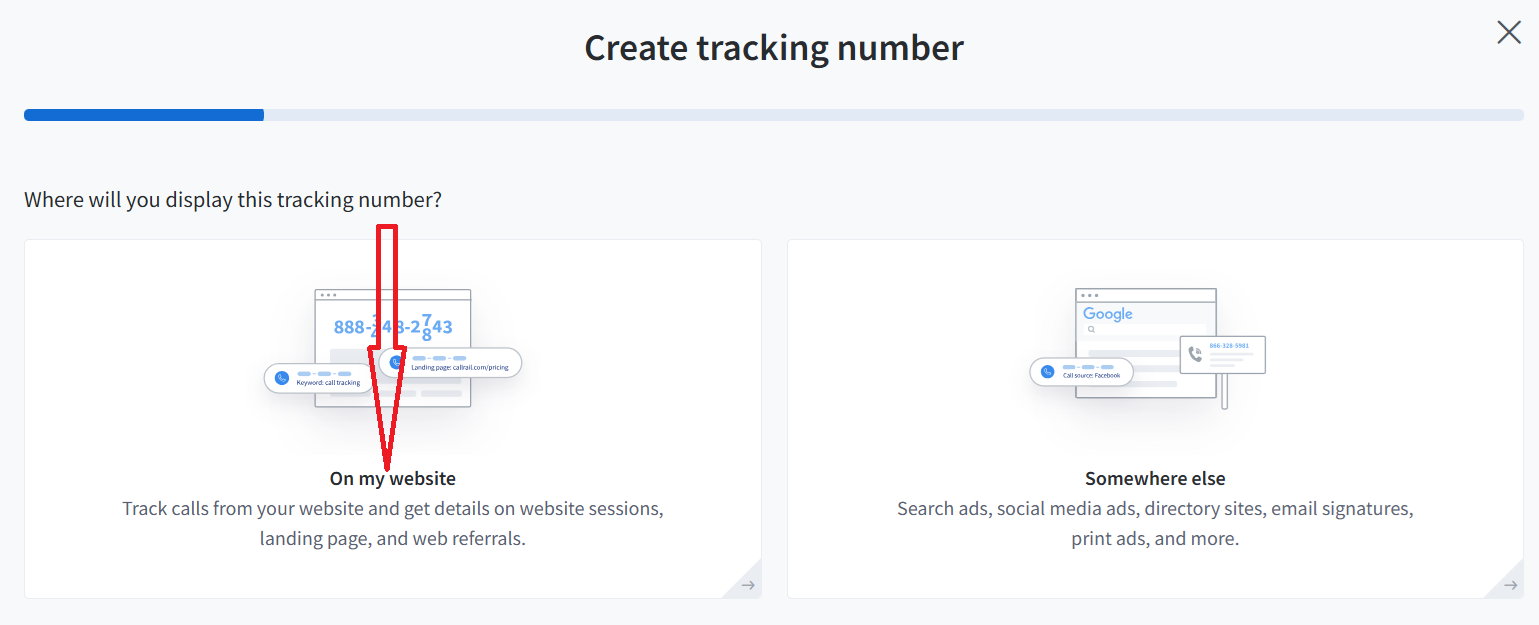
#7 Click on the ‘On my website’ button:
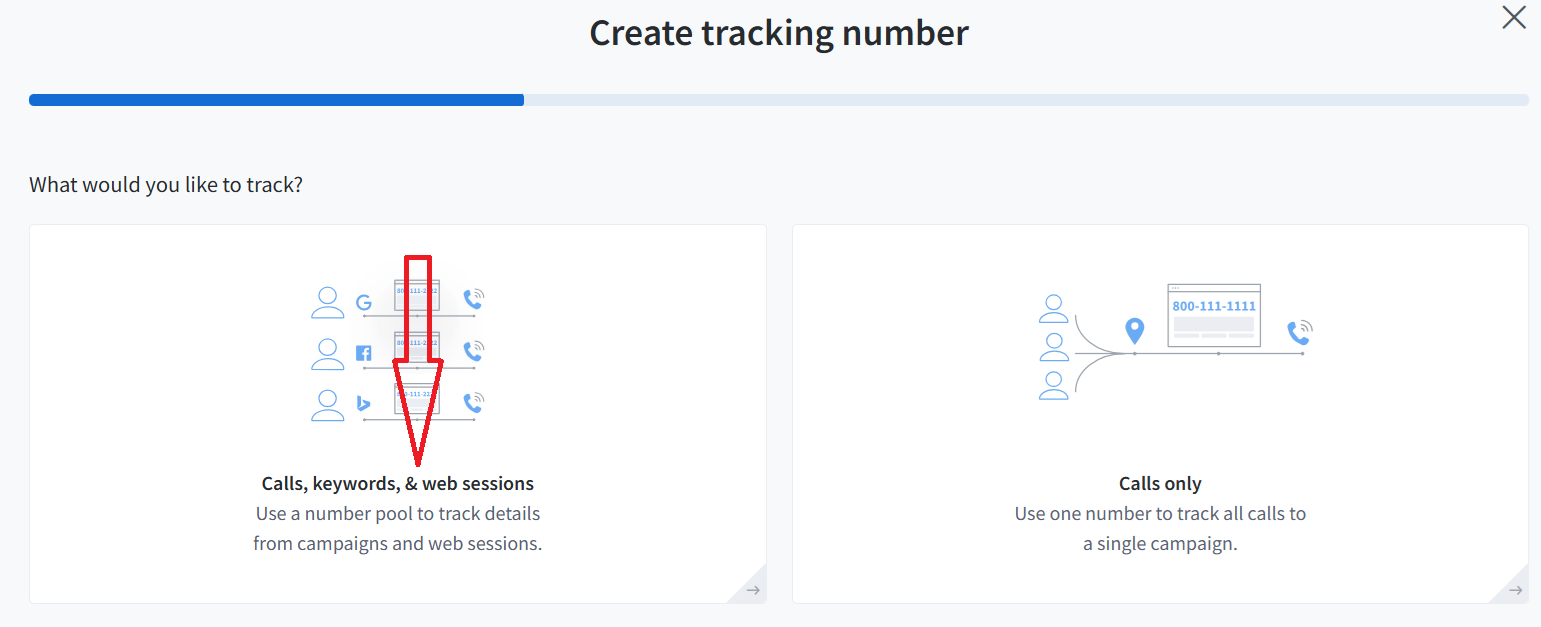
#8 Click on the ‘Calls, Keywords, & Web Sessions’ button:
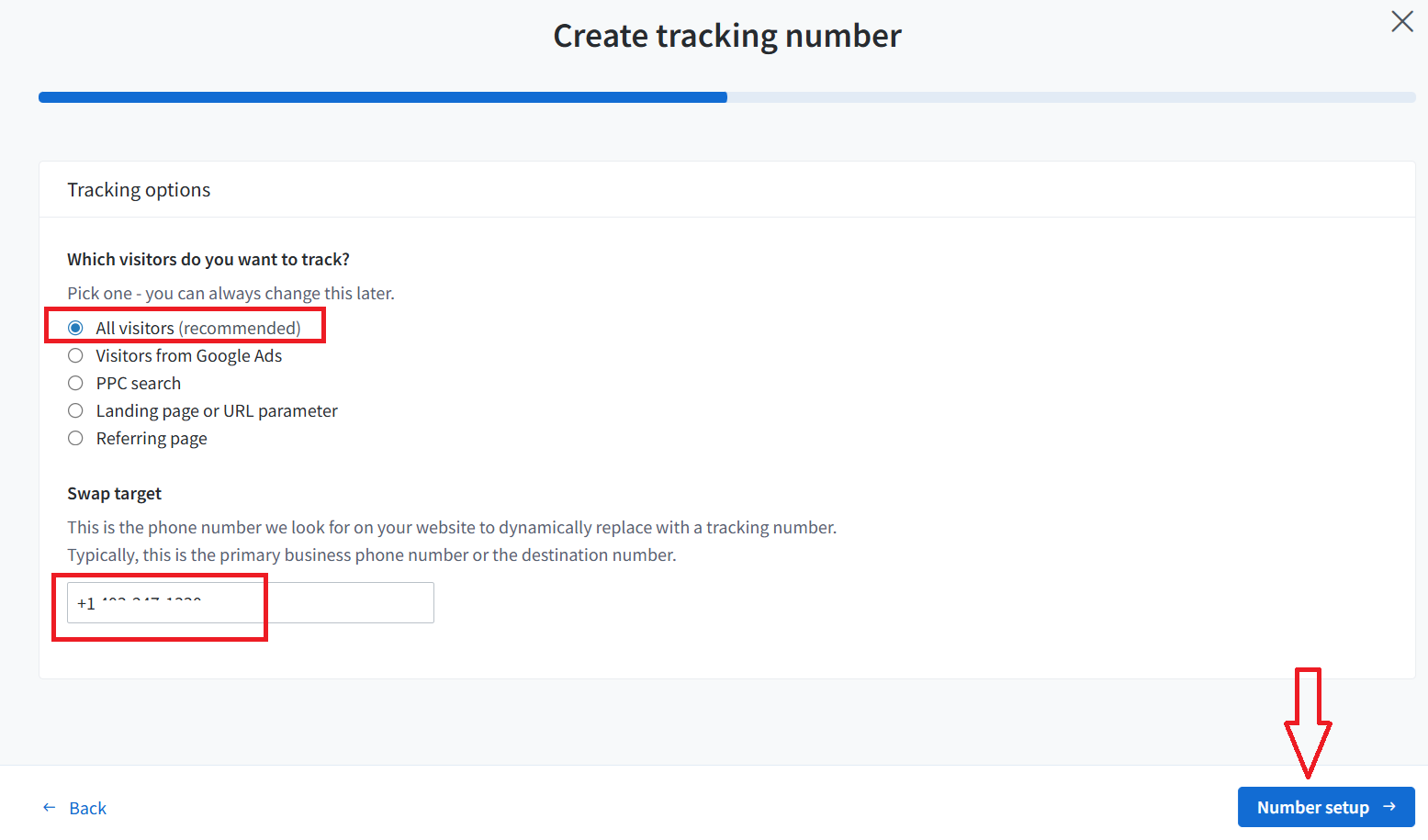
#9 Select which visitors you want to track, enter the phone number you want Call Rail to look for on your website to dynamically replace with a tracking number and then click on the ‘Number Setup’ button:
#10 Enter the website pool size (i.e. the number of tracking numbers you want):
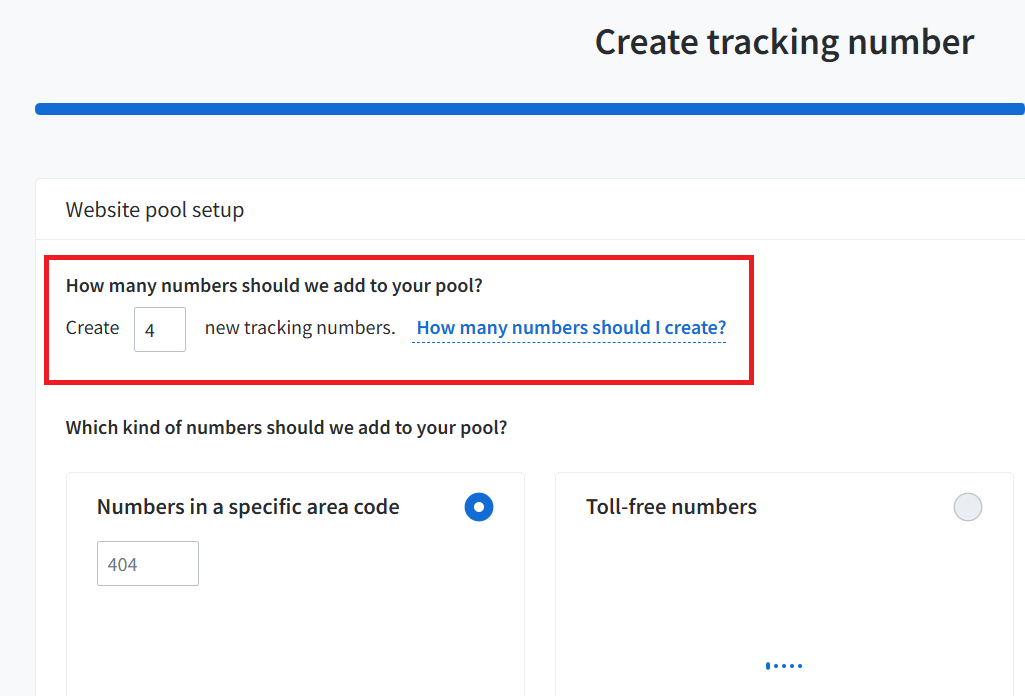
About Website Pool.
- Website pool refers to a pool of telephone numbers that belongs exclusively to your website/business.
- If you manage multiple clients, you can name the website pool after each client’s company name for easy identification.
- The size of your website pool determines how many concurrent visitors Call Rail can track on your website at any given time.
- Your pool size should be a quarter of the peak hourly traffic reported in Google Analytics, with a minimum of 4 numbers. So if you get 40 concurrent visitors during your peak traffic hour, then you would need 10 (40/4) tracking numbers. Similarly, if you get 80 concurrent visitors during your peak traffic hour, you would need 20 (80/4) tracking numbers.
Important points about creating tracking numbers.
- Different call tracking service providers may have different requirements for creating and using tracking numbers. For more details, refer to the help documentation from your call tracking service provider or contact their customer support.
- If you use CallRail, you don’t need to buy at least one tracking number per tracking source in order to track phone calls from that traffic source.
- However, having a unique tracking number for each traffic source can provide more granular data and insights into the performance of each traffic source.
- So while having a separate tracking number for each traffic source is not always necessary, it can be beneficial.
- I would recommend that you buy tracking numbers for each of the following tracking sources (if applicable in your situation):
- Direct traffic.
- Google organic.
- Google paid.
- Bing paid.
- Referrals.
- Email.
- Social media ads (like Facebook ads)
- Outdoor ads
- TV/Radio ads
- The more tracking numbers you buy, the more you can segment the data. For example, if you buy one unique tracking number for each display ad, you can then track the performance of each display ad individually in terms of generating phone call leads/sales.
- The more tracking numbers you use, the more it will cost. Check the pricing section of your phone call service provider.
- When you set up a new tracking number in your call tracking software, you would need to specify the receiving number and the tracking source.
- The receiving number is the phone number to which calls will be forwarded to, from the tracking number. The receiving number is usually your phone number. All of the tracking numbers you bought will forward the call to your receiving number(s).
#11 Select the kind of numbers CallRail should add to your pool. I like to use toll-free numbers:
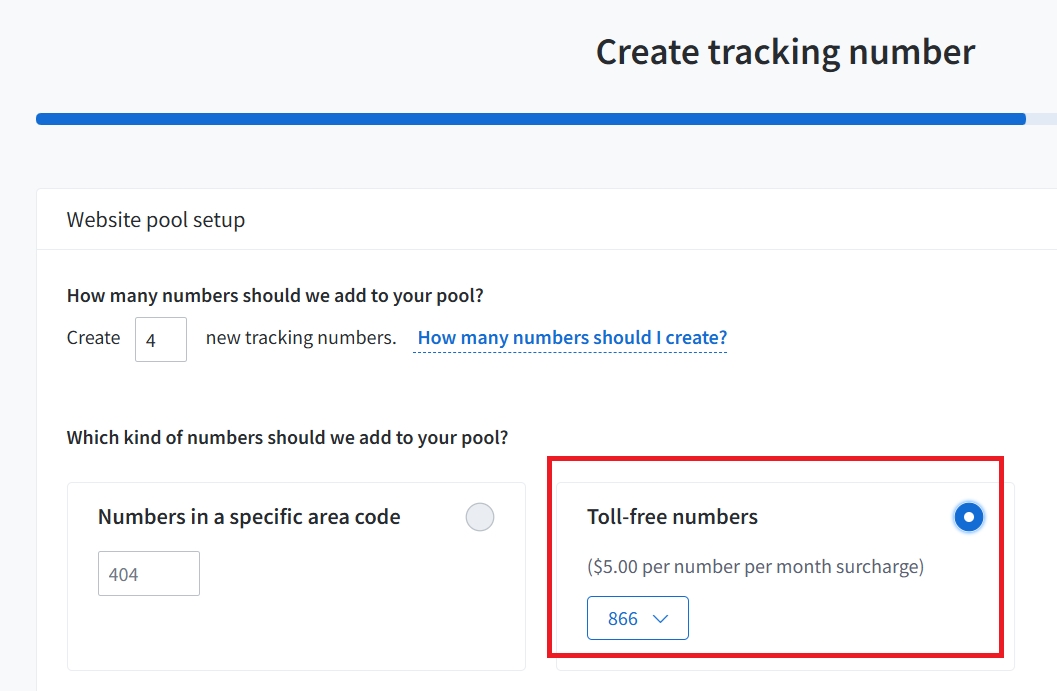
Note: Toll-free numbers are generally more expensive than local numbers because they offer additional features and benefits, such as allowing your customers to call you for free from any location within the country where the toll-free number is registered.
#12 Enter your website pool name (i.e. how you want the tracking numbers to be referred to in reports). You can name the website pool after a company name for easy identification if you manage multiple clients.
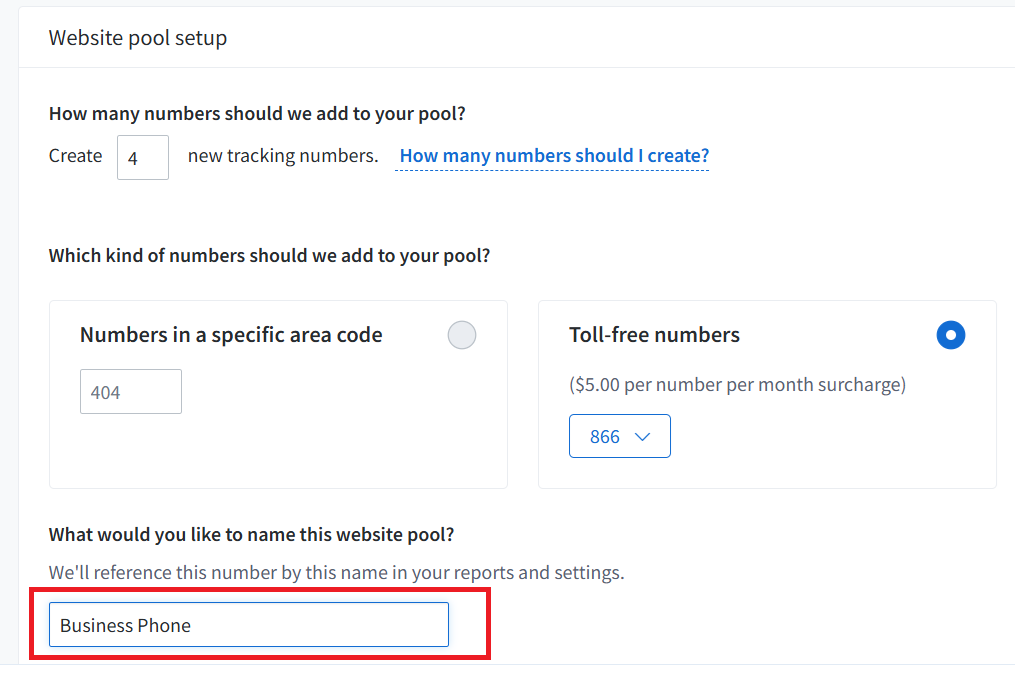
#13 Click on the ‘Number routing’ button:
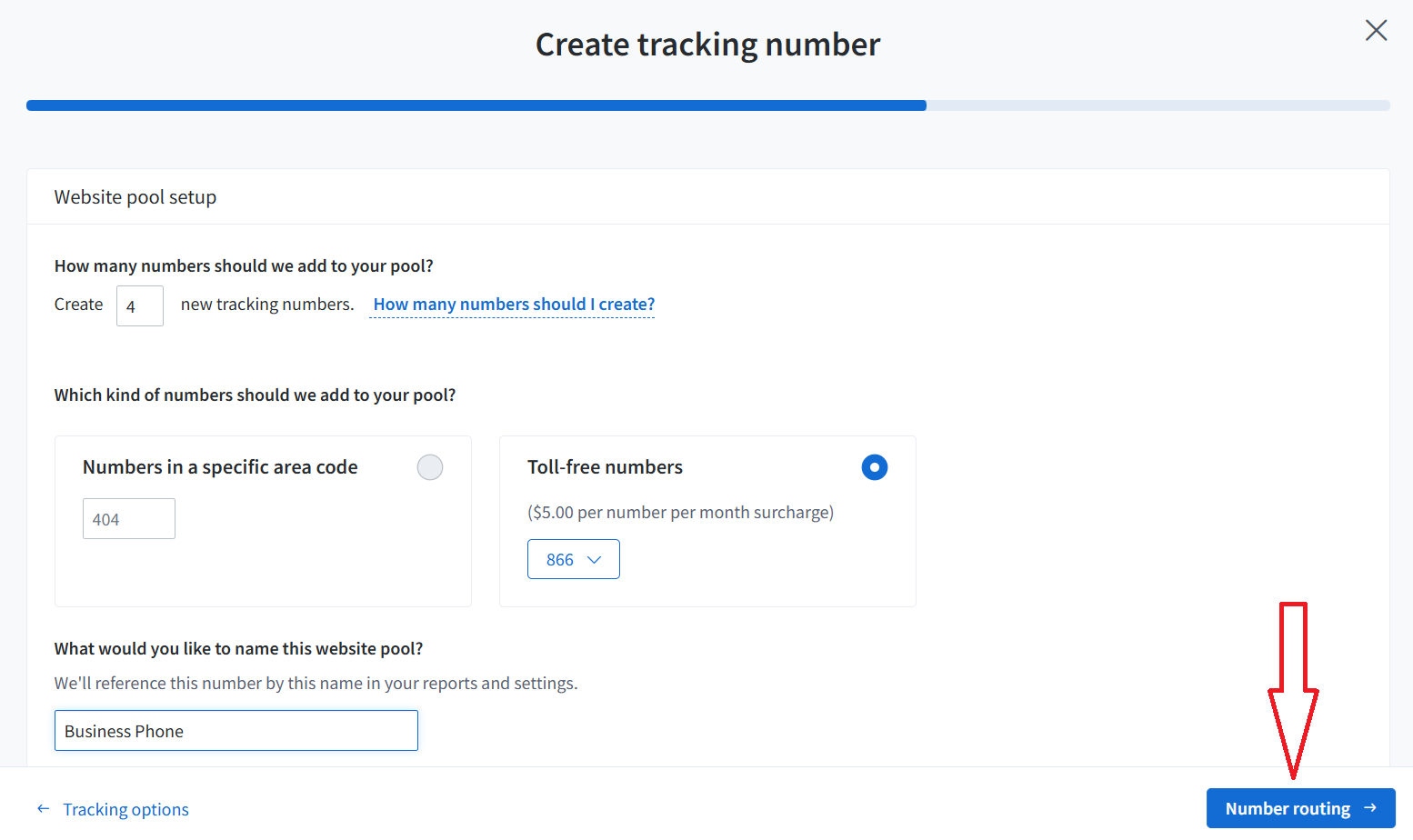
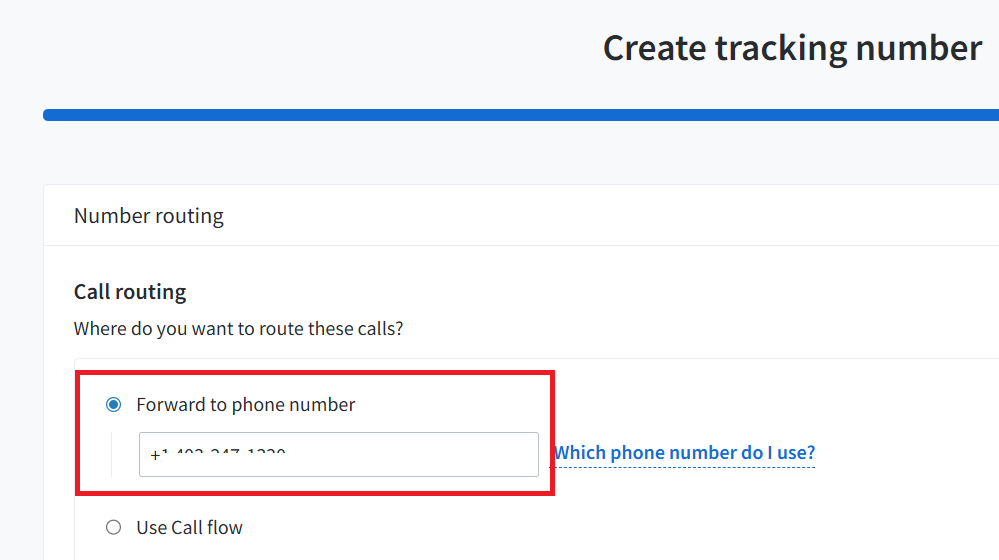
#14 Enter the phone number where you want to route these calls:
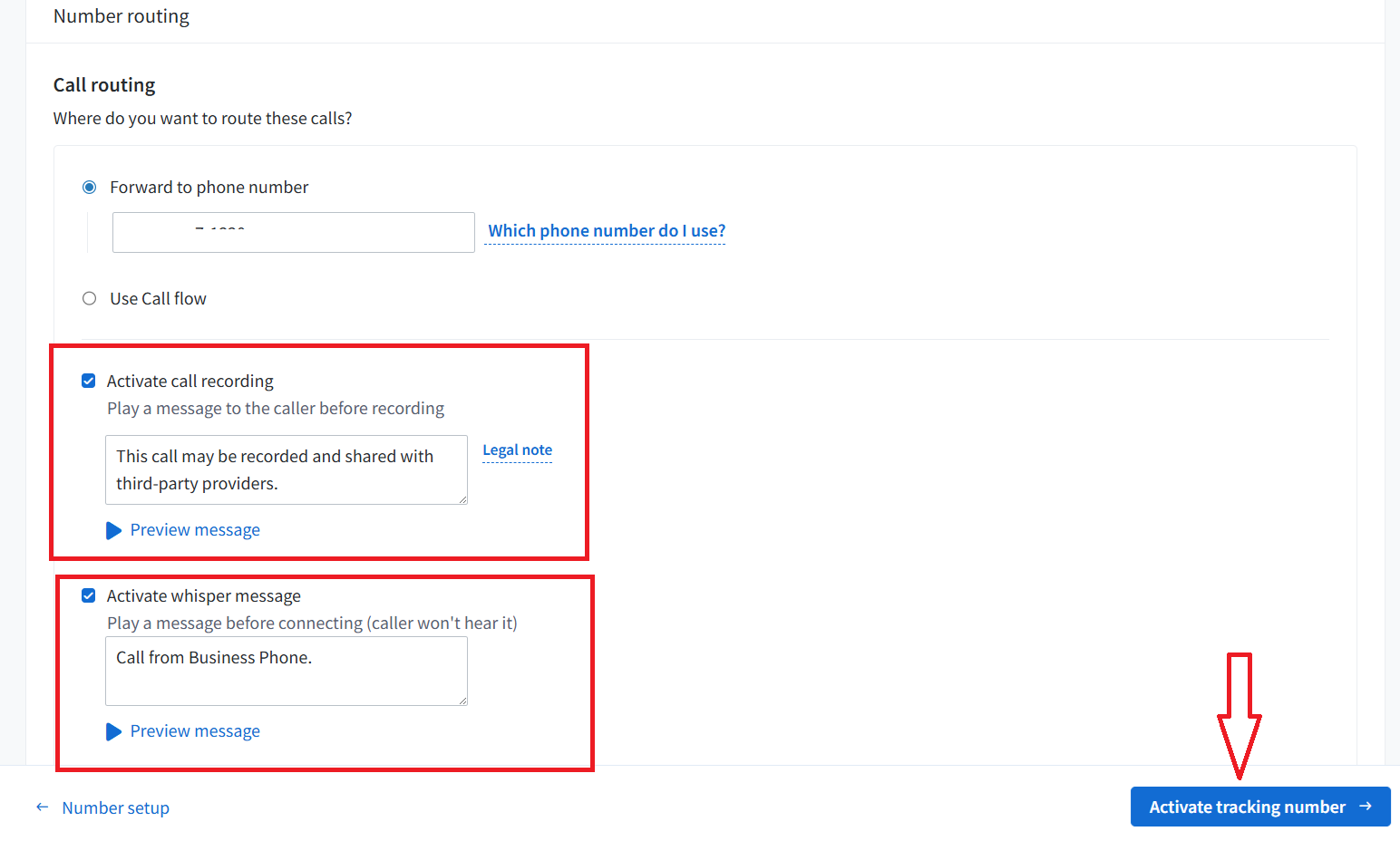
#15 Activate ‘Call Recording’ (Play a message to the caller before recording) and ‘Whisper Message’ (Play a message before connecting (caller won't hear it)), and then click on ‘Activate Tracking Number’:
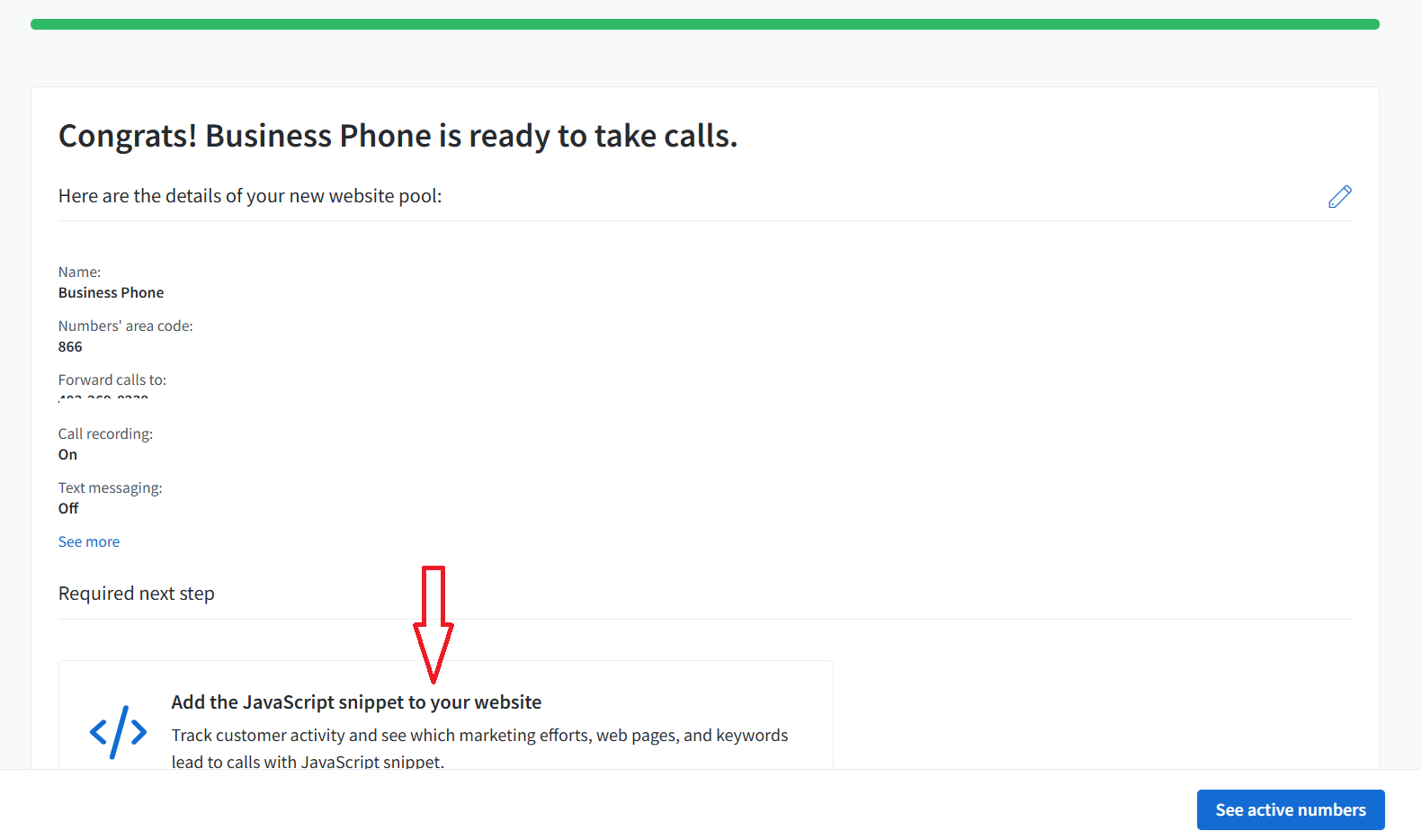
#16 Click on the button ‘Add the JavaScript snippet to your website’:
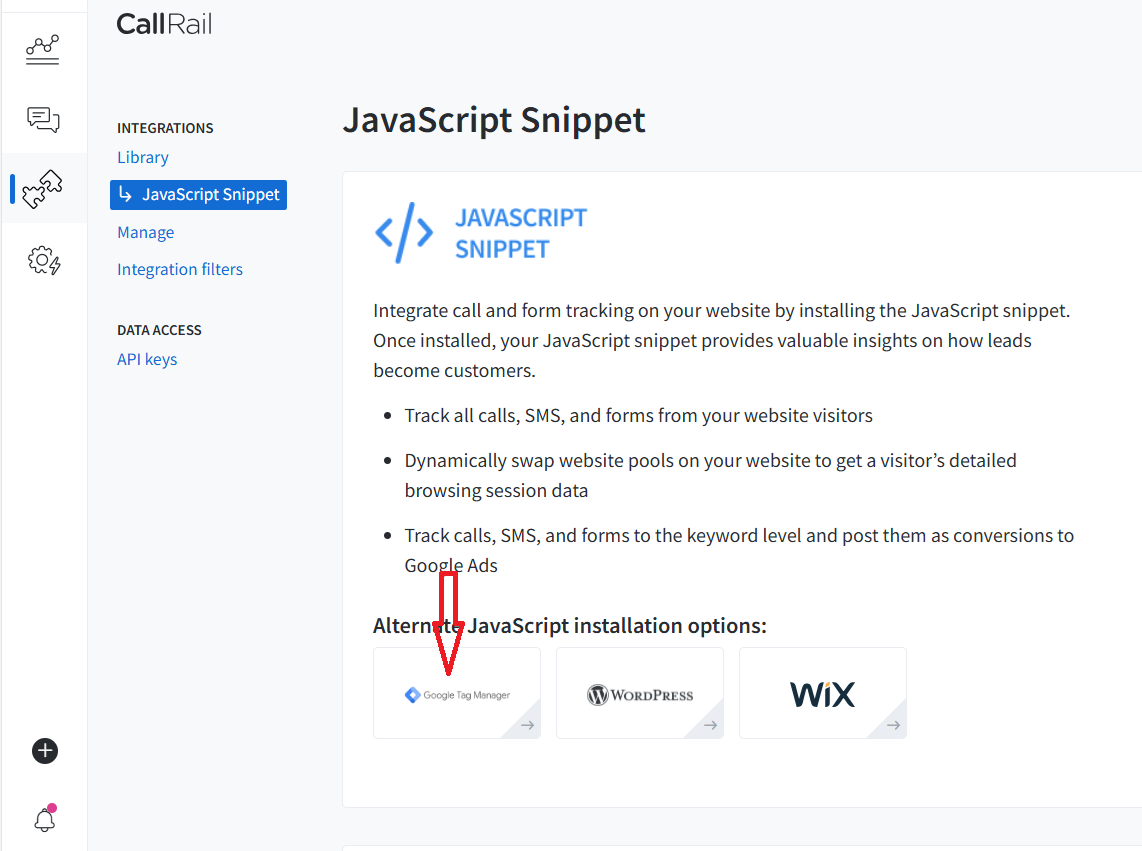
#17 Click on the button ‘Google Tag Manager’ under ‘Alternate JavaScript installation options’:
#18 Scroll down and click on the button ‘Copy to Clipboard’ to copy the code snippet:
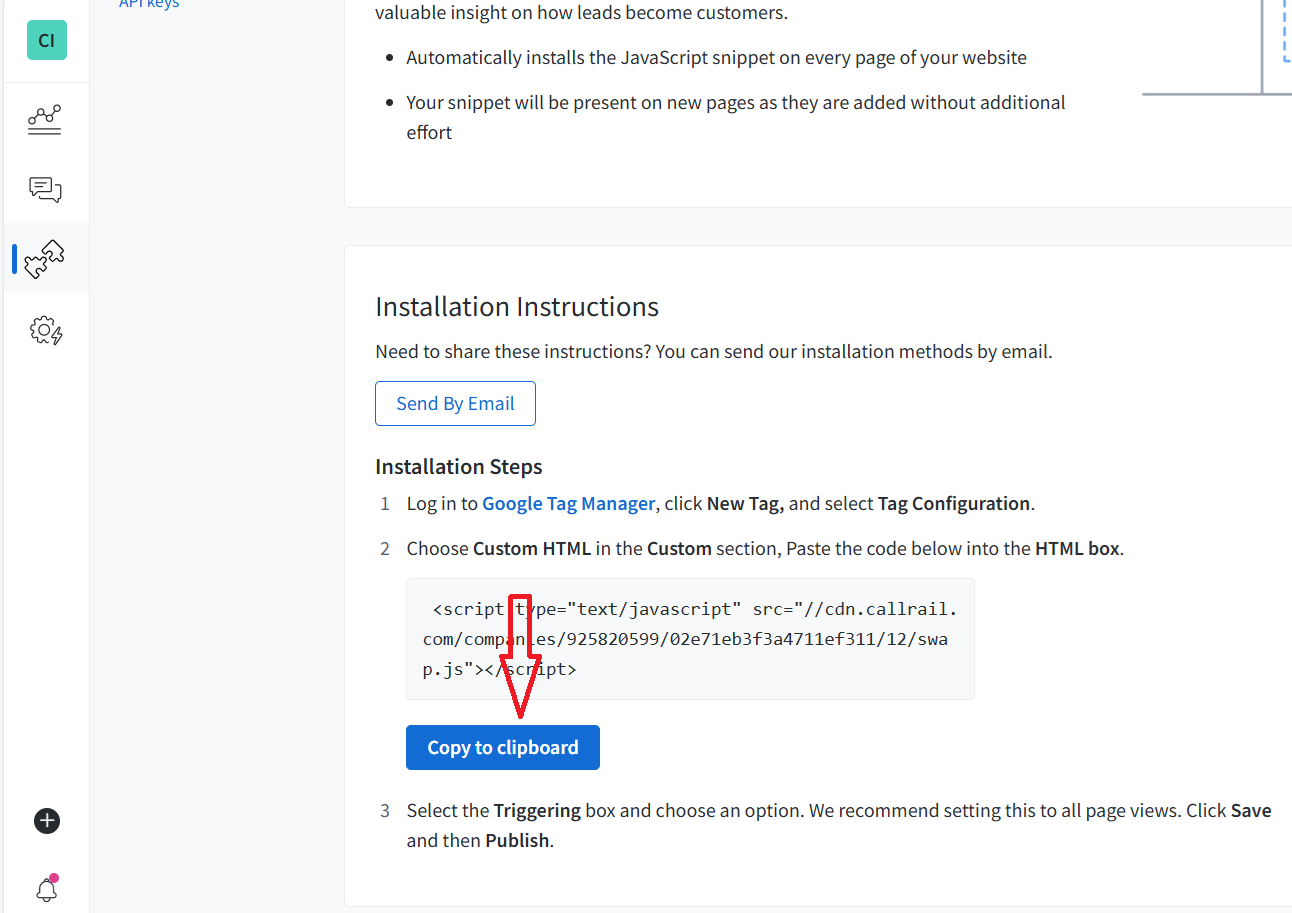
#19 Navigate to your Google Tag Manager container, create a new custom HTML tag, paste the code snippet in the text box and fire the tag on all pages:
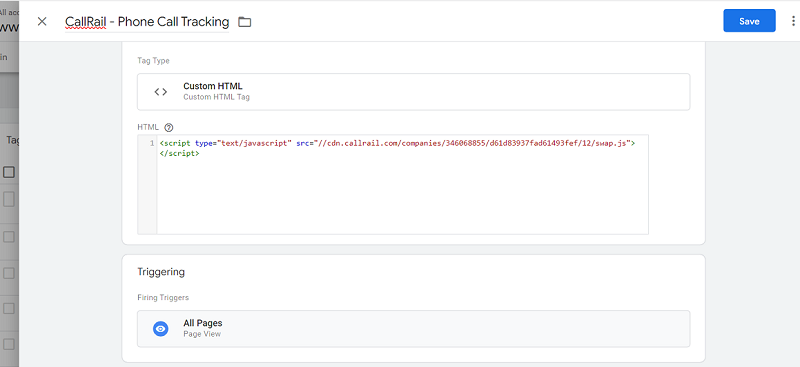
#20 Preview and publish your GTM container.
#21 Navigate back to your CallRail account and add your call centre staff as users in your call tracking software.
- Every call centre agent must use call tracking software at all times to tag calls (more about this later).
- The method used to add call centre staff can vary depending on the call tracking software you use.
- For more details, refer to the help documentation from your call tracking service provider or contact their customer support.
For CallRail, follow the instructions in this article: https://support.callrail.com/hc/en-us/articles/5711810545421-Users
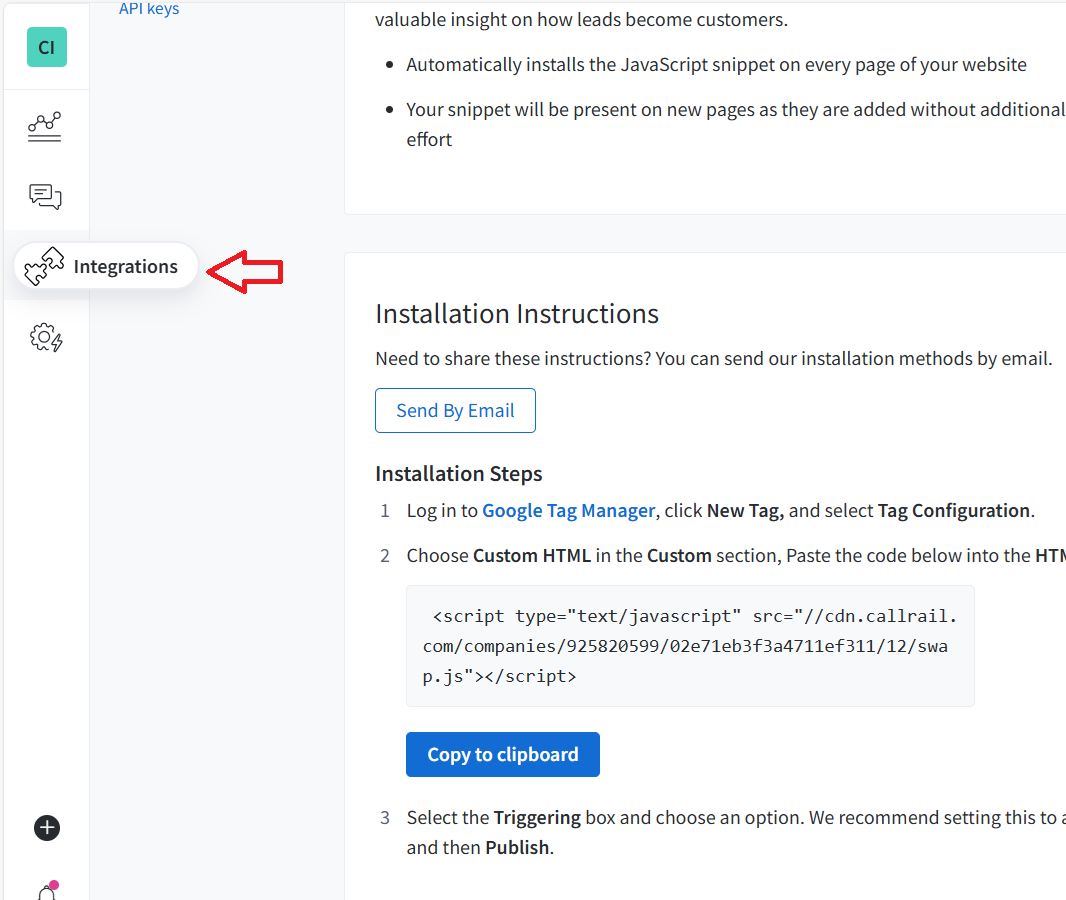
#22 Click on ‘Integrations’ from the left menu to link your call tracking account to your GA4 property so that you can send the phone call tracking data to your GA4 property.
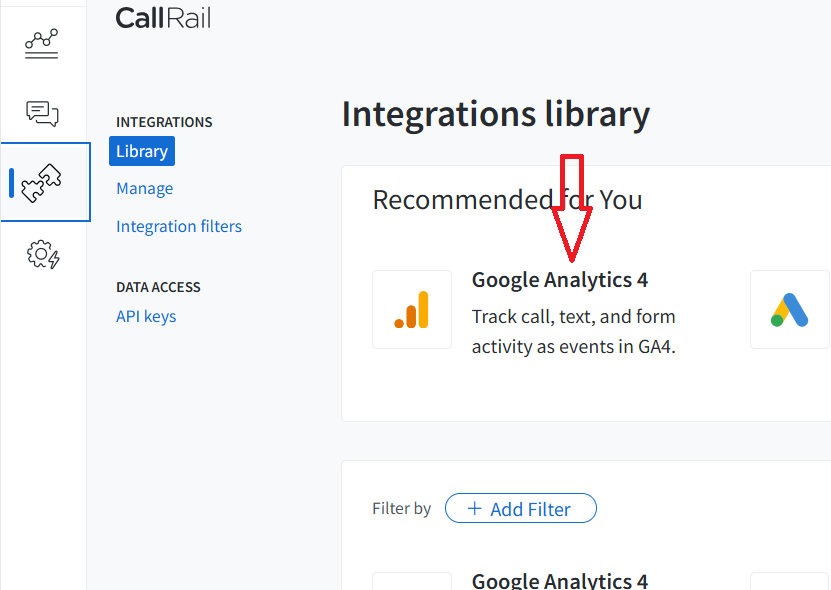
#23 Click on ‘Google Analytics 4’:
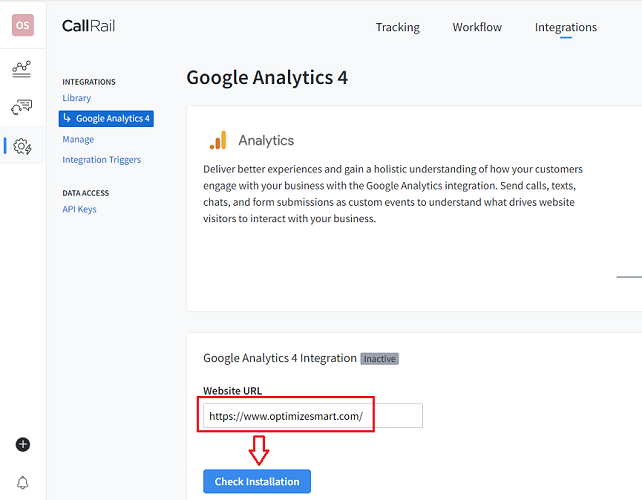
#24 Enter your website URL and then click on the ‘Check Installation’ button:
#25 Enter your GA4 measurement ID and GA4 API secret key:
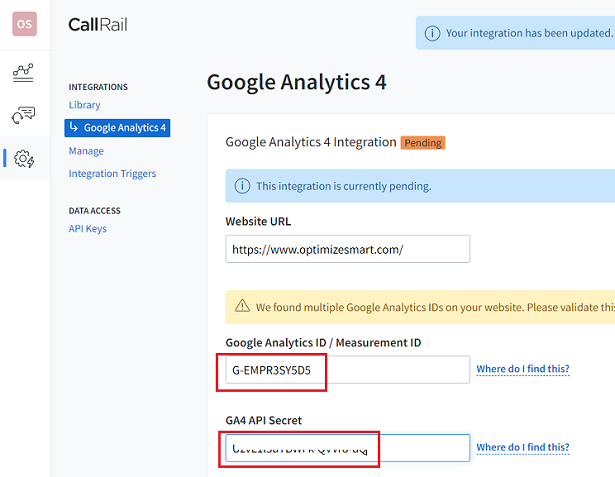
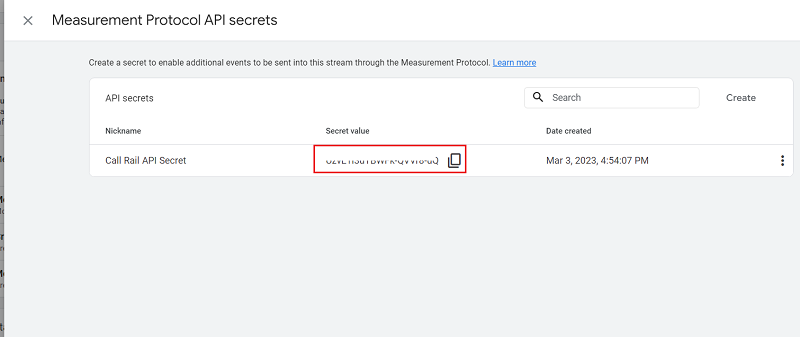
You can create the new GA4 API Secret key by following the steps below:
- Navigate to the admin section of your GA4 property. I recommend linking your call-tracking account to your GA4 test property and testing your phone call-tracking setup there before making changes to the live GA4 property.
- Click on ‘Data Streams’ under ‘Data Collection and Modification’.
- Click on the web data stream to which you want to send the phone call tracking data.
- Scroll down and then click on ‘Measurement Protocol API Secrets’.
- Click on the ‘Create’ button.
- Give your API secret a nickname and then click on the ‘Create’ button.
- Copy the secret value.
#26 Navigate back to your CallRail account, scroll down, paste the GA4 API secret key and then click on the ‘Activate’ button:
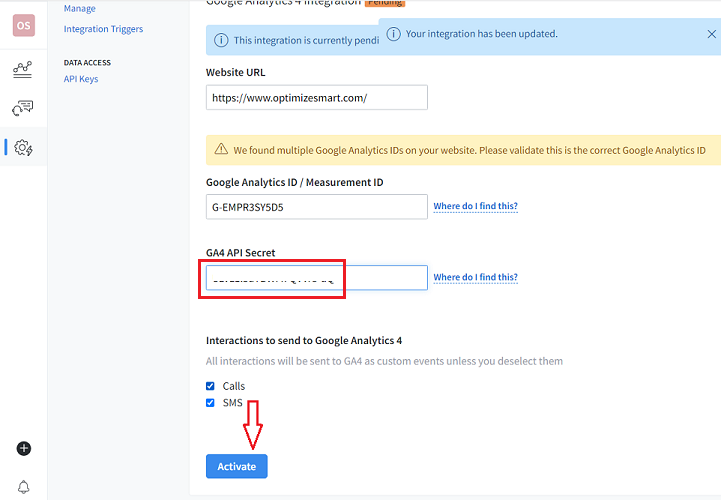
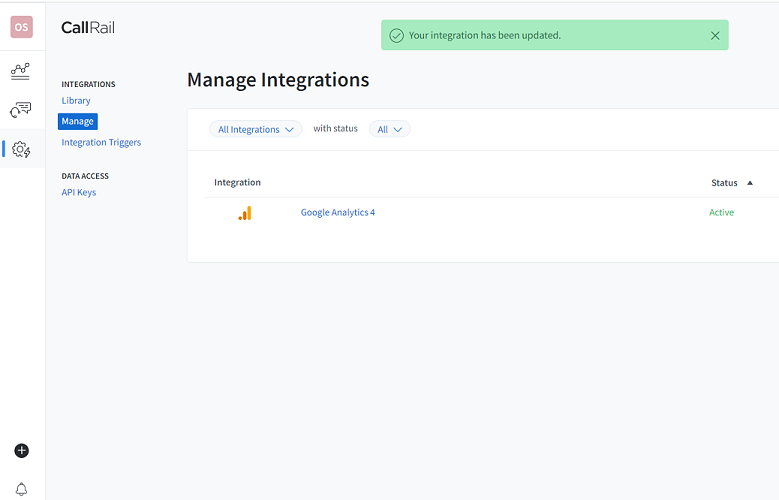
#27 You should now see a screen like the one below:
#28 Add custom dimensions and custom metrics to your GA4 property.
- Different call-tracking service providers offer different sets of custom dimensions and metrics to collect additional data about phone calls in GA4.
- The more custom dimensions and custom metrics a call tracking service provider supports, the more phone call data you can collect in your GA4 reports.
- For more details on the supported dimensions and metrics, refer to the help documentation from your call tracking service provider or contact their customer support.
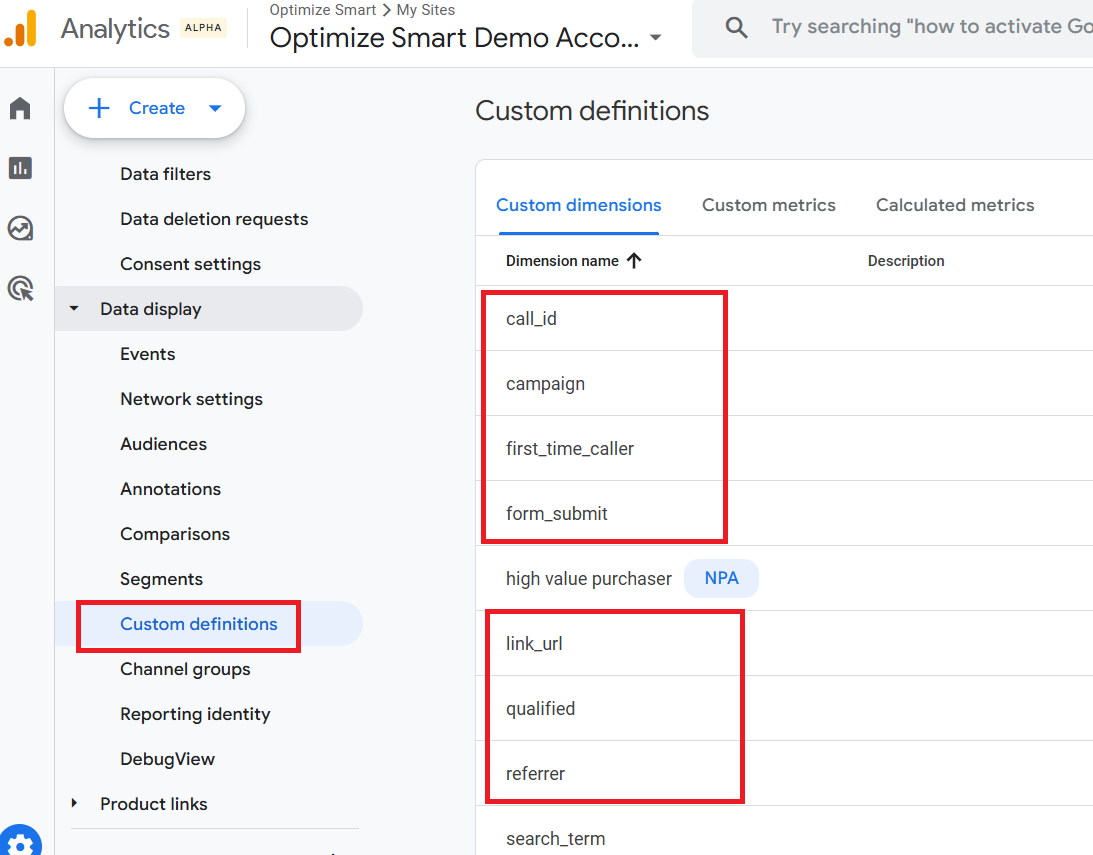
CallRail provides the following custom dimensions to track additional data about phone calls in GA4 reports:
- call_id
- tracking_number
- gclid
- first_time_caller
- referrer
- campaign
- form_id
- sms_id
- source
- qualified
- tags
- medium
- landing_page_url
- device
- form_name
- chat_id
Decide on the custom dimensions you want to use based on your tracking requirements and privacy policy.
Once you have decided on your custom dimensions, create them one by one in your GA4 property (preferably GA4 test property).
Note: All of these dimensions should be of ‘Event’ scope.
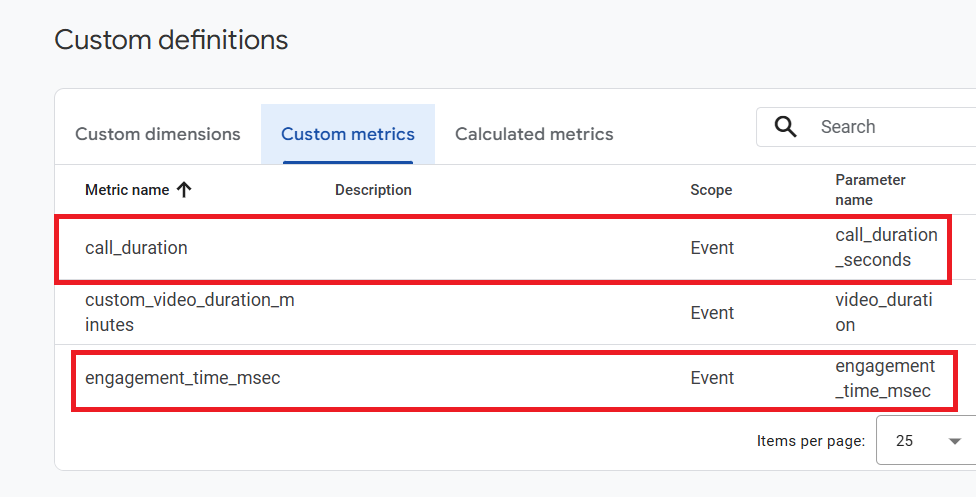
CallRail provides the following custom metrics to track additional data about phone calls in GA4 reports:
- call_duration (time: seconds).
- engagement_time_msec (time: milliseconds).
Decide the custom metrics you want to use based on your tracking requirements and privacy policy.
Once you have decided on your custom metrics, create them one by one in your GA4 property (preferably GA4 test property).
Note: CallRail can not send source and medium data to GA4 default channels. This means you will not see the source, medium, campaign, or landing page data for phone call events sent to GA4 through the CallRail-GA4 integration. CallRail recommends that you send attribution data like source, medium, and campaign as custom event parameters.
#29 Navigate to the page on your website which contains your phone number. You should see one of your tracking numbers instead of the phone number.
#30 Dial the tracking number. Once you dial the tracking number, your business phone should ring. Ask someone to pick up the phone and answer it.
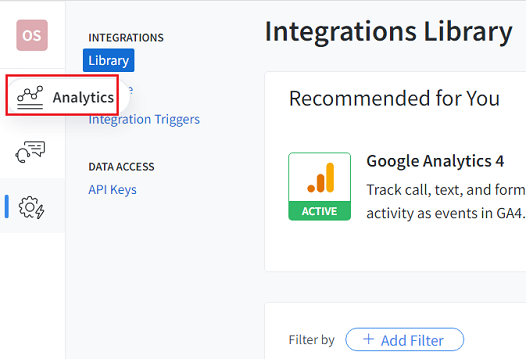
#31 Navigate back to your CallRail account and click on ‘Analytics’ from the left-hand side menu:
#32 Scroll down to the ‘call status’ section. You should see one call recorded:
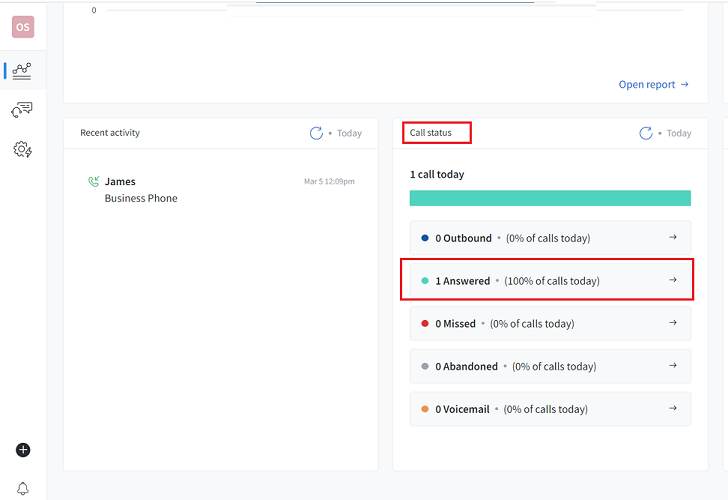
This confirms that your call tracking is working correctly.
#33 After 24 hrs have elapsed, navigate to the admin section of your GA4 property.
Note: It can take up to 24 hrs for phone call data to appear in your GA4 reports.
#34 Navigate to Reports > Engagement > Events in your GA4 property.
#35 Find the ‘phone_call’ event. CallRail fires this event when a user places a call to your business:
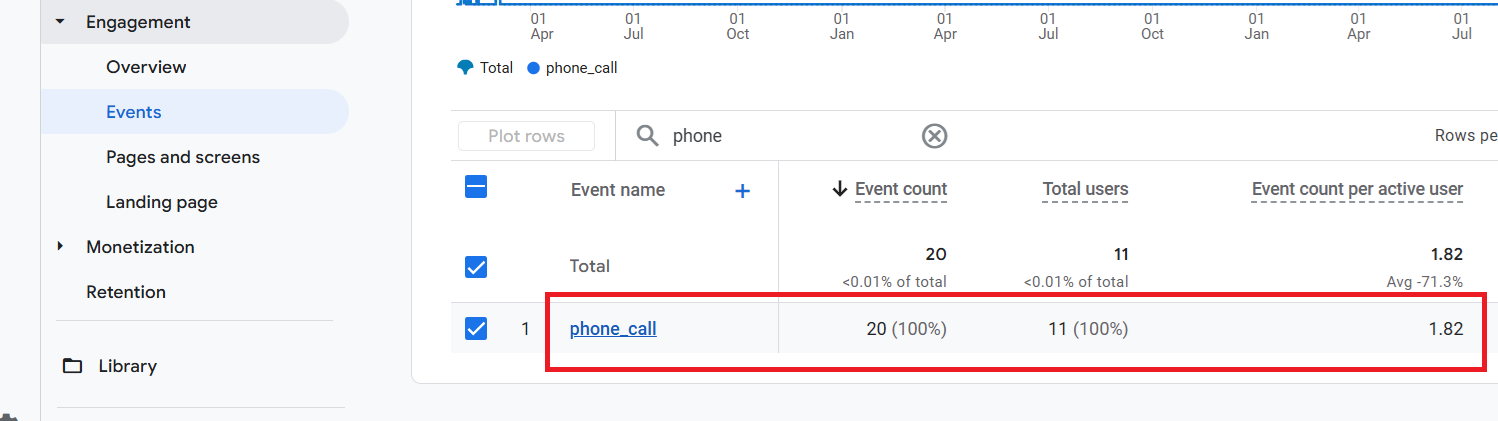
This proves that CallRail is successfully sending phone call data to your GA4 property.
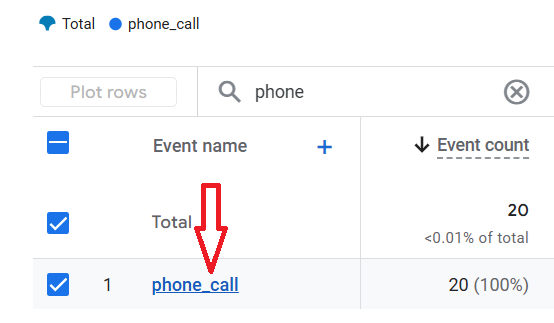
#36 Click on the ‘phone_call’ event.
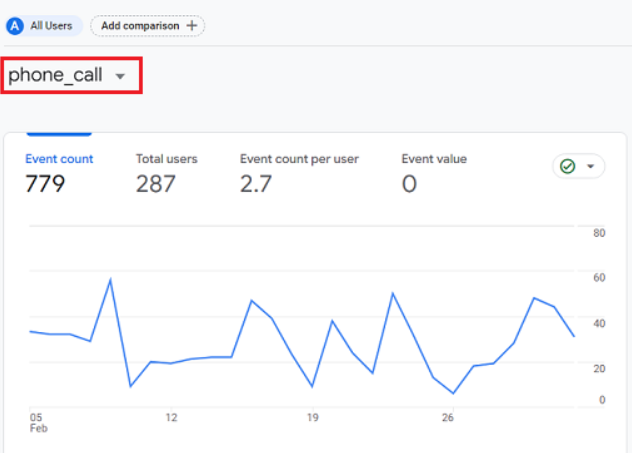
You should now see a detailed report on your phone call tracking data:
Scroll down to see the demographic data:
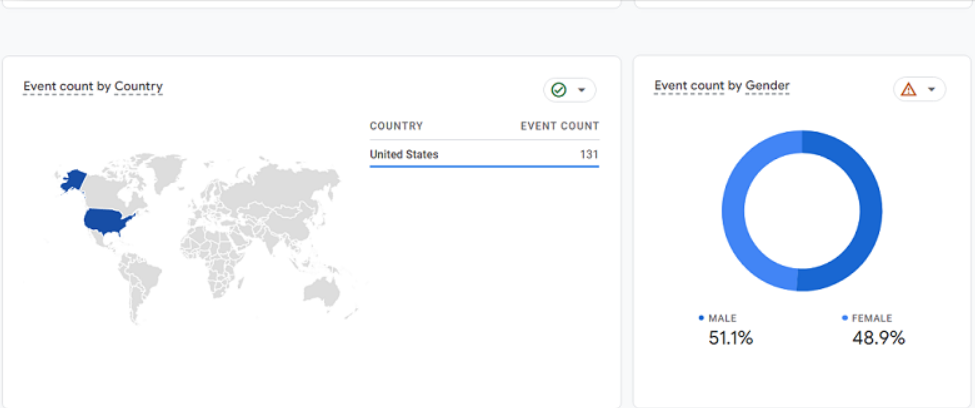
Note: GA4 does not show demographic data for a particular event unless the event meets the unspecified data threshold. In GA4, demographic data is only displayed in an event-based report if the event meets the unspecified data threshold.
Scroll down further to see the source of the phone calls:
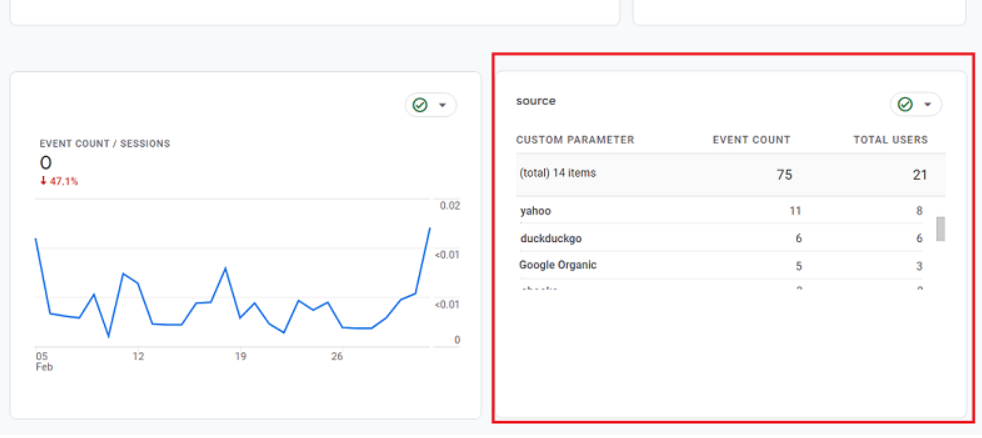
Scroll down further to see reports on tracking numbers and call id:
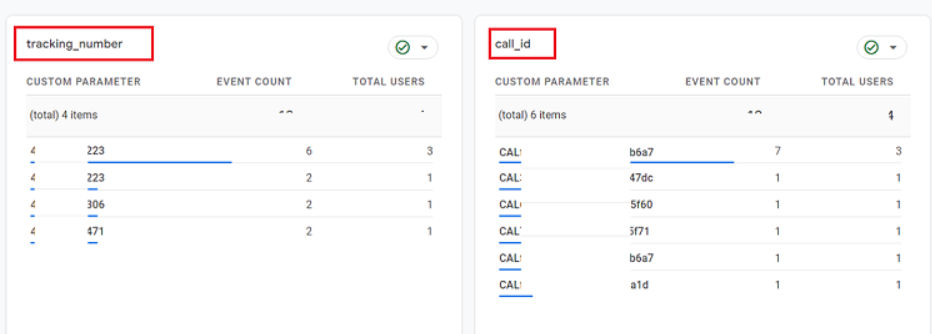
Likewise, there is much more phone call tracking data you can see in your GA4 reports (such as qualified leads, engagement time, first-time callers, etc.).
It all depends on the number of custom dimensions and metrics you set up for phone call tracking.
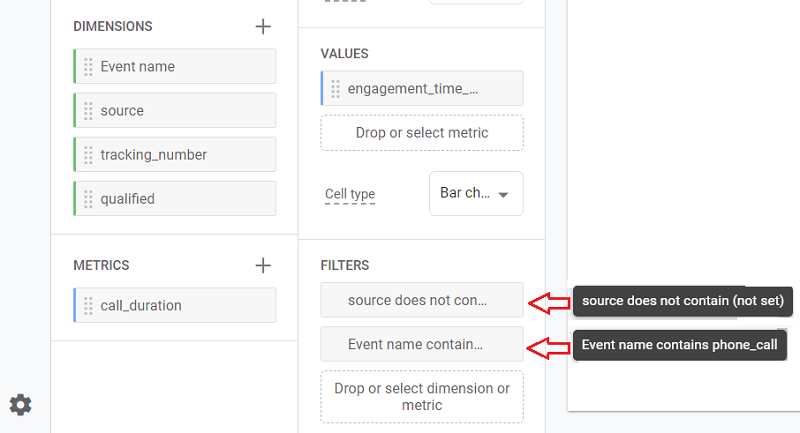
You can also use an exploration report template to create a new report on Phone call tracking:
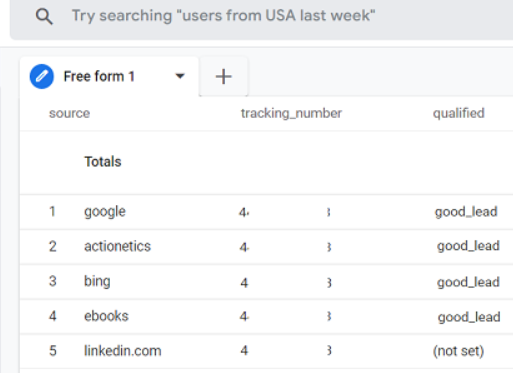
This report contains the following two filters:
#37 Mark Phone Calls as key events in GA4.
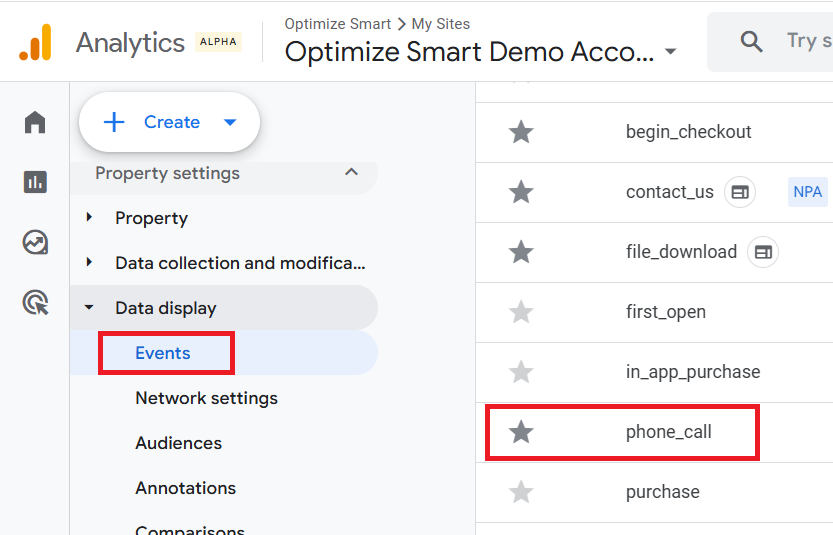
- Ask your call tracking service provider exactly how the call data is structured as GA4 events.
- Once you know how the call data is structured in GA4 reports, you can use this information to set phone calls as conversion events in GA4.
#38 Link your call tracking account to your CRM account.
- A call tracking software can help you track the source of phone calls, allowing you to attribute phone call leads to specific marketing campaigns or channels accurately.
- A call tracking software can report on both qualified and unqualified phone leads.
- Integrating your call tracking software with a CRM allows you to send phone call data as leads into your CRM.
- The method used to integrate with a CRM (like ‘Salesforce) can vary depending on the call tracking software you use.
- For more details, refer to the help documentation from your call tracking service provider or contact their customer support.
- For CallRail-Salesforce integration, check out this help documentation: https://www.callrail.com/integrations/salesforce
#39 Link your call tracking account to your Ad platforms (like Google Ads, Meta ads etc.)
- By linking your call tracking account to your ad platforms, you can send phone call conversion data to the ad platforms.
- Different call-tracking service providers may use different methods and have different requirements for integrating with advertising platforms.
- For more details, refer to the help documentation from your call tracking service provider or contact their customer support.
- If you use CallRail, then checkout the following resources:
- CallRail Google Ads Integration.
- CallRail Facebook (Meta) Integration.
#40 Train your call centre staff to make notes and score each phone call.
- This is the most important step in setting up phone call tracking, as it allows you to calculate the ROI of your phone call tracking efforts.
- Your call tracking reports will be of little value if your call centre staff are not scoring each and every phone call.
- CallScore (automatic lead scoring): CallRail’s CallScore/Conversation Intelligence can automatically classify and score calls as good leads vs non‑leads using transcripts, keywords, and metadata.
- Keypad scoring (agent‑entered): You can enable keypad scoring so that, after each call, the agent hears a prompt and uses the phone keypad to mark the call as a lead, apply tags, and optionally assign a value (e.g. sale amount).
- Manual tagging/lead classification: Users can also manually tag/score calls as qualified or unqualified leads inside the CallRail interface or Lead Centre, if you prefer a human review workflow.
- If you get a large volume of phone calls, you can choose not to score wrong numbers, as scoring a call is time consuming.
#41 Calculate phone call ROI.
- To calculate the ROI of your phone call efforts, you need two metrics: sales and cost.
- You can calculate the sales figure by scoring each phone call as described earlier.
- The cost data is something you will need to enter manually either into your call tracking software each month (for each marketing channel) or into Google Sheets.
- Different call-tracking service providers may use different methods to calculate and report phone call ROI. For more details, refer to the help documentation from your call tracking service provider or contact their customer support.
The following is the basic formula to calculate phone call ROI:
Phone Call ROI = (total monthly revenue from a call source – monthly advertising spend on the call source)/ monthly advertising spend on the call source.
A call source can be Google Organic, Google Paid, Meta ads, X ads etc.
For example:
ROI = ($35000 – $7500) / $7500 = 366.67%
The other phone call tracking metrics you should be aware of:
- Cost/call = monthly advertising spend on the call source / total calls from the same source. Example: Cost/call = $7500/500 = $15
- Cost/caller = monthly advertising spend on the call source / total unique callers from the same source. Example: Cost/caller = $7500/400 = $18.75
- Calls closed = total number of calls from a source which resulted in sales.
- The percentage of calls closed denotes the percentage of phone calls which resulted in a sale. It is equal to calls closed/total calls.
- Callers closed denotes the number of unique callers who made a purchase over the phone.
- The percentage of callers closed denotes the percentage of unique callers who made a purchase over the phone. It is equal to callers closed/total unique callers.
- Total revenue denotes the total revenue generated from a particular call source.
#42 Determine the performance of your call centre staff.
- The cool thing about using call tracking software is that you no longer need to guess the performance of your call centre staff and make faith-based decisions when it comes to performance appraisal.
- Not only can you listen to the actual conversation between your CSR and a caller to determine how the CSR is handling calls, but you can also go one step ahead and calculate the revenue generated by each CSR.
- Different call tracking service providers may have different ways of calculating and reporting on the performance of call centre staff.
- For more details, refer to the help documentation from your call tracking service provider or contact their customer support.
How to improve the Phone Call Conversion Rate.
If you wish to improve your phone call conversion rate, you have to enhance your callers' phone call experience.
By listening to conversations between callers and your sales staff, you can determine why the calls did not result in sales and what you can do next time to improve the phone call experience.
Every phone call is live customer feedback. If you listen carefully and make notes along the way, you can hear customer objections.
Once you have a list of common customer objections, look for ways to overcome such objections.
Then train your customer support staff to handle such objections more effectively.
This will improve your phone call conversion rate.
Phone call as a touchpoint in a conversion path.
If your website is set up primarily to generate leads by phone, then a phone call is a very important touchpoint in your users’ conversion path.

A touchpoint is the exposure to a marketing channel through which a person comes in contact with your brand.
A person can come in contact with your brand before, during and after completing a conversion on your website.
By identifying the touchpoints which occurred before and during a conversion, you can understand your customer’s journey to purchase.
By identifying the touchpoints that occur after a conversion, you can understand your customer’s satisfaction level.
For lead-generating websites and for websites that sell very high-priced items (like properties, automobiles, industrial machinery, etc.), a phone call is an extremely important touchpoint.
When you treat phone calls as touchpoints, they become an integral part of your multi-channel funnel analysis.
How to track phone leads from billboard advertising.
If you want to track phone leads from billboard ads, add a unique tracking number to each billboard.
That way, whenever someone calls that number, you'll know the lead came from the billboard ad.
If you are using the same billboard ad at multiple locations in a particular city, you should buy a unique tracking number for each location where you plan to advertise.
This way, you can segment the billboard phone leads data by location.
Similarly,
If you are using the same billboard ad in different cities, then you should buy and use at least one unique tracking number for each city.
This way, you can segment the billboard phone leads data by city.
The more tracking numbers you buy and use, the more accurate your reporting will be.
You can later integrate the billboard phone call data with other marketing data by using the API of your call tracking solution.
How to track phone leads from print media.
If you want to track phone leads from a newspaper or magazine ad, then you should add a unique tracking number to your ad.
That way, whenever someone calls that number, you would know that the lead came from print advertising.
Purchase at least one unique tracking number for each different print medium.
Let us suppose you are advertising in both newspapers and magazines.
Then purchase at least one unique tracking number for the newspaper ad and one unique tracking number for the magazine ad.
This allows you to segment phone lead data by print medium.
Similarly,
If you are advertising in multiple magazines, purchase a unique tracking number for each magazine ad.
This way, you can segment the magazine phone leads data by ad copy.
The more tracking numbers you buy and use, the more accurate your reporting will be.
You can later integrate the print media call data with other marketing data via your call tracking software’s API.
How to track phone leads from transit media.
If you are advertising your business on taxis, buses, trains, the tube, or aeroplanes, then buy and use at least one unique tracking number for each transit medium.
This allows you to segment the phone leads data by the transit medium.
You can later integrate the transit media call data with other marketing data via your call tracking software’s API.
How to track phone leads from radio and TV.
The process for tracking phone leads from radio and TV ads is similar to that for transit media ads.
Buy and use unique tracking numbers for each radio and TV ad.
Phone call tracking and privacy regulations.
You should collect, store, and process phone call data in accordance with your GDPR-compliant privacy policy, local privacy laws, and the terms of service outlined by your service providers.
For example,
If you are using ‘Salesforce,’ you must comply with its terms of service when processing personal data.
Similarly, if you are using Google Analytics, then you have to follow their terms of service.
It is against Google Analytics terms of service to upload or send any data to Google Analytics that contains personally Identifiable Information (PII).
A ‘phone number’ is classed as PII.
So, do not collect your customers’ phone numbers in your Google Analytics reports.
Otherwise, this could result in account suspension.
Your call-tracking solution provider stores your customers’ data. So it acts as a data processor.
Under GDPR, your data processors must also have a GDPR-compliant privacy policy and, ideally, a GDPR-compliant data service agreement (also called the ‘Controller-Processor Agreement’).
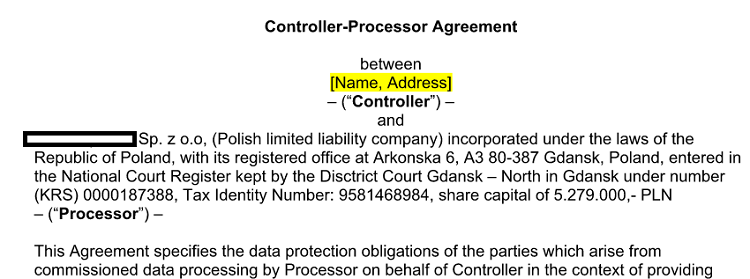
Make sure you request a controller-processor agreement from your call tracking solution provider.
If they refuse to provide you with this agreement, they are most likely not GDPR-compliant.
Other Articles on GA4.
- Tracking New, Qualified and Converted Leads in GA4.
- Free GA4 training and tutorial with Certification.
- Understanding GA4 Ecommerce Reports (Monetization Reports).
- GA4 Ecommerce Tracking via GTM: Step-by-Step Setup Guide.
- How to see UTM parameters in GA4 (Google Analytics 4).
- GA4 UTM parameters not working? Here is how to fix it.
- How To Use UTM parameters in GA4 (Campaign Tracking).
- How to track AI traffic in GA4.
- Understanding Google Analytics 4 cookies – _ga cookie.
- GA4 (Google Analytics 4) Measurement Protocol Tutorial.
- GA4 Unassigned Traffic: Causes and How to Fix it Fast.
- GA4 Regex (Regular Expressions) Tutorial.
- GA4 Direct Traffic Spike: Common Causes and How to Fix Them.
- gtag.js – Google Tag in Google Analytics 4 and beyond.
- GA4 Scopes – User, Session, Event & Item scopes.
- GA4 Conversion Tracking (Key Events) Tutorial.
- GA4 (not set) - Guide to fixing (not set) issue.
- GA4 Certification Exam: Questions, Answers for Skillshop (GAIQ).
- GA4 User Properties (User Scoped Custom Dimensions) – Tutorial.
- Tracking Organic Traffic in GA4 - Complete Guide.
- Tracking Events in GA4 (Google Analytics 4).
- GTM Server Side Tagging - Setup Guide.
- Using Subfolder for GTM Server Side Tagging (Same Origin Tracking).
- Understanding Event Parameters in Google Analytics 4 (GA4).
- How to Uninstall GTM Server Side Tagging.
- How to remove (other) in GA4 reports and avoid Cardinality.
- Creating GA4 Assistant via Claude for your customers.
- How To Set Up User ID in GA4 - Cross Device Tracking.
- GA4 Mobile App Tracking - Firebase Integration.
- How to use DebugView report in Google Analytics 4 (GA4).
- How to Track Phone Calls in Google Analytics 4.
- How to detect GTM Server Side Tagging.