

Nobody talks about this.
Everyone's busy writing guides on how to SET UP GTM server-side tagging.
But what happens when:
→ The Google Cloud bills keep climbing.
→ You're not seeing the ROI you expected.
→ You realise your website doesn't actually need it.
→ Or you just need a clean reinstall from scratch.
You need to uninstall it. Cleanly.
Without leaving behind orphaned DNS records, zombie Cloud projects still billing you, or a GA4 tag is still trying to send data to a server that no longer exists.
The following is the overview of uninstalling GTM server-side Tagging:
- Downgrade from production to the testing server.
- Disconnect the GA4 configuration tag from the server container.
- Shut down the Google Cloud project so that you are no longer billed.
- Delete the GTM Server container
- Delete all the DNS records related to server-side Tagging.

#1 Downgrade from production to the testing server.
Follow the steps below to downgrade from production to the testing server:
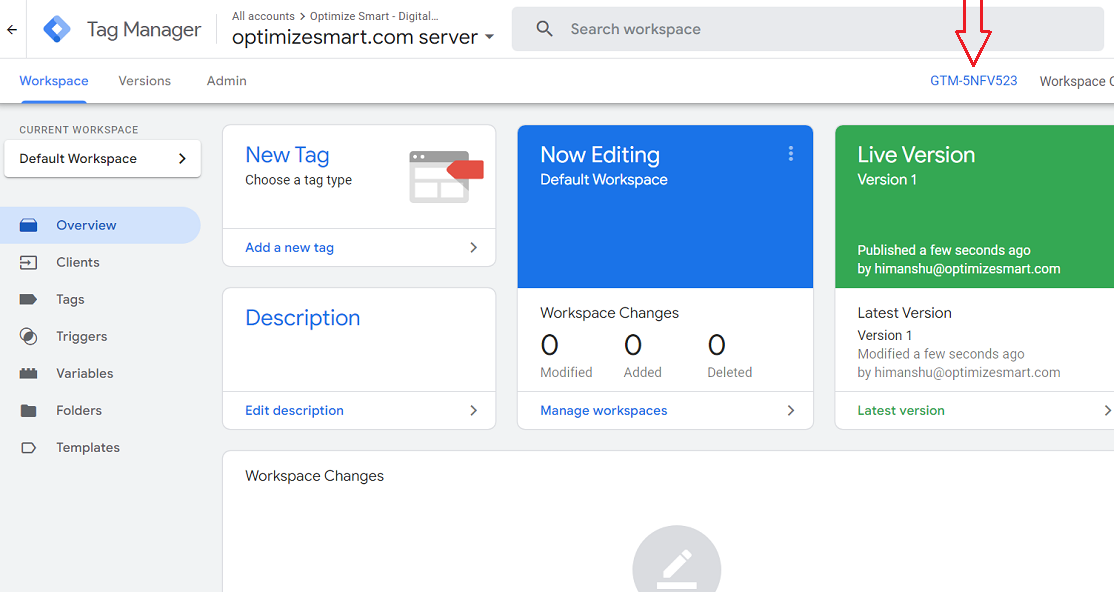
Step-1: Click on the container ID of your GTM Server Side Container:
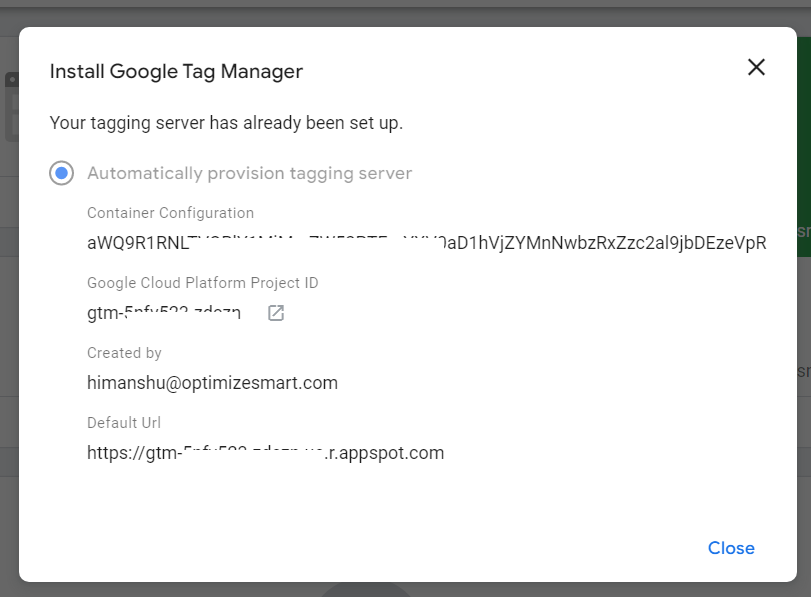
You should now see a pop-up like the one below:
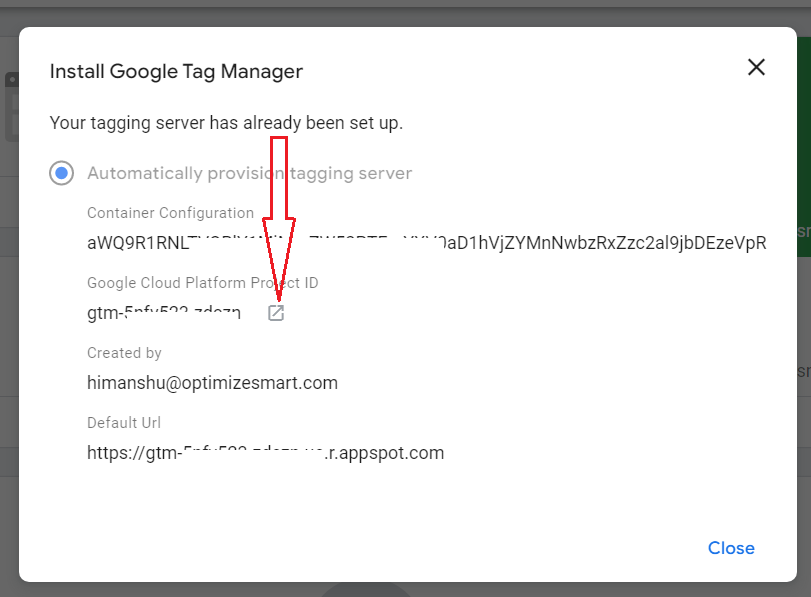
Step-2: Open your Google Cloud Platform project by clicking on the open button:
You should now see a screen like the one below:
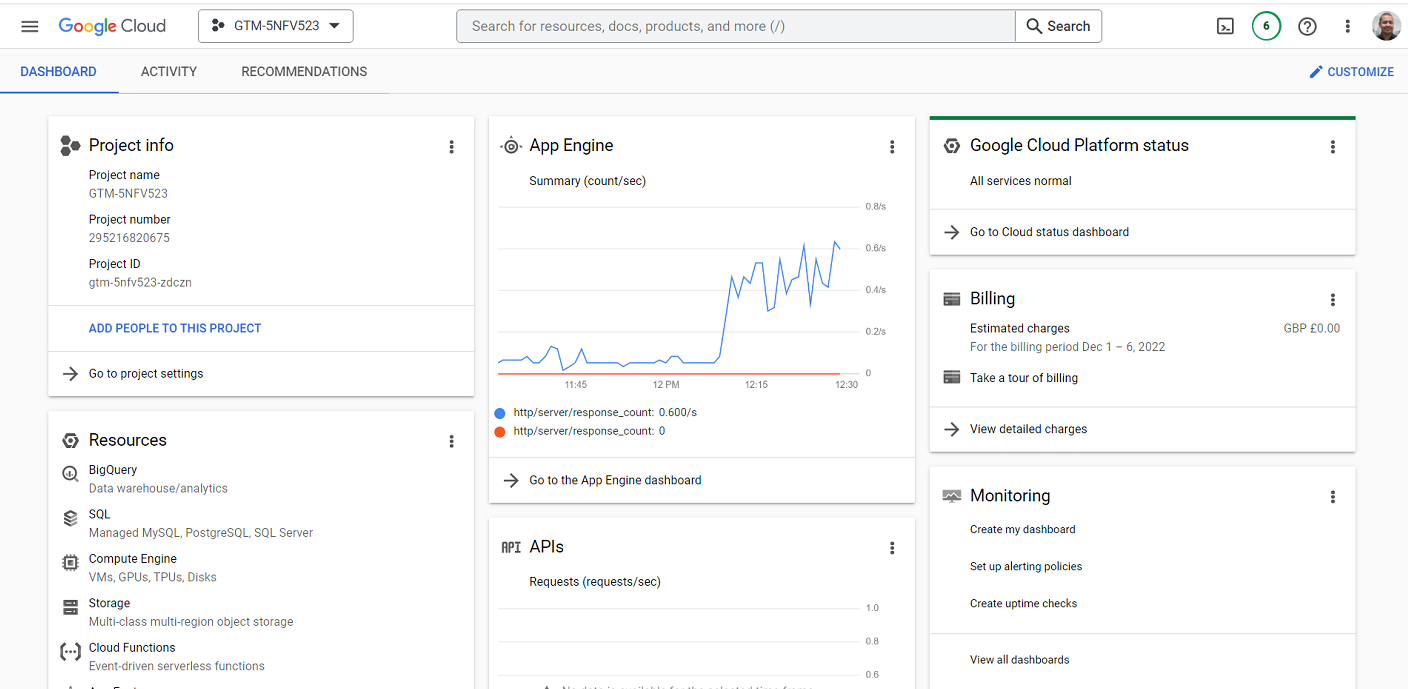
Step-3: Find and click on the button ‘Activate Cloud Shell’ on the top right-hand side of your screen:
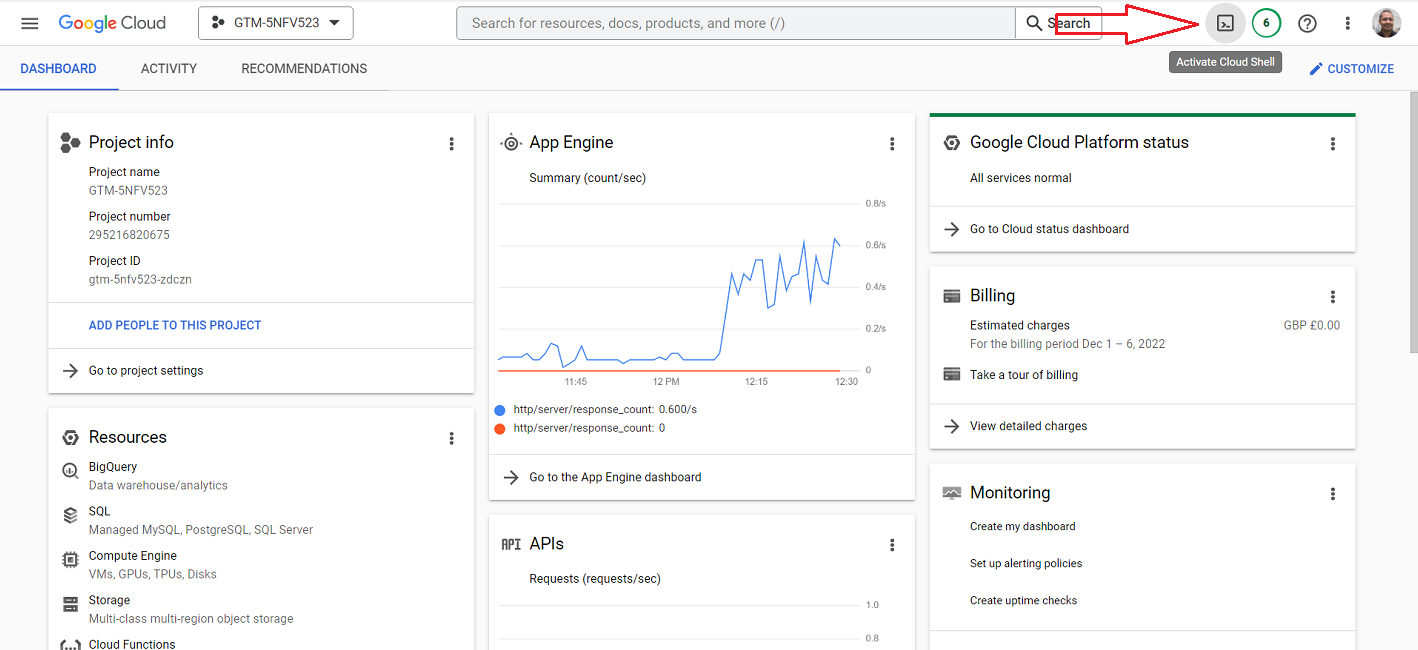
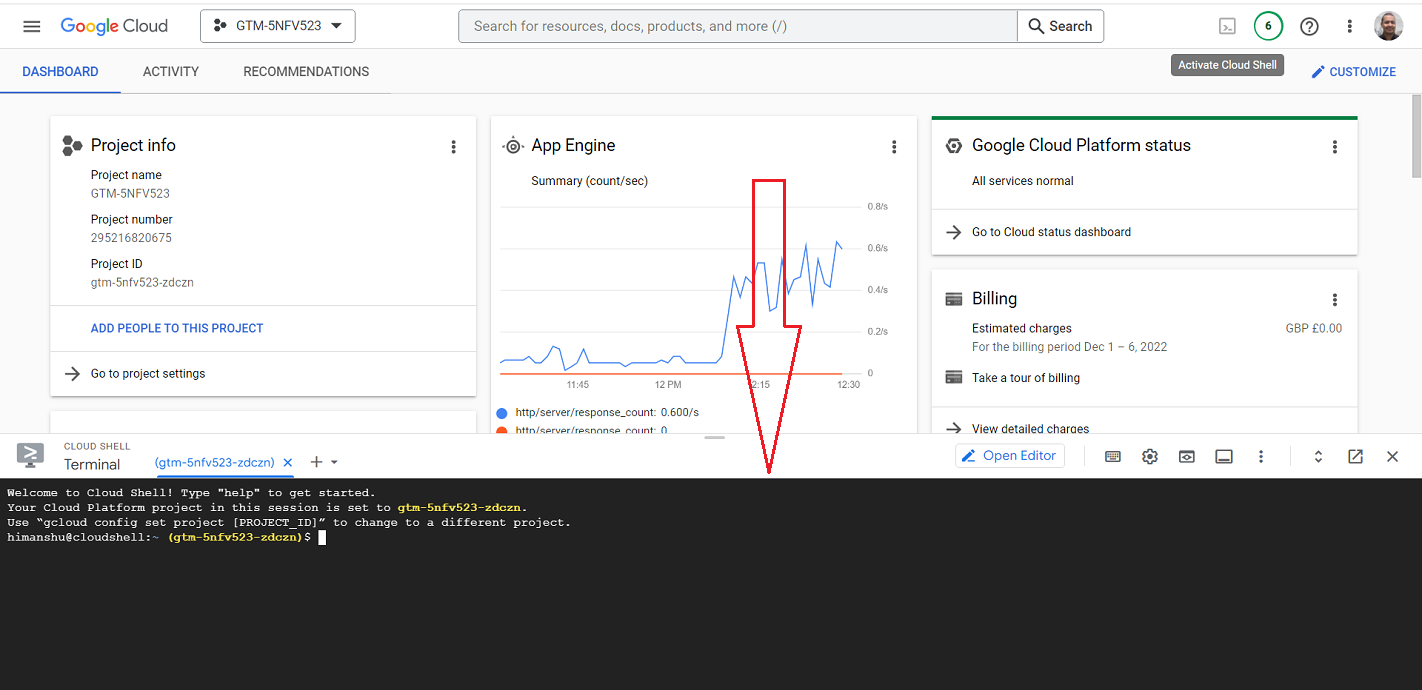
After a few seconds, you should see the cloud shell terminal window at the bottom of your screen:
Step-4: Copy-paste the following shell command at the command prompt:
bash -c "$(curl -fsSL https://googletagmanager.com/static/serverjs/setup.sh)"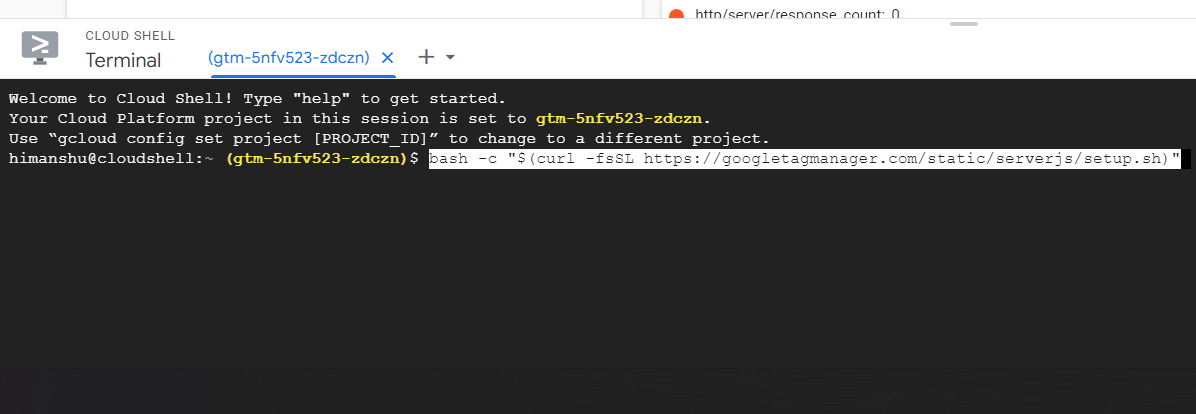
Step-5: Press the Enter key to execute the shell command.
Step-6: Click on the ‘Authorize’ button:
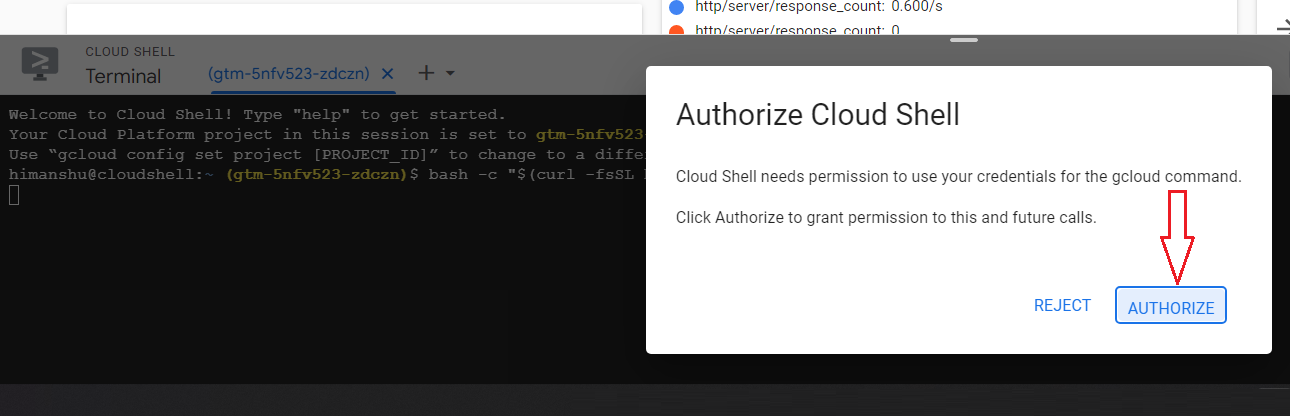
You should now see a screen like the one below:
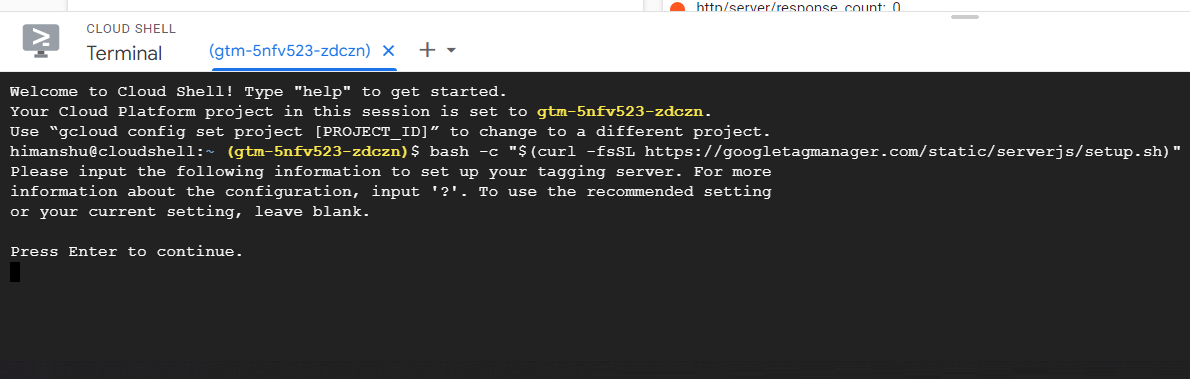
Step-7: Press the Enter key to continue.
You should now see the following screen:
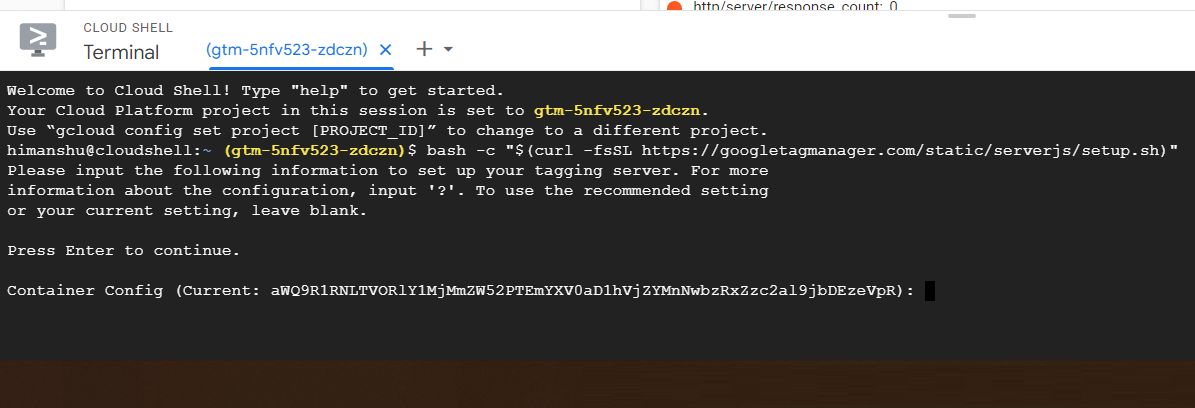
Note: If you don't see this screen, close the cloud shell terminal, refresh the web page and again start following from step-3.
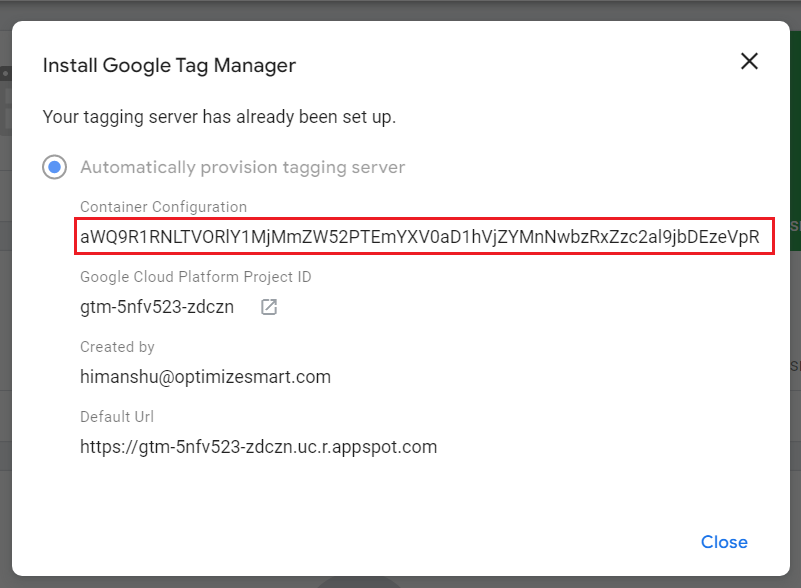
The container configuration that you see in the cloud shell terminal is the same as that you see in your GTM server container:
Step-8: Press the Enter key, as we want to keep using the current container configuration.
You should now see the following screen:
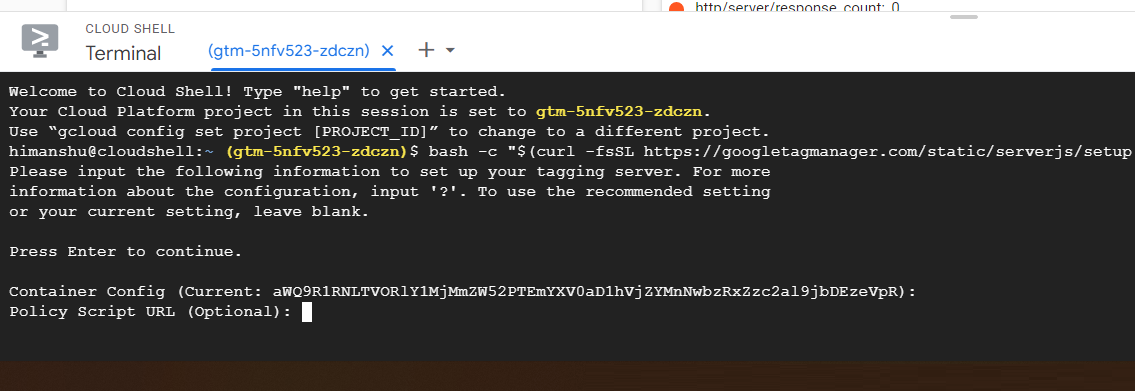
Step-9: Press Enter, as we don't want to provide the policy script URL.
You should now see the following screen:
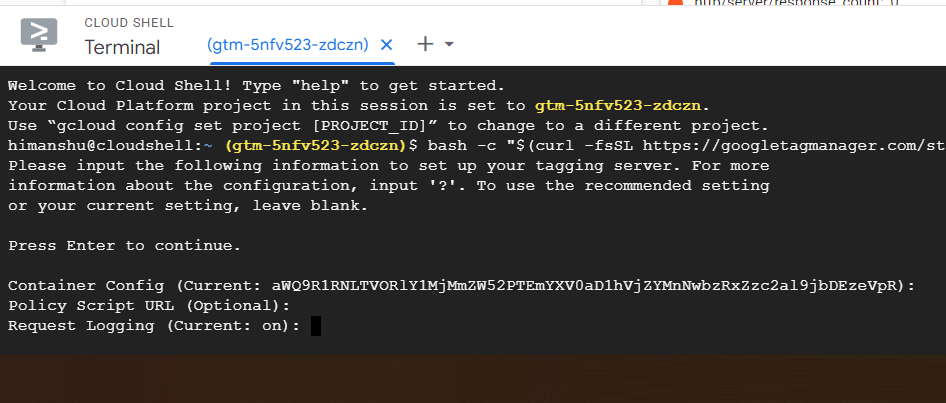
Step-10: Press the Enter key, as we want to keep logging on.
You should now see the following screen:
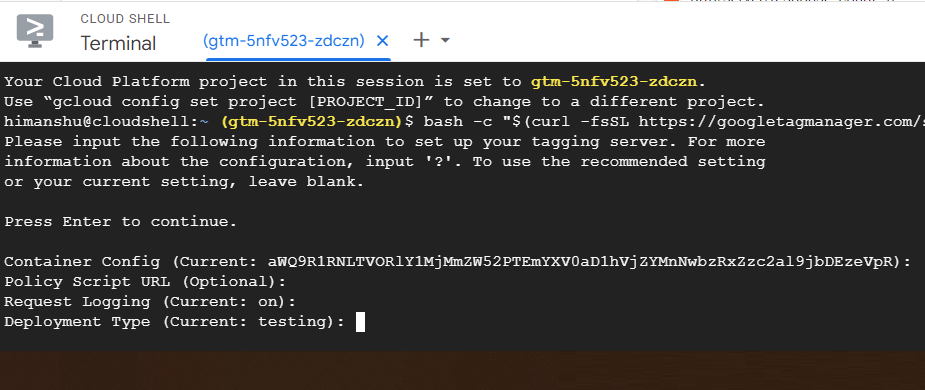
Step-11: Type ‘testing’ at the command prompt as we are downgrading to the testing server:
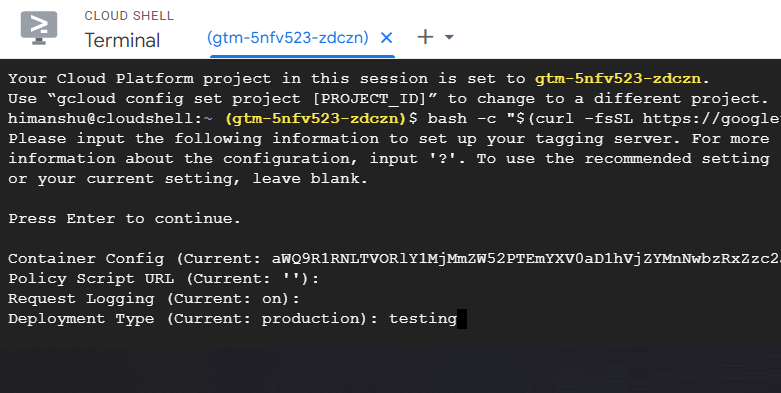
Step-12: Press the Enter key to change the server deployment type from 'production' to 'testing'.
You should now see the following screen:
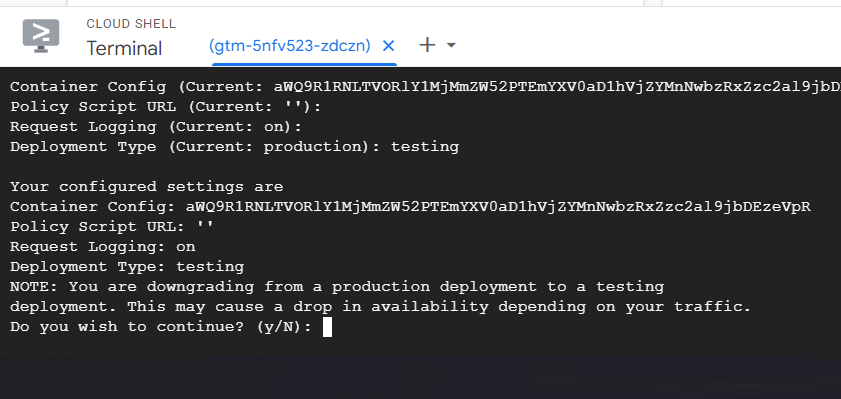
Step-13: Type ‘y’ and then press the enter key to confirm that you are ready to downgrade to a testing deployment.
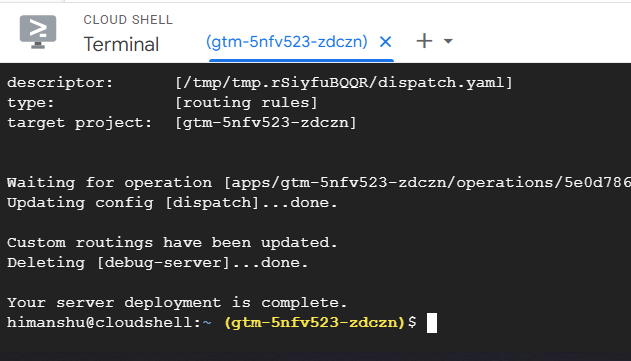
After around 5 minutes of waiting, you should now see the following message: “Your server deployment is complete”:
Step-14: Close the cloud shell terminal by clicking on the cross button:
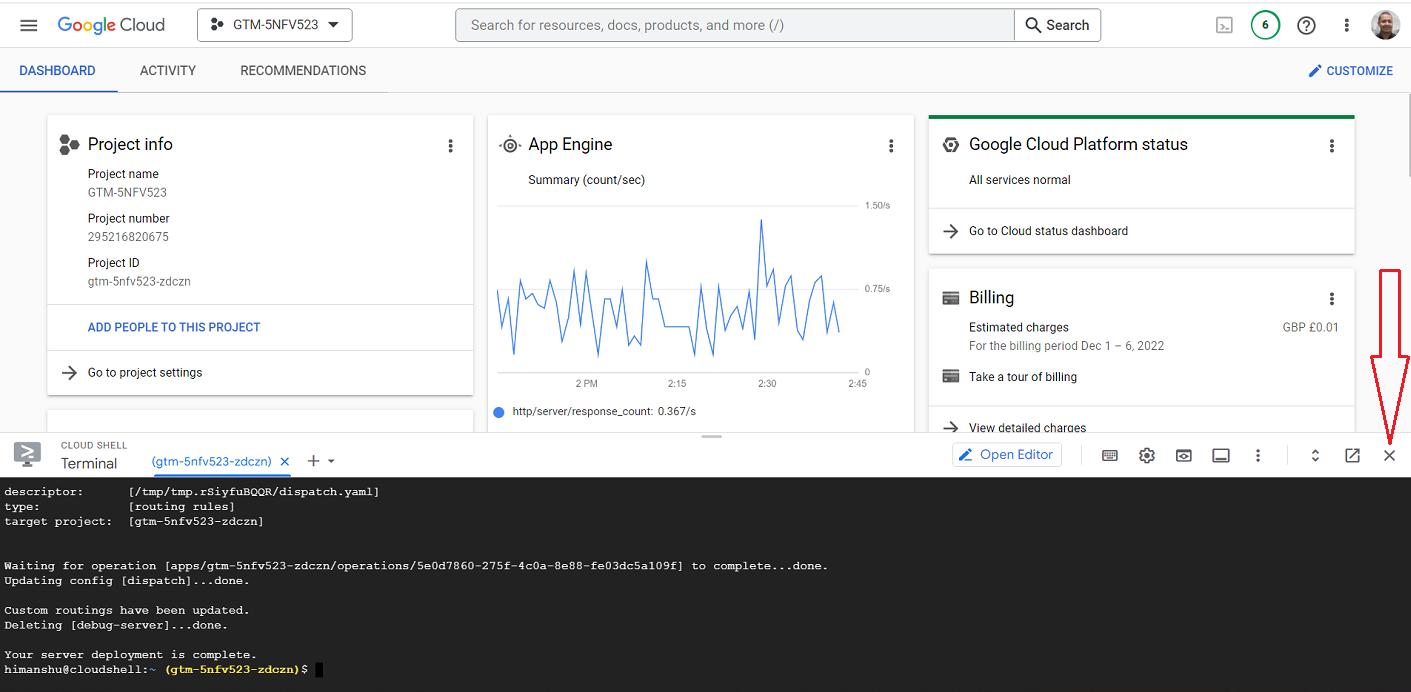
Step-15: Click on the browser refresh button to refresh your Google Cloud account.
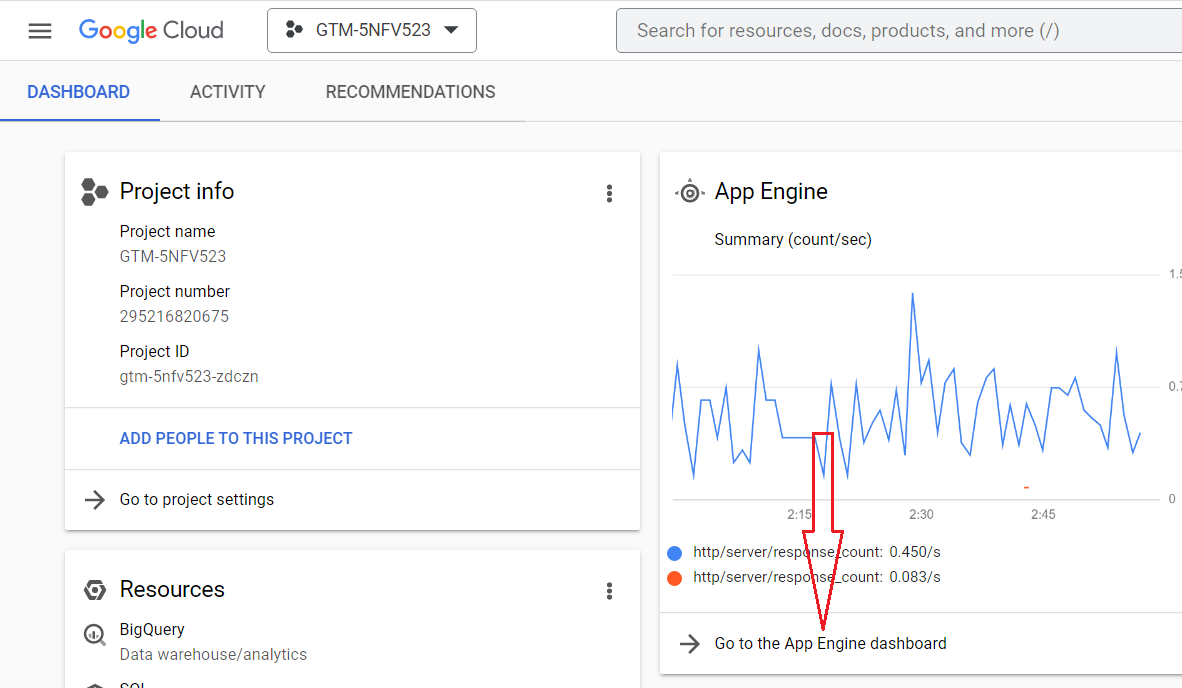
Step-16: Click on the link ‘Go to App Engine Dashboard’:
You should now see a screen like the one below:
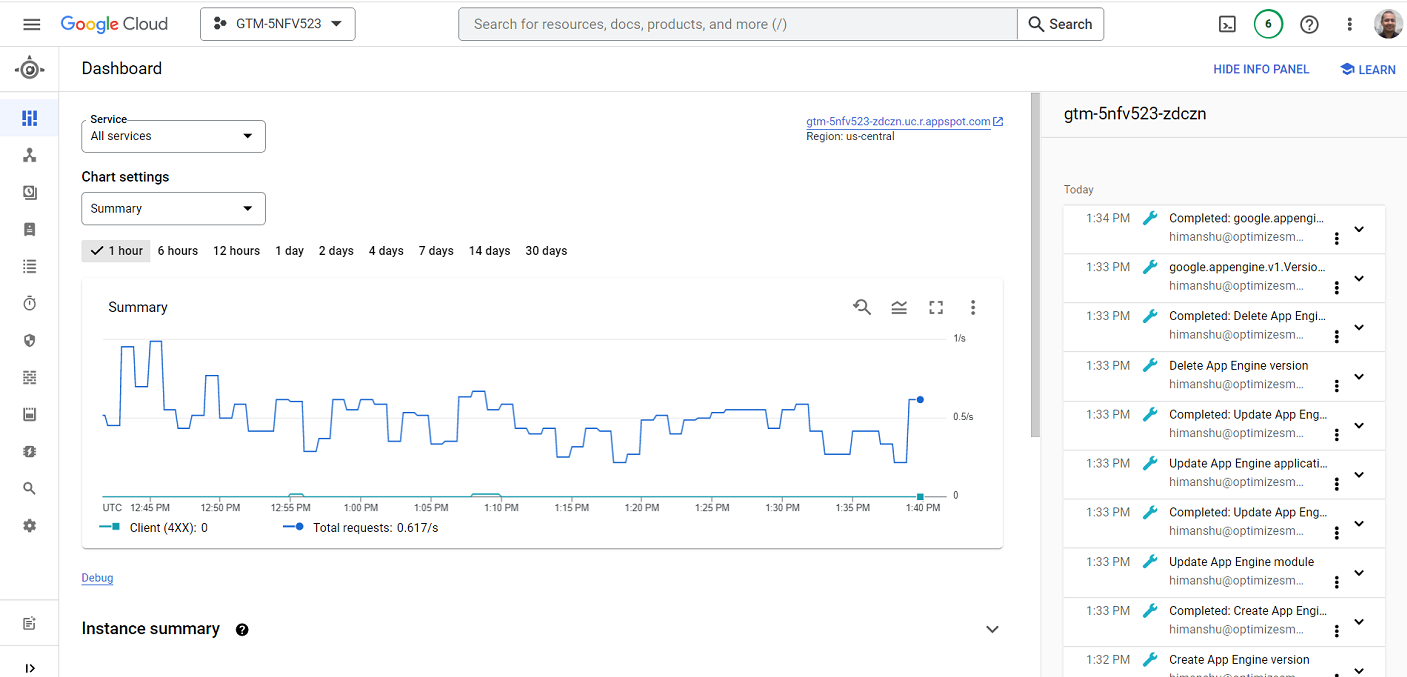
Step-17: Click on ‘Versions’ from the left-hand side menu:
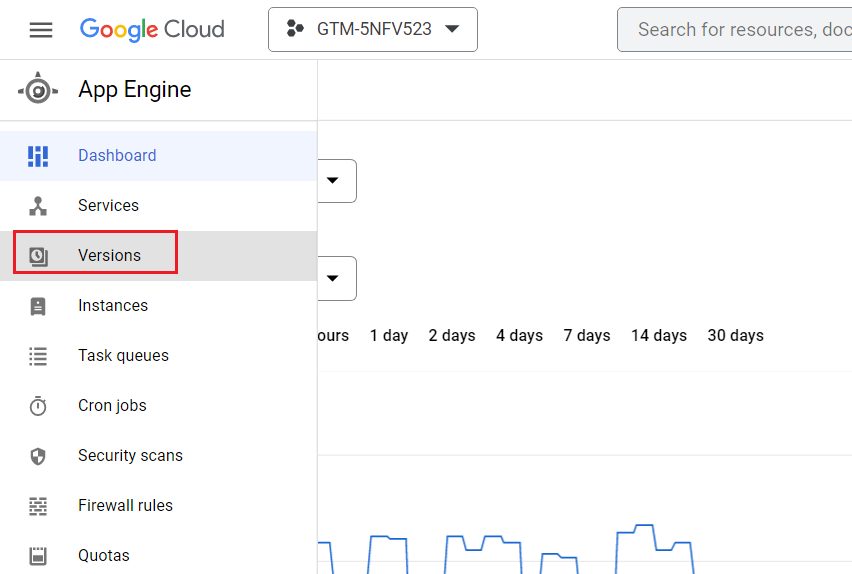
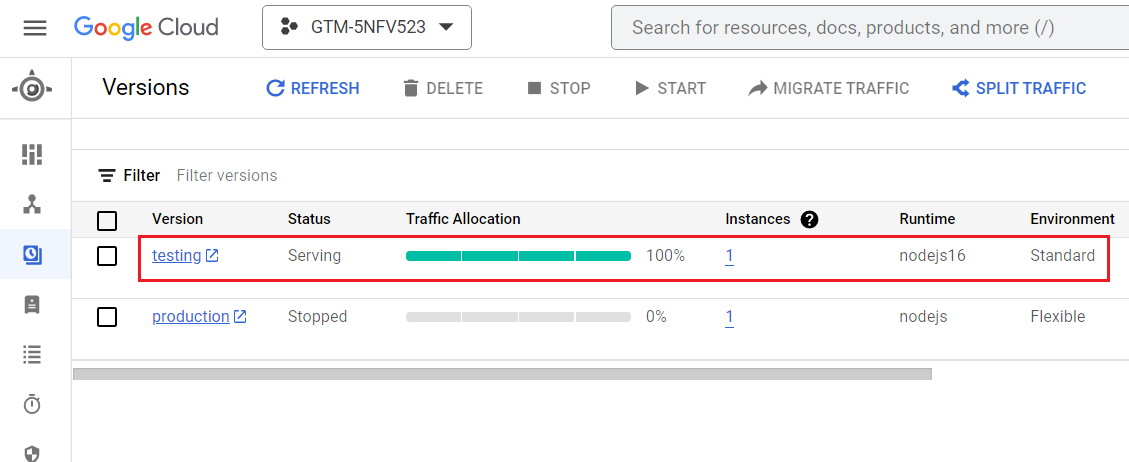
You should now see ‘testing’ under the ‘Version’ column with the status of ‘serving’, which indicates that you are now using the testing server:
#2 Disconnect the GA4 configuration tag from the server container.
Follow the steps below to disconnect the GA4 configuration tag from the server container:
Step-1: Navigate to your GTM web container.
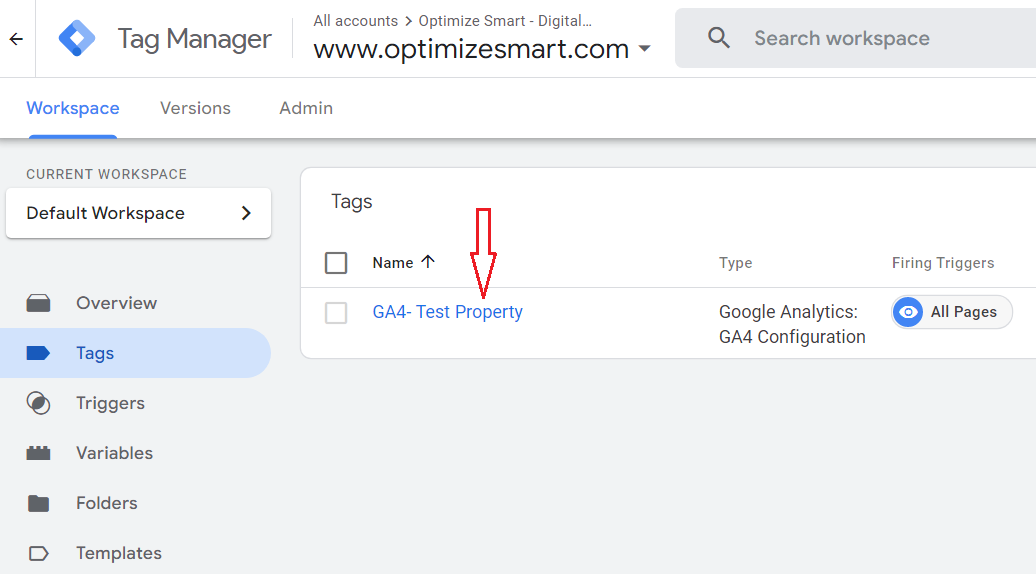
Step-2: Edit the GA4 configuration tag:
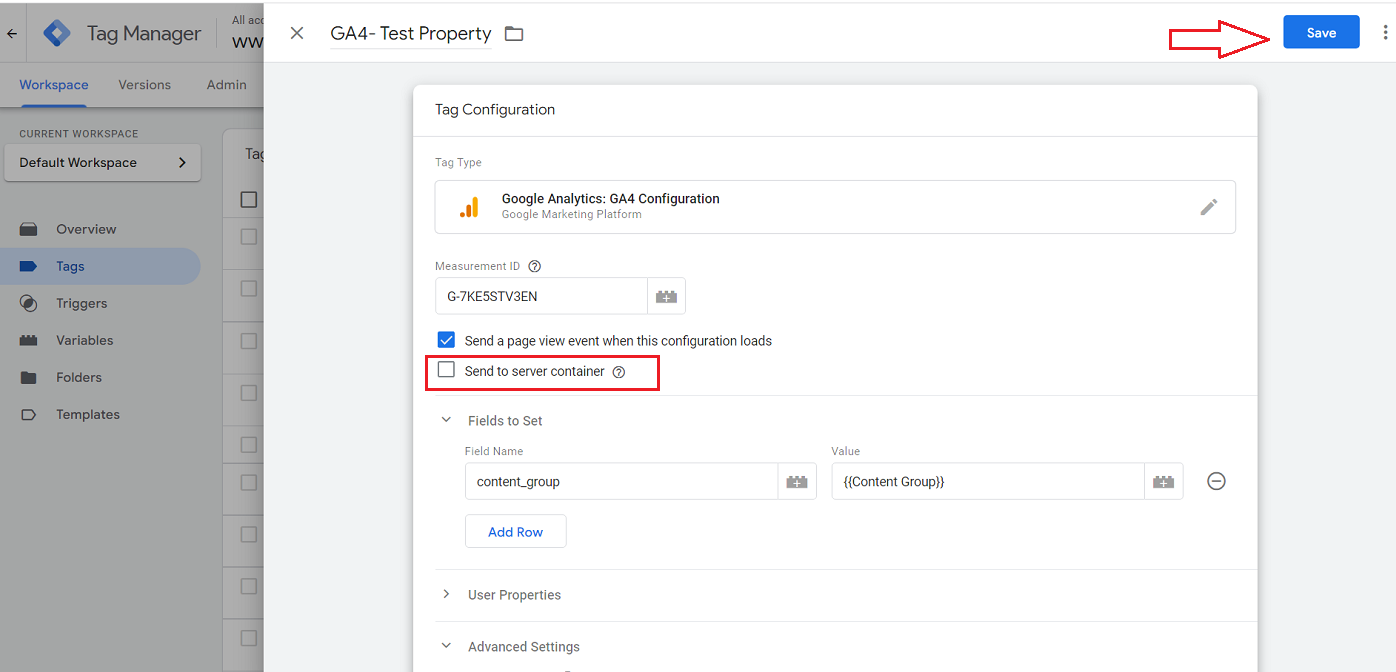
Step-3: De-select the checkbox ‘Send to Server Container’ and then click on the ‘Save’ button to save your tag:
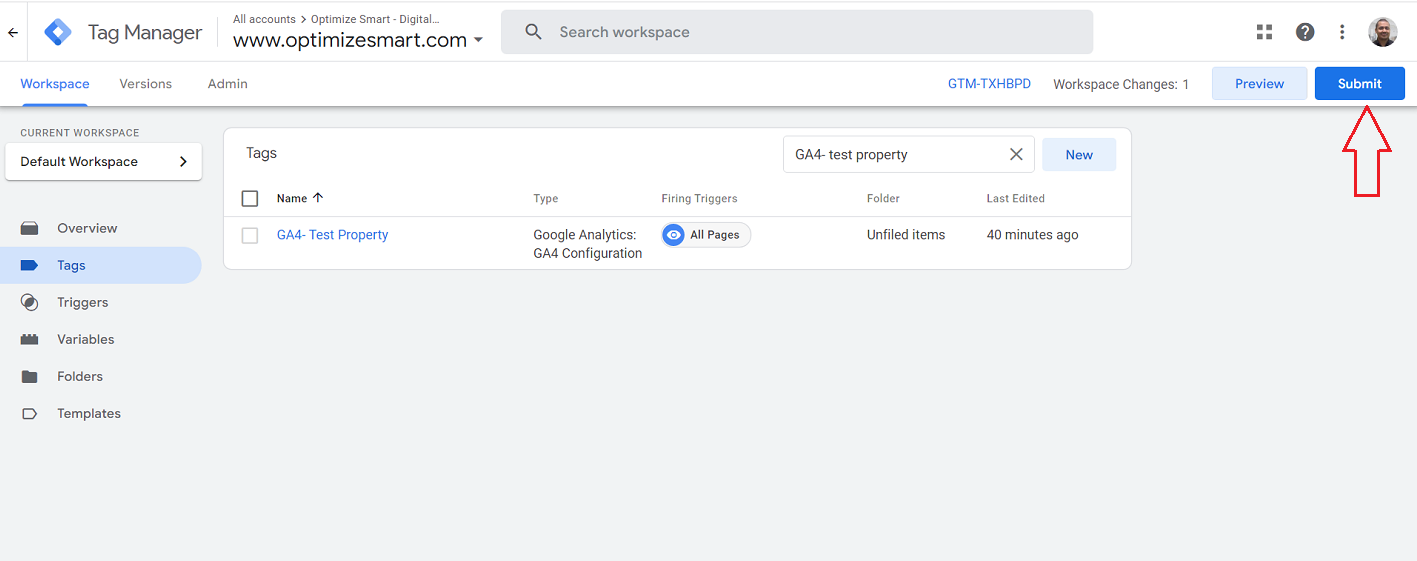
Step-4: Click on the ‘Submit’ button to publish your container:
#3 Shut down the Google Cloud project.
Follow the steps below to shut down the Google Cloud Project:
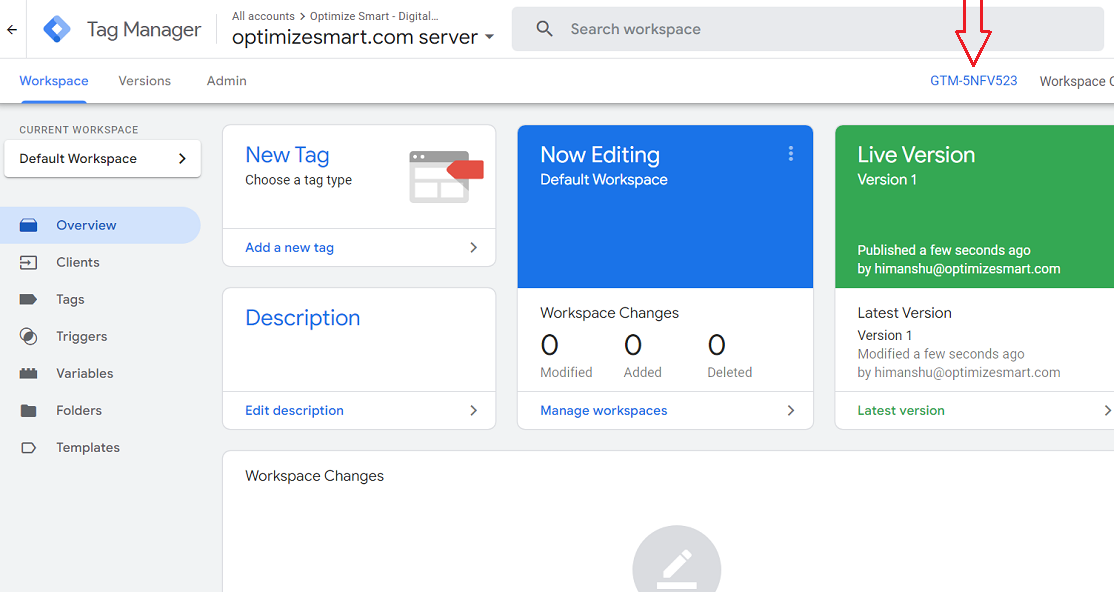
Step-1: Click on the container ID of your GTM Server Side Container:
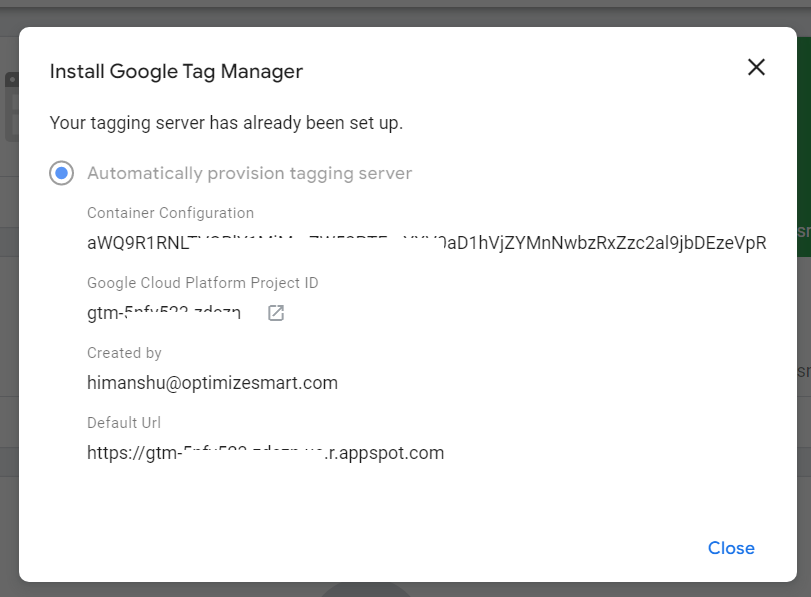
You should now see a pop-up like the one below:
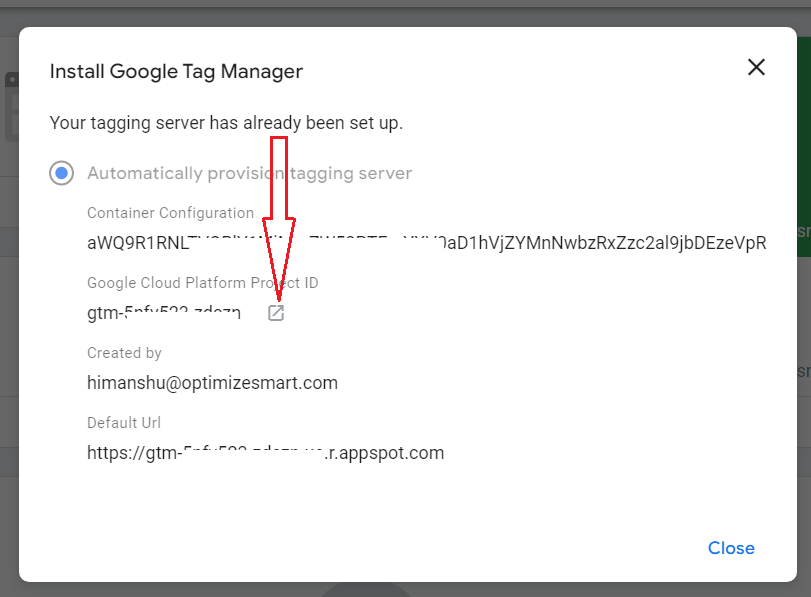
Step-2: Open your Google Cloud Platform project by clicking on the open button:
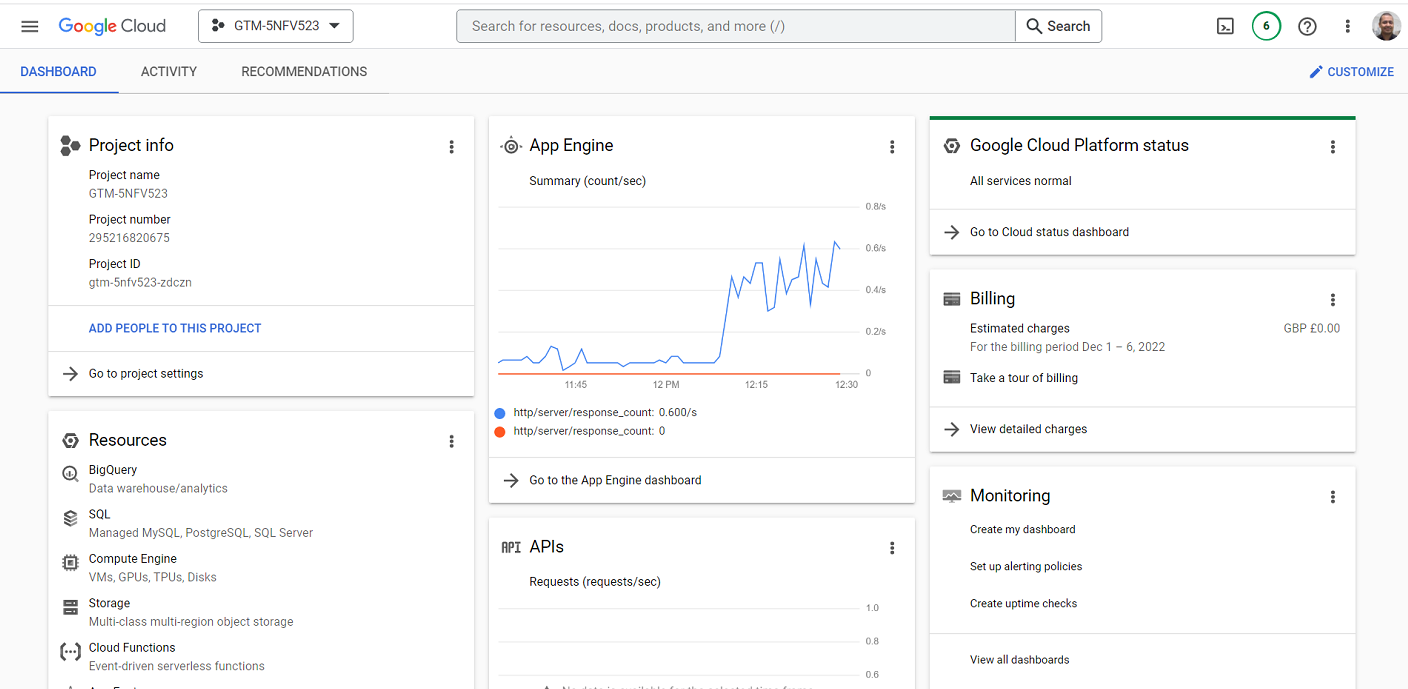
You should now see a screen like the one below:
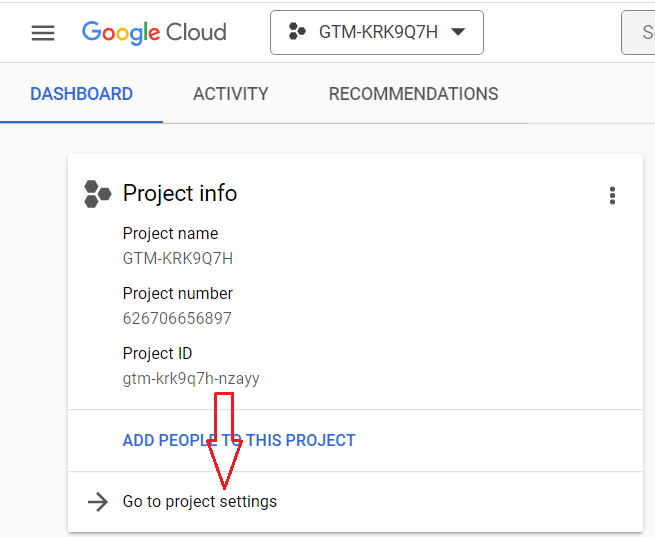
Step-3: Click on the link ‘Go to project settings’:
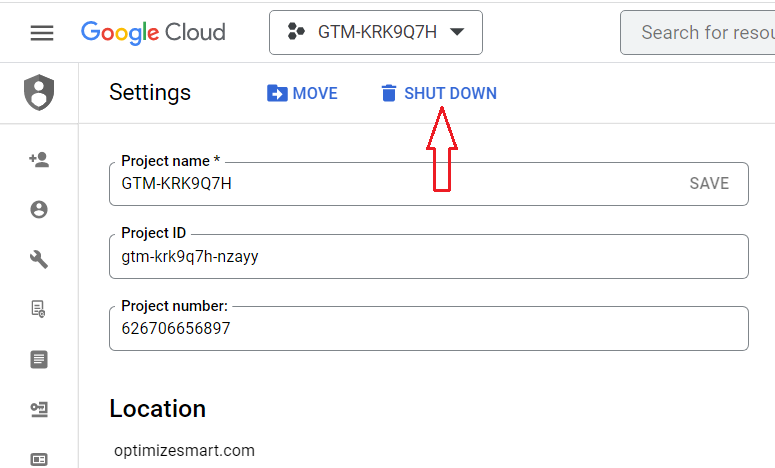
Step-4: Click on the button ‘Shut Down’:
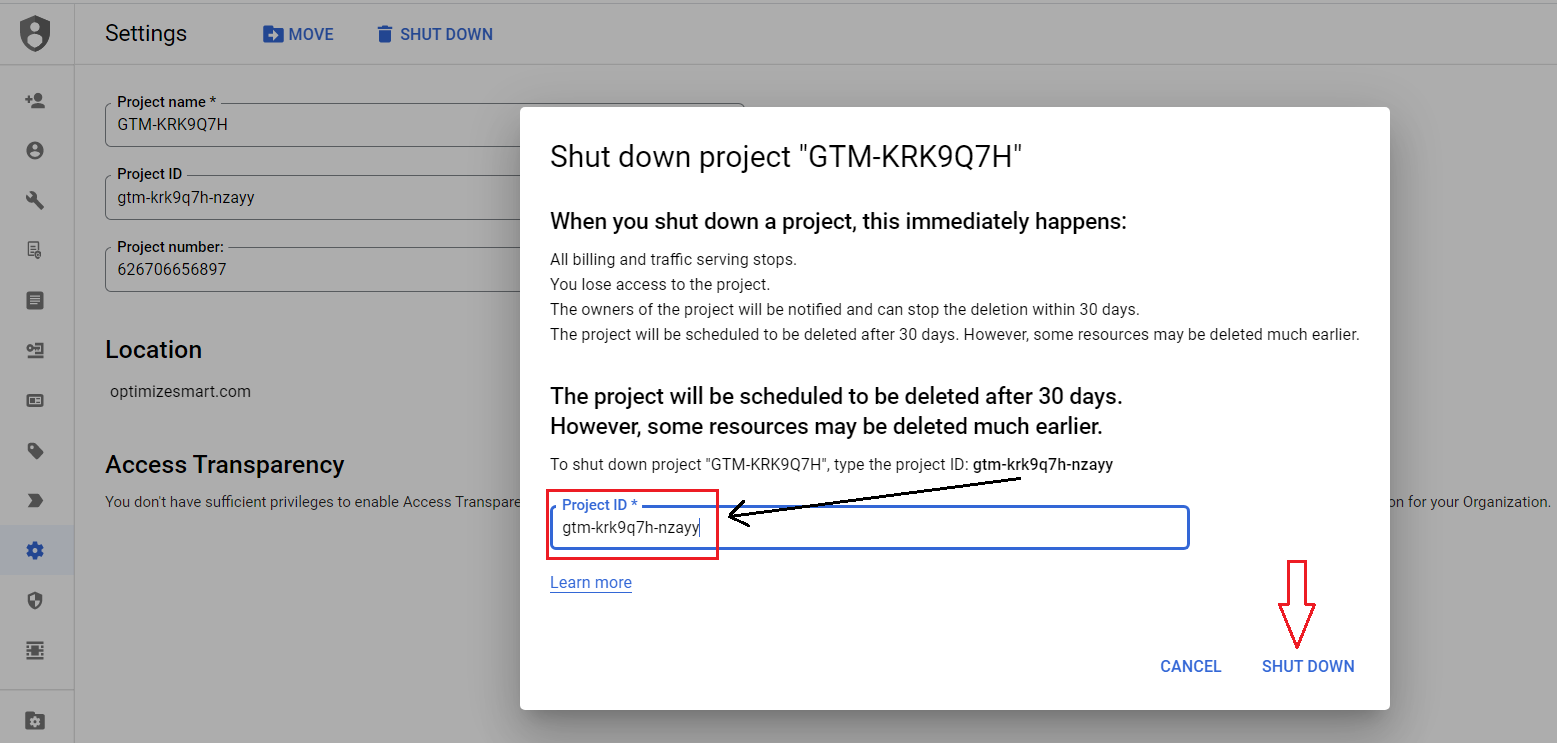
Step-5: Type the project id and then click on the ‘SHUT DOWN’ button:
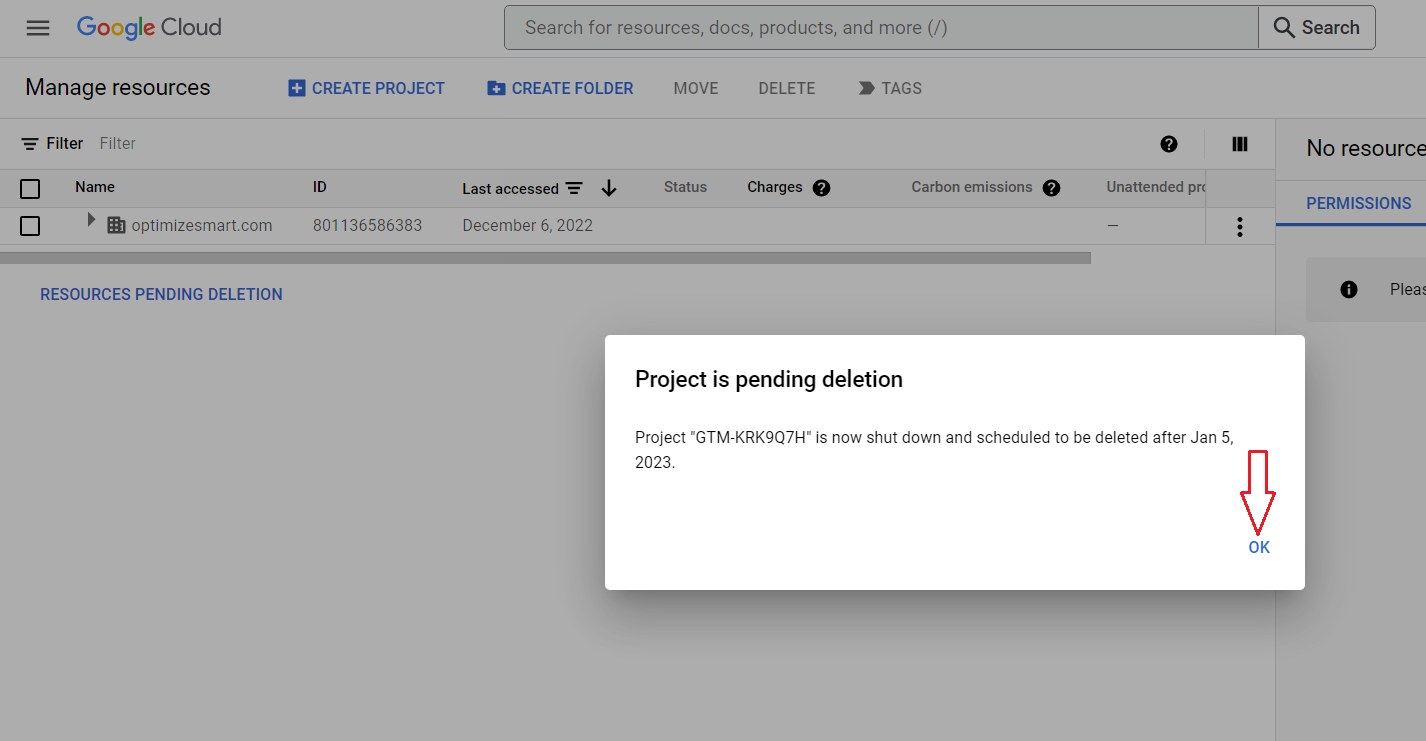
Step-6: Click on the ‘ok’ button:
#4 Delete the GTM Server container.
Follow the steps below to delete your GTM Server Container:
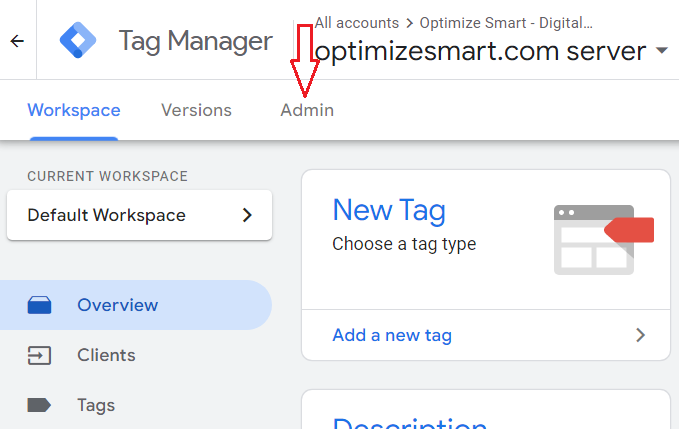
Step-1: Navigate to your GTM server container and then click on the ‘Admin’ tab:
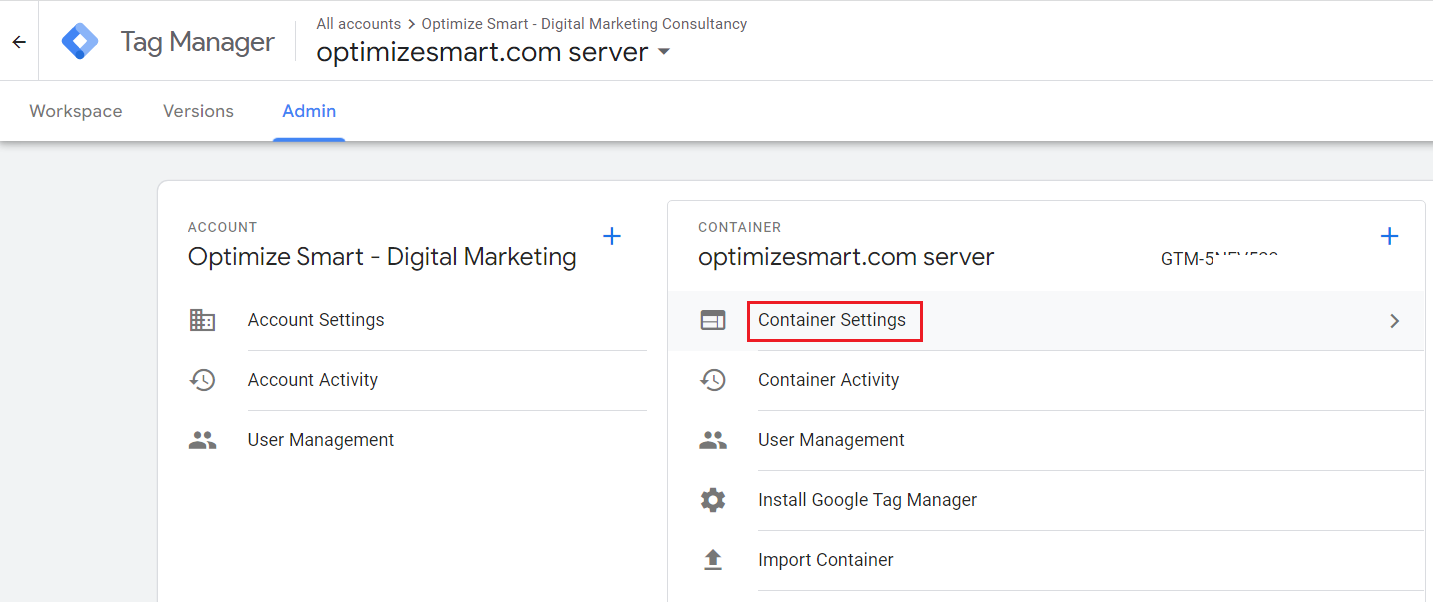
Step-2: Click on the link ‘Container Settings’ under ‘CONTAINER’:
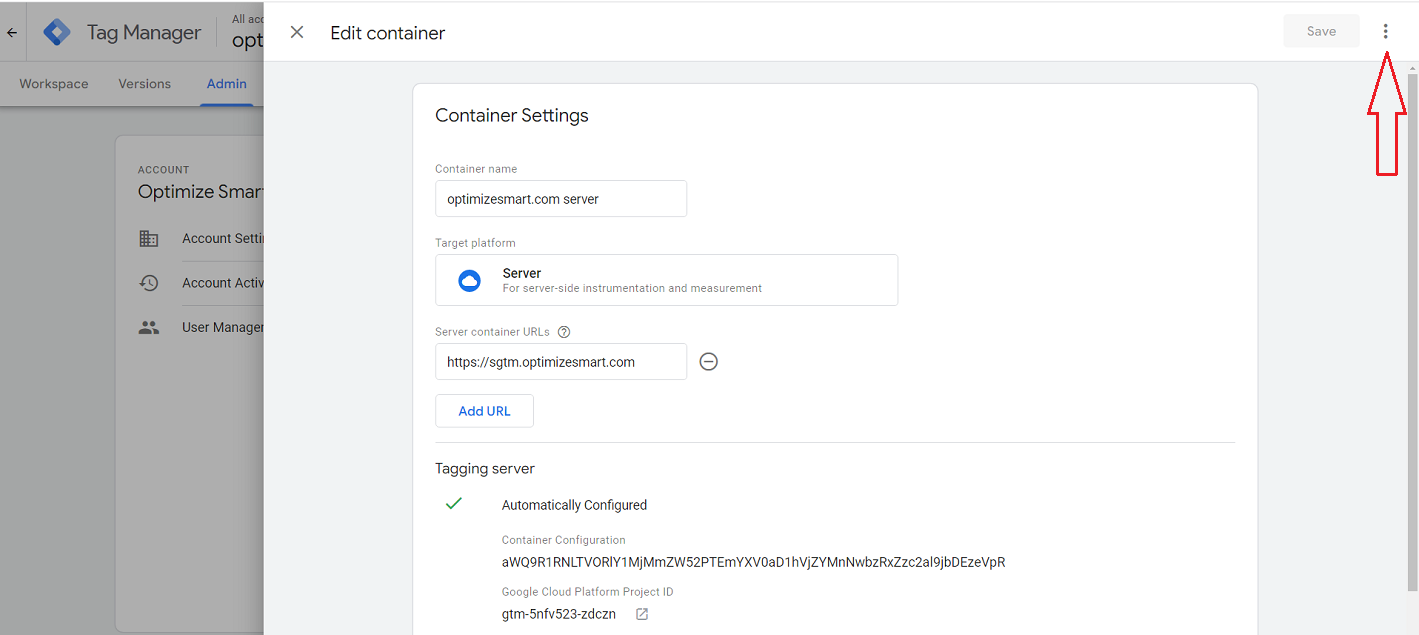
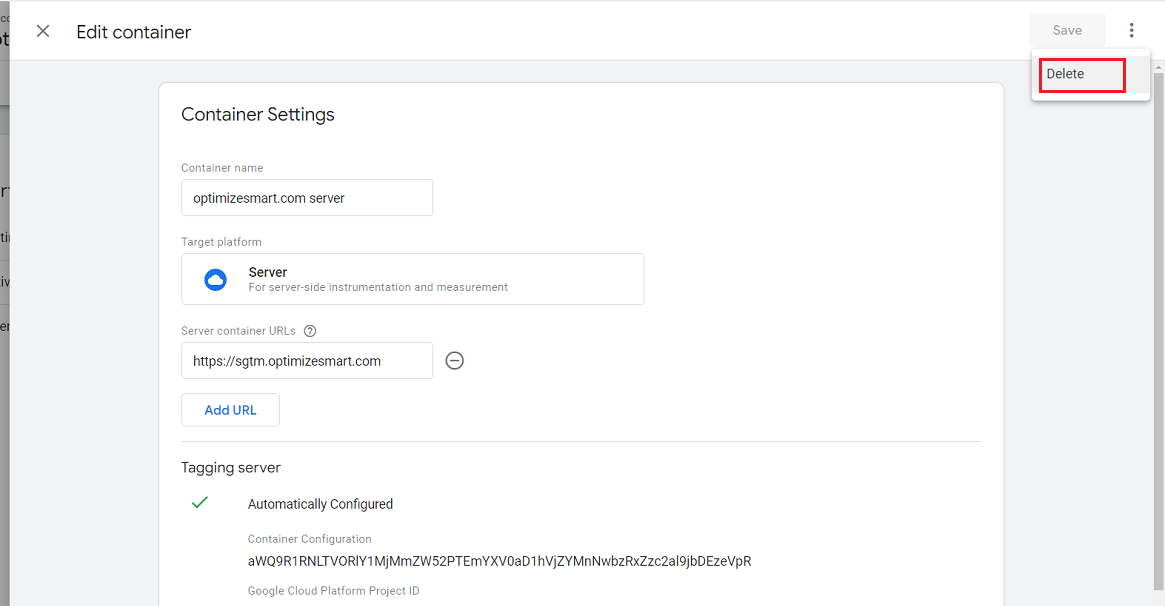
Step-3: Click on the three dots menu located at the top right-hand side of your screen:
Step-4: Click on the ‘Delete’ option to delete your GTM server container:
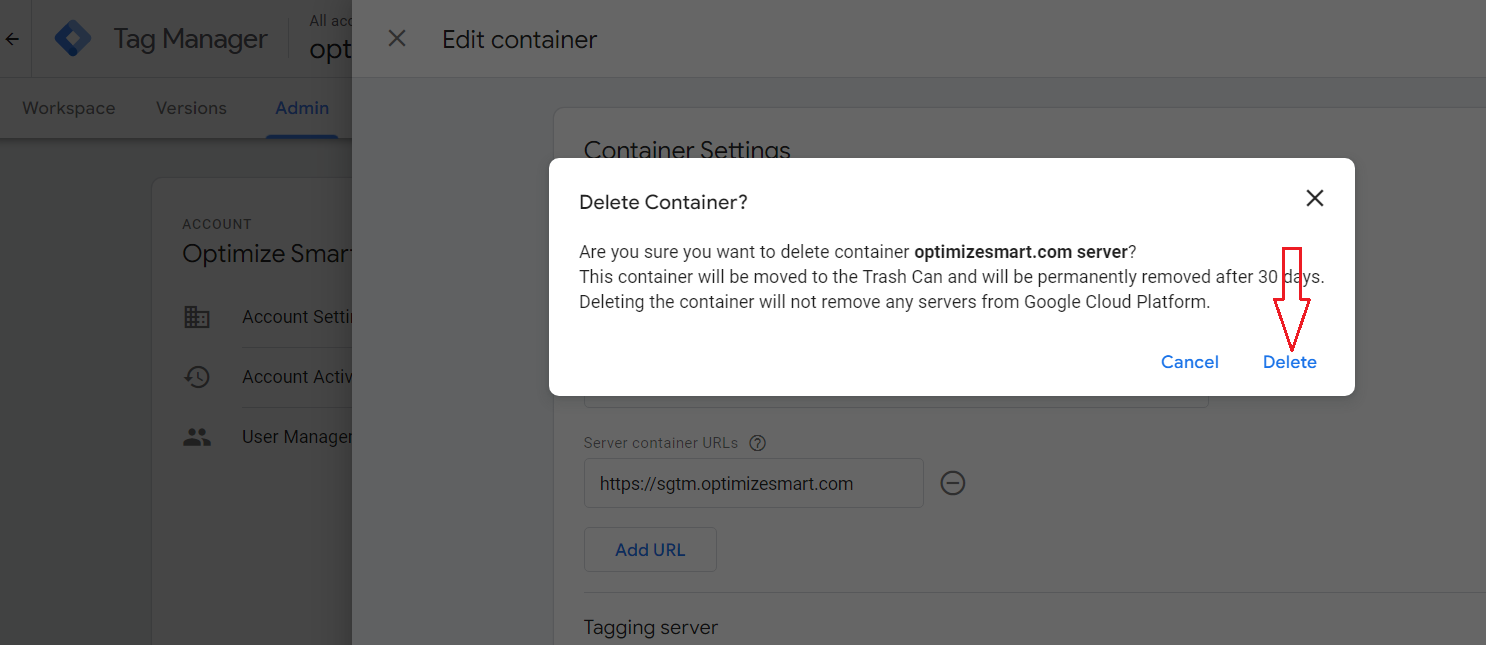
Step-5: Click on the ‘Delete’ button to confirm the deletion of your GTM server container:
#5 Delete all the DNS records related to server-side Tagging.
Follow the steps below to delete all the DNS records related to server-side Tagging:
Step-1: Login to your domain registrar account (in my case, it is ‘cloudflare’).
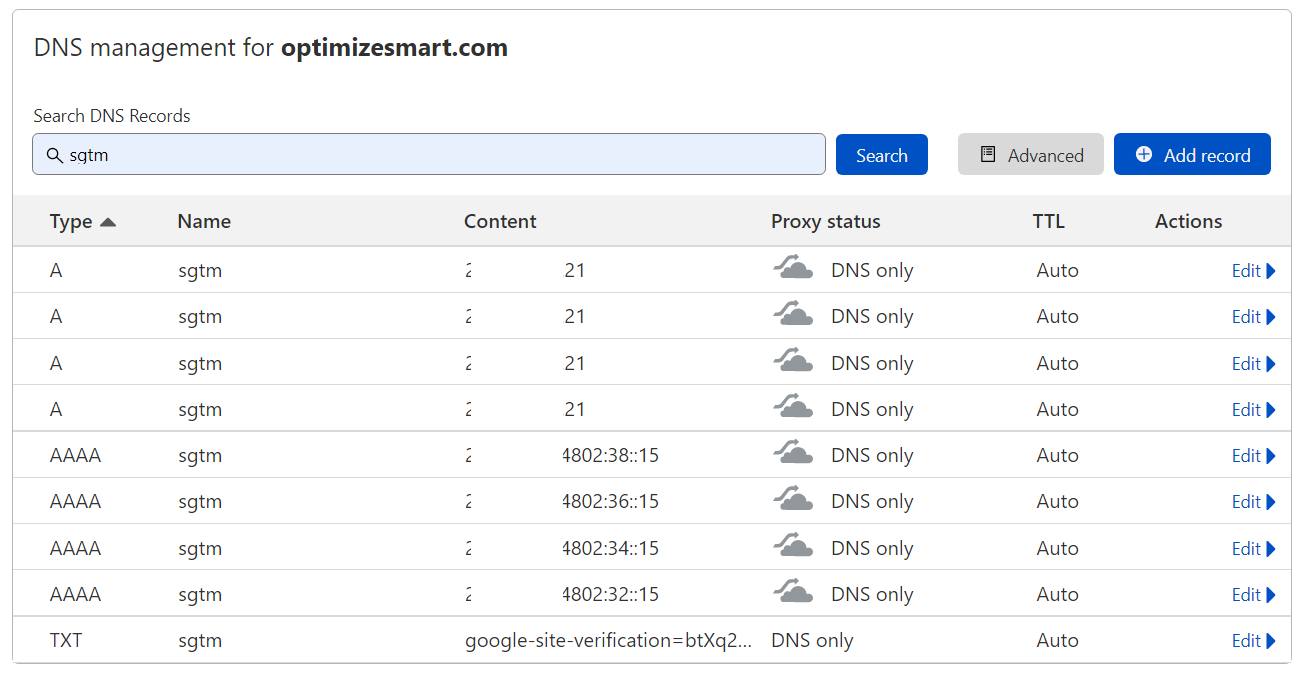
Step-2: Find and then delete all the DNS records you added while setting up a custom domain in Google cloud:
There should be 9 DNS records (4 ‘A’ records, 4 ‘AAAAA’ records and 1 TXT record) related to server-side Tagging setup in your domain registrar account:
Other Articles on GA4.
- Tracking New, Qualified and Converted Leads in GA4.
- Free GA4 training and tutorial with Certification.
- Understanding GA4 Ecommerce Reports (Monetization Reports).
- GA4 Ecommerce Tracking via GTM: Step-by-Step Setup Guide.
- How to see UTM parameters in GA4 (Google Analytics 4).
- GA4 UTM parameters not working? Here is how to fix it.
- How To Use UTM parameters in GA4 (Campaign Tracking).
- How to track AI traffic in GA4.
- Understanding Google Analytics 4 cookies – _ga cookie.
- GA4 (Google Analytics 4) Measurement Protocol Tutorial.
- GA4 Unassigned Traffic: Causes and How to Fix it Fast.
- GA4 Regex (Regular Expressions) Tutorial.
- GA4 Direct Traffic Spike: Common Causes and How to Fix Them.
- gtag.js – Google Tag in Google Analytics 4 and beyond.
- GA4 Scopes – User, Session, Event & Item scopes.
- GA4 Conversion Tracking (Key Events) Tutorial.
- GA4 (not set) - Guide to fixing (not set) issue.
- GA4 Certification Exam: Questions, Answers for Skillshop (GAIQ).
- GA4 User Properties (User Scoped Custom Dimensions) – Tutorial.
- Tracking Organic Traffic in GA4 - Complete Guide.
- Tracking Events in GA4 (Google Analytics 4).
- GTM Server Side Tagging - Setup Guide.
- Using Subfolder for GTM Server Side Tagging (Same Origin Tracking).
- Understanding Event Parameters in Google Analytics 4 (GA4).
- How to Uninstall GTM Server Side Tagging.
- How to remove (other) in GA4 reports and avoid Cardinality.
- Creating GA4 Assistant via Claude for your customers.
- How To Set Up User ID in GA4 - Cross Device Tracking.
- GA4 Mobile App Tracking - Firebase Integration.
- How to use DebugView report in Google Analytics 4 (GA4).
- How to Track Phone Calls in Google Analytics 4.
- How to detect GTM Server Side Tagging.