

What is the Attribution Paths report in GA4?
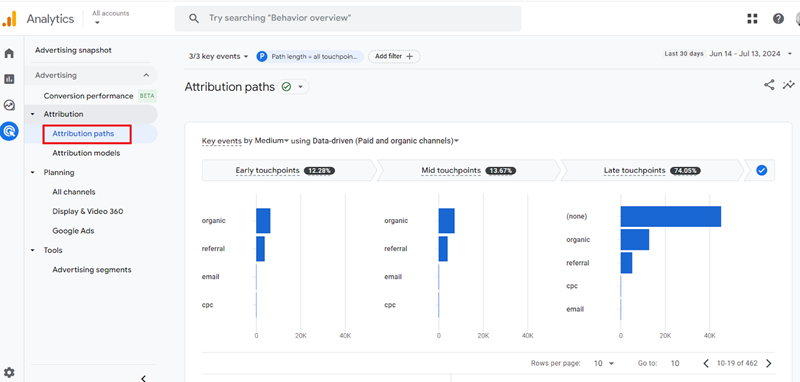
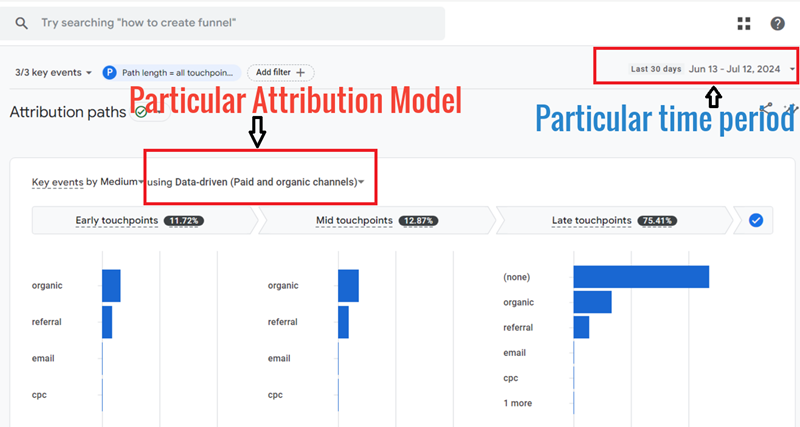
The ‘Attribution Paths’ report is one of the ‘Advertising’ reports in GA4 that reports on Attribution Paths (also known as ‘Conversion paths) for one or more key events under a particular attribution model and in a particular time period.
Understanding Touchpoints.
Before you can understand the concept of ‘conversion paths’ (known as ‘attribution paths’ in GA), you need to understand the concept of ‘touchpoints’.
Touchpoint (also known as ‘interaction’, exposure, touch, or customer touchpoint) is the point at which a person comes into contact with your brand before, during and after completing a key event (aka conversion) on your website.
For example, in the chart below, a visitor is exposed to six different marketing channels before he makes a purchase:
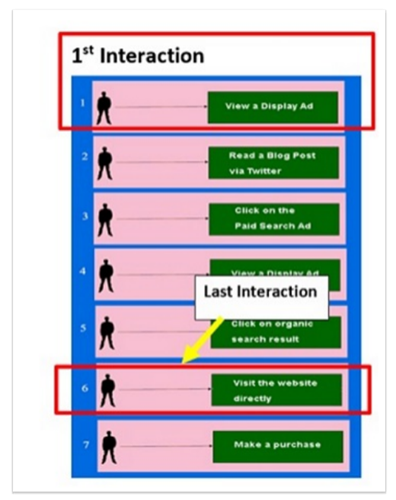
You can understand your customer’s purchase journey by identifying the touchpoints that occurred before and during key events.
By identifying the touchpoints after a key event, you can understand your customer’s satisfaction level.
The following are examples of touchpoints that can occur before a key event:
- Reviews.
- Ratings.
- Word of mouth.
- Paid advertising.
The following are examples of touchpoints that can occur during a key event:
- Your website.
- Product description.
- Your physical store.
- Your sales staff.
The following are examples of touchpoints that can occur after a key event:
- Customer support.
- Marketing emails.
- Retargeting.
To truly understand your customer’s behaviour, you would need to identify, measure, and optimize all of these touchpoints.
If a user was exposed to six marketing channels before making a purchase, then there were six touchpoints in his attribution path.
Similarly, if a user was exposed to three marketing channels before making a purchase, then there were three touchpoints in his attribution path.
Categories of touchpoints.
There are several categories of touchpoints. For example:
#1 Touchpoints based on position.
- First touchpoint.
- Early touchpoints.
- Middle (or mid) touchpoints.
- Late touchpoints.
- Last touchpoint.
Note: GA4 reports only on Early, Middle and Late touchpoints.
#2 Touchpoints based on users’ actions.
- Click touchpoints (which are basically clicking on ads).
- Impression touchpoints (which are basically viewing ads).
#3 Touchpoints based on campaign or traffic source type.
- Keyword touchpoints.
- Campaign touchpoints.
- Facebook touchpoints, etc.
#4 Touchpoints based on online/offline activities.
Online touchpoint – exposure to an online marketing channel like ‘paid search’, ‘organic search’, ‘social media’, ‘email’, ‘display’, etc.
Offline touchpoint – exposure to an offline marketing channel like ‘TV’, ‘radio’, ‘outdoor advertising’, ‘point of purchase display’, etc.
Note: GA4 does not report on offline touchpoints. It reports only on online touchpoints.
Understanding Attribution Paths in GA4.
An Attribution Path (also known as ‘key event path’ or ‘conversion path’) is the sequence of touchpoints with digital marketing channels that lead to key events over a period of 1 to 90 days.
Consider the following hypothetical conversion path of a user where the user is exposed to the following six marketing channels before he makes a purchase:
- View a display ad.
- Read a blog post via Twitter.
- Click on a paid search ad.
- View a display ad.
- Click on an organic search listing.
- Visit your website directly.
- Made a purchase.
GA4 will show this conversion path as:

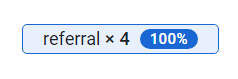
In GA4, if a touchpoint appears over and over again in continuation like this:

It is reported as:
The interactions based on position are characterised by their position on an attribution path.
For example,
GA4 can report the first interaction as the first exposure to a marketing channel on an attribution path in the last 1 to 90 days.
Similarly, GA4 can report the last interaction as the last exposure to a marketing channel on an attribution path.
So first touchpoint, middle touchpoints and last touchpoint are the touchpoints based on position.
Following is an example of an attribution path that shows the first, middle and last touchpoints (aka interactions):
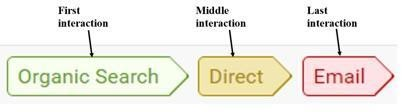
Here,
- ‘Organic Search’ is the first touchpoint in the attribution path.
- ‘Direct traffic’ is the middle touchpoint in the attribution path.
- ‘Email’ is the last touchpoint in the attribution path.
Following is an example of an attribution path that shows first touch, middle touches and last touch:

Here,
- ‘Display’ traffic is the first touchpoint on the attribution path.
- ‘Social Network’, ‘Paid Search’, ‘Display’ and ‘Organic Search’ are the middle touchpoints on the attribution path.
- ‘Direct’ traffic is the last touchpoint on the attribution path.
Attribution Paths length.
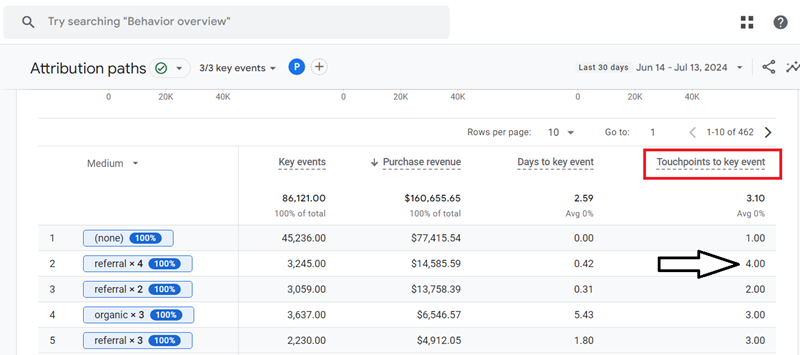
The attribution path length is the number of touchpoints to key events.
So, if GA4 reports ‘touchpoints to key events’ as 1, it means the attribution path consists of just one touchpoint.
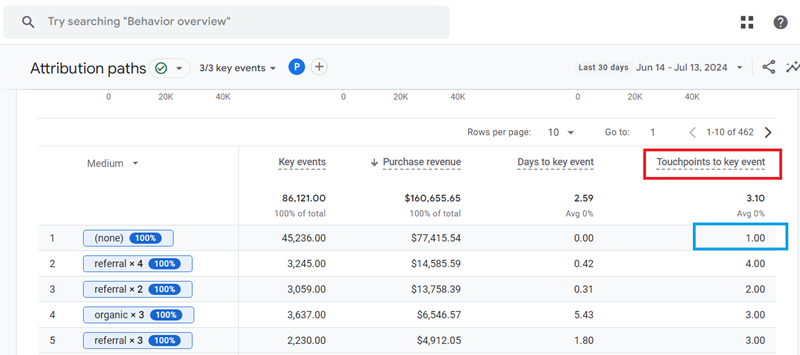
Similarly, if GA4 reports ‘touchpoints to key events’ as 4, it means the attribution path is made up of four touchpoints:
The factor which determines the attribution path length.
The length of an attribution path depends upon the amount of buying consideration involved.
Purchases that require the least amount of buying consideration (like buying a toothpaste) tend to have short attribution paths (paths with just a couple of touchpoints).
Purchases requiring a lot of consideration (like buying a property) tend to have longer attribution paths (paths with many touchpoints).
Important points to remember about Attribution Paths.
#1 The Attribution path is created for each key event recorded by GA4.
#2 The Attribution paths in GA4 are not solely recorded via _ga and ga<container-id> cookies. Instead, GA4 uses a combination of these cookies, along with event data and other tracking mechanisms (like ‘cookieless pings’ when a user denies cookie consent), to construct Attribution paths.
#3 No explicit limit is mentioned on the number of unique Attribution paths GA4 can record.
#4 By default, GA4’s Attribution Paths report displays paths with a maximum of 20 touchpoints (interactions) leading to a key event. Users can customise this setting to view paths with fewer touchpoints but cannot exceed the 20-touchpoint limit in the standard report view.
#5 Exporting GA4 data to BigQuery is a great solution for users who need to analyse longer Attribution paths in GA4.
#6 GA4 will report on Attribution paths only when you have set up conversion tracking in your GA4 property.
#7 GA4 does not report on offline touchpoints in an attribution path. It reports only on online touchpoints.
#8 Google Ads Attribution paths in GA4 include impression touchpoints.
Touchpoint segments of GA4 Attribution Paths report.
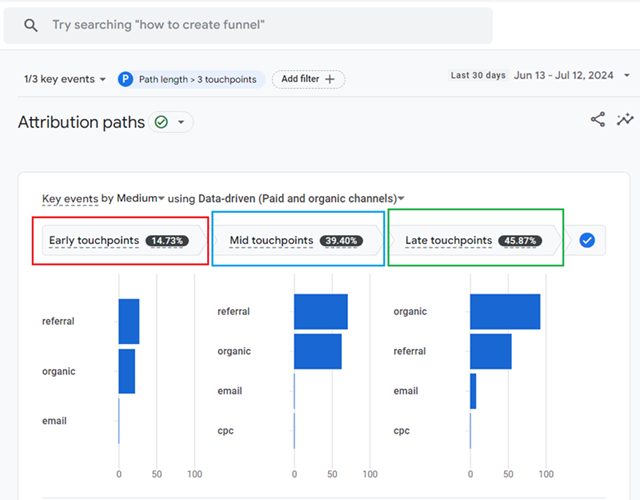
The data visualization section of the Attribution Paths report is divided into the following three touchpoint segments:
- Early touchpoints
- Mid touchpoints
- Late touchpoints
Early touchpoints.
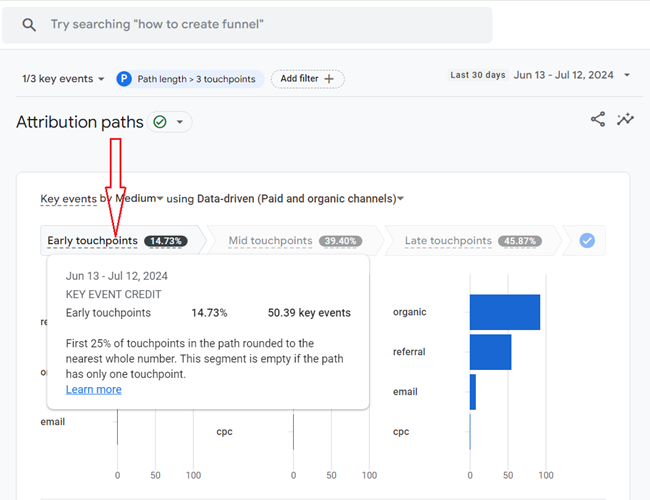
Google considers the first 25% of touchpoints on an attribution path, rounded to the nearest whole number, to be early touchpoints.
Hover your mouse over the ‘Early touchpoints’ segment to see more details about the segment:
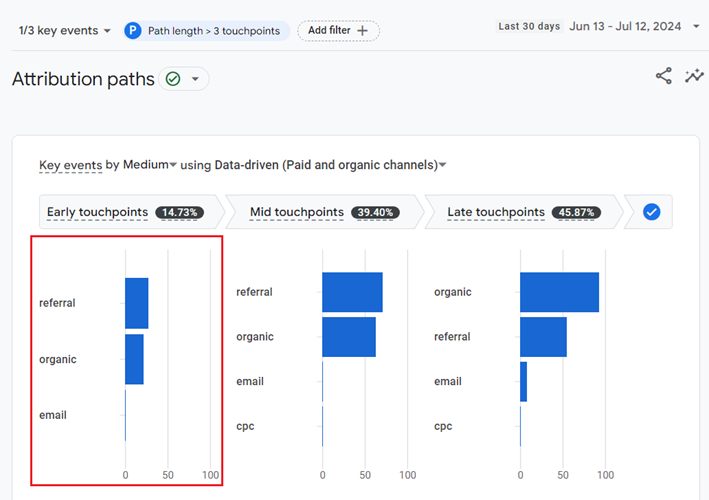
The bar chart that you see under the ‘Early touchpoints’ segment shows how much ‘key event credit’ (aka conversion credit) a particular dimension (in our case ‘Medium’) receives as early touchpoints:
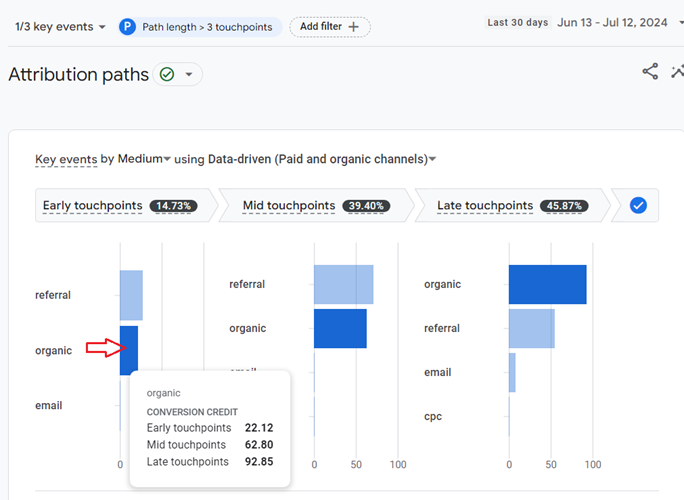
Hover your mouse over a bar (let’s say ‘organic’) in the bar chart to see more details about the conversion credit distribution:
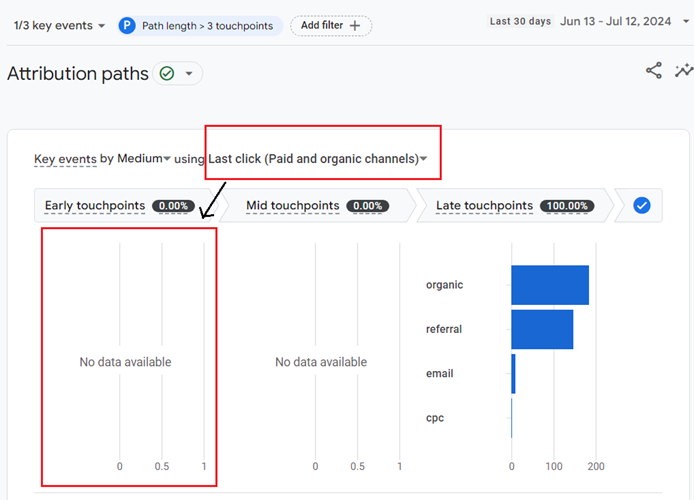
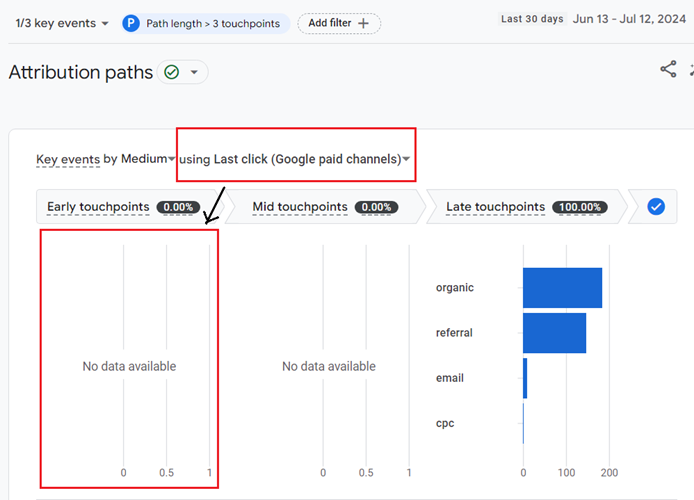
Note: If an attribution path has only one touchpoint, the ‘Early touchpoints’ segment will appear empty.
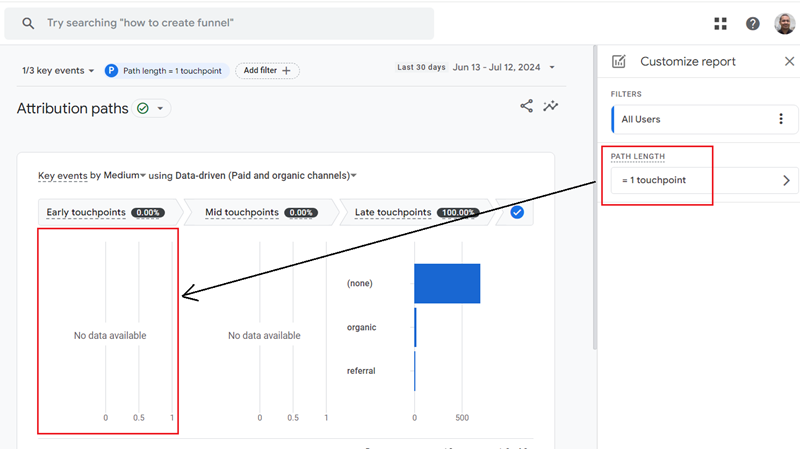
The ‘Early touchpoints’ segment would also appear empty if you select one of the following attribution models:
- Last click (Paid and Organic Channels).
- Last click (Google Paid Channels).
Mid touchpoints.
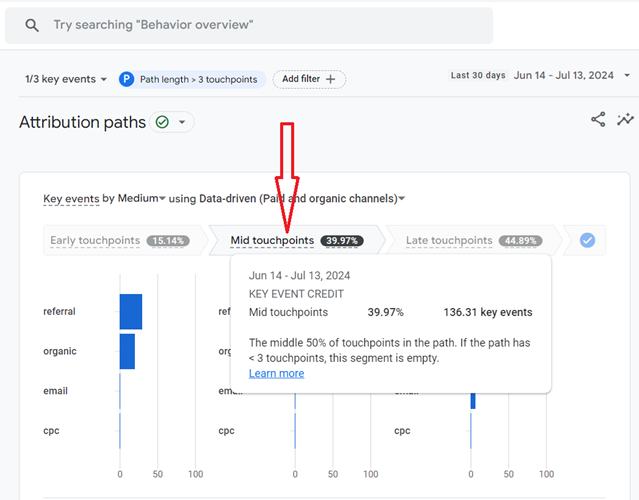
Google considers the middle 50% of touchpoints on an Attribution path mid-touchpoints.
Hover your mouse over the ‘Mid touchpoints’ segment to see more details about the segment:
The bar chart that you see under the ‘Mid touchpoints’ segment shows how much conversion credit a particular dimension (in our case ‘Medium’) receives as middle touchpoints:
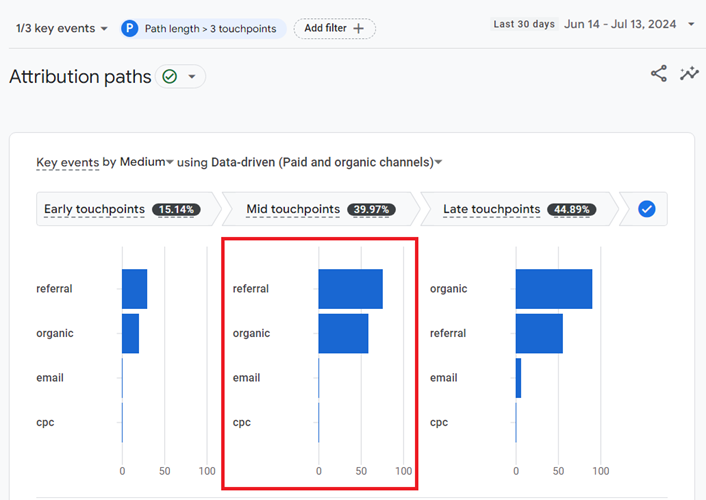
Hover your mouse over a bar (let’s say ‘organic’) in the bar chart to see more details about the conversion credit distribution:
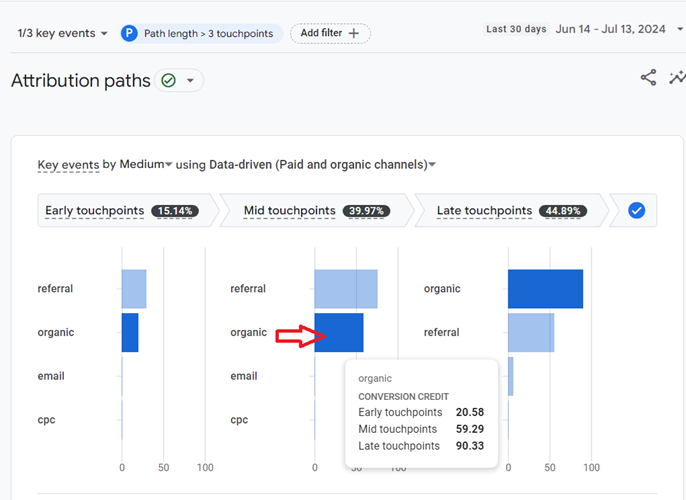
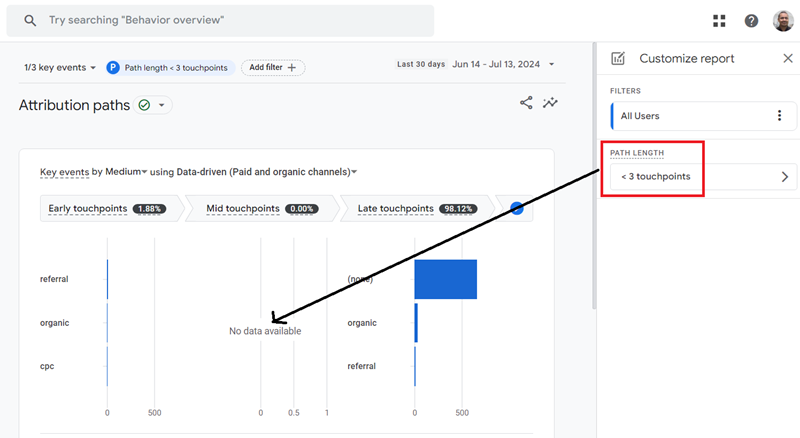
Note: If an Attribution path has less than three touchpoints, then the ‘Mid touchpoints’ segment will appear as empty.
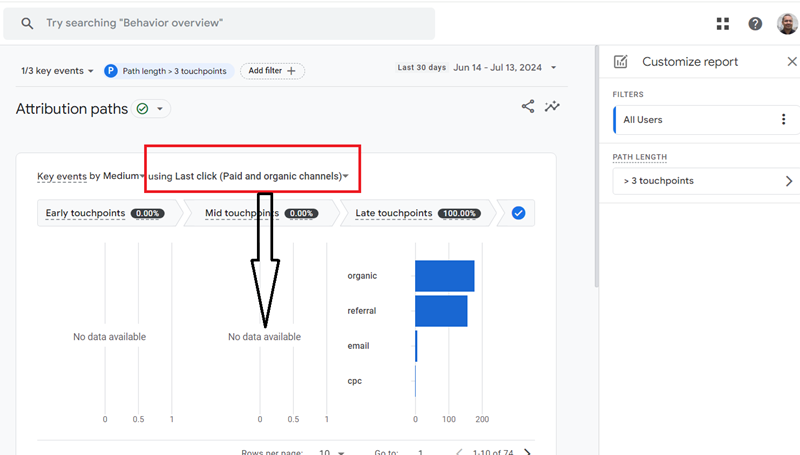
The ‘Mid touchpoints’ segment would also appear empty if you select one of the following attribution models:
- Last click (Paid and Organic Channels).
- Last click (Google Paid Channels).
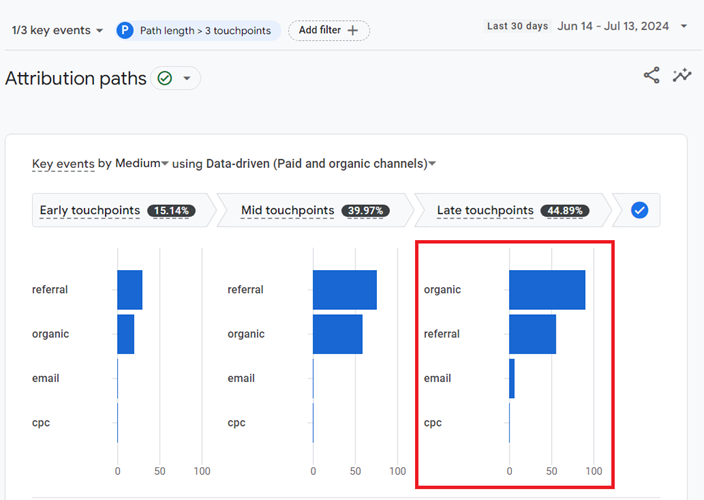
Late touchpoints.
Google considers the last 25% of touchpoints on an Attribution path, rounded to the nearest whole number, to be late touchpoints.
Hover your mouse over the ‘Late touchpoints’ segment to see more details about the segment:
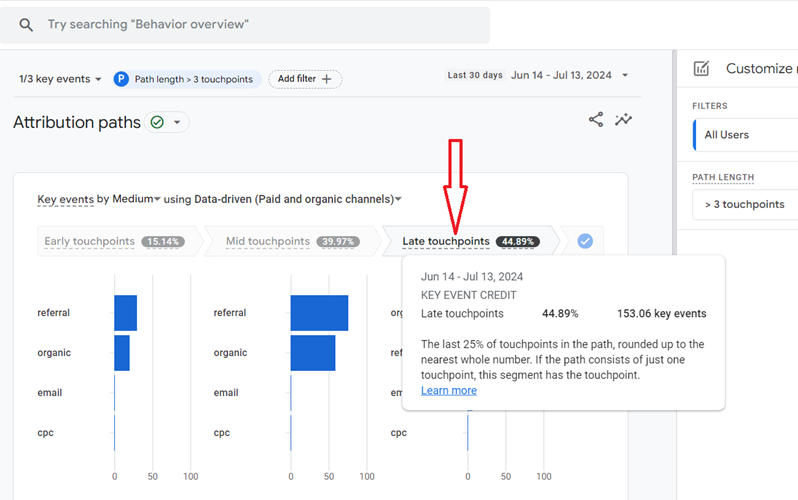
The bar chart that you see under the ‘Late touchpoints’ segment shows how much conversion credit a particular dimension (in our case ‘Medium’) receives as late touchpoints:
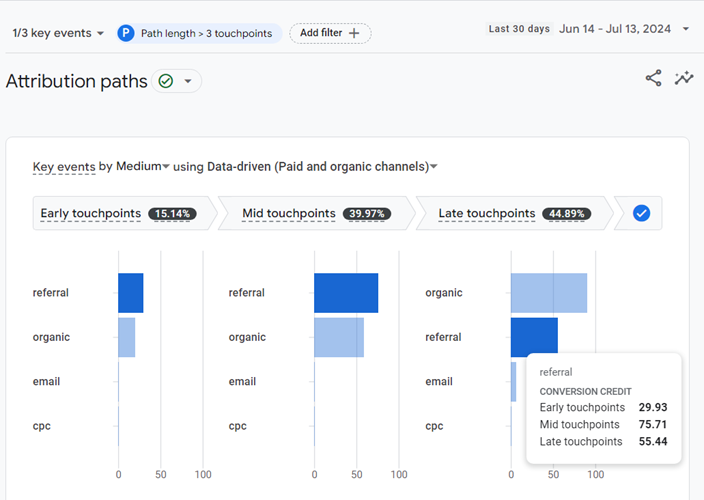
Hover your mouse over a bar (let’s say ‘referral’) in the bar chart to see more details about the conversion credit distribution:
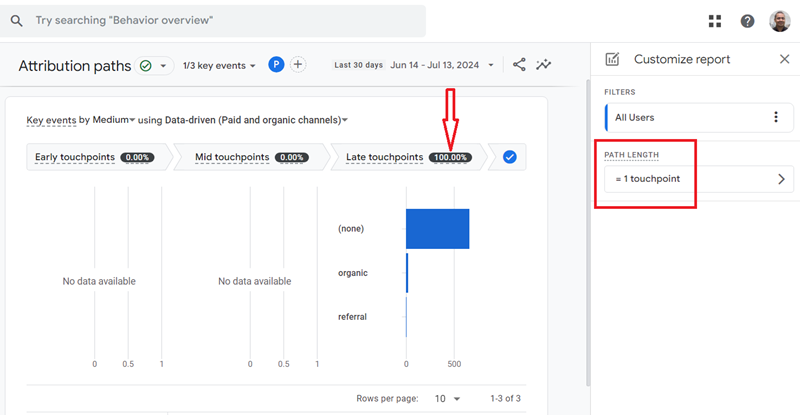
Note: If an Attribution path has only one touchpoint then the ‘Late touchpoints’ segment gets all the credit for a conversion.
Key event credit distribution score.
The Attribution Paths report shows the Key event credit distribution score (also known as conversion credit distribution score) for touchpoint segments (Early touchpoints, Mid touchpoints and Late touchpoints):
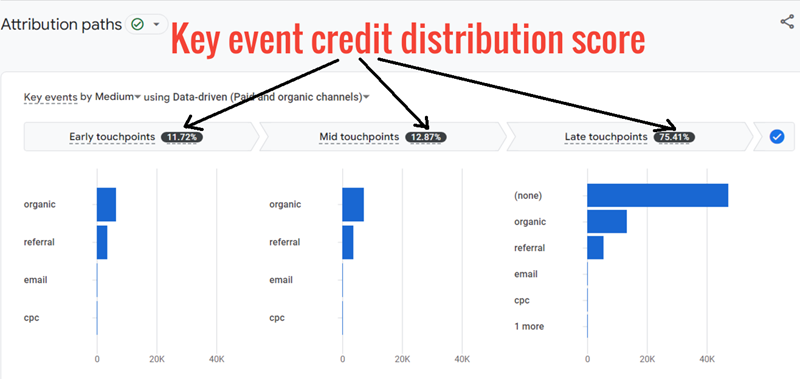
From the screenshot above, we can conclude the following:
#1 The Key event credit distribution score (or conversion credit distribution score) for ‘Early touchpoints’ is 11.72%
#2 The Key event credit distribution score for ‘Mid touchpoints’ is 12.87%
#3 The Key event credit distribution score for ‘Late touchpoints’ is 75.41%
The sum of the Key event credit distribution score for ‘Early touchpoints’, ‘Mid touchpoints’ and ‘Late touchpoints’ is always 100%
For example: 11.72% + 12.87% + 75.41% = 100%
The Attribution Paths report also shows the Conversion credit distribution score (aka Key event credit distribution score) for each touchpoint on an Attribution path:
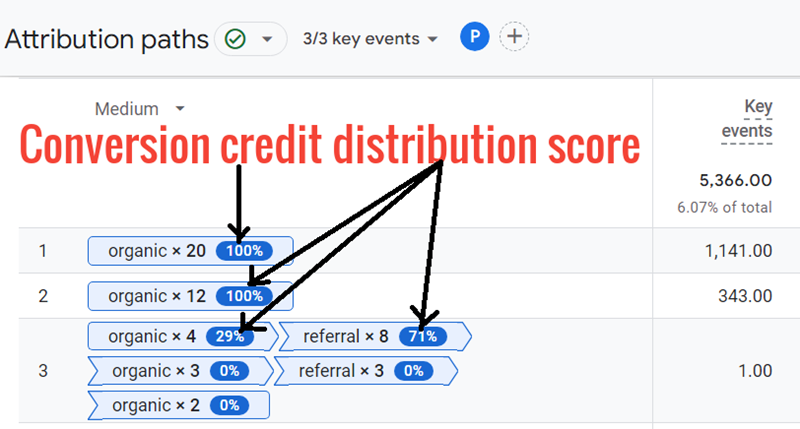
Note: The sum of the ‘Key event credit distribution score’ for each touchpoint on an Attribution Path is always 100%.
Prerequisites for using the Attribution Paths report.
The primary requirement for using the Attribution Paths report in GA4 is ecommerce tracking setup and/or goal tracking setup for your GA4 property.
You won’t see any data in your Attribution Paths report if you have not set up ecommerce tracking and/or goal tracking in your GA4 property.
Following are some other prerequisites for using the Attribution Paths report:
#1 If you are using Google Ads, make sure that you have linked your GA4 property with your Google Ads account.
#2 Make sure your GA4 property is not suffering from considerable (not set) issues. GA4 uses a placeholder called (not set) whenever it does not receive any information for a particular dimension.
#3 Make sure your GA4 property is not suffering from considerable unassigned traffic issues. Unassigned traffic in GA4 refers to the website traffic that is not attributed to any one of the default channel groups.
#4 Make sure your GA4 property is not suffering from considerable cardinality issues (other). Cardinality refers to the number of unique values in a data set.
How to use the Attribution Paths report in GA4?
To access and use the Attribution Paths report in GA4, follow the steps below:
Step-1: Navigate to your GA4 property.
Step-2: Click on the ‘Advertising’ link from the left-hand side navigation:
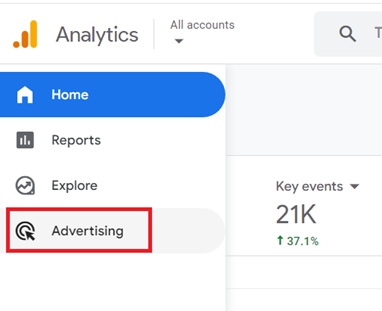
You should now see the Advertising Snapshot report:
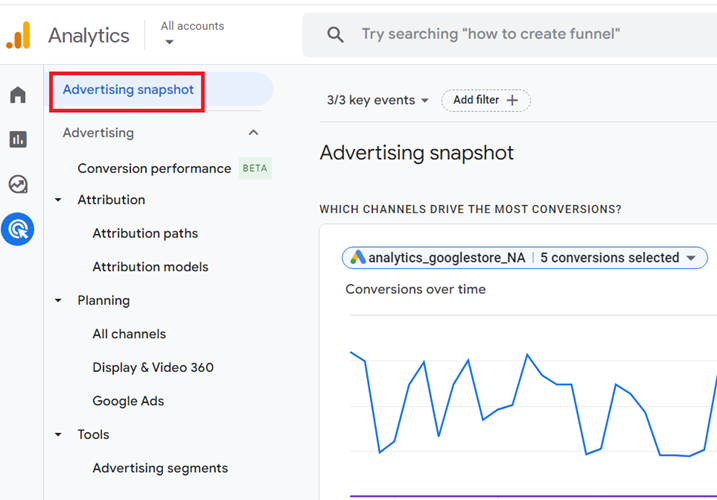
Step-3: Click on the ‘Attribution paths’ link from the left-hand side navigation:
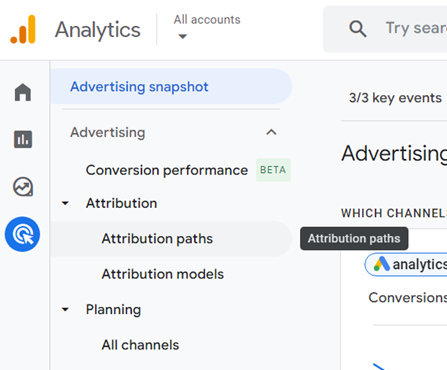
Step-4: Select the date range from the date picker drop-down menu:
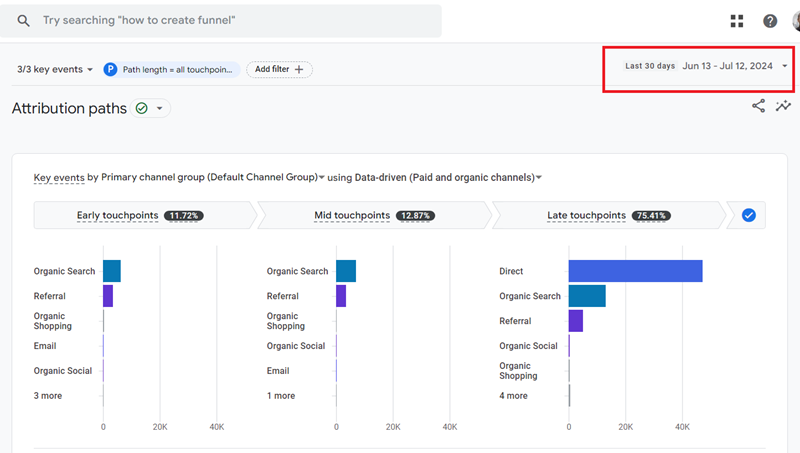
I like to select at least 30 days of historical data to make my data analysis statistically significant.
Note: The Attribution Paths report includes data from June 14, 2021.
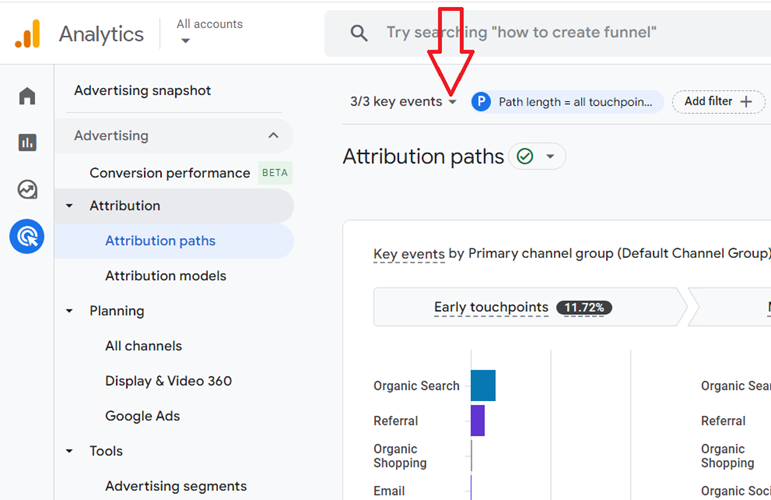
Step-5: Click on the ‘Key events’ drop-down menu:
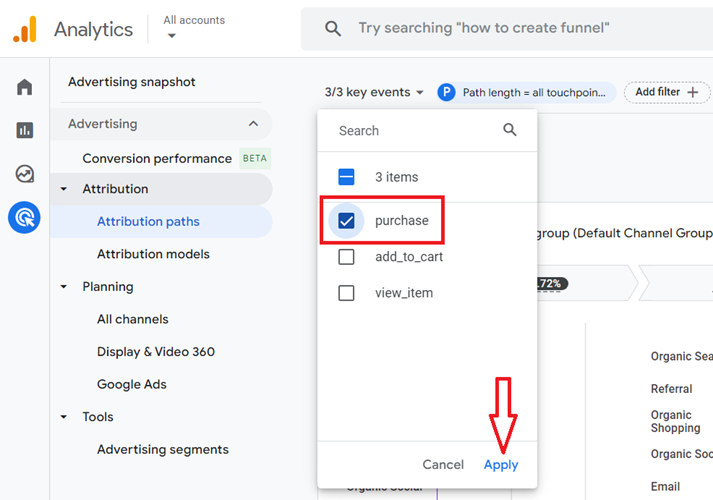
Step-6: Select the Key event(s) for which you want to see the data in your Attribution Paths report. Deselect all other Key events and then click on the ‘Apply’ button:
You will now see the Attribution Paths report only for the selected key event(s) (in our case, the ‘purchase’ event):
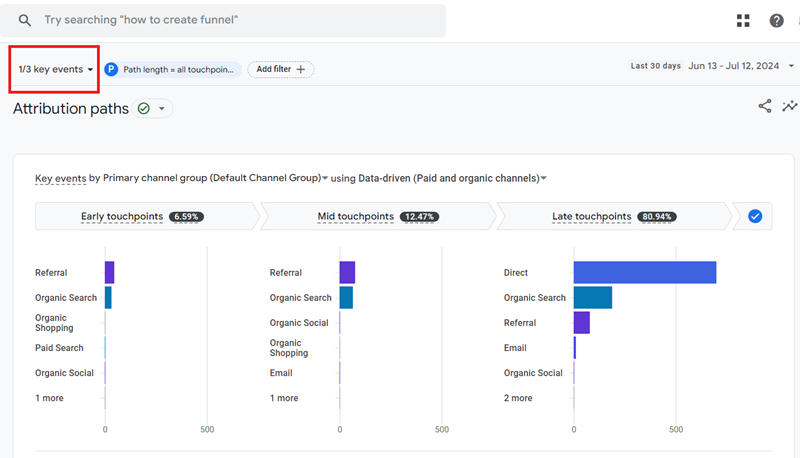
Note: By default, the ‘Attribution paths’ report shows data for all key events.
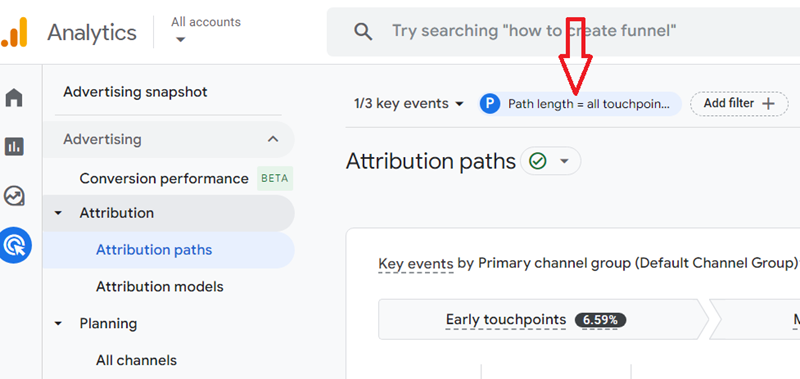
Step-7: Change the Path length of the Attribution paths report (optional).
To do that, click on the ‘Path length = all touchpoints’ button:
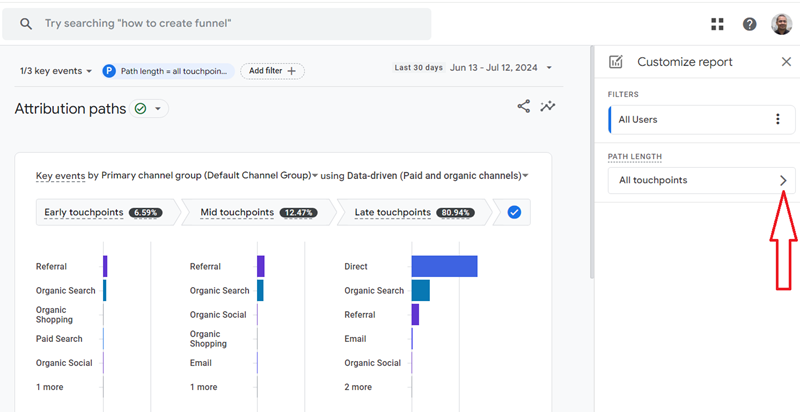
Click on the ‘All touchpoints’ drop-down menu:
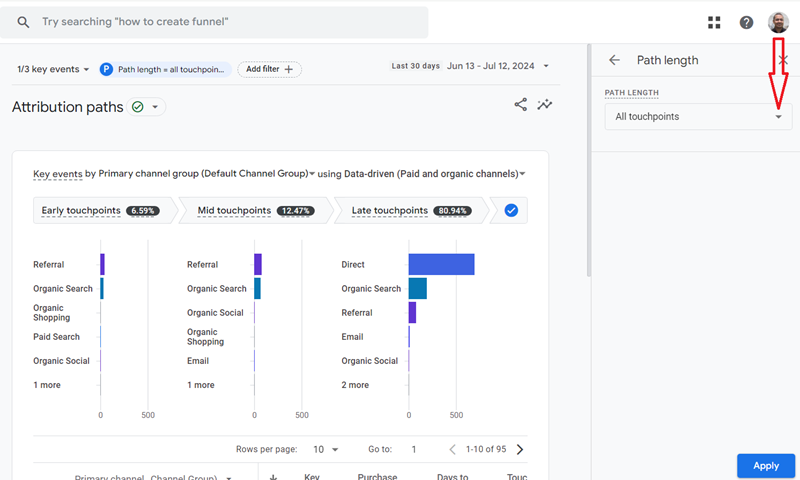
Click on the ‘All touchpoints’ drop-down menu once again:
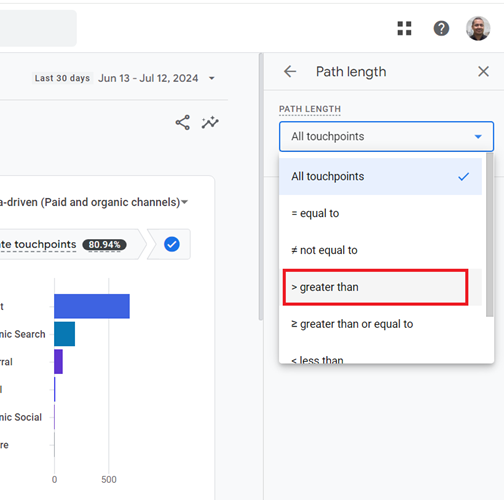
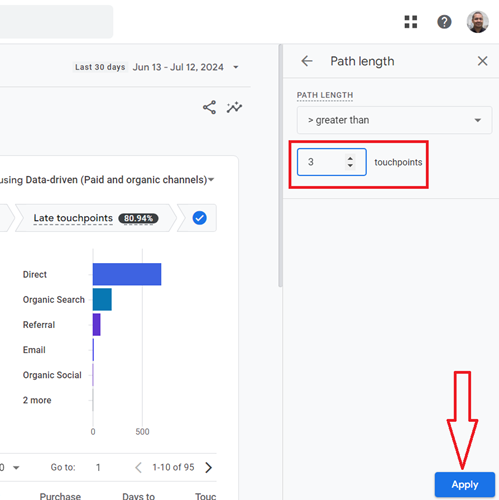
Select an operator to filter the path lengths of the attribution paths.
Let’s select ‘> greater than’:
Enter the number of touchpoints you want to see in your attribution paths, and then click on the ‘Apply’ button:
Your overlay should now look like the one below:
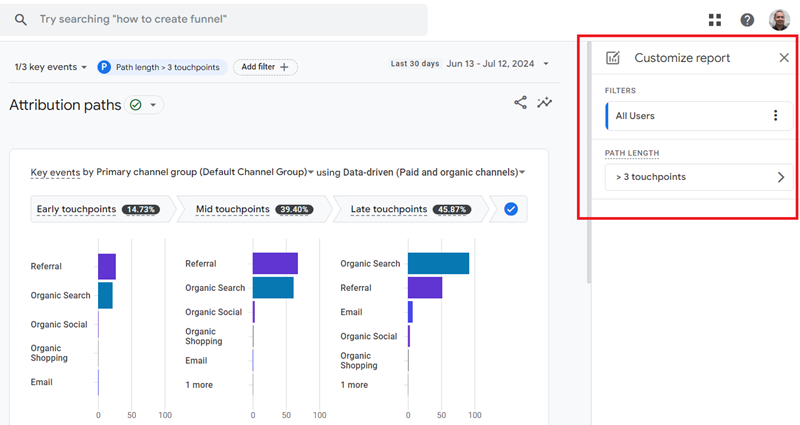
Note: By default, the Attribution Paths report displays all attribution paths up to 20 touchpoints long.
Step-8: Add filters to your report (optional)
By default, the Attribution Paths report shows data for all users.
If you want to see data for only a segment of users, then click on the three dots menu next to ‘All Users’:
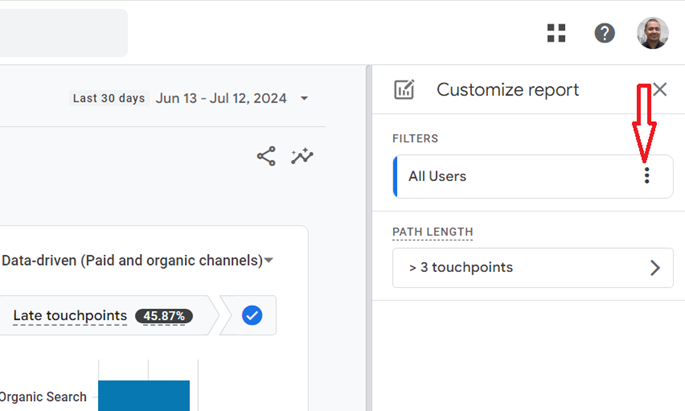
Click on ‘Edit filter’:
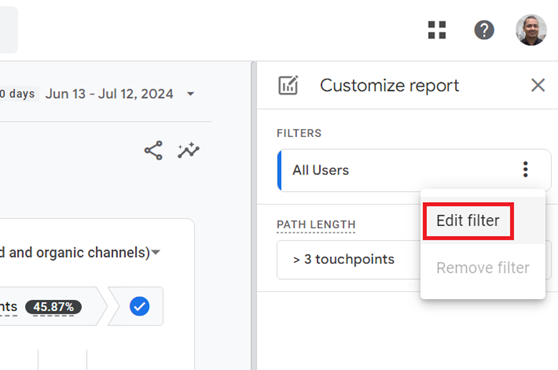
You can now create a new filter:
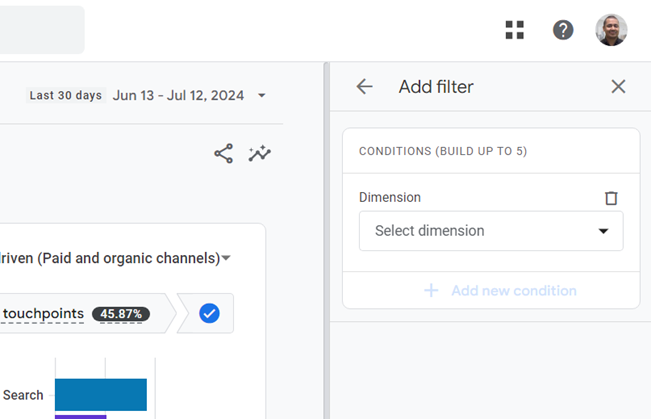
You can also click on the ‘Add filter +’ button to see data for only a segment of users:
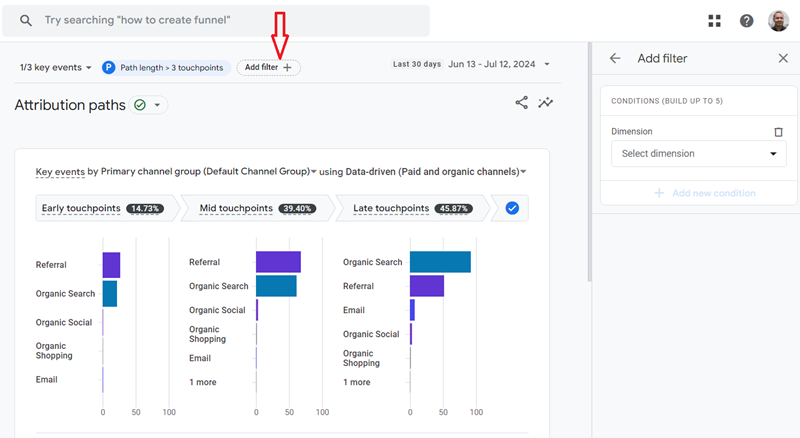
Note: The ‘Add filter’ feature works just like the GA4 Comparisons feature.
Click on the arrow button to return to the previous screen:
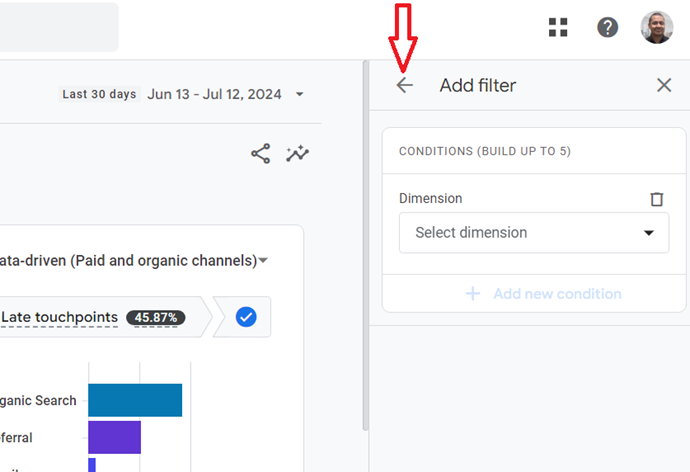
You should now see a screen like the one below:
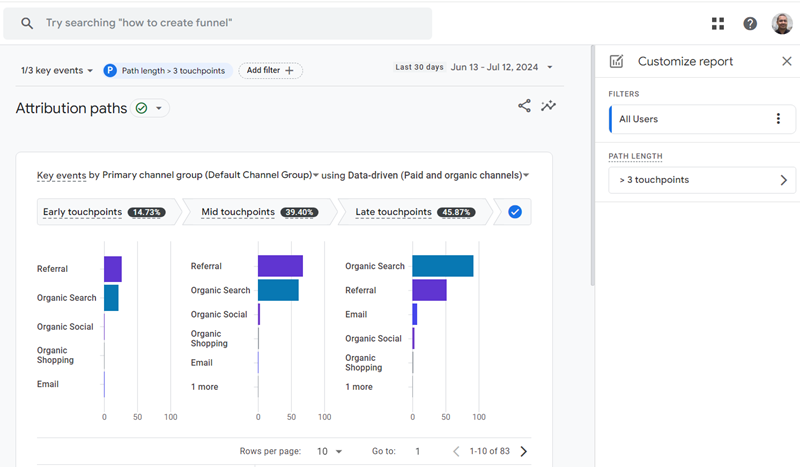
Step-9: Select the dimension you want to use for your attribution paths analysis by clicking on the dimensions drop-down menu:
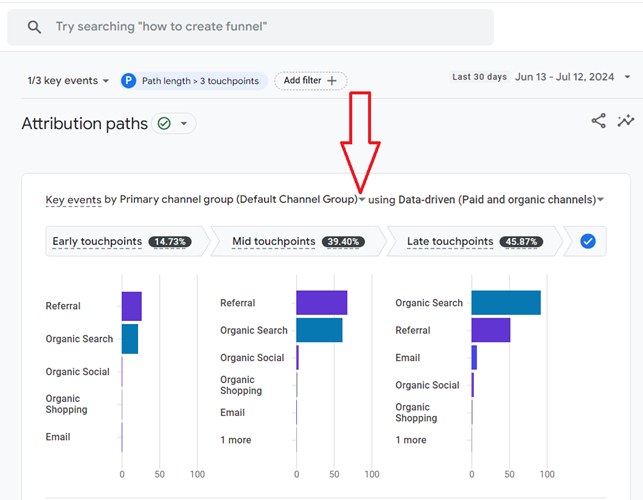
Let’s select ‘Medium’ as the dimension from the drop-down menu:
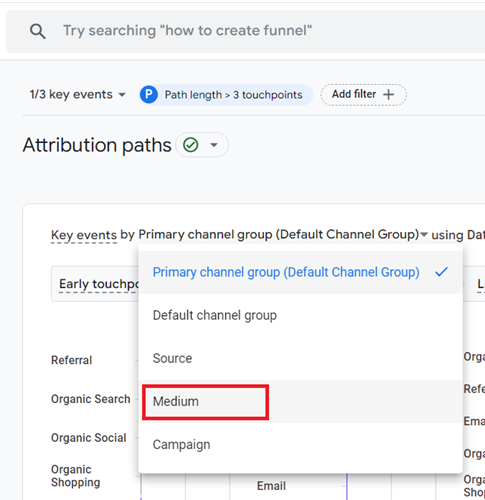
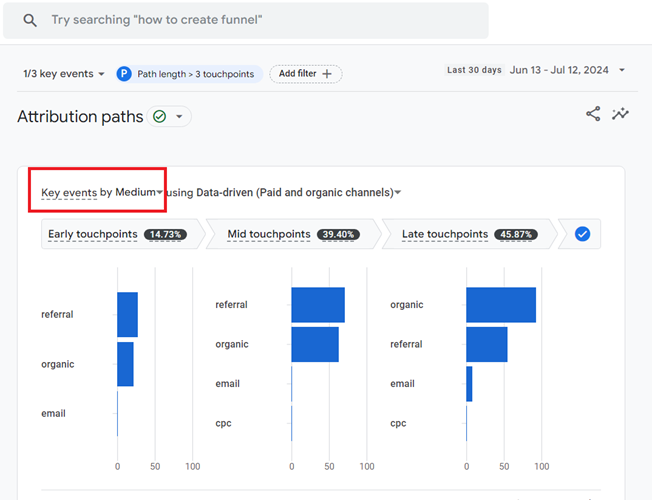
You should now see Key events by traffic medium:
Step-10: Select the attribution model you want to use for your attribution paths analysis by clicking on the attribution model drop-down menu (optional):
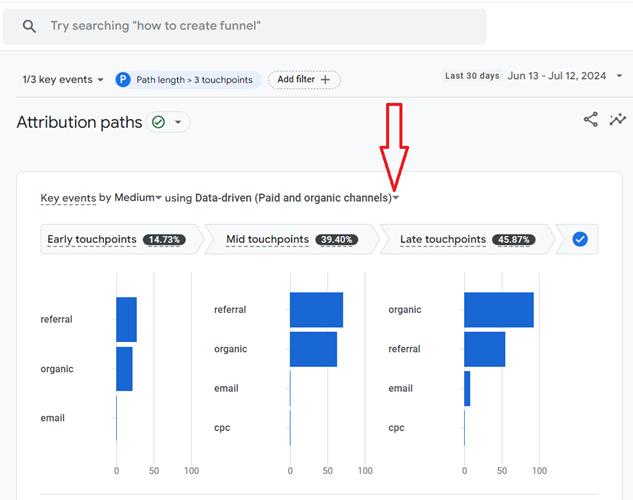
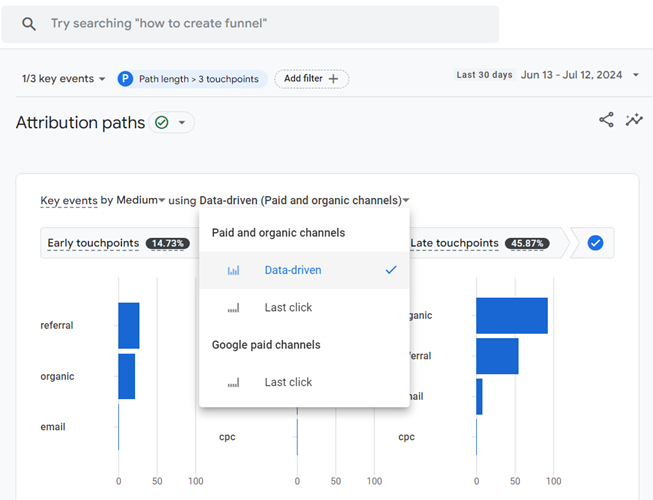
I recommend using the ‘Data-driven Paid and Organic channels’ attribution model, so I won’t change it.
Through the data visualization below, you can determine the dimension (in our case, ‘Medium’) which initiated, assisted and closed key events:
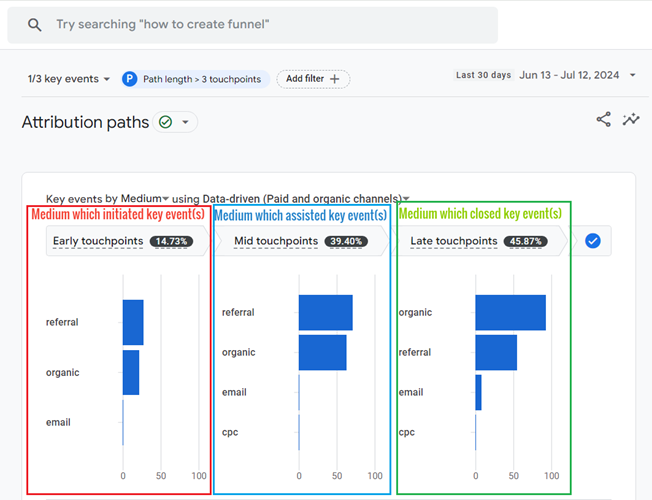
Step-11: Scroll down to the data table section of your ‘Attribution Paths’ report, which appears below the data visualization to analyze data:
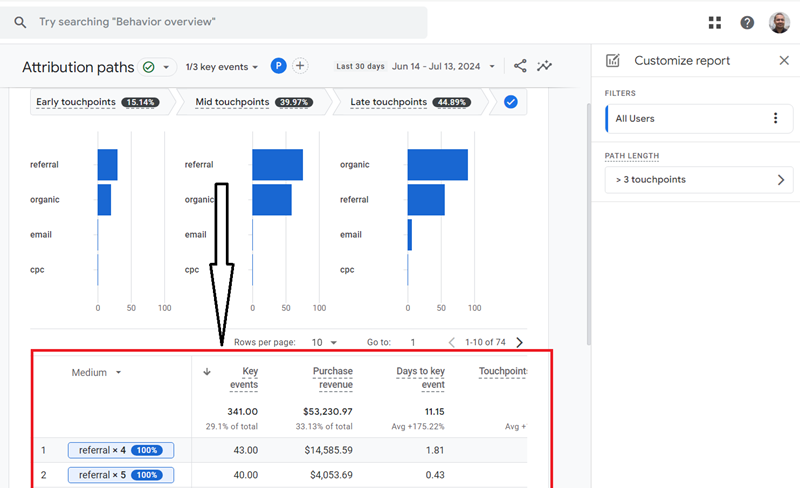
The data table of the GA4 Attribution Paths report.
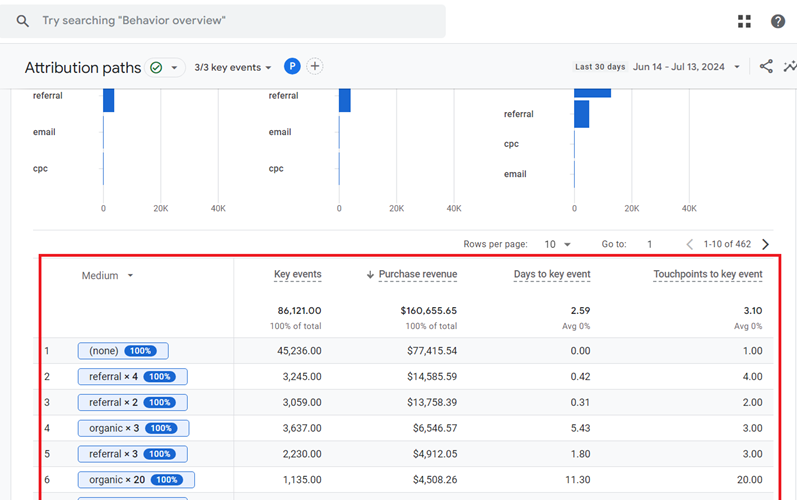
This data table is made up of one primary dimension (in our case, ‘Medium’) and the following metrics:
#1 Key events – The number of times your website/app users triggered a key event.
#2 Purchase revenue – The sum of revenue from purchases made on your website and/or mobile app.
#3 Days to key event – The number of days it takes for users to convert.
#4 Touchpoints to key event – The number of touchpoints it takes for users to convert.
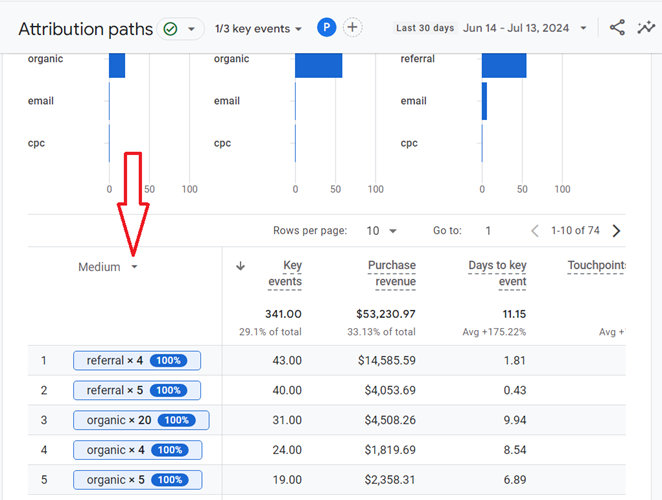
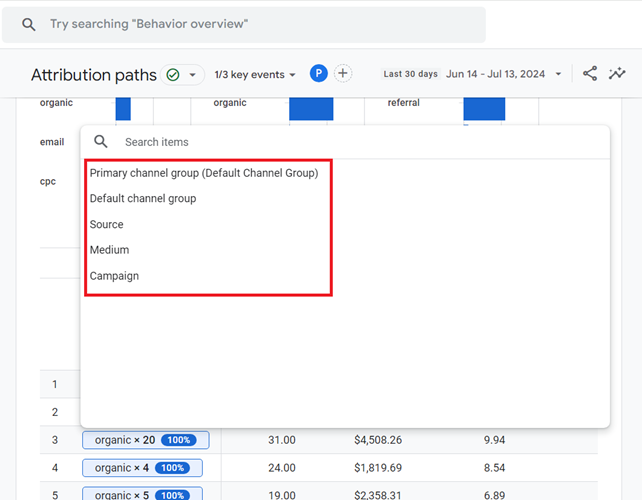
If you want to change the primary dimension of the data table of the Attribution Paths report, then click on the Primary dimension drop-down menu:
You can now select one of the primary dimensions if you want to:
Related Article: ‘Days to key event’ in GA4 Attribution Paths Report is unreliable.
GA4 Attribution Paths report navigation features.
The Attribution paths report provides the following features for easy navigation:
#1 Rows per page.
By default, the data table of the Attribution Paths report shows only ten rows per page of the report.
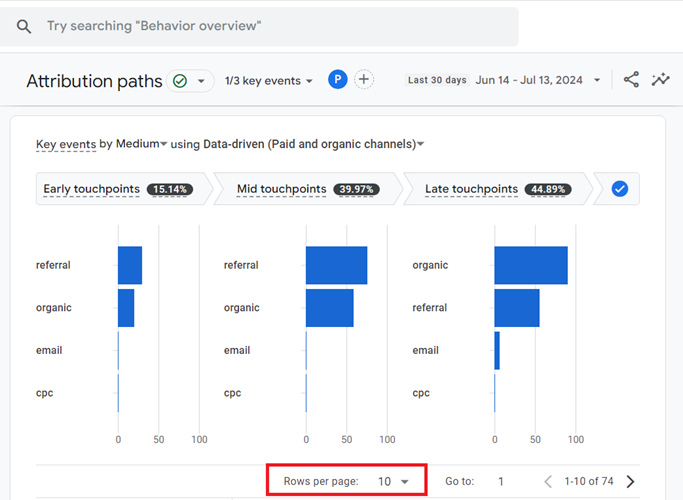
If you want to see more than ten rows, then click on the ‘Rows per page’ drop-down menu and select the desired number of rows to be displayed:
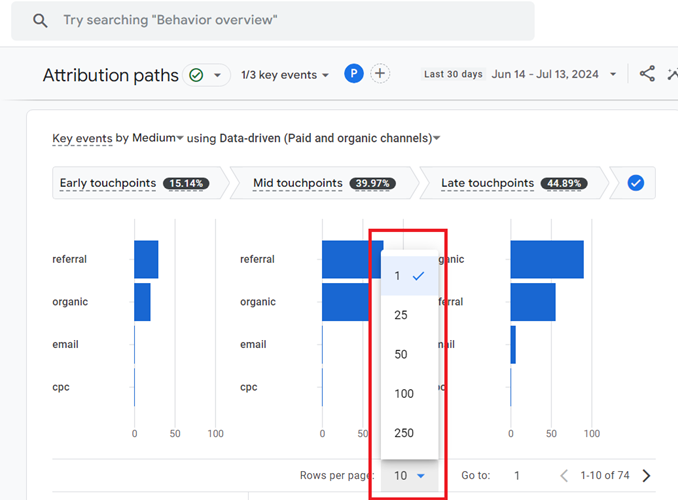
Note: You can display up to 250 rows per page of the ‘Attribution paths’ report in GA4.
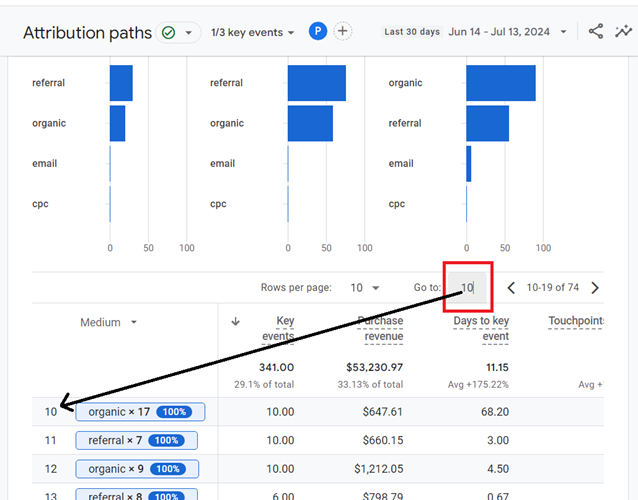
#2 Go to.
If you want to quickly navigate to a particular row of the data table of the Attribution Paths report, then type the row number in the text box next to ‘Go to’ (you don’t need to press the enter key):
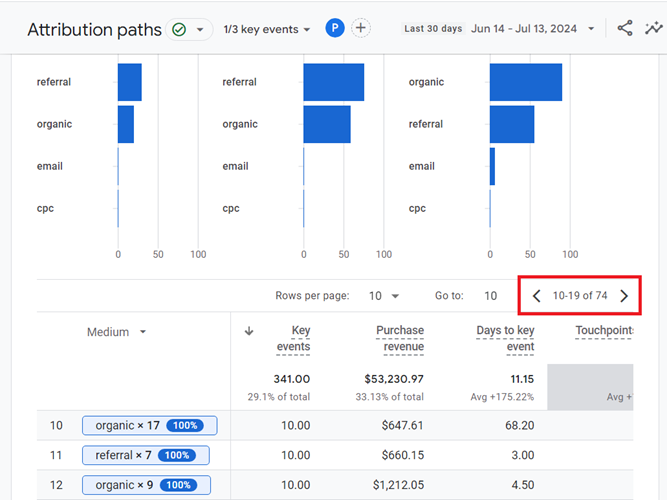
#3 Pagination.
The Attribution Paths report has a pagination feature built-in through which you can navigate back and forth between various pages of the report:
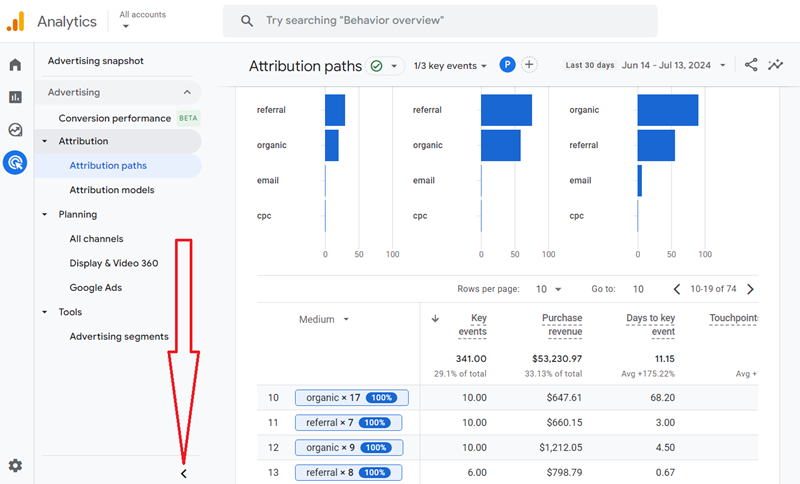
#4 Full view mode.
If you want to see the Attribution Paths report in the full view mode, then click on the ‘<’ button:
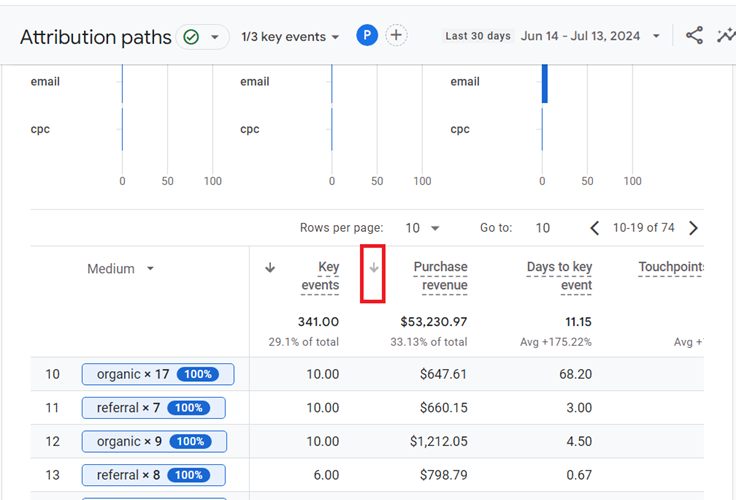
#5 Sort Columns.
By default, the data table of the ‘Attribution Paths’ report is sorted by attribution paths with the highest number of key events.
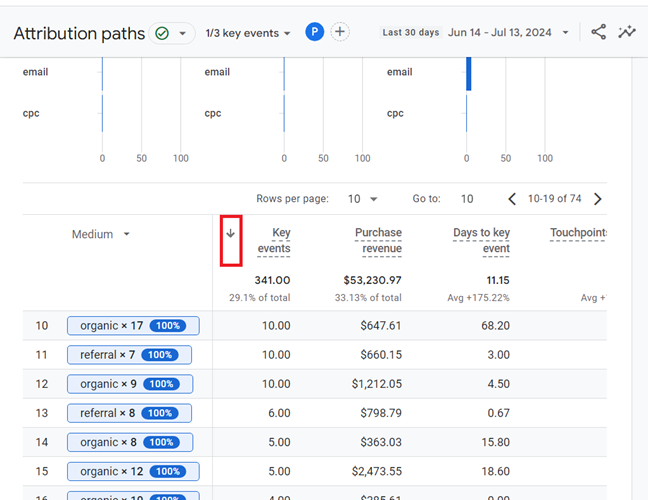
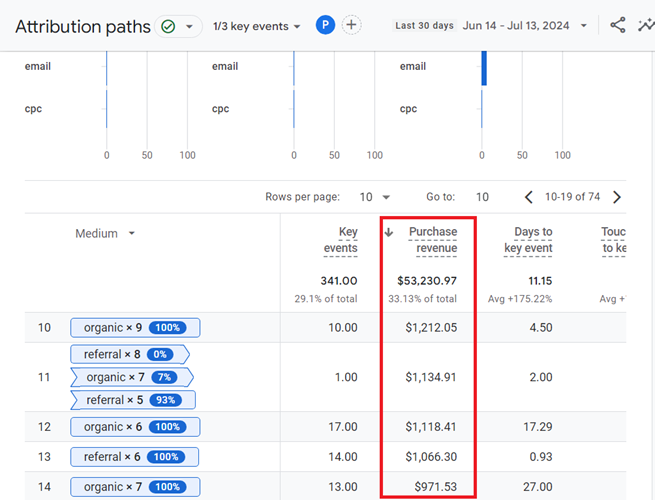
Click the down arrow button next to one of the other metrics in the data table to sort the data table by that metric:
For example, the following data table is sorted in descending order by ‘Purchase revenue’ metric:
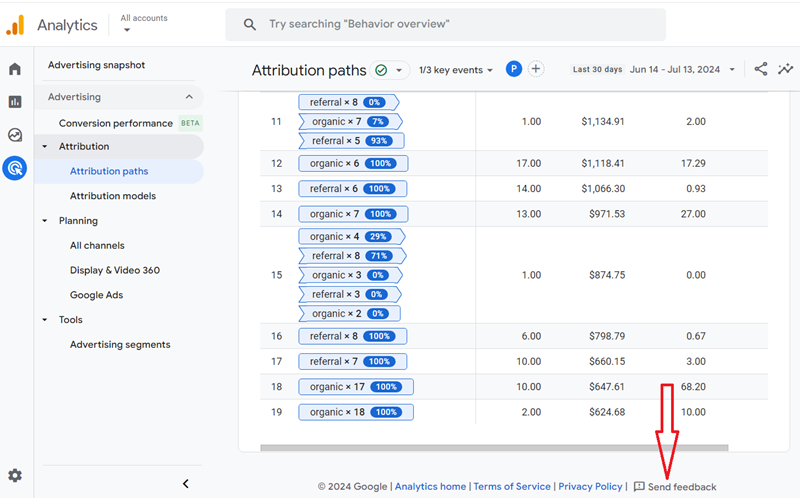
#6 Provide feedback.
If you want to provide feedback about the ‘Attribution Paths’ report to Google, then click on the ‘Send feedback’ button at the very bottom of the report:
Limitations of Attribution Paths report: Missing Touchpoints.
The missing touchpoints are those user interactions that were not identified and recorded by your tracking tool (like GA4) or ad platform (like Google Ads).
The missing touchpoints usually happen because of broken tracking or because of some other technical constraints.
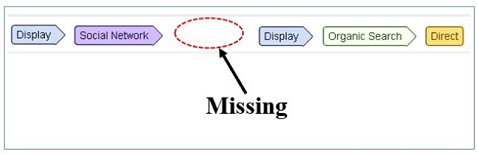
The more heavily you are involved in multi-channel marketing, the more likely your users’ attribution paths will contain missing touchpoints.
You need to be aware of the following drawbacks and technical constraints involved before you interpret the attribution paths report in GA4:
- GA4 Attribution paths are based on only ‘known’ touchpoints.
- GA4 Conversion paths report attribution for only online touchpoints.
- GA4 does not always record and report attribution across devices and browsers.
- Filtered reports omit certain touchpoints on attribution paths.
- Data sampling issues can skew the attribution path data.
- Not all touchpoints are equally valuable.
For more details, check out this article: Exposed: 6 Critical Flaws in GA4 Attribution Paths!
For calculating conversion paths in GA4 BigQuery, check out this article: Calculating Conversion Paths in GA4 BigQuery.
Creating Conversion Segments in GA4.
Here is how you can create Conversion Segments in GA4.
A conversion segment allows you to isolate and analyse specific sets of conversion paths (aka attribution paths) in your analytics reports.
It is used to segment conversion path data. Through conversion segments, you can isolate and analyze specific subsets of conversion paths.
I was recently asked this question on LinkedIn:
“How I can measure the influence of PPC on organic search in Google Analytics?”
I think it is an excellent question, and I am sure every marketer would like to know the answer to this question and much more, like ‘how I can determine the influence of organic search on PPC, email, social media, direct traffic, etc.
The answers to such questions can help you a lot in.
A conversion segment can help you in such situations.
Following is an example of Conversion Segment:
A conversion segment that only includes conversion paths in which any interaction was paid search, but the last interaction was organic search.
Through this conversion segment you can understand the role of paid search traffic in assisting conversions which were closed by organic search traffic.
Unfortunately, GA4 does not offer conversion segments in the same way as Universal Analytics.
While conversion path data is available in GA4 (via the ‘Attribution Paths’ report), segmenting conversion paths based on specific interactions, as I described in my example, isn’t directly supported.
So what you should do is download the data from the ‘Attribution Paths’ report into Google Sheets.
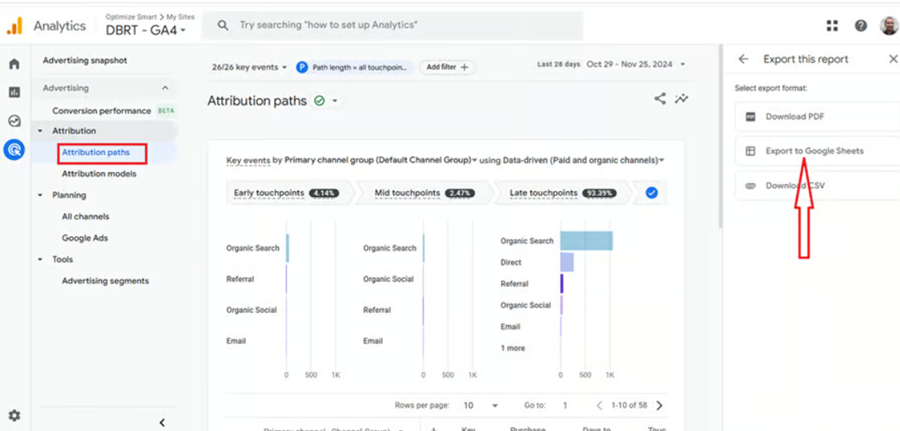
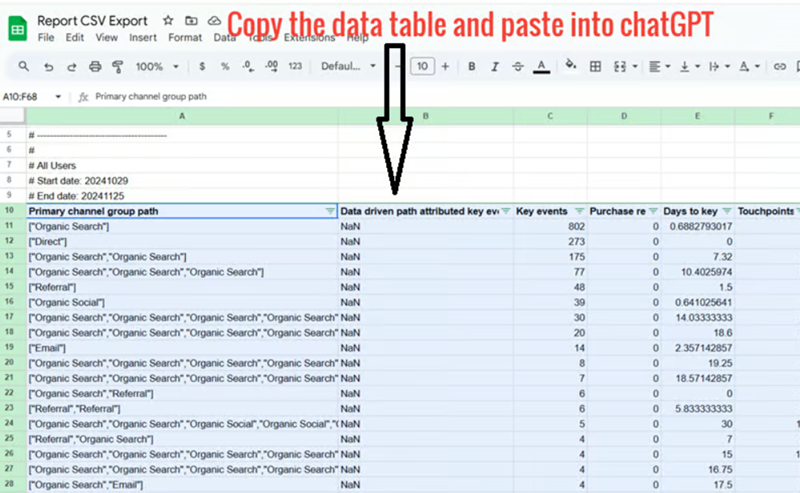
Copy the data table and then use the following similar text prompt in chatGPT or claude (don’t use perplexity or Google Gemini for this purpose as they are useless for such tasks).
From the table below, filter out the rows where the first interaction of the ‘Primary channel group path’ is ‘organic search’ but the last interaction is ’email’. For example, in the following primary channel group path: [“Organic Search”,”Organic Search”,”Email”], the first interaction is ‘organic search’, but the last interaction is ‘Email’.
The table is below:
Primary channel group path Data driven path attributed key events Key events Purchase revenue Days to key event Touchpoints to key event [“Organic Search”] NaN 802 0 0.6882793017 1 [“Direct”] NaN 273 0 0 1 [“Organic Search”,”Organic Search”] NaN 175 0 7.32 2 [“Organic Search”,”Organic Search”,”Organic Search”] NaN 77 0 10.4025974 3 [“Referral”] NaN 48 0 1.5 1
……
……
……
You should now see an output similar to the one below, which shows filtered channel path data.
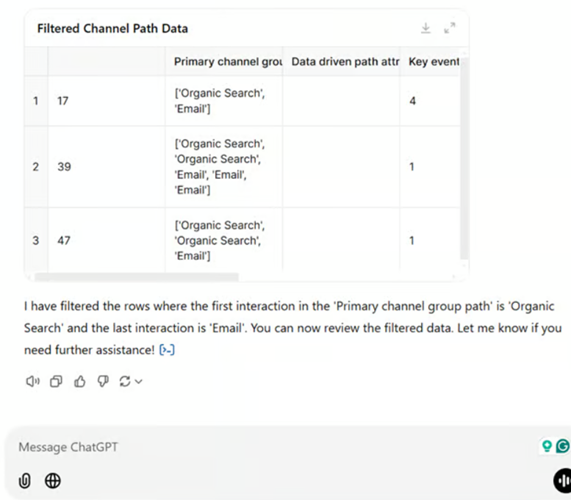
That’s how you can create conversion segments in GA4.
8 Google Analytics Conversion Segments You Must Use.
- Effect of PPC on organic search traffic – This conversion segment will tell you how PPC is helping the conversions completed/closed by SEO.
- Effect of organic search on PPC traffic – This conversion segment will tell you how SEO is helping the PPC campaigns’ conversions.
- Effect of organic search on direct traffic – This conversion segment will tell you how organic traffic is helping direct traffic’s conversions.
- Effect of display on organic search traffic –
- Effect of social media on organic search
- Effect of PPC on direct traffic
- Effect of social media on direct traffic
- Effect of email on direct traffic
Similarly, you can create and measure the influence of any combination of marketing channels (like the impact of Facebook on organic search, the impact of email on PPC, etc) according to your business needs.

Other Articles on GA4.
- Google Analytics 4 Channels, Source and Medium explained.
- Path exploration report in GA4 (Google Analytics 4) – Path analysis.
- How to use Microsoft Clarity with GA4 (Google Analytics 4).
- GA4 vs GA4 360 – Pricing, Limits, Billing and more.
- Setup Enhanced Conversions for Leads using Data Layer in Google Tag Manager.
- Self-referral Google Analytics 4 – Referral exclusion GA4.
- GA4 Attribution Paths (Conversion Paths) Report.
- Google Tag Manager Tutorial.
- GA4 Attribution Models Explained: How to Choose the Right One.
- Looker Studio (Google Data Studio) Tutorial.
- Google Tag Manager Data Layer Tutorial with Examples.
- Set up enhanced conversions for Web using ‘Code’ in Google Tag Manager.