

I am very excited to teach you how to use Google Data Studio to visualise and analyse data.
What is Google Data Studio?
Google Data Studio is a tool used to visualise data.
Google Data Studio is a cloud-based tool, which means you can access it from any device/browser as long as you have access to a stable internet connection.
Google Data Studio is a free visualisation tool allowing you to build great dashboards and reports.
Google also offers Google Data Studio Pro, the paid version of Google Data Studio, which includes all its features plus enhanced enterprise capabilities and technical support.
Note: Google Data Studio is built on Google Drive. That means you need a Google Drive account before accessing it.
Why use Google Data Studio?
When you have got a lot of data to analyse, you cannot spend days or weeks analysing hundreds or thousands of rows of data in Excel spreadsheets …. to find hidden trends and insight.
You need a tool that allows you to quickly make sense of data and determine patterns and anomalies which are otherwise….. can be extremely hard to detect in a timely manner.
This is where data visualization tools like Google Data Studio come in handy. Through this tool, you can greatly speed up your data analysis.
Data visualization is the presentation of data in a graphical format.
Data visualization helps in data interpretation and data retention. It helps to tell meaningful, emotional and engaging stories to key decision-makers.
If you wish to make your data reporting more meaningful and persuasive, then you need to learn the art of storytelling by visualizing your data.
Google Data Studio can make your data reporting much more meaningful and persuasive.
What are the benefits of using Google Data Studio?
Google Data Studio is a great visualization tool since it is versatile and easy to create, share and collaborate at zero cost.
Following are some of the main benefits of using Google Data Studio as a visualization tool.
#1 Multiple data sources:
You can connect Google Data Studio to multiple data sources and collect and combine data in one single report.
This way, you can measure your marketing activities across platforms and channels and generate cross-platform and multi-channel insights.
#2 Unlimited customization:
You can fully customize the Google Data Studio reports.
You can use a blank canvas to design your own report from scratch, or you can use a Google Data Studio template.
This makes Google Data Studio a very convenient and hassle-free way to design reports and dashboards for various data platforms like Google Analytics, Google Ads, YouTube ads, etc.
#3 Dynamic and real-time reporting:
Google Data Studio reports are very dynamic in nature. That means you can apply any sort of filter on a data source and narrow down the data based on date range, time, users, device category, country, etc.
Also, these reports can be made in real-time by pulling the data in real-time as it is available in the corresponding data source.
#4 Report sharing and collaboration:
Google Data Studio reports can be shared in multiple formats by scheduling email delivery, creating a link for a report or downloading the report as a PDF.
You can also add your peers to the report for editing and reading purposes, making collaboration painless across the team.
#5 Zero cost:
One of the big advantages of using Google Data Studio is that it is completely free to use.
Also, there is no limit to the number of users per Google Data Studio account, which makes it more meaningful in a large organization.
How to access Google Data Studio?
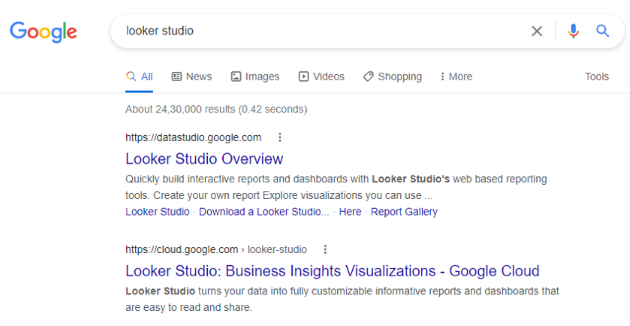
If you have never used Google Data Studio before, then the best way to access it is by searching for the keyword ‘Google Data Studio’ on google.com and then clicking on the first search engine listing:
Alternatively, you can access Google Data Studio by clicking on this link: https://datastudio.google.com/overview
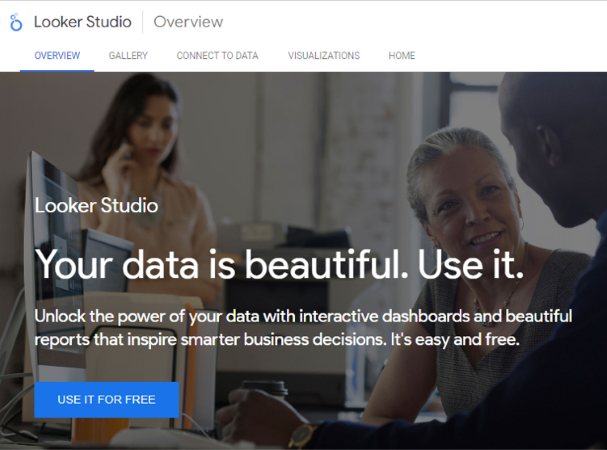
Then click on the ‘USE IT FOR FREE’ button:
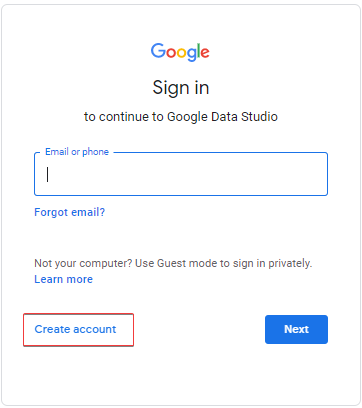
Now log in using your Google email address and password.
If you do not have a Google account, then click on the ‘create account‘ link:
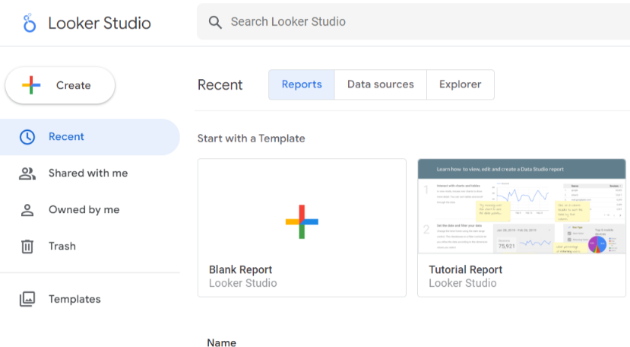
If you have never used Google Data Studio before, then this is what the home page of Google Data Studio will look like:
Related Article: How to use Google Data Studio in another language
Why should you pull data into Google Data Studio via a spreadsheet or data warehouse?
A rookie mistake that most Google Data Studio users make is pulling data directly from a data platform into Google Data Studio and then trying to manipulate it there.
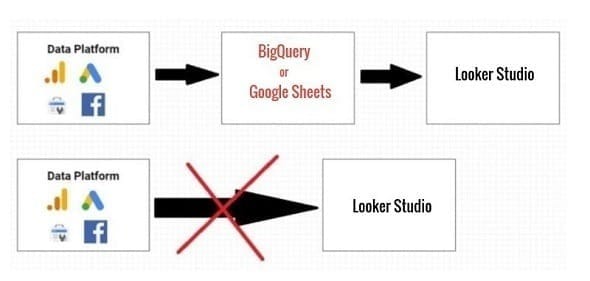
But Google Data Studio is not meant for data manipulation. It is not a spreadsheet.
When you manipulate data in Google Data Studio, it slows down your report. This is especially true for large data sets.
Manipulating data in a spreadsheet or data warehouse (like BigQuery) is much easier than manipulating data in Google Data Studio.
When you choose to manipulate data in Google Data Studio, you make it unnecessarily hard to use.
That is why we first pull the data from a data platform into a spreadsheet (like Google Sheets or Excel) and manipulate the data there, and only after that use that data in Google Data Studio.
How to visualize data in Google Sheets via Google Data Studio?
Step-1: Prepare your Google Sheet Data for Google Data Studio.
Before you upload data from Google Sheets to Google Data Studio, you need to make sure of two things:
- You pulled data correctly into Google Sheets.
- The data you pulled into Google Sheets is in the correct format.
Because this is going to affect your data visualization and data analysis in Google Data Studio.
If you feed garbage to Google Data Studio, then you are going to get garbage. Garbage in, Garbage out.
Following is an example of incorrectly formatted data:
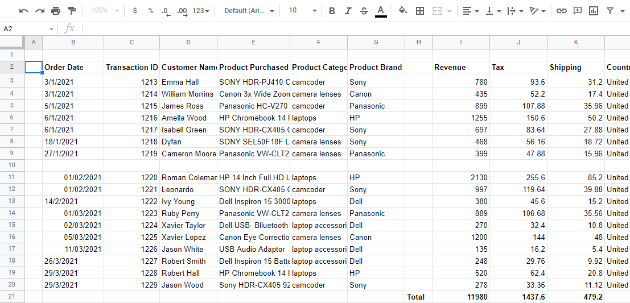
The data is not formatted correctly because it has empty rows, columns, and totals.
The column headers are missing. The data is not using the correct data types.
So, for example, the field ‘order date’ is not of type ‘date’.
The ‘Revenue’, ‘Tax’ and ‘Shipping’ fields are not of type currency.
Following is an example of correctly formatted data:
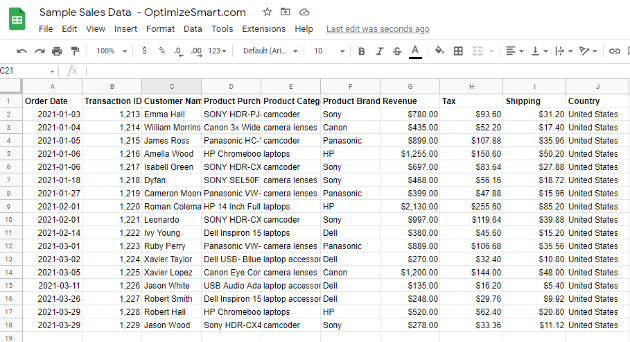
By correct format, I mean:
- There are no empty rows or columns.
- Each column has headers that are meaningful, unique and self-explanatory.
- There should not be subtotals or grand totals in your data source.
- You also need to ensure you are using the correct data types. So, for example, dates are of type ‘date’, texts are of type ‘text’, numbers are of type ‘number’, and the currency is of types ‘currency’.
Step-2: Navigate to https://datastudio.google.com/overview
Step-3: Click on the ‘USET IT FOR FREE’ button:
Step-4: Sign in with your Google email and password. You should now see the home page of Google Data Studio:
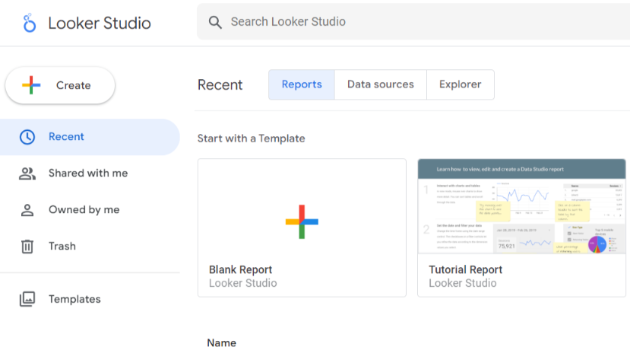
Step-5: Click on the ‘Create’ button:
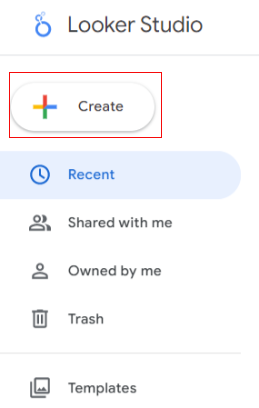
Step-6: Click on ‘Data Source’:
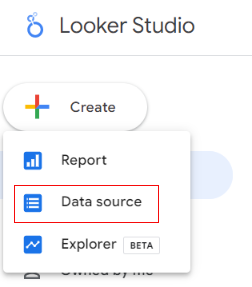
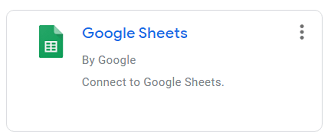
Step-7: Scroll down, find the Google Sheet Connector and then click on it:
Step-8: Rename your data source by double-clicking on the ‘Untitled Data Source’ text:
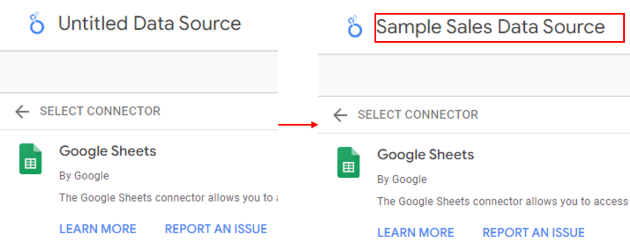
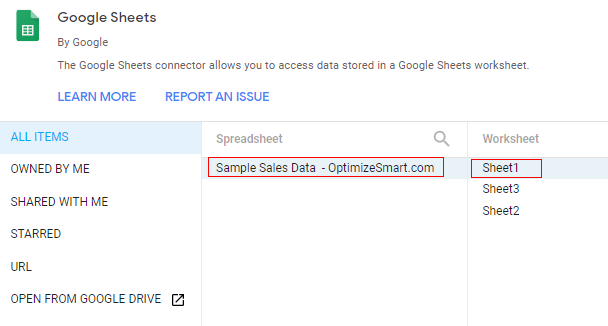
Step-9: Find and click on your Google Sheets which contains the data you want to visualize:
Step-10: Click on the blue ‘Connect’ button on the top right-hand side:
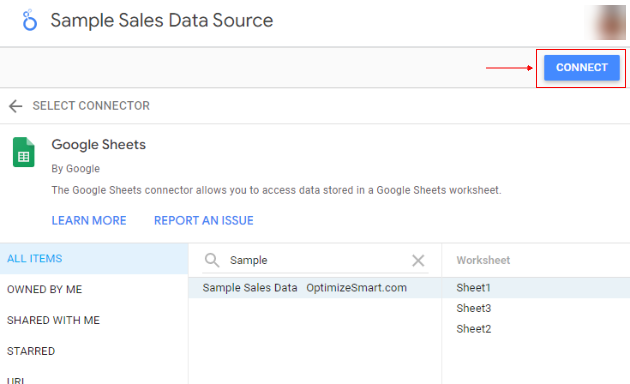
You should now see a screen like the one below:
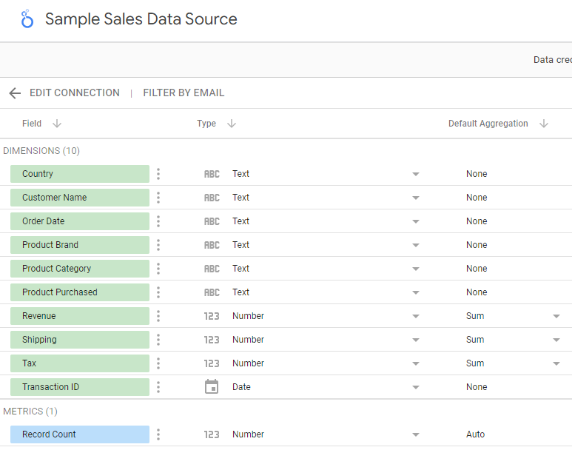
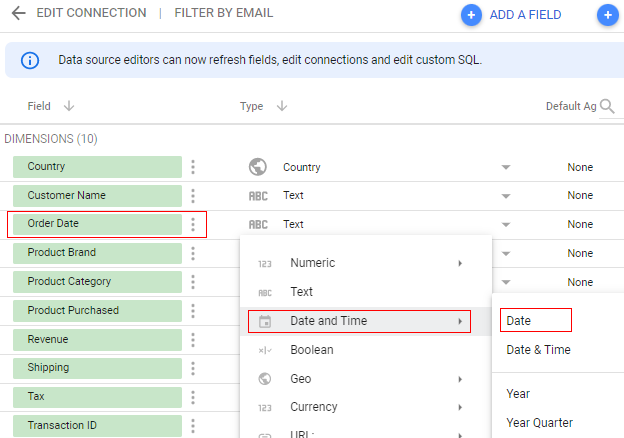
Step-11: Make sure each field is of the correct data type.
For example, from the screenshot above, we can see that the ‘order date’ field is of type text. It should be of type ‘date’:
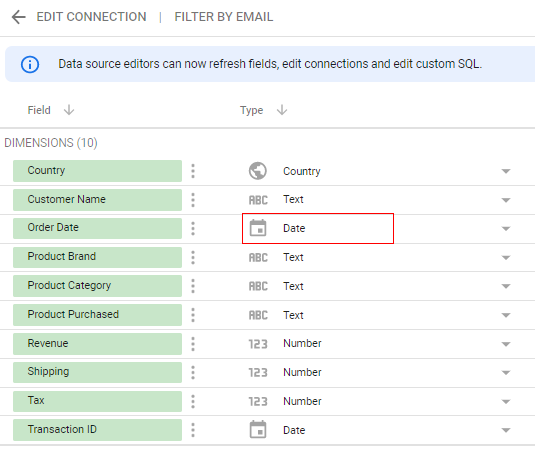
Similarly, the ‘Transaction ID’ field is of type ‘date’. It should be of type ‘number’:
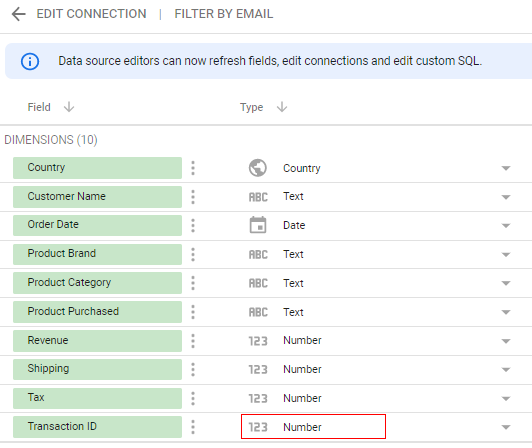
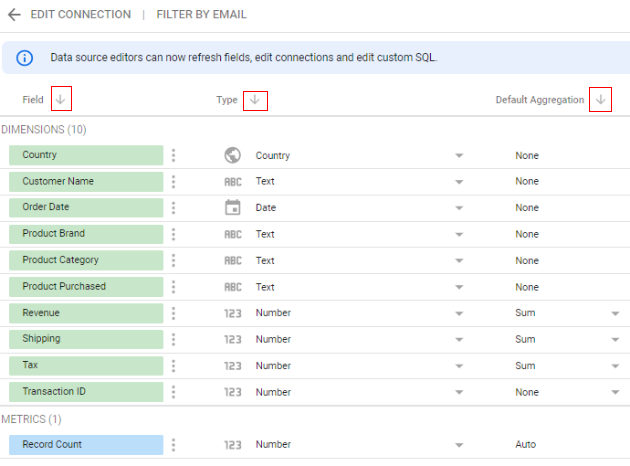
All the green fields represent dimensions, and all the blue fields represent metrics.
At this point, you cannot change the order of various dimensions and metrics, but you can sort them based on name, type, and default aggregation using the arrow buttons:
Step-12: Once everything looks all right then click on the ‘Create Report’ button on the top right-hand side of your screen:
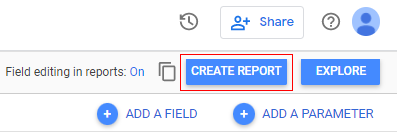
You should now see a dialog box like the one below:
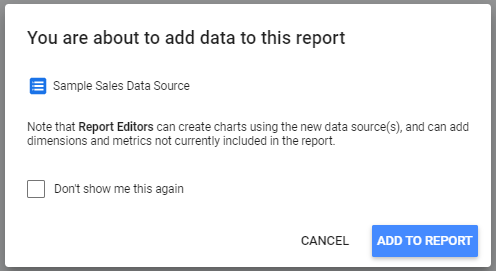
Step-13: Click on the ‘Add to Report’ button.
You should now see the following similar screen with a table on the canvas:
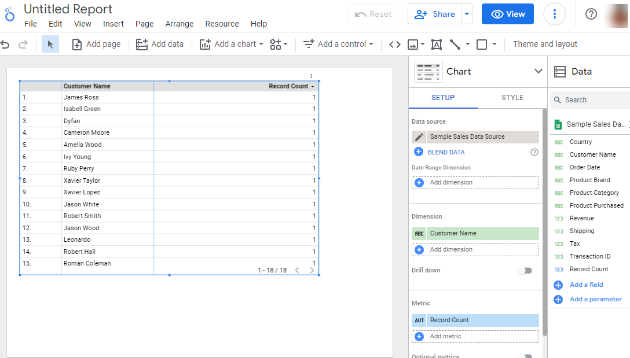
Step-14: Name your report by double-clicking on the text ‘Untitled Report’:
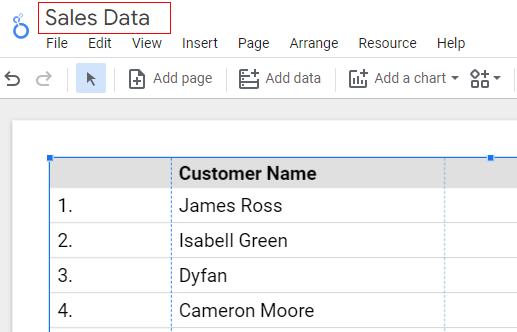
That’s how you can create a report in Google Data Studio and visualize the data from Google Sheets.
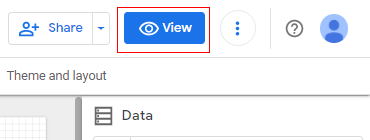
Step-15: In order to see this table in the ‘view mode’, click on the ‘view’ button on the top right-hand side:
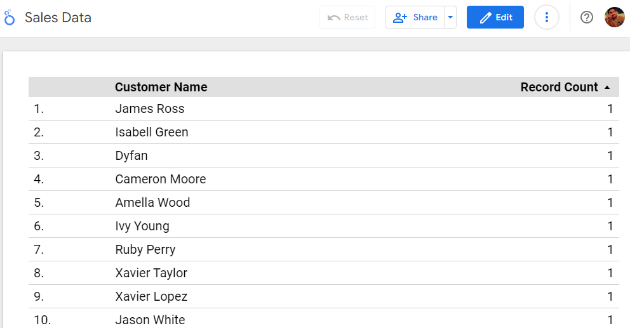
That’s how your report will look in the view mode:
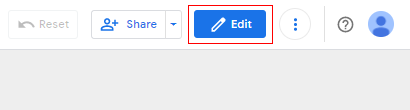
Step-16: If you want to edit this table again, then click on the ‘Edit’ button on the top right-hand side:
That’s how you can use Google Data Studio with Google Sheets.
Let’s now learn how to use Google Data Studio with Google Analytics.
Related Articles:
- How to format Google Sheets data for Google Data Studio
- How to use Google Data Studio with Google Sheets
- Working with timezones in Google Sheets and Google Data Studio
How to visualize Google Analytics data via Google Data Studio?
Follow the steps below:
Step-1: Navigate to the home page of your Google Data Studio account: https://datastudio.google.com/navigation/reporting
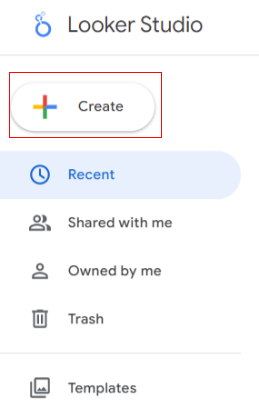
Step-2: Click on the ‘Create’ button:
Step-3: Click on ‘Data Source’:
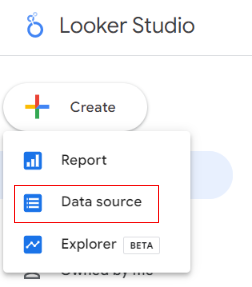
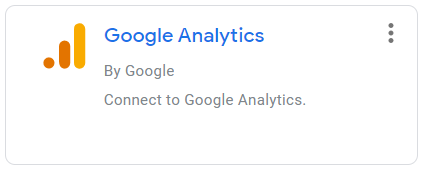
Step-4: Scroll down and find the Google Analytics Connector, then click on it:
You should now see a screen like the one below:
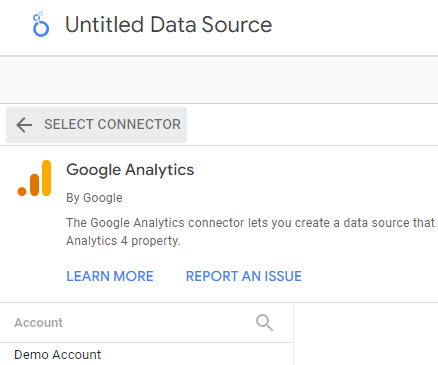
Step-5: Double-click on the text ‘Untitled Data Source’ and then rename it (say ‘Google Analytics Account’):
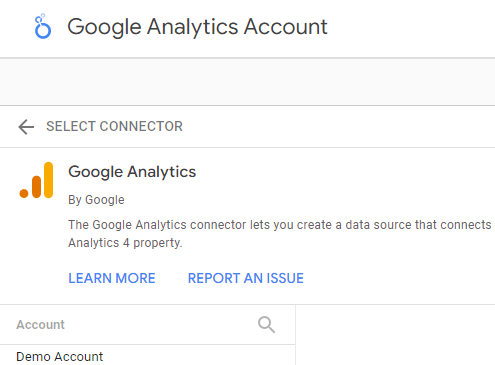
Step-6: Find and click on the GA property which contains the data you want to visualize:
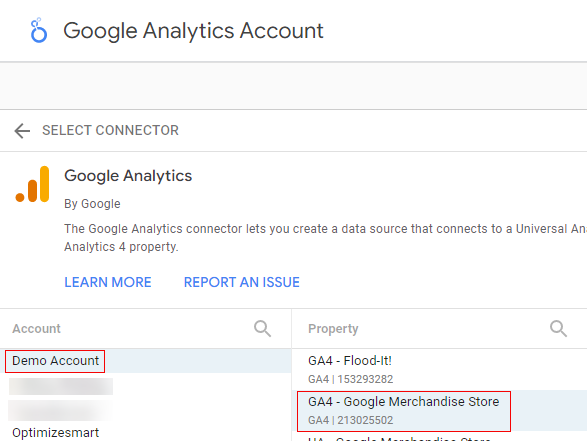
Step-7: Click on the blue ‘Connect’ button on the top right-hand side:
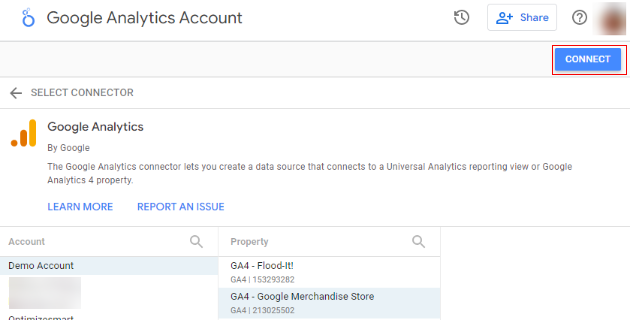
Here we are using the Google demo account.
Once you click on the ‘connect’ button, you should now see a screen like the one below:
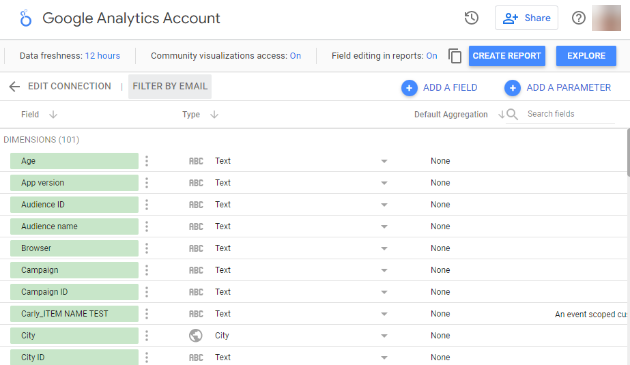
Here, all green fields are Google Analytics dimensions, and blue fields are Google Analytics metrics.
Step-8: click on the ‘Create Report’ button on the top right-hand side of your screen:
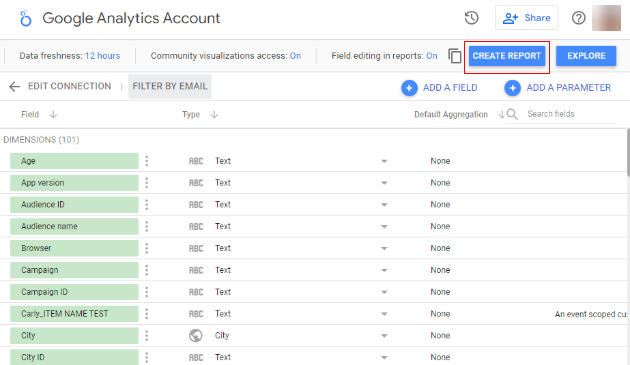
You should now see a dialogue box like the one below:
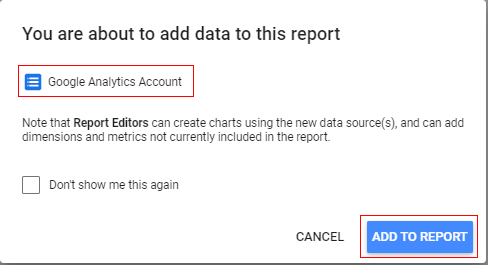
Step-9: Click on the ‘Add to Report’ button.
You should now see the following similar screen with a table on the canvas:
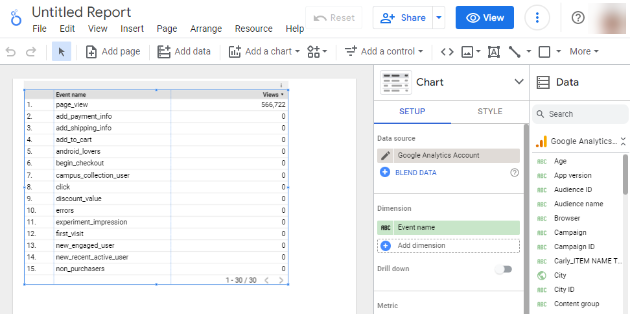
Step-10: Name your report by double-clicking on the text ‘Untitled Report’.
That’s how you can visualize Google Analytics data in Google Data Studio.
Related Articles
- How to extract data from Google Analytics into Google Sheets
- How to extract data from Google Ads into Google Sheets
- How to extract data from Facebook Ads into Google Sheets
- How to extract data from Google Search Console into Google Sheets
- How to extract data from Excel or CSV file into Google Sheets
The building blocks of Google Data Studio
The following are the building blocks of Google Data Studio:
- Data platforms
- Connectors
- Data sources (aka Data Source Schemas)
- Data sets
- Data source schema fields
- Dimensions
- Metrics
- Data types
- Reports
- Components (charts)
Understanding data platforms in Google Data Studio
Before using Google Data Studio and creating reports to visualize data, you need access to one or more data platforms.
Following are examples of data platforms:
- Google Sheets
- Google Analytics
- Excel Spreadsheet
- BigQuery
- Google Ads
- Google Search Console
- YouTube Analytics
- Facebook Ads
- Adobe Analytics
In order to pull data from these data platforms into Google Data Studio, you would need to use a connector(s).
What are connectors in Google Data Studio?
A connector is a mechanism through which you can pull data from a specific data platform.
Any data platform accessible via the internet can be connected with Google Data Studio.
There are two broad categories of connectors:
- Ready-made connectors
- Custom made connectors
#1 Ready-made connectors in Google Data Studio
These connectors are ready to use. They are free to use or require a monthly/annual subscription.
Google connectors, partner connectors and open-source connectors are examples of ready-made connectors.
#2 Custom-made connectors in Google Data Studio
These connectors are developed on demand and are used when ready-made connectors can’t be used to pull data from a specific data platform.
You can create your own connector by using Google Apps Script.
If you are not a developer, you can hire someone to create a custom-made connector for you.
What is Google Data Studio Connector Gallery?
The Google Data Studio Connector Gallery lists all the connectors supported by Google Data Studio.
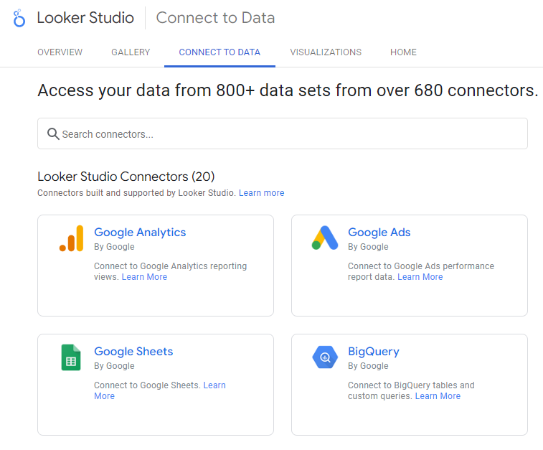
Here you can see a list of all the currently available connectors.
If you build your own connector, you can choose to publish and promote it in the connector gallery.
Here is the link to the Google Data Studio Connector Gallery: https://datastudio.google.com/data
What are Google connectors in Google Data Studio?
Google connectors are the connectors built and maintained by Google.
At present, Google provides 23 different types of connectors in Google Data Studio:
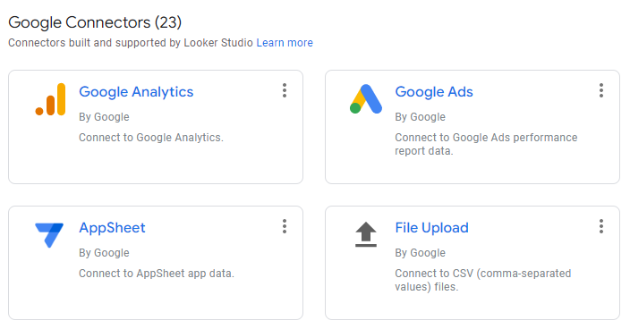
All of the Google connectors are free to use as long as you have access to the right Google product.
For example, if you do not have access to GA 360, then the Display and Video 360 connector is of no use to you:
There are three categories of Google connectors:
- Google product connectors
- Google database platform connectors
- File upload connector
Google product connectors in Google Data Studio
Through Google product connectors, you can pull data from Google products into Google Data Studio.
Following are examples of Google product connectors:
1. Campaign Manager 360 – This connector connects your Google Data Studio account to your Campaign Manager network and advertiser data.
2. Display & Video 360 – use this connector to connect your Google Data Studio account to your Display & Video 360 data.
3. Google Ad Manager – connect Google Data Studio to Google Ad Manager 360
4. Google Ads – connect Google Data Studio to Google Ads.
5. Google Analytics – connect Google Data Studio to Google Analytics.
6. Google Cloud Storage – connect Google Data Studio to Google Cloud Storage.
7. Google Sheets – connect Google Data Studio to a Google Sheets worksheet or range.
8. Search Console – connect Google Data Studio to Google Search Console.
9. YouTube Analytics – connect Google Data Studio to YouTube Analytics.
10. Search Ads 360 connector – connect Google Data Studio to Search Ads 360.
11. Google Surveys – connect Google Data Studio to Google Surveys
Google database platform connectors in Google Data Studio
Through Google database platform connectors, you can pull data from Google database platforms into Google Data Studio.
Following are examples of Google database platform connectors:
1. Google BigQuery – connect Google Data Studio to BigQuery tables.
2. Google Cloud Spanner – connect Google Data Studio to Cloud Spanner databases.
3. Google Cloud SQL for MySQL – connect Google Data Studio to Google Cloud SQL databases.
4. MySQL – connect Google Data Studio to MySQL databases.
5. PostgreSQL – connect Google Data Studio to PostgreSQL-based databases.
6. Amazon Redshift – connect to the Amazon Redshift database
File upload connector
Use the file uploader connector to upload data from any data source (via a CSV file) to Google Data Studio that is not supported by a specific connector.
Use this connector if you want to connect your Google Data Studio account with Microsoft Excel spreadsheets.
If you prefer using Excel with Google Data Studio, you will use this connector a lot.
I prefer to use Google sheets because it natively integrates with Google Data Studio and other Google products like Google Analytics and Google Ads.
Extract data connector
Extract data connector is used to pull only a subset of data from an existing data source (i.e. data source which is already available in your Google Data Studio account).
The subset of data from an existing data source is called the ‘Extracted Data Source‘.
Thus by using the Extract data connector, you can create an extracted data source in Google Data Studio.
The advantage of using the Extract data connector is that when you extract only a subset of data (instead of all of the data) from a data source (to create reports and explorations), it can make your Google Data Studio reports and explorations load faster.
Not only that but your reports and explorations also become more responsive when applying filters and date ranges.
Note(1): Extracted data sources can contain up to 100MB of data.
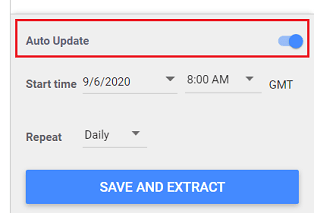
Note(2): By default, the extracted data sources contain static data. If you want the extracted data source to update automatically, then you would need to turn on the ‘Auto Update’ feature while creating the data source:
What are partner connectors in Google Data Studio?
Partner connectors are connectors built and maintained by third parties like Supermetrics, Funnel, etc.
At the time of writing, 661 different types of partner connectors are available in Google Data Studio: https://datastudio.google.com/datasources/create
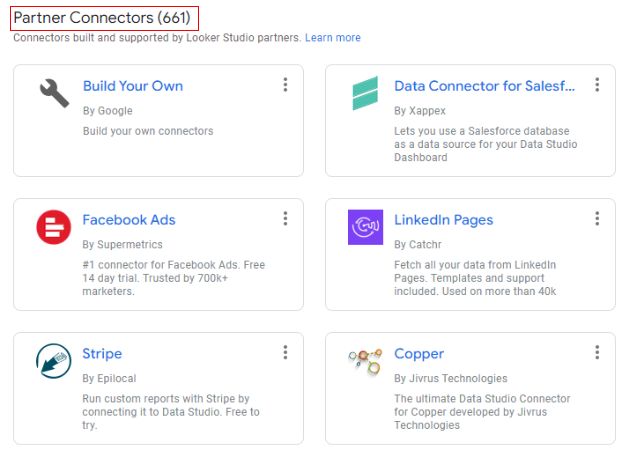
Note: Partner connectors are usually not free to use and would require a monthly/annual paid subscription.
Why do you need partner connectors in Google Data Studio?
Google does not provide any connector for non-Google products.
If you want to pull data from a non-Google data platform (like Facebook Ads, Adobe Analytics, Bing Ads, etc.), then you need to use/purchase a partner connector.
Partner connectors are required when you want to consolidate data from multiple data platforms and visualize them in Google Data Studio.
You can unite data from multiple marketing platforms into Google Data Studio through partner connectors.
For example, you can report and compare Google Ads, Facebook, Instagram, Twitter, LinkedIn and Bing Ads campaigns in a single Google Data Studio report.
Partner connectors make cross-platform reporting possible in Google Data Studio.
Supermetrics partner connectors
Supermetrics is a great tool that you can use to get partner connectors.
They provide connectors for the following data platforms:
- Facebook Ads
- Hubspot
- Microsoft Advertising
- Twitter Ads
- Instagram Insights
- LinkedIn Ads
- YouTube
- Adobe Analytics
- MailChimp, etc.
Supermetrics for Google Data Studio is a Google Sheet add-on that lets you use several connectors for pulling data from multiple non-Google data platforms.
I also use and recommend Supermetrics for Google Sheets add-on.
I use this add-on to pull data from Google Analytics into Google Sheets.
Its free version is also available and is good enough if you only use Google Analytics as a data source.
Related Articles:
Difference between the Supermetrics for Google Sheets and Google Analytics Spreadsheet add-ons
Both are Google Sheet add-ons, and both are free to use. Both are used to pull Google Analytics data into a Google Sheet.
The main difference is in the ease of use.
The Google Analytics Spreadsheet Add-on (developed by Google) is not as easy to use as the Supermetrics for Google Sheets add-on, so I recommend using the Supermetrics for Google Sheets add-on.
Related Article: How to use Google Analytics API without any coding
GA4 Quota in Google Data Studio
Google Data Studio has a GA4 connector. This connector uses the GA4 data API to get its data.
Google enforces a quota on this API which could result in you seeing a data set configuration error message while using Google Data Studio reports:
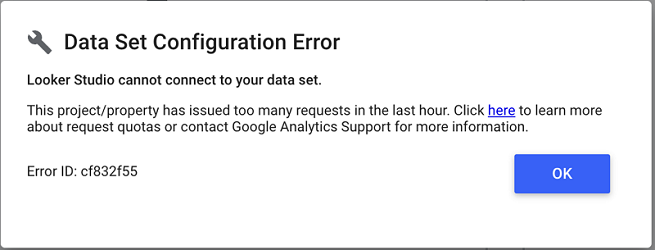
There are daily and hourly quotas.
The daily quotas are refreshed at midnight PST (Pacific Standard Time). Whereas the hourly quotas are refreshed hourly.
Following is the complete list of various GA4 quotas in Google Data Studio:
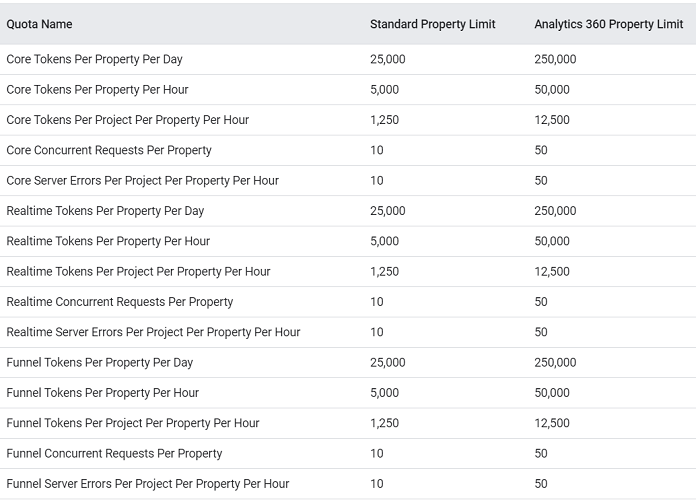
The two quotas that have the biggest negative impact on the use of Google Data Studio reports are:
#1 Core tokens per project per property per hour (1250)
Every component (like a data table) in your Google Data Studio report consumes a certain number of tokens.
The number of tokens consumed by each component depends on factors like data range, filters, amount of data processed, the frequency of report refreshes, frequency of edits etc.
The more users interact with your reports, the faster you will consume the hourly token quota.
#2 Core Concurrent requests per property (10).
The more people view your Google Data Studio report simultaneously, the faster you will consume this quota.
The more components you use in your Google Data Studio report, the faster you will consume this quota.
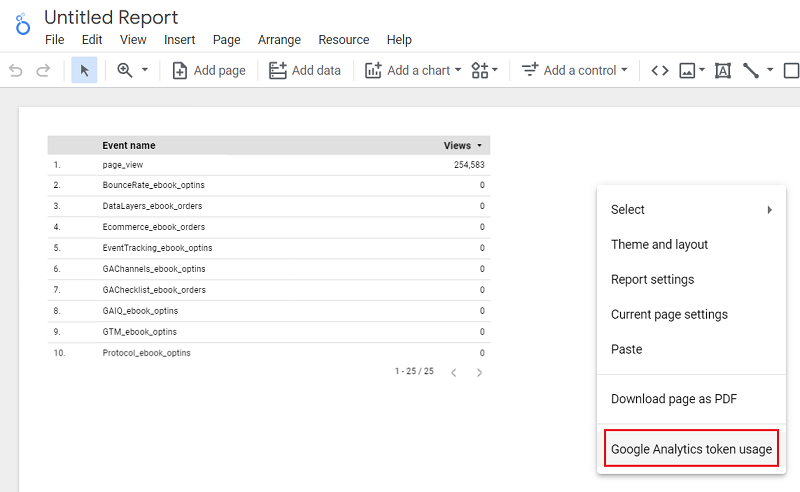
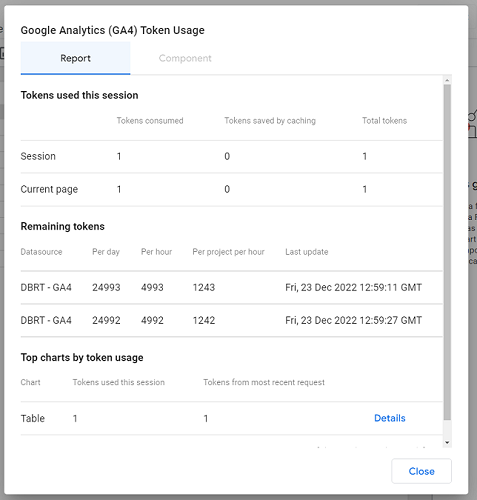
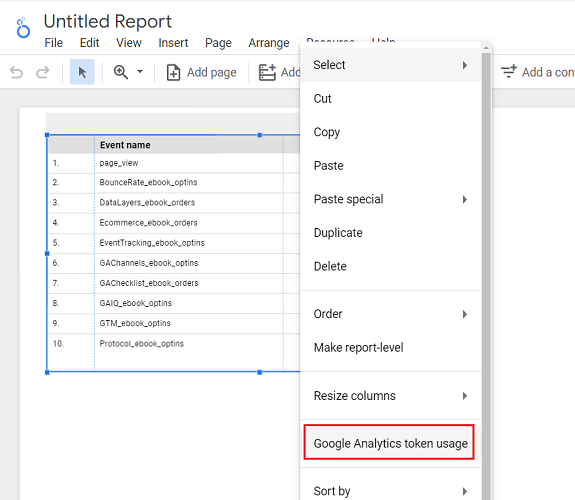
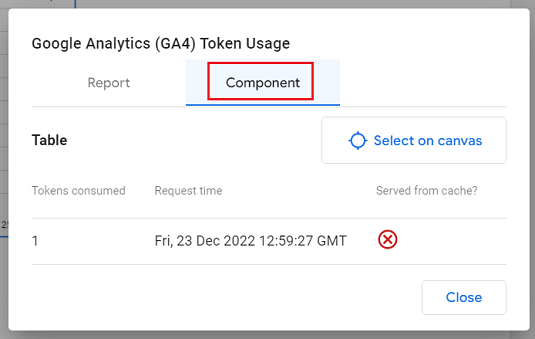
You can monitor the GA4 token (data) usage of your report or report component in Google Data Studio.
To see the GA4 token usage of your report, right-click on the report canvas and then select ‘Google Analytics Token Usage’ from the drop-down menu:
To see the GA4 token usage of a report component (like a data table), right-click on the report component and then select ‘Google Analytics Token Usage’ from the drop-down menu:
You don’t have to worry about the tokens consumed if you do not directly pull the GA4 data into Google Data Studio if you do not use the GA4 connector for Google Data Studio.
Instead, do what I do and recommend.
Pull the GA4 data into Google Sheets/BigQuery, manipulate it there and then send it to Google Data Studio.
What are the data sources in Google Data Studio?
A data source is a Google Data Studio file that defines how a connector should pull data from a specific data set and then send it to the report(s) in Google Data Studio.
When you log in to Google Data Studio, Google gives you the option to create a new data source or edit an existing data source:
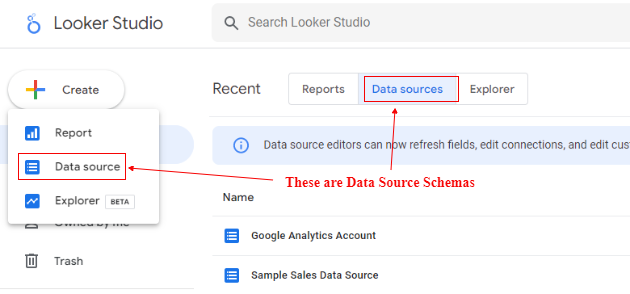
But the name ‘data source’ (in the context of Google Data Studio) is a misnomer.
You are not creating a data source in Google Data Studio.
What you are actually creating is data source schema which defines how a connector should pull data from a specific data set and then send it to one or more reports.
The data set that you use is your actual data source. You create a data source schema for a specific data set.
So if you want to display data from a data set in your Google Data Studio report, then you would need to create a data source schema for that data set and then add the data source schema to your report.
What are data source schema fields in Google Data Studio?
A data source schema is made up of a set of fields called data source schema fields:
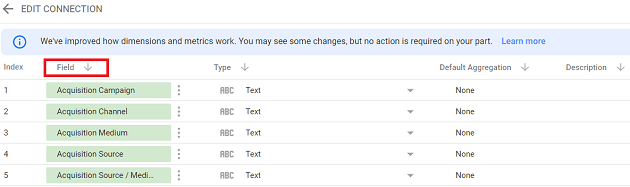
A connector pulls these fields from the data source.
Only the fields provided by the connector are the ones available to use in your schema and reports.
Related Articles:
- Guide to data sources in Google Data Studio
- Guide to data source fields in Google Data Studio
- How to create and configure a data source in Google Data Studio
- How to share a data source with others in Google Data Studio
- Data Source version history in Google Data Studio
- Community visualization access in Google Data Studio
- Understanding data freshness in Google Data Studio
- Understanding data source credentials in Google Data Studio
- Field editing in reports – Google Data Studio
- Refresh data source schema fields in Google Data Studio
- Filter by email in Google Data Studio
- The ‘data set configuration error’ in Google Data Studio
- Formula Rejection in Google Data Studio
- Understanding functions in Google Data Studio
- Guide to calculated fields in Google Data Studio
- Doing basic maths on numeric fields via calculated fields
- How to edit a calculated field in Google Data Studio
- Why you should avoid using functions and calculated fields in Looker Studio
What are the dimensions in Google Data Studio?
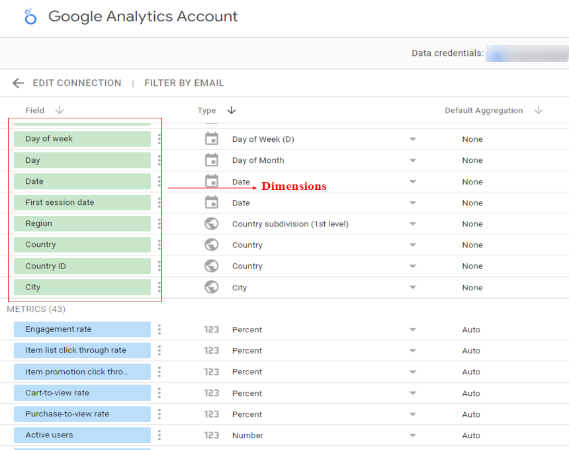
A dimension is the attribute of your website visitors. It is used to describe or categorize your data.
Dimensions in your data source schema appear as green fields:
What are the metrics in Google Data Studio?
A metric is a number that is used to measure one of the characteristics of a dimension.
Metrics in your data source schema appear as blue fields:
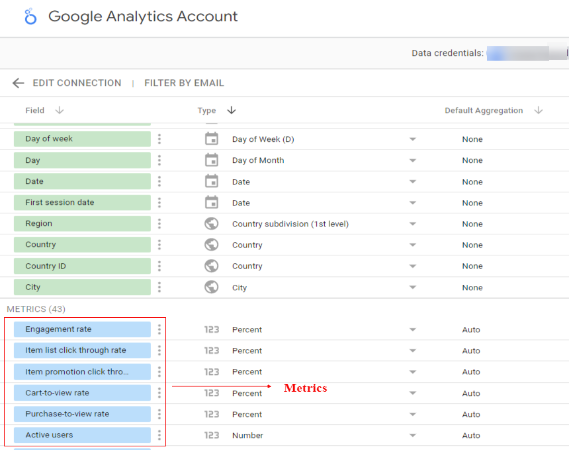
Note: In Google Analytics, a dimension cannot be used as a metric and vice versa. Whereas in Google Data Studio, a dimension can be used as a metric and vice versa.
Related Articles:
What are the parameters in Google Data Studio?
A parameter is a data source schema field whose value is supplied by a report user.
It is used in calculated fields and reports components, just like a dimension or a metric.
Through parameters, you can pass user-supplied data to calculated fields and connectors.
So if you want your report to display results based on user input, then you use the parameter field.
While editing a data source schema, you get the option to add one or more parameter fields:
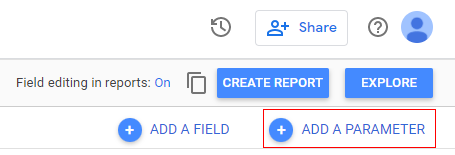
To learn more about parameters in Google Data Studio, read this article: How to create and use parameters in Google Data Studio.
What are the data types in Google Data Studio?
The data type of a data source schema field determines the kind of data to expect (in the connected data set) when processing the field.
For example, when the data type of a field is ‘Number’, it tells Google Data Studio to expect a number when processing the field:

When the data type of a field is ‘Currency (US – Dollars) ’, it tells Google Data Studio to expect currency data in US dollars when processing the field:
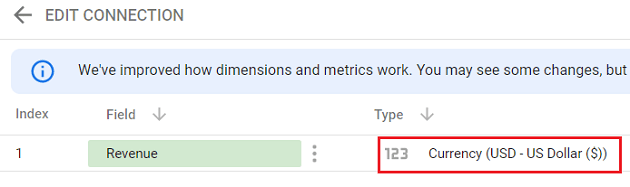
The data type determines which operations are allowed or not on a data source schema field.
For example, you can’t apply an arithmetic function to a ‘Text’ field or use a ‘Number’ field as the date range dimension in a report.
Google Data Studio supports the following data types:
- Numeric
- Text
- Date and Time
- Boolean
- Geo
- Currency
- URL
- Image
- Image link
Related Articles:
- Guide to data types in Google Data Studio
- Understanding aggregation in Google Data Studio
- Google Data Studio number formats/data types
- Guide to date and time data types in Google Data Studio
- How to work with text data type in Google Data Studio
- How to work with boolean data type in Google Data Studio
- Geo Data – Country, Region, Latitude, Longitude in Google Data Studio
- Image data type in Google Data Studio
- Image Link data type in Google Data Studio
- Image function in Google Data Studio
Introduction to Google Data Studio reports
Reports in Google Data Studio are used to tell stories with data. Every report you create should have some purpose.
The purpose can be to provide actionable insight, give recommendations or persuasion.
Following are some best practices for creating a report in Google Data Studio:
- Understand who your report is meant for
- Keep it short and simple
- Use a report template whenever you can to create a new report.
- Avoid pulling data directly from a data platform into your reports.
- Avoid charting data for the current day in your reports.
- Avoid using functions and calculated fields in your reports.
- Distribute related charts across multiple pages
To learn more about reports in Google Data Studio, check out this article: Google Data Studio report tutorial
Other articles related to Google Data Studio Reports
- Best practices for creating a report in Google Data Studio
- How to share reports in Google Data Studio
- Seven methods to create a new report in Google Data Studio
- Understanding Report Editor in Google Data Studio
- How to invite people to view or edit a report in Google Data Studio
- How to share the link of your report in Google Data Studio
- Schedule email delivery of a report in Google Data Studio
- How to download Google Data Studio report as PDF
- How to embed a Google Data Studio report on a website
- Working with pages in a Google Data Studio report
What are chart components in Google Data Studio?
A report in Google Data Studio is made up of one or more chart components like:
- Table
- Scorecard
- Time Series
- Bar Chart
- Pie Chart
- Google Maps
- Geo Chart
- Line Chart
- Area Chart
- Scatter Chart
- Pivot Table
- Bullet Chart
- Treemap
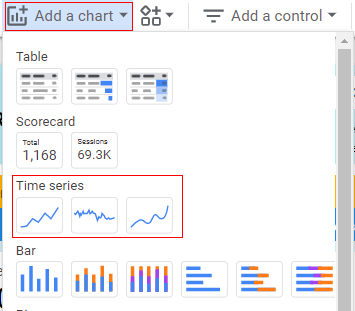
You can access these chart components by clicking on ‘Add a Chart’ drop-down menu in the report editor:
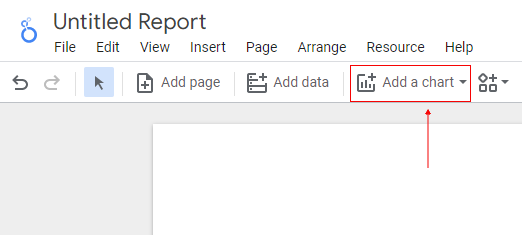
Let’s build a chart to show website performance.
Click on the ‘Add a Chart’ drop-down menu and then click on ‘Score Card’:
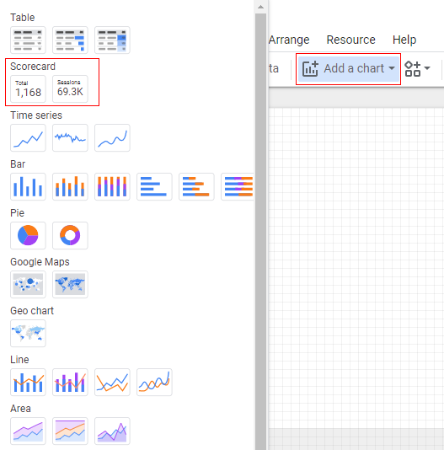
On the right-hand side of your report editor, you should see the panel where you can select the metric for the scorecard.
Let’s select the ‘Sessions’ metric:
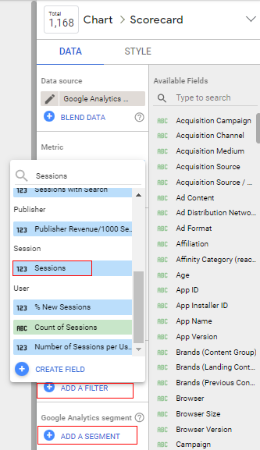
Note: You can also add filters or segments to the selected metric.
Let’s repeat this step to add a few more metrics to our report.
Once you are done, our report may look like the one below:
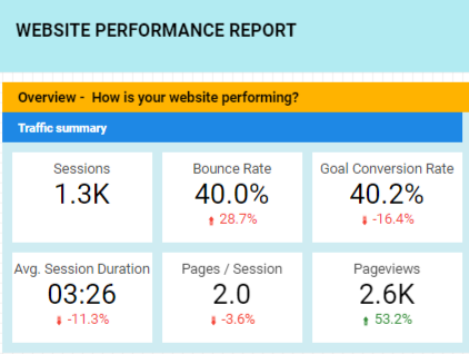
Now let’s add a trend chart for ‘Visits in Last Week’.
Click on the ‘Add to Chart’ drop-down menu and then select ‘Time Series’:
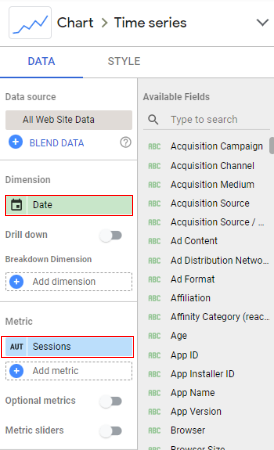
Under the ‘Data’ tab on the right-hand side panel, select ‘Date’ as a dimension and ‘Sessions’ as a metric:
Now our chart on the canvas may look like the one below:
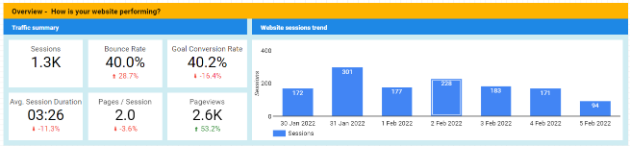
Since Google Data Studio supports dynamic reporting, you can also add controls to your report to give your report users more freedom to slice and dice data by selecting a date range, device type, segment etc.

Related Articles.
- Google Data Studio Parameters explained with examples.
- Google Data Studio Tutorial.
- How to Change Language in Google Data Studio.
- Google Data Studio Report Tutorial.
- How to work with Boolean field in Google Data Studio.
- How to use Google Data Studio with Google Sheets.
- Stop Using Page Titles in GA4 & Google Data Studio Reports.
- Google Data Studio Geo Map – Latitude Longitude.
- Google Data Studio Data Sources – Tutorial.
- Guide to Data Types in Google Data Studio.
- Google Data Studio Date Format and Time Explained.
- Working with Numeric Data Types in Google Data Studio.