

In this article, you will learn to set up enhanced conversions for Web using Code configuration in Google Tag Manager.
Prerequisite
- You have an active Google Ads Conversion Tag
- You have an active Conversion Linker Tag
- First-party customer data is available (email, full name, home address, or phone number) on the page where your conversion tracking tag fires.
There are 3 ways in which you can implement enhanced conversions in Google Tag Manager. You only need to choose one option to collect user-provided data.
- Automatic Collection
- Manual Configuration (Using CSS Selectors)
- Code Configuration
In this article, we are going to use the Code Configuration.
This process will consist of 6 major steps as below
- Configure Google tag settings
- Enable enhanced conversions for Web in Google Ads
- Capture user data using custom Javascript in Google Tag Manager
- Create User-Provided Data variable in Googe Tag Manager
- Update Google Ads Conversion tag in Google Tag Manager
- Verify and Publish your Changes
1. Configure Google tag settings
Before you can set up enhanced conversions for the Web, you will need to adjust your Google tag:
Follow the below steps.
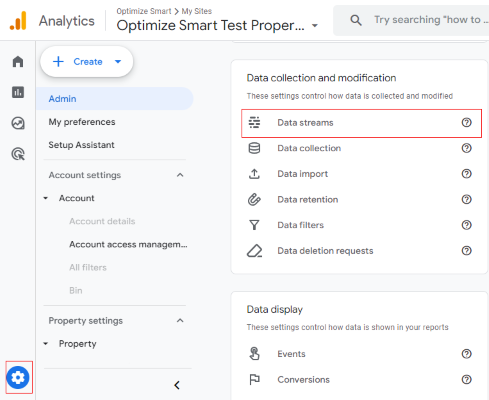
Step-1: Navigate to the Google Analytics 4 Admin and click on “Data streams”.
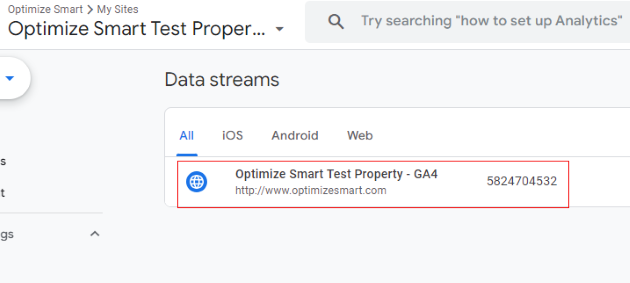
Step-2: Select your GA4 property.
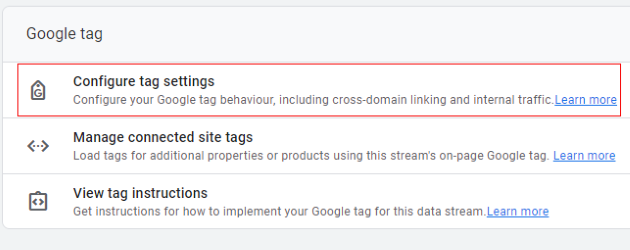
Step-3: Click on the “Configure tag settings”.
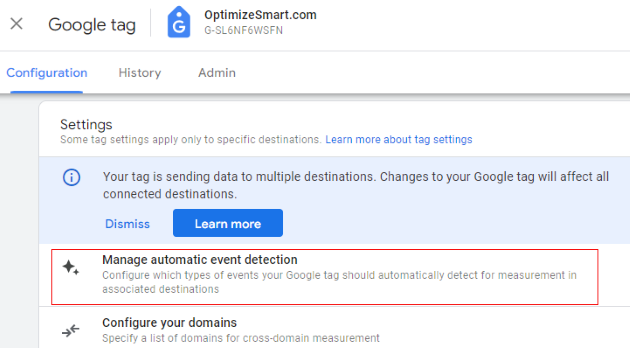
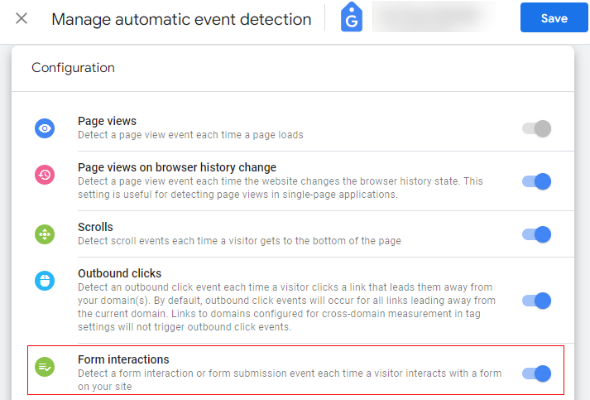
Step-4: In the Configure tag settings, click “Manage automatic event detection”.
Step5: Enable automatic collection for “Form interactions” by clicking on the toggle button to “ON”
2. Enable enhanced conversions for Web in Google Ads
Now, the next step in setting up the enhanced conversion for the web using the Google Tag Manager will be to enable the enhanced conversions for the web in Google Ads.
For existing conversion actions.
Follow the below steps
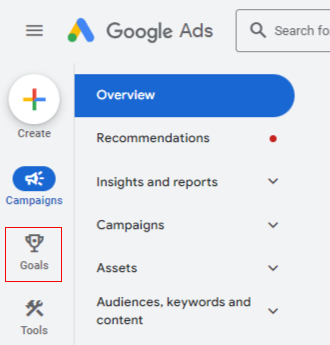
Step-1: Navigate to your Google Ads account and click the Goals icon.
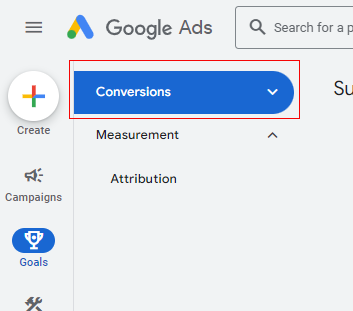
Step-2: Click the ‘Conversions’ drop-down in the section menu.
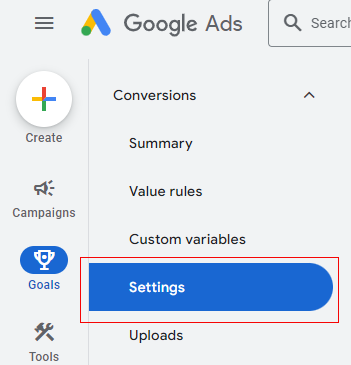
Step-3: Click on the “Settings” tab.
Step-4: Click on “Enhanced conversions”
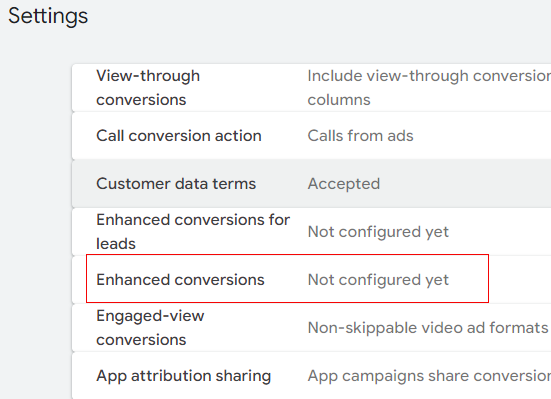
Step-5: Click on the checkbox ‘turn on enhanced conversions’.
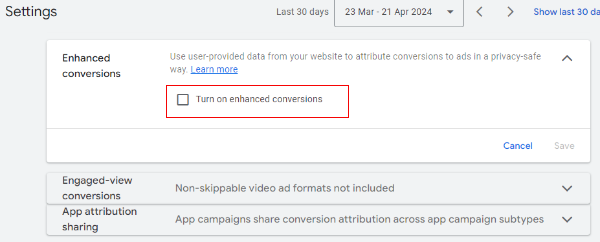
Note: When you select Turn on enhanced conversions for web, you’ll need to accept the customer data terms.
Step-6: Select View Terms next to “Customer data terms” and read the “Policies and Additional Terms for Customer Data”.
Step-7: Click the checkbox beside “I have read and accept the terms on behalf of my company”.
Step-8: Click Agree. You’ll notice your status updated as “Accepted”.
Step-9: Under ‘To start, select how you want to set up enhanced conversions’, select ‘Google Tag Manager’.
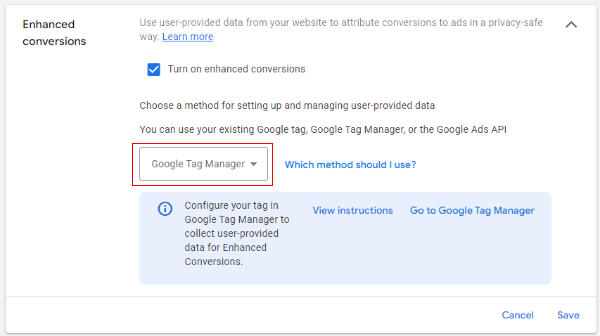
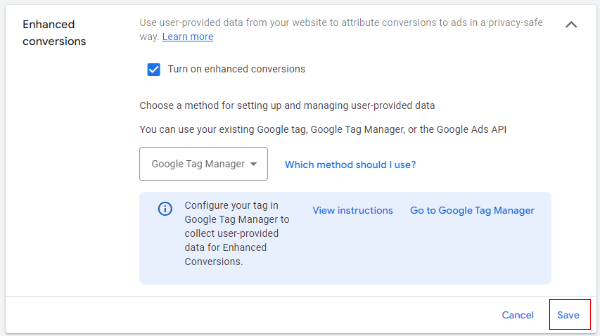
Step-10: Click on “Save”
3. Capture user data using custom Javascript in Google Tag Manager
In Google Tag Manager, we’ll build a special JavaScript code (Custom JavaScript Variable) to grab the value from a specific form field when someone submits the form.
This code targets the exact element on the page and provides its input value.
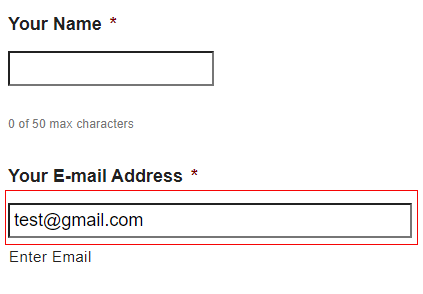
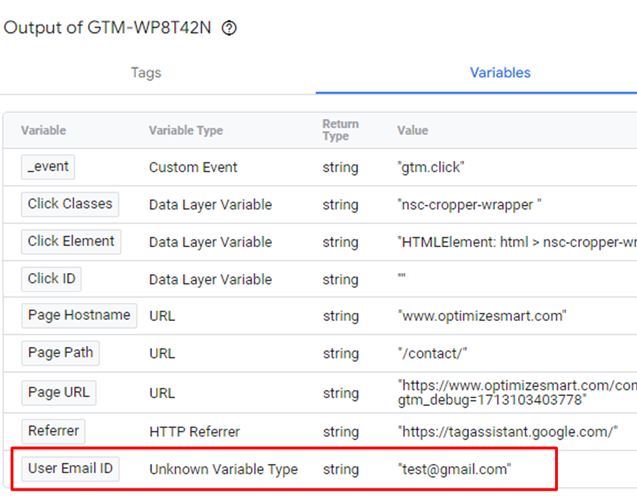
For example, if we capture the form email input field, it will provide the value that was provided in the field like “test@gmail.com”.
Follow the below steps
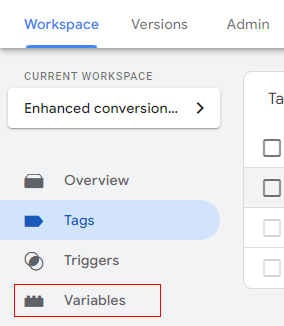
Step-1: Navigate to the Variable tab in Google Tag Manager.
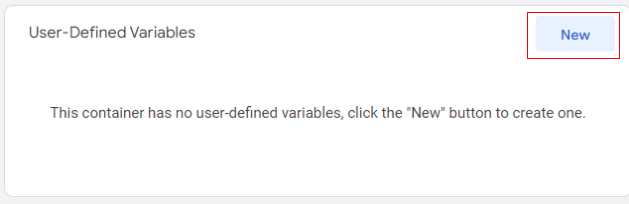
Step-2: Under “User-Defined Variables”, click on New Variable.
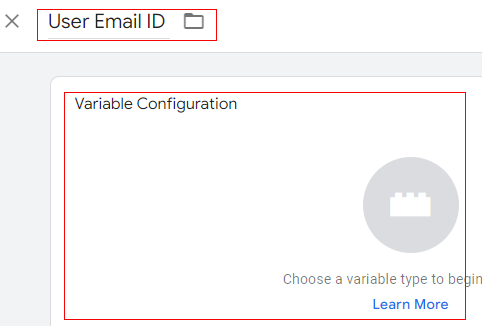
Step-3: Name the variable and click on the “Variable configuration”
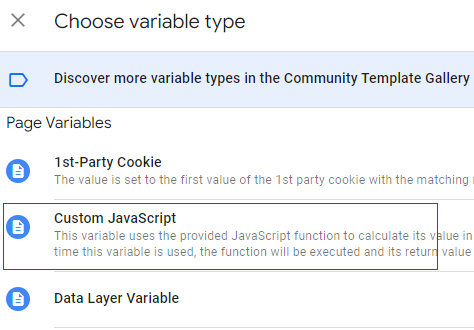
Step-4: Select the “Custom JavaScript” as a variable type.
Step-5: Add the following javascript code
Note: Replace [name=”your_email_field_name”] with the actual name or ID selector of your email input field.
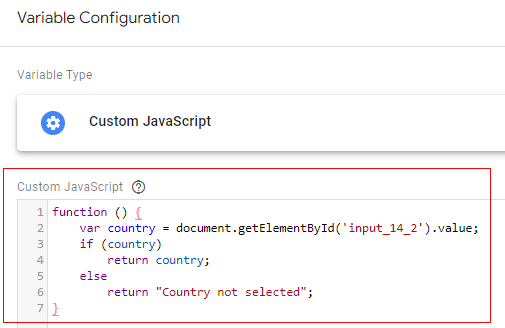
Step-6: Click on Save.
Step-7: Enter Preview mode in GTM to test the setup. This allows you to see in real-time how the variable gets the field value.
Step-8: Go to the form page and add any dummy email id to the input field.
In the Tag Assistant tab, you should see the variable that we created earlier is populated with the dummy value entered in the field.
Note: If your form has other details (e.g., first name, last name, phone number) you can repeat the same steps and create the other variable in Google Tag Manager.
4. Create User-Provided Data variable in Googe Tag Manager
To create a new User-Provided Data variable in GTM, follow the below steps
Step-1: Navigate to the Variables tab in Google Tag Manager.
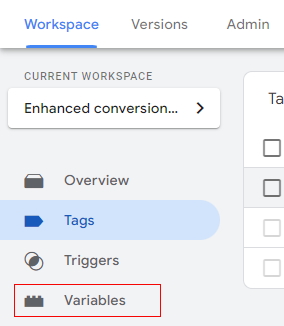
Step-2: Under “User-Defined Variables”, click on New Variable.
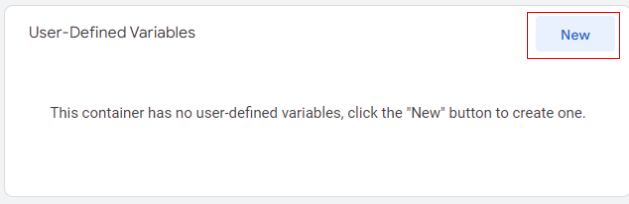
Step-3: Name the variable and click on the “Variable configuration”
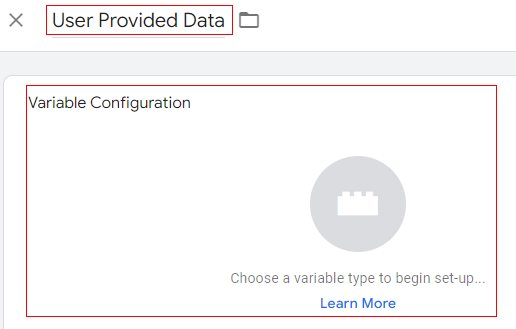
Step-4: Select the variable type as “User-Provided Data”.
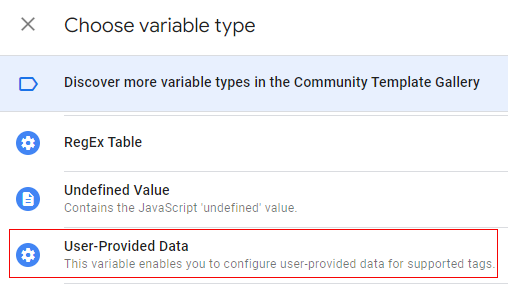
Step-5: Name the Variable and click on “Code configuration”.
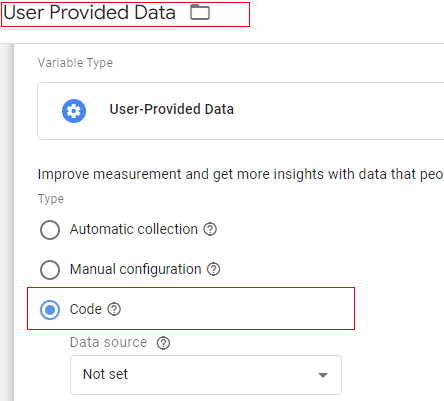
Step-6: Click on the drop-down under “Data source” and select the new variable.
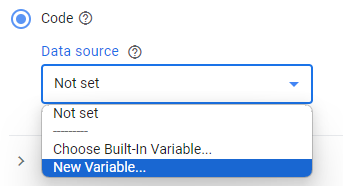
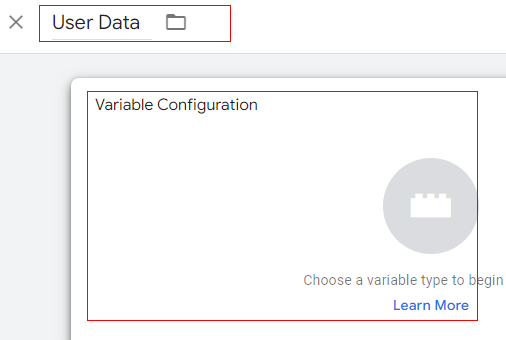
Step-7: Name the variable as “User Data” and click on “Variable Configuration”
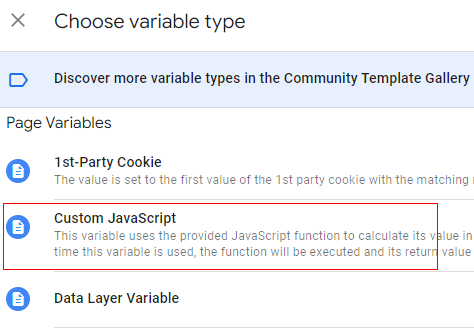
Step-8: Select the variable type as “Custom Javascript”
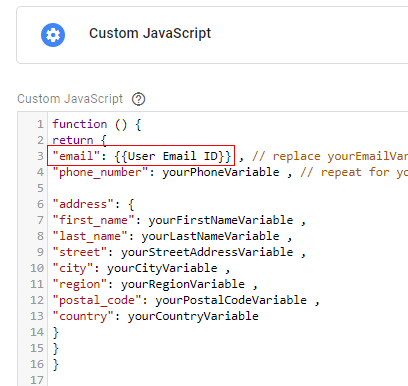
Step-9: Copy the following code into the custom Javascript variable:
For Example, earlier, we created the custom javascript variable as “User Email ID”.
Post providing the correct reference, the code line will look similar to below
Step-10: Repeat the “Step-10” if you have other user related data.
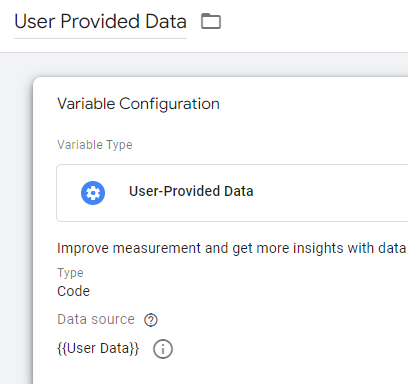
Step-11: Save the variable, and then you will be redirected to the “User Provided Data” variable screen like below
Step-12: Save this variable as well.
5. Update the Google Ads Conversion tag in Google Tag Manager
The next step is to update the existing Google Ads Conversion tag in Google Tag Manager.
Follow the below steps:
Step-1: Open Google Tag Manager.
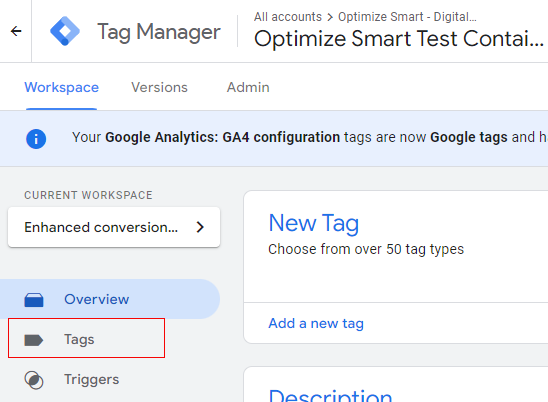
Step-2: In your “Workspace”, click Tags from the navigation menu.
Stpe-3: Find and click on the existing Google Ads Conversion tag.
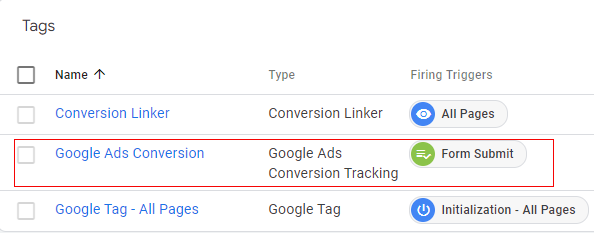
Note: Make sure that this conversion action has the same conversion tracking ID and label as the conversion action that you enabled enhanced conversions for in your Google Ads account.
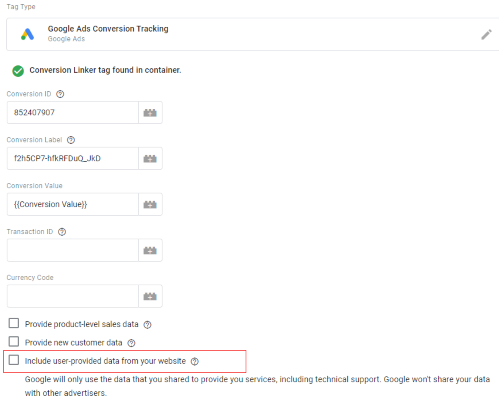
Step-4: In tag configuration, click on the checkbox saying “Include user-provided data from your website”.
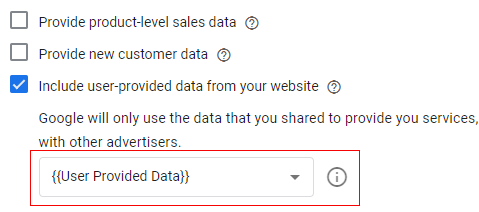
Step-5: Under the “User-provided data” drop-down, select the User-Provided Data variable that we created earlier.
Step-10: Save the Tag
Verify your setup and publish your tag.
Before you publish your container, make sure that the tag behaves as intended using Preview mode.
If you are familiar with networking and hashing algorithms, you can also validate user data hashing.
6. Verify and Publish your Changes
To validate your setup with Preview mode, follow these steps:
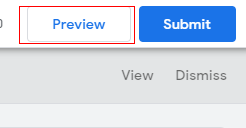
Step-1: In your Tag Manager workspace, click the Preview button at the top. A new tab opens with Tag Assistant.
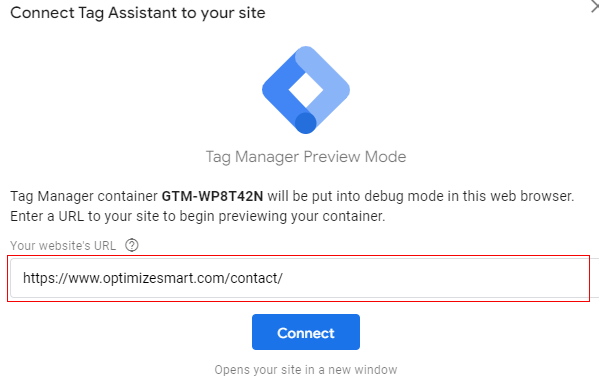
Step-2: Enter your website’s URL in Tag Assistant. Tag Assistant opens your website and the Tag Assistant summary. Keep both tabs open.
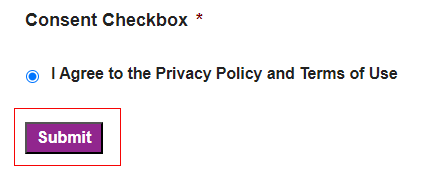
Step-3: On your website, fill out your form and click on “Submit”.
Step-4: Check the “Tag Assistant” summary. Your Google Ads Conversion tag should be listed under the “Tags Fired” section in the summary.
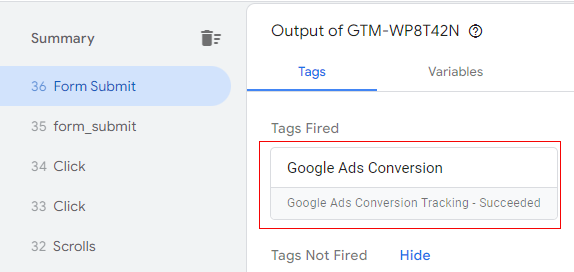
If your tag is listed under “Tags Not Fired”, you need to adjust the tag’s trigger settings.
Step-5: Click on the tag to see which values were passed to the tag. Check if your input was received.
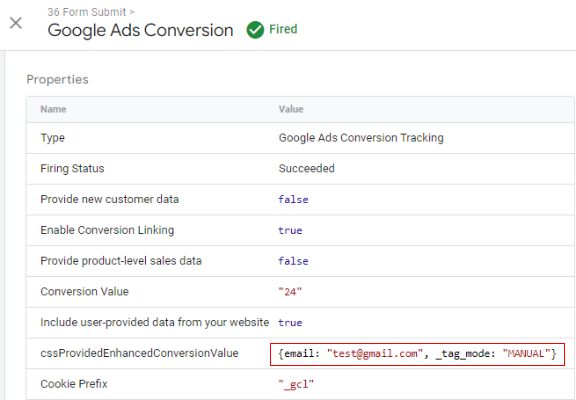
If the tag did not receive any input: Verify your implementation method
Step-6: Publish the workspace in Google Tag Manager.
Validate user data hashing using network calls
To validate that user data is submitted hashed using Google Chrome, follow these steps:
Step-1: Open your website and navigate to the form field you want to validate.
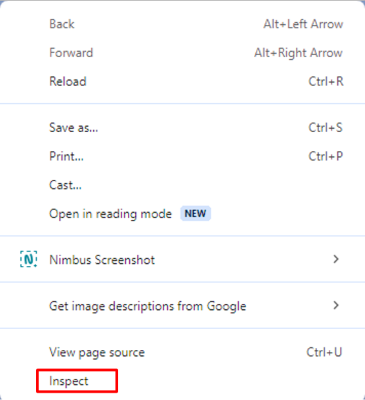
Step-2: Open the developer tools by right-clicking on the web page and select “inspect”
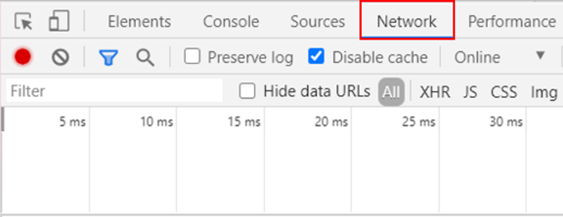
Step-3: Click on the “Network” Tab.
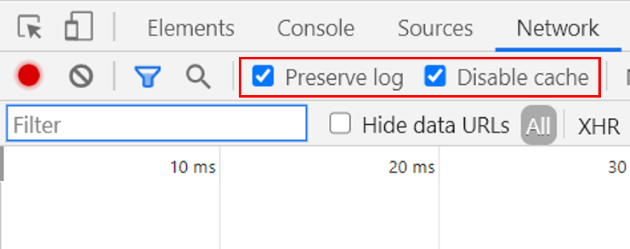
Step-4: Click on the checkbox “Preserve log” and Disble cache”.
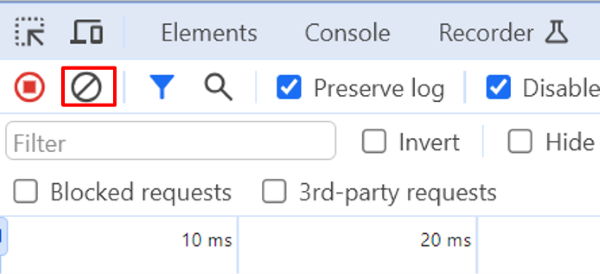
To make validation easier, clear any pre-existing network logs. By clicking on the clear button
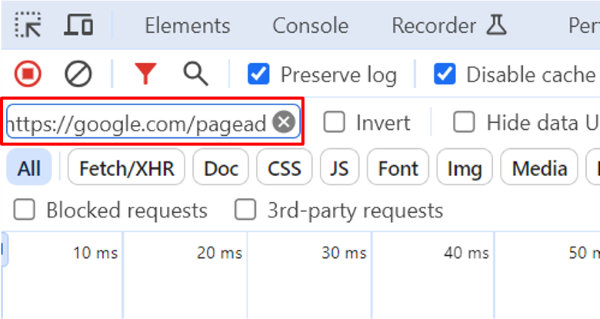
Step-5: Type “https://google.com/pagead” in the Filter box
Step-6: With your Network tab in the developer tools open, submit the data to the form field that you want to validate.
Result:
You should see a request sent to https://google.com/pagead/form-data/ with a page parameter em=xyz.
The em parameter contains the hashed user data.
Here the the em parameter is highlighted in “Yellow”
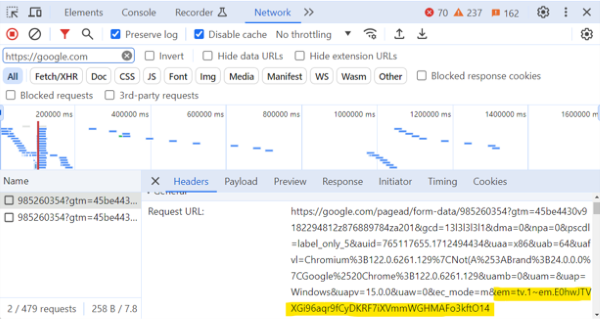
What hashed data looks like
Suppose a user entered a raw email address (abc@example.com) in the form:
- If the Google Ads User-Provided Data Event tag receives the raw user data. Then the user data will be hashed by the tag using web-safe Base64 encoded SHA256 by default just like the yellow highlighted part in the above image.
- If you pre-hash user data before making it available to the Google Ads User-Provided Data Event tag, use Hex-encoded SHA256.
Once your tag collects the data parameters you need, Submit your changes in Tag Manager.
Congratulations!!!
You have successfully set up enhanced conversions for web using code configuration in GTM.

Other Articles on GA4.
- Google Analytics 4 Channels, Source and Medium explained.
- Path exploration report in GA4 (Google Analytics 4) – Path analysis.
- How to use Microsoft Clarity with GA4 (Google Analytics 4).
- GA4 vs GA4 360 – Pricing, Limits, Billing and more.
- Setup Enhanced Conversions for Leads using Data Layer in Google Tag Manager.
- Self-referral Google Analytics 4 – Referral exclusion GA4.
- GA4 Attribution Paths (Conversion Paths) Report.
- Google Tag Manager Tutorial.
- GA4 Attribution Models Explained: How to Choose the Right One.
- Looker Studio (Google Data Studio) Tutorial.
- Google Tag Manager Data Layer Tutorial with Examples.
- Set up enhanced conversions for Web using ‘Code’ in Google Tag Manager.
- How to create Google Ads report in Google Analytics 4.
- Google Tag Manager Audit Checklist.
- Tracking Site Search in Google Analytics 4.
- How to see Organic Search Keywords in Google Analytics 4.