

Introduction to Microsoft Clarity and GA4 (Google Analytics 4)
Many people don’t know, but you can also integrate Microsoft Clarity with GA4.
GA4 does not provide session recordings and heatmaps.
Other tools charge dearly for these features, and when you get millions of visitors, you don’t want to pay thousands of dollars a month just to get these two features.
I now use and recommend ‘Microsoft Clarity’ just for the purpose of getting session recordings and heatmaps.
What is Microsoft Clarity?
‘Microsoft Clarity‘ is a free user behavioural analysis tool from Microsoft that helps you understand user interaction with your website.
It is not a substitute for GA4, but it does provide features that GA4 lack (hint: session recordings and heatmaps).
Key benefits of Microsoft Clarity
The following are the key features of Microsoft Clarity:
#1 It is super easy to install and use, and it’s free.
#2 It does not affect your website performance.
#3 It provides unlimited user recordings and heatmaps.
#4 There are no traffic limits on your website. Thus clarity can support even the largest websites.
#5 There are no limits on the number of websites per clarity account.
#6 You can analyze recordings and heatmap data in real time. Unlike many other tools, you don’t need to wait for data to populate first.
#7 There is no data sampling. All your session recordings and heatmaps are based on 100% unsampled data.
#8 Clarity is both GDPR and CCPA compliant.
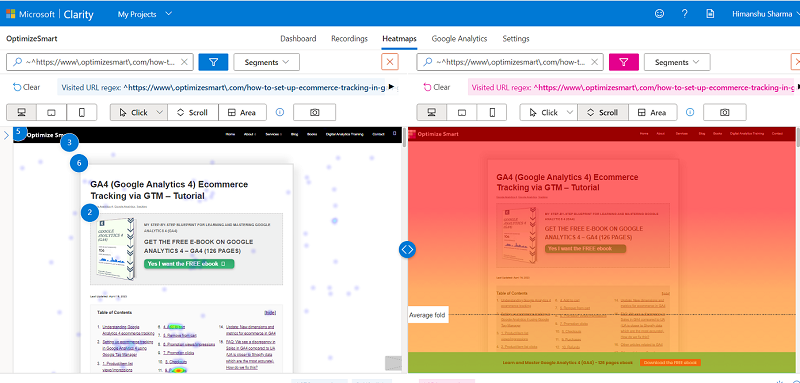
#9 You can create instant heatmaps for all of your web pages based on clicks, scroll and area.
#10 You can compare two heatmaps side by side. You can analyse two versions of the same web page and see where users are clicking and scrolling.
#11 You can watch how people use and navigate your website via session recordings.
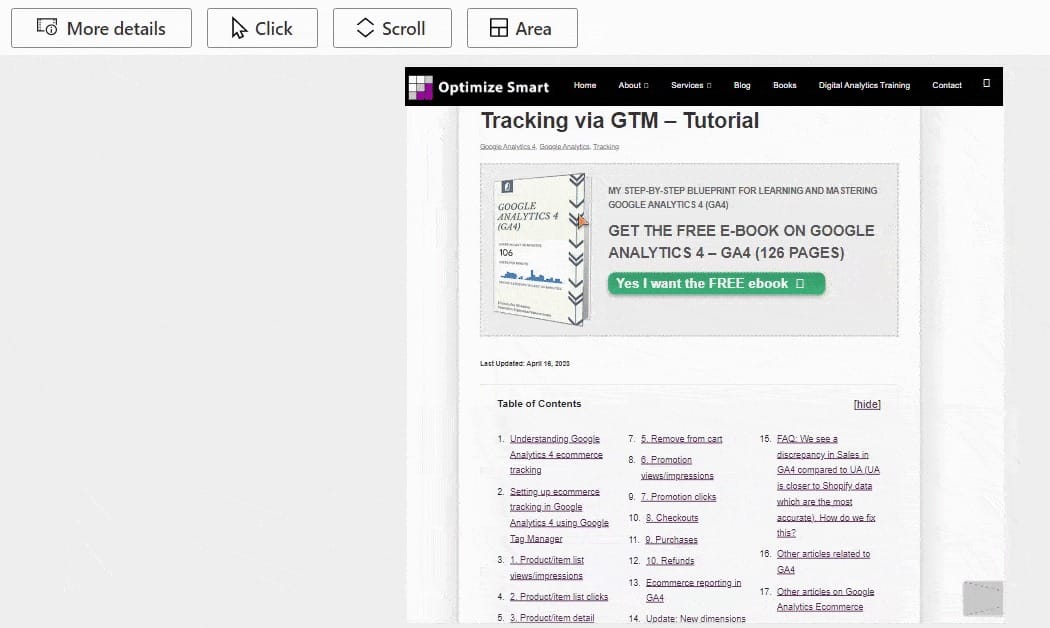
Based on this insight, you can determine what is working and not working on your website, what areas need to be improved etc.
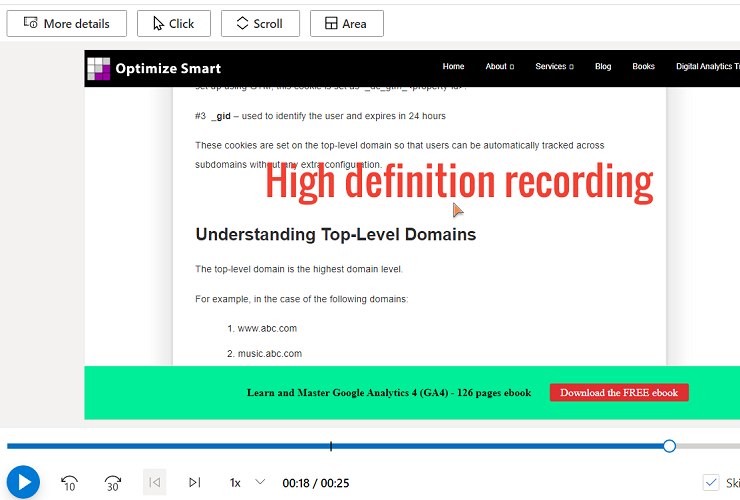
#12 All session recordings are in high-definition.
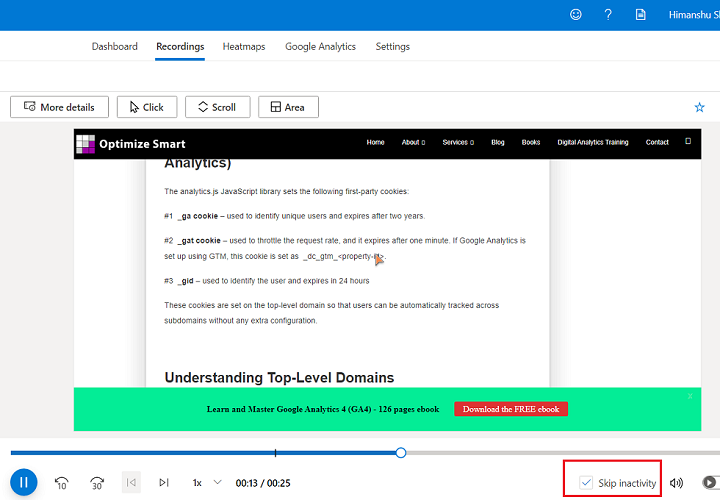
#13 You can skip users’ inactivity, monitor scroll behaviour, and log mouse movement and clicks.
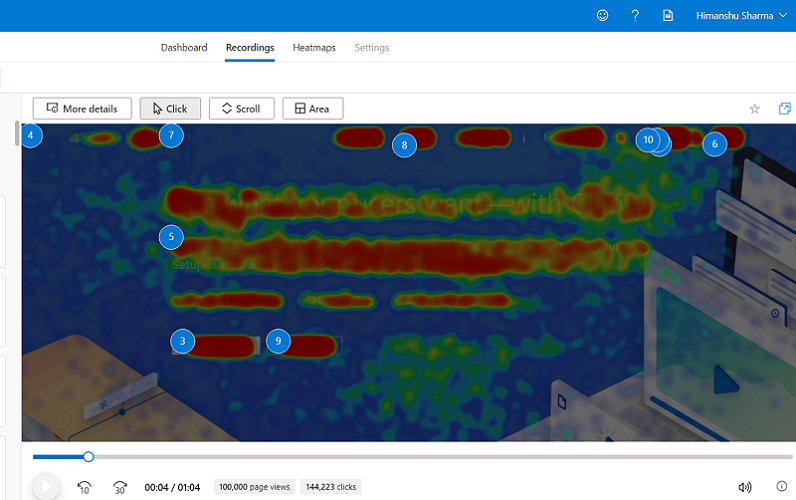
#14 You can pause session recording at any point to see a heatmap for that state.
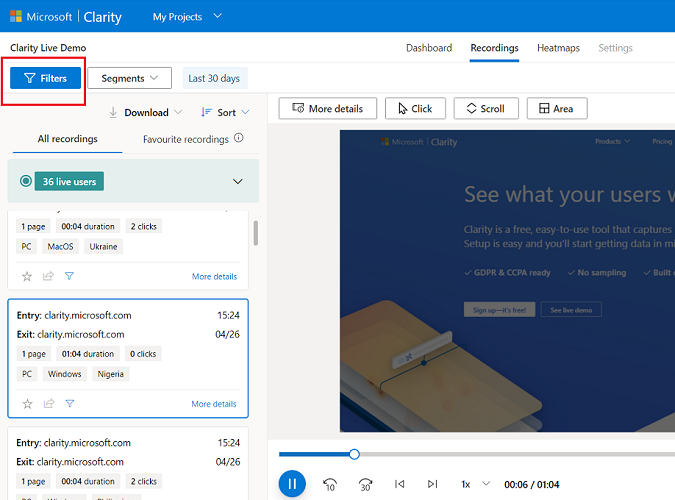
#15 You can apply filters to session recordings. Thus you can narrow down what to watch.
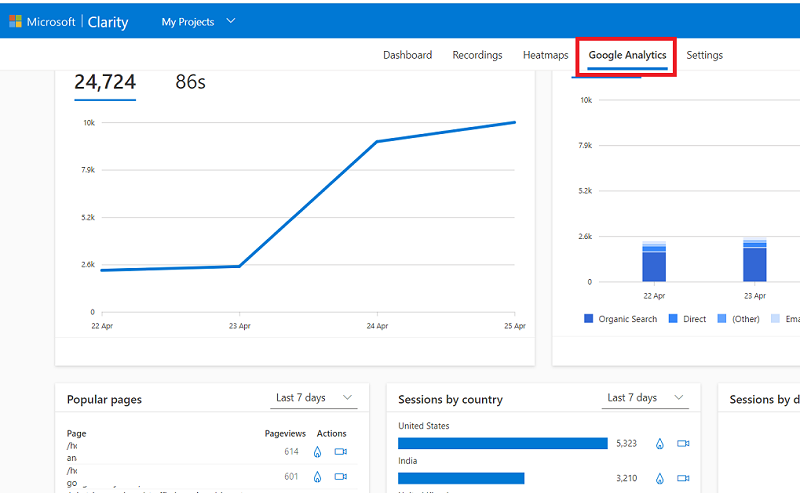
#16 You can also integrate Microsoft Clarity with GA4. By doing that, you can see the GA4 data in Clarity.
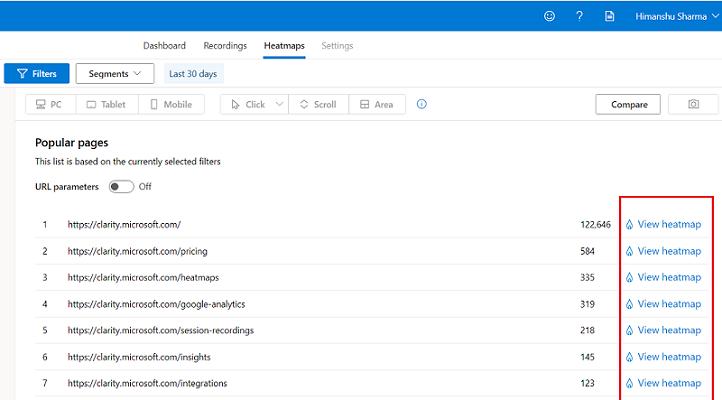
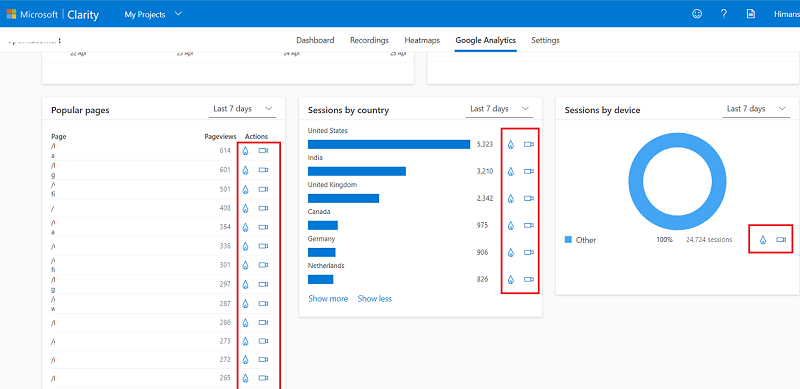
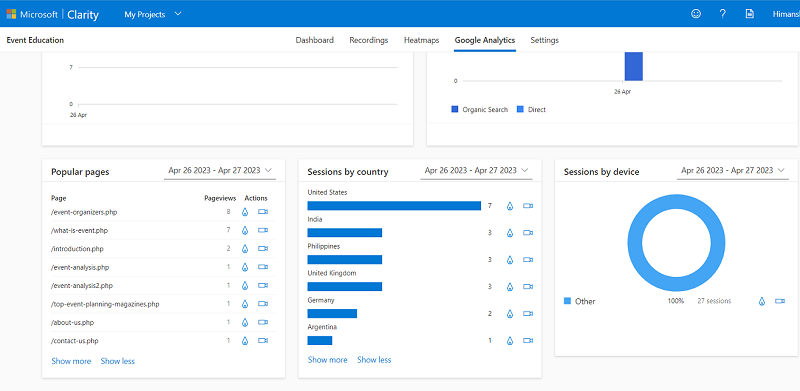
You can view related heatmaps and recordings for popular pages, sessions by country and sessions by device in a particular time period:
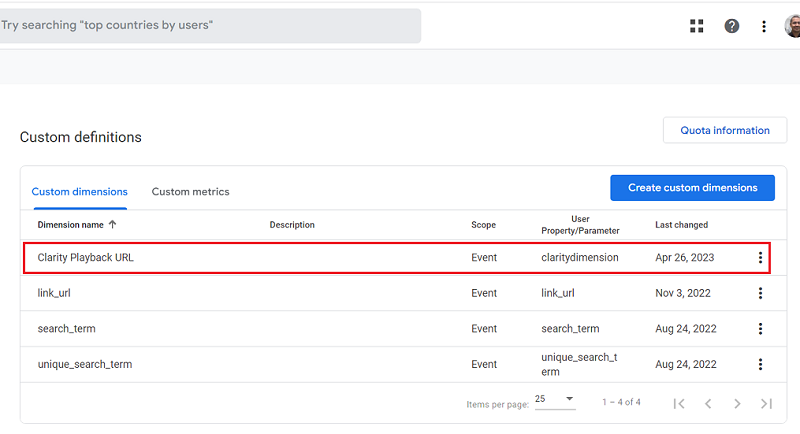
Note: Microsoft Clarity automatically creates a custom dimension called the ‘Clarity Playback URL‘ as soon as you integrate clarity with GA4:
You can then use this dimension in your GA4 reports.
#17 Microsoft recently launched Co-pilot that incorporates Generative AI through Large Language Models (LLMs) into Microsoft Clarity.
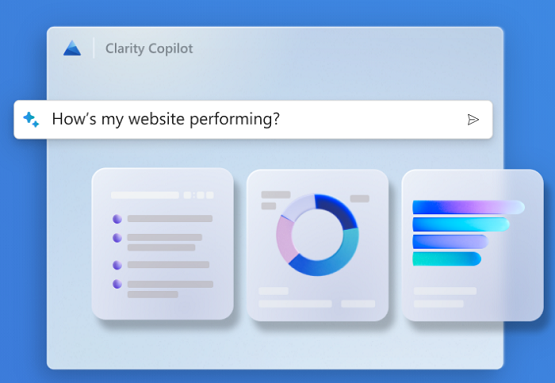
You can ask questions on clarity data, ask questions on GA data and get concise takeaways on session recordings.
#18 Microsoft Clarity generate session takeaways in plain language using Generative AI.
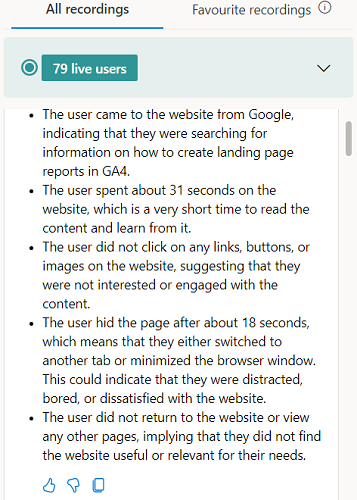
So you can gather key insight even without watching the session replay, esp. when it is long.
I don’t think I have seen this feature in any session recording tool before. This is a game changer, esp. when Clairty is free to use.
#19 In addition to providing instant heatmaps and users recordings, clarity also provides website usage data:
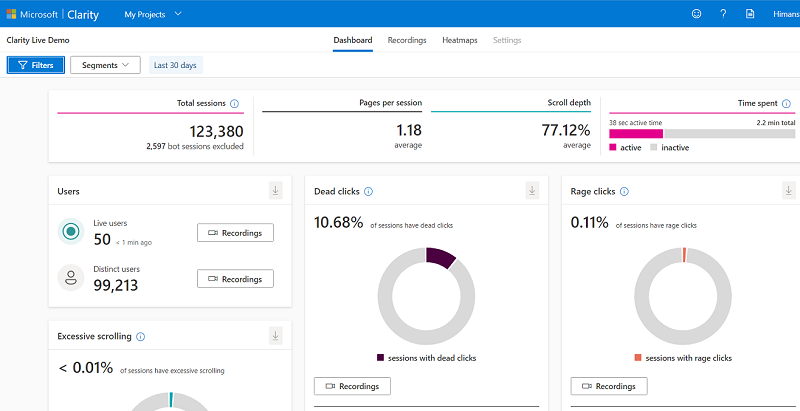
#20 You can access the Microsoft Clarity demo project from here and see how the tool work even without installing it first.
How to integrate Microsoft Clarity with GA4?
Step-1: Login to the Google account which you use to access your GA4 property.
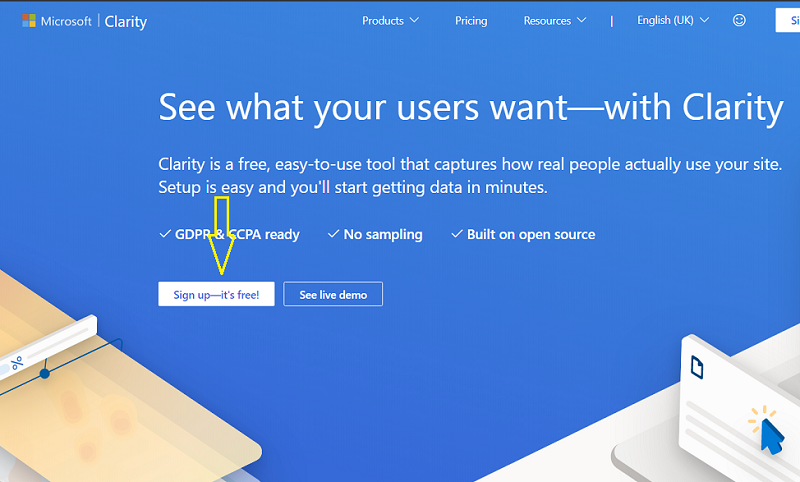
Step-2: Navigate to https://clarity.microsoft.com/ and then click on the ‘Sign up it’s free button‘:
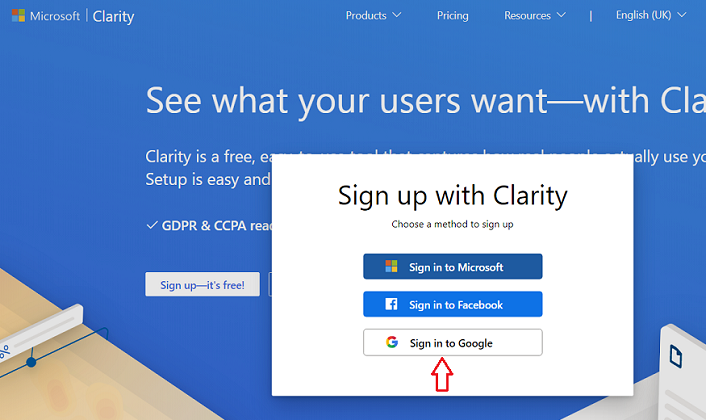
Step-3: Sign-in through your Google Account:
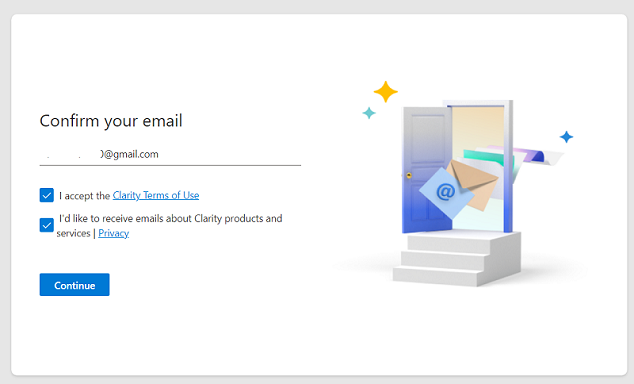
Step-4: Confirm your email address, accept clarity terms of use and then click on the ‘Continue‘ button:
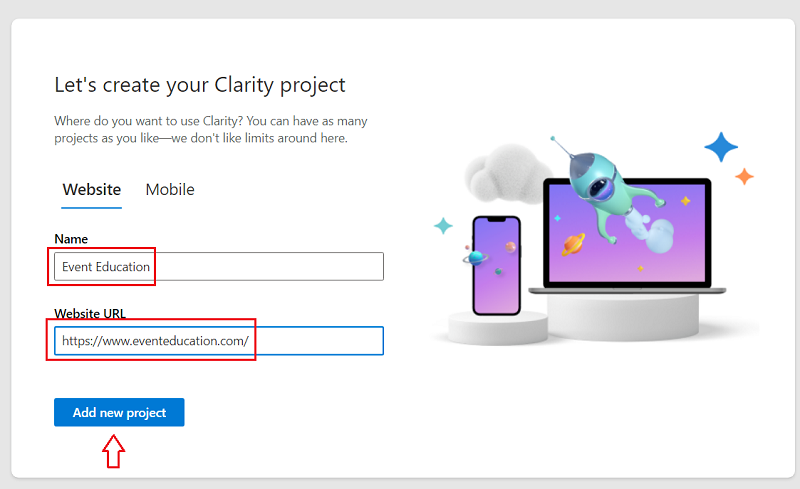
Step-5: Enter your website name and URL, and then click on the ‘Add New Project’ button:
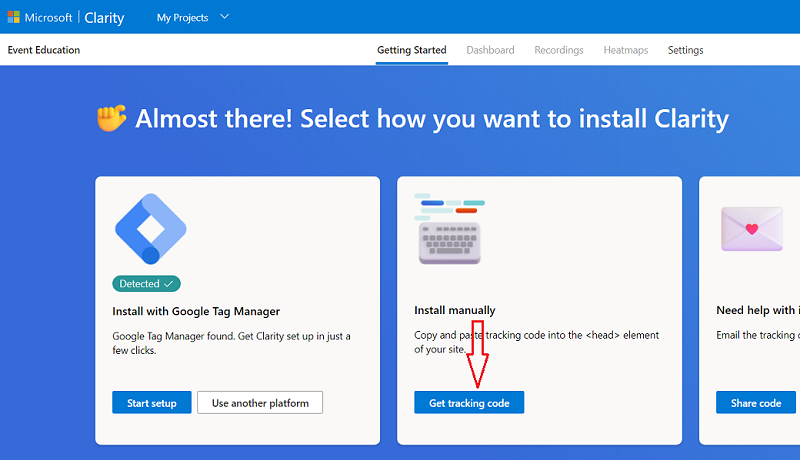
Step-6: Click on ‘Get tracking code‘ under ‘Install Manually’:
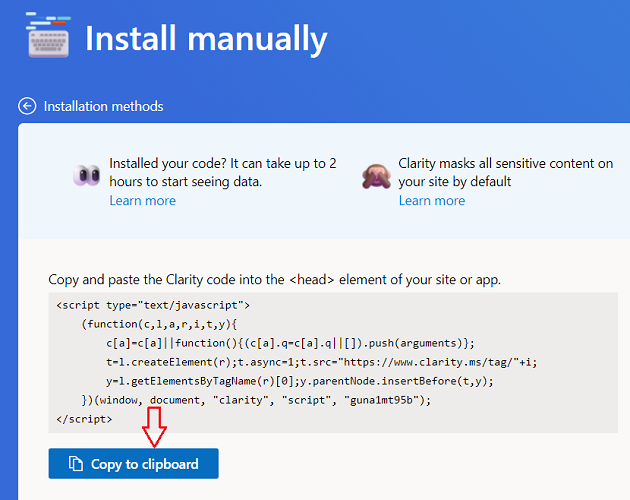
Step-7: Click on the ‘Copy to Clipboard‘ button to copy the clarity tracking code:
Step-8: Navigate to your GTM account and then create a new Custom HTML tag that contains your clarity code. Fire this tag on all pages of your website:
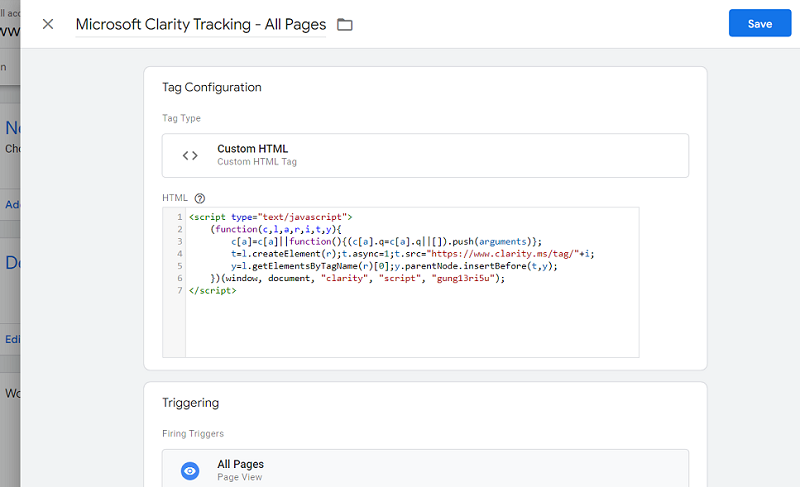
Step-9: Preview your GTM container and then publish it.
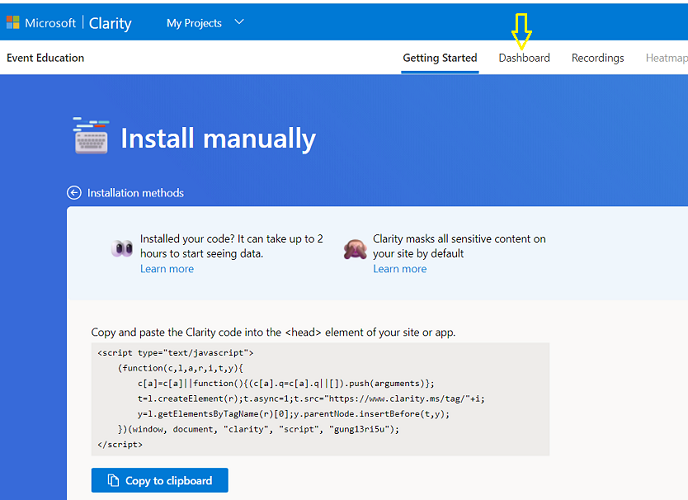
Step-10: Navigate back to your Microsoft Clarity account and then click on the ‘Dashboard‘ tab from the top navigation bar:
You should now be able to see some data in your dashboard.
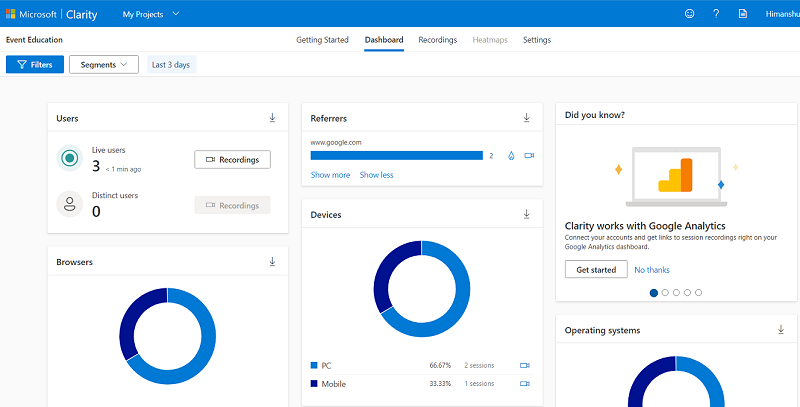
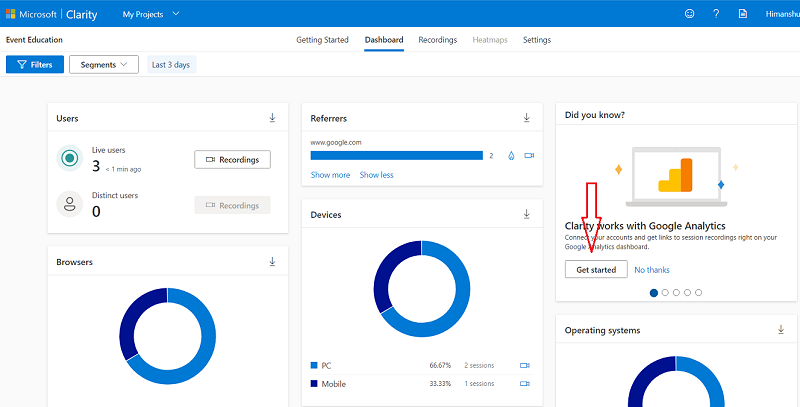
Step-11: Click on the ‘Get started‘ button under the section ‘Clarity works with Google Analytics‘:
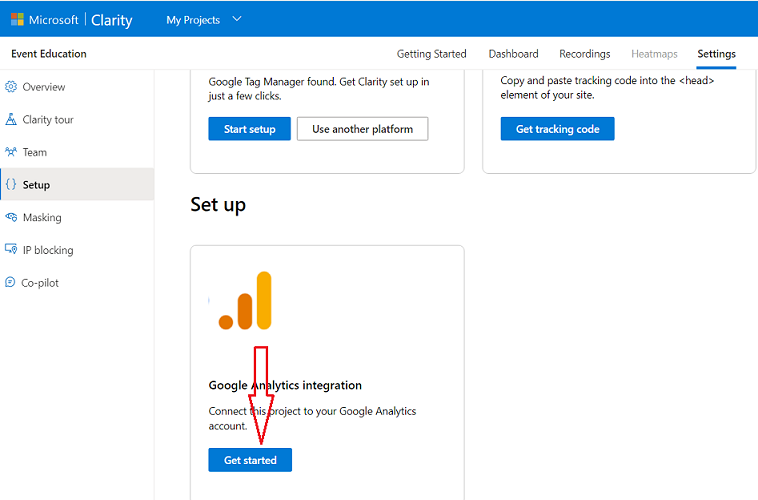
Step-12: Scroll down the page and then find and click on the ‘Get Started‘ button under ‘Google Analytics integration‘:
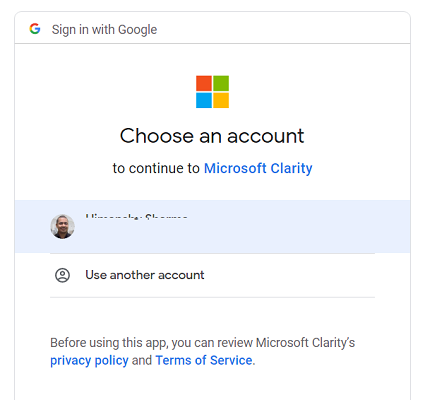
Step-13: Sign in with your Google account (the same one you used to access your GA4 property):
Step-14: Click on the ‘Continue‘ button:
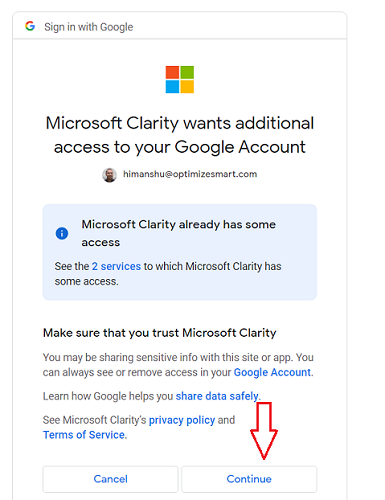
You should now see a screen like the one below:
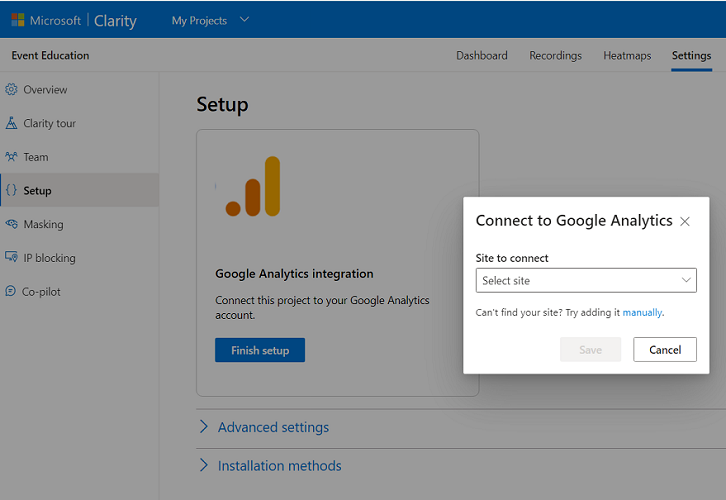
Step-15: Select your GA4 property from the drop-down menu and then click on the ‘Save‘ button:
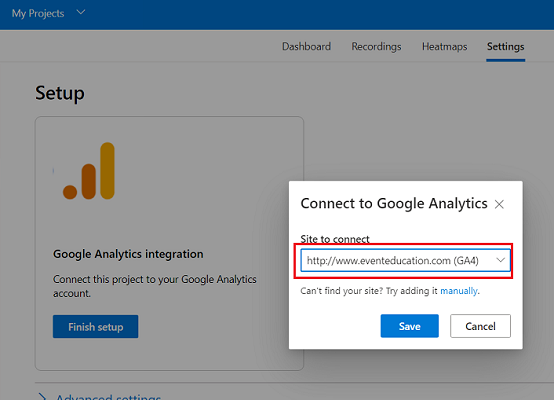
You should now see a screen like the one below:
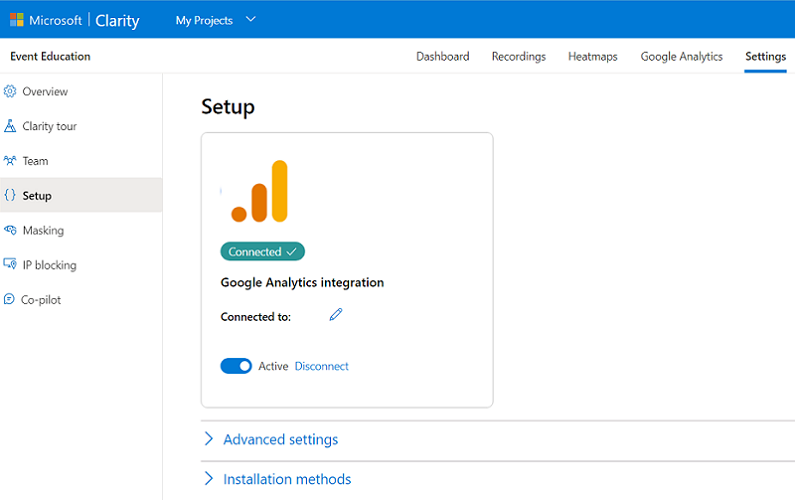
How to see GA4 data in Microsoft Clarity?
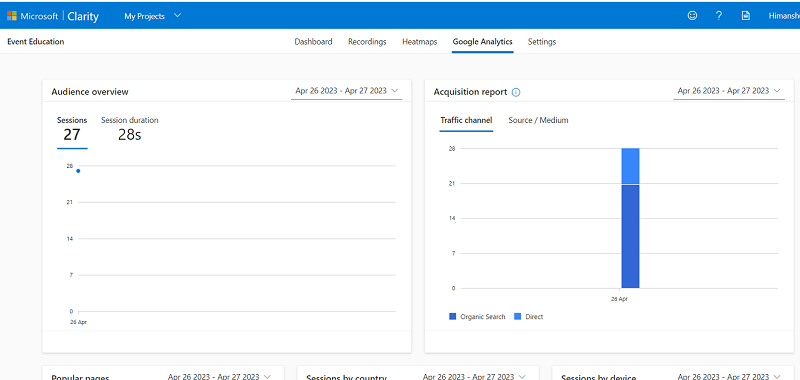
After 24 hours have elapsed from the initial setup, navigate back to your Microsoft Clarity account and then click on the ‘Google Analytics‘ tab in the top navigation bar.
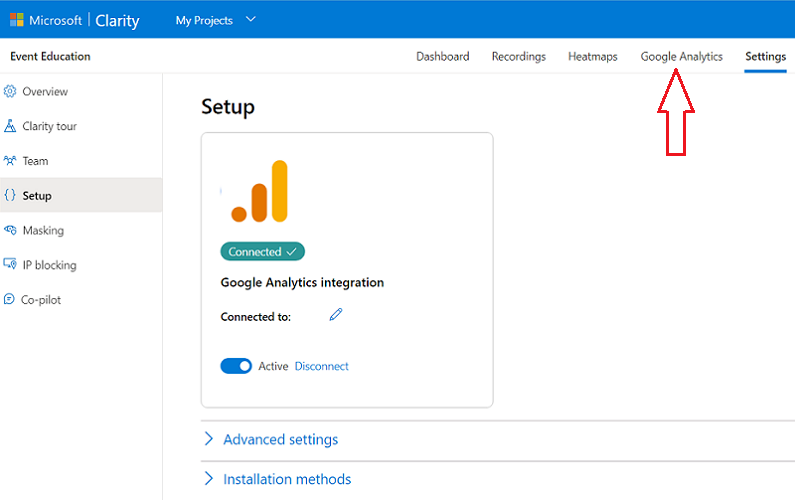
You should now be able to see the GA4 data for yesterday and today in your Microsoft Clarity account:
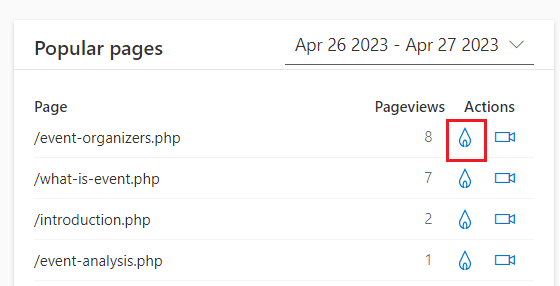
Click on the flame icon to see all the heatmaps for a particular page:
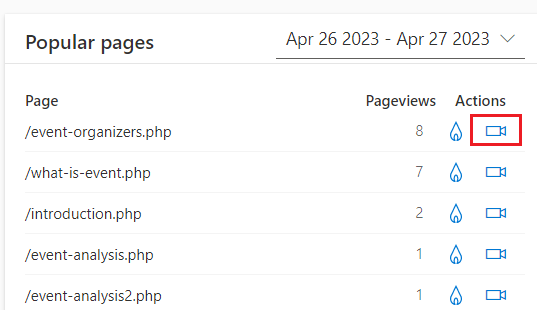
Click on the video icon to see all the session recordings for a particular page:
How to see Microsoft Clarity data in GA4?
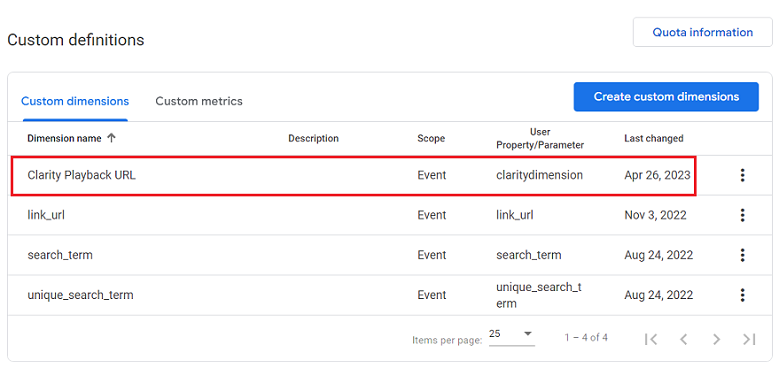
Microsoft Clarity automatically creates a custom dimension called the ‘Clarity Playback URL‘ as soon as you integrate clarity with GA4.
To see this dimension, follow the steps below:
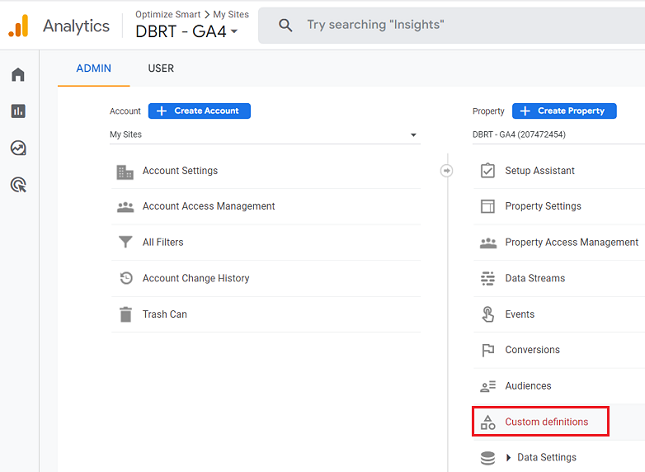
Step-1: Login to your GA4 property and then navigate to the admin area.
Step-2: Click on ‘Custom Definitions‘ under the ‘Property‘ column:
You should now be able to see the ‘Clarity Playback URL‘ dimension listed under the ‘Custom dimensions’ tab:
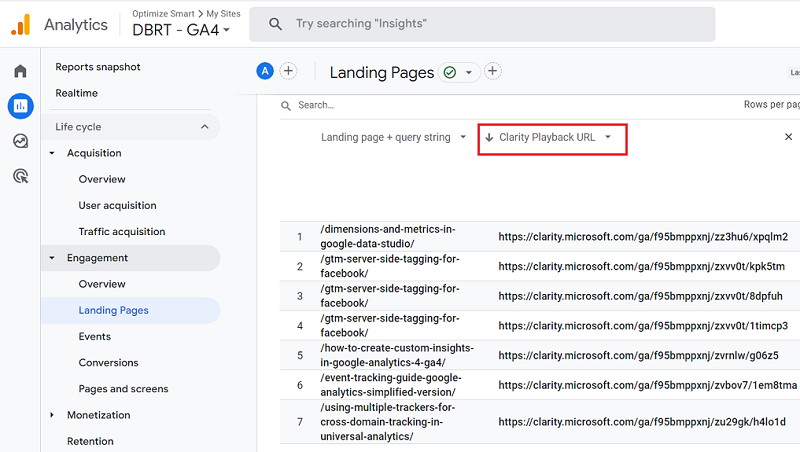
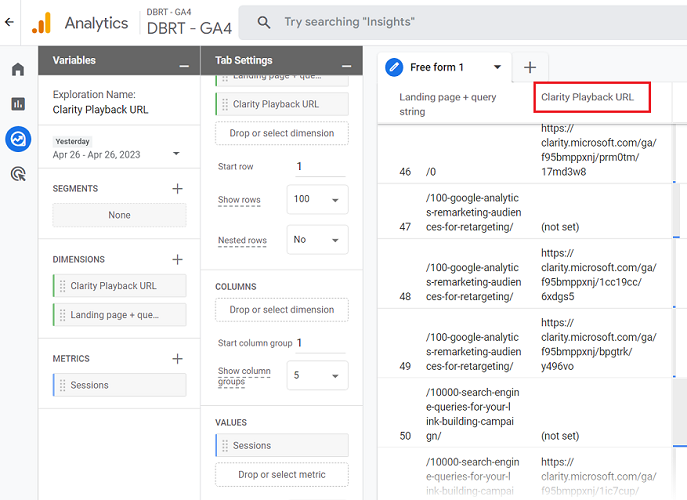
You can use this dimension in standard reports as well as in the exploration reports:
In GA4, you can not open a web page directly in the browser tab from within the user interface.
So, you will have to copy-paste the Clarity Playback URL into your browser address bar to see the session recording.
Note: Not all sessions will have a playback URL.
Here is how Microsoft Clarity works with GA4.
When you link your Clarity account with your GA4 property, a new tab called’ Google Analytics’ appears in your Clarity account.
Once 24 hrs have elapsed from the time of the clarity and GA4 integration, you should be able to see the GA4 data for yesterday and today in your clarity account under the ‘Google Analytics’ tab.
The following data cards are available for GA4 in your Clairty account:1) Audience overview.2) Acquisition report.3) Popular pages.4) Sessions by country.5) Sessions by device.
As you can see, not a lot of GA4 data is available in Clarity.
And you don’t need to analyze your GA4 data via Clarity. That’s not the purpose of this integration.
The integration’s purpose is to see session recordings and heatmaps based on different GA4 data segments.
For example, you can click on the flame icon next to the most popular page on your website (in terms of page views) to see all the heatmaps for the page.
Similarly, you can click on the video icon next to the most popular page on your website (in terms of page views) to see all the recordings for the page.
What you are basically doing is automatically creating and applying filters to your heatmaps and recordings reports based on GA4 data.
Microsoft Clarity automatically creates a custom dimension called the ‘Clarity Playback URL ‘as soon as you integrate Clarity with GA4.
You should be able to see the ‘Clarity Playback URL ‘dimension listed under the ‘Custom dimensions’ tab in your GA4 admin area.
You can use this dimension in standard reports as well as in the exploration reports in GA4.
In GA4, you can not open a web page directly in the browser tab from within the user interface.
So, you will have to copy-paste the Clarity Playback URL into your browser address bar to see the session recording.
Hopefully, in the near future, GA4 will allow you to open web pages directly in the browser tab from within the user interface.
When that happens, you will be able to access session recordings of any web page directly from within the GA4 user interface.
Microsoft Clarity Consent API requirement
Microsoft Clarity now requires explicit cookie consent in the EEA, UK, and Switzerland.
Even with a CMP like Cookiebot or OneTrust, you must call Clarity’s Consent API to manage tracking permissions.
Without consent, key features like session recordings and funnel tracking won’t work. Compliance is mandatory by early 2025.
To learn more: Microsoft Clarity Consent API – What Sites Must Do Now.

Other Articles on GA4.
- Google Analytics 4 Channels, Source and Medium explained.
- Path exploration report in GA4 (Google Analytics 4) – Path analysis.
- How to use Microsoft Clarity with GA4 (Google Analytics 4).
- GA4 vs GA4 360 – Pricing, Limits, Billing and more.
- Setup Enhanced Conversions for Leads using Data Layer in Google Tag Manager.
- Self-referral Google Analytics 4 – Referral exclusion GA4.
- GA4 Attribution Paths (Conversion Paths) Report.
- Google Tag Manager Tutorial.
- GA4 Attribution Models Explained: How to Choose the Right One.
- Looker Studio (Google Data Studio) Tutorial.
- Google Tag Manager Data Layer Tutorial with Examples.
- Set up enhanced conversions for Web using ‘Code’ in Google Tag Manager.
- How to create Google Ads report in Google Analytics 4.
- Google Tag Manager Audit Checklist.
- Tracking Site Search in Google Analytics 4.
- How to see Organic Search Keywords in Google Analytics 4.