

In this article, I am going to talk about how to use the path exploration report in Google Analytics 4 (GA4)
Path exploration report in Google Analytics 4 overview.
The path exploration report in Google Analytics 4 allows you to determine the sequence of pages visited by users and the actions performed. You can find the top pages that new users visited after visiting the home page, or discover what actions users take after a particular page view.
You can also use the path exploration report to uncover the looping behaviour of the users, for example, if users are continuously viewing page A, then page B, and then page A again.
The path exploration report can be used to determine the effect of a particular event on the next subsequent events.
A sample path exploration report looks like the one below:
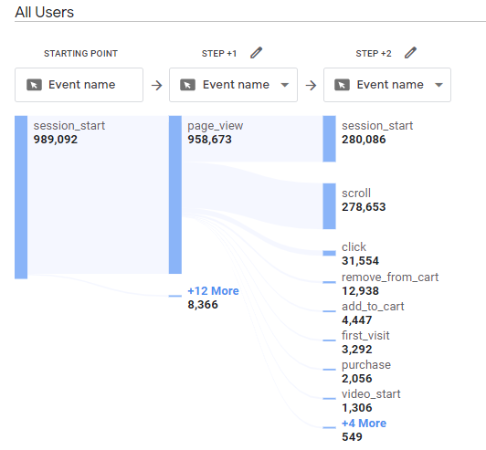
Now let’s create a sample path exploration report and understand it in more detail.
Creating a sample path exploration report
Follow the below steps to create a path exploration report in GA4.
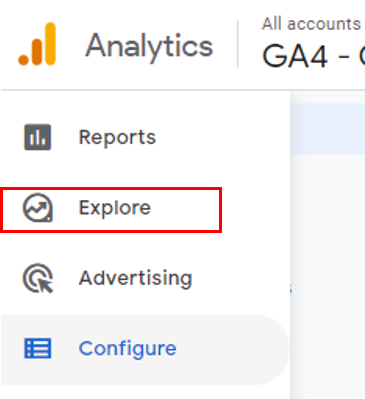
Step-1: Navigate to your Google Analytics 4 property and click on the ‘Explore’ link on the left-hand side.
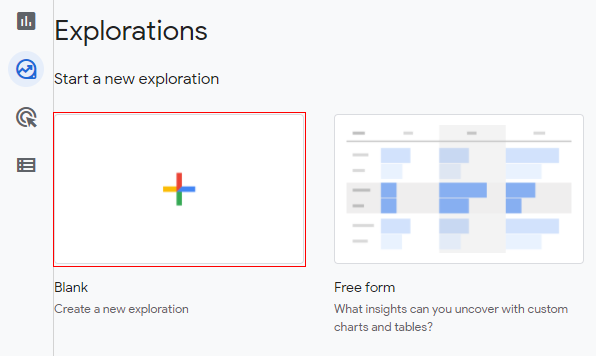
Step-2: Click on the ‘Blank’ template under ‘Explorations’.
Step-3: A new console will open like below.
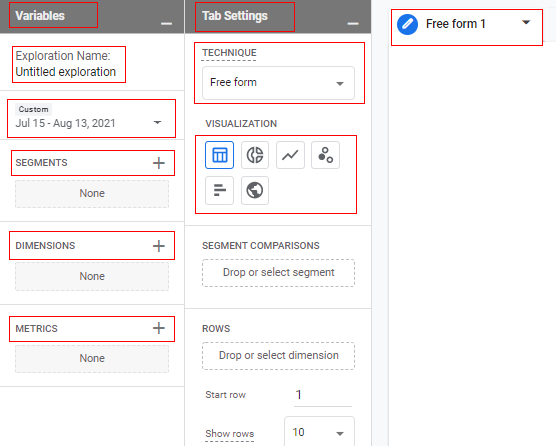
The screen is divided into three columns called ‘Variable’, ‘Tab Settings’ and ‘Free form 1’.
Variable column:
In the context of analysis, segments, dimensions and metrics are called variables. You can also change the date range and report name under the ‘Variable’ column.
Tab Settings column:
The ‘Tab Settings’ column is to configure the report technique like exploration, cohort analysis, path analysis, etc. You can also select the visualization type here like table, pie chart, bar chart, etc.
Free form column:
The ‘Free form’ tab is where the data is shown to the user. Whatever configuration that we do in the ‘Variables’ tab and ‘Tab Settings’, will be reflected in the ‘Free form’ tab. Once we switch the reporting technique to path exploration, this exploration tab will change to path exploration view.
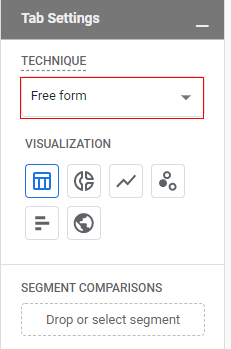
Step-4: Just click on the drop-down under ‘Technique’ at the top of the ‘Tab Settings’ column.
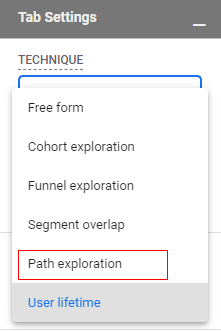
Step-5: Select ‘Path exploration’ from the list.
You will get a screen like below.
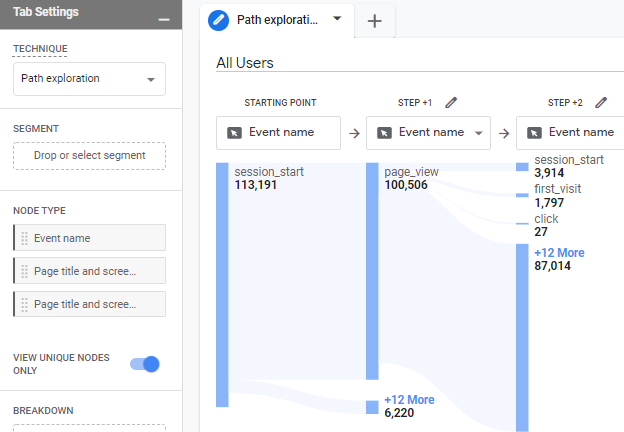
The default path report is loaded. Now we need to define the starting point and the next steps of the path exploration report.
Step-6: Click on ‘Start over’ in the upper right corner of the reporting console.
You will get a screen like below
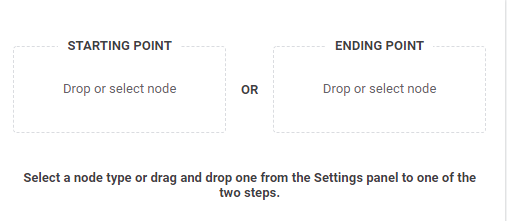
Step-7: On the right-hand side, under ‘Starting point’, you can click to choose a dimension, or drag a dimension from the Tab Settings > Node type list and drop on the ‘Starting point’.
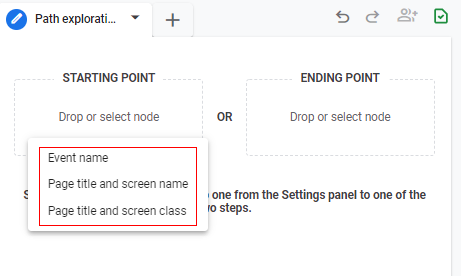
OR
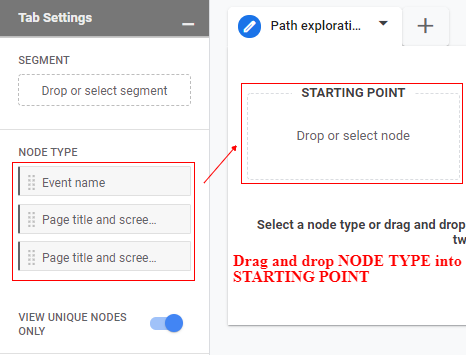
We will discuss the ‘node type’ (data points in the steps or path) later in this article in detail. For now, let’s focus on creating the path exploration report. Currently, you can choose ‘Event name’ or ‘Screen name’ node types.
As an example, I am going to create a path analysis, as below:
Session Start >> Page View >> Add To Cart >> Purchase
Let’s see how the users behave on each step.
Step-8: Now let’s add the first step to our path analysis. Session_start is an event so I am going to drag and drop the ‘Event’ node onto ‘Starting point’.
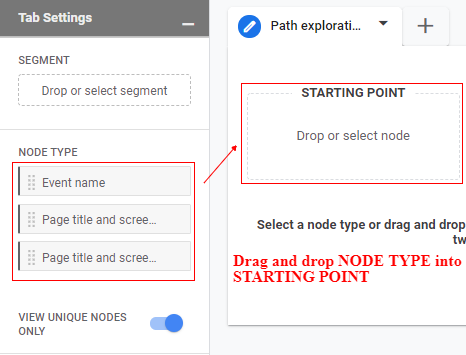
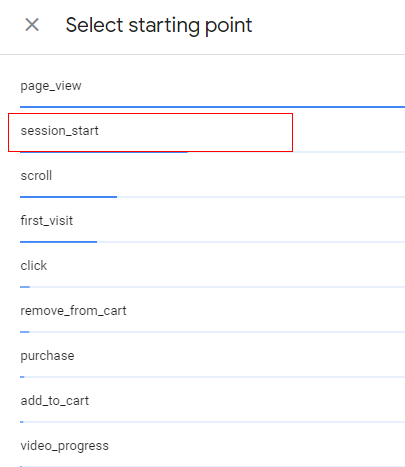
Step-9: An overlay will appear on the right-hand side like below showing you a list of all the available events. Let’s select ‘session_start’.
As you can see from the below image, I have 1,026,206 events as session_start and further divided into subsequent actions such as page_view, scroll, click etc.
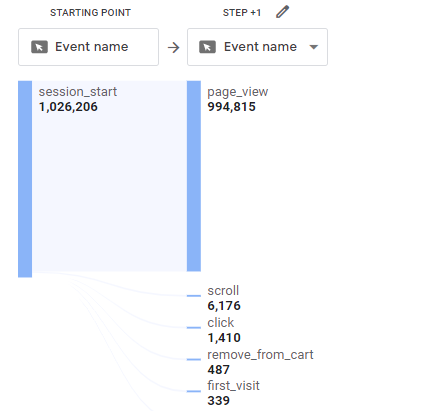
Note that the node type used in step-8 is an event name and hence showing different events triggered by the user after the starting point.
You can change the node type to ‘Page title and screen name’ or ‘Page title and screen class’. For example, if you select ‘Page title and screen name’ instead of ‘Event name’ as a node type, The report will show you the next page title and screen name that was visited by the users.
Just click on the dropdown under ‘Step +1’ after ‘Event name’.
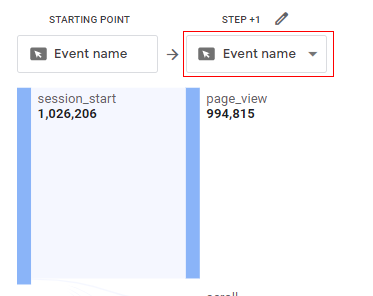
A pop-up will appear like below, select ‘Page title and screen name’ from the list.
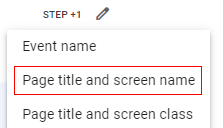
You can see how the next events have been replaced by ‘Page title and screen names’.
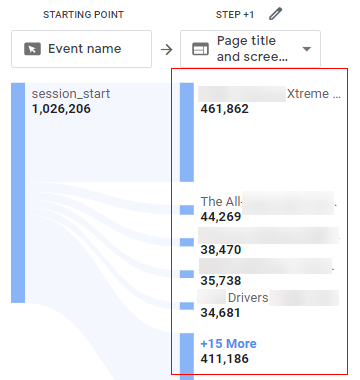
Step-10: Now let’s add a second event which is page_view. To do this, click on the pencil icon after ‘Step +1’.
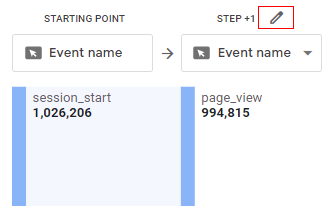
Step-11: An overlay will appear as below. Uncheck all the checkboxes and just keep ‘page_view’ checked. Then click on ‘Apply’.
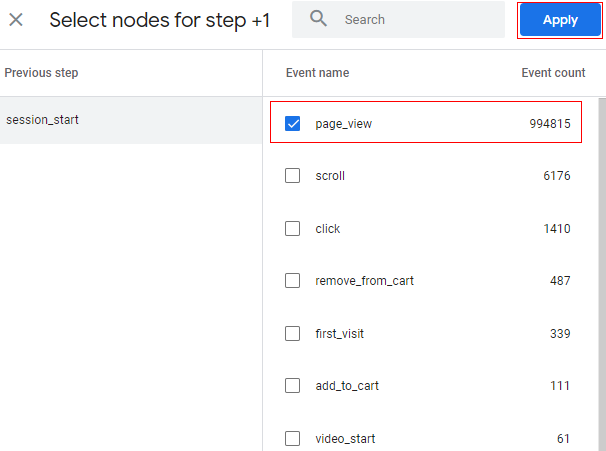
Note: You can select multiple events as well, according to your requirements, and see the users’ previous step and next step for that event.
Step-12: You will see a screen like below.
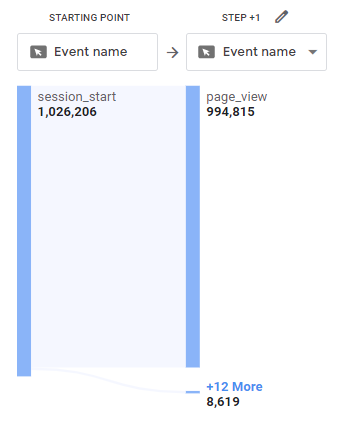
Now you can see in the first step, only the page_view event is highlighted. You still have other events in the report as ‘+12 more’ which are grouped together.
Step-13: Now let’s add a third event to our path analysis which is step+2 (add_to_cart event). To do so, click on the blue bar of ‘Step+1’.
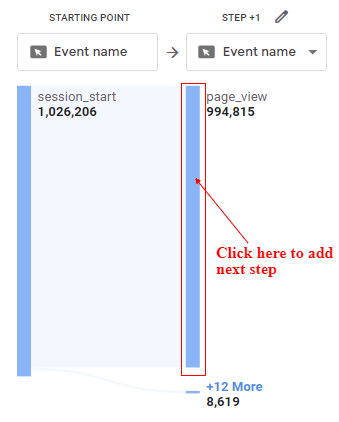
Step-14: You will get a screen like below, showing different subsequent events that users have performed after the page_view (step1).
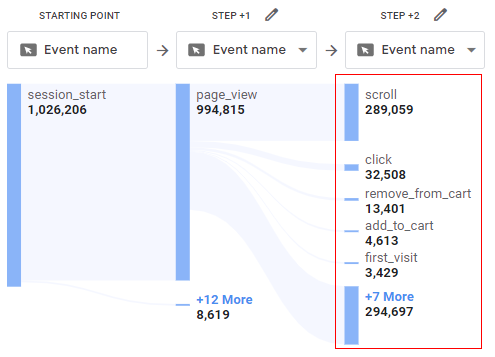
Step-15: Now let’s click on the pencil icon after step+2 to highlight the add_to_cart event only.
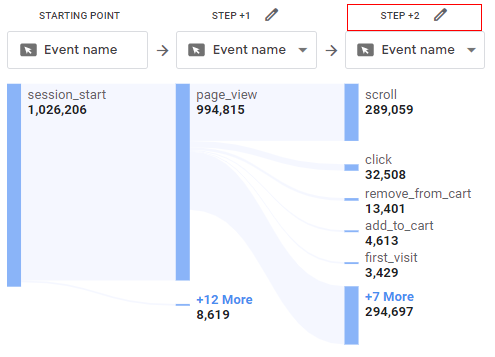
Step-16: An overlay will appear like below. Uncheck all events except ‘add_to_cart’, and then click on ‘Apply’.
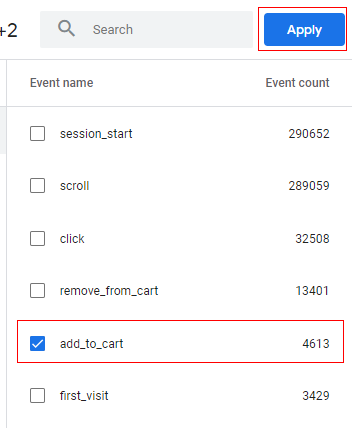
You will get a screen like below.
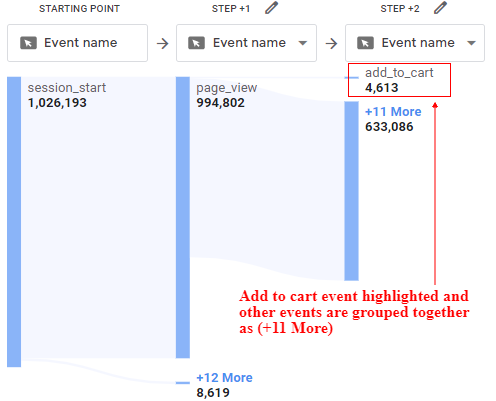
Now, you can see in the second step, only the add_to_cart event is highlighted. You still have other events in the report as ‘+11 more’ which are grouped together.
Step-17: Similar to step+2, let’s add step+3, which is a Purchase event. Click on the blue part of step+2 add_to_cart event.
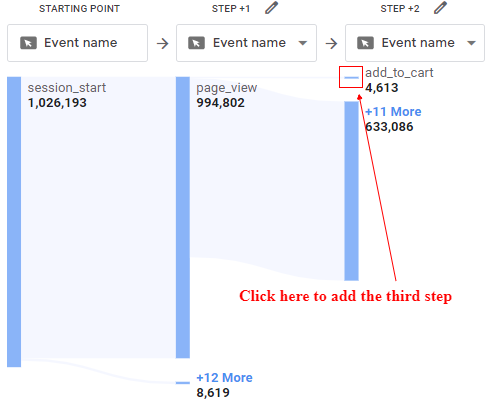
You will get the following screen showing different subsequent events that users have performed after the add_to_cart (step 2).
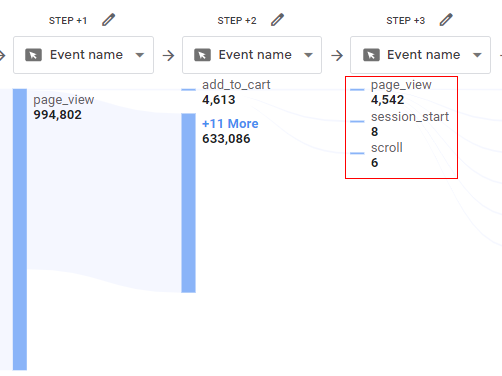
As you can see, no purchase events directly happened after the add_to_cart event, but there are other events like page_view, session_start and scroll.
Note: The session_start event is showing after the add_to_cart event. Here a few users might have added the product to their cart and somehow the session terminated (30 min inactivity or browser close) and then they again visited the website in a new session.
The page_view event after add_to_cart event might be for the checkout pages or the shopping cart pages. Let’s change the node type from ‘event’ to ‘Page title and screen name’ to check which pages have been visited by the users.
Step-18: Click on the drop-down under ‘Event name’ in ‘Step+3’.
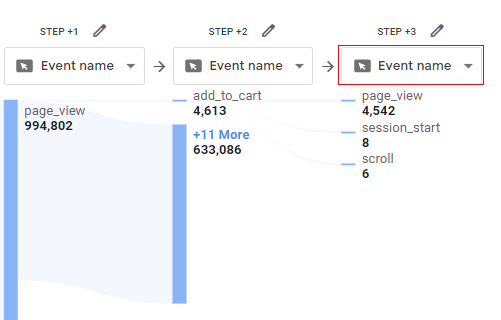
Step-19: A pop-up will appear like below, select ‘Page title and screen name’.
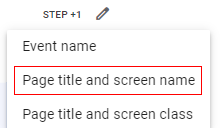
You can now see the different pages users have visited after the add_to_cart event.
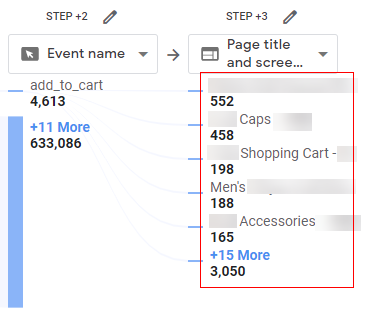
As you can see, users have visited other product pages as well, and only 198 users visited the shopping cart page.
Using path exploration, you can get to know the general subsequent actions taken by users, which will help you to understand user behaviour.
In our case, users are also interested in other products and hence they are visiting those pages instead of directly purchasing the product.
Step-20: Now let’s click on the pencil icon after ‘Step+3’ to highlight the shopping cart page only
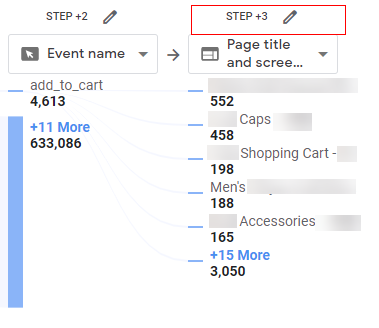
Step-21: An overlay will appear like below, uncheck all pages except ‘Shopping Cart’ and then click on ‘Apply’.
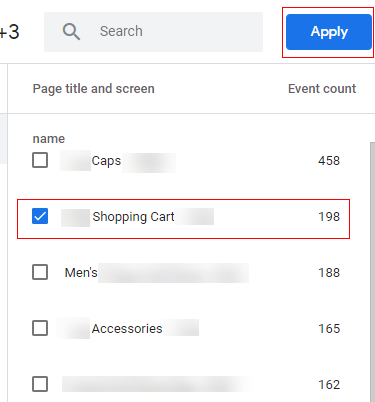
You will get a screen like below.
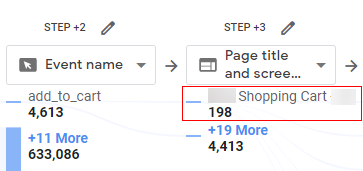
Step-22: Now let’s dig down more and see what users have done after visiting the shopping cart page. Click on the blue part of ‘Step+3’.
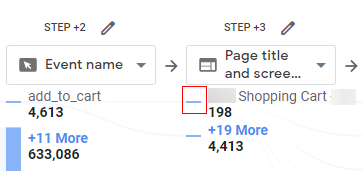
You will get a screen like below.
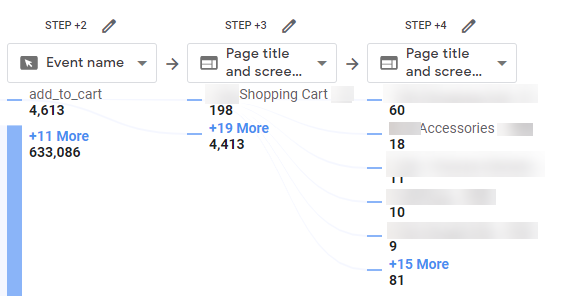
Since we want to see a purchase event, let’s change the node type for ‘Step+4’ from ‘Page title and screen name’ to ‘Event name’.
Step-23: Click on the Dropdown after Page title and screen name in step 4
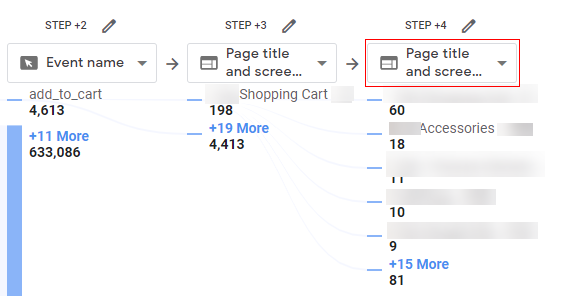
Step-24: A pop-up will appear like below, select ‘Event name’.
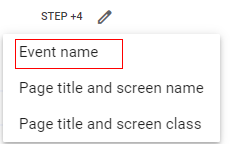
You will see a screen like below
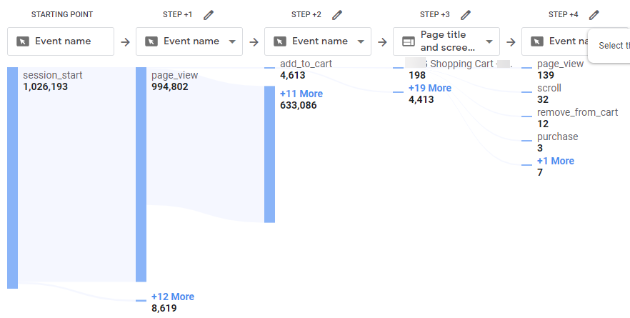
As you can see, we have three purchase events in ‘Step+4’.
So this is how you can use the path exploration report.
Now, what if you are not finding the event in subsequent steps? You can also think of creating reverse-path exploration for the event.
Creating a reverse-path exploration report
By default, path exploration in Google Analytics 4 shows your users’ actions working forward from a specific event or page. Backwards pathing allows you to select a desired event or page and explore how your users got to it.
You can select an event, like a purchase or conversion, and analyze the different paths your users take to reach that event. You can then use that insight to improve the user experience.
To create a reverse-path exploration follow steps 1 to 6 as mentioned above, then continue as follows:
Step-7: You will get a screen like below.
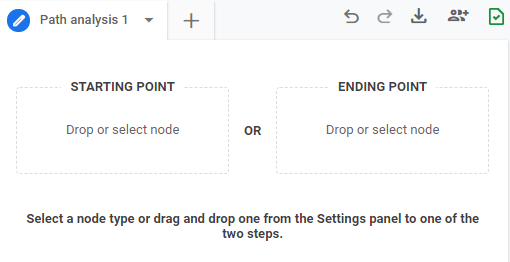
Step-8: Now click on ‘Ending point’ to select the node type.
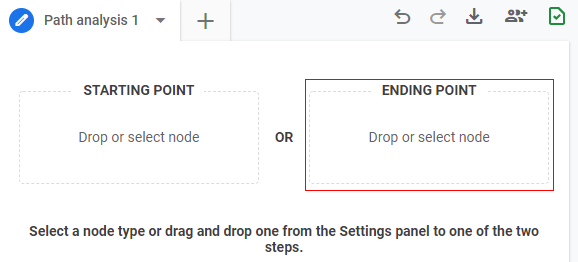
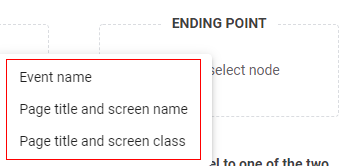
Step-9: A pop-up will come like below, select your node type. As an example, I am selecting ‘Event name’.
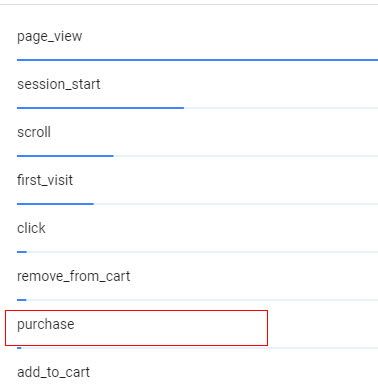
An overlay will appear like below, select the event you want. Here, as an example, I am selecting the ‘Purchase’ event.
Your report will look like below.
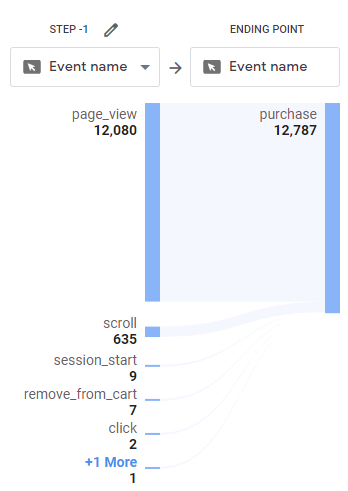
Here, ‘Step+1’ is showing all the previous actions the user has performed before the purchase event.
You can do the rest of the path exploration as mentioned above in the forward path exploration steps.
How path exploration works
Path exploration uses a tree graph to illustrate the event stream, the collection of events users triggered, and the screens they viewed during the session.
A path exploration graph consists of the following elements:
Starting/ending point
The starting point is the screen or event that begins the path you want to analyze. It appears as the left-most column in the visualization console.
The ending point is the screen or event that ends the path you want to analyze. It appears as the right-most column in the visualization console.
A path exploration can have a starting point or an ending point but not both, since the user can also take further action after the endpoint you have selected or the user may have already done multiple actions before the starting point.
Steps
Steps are the columns in the graph. Each step after the starting point or before the ending point represents the successive or previous actions of viewing a screen or triggering an event.
Nodes
Nodes are the data points within the steps which represent the total number of users in case of ‘Page title and screen name’ and ‘Page title and screen class’ OR Nodes are the total no of events triggered by the user in case of ‘Event Name’.
Node type shows the dimension values in every step of the path exploration report. You can decide the node type for every step in the funnel analysis.
Path
A path is a specific sequence of nodes (user activity) occurring across one or more steps, for a given period of time.
How paths are calculated
Google Analytics 4 aggregates screens viewed or events triggered by your users immediately after the starting point, or immediately before your selected end point. These screens or events are then shown as a path.
The numbers shown in each node represent the total users in the case of ‘Page title and screen name’ and ‘Page title and screen class’ OR it represents the total number of events triggered by the user in the case that ‘Event name’ is selected as node type.
Applying breakdown, segments, filters, and general settings
With path exploration reports there are multiple settings you can select, let’s learn about them in more detail.
Applying breakdown
You can break down the path exploration report by applying any dimensions.
Just click on the ‘Breakdown’ drop-down under ‘Tab settings’.
You can also drag a dimension from the ‘Variables’ tab and drop it here.
As an example, I am applying a breakdown by device category.
You will get a screen like below.
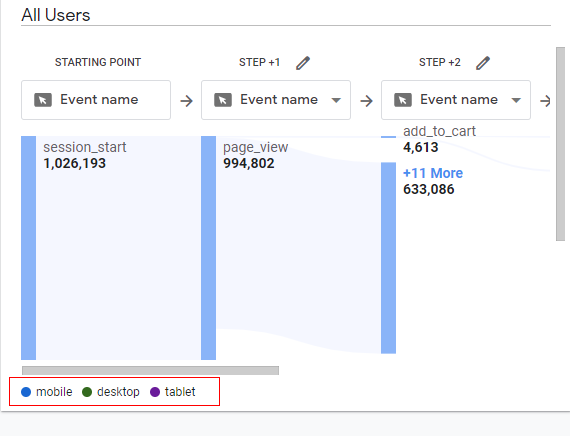
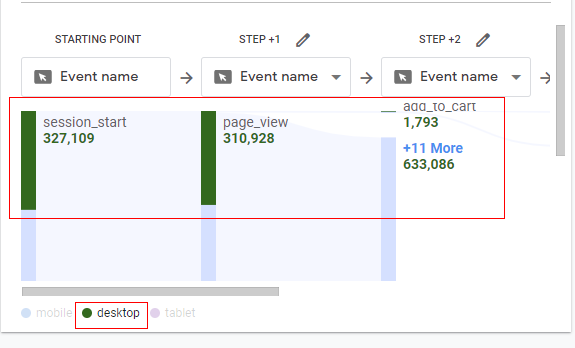
If you hover your mouse over the device category options at the bottom, let’s say I hover over desktop, only the desktop path will be highlighted using the color shown in front of the device category for desktop.
Apply filters
You can apply filters to the path exploration report based on any of the available dimensions and metrics. For example, you can show only paths with a minimum number of users or events, or paths that occurred on selected browsers or operating systems.
Note: Filters are applied to the analysis before the paths have been calculated.
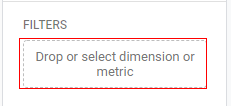
To apply a filter, click on ‘Filters’ in ‘Tab Settings’.
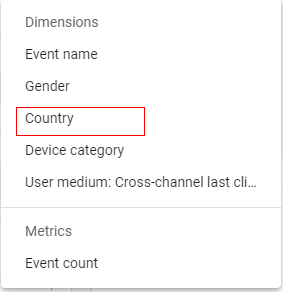
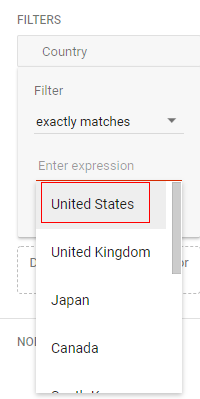
A small pop-up will open. Let’s apply ‘Country’ as the dimension in our example. Select it from the pop-up.
Click on ‘Enter expression’ and select your country.
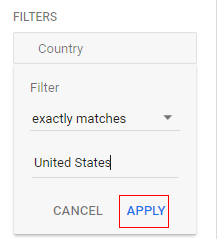
Now click on ‘Apply’ and you are done. You will only see the data for the selected country now.
Applying segments
Segments allow you to define the subsets of users or events you want to include in, or exclude, from path exploration.
To apply a segment:
On the left, drag an existing segment from the ‘Variables’ panel to the ‘Segment’ target in the ‘Tab Settings’ panel.
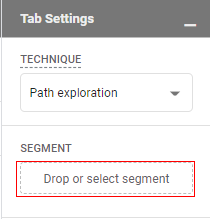
Note: Segments are applied to the event stream before the path analysis is calculated. This means that events or users you’ve excluded in the segment are not part of the analysis event stream, and therefore are not part of the path calculation.
Changing metric in path exploration
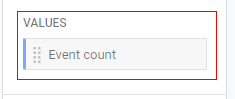
By default, path exploration in GA4 calculates the event count for each node in the graph. You can easily apply a different metric calculation.
To apply a metric, on the left, in ‘Variables’, select one of the supported metrics from the list and drag it to the ‘Variables’ target in ‘Settings’.
Supported metrics
Path exploration currently supports the following metrics:
Event count: The event count metric counts the number of events triggered for each node of a path. Event count is the result of aggregating across all users and all sessions in the analysis time frame.
Total users: The total users metric represents the number of unique users who viewed a screen or triggered an event in the analysis time frame.
Sharing and downloading reports
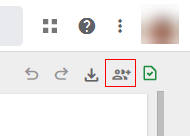
You can share the report template with other colleges as well. Just click on the ‘Share’ icon available in the upper-right corner of the ‘Reporting’ tab.
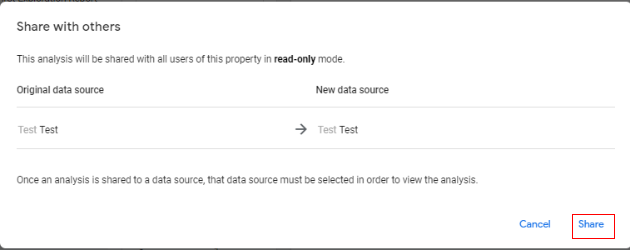
It will open an overlay with details as below. Click on ‘Share’.
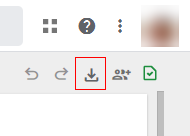
You also get an option to download the report. Click on the ‘Download’ button.
A small pop-up will come like below where you can specify the report format type.
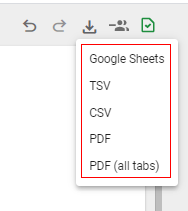
Available options are:
- Google Sheets
- TSV (tab separated values)
- CSV (comma separated values)
- PDF (all tabs) – this will download all the tabs in the reporting panel in PDF format, if you have multiple tabs.
That is how you can use the path exploration report in Google Analytics 4 (GA4).

Other Articles on GA4.
- Google Analytics 4 Channels, Source and Medium explained.
- Path exploration report in GA4 (Google Analytics 4) – Path analysis.
- How to use Microsoft Clarity with GA4 (Google Analytics 4).
- GA4 vs GA4 360 – Pricing, Limits, Billing and more.
- Setup Enhanced Conversions for Leads using Data Layer in Google Tag Manager.
- Self-referral Google Analytics 4 – Referral exclusion GA4.
- GA4 Attribution Paths (Conversion Paths) Report.
- Google Tag Manager Tutorial.
- GA4 Attribution Models Explained: How to Choose the Right One.
- Looker Studio (Google Data Studio) Tutorial.
- Google Tag Manager Data Layer Tutorial with Examples.
- Set up enhanced conversions for Web using ‘Code’ in Google Tag Manager.
- How to create Google Ads report in Google Analytics 4.
- Google Tag Manager Audit Checklist.
- Tracking Site Search in Google Analytics 4.
- How to see Organic Search Keywords in Google Analytics 4.