

The two versions of GA4
Google Analytics 4 (GA4) comes in two flavours: GA4 Standard and GA4 360.
User interface wise, both GA4 standard and GA4 360 look exactly the same:
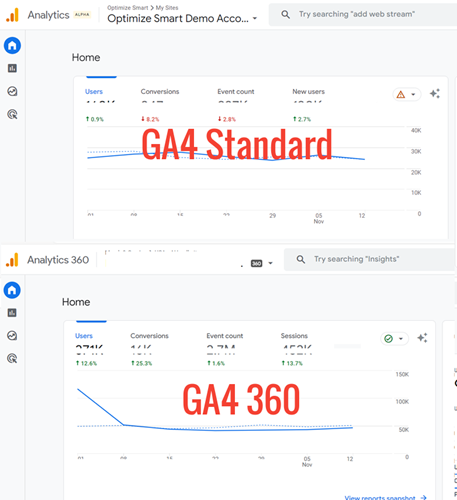
GA4 360 is one of the products of the Google Marketing Platform.
The following are the other products of the Google Marketing Platform:
- Google Tag Manager 360
- Display & Video 360
- Search Ads 360
GA4 360 pricing and billing
GA4 360 is one of the products of the Google Marketing Platform and is a subscription service where you pay monthly fees.
You will be billed based on your billable hit volume for GA4 360 properties and the billable amount due for any other 360 product(s) you use.
You can manage billing and monitor billable hit volume through your Google Marketing platform account.
To learn more about GA4 360 billing, check out the Google help documentation Manage billing and monitor usage.
Key differences between GA4 Standard and GA4 360 (GA4 vs GA4 360)
#1: Free vs Paid
The GA4 standard refers to the standard/free version of the GA4 property.
Whereas, GA4 360 refers to the premium/paid version of the GA4 property.
In other words, the GA4 Standard is free to use. Whereas GA4 360 is not.
#2: Data Processing and Accuracy
Unlike GA4 360, you can not rely on GA4 standard property for a large amount of data processing and high accuracy.
This is because the GA4 360 subscription comes with higher limits for data collection and processing than the GA4 standard.
So if your website gets a lot of traffic say above 1 million visitors a month, then you would be better off with GA4 360.
#3: Enterprise-level analytics
Unlike the GA4 standard, the GA4 360 is primarily meant for large enterprises.
The GA4 360 subscription comes with enterprise-level technical support and service level agreement for data collection, data reporting, data retention, attribution and BigQuery export.
#4: Technical support
A GA4 360 subscription comes with a dedicated account manager and support staff that can help you with any issues related to data collection and reporting.
Whereas, if you use the GA4 standard then you would need to refer to the self-service help centre and/or community forums. You are basically on your own.
#5: Accessibility
Any individual or business can access and start using the GA4 standard property straightaway.
But you can not access and use GA4 360 property without first talking to an enterprise sales representative or getting in touch with one of Google’s sales partners.
Moreover, GA4 360 is likely to cost you $150k or more per year. So GA4 360 subscription is out of reach for most people.
#6: Legal requirements
To use GA4 360, you would need to sign a 360 contract for GA4 properties.
Once you have signed the contract, you can then upgrade your GA4 standard property into GA4 360 property.
You don’t need to sign any contract in order to use GA4 Standard property.
#7: Data Limits
GA4 360 provides higher limits for data collection, reporting, retention, BigQuery export than GA4 Standard.
This is the biggest advantage of using GA4 360.
#8: Data Freshness
Unlike the GA4 standard, the GA4 360 provides enhanced data freshness.
When you use GA4 360, you get continuous intraday data via GA4 360 user interface and the API.
The data usually appears within an hour after the data collection.
Data freshness is how long it takes GA4 to collect and process an event from your website/app and then make the event data available via the user interface or the API. If that process takes 1 hour, then data freshness is 1 hour.
Unlike the GA4 standard, the GA4 360 subscription guarantees data freshness.
#9: Event Parameters
An event parameter is an additional information about a GA4 event that is sent along with the event.
For example, for the GA4 event named ‘page_view’, the following could be the event parameters:
- page_location
- page_referrer
- page_title
- source
- medium
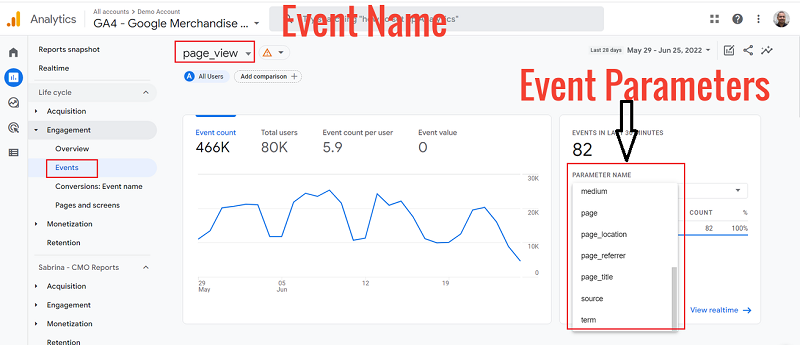
If you are using a GA4 standard property, you can send up to 25 parameters per event.
But if you are using a GA4 360 property then you can send up to 100 parameters per event.
Thus when you use GA4 360, you can send a lot more additional information about an event.
#10: Event Scoped Custom Dimensions
In the context of GA4, a custom dimension is an event parameter.
Use a custom dimension when you want to measure the characteristic of a user that cannot be measured by any default dimension.
For example, you can create your own dimension to store the client IDs.
There are three categories of custom dimensions:
- Event-scoped custom dimensions.
- User-scoped custom dimensions.
- Item-scoped custom dimensions.
An event-scoped custom dimension is the GA4 custom dimension whose value is calculated and sent for each event.
In other words, a custom dimension that has an ‘event’ scope is called the event-scoped custom dimension:
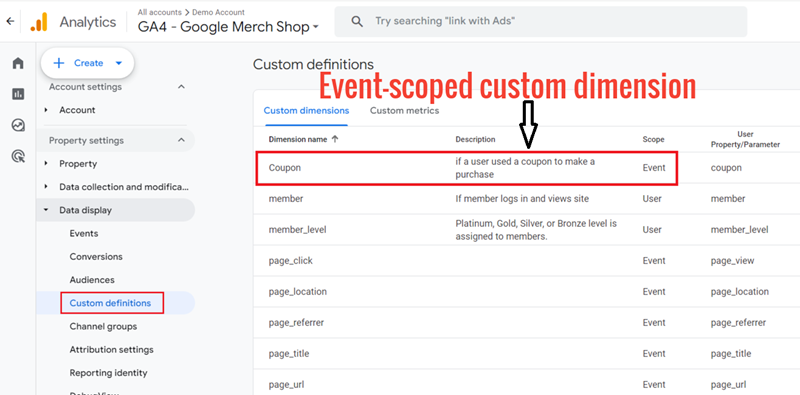
You can create up to 50 event scoped custom dimensions in a GA4 standard property.
Whereas you can create up to 125 event-scoped custom dimensions in a GA4 360 property.
#11: Event Scoped Custom Metrics
In the context of GA4, a custom metric is an event parameter.
Use a custom metric when you want to measure the characteristic of a dimension (whether it is default or custom) that can not be measured by any default metric.
For example, you can create your own metric to store the number of phone calls generated by a traffic source.
In GA4, the value of the custom metric is calculated and sent for each event. In other words, a custom metric has an ‘event’ scope.
That’s why the custom metric in GA4 is also called the ‘event scoped custom metric‘:
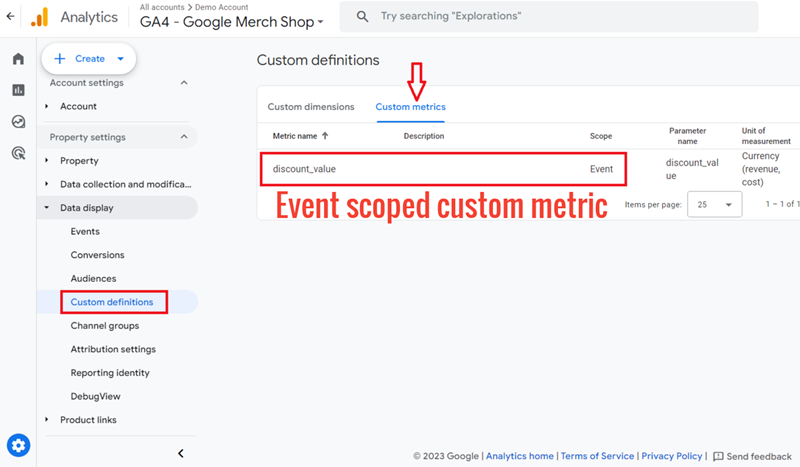
You can create up to 50 event scoped custom metrics in a GA4 standard property.
Whereas, you can create up to 125 event scoped custom metrics in a GA4 360 property.
#12: User Scoped Custom Dimensions
A user-scoped custom dimension is the GA4 custom dimension whose value is calculated and sent once for each user.
In other words, a custom dimension that has a ‘user’ scope is called the user-scoped custom dimension (also known as user properties):
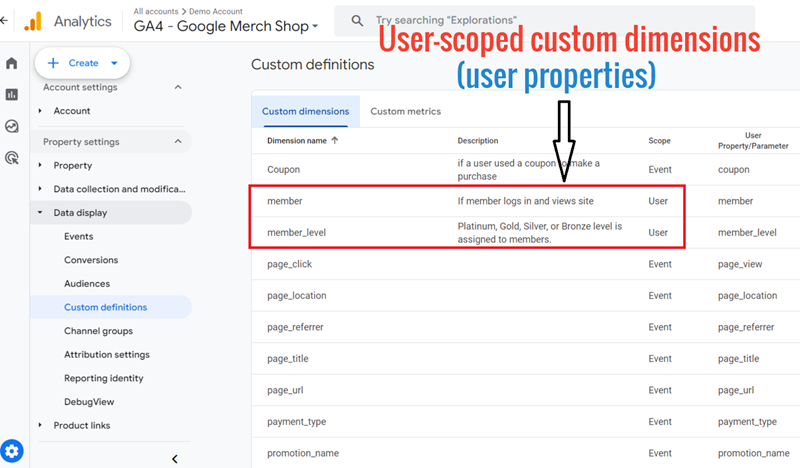
Google recommends using a user-scoped custom dimension to identify static or slowly changing attributes of your website/app users.
These attributes could be the changes in the subscription plan, membership level, game difficulty level, etc.
You can create up to 25 user-scoped custom dimensions in a GA4 standard property.
Whereas you can create up to 100 user-scoped custom dimensions in a GA4 360 property.
#13: Conversions
Conversion is one of the objectives of setting up your website and/or mobile app.
Following are the examples of conversions:
- Newsletter signups
- Number of orders
- Number of downloads etc.
In the context of GA4, a conversion is an event.
In order to define a conversion in GA4, we mark an event as a conversion:
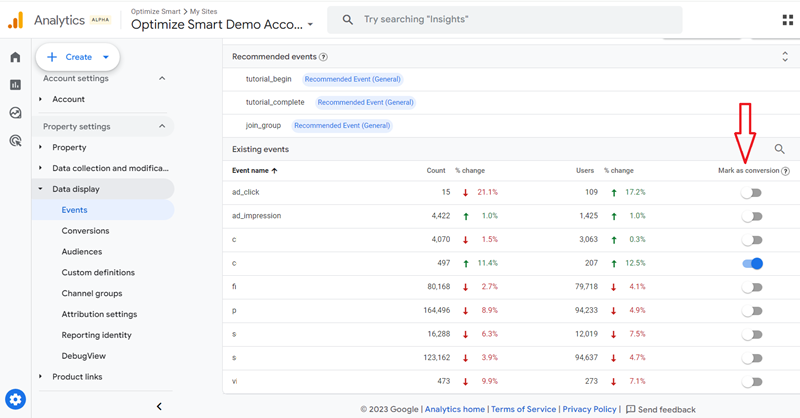
That’s why conversion is also called a ‘Conversion Event’:
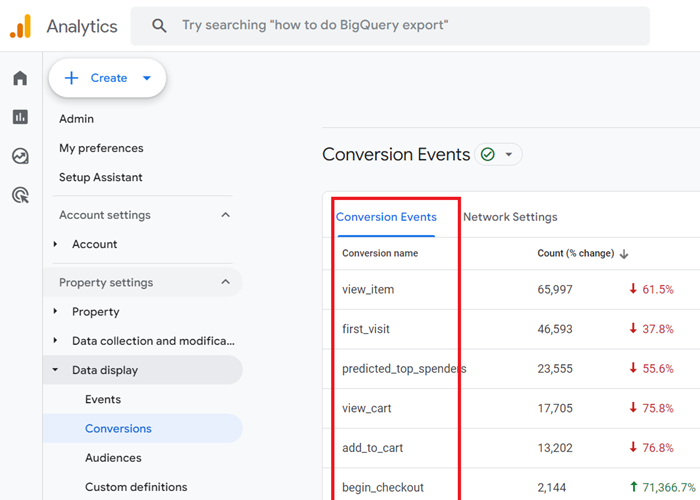
You can mark up to 30 events as conversions in a GA4 standard property.
Whereas you can mark up to 50 events as conversions in a GA4 360 property.
#14: Audiences
In the context of GA4, an audience (also known as cohort) is a group of users that share common characteristics, attributes or experience in a particular time period.
The following are examples of audiences:
- UK audience – a group of users who live in the UK.
- Desktop audience – a group of users who visited your website/app via a desktop device.
- Facebook audience – a group of users who visited your website/app from Facebook.
- Purchasers – a group of users who purchased your website/app.
A user can be a member of two or more audiences at the same time.
For example,
If a user from the UK visited your website via a desktop device after clicking on one of your Facebook ads and then made a purchase, then he is a member of the following audience:
- UK audience
- Desktop audience
- Facebook Audience
- Purchasers
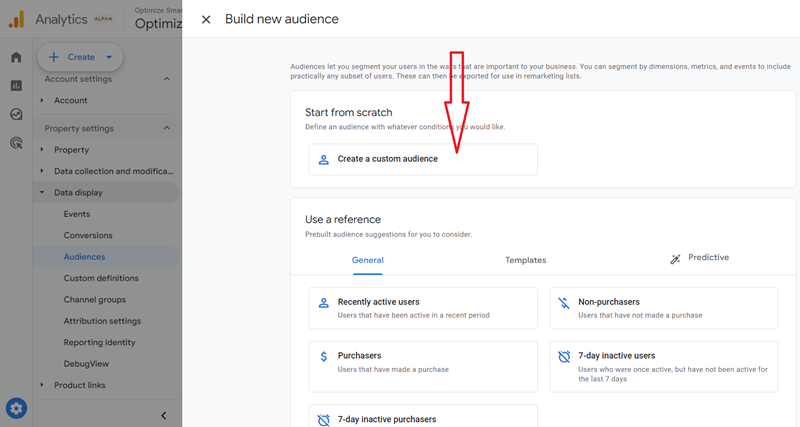
When you create an audience from scratch, it is called the ‘custom audience‘:
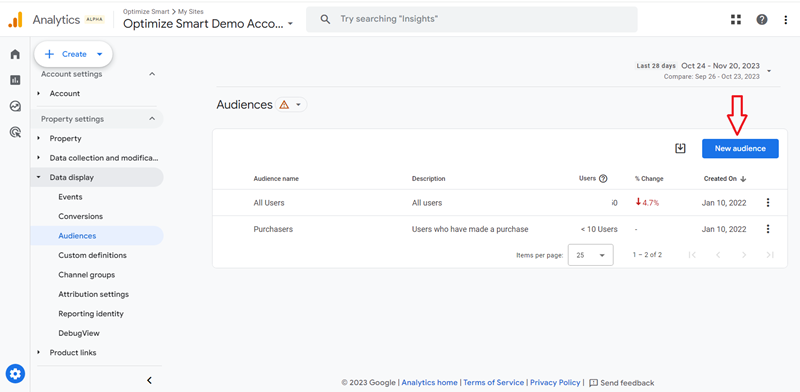
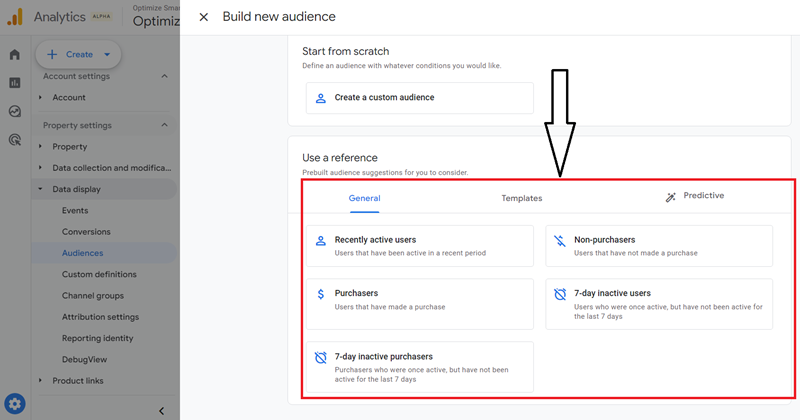
You can also create a custom audience in GA4 by using one of the existing audience templates:
Through audiences, you can do cohort analysis in GA4.
You can also import the audiences created in GA4 to Google ads for the purpose of remarketing.
You can create up to 100 audiences in a GA4 standard property.
Whereas, you can create up to 400 audiences in a GA4 360 property.
#15: Exploration reports
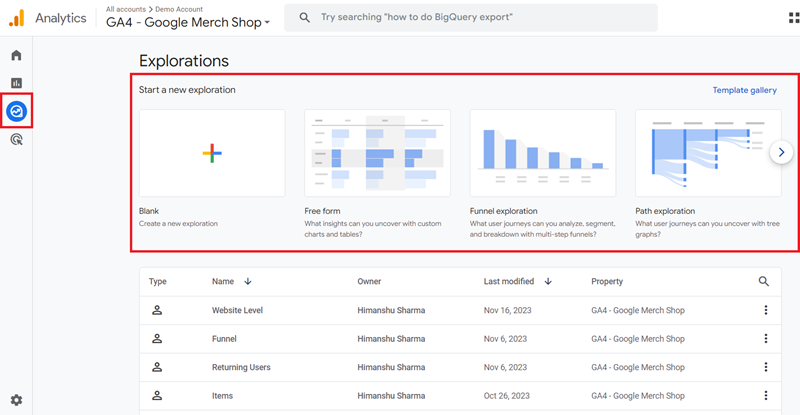
If you often wonder why GA4 does not come with as many reports as there are in GA3 then it is because Google wants you to use Google Data Studio for reporting purposes or create your own reports from scratch using the Explorations report templates.
Explorations is a set of report templates through which you can do advanced analysis in GA4:
Click on the Template Gallery link to see the full list of the exploration report templates:
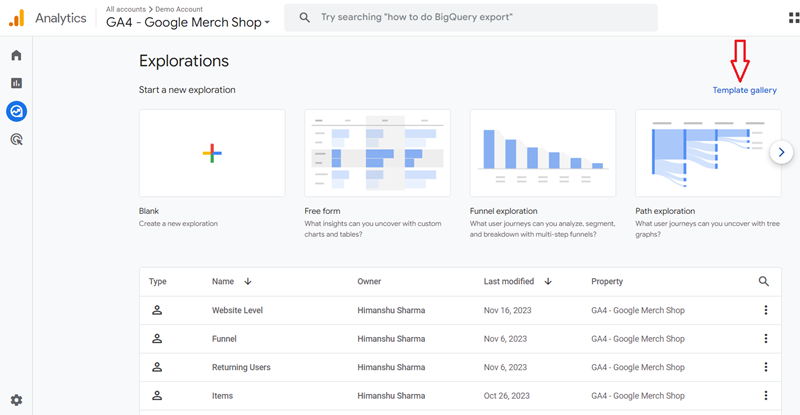
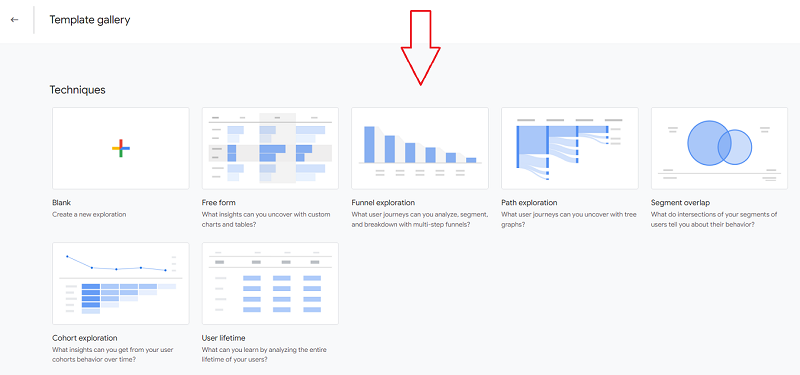
GA4 provides the following exploration report templates:
- Blank – Use this template to create an exploration report from scratch.
- Free form – Use this report template to discover insight using charts and tables.
- Funnel exploration – Use this report template to create and analyze funnels.
- Path exploration – Use this report template to determine the sequence of pages visited by users and the actions performed.
- Segment Overlap – Use this report template to determine the users’ behaviour through the overlapping of users’ segments.
- Cohort Exploration – Use this report template to analyze the behaviour of a group of users who all share the same characteristics.
- User lifetime – Use this report template to analyze the behaviour of your website/app users since they first visited your website/app.
Use these report templates to create one or more exploration reports.
You can also share your exploration reports with other users of the same GA4 property. Such types of reports are called shared exploration reports.
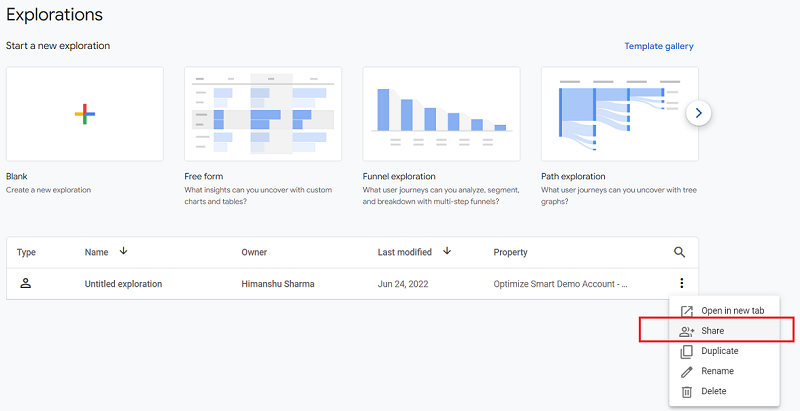
GA4 standard allows you to create up to 200 exploration reports per user per property and up to 500 shared exploration reports per property.
Whereas, GA4 360 allows you to create up to 200 exploration reports per user per property and up to 1000 shared exploration reports per property.
#16: Data Sampling for Exploration reports
Data sampling is the process of analyzing and reporting a subset of traffic data. It is carried out to analyse large data sets in a cost-efficient manner and in a reasonable amount of time.
The subset of traffic data is called a sample. It is not a complete traffic data set. Whereas unsampled data is a complete traffic data set.
As long as the sample is a good representative of all of the data, analysing a sample gives similar results to analysing all of the data.
But if the selected sample is not a good representative of all of the data or if a selected sample is too small then analysing a subset of data does not give similar results to analysing all of the data.
GA4 has an upward limit on the amount of traffic data it will not sample to produce reports. This limit has been set to save resources (computation power and cost).
GA4 may choose to analyse the complete traffic data set or only a subset of traffic data depending upon the nature of a user’s query.
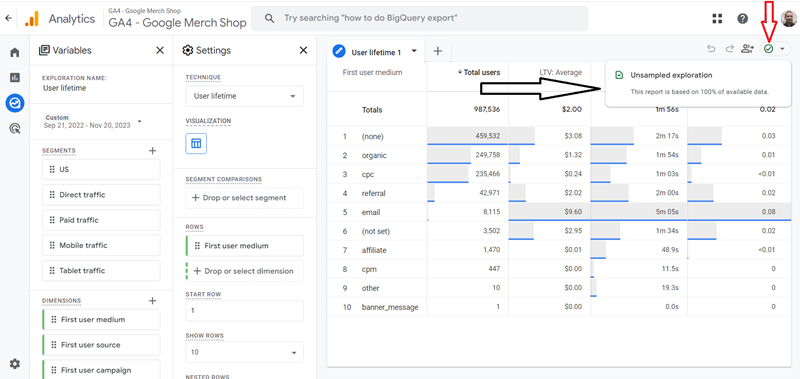
When GA4 start analysing only a small subset of traffic data, you can’t rely on the metrics reported by it, as the selected sample may not be a good representative of all of the traffic data.
The smaller the sample size, the more inaccurate the reported traffic data becomes. Therefore it makes sense to avoid data sampling as much as possible.
In the case of the GA4 standard, the exploration reports are not based on sampled data as long as you are not querying more than 10 million events at a time.
Whereas, in the case of the GA4 360, the exploration reports are not based on sampled data as long as you are not querying more than 1 billion events at a time.
#17: Unsampled Data for Exploration reports
You can request unsampled data for your exploration report if the exploration results are currently being sampled and you use GA4 360.
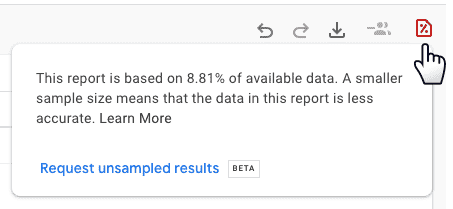
You can request unsampled data for the exploration results, including up to 50 billion events per day per property.
GA4 standard does not provide the feature to request unsampled data for your exploration reports.
#18: Data Retention
Through the ‘User and event data retention’ feature, you can set the amount of time for which Google Analytics retains user-specific data for an inactive website user before automatically deleting it.
The user-specific data is the data that is associated with cookies, user identifiers, or advertising identifiers.
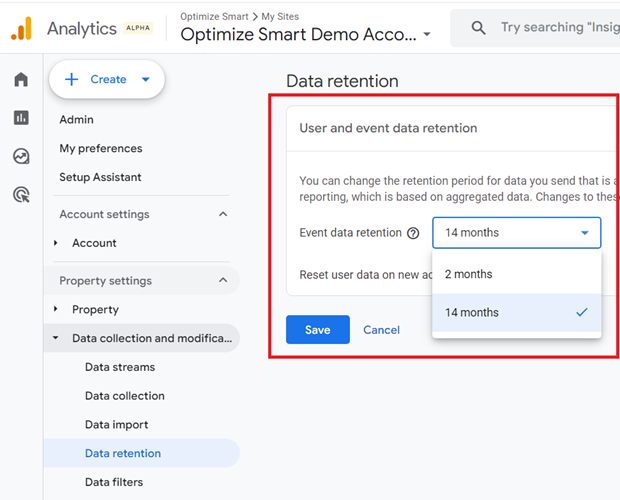
In the case of GA4 standard property, you can set the data retention setting to either 2 months or 14 months.
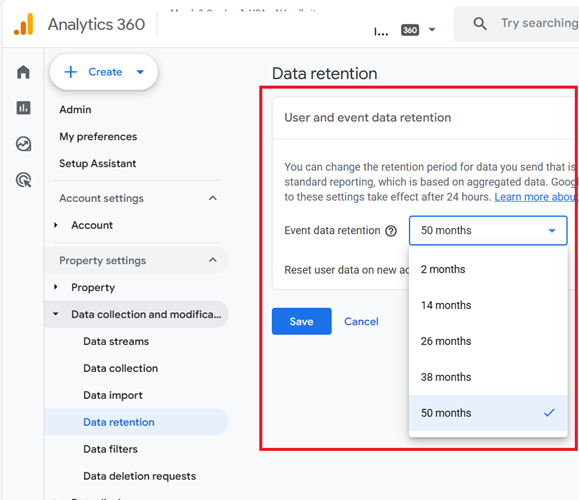
In the case of the GA4 360 property, you can set the data retention setting to one of the following:
- 2 months
- 14 months
- 26 months
- 38 months
- 50 months
#19: BigQuery Export Limit
Google BigQuery is an enterprise-level data warehouse from Google which is used to provide business intelligence in the form of reports and dashboards.
It is a data storage and management system which is used to bring data from several data sources (like GA4, Google Ads, Facebook Ads, Bing Ad Manager etc) for the purpose of reporting and analysis.
When you use BigQuery, you can manipulate GA4 data in a way which is many times simply not possible by using the GA4 user interface.
BigQuery removes most of the limitations which come when you use the GA4 user interface or the API for querying analytics data.
This is one of the biggest advantages of using BigQuery. It makes advanced data segmentation and analysis possible.
Unlike GA3 (aka Universal Analytics), GA4 provides a free connection to BigQuery.
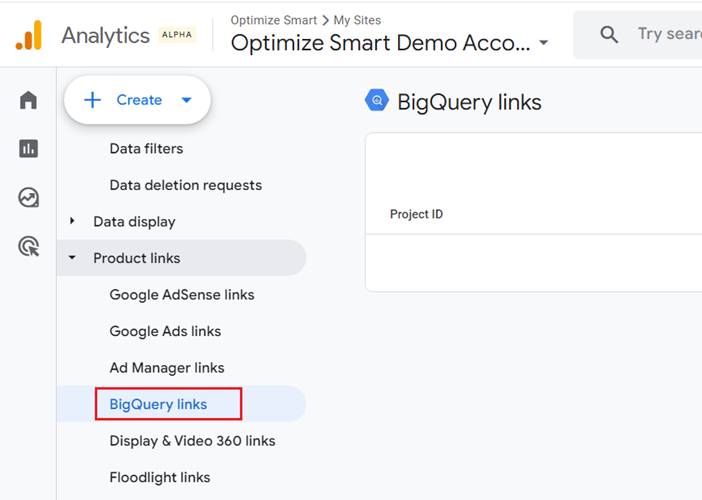
All you have to do is link your GA4 property to your BigQuery project, enable and configure BigQuery API and then query the GA4 data you need in BigQuery:
You can see your GA4 data in the following four data tables in BigQuery:
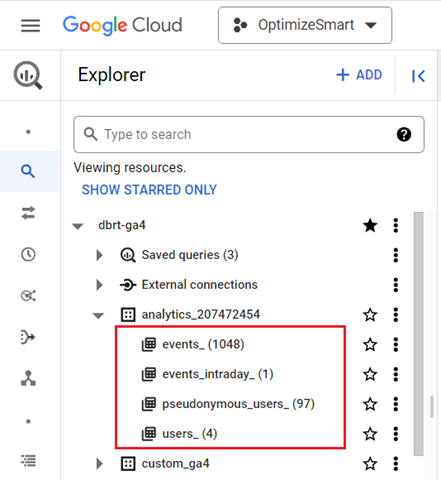
#1 events_ data table – This table stores all the GA4 event data from the previous day(s)
#2 events_intraday_ data table – This table stores all the GA4 event data from the current day.
If you want to learn more about these two data tables then check out this article: events_& events_intraday_ tables in BigQuery for GA4 (Google Analytics 4)
#3 pseudonymous_users_ data table – This table contains all the data for every pseudonymous identifier that is not user ID.
A pseudonymous identifier is a unique identifier created and assigned to each user by Google Analytics to track users across devices and sessions and to create a complete picture of their behaviour.
#4 users_ data table – This table contains all the data for every pseudonymous identifier that is a user ID.
You can export raw event data from your GA4 property to BigQuery and then use SQL to query the data.
However, Google has imposed certain limits on the amount of data you can export from a GA4 property to BigQuery on any given day.
A GA4 Standard property has a daily BigQuery export limit of 1 million events.
Whereas a GA4 360 property has a daily BigQuery export limit of billions of events.
Related Article: How to overcome GA4 BigQuery Export limit
#20: Subproperties
A subproperty is the GA4 property which gets its event data from another GA4 property (also called the source property).
Create a subproperty when you want to create a filtered reporting view in GA4.
The GA4 360 subscription allows you to create sub-properties:
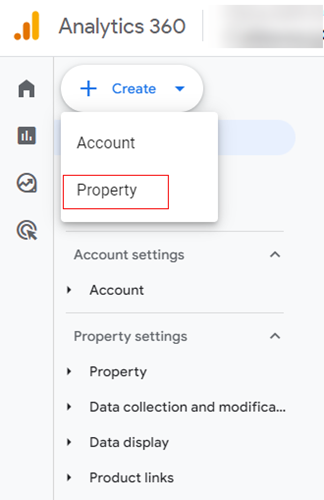
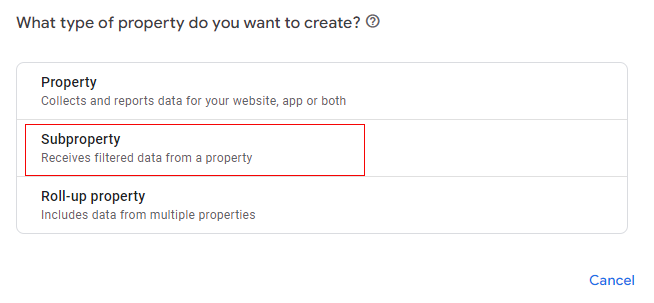
You can not create sub-properties if you use the GA4 standard property.
#21: Roll-up Properties
A roll-up property is a special type of GA4 property whose event data comes from other GA4 properties (also known as source properties).
In other words, a roll-up property is made up of two or more source properties.
Create a roll-up property if you want to set up roll-up reporting in GA4.
Roll-up reporting is the reporting of data in an aggregated form from multiple digital properties (websites, mobile apps).
Through roll-up reporting, you can:
- Aggregate all of your websites’ data into one reporting view.
- See aggregated global performance metrics.
- Compare the performance of various websites to each other.
The GA4 360 subscription allows you to create roll-up properties:
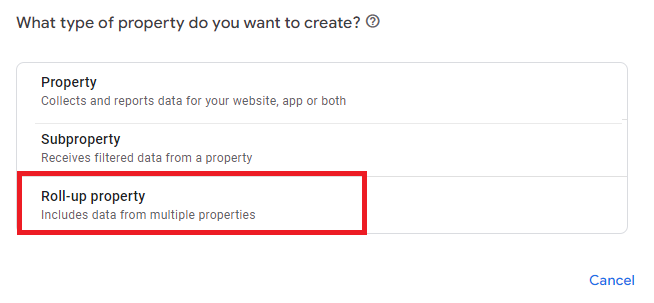
You can not create roll-up properties if you use the GA4 standard property.
#22: Automatic Custom Tables
All the reports in a GA4 360 property come with automatic custom tables enabled so your data aggregates under the ‘(other)’ row far less frequently for high cardinality dimensions.
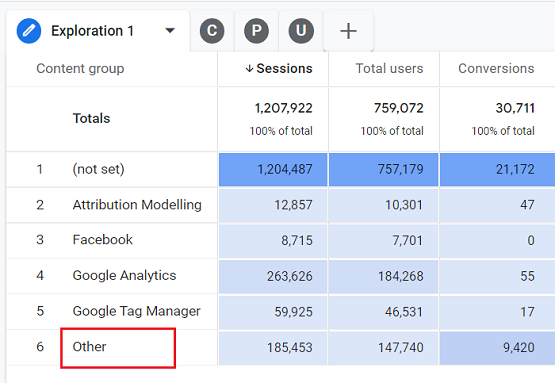
In the case of a GA4 standard property, the automatic custom tables are not enabled.
A high cardinality dimension is a dimension for which GA4 reports more than 500 unique values in one day. High cardinality dimensions can cause data to aggregate under the ‘(other)’ row.
#23: Product integrations
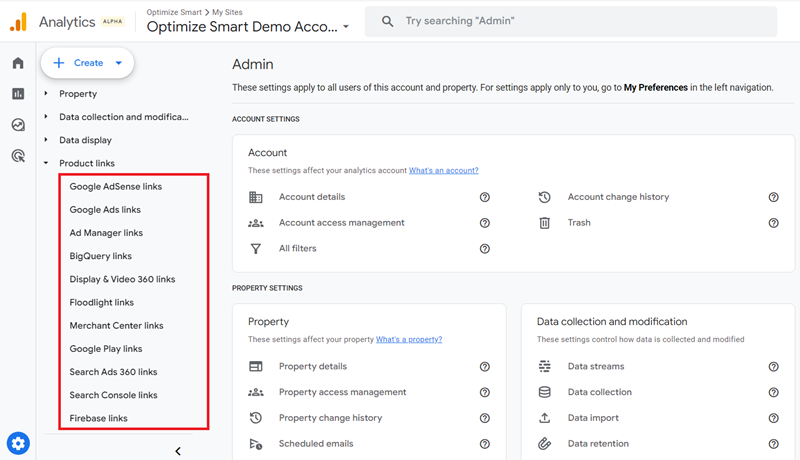
Standard GA4 property integrates with other standard versions of Google products (like Google Ads, Ad Manager, Merchant Center, Google Search Console, etc):
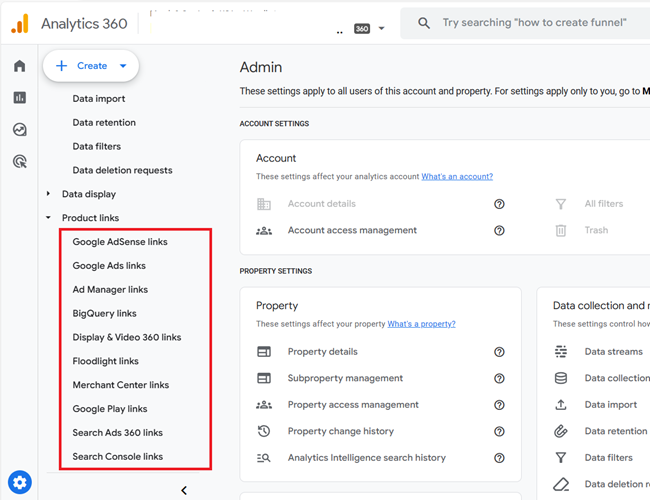
Whereas GA4 360 property integrates with both standard and 360 versions of Google products (like Search Ads 360, Display & Video 360, Campaign Manager 360 etc).
#24: CRM integration
Unlike GA4 Standard property, the GA4 360 property can be natively integrated with CRMs like Salesforce Marketing Cloud.
Through such integration, you can see GA4 data in Salesforce.
You create the integration in the Salesforce Marketing Cloud.
#25: Native remarketing integrations
GA4 Standard is best suited for native remarketing integrations with Google Ads.
Whereas GA4 360 is best suited for native remarketing integrations with Google Ads and Display & Video 360.
Note: It makes sense to use GA4 360 only if you are using other Google products (like Google Ads, Search Ads 360, Google Cloud, BigQuery etc). This is because GA4 360 natively integrate with other Google products.
Types of GA4 360 Properties
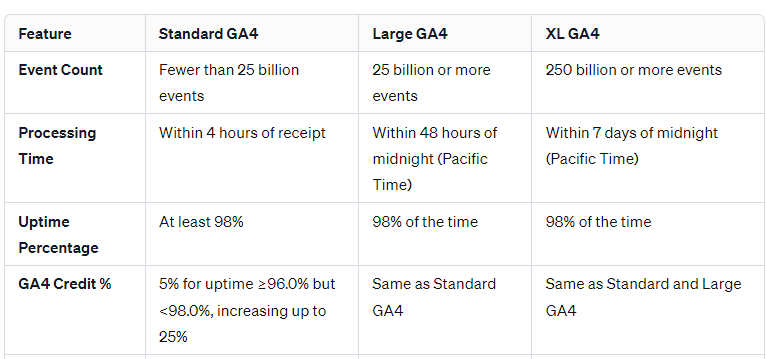
In the context of GA 360 Suite Service Level Agreements, there are three different types of GA4 360 properties:
#1 Standard GA360 property (also called ‘Normal’ property).
#2 Large GA4 360 property.
#3 XL GA4 360 property.
#1 Standard GA360 property
A GA4 360 property is classified as “Standard/Normal” if it collected and processed fewer than 25 billion events in the prior 31-day days.
#2 Large GA4 360 property
A GA4 360 property is classified as “Large” if it collected and processed 25 billion or more events in the prior 31-day days.
#3 XL GA4 360 property
A GA4 360 property is classified as “Extra Large (XL)” if it collected and processed 250 billion or more events in the prior 31-day days.
Additionally, a GA4 360 property may be classified as “XL” if it collected and processed an average of 15 billion or more events per day over the previous 7-day period.
Note: For XL GA4 properties, you may need to wait for at least a week for the data to be fully processed.
This is in accordance with the guidelines specified in the GA 360 Suite Service Level Agreements, which stipulate that data for XL GA4 Properties is processed within 7 days of midnight (Pacific Time).
Introduction to GA4 Credit %
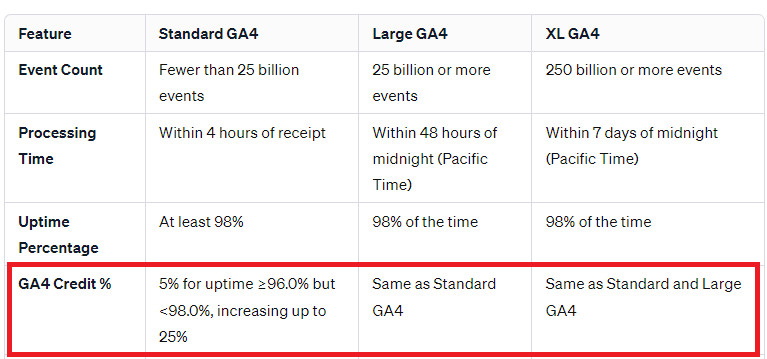
The “GA4 Credit %” in the context of the GA 360 Suite Service Level Agreements refers to the percentage of credit a company is eligible to receive against its Analytics 360 monthly service fees if Google fails to meet the specified uptime percentages for GA4 Properties.
This credit percentage is based on the degree to which the uptime falls below the promised threshold.
For example, if the uptime percentage is between 96.0% and less than 98.0%, the company is eligible for a 5% credit.
This credit percentage increases as the uptime percentage decreases, going up to 25% credit if the uptime falls below 90.0%.
Summary of GA4 360 limits

Other Articles on GA4.
- Google Analytics 4 Channels, Source and Medium explained.
- Path exploration report in GA4 (Google Analytics 4) – Path analysis.
- How to use Microsoft Clarity with GA4 (Google Analytics 4).
- GA4 vs GA4 360 – Pricing, Limits, Billing and more.
- Setup Enhanced Conversions for Leads using Data Layer in Google Tag Manager.
- Self-referral Google Analytics 4 – Referral exclusion GA4.
- GA4 Attribution Paths (Conversion Paths) Report.
- Google Tag Manager Tutorial.
- GA4 Attribution Models Explained: How to Choose the Right One.
- Looker Studio (Google Data Studio) Tutorial.
- Google Tag Manager Data Layer Tutorial with Examples.
- Set up enhanced conversions for Web using ‘Code’ in Google Tag Manager.