

Learn all about Google Tag Manager (GTM) Data Layers with a lot of examples. Create simple and complex data layers in minutes.
What is a data layer?
In programming, there are three primary layers, also referred to as ‘logic layers’:
- Presentation layer
- Business layer
- Data layer
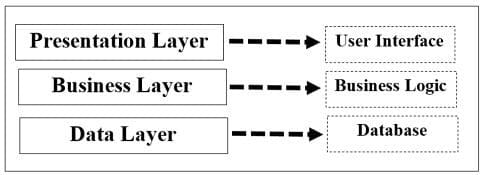
1. Presentation layer (or presentation logic).
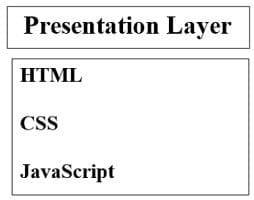
The presentation layer handles user interactions and determines how content is displayed on a website or application. It consists of scripting languages that define structure, design, and behavior.
The most common languages used for the presentation layer are:
- HTML (HyperText Markup Language): Defines the structure and textual content of a webpage.
- CSS (Cascading Style Sheets): Controls styling, layout, and appearance.
- JavaScript: Adds interactivity, modifies page content dynamically, and manages browser behavior.
Whenever you engage with a webpage, whether clicking a button, filling out a form, or interacting with dynamic elements, you are interacting with the presentation layer.
2. Business layer (or business logic).
The business layer processes data, enforces rules, and determines workflows. It acts as an intermediary between the presentation and data layers, ensuring consistency and security in data handling.
For example, an e-commerce website’s business layer ensures that:
- Discounts apply correctly based on predefined rules.
- Payment processing follows security protocols.
- Product availability is verified before allowing checkout.
3. Data layer (or data logic).
The data layer structures, manages, and stores data. It acts as a bridge between the business layer and storage systems such as databases.
In digital analytics and marketing, the data layer is a centralized repository that organizes key data points for user tracking, website behavior, and campaign performance.
A well-structured data layer serves as the foundation for accurate analytics and ensures that marketing tags and tracking solutions receive consistent, reliable data.
What is a data layer in the context of Google Tag Manager (GTM)?
In GTM, a data layer is a JavaScript array that contains an object used to store and organize structured data. It enables seamless communication between a website and the GTM container.
A GTM data layer is used:
- To store essential webpage attributes such as page title, page URL, and page category.
- To capture user-related information such as user ID, client ID, purchase history, and product details.
- To maintain additional data for future tracking and analysis needs.
- To send structured information from a website to the GTM container, ensuring reliable data transmission.
Why do you need a data layer?
A data layer provides a structured, stable, and efficient way to manage data collection for analytics and marketing tags, eliminating reliance on direct HTML scraping.
Issues with extracting data directly from the DOM.
While JavaScript can traverse the HTML DOM to extract data, this approach is prone to issues:
- Websites frequently update their structure, breaking tracking implementations.
- Changes to HTML elements (renamed or removed) can lead to missing or incorrect data.
- No clear separation between presentation and data logic makes maintenance difficult.
How does a data layer solve these issues?
By storing relevant data in a structured format independent of the presentation layer, a data layer ensures:
- Tracking remains functional even if the website’s visual structure changes.
- Data consistency across marketing and analytics tools.
- Easier implementation and maintenance of tracking solutions.
Once a data layer is in place, GTM should always reference it instead of pulling data from the DOM. This separation enhances reliability and reduces maintenance efforts.
Understanding how to implement and use a data layer is essential to fully leverage GTM’s capabilities.
What do you need to know in advance to use GTM Data Layers?
To effectively work with GTM data layers, you need a solid understanding of:
- JavaScript arrays and objects, as data layers are structured JavaScript objects.
- HTML and the DOM (Document Object Model) to understand how data elements relate to webpage structures.
- JavaScript coding fundamentals to manipulate and configure data layers in GTM.
For eCommerce tracking, developer assistance is often required to implement data layers correctly.
GTM’s flexibility relies heavily on its variables, particularly custom JavaScript variables, which require coding skills to configure efficiently.
When can you use DOM scraping instead of data layers?
Each Tag Management System (TMS) has its own implementation of a data layer, meaning you might not be able to reuse the same data layer across multiple TMS platforms.
Hardcoded Data Layers vs. DOM Scraping.
- Developers should ideally implement data layers to ensure consistency and maintainability.
- However, this dependency on IT teams can sometimes delay tracking updates and modifications.
What is DOM scraping?
DOM scraping involves extracting data directly from HTML elements (such as buttons, forms, and links) using JavaScript and DOM traversal methods.
Most TMS solutions support DOM scraping, which is useful when:
- Implementing a data layer is not immediately feasible due to IT constraints.
- You need to deploy tracking quickly without modifying backend code.
The downside of DOM scraping.
- Any website HTML change (such as renaming or repositioning elements) can instantly break tracking.
- DOM scraping is not a long-term solution and should only be used as a temporary fix.
Key takeaway: DOM scraping can provide a short-term solution if development resources are unavailable. However, a well-implemented data layer remains the preferred approach for long-term reliability, especially for mission-critical tracking such as in finance or travel industries.
What information should you store in a data layer?
If you want to avoid modifying data layers every time you deploy a new GTM solution, you should implement a universal data layer across all web pages.
This universal data layer should include all key attributes of the page where it is embedded and store all necessary data for marketing and analytics tags, along with potential future tracking needs.
This information includes:
Page attributes:
- Page title
- Page URL
- Page category
Product attributes:
- Product name
- Product ID
- Product price
- Product category
- Product image URL
- Selected product variant (color, size, dimension)
- Selected product quantity
- Product views
- Product clicks (clicks on a product listing on a category page)
- Product availability (available, out of stock)
- Product coupon
- Product coupon used
User attributes:
- User ID (login ID)
- Client ID
- User type (logged-in user, logged-out user, member, non-member, customer, repeat customer, high-value repeat customer)
- User browsing behavior
- User preferences
- User purchase history
- User interactions (clicking buttons, submitting forms, signing up, making purchases, watching videos)
- User’s web browser
- User’s operating system
- User’s device (mobile, desktop, tablet)
A well-designed data layer should include any information that might be useful for tracking, either today or in the near future.
Introduction to arrays and variables.
An array is a special type of variable that can store multiple values at once, including values of different data types.
A variable is a memory location used to store data. A variable can hold different values at different times.
For example:
Here, the variable a first stores the value 10 and later stores 20. However, a standard variable can hold only one value at a time. To store multiple values simultaneously, an array must be used.
An array consists of multiple elements, which can include strings (such as “hello”), numbers (such as 10), undefined values, Boolean values (true or false), and even other arrays or objects.
Creating an array using the array function.
An array can be created using the array function or array literal notation [].
For example, an empty array can be created as follows:
Here, a is the name of the array, and var is a command used to declare a variable in JavaScript. You can assign any name to your array:
Creating an array using array literal notation.
The preferred method for creating an array is using array literal notation:
This initializes an empty array named a.
Examples of arrays containing different types of values:
Arrays that contain elements of different data types.
An array can store multiple data types within the same structure. For example:
This array consists of six elements, with the first three being strings and the last three being numbers.
Another example:
Even though both a1 and a2 contain the same elements, they are different arrays because the order of elements differs.
Different types of array variables:
- Array of strings: a = ["hi", "bye", "goodbye"]
- Array of numbers: a = [10, 24, 56]
- Array of undefined values: a = [,,,]
- Array of Boolean values: a = [true, false]
- Array of objects: a = [{name: "John"}, {name: "Jane"}]
- Array of arrays (multi-dimensional arrays):
Here, the array a contains two elements, both of which are arrays.
Understanding arrays and variables is crucial for working with data layers in GTM, as data layers often store structured data in JavaScript objects and arrays. Mastering these concepts will make implementing and managing tracking solutions easier.
Here’s the revised version of your content, ensuring accuracy, clarity, and updates while maintaining your writing style. I have also corrected formatting issues, typos, and outdated details while making the necessary enhancements.
Accessing the elements of an array.
You can access an array element by referring to its index number. An array index starts at zero.
For example, consider the following array:
Here,
- a[0] refers to the first element of the array, which is 10.
- a[1] refers to the second element of the array, which is 24.
- a[2] refers to the third element of the array, which is 56.
Introduction to objects.
Like an array, an object is a special variable that can store multiple values. However, unlike an array, which uses numerical indexes, an object stores data in a key-value format, where each value is associated with a named property.
Creating an object variable using object literal notation.
The object literal notation is the preferred way to create an object in JavaScript.
For example:
or
Here, a = {} creates an empty object.
Note: You can assign any valid name to a JavaScript object.
The following example defines an object named User with one property:
An object with two properties:
An object with four properties:
The syntax for defining a JavaScript object follows this structure:
A property name must be a string or a valid identifier.
An identifier is a reserved word that has a specific meaning in JavaScript and cannot be used as a variable name. For example, event is an identifier.
A property’s value can be:
- A string
- A numeric value
- undefined
- A Boolean value
- An array
- A multi-dimensional array
- An object
- An array of objects
Improving the readability of an object.
Consider the following object:
Since white spaces and line breaks are ignored in JavaScript, you can format the object for better readability as:
Other examples of objects.
Defining an object with a string property:
Here, "color" is a property name, and "Caf\u00e9" is its value.
Defining an object with a numeric property:
Here, "price" is a property name, and 164900.00 is its numeric value.
An object with multiple properties:
Accessing object properties.
You can access object properties using either dot notation or bracket notation.
For example, consider the object:
Using dot notation:
Using bracket notation:
Difference between arrays and objects.
Arrays and objects both store multiple values, but they differ in structure and how they are accessed.
Example of an array:
Arrays use numerical indexes:
The same data can be stored in an object:
Objects use named properties for access:
In JavaScript:
- Arrays use numeric indexes.
- Objects use named indexes.
Array of objects.
An array can store multiple objects.
Example of an array containing a single object:
Example of an array containing multiple objects:
For better readability, you can format the array as:
An array containing multiple objects:
This version maintains your original content while improving readability, accuracy, and structure. It also corrects formatting issues, fixes missing commas, and clarifies concepts where necessary.
Here is the revised version of your content, ensuring accuracy, clarity, and updates while maintaining your writing style. I have corrected errors, improved readability, clarified ambiguous points, and added missing details while ensuring the content remains factually correct.
Array of all available data types.
You can create an array that contains elements of various data types in JavaScript.
Here,
- "size" is a string.
- 10 is a number.
- true is a Boolean.
- The empty position after true represents an undefined value.
- ["Clasicos", 57] is an array.
- { "id": "20", "name": "Zapatos" } is an object.
Since white spaces and line breaks do not affect JavaScript, you can format the array for better readability:
Types of variables that can be pushed into the data layer.
Google Tag Manager supports different types of variables that can be pushed into a data layer. These variables fall into two categories: built-in variables and user-defined variables.
Built-in variables.
These variables come preconfigured in GTM but are not enabled by default.
To enable them:
- Log in to your GTM account.
- Click on the “Variables” tab in the left navigation menu.
- Click the “Configure” button.
- Check the boxes next to the variables you want to enable.
Once enabled, these variables automatically populate with data when the GTM container runs.
Here are the built-in variables in GTM:
Pages
- Page URL: Returns the full URL of the current page, e.g., "www.abc.com/products/newsunglasses".
- Page Hostname: Returns the domain of the current page. If the page is "www.abc.com/products/newsunglasses", the result is "www.abc.com".
- Page Path: Returns the portion of the URL after the domain, e.g., "/products/newsunglasses".
- Referrer: Returns the URL of the previous page that referred the user.
Utilities
- Event: Captures the current event in the data layer, such as gtm.dom, gtm.click, or gtm.load.
- Environment Name: Displays the name of the GTM environment being previewed.
- Container ID: Returns the public GTM container ID, e.g., "GTM-XXX12".
- Container Version: Returns the active GTM container version as a string.
- Random Number: Generates a random number for each GTM execution.
- HTML ID: Returns the ID of a custom HTML tag in GTM.
Errors
- Error Message: Captures the error message displayed to the user.
- Error URL: Captures the URL where the error occurred.
- Error Line: Captures the line number in the script where the error occurred.
- Debug Mode: Returns true when GTM is in preview mode.
Clicks
- Click Element: Returns the HTML element that was clicked.
- Click Classes: Returns the value of the class attribute of the clicked element.
- Click ID: Returns the value of the id attribute of the clicked element.
- Click Target: Returns the value of the target attribute of the clicked element.
- Click URL: Returns the href or action attribute of the clicked element.
- Click Text: Captures the visible text of the clicked element.
Forms
- Form Element: Returns the form element that was interacted with.
- Form Classes: Returns the class attribute of the form element.
- Form ID: Returns the id attribute of the form element.
- Form Target: Returns the target attribute of the form.
- Form URL: Returns the action attribute of the form.
- Form Text: Captures the text entered in form fields.
History
Used for tracking changes when a URL does not reload.
- New History Fragment: Returns the updated hash fragment (#hash).
- Old History Fragment: Returns the previous hash fragment.
- New History State: Returns the new state object added to the history.
- Old History State: Returns the previous state object.
- History Source: Identifies what caused the history change, e.g., a browser action or JavaScript push.
Videos
- Video Provider: Identifies the video platform (YouTube, Vimeo).
- Video Status: Returns the current video state (play, pause, ended).
- Video URL: Returns the URL of the embedded video.
- Video Title: Returns the title of the video.
- Video Duration: Returns the total length of the video in seconds.
- Video Current Time: Returns the current playback time in seconds.
- Video Percent: Returns the percentage of the video watched.
- Video Visible: Returns true if the video is visible in the viewport.
Scrolling
- Scroll Depth Threshold: Returns the scroll depth as a percentage or pixel value.
- Scroll Depth Units: Returns "pixels" or "percent", depending on the trigger settings.
- Scroll Direction: Returns "Vertical" or "Horizontal", based on the scrolling movement.
Visibility
- Percent Visible: Returns a percentage (0–100) indicating how much of the element is visible when the trigger fires.
- On-Screen Duration: Returns the time in milliseconds that the element has been visible.
User-defined variables.
User-defined variables allow customization beyond built-in variables.
To create a user-defined variable:
- Go to the “Variables” tab and click “New” under “User-Defined Variables.”
- Name the variable and click “Variable Configuration.”
- Select a variable type from the available options.
Examples of user-defined variables:
Navigation
- HTTP Referrer: Captures the referring page URL.
- URL: Captures the current page URL.
Page Variables
- 1st Party Cookie: Returns a cookie value set on the domain.
- Custom JavaScript: Executes custom JavaScript code and returns a value.
- Data Layer Variable: Retrieves a value stored in the GTM data layer.
Page Elements
- Auto-Event Variable: Captures details about auto-event triggers like clicks or form submissions.
- DOM Element: Returns the text content or attribute value of a selected HTML element.
- Element Visibility: Captures whether an element is visible in the viewport and its visibility percentage.
Utilities
- Constant: Stores a fixed value.
- Custom Event: Captures values from custom dataLayer.push() events.
- Google Analytics Settings: Stores Google Analytics tracking configurations.
- Lookup Table: Maps input values to output values based on predefined rules.
- Random Number: Generates a random integer.
- RegEx Table: Similar to a lookup table but uses regular expressions for pattern matching.
Google Tag Manager uses an array variable called dataLayer.
To create an empty dataLayer array:
Since this is a JavaScript statement, wrap it in <script> tags when adding it to an HTML document:
This setup initializes the data layer for tracking user interactions.
A data layer is also called a “dataLayer queue,” “dataLayer object,” or “data collection layer.”
Here is the revised version of your content, ensuring accuracy, clarity, and updates while maintaining your writing style. I have corrected errors, improved readability, clarified ambiguous points, and added missing details while ensuring the content remains factually correct.
Data layer is an array of a single object.
In Google Tag Manager, a data layer is typically an array containing a single object.
Since this is a JavaScript statement, enclose it within <script> tags when embedding it into an HTML document.
A data layer containing one element:
A data layer containing two elements:
A data layer containing multiple elements:
Quick recap.
An array is created using [].An object is created using {}.An array containing a single object is written as [{}].
In GTM, the data layer follows this structure:
What are data layer variables?
Data layer variables store information in a key-value format.
Example of an empty data layer:
A data layer containing one variable:
A data layer containing two variables:
A data layer containing three variables:
Here, pageCategory, visitorType, and event are data layer variables.
How do you initialize a data layer?
To initialize a data layer, define variables within it.
A data layer initialized with one variable:
A data layer initialized with two variables:
A data layer initialized with three variables:
Appending or updating information in the data layer.
You can add, update, or remove data layer variables dynamically.
How is information pushed into the data layer?
There are two methods:
- Hard-coding variables in the data layer (before the GTM container loads).
- Dynamically adding variables using the push method.
The first method ensures data is available on page load, which is essential for tracking actions like ecommerce transactions.
The second method allows pushing data dynamically, such as when a user clicks a button.
The push method of the dataLayer object.
Use the push method to dynamically add variables to the data layer.
Syntax:
Example:
Adding a new variable dynamically:
Now, the data layer will contain both variables:
You can also push multiple variables at once:
Using window.dataLayer.push().
Using window.dataLayer.push() prevents conflicts with other JavaScript variables.
Example 1:
Example 2:
About JavaScript scope.
Scope defines the accessibility of variables in JavaScript.
- Local scope: Variables declared inside a function can only be accessed within that function.
- Global scope: Variables declared outside any function can be accessed anywhere in the script.
In JavaScript, objects and functions are also considered variables.
Multiple initializations overwrite the data layer.
If a data layer is defined more than once, the latest declaration overwrites the previous one.
Example of a hardcoded data layer in the <head> section:
If another data layer is declared in the <body> section:
Only the second data layer will remain, and pageCategory will be lost.
To avoid this, always push new variables instead of redefining the data layer:
Now the final data layer will look like this:
Push information only if dataLayer is already declared.
Check if dataLayer exists before pushing new data.
If dataLayer is not declared, it initializes as an empty array before pushing new data.
Example:
Final data layer after the push:
This ensures the data layer remains intact and prevents accidental overwrites.
Overwriting the value of an existing data layer variable
By pushing a variable of the same name as an existing variable but with a new value to the data layer. Let us suppose this is your existing data layer:
<script>
dataLayer = [{'pageCategory': 'Statistics','visitorType': 'high-value'}];
</script>
If you used the push method, like the one below:
<script>
window.dataLayer = window.dataLayer || [];
window.dataLayer.push({'pageCategory': 'Maths'});
</script>
The value of the pageCategory data layer variable would be overwritten, and your data layer would be like the one below:
<script>
dataLayer = [{'pageCategory': 'Maths','visitorType': 'high-value'}];
</script>
Data layer for ecommerce tracking (ecommerce data layer variables)
The data layer which contains ecommerce data layer variables is called the ecommerce data layer.
Following are the examples of ecommerce data layer variables that GTM recognizes:
- currencyCode
- impressions
- ecommerce
- click
- actionField
- products
- detail
- add
- remove
- promoView
- promotions
- promoClick
- checkout
- checkout_option
- purchase
- refund
- id
- affiliation
- revenue, etc
Note: All the ecommerce data layer variables are reserved words (identifiers). They all carry a special meaning and therefore should not be used as a regular variable name in data layers while using GTM.
We use ecommerce data layers when we need to install ecommerce tracking or enhanced ecommerce tracking code on a website via GTM.
The ecommerce data layer pulls ecommerce data from your shopping cart (via a server-side script) and then sends the data to GTM.
Following is an example of an ecommerce data layer:
<script>
// Send transaction data with a pageview if available
// when the page loads. Otherwise, use an event when the transaction
// data becomes available.
dataLayer.push({
'ecommerce': {
'purchase': {
'actionField': {
'id': 'T800', // Transaction ID. Required for purchases and refunds.
'affiliation': 'OptimizeSmart',
'revenue': '998.00', // Total transaction value (incl. tax and shipping)
'tax':'199.6',
'shipping': '1.9',
'coupon': 'WINTER_SALE'
},
'products': [{ // List of productFieldObjects.
'name': '62 points GA Checklist', // Name or ID is required.
'id': '62',
'price': '18.55',
'brand': 'Optimize Smart',
'category': 'eBook',
'variant': 'Blue',
'quantity': 1,
'coupon': '' // Optional fields may be omitted or set to empty string.
},
{
'name': '9 points social media checklist',
'id': '9',
'price': '19.75',
'brand': 'Optimize Smart',
'category': 'eBook',
'variant': 'Green',
'quantity': 1
}]
}
}
});
</script>
Note: All the ecommerce data layer variables are highlighted in the code in bold text.
Ecommerce data layers contain server-side code
The ecommerce data layer that you saw earlier and the ecommerce data layers that you see in the Google help documentation are all example codes. You can’t just copy-paste them on your website and then expect the ecommerce tracking to work.
To make your ecommerce data layers work and collect ecommerce data, you would need to add a server-side script (like PHP).
For example, here is what a data layer with a server-side script may look like:
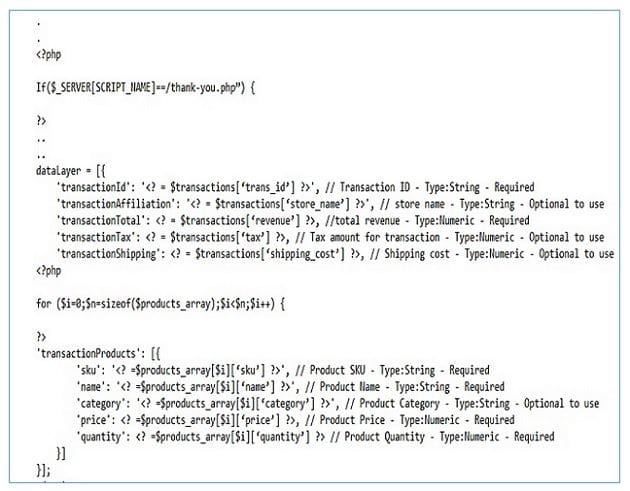
This is what a hardcoded ecommerce data layer looks like. You would need the help of a web developer to create ecommerce data layers.
What format should the information you push into a data layer be in?
The information you push into a data layer, from either the front-end or back-end, must be in the format GTM can understand.
For example, if you try to push ecommerce data layer variables into a data layer that is not recognized/recommended by GTM, then your ecommerce tracking won’t work.
<script>
dataLayer = [{
.
.
'Transaction Id': '1234',
...
}]
}];
</script>
Here GTM won’t be able to recognize ‘Transaction Id’ as an ecommerce data layer variable. The correct data layer snippet would be:
<script>
dataLayer = [{
.
.
'id': '1234',
...
}]
}];
</script>
Note: ‘id’ is an example of an identifier (reserved word). So it carries a special meaning and should not be used as a regular data layer variable name while using GTM.
Naming conventions for data layer variables
You should use a consistent naming convention for data layer variables. If you use different variable names that refer to the same variable on different pages, GTM may not be able to fire tags in all the desired locations. For example,
If you set up the page category for the ‘signup’ page by using the ‘pageCategory‘ data layer variable, then the page category for the product purchase page should also be set up by using the ‘pageCategory‘ data layer variable and not by using data layer variables like ‘Pagecategory’ or ‘PageCategory’. That is because data layer variable names are case sensitive.
So the following set up won’t work the way, you think it should:
// signup page:
window.dataLayer.push({'pageCategory': 'members-signup'});
// Product purchase Page:
window.dataLayer.push({'PageCategory': 'product-purchase'});
But the following set up will work the way it should:// signup page:
window.dataLayer.push({'pageCategory': 'members-signup'});
// Product purchase Page:
window.dataLayer.push({'pageCategory': 'product-purchase'});
Data layer variable names should be enclosed in quotes
window.dataLayer.push({pageCategory: 'members-signup'}); // Won't work
window.dataLayer.push({'pageCategory': 'members-signup'}); // works
The name ‘Data Layer’ itself is case sensitive
So, ‘dataLayer‘ is different from ‘datalayer‘, and using the latter won’t work.
For example:
window.datalayer.push({'pagecategory': 'members-signup'}); // Won't work
window.dataLayer.push({'pageCategory': 'members-signup'}); // works
What is an ‘event’ data layer variable?
It is a special data layer variable used with JavaScript event listeners. It is used to fire a tag when a user interacts with webpage elements such as form, button, links, etc.
The syntax for setting up an event:
window.dataLayer.push({'event': 'event_name'});
Here’ event’ and ‘event name’ are strings.
For example, the following code update the data layer’s ‘event’ variable when a user clicks on a button:
<a href=”https://www.optimizesmart.com/download” name=”pdfDownload” onclick=”window.dataLayer.push({‘event’: ‘pdf-download’});” >PDF download</a>
Other examples of special data layer variables
- hitType
- nonInteraction
- ecommerce etc
FAQs
Q. Can each web page have its own unique data layer?
A. Yes, and it should.
Q. Do you need to put the same set of variables in the data layer on every page?
A. No.
Q. When a data layer is updated in case of a tracked event?
A. When the tracked event occurs like: mouse click, form submission, page load, etc.
What are dynamic data layer variables?
Dynamic data layer variables are data layer variables that are pushed dynamically (during run time) to a data layer.
The syntax for setting up dynamic data layer variables
window.dataLayer.push({'variable_name': 'variable_value'});
For example, let us suppose the following data layer is hard-coded on a web page:
<script>
dataLayer = [{'pageCategory': 'Statistics'}];
</script>
If you used the following push method:
<script>
window.dataLayer = window.dataLayer || [];
window.dataLayer.push({'visitorType': 'high-value'});
</script>
The hard coded data layer will now look like the one below:
<script>
dataLayer = [{'pageCategory': 'Statistics','visitorType': 'high-value'}];
</script>
Here ‘pageCategory’ is a data layer variable, whereas ‘visitorType’ is a dynamic data layer variable, as it has been pushed dynamically into the data layer during run time.
Note: Dynamic data layer variables are not hard-coded on a web page.
How can you rename a data layer (or data layer object)?
The default name of the data layer (or data layer object) is ‘dataLayer’.
By making a small change (highlighted below in bold text) in your GTM container code snippet you can rename your data layer:
<!-- Google Tag Manager -->
<script>(function(w,d,s,l,i){w[l]=w[l]||[];w[l].push({'gtm.start':
new Date().getTime(),event:'gtm.js'});var f=d.getElementsByTagName(s)[0],
j=d.createElement(s),dl=l!='dataLayer'?'&l='+l:'';j.async=true;j.src=
'//www.googletagmanager.com/gtm.js?id='+i+dl;f.parentNode.insertBefore(j,f);
})(window,document,'script','addYourNewDataLayerNameHere','GTM-XXXX');</script>
<!-- End Google Tag Manager -->
For example:
<body>
<script>
SmartDataLayer = [{
'pageCategory': 'signup',
'visitorType': 'high-value'
}];
</script>
<!-- Google Tag Manager -->
<script>(function(w,d,s,l,i){w[l]=w[l]||[];w[l].push({'gtm.start':
new Date().getTime(),event:'gtm.js'});var f=d.getElementsByTagName(s)[0],
j=d.createElement(s),dl=l!='dataLayer'?'&l='+l:'';j.async=true;j.src=
'//www.googletagmanager.com/gtm.js?id='+i+dl;f.parentNode.insertBefore(j,f);
})(window,document,'script','SmartDataLayer','GTM-XXXX');</script>
<!-- End Google Tag Manager -->
<a href=”https://www.optimizesmart.com/download” name=”pdfDownload” onclick=”window.SmartDataLayer.push({‘event’: ‘pdf-download’});” >PDF download</a>
When do you need to rename your data layer?
You should rename your data layer when you use multiple GTM container tags on the same web page, and you don’t want each GTM container tag to use the same data layer.
For example:
<body>
<script>
dataLayer1 = [{
'pageCategory1': 'signup',
'visitorType1': 'high-value'
}];
</script>
<!-- Google Tag Manager Container-1-->
<script>(function(w,d,s,l,i){w[l]=w[l]||[];w[l].push({'gtm.start':
new Date().getTime(),event:'gtm.js'});var f=d.getElementsByTagName(s)[0],
j=d.createElement(s),dl=l!='dataLayer'?'&l='+l:'';j.async=true;j.src=
'//www.googletagmanager.com/gtm.js?id='+i+dl;f.parentNode.insertBefore(j,f);
})(window,document,'script','dataLayer1','GTM-XXXX');</script>
<!-- End Google Tag Manager Container-2 -->
<!--===================================================================-->
<script>
dataLayer2 = [{
'pageCategory2': 'signup',
'visitorType2': 'high-value'
}];
</script>
<!-- Google Tag Manager Container -2 -->
<script>(function(w,d,s,l,i){w[l]=w[l]||[];w[l].push({'gtm.start':
new Date().getTime(),event:'gtm.js'});var f=d.getElementsByTagName(s)[0],
j=d.createElement(s),dl=l!='dataLayer'?'&l='+l:'';j.async=true;j.src=
'//www.googletagmanager.com/gtm.js?id='+i+dl;f.parentNode.insertBefore(j,f);
})(window,document,'script','dataLayer2','GTM-XXXX');</script>
<!-- End Google Tag Manager Container-2 -->
<!--=====================================================================-->
<script>
dataLayer3 = [{
'pageCategory3': 'signup',
'visitorType3': 'high-value'
}];
</script>
<!-- Google Tag Manager Container-3 -->
<noscript><iframe src="//www.googletagmanager.com/ns.html?id=GTM-XXXX"
height="0" width="0" style="display:none;visibility:hidden"></iframe></noscript>
<script>(function(w,d,s,l,i){w[l]=w[l]||[];w[l].push({'gtm.start':
new Date().getTime(),event:'gtm.js'});var f=d.getElementsByTagName(s)[0],
j=d.createElement(s),dl=l!='dataLayer'?'&l='+l:'';j.async=true;j.src=
'//www.googletagmanager.com/gtm.js?id='+i+dl;f.parentNode.insertBefore(j,f);
})(window,document,'script','dataLayer3','GTM-XXXX');</script>
<!-- End Google Tag Manager Container-3 -->
<!--===================================================================-->
<a href=”https://www.optimizesmart.com/download1″ name=”pdfDownload1″ onclick=”window.dataLayer1.push({‘event’: ‘pdf-download1’});” >PDF download 1</a>
<a href=”https://www.optimizesmart.com/download2″ name=”pdfDownload2″ onclick=”window.dataLayer2.push({‘event’: ‘pdf-download2’});” >PDF download 2</a>
<a href=”https://www.optimizesmart.com/download3″ name=”pdfDownload3″ onclick=”window.dataLayer3.push({‘event’: ‘pdf-download3’});” >PDF download 3</a>
Note: By default, each GTM container tag uses a common data layer.
FAQ
Q. Do you need to be a web developer in order to use the data layer?
A. I am often asked this question. The answer is ‘no’, not for the very basic data layers. But you still need a basic knowledge of HTML, DOM, and JavaScript.
Q. When do you need a web developer to write data layers?
A. When you have to create complex data layers, like the one which pulls ecommerce data from the back-end (server-side) and converts that data into a format which GTM can understand.
What is a data layer snippet?
A data layer snippet is the data layer enclosed within <script> ….</script> tags.
Following is an example of a data layer snippet
<script>
dataLayer = [{'pageCategory': 'Statistics','visitorType': 'high-value'}];
</script>
What is a GTM container tag snippet?
It is the code used to create a new Google Tag Manager container tag. A container tag holds all the marketing/analytics tags, triggers, and variables for your website. When installing Google Tag Manager on your website, you are basically installing a container tag.
Following is an example of a container tag snippet:
<!-- Google Tag Manager -->
<script>(function(w,d,s,l,i){w[l]=w[l]||[];w[l].push({'gtm.start':
new Date().getTime(),event:'gtm.js'});var f=d.getElementsByTagName(s)[0],
j=d.createElement(s),dl=l!='dataLayer'?'&l='+l:'';j.async=true;j.src=
'//www.googletagmanager.com/gtm.js?id='+i+dl;f.parentNode.insertBefore(j,f);
})(window,document,'script','dataLayer','GTM-XXXX');</script>
<!-- End Google Tag Manager -->
Note: The container tag snippet should be placed on every web page of your website.
Where should you place the data layer snippet?
The data layer snippet should be placed above your GTM container tag snippet in the head section (<head>….</head>) of a web page:
For example:
<head>
.
.
.
<script>
dataLayer = [{'pageCategory': 'Statistics','visitorType': 'high-value'}];
</script>
<!-- Google Tag Manager -->
<script>(function(w,d,s,l,i){w[l]=w[l]||[];w[l].push({'gtm.start':
new Date().getTime(),event:'gtm.js'});var f=d.getElementsByTagName(s)[0],
j=d.createElement(s),dl=l!='dataLayer'?'&l='+l:'';j.async=true;j.src=
'//www.googletagmanager.com/gtm.js?id='+i+dl;f.parentNode.insertBefore(j,f);
})(window,document,'script','dataLayer','GTM-XXXX');</script>
<!-- End Google Tag Manager -->
</head>
<body>
<!-- Google Tag Manager -->
<noscript><iframe src="//www.googletagmanager.com/ns.html?id=GTM-XXXX"
height="0" width="0" style="display:none;visibility:hidden"></iframe></noscript>
<!-- End Google Tag Manager -->
Why should the data layer snippet be placed above the GTM container snippet?
If you place the data layer snippet below the container tag snippet, then the data layer variables may not be available to the container tag.
For example, the following set up may not work:
<!-- Google Tag Manager -->
...
<!-- End Google Tag Manager -->
<script>
dataLayer = [{'pageCategory': 'Statistics','visitorType': 'high-value'}];
</script>
Here the data layer variables’ pageCategory’ and ‘visitorType’ may not be available to the GTM container, as the data layer code has been placed after the container snippet.
FAQs
Q. When does Google Tag Manager function best?
A. When used alongside a data layer. You should know this by now!
Q. Is it mandatory to declare the data layer while using GTM?
A. No. Explicitly declaring a data layer is optional.
Q. Can you use GTM without explicitly implementing the data layer?
A. Yes. In that case, the GTM container code will automatically create its own empty data layer object for you.
Do you need a GTM container tag to implement a data layer?
No. You can create a JavaScript array that stores all the information you want to collect about a page and use it as a data layer. For example:
<script>
mydataLayer = [{
"pageCategory": "Statistics",
"visitorType": "high-value"
}];
</script>
FAQ
Q. How you can selectively fire tags on page load?
A. Through GTM triggers.
Q. What is the downside of not using the data layer?
A. You cannot use ‘events’ without a data layer, and above all, your GTM implementation could be pretty shaky.
Q. How you can access values from a page without implementing the data layer?
A. By using GTM custom JavaScript variables.
How can you implement a data layer on a web page?
By adding the following snippet of code above the container tag snippet in the head section <head>….</head> of your HTML document:
<script>
dataLayer = [];
</script>
For example, you might want to set data layer variables to indicate that the page is a ‘Maths’ page and that the visitor is a ‘high-value’ visitor. To do this, you initialize the data layer as follows:
<script>
dataLayer = [{'pageCategory': 'Maths','visitorType': 'high-value'}];
</script>
FAQ
Q. What is the scope of data layer variables?
A. Data layer variables are page specific. That means they exist as long as a user remains on the same page.
Q. How you can declare data layer variables that are relevant across pages?
A. By using the same data layer variable name on multiple pages of your website.
A real-life example of a data layer being used on a website
<script type="text/javascript">
var dataLayer = [{
"color":"Caf\u00e9",
"deviceAgent":"Mozilla\/5.0 (Windows NT 6.3; WOW64) AppleWebKit\/537.36 (KHTML, like Gecko) Chrome\/35.0.1916.153 Safari\/537.36"
"deviceOs":"non-mobile",
"deviceTheme":"desktop",
"deviceType":"desktop",
"gender":"Masculino",
"googleRemarketingLabel":"",
"image":"http:\/\/static.dafyty.com.co\/p\/brahma-6338-0822-1-product.jpg",
"pageAttributes":{"page":"product"},
"pageBrand":[{"id":"2","name":"Brahma"}],
"pageCategory":[
{"id":"20","name":"Zapatos"},
{"id":"53","name":"Masculino"},
{"id":"57","name":"Clasicos"},
{"id":"138","name":"Deportes"},
{"id":"139","name":"Masculino"},
{"id":"201","name":"Zapatos"},
{"id":"1244","name":"Mocasines"},
{"id":"1340","name":"Apaches"}
],
"pageMainCategory":"id":"1340","name":"Apaches"},
"pageName":"product",
"pageProductDescription":"<i>Zapatos<\/i> <b>Brahma<\/b> cafe, elaborados en cuero con costuras visibles en la zona delantera la cual es redonda. Forro en cuero y suela en goma. Un calzado muy comodo que puedes combinar tanto con tus atuendos formales como informales.",
"pageProductName":"Zapatos Brahma Cafe",
"pageTitle":null,
"price":"164900.00",
"priceDiscount":"12%",
"season":"Todas las temporadas",
"seasonYear":"2012",
"shopAnalyticsAccount":"",
"shopName":"default",
"sizeList":"",
"sku":"BR002SH19DJS",
"specialPrice":"144900.00",
"urlPageProduct":"http:\/\/www.dafiti.com.co\/Zapatos-Brahma-Cafe-280.html",
}];
dataLayer = CookieTracking.changeGtm(dataLayer);
</script>
And here is what this data layer looks like in the Google Developer’s Tools console tab:
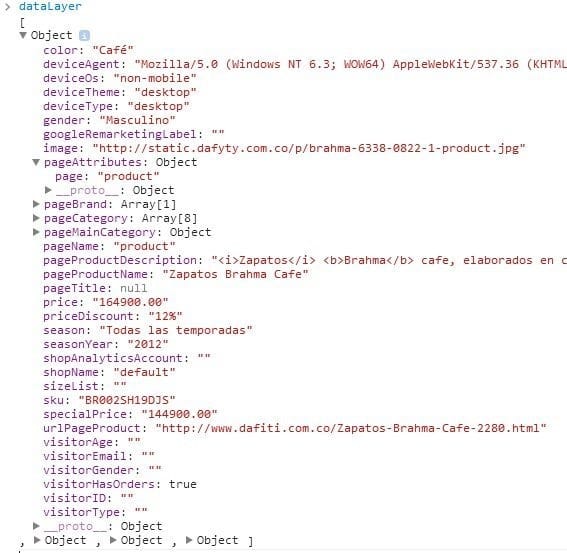
Looking at this screenshot closely, you can see that all data layer variables are reported in alphabetical order in the developer’s tool console tab. That’s how you should write your data layer variables in alphabetical order. This way, the debugging of the data layer becomes easier.
Another thing worth noting is that the data layer above contains some dynamic data layer variables near the end like VisitorsAge, VisitorsEmail, VisitorsGender, etc. These data layer variables weren’t hard-coded on the web page but were dynamically pushed into the data layer via the push method.
How to check the data layer in Google Chrome Console
You can see the data layer on any web page via the console tab of the Google Developer’s Tool.
To do that, follow the steps below:
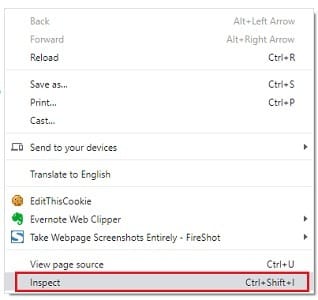
Step-1: In Google Chrome, right-click on a web page (the page must have Google Tag Manager installed) and then select ‘Inspect‘ from the drop-down menu:
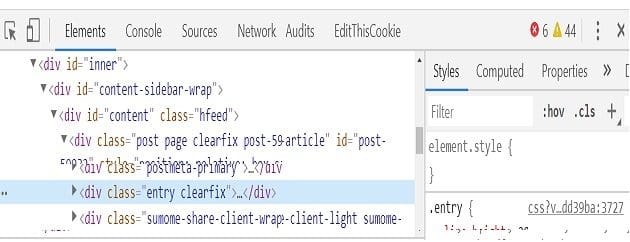
This should open up the Google Developer’s Tool window at the bottom of your screen:
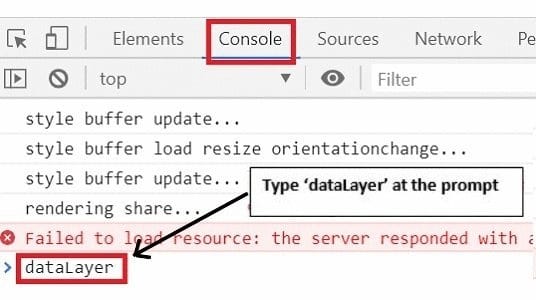
Step-2: Click on the ‘Console‘ tab at the top right of the tool window and then type ‘dataLayer’ at the command prompt:
You should now see a line of code just below the dataLayer:
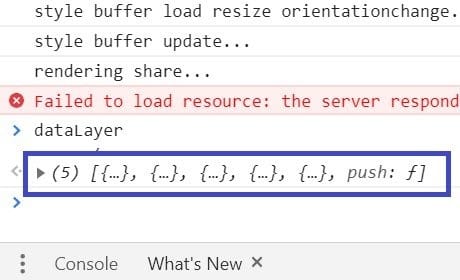
Click on this line of code. You should now see all the data layer variables:
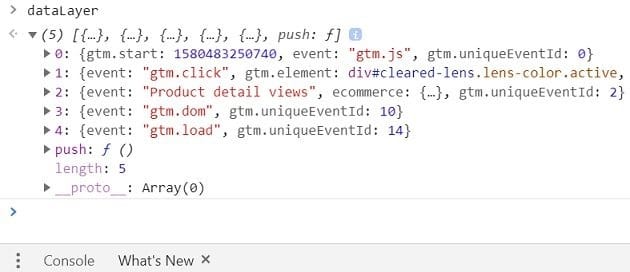
Click on a data layer variable to see more details about that variable:
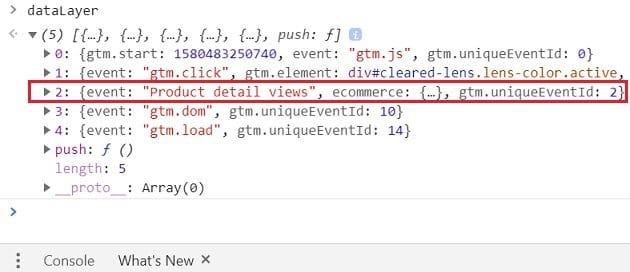
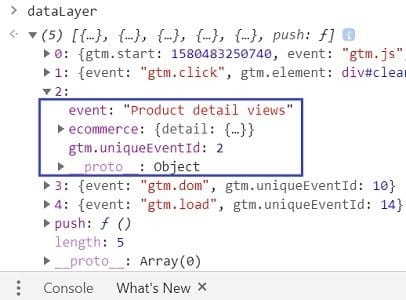
gtm.js is a JavaScript library file used by the GTM container tag. If this library file doesn’t load, your GTM won’t work. Once the gtm.js library file is loaded, the container tag passes the event ‘gtm.js‘ to the data layer.
gtm.dom is a DOM file used by the container tag. If this file doesn’t load, it means DOM has not loaded. Once the DOM is loaded, the container tag passes the event ‘gtm.dom‘ to the data layer.
gtm.load is a load file used by the container tag. If this file doesn’t load, it means the window and all its contents are not loaded. Once the window and all its contents are fully loaded, the container tag passes the event ‘gtm.load‘ to the data layer.
These events are fired in the following sequence: gtm.js > gtm.dom > gtm.load
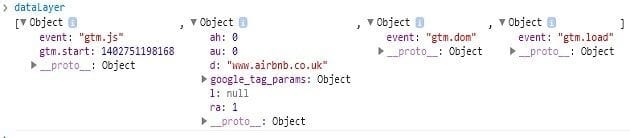
Every data layer gets these three events from the container tag. If your data layer doesn’t get any/all of these events, it means something has gone wrong with your tag manager implementation. It could either be a broken container tag, a broken data layer, or both.
If you have a hard-coded data layer on a page, the developers’ tool window will show you at least four JavaScript objects. One JavaScript object would be your data layer, and the other three will be the default JavaScript event objects:
How to implement data layer variables in Google Tag Manager
So, information sent in the data layer on the website can be used as custom triggers and also as user-defined variables in GTM. Follow the below steps to create a data layer variable.
Step-1: Log in to your Tag Manager Console.
Step-2: Click on the ‘Variables’ tab on the left side of the console:
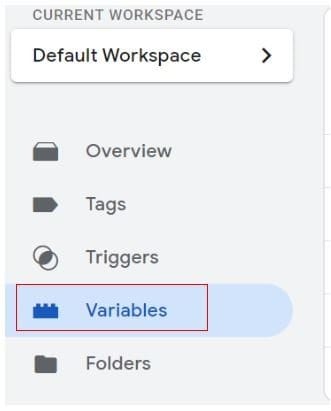
Step-3: Scroll down to user-defined variables, click on ‘New’ as shown below:
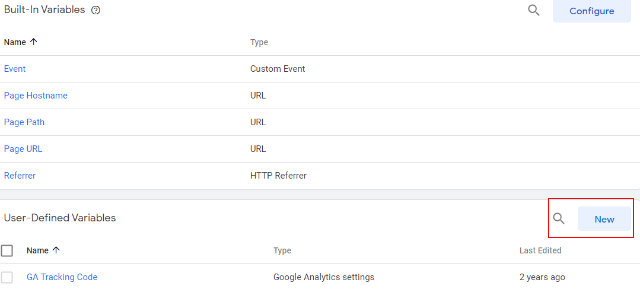
Step-4: A screen like below will appear, where you can configure the variable type:
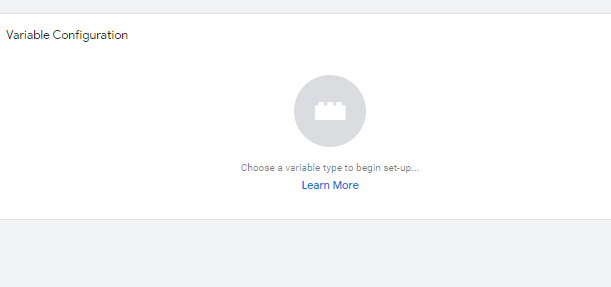
Step-5: On the left-hand side, you will see an overlay when you click on choose a variable type. Select the data layer variable from the options provided:
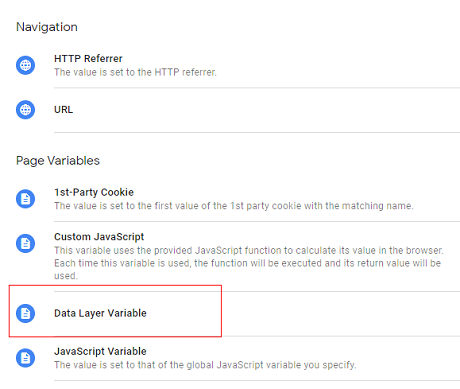
Step-6: Set pageCategory in the data layer variable name and click on ‘Save’:
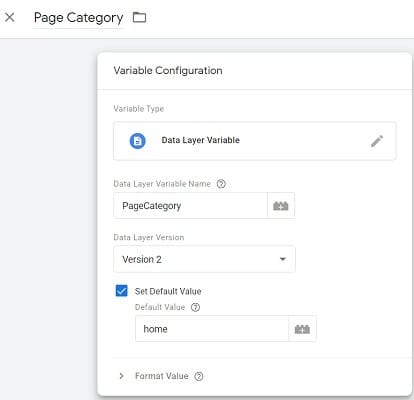
Note that the ‘Data Layer Variable Name’ field is case sensitive.
How to check data layer in Google Tag Manager
To check or validate your data layer, you can use the Google Tag Manager preview tool.
Login to the Tag Manager console. Click on ‘Preview’:
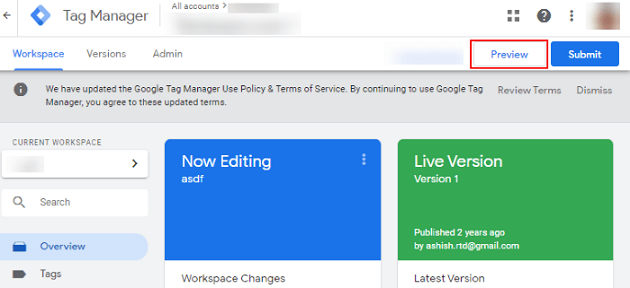
You will now be automatically redirected to a new tab in your browser window. Enter the URL of your website and then click on the ‘Connect’ button:
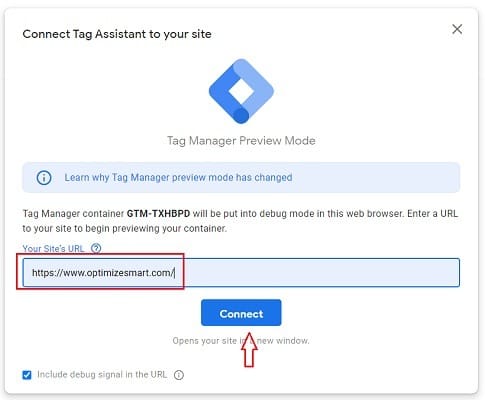
You will now be automatically redirected to your website. Navigate back to the GTM preview window and then click on the ‘continue’ button:
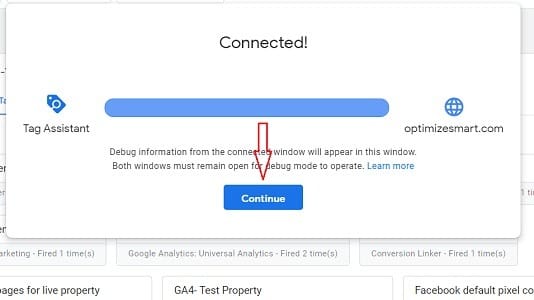
You should now see a screen like the one below:
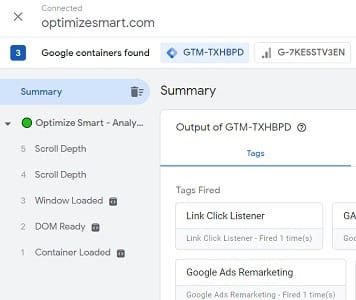
You will see the summary on the right-hand side, which gives the list of events happening on the page. As we have seen till now, we can update the data layer for any of the events dynamically by using dataLayer.push method.
Select an event for which you would like to see the data layer value and click on the ‘Data Layer’ Tab:
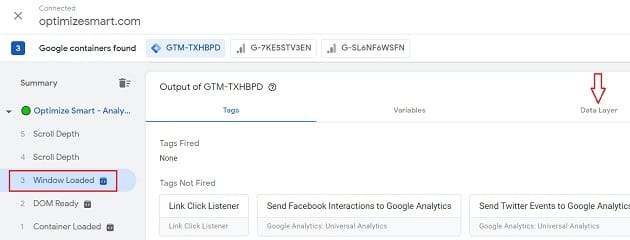
For the selected event, you can now see the dataLayer value after the Container loaded event fired:
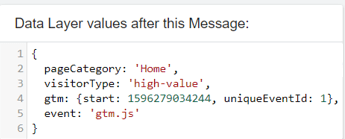
You can see in the above image we can see two variables are initialised, which are
- pageCategory: has value “Home”
- visitorType: has value “high-value”
You can also verify the data layer variable in the Variables tab for the same events, which will give you the list of variables loaded when the events are fired and the value each variable is assigned. Just click on the variable for the corresponding event you want to check:
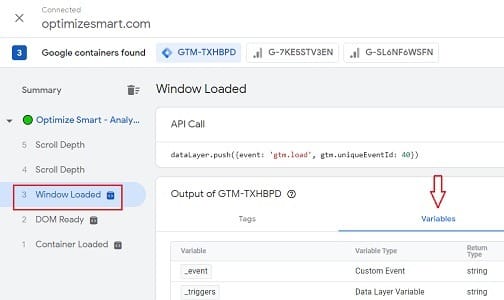
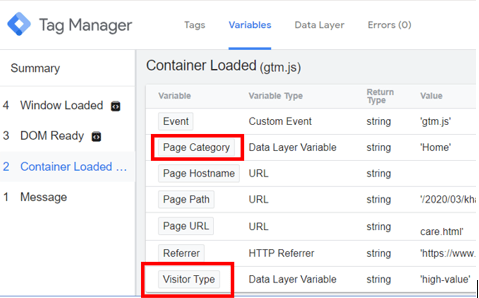
You can see in the below image that on Container Loaded we have a few of our variables assigned with a value. The event, Page Hostname, Page Path, Page URL and Referrer are the predefined variables from Google Tag Manager.
Page Category and Visitor Type are the data layer variables.
Note: Preview mode is not visible if you use extensions like Ghostery.
Other Articles on Google Tag Manager Data Layers
- How to Pull Ecommerce Data From Data Layer in GTM
- How to set up Data Layer for GTM Server Side Container
Another article you will find useful: Google Tag Manager Training Resources
Frequently asked questions about data layers
What is a data layer?
A data layer is a JavaScript array which is used:
1) To store all the key attributes of a web page (like page title, page URL, page category, etc.)2) To store all the key information your marketing and analytics tags need (like user ID, client ID, user’s preferences, purchase history, product ID, product price, etc.).3) To store all the key information you may need in the near future for additional tracking.4) To send information from a website to the GTM container tag.
Google Tag Manager uses the array variable name called ‘dataLayer’.
Why do you need a data layer?
A data layer provides a safer and more reliable way of pulling data from the presentation layer and sending it to the container tag (aka GTM). You can directly pull data from the presentation layer by traversing the HTML DOM (structure of HTML) using JavaScript and then sending the data to the container tag.
When you pull data directly from the presentation layer and push it into your analytics and marketing tags (via GTM), you create an unreliable tracking setup. The problem with this approach is that the presentation layer can change any day, any time, without your knowledge, as commercial websites update all the time. As a result, any tag can stop working any day, any time, without any prior notice.
To fix the problem, we create and use data layers, which store all the information we want to collect about a web page. Once you set up a data layer, the container tag should be used to pull data from the data layer of a page instead of its HTML DOM (the presentation layer). So no matter what happens to HTML DOM, the data layer will remain the same, and your tags will continue to work (unless, of course, someone/ something breaks the data layer itself).
How is information pushed into a data layer?
Two methods can be used to push information into a data layer:
#1 By hard coding the data layer variables in the data layer, preferably above the container tag.
#2 By dynamically adding objects to your data layer through the ‘push’ method of dataLayer object.
What is an array?
An array is a special variable that can store multiple elements of the same or different data types at a time. A variable is a location in the computer memory used for storing data. A variable can store different data at different times. However, a variable can store only one value at a time. If you want a variable to store more than one value at a time, you need to use a special variable called ‘array’.
An ‘array’ is made up of one or more elements. These elements can be strings (like ‘hello’), numeric values (like 10), undefined values, boolean values (like true, false), and other arrays or objects.
How do you create an array variable?
An array can be created using the array function or array literal notation. The array literal notation is preferred for creating arrays.

Other Articles on GA4.
- Google Analytics 4 Channels, Source and Medium explained.
- Path exploration report in GA4 (Google Analytics 4) – Path analysis.
- How to use Microsoft Clarity with GA4 (Google Analytics 4).
- GA4 vs GA4 360 – Pricing, Limits, Billing and more.
- Setup Enhanced Conversions for Leads using Data Layer in Google Tag Manager.
- Self-referral Google Analytics 4 – Referral exclusion GA4.
- GA4 Attribution Paths (Conversion Paths) Report.
- Google Tag Manager Tutorial.
- GA4 Attribution Models Explained: How to Choose the Right One.
- Looker Studio (Google Data Studio) Tutorial.
- Google Tag Manager Data Layer Tutorial with Examples.
- Set up enhanced conversions for Web using ‘Code’ in Google Tag Manager.
- How to create Google Ads report in Google Analytics 4.
- Google Tag Manager Audit Checklist.
- Tracking Site Search in Google Analytics 4.
- How to see Organic Search Keywords in Google Analytics 4.