

What is referral traffic in GA4?
Referral traffic is a GA4 session that starts with a referrer being passed by the users’ web browser.
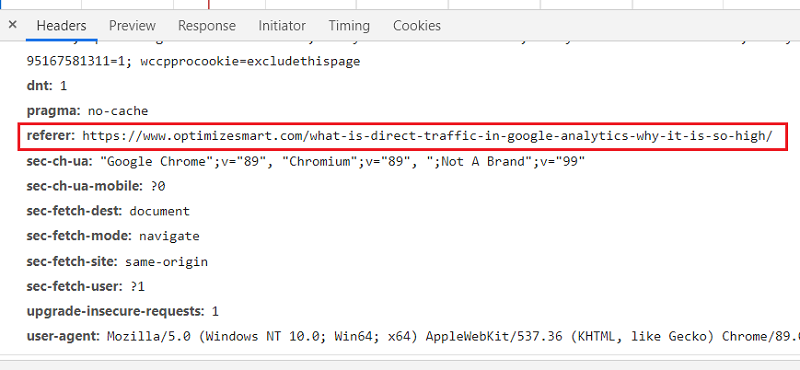
When a GA4 session starts without a referrer being passed by the users’ web browser then that GA4 session is reported as ‘direct traffic‘.
Technically speaking, traffic from any website to your website is referral traffic (as long as a referrer is being passed by a user’s web browser).
But in the context of GA4, traffic from search engines and most PPC/CPM ads (like Google Ads), is not reported as referral traffic.
How to see the referral traffic in GA4?
You can see the referral traffic in GA4 by following the steps below:
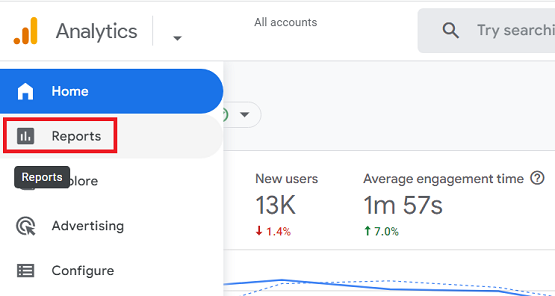
Step-1: Navigate to your GA4 reporting view and then click on ‘Reports‘ from the left-hand side navigation:
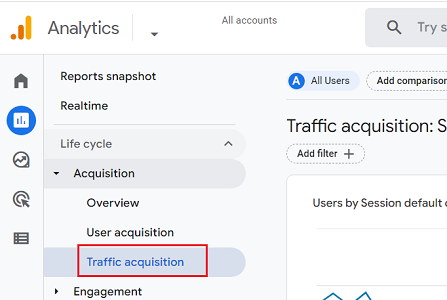
Step-2: Navigate to ‘Acquisition‘ > ‘Traffic acquisition‘ report:
Step-3: Scroll down the report until you see the search box:
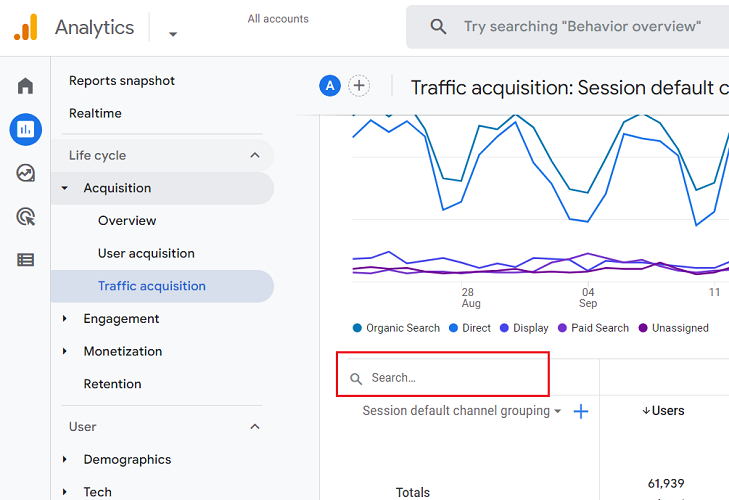
Step-4: Type ‘referral‘ in the search box and then press the enter key.
You should now see a screen like the one below:
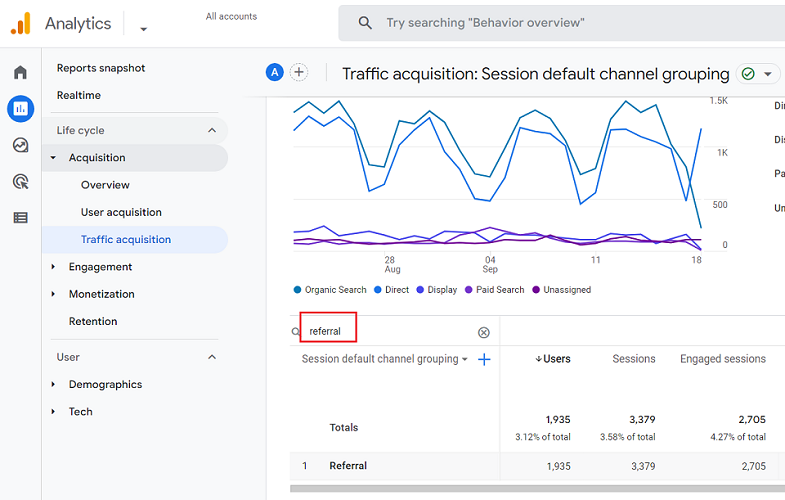
Step-5: Click on the ‘Session default channel grouping‘ drop-down menu:
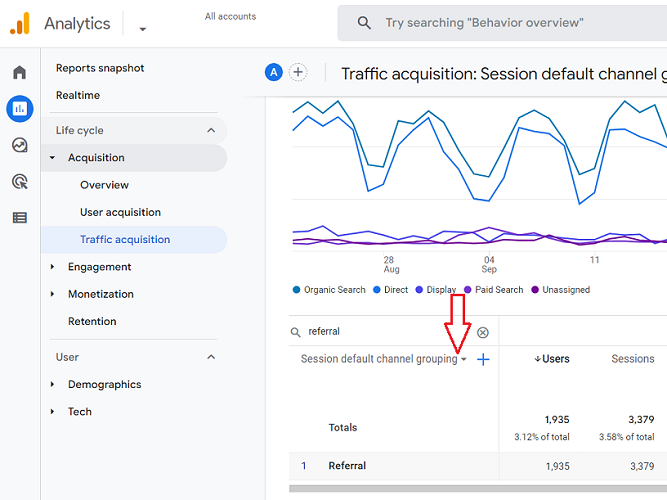
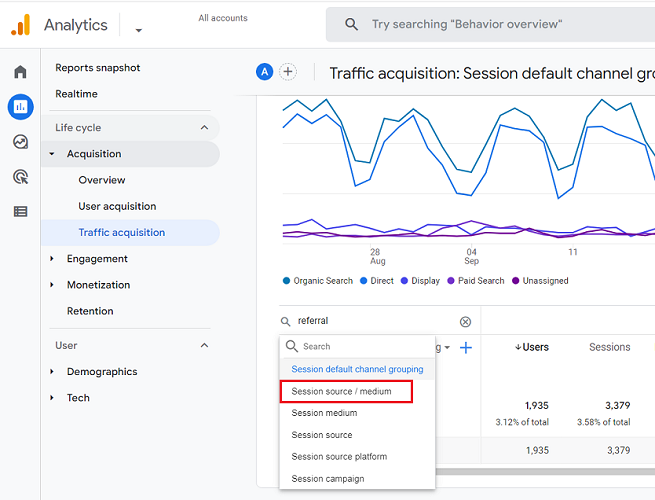
Step-6: Click on ‘Session source/medium‘ from the drop-down menu:
You should now be able to see all the referral traffic in GA4:
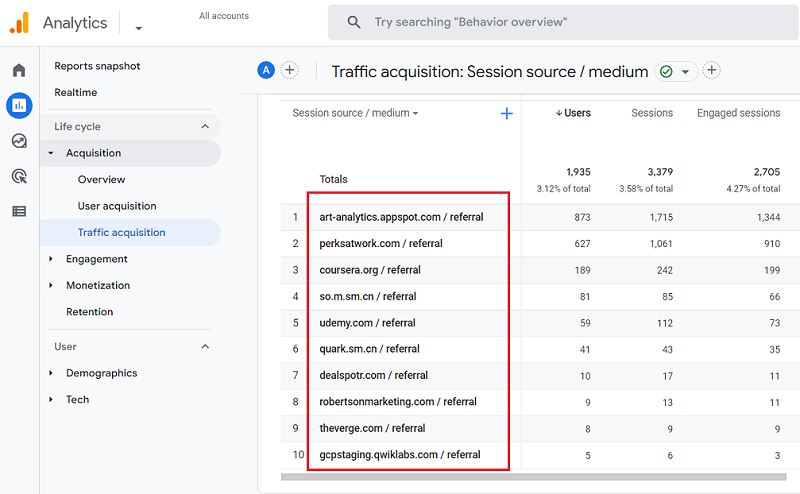
What is ‘List Unwanted referrals’ in GA4?
GA4 allows you to set condition(s) that identifies unwanted referrals and prevent them from being reported as referral traffic via a feature called the ‘List unwanted referrals’.
Referrals Exclusion List vs List Unwanted Referrals
The ‘List unwanted referrals’ feature works just like the ‘referrals exclusion list‘ feature in GA3:
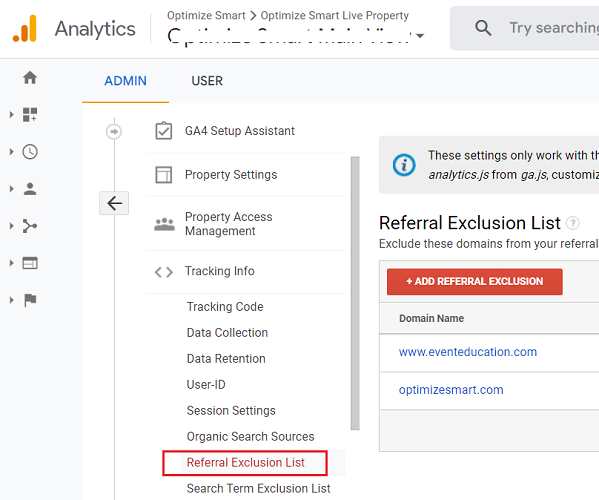
We use the referral exclusion list to create a list of domains whose traffic will be reported as direct traffic instead of referral traffic.
This way, you don’t see the referral traffic from certain domains (like your own domain or from a payment gateway like ‘PayPal’) in your GA4 reports.
In the case of GA4, the ‘referral exclusion list’ is known as the ‘List unwanted referrals’.
Note: When you add a domain to the ‘list unwanted referrals’, GA4 will evaluate the events from the excluded domain and appends “ignore_referrer” parameter with a value “true” to every event that matches the conditions (ignore_referrer=true).
Automatic self-referral detection in GA4
GA4 can automatically detect and fix self-referral issues (where your own domain appear as referral traffic) as long as the following conditions are met:
#1 The referrer contains your domain name, and the current URL contains the global site tag.
#2 The referrer is a result of cross-domain tracking set up between the domains you own, and the current URL contains the “_gl” parameter.
Note: with cross-domain tracking implemented, when the user navigates to a different domain, analytics cookies are passed from one domain to another domain via the linker parameter identified as “_gl”.
The automatic self-referral detection feature of GA4 will not be able to fix the self-referral issues if some of the pages of your website do not contain the global site tag and a user navigates to such a page.
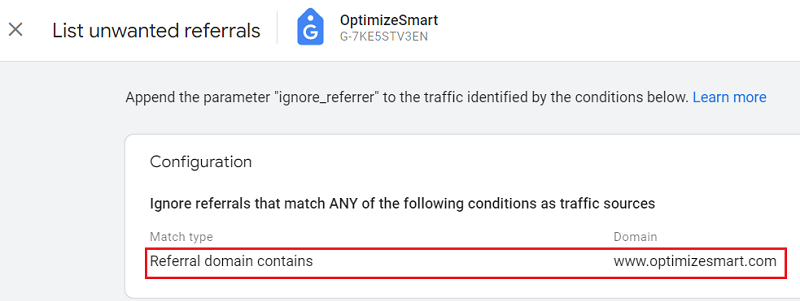
So the best practice is to add your domain name to the list unwanted referrals:
How to configure the list unwanted referrals in GA4
Follow the steps below:
Step-1: Navigate to your GA4 view and then click on ‘Admin’:
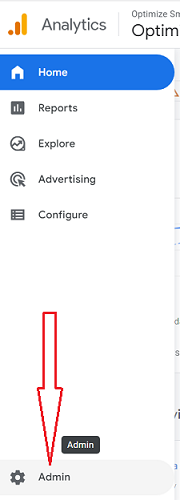
Step-2: Click on ‘Data Streams’ under the ‘Property’ column:
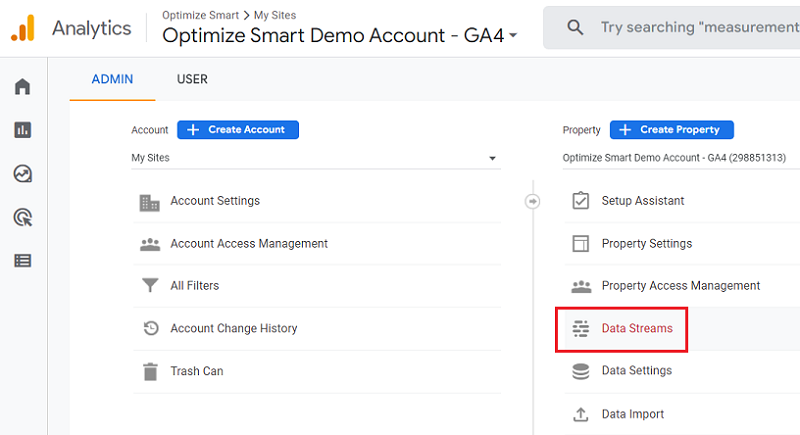
Step-3: Click on the name of the web data stream for which you want to configure the list unwanted referrals:
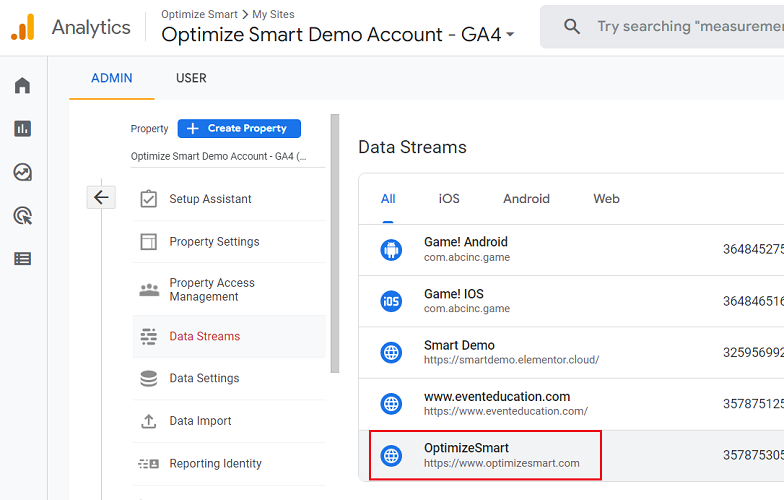
Step-4: Scroll all the way down and then click on the ‘Configure tag settings’ link:
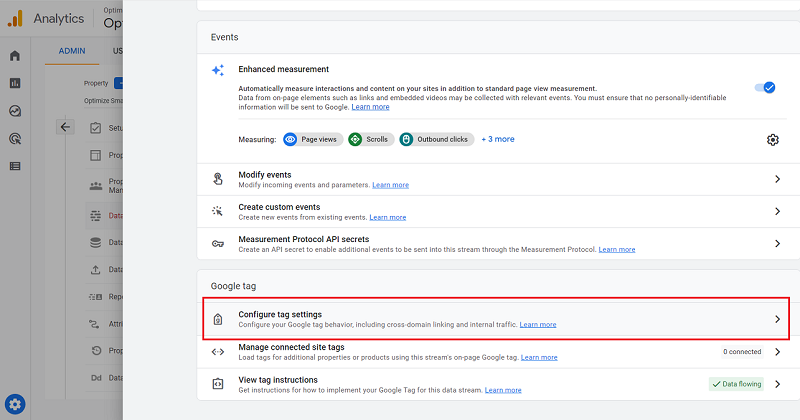
Step-5: Click on the ‘Show all‘ link:
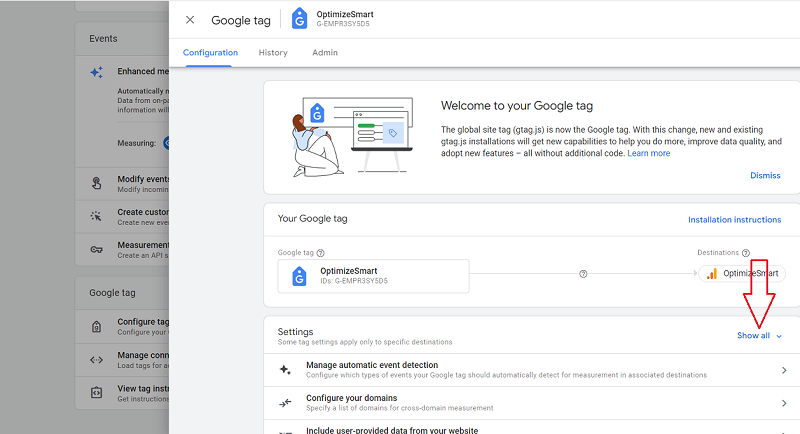
Step-6: Scroll down and then click on the link “List unwanted referrals”:
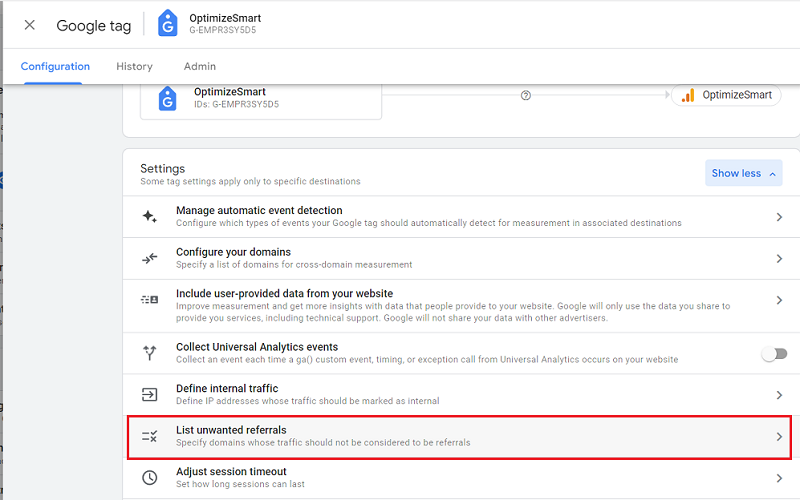
You should now see an overlay like the one below:
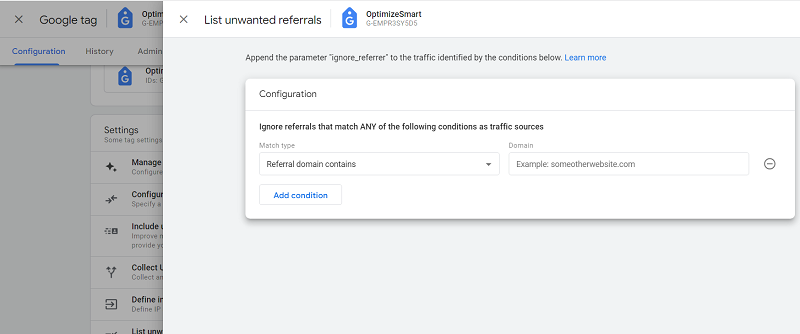
Step-7: Enter the domain name you want to add under the ‘Domain‘ text box and then click on the ‘Save‘ button:
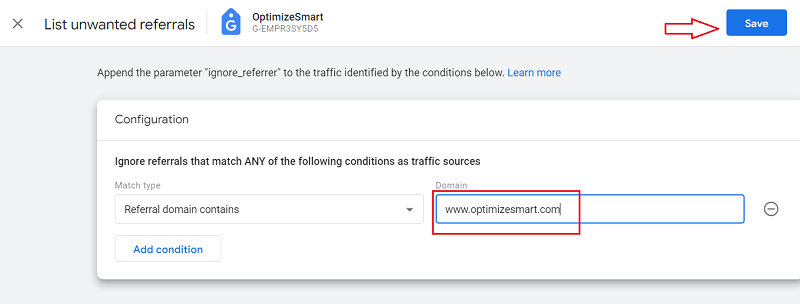
Step-8: To add more domains to the list unwanted referrals, again click on the link “List unwanted referrals”:
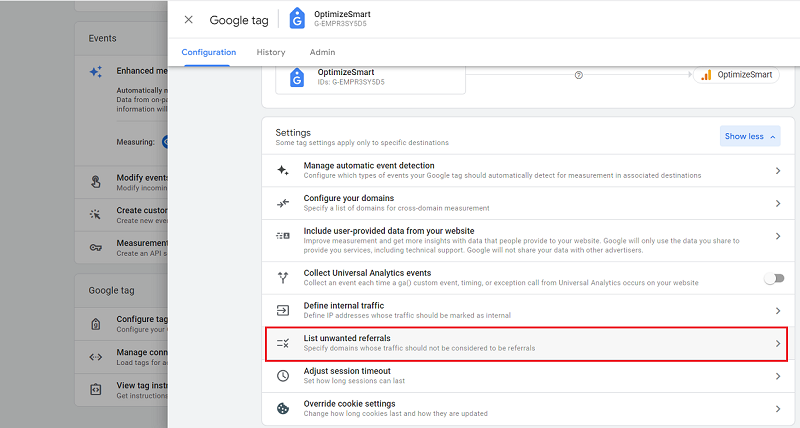
Step-9: Click on the listing you see:
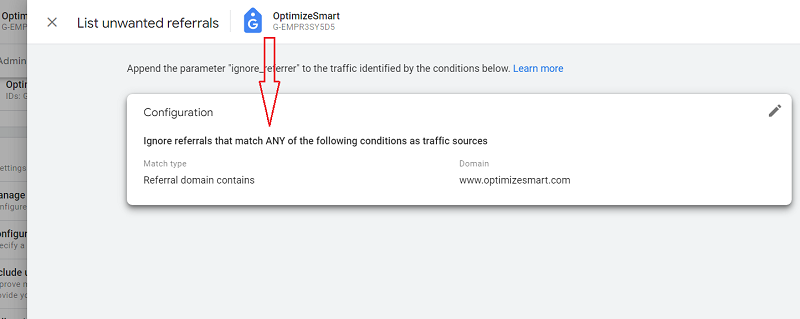
You should now see the ‘Add Condition‘ button:
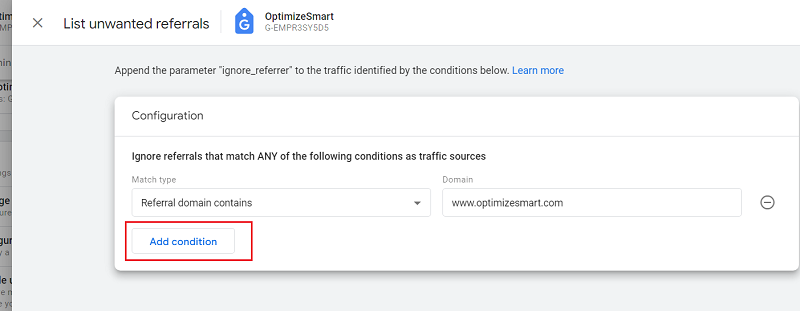
Step-10: Click on the ‘Add condition‘ button, enter the domain name you want to add and then click on the ‘Save‘ button:
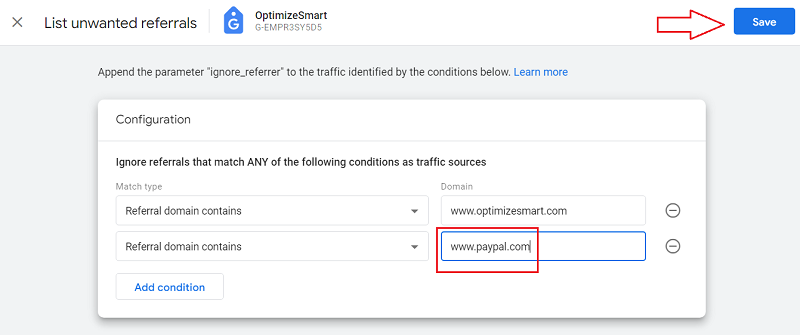
Note: Conditions are evaluated using OR logic.
Congratulations.
You have successfully added the unwanted domain(s) to the referral list.
Now going forward, the traffic from added domains won’t appear as referral traffic.
Note: The list unwanted referrals does not work retroactively. So the domain you added to the list unwanted referrals could still appear in your GA4 reports for historical data.
When to use ‘List unwanted referrals’
There are many scenarios where you don’t want to identify the traffic as referral traffic in GA4:
- Self-referral traffic.
- Payment gateway.
- Website users’ interactions managed by third-party domains.
#1 Self-referral traffic
If you want to avoid self-referral issues (where your own domain appears as referral traffic), you should add your domain to the “List unwanted referrals”:
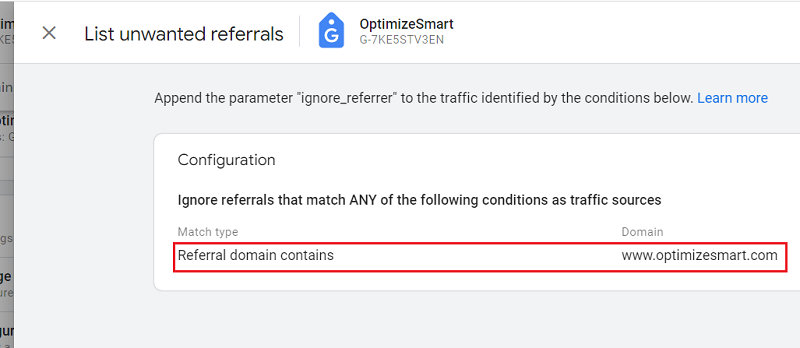
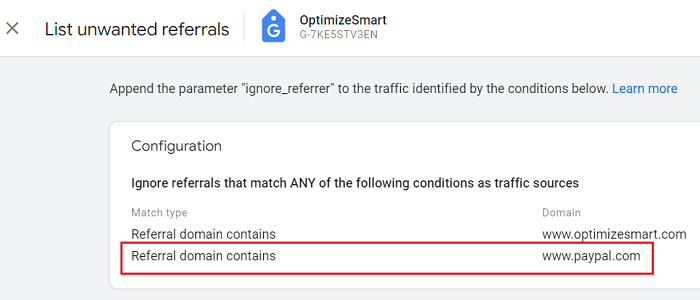
#2 Payment gateway
Let us suppose your website is built in such a way that a user has to navigate from your website to a third-party website to complete a purchase and then navigate back to your website after the payment is completed.
In this case, the traffic from the payment gateway website (like paypal.com) will be reported as referral traffic.
In order to get unified measurement across your domain and paypal.com, you would not want traffic from PayPal to be categorized as referral traffic.
Since Paypal traffic is not relevant as referral traffic, you would like to add it to the “List unwanted referrals”:
#3 Website users’ interactions managed by third-party domains
There are many scenarios where your website users’ interactions need to be managed by a third-party domain.
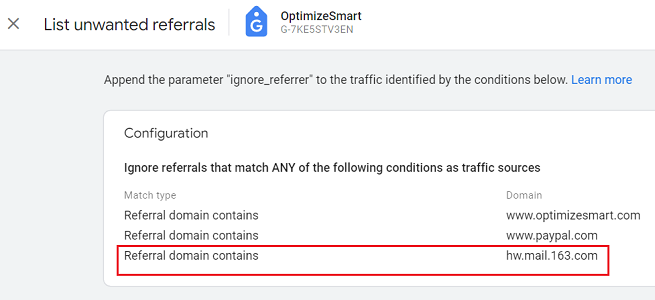
For example, you could be using a third-party domain/service to send out emails to your users to reset their passwords or to confirm their registration.
And when a user clicks on a link in the email, he is first redirected to the third-party domain before being redirected back to your website.
In such a scenario, you would not want the third-party domain to be categorized as referral traffic.
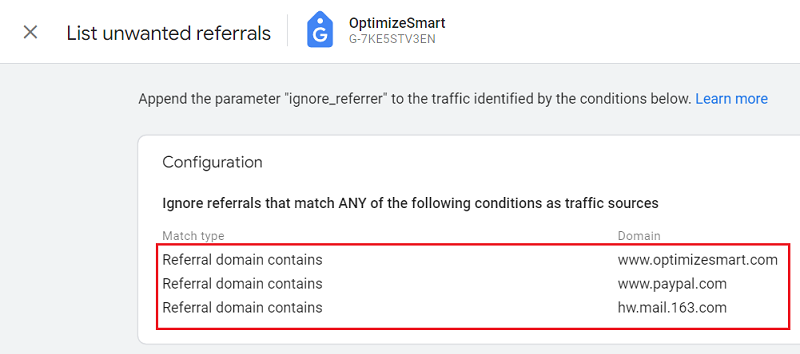
So you should consider adding this domain to the ‘List unwanted referrals’:

Other Articles on GA4.
- Google Analytics 4 Channels, Source and Medium explained.
- Path exploration report in GA4 (Google Analytics 4) – Path analysis.
- How to use Microsoft Clarity with GA4 (Google Analytics 4).
- GA4 vs GA4 360 – Pricing, Limits, Billing and more.
- Setup Enhanced Conversions for Leads using Data Layer in Google Tag Manager.
- Self-referral Google Analytics 4 – Referral exclusion GA4.
- GA4 Attribution Paths (Conversion Paths) Report.
- Google Tag Manager Tutorial.
- GA4 Attribution Models Explained: How to Choose the Right One.
- Looker Studio (Google Data Studio) Tutorial.
- Google Tag Manager Data Layer Tutorial with Examples.
- Set up enhanced conversions for Web using ‘Code’ in Google Tag Manager.