

Google Analytics 4 provides many reports on acquisition through which you can understand traffic acquisition (i.e. how you are acquiring users for your website):
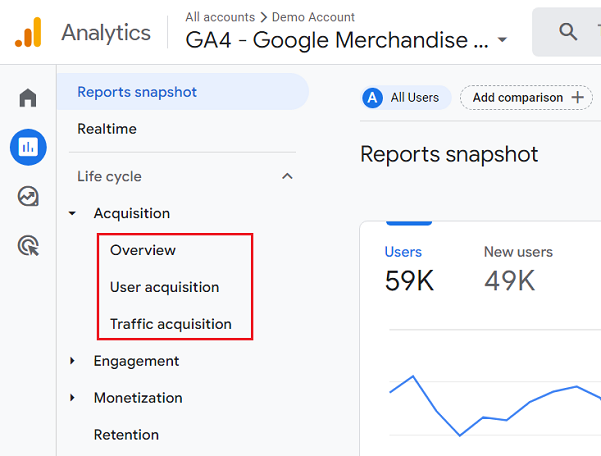
Acquisition reports in GA4 provide answers to the following questions that can help you with making important business and marketing decisions:
- How many users visited your website in a particular time period?
- How many new users visited your website in a particular time period?
- From which traffic sources do users come to your website?
- What is the lifetime value of your website users?
- How did the website users engage with your website?
However, to understand the various Acquisition reports and the users’ acquisition in general, you first need to understand what channels are and how they are defined in Google Analytics 4.
Without adequate knowledge of channels, you can not accurately interpret the various Acquisition reports in GA4 and, consequently, your acquisition strategy.
To understand channels, you first need to know about various traffic sources, mediums and campaigns.
What is ‘Source’ in Google Analytics 4?
Source (or traffic source) is the origin of your website traffic. It is the website from which people visited your website.
For example,
If people visit your website from Google.com, your website traffic source is ‘google‘.
If people visit your website from facebook.com, your website traffic source is ‘facebook‘.
If people visit your website from quora.com, your website traffic source is ‘quora‘.
Similarly,
If people visit your website from tripadvisor.co.uk, your website traffic source is ‘tripadvisor‘.
People can also visit your website directly (via a bookmark or by typing the website address in the browser address bar).
In that case, Google Analytics reports ‘(direct)‘ as your website traffic source.
Whenever Google Analytics cannot determine the origin of your website traffic, it is most likely to report ‘(direct)‘ as your website traffic source.
People can also visit your website by clicking on a link tagged with UTM parameters.
In that case, Google Analytics will report the value of the utm_source parameter as your website traffic source.
For example, if a person clicks on the following link, which takes him to your website (www.abc.com):
https://www.abc.com/book-maths-and-stats/?utm_source=abc&utm_medium=social&utm_campaign=pdf-book-campaign&utm_content=ad1
then Google Analytics will report ‘abc’ as your website traffic source.
This is because the value of the utm_source parameter has been set to ‘abc’.
- utm_source – is used to define the source
- utm_medium – is used to define the medium
- utm_campaign – is used to define the campaign
To create your own URL, you can use a campaign builder tool to track custom campaigns in google analytics 4.
Where can you find traffic sources in Google Analytics 4?
Different people can visit/find your website via different traffic sources.
Follow the steps below to find your traffic sources in GA4:
Step-1: Log in to your GA4 property.
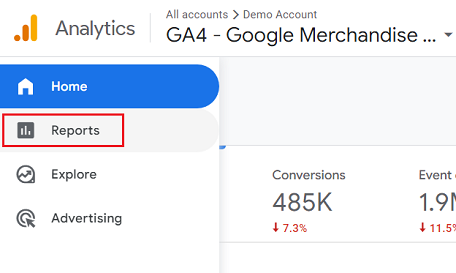
Step-2: Click on the ‘Reports‘ menu:
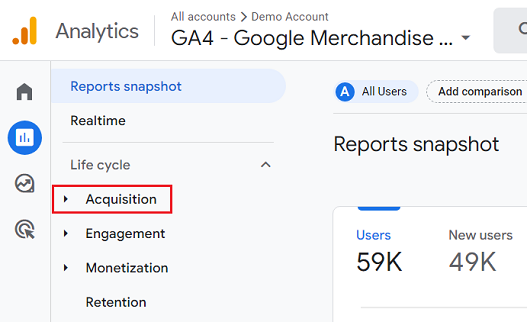
Step-3:Click on the ‘Acquisition‘ drop-down menu:
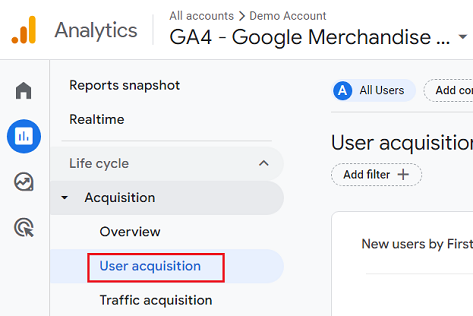
Step-4: Click on ‘User acquisition‘:
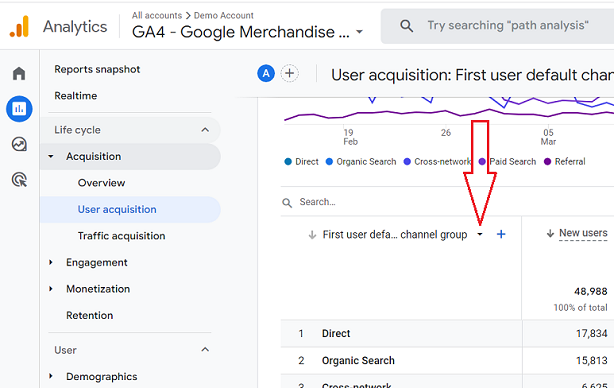
Step-5: Scroll down the report and then click on the dimensions drop-down menu:
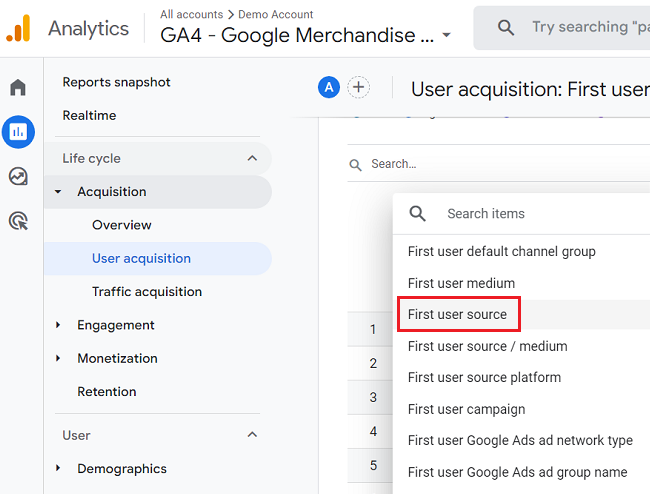
Step-6: Click on the ‘First user Source‘ from the drop-down list:
You can now see the list of traffic sources in your selected time period:
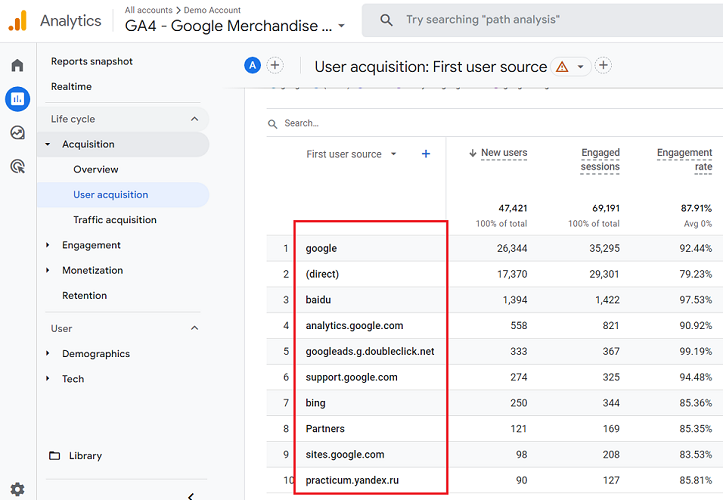
Note: In Google Analytics 4, ‘source’ names are case-sensitive. So ‘google’, ‘Google’ and ‘GOOGLE’ are all treated as different traffic sources in Google Analytics.
Default traffic sources in GA4
Unlike GA3 (Universal Analytics), the GA4 does not have predefined default traffic sources.
However, it still automatically classifies website traffic into different channels (Organic Search, Social, Direct, Referral, Email etc.).
GA4 primarily relies on UTM tracking parameters to identify traffic sources, mediums, and campaigns.
GA4 also uses machine learning models to analyze website traffic patterns and automatically group traffic into channels.
This allows GA4 to identify new or emerging traffic sources that UTM parameters may not capture.
What is ‘Medium’ in Google Analytics 4?
Medium (or traffic medium) is the category of the traffic source as defined by GA4. It also includes traffic medium tracked via utm_medium parameter.
A medium can be system-defined or user-defined.
So there are two broad categories of medium:
- System-defined medium
- User-defined medium
System-defined medium
A system-defined medium is a pre-built medium that carries a special meaning. This is a medium that is already defined/recognized by GA4.
Following are the examples of system-defined traffic mediums in GA4:
- organic
- cpc
- referral
- (none)
- affiliate
User-defined medium
A user-defined medium is a traffic medium defined by people like me and you. You can create your own traffic medium by using the utm_medium parameter.
For example, consider the following URL:
https://www.abc.com/book-maths-and-stats/?utm_source=fbj2&utm_medium=paidsocial&utm_campaign=pdf-book-campaign&utm_content=ad1
Here, ‘paidsocial’ is a user-defined traffic medium.
Where can you find traffic medium in Google Analytics 4?
Follow the steps below to find your traffic medium in GA4:
Step-1: Log in to your GA4 property.
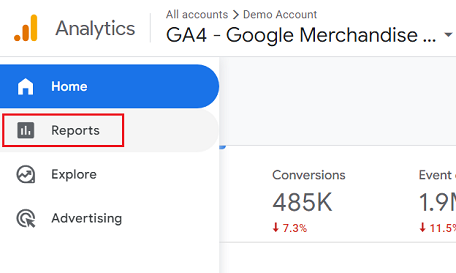
Step-2: Click on the ‘Reports‘ menu:
Step-3:Click on the ‘Acquisition‘ drop-down menu:
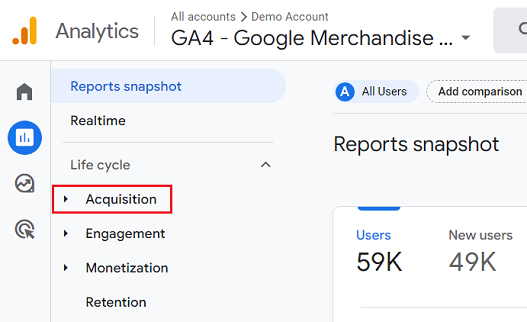
Step-4: Click on ‘User acquisition‘:
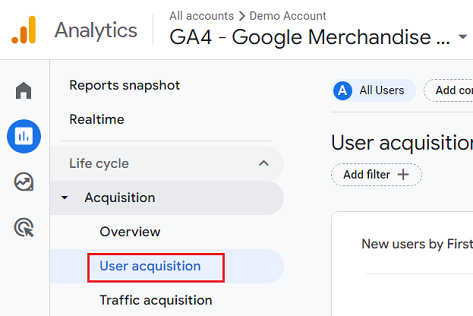
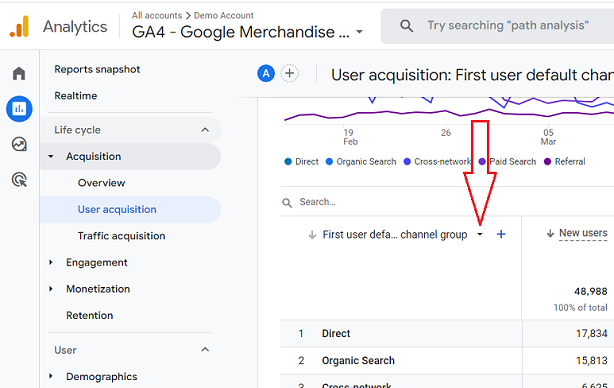
Step-5: Scroll down the report and then click on the dimensions drop-down menu:
Step-6: Click on the ‘First user medium‘ from the drop-down list:
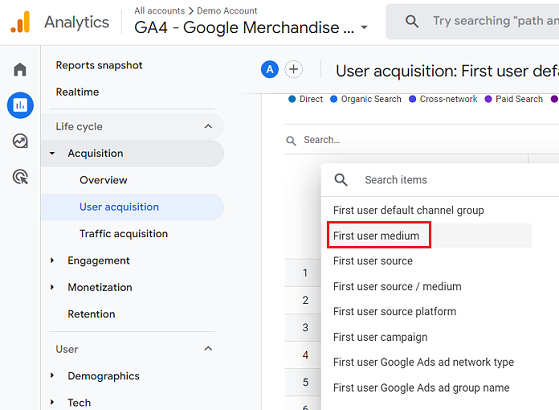
You can now see the list of traffic mediums in your selected time period:
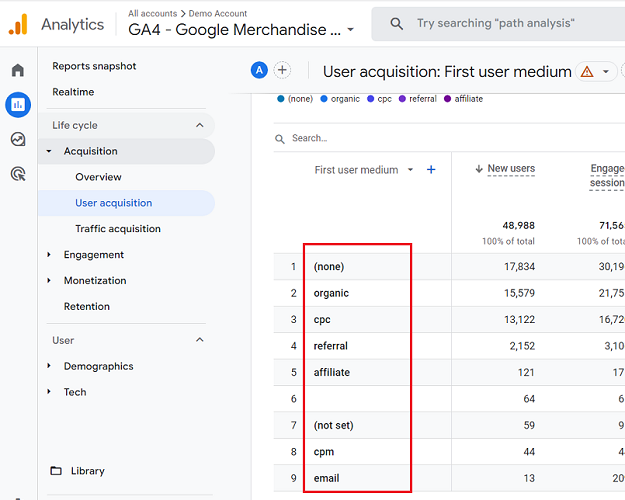
Note: In GA4, medium names are case sensitive. So ’email’, ‘Email’ and ‘EMAIL’ are all treated as different mediums in Google Analytics 4.
What is the source / medium in Google Analytics 4?
source / medium reports both traffic source and traffic medium at the same time.
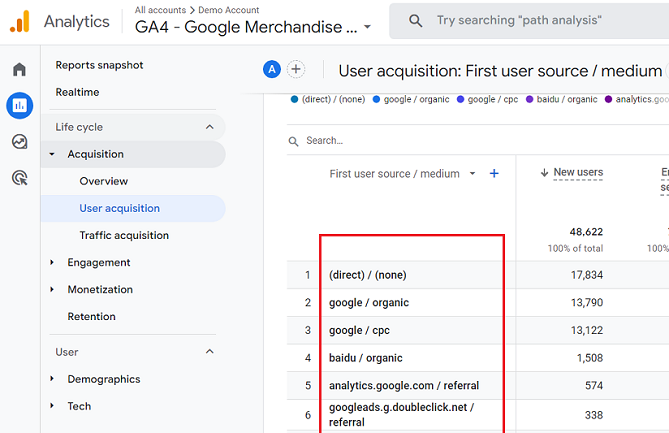
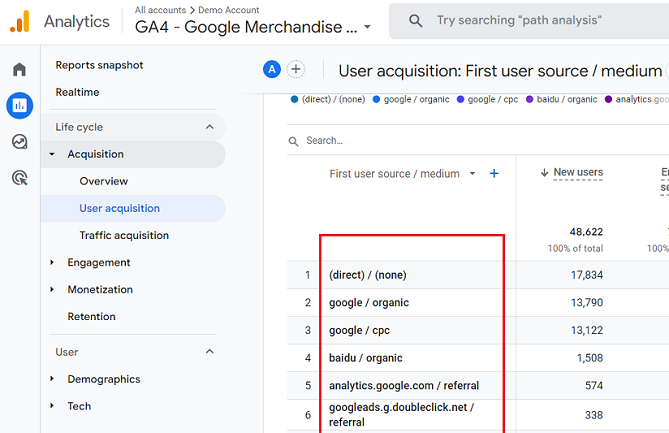
In the case of (direct) / (none), ‘direct’ is the traffic source, and ‘none’ is the medium.
In the case of google / organic, ‘google’ is the traffic source, and ‘organic’ is the medium.
In the case of google / cpc, ‘google’ is the traffic source, and ‘cpc’ is the medium.
In the case of analytics.google.com / referral, ‘analytics.google.com’ is the traffic source and ‘referral’ is the medium.
Where can you find the source / medium report in GA4?
Follow the steps below:
Step-1: Log in to your GA4 property.
Step-2: Click on the ‘Reports‘ menu:
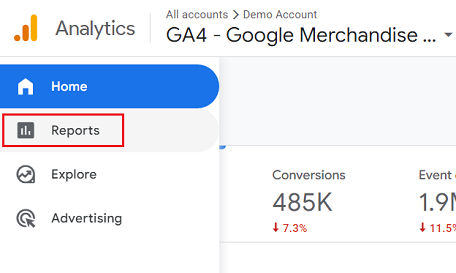
Step-3:Click on the ‘Acquisition‘ drop-down menu:
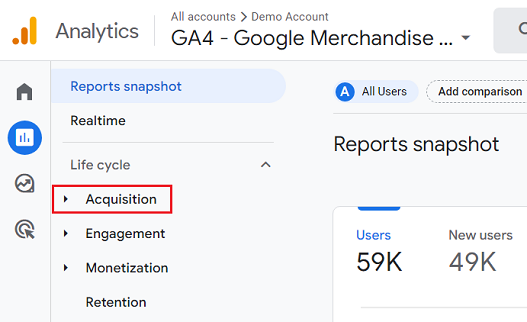
Step-4: Click on ‘User acquisition‘:
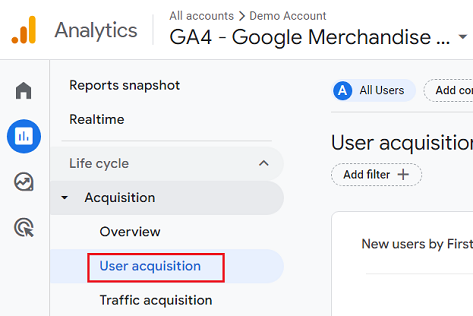
Step-5: Scroll down the report and then click on the dimensions drop-down menu:
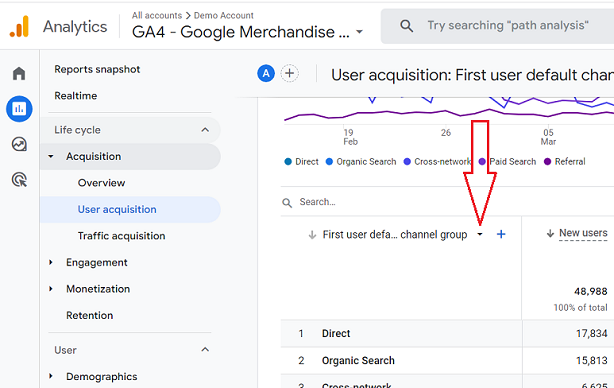
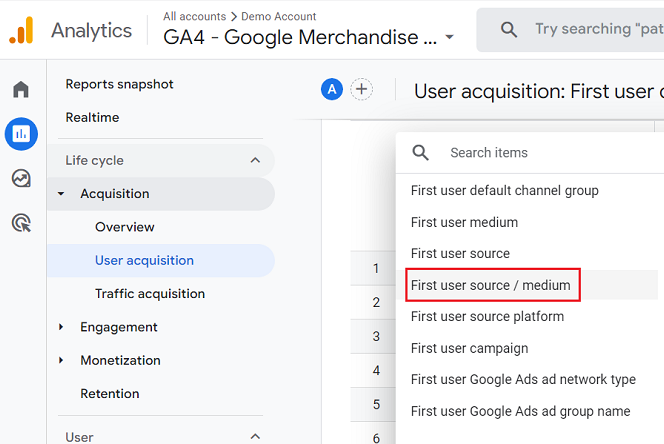
Step-6: Click on the ‘First user source/medium‘ from the drop-down list:
You can now see the list of traffic source/medium in your selected time period:
What is a Campaign in Google Analytics 4?
Campaign (or marketing campaign) is the name of your Google Ads campaign and/or custom campaign.
In the context of GA4, a custom campaign is your website URL, which contains UTM parameters.
You can send detailed information about your marketing campaigns (especially non-Google marketing campaigns) to GA4 through custom campaigns.
Following is an example of a custom campaign which sends detailed information about your Facebook marketing campaigns to GA4:
https://www.abc.com/book-maths-and-stats/?utm_source=facebook&utm_medium=paidsocial&utm_campaign=excel-charts-ebook&utm_content=ad1
Following is an example of a custom campaign which sends detailed information about your Bing marketing campaigns to GA4:
https://www.abc.com/widget/?utm_source=bing&utm_medium=cpc&utm_campaign=book-widget&utm_content=book-widget-us-ad
You can see the list of all the Google Ads campaigns which sent traffic to your website by following the steps below:
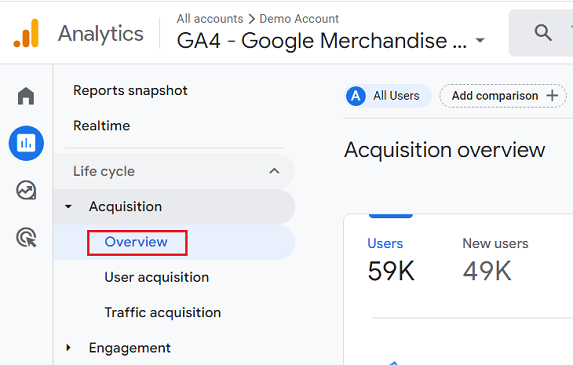
Step-1: Navigate to the Acquisition Overview report in your GA4 property:
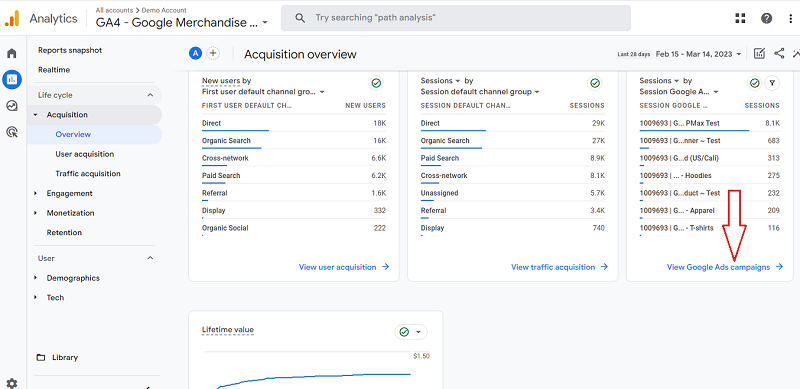
Step-2: Scroll down the report until you see the ‘View Google Ads campaigns‘ link. Click on this link:
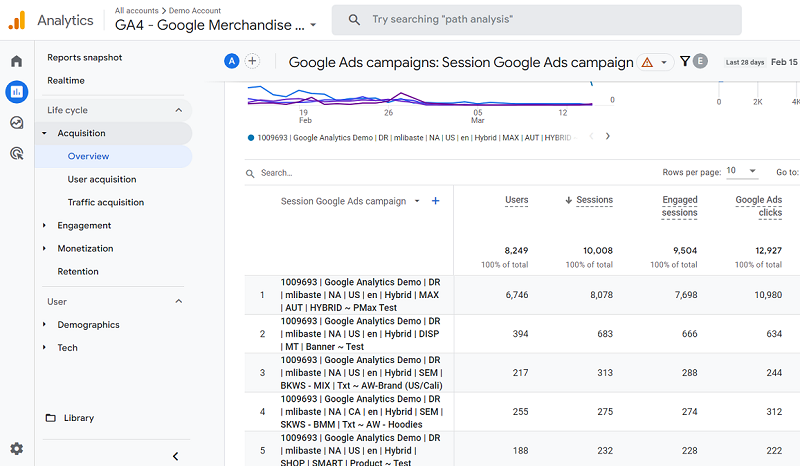
You should now see the Google Ads Campaigns report:
You can see the list of all the custom campaigns which sent traffic to your website by following the steps below:
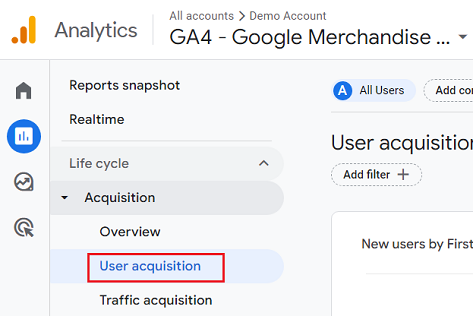
Step-1: Navigate to the ‘User acquisition’ report in your GA4 property.
Step-2: Scroll down the report and then click on the dimensions drop-down menu:
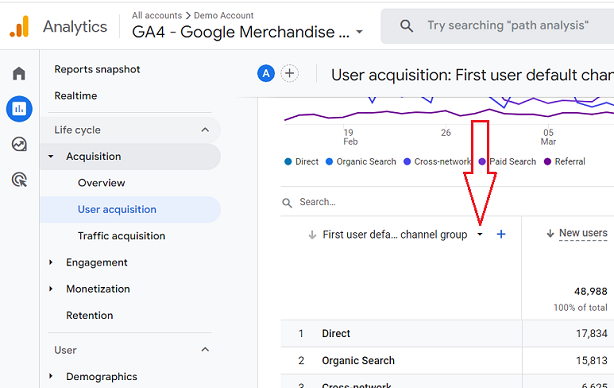
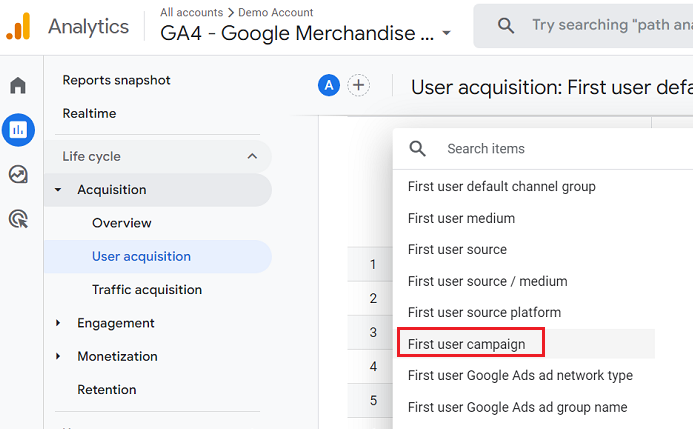
Step-3: Click on the ‘First user campaign‘ from the drop-down list:
You can now see the list of all the marketing campaigns (including Google Ads campaigns) in your selected time period:
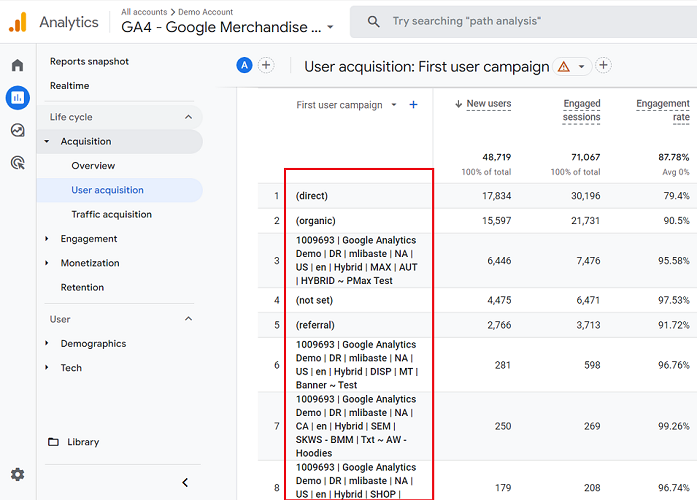
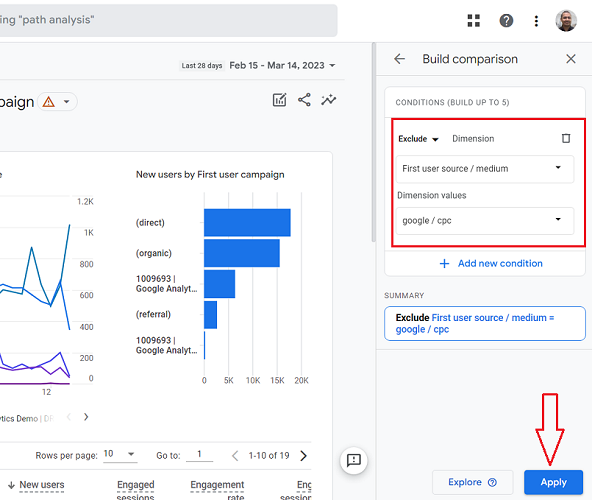
To exclude Google ads campaigns from this report, we would need to create and apply a comparison (aka advanced segment) to this report.
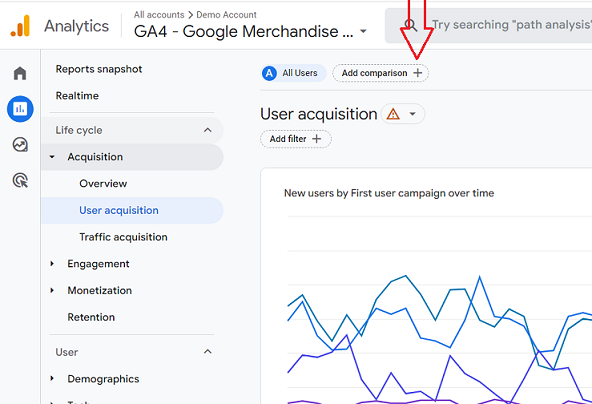
Step-4: Scroll up the report and then click on the ‘Add Comparison +‘ button at the top of the report:
Step-5: Build a comparison with the following configuration and then click on the ‘Apply‘ button:
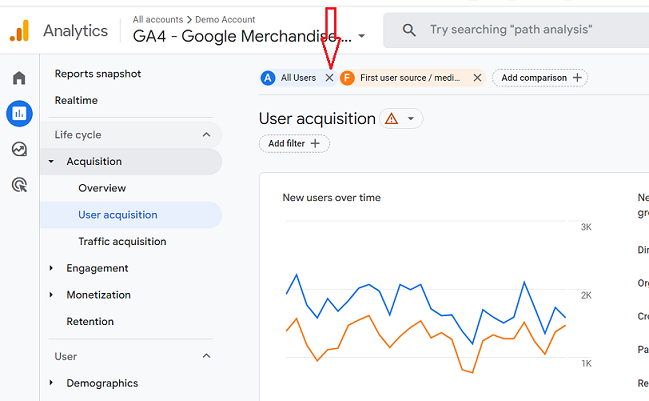
Step-6: Remove the ‘All Users‘ comparison by clicking on the cross button next to it:
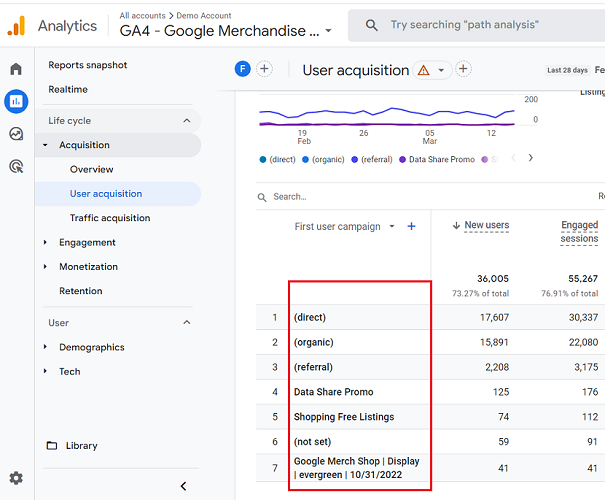
Step-7: Scroll down the report. You should now see the list of all marketing campaigns (excluding Google Ads campaigns) which sent traffic to your website:
What are Google Analytics Channels?
In GA4, a channel or a marketing channel is a group of several traffic sources with the same medium.
For example, ‘organic search’ is a marketing channel.
It can be made up of the following traffic sources as long as the medium is ‘organic’:
- google (as in google / organic)
- yahoo (as in yahoo / organic)
- bing (as in bing / organic)
- aol (as in aol / organic), etc.
Note: GA4 can define traffic from certain search engines (like Baidu, Yandex etc.) as ‘organic search’ even when the traffic medium is ‘referral’:
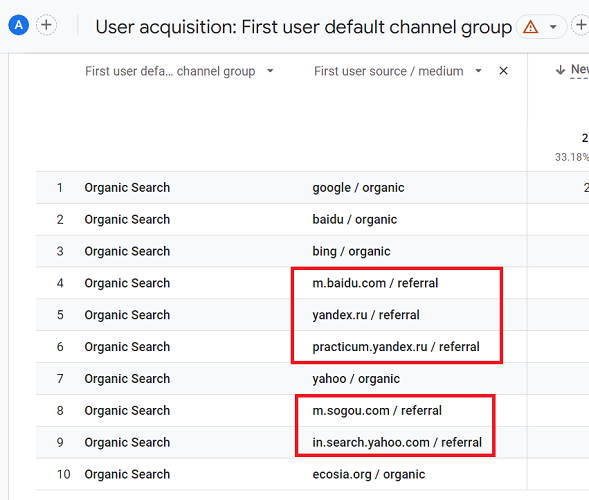
You can view channels in Google Analytics 4 by navigating to:
#1 Acquisition > Overview report
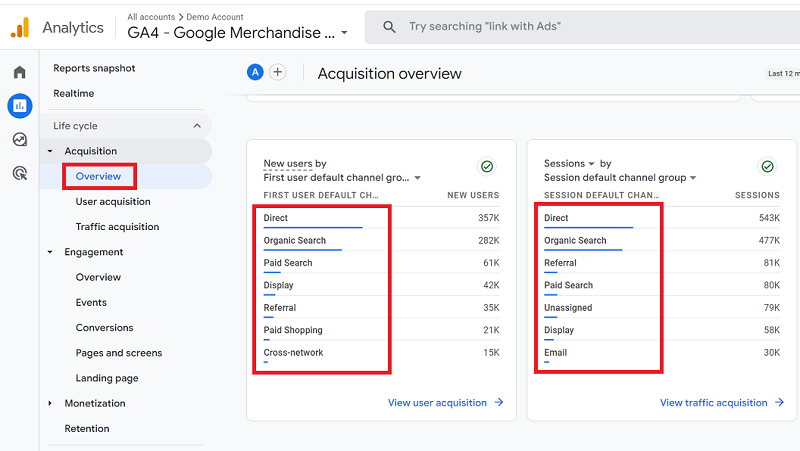
The acquisition overview report looks at how your top channels are sending visitors to your website.
This report is generally used to compare the performance of different marketing channels and analyze which channels are sending the most traffic to your website.
From the screenshot above, we can conclude that most of the website traffic is direct.
#2 Acquisition > User Acquisition report
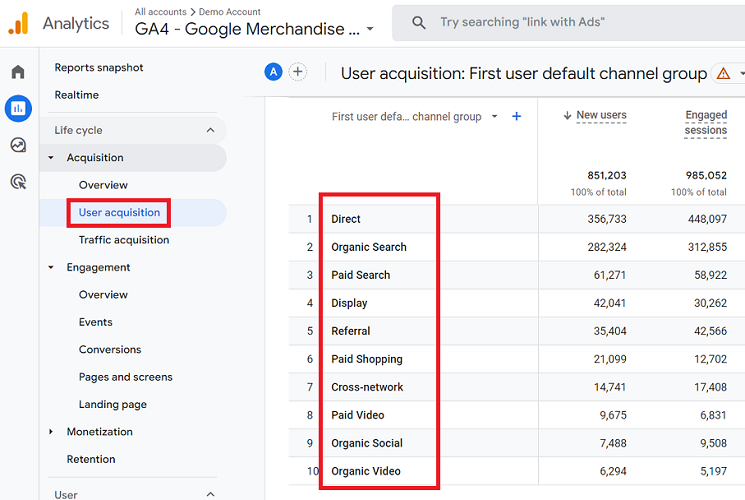
This report lets you visualize how the traffic is distributed among different channels driving users to our website.
#3 Acquisition > Traffic Acquisition report
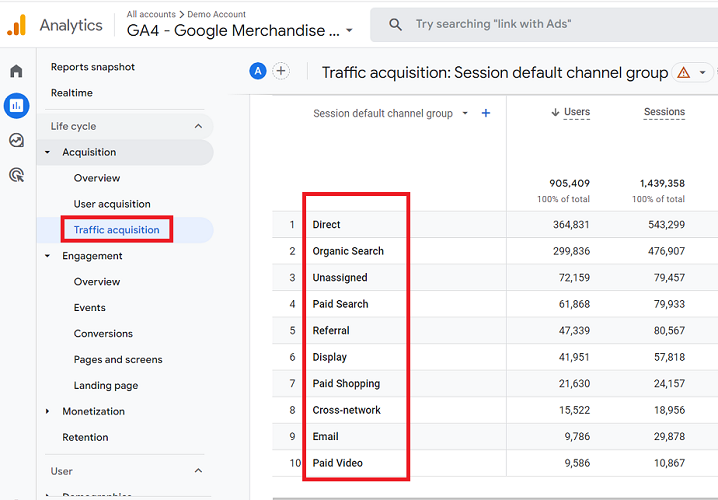
What channels are available in Google Analytics 4?
There are two categories of channels available in Google Analytics 4:
- Default marketing channels (system-defined channels).
- Custom marketing channels (user-defined channels).
Default Marketing Channels.
Default marketing channels are pre-defined (or system-defined) marketing channels in Google Analytics.
The following are examples of the default marketing channels:
- Affiliates
- Audio
- Cross-network
- Direct
- Display
- Mobile Push Notifications
- Organic Search
- Organic Shopping
- Organic Social
- Organic Video
- Paid Other
- Paid Search
- Paid Shopping
- Paid Social
- Paid Video
- Referral
- SMS
Types of default marketing channels
In GA4, there are types of default channels based on the scope they use:
- A default channel with event scope is the channel by which users visit your website/app. This visit could be a first visit or a repeat visit.
- A default channel with session scope is the channel that leads to new sessions triggered on your website/app.
- A default channel with user scope is the channel by which users first arrive at your website/app.
Affiliates channel in GA4
Affiliates is the channel by which users arrive at your website/mobile app via links on affiliate websites.
The affiliates channel can be made up of any number of traffic sources as long as the medium of the traffic sources is ‘affiliate‘.
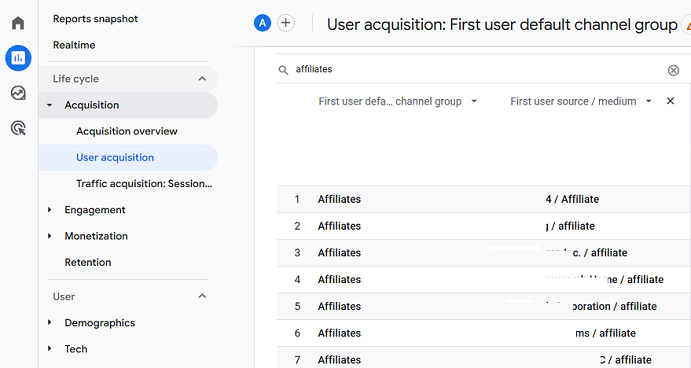
Audio channel in GA4.
Audio is the channel by which users arrive at your website/mobile app via ads on audio platforms (like podcasts).
The audio channel can be made up of any number of traffic sources as long as the medium of the traffic sources is ‘audio‘.
Organic Search Marketing Channel (organic search traffic)
Organic search traffic is the traffic your website got for free from search engine websites like google.com, bing.com, baidu.com, yandex.com, etc.
Organic search marketing channel (or organic search traffic) can be made up of any number of traffic sources as long as the medium of the traffic sources is ‘organic’.
For example, the ‘organic’ search marketing channel can be made up of the following traffic sources:
- google / organic
- yahoo / organic
- bing / organic
- aol / organic etc
Paid Search Marketing Channel (paid search traffic)
Paid search traffic is the paid traffic your website got from search engine websites like google.com, bing.com, etc.
So traffic from Google Ads, Bing Ads, etc., is an example of paid search traffic.
Paid search marketing channel (or paid search traffic) can be made up of any number of traffic sources as long as the medium of the traffic sources is one of the following:
- cpc
- ppc
- paidsearch
and Ad Distribution Network’ does not exactly match ‘content’.
For example, ‘paid search’ marketing channel can be made up of the following traffic sources:
- google / cpc
- bing / cpc
Display Marketing Channel (display traffic)
Display traffic is the traffic your website got from display ads.
Display marketing channel (or display traffic) can be made up of any number of traffic sources as long as the medium of the traffic sources is one of the following:
- display
- cpm
- banner
and ‘Ad Distribution Network’ exactly matches ‘content’.
For example, a display marketing channel can be made up of the following traffic sources:
- expedia / display
- tripadvisor / display
- brightroll / banner
- bbc / cpm
Direct Marketing Channel (direct traffic)
Direct traffic is the traffic to your website which starts without a referrer being passed by a user’s web browser.
In the following cases, a referrer is not passed, and hence the traffic is reported as direct traffic by Google Analytics:
- A person visited your website by typing your website address in the browser address bar.
- A person returned to your website via a bookmark.
- A person visited your website from an app which does not send a referrer.
- A person visited your website by clicking on a link in a desktop email client (like Microsoft Outlook), an instant messenger (like Skype), or a Microsoft Word document.
Whenever a referrer is not passed or is dropped because of technical reasons, Google Analytics cannot determine the traffic source and the traffic source is reported as ‘(direct)’ by Google. In that case, GA sets the medium of the traffic source to ‘(none)’.
The Direct marketing channel can be made up of any number of traffic sources as long as the traffic source exactly matches ‘direct’ and the traffic medium exactly matches one of the following:
- (none)
- (not set)
Related Article: Complete Guide to Direct Traffic in Google Analytics
Referral marketing channel (referral traffic)
Referral traffic is the traffic to your website that starts with a referrer being passed by a user’s web browser.
Technically speaking, traffic from any website to your website is referral traffic (as long as a user’s web browser is passing a referrer).
But in the context of Google Analytics, traffic from search engines and most PPC/CPM ads (like Google Ads) is not reported as referral traffic.
The Referral marketing channel can be made up of any number of traffic sources as long as the medium of the traffic sources is ‘referral’.
For example, the referral marketing channel can be made up of the following traffic sources:
- facebook / referral
- tripadvisor / referral
- bing.com / referral
Social Marketing Channel (social media traffic)
Social media traffic is the traffic your website got from social media websites like ‘Facebook’, ‘Twitter’, ‘Linkedin’ etc.
The Social marketing channel (or social media traffic) can be made up of any number of traffic sources as long as the Social Source Referral exactly matches Yes or medium of the traffic sources is one of the following:
- social
- social-network
- social-media
- sm
- social network
- social media
For example, the social marketing channel can be made up of the following traffic sources:
- YouTube
- credit
- Naver
Email Marketing Channel (email traffic)
Email traffic is the traffic your website got from email marketing campaigns.
The Email marketing channel (or email traffic) can be made up of any number of traffic sources as long as the medium of the traffic sources is ’email’.
For example, the email marketing channel can be made up of the following traffic sources:
- activecampaign / email
- getresponse / email
- actionetics / email
- MailChimp / email
(Other) marketing channel (Other Advertising traffic)
Other advertising traffic is the traffic your website got from marketing campaigns which either used a user-defined traffic medium or the medium of the campaigns were not set.
The (Other) marketing channel (or other advertising traffic) can be made up of any number of traffic sources as long as the medium of the traffic sources is one of the following: cpv, cpa, cpp, content-text or the medium is defined by a user (via the custom tracking parameters’ utm_medium‘), or the medium is not set by the user (not set).
Note: The medium (not set) means a user didn’t set the medium for his custom campaign via the utm_medium parameter.
For example, (Other) marketing channel can be made up of the following traffic sources:
- twitterfeed / Linkedin
- Growthackers.com / community
- whos_blogging_what / newsletter
- conversionBook / word-document
- ABC user / (not set)
Here ‘linkedin’, ‘community’, ‘newsletter’ and ‘word-document’ are all user-defined mediums, and hence they have been put under the ‘other’ marketing channel category by Google.

Other Articles on GA4.
- Google Analytics 4 Channels, Source and Medium explained.
- Path exploration report in GA4 (Google Analytics 4) – Path analysis.
- How to use Microsoft Clarity with GA4 (Google Analytics 4).
- GA4 vs GA4 360 – Pricing, Limits, Billing and more.
- Setup Enhanced Conversions for Leads using Data Layer in Google Tag Manager.
- Self-referral Google Analytics 4 – Referral exclusion GA4.
- GA4 Attribution Paths (Conversion Paths) Report.
- Google Tag Manager Tutorial.
- GA4 Attribution Models Explained: How to Choose the Right One.
- Looker Studio (Google Data Studio) Tutorial.
- Google Tag Manager Data Layer Tutorial with Examples.
- Set up enhanced conversions for Web using ‘Code’ in Google Tag Manager.
- How to create Google Ads report in Google Analytics 4.
- Google Tag Manager Audit Checklist.
- Tracking Site Search in Google Analytics 4.
- How to see Organic Search Keywords in Google Analytics 4.