

Make sure GA4 Subdomain Tracking is enabled for you.
By default, GA4 automatically tracks traffic from all subdomains, provided they share the same root domain; they all use the same GA4 property and the same web data stream, which means they must use the same GA4 measurement ID.
For example:
Root Domain: optimizesmart.com
Subdomains:
learn.optimizesmart.com
training.optimizesmart.com
Suppose you install the GA4 tracking code on optimizesmart.com and ensure all subdomains inherit that code (or have their own copy with the same Measurement ID). In that case, GA4 will seamlessly track user activity across these subdomains.
Consider the following scenario:
- A user visits the main website, optimizesmart.com, and browses a couple of articles. (GA4 tracks this visit)
- The user then clicks on a link to learn more about the Digital Analytics Implementation Program, which takes them to training.optimizesmart.com. (Since it’s a subdomain, GA4 recognises it as part of the same website and continues the session.)
- The user reads detailed information on the ‘training’ subdomain and decides to enrol into the program. (This activity is also recorded within the same session.)
You get a complete picture of how users interact across all your subdomains, which helps you understand their overall behaviour and interests.
In essence, GA4 treats all subdomains sharing the same root domain (optimizesmart.com in this case) as one website for tracking purposes as long as they use the same Measurement ID.
Here is how you can view traffic to various subdomains in GA4.
By default, the data in your GA4 reports include only the request URI and not the domain name.
This makes it impossible to view subdomain traffic.
The request URI is that part of the URL that comes after the domain name.
For example, if your URL is: https://www.optimizesmart.com/contact/
Then request URI would be: /contact/
The hostname would be: https://www.optimizesmart.com
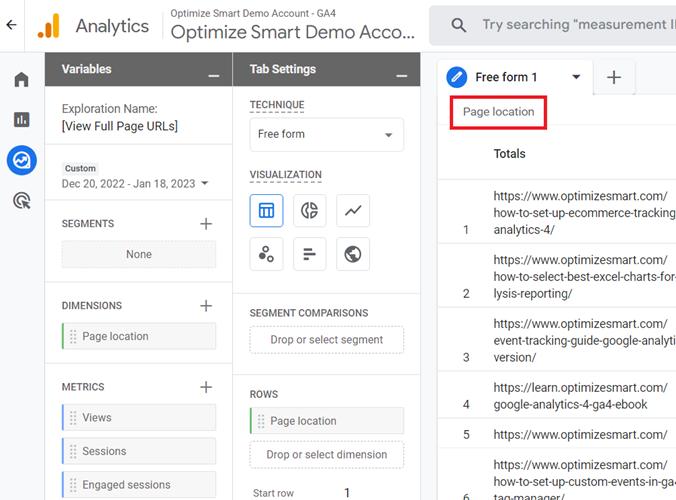
Unlike in Universal Analytics, in GA4, you don’t need to append the hostname to the request URI to see the full URLs in the reports.
You just need to use the ‘Page Location’ dimension in an exploration report.
What will happen if you set up individual data streams for each subdomain in a single GA4 property?
Will it result in inflated website traffic?
GA4 automatically tracks traffic from all subdomains within a single property by default.
But you can also set up individual data streams for each subdomain.
When you set up individual data streams, GA4 tracks the data for each subdomain separately.
This can be useful if you want to see data specifically for each subdomain rather than combined data for all subdomains.
It will not result in inflated website traffic as GA4 uses a unique measurement ID for each data stream, so it will not double-count the traffic.
Each data stream will have its own metrics and reports, allowing you to analyze the data separately.
However, there are some major downsides to setting up individual data streams for each subdomain in GA4:
1) Setting up individual data streams for each subdomain requires more tracking setup, maintenance and troubleshooting. Hence increased complexity and higher data management costs.
2) With individual data streams for each subdomain, it can be harder to see the overall picture of the website’s performance across all subdomains as the data is split across multiple data streams. This can make it more difficult to identify trends and patterns in the data.
3) When you set up individual data streams for each subdomain, tracking cross-domain behaviour, such as a user’s journey across different subdomains, can become harder.
4) Individual data streams for each subdomain can lead to a lack of data continuity, making it harder to compare data over time.
5) Individual data streams for each subdomain can make creating and managing audiences, custom dimensions and metrics, and other reporting features more difficult.
6) If different teams are responsible for different subdomains, each team may have their own methods and processes for setting up and configuring data streams, tracking events, and analyzing data which can make it difficult to compare data from different data streams.
The inconsistencies in how data is collected and analyzed across subdomains can also make it difficult to identify trends and patterns in user behaviour across subdomains.

Other Articles on GA4.
- Web Analytics Career Path – How to Become a Web Analyst.
- GA4 Form Interactions Tracking – Enhanced measurement.
- How to track form submissions in Google Analytics 4.
- How to send data from Google Search Console to BigQuery.
- How to fix duplicate events in Google Analytics 4 (GA4).
- How to use two Google Analytics codes on one page.
- How to import GA4 Conversions into Google Ads.
- What are predictive metrics in Google Analytics 4 (GA4).
- Google Tag Manager Event Tracking Tutorial.
- How to use Google Analytics 4 with iframe.
- Why GA4 Audiences not showing in Google Ads.
- Google Analytics 4 Scroll Tracking Tutorial.
- Why Google Ads and Google Analytics data don’t match & how to fix it.
- Google Analytics 4 Calculated Metrics with Examples.
- How to view subdomain traffic in Google Analytics 4.
- Google Analytics 4 Cookieless Tracking Setup.
- Using Funnel Exploration Report in Google Analytics 4.
- Google Advanced Consent Mode and GA4 BigQuery Export.
- Which Conversion Window to use in Google Analytics 4.
- Tracking single page apps in Google Analytics 4.