

In this article, I am going to talk about how to use the funnel exploration report in Google Analytics 4 (GA4).
Overview of funnel exploration report in Google Analytics 4
A funnel is a navigation path (series of web pages and events) which you expect your website users to follow to achieve certain goals on the website (like ecommerce goal, form submission, lead generation, etc.)
Funnel exploration in Google Analytics 4 allows you to visualize the steps your users take to complete a task and analyze how well they are performing at each step.
For example, how do users behave while purchasing a product which has a series of events like product view, product click, add to cart, checkout and then the final transaction?
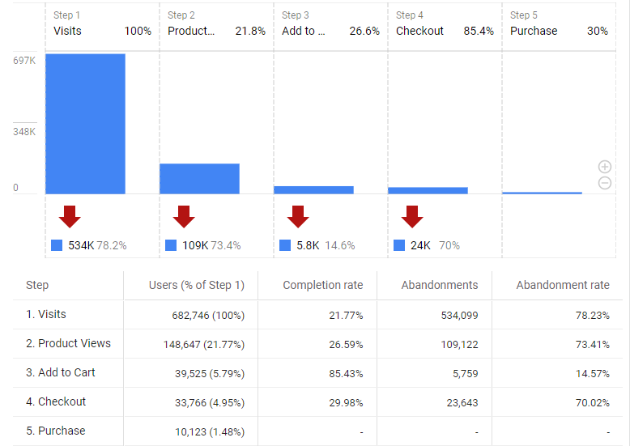
If you look at the funnel exploration report in Google Analytics 4 you can see that at every step, at least a few users are abandoning the purchase journey. This means that all users who visited your website won’t go through the steps defined in the funnel and drop off from certain steps is inevitable.
With this information, you can improve inefficient or abandoned customer journeys. You can also think of running a remarketing campaign for such users.
The ecommerce funnel report looks like the one below:
Creating a sample funnel report
Follow the below steps to create a funnel report.
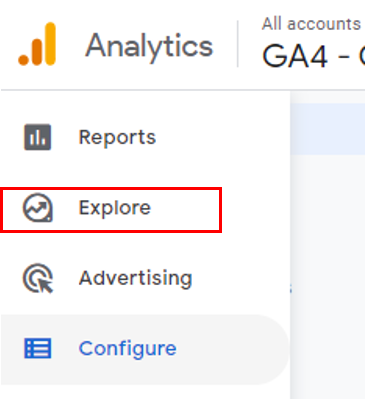
Step-1: Navigate to your Google Analytics 4 property and click on the ‘Explore’ link on the left-hand side.
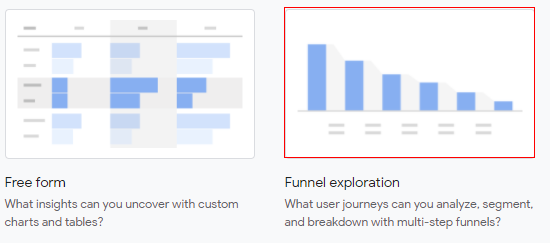
Step-2: You will see the various exploration templates. Click on ‘Funnel exploration template’.
Step-3: A new console will open like below.
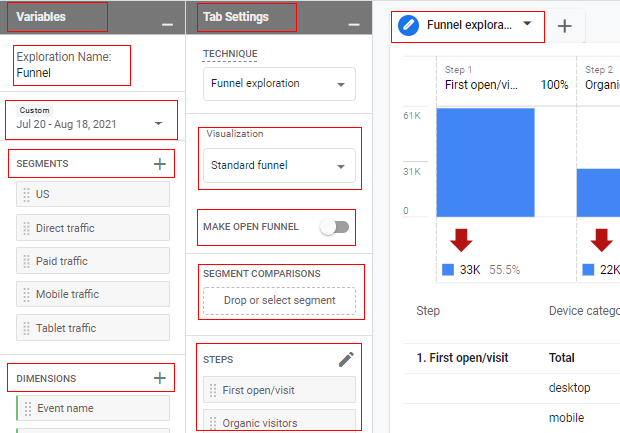
The screen is divided into three columns; ‘Variable’, ‘Tab settings’ and ‘Exploration’.
Variable tab:
In the context of analysis segments, dimensions and metrics are called variables. You can also change the date range and report name under the ‘Variable Panel’ column.
Tab settings:
You can also select the visualization type here, such as standard funnel or trended funnel. You can also select to make the funnel open or closed. You can add segments and define the funnel steps as well. We will talk about this later in this article.
Funnel exploration tab:
The ‘Funnel exploration’ tab is where the data is shown to the user. Whatever configuration that we do in the ‘Variables’ tab and in ‘Tab settings’, will be reflected in the ‘Funnel analysis’ tab.
Step-4: Now click on ‘Analysis Name’ to give a descriptive name to the report.
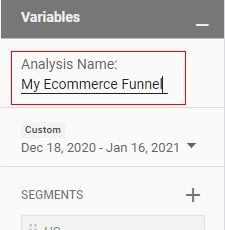
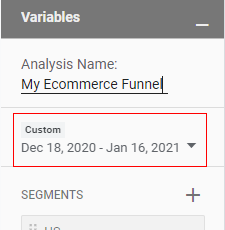
Step-5: Now click on the drop-down arrow to change the date range.
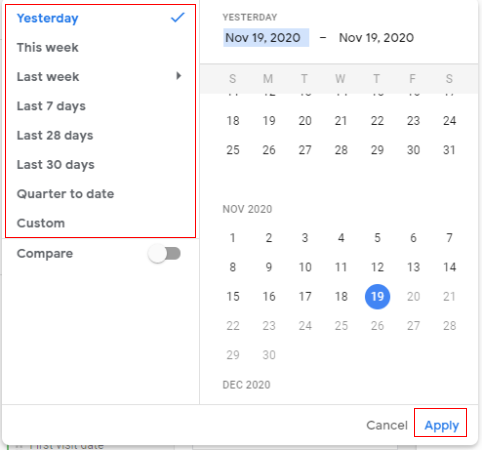
Step-6: You will get a small pop-up where you can specify the date range, e.g. yesterday, this week, last 7 days, etc. You can also specify a custom date range as well. Select your date range and click on ‘Apply’.
Great, you have successfully created your funnel report.
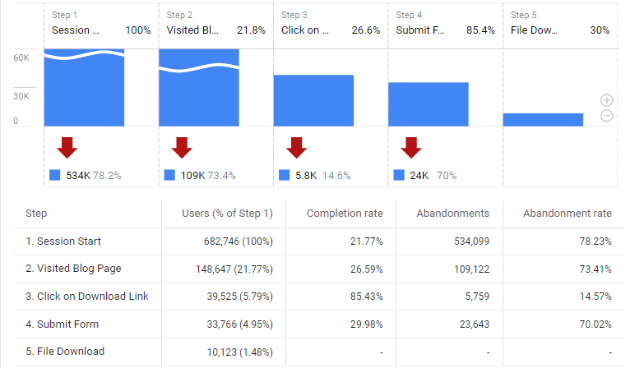
You will get a screen like below.
Note: The steps selected in the funnel are default steps provided by GA4. We will talk about it later in this article.
Selecting funnel visualization
In the funnel exploration report, you get two types of visualization; standard funnel (stepped) and trended funnel (line chart).
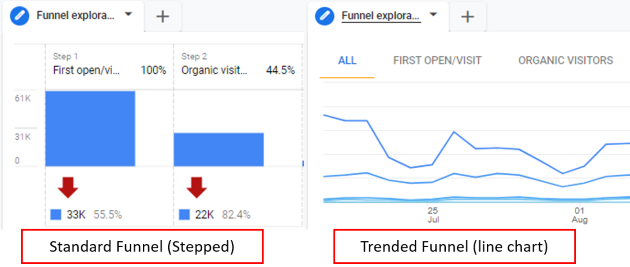
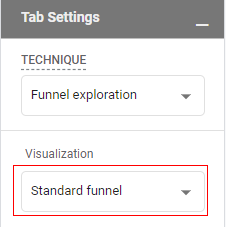
The default funnel visualization comes with a standard funnel (stepped). If you want to change the visualization at any point, you can click on the ‘Visualization’ drop-down available under ‘Tab’ settings.
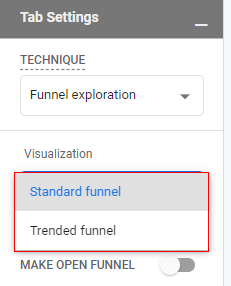
A drop-down will pop up like below. Select your visualization type here.
Funnel steps
As an example, I am going to create a funnel in which I will see how users who came to my blog (session starts with home page), visited any post (article view), clicked on the download file option (event), filled out the form (form submission) and then downloaded the file (conversion).
Before we start adding funnel steps, remember we already have the default funnel steps added by Google, so let’s delete those funnel steps so that we can add our own custom funnel steps.
To delete funnel steps, click on the ‘X’ mark of every funnel step in the ‘Tab settings’ column.
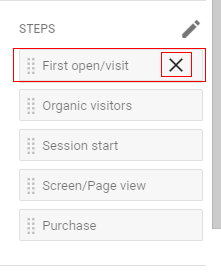
Repeat this step until all the default steps are removed. Then follow the steps below to create a new funnel.
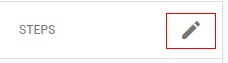
Step-1: Now click on the pencil icon in front of the ‘Steps’ text in the ‘Tab settings’ column in order to add funnel steps.
A new overlay will appear like below.
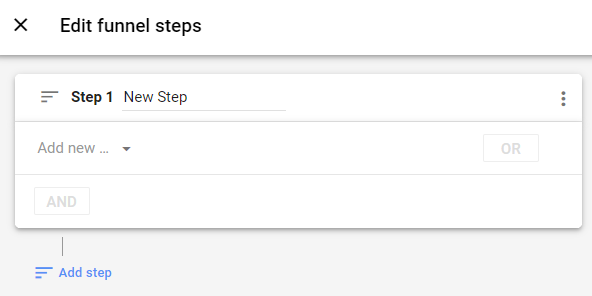
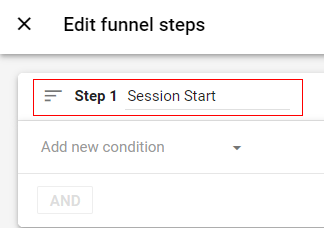
Step-2: Now click on the text box in front of ‘Step 1’ and give it a descriptive name.
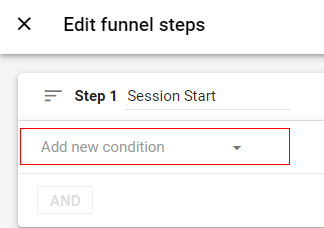
Step-3: Now click on the drop-down ‘Add new condition’.
Step-4: A pop-up will appear like below which contains different parameters.
You can add one or more conditions that your users must meet to be included in that step of the funnel journey. Conditions can be based on events your users trigger or dimension values they share. For example, the dimension ‘User acquired campaign’ equals “New Year Sale” or the purchase event with the parameter value >= 50.
Note: You can’t define funnel steps based on metrics.
Select the dimension category from the list available which will provide its available parameters in the adjacent column, or you can directly type in the search box.
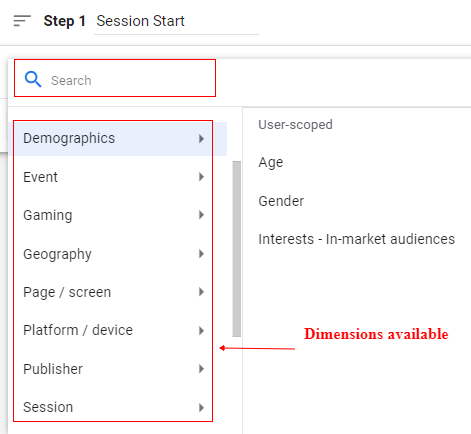
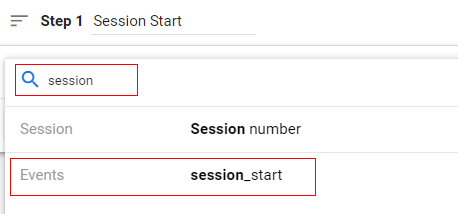
Step-5: In our case I am going to type and select the ‘session_start’ event (as per our example).
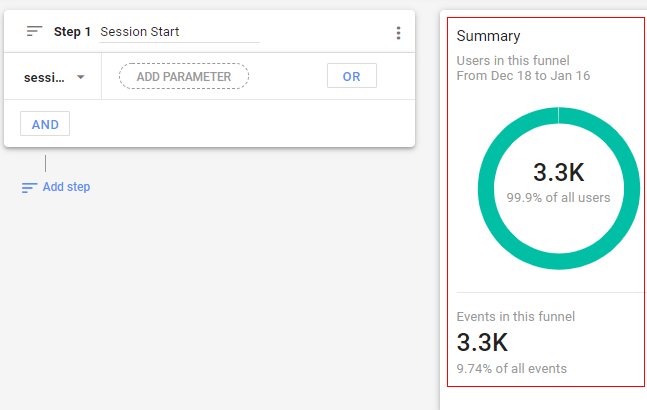
Once you select the dimension/event of your step, you can see the total number of users available for it on the right-hand side.
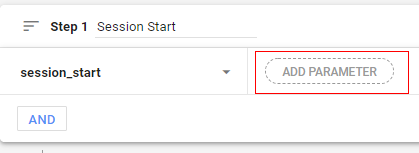
Step-6: If you want to narrow down your users, you can do it by defining the parameters. Click on ‘Add Parameter’.
Step-7: A pop will appear where you can select the parameter from the list available for the selected event or dimension. In our case, I am going to select ‘page_title’.
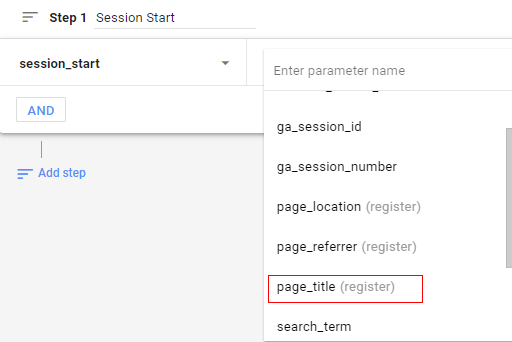
Step-8: You will see the pop-up like below. Now click on the drop-down under ‘Conditions’.
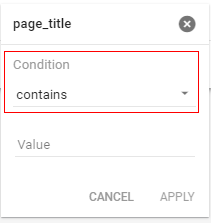
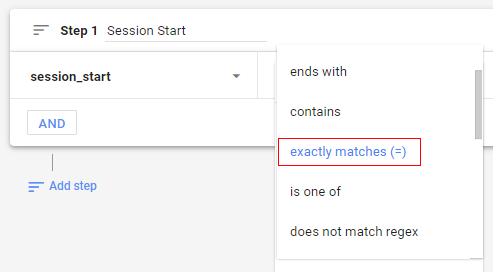
Step-9: Select the condition you want to apply from the list. In our case, I am going to select ‘exactly matches’ (page_title equals).
Step-10: Now click on the text box ‘Value’.
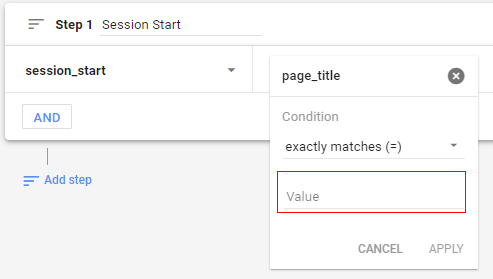
Step-11: Now provide the respected dimension value. In our case, I am going to select users who started their session on the home page. Once you provide the value click on ‘Apply’.
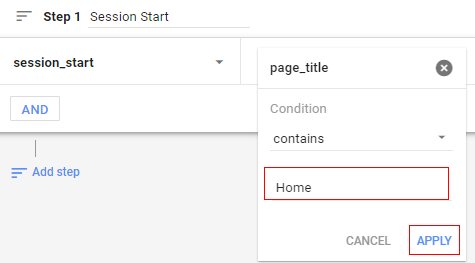
Your first step will look like below.
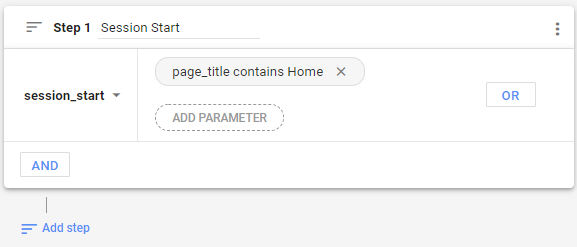
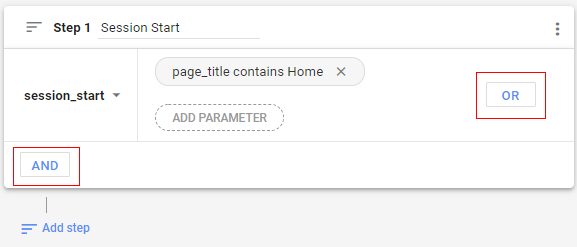
You can also add more clauses to a condition, using AND or OR options.
To add another condition, repeat the activities in step-3 to step-11.
Note: AND or OR condition will be specific to this step only.
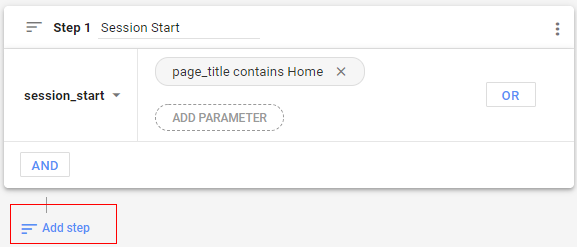
Step-12: Now click on ‘Add Step’ to add the second step of the funnel.
Step-13: You will get a console, like below.
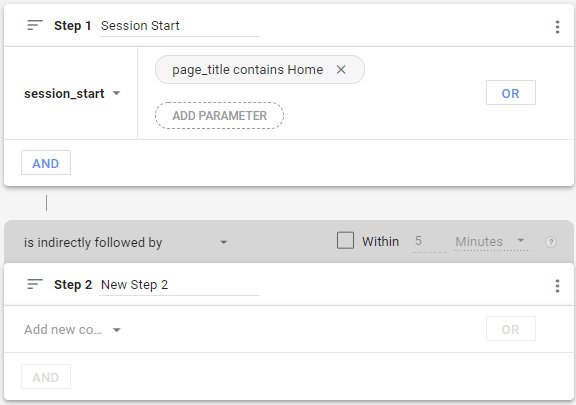
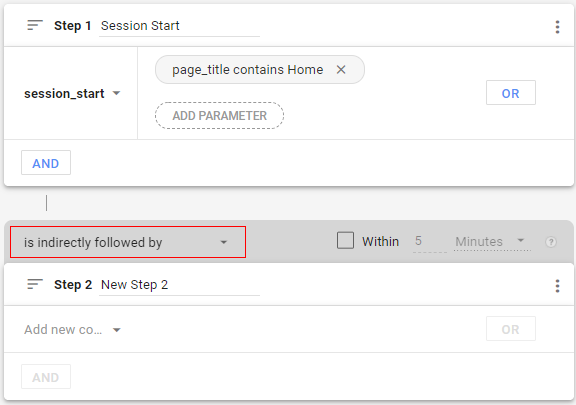
For the steps beyond step 1, you can select whether the new step must directly follow the previous step, or if it can follow at any time after the previous step.
Click on the drop-down under ‘is indirectly followed by’.
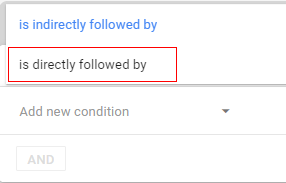
Step-14: Select the option you want. I am going to select ‘is directly followed by’ since I wanted to know, after visiting my home page, how many users went on to the blog page.
Step-15: Now you need to define the time frame for step 2 in the funnel (within what time period the step should occur). Select the checkbox before ‘within’.
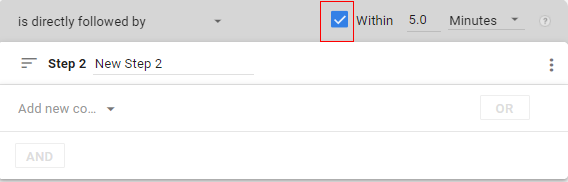
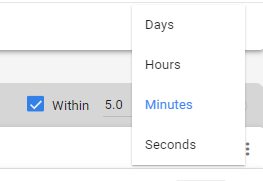
You can define the timeline by clicking on the drop-down after ‘Minutes’.
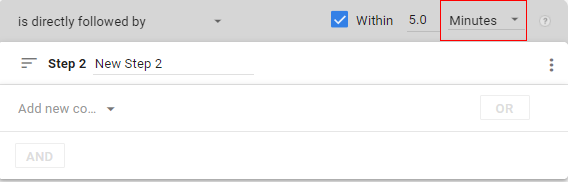
It will give you a pop-up like below. Select your option.
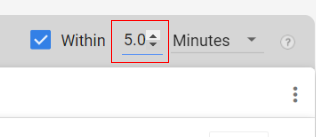
You can also edit the number (like 5 minutes or 10 minutes) by clicking the option to increase or decrease the number option.
Step-16: Now add the condition for step 2, just like we did it for the first step in the funnel.
In our case it will be ‘page_title’ contains ‘blog’.
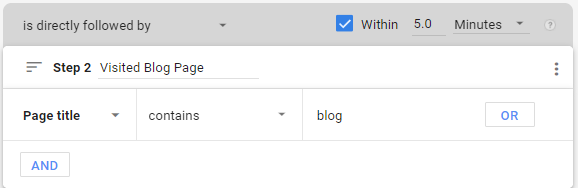
Step-17: Similarly add the third step of the funnel:
- Step Name: Click on Download Link
- Condition:
- Event Dimension: Click
- Parameter: link_url contains pdf
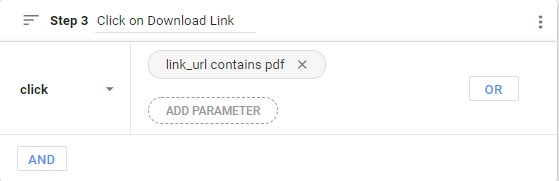
Step-18: let’s add step 4 in a similar way:
- Step Name: Submit Form
- Condition:
- Event Dimension: Lead Generated ( Event name when somebody submits form. It’s my own GA4 custom event)
- Parameter: No parameters selected ( Since I want to check all the events in funnel)
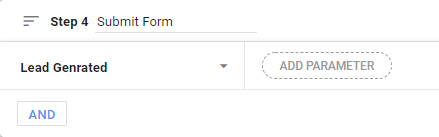
Step-19: Now let’s add the final step when the file gets downloaded:
- Step Name: File Download
- Condition:
- Event Dimension: file_download ( Event name when somebody downloads file)
- Parameter: No parameters selected ( Since I want to check all the download events in the funnel)
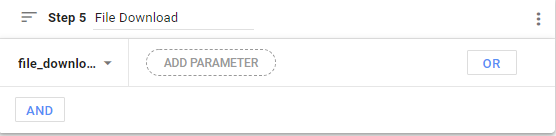
Step-20: Once you have added all your steps to the funnel you can click on ‘Apply’ in the top right corner.
Once you click on ‘Apply’ you can see your funnel like below.
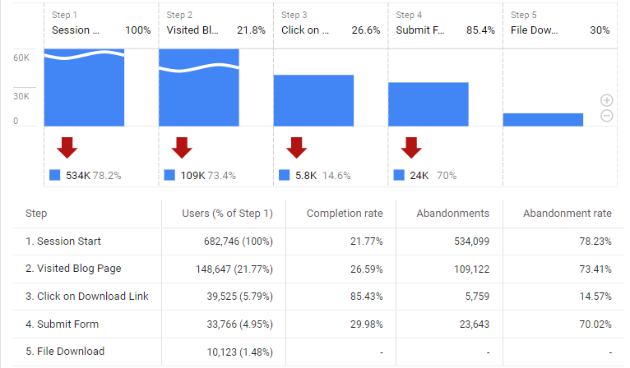
Congratulations! You have successfully created your funnel report.
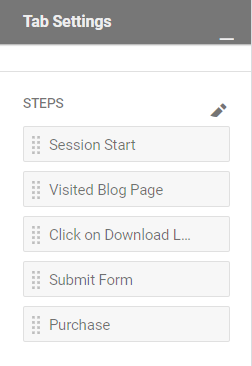
You can also see your funnel steps under ‘Tab settings’.
Open and close funnel, applying breakdown, segments, filters, and general settings
With funnel reports there are multiple settings you can select, let’s learn about them in more detail.
‘Open and Close Funnel’ toggle
Funnels can be ‘open’ or ‘closed’, which allows you to decide how users can enter the funnel.
In an open funnel, users can enter the funnel via any step. In a closed funnel, users must enter the funnel via the first step and follow all the steps in the defined manner (funnel steps configuration).
Let’s take the example of the funnel we created earlier. The steps are as below.
- Step 1: Session start (home page)
- Step 2: Visited blog page
- Step 3: Click on the download link
- Step 4: Submit the form
- Step 5: Download file
Now, if I make my funnel ‘open’, a user can enter at any step. Let’s imagine two users, as below:
- User 1: Followed all the steps in sequence.
- User 2: Directly visited the blog page then followed the remaining steps.
With such conditions, both users will be counted in the funnel report.
If I make my funnel ‘closed’, users must enter the funnel at the first step. Only user 1 will be counted.
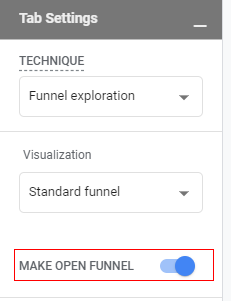
You can make the funnel closed or open by using the toggle switch available in the ‘Tab settings’.
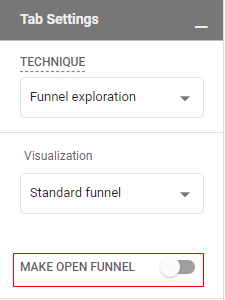
By default, the funnel is set on the closed option. If you click on the toggle switch it will make the funnel open.
Applying breakdown
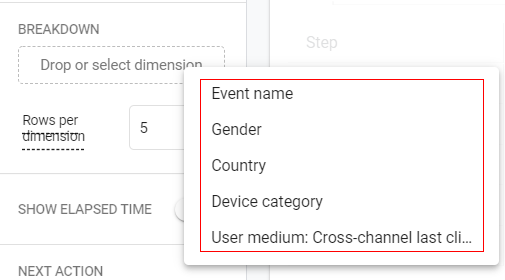
You can select a dimension to use to provide the breakdown data series for the funnel report. You can break down the report by device category, gender, country, etc.
Just click on the ‘Breakdown’ drop-down under ‘Tab settings’.
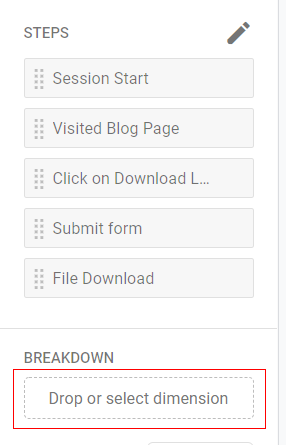
A pop-up will appear, like below. Select the dimension by which you want to see the breakdown.
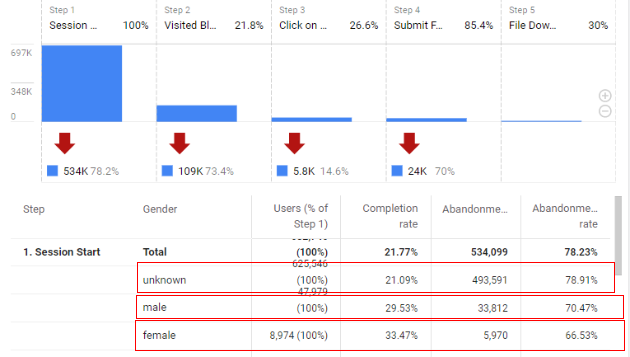
Let’s say I break down my report by gender. I will see the following view of the report.
Segments
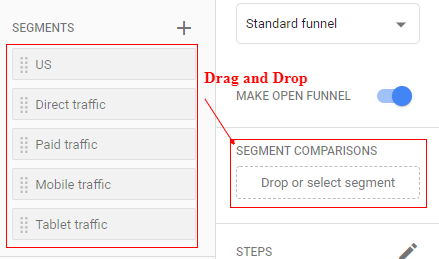
You can apply up to four segments to focus on specific sets of users. You can drag and drop segments from the list to the ‘Segment Comparison’ section of the report.
Filters
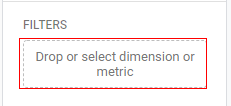
You can apply filters as well to restrict the data shown in the analysis according to the conditions you provide.
If your filter has multiple conditions, all of the conditions must be met to apply the filter.
To apply a filter click on the ‘Filters’ in ‘Tab Settings’.
Next action
You can also select a dimension to show the most common user actions following each funnel step. You can do it by clicking on ‘Next Action’ under ‘Tab settings’.
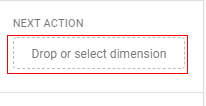
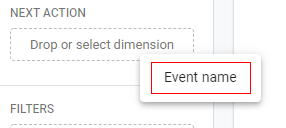
A pop-up will appear like below. Click on ‘Event’.
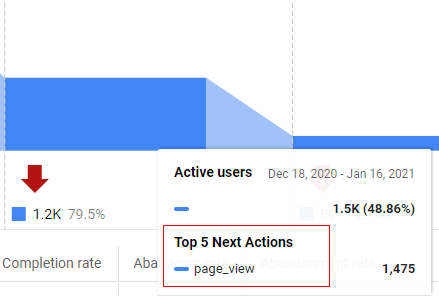
Now, if you hover your mouse over any steps you can see the next actions taken by the user in a pop-up like below.
Sharing and downloading reports
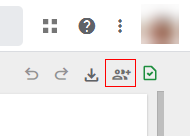
You can share the report template with other colleges as well. Just click on the ‘Share’ icon available in the upper right corner of the ‘Reporting’ tab.
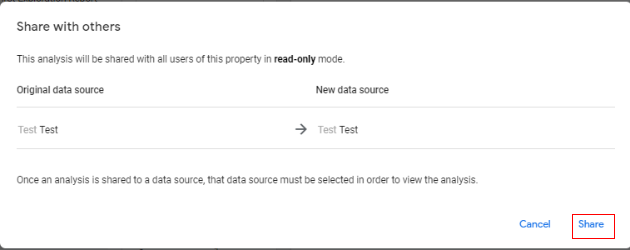
It will open an overlay with details as below. Click on ‘Share’.
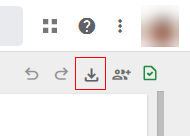
You also get an option to download the report. Click on the ‘Download’ button.
A small pop-up will come like below where you can specify the report format type.
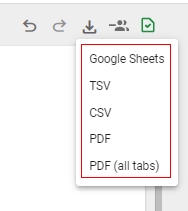
Available options are:
- Google Sheets
- TSV (tab separated values)
- CSV (comma separated values)
- PDF (all tabs) – this will download all the tabs in the reporting panel in PDF format, if you have multiple tabs.
That is how you can use the funnel exploration report in Google Analytics 4 (GA4).
For best results, create your own funnel visualization report.
Create your own funnel visualization report instead of the funnel visualization provided by the GA4 user interface to get the best results.
The following are the key advantages of doing that:
1) The default conversion window in GA4 Funnel Visualization reports is 30 minutes between steps.
If a user takes longer than this to progress from one step to the next, their journey won’t be captured in the funnel visualization, and it might appear as if they dropped off during the process.
When creating your own funnel visualization report, you can adjust the conversion window between steps, which might be more suitable for your website to represent your users’ behaviour accurately.
2) The default funnel visualization is based on the events and parameters that are automatically tracked or that you have set up manually.
If you haven’t set up tracking for specific events important to your user journey, they won’t be included in the funnel visualization.
Now you may go ahead and start tracking the specific events, but it won’t change the historical funnel visualization data.
If your event tracking is not set up correctly, it may skew your funnel visualization.
Now you may go ahead and correct the event tracking setup, but it won’t change the historical funnel visualization data.
You can, however, work retroactively on a custom funnel visualization report.
3) The default funnel visualization offers limited customization options, making tailoring the report to your specific needs challenging.
Your website or app may have unique steps and interactions not covered in the default visualization.
The default funnel visualization might not cover all aspects of your website or app’s user experience.
Creating your own funnel visualization allows you to customize the steps, events, and parameters, providing a more accurate representation of your user’s behaviour.
4) Cardinality and data sampling can both impact the accuracy and reliability of the funnel visualization report in GA4.
When you create your own custom funnel visualization, you can make sure that the data is not subject to cardinality and data sampling before you visualize it.
For example, you can use the data stored in BigQuery to create funnel visualization.
5) A custom funnel visualization can provide a more in-depth view of your users’ behaviour and their progression through the funnel.
This can help you identify bottlenecks, drop-off points, and areas for improvement that might not be evident in the default Funnel Visualization provided by GA4.

Other Articles on GA4.
- Web Analytics Career Path – How to Become a Web Analyst.
- GA4 Form Interactions Tracking – Enhanced measurement.
- How to track form submissions in Google Analytics 4.
- How to send data from Google Search Console to BigQuery.
- How to fix duplicate events in Google Analytics 4 (GA4).
- How to use two Google Analytics codes on one page.
- How to import GA4 Conversions into Google Ads.
- What are predictive metrics in Google Analytics 4 (GA4).
- Google Tag Manager Event Tracking Tutorial.
- How to use Google Analytics 4 with iframe.
- Why GA4 Audiences not showing in Google Ads.
- Google Analytics 4 Scroll Tracking Tutorial.
- Why Google Ads and Google Analytics data don’t match & how to fix it.
- Google Analytics 4 Calculated Metrics with Examples.
- How to view subdomain traffic in Google Analytics 4.
- Google Analytics 4 Cookieless Tracking Setup.
- Using Funnel Exploration Report in Google Analytics 4.
- Google Advanced Consent Mode and GA4 BigQuery Export.
- Which Conversion Window to use in Google Analytics 4.
- Tracking single page apps in Google Analytics 4.