

Introduction to single-page applications
Single-page applications (SPAs) are web-based applications or websites that load all the content required for the page on the initial load.
As the users interact with the website, subsequent content is loaded dynamically, which means there is no refresh and the Google Analytics tags fire only once. The analytics on normal websites work every time the page refresh happens, and page views get sent to Google Analytics reports.
Since there is no refresh happening for SPAs, there is no pageview if the users scroll on the website. In some cases, you will notice that the URL will change, and has the hash fragment, but then the GA snippet is loaded only on the initial load, so you only see one (single) page view recorded in Google Analytics reports.
GA4 cannot fully track Single Page Application by default.
By Default, GA4 does not fully track SPA (Single Page Application) and you will most likely need professional help.
GA4 has a feature called “Page changes based on browser history events“, which is enabled by default in the Enhanced Measurement settings.
The “Page changes based on browser history events” feature allows GA4 to automatically track history based page changes as new page views in SPAs.
However, despite this feature, SPAs frequently contribute to “(not set)” values in the Landing Page dimension due to tracking limitations.
The following are the top reasons why GA4’s built-in SPA tracking may not fully resolve all tracking issues in single-page applications (SPAs):
- Dynamic Content Loading.
- Missing Initial ‘page_view’ Event.
- Timing Issues.
- Incorrect History API Usage.
- Session Timeouts.
- URL Fragments(#).
- Missing ‘page_view’ Events.
#1 Dynamic Content Loading.
SPAs load content asynchronously without full page reload, meaning GA4 may miss ‘page_view’ events required to set the landing page, resulting in “(not set)” values.
GA4’s Enhanced Measurement relies on history-based events and doesn’t trigger ‘page_view’ for all dynamic content changes, requiring custom events for accurate tracking.
#2 Missing Initial ‘page_view’ Event.
If ‘page_view’ event isn’t triggered at the start of a session, GA4 cannot set the landing page, leading to “(not set)” values in the Landing Page report.
GA4 assumes ‘page_view’ event fires automatically, but SPAs may require custom implementations to ensure ‘page_view’ captures all initial and dynamic loads.
#3 Timing Issues.
GA4 tags may fire before SPA content fully loads, missing critical page details and leading to incorrect or “(not set)” values.
GA4 built-in SPA tracking does not account for race conditions with asynchronous loading.
Custom adjustments to tag order and timing are needed to ensure GA4 accurately captures page details after content fully loads.
#4 Incorrect History API Usage.
SPAs not using the browser’s History API correctly can prevent GA4 from detecting page changes, resulting in missed or misattributed ‘page_view’ events.
GA4 Enhanced Measurement depends on History API changes to track new page views.
Without correct History API usage, GA4 may miss page changes in SPAs, needing custom events for accurate tracking.
#5 Session Timeouts.
If a session times out and resumes without a new ‘session_start’ event, GA4 may show “(not set)” for the landing page and other dimensions.
GA4 does not automatically start a new session after a timeout in SPAs, which can require custom handling of session management to reset page view tracking upon session resumption.
#6 URL Fragments (#)
SPAs using URL fragments (e.g.,example.com/#page) may not be tracked by default in GA4, as fragments typically don’t trigger a new page view.
GA4 does not natively track changes in URL fragments.
To capture all URL updates, custom configurations are needed to track fragments as new pages or trigger ‘page_view’ events when fragments change.
#7 Missing ‘page_view’ Events.
SPAs might not trigger new ‘page_view’ events for all content changes, especially if the user remains idle or the page doesn’t reload, leading to incomplete data in GA4.
GA4’s built-in SPA tracking requires page reloads or history changes to register new ‘page_view’ events.
SPAs need custom events to capture all content changes, ensuring ‘page_view’ events are logged for each significant update.
GA4’s built-in SPA tracking via Enhanced Measurement provides a basic solution but does not fully resolve SPA tracking challenges.
For accurate tracking, SPAs require custom implementation, including firing manual ‘page_view’ events, configuring History API usage, and handling session management.
How to identify if your website is a single-page application
To understand the steps to identify if your website is a single-page application, when you scroll through the page you will notice that the hash fragment is being added to the URL, but there is be no page load or page refresh happening when you scroll through the page.
Another way of checking if you are dealing with SPA is through GTM preview mode.
Step-1: Log in to your Google Tag Manager account.
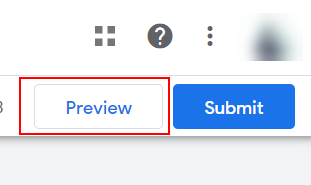
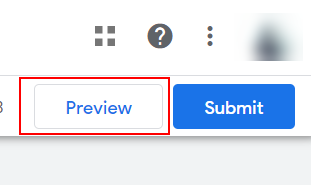
Step-2: Click on ‘Preview’ on the top right-hand side to enter preview mode.
Step-3: A new tab will open with Tag Assistant in the URL name. Enter the website URL to begin previewing the GTM container.
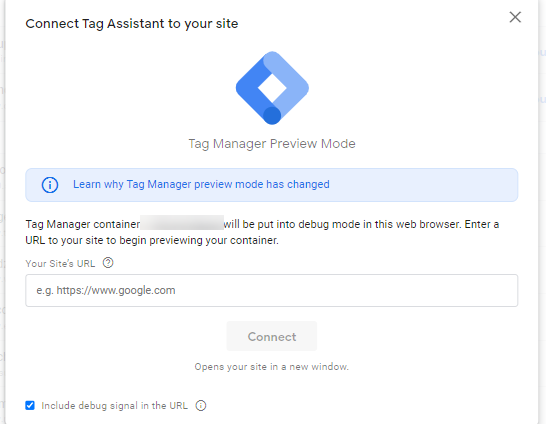
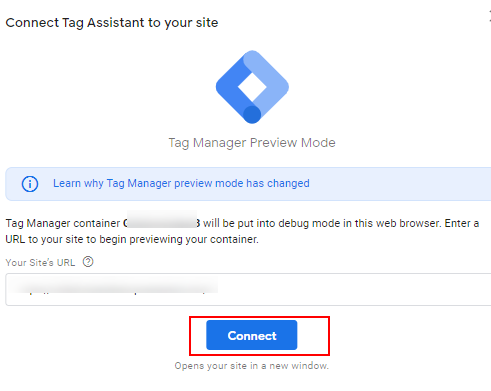
Step-4: Enter the website URL- https://www.example.com/, making sure that the URL starts with “https” and click on ‘Connect’.
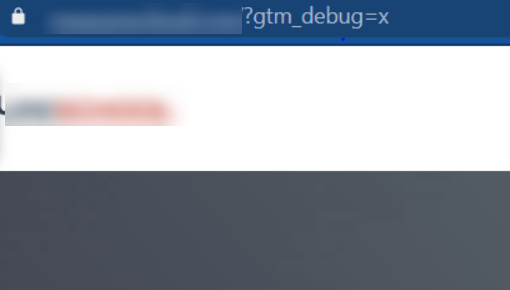
Step-5: Once you click on ‘Connect’, the website is now in preview and debug mode. You should notice the query string in the URL is gtm_debug=x, as shown below:
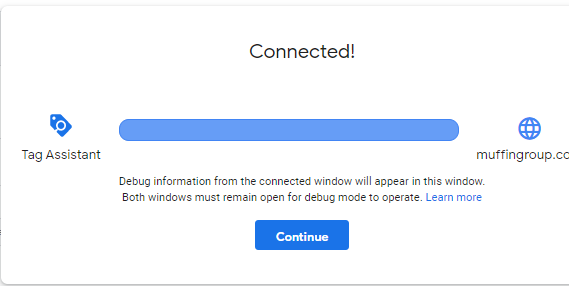
Step-6: Additionally, in the Tag Assistant tab you will see that the GTM container is connected and is now in preview mode.
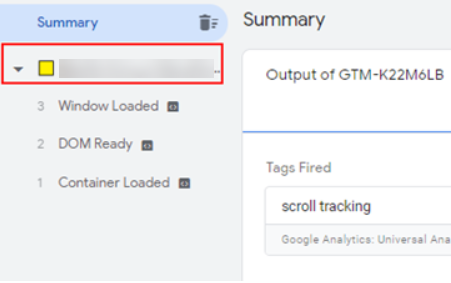
Step-6: In preview mode, you will see only one tag being fired, highlighted in yellow, as below. Even if you scroll through the page, there wouldn’t be any tags in the console.
In traditional websites, the behavior is different. Let us check for a normal website and see how it works in GTM preview mode.
When you scroll on the website and navigate to different pages, in preview mode you can see two tabs, highlighted in green, this gets triggered every time the user navigates to different pages.
This happens because every time a user navigates to other pages on a website, the page would be refreshed.
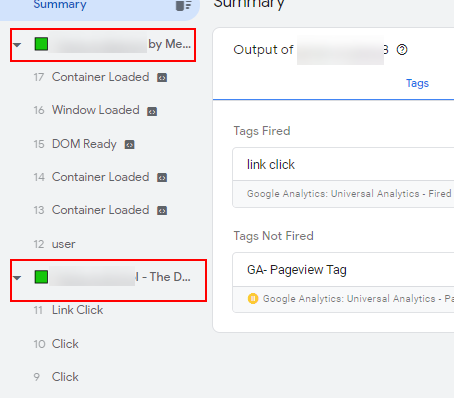
This is not the case in a single-page application. You would only see one (single) page view, which we have discussed above.
Different methods of tracking SPAs in GA4
However, this issue with SPA’s can be resolved in three different ways. Below are the methods that we can implement to track pageviews for single-page applications.
- Using enhanced measurement in GA4
- History change trigger in GTM
- Custom event implementation through the data layer
Using enhanced measurement in GA4
Many web tracking solutions do not work well with single-page applications as they are designed in a way where tags work only when a page refresh happens. However, with Google Analytics 4, we have built-in pageview tracking through enhanced measurement.
This may not work perfectly for all single-page applications. In such cases, we might use an additional configuration in Google Tag Manager.
So, let’s see how to enable inbuilt tracking for single-page applications using Google Analytics 4.
Steps to implement SPA tracking in GA4 using enhanced measurement:
Step-1: Log in to your GA4 account.
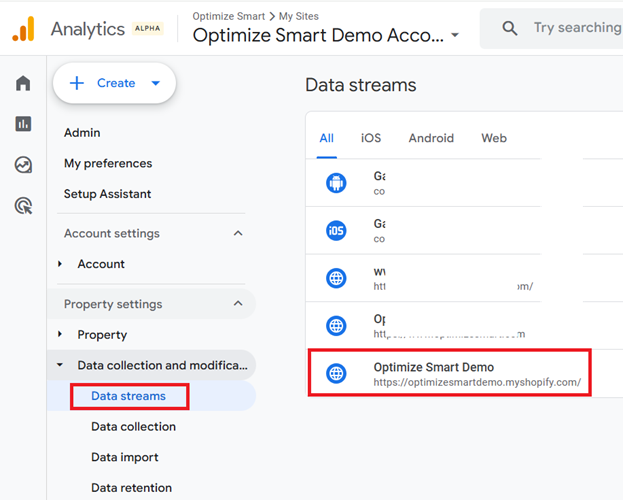
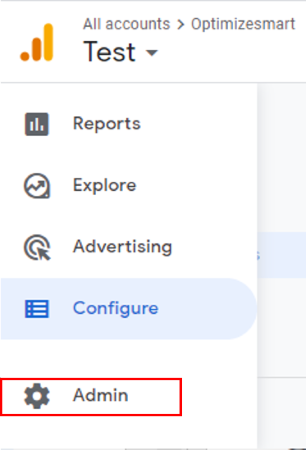
Step-2: Click on the ‘Admin’ section from the left-hand side.
Step-3: Click on ‘Data streams’ under the ‘Property’ section.
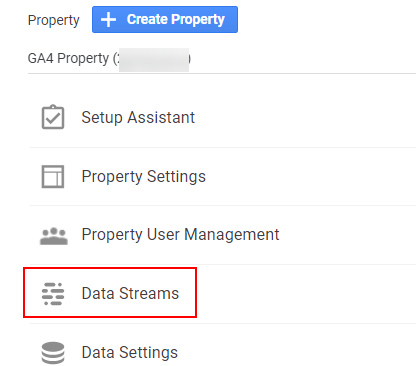
Step-4: Select ‘Data streams’ to view the web stream details.
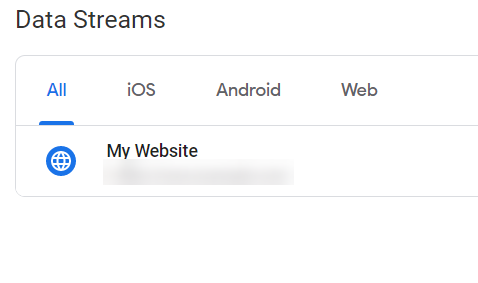
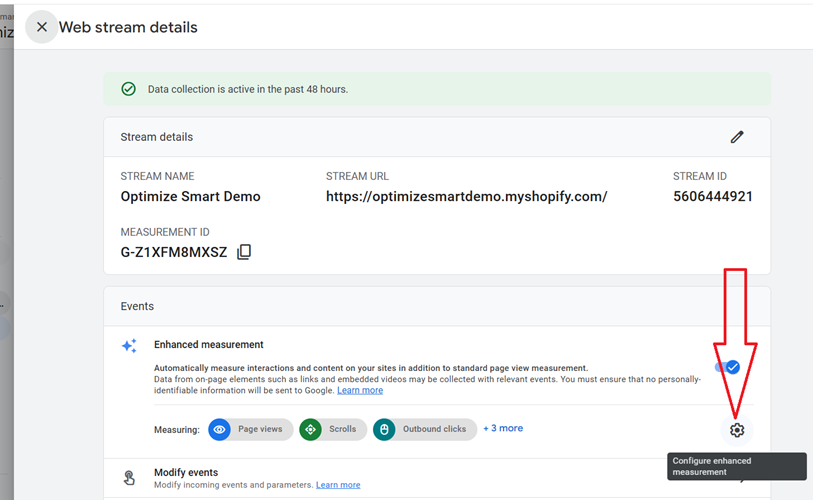
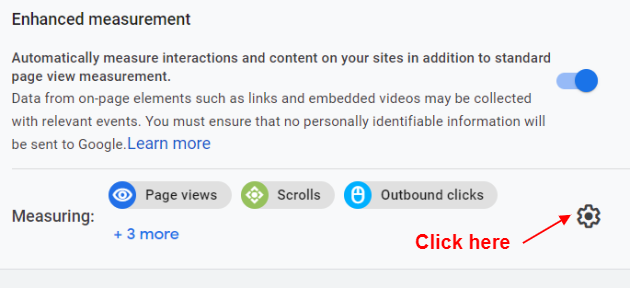
Step-5: In the web stream details, click on the gear icon in the ‘Enhanced measurement’ section.
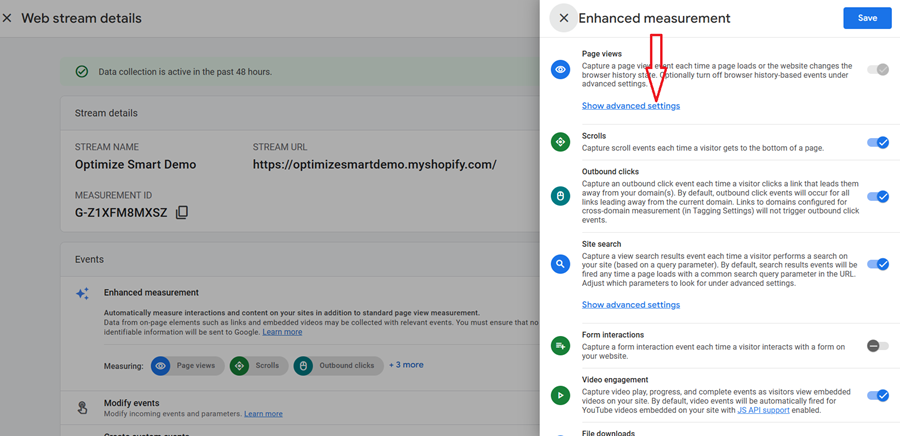
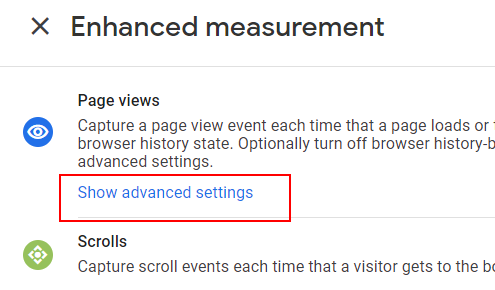
Step-6: A pop-up on the right-hand side will appear. Click on ‘Show advanced settings’, under ‘Page Views’:
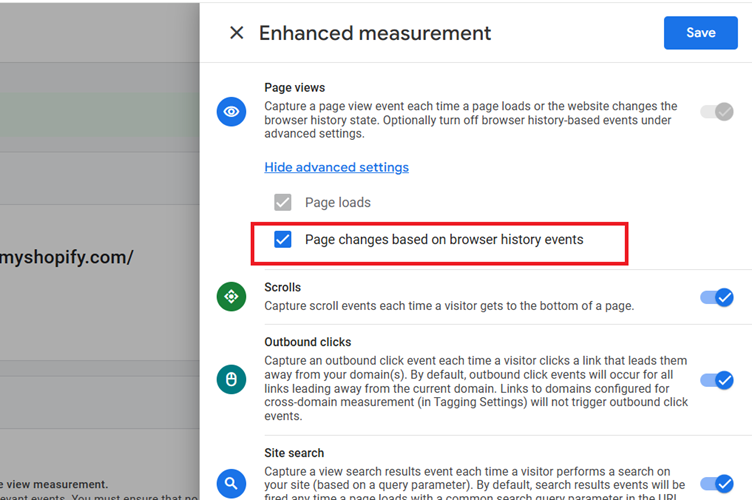
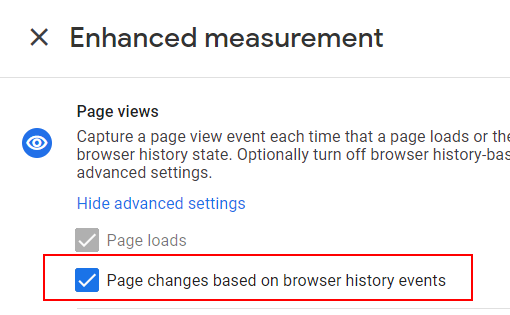
Step-7: Enable ‘Page changes based on browser history events’, as shown below:
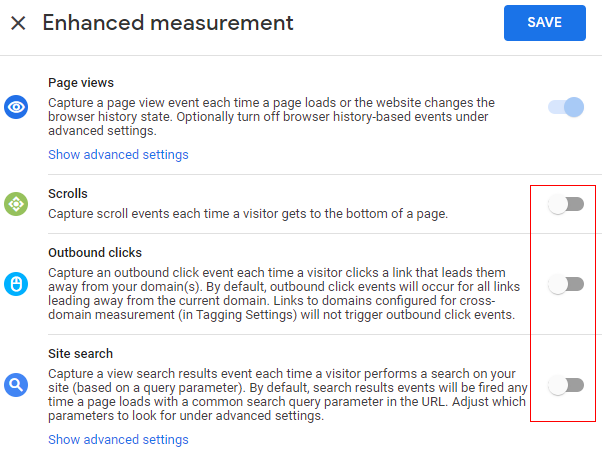
Step-8: In some cases, the default tracking such as scroll tracking, site search and outbound tags may not work properly, so make sure you disable them:
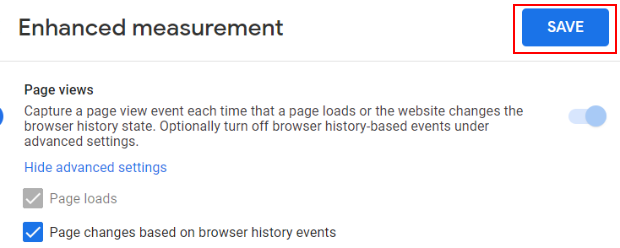
Step-9: Click on ‘Save’ on the top right-hand side to save the changes.
Now, let’s validate if the inbuilt feature enabled in the GA4 property is tracking pageviews on single-page applications through GTM preview mode. Make sure that a GA4 page view tag has been created in GTM to test our implementation.
If you have not created a GA4 page view tag, follow the below steps:
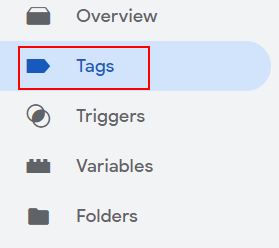
Step-10: Navigate to your Google Tag Manager account and click on ‘Tags’ from the left-hand side:
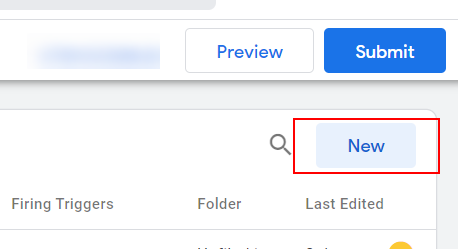
Step-11: Click on ‘New’ to create a new event-based pageview tag:
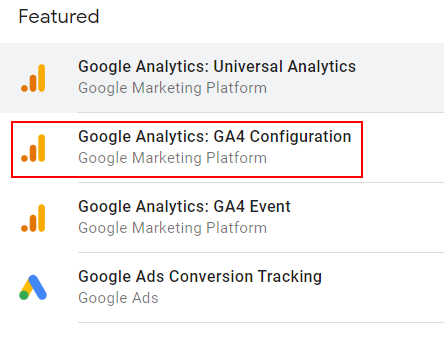
Step-12: From the tag type, select ‘Google Analytics:GA4 Configuration’:
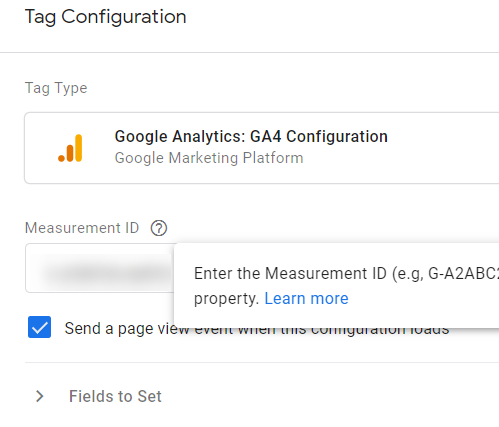
Step-13: Enter the measurement ID copied from your GA4 property. (Admin-> data streams->copy the measurement ID from GA4 property).
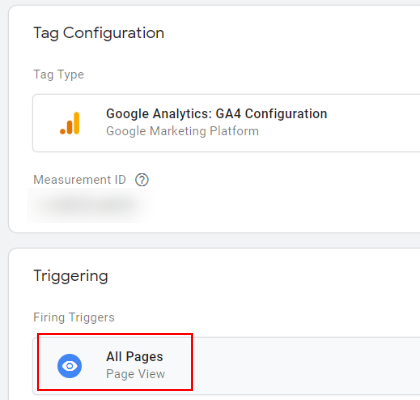
Step-14: Add the ‘All Pages’ trigger to the tag created.
Step-15: Now, click on ‘Save’ to save the tag.
Step-16: Click ‘Preview’ on the top right-hand side to enable preview mode.
Step-17: Enable preview mode on the website, as we discussed earlier, by providing the URL of the website. If you notice multiple history events in preview mode when you scroll on your single-page application, as shown below, then it means the inbuilt history change is working for the single-page application.
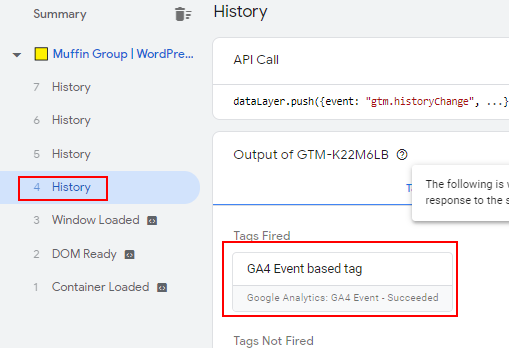
However, if you are noticing only a single history event in GTM preview mode, then it means your inbuilt history change is not working and you might have to use a history change trigger in Google Tag Manager to implement tracking on your SPA.
Tracking using the history change trigger in GTM
Let’s see how we can use the GTM history change trigger to track single-page applications.
Follow the below steps to track SPAs in GTM.
Step-1: Log in to your Google Tag Manager account.
Step-2: Select the container name in which you would like to implement tracking for SPA.
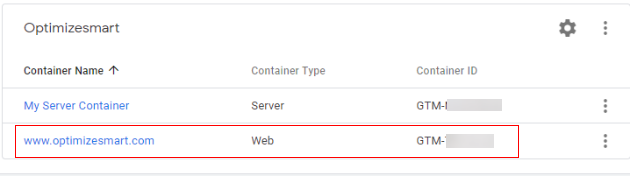
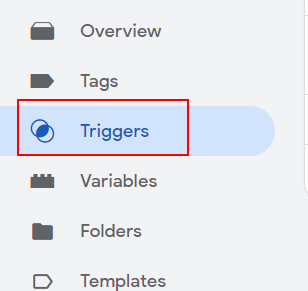
Step-3: Click on ‘Triggers’ from the left-hand side.
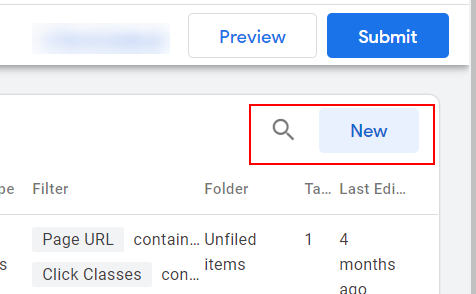
Step-4: Click on ‘New’ from the right-hand side section, to create a new trigger:
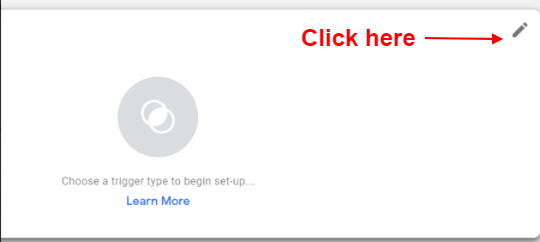
Step-5: Click on the pencil icon in the trigger configuration to choose the trigger type.
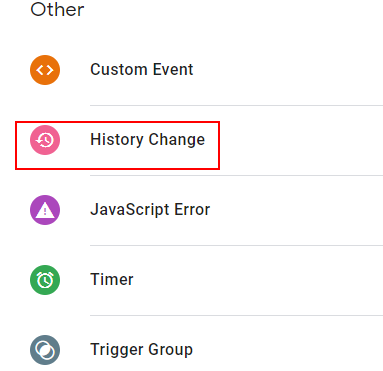
Step-6: Select ‘History change’ as the trigger type under the ‘Other’ section.
Step-7: Name this trigger ‘History Change Trigger’:
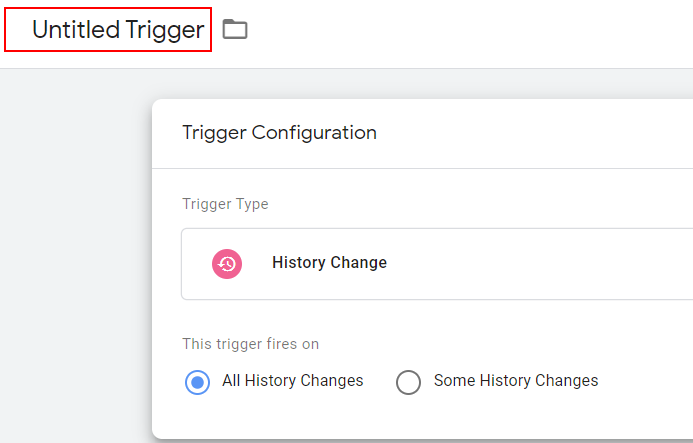
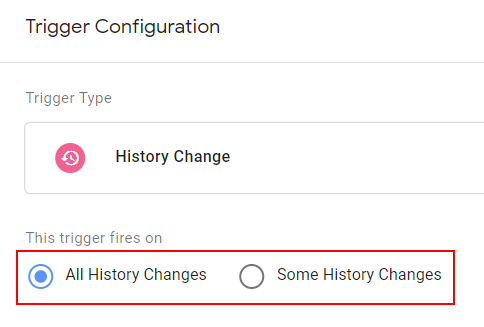
Step-8: The trigger configuration will look like the one below where you have the option to trigger on ‘all history changes’ or ‘some history changes’. For now, we will select ‘all history changes’.
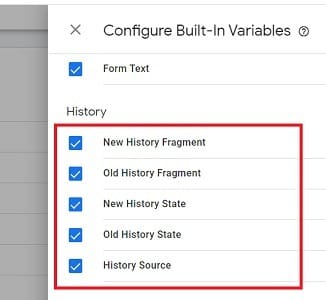
Step-9: Also, make sure that all the history change variables in GTM are enabled from the inbuilt variables.
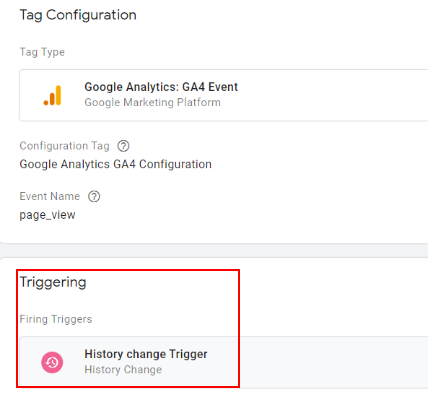
Step-10: Add this trigger to the GA4 event tag in GTM.
Now, let us check if the history change trigger in GTM is working for tracking our single-page application.
Step-11: Enable preview mode in the GTM container.
Step-12: Navigate to the website and scroll through the page.
Step-13: Check in preview mode if the GA event tag is firing for all the history changes.
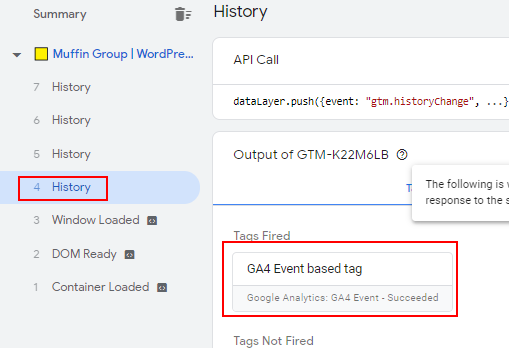
Note: The URL for all the history changes will be the same. For example, let’s say your website URL is https://www. xyz.com and when you scroll through the page it changes to https://www. xyz.com#aboutus; in preview mode, you will see https://www. xyz.com for all history changes.
To capture the complete URL after the hash #, we can use GTM variables.
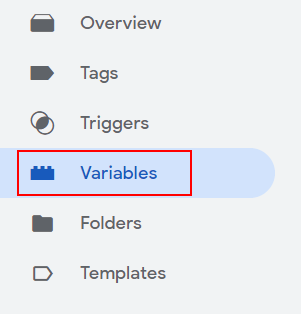
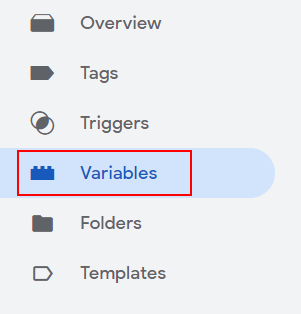
Step-14: Navigate to GTM and click on ‘Variables’ from the left-hand side.
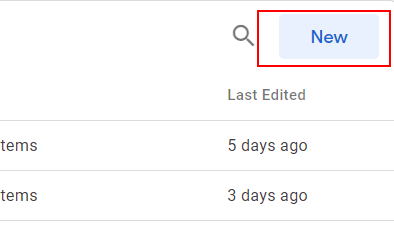
Step-15: Click on the ‘New’ from the user-defined variables.
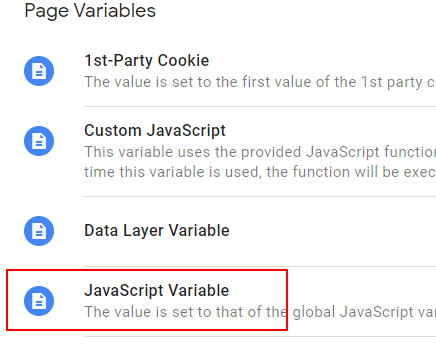
Step-16: Select ‘JavaScript Variable’ from the list of page variables, as shown below:
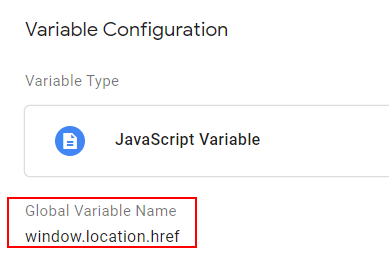
Step-17: Enter “window.location.href” in the configuration, as shown below:
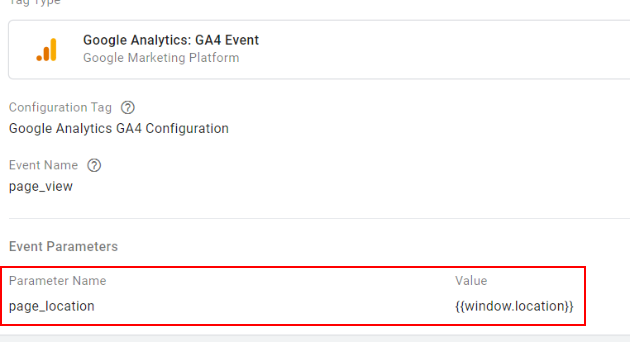
Step-18: Now, navigate to GA4 event-based tag, add this variable in the event parameters.
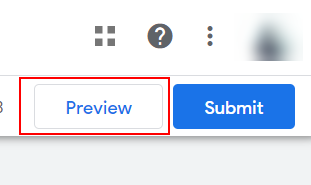
Step-19: Enable preview mode in the GTM container from the right-hand side.
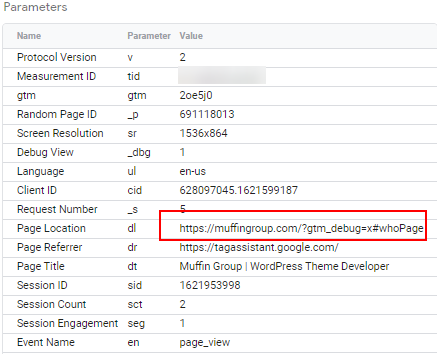
Step-20: Scroll on the website to track the activity. Now navigate to the GTM preview mode tab and see if the complete URL is captured in the GA tag.
Note that in the below screenshot, the complete URL is captured in the event parameters in page location along with #whoPage
#
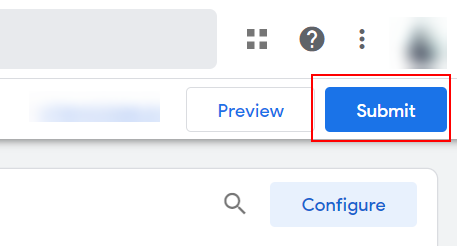
Step-21: Click on ‘Submit’ on the left-hand side of the GTM console.
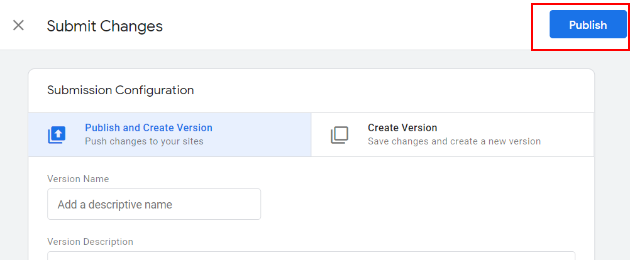
Step-22: Click on ‘Publish’ to push our changes to track single-page applications.
Custom event implementation through the data layer
For this method, you will need developer help. Ask your developer to push the “datalayer.push” code when the user navigates through the pages.
Below is the sample code snippet that the developer has to add on the page. pageUrl and pageTitle values should be dynamically populated.
<script>
window.dataLayer = window.dataLayer || [];
window.dataLayer.push({
'event': 'virtualPageview',
'pageUrl': 'https://www.example.com/?page#contact-us',
'pageTitle': 'Contact us' //some arbitrary name for the page/state
});
</script>
Additionally, in your GTM container, you need to create a custom trigger and variables to capture the pageUrl and pageTitle values passed in the datalayer.
GTM configuration to fire the pageview for SPA using data layer method
Step-1: Navigate to the variables in the GTM and click on new user-defined variables.
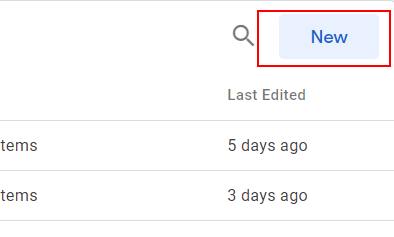
Step-2: Click on ‘New’ from the user-defined variables.
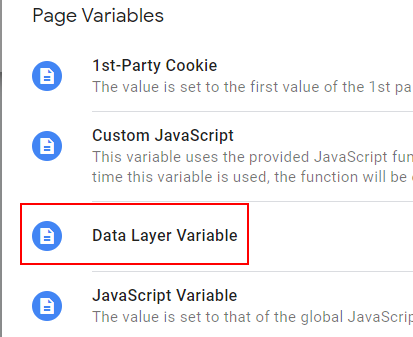
Step-3: Select ‘Data layer variable’ as the variable type.
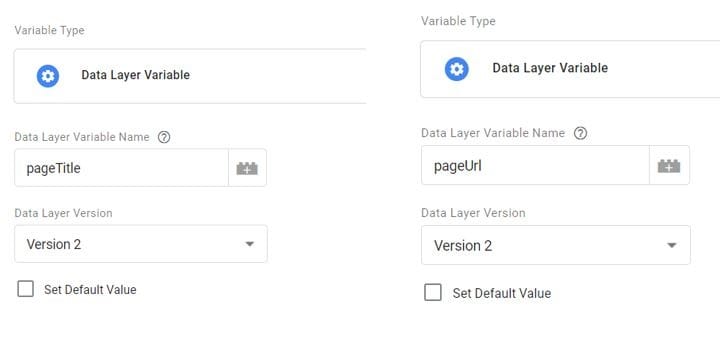
Step-4: Enter the name passed by the developer in the data layer variable section. We have to create two data layer variables, one for the page title and the other for the page URL, as shown below:
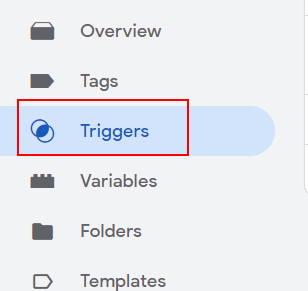
Step-5: Now, create a custom trigger in GTM, by clicking on ‘Triggers’ from the left-hand menu.
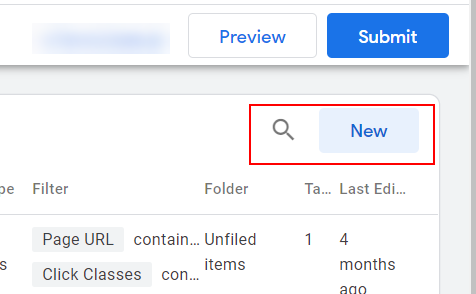
Step-6: Click on ‘New’ from the right-hand side section, to create a new trigger type, as shown below:
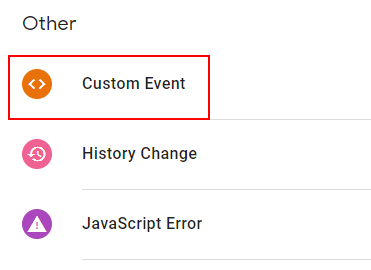
Step-7: Select ’Custom event’ as the trigger type.
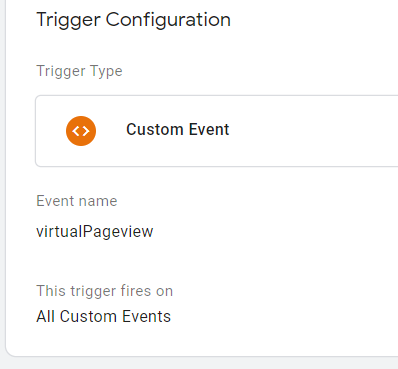
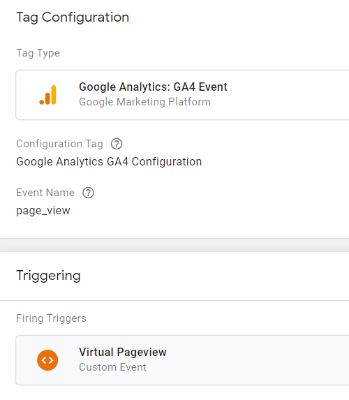
Step-8: Name it as ‘virtualPageview’ and enable the tag to fire for all custom events.
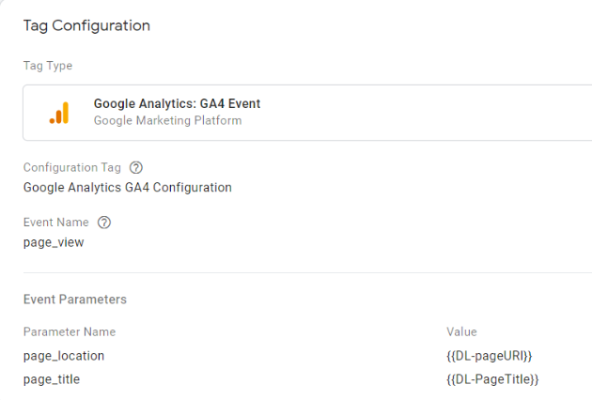
Step-9: Navigate to the GA4 page event tag, click on ‘Edit’. Now, click on ‘Add Row’ under the event parameters.
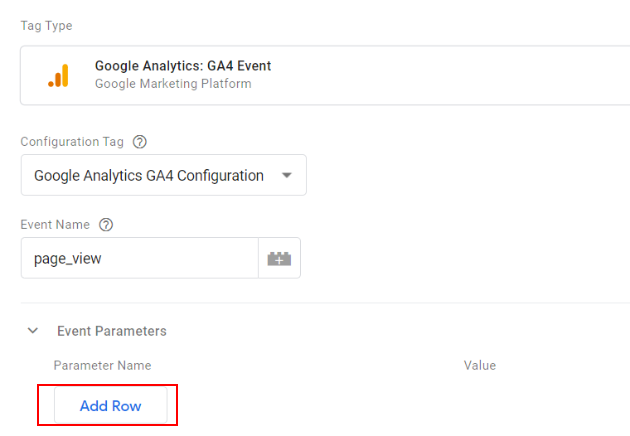
Step-10: Add page location and page title in the parameters name and select the page URL and page title data layer variables we created and configure as shown below:
Step-11: Add the custom event trigger to this tag and save the tag.
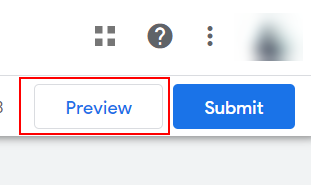
Step-12: Enable preview mode in the GTM container by selecting ‘Preview’ from the right-hand side.
Step-13: Scroll on the website to track the activity. Now navigate to the GTM preview mode tab and see if the page url and page title are captured correctly.
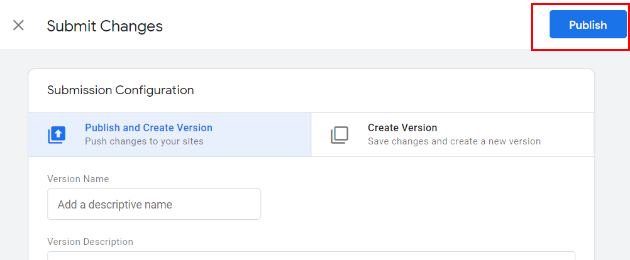
Step-14: Click on the publish the changes to push our changes to track single-page applications.
How to validate data in Google Analytics 4 DebugView
Step-1: Log in to your Google Analytics 4 account.
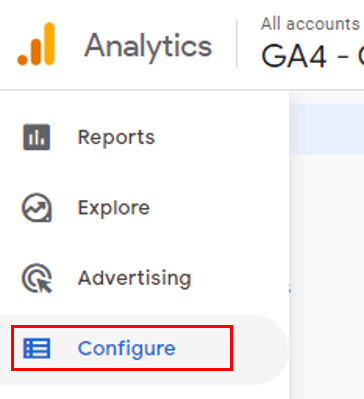
Step-2: Click on the ‘Configure’ link in the left-hand menu.
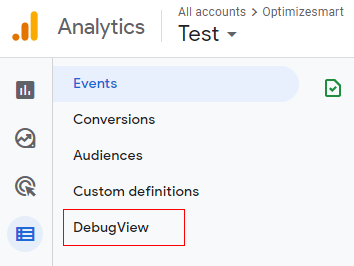
Step-3: Click on ‘DebugView’.
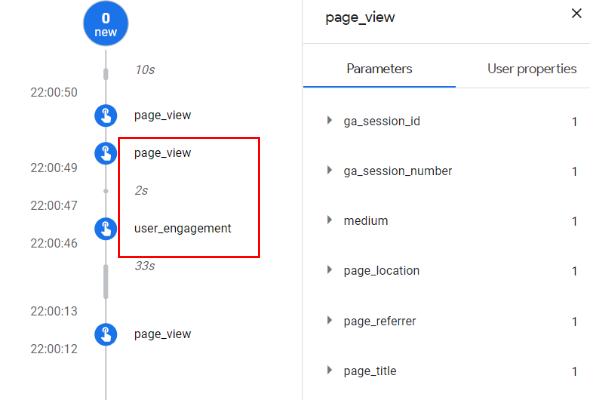
Step-4: Click on ‘user_engagement’ or ‘page_view’ to see if the page location value is captured correctly in the reports.
Step-5: Select ‘page_location’ from the right-hand side parameters.
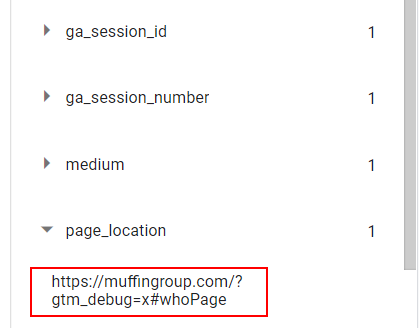
You will see that the URL also includes the hash fragment.
Conclusion
Single-page applications require different implementation, as regular tracking will not work in their case.
First, identify if you are really dealing with a SPA and then use any of the three methods that we have discussed to enable tracking of the application.
If you are not sure which method to use then I would suggest going with the data layer method as it is the most robust method but does require developer help.
If developer availability is limited, then go with a history change in GTM or enhanced measurement in GA4 property.

Other Articles on GA4.
- Web Analytics Career Path – How to Become a Web Analyst.
- GA4 Form Interactions Tracking – Enhanced measurement.
- How to track form submissions in Google Analytics 4.
- How to send data from Google Search Console to BigQuery.
- How to fix duplicate events in Google Analytics 4 (GA4).
- How to use two Google Analytics codes on one page.
- How to import GA4 Conversions into Google Ads.
- What are predictive metrics in Google Analytics 4 (GA4).
- Google Tag Manager Event Tracking Tutorial.
- How to use Google Analytics 4 with iframe.
- Why GA4 Audiences not showing in Google Ads.
- Google Analytics 4 Scroll Tracking Tutorial.
- Why Google Ads and Google Analytics data don’t match & how to fix it.
- Google Analytics 4 Calculated Metrics with Examples.
- How to view subdomain traffic in Google Analytics 4.
- Google Analytics 4 Cookieless Tracking Setup.
- Using Funnel Exploration Report in Google Analytics 4.
- Google Advanced Consent Mode and GA4 BigQuery Export.
- Which Conversion Window to use in Google Analytics 4.
- Tracking single page apps in Google Analytics 4.