

How to track form submissions in Google Analytics 4?
Follow the steps below:
Step-1: Navigate to your GA4 Property.
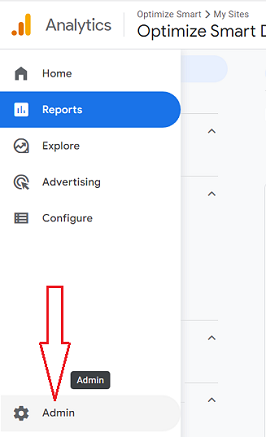
Step-2: Click on the ‘Admin’ link in the left-hand side reporting menu:
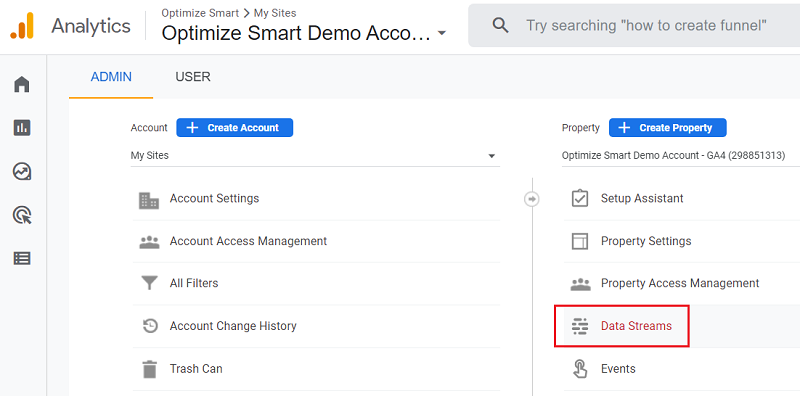
Step-3: Click on ‘Data Streams’ under the ‘Property’ column:
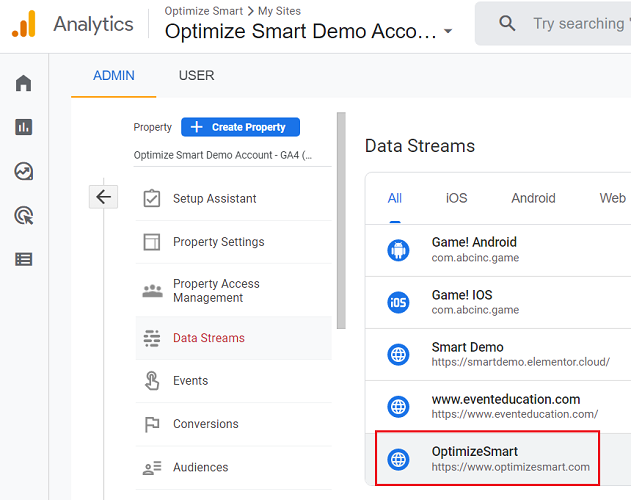
Step-4: Click on the web data stream for which you want to set up form tracking in GA4:
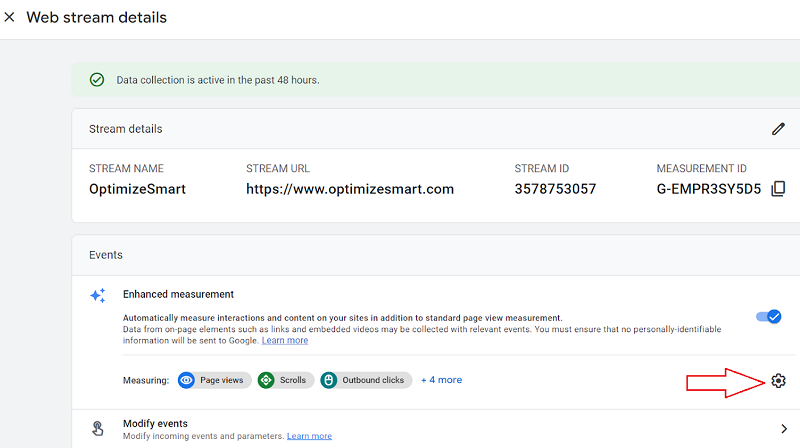
Step-5: Click on the gear button under ‘Enhanced measurement’ to access the settings menu:
Step-6: Make sure that the toggle button next to ‘Form Interactions’ is turned off so that it does not interfere with our form tracking:
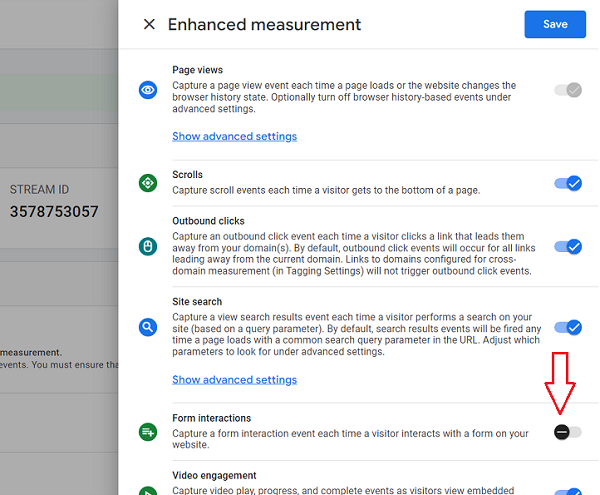
Through the GA4 form interactions tracking feature, you can automatically track form submissions in your GA4 property without any additional code or tagging.
However,
At the time of publishing this article, the accuracy of the GA4 form interactions tracking via enhanced measurement is completely way off.
GA4 track form submissions even when a user does not submit the form. In the case of our website, GA4 was reporting thousands of form submissions a day which is not possible.
However, this situation is unlikely to remain the same in the near future. But for now, we keep the ‘Form Interactions’ setting disabled.
Step-7: Navigate to the form embedded on your website that you want to track. Fill out the form and submit it to see how it works.
Step-8: Ensure that a user sees the ‘thank you’ page but only when the form is successfully completed. If that is not the case, then ask your web developer to fix this issue.
Let us suppose on the successful form submission, you are not redirected to a ‘thank you’ page.
Instead, you see a confirmation message on the same page where you earlier saw the form. If that is the case, then most likely, your form is built with Ajax.
By default, GA4 and GTM can not track forms built with Ajax.
You would need to create Ajax listener (a bunch of JavaScript code) and then use it in a custom HTML tag of GTM, which is quite technical in nature.
Most form builders (like ‘Gravity Forms’) provide a feature to enable or disable Ajax submission easily:
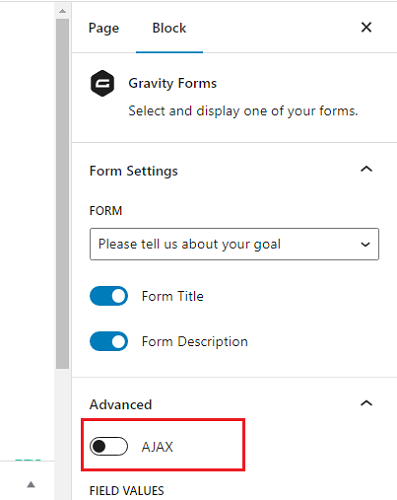
If this feature is unavailable to you, ask your web developer to convert the Ajax form into a standard form that redirects a user to the ‘thank you’ page on successful form submission.
Step-9: Note down the URL of the ‘thank you’ page. You will need this URL later.
We will now create a new tag that fires the ‘generate_lead’ event on the ‘thank you’ page.
We are using ‘generate_lead’ event because this is the GA4 recommended event for form submission.
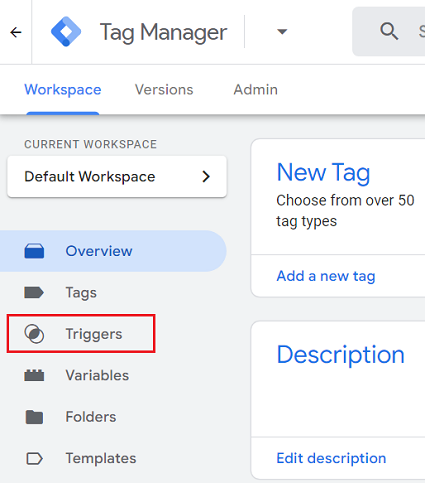
Step-10: Login to your Google Tag Manager account and then click on the ‘Triggers’ menu:
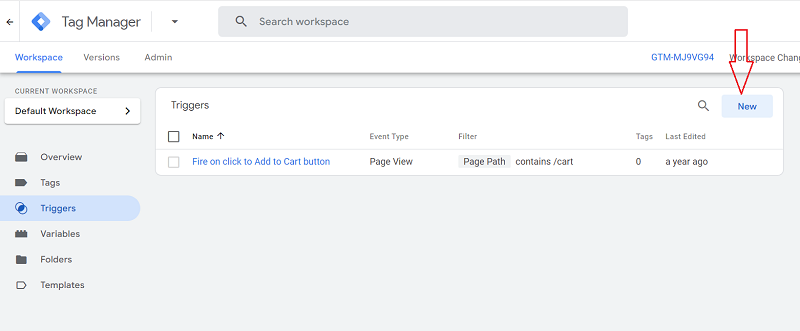
Step-11: Click on the ‘New’ button to create a new trigger:
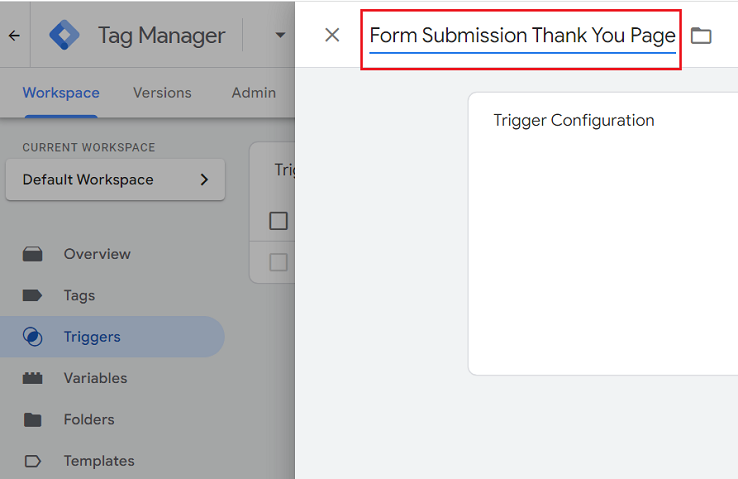
Step-12: Name your trigger ‘Form Submission Thank You Page’:
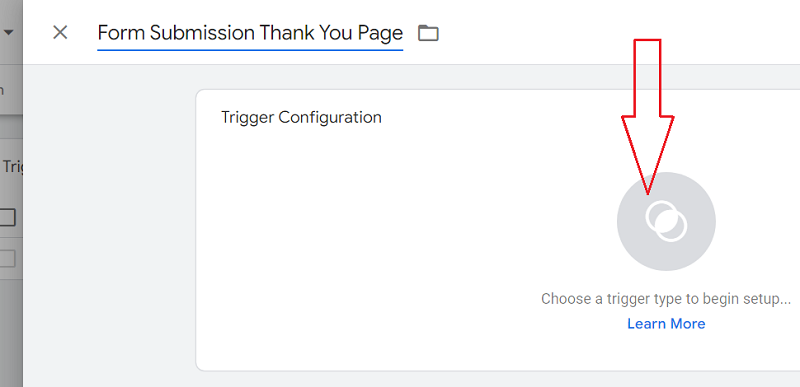
Step-13: Click on the button ‘Choose a trigger type to begin setup…’:
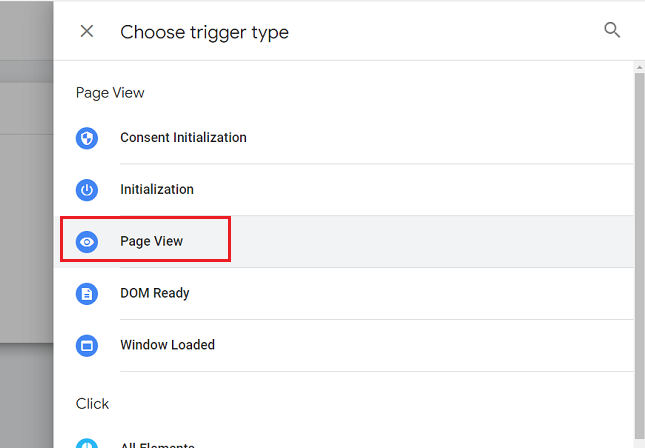
Step-14: Click on ‘Page View’:
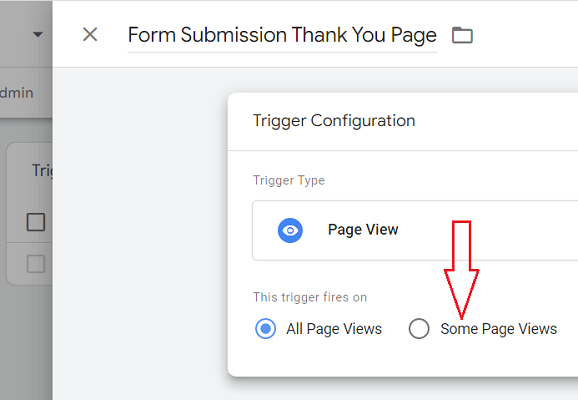
Step-15: Click on the radio button ’Some Page Views’:
Step-16: Select ‘Page URL’ and ‘Starts with’ from the drop-down menus:
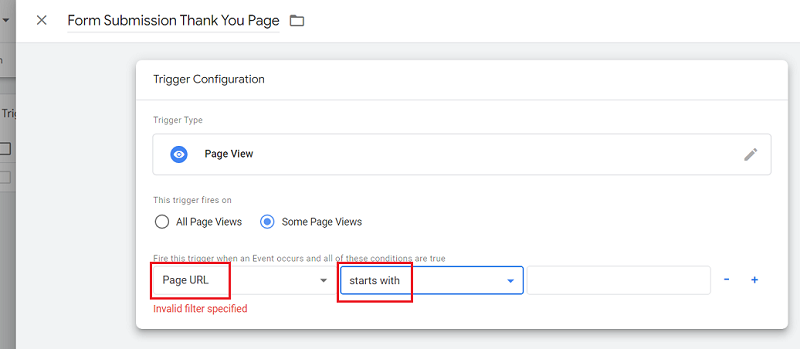
Step-17: Enter the URL of the ‘thank you’ page you noted earlier and then click on the ‘Save’ button:
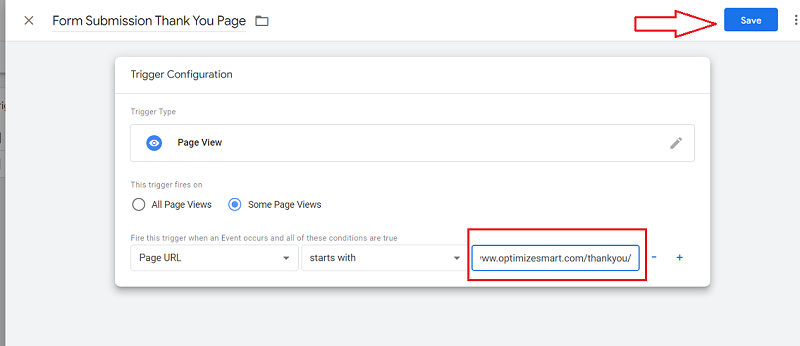
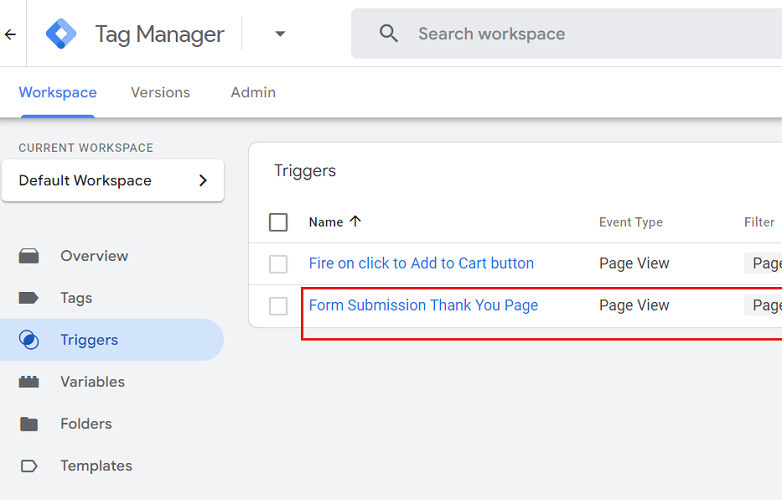
You should now see your new trigger listed under the ‘Triggers’ section:
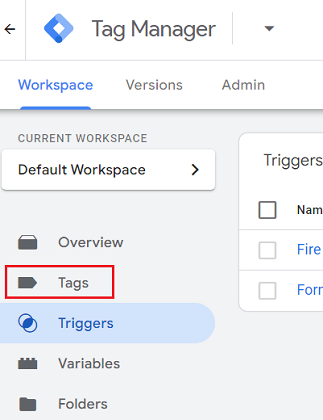
Step-18: Click on the ‘Tags’ menu:
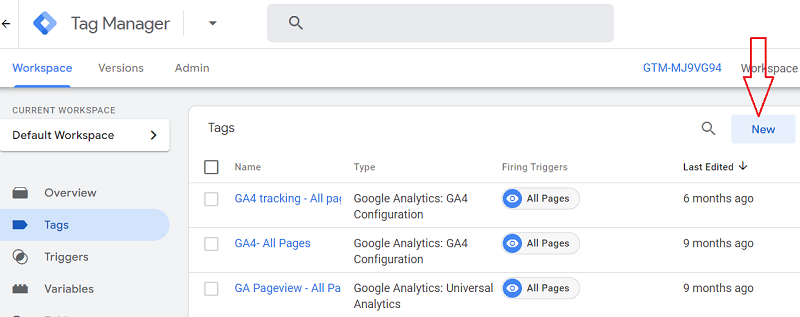
Step-19: Click on the ‘New’ button to create a new tag:
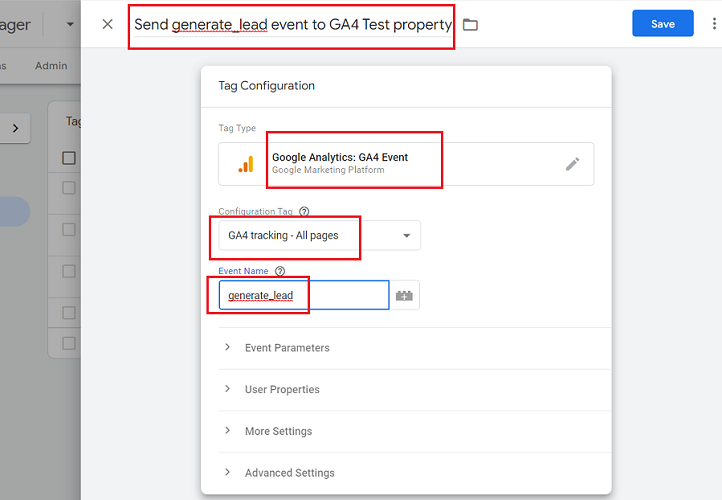
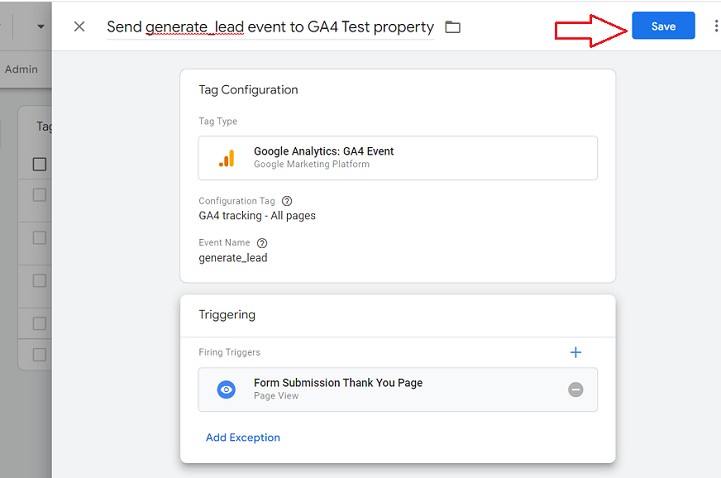
Step-20: Name your new tag, select ‘Google Analytics: GA4 Event’ as the tag type, select your GA4 configuration tag (from the drop-down menu) and set the event name to ‘generate_lead’:
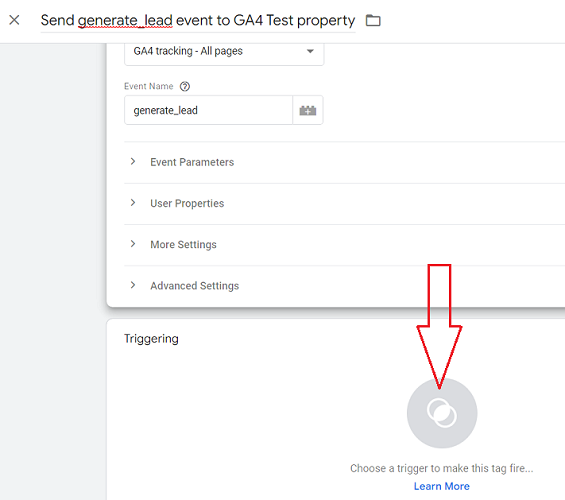
Step-21: Scroll down and then click on ‘Choose a trigger to make this tag fire…’ button:
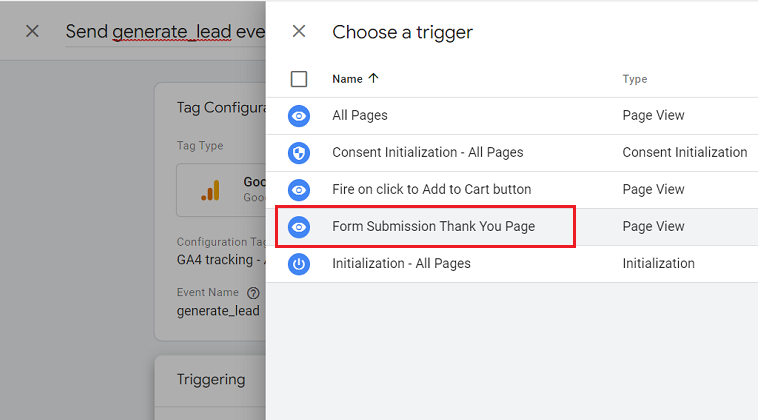
Step-22: Click on the trigger ‘Form Submission Thank you page’:
Step-23: Click on the ‘Save’ button to save your new tag:
How to test GA4 Form Tracking?
Now we will test whether the ‘generate_lead’ event fire on successful form submission.
Follow the steps below:
Step-1: Click on the ‘Preview’ button in your GTM account:
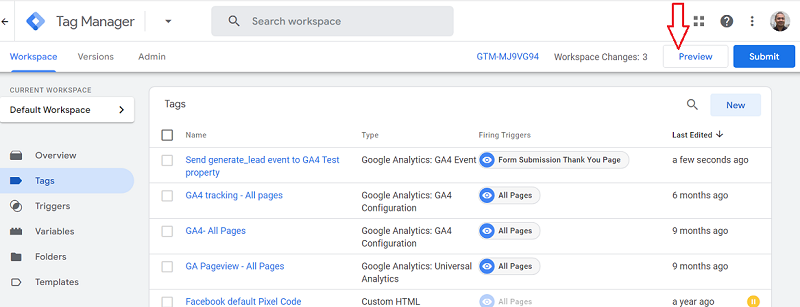
You should now be automatically redirected to the tag assistant window.
Step-2: Enter the URL of the web page which contains the form you want to track, and then click on the ‘connect’ button:
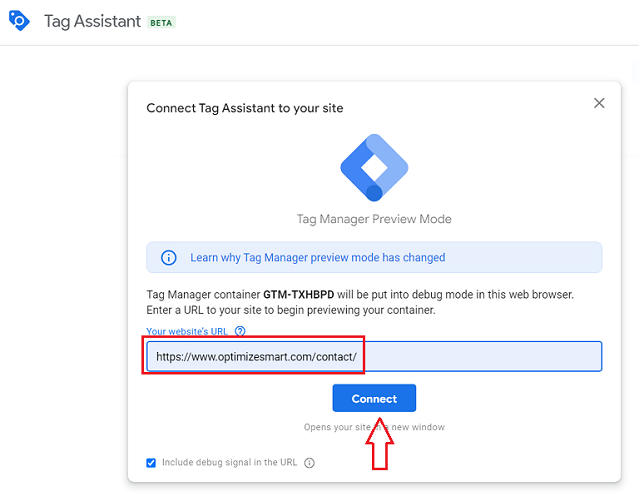
You should now be automatically redirected to the web page which contains the form you want to track:
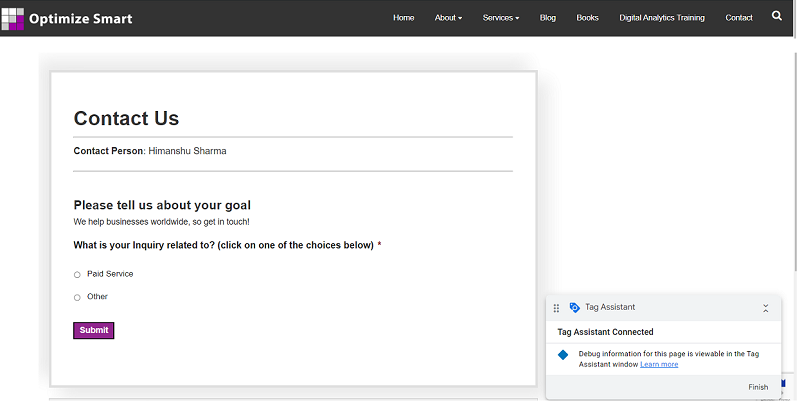
Step-3: Fill out the form and then click on the ‘Submit’ button.
You should now be able to see the ‘thank you’ page.
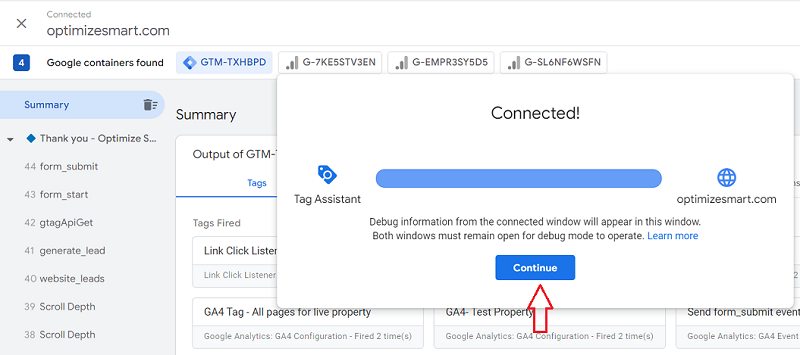
Step-4: Navigate back to the tag assistant window and then click on the ‘continue’ button:
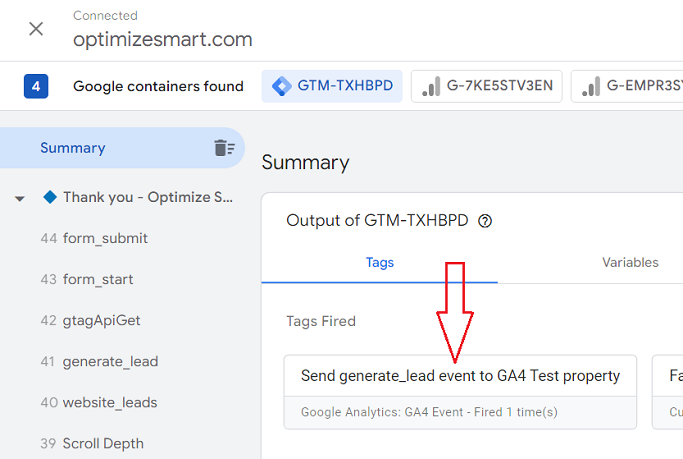
You should now be able to see your tag ‘Send generate_lead event to GA4 Test property’ fired under the ‘Tags Fired’ section:
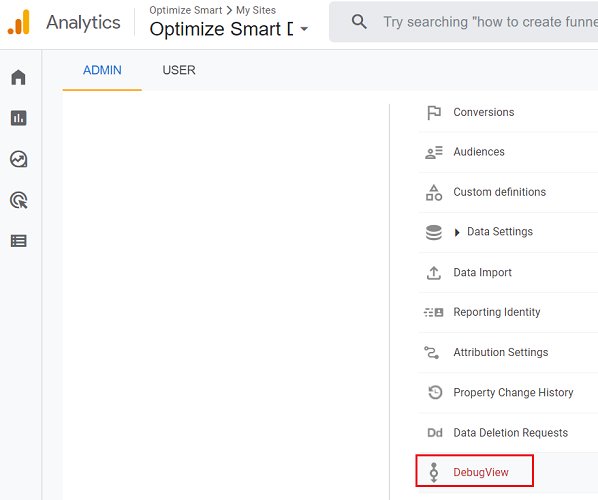
Step-5: Navigate to the ‘Debug View’ report in your GA4 admin:
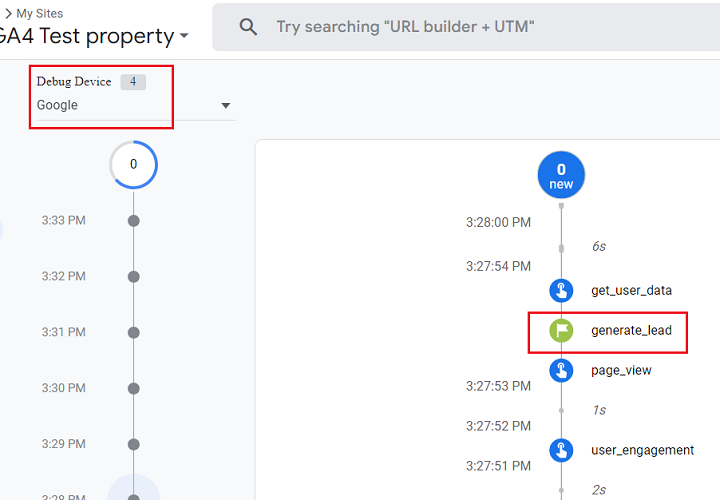
Step-6: Set your debug device to ‘Google’ and look for the GA4 event ‘generate_lead’:
Step-7: Click on the ‘generate_lead’ event and then click on the ‘page_location’ drop-down menu:
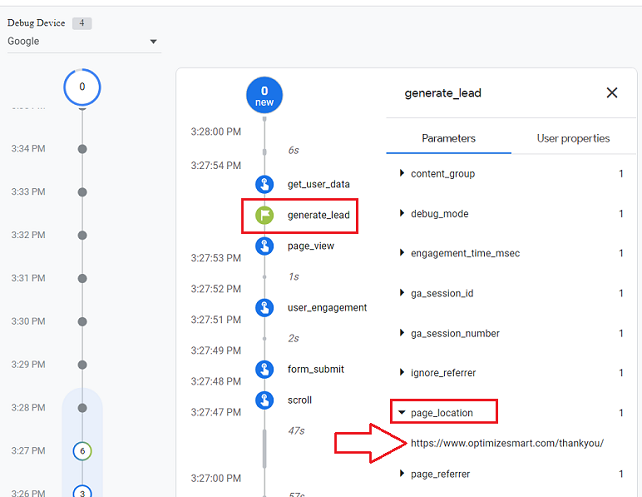
You should now be able to see the URL of your ‘thank you’ page.
This testing confirms that the ‘generate_lead’ event is firing on the ‘thank you’ page (aka on form submission).
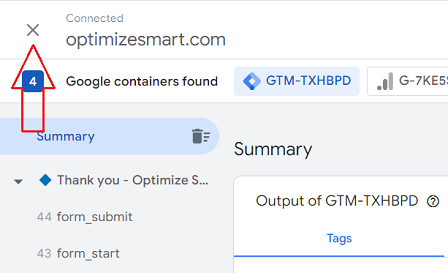
Step-8: Navigate back to the tag assistant window of your GTM account and then click on the ‘cross’ button at the top left:
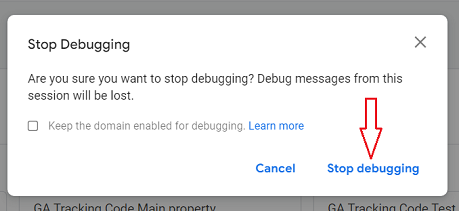
Step-9: Click on the ‘Stop debugging’ button:
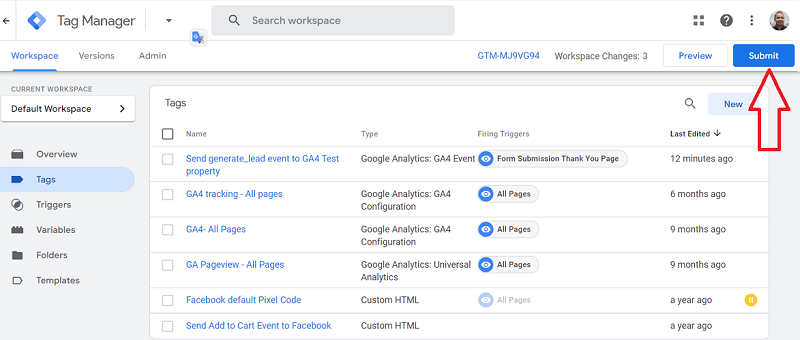
Step-10: Navigate back to your GTM account and then click on the ‘Submit’ button:
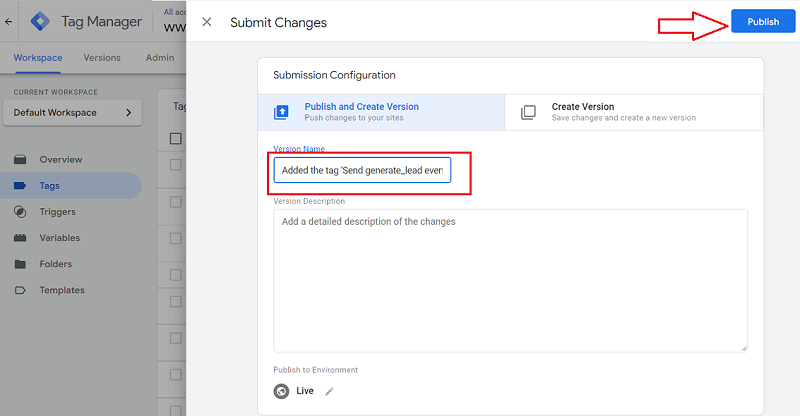
Step-11: Give your version a name and then click on the ‘Publish’ button to publish your GTM container:
How to see the form tracking data in GA4?
There are two ways you can see the form tracking data in GA4:
- Through the ‘Events’report
- By creating an exploration report.
Finding form interactions data through the ‘Events’ report
Follow the steps below:
Step-1: Once you have set up form tracking in your GA4 property, wait for at least 24 hrs to gather form tracking data in your reports.
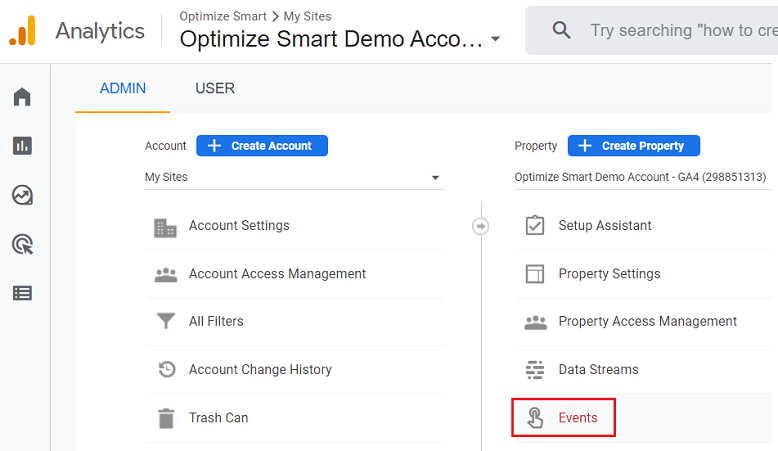
Step-2: Navigate to the ‘Events’ report (under ‘admin’):
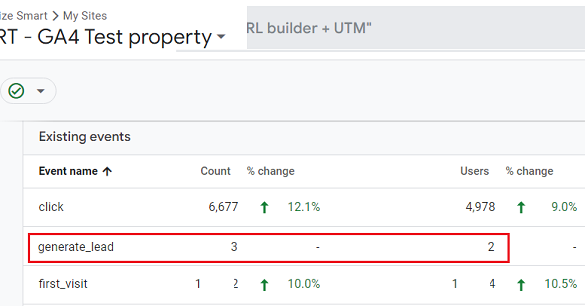
You should now be able to see the ‘generate_lead’ event listed under ‘Existing events’:
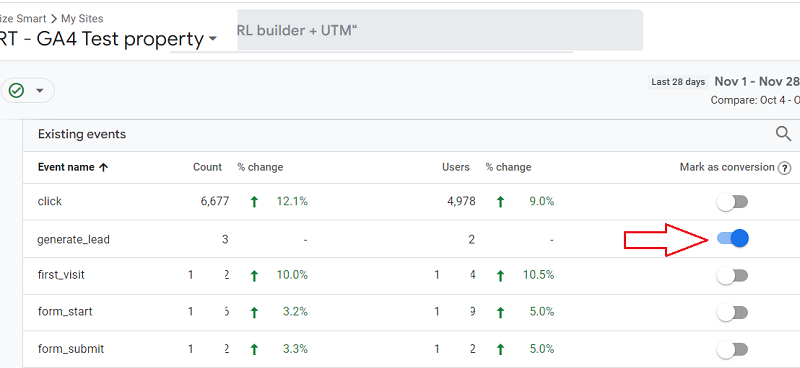
Step-3: Mark the ‘generate_lead’ event as a conversion by turning on the toggle button next to it:
Finding form tracking data by creating an exploration report
Follow the steps below:
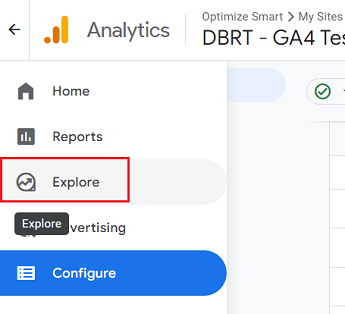
Step-1: Click on the ‘Explore’ link from the left-hand side navigation bar in your GA4 property:
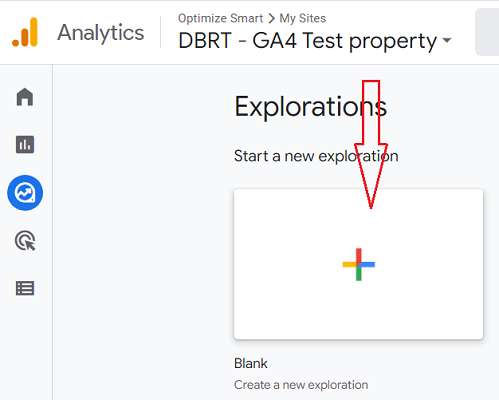
Step-2: Click on the ‘Blank’ exploration report template:
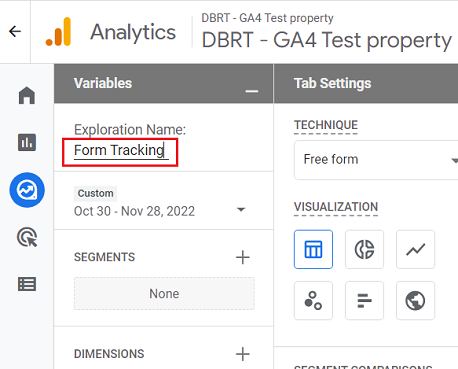
Step-3: Name your report ‘Form Tracking’:
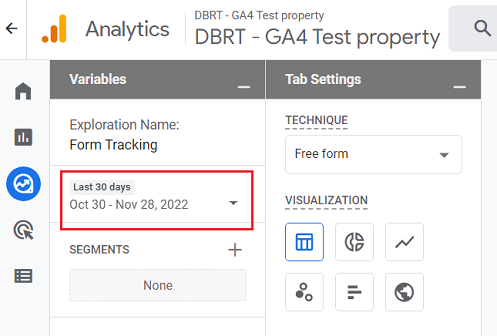
Step-4: Set the date range to the last 30 days:
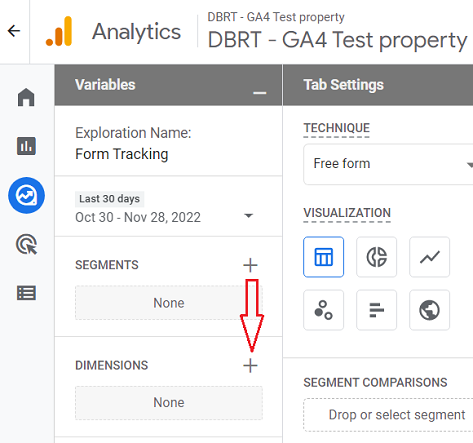
Step-5: Click on the + button next to ‘DIMENSIONS‘:
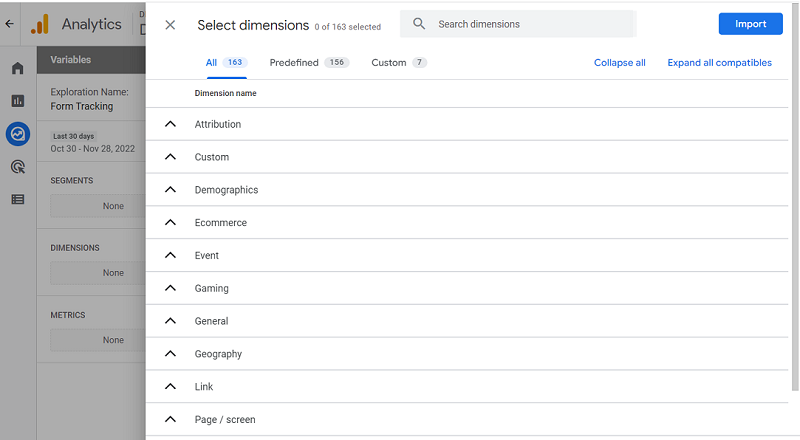
You will now see a screen like the one below:
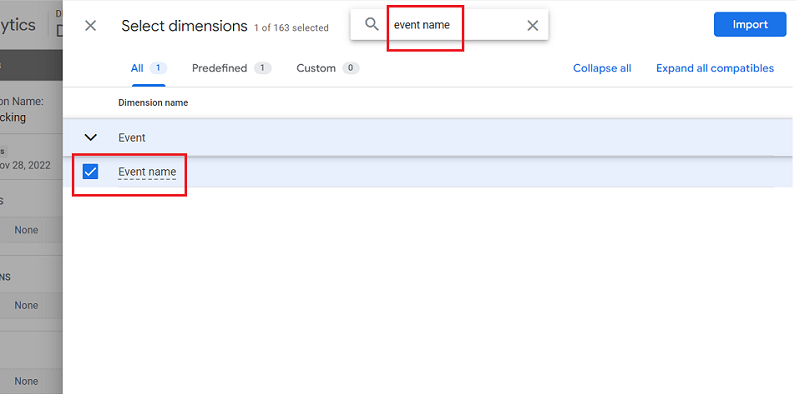
Step-6: Search for the ‘Event Name’ dimension and then click on the checkbox next to it:
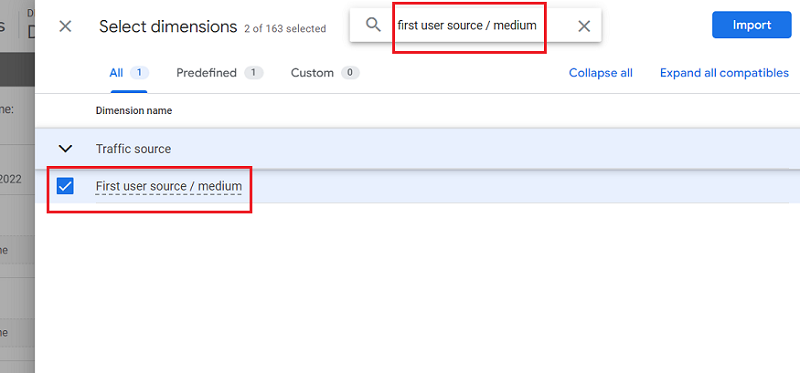
Step-7: Search for the ‘first user source / medium’ dimension and then click on the checkbox next to it:
Step-8: Click on the ‘Import’ button to import all the selected dimensions to the report:
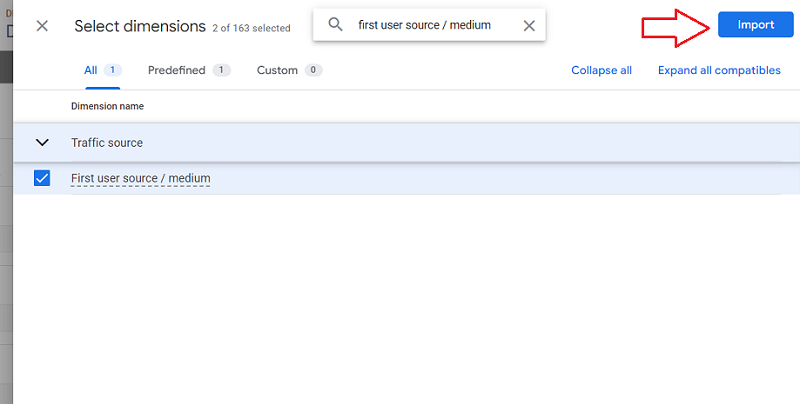
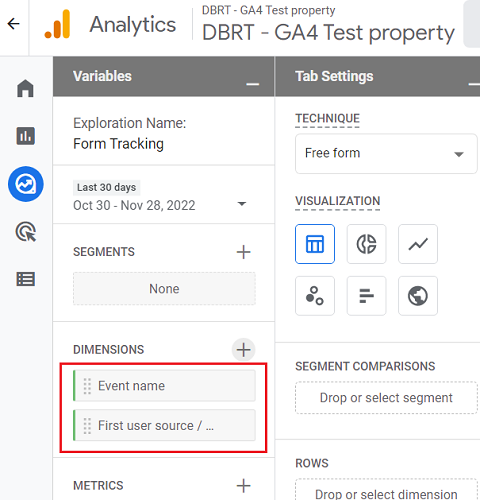
You should now see all the imported dimensions listed under the DIMENSIONS section:
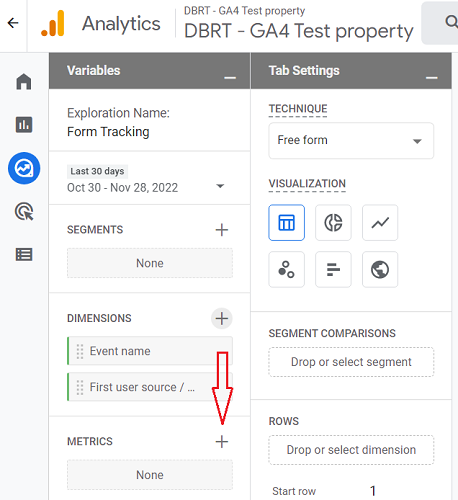
Step-9: Click on the + button next to METRICS:
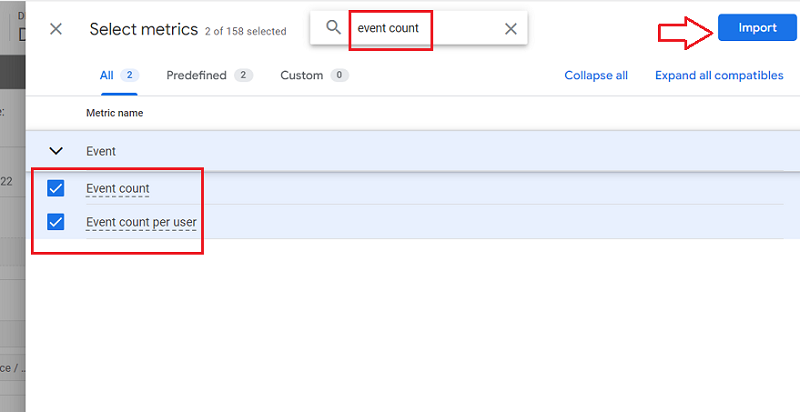
Step-10: Search and select the following metrics one by one in the exact order as mentioned below and then click on the ‘Import‘ button:
- event count
- event count per user
You should now see all the imported metrics listed under the METRICS section:
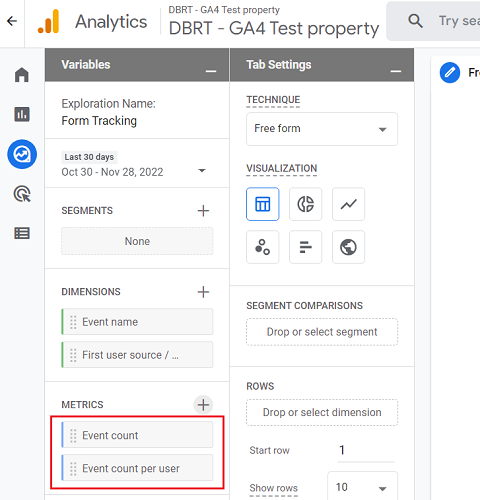
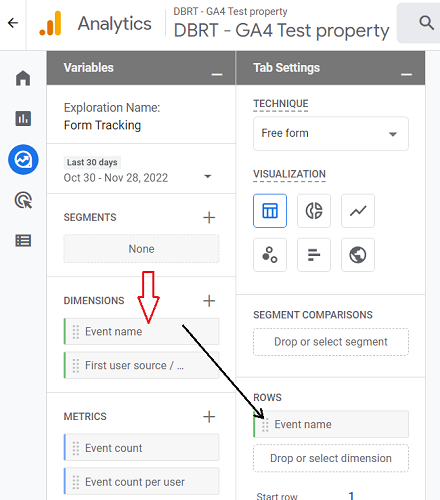
Step-11: Double-click on the dimension ‘Event Name’ so that it is automatically added to the Rows section:
Step-12: Double-click on the dimension ‘First user source / medium’ so that it is automatically added to the Rows section:
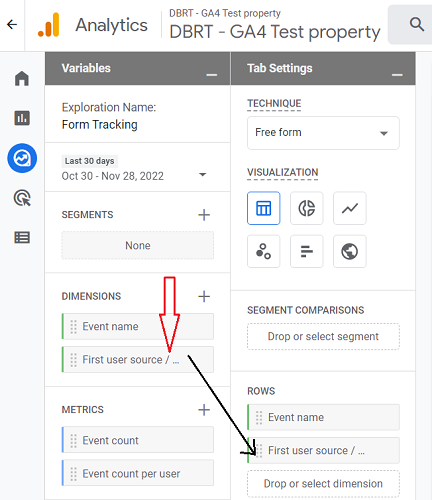
Note: When you double-click on the dimensions, you won’t see any change to the canvas on the right. But the dimension has been added to the canvas. When you start adding metrics to the canvas, you will see the dimension(s) added to the canvas.
Step-13: Double-click on the following metrics one by one, starting from the very top, so that they are automatically added to the blank canvas on the right:
- event count
- event count per user
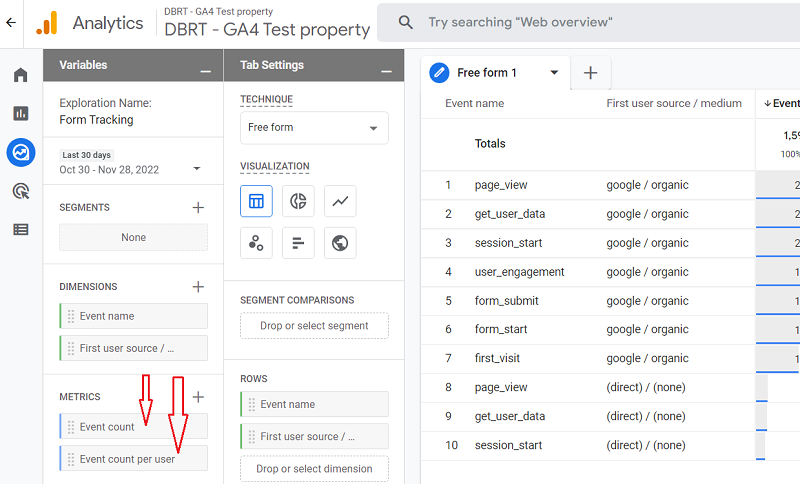
Step-14: Scroll all the way down under the ‘Tab Settings’ column until you see the section called ‘FILTERS’:
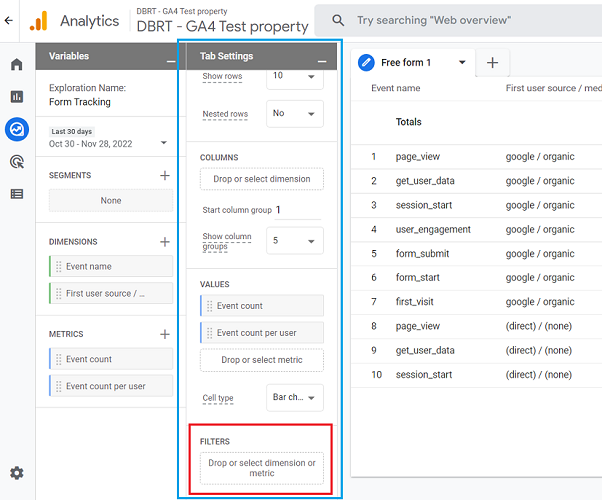
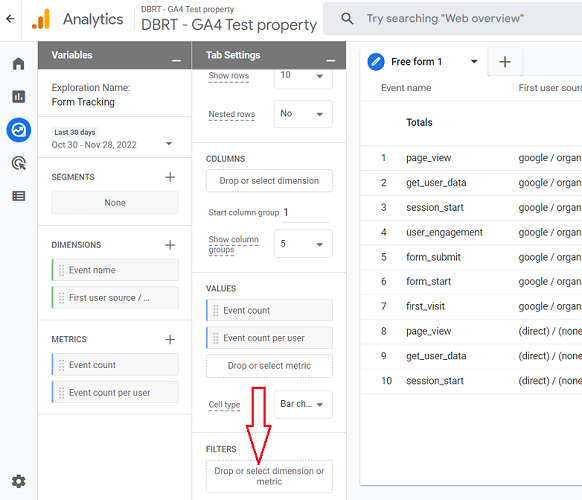
Step-15: Click on ‘Drop or select dimension or metric’:
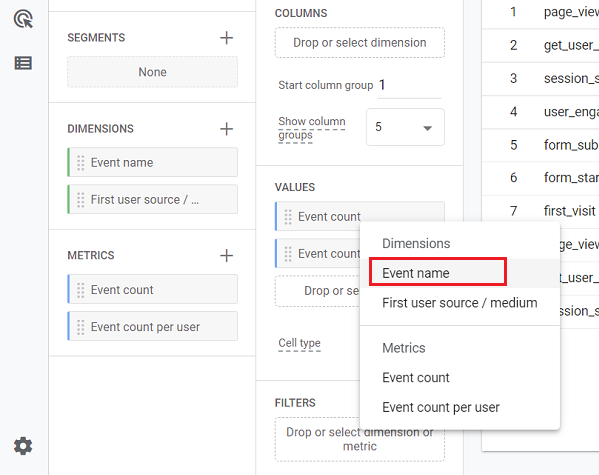
Step-16: Click on the ‘Event Name’ dimension from the drop-down menu:
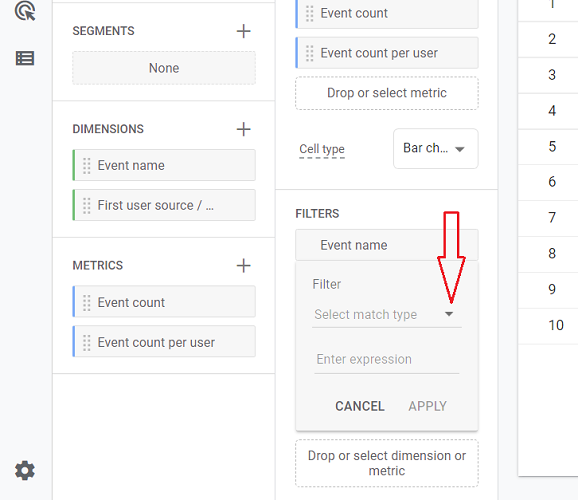
Step-17: Click on the ‘Select match type’ drop-down menu:
Step-18: Click on ‘Exactly Matches’:
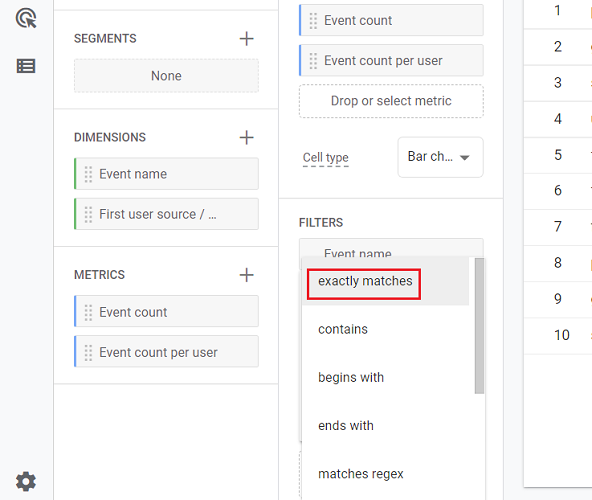
Step-19: Click on the ‘enter expression’ text box:
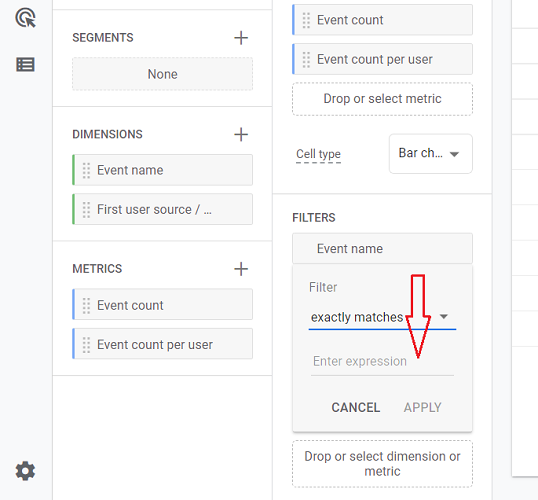
Step-20: Type ‘generate_lead’ in the text box and then click on the first search result ‘generate_lead‘:
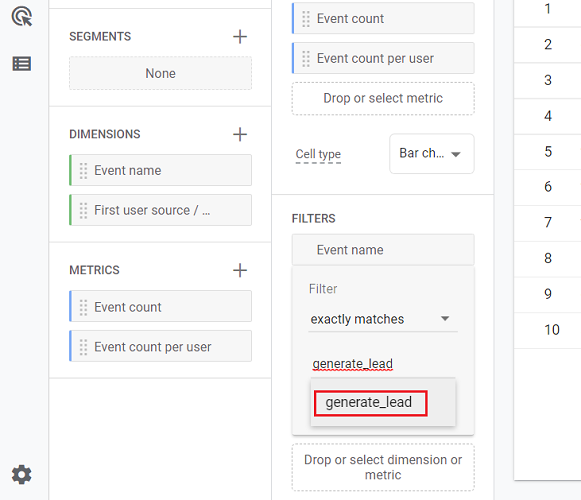
Step-21: Click on the ‘Apply’ button to apply your filter to the canvas on the right:
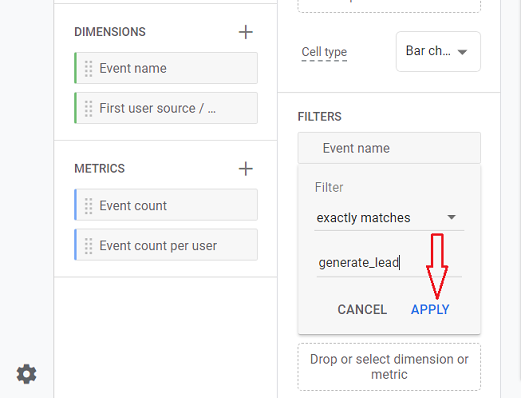
You should now see a screen like the one below:
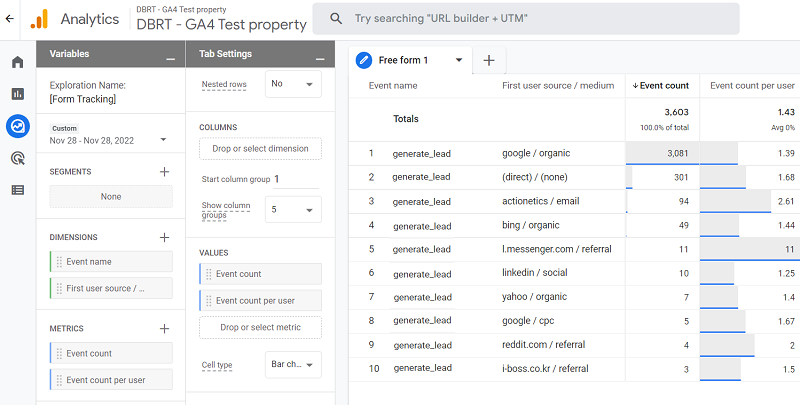
That’s how you can see the form tracking data in GA4 via the exploration report.
Tracking forms via the GA4 user interface
You can also track forms via the GA4 user interface without using the Google Tag Manager.
Follow the steps below:
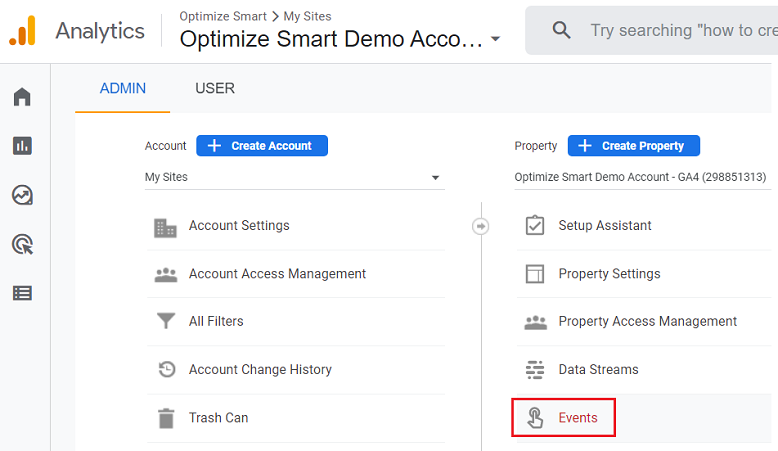
Step-1: Navigate to ‘Events’ report (under ‘admin’) in your GA4 property:
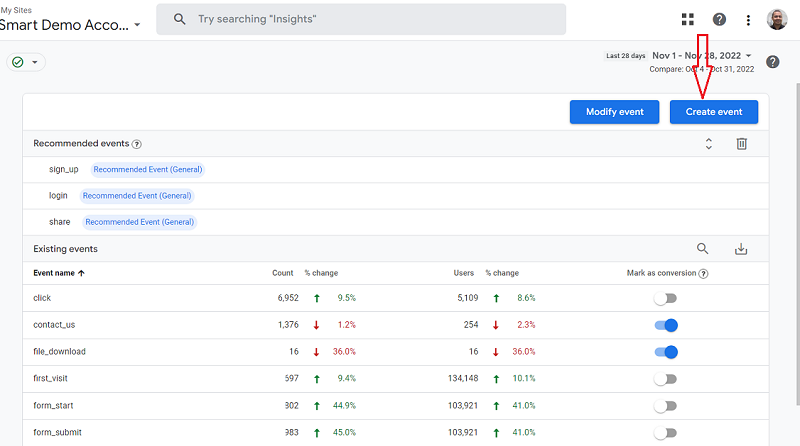
Step-2: Click on the ‘Create Event’ button:
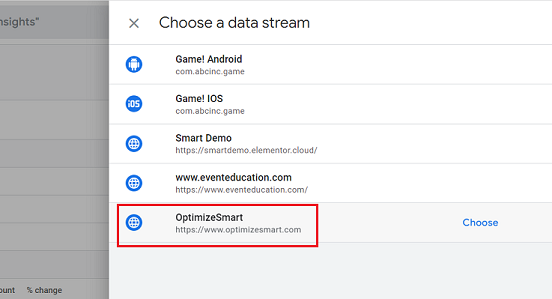
Step-3: Click on the web data stream for which you want to set up the form tracking:
Step-4: Click on the ‘Create’ button to create a new event:
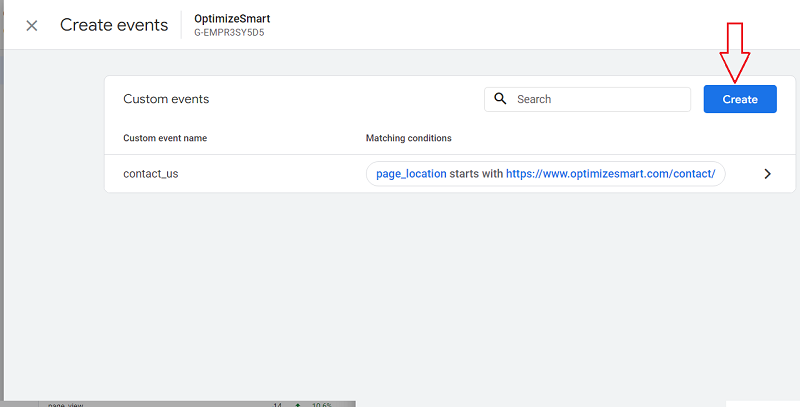
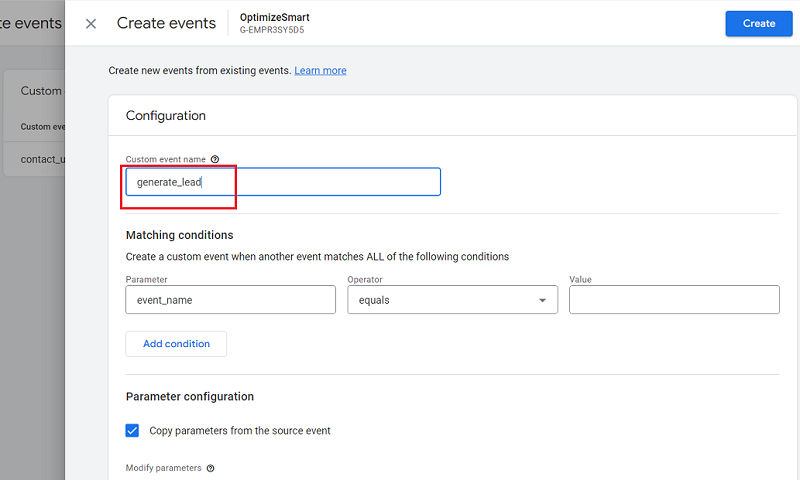
Step-5: Type ‘generate_lead’ in the text box below ‘Custom Event Name’:
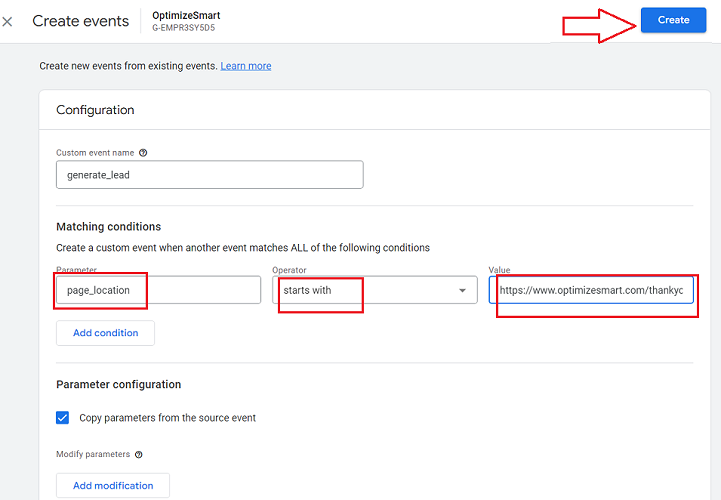
Step-6: Set the matching conditions to Page Location starts with <the URL of your thank you page> and then click on the ‘Create’ button:
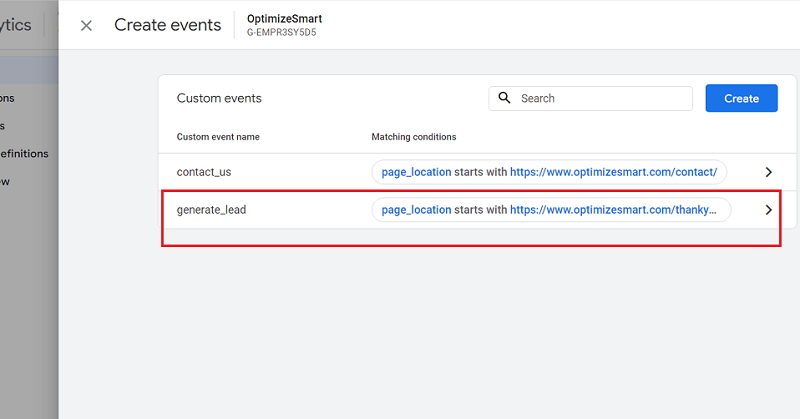
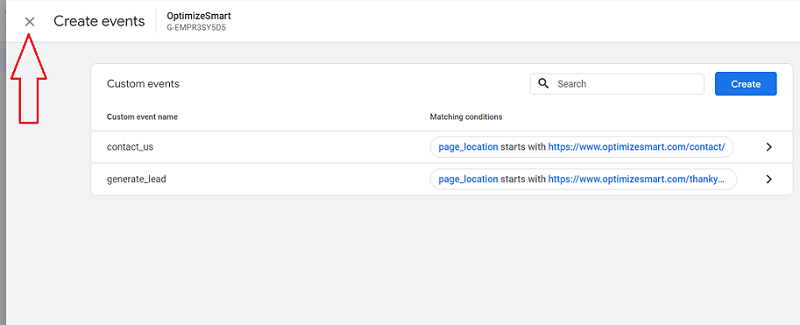
You should now see your new custom event listed:
Step-7: Click on the cross button:
Step-8: Once you have set up form tracking in your GA4 property, wait for at least 24 hrs to gather form tracking data in your reports.
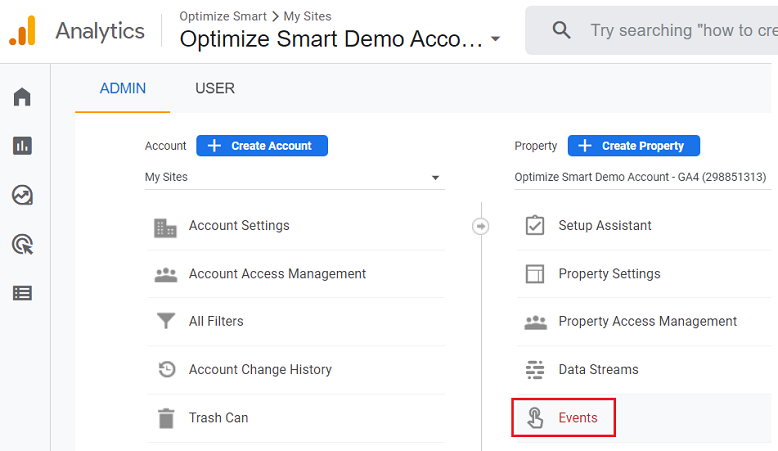
Step-9: Navigate to the ‘Events’ report (under ‘admin’):
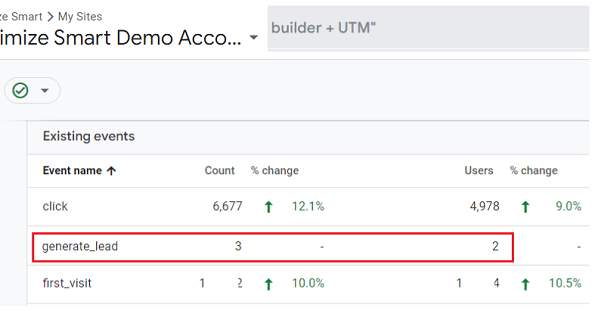
You should now be able to see the ‘generate_lead’ event listed under ‘Existing events’:
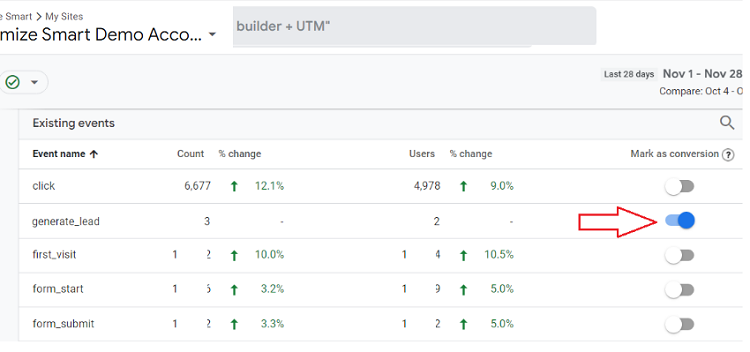
Step-10: Mark the ‘generate_lead’ event as a conversion by turning on the toggle button next to it:

Other Articles on GA4.
- Google Tag Manager Tutorial.
- GA4 Attribution Models Explained: How to Choose the Right One.
- Looker Studio (Google Data Studio) Tutorial.
- Google Tag Manager Data Layer Tutorial with Examples.
- Set up enhanced conversions for Web using ‘Code’ in Google Tag Manager.
- How to create Google Ads report in Google Analytics 4.
- Google Tag Manager Audit Checklist.
- Tracking Site Search in Google Analytics 4.
- How to see Organic Search Keywords in Google Analytics 4.
- How to use User Lifetime report in Google Analytics 4 (GA4).
- Web Analytics Career Path – How to Become a Web Analyst.
- GA4 Form Interactions Tracking – Enhanced measurement.
- How to track form submissions in Google Analytics 4.
- How to send data from Google Search Console to BigQuery.
- How to fix duplicate events in Google Analytics 4 (GA4).
- How to use two Google Analytics codes on one page.
- How to import GA4 Conversions into Google Ads.
- What are predictive metrics in Google Analytics 4 (GA4).
- Google Tag Manager Event Tracking Tutorial.
- How to use Google Analytics 4 with iframe.