

How to track Google Analytics events via Google Tag Manager
You can track Google Analytics events via Google Tag Manager by creating a Google Analytics tag of type ‘Event’ and then creating a specific trigger to track specific time of users’ interactions (like PDF Downloads, image link clicks, button clicks, form submissions, form fields, video watching, scrolling, external link clicks etc.).
Every time you want to track a new page element, you need to create a new Google Analytics tag of type ‘Event’. This tag is used to send event tracking data (Event Category, Event Action, Event Label and Event Value) to Google Analytics.
Basics of event tracking
Step-1: Compile a list of events that you would like to track.
Step-2: Create event triggers for each event you would like to track on the page using CSS element selectors.
Step-3: Set up tags for each event and link to the triggers accordingly.
Step-4: Validate the tags created using GTM preview mode.
Step-5: Check if the event data is flowing in the Google Analytics real-time reports.
Step-7: Once the validation is completed, you can publish the changes in the GTM.
These are the basic steps that need to be followed for every type of event (link tracking, button tracking, etc.) using Google Tag Manager.
Before you start event tracking via Google Tag Manager (GTM), do this…
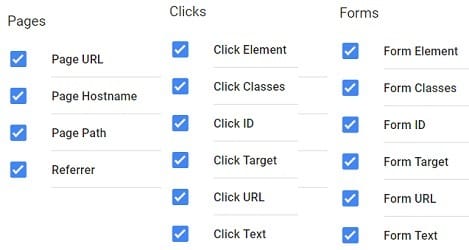
Before you implement event tracking via Google Tag Manager (GTM), make sure that you have enabled all the ‘built-in variables‘ of type:
- Pages
- Clicks
- Forms
- Videos
- Scrolling
- Visibility
By doing this, these variables will be available to you when you create new tags and triggers later on for the purpose of event tracking.
Follow the steps below to enable all the required built-in variables for event tracking:
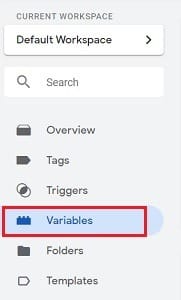
Step-1: Login to your Google Tag Manager (GTM) account and then click on the ‘Variables’ link from the left-hand side menu:
Step-2: Click on the ‘Configure’ button:
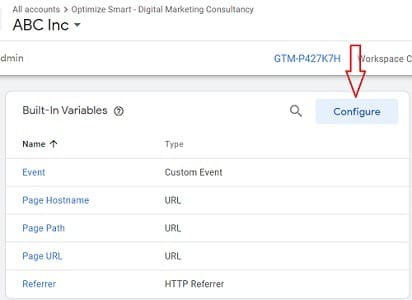
You should now see a window like the one below:
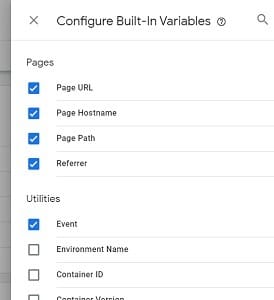
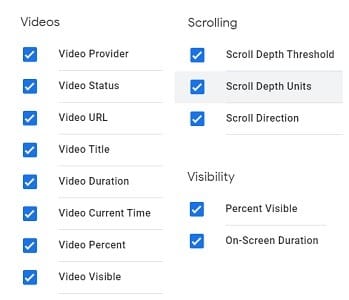
Step-3: Enable all the ‘built-in variables’ of type: Pages, Clicks, Forms, Videos, Scrolling, and Visibility by clicking on the checkboxes:
How to track a button click in Google Tag Manager
Consider the following button:
<button id="checklist3" type="button" onClick='location.href="http://www.optimizesmart.com/Worksheets/worksheets.pdf"'>Download</button>
To track clicks on this button via GTM, follow the steps below:
Step-1: Navigate to the web page (in Google Chrome browser), which contains the button you want to track via GTM.
Step-2: Note down the web page URL where the button is embedded. Let us suppose that the URL is: https://www.optimizesmart.com/62925-2/
Step-3: Right-click on the button and then click on ‘Inspect’:
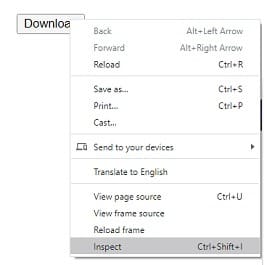
You should now see the Google developer console window at the bottom of the page:
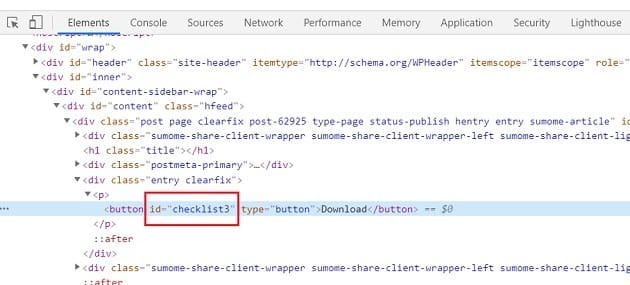
Step-4: Note down the ‘id’ attribute of the button (in our case, it is ‘checklist3’). If the ‘id’ attribute is missing, ask your developer to add one.
Step-5: Create the new trigger with the following similar configurations and then click on the ‘Save’ button:
Trigger Name: Check for clicks on the download button
Trigger Type: Click – All Elements
This trigger fires on: Some Clicks
Fire this trigger when an event occurs, and all of these conditions are true:
Page URL equals <<enter the URL of the page where the button you want to track is embedded>>
Click ID equals <<enter the ID of your button element>>
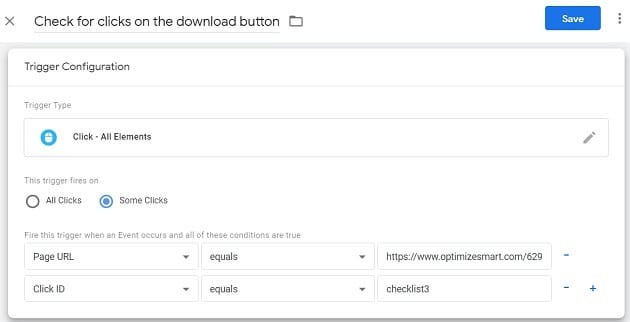
Note(1): In GTM, if you want to track any HTML element other than a link, you set the ‘Trigger Type’ to ‘Click All Elements’.
Note(2): If you are not sure what a trigger is and how to create a new trigger in GTM, then read this article: Understanding Triggers and Variables in Google Tag Manager
Note(3): ‘Page URL’ is a built-in variable of GTM which returns the URL of a web page.
Note(4): ‘Click ID’ is a built-in variable in GTM which returns the ‘id’ attribute of the link clicked.
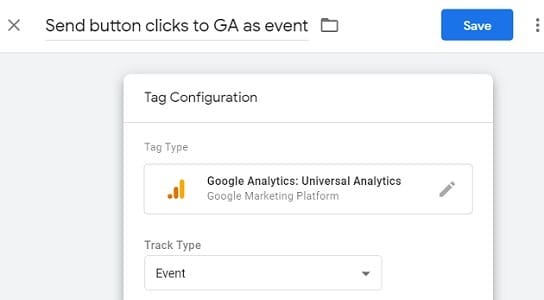
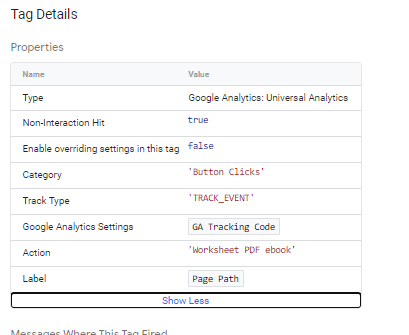
Step-6: Create a new tag with the following similar configuration, which can send clicks on the tracked button to Google Analytics as an event:
Tag Name: Send button clicks to GA as event
Tag Type: Google Analytics: Universal Analytics
Track Type: Event
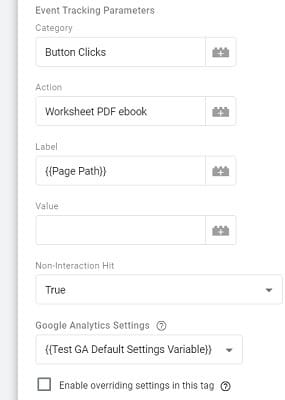
Category: Button Clicks
Action: <<enter the name of your event action>>
Label: {{Page Path}}
Value: <<enter your event value. This is optional>>
Non-Interaction Hit: True
Google Analytics Settings: <<Select your Google Analytics Settings Variable>>
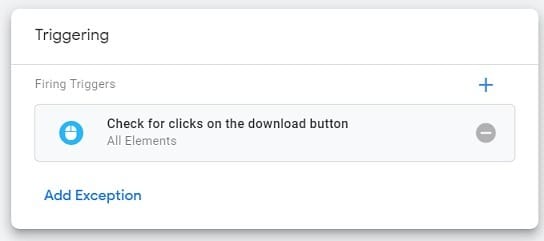
Firing Triggers: Check for clicks on the download button
Here,
{{Page Path}} is the page path variable.
The Page Path variable returns the Request URI of a web page.
For example,
For the URL: https://www.optimizesmart.com/contact/
The Request URI is: /contact/
I have used ‘Page Path’ as the event label so that in my event tracking reports, I can see the page on which the button was clicked. This can be useful if you have embedded the same button on multiple pages of your website.
Non-Interaction Hit – Set non-interaction Hit to ‘True’ so that event tracking does not affect the bounce rate of your website.
Note: If you are not sure what a tag is and how to create a new tag in GTM, then read this article: Beginners guide to Google Tag Manager
Step-7: Preview your container.
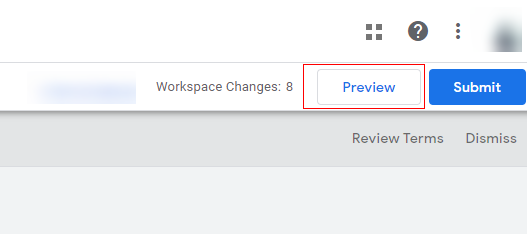
Step-8: Navigate to the web page (in Google Chrome browser), which contains the button you want to track via GTM. You should now see the Google Tag Manager Debug console window as shown below:
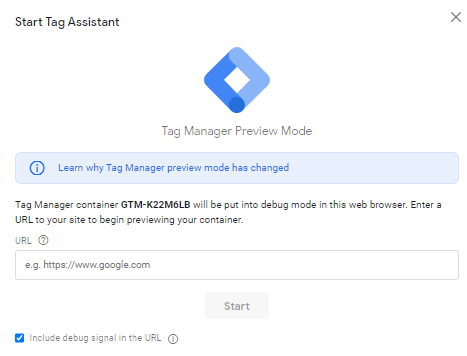
Step-9: Enter the URL you need to debug and click on the ‘Start’ button.
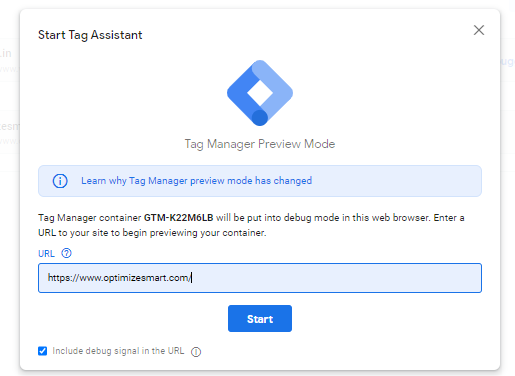
Step-10: You will see the preview mode enabled on the page.
Step-11: Additionally, on the website, where the preview mode is enabled, you would see an alert like below, which states that debug mode is enabled on the page.

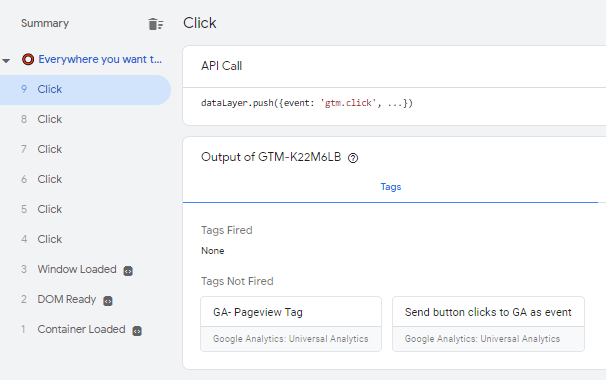
Step-12: Click on the button on the website and then click on the ‘Debug’ tab. You will notice that the button click event to GA is triggered.
If you see the tag ‘Send button clicks to GA as event‘ listed under the ‘Tags Fired’ section, it means that your tag fires on button click.
Step-13: You can even click on the event triggered to check if the event parameters (event category, action and label) are fired on the page as expected.
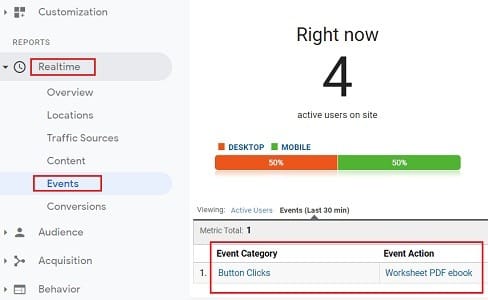
Step-14: To double-check that your tag is firing and sending events data to Google Analytics, navigate to Real Time >> Events report in your main Google Analytics reporting view:
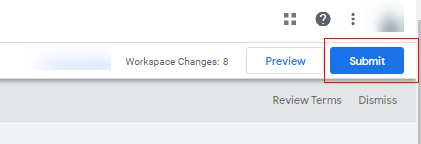
Step-15: Navigate back to your GTM account and click on ‘Submit’.
Step-16: After you click to submit changes, you will see a window, like below, where you can create a version and publish the version.
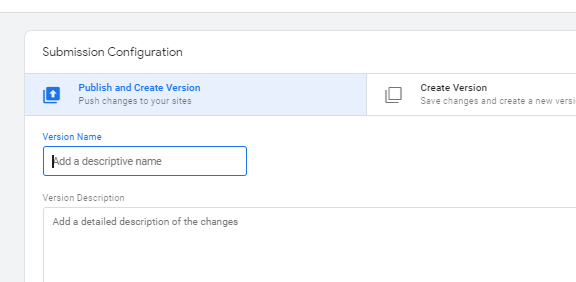
Step-17: Create a version. Make sure to give a proper version name so that it would be easy to track what changes went live in that version. Ex: Send button events in GA.
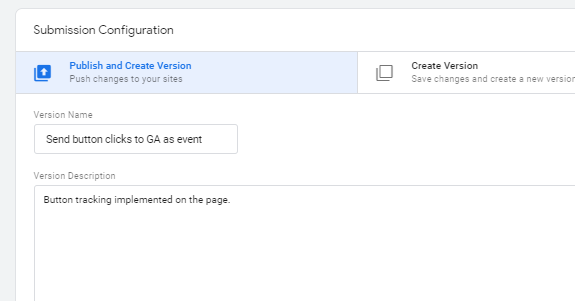
Step-18: After updating the version name and description, click on the ‘Publish’ button on the right-hand side.
Tracking clicks on a button that is embedded across a website
The whole process of tracking clicks on the button, which is embedded across a website instead of just one particular page, is similar to tracking clicks on a button embedded on a single page.
The only difference is that you set the ‘Page URL’ to .* so that trigger can fire on any page of your website when you create the trigger.
For example:
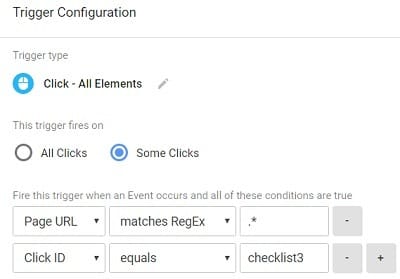
Here .* is a regular expression.
How to track link clicks in Google Tag Manager (tracking PDF downloads)
Consider the following link on a web page:
<a id="checklist" href="http://www.optimizesmart.com/Worksheets/seo-guide.pdf" >Download SEO Guide</a>

To track clicks on this link, follow the steps below:
Step-1: Navigate to the web page (in Google Chrome browser), which contains the link you want to track via GTM.
Step-2: Note down the web page URL where the link is embedded. Let us suppose that the URL is: https://www.optimizesmart.com/62952-2/
Step-3: Right-click on the link and select ‘Inspect‘ from the drop-down menu:
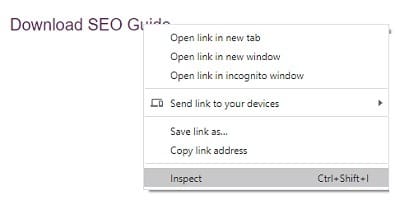
You will now see the Google developer console window at the bottom of the page:
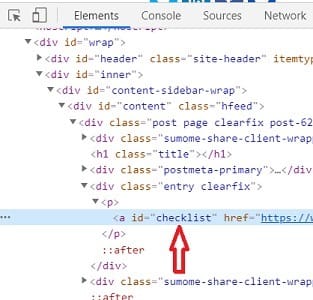
Step-4: Note down the value of the ‘id’ attribute of the anchor tag (<a>). In our case, it is ‘checklist’.
You will need this ‘id’ later on while setting up triggers in GTM.
In HTML, the ‘id’ attribute uniquely identifies an HTML element (like link, button, etc).
The ‘id’ attribute’s value must be unique and must not contain any white space.
For example,
<a id=”checklist” href=”…
Here <a> is an HTML element
and ‘id’ is the attribute of <a> element which is used to uniquely identify this element in a HTML document.
Note: If you do not find any ‘id’ attribute for the link you want to track, look for the unique class name. If you can’t find a unique class name, ask your developer to add the ‘ID’ attribute with a unique value. Without the ID attribute, you can’t easily track clicks on a link via GTM.
Step-5: Navigate to Google Tag Manager and create a new trigger with the following similar configurations:
Trigger Name: Check for clicks on the download link
Trigger Type: Click – Just links
Check Validation
Enable this trigger when:
Page URL equals <<enter the URL of the page where the link you want to track is embedded>>
This trigger fires on:
Some Link Clicks
Click ID equals <<enter the ID of your <a> element>>
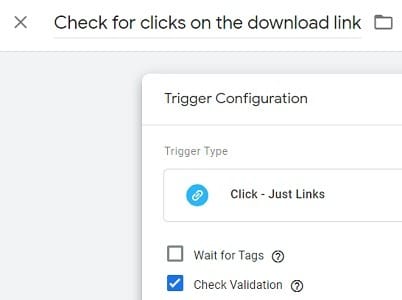
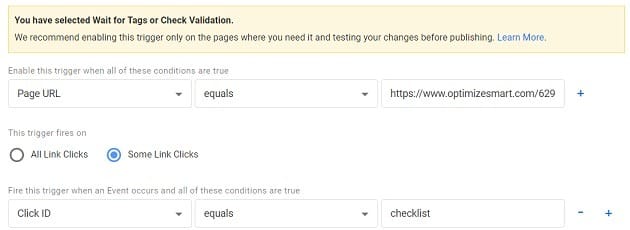
Note: ‘Check Validation‘ ensures that the trigger fires on a successful link click and not just when a user tries to click the link.
Step-6: Create a new tag with the following similar configuration, which can send clicks on the tracked link to Google Analytics as an event:
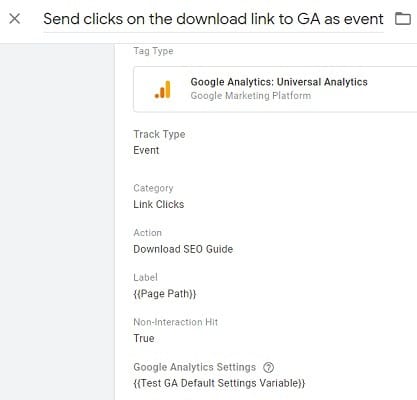
Tag Name: Send clicks on the download link to GA as event
Tag Type: Google Analytics: Universal Analytics
Track Type: Event
Category: Link Clicks
Action: <<enter the name of your event action>>
Label: {{Page Path}}
Value: <<enter your event value. This is optional>>
Non-Interaction Hit: True
Google Analytics Settings: <<Select your Google Analytics Settings Variable>>
Firing Triggers: Check for clicks on the download link
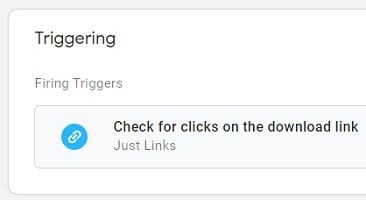
Step-7: Preview your container.
Step-8: Navigate to the web page (in Google Chrome browser), which contains the link you want to track via GTM and then click on the link.
Step-9: To check that your tag is firing and sending events data to Google Analytics, navigate to Real-Time >> Events report in your main Google Analytics reporting view:
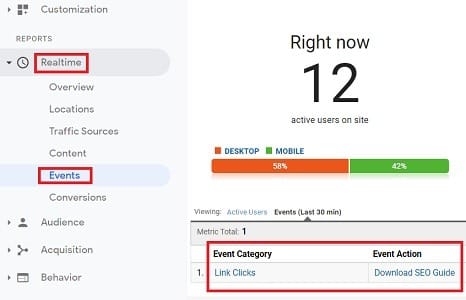
Step-10: Navigate back to your GTM account and then publish the container.
How to track outbound link clicks via Google Tag Manager
Outbound links (also known as external links) are links to other websites from your website.
Tracking clicks on all outbound links is known as exit tracking or outbound tracking.
You can measure the volume of traffic your website is sending out to other websites through exit tracking. This type of tracking is especially useful if you run an affiliate website.
Follow the steps below to track clicks on all outbound links on your website via Google Tag Manager:
Step-1: Create a new trigger with the following similar configuration:
Trigger Name: Check for clicks on External links
Trigger Type: Click – Just Links
Check Validation
Enable this trigger when all of these conditions are true:
Page URL matches Regex .*
This trigger fires on: Some Link Clicks
Fire this trigger when an event occurs, and all of these conditions are true:
Click URL does not contain <<yourdomain.com>>
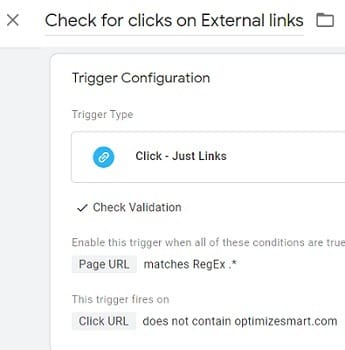
Note(1): replace ‘yourdomain.com’ with your website name.
Note(2): ‘Click URL’ is a built-in variable in GTM, which returns the ‘URL’ of the clicked link.
Note(3): The ‘Fire this trigger’ condition makes sure that this trigger does not fire for clicks on the links which are internal, i.e. the links that contain your domain name.
Step-2: Create a new tag with the following configuration, which sends clicks on external links to Google Analytics:
Tag Name: Send Clicks on external links to Google Analytics
Tag Type: Google Analytics: Universal Analytics
Track Type: Event
Category: Traffic to Other Websites
Action: {{Click URL}}
Label: {{Page Path}}
Value: <<leave this field empty>>
Non-Interaction Hit: True
Google Analytics Settings: <<Select your Google Analytics Settings Variable>>
Firing Triggers: Check for clicks on External links
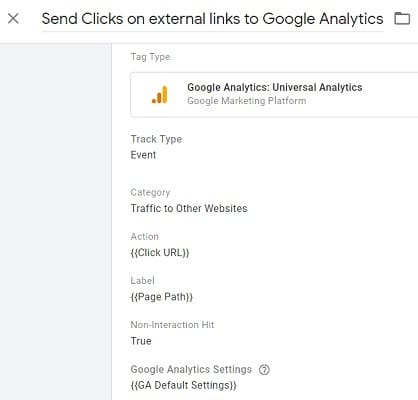
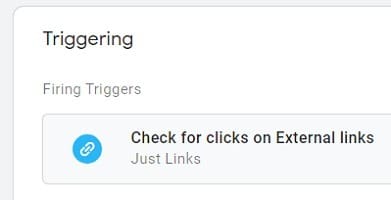
Note(1): {{Click URL}} is a built-in variable in GTM which returns the URL of the link clicked. You can select this variable from the drop-down menu.
Note(2): {{Page Path}} is a built-in variable in GTM which returns the URL of a web page.
Step-3: Preview your container.
Step-4: To check that your tag is firing and sending events data to Google Analytics, navigate to Real-Time >> Events report in your main Google Analytics reporting view:
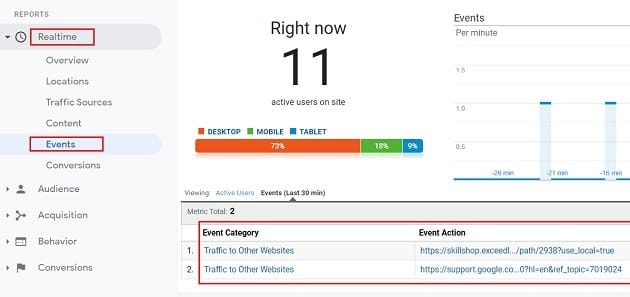
Step-5: If everything is working as intended, then publish the new version of your container.
How to track link clicks on images in Google Tag Manager
Consider the following image link (link in the form of an image):

<a id="chk324" href="http://www.weplan.com/Worksheets/worksheets.pdf" ><img src="http://www.book2web.com/images/download-button-blue-300x133.png" /></a>
To track clicks on an image link, follow the steps below:
Step-1: Navigate to the web page (in Google Chrome browser) which contains the image link you want to track via GTM
Step-2: Note down the web page URL where the image link is embedded.
Step-3: Note down the ‘ID’ attribute of the image link through the Google developer console (as explained earlier). If the ‘ID’ attribute is missing, ask your developer to add one.
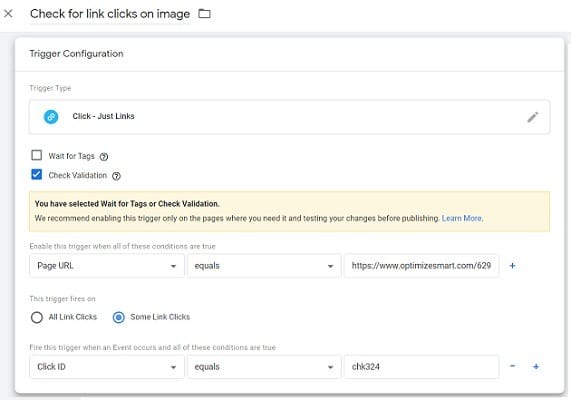
Step-4: Navigate to Google Tag Manager and create a new trigger with the following similar configurations:
Trigger Name: Check for link clicks on image
Trigger Type: Click – Just links
Check Validation
Enable this trigger when:
Page URL equals <<enter the URL of the page where the image link you want to track is embedded>>
Some Link Clicks
This trigger fires on:
Click ID equals <<enter the ID of your <a> element>>
Note: If you want to use the ‘id’ attribute of the image tag instead of the ‘id’ attribute of the <a> tag to identify your image link:
<a id="checklist2" href="http://www.weplan.com/Worksheets/worksheets.pdf" ><img src="http://www.book2web.com/images/download-button-blue-300x133.png" /></a>
<a href="http://www.weplan.com/Worksheets/worksheets.pdf" ><img id="checklist2" src="http://www.book2web.com/images/download-button-blue-300x133.png" /></a>
then you need to set the ‘Trigger Type’ to ‘Click All Elements‘:
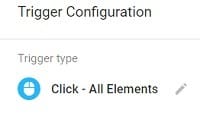
In GTM, if you want to track any HTML element other than a link, you set the ‘Trigger Type’ to ‘Click All Elements’.
Step-5: Create a new tag with the following similar configuration, which can send clicks on the tracked image link to Google Analytics as an event:
Tag Name: Send clicks on the image to GA as event
Tag Type: Google Analytics: Universal Analytics
Track Type: Event
Category: Image Link Clicks
Action: <<enter the name of your event action>>
Label: {{Page Path}}
Value: <<enter your event value. This is optional>>
Non-Interaction Hit: True
Google Analytics Settings: <<Select your Google Analytics Settings Variable>>
Firing Triggers: Check for link clicks on image
Step-6: Preview your container.
Step-7: Click on the image link and test whether the event data is being sent to Google Analytics via Real Time > Events reports in your main Google Analytics reporting view:
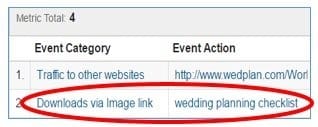
Step-8: Publish your container.
How to track form submissions via Google Tag Manager
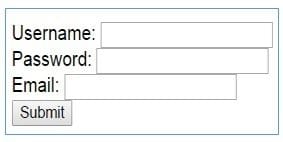
Consider the following form with three input elements and a submit button:
<form id="gform_1" action="http://www.weplan.com/Worksheets/worksheets.pdf">
Username: <input type="text" id="username"><br>
Password: <input type="text" id="password"><br>
Email: <input type="text" id="email"><br>
<input id="submitButton" type="submit" value="Submit">
</form>
To track form submissions on a website via Google Tag Manager, follow the steps below:
Step-1: Note down the page URL where your form is embedded. For example:

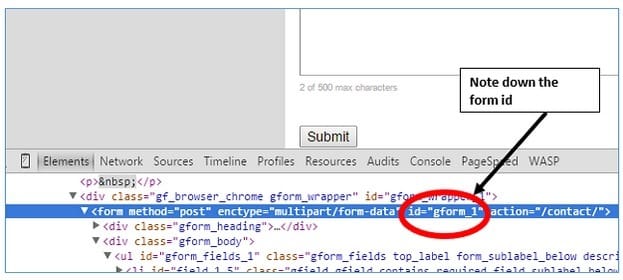
Step-2: Find the form ID (through Google Developer Console) and make a note of it. To find your form ID, right-click on the form, select ‘Inspect Element’ (Google Chrome) and look for the ‘ID’ attribute in the <form> tag. In my case, the form ID is ‘gform_1’:
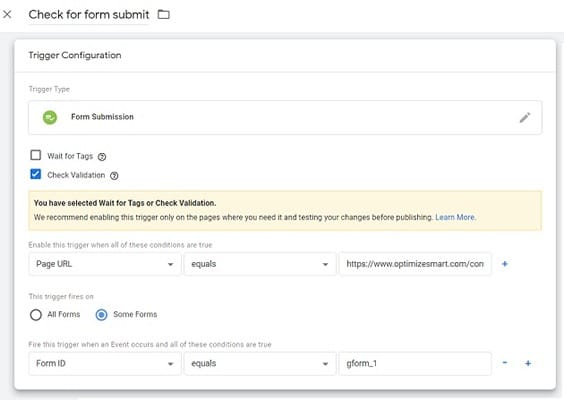
Step-3: Create a new trigger to check for form submissions with the following similar configurations:
Trigger Name: Check for form submit
Trigger Type: Form Submission
Check Validation
Enable this trigger when all of these conditions are true:
Page URL equals <<enter the URL of the page where your form is embedded>>
This trigger fires on: Some Forms
Fire this trigger when an event occurs, and all of these conditions are true:
Form ID equals <<enter the ID of your embedded form>>
Note(1): If your form is embedded on several pages across your website, set the ‘Page URL‘ to .* as explained earlier.
Note(2): Ensure that the ‘check validation‘ option is checked. This is done to ensure that the trigger fires on successful form submission and not just when a user clicks on the form submit button.
Note(3): ‘Form ID’ is a built-in variable of GTM which returns the ‘id’ attribute of a form.
Step-4: Create a new tag of type Universal Analytics to send the form submit event to Google Analytics:
Tag Name: Send form submit event to Google Analytics
Tag Type: Google Analytics: Universal Analytics
Track Type: Event
Category: New Lead
Action: {{Page Path}}
Value: <<enter your event value. This is optional>>
Non-Interaction Hit: True
Google Analytics Settings: <<Select your Google Analytics Settings Variable>>
Firing Triggers: Check for form submit.
Note: I have used ‘Page Path’ as event action so that in my event tracking reports, I can see the page on which the ‘Form submit’ event was triggered. This is useful if you have embedded the same form on multiple pages of your website.
Step-5: Preview your container.
Step-6: Navigate to the page which contains the form submit button and then click on it.
Step-7: Check whether the event data is sent to Google Analytics via Real Time >> Events reports.
Step-8: If everything is working as intended, then publish the new version of your container.
Form field tracking with Google Tag Manager
Sometimes manually tracking something when better alternatives are available is not the best use of your limited time and resources. Tracking form fields via GTM is one of those tasks.
While it is technically possible to track each and every form field value, field abandonment, and various form events, I have found that it is better to leave this type of tracking to the in-page analytics tools (like Hotjar), which provide much better functionality.
Manually tracking form fields is difficult, time-consuming, and prone to errors. The implementation depends on how your form has been set up, which fields it has, and the technology behind it.
But if you still want to reinvent the wheel, here is the detailed guide on tracking form fields. However, remember that the functionality you will get through manual form field tracking is likely to be very basic.
I use the in-page analytics tool called Hotjar.
It provides excellent form tracking solutions in addition to heatmaps, session recordings, and funnel analysis. Its form tracking report is much better than you can ever get through Google Tag Manager:
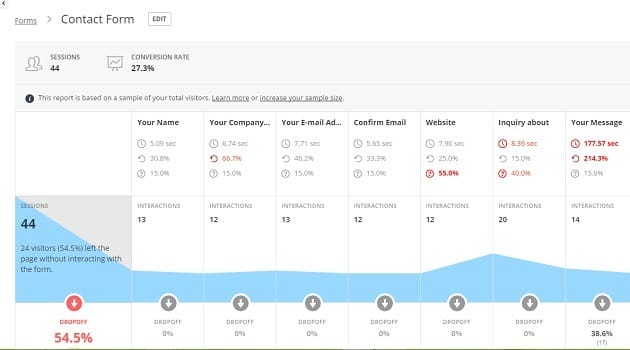
Hotjar provides the following form tracking functionality:
- Time spent on each form field (measured in seconds).
- % of re-filled for each field.
- Number of interactions with each field.
- % of drop off at each field step.
- Conversion rate of the form.
- Visualization of user flow from the first form field to the last.
No matter which in-page analytics tool you use, the important point to remember here is that you don’t have to track everything via GTM just because you are using GTM.
GTM is not the solution to all of your tracking problems, and if a tag does not work via GTM, feel free to hard code it on your website or look for other alternatives. Using GTM won’t make you independent from IT anyway. If nothing else, you still need an IT/developer to hard code data layers on your website.
There is no rule set in stone that once you start using GTM, you are not allowed to hard code tags on your website ever again or look for other alternatives.
Many tags don’t work when deployed via GTM (either because you can’t figure out how to make them work or there are some technical constraints). One good example is the Facebook JavaScript SDK.
I mentioned partial deployment (with and without GTM) because I get a lot of emails from folks who get stuck with their implementation because they feel compelled to use GTM for all of their tracking needs.
It doesn’t need to be that way.
Video tracking via Google Tag Manager
To learn about implementing video tracking via GTM, check out the following two articles:
#1 YouTube Video tracking via Google Tag Manager
#2 Video Tracking via YouTube Video Trigger In Google Tag Manager
Scroll tracking via Google Tag Manager
To learn about implementing scroll tracking via GTM, check out the following two articles:
#1 Implementing Scroll Tracking via Google Tag Manager
#2 Scroll Tracking via Scroll Depth Trigger in Google Tag Manager
How to track custom events in Google Tag Manager
Please note that to implement custom events in Google Tag Manager, you will need a developer’s help to implement a data layer on the pages that you would like to track.
Let us take an example of implementing custom events on the website.
Say you have a download button to be tracked on the various pages. You can normally implement this using the download event tracking discussed previously. However, if too many download buttons need to be tracked, it would not be easy to use that method. In that case, we can use custom event tracking.
You would need to ask your developer to implement a data layer on all the pages and give a unique key to identify the download buttons on all pages.
Say your developer agreed to pass ‘downloadtracking’ on all download links on the pages.
To set this up as the trigger in your Google Tag Manager, please follow the steps:
Step-1: Click on ‘New’ in the trigger section.
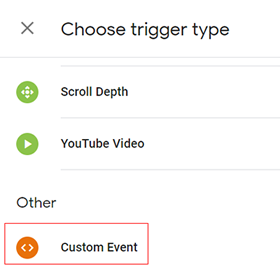
Step-2: From the choose trigger type, select ‘Custom event’ as shown below.
Step-3: In ‘Trigger configuration’, provide the same name that has been passed by the developer in the data layer.
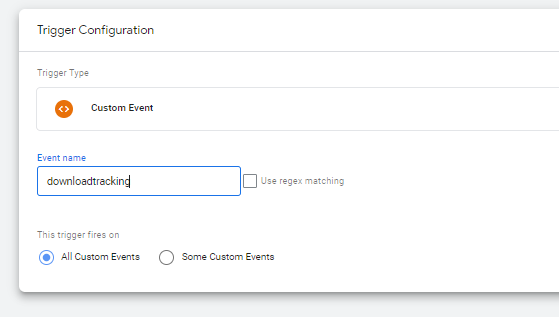
Since, in our case, it is ‘downloadtracking’, we use the same in the trigger condition.
Step-4: Now, this trigger should be associated with the tag to track all the download events on the website.

Other Articles on GA4.
- Google Tag Manager Tutorial.
- GA4 Attribution Models Explained: How to Choose the Right One.
- Looker Studio (Google Data Studio) Tutorial.
- Google Tag Manager Data Layer Tutorial with Examples.
- Set up enhanced conversions for Web using ‘Code’ in Google Tag Manager.
- How to create Google Ads report in Google Analytics 4.
- Google Tag Manager Audit Checklist.
- Tracking Site Search in Google Analytics 4.
- How to see Organic Search Keywords in Google Analytics 4.
- How to use User Lifetime report in Google Analytics 4 (GA4).
- Web Analytics Career Path – How to Become a Web Analyst.
- GA4 Form Interactions Tracking – Enhanced measurement.
- How to track form submissions in Google Analytics 4.
- How to send data from Google Search Console to BigQuery.
- How to fix duplicate events in Google Analytics 4 (GA4).
- How to use two Google Analytics codes on one page.
- How to import GA4 Conversions into Google Ads.
- What are predictive metrics in Google Analytics 4 (GA4).
- Google Tag Manager Event Tracking Tutorial.
- How to use Google Analytics 4 with iframe.