

In this article, I will talk about how to use two Google Analytics 4 codes on one page.
In some cases, you might want to send data to multiple Google Analytics 4 properties.
This is very useful if your website has multiple owners (business function), and each owner would like to track the same website with different approaches.
This can be done in two different ways based on the method of implementation you have used (Global Site Tag OR Google Tag Manager).
To make it more convenient to read, I have divided this article into two sections based on the methods used.
1. Using Google Tag Manager
If you use Google Tag Manager as the implementation method, you can follow the steps below to send data to two separate Google Analytics properties.
Creating Google Analytics variables
To send data to multiple properties, you need to create separate Google Analytics constant variables as below.
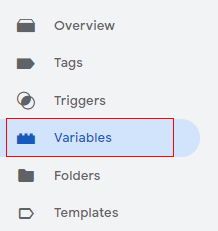
Step-1: Log in to your GTM console and click on ‘Variables’.
Step-2: Under ‘User-defined variable’, Click on ‘New’.
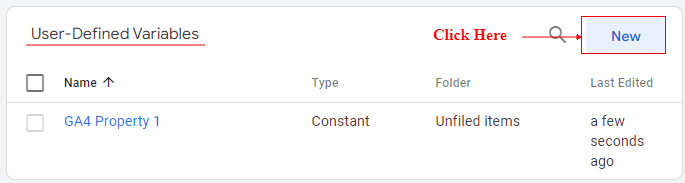
As you can see, I already have my one Google Analytics property defined as ‘GA4 Property 1’. Now let’s create another one.
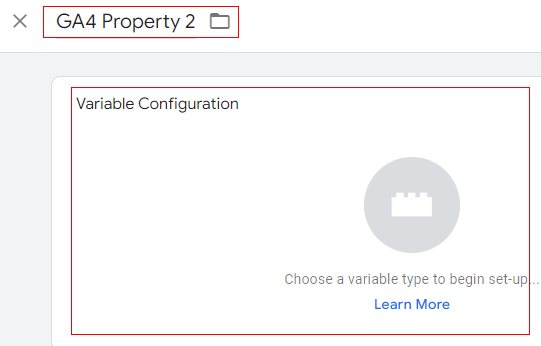
Step-3: Give a proper name to the new analytics settings variable, let’s say ‘GA4 Property 2’ and then click on ‘Variable configuration’.
Step-4: Select ‘Constant’ from the list.
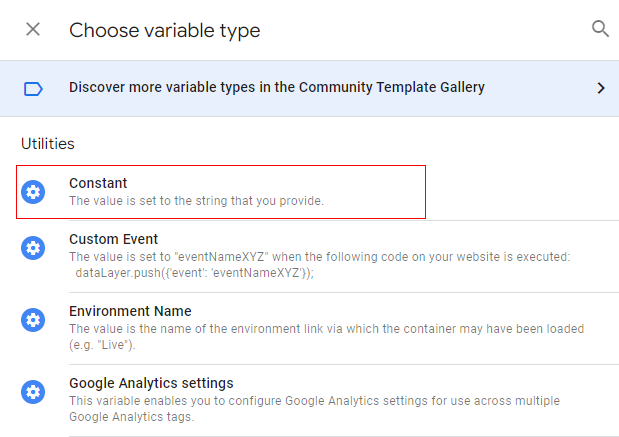
Note: In Step 4, we are not selecting the ‘Google Analytics Settings’ variable as this was specially designed only for Universal Analytics and not Google Analytics 4.
Step-5: Paste your measurement ID for the second GA4 property in the’ Value‘ input box.
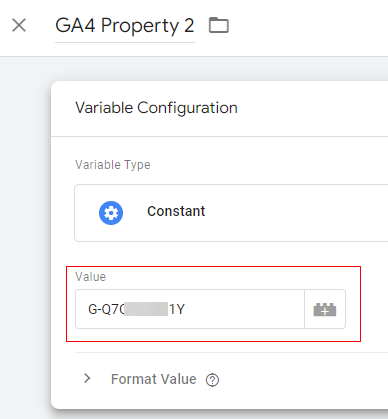
Note: You can find the measurement ID in the ‘Admin’ section of Google Analytics 4 under ‘Data Streams’.
Step-6: Now click on ‘Save’.
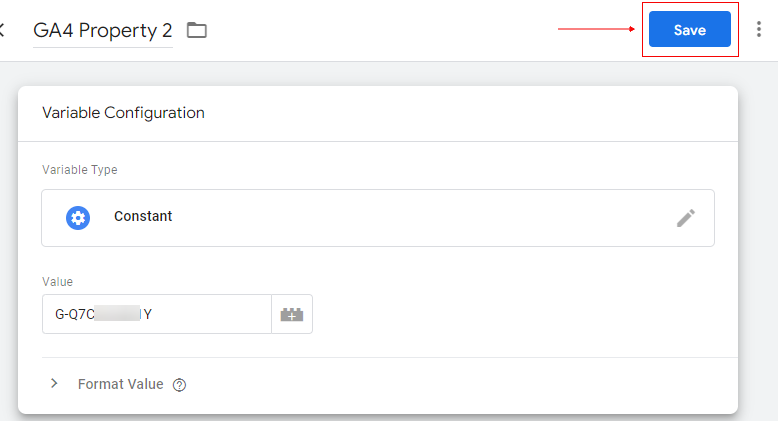
There are now two different Google Analytics constant variables, and each of them will send data to their separate GA4 property.
Now, let’s create the tags.
Creating separate Google Analytics tags
You have to create separate GTM tags for each property. You cannot use a single tag to send data to multiple properties.
If you want to send page views to two different properties, you will have to create two pageview tags. The same applies to events as well.
For example, if you want to send an event, e.g. download event, you will need to create two event tags, one for each property.
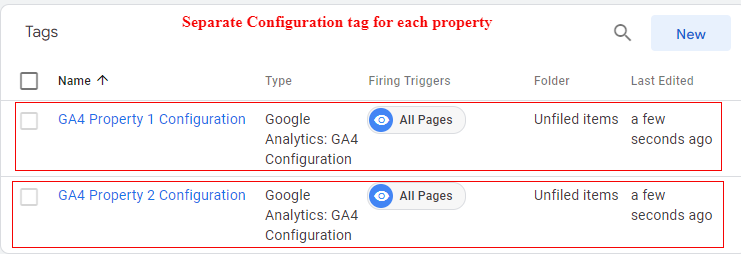
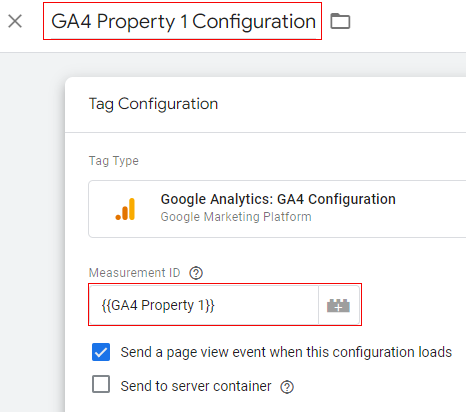
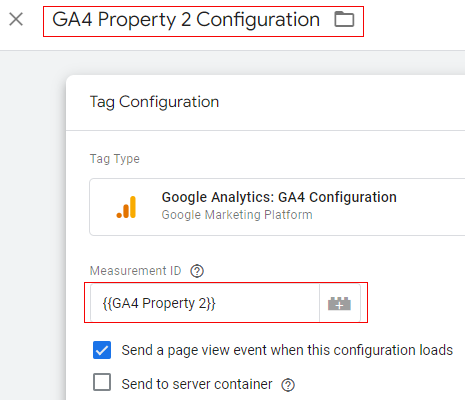
The process of creating a tag is similar to normal tag creation. You just need to be careful while selecting the measurement ID.
The best way to do this is by setting up tags for one property first and then copying the tag and renaming it after changing the property.
Let’s follow the below steps to copy a tag.
Note: I am assuming that you already have a basic pageview tag for at least one property
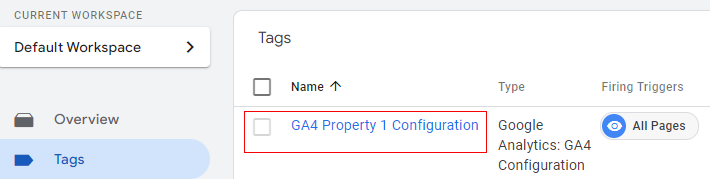
Step-1: Go to the ‘Tags’ tab in GTM, identify your first property pageview tag, and click on it.
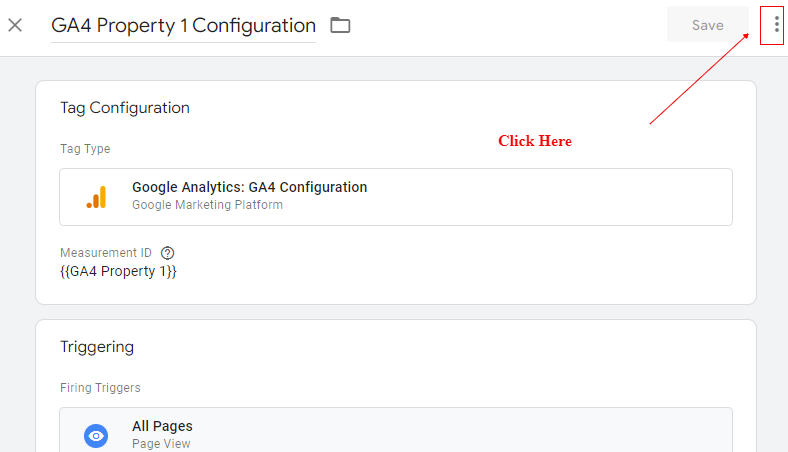
Step-2: Now, click on the three vertical dots on the right-hand side.
Step-3: A small pop-up will come. Click on ‘Copy’.
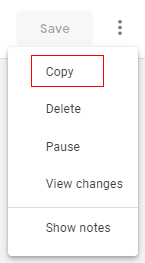
The tag will get copied with a name starting with ‘Copy of’ and the original tag name (e.g. Copy of GA4 Property 1 Configuration).
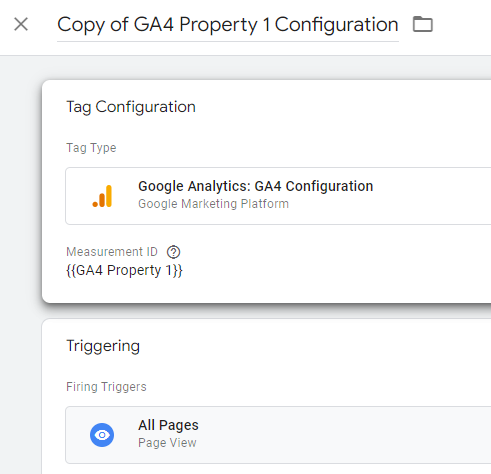
Step-4: Change this name to distinguish it from the earlier one.
For example, I am going to name it ‘GA4 property 2 Configuration’.
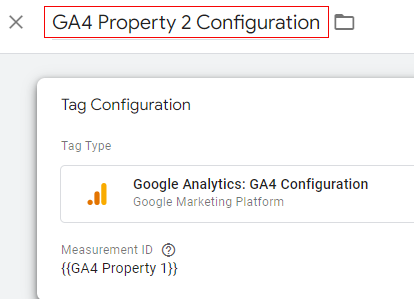
Once done, click on ‘Tag configuration’ to edit it.
Step-5: Now click on the drop-down under ‘Measurement ID’. And delete the current property variable selected.
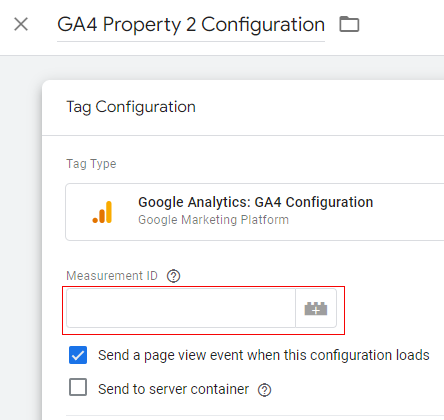
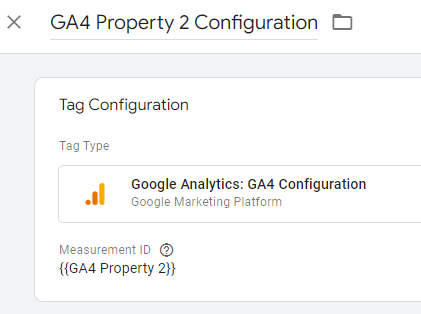
Step-6: Now click on the on the castle icon with “+” sign on it and select the second property variable that you created.

Step-7: Your tag will look like below. Now click on ‘Save’.
Congratulations!
You have successfully configured tags for sending data to two different properties.
Now, you might be wondering what about triggers and why is copying tags the best way to configure the second property.
Well, to answer this, you need to understand using GTM triggers.
Using GTM triggers
In the above process, we have created separate variables for each Google Analytics property and separate tags.
But in the case of triggers, they are just conditions for firing the tags and have nothing to do with the Google Analytics property.
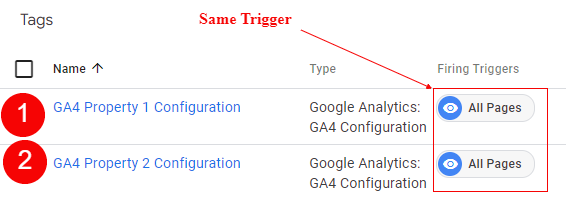
This means you can use the same trigger for both tags.
Since we are copying the tags, their associated trigger will also get copied.
As you can see from the image below, pageview has two separate tags, but the trigger is the same.
Debugging and validation
Now let’s debug the implementation we carried out to send data to two different analytics properties.
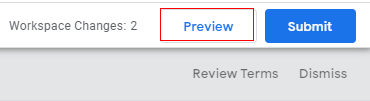
Click on the ‘Preview’ button on the GTM console.
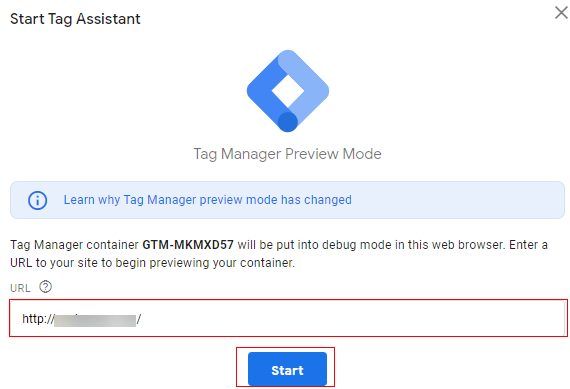
It will open up a new window, enter the URL of your website and click on ‘Start’.
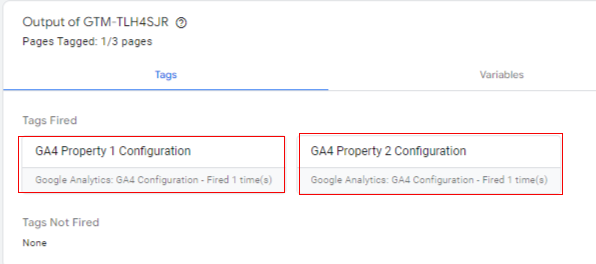
Switch back to the GTM debug window, and you can see that the two pageview tags are firing.
2. Using global site tag (gtag.js)
If you use the global site tag (gtag.js) for implementation, you can send data to two different analytics properties with some code modifications to the gta.js library.
Introduction to the global site tag
gtag.js is the latest version of analytics implementation.
gtag.js is not limited to only Google Analytics but all Google products, like Google Ads, Campaign Manager, Display & Video 360, and Search Ads 360.
You can use gtag.js to send event data to any of these products. Google recommends using the global site tag for all the new Google Analytics accounts.
You just need to add the global snippet on your website, which looks like the one below.
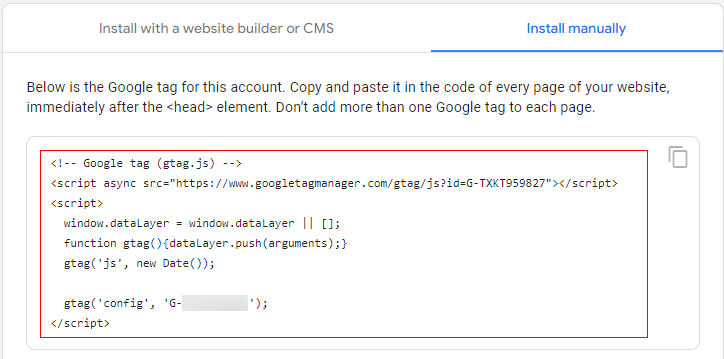
<!– Google tag (gtag.js) –>
<script async src=”https://www.googletagmanager.com/gtag/js?id=G-XXXXXXXX”></script>
<script>
window.dataLayer = window.dataLayer || [];
function gtag(){dataLayer.push(arguments);}
gtag(‘js’, new Date());
gtag(‘config’, ‘G-XXXXXXXX’);
</script>
Here, gtag.js uses the ‘config’ command to send data to the Google Analytics property.
For example, the following line of code creates a GA property instance.
gtag(‘config’, ‘G-XXXXXXXX’);
You can send data to multiple GA properties with minimum configuration changes.
Let’s see how it is done.
Configuration of an additional GA4 property
By default, the global site tag (snippet) sends data to a single analytics property.
If you want to add a second property, you can achieve this by adding the following Google Analytics command to the main snippet of code.
gtag(‘config’, ‘G-YYYYYYYY’);
After adding the command, your code will look like below.
<!– Google tag (gtag.js) –>
<script async src=”https://www.googletagmanager.com/gtag/js?id=G-XXXXXXXX”></script>
<script>
window.dataLayer = window.dataLayer || [];
function gtag(){dataLayer.push(arguments);}
gtag(‘js’, new Date());
gtag(‘config’, ‘G-XXXXXXXX’);
gtag(‘config’, ‘G-YYYYYYYY’);
</script>
Here, gtag(‘config’, ‘G-XXXXXXXX’); sends data to the first analytics property and gtag(‘config’, ‘G-YYYYYYYY’); sends data to the second analytics property.
The overall code sends pageview to both analytics properties, and there is no need to send it using separate commands.
Sending data
To send event data, you can use the following command.
gtag(‘event’, ‘sign in’, {‘method’: ‘Using Password’});
This command will send the ‘sign in’ event to both properties we defined in the global snippet.
You do not need any special command to distinguish the analytics property and send the event.
If you want to send data to a particular property or group of properties, you need to route it.
Let’s understand more about routing data to groups and properties.
Route data to groups and properties
By default, the global snippet uses the ‘config’ command to handle the routing of events.
If you have configured multiple properties in the global snippet, then event data will be sent to all the properties you have defined, and no additional configuration is required.
In some cases, if you want to send event data to a particular property only, then the global site tag (gtag.js) gives you the ability to send (or route) data to groups of accounts or other Google products.
This is done by using the following command.
gtag(‘event’, ‘sign_in’, { ‘send_to’: ‘G-YYYYYYYY’ });
The above command will send the ‘sign in’ event only to the second property.
If you are sending data to more than two properties and the business requirement is to send certain information to a set of accounts or Google products and send other pieces of information to another set of accounts or Google products, then you can group them using the following command.
gtag(‘config’, ‘G-XXXXXXXX’, { ‘groups’: ‘group1’ });
gtag(‘config’, ‘G-YYYYYYYY’, { ‘groups’: ‘group1’ });
gtag(‘event’, ‘sign_in’, { ‘send_to’: ‘group1’ });
This will send data to both analytics properties defined under group1.
Let’s take an example; suppose you have three analytics properties configured on one page to which you want to send analytics data.
However, there are some events which you only want to send to two properties and not to the third one.
You have also classified two of the properties in ‘group1’
In this case, your global snippet will look like below.
<!– Global site tag (gtag.js) – Google Analytics –>
<script async src=‘https://www.googletagmanager.com/gtag/js?id=GA_MEASUREMENT_ID’></script>
<script>
window.dataLayer = window.dataLayer || [];
function gtag(){dataLayer.push(arguments);}
gtag(‘js’, new Date());
gtag(‘config’, ‘G-XXXXXXXX’, { ‘groups’: ‘group1’ });
gtag(‘config’, ‘G-YYYYYYYY’, { ‘groups’: ‘group1’ });
gtag(‘config’, ‘G-ZZZZZZZ’);
</script>
Now, if you want to send analytics data to all three properties, you can use the following command:
gtag(‘event’, ‘sign in’, {‘method’: ‘Using Password’});
If you want to send event data to only two properties classified in ‘group1’
You will use the following command.
gtag(‘event’, ‘sign_in’, { ‘send_to’: ‘group1’ });
This will send data to only ‘G-XXXXXXXX’ and ‘G-YYYYYYYY’. It won’t send any data to the third property, which is ‘G-ZZZZZZZ’
So this is how you can use the global site tag (gtag.js) to send data to two Google Analytics codes on one page.

Other Articles on GA4.
- Google Tag Manager Tutorial.
- GA4 Attribution Models Explained: How to Choose the Right One.
- Looker Studio (Google Data Studio) Tutorial.
- Google Tag Manager Data Layer Tutorial with Examples.
- Set up enhanced conversions for Web using ‘Code’ in Google Tag Manager.
- How to create Google Ads report in Google Analytics 4.
- Google Tag Manager Audit Checklist.
- Tracking Site Search in Google Analytics 4.
- How to see Organic Search Keywords in Google Analytics 4.
- How to use User Lifetime report in Google Analytics 4 (GA4).
- Web Analytics Career Path – How to Become a Web Analyst.
- GA4 Form Interactions Tracking – Enhanced measurement.
- How to track form submissions in Google Analytics 4.
- How to send data from Google Search Console to BigQuery.
- How to fix duplicate events in Google Analytics 4 (GA4).
- How to use two Google Analytics codes on one page.
- How to import GA4 Conversions into Google Ads.
- What are predictive metrics in Google Analytics 4 (GA4).
- Google Tag Manager Event Tracking Tutorial.
- How to use Google Analytics 4 with iframe.