

The correct method to import GA4 Conversions (aka key events) to Google Ads.
Many Google Ads users do not know how to use the imported GA4 key event data.
So, their conversion tracking is a mess even when their Google Ads account is correctly linked to their GA4 property.
For example, they could be tracking the same conversion action twice. Once via the imported GA4 key event and once via the native Google Ads conversion tracking.
Or they could be using the imported GA4 key events as primary conversions in Google Ads.
There is a strategic way to leverage both GA4 key event import and Google Ads conversion tracking.
Don’t Import ‘Purchase’ Event from GA4 to Google Ads.
Keep GA4 imported conversions as secondary to allow you to leverage the additional insights and cross-channel attribution capabilities of GA4.
How to import GA4 Conversions into Google Ads
In order to import GA4 key events (aka conversions) into Google Ads, follow the steps below:
Step-1: Log in to your Google Ads account.
Step-2: Hover your mouse over ‘Goals’.
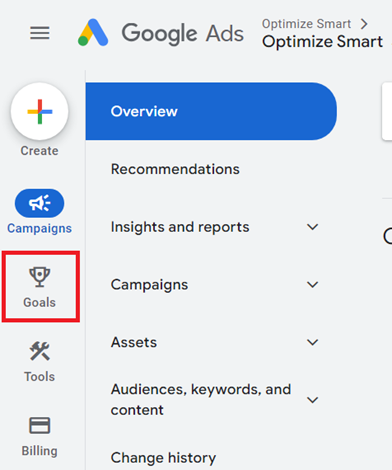
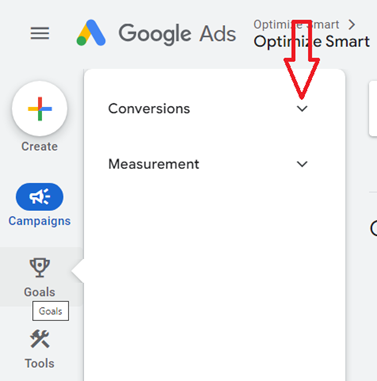
Step-3: Click on the ‘Conversions’ drop-down menu:
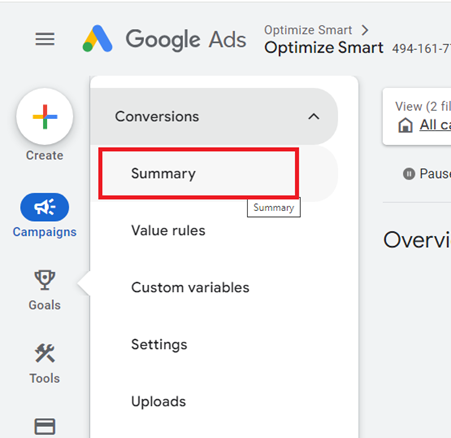
Step-4: Click on ‘Summary’:
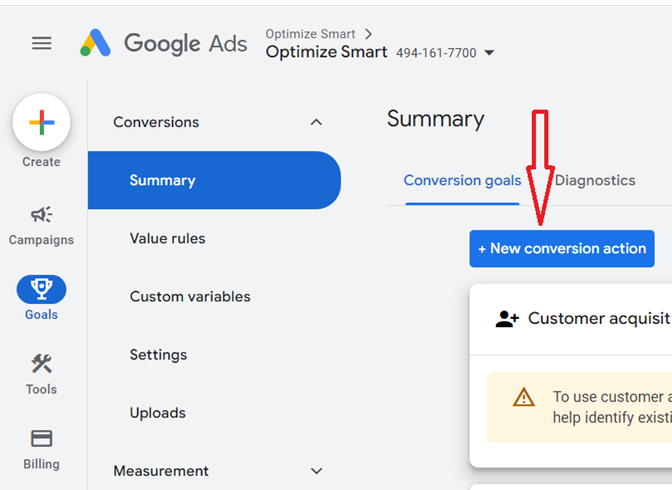
Step-5: Click on the button ‘+New Conversion action’:
Step-6: Click on ‘Import’:
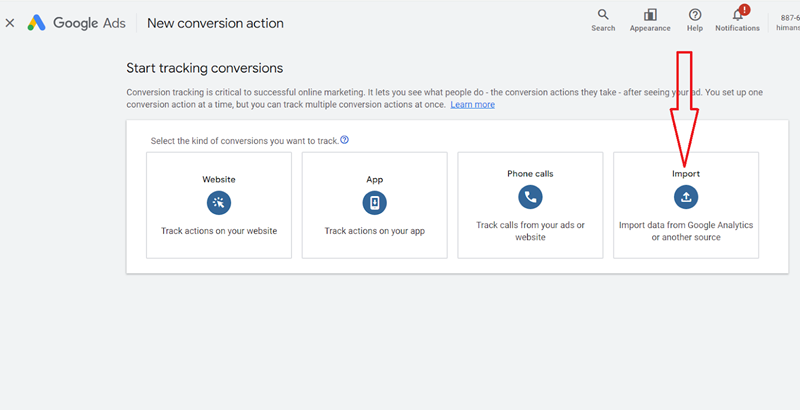
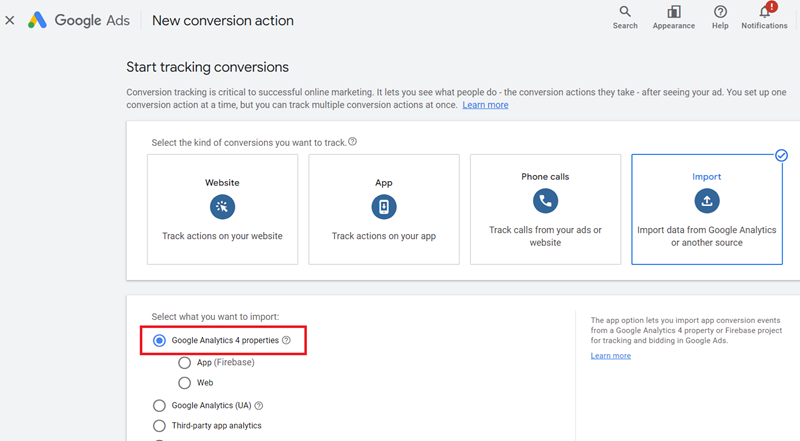
Step-7: Click on ‘Google Analytics 4 properties’ under ‘Select what you want to import’:
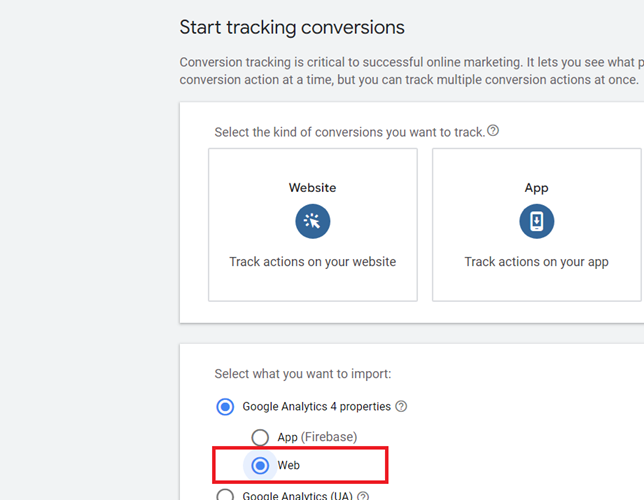
Step-8: Click on ‘Web’:
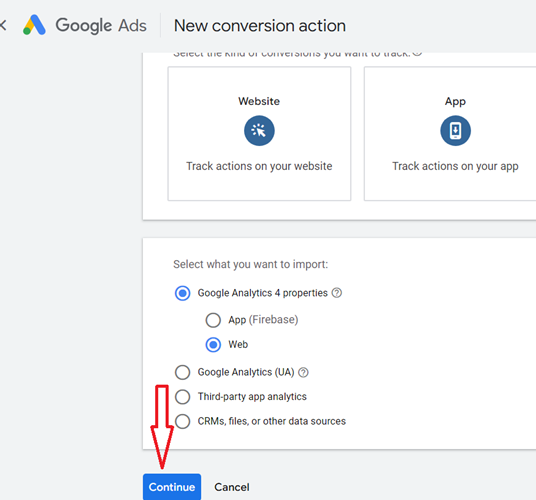
Step-9: Scroll down and click on the ‘Continue’ button:
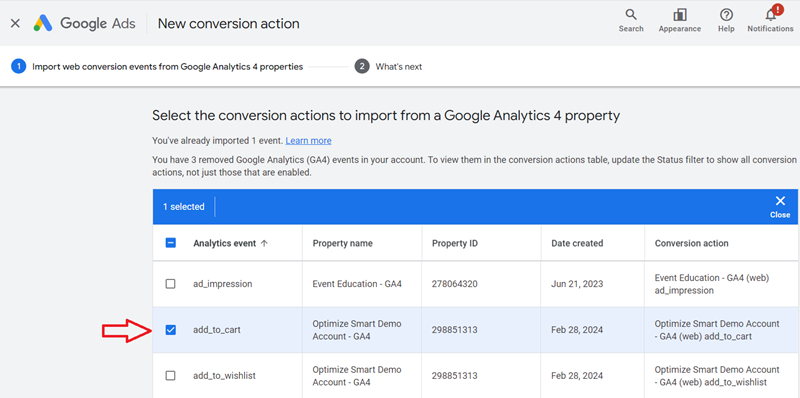
Step-10: Select the conversion actions to import from your GA4 property:
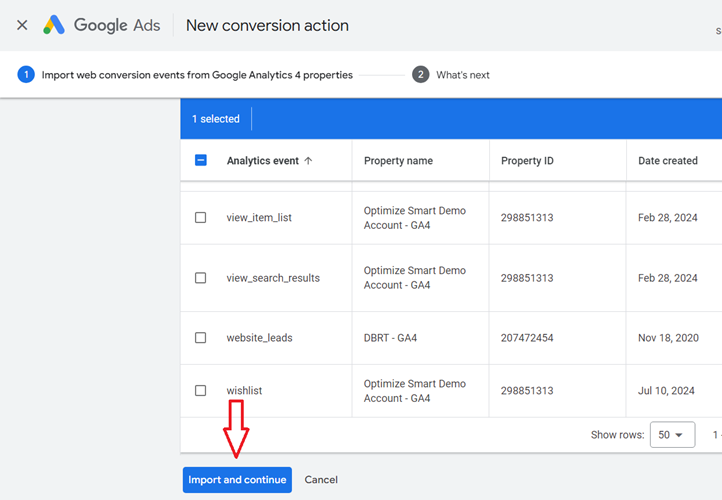
Step-11: Scroll down and click on the button ‘Import and Continue’:
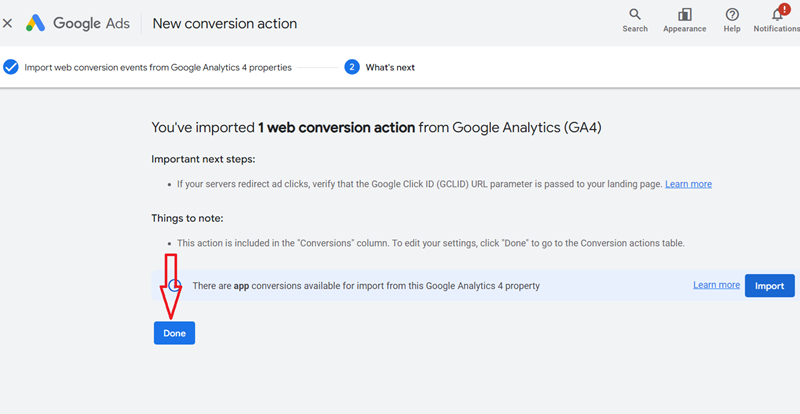
Step-12: Click on the ‘Done’ button:
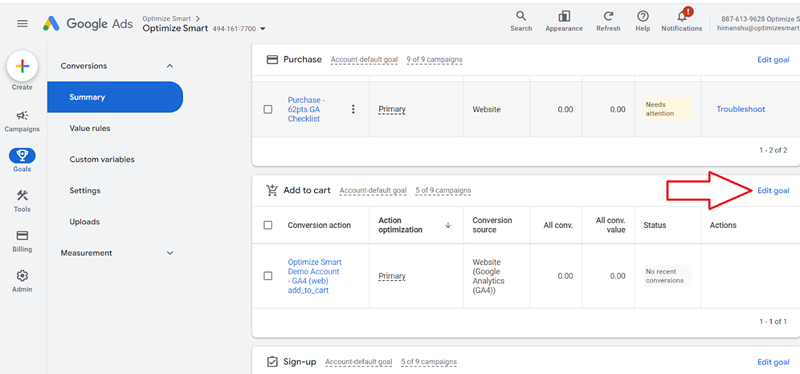
Step-13: Find the conversion you just imported and click on the ‘Edit goal’ link next to it:
Step-14: Click on the drop-down menu:
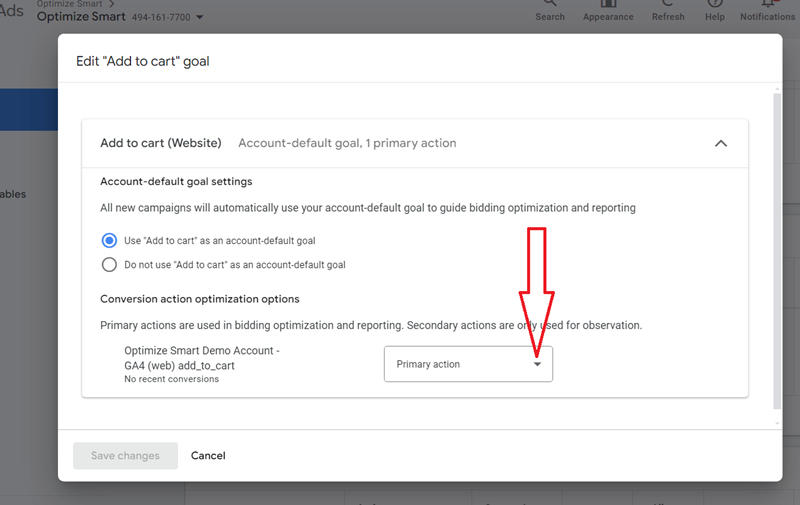
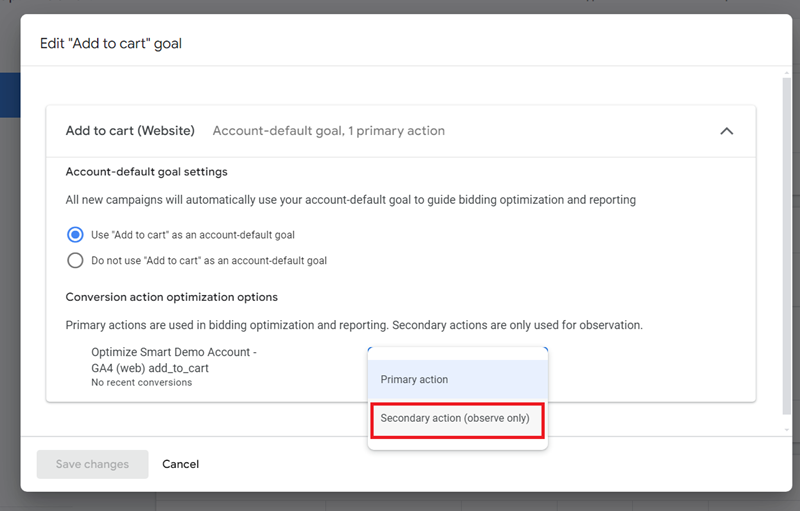
Step-15: Click on ‘Secondary action (observe only):
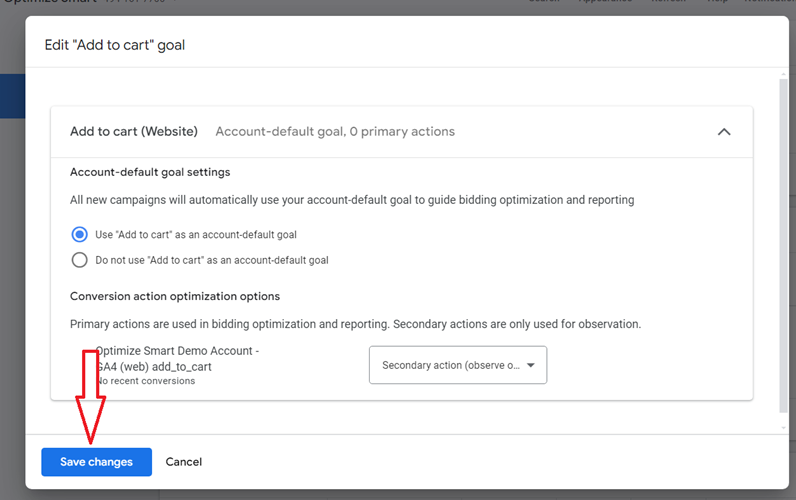
Step-16: Click on the ‘Save Changes’ button:
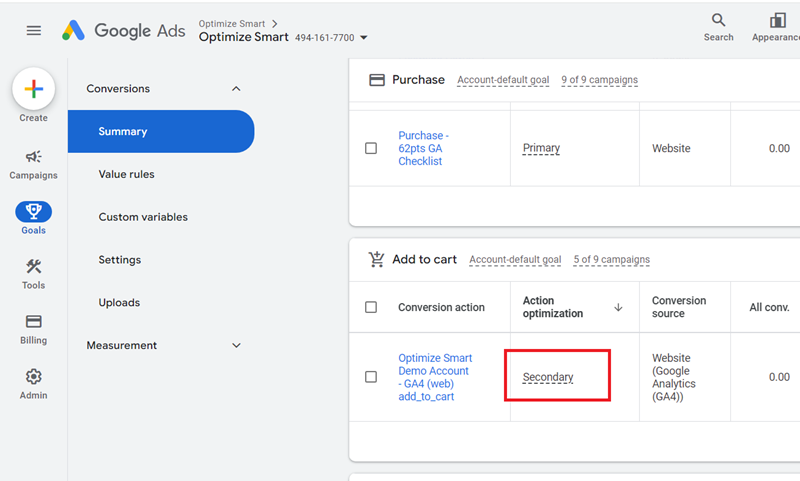
You have now turned the imported GA4 conversion into a secondary conversion:
Congratulations!!
You have successfully imported conversions from your GA4 property to your Google Ads account.

Other Articles on GA4.
- Google Tag Manager Tutorial.
- GA4 Attribution Models Explained: How to Choose the Right One.
- Looker Studio (Google Data Studio) Tutorial.
- Google Tag Manager Data Layer Tutorial with Examples.
- Set up enhanced conversions for Web using ‘Code’ in Google Tag Manager.
- How to create Google Ads report in Google Analytics 4.
- Google Tag Manager Audit Checklist.
- Tracking Site Search in Google Analytics 4.
- How to see Organic Search Keywords in Google Analytics 4.
- How to use User Lifetime report in Google Analytics 4 (GA4).
- Web Analytics Career Path – How to Become a Web Analyst.
- GA4 Form Interactions Tracking – Enhanced measurement.
- How to track form submissions in Google Analytics 4.
- How to send data from Google Search Console to BigQuery.
- How to fix duplicate events in Google Analytics 4 (GA4).
- How to use two Google Analytics codes on one page.
- How to import GA4 Conversions into Google Ads.
- What are predictive metrics in Google Analytics 4 (GA4).
- Google Tag Manager Event Tracking Tutorial.
- How to use Google Analytics 4 with iframe.