

Under GDPR, an IP address is considered personal data.
Google Analytics tracks and stores the IP addresses of your website users to report on geolocation data. However, GA does not report on IP addresses in its reports.
If your privacy policy or local privacy laws prevent the storage of full IP addresses, then you can use the IP anonymization feature to anonymize/mask website visitors’ IPs.
When you anonymize IP in Google Analytics, the last three digits from your website visitor’s IP address are automatically dropped/deleted. In other words, the IP anonymization feature sets the last octet of IPv4 user IP addresses and the last 80 bits of IPv6 addresses to zeros.
For example, if a website visitor has a public IP of 12.214.31.144, then as soon as the IP data is received by the Analytics Collection Network, Google will anonymize/mask the IP to 12.214.31.0
It is important to remember that IP anonymization occurs before any data storage or processing takes place. So Google does not store or process complete IP addresses at any given time.
Enabling the IP Anonymization feature in Google Analytics for analytics.js
The IP Anonymization feature in Google Analytics is not enabled by default. You need to enable it by making a small code change or adding a new variable in your GTM tag.
If you use the analytics.js library, you can add the following line of code in your Google Analytics tracking code to anonymize IP:
ga('set', 'anonymizeIp', true);
After adding this line of code, the final Google Analytics tracking code should look like the one below:
<!– Google Analytics –>
<script>
window.ga=window.ga||function(){(ga.q=ga.q||[]).push(arguments)};ga.l=+new Date;
ga('create', 'UA-1123456-78', 'auto');
ga('set', 'anonymizeIp', true);
ga('send', 'pageview');
</script>
<script async src='//www.google-analytics.com/analytics.js'></script>
<!– End Google Analytics –>
Note: Do not use the property ID “UA-1123456-78′. Use your own property ID.
Enabling the IP Anonymization feature in Google Analytics for gtag.js
If you use the gtag.js library, you can add the following line of code in your Google Analytics tracking code to anonymize IP:
{ 'anonymize_ip': true }
After adding this line of code, the final Google Analytics tracking code should look like the one below:
<!-- Global site tag (gtag.js) - Google Analytics -->
<script async src="https://www.googletagmanager.com/gtag/js?id=UA-1509844-26"></script>
<script>
window.dataLayer = window.dataLayer || [];
function gtag(){dataLayer.push(arguments);}
gtag('js', new Date());
gtag('config', 'UA-1123456-78', { 'anonymize_ip': true });
</script>
Note: Do not use the property ID “UA-1123456-78′. Use your own property ID.
Enabling the IP Anonymization feature in Google Analytics via Google Tag Manager
You can also enable the IP anonymization feature via Google Tag Manager.
Follow the steps below:
Step-1: Login to your GTM account and then open the tag used to install Google Analytics on your website.
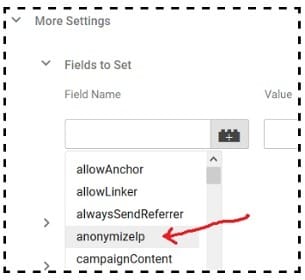
Step-2: Scroll down to the ‘Fields to Set’ section and then select ‘anonymizeIp‘ from the drop-down menu:
Step-3: Enter the text ‘true’ in the value field:
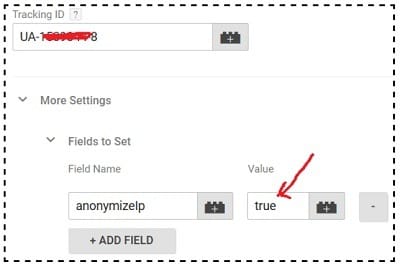
Step-4: Save the tag.
Step-5: Preview and publish the container.
Note: You can also enable the ‘IP Anonymization’ feature in GA by adding a new field named ‘anonymizeIp’ with a value of ‘true’ in your Google Analytics Settings variable.
Testing the implementation of IP Anonymization
To check the implementation of the IP anonymization feature in Google Analytics, follow the steps below:
Step-1: Navigate to the website where you have enabled the IP Anonymization feature.
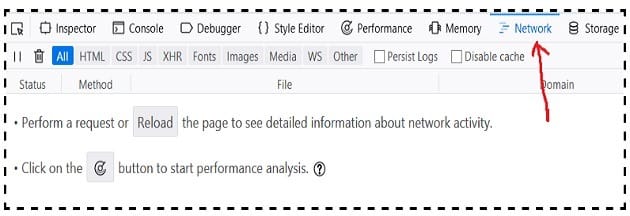
Step-2: Open the Google Developer Console (Press F12 for windows) and then click on the ‘Networks’ tab:
Step-3: Refresh the web page by clicking on the browser refresh button.
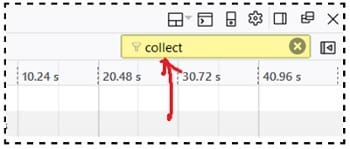
Step-4: Enter the term ‘collect‘ in the search box embedded in the developer console:
Step-5: Click on the listing which reads ‘www.google-analytics.com‘:
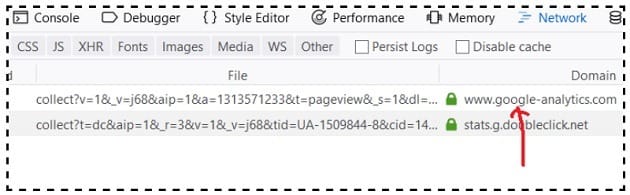
You should now see the request URI which contains the measurement protocol parameters.
Step-6: Look for the parameter aip=1. This is called the IP anonymization parameter:
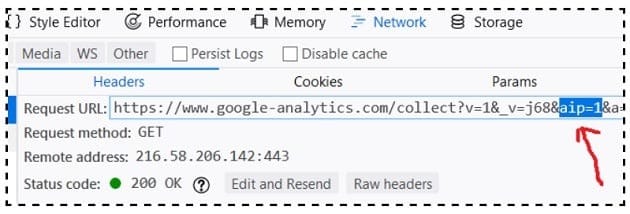
The presence of the IP anonymization parameter is proof that the implementation of the IP anonymization feature has been successful.
The Impact of IP Anonymization on Website Traffic
When you anonymize an IP, it negatively impacts the geolocation tracking data, especially at city level.
There is no noticeable difference in accuracy at the continent or country level.
Frequently Asked Questions about Anonymization in Google Analytics and Google Tag Manager
Is an IP address considered personal data?
Yes, Under GDPR, an IP address is considered personal data.
Does Google Analytics store IP addresses?
Google Analytics tracks and stores the IP addresses of your website users to report on geolocation data. However, GA does not report on IP addresses in its reports.
If your privacy policy or local privacy laws prevent the storage of full IP addresses, then you can use the IP anonymization feature to anonymize/mask website visitors’ IPs.
How does IP anonymization work?
When you anonymize visitor IP, the last three digits from your website visitor’s IP address are automatically dropped/deleted. In other words, the IP anonymization feature sets the last octet of IPv4 user IP addresses and the last 80 bits of IPv6 addresses to zeros.
For example, if a website visitor has a public IP of 12.214.31.144 then as soon as the IP data is received by the Analytics Collection Network, Google will anonymize/mask the IP to 12.214.31.0
It is important to remember that IP anonymization occurs before any data storage or processing takes place. So Google does not store or process complete IP addresses at any given time.
Is IP anonymization enabled by default in Google Analytics?
The IP Anonymization feature in Google Analytics is not enabled by default. You need to enable it by making a small code change or adding a new variable in your GTM tag.

Other Articles on GA4.
- Filter Google Analytics 4 Reports by UTM Parameters.
- Tracking 404 pages (broken links) in Google Analytics 4.
- How to identify the scope of any GA4 Dimension or Metric.
- You are doing Google Analytics all wrong. Here is why.
- How to check if Google Tag Manager is Working – Testing GTM.
- Setting up Facebook Conversion API via Google Tag Manager (GTM).
- Understanding Google Tag Manager Container Tag.
- Google Analytics Debugger, GTM Debugger Tutorial.
- Tracking web pages with zero pageviews in Google Analytics 4.
- How to Connect Google Analytics 4 with BigQuery.
- 100+ Google Analytics Remarketing Audiences for Retargeting.
- Google Tag Manager Workspaces Tutorial.
- Stop Trusting GA4/GTM Tag Coverage Report – Do This Instead.
- Some of your pages are not tagged in GTM/GA4 [Fixed].
- Tracking single page apps in Google Analytics via GTM.
- Anonymize IP in Google Analytics, gtag & Google Tag Manager.
- Matomo vs Google Analytics vs Piwik Pro - Best Google Analytics Alternative.
- Are You Waiting 12 Days Before Analyzing GA4 Data?
- Using Element Visibility Trigger in Google Tag Manager (GTM).
- Google Analytics Javascript Tutorial.