

In this article, I will talk about how to check if Google Tag Manager (GTM) is working. We will go through different ways to test that GTM is working.
Check the source code of the website
The first method to check if Google Tag Manager is working or not is by identifying the GTM container code in the website’s source code.
GTM container code is made up of two parts. The first part should always be placed after the opening <head> tag, and the second part should be placed just after the opening <body> tag.
Follow the below steps to know more:
Step-1: Navigate to your website’s home page.
Step-2: Right-click anywhere on the page background and select ‘View Page Source’. Alternatively, you can also press ‘Ctrl + U’ to do the same thing.
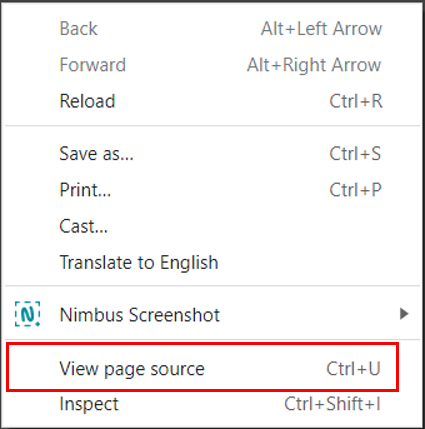
A new window will open like the below, showing the page’s source code.
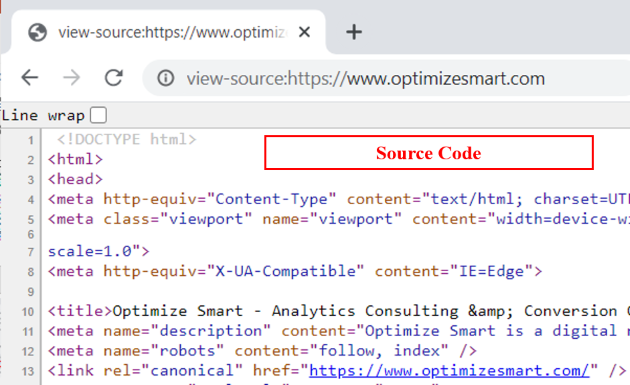
Step-3: Now press ‘Ctrl + F’, which will open the find function in the right upper corner.
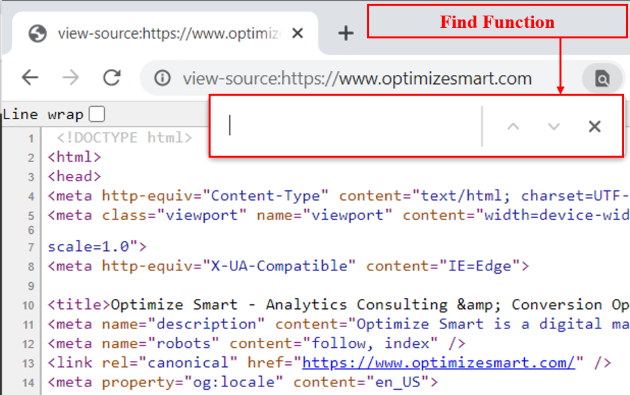
Step-4: In the find function’s text box, type ‘gtm.js’ and press ‘Enter’.
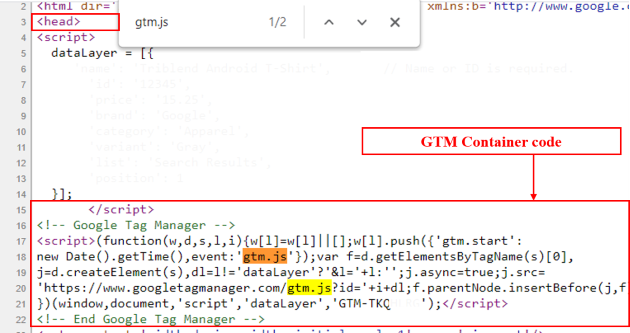
If you have implemented the GTM container code correctly, you should be able to verify its instance under the <head> tag, like the below image:
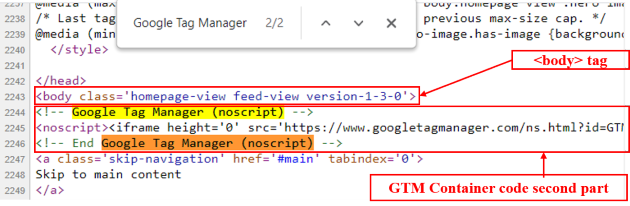
Step-5: Now, in the input box of the find function, type ‘Google Tag Manager (noscript)’ and press ‘Enter’. This is the second part of the GTM container code and should be placed just after opening the <body> tag.
If you have implemented it correctly, you should be able to find its instance after opening the <body> tag like the below image.
Check using Google Tag Manager’s preview and debug mode
The second method to check if Google Tag Manager is working or not is by using the preview and debug mode.
Through the Google Tag Manager preview and debug console window, you can make sure that your GTM container is loading correctly and that you can test tags, triggers, variables, and data layers as expected.
Follow the below steps to know more:
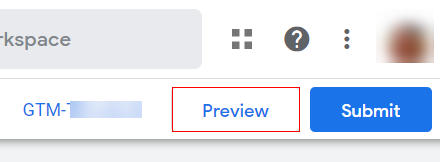
Step-1: To enable preview mode, log in to your GTM account and click on the ‘Preview’ button in the upper right-hand corner.
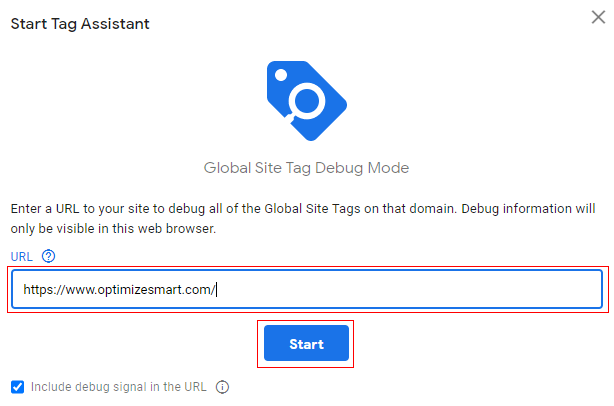
Step-2: A new window will open with Google preview mode. Add the URL of your website where external links are present and click on ‘Start’.
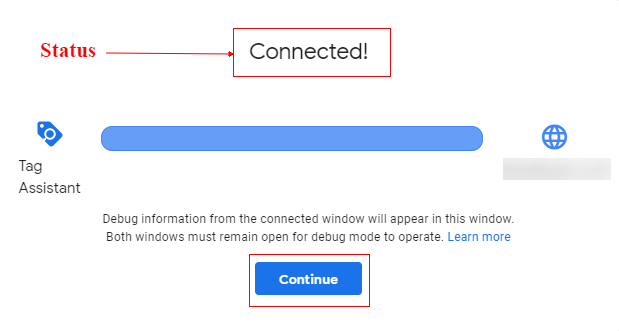
Step-3: Another new window will open with the specified URL. Navigate back to the preview window of Google Tag Manager, and there you will see the success message which states ‘Connected!’ once the preview mode is enabled for the URL. Click on ‘Continue’.
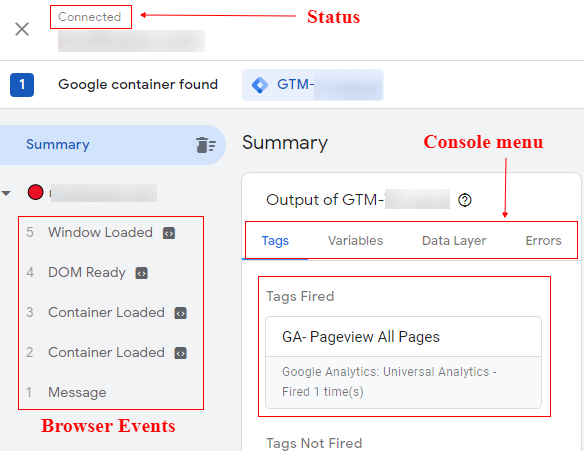
Step-4: If you have implemented the GTM container correctly, you should see the below screen with status connected, browser events, and tags fired.
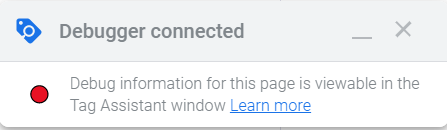
Additionally, on the page where the Google Tag Manager debug mode is enabled, you will see the notification which shows that the debugger is connected.
If you want to know more, you can visit: GTM (Google Tag Manager) Debugger Console Tutorial
Check using Google Tag Assistant
The third method to check if Google Tag Manager is working or not uses the Google Tag Assistant Chrome extension. Google Tag Assistant is used to identify, validate and troubleshoot the installation of Google Tag Manager and various Google tags on a web page.
Once you have installed the Google Tag Assistant Chrome extension, you need to enable it before you can use it on a web page.
Follow the below steps to know more:
Step-1: Navigate to your website’s home page.
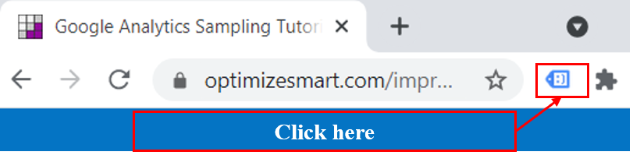
Step-2: Locate and click on the Google Tag Assistant icon on the top right-hand side next to the browser address bar.
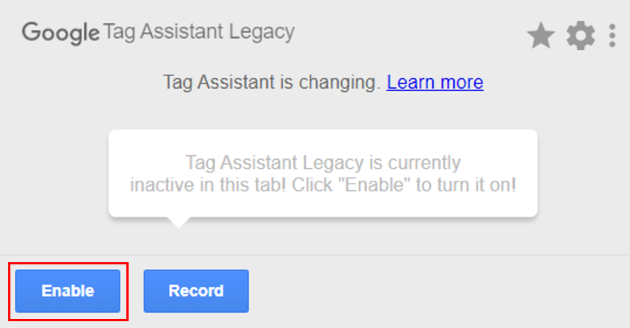
Step-3: Click on the ‘Enable’ button and refresh the web page.
Step-4: After refreshing the page, click on the Tag Assistant icon again, and you should see the status of your Google Tag Manager container in green.
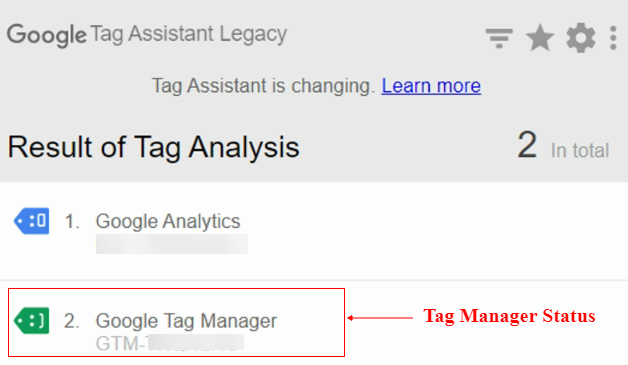
Check if the GTM script is running in Chrome’s developer console
The fourth method to check if Google Tag Manager is working is by checking the GTM script running in the ‘Elements’ tab of Chrome’s developer console.
Follow the below steps to know more:
Step-1: Navigate to your website’s home page.
Step-2: Right-click anywhere on the page background and select ‘Inspect’.
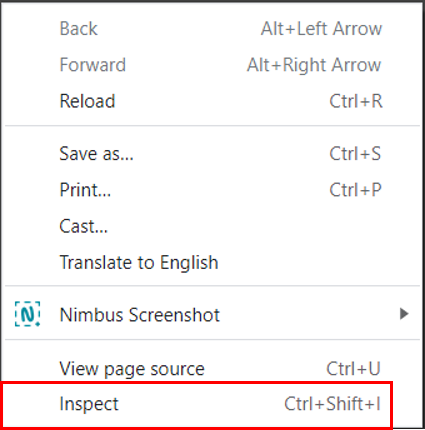
Step-3: This will open the developer console window at the bottom of a web page.
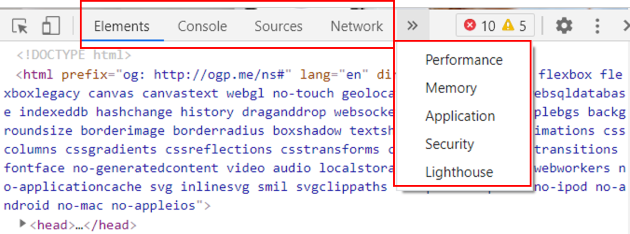
Step-4: Click on the ‘Elements’ tab and press ‘Ctrl + F’, which will open the find function at the bottom of the window.
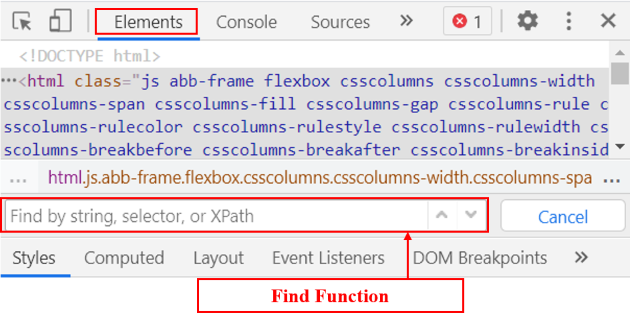
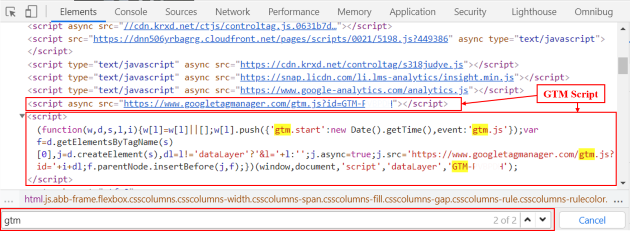
Step-5: In the find function text box, type ‘gtm’ and press ‘Enter’. If you have implemented the GTM container code correctly, you should be able to verify its instance like below.
Check Chrome’s developer console in the network tab
The fifth method to check if Google Tag Manager is working is by checking the GTM script running in the ‘Network’ tab of the developer console.
The main use of the ‘Network’ tab is to validate server calls and sent parameters. You can see every server call made, like GTM call, analytics events, and pageview sent to the server.
Follow the below steps to know more:
Step-1: Navigate to your website’s home page.
Step-2: Right-click anywhere on the page background and select ‘Inspect’.
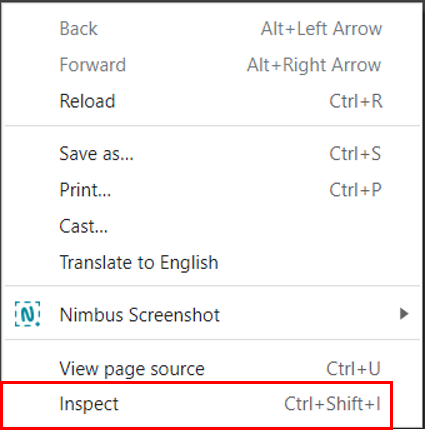
Step-3: This will open the developer console window at the bottom of a web page.
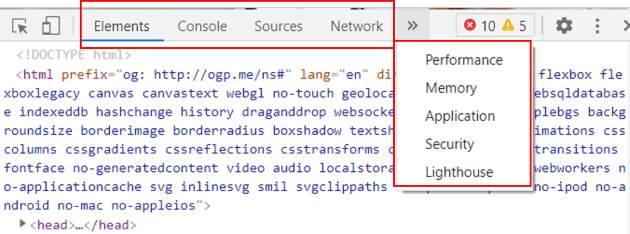
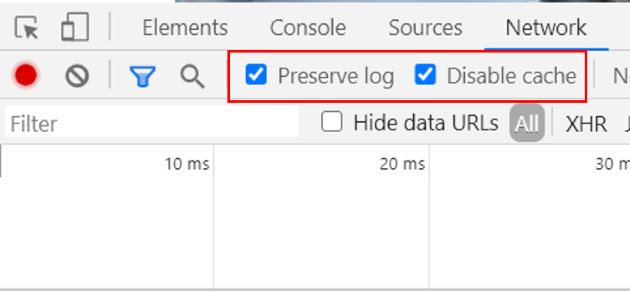
Step-4: Go to the ‘Network’ tab in the console. You will see a screen like the one below.
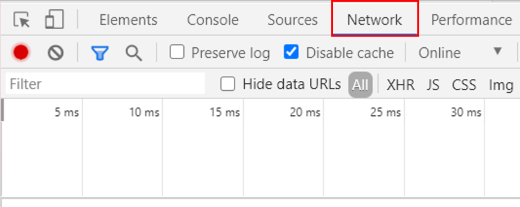
Step-5: Select the checkboxes named ‘’Disable Cache’ and ‘Preserve log’.
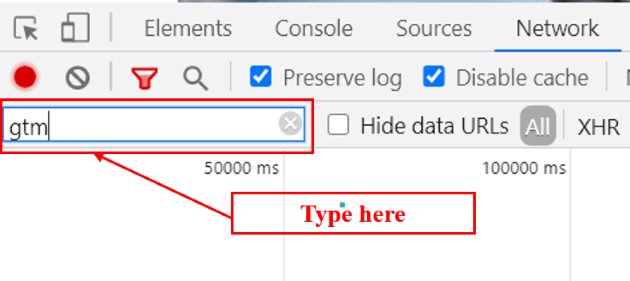
Step-6: Type ‘gtm’ in the filter on the left-hand side and refresh the page.
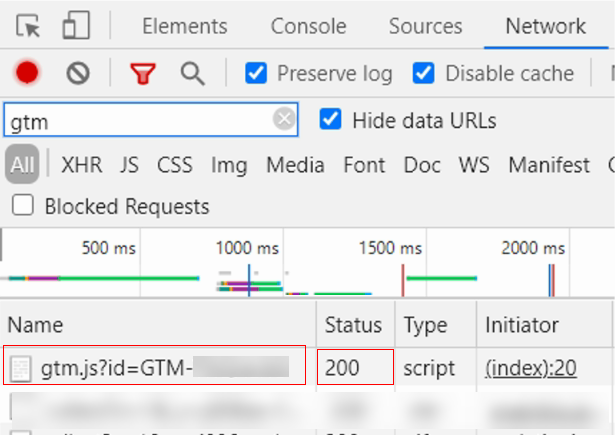
Step-7: Once you refresh the page, you should be able to see something like ‘gtm.js?id=GTM-AAAA’
GTM-AAAA is the container code ID example that I am using here as an example. You should see your actual GTM container code here.
The status code for this server call should be 200, which means your Google Tag Manager is working fine.
Check using Google Analytics real-time reports
The sixth method to check if Google Tag Manager is working is by checking the real-time reports in Google Analytics.
If you use only Google Tag Manager for your analytics implementations and send events and pageviews, you can check the real-time reporting.
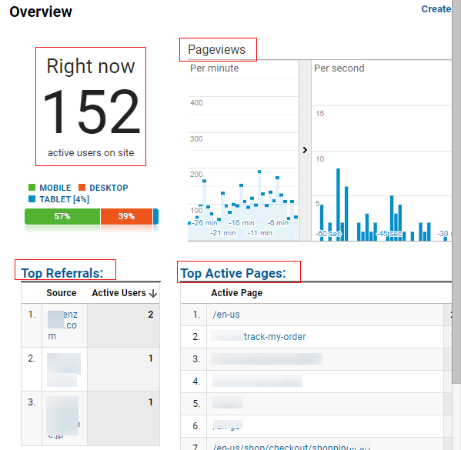
If there are any issues with your Google Tag Manager, the real-time reports will not show any active users. But if it is working perfectly fine, you can see the users and their activities on the website in real-time.
Follow the below steps to know more:
Step-1: Navigate to your Google Analytics account.
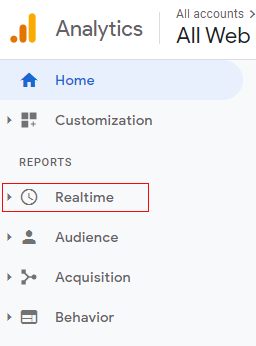
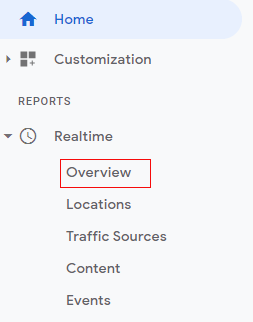
Step-2: Click on ‘Realtime’ from the menu on the left-hand side.
Step-3: Now click on ‘Overview’.
Step-4: You shall be able to see the real-time users and their activities on the website, which means your Google Tag Manager is working fine.

Other Articles on GA4.
- Filter Google Analytics 4 Reports by UTM Parameters.
- Tracking 404 pages (broken links) in Google Analytics 4.
- How to identify the scope of any GA4 Dimension or Metric.
- You are doing Google Analytics all wrong. Here is why.
- How to check if Google Tag Manager is Working – Testing GTM.
- Setting up Facebook Conversion API via Google Tag Manager (GTM).
- Understanding Google Tag Manager Container Tag.
- Google Analytics Debugger, GTM Debugger Tutorial.
- Tracking web pages with zero pageviews in Google Analytics 4.
- How to Connect Google Analytics 4 with BigQuery.
- 100+ Google Analytics Remarketing Audiences for Retargeting.
- Google Tag Manager Workspaces Tutorial.
- Stop Trusting GA4/GTM Tag Coverage Report – Do This Instead.
- Some of your pages are not tagged in GTM/GA4 [Fixed].
- Tracking single page apps in Google Analytics via GTM.
- Anonymize IP in Google Analytics, gtag & Google Tag Manager.
- Matomo vs Google Analytics vs Piwik Pro - Best Google Analytics Alternative.
- Are You Waiting 12 Days Before Analyzing GA4 Data?
- Using Element Visibility Trigger in Google Tag Manager (GTM).
- Google Analytics Javascript Tutorial.