

Follow the steps below to track 404 pages (broken links) in GA4 (Google Analytics 4):
- Make sure your broken links are hard 404s, not soft 404s.
- Navigate to a 404 page on your website and take note of what the page titles read.
- Create a new exploration report in your GA4 property to track 404 pages (broken links).
- Download the report from Google Sheets and fix broken links.
Step-1: Make sure your broken links are hard 404s, not soft 404s.
Hard 404 means your web server returns a 404 status code, clearly indicating the page does not exist.
A soft 404 means your web server returns a 200 OK status code even when the page does not exist.
Hard 404s typically have a page title indicating a 404 error, while soft 404s may not.
Knowing this difference helps you correctly identify the broken links (aka hard 404 pages) in your GA4 reports.
Also, make sure that a user is not automatically redirected to the home page or some other page instead of the 404 page. Otherwise, you will never be able to detect broken links on your website.
Step-2: Navigate to a 404 page on your website and take note of what the page titles read.
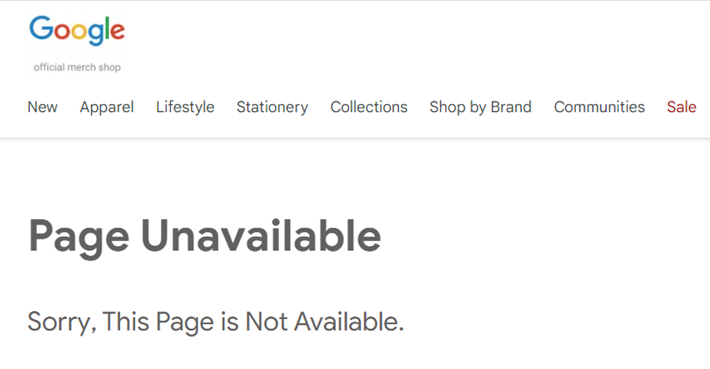
Typically, it is “404 page not found”.
If the title reads something different (like ‘Page Unavailable), take note of it.
Step-3: Create a new exploration report in your GA4 property to track 404 pages (broken links).
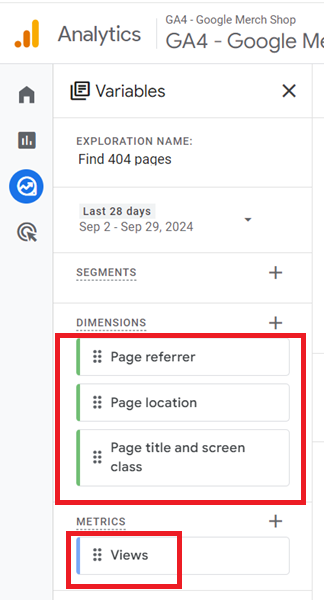
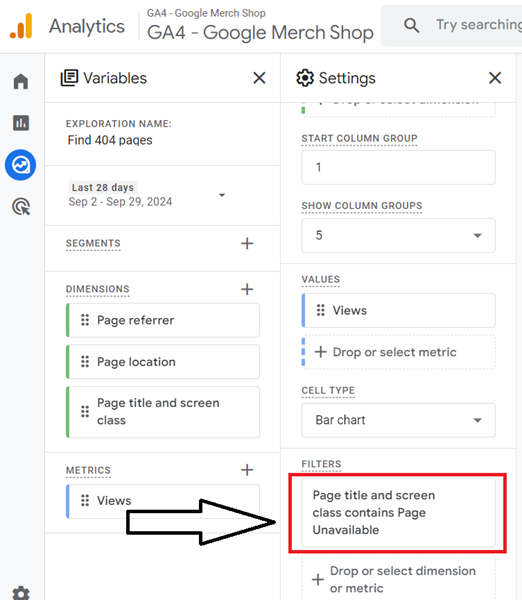
#3.1 Create a new exploration report in your GA4 property and import the following dimensions and metrics to it:
Dimensions: Page title and screen class, Page location, Page referrer.
Metrics: Views
#3.2 Add the ‘Page referrer’ and ‘Page location’ dimensions to the canvas on the right and set the ‘Nested Rows’ to ‘Yes’.
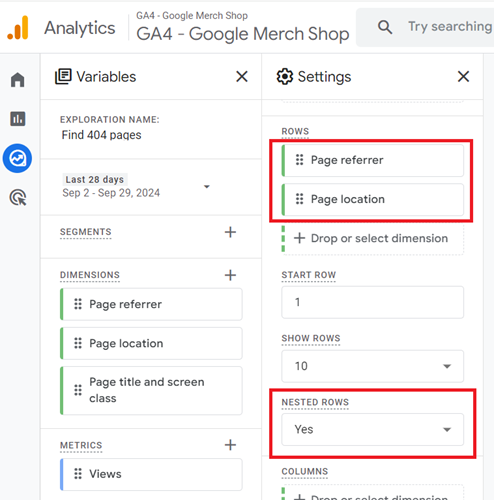
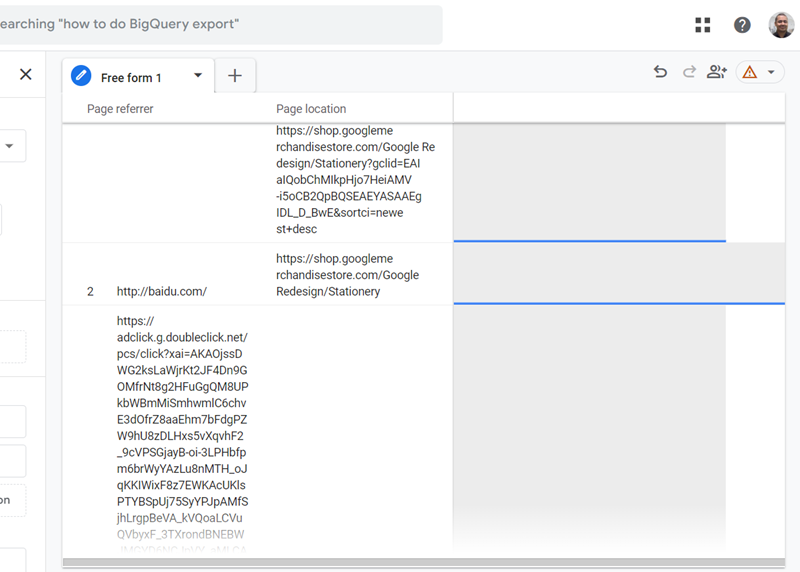
Using the ‘Page referrer’ dimension, you can discover where the users came from who landed on pages that don’t exist.
So, if they came from Google Ads, you can check the destination URLs of your Google Ads campaign.
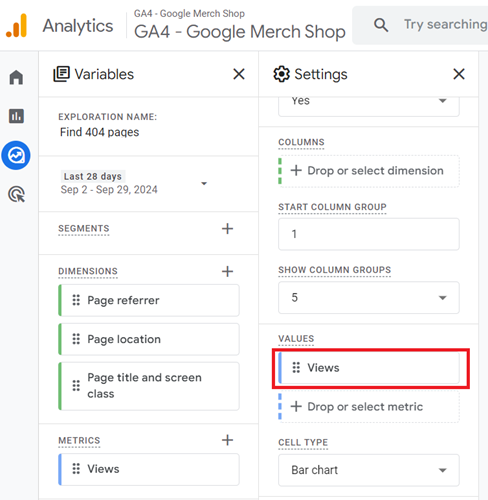
#3.3 Add the ‘Views’ metric to the canvas on the right.
#3.4 Add the following dimension filter to your exploration report:
Page title and screen class contain <your search string to identify 404 pages>
For example:
Page title and screen class contain Page Unavailable
You should now see a report like the one below, through which you can find 404 pages (broken links) in GA4:
Step-4: Download the report to Google Sheets and fix broken links.
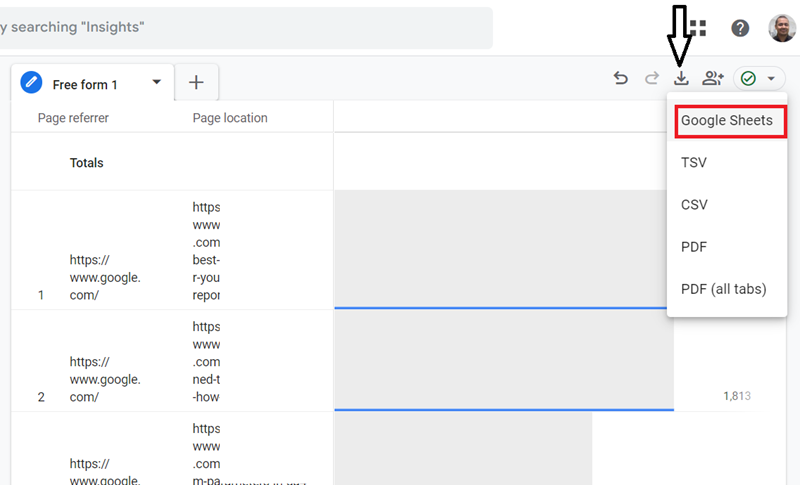
Click on the download button to download the report data in Google Sheets:
Note: GA4 only reports broken links that users visited. It does not report on all broken links found on your website.

Other Articles on GA4.
- Filter Google Analytics 4 Reports by UTM Parameters.
- Tracking 404 pages (broken links) in Google Analytics 4.
- How to identify the scope of any GA4 Dimension or Metric.
- You are doing Google Analytics all wrong. Here is why.
- How to check if Google Tag Manager is Working – Testing GTM.
- Setting up Facebook Conversion API via Google Tag Manager (GTM).
- Understanding Google Tag Manager Container Tag.
- Google Analytics Debugger, GTM Debugger Tutorial.
- Tracking web pages with zero pageviews in Google Analytics 4.
- How to Connect Google Analytics 4 with BigQuery.
- 100+ Google Analytics Remarketing Audiences for Retargeting.
- Google Tag Manager Workspaces Tutorial.
- Stop Trusting GA4/GTM Tag Coverage Report – Do This Instead.
- Some of your pages are not tagged in GTM/GA4 [Fixed].
- Tracking single page apps in Google Analytics via GTM.
- Anonymize IP in Google Analytics, gtag & Google Tag Manager.
- Matomo vs Google Analytics vs Piwik Pro - Best Google Analytics Alternative.
- Are You Waiting 12 Days Before Analyzing GA4 Data?
- Using Element Visibility Trigger in Google Tag Manager (GTM).
- Google Analytics Javascript Tutorial.