

Prerequisites for using GA4 with BigQuery
Following are the prerequisites for using GA4 with BigQuery:
#1 You would need a Google Cloud Platform account with billing enabled. To enable the billing, you would need a valid credit card.
#2 You would need a BigQuery project where you are going to store the GA4 data.
#3 You would need a good working knowledge of SQL so that you can query data in BigQuery.
You can also use BigQuery without the knowledge of SQL. For more details, check out this article: Query GA4 data in BigQuery without understanding SQL.
Overview of connecting GA4 with BigQuery
Following is the 10,000-foot view of connecting and sending GA4 data to BigQuery:
- Create a Google Cloud Platform account (if you already don’t have one) with billing enabled.
- Create a new BigQuery project.
- Link your GA4 property to your BigQuery project.
- Find your GA4 data in BigQuery.
- Query the GA4 data you need in BigQuery via SQL.
Create a new Google Cloud Platform account.
If you don’t already have a Google Cloud account, then you can create one by following the instructions in this article: How to create a new Google Cloud Platform account with billing enabled.
Create a new BigQuery project.
The following is the overview of creating a new BigQuery project:
- Create a new project in Google Cloud Console.
- Enable billing for your new project (i.e. upgrading from the BigQuery Sandbox).
- Configure and enable the BigQuery API to enable BigQuery in the project.
For step by step instructions on creating a new project in GA4 with billing enabled, check out this article: How to create a new BigQuery project
How to connect Google Analytics 4 with BigQuery
Follow the steps below to link your GA4 property to your BigQuery project:
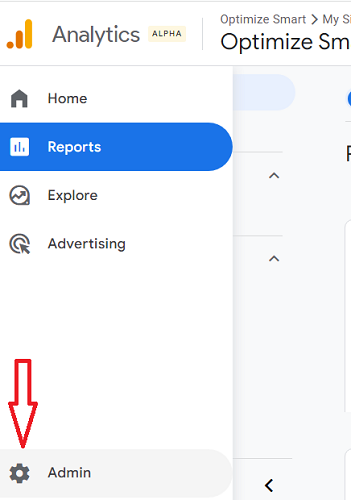
Step-1: Log in to your GA4 property and then click on ‘Admin’ under the left-hand side reporting menu.
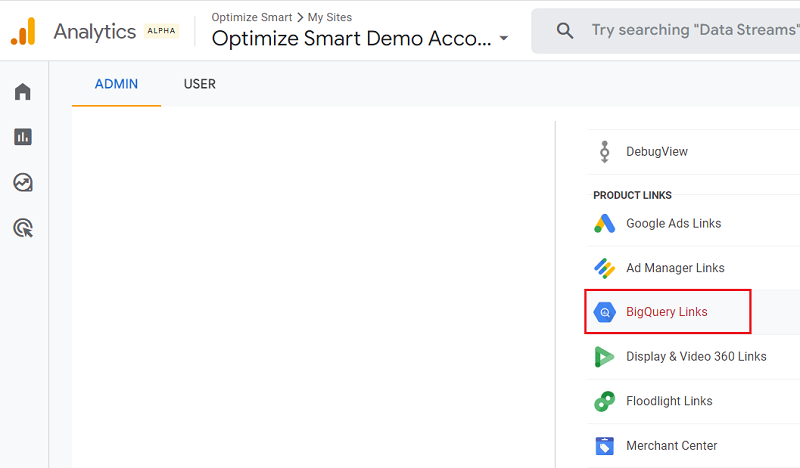
Step-2: Click on ‘BigQuery Links’ under ‘Product Links’:
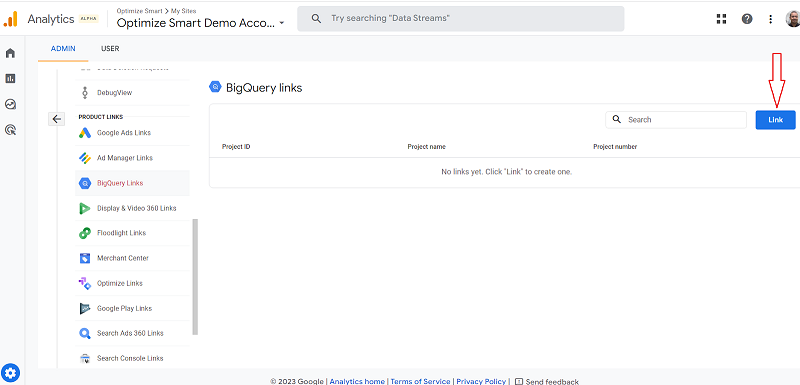
Step-3: Click on the ‘Link’ button:
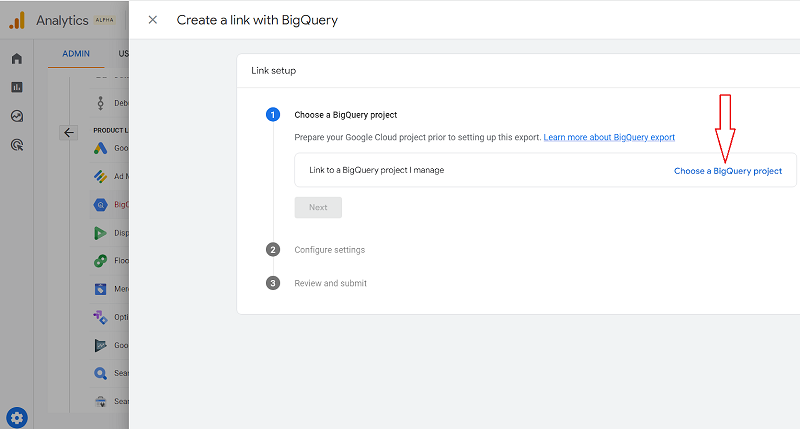
Step-4: Click on the button ‘Choose a BigQuery project’:
Step-5: Click on the checkbox next to the BigQuery project where you want to send your GA4 data, and then click on the ‘Confirm‘ button.
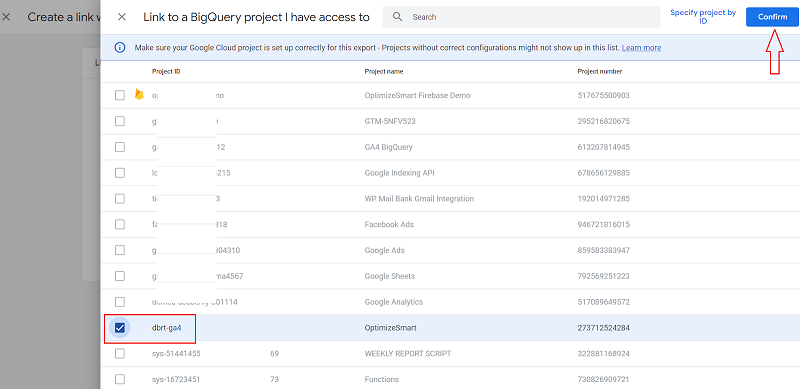
Note: You can link to only one BigQuery project at a time to a GA4 property.
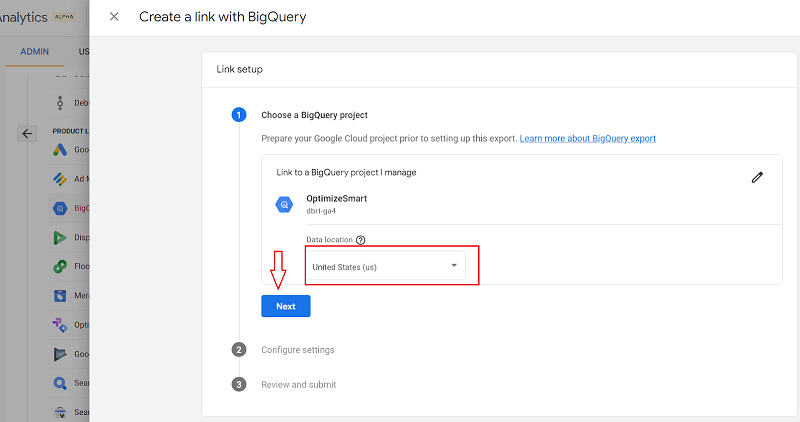
Step-6: Select your data location from the drop-down menu and then click on the ‘Next‘ button.
Data location is the cloud region where your data is stored.
Step-7: Click on ‘Configure data streams and events‘ if you want to export only particular data streams and events (optional):
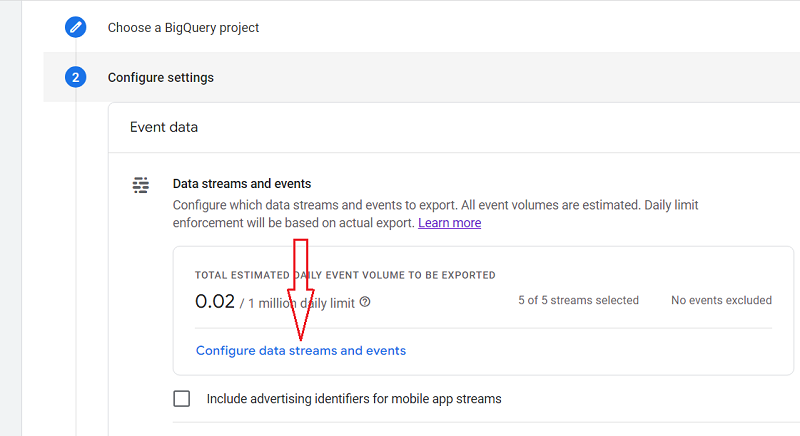
By filtering out unwanted data streams and events, you can overcome the daily BigQuery export limits, which is 1 million events /day for daily (batch) exports for standard GA4 properties.
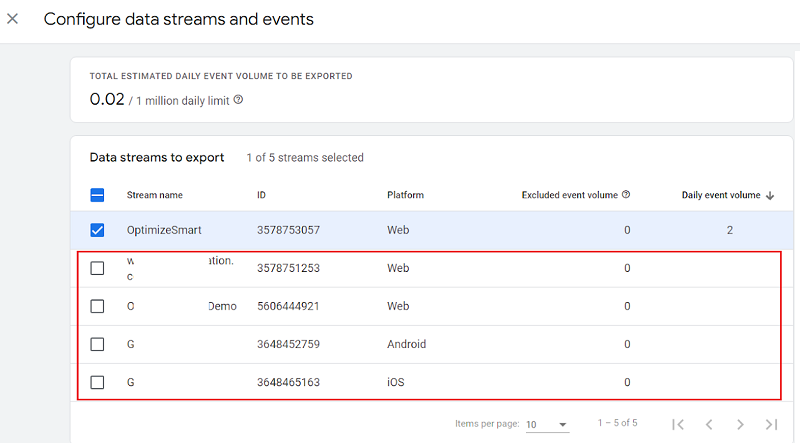
Note: By default, all of the data streams and events are selected for export to BigQuery.
Step-8: Unselect the data streams that you don’t want to export to BigQuery (optional).
Step-9: Scroll down and then click on the ‘Add’ button to choose the events to exclude (optional).
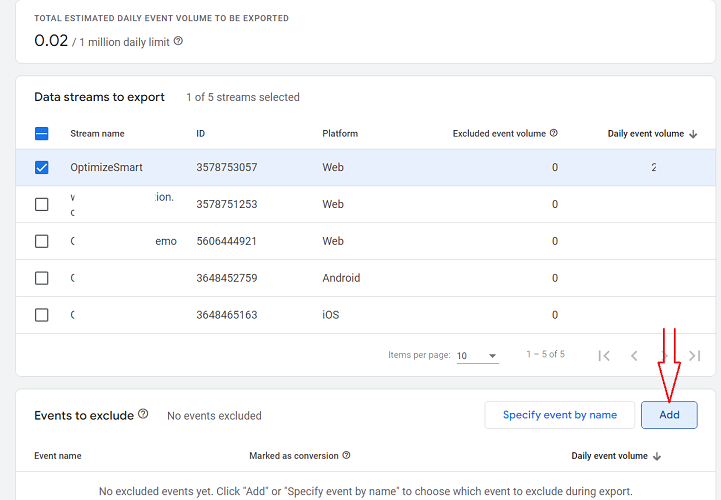
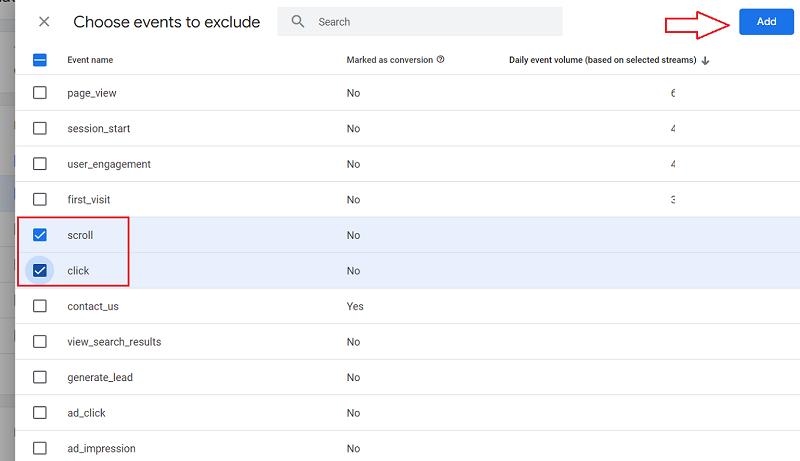
Step-10: Select the events you want to exclude and then click on the ‘Add’ button (optional).
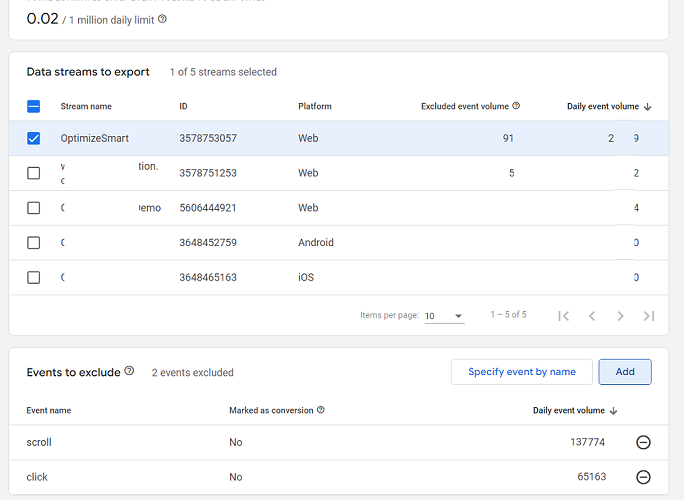
You should now see a screen like the one below:
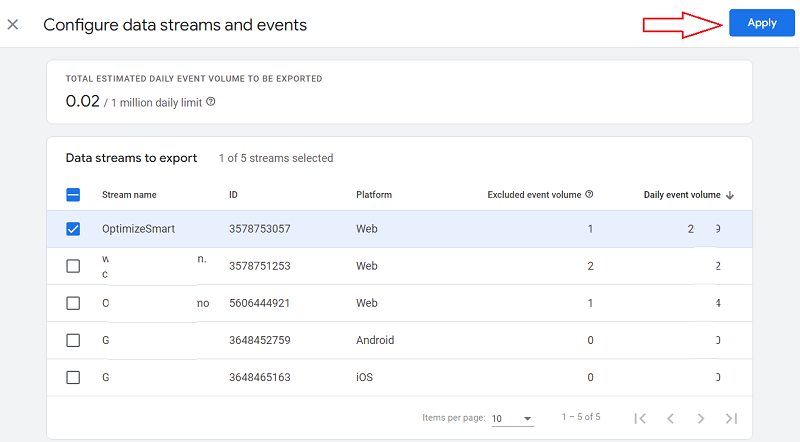
Step-11: Scroll up and then click on the ‘Apply’ button:
Step-12: Click on the checkbox ‘Include advertising identifiers for mobile app streams‘ (optional).
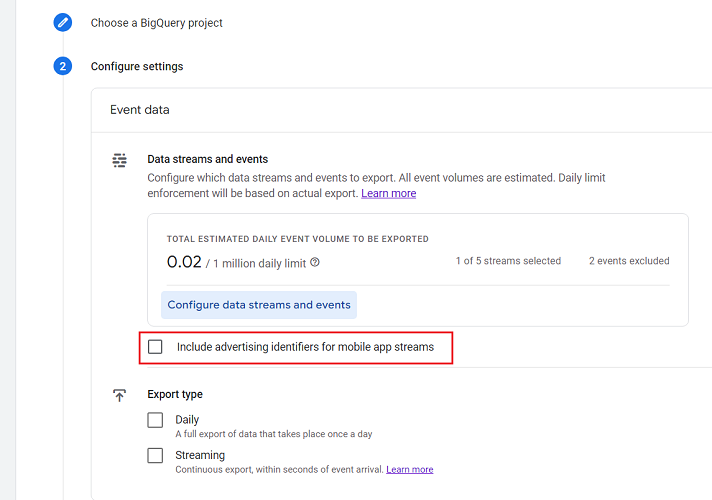
Use this option if you have a mobile app and you want to export mobile advertiser identifiers to your BigQuery project.
Step-13: Select the frequency of your data import to BigQuery.
Select both ‘Daily‘ and ‘Streaming‘ frequencies:
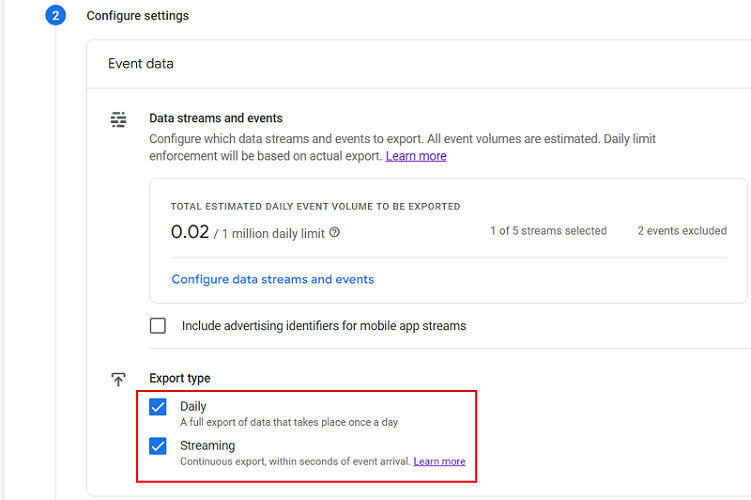
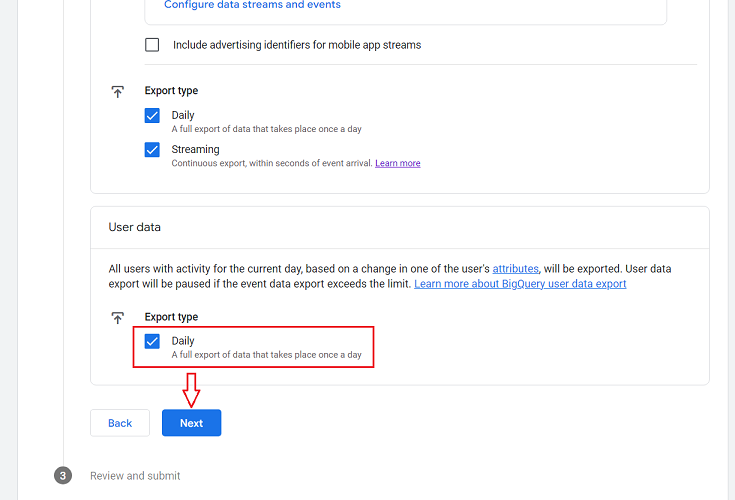
Step-14: Scroll down and then click on the checkbox next to ‘Daily’ under ‘User Data’ and then click on the ‘Next‘ button:
Step-15: Review your GA4 BigQuery integration setup and then click on the ‘Submit‘ button.
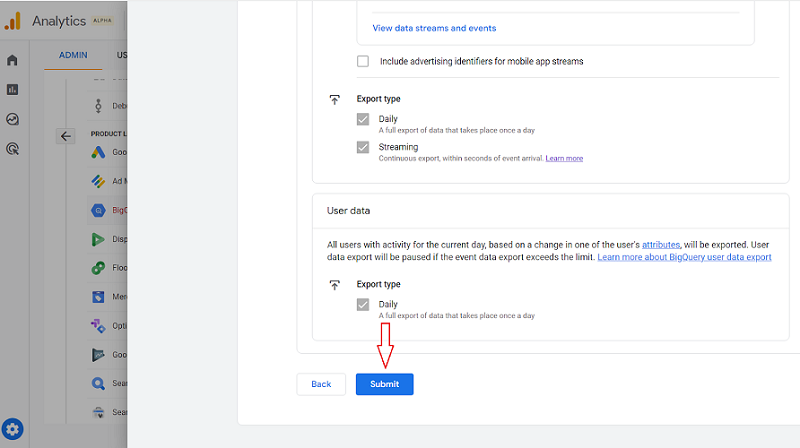
You should now see a screen like the one below:
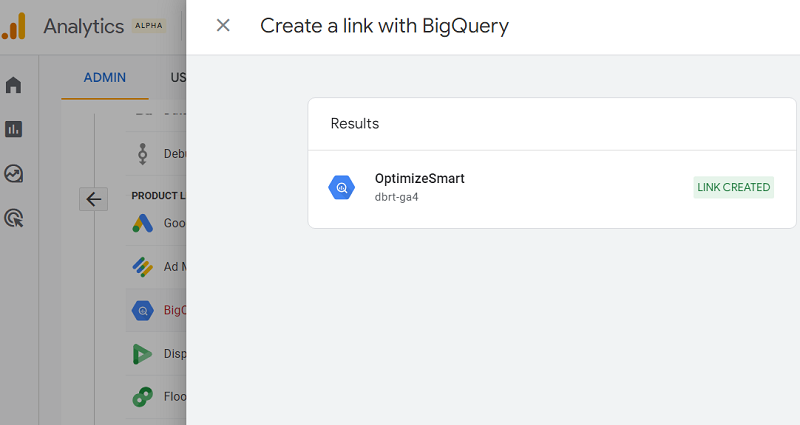
Congratulations!
Your GA4 property is now successfully linked to your Big Query project.
How to find GA4 data in BigQuery
Once you have linked your GA4 property to your BigQuery project, it usually takes around 24 hrs for your GA4 data to be available in your BigQuery project.
Follow the steps below to find the GA4 data you need in BigQuery:
Step-1: Navigate to your BigQuery account: https://console.cloud.google.com/bigquery
Step-2: Make sure that the project used for collecting GA4 data is selected:
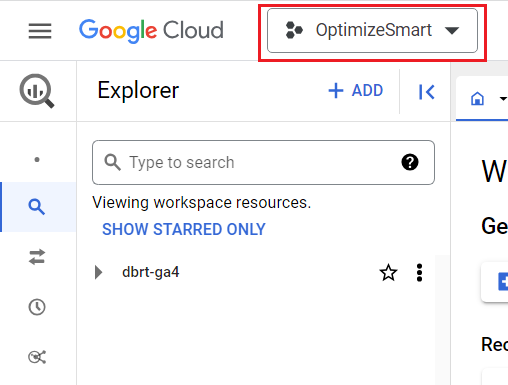
Step-3: Click on the project ID.
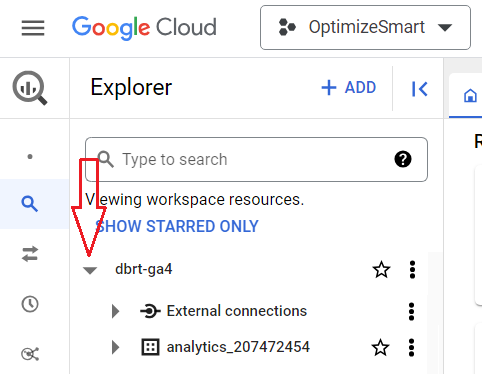
You should now be able to see a data set named in the following format: “analytics_<property_id>”.
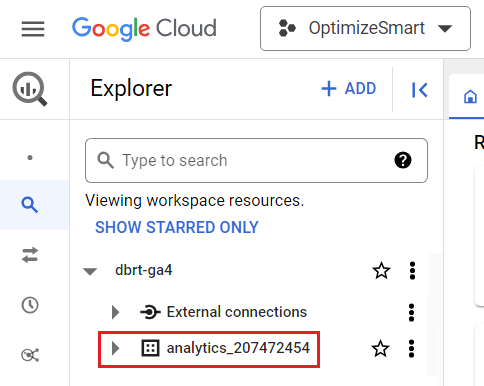
For each Google Analytics 4 property that is linked to BigQuery, a single dataset named “analytics_<property_id>” is added to your BigQuery project.
Property ID refers to your Analytics Property ID, which you can find in the property settings for your GA4 property:
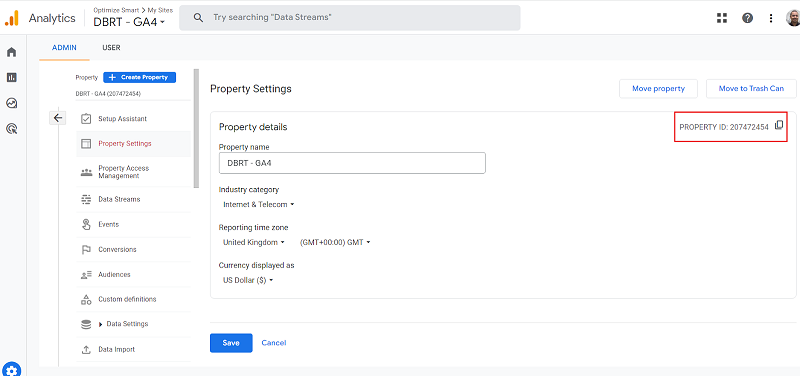
In my case, the property ID is 207472454
That’s why the name of my data set is ‘analytics_207472454‘
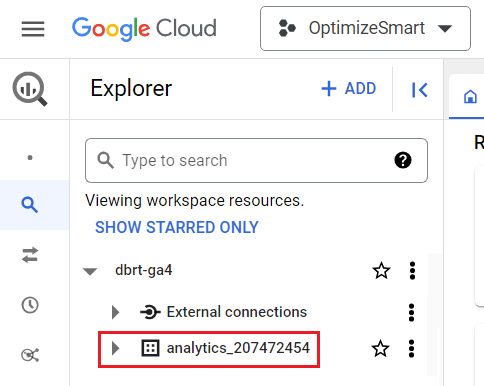
Step-4: Click on the dataset to see all the tables in it:
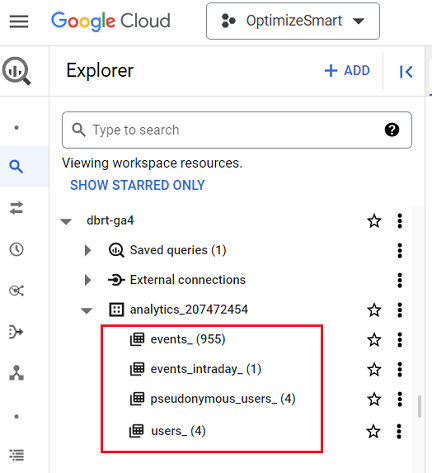
This data set contains the following four data tables, which contain your GA4 data:
- events_(<number of days>)
- events_intraday_<current date>
- pseudonymous_users_(<number of days>)
- users _ (<number of days>)
The ‘events_’ and ‘events_intraday_’ data tables contain event-based and user-based GA4 export data in BigQuery.
Whereas the ‘pseudonymous_users_’ and ‘users _’ data tables contain only user-based GA4 export data in BigQuery.
The advantage of using the ‘pseudonymous_users_’ and ‘users _’ data tables over the ‘events_’ and ‘events_intraday_’ data tables is that you get access to more user data.
The ‘pseudonymous_users_’ and ‘users _’ data tables contain audience and prediction data which is not available in the ‘events_’ and ‘events_intraday_’ data tables.
If you want to learn more about these data tables, then checkout the following articles
- events_ & events_intraday_ tables in BigQuery for GA4 (Google Analytics 4)
- pseudonymous_users_ & users_ data tables in BigQuery for GA4 (Google Analytics 4)
GA4 BigQuery Export limits
Google puts a daily limit on the volume of event data you can send to BigQuery to reduce data processing costs.
Standard GA4 properties have a daily BigQuery Export limit of 1 million events. Whereas the GA4 360 properties have a daily export limit of billions of events.
There is no limit on steaming export whether you use GA4 standard or GA4 360.
Note: If your GA4 property consistently exceeds the export limit, the daily BigQuery export will be paused, and previous days’ exports will not be reprocessed.
Related article: How to overcome GA4 BigQuery Export limit.
Connecting BigQuery project with sub-properties and rollup properties.
If you use GA4 360, you can also link your BigQuery project with subproperties and rollup properties.
The entire process of linking is exactly the same as it is for linking a typical GA4 property.
A sub-property is like a typical GA4 property, but it gets its data from another property (also called the source property).
The data in a sub-property is often the subset of the data in its source property.
A roll-up property is a special type of GA4 property whose event data comes from other GA4 properties (also known as source properties).
In other words, a roll-up property is made up of two or more source properties.

Other Articles on GA4.
- Filter Google Analytics 4 Reports by UTM Parameters.
- Tracking 404 pages (broken links) in Google Analytics 4.
- How to identify the scope of any GA4 Dimension or Metric.
- You are doing Google Analytics all wrong. Here is why.
- How to check if Google Tag Manager is Working – Testing GTM.
- Setting up Facebook Conversion API via Google Tag Manager (GTM).
- Understanding Google Tag Manager Container Tag.
- Google Analytics Debugger, GTM Debugger Tutorial.
- Tracking web pages with zero pageviews in Google Analytics 4.
- How to Connect Google Analytics 4 with BigQuery.
- 100+ Google Analytics Remarketing Audiences for Retargeting.
- Google Tag Manager Workspaces Tutorial.
- Stop Trusting GA4/GTM Tag Coverage Report – Do This Instead.
- Some of your pages are not tagged in GTM/GA4 [Fixed].
- Tracking single page apps in Google Analytics via GTM.
- Anonymize IP in Google Analytics, gtag & Google Tag Manager.
- Matomo vs Google Analytics vs Piwik Pro - Best Google Analytics Alternative.
- Are You Waiting 12 Days Before Analyzing GA4 Data?
- Using Element Visibility Trigger in Google Tag Manager (GTM).
- Google Analytics Javascript Tutorial.