Learn to fix “Some of your pages are not tagged” in GTM (Google Tag Manager), GA4 and Google Ads through this step by step guide.
How to see the “Some of your pages are not tagged” warning in Google Tag Manager.
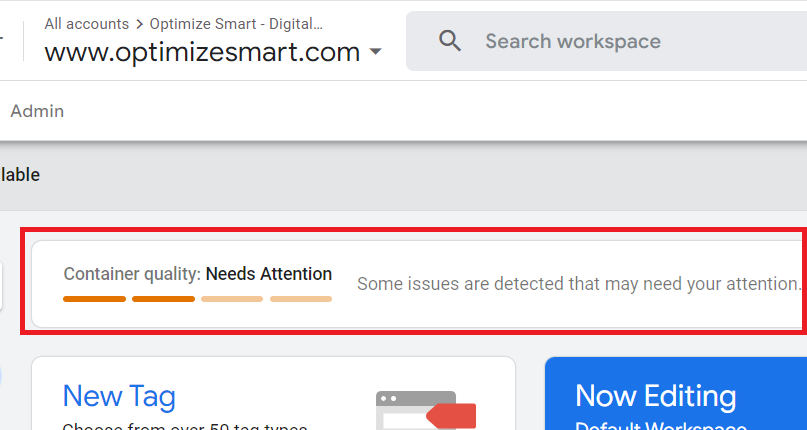
When you log in to Google Tag Manager (GTM), you may see the following notification:
Container quality: Needs Attention. Some issues are detected that may need your attention.
![Some of your pages are not tagged in GTM/GA4 [Fixed] 1 Container quality Needs Attention. Some issues are detected that may need your attention 1](https://storage.ghost.io/c/8e/ac/8eacdccf-93ff-479e-9ead-3cc102f22c81/content/images/2026/06/data-src-image-7a60e3de-bfdd-4b92-9ba1-3325542d8844.png)
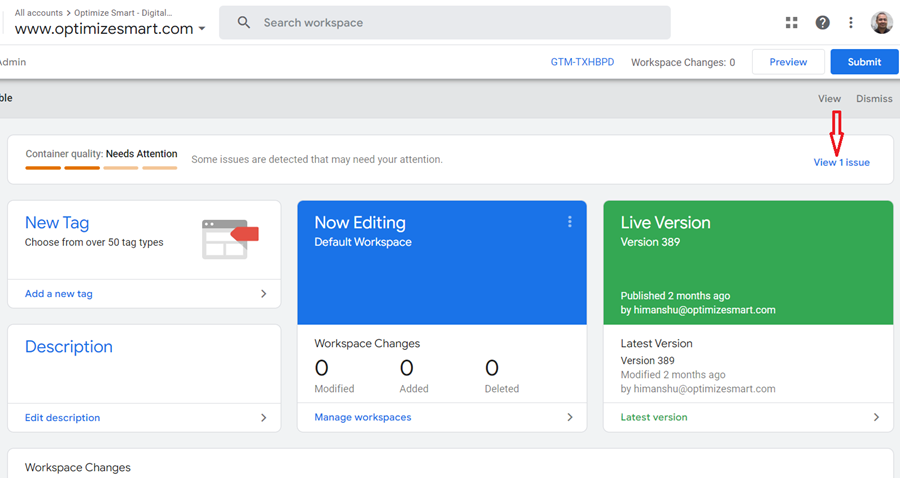
If you see a notification like this, click on the ‘View 1 issue’ (or something similar) link:
![Some of your pages are not tagged in GTM/GA4 [Fixed] 2 view issue](https://storage.ghost.io/c/8e/ac/8eacdccf-93ff-479e-9ead-3cc102f22c81/content/images/2026/06/data-src-image-fcbedf5e-57f6-41d3-bb48-1e1b5a1a24b4.png)
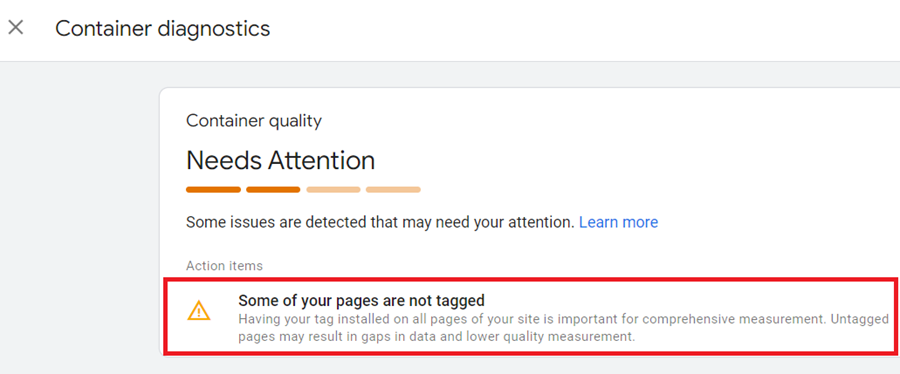
You will now see the ‘Container diagnostic’ window with the following message:
Some of your pages are not tagged. Having your tag installed on all pages of your site is important for comprehensive measurement. Untagged pages may result in gaps in data and lower quality measurement.
![Some of your pages are not tagged in GTM/GA4 [Fixed] 3 some of your pages are not tagged gtm](https://storage.ghost.io/c/8e/ac/8eacdccf-93ff-479e-9ead-3cc102f22c81/content/images/2026/06/data-src-image-2961aec1-8f23-4f9b-8724-ff5190e83b19.png)
Determine pages marked as untagged by Google.
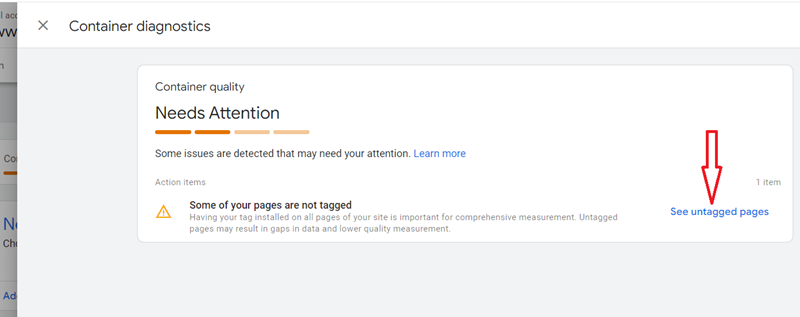
Click on the link ‘See untagged pages’ to see the list of links which Google assume to be untagged:
![Some of your pages are not tagged in GTM/GA4 [Fixed] 4 Click on the link ‘See untagged pages](https://storage.ghost.io/c/8e/ac/8eacdccf-93ff-479e-9ead-3cc102f22c81/content/images/2026/06/data-src-image-dc13949a-25b2-4bd6-a9cd-b2addd912462.png)
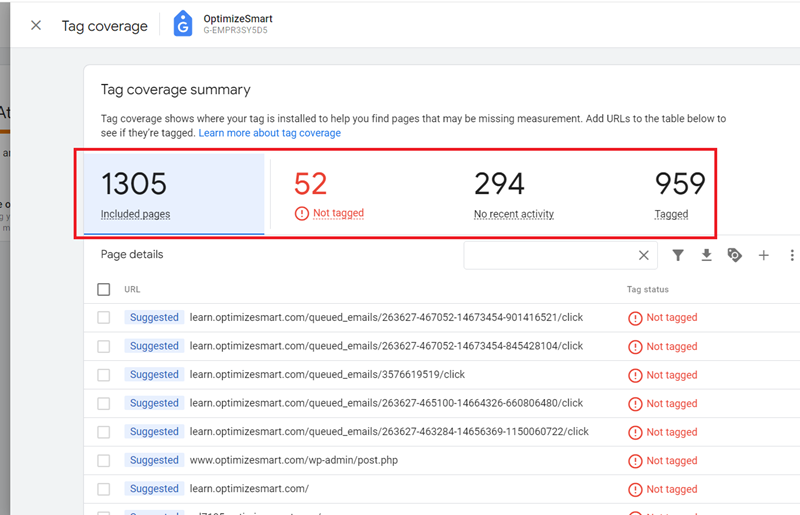
You will now see the ‘Tag Coverage Summary’ report with the following four tabs: ‘Included pages’, ‘Not tagged’, ‘No recent activity’ and ‘Tagged’:
![Some of your pages are not tagged in GTM/GA4 [Fixed] 5 You will now see the ‘Tag Coverage Summary report](https://storage.ghost.io/c/8e/ac/8eacdccf-93ff-479e-9ead-3cc102f22c81/content/images/2026/06/data-src-image-b5d472ca-857f-4b09-a016-c0d68fd7de39.png)
Here,
Included pages => This tab lists all the unique pages evaluated in the ‘Tag Coverage Summary’ report. This can include both suggested pages from Google and manually imported lists.
Not tagged pages => This tab lists not tagged web pages. These pages have either never loaded the Google Tag, or the Google Tag is yet to be detected.
Note: The tag coverage summary report can take up to 24 hours to update. So, if you recently installed the Google tag, it may not be detected and reported immediately.
You can use Google Tag Assistant to check the tags on your web page. When Tag Assistant detects your Google tag, the page is marked as tagged.
No recent activity => This tab lists all the web pages with no recent activity. These are the web pages that have not loaded the Google tag in the last 30 days but have in the past.
Tagged => This tab lists all the web pages that are tagged. The Google tag was detected on these pages within the last 30 days.
The ‘Tag Coverage’ summary report is not very reliable.
It is important to note that the ‘Tag Coverage’ summary report is not very reliable and is prone to producing false positives and false negatives.
This means that the report might incorrectly indicate that a page is not tagged when it actually is (false negative) or suggest that a page is tagged when it is not (false positive).
The Tag Coverage Summary report may also suggest tagging for pages that do not necessarily require it, such as those with dynamic URLs, non-content pages or other irrelevant pages.
Because of these potential issues, the Tag Coverage Summary report should be used as a general guide rather than a definitive source of truth.
The correct method to find and fix web pages that are not tagged.
I use the Screaming Frog SEO Spider to be 100% sure whether my web pages are tagged.
It is a website crawler primarily used as a technical SEO audit tool, but I also use it for tag auditing and tracking web pages with zero pageviews in GA4.
The advantage of using Screaming Frog over tag auditing tools like ‘Google Tag Assistant’ and ‘Ghostery’ is that we can scan the entire website (regardless of its size) for missing Google tags in one go.
This is particularly useful for identifying missing Google tags across a large website with thousands or tens of thousands of pages.
We will use the ‘Custom Search’ feature of the Screaming Frog SEO Spider to search the source code of all the web pages site wide for a particular tag.
This tag could be:
- Javascript code for installing Google Analytics 4.
- Javascript code for installing Google Tag Manager Container.
- Javascript code for installing Google Ads Conversion Tracking etc.
- Data Layer used to track particular ecommerce events etc.
You will need to use the paid version of Screaming Frog, as the ‘custom search’ and ‘Google Analytics’ integration are available only in the paid version.
Follow the steps below:
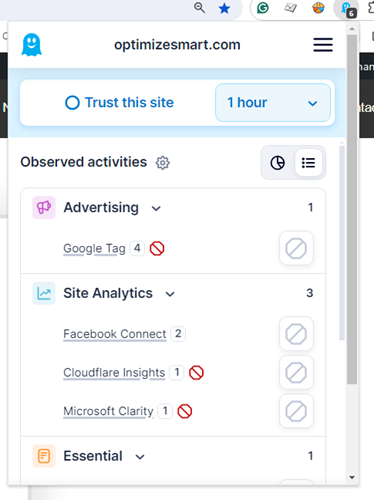
Step-1: Use a Chrome extension like ‘Ghostery’ to find the list of tags firing on a web page:
![Some of your pages are not tagged in GTM/GA4 [Fixed] 6 Use a Chrome extension like ‘Ghostery to find the list of tags firing on a web page](https://storage.ghost.io/c/8e/ac/8eacdccf-93ff-479e-9ead-3cc102f22c81/content/images/2026/06/data-src-image-70dca706-879d-4d00-b20b-780d54aacf3b.png)
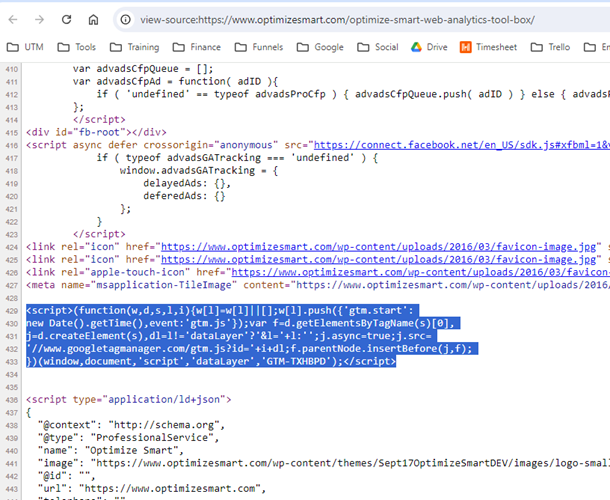
Step-2: Check the source code of the page and find and copy the corresponding hardcoded tags. For example, find and copy the GTM container code:
![Some of your pages are not tagged in GTM/GA4 [Fixed] 7 find and copy the GTM container code](https://storage.ghost.io/c/8e/ac/8eacdccf-93ff-479e-9ead-3cc102f22c81/content/images/2026/06/data-src-image-e7ccc4a0-6b51-4955-a1c2-9f16381e1667.png)
We will later use the ‘custom search’ feature of Screaming Frog to find web pages which do not contain the GTM container code by using the copied code as the search string.
Similarly, if you want to find web pages that do not contain the Javascript code for installing Google Analytics 4 or Google Ads conversion tracking, you must first find and copy them from the source code.
Step-3: Launch the Screaming Frog SEO Spider tool on your computer.
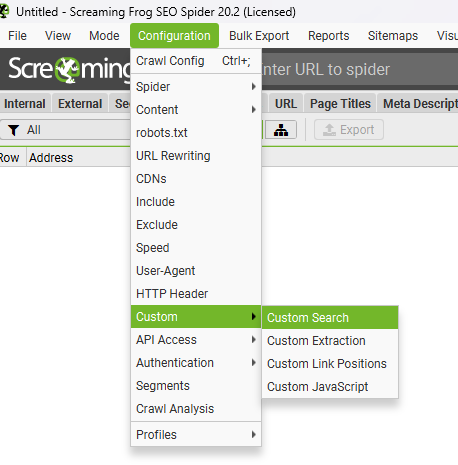
Step-4: Navigate to the top menu and click on ‘Configuration’ > ‘Custom’ > ‘Custom Search’ to open the custom search configuration screen:
![Some of your pages are not tagged in GTM/GA4 [Fixed] 8 ‘Custom Search to open the custom search configuration screen](https://storage.ghost.io/c/8e/ac/8eacdccf-93ff-479e-9ead-3cc102f22c81/content/images/2026/06/data-src-image-b56046b3-2616-4c72-a3e7-ff5fe6f95061.png)
Step-5: Click on the ‘Add’ button to set up a new custom search filter:
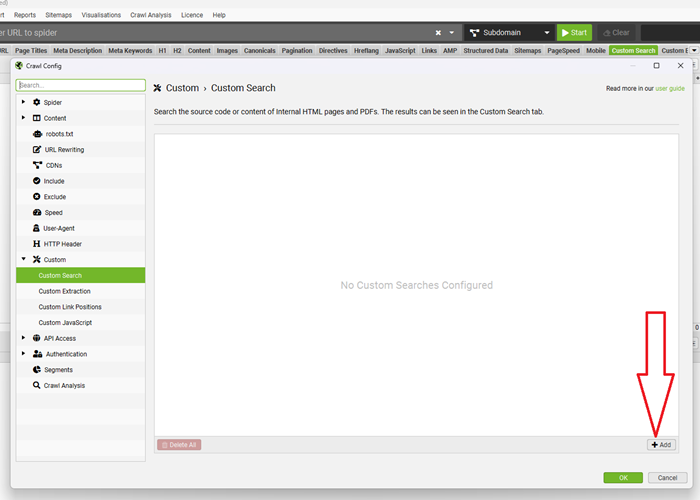
![Some of your pages are not tagged in GTM/GA4 [Fixed] 9 Click on the ‘Add button to set up a new custom search filter](https://storage.ghost.io/c/8e/ac/8eacdccf-93ff-479e-9ead-3cc102f22c81/content/images/2026/06/data-src-image-6a4ff4ae-1e2f-4eaa-9a44-533799726bcb.png)
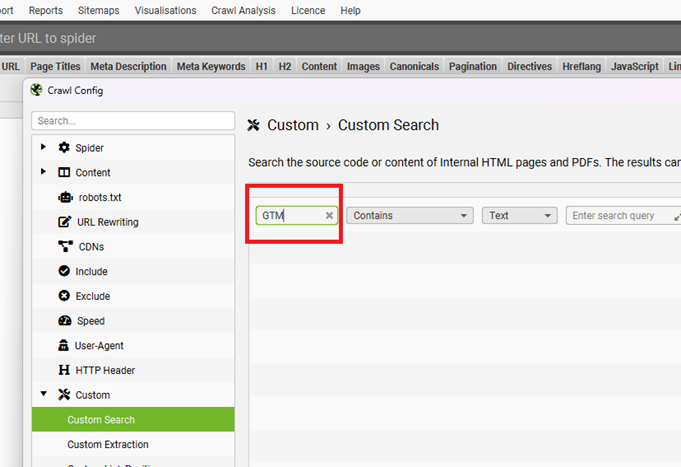
Step-6: Double click on ‘Search 1’and rename it to ‘GTM’:
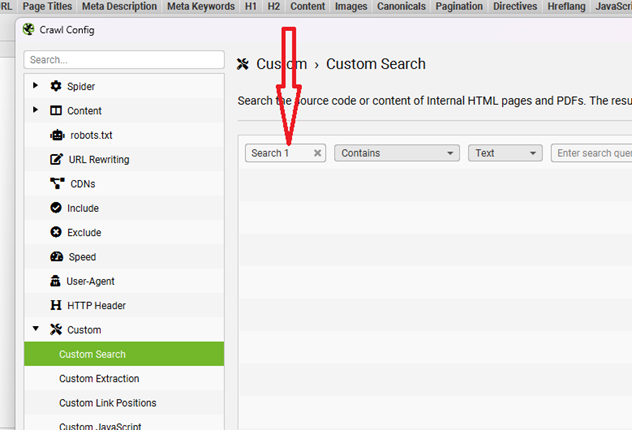
![Some of your pages are not tagged in GTM/GA4 [Fixed] 10 Double click on ‘Search 1and rename it to ‘GTM](https://storage.ghost.io/c/8e/ac/8eacdccf-93ff-479e-9ead-3cc102f22c81/content/images/2026/06/data-src-image-ba44efa2-0465-4882-841a-736e8bd46c22.png)
![Some of your pages are not tagged in GTM/GA4 [Fixed] 11 gtm](https://storage.ghost.io/c/8e/ac/8eacdccf-93ff-479e-9ead-3cc102f22c81/content/images/2026/06/data-src-image-b8ffecc0-5397-4e7b-bd34-960497bb385b.png)
Step-7: Select ‘Does not contain’ from the drop-down menu:
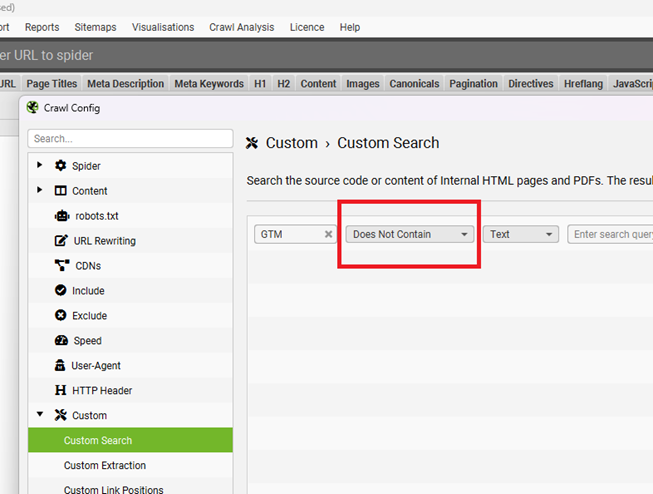
![Some of your pages are not tagged in GTM/GA4 [Fixed] 12 Select ‘Does not contain from the drop down menu](https://storage.ghost.io/c/8e/ac/8eacdccf-93ff-479e-9ead-3cc102f22c81/content/images/2026/06/data-src-image-72893ff4-5431-465a-b5c9-0b5e0cbbb2f6.png)
Step-8: Click on the expand button next to the text box ‘Enter search query’:
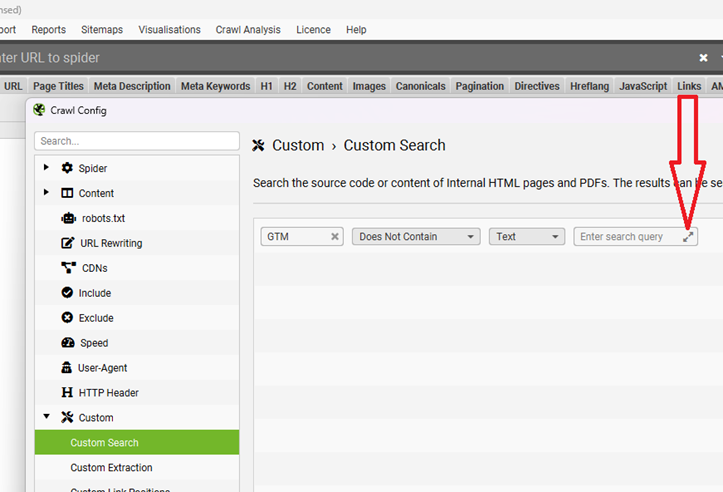
![Some of your pages are not tagged in GTM/GA4 [Fixed] 13 Click on the expand button next to the text box ‘Enter search query](https://storage.ghost.io/c/8e/ac/8eacdccf-93ff-479e-9ead-3cc102f22c81/content/images/2026/06/data-src-image-04eef86b-6a57-4018-97fc-a1095585163f.png)
You will now see the expanded search query box:
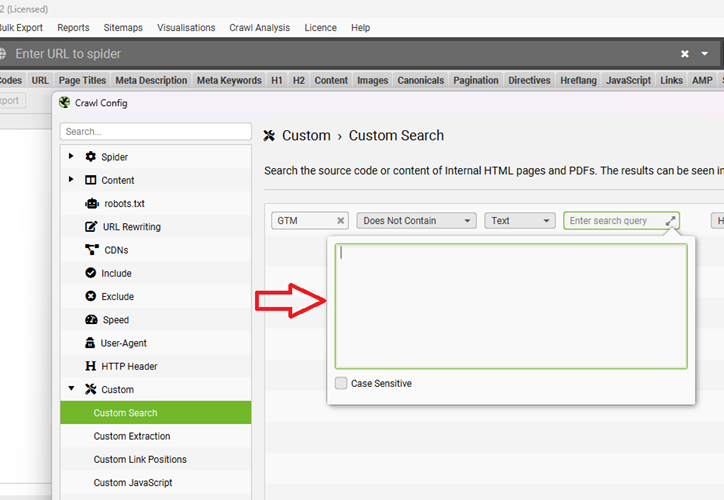
![Some of your pages are not tagged in GTM/GA4 [Fixed] 14 You will now see the expanded search query](https://storage.ghost.io/c/8e/ac/8eacdccf-93ff-479e-9ead-3cc102f22c81/content/images/2026/06/data-src-image-371191ad-acce-48ae-981f-e045e6f2c230.png)
Step-9: Paste the copied GTM container code in the expanded search query box:
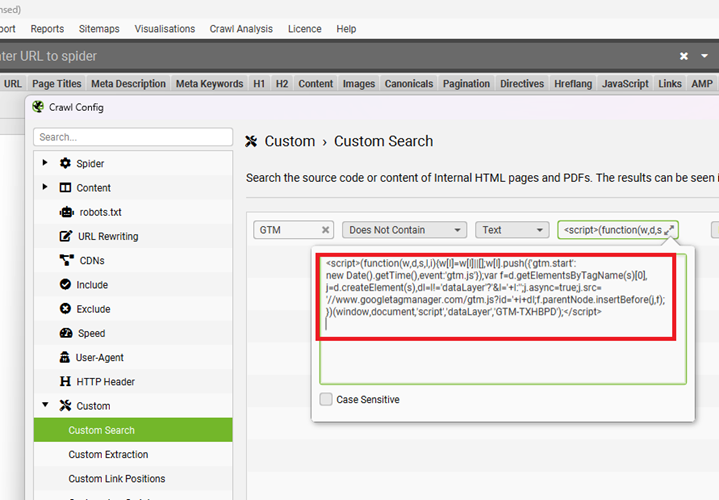
![Some of your pages are not tagged in GTM/GA4 [Fixed] 15 Paste the copied GTM container code in the expanded search query](https://storage.ghost.io/c/8e/ac/8eacdccf-93ff-479e-9ead-3cc102f22c81/content/images/2026/06/data-src-image-abdc07e6-26e8-47d9-aa78-a1e2cbf09d09.png)
Step-10: Click on the ‘Case Sensitive’ checkbox to make your tag search case sensitive (optional):
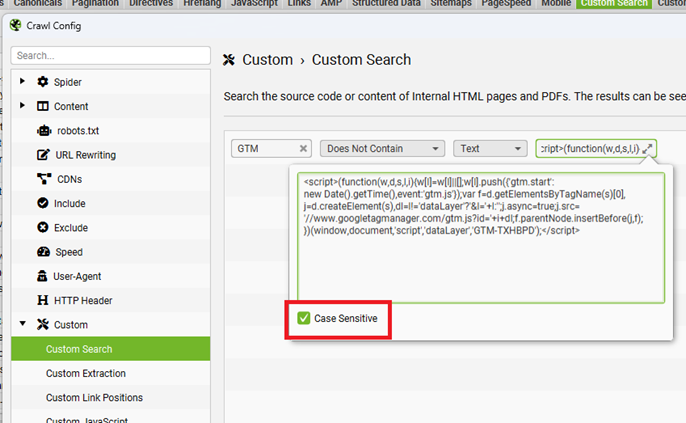
![Some of your pages are not tagged in GTM/GA4 [Fixed] 16 Click on the ‘Case Sensitive checkbox to make your tag search case sensitive](https://storage.ghost.io/c/8e/ac/8eacdccf-93ff-479e-9ead-3cc102f22c81/content/images/2026/06/data-src-image-37d3731e-cfb0-4c45-9f51-9a675b53218f.png)
Step-11: Select ‘HTML’ from the drop-down menu because I want Screaming Frog to search for the GTM container code in the HTML code of the web pages.
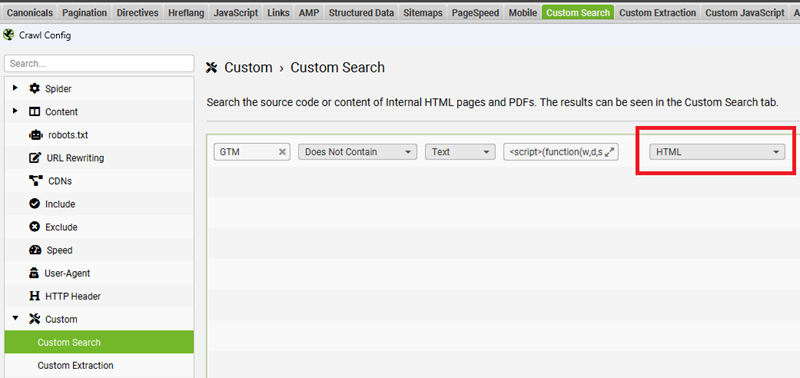
![Some of your pages are not tagged in GTM/GA4 [Fixed] 17 Select ‘HTML from the drop down menu](https://storage.ghost.io/c/8e/ac/8eacdccf-93ff-479e-9ead-3cc102f22c81/content/images/2026/06/data-src-image-0565fec6-29c5-4041-bb24-a83c63528863.png)
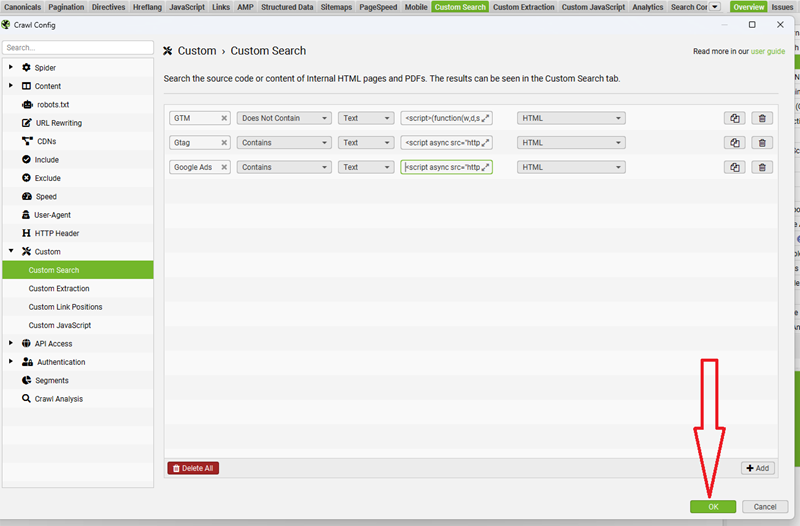
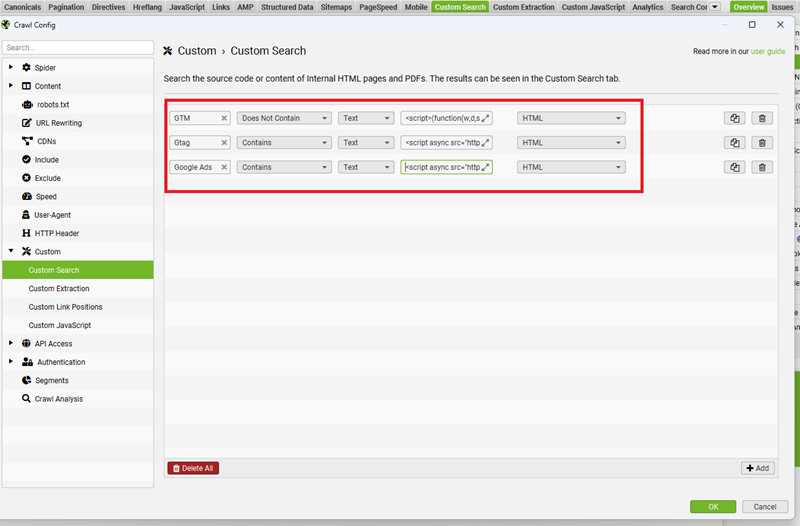
Step-12: Repeat steps 5 to 11 to add the relevant Javascript code for installing Google Analytics 4, Google Ads conversion tracking, etc, as search text based on your unique tag auditing requirements:
![Some of your pages are not tagged in GTM/GA4 [Fixed] 18 add the relevant Javascript code for installing Google Analytics 4](https://storage.ghost.io/c/8e/ac/8eacdccf-93ff-479e-9ead-3cc102f22c81/content/images/2026/06/data-src-image-463e39a6-bae4-4686-92ed-97e4e78e3193.png)
Step-13: Click on the ‘Ok’ button:
![Some of your pages are not tagged in GTM/GA4 [Fixed] 19 Click on the ‘Ok button](https://storage.ghost.io/c/8e/ac/8eacdccf-93ff-479e-9ead-3cc102f22c81/content/images/2026/06/data-src-image-87c2c82b-0686-4873-b184-f66fa9a8c763.png)
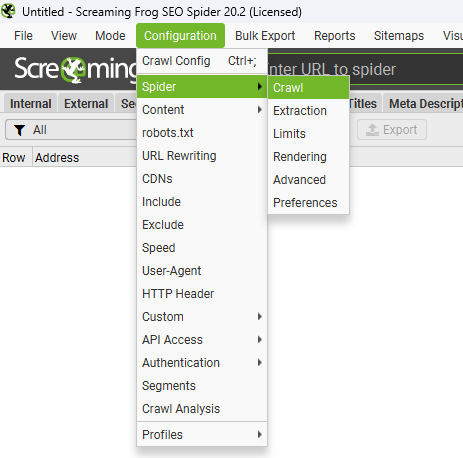
Step-14: Navigate to ‘Configuration’ > ‘Spider’ > ‘Crawl’
![Some of your pages are not tagged in GTM/GA4 [Fixed] 20 Crawl](https://storage.ghost.io/c/8e/ac/8eacdccf-93ff-479e-9ead-3cc102f22c81/content/images/2026/06/data-src-image-46b1ef84-2751-465f-b9cc-3cc87253ede9.png)
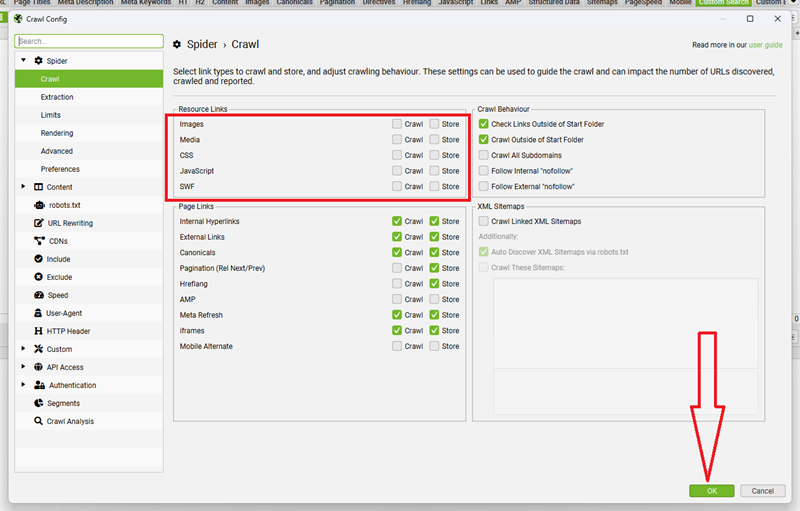
Step-15: Uncheck the following checkboxes to speed up your website crawl and then click on the ‘Ok’ button:
![Some of your pages are not tagged in GTM/GA4 [Fixed] 21 Uncheck the following checkboxes to speed up your website crawl](https://storage.ghost.io/c/8e/ac/8eacdccf-93ff-479e-9ead-3cc102f22c81/content/images/2026/06/data-src-image-f99c20cf-394d-47a7-9605-b95b750c59c0.png)
I have unchecked these resources so that Screaming Frog does not crawl images, media, CSS, JavaScript and SWF files during the website crawl.
By not crawling these resources, you will greatly reduce the crawling time, especially if your website has hundreds or thousands of web pages.
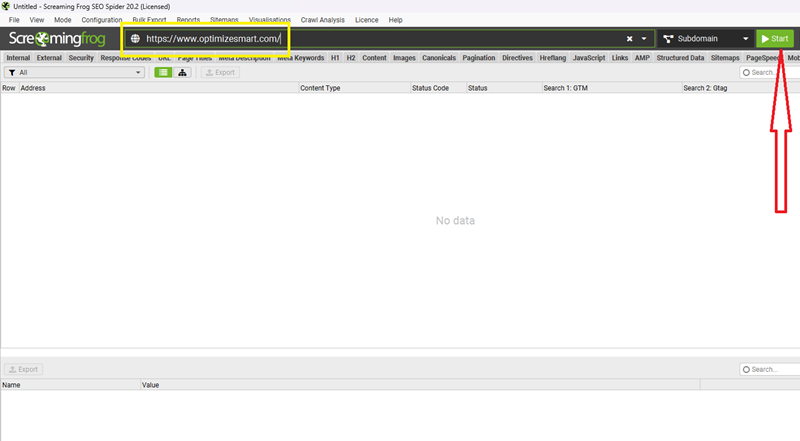
Step-16: Enter your full website URL and then click on the ‘Start’ button to start the website crawl:
![Some of your pages are not tagged in GTM/GA4 [Fixed] 22 Enter your full website URL and then click on the ‘Start button to start the website crawl](https://storage.ghost.io/c/8e/ac/8eacdccf-93ff-479e-9ead-3cc102f22c81/content/images/2026/06/data-src-image-0586bbfe-73d9-4ef5-a56b-5780144ec774.png)
Screaming Frog will now crawl your website and search for tags in the HTML code of your web pages based on your configuration settings.
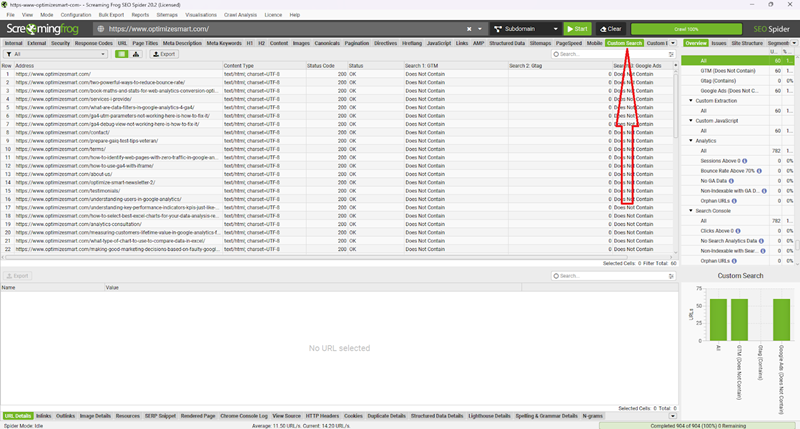
Step-17: Once the crawl is complete, find and click on the ‘Custom Search’ tab:
![Some of your pages are not tagged in GTM/GA4 [Fixed] 23 Once the crawl is complete find and click on the ‘Custom Search tab](https://storage.ghost.io/c/8e/ac/8eacdccf-93ff-479e-9ead-3cc102f22c81/content/images/2026/06/data-src-image-394eb984-c61c-4451-8d78-f8fc485ea337.png)
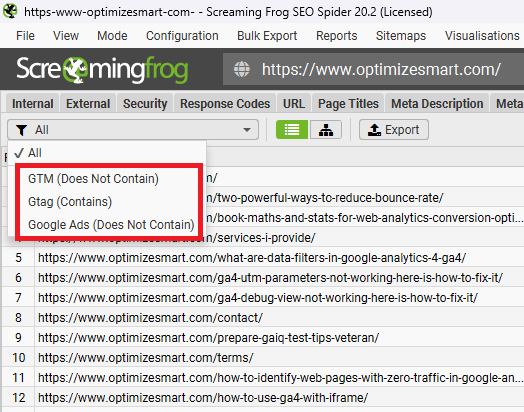
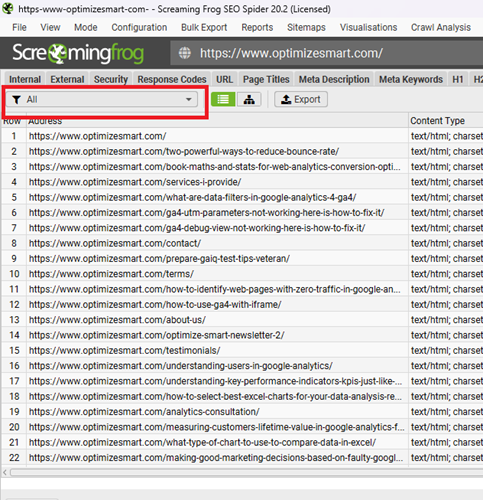
Step-18: Use the drop-down menu to filter out the list of URLs which contain or do not contain a specific tag:
![Some of your pages are not tagged in GTM/GA4 [Fixed] 24 Use the drop down menu to filter out the list of URLs which contain or do not contain a specific tag](https://storage.ghost.io/c/8e/ac/8eacdccf-93ff-479e-9ead-3cc102f22c81/content/images/2026/06/data-src-image-ee277aeb-cffb-4502-8362-1dc25298f232.png)
![Some of your pages are not tagged in GTM/GA4 [Fixed] 25 Use the drop down menu to filter out the list of URLs which contain or do not contain a specific tag 2](https://storage.ghost.io/c/8e/ac/8eacdccf-93ff-479e-9ead-3cc102f22c81/content/images/2026/06/data-src-image-b85167fa-f0bf-40ea-86f1-e59d750fb071.png)
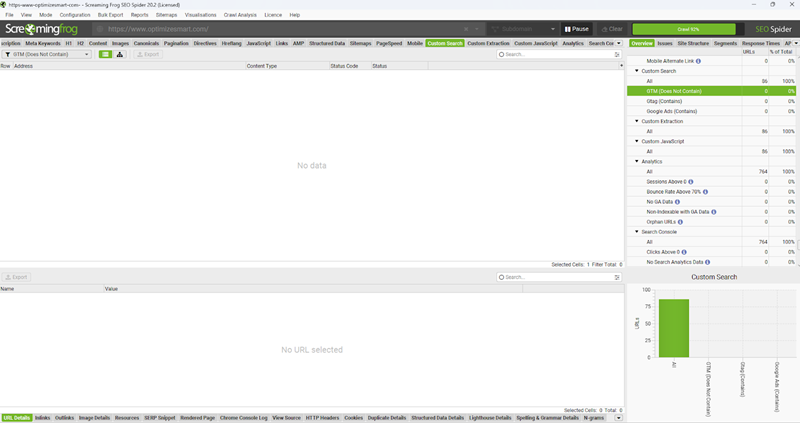
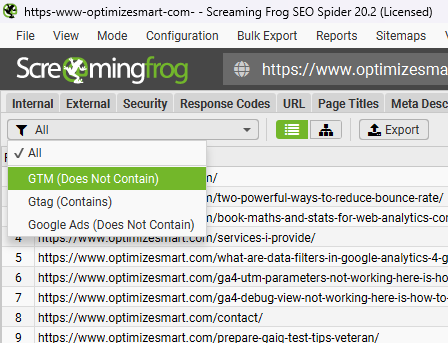
For example, let’s click on ‘GTM (Does Not Contain)’ to find the list of URLs which do not contain the GTM container code:
![Some of your pages are not tagged in GTM/GA4 [Fixed] 26 GTM Does Not Contain](https://storage.ghost.io/c/8e/ac/8eacdccf-93ff-479e-9ead-3cc102f22c81/content/images/2026/06/data-src-image-f5cf9e44-1056-43e0-a0f8-eaa33bec157e.png)
![Some of your pages are not tagged in GTM/GA4 [Fixed] 27 no data](https://storage.ghost.io/c/8e/ac/8eacdccf-93ff-479e-9ead-3cc102f22c81/content/images/2026/06/data-src-image-f9ebfdf8-7dd2-4ec9-a08e-75a21ca12ff5.png)
Since all the web pages on my website contain the GTM container code, the report does not show any data.
Otherwise, you would have seen the list of URLs.
You can use a similar approach to find the list of web pages which contain or do not contain gtag, Google Ads conversion tracking tags or a particular ecommerce data layer etc.
How to remove the ‘Some of your pages are not tagged’ warning.
Once you have made sure that all the pages of your website are correctly tagged, navigate back to the ‘Tag Coverage Summary’ report in your GTM account and follow the steps below:
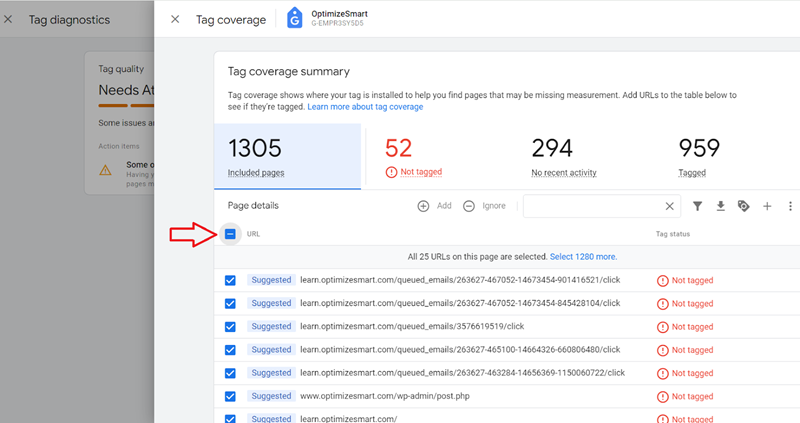
Step-1: Select all the URLs by clicking on the checkbox under the ‘Included pages’ tab:
![Some of your pages are not tagged in GTM/GA4 [Fixed] 28 Select all the URLs by clicking on the checkbox under the ‘Included pages tab](https://storage.ghost.io/c/8e/ac/8eacdccf-93ff-479e-9ead-3cc102f22c81/content/images/2026/06/data-src-image-000a9877-faed-45a5-9866-1407ba65a7c5.png)
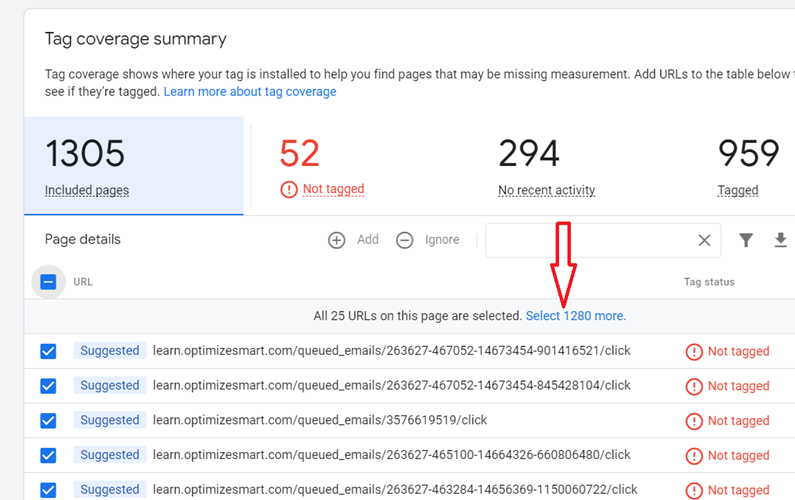
Step-2: Click on the link ‘Select 1280 more’ (or something similar):
![Some of your pages are not tagged in GTM/GA4 [Fixed] 29 Click on the link ‘Select 1280 more](https://storage.ghost.io/c/8e/ac/8eacdccf-93ff-479e-9ead-3cc102f22c81/content/images/2026/06/data-src-image-d475f4d0-d189-4ce6-bc92-ed3f67179141.png)
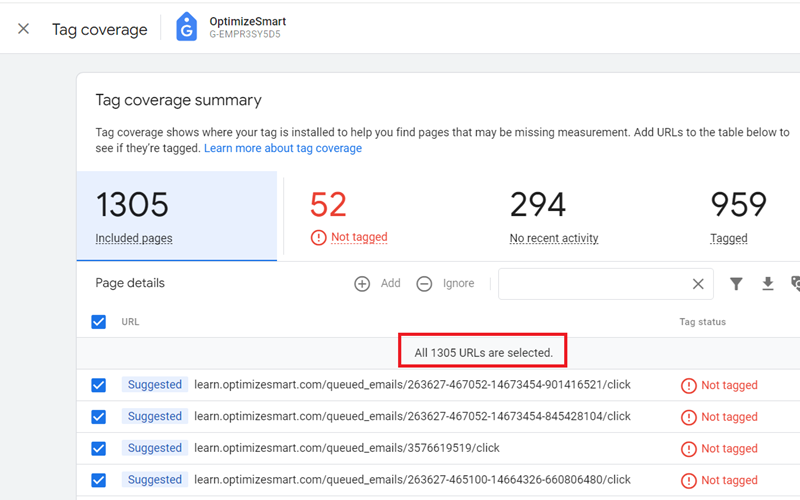
You will now see the following similar notification ‘All 1305 URLs are selected’:
![Some of your pages are not tagged in GTM/GA4 [Fixed] 30 You will now see the following similar notification ‘All 1305 URLs are selected](https://storage.ghost.io/c/8e/ac/8eacdccf-93ff-479e-9ead-3cc102f22c81/content/images/2026/06/data-src-image-3a9c2161-c5dd-4d7a-9c41-b7fe51639cf4.png)
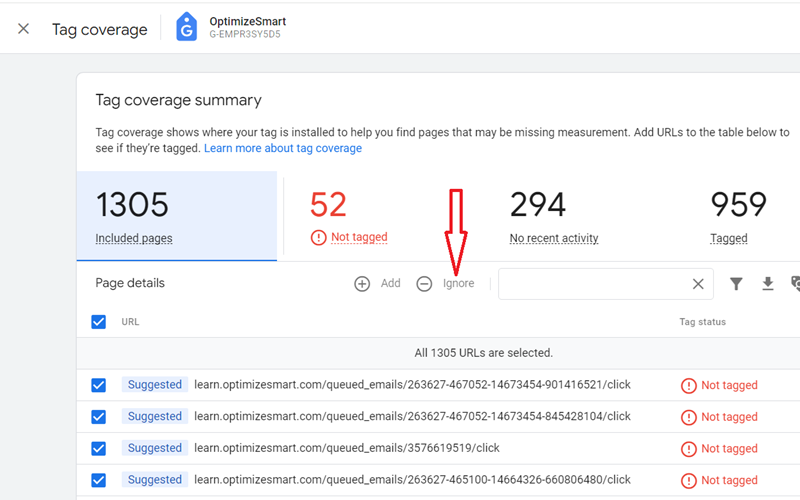
Step-3: Click on the ‘Ignore’ button:
![Some of your pages are not tagged in GTM/GA4 [Fixed] 31 Click on the ‘Ignore button](https://storage.ghost.io/c/8e/ac/8eacdccf-93ff-479e-9ead-3cc102f22c81/content/images/2026/06/data-src-image-bb9e0adc-2ea5-48ac-9cbd-a191994843f9.png)
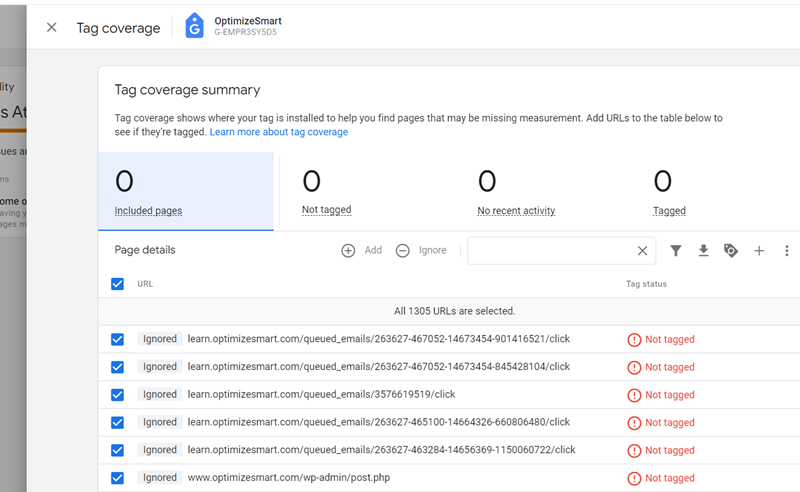
You should now see a screen like the one below:
![Some of your pages are not tagged in GTM/GA4 [Fixed] 32 You should now see a screen like the one below](https://storage.ghost.io/c/8e/ac/8eacdccf-93ff-479e-9ead-3cc102f22c81/content/images/2026/06/data-src-image-c2496fc5-32ca-4db5-9091-f491e7fd8f3a.png)
This screen will later change to the following screen when you click on one of the tabs:
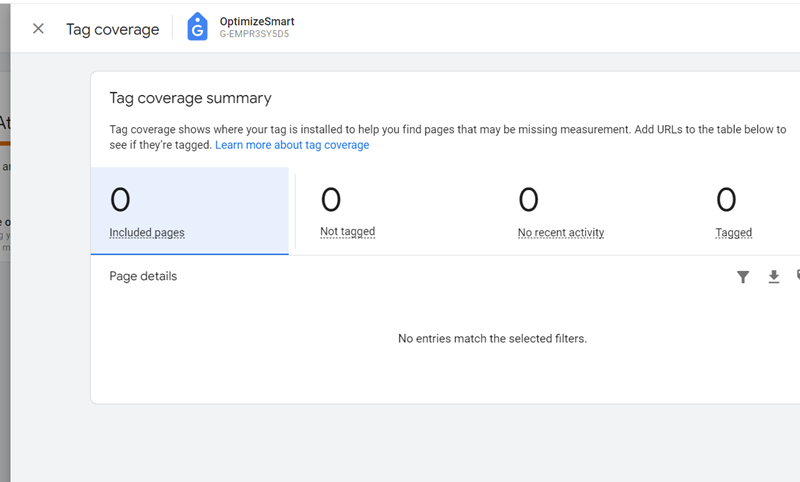
![Some of your pages are not tagged in GTM/GA4 [Fixed] 33 This screen will later change to the following screen when you click on one of the tabs](https://storage.ghost.io/c/8e/ac/8eacdccf-93ff-479e-9ead-3cc102f22c81/content/images/2026/06/data-src-image-1372ab9f-9955-4539-ab4d-0ad2979f846b.png)
Step-4: Close the ‘Tag Coverage’ window:
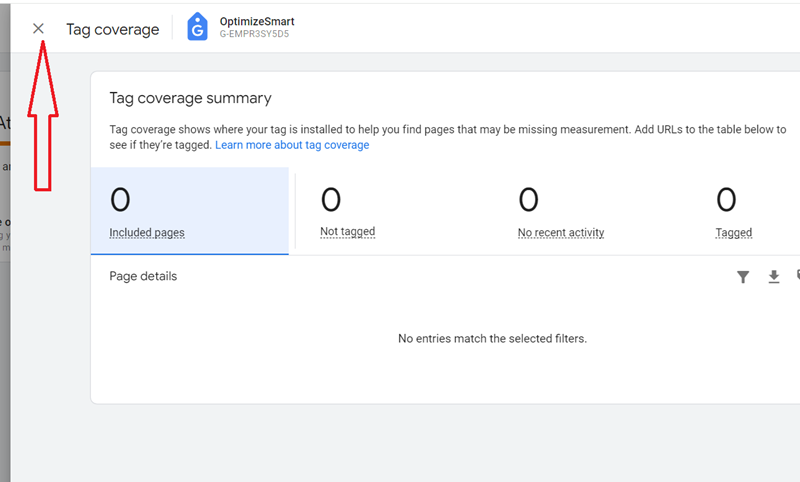
![Some of your pages are not tagged in GTM/GA4 [Fixed] 34 Close the ‘Tag Coverage window](https://storage.ghost.io/c/8e/ac/8eacdccf-93ff-479e-9ead-3cc102f22c81/content/images/2026/06/data-src-image-5ab09df3-e1a5-4ab6-8bbf-3e27d61f1667.png)
You should now see a screen like the one below:
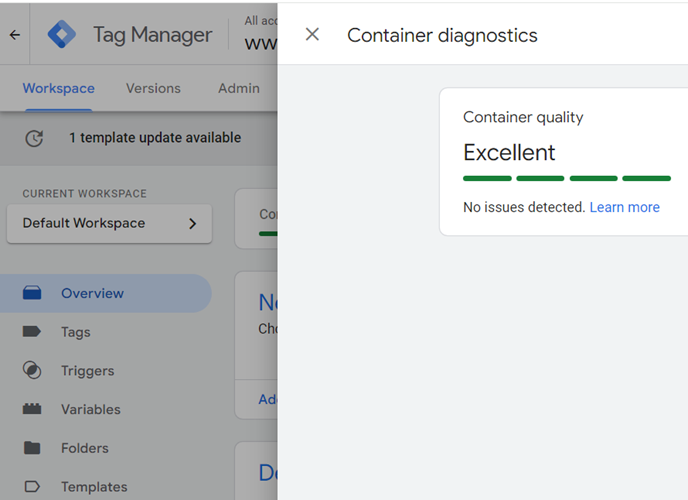
![Some of your pages are not tagged in GTM/GA4 [Fixed] 35 container quality](https://storage.ghost.io/c/8e/ac/8eacdccf-93ff-479e-9ead-3cc102f22c81/content/images/2026/06/data-src-image-1559b694-606d-4eca-bbaf-52d0dcdcce9f.png)
Step-5: Close the ‘Container diagnostic’ window:
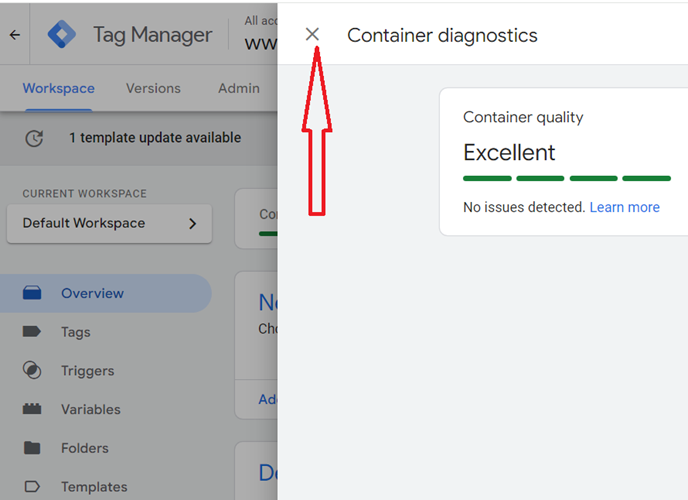
![Some of your pages are not tagged in GTM/GA4 [Fixed] 36 Close the ‘Container diagnostic window](https://storage.ghost.io/c/8e/ac/8eacdccf-93ff-479e-9ead-3cc102f22c81/content/images/2026/06/data-src-image-b4d7b487-068b-40b2-b95a-505268914575.png)
You should now see a screen like the one below:
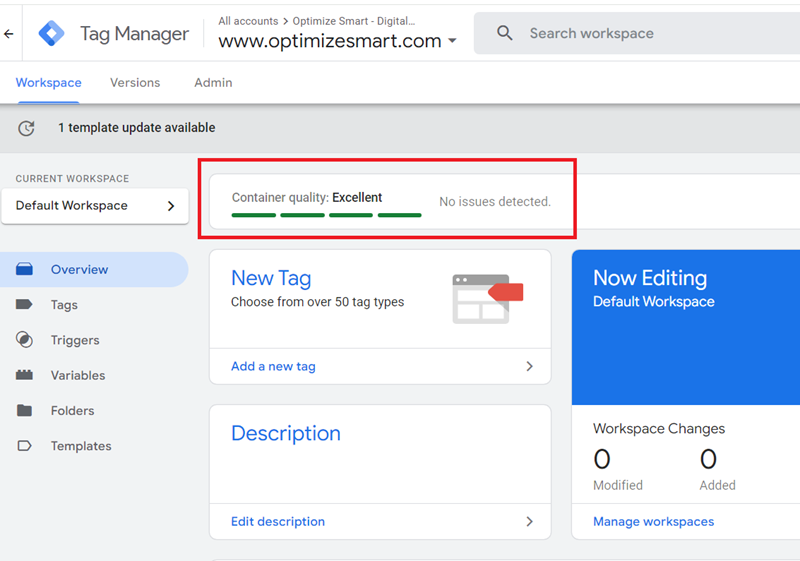
![Some of your pages are not tagged in GTM/GA4 [Fixed] 37 container quality excellent google tag manager](https://storage.ghost.io/c/8e/ac/8eacdccf-93ff-479e-9ead-3cc102f22c81/content/images/2026/06/data-src-image-36a0766f-3152-4e22-a635-13863fb70c4f.png)
Congratulations!
You have successfully fixed the ‘Some of your pages are not tagged’ issue in Google Tag Manager.

Other Articles on GA4.
- Filter Google Analytics 4 Reports by UTM Parameters.
- Tracking 404 pages (broken links) in Google Analytics 4.
- How to identify the scope of any GA4 Dimension or Metric.
- You are doing Google Analytics all wrong. Here is why.
- How to check if Google Tag Manager is Working – Testing GTM.
- Setting up Facebook Conversion API via Google Tag Manager (GTM).
- Understanding Google Tag Manager Container Tag.
- Google Analytics Debugger, GTM Debugger Tutorial.
- Tracking web pages with zero pageviews in Google Analytics 4.
- How to Connect Google Analytics 4 with BigQuery.
- 100+ Google Analytics Remarketing Audiences for Retargeting.
- Google Tag Manager Workspaces Tutorial.
- Stop Trusting GA4/GTM Tag Coverage Report – Do This Instead.
- Some of your pages are not tagged in GTM/GA4 [Fixed].
- Tracking single page apps in Google Analytics via GTM.
- Anonymize IP in Google Analytics, gtag & Google Tag Manager.
- Matomo vs Google Analytics vs Piwik Pro - Best Google Analytics Alternative.
- Are You Waiting 12 Days Before Analyzing GA4 Data?
- Using Element Visibility Trigger in Google Tag Manager (GTM).
- Google Analytics Javascript Tutorial.