

Google Tag Manager (GTM) is a container tag.
A container tag (or container code or GTM installation code) is used to hold one or more marketing and analytics tags and their corresponding triggers and variables.
The following are examples of marketing and analytics tags:
- Google Analytics Tracking code
- Google Ads Conversion Tracking code
- Facebook Pixel Code etc.
A container tag can be used to deploy Google Analytics on a website. Similarly, a container tag can be used to deploy Facebook pixel tracking on a website.
The container tag provides all the functionality needed for Google Tag Manager (GTM), to run and deploy tags on your website.
In order to install GTM on your website, you hard code the container tag on every page of your website. The container tag can not track any users’ interactions (pageviews, events, transactions etc) and website usage data on its own. In other words, the container tag is not an analytics tag.
Google Tag Manager container tag is a two-part tag. What that means is, it is made up of two parts.
The following first part of the GTM container tag is placed in the head section (<head>…..</head>) of all of the web pages on your website:
<!-- Google Tag Manager -->
<script>(function(w,d,s,l,i){w[l]=w[l]||[];w[l].push({'gtm.start':
new Date().getTime(),event:'gtm.js'});var f=d.getElementsByTagName(s)[0],
j=d.createElement(s),dl=l!='dataLayer'?'&l='+l:'';j.async=true;j.src=
'https://www.googletagmanager.com/gtm.js?id='+i+dl;f.parentNode.insertBefore(j,f);
})(window,document,'script','dataLayer','GTM-TXAAA');</script>
<!-- End Google Tag Manager -->
The second part of the GTM container tag is placed immediately after the opening <body> tag of all of the web pages on your website:
<!-- Google Tag Manager (noscript) -->
<noscript><iframe src="https://www.googletagmanager.com/ns.html?id=GTM-TXAAA"
height="0" width="0" style="display:none;visibility:hidden"></iframe></noscript>
<!-- End Google Tag Manager (noscript) -->
How to see the Google Tag Manager Container Code.
If you already have a GTM account then you can see the GTM container code by following the steps below:
Step-1: Login to your GTM account: https://tagmanager.google.com/
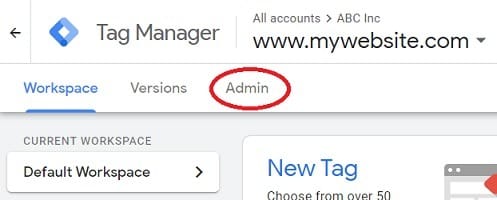
Step-2: Click on the ‘Admin’ tab:
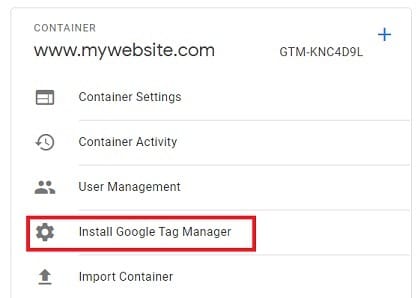
Step-3: Click on the ‘Install Google Tag Manager’ link:
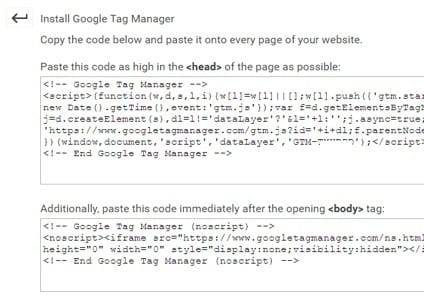
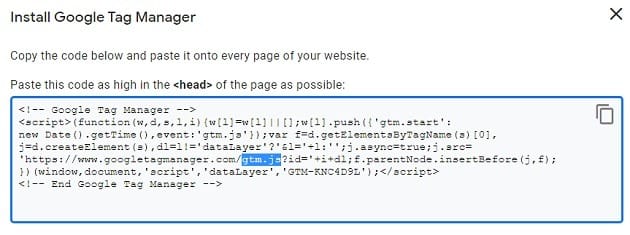
You will now see your GTM container tag code:
The GTM Container ID
The part of the GTM container tag code which reads ‘GTM-TXAAA’, is called the container ID. This ID is used to uniquely identify each GTM container tag.
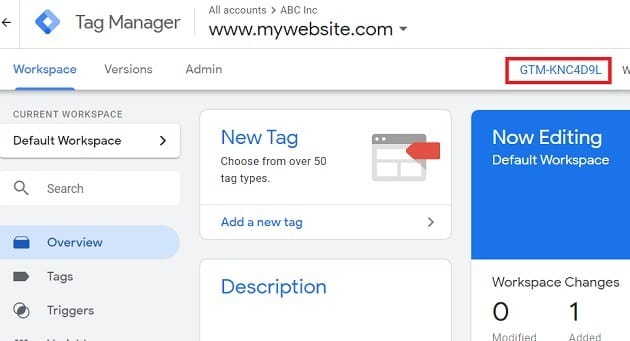
You can see the GTM container ID on the home page of Google Tag Manager: https://tagmanager.google.com/#/home
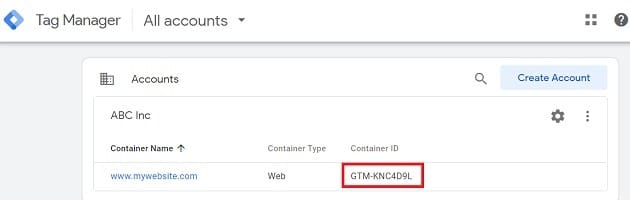
You can also see the GTM container ID within a GTM account:
The other part of the code which reads ‘gtm.js‘ is the JavaScript library used by the container tag:
Once the container tag code is added to your website, the Google Tag Manager is considered to be installed on your website.
Whenever we refer to GTM in the context of coding, like if someone says “GTM pulls the data from the data layer”, we are actually referring to the container tag.
In short, Google Tag Manager is a container tag.
GTM Account and Container Tag
Each GTM account can have one or more container tags.
The rule of thumb is to create one container tag for each website.
So if you have got 3 different websites, then you would create 3 different container tags, one for each website. But you would create these 3 container tags from a single GTM account.
Note: You can create multiple GTM accounts from a single Google Account login.

Other Articles on GA4.
- Filter Google Analytics 4 Reports by UTM Parameters.
- Tracking 404 pages (broken links) in Google Analytics 4.
- How to identify the scope of any GA4 Dimension or Metric.
- You are doing Google Analytics all wrong. Here is why.
- How to check if Google Tag Manager is Working – Testing GTM.
- Setting up Facebook Conversion API via Google Tag Manager (GTM).
- Understanding Google Tag Manager Container Tag.
- Google Analytics Debugger, GTM Debugger Tutorial.
- Tracking web pages with zero pageviews in Google Analytics 4.
- How to Connect Google Analytics 4 with BigQuery.
- 100+ Google Analytics Remarketing Audiences for Retargeting.
- Google Tag Manager Workspaces Tutorial.
- Stop Trusting GA4/GTM Tag Coverage Report – Do This Instead.
- Some of your pages are not tagged in GTM/GA4 [Fixed].
- Tracking single page apps in Google Analytics via GTM.
- Anonymize IP in Google Analytics, gtag & Google Tag Manager.
- Matomo vs Google Analytics vs Piwik Pro - Best Google Analytics Alternative.
- Are You Waiting 12 Days Before Analyzing GA4 Data?
- Using Element Visibility Trigger in Google Tag Manager (GTM).
- Google Analytics Javascript Tutorial.