

Stop Wasting Time on GA4/GTM’s ‘Tag Coverage’ Report – Use this tool to tag 100% of your page without fail.
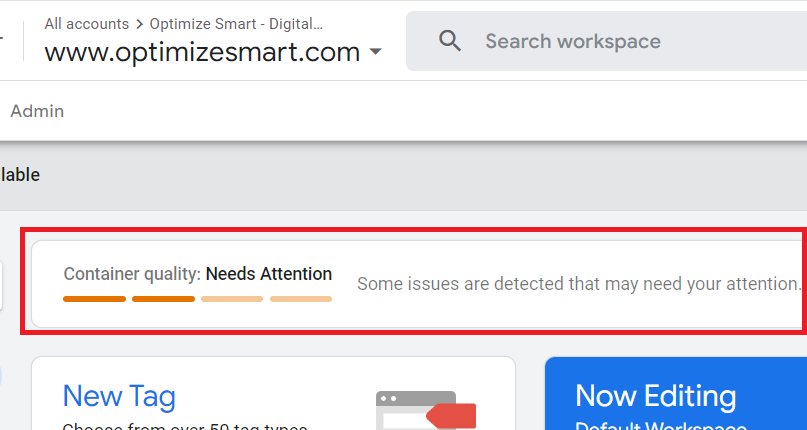
When you log in to GTM, you might see this alert:
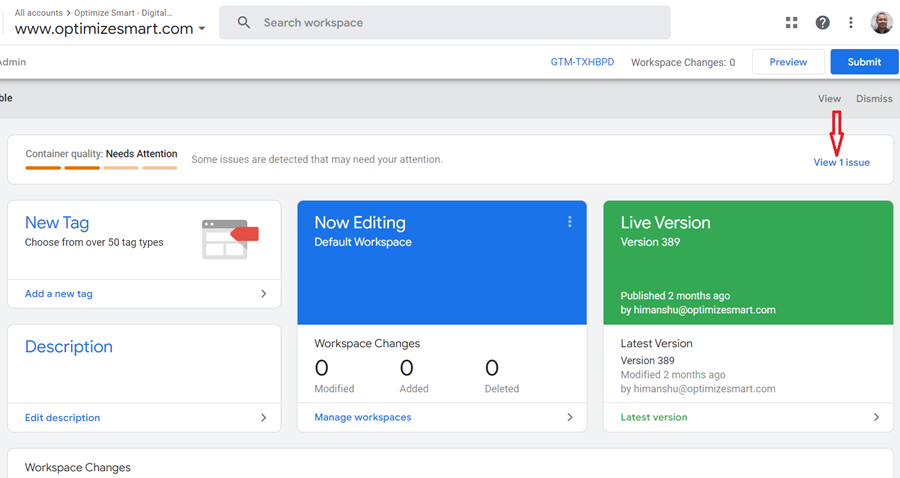
“Container quality: Needs Attention. Some issues are detected that may need your attention.”
Click on ‘View 1 issue‘ (or something similar) to see what’s going on.
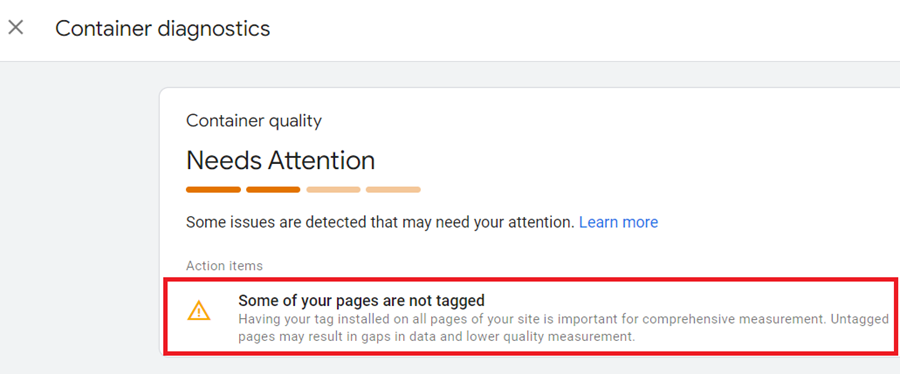
You will now see the following message:
“Some of your pages are not tagged. Having your tag installed on all pages of your site is important for comprehensive measurement. Untagged pages may result in gaps in data and lower quality measurement.”
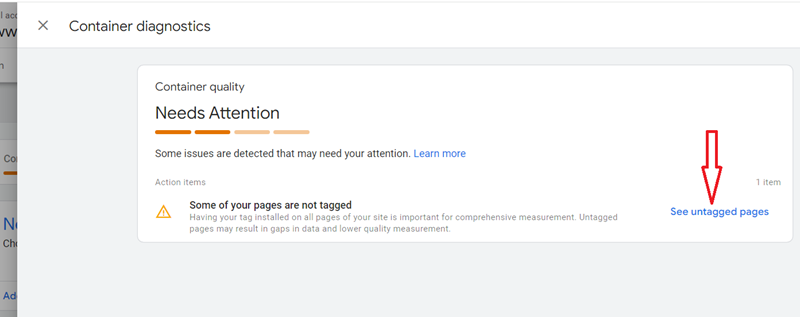
Click on ‘See untagged pages‘ to view the list of pages Google claims are untagged.
You will see a Tag Coverage Summary report with these four tabs:
- Included pages
- Not tagged
- No recent activity
- Tagged
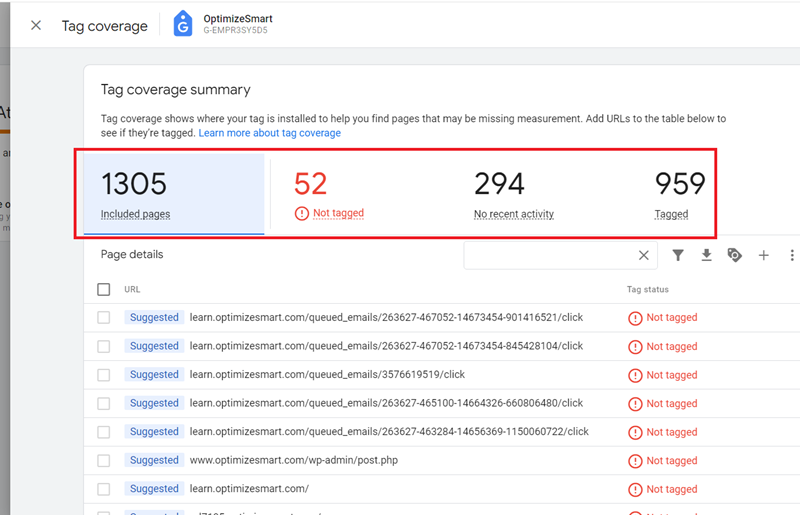
The hidden issue with Tag Coverage Report.
The Tag Coverage Summary report is not 100% reliable.
It can produce:
>> False positives (It says a page isn’t tagged, but it actually is).>> False negatives (It says a page is tagged, but it is actually not).
It may even suggest tagging irrelevant pages, like:
>> Pages with dynamic URLs.>> Non-content pages.>> Other irrelevant pages that don’t need tagging.
Use this report as a general guide – NOT a definitive source of truth.
The smarter solution (How I do it).
To be 100% certain that pages are tagged, I use Screaming Frog SEO Spider.
Here’s why it works better than GTM’s Tag Coverage Report:
>> Scan the entire site (even large sites with 10,000+ pages).>> No false positives/false negatives (unlike GTM’s report).>> Detect every missing tag at scale.
How I use Screaming Frog for tag auditing.
- Use the Custom Search feature in Screaming Frog.
- Scan the entire website’s source code.
- Look for specific tags on every page site-wide.
This approach works better than other auditing tools like:
- Google Tag Assistant.
- Ghostery.
Why? Because it’s faster, more reliable, and works for large websites.
For step by step instructions, check out this article: Some of your pages are not tagged in GTM/GA4 [Fixed].

Other Articles on GA4.
- Filter Google Analytics 4 Reports by UTM Parameters.
- Tracking 404 pages (broken links) in Google Analytics 4.
- How to identify the scope of any GA4 Dimension or Metric.
- You are doing Google Analytics all wrong. Here is why.
- How to check if Google Tag Manager is Working – Testing GTM.
- Setting up Facebook Conversion API via Google Tag Manager (GTM).
- Understanding Google Tag Manager Container Tag.
- Google Analytics Debugger, GTM Debugger Tutorial.
- Tracking web pages with zero pageviews in Google Analytics 4.
- How to Connect Google Analytics 4 with BigQuery.
- 100+ Google Analytics Remarketing Audiences for Retargeting.
- Google Tag Manager Workspaces Tutorial.
- Stop Trusting GA4/GTM Tag Coverage Report – Do This Instead.
- Some of your pages are not tagged in GTM/GA4 [Fixed].
- Tracking single page apps in Google Analytics via GTM.
- Anonymize IP in Google Analytics, gtag & Google Tag Manager.
- Matomo vs Google Analytics vs Piwik Pro - Best Google Analytics Alternative.
- Are You Waiting 12 Days Before Analyzing GA4 Data?
- Using Element Visibility Trigger in Google Tag Manager (GTM).
- Google Analytics Javascript Tutorial.