

What are Google Data Studio data sources?
A Google Data Studio data source is a place where your collected data actually resides.
A data source refers to a specific data set.
The data source is not exactly a data platform, although these two terms are often used interchangeably.
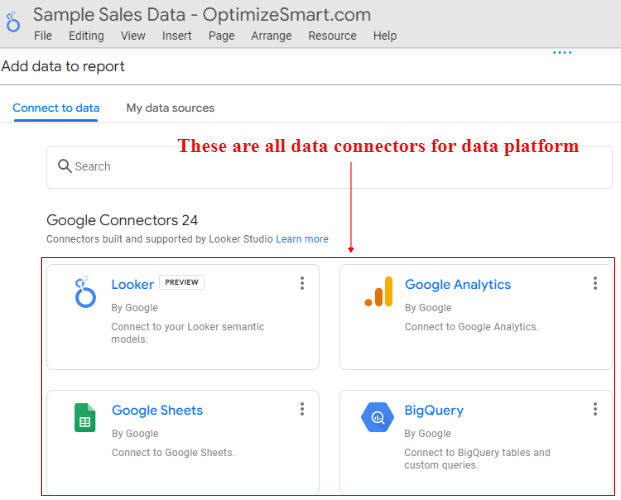
A data platform is made up of one or more data sources.
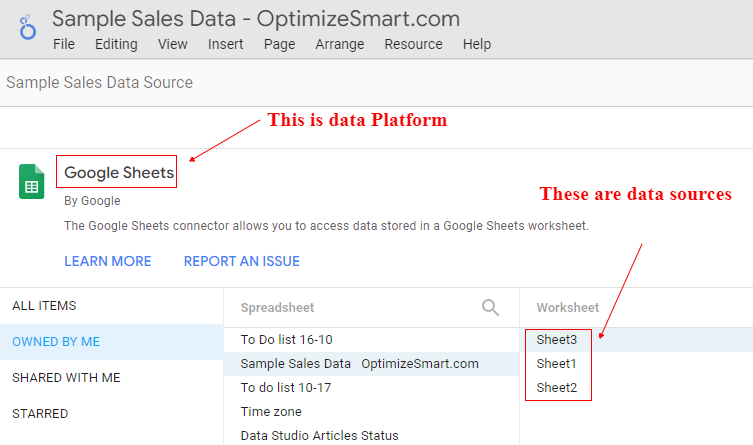
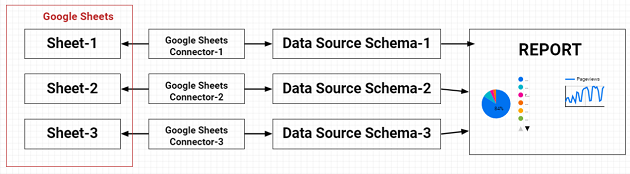
For example, Google Sheets is a data platform and it is made up of one or more spreadsheets. So a specific Google spreadsheet is an example of a data source:
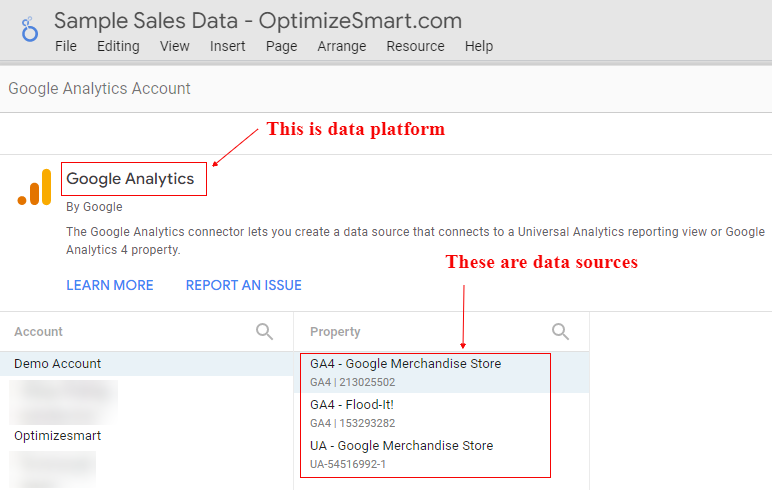
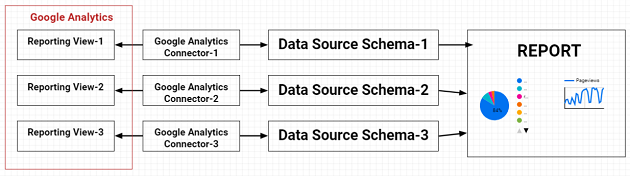
Similarly, Google Analytics is a data platform and it is made up of one or more reporting views. So a specific Google Analytics reporting view is an example of a data source:
What is a data source schema?
A data source schema is a Google Data Studio file that is used to define how a connector should pull data from a data source and then send it to the Google Data Studio report(s).
When you log in to Google Data Studio, Google gives you the option to create a new data source or edit an existing data source:
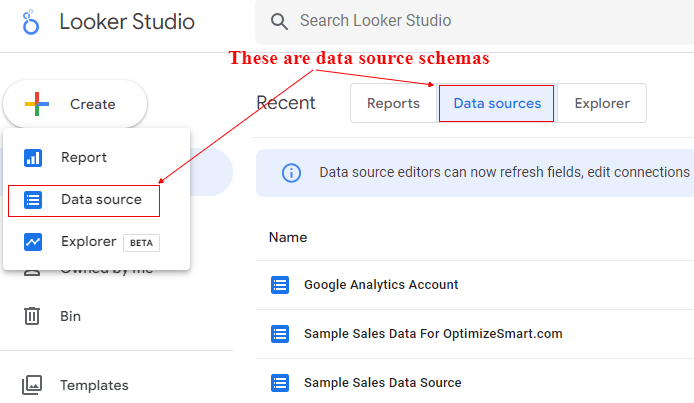
But this name ‘data source’ (in the context of Google Data Studio) is a misnomer. You are not creating a data source in Google Data Studio.
What you are actually creating is the data source schema which defines how a connector should pull data from a data source and then send it to one or more reports.
This is what a data source schema looks like:
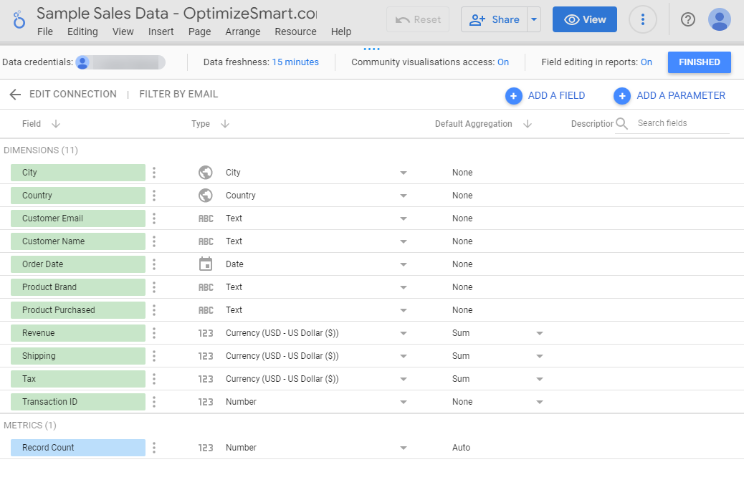
We create a data source schema for a specific data source
If you want to display data from a data source in your Google Data Studio report then you would need to first create a data source schema for that data source and then add the data source schema to your report:
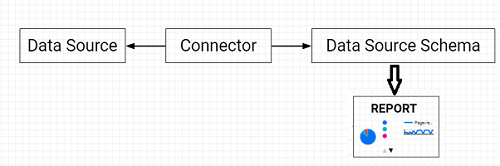
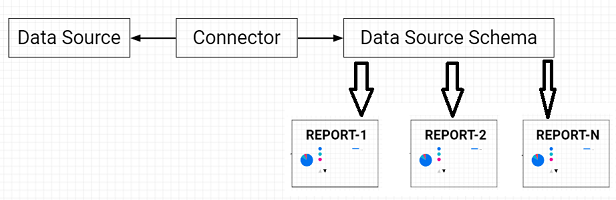
The same data source schema can also be used for multiple Google Data Studio reports
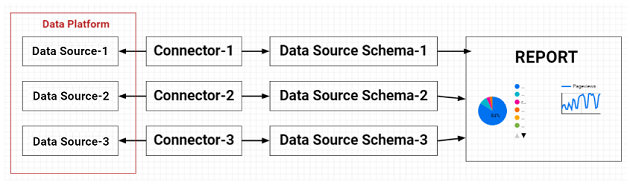
Similarly, if you want to display data from multiple data sources in your Google Data Studio report then you would need to create a separate data source schema for each data source and then add each data source schema to your report:
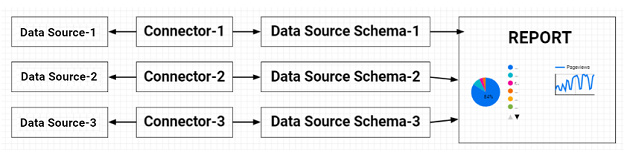
These data sources can belong to one or more data platforms:
For example, the Google Analytics platform is made up of one or more reporting views. So a specific Google Analytics reporting view is an example of a data source:
Similarly, the Google Sheets platform is made up of one or more spreadsheets. So a specific Google spreadsheet is an example of a data source:
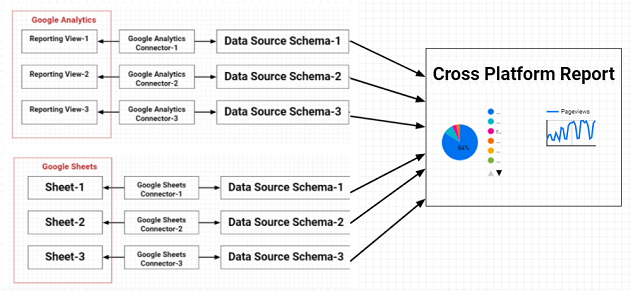
The Cross-Platform Reports in Google Data Studio
The cross-platform reports are the report that you create from multiple data sources that belong to different data platforms.
Find your way around the data source schema editor
#1 Navigate to the home page of the Google Data Studio.
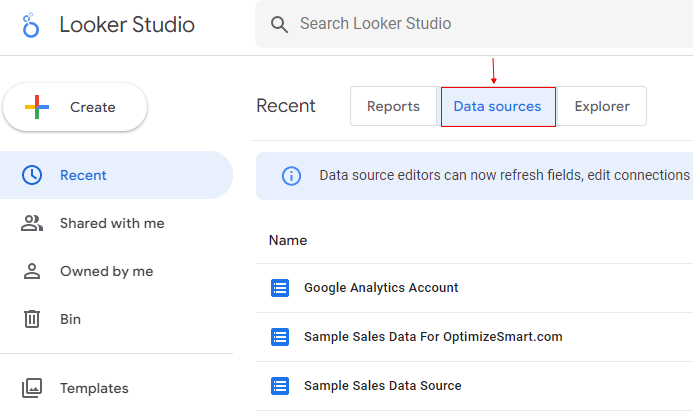
#2 Click on the ‘Data Sources’ tab:
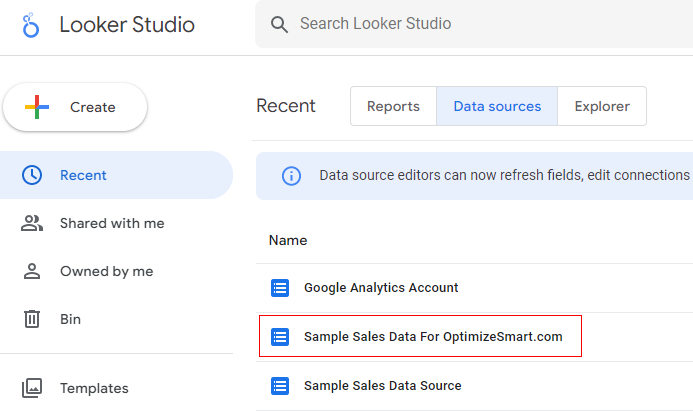
#3 Locate your data source schema and then click on its name in order to open it:
Here is what the data source schema editor looks like:
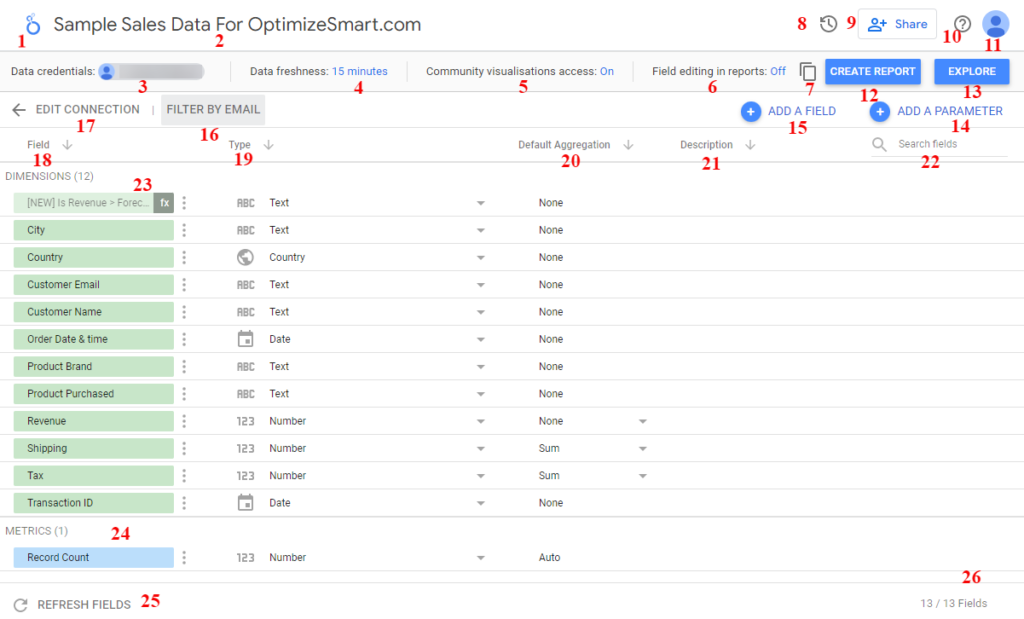
Data source schema editor legends
Following are the various data source schema editor legends:
#1 Google Data Studio logo
Click on the logo to quickly navigate to the home page:
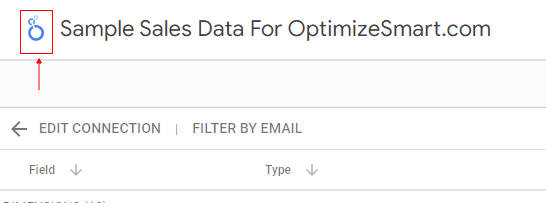
Note: If you want to quickly navigate to the home page of your Google Data Studio account from any place within Google Data Studio then click on the Google Data Studio logo.
#2 Data source schema name
Double-click on the name to change the name of your data source schema.
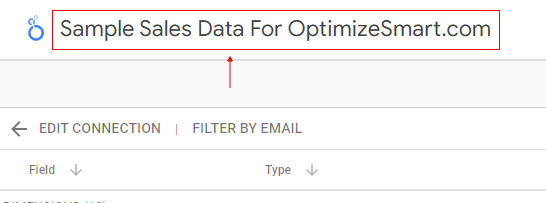
You can change the name of your data source as many times as you want.
#3 Data source schema credentials
Through this setting, you can decide who should be able to access data through this data source schema.
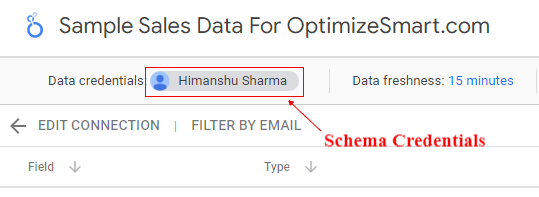
#4 Data source schema freshness
Through this setting, you can decide how frequently the data source schema should check for fresh data from the connected data source.
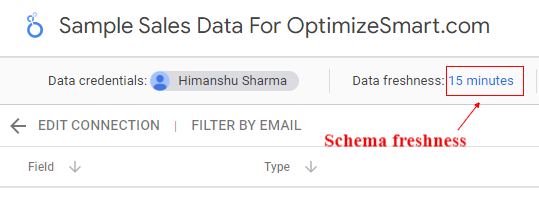
#5 Community visualization access
This setting allows or prevents community visualization to display data from the data source schema.
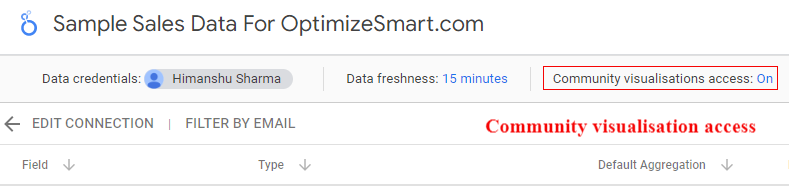
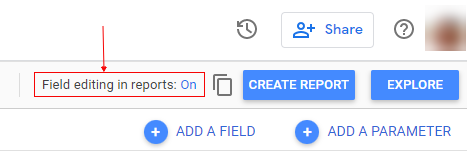
#6 Field editing in reports
This setting allows or stops report editors from changing the definitions of the data source schema fields at the chart level.
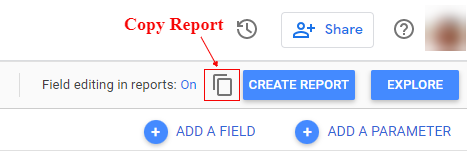
#7 Make a copy of the data source schema
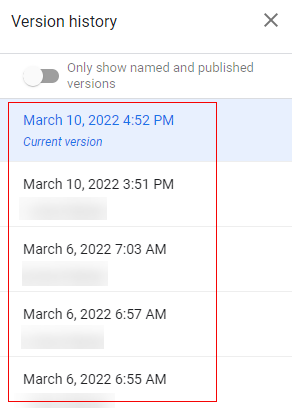
#8 Data source schema version history
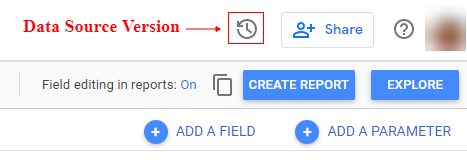
Through this setting, you can view or restore previous versions of the data source schema.
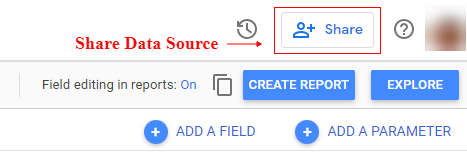
#9 Share data source schema with other users
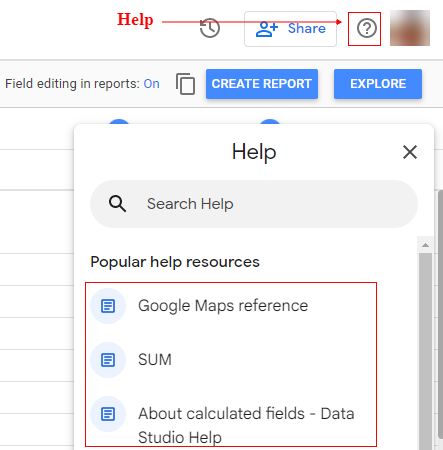
#10 Get help on Google Data Studio
#11 Switch account
#12 Create a new report from the data source schema
#13 Create a new exploration from the data source schema
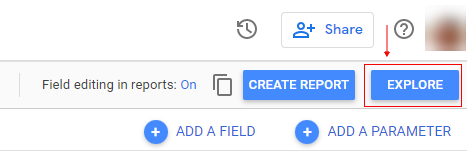
#14 Add a parameter
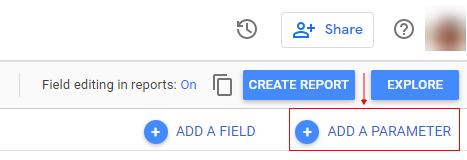
Use this setting to pass user-supplied data to calculated fields and connectors.
#15 Add a new calculated field
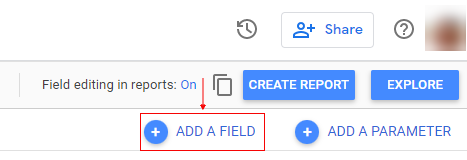
A calculated field is a field that performs certain action(s) on another field(s) in your data source schema.
#16 Filter data by current viewer’s email address
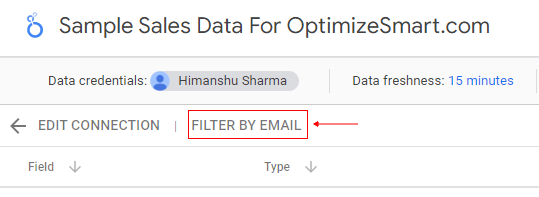
Use the ‘FILTER BY EMAIL’ setting if your data source contains an email field that stores the email addresses of your report viewers and you want the viewers of your report to see only that row(s) of data which is associated with the email address they used to sign in to their Google account.
#17 Edit data source schema connection
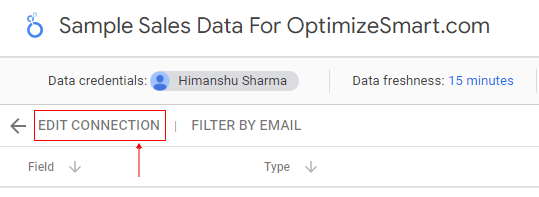
A data source schema connection is the connection between your data source schema and the underlying data source. Editing a data source schema connection means changing how a data source schema connects to your data source.
#18 List of data source schema fields
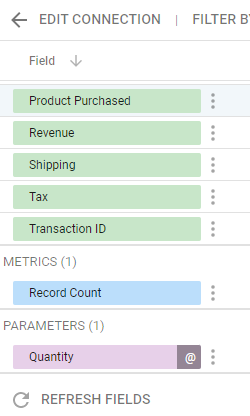
Dimensions, Metrics and parameters are all counted as fields in the data source schema.
#19 Data types of data source schema fields
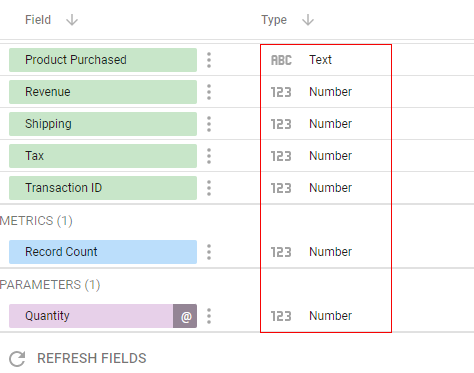
The data type of a data source schema field determines the kind of data to expect (in the connected data source) when processing the field.
#20 Default aggregation used for each data source schema field
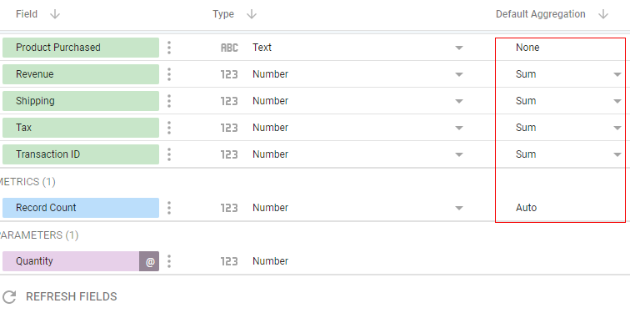
In the context of Google Data Studio, aggregation is the process of summarizing tabular data.
You can aggregate/summarize tabular data in Google Data Studio by carrying out the following operations on numeric fields:
- Calculate the sum/total of all the values of a numeric field.
- Calculate the average of all the values of a numeric field.
- Find the minimum or maximum value of a numeric field etc.
#21 Optional description for each data source schema field
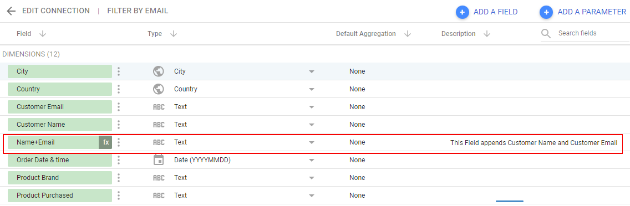
If a certain data source schema field is not self-explanatory (quite common in the case of calculated fields) then you can enter a small note next to it in the ‘Description’ column which can instantly remind you what the field is all about and what it is supposed to do.
#22 Search data source schema fields
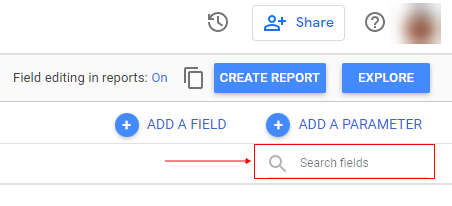
Use this search box to search for a particular field (dimension, metric, parameter) in your data source schema. This search functionality comes really handy when you have dozens or even hundreds of fields in your schema.
#23 List of all the dimensions available
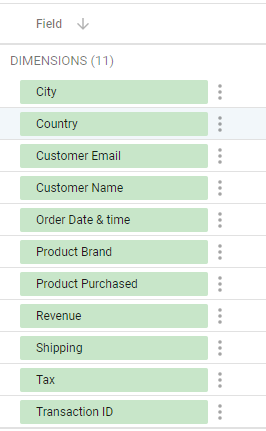
Note: Dimensions appear in green chips in the data source schema.
#24 List of all the metrics available

Note: Metrics appear in blue chips in the data source schema.
#25 Refresh data source schema fields
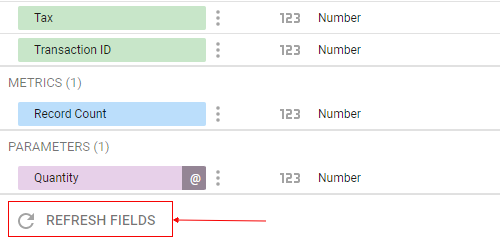
If you make any changes to the underlying data source then click on the ‘Refresh fields’ button.
#26 Number of fields in the data source schema
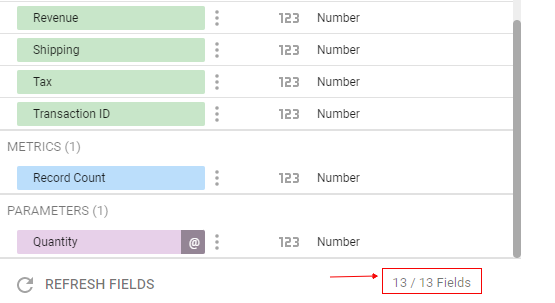
Dimensions, metrics and parameters are all counted as fields in the data source schema. So if there are 6 dimensions, 6 metrics, and 1 parameter then the total number of fields in the data source schema would be reported as 13 (6+6+1).
#27 List of all the parameters available

Note: Parameters appear in purple chips in the data source schema.
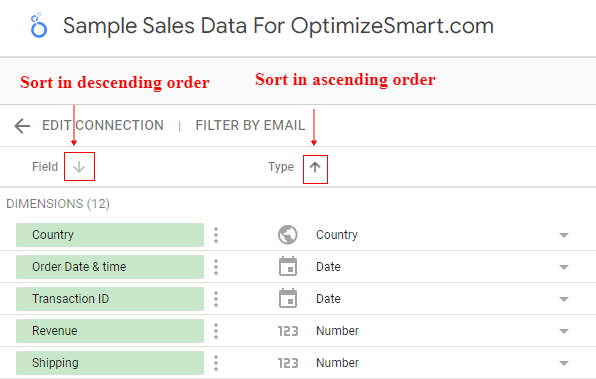
Sorting the data source schema fields, data types and default aggregation in ascending or descending order:

Related Articles.
- Google Data Studio Parameters explained with examples.
- Google Data Studio Tutorial.
- How to Change Language in Google Data Studio.
- Google Data Studio Report Tutorial.
- How to work with Boolean field in Google Data Studio.
- How to use Google Data Studio with Google Sheets.
- Stop Using Page Titles in GA4 & Google Data Studio Reports.
- Google Data Studio Geo Map – Latitude Longitude.
- Google Data Studio Data Sources – Tutorial.
- Guide to Data Types in Google Data Studio.
- Google Data Studio Date Format and Time Explained.
- Working with Numeric Data Types in Google Data Studio.