

The data type of a data source schema field determines the kind of data to expect (in the connected data source) when processing the field.
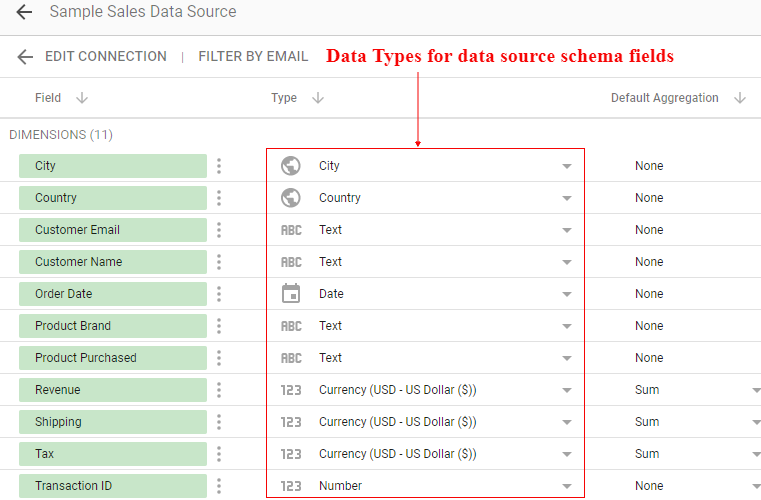
For example,
When the data type of a field is ‘Number’, it tells Google Data Studio to expect a number when processing the field:

When the data type of a field is ‘Currency (US – Dollars) ’, it tells Google Data Studio to expect currency data in US dollars when processing the field:

Similarly,
When the data type of a field is ‘Text’, it tells Google Data Studio to expect text data when processing the field:

The data type also determines which operations are allowed and not allowed on a data source schema field.
For example, you can’t apply an arithmetic function to a ‘Text’ field or use a ‘Number’ field as the date range dimension in a report.
If you want to change the data type of a field then just click on the drop-down menu next to a data type.
Note: Changing the field type can have a considerable impact on how you see your data in reports.
Table of Contents
- Data types supported in Google Data Studio:
- #1 Numeric data types
- #2 Text data type
- #3 Date and time data types
- #4 Boolean data type
- #5 Geo data types
- #6 URL data type
- #7 Currency data type
- #8 Image data type
- #9 Image link data type
- Related articles
Data types supported in Google Data Studio
Google Google Data Studio supports the following data types:
- Numeric
- Text
- Date and Time
- Boolean
- Geo
- Currency
- URL
- Image
- Image link
#1 Numeric data types
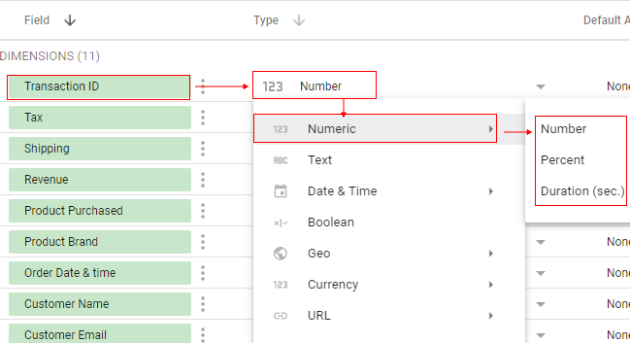
There are three numeric data types in Google Data Studio:
#1 Number – select this data type if you want Google Data Studio to expect a number (includes floating-point number) when processing a field in the underlying data source.
#2 Percent – select this data type if you want Google Data Studio to expect percentage data when processing a field in the underlying data source.
#3 Duration – select this data type if you want Google Data Studio to expect time duration in seconds when processing a field in the underlying data source.
For example, consider the following Google Sheets data source:
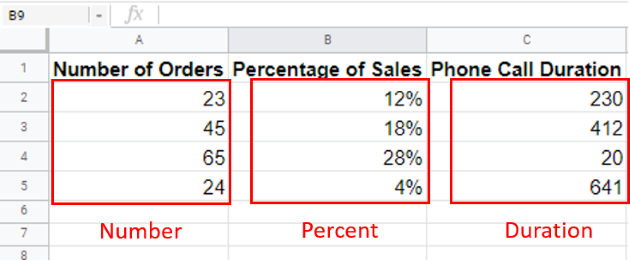
Here,
The field ‘Number of orders’ is of type ‘number’.
The field ‘Percentage of Sales’ is of type ‘percent’.
The field ‘Phone Call duration’ is of type ‘duration’.
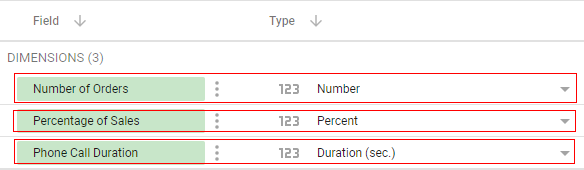
When we connect this data source to our data source schema then while deciding the data source schema (structure) we should:
- set the data type of the field ‘Number of orders’ to ‘Numbers’.
- set the data type of the field ‘Percentage of Sales’ to ‘Percent’.
- set the data type of the field ‘Phone Call duration’ to ‘Duration’.
To learn more about numeric data types in Google Data Studio, read the following article: Working with Numeric Data Types in Google Data Studio.
#2 Text data type
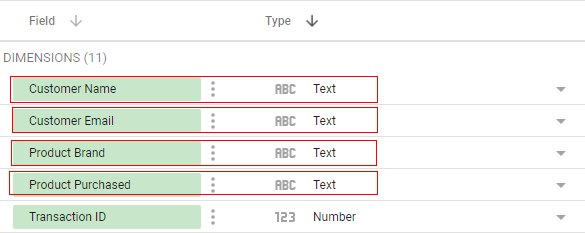
When you create or edit a data source schema in Google Data Studio, you get the option to select the data type of the data source schema field.
One of the data types supported by Google Data Studio is: ‘Text’:
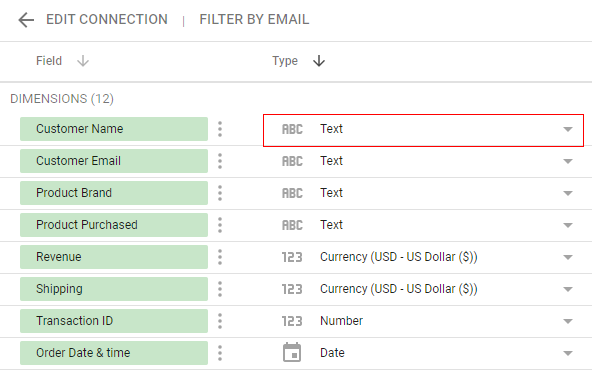
Select the ‘Text’ data type if you want Google Data Studio to expect text when processing a field in the underlying data source.
A text data type can include any combination of letters, numbers, special symbols (like [, }, @….) and other characters.
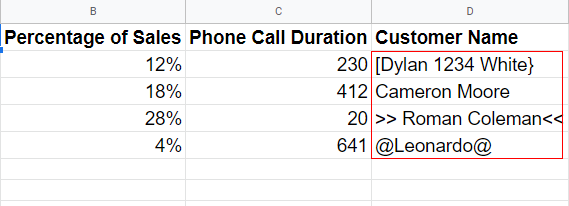
Consider the following Google Sheets data source:
Here all the values of the field ‘Customers Name’ are of type ‘Text’.
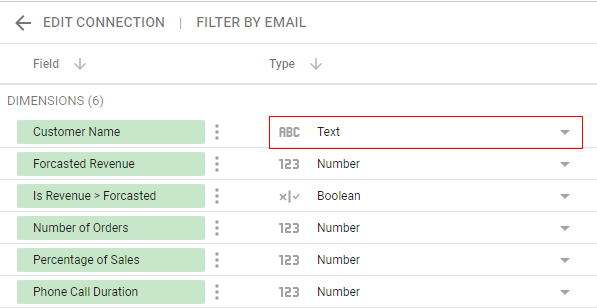
So when defining the data source schema, we would set the data type of the field ‘Customers Name’ to ‘Text’:
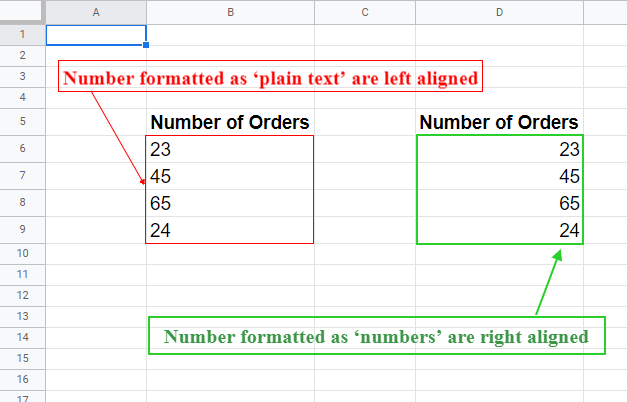
A number formatted as ‘plain text’ in your data source is considered as of type ‘text’ by Google Data Studio.
You would know a number has been formatted as ‘plain text’ in a data source if it is aligned to the left (instead of the right).
For example:
These seemingly trivial mistakes can make a huge difference in your reporting.
That’s why it is so important that you format your data correctly before you use it in Google Data Studio.
#3 Date and time data types
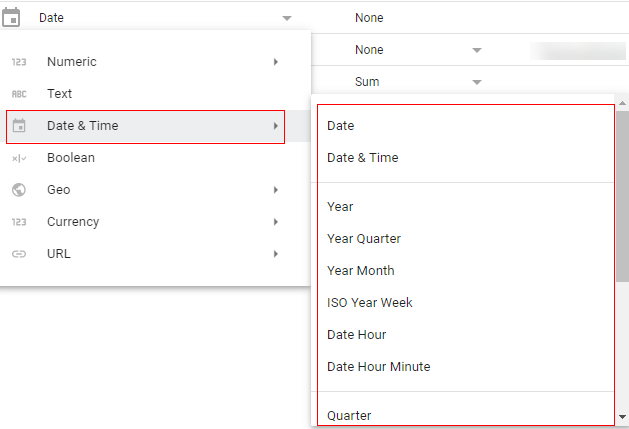
As you can see from the screenshot, Google Data Studio supports several different types of date and time.
The data types for ‘date’ fields can be divided into the following two categories:
#1 Absolute dates – It refers to a specific date that you can point to on a calendar.
#2 Relative dates – It refers to a date that you can not point to on a calendar.
The data types for ‘time’ fields can be divided into the following two categories:
#1 Absolute time – It refers to a specific time that is accompanied by an absolute date.
#2 Relative time – It refers to a specific time that is not accompanied by an absolute date.
To learn more about the date and time data types in Google Data Studio, read this article: Tutorial on Date and Time Data Types in Google Data Studio.
#4 Boolean data type
If a data field in your data source can have only one of the two possible values: true or false then you should use the Boolean data type while setting up your data source schema:
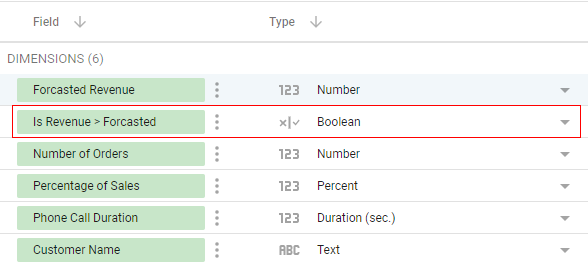
To learn more about working with the boolean data type, read this article: How to work with Boolean data type in Google Data Studio.
#5 Geo data types
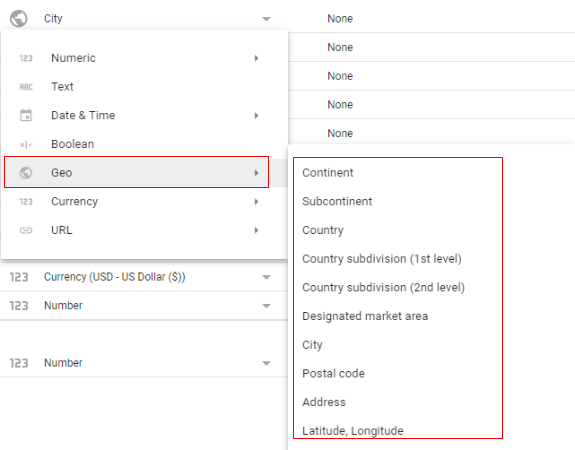
Use ‘Geo’ data type if you want Google Data Studio to expect a geographic region (like a city, region, country, continent) when processing a field in the specified data set.
The following are the various Geo data types available in Google Data Studio:
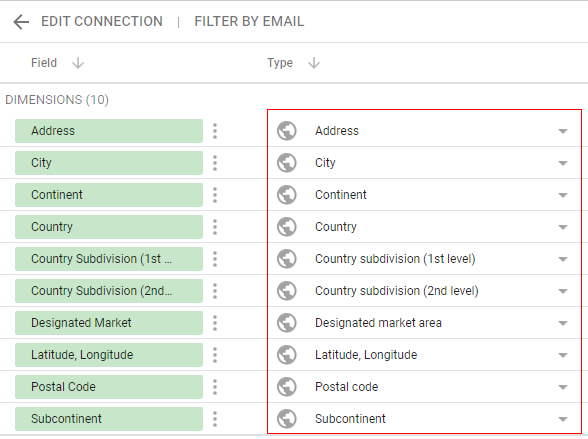
To learn more about the geo data types, read this article: Geo Data – Country, Region, Latitude, Longitude in Google Data Studio.
#6 URL data type
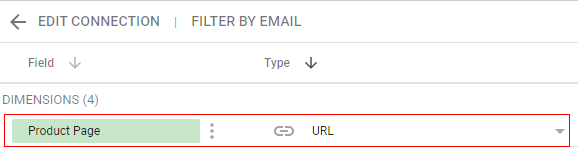
Use the ‘URL’ data type if you want Google Data Studio to expect a URL when processing a field in the underlying data source:
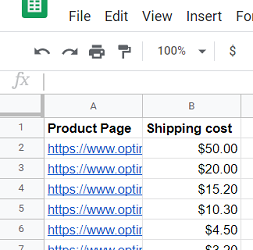
#7 Currency data type
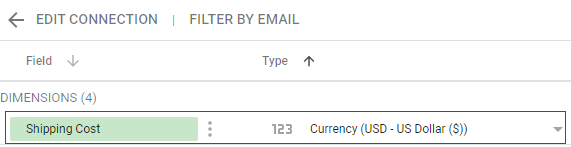
Use the ‘Currency’ data type if you want Google Data Studio to expect a currency when processing a field in the underlying data source.
#8 Image data type
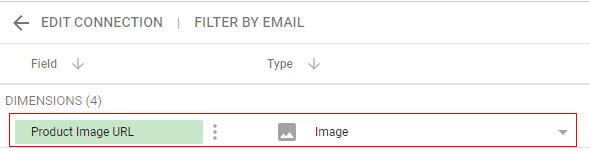
Use the ‘Image’ data type if you want Google Data Studio to expect the URLs of images when processing a field in the underlying data source:
Follow the steps below to use the image data type in Google Data Studio:
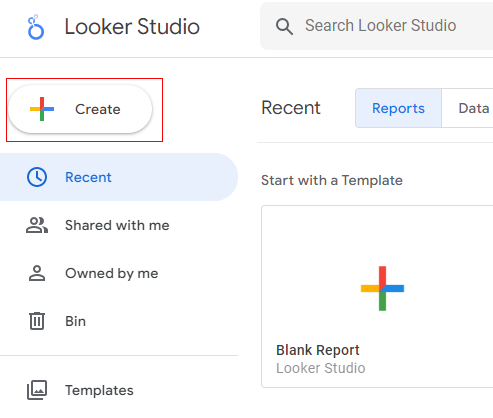
Step-1: Navigate to your Google Data Studio account and then click on the ‘Create’ button:
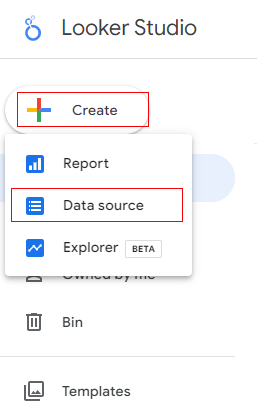
Step-2: Click on the ‘Data Source’ option to create a new data source schema:
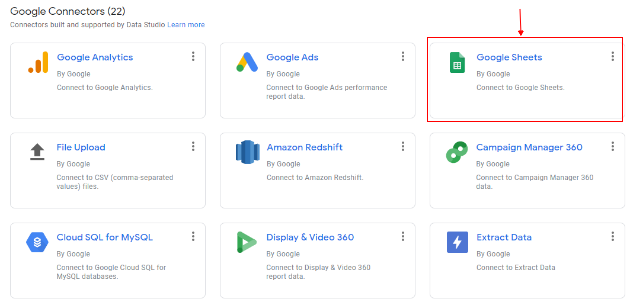
Step-3: Find and click on the Google Sheets connector:
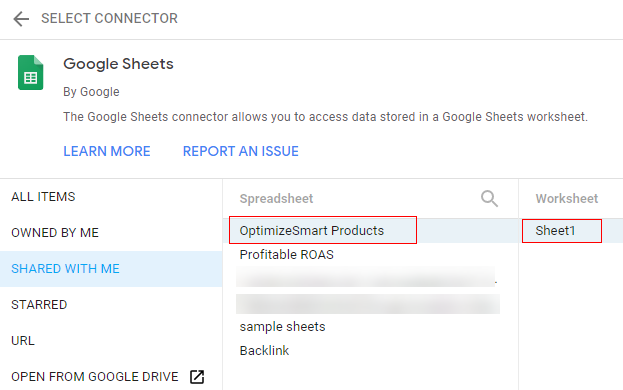
Step-4: Select your Google Sheets data source:
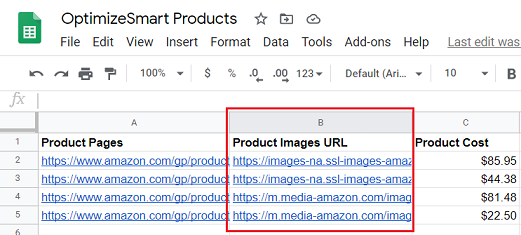
The selected Google Sheets data source contains the following data:
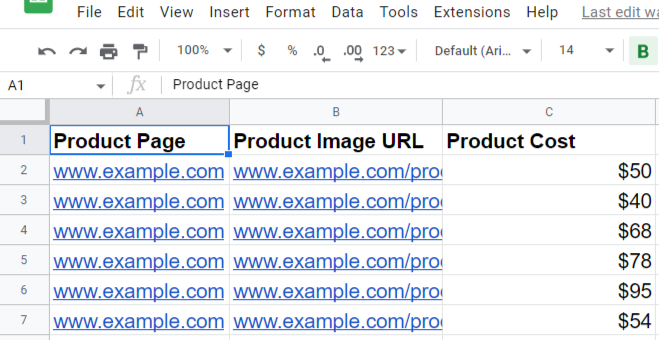
This data source contains a field called ‘Product Images URL‘ which contains the URLs of product images. This type of field is called an image field.
Step-5: Click on the ‘Connect’ button at the top right-hand side:
Your new data source schema is going to look like the one below:
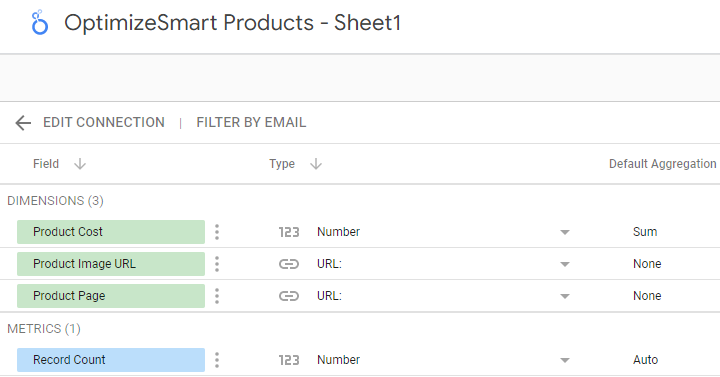
Step-6: Set the data type of the ‘Product Images URL‘ field from ‘URL’ to ‘Image’:
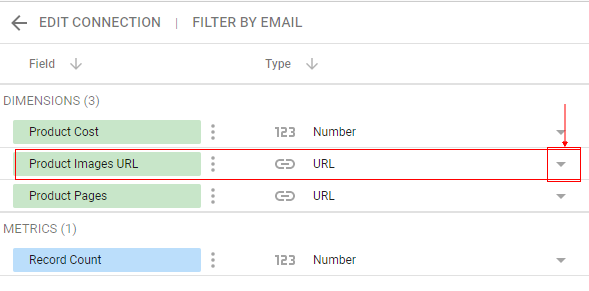
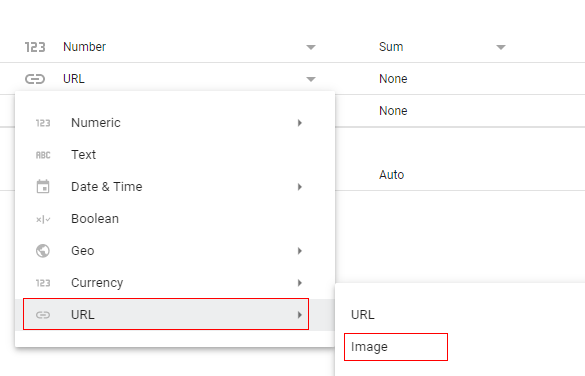
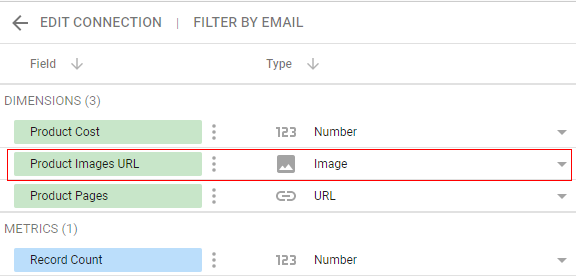
The ‘Image’ data type is used for only those fields which return data of type image. The image fields are used to display images in the data table of a report.
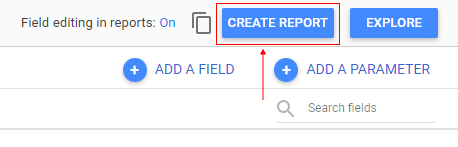
Step-7: Click on the ‘Create Report’ button to create a new report from the data source schema:
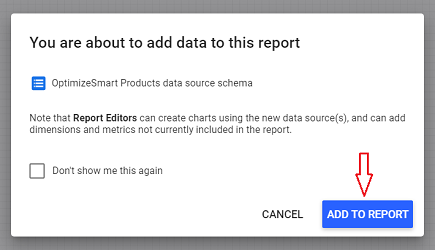
Step-8: Click on the ‘Add to report’ button:
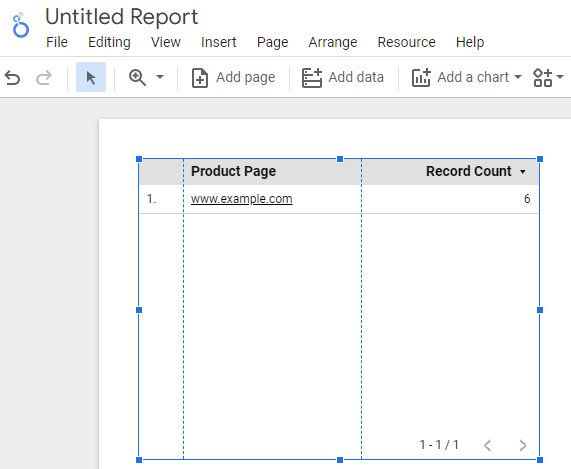
Google Data Studio will automatically create a new table in your report:
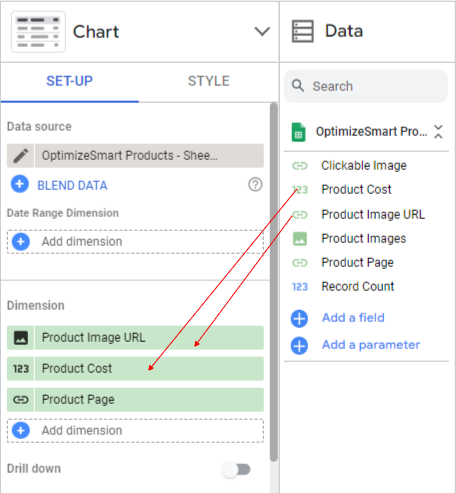
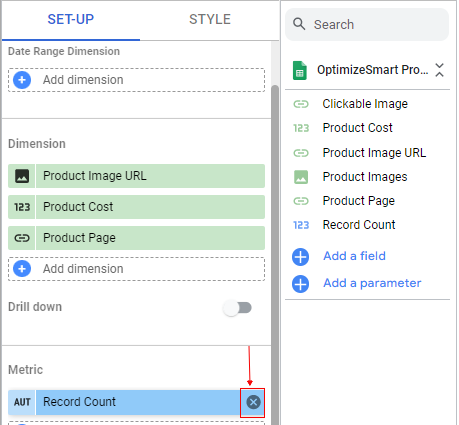
Step-9: Drag and drop the following fields one by one from the ‘Available Fields’ section to the ‘Dimensions’ section:
- Product Images URL
- Product Cost
Step-10: Remove the ‘Record count’ metric by clicking on the cross button next to it:
Your data table is now going to look like the one below:
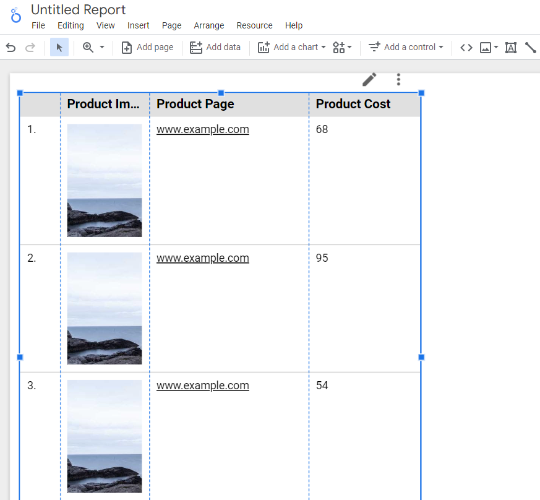
Step-11: Re-size your data table so that you can see all the product images
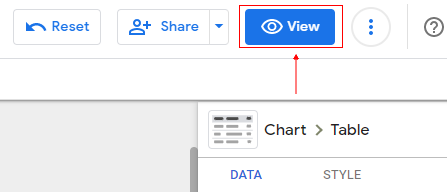
Step-12: Click on the ‘View’ button (on the top right-hand side of your screen) to view your report in the view mode:
In view mode, your data table is going to look like the one below:
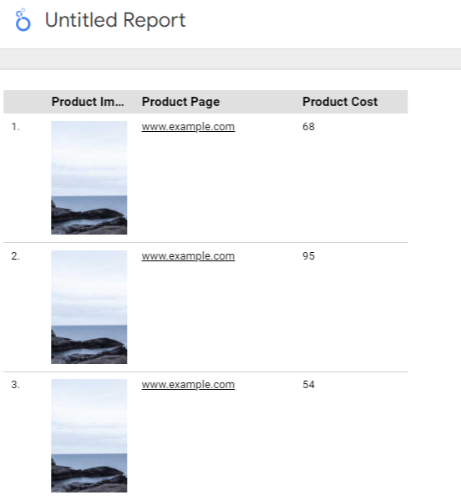
Note(1): The type of images that are generally added to a data table are product thumbnails or video thumbnails.
Note(2): The size of the image displayed in a table depends upon the width of the column containing the image. So the bigger the column width, the bigger the image will be.
Note(3): The image fields only work in tables. If you change the chart visualisation type, any image field in the chart will be ignored by Google Data Studio or the image URL will appear as the dimension value.
#9 Image link data type
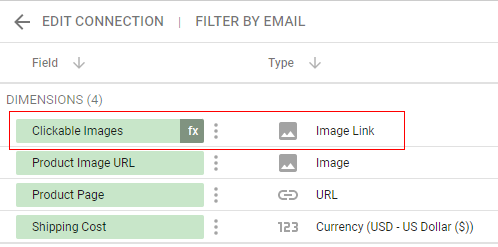
The ‘Image Link’ data type is used for those fields which contain clickable images.
If you want to display clickable images in the data table of a report then you would need to use a field of the ‘Image Link’ data type.
Follow the steps below to use the ‘Image Link’ data type in Google Data Studio:
Step-1: Navigate to your Google Data Studio account and then click on the ‘Create’ button:
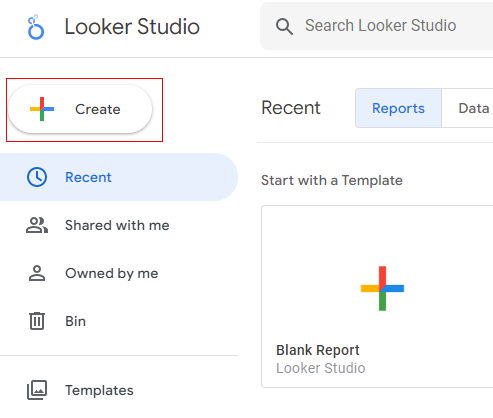
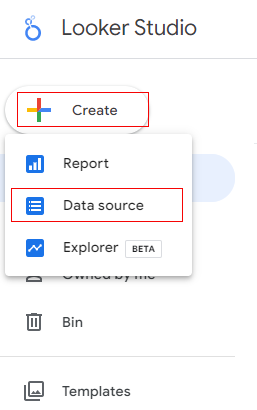
Step-2: Click on the ‘Data Source’ option to create a new data source schema:
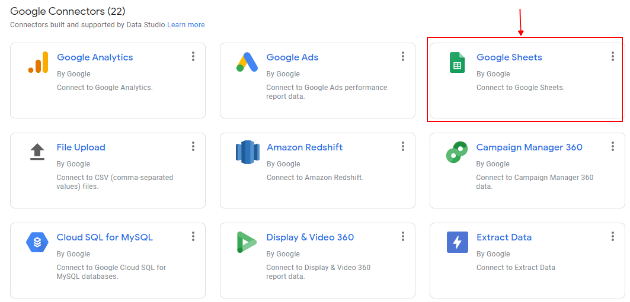
Step-3: Find and click on the Google Sheets connector:
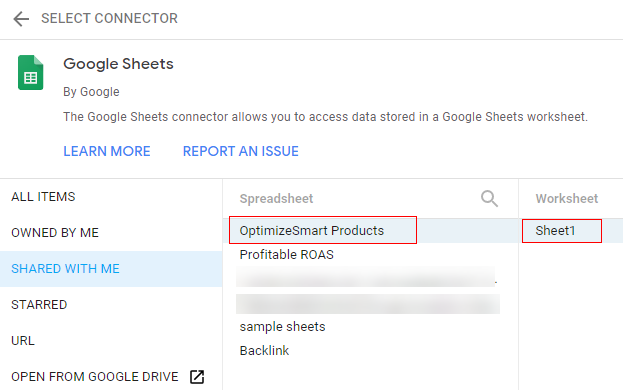
Step-4: Select your Google Sheets data source:
The selected Google Sheets data source contains the following data:
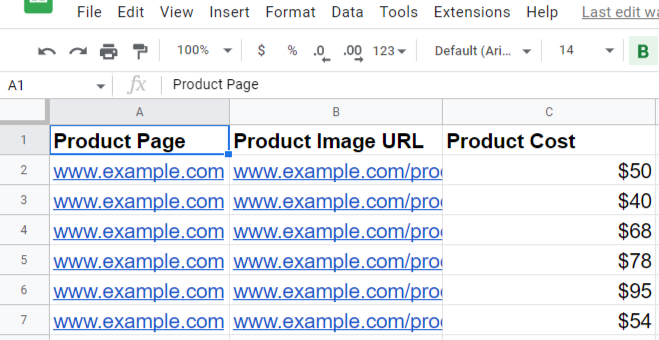
This data source contains a field called ‘Product Images URL‘ which contains the URLs of product images. Such type of field is called an image field.
Step-5: Click on the ‘Connect’ button at the top right-hand side:
Your new data source schema is going to look like the one below:
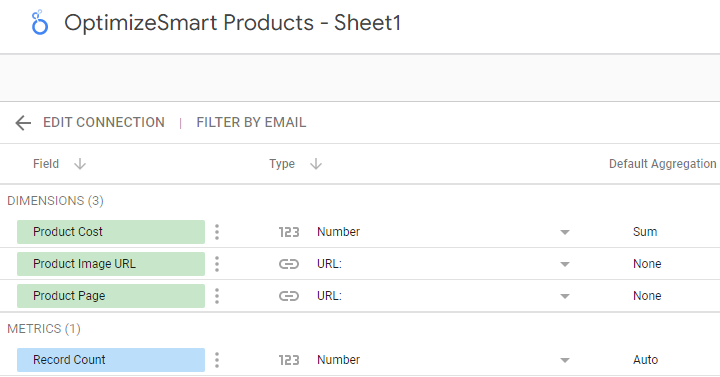
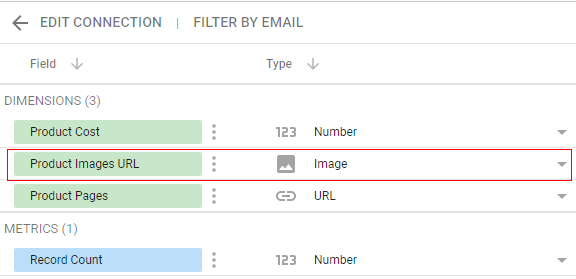
Step-6: Change the data type of the ‘Product Images URL‘ field from ‘URL’ to ‘Image’:
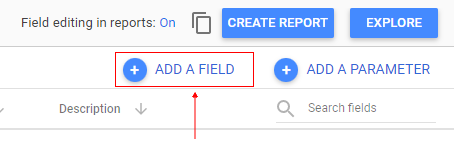
Step-7: Click on the ‘ADD A FIELD’ button to create a new calculated field:
Step-8: Name the new calculated field ‘Clickable Images‘ and then define it like the one below:
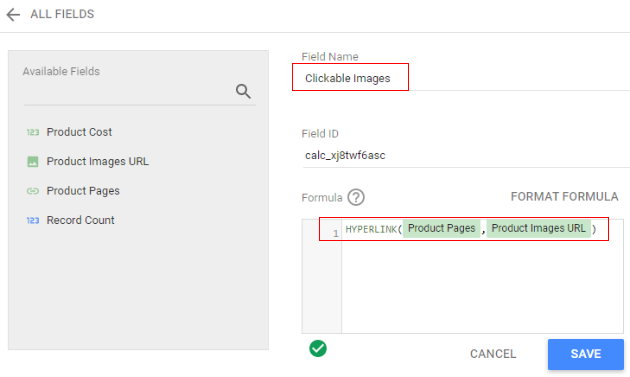
Here I have used the ‘HYPERLINK‘ function which returns a hyperlink. But in our case, this function is used to return clickable images.
Following is the syntax of the ‘HYPERLINK’ function:
HYPERLINK(URL, Link Label)
‘URL‘ refers to the full URL of the link location. In our case, it is the ‘Product Pages’ field. This field contains the full URL of the link locations.
‘Link Label‘ refers to the text or image to display as the link. In our case, it is the ‘Product Images URL’ field which is an image field. This field contains all the images which I want to make clickable.
Step-9: Click on the ‘Save’ button and then click on the ‘All Fields’ button in order to navigate back to the data source schema editor:
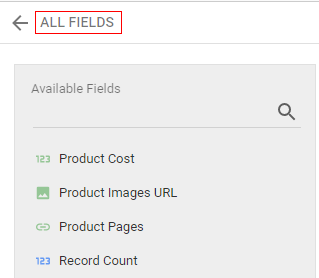
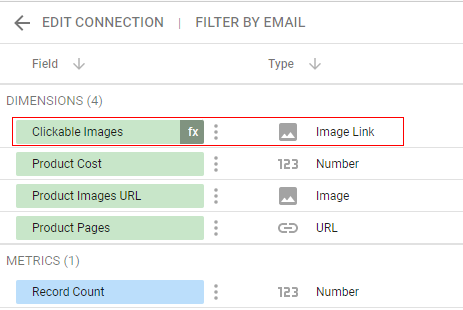
You should now see the new calculated field of type ‘Image Link’:
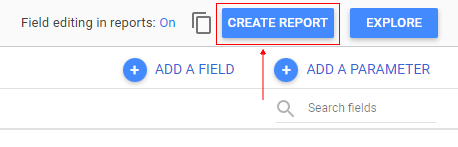
Step-10: Click on the ‘Create Report’ button to create a new report from the data source schema:
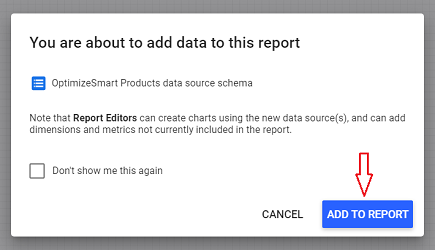
Step-11: Click on the ‘Add to report’ button:
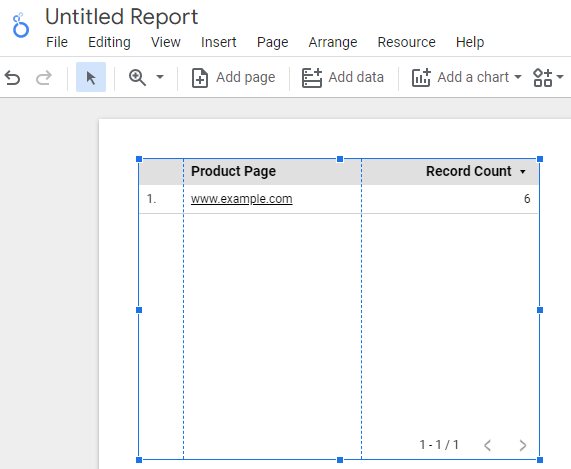
Google Data Studio will automatically create a new table in your report:
Step-12: Drag and drop the following fields one by one from the ‘Available Fields’ section to the ‘Dimensions’ section:
- Clickable Images
- Product Cost
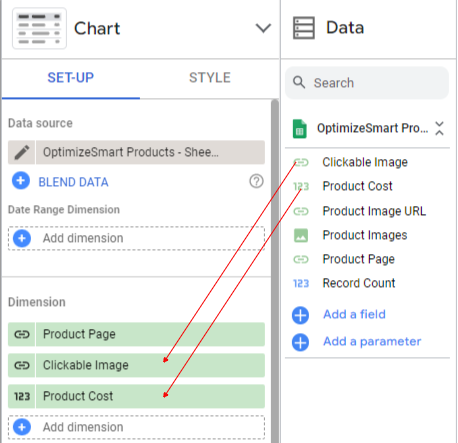
Step-13: Remove the ‘Record count’ metric by clicking on the cross button next to it:
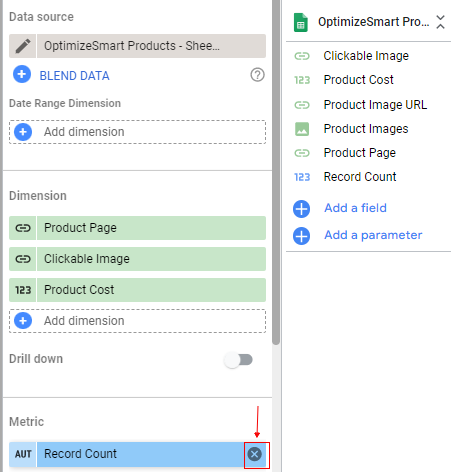
Your data table is now going to look like the one below:
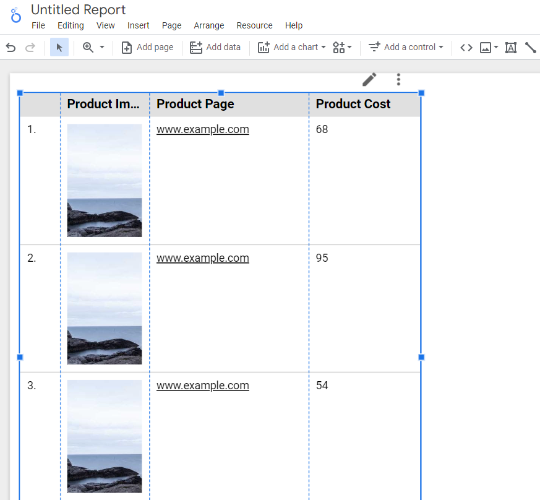
Step-14: Re-size your data table so that you can see all the product images
Step-15: Click on the ‘View’ button (on the top right-hand side of your screen) to view your report in the view mode:
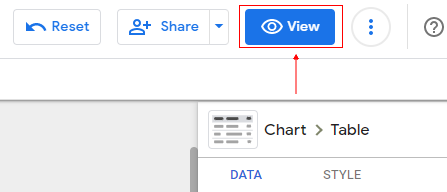
In view mode, your data table is going to look like the one below:
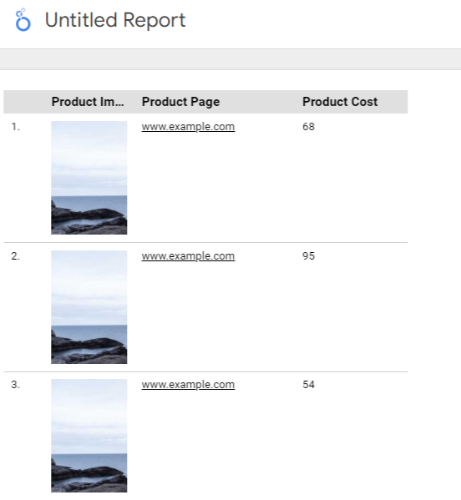
If you now click on an image (book cover), you would be redirected to the corresponding link location. That’s how you can add clickable images to the data table in your report.

Related Articles.
- Google Data Studio Tutorial.
- How to Change Language in Google Data Studio.
- Google Data Studio Report Tutorial.
- How to work with Boolean field in Google Data Studio.
- How to use Google Data Studio with Google Sheets.
- Stop Using Page Titles in GA4 & Google Data Studio Reports.
- Google Data Studio Geo Map – Latitude Longitude.
- Google Data Studio Data Sources – Tutorial.
- Guide to Data Types in Google Data Studio.
- Google Data Studio Date Format and Time Explained.
- Working with Numeric Data Types in Google Data Studio.
- How to embed Google Data Studio report on a website.
- The Data Set Configuration Error in Google Data Studio.
- Google Data Studio Aggregation Explained.
- Google Data Studio Calculated Fields Tutorial.
- Google Data Studio Functions, Formulas Tutorial.
- Google Data Studio Page Navigation Tutorial.
- Google Data Studio Image function.
- Avoid Using Functions and Calculated Fields in Google Data Studio.
- Data Source Fields in Google Data Studio.