

Using Google Data Studio with Google Sheets.
Follow the steps below to use Google Data Studio with Google Sheets:
Step-1: Navigate to https://datastudio.google.com/overview

Step-2: Click on the ‘Use it for free’ button.
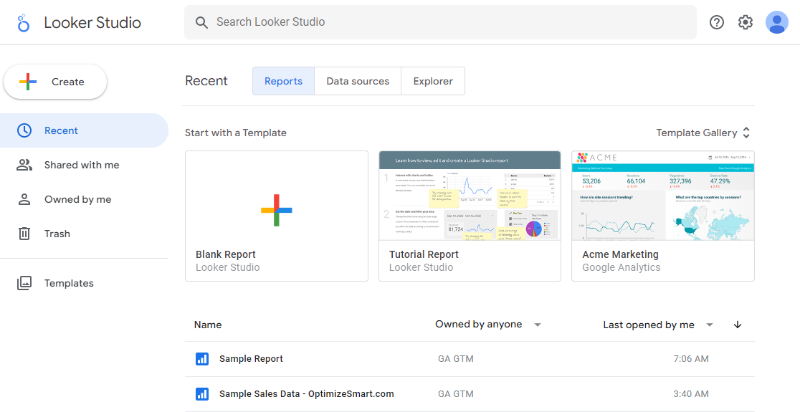
Step-3: Sign in with your Google email and password. You should now see the home page of the Google Data Studio:
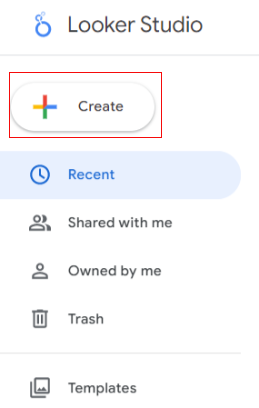
Step-4: Click on the ‘Create’ button:
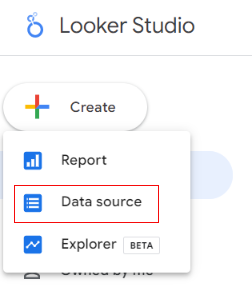
Step-5: Click on ‘Data Source’
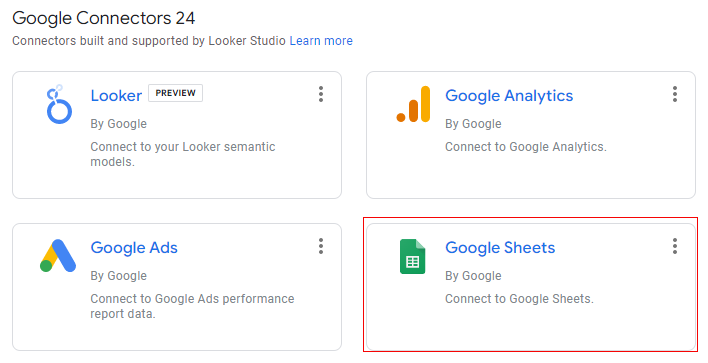
Step-6: Find and click on Google Sheet Connector:
Step-7: Rename your data source.
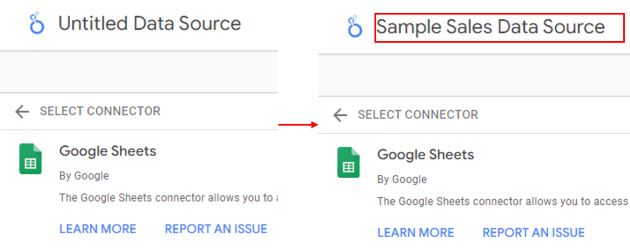
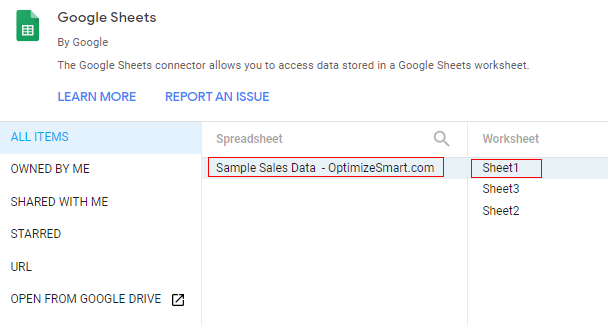
Step-8: Find and click on your Google Sheet:
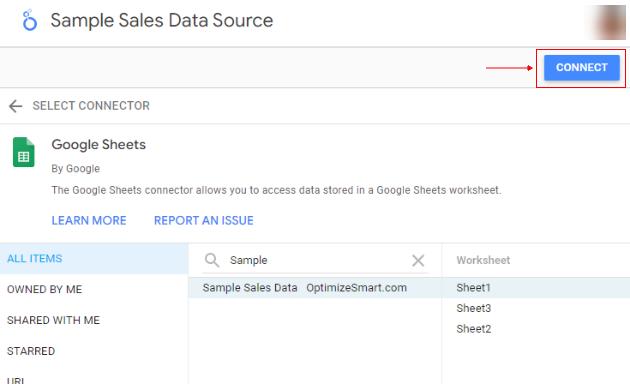
Step-9: Click on the blue ‘Connect’ button on the top right-hand side:
You should now see a screen like the one below:
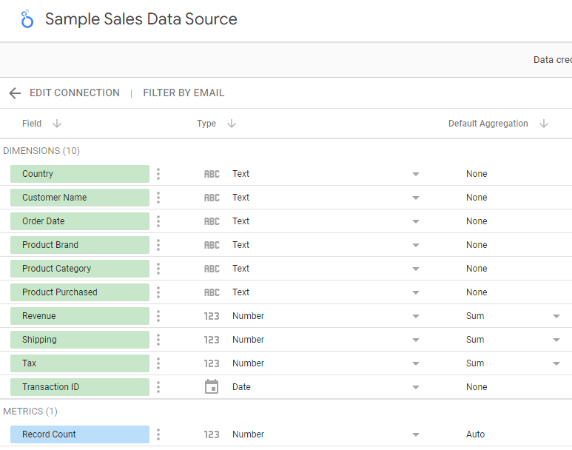
Here all the green fields represent dimensions, and all the blue fields represent metrics.
Related Article: Google Data Studio Dimension vs Metric
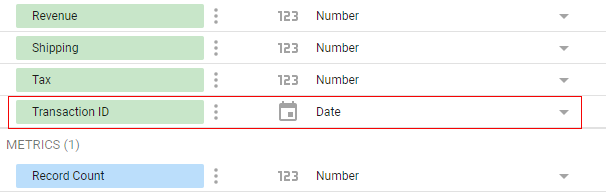
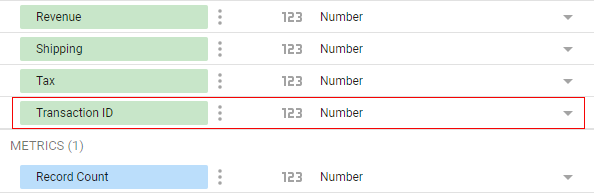
Step-10: Google Data Studio does not always determine the correct data type for each field. So, you need to ensure that each field is of the correct data type.
For example, from the screenshot above, we can see that the ‘Transaction ID’ field is of type ‘date’:
It should be of type ‘number’:
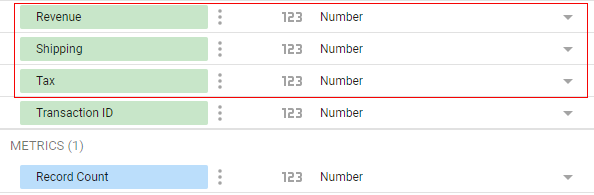
The Revenue, Shipping and Tax fields are of type ‘Number’:
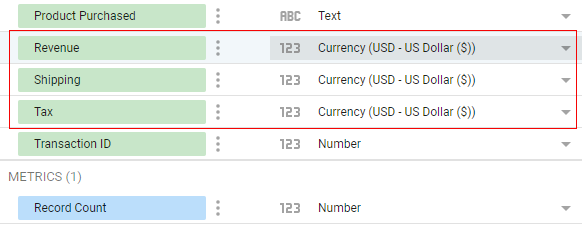
They should be of type ‘currency’ (US Dollar):
The region field is of type ‘Text’:
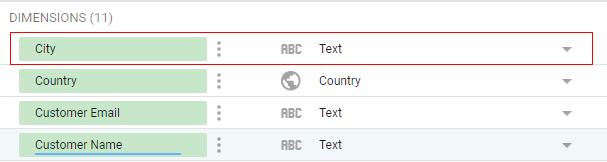
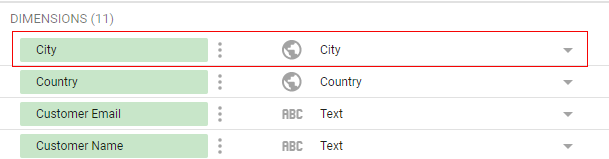
It should be of type ‘region’:
At this point, you can also change the name of a field by clicking on its name:
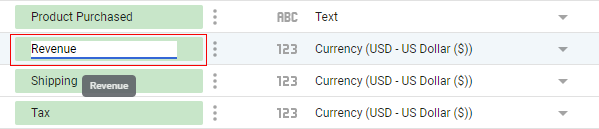
But I don’t recommend that. If you want to change the field names, do it via Google Sheets.
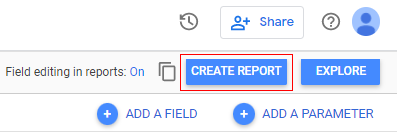
Step-11: Once everything looks all right then click on the ‘Create Report’ button:
You should now see a dialogue box like the one below:
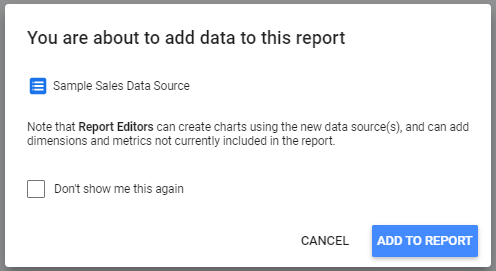
Step-12: Click on the ‘Add to Report’ button. You should now see the following similar screen:
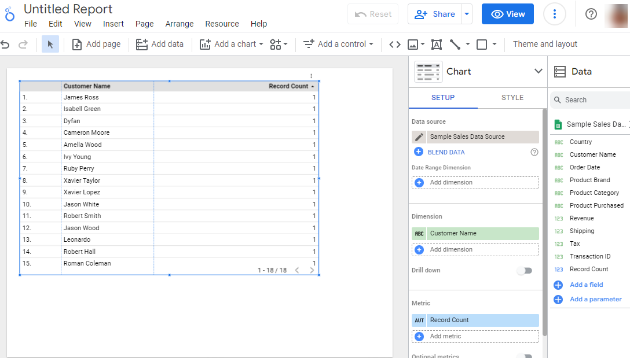
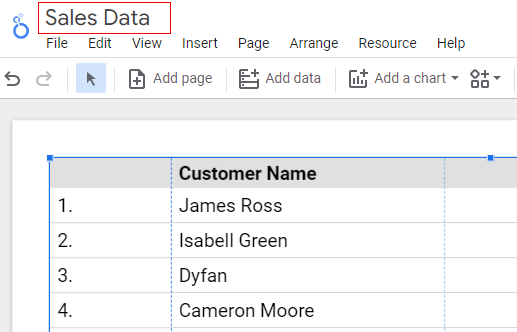
Step-13: Rename your report by double-clicking on the text ‘Untitled Report’:
Step-14: Start adding components to your report from the toolbar:
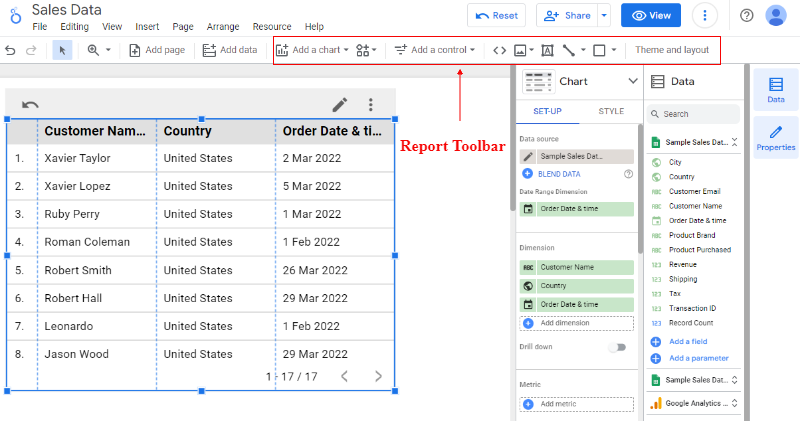
Following are the various components you can add to your report from the toolbar:
- Charts
- Community Visualizations
- Controls (Dropdown list, fixed-size lists…)
- URL
- Image
- Text
- Line
- Shape (rectangle, circle)
Step-15: Click on the ‘Add a Chart’ button in the toolbar and then click on the ‘Column Chart‘ icon:
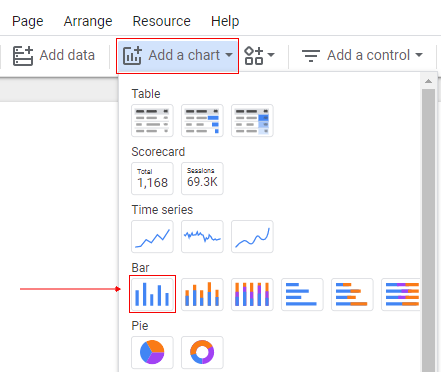
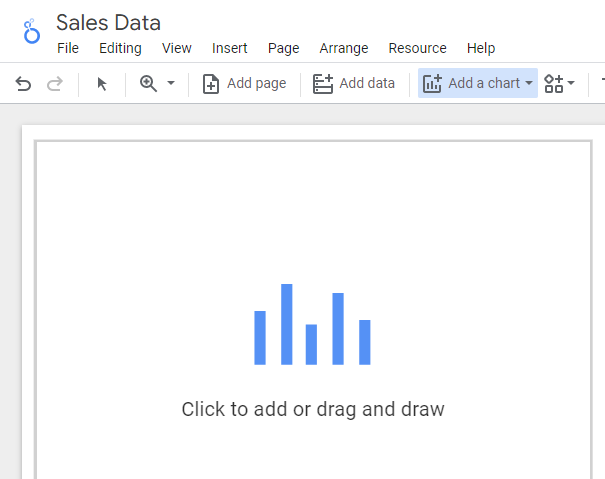
Step-16: Click anywhere on the canvas to add the column chart:
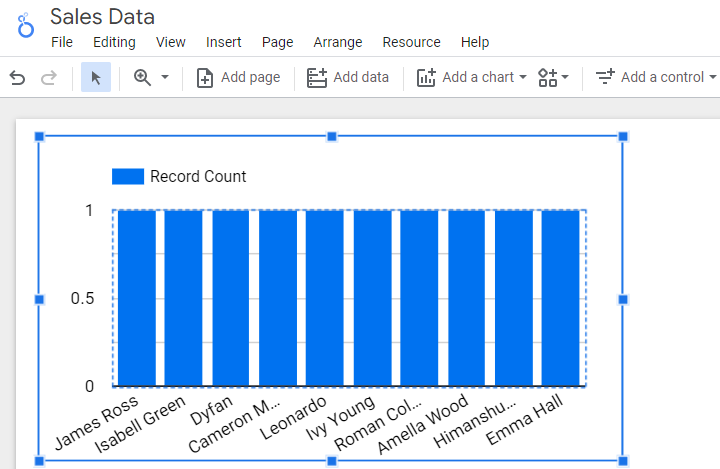
On the right-hand side of your screen, you should see the list of available fields for your column chart:
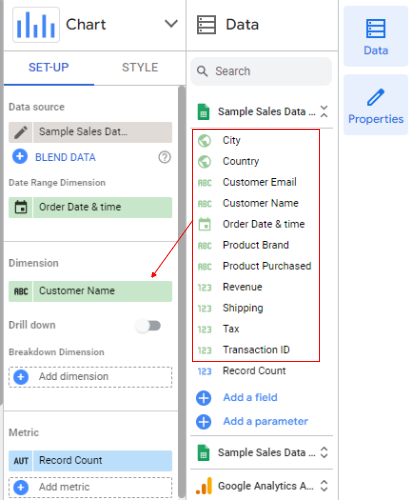
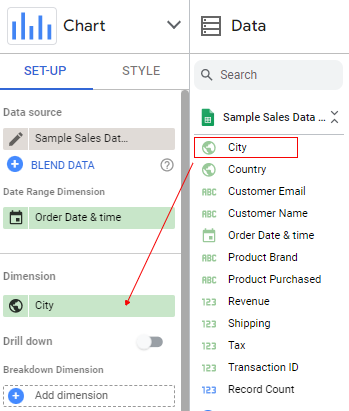
Step-17: Drag and drop the ‘Region’ field on the dimension named ‘Customer Name’.
Once this action is complete, you should see the ‘Customer Name’ dimension being replaced by the ‘Region’ dimension:
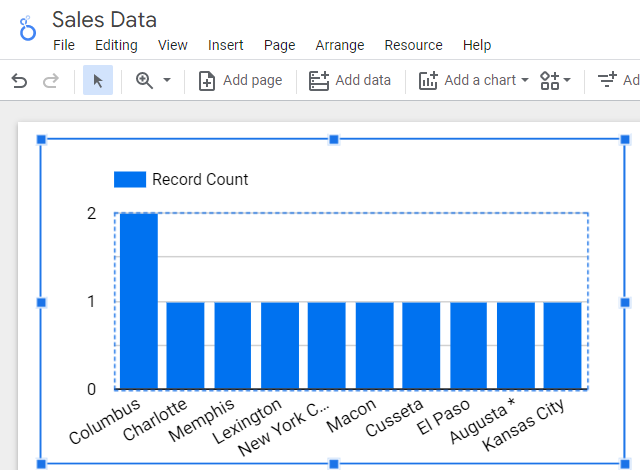
Once the ‘Customer Name’ dimension is replaced by the ‘Region’ dimension, your column chart will automatically update and may look like the one below:
Step-18: Drag and drop the ‘Revenue’ field on the metric named ‘Record Count’:
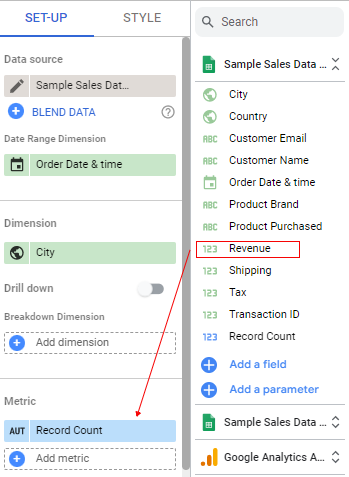
Once this action is complete, you should see the ‘Record Count’ metric being replaced by the ‘Revenue’ metric:
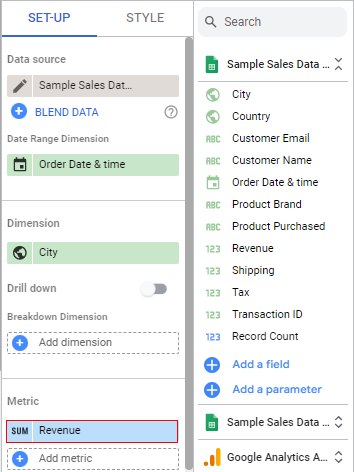
Once the ‘Revenue’ metric replaces the ‘Record Count’ metric, your column chart will automatically update and may look like the one below:
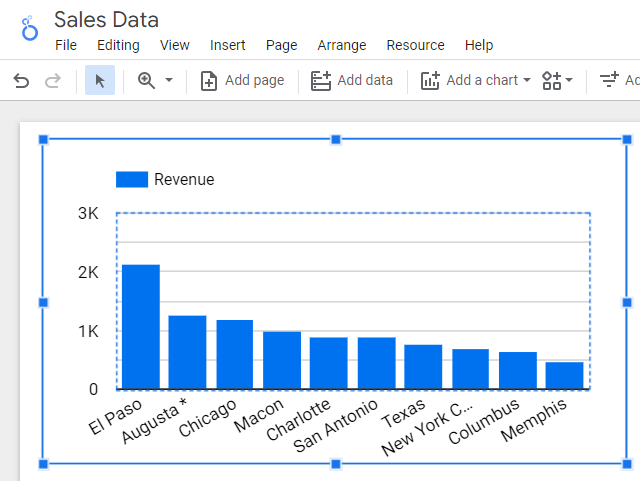
You can now visualize sales by the city in Google Data Studio.
That’s how you can create a report in Google Data Studio.
Step-19: In order to see your report in ‘view mode’, click on the ‘view’ button on the top right-hand side:
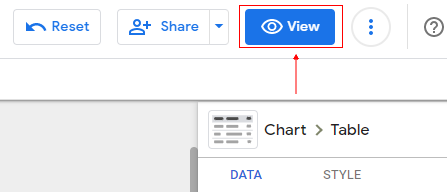
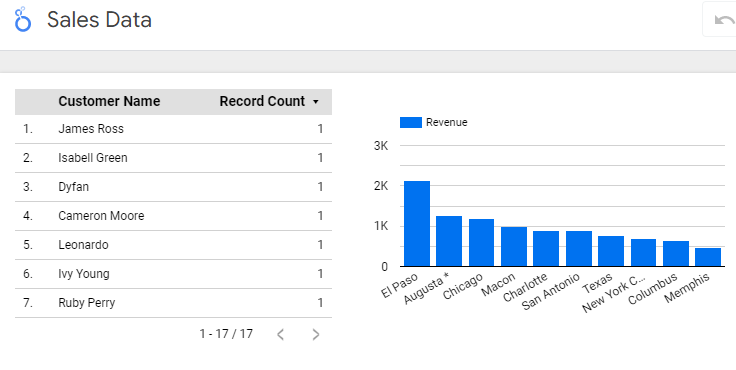
You can now see your report in view mode:
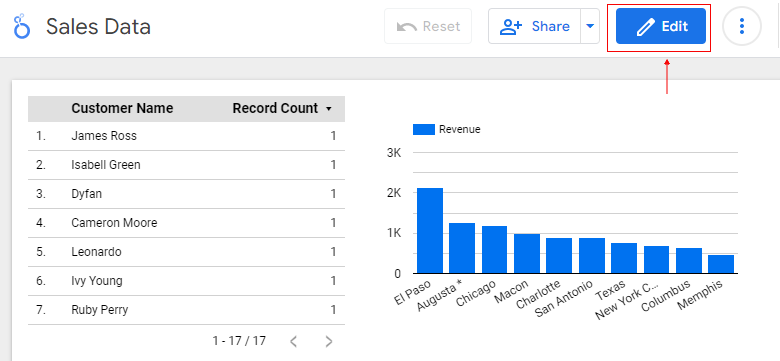
Step-20: Click on the ‘Edit’ button on the top right-hand side if you want to edit this report again:
That’s how you can use Google Data Studio with Google Sheets.
How to use Google Sheets like a pro
The biggest problem most people face when using Excel or Google Sheets for data manipulation is finding and using the correct formula and functions.
There are more than 300 formulas and functions in Excel alone. Google sheets also have hundreds of formulas and functions.
How many formulas and functions can you realistically memorize and use?
And knowing the formula is one thing; using it correctly can be something completely different.
If you miss one required parameter, comma, or parentheses or select an incorrect cell or range, it could easily make your formula/function invalid.
You can fix this problem by using ChatGPT (a free AI-enabled chatbot).
It can transform your text instructions into Excel and Google Sheets formulas in seconds with the help of AI.
You write your instructions in plain English and then ask ChatGPT to generate your formula.
Once the formula is generated, copy-paste it to your cell.
For example, consider the following data set:
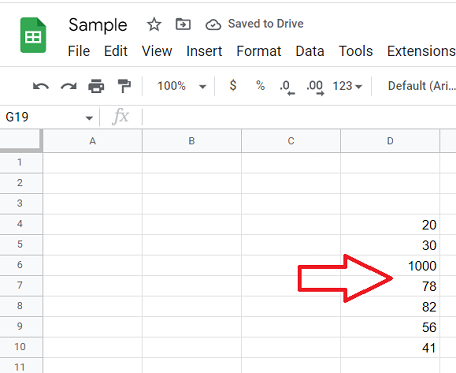
Suppose you want to sum up all the numbers greater than 20 and less than 80.
I can give the following instruction to ChatGPT:
Transform the following text into Google sheets formula: Sum all the numbers in D4:D10, which are greater than 20 and less than 80.
The ChatGPT will automatically generate the following formula for me:
=SUMIF(D4:D10, “>20”, D4:D10) – SUMIF(D4:D10, “>79”, D4:D10)
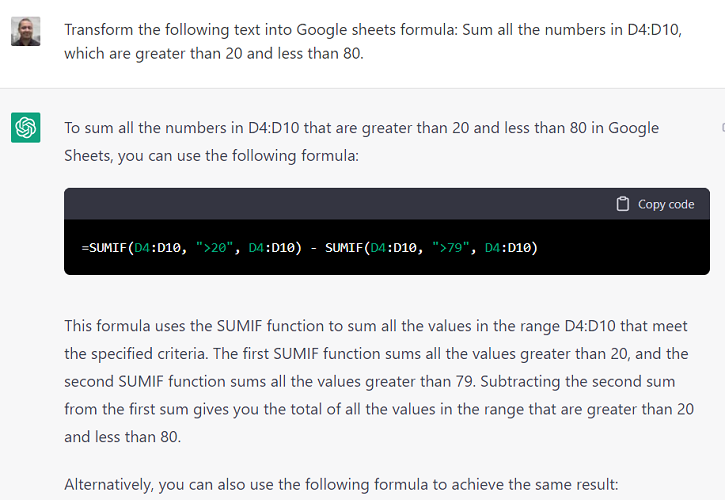
Now copy-paste this formula into your desired cell in Google Sheets.
You can follow the same approach for generating Excel formulas.
For example, I can give the following instruction to ChatGPT:
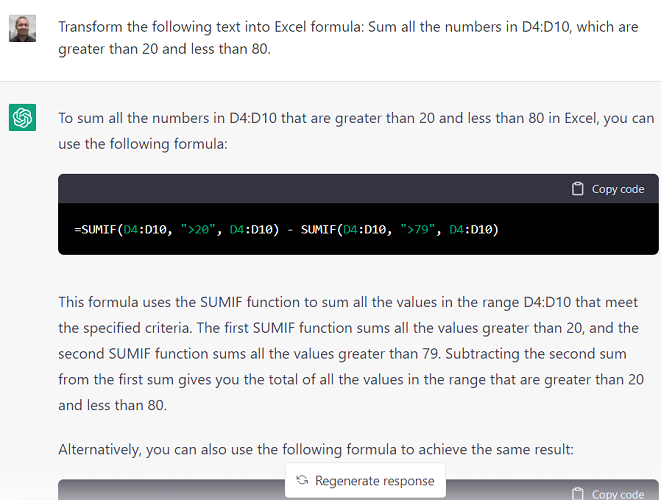
Transform the following text into an Excel formula: Sum all the numbers in D4:D10, which are greater than 20 and less than 80.
The ChatGPT will automatically generate the following formula for me:
=SUMIF(D4:D10, “>20”, D4:D10) – SUMIF(D4:D10, “>79”, D4:D10)
Note(1): Make sure you mention the exact cell, cell range, rows or columns, wherever possible, when giving instructions.
Note(2): If a formula in Excel or Google Sheets cannot solve your problem, neither can ChatGPT.
If you can’t afford chatgpt (it now costs $24/month in the UK) but still want to transform your text instructions into Excel and Google Sheets formulas or regex then I have another and significantly cheaper solution for you…
Meet “Formulabot“.
Formulabot is a very popular AI-enabled bot just like ChatGPT but is used mainly for Excel and Google Sheets.
It can transform your text instructions into Excel and Google Sheets formulas in seconds with the help of AI.
You write your instructions in plain English and then ask Formulabot to generate your formula.
Once the formula is generated, copy-paste it to your cell.
Formulabot has one significant advantage over chatgpt. It can be directly used within Google Sheets or Excel.
So if you are a heavy user of Google Sheets/Excel, you don’t need to go back and forth with chatgpt.
I use the Google Sheets Add-on of this tool.
You write your instructions in plain English and then press the ‘Submit’ button to generate your formula.
Once the formula is generated, click the ‘Insert Cell’ button to insert your formula.
For example, consider the following data set:
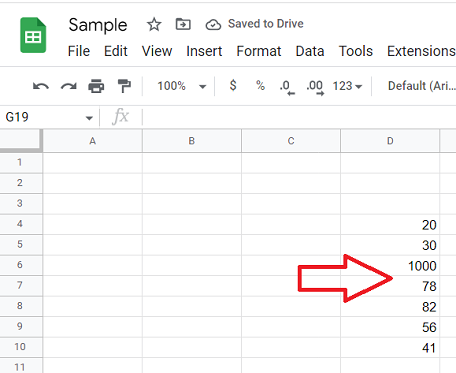
Suppose you want to sum up all the numbers greater than 20 and less than 80.
I can give the following instruction to ‘formulabot’:
Sum all the numbers in D4:D10, which are greater than 20 and less than 80.
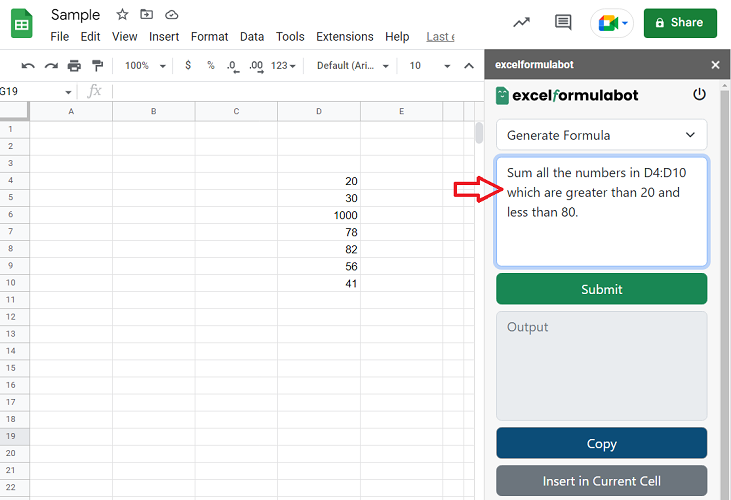
The ‘formulabot’ will automatically generate the following formula for me once I click on the ‘Submit‘ button:
=SUMIFS(D4:D10,D4:D10,”>20″,D4:D10,”<80″)
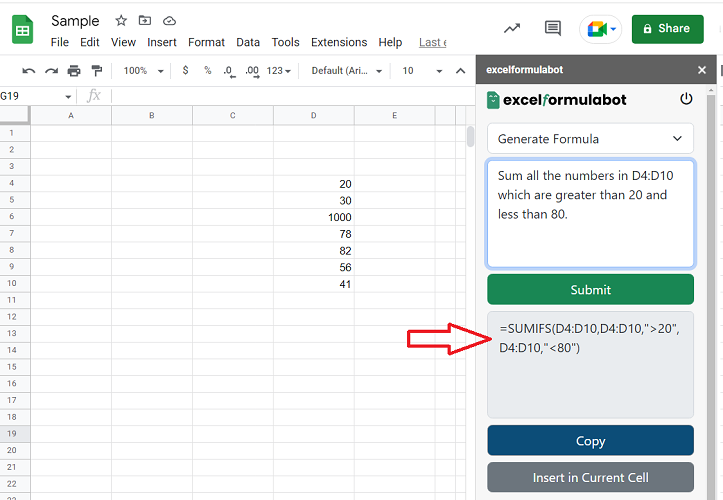
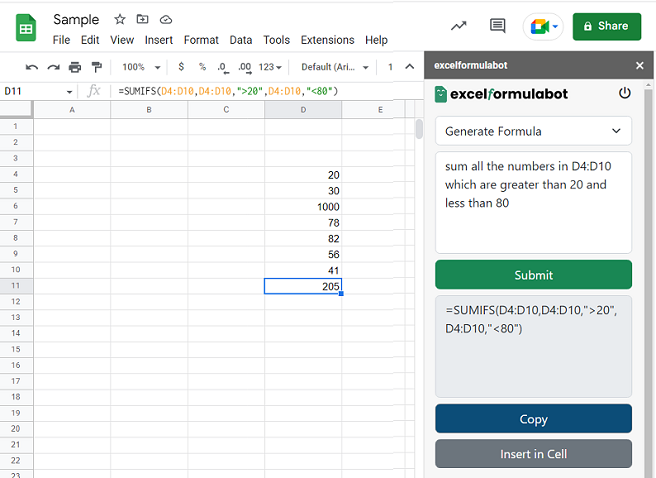
Select the cell where you want to insert your formula and click on the ‘Insert is current cell‘ button.
You should now see the formula automatically inserted into your selected cell:
Note: Make sure you mention the exact cell, cell range, rows or columns, wherever possible when giving instructions.
As you can see, using ‘formulabot’ tool is much easier than using ChatGPT.
I have been using this tool for a long time. It’s a must tool for anyone involved in data extraction and analysis. It costs like $5/month.
You will find this tool very useful if you are heavily involved in Excel/Google Sheets.

Related Articles.
- Google Data Studio Parameters explained with examples.
- Google Data Studio Tutorial.
- How to Change Language in Google Data Studio.
- Google Data Studio Report Tutorial.
- How to work with Boolean field in Google Data Studio.
- How to use Google Data Studio with Google Sheets.
- Stop Using Page Titles in GA4 & Google Data Studio Reports.
- Google Data Studio Geo Map – Latitude Longitude.
- Google Data Studio Data Sources – Tutorial.
- Guide to Data Types in Google Data Studio.
- Google Data Studio Date Format and Time Explained.
- Working with Numeric Data Types in Google Data Studio.