

Reports in Google Data Studio are used to tell stories with data.
Every report you create should have some purpose. The purpose can be to provide actionable insight, give recommendations or persuasion.
- The person who creates the report is called the ‘report author’ or ‘report creator’.
- The person who edits the report is called the ‘report editor’.
- The person who consumes the report is called the ‘report viewer’.
Table of Contents
- Best Practices for Creating a Google Data Studio report
- Seven methods to create a new report in Google Data Studio
- Google Data Studio Template Gallery and Report Gallery
- Introduction to the Report Editor
- Components of a report in Google Data Studio
Best Practices for Creating a Google Data Studio report
The following are some best practices for creating a report in Google Data Studio:
- Understand who your report is meant for.
- Keep it short and simple.
- Use a report template whenever you can to create a new report.
- Avoid pulling data directly from a data platform into your reports.
- Avoid charting data for the current day in your reports.
- Avoid using functions and calculated fields in your reports.
- Distribute related charts across multiple pages.
Seven methods to create a new report in Google Data Studio.
1. Creating a new report via the ‘Create’ menu
The first method to create a report is by using the ‘Create’ menu option in Google Data Studio.
Follow the below steps:
Step-1: Navigate to https://datastudio.google.com/
Step-2: Click on the ‘Create’ menu option available in the upper left corner of the window.
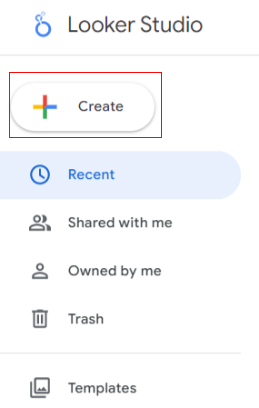
Step-3: Click on ‘Report’.
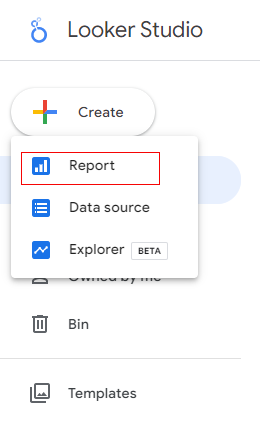
Step-4: An overlay will appear like the one below which will ask you to select your connector:
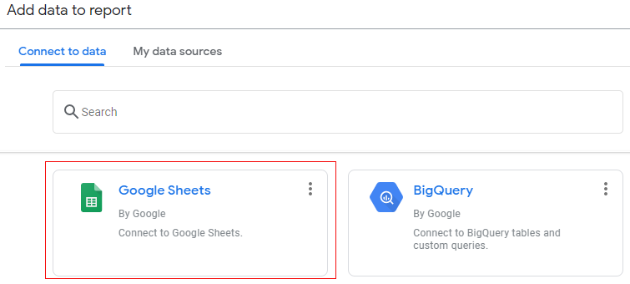
In our case, we are going to use the Google Sheets data source. So we selected the ‘Google Sheets’ connector.
Step-5: Now the overlay will change like the one below:
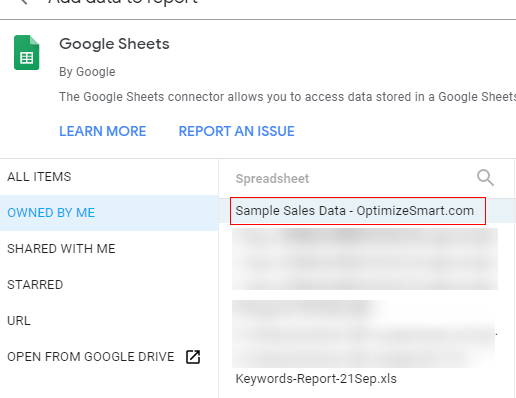
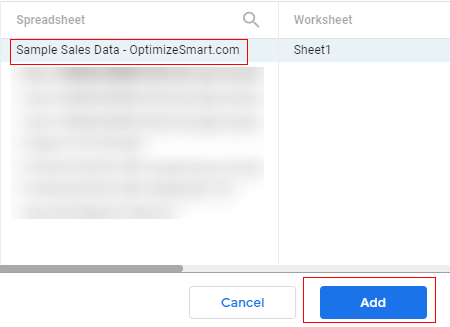
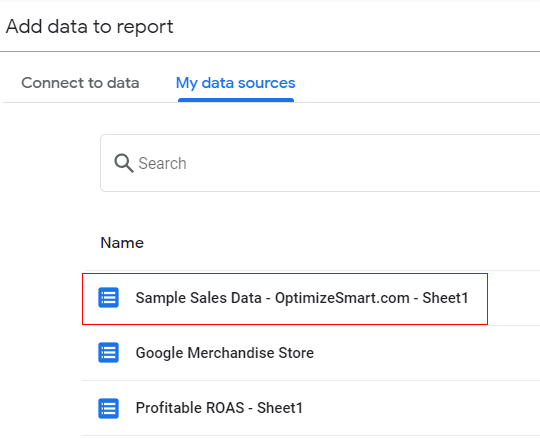
Select your data source from the available list. In our case, let’s select ‘Sample Sales Data – OptimizeSmart.com’.
Step-6: Click on the ‘Add’ button.
You should now see the reporting editor like the one below:
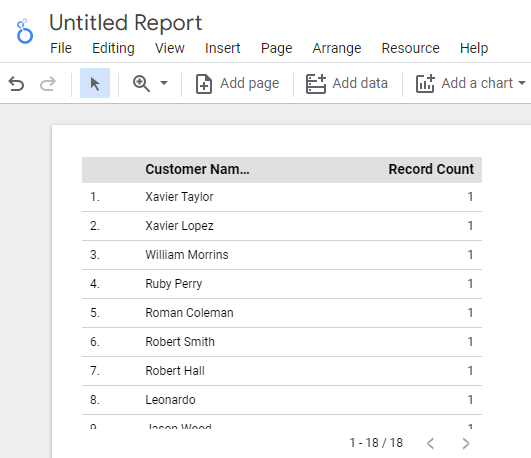
So that’s how you can create a report using ‘Create Menu’.
Now if you want to edit the data source schema, you can click on the pencil icon next to the data source schema name.
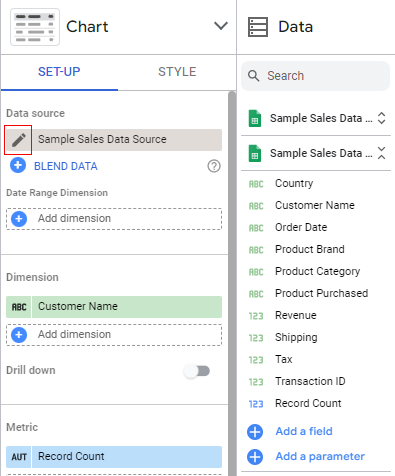
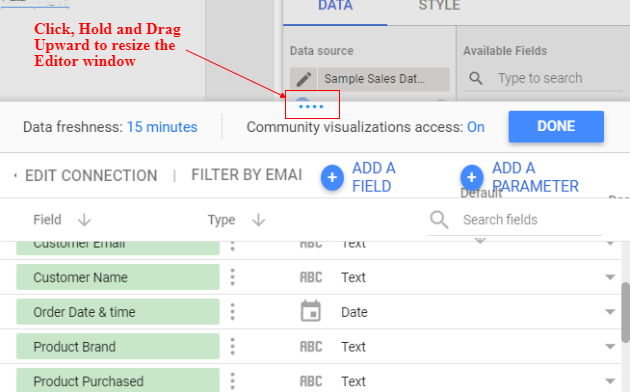
You will see the data source schema editor like the one below:
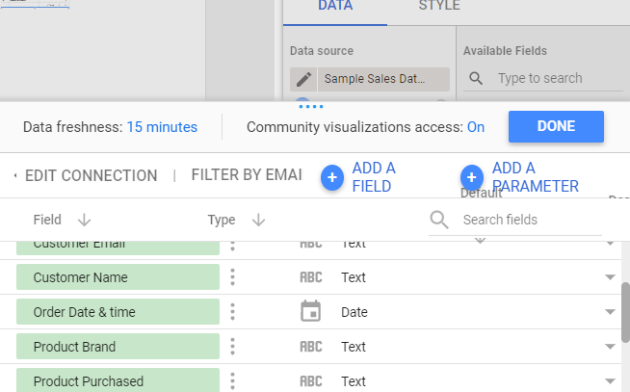
You can resize the editor window by clicking on the four dots …. and then dragging your mouse upwards:
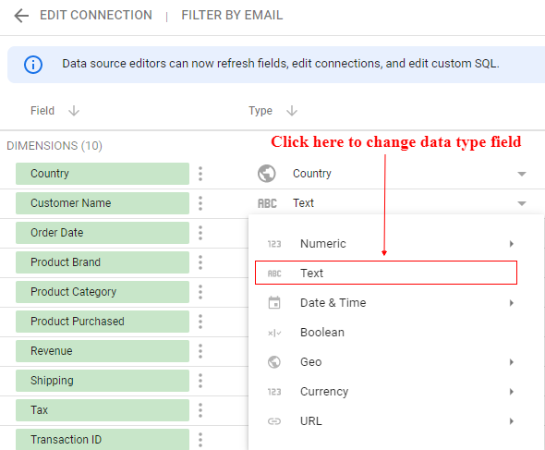
If you want to change the data type of a field just click on ‘Type’ drop-down menu in front of the field:
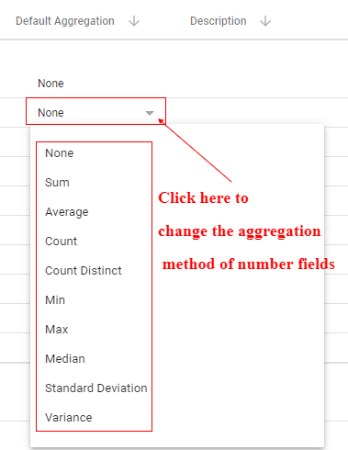
You can also change the aggregation method of number fields, as shown below:
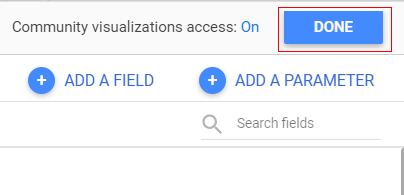
Once you have done all your changes simply click on the ‘Done’ button and you are good to go with report visualization:
2. Creating a new report from an existing data source schema
The next way to create a new Google Data Studio report is by using an existing data source schema:
Follow the steps below:
Step-1: Navigate to https://datastudio.google.com/
Step-2: Click on ‘Create’ drop-down menu located in the upper left corner of your screen:
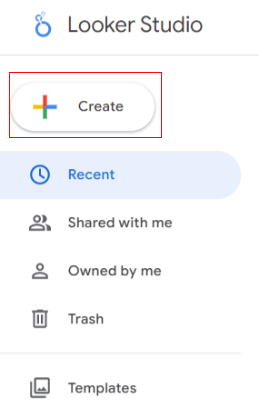
Step-3: Click on ‘Report’:
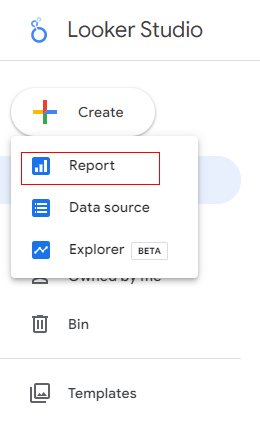
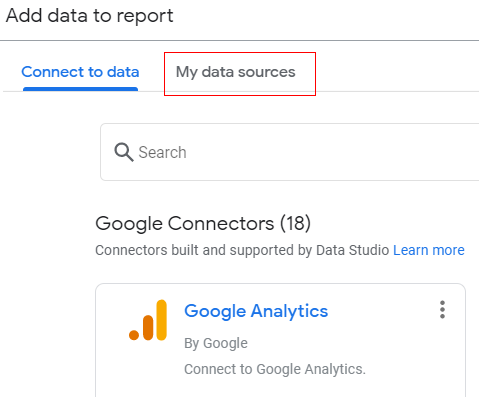
Step-4: An overlay will appear like the one below. Now since we are going to use an existing data source schema click on ‘My Data Sources’ tab:
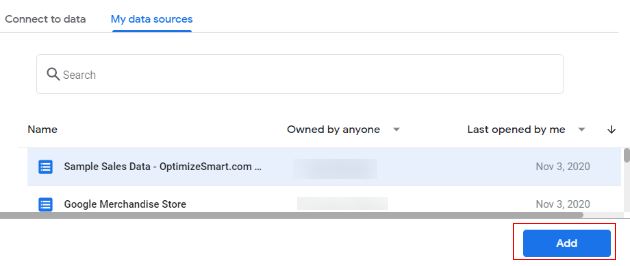
Step-5: Click on the name of the data source schema you want to use for your report:
Step-6: Click on the ‘Add’ button:
3. Creating a new report via the File menu
Another method to create a new Google Data Studio report is by using the ‘File’ menu.
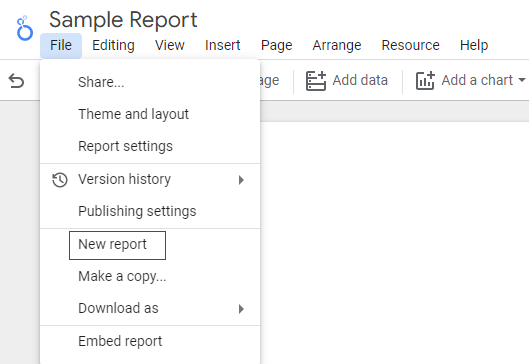
From within the report editor click on the ‘File’ menu >> ‘New report’
4. Creating a new report by making a copy of an existing report
You can create a new Google Data Studio report by making a copy of an existing report and then editing it.
Follow the steps below:
Step-1: Edit the report you want to copy.
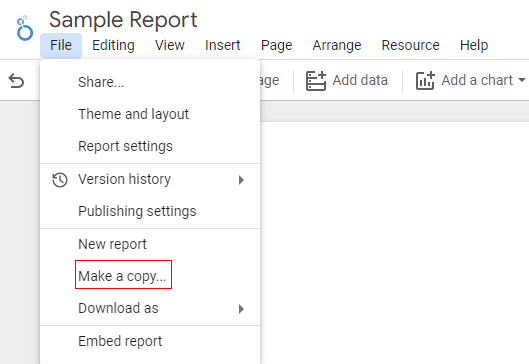
Step-2: Click on ‘Make a Copy’ option from the ‘File’ drop-down menu:
A pop up will appear which will ask you to select a data source schema:
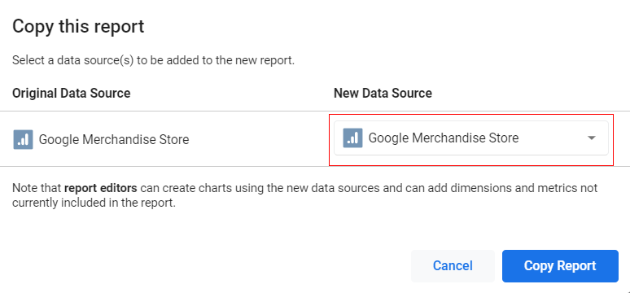
Step-3: You can either continue to use the existing data source schema (listed under the ‘Original Data Source‘) or you can select a new data source schema from the ‘New Data Source‘ drop-down menu.
Step-4: Click on the name of the data source you want to use:
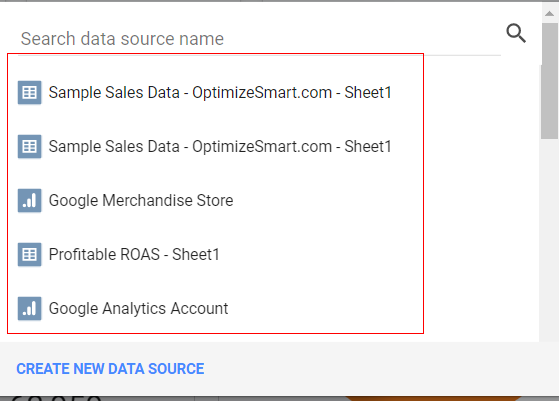
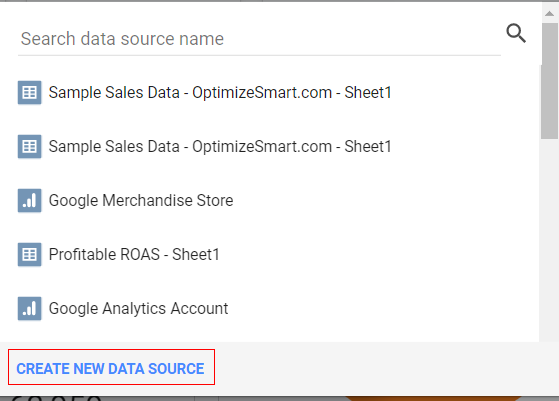
At this point, you also get the option to add a new data source (by clicking on the link ‘CREATE NEW DATA SOURCE’):
Step-5: Click on the ‘Copy Report’ button:
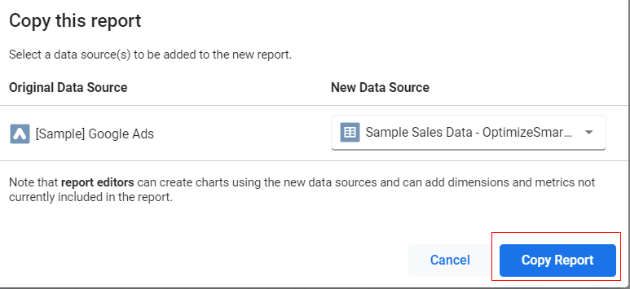
This will create a new copy of the existing report.
Step-6: Edit the copied report.
When you copy a report, the copy inherits the following components from the original report:
- Chart components (like ‘Table’, ‘Scorecard’, ‘Pie chart’, ‘Bar chart’, etc).
- Interactive components (like ‘dimensions filters’, ‘date range controls’, ‘data control’,’Google Analytics Segments’ etc)
- Design components (like ‘images’, ‘text boxes’, ‘rectangles’, ‘lines’, ‘circles’, etc)
- Embedded external components (like ‘videos’, ‘Images’, ‘Google Docs’, etc)
- Pages
Note(1): Copying a report does not create copies of its data source schema.
Note(2): If you want to use any existing report as a template then just make a copy of it.
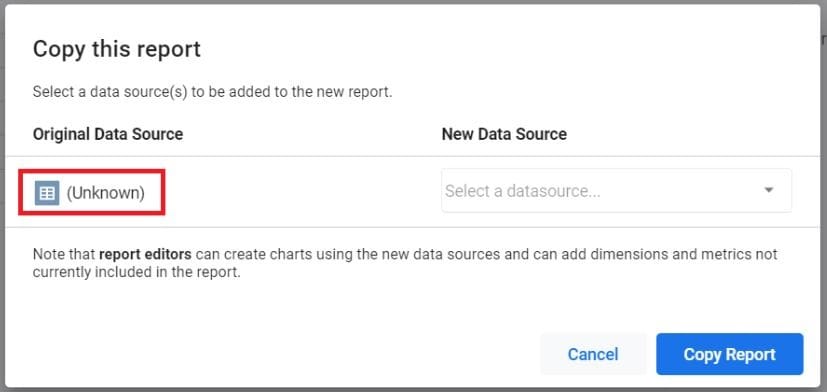
Note(3): If you see an ‘(Unknown)’ data source while copying a report then it means that data source schema has not been shared with you and you must select a different data source schema from the ‘New Data Source’ drop-down menu:
5. Creating a new report from the data source schema editor
You can also create a new report from within the data source schema editor.
Follow the below steps:
Step-1: Navigate to https://datastudio.google.com/
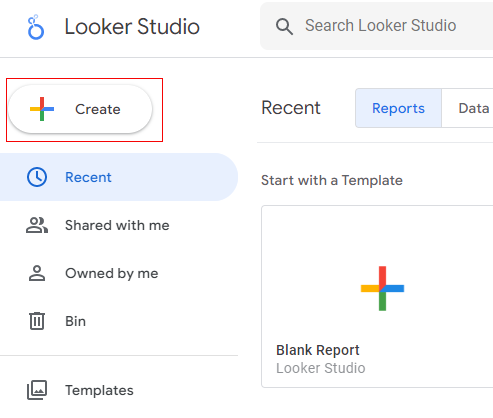
Step-2: Click on the ‘Create’ drop-down menu:
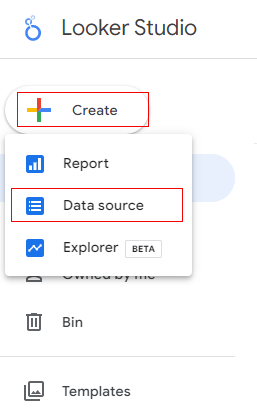
Step-3: Click on ‘Data Source’:
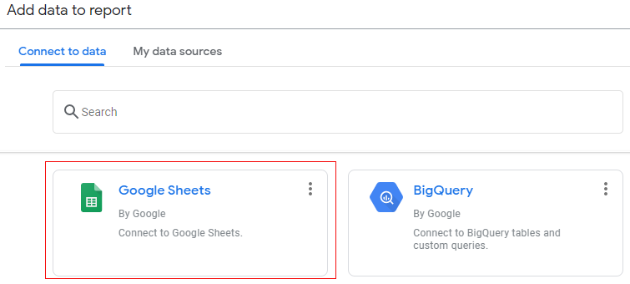
Step-4: Select the connector that you want to use. Let’s select ‘Google sheets’:
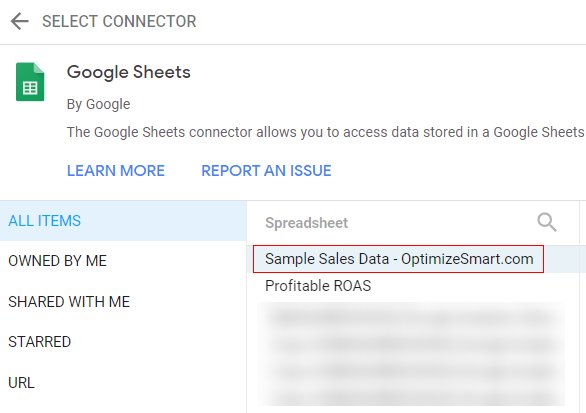
Step-5: Select your data source from the list of available data sources.
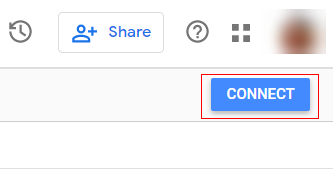
Step-6: Click on the ‘Connect button’ in the upper right corner.
Step-7: Change the available fields configuration if you want or you can proceed to create a report. To create a new report, click on the ‘Create report’ button on the top right-hand side of your screen:
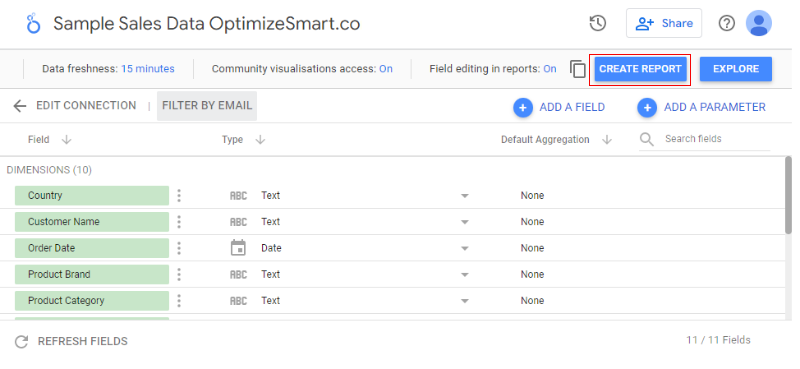
This is actually my preferred method of creating a new Google Data Studio report. I first create a data source schema, edit the fields configuration settings if required and then create a new report.
6. Creating a new report via the ‘Blank Report’ button
Another method to create a new report is via the ‘Blank report’ button available on the home page of Google Data Studio.
Follow the steps below:
Step-1: Navigate to the home page of Google Data Studio (https://datastudio.google.com/)
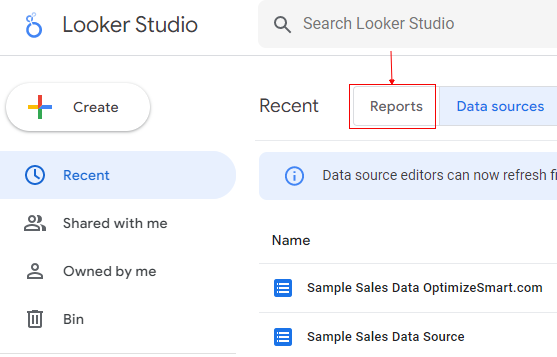
Step-2: Click on the ‘Reports’ tab:
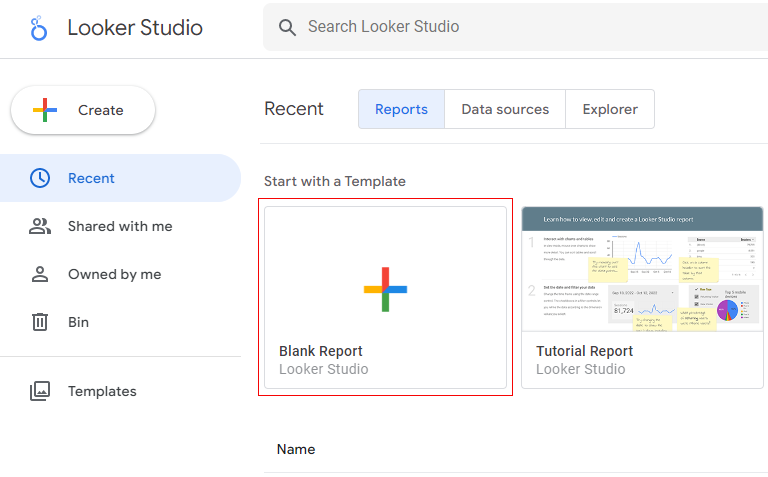
Step-3: Click on ‘Blank report’ button:
Step-4: Select your connector.
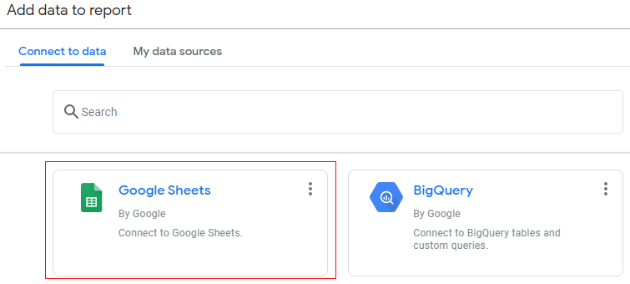
Step-5: Click on the name of the data source you want to use:
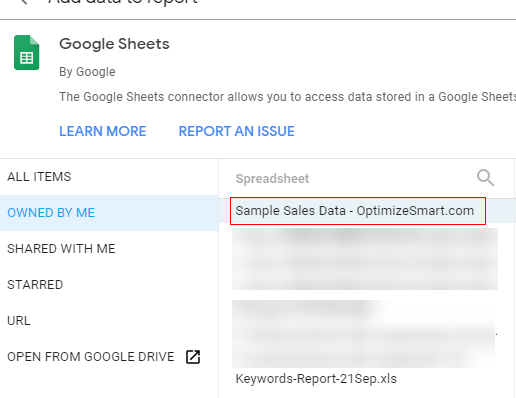
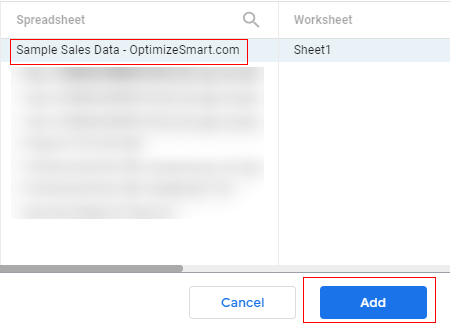
Step-6: Click on the ‘Add’ button:
You should now see the report editor where you can rename your report, add chart components etc:
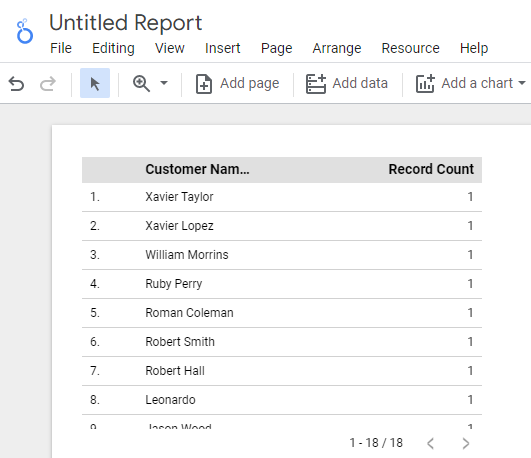
So that’s how you can create a new Google Data Studio report from the ‘Blank report’ button.
7. Creating a new report from the Template Gallery
The final method to create a new Google Data Studio report is from the Template Gallery.
Follow the steps below:
Step-1: Navigate to the home page of Google Data Studio (https://datastudio.google.com/).
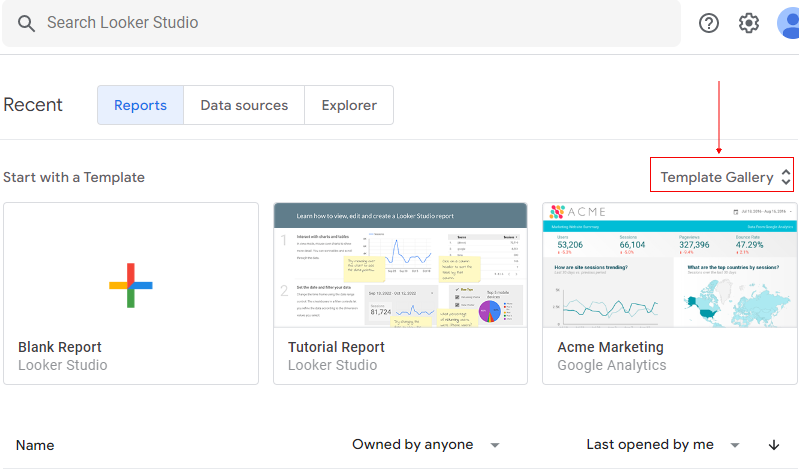
Step-2: Click on the ‘Template Gallery’ link:
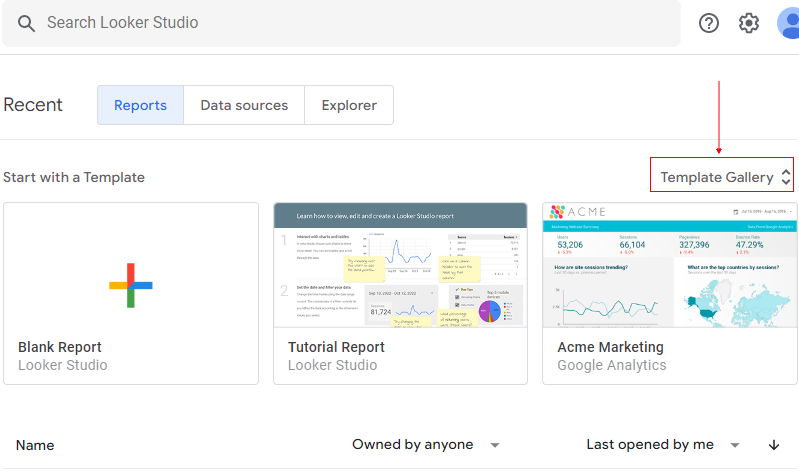
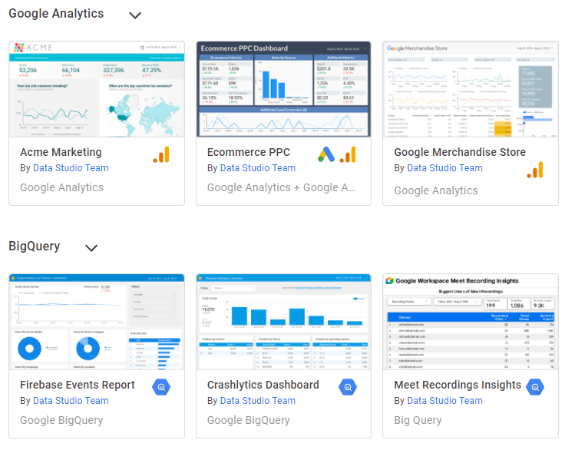
Step-3: Click on the report template you want to use. If you don’t like the template you can scroll down for more templates or you can click on the dropdown to select a particular category tool and then select the template.
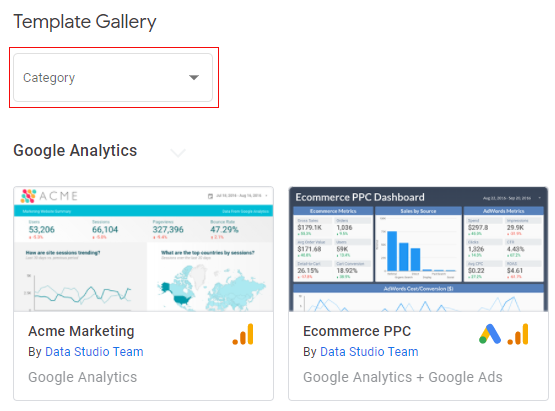
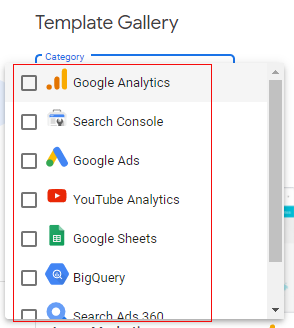
Once you click on the dropdown, a new list of tool categories will open up where you will see a bigger list of report templates available for different tools:
As an example, we will select Google Analytics and you can see from the image below that all report template for Google Analytics is displayed.
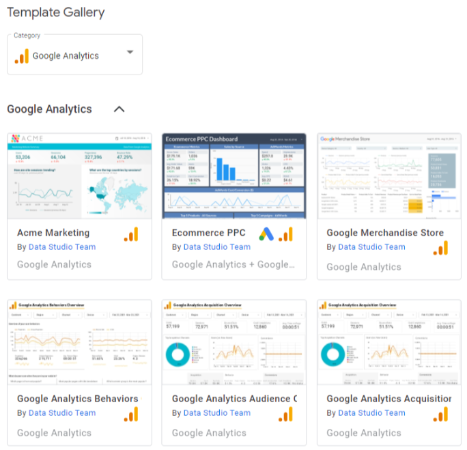
Step-4: Let’s click on the ‘Google Analytics Audience Overview’ report template.
A new window will open up which shows the full-size version of your report template:
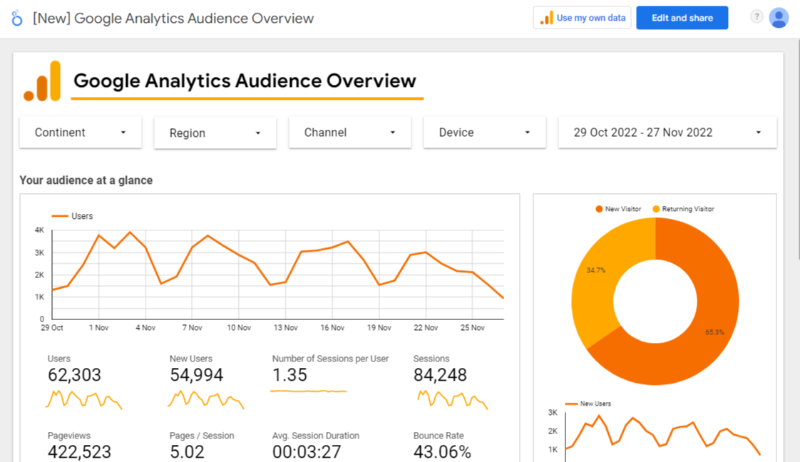
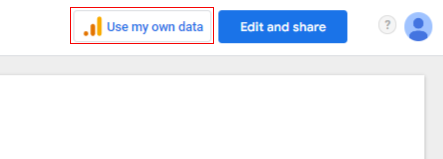
Step-5: Click on the ‘Use my own data’ button in the upper right-hand corner of your screen:
A pop up will appear which will ask you to select a data source schema:
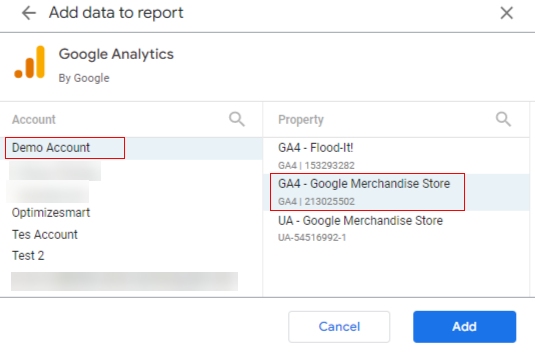
In our case, let’s continue with ‘GA4 – Google Merchandise Store’ data source schema.
Step-6: Click on the ‘Add’ button. You will now be redirected to the report editor.
At this point you can change the name of the report by double-clicking on the report name:
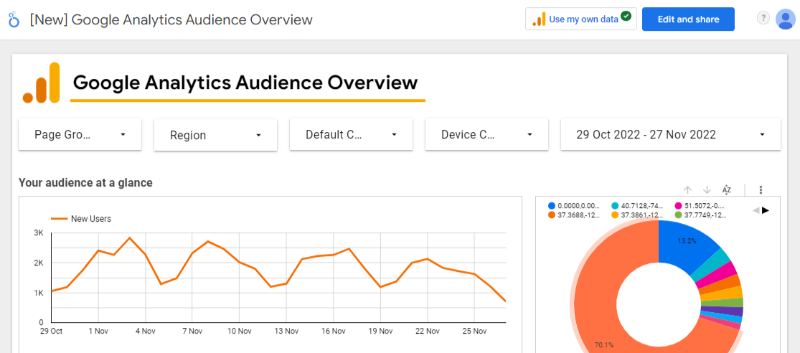
You can also personalize the report as per your needs by accessing the different components of the report and changing its style.
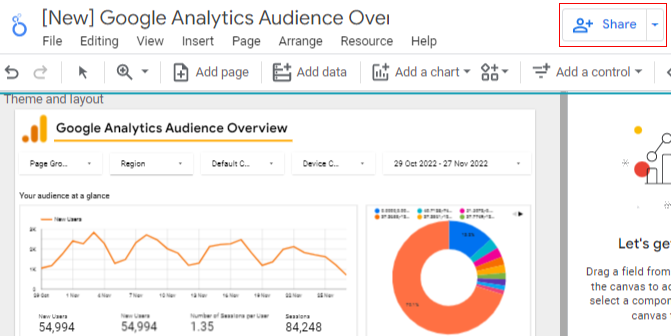
You can also share the report with other users via the ‘Share’ button:
Google Data Studio Template Gallery and Report Gallery
The template gallery list ready to use report templates. Use these templates to create fully functional and attractive Google Data Studio reports in seconds.
You can find the Google Data Studio template gallery in two places:
#1 When you logged into Google Data Studio, you see the template gallery link on the right-hand side:
When you click on this link, you can see the list of available report templates:
#2 The second place to look for report templates is the Google Data Studio Report Gallery: https://datastudio.google.com/gallery
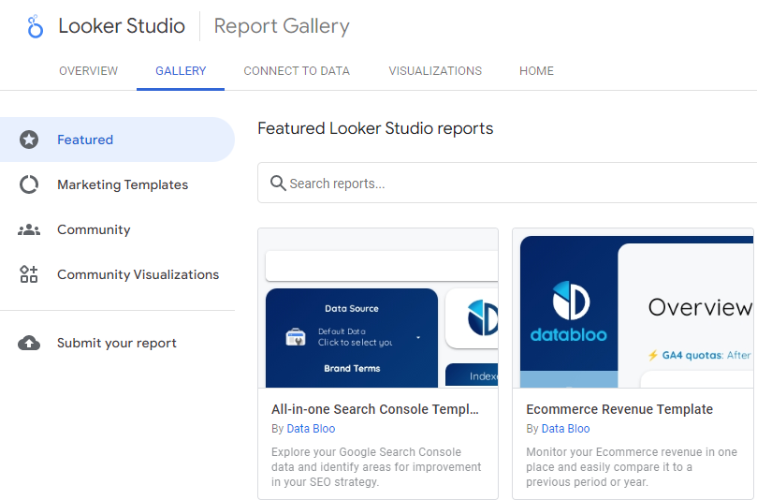
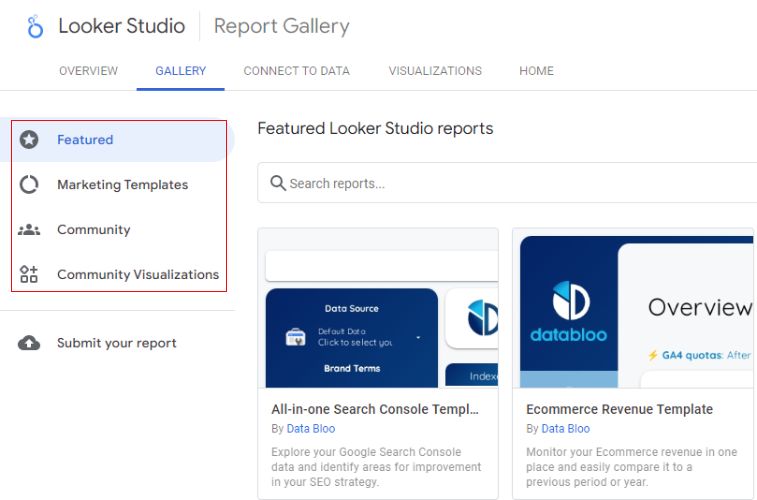
The Google Data Studio report gallery lists report templates under the following four categories:
#1 Featured (these are the report templates featured by Google Data Studio).
#2 Marketing Templates (these are the report templates meant for marketers)
#3 Community (Google Data Studio report templates built by the community)
#4 Community Visualizations (Google Data Studio reports with Community Visualizations)
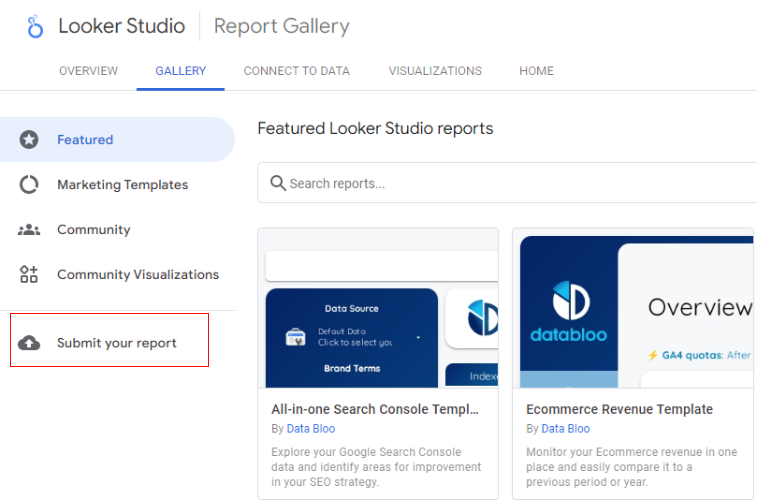
If you want to submit your own report to the Google Data Studio Report Gallery then click on the ‘submit your report’ link and then follow the on-screen instructions:
Understanding Report Editor in Google Data Studio.
The report editor is used to edit a Google Data Studio report.
Through report editor you can:
- Rename a report.
- Add/Edit chart components to the report.
- Add/Edit the data source schema used by the report.
- Share report with other users.
You can access the report editor by creating a new report or editing an existing report.
At this point, you already know how to create a new report.
If you want to edit an existing report then follow the steps below:
Step-1: Navigate to the home page of the Google Data Studio reports: https://datastudio.google.com/navigation/reporting
Step-2: Click on the name of the report you want to edit:
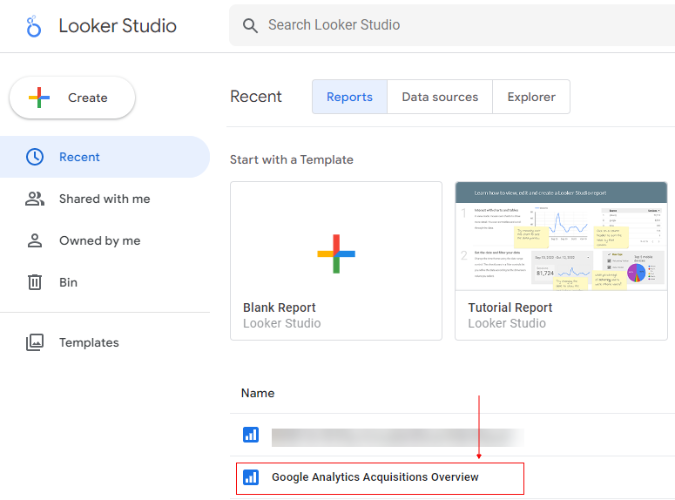
Your report will open up in the ‘view’ mode.
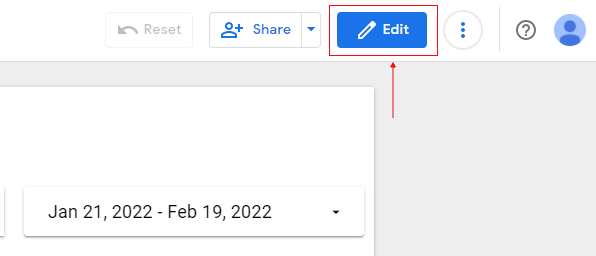
Step-3: Click on the ‘Edit’ button at the top right-hand side to view your report in the ‘Edit’ mode:
Now the screen that you see is called the ‘Report Editor‘:
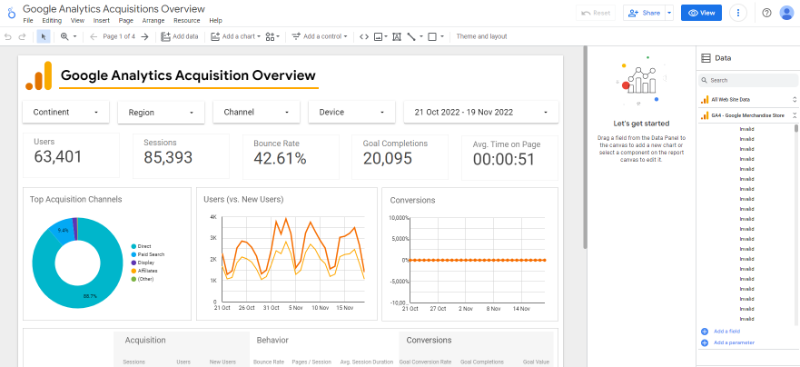
Find your way around the report editor
#1 Google Data Studio Logo

Click on this logo to navigate back to the home page.
#2 Report header

The report header is the name of your report.
#3 Reset data
Click on this button to reset the cached data in your report. This refreshes the cache for every data source added to your report.
#4 Share the report
Click on this button to share your report with other users.
#5 View
Click on this button to run your report.
#6 More options
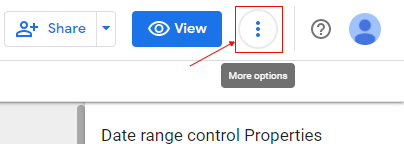
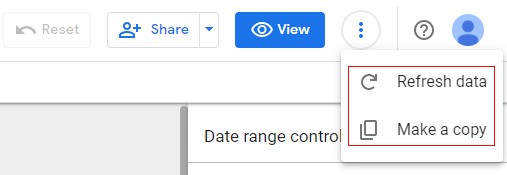
Click on the three dots to more options for your report. Options provided are “Refresh data” and “Make a copy”.
#7 Help
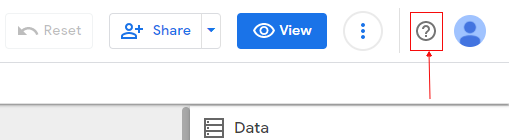
Click on this button to access the Google Data Studio help options.
#8 Menu bar

#9 Page control

Use the right and left arrows to switch to other pages of your report.
#10 Undo button

This button works just like any other undo button. Click on it to undo your last action (like deleting a report component).
#11 Redo button

This button works just like any other redo button. Click on it to repeat your last action.
#12 Embedded data source schema

Click on this button to create a new embedded data source schema. The embedded data source schema is the data source schema you created while editing a report.
#13 Add a chart

Click on this drop-down menu to add one or more chart components (like a table, scorecard, bar chart, pie chart, etc) to your report.
#14 Community Visualization

Click on this button to add community visualization (i.e. the charts created by third-party developers) to your report.
#15 Add a control

Click on this drop-down menu to add data controls to your report. These controls are used to make your reports more interactive to an end-user.
#16 URL embed

Click on this button to add content (like YouTube videos, Google docs, blog posts, etc) hosted on other websites in your report.
#17 Image

Click on this button to add an image to your report.
#18 Text

Click on this button to add a text box to your report.
#19 Line and Arrows

Click on this button to add lines and arrows to your report.
#20 Shape

Click on this button to add shapes (rectangle or circle) to your report.
#21 Theme and Layout

Click on this button to show the ‘Theme and Layout’ panel on the right-hand side of your report.
Note: This button works only when you have selected one or more components of a report.
#22 Canvas
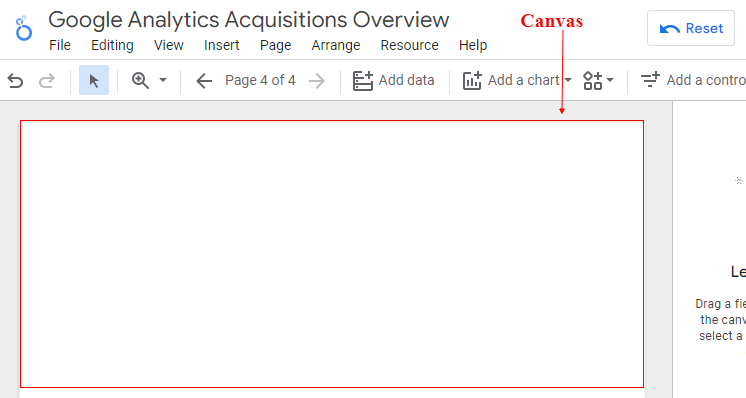
A canvas is made up of grid lines.
#23 Chart Components
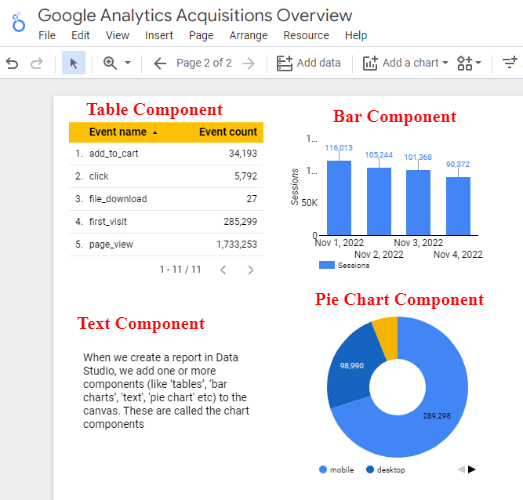
When we create a report in Google Data Studio, we add one or more components (like ‘tables’, ‘bar charts’, ‘text’, ‘pie chart’ etc) to the canvas. These are called the chart components.
#24 Selected chart component
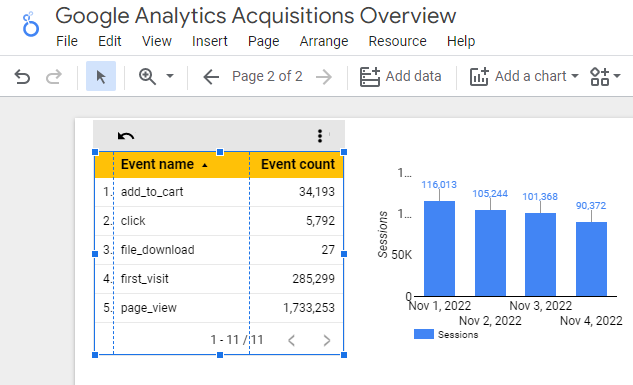
When you select a chart component a blue rectangle appears around it. That’s how you know the chart component is selected.
#25 Multiple selected chart components
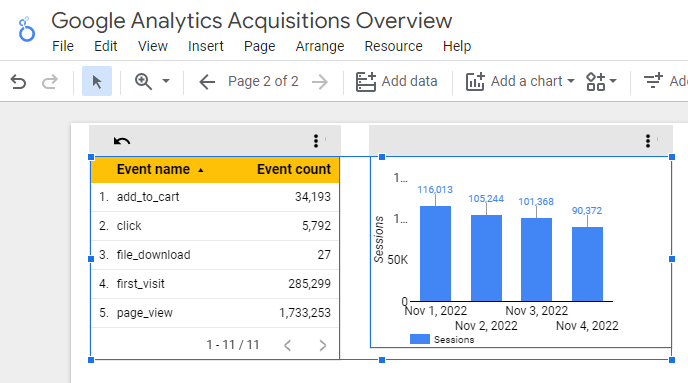
You can select two or more chart components while pressing the CTRL key on your keyboard. Whichever components appear inside the blue rectangle are the selected components.
#26 Property panel
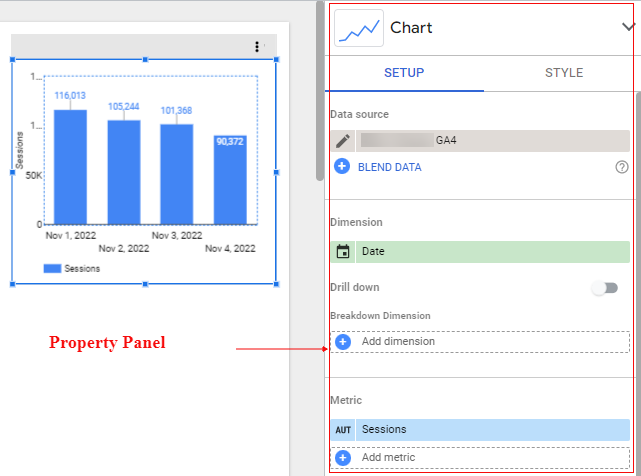
The Properties panel (also known as the component property panel) appears on the right side of the report editor when you select one or more chart components.
#27 Change visualization type
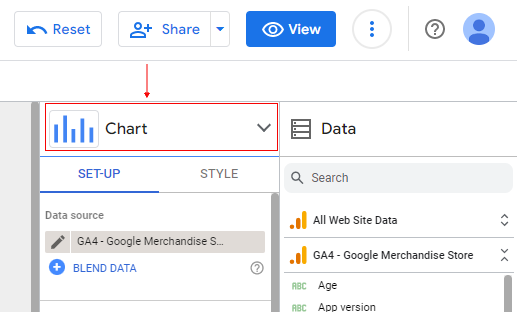
Within the property panel, you will see a drop-down menu at the top. Use this menu to change the visualization type. For example, you can convert a column chart into a table or pie chart.
#28 The ‘SET-UP’ tab
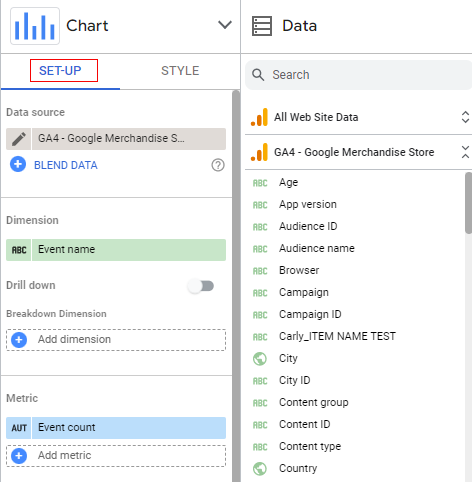
Within the property panel, you will see two tabs. One of the tabs is the ‘SET-UP’ tab. Use this tab when you want to add, remove, change or re-order dimensions and metric fields used in one or more selected chart components.
You can also use this tab to change the data source schema used by a chart component.
#29 Available fields
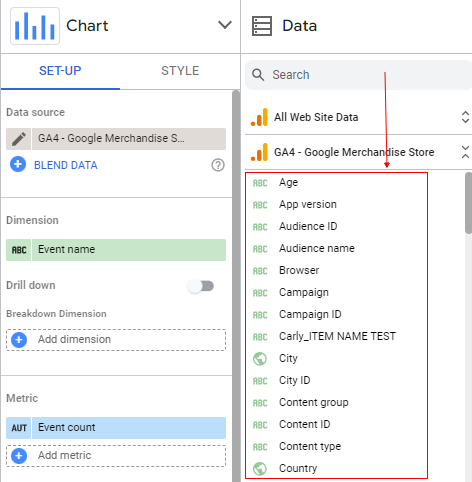
Within the property panel, you will see the list of all the available fields for one or more selected components. These are the fields that you can use in your selected chart component.
#30 The ‘STYLE’ tab
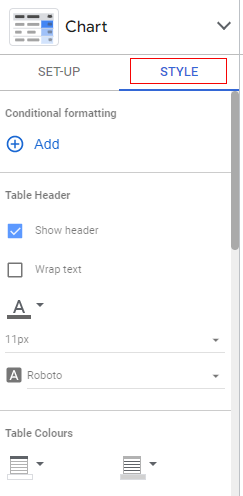
Within the property panel, you will see two tabs. One of the tabs is the ‘STYLE’ tab.
Use this tab when you want to change the formatting (font colour, font size, table colour, border width, etc) of one or more selected chart components.
Components of a report in Google Data Studio
A report in Google Data Studio is made up of one or more pages. By default, a new report is made up of just one page.
Adding another page
If you want to add another page to your report, then follow the steps below:
Step-1: Open an existing report by clicking on its name (under the ‘Reports’ tab):
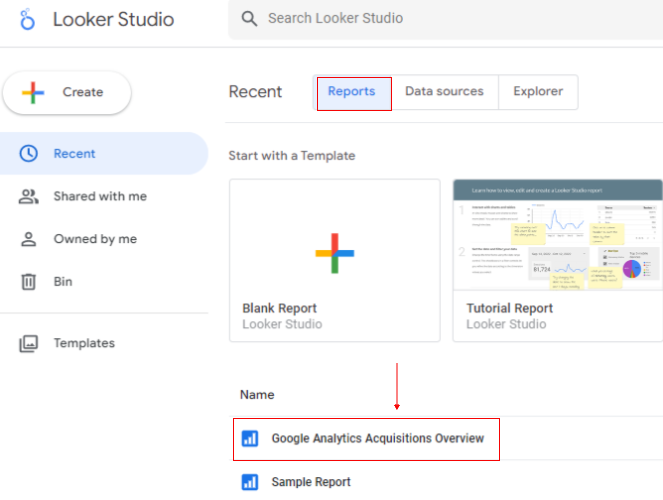
The report will open in the view mode.
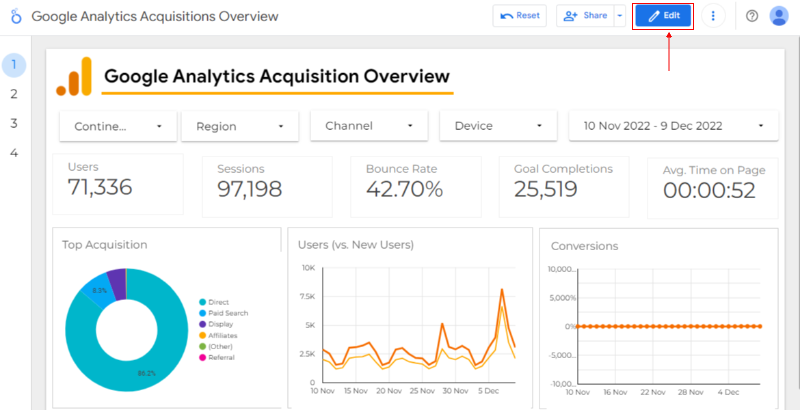
Step-2: Click on the ‘Edit‘ button at the top right-hand side:
Once you clicked on the ‘Edit’ button, you will see the report in the ‘edit mode‘.
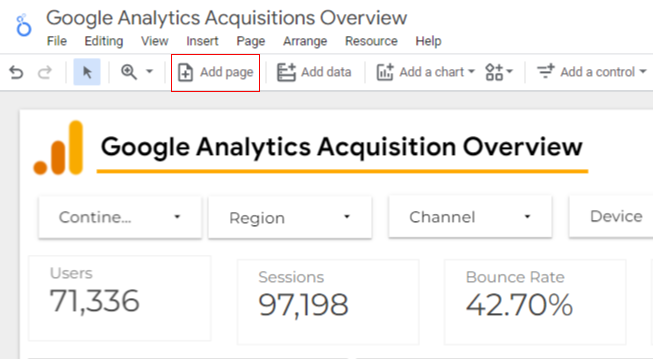
Step-3: Click on the ‘Add a page’ button on the top left-hand side in the report editor:
Once you click on the ‘Add a page’ button, you will be redirected to the new page of your report:
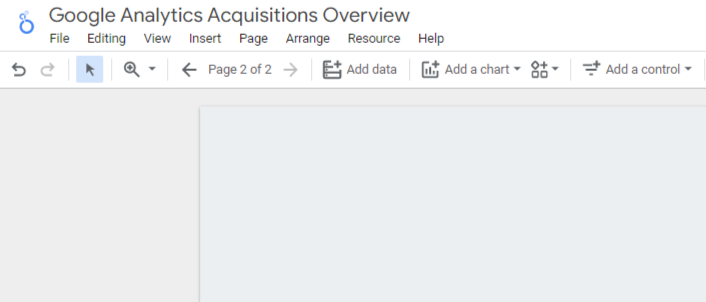
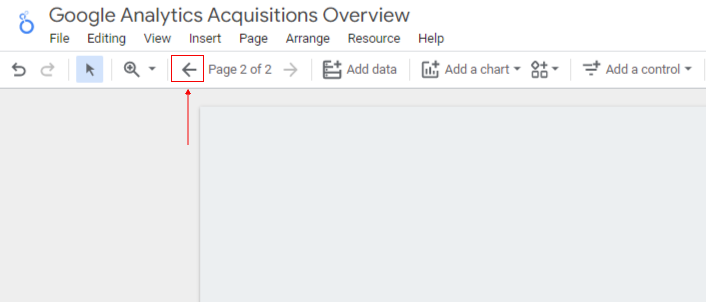
If you want to navigate back to page 1 of the report then click on the ‘Left Direction Arrow‘ available in the menu:
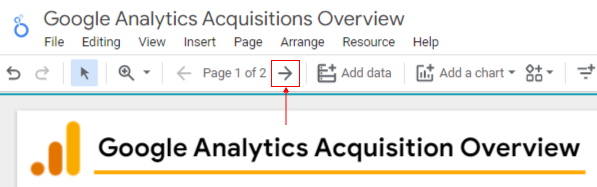
If you again want to navigate to page 2, click on ‘Right Direction Arrow’:
Each page is made up of canvas.
Here is what the blank canvas looks like:
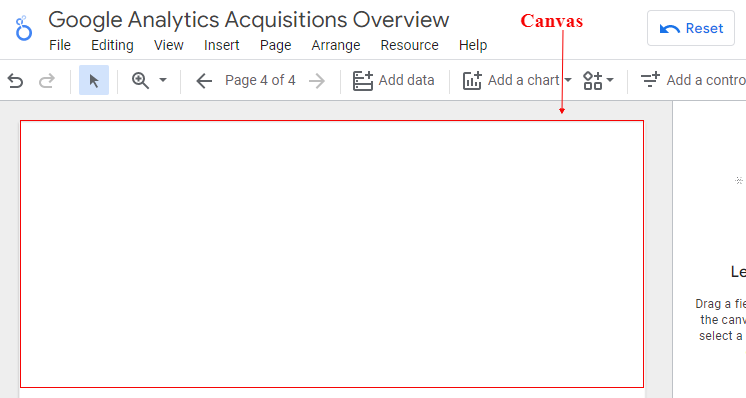
A canvas is made up of grid lines.
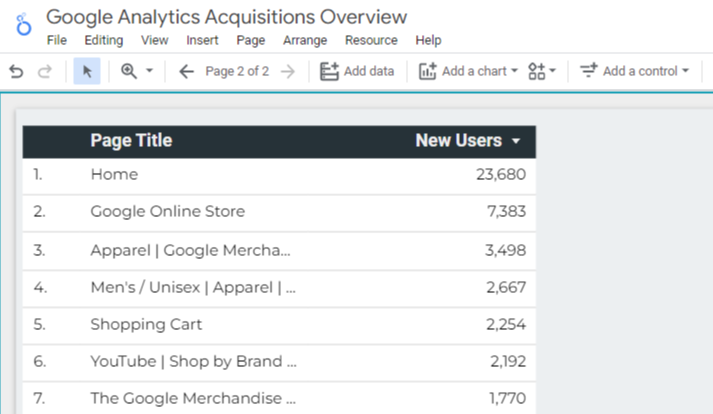
When we create a report in Google Data Studio, we add components (like ‘tables’, ‘scorecard’, ‘bar charts’ etc) to this canvas.
Following is an example of a canvas that contains one component of type ‘table’:
Following is an example of a canvas that contains two components: one table component and one scorecard component:
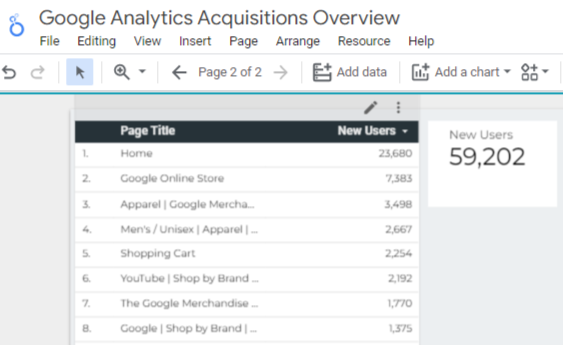
Each component is made up of one or more fields.
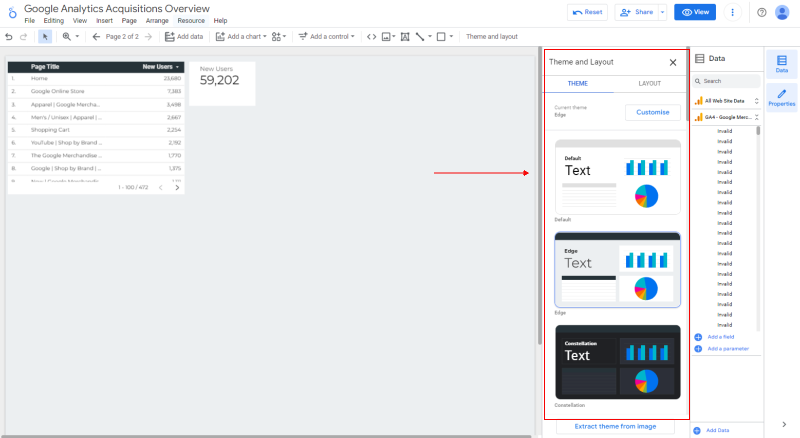
You can change the layout and theme of this canvas through the ‘Layout and Theme panel‘ on the right-hand side:
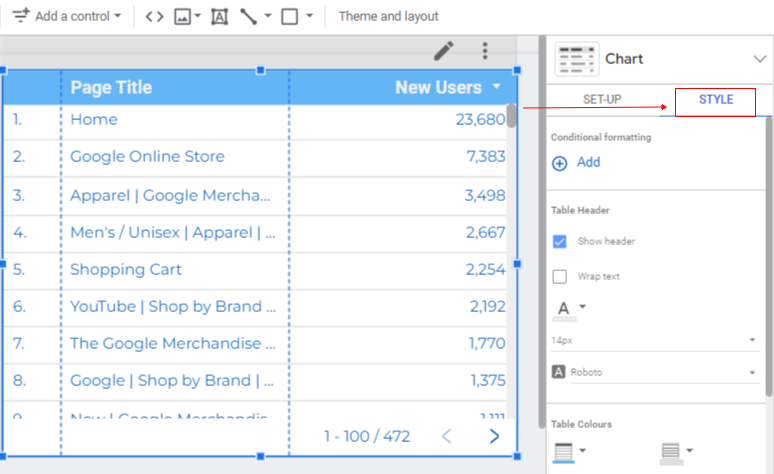
You can also change the style of each component on the canvas through the ‘Style‘ on the right-hand side:

Related Articles.
- Google Data Studio Parameters explained with examples.
- Google Data Studio Tutorial.
- How to Change Language in Google Data Studio.
- Google Data Studio Report Tutorial.
- How to work with Boolean field in Google Data Studio.
- How to use Google Data Studio with Google Sheets.
- Stop Using Page Titles in GA4 & Google Data Studio Reports.
- Google Data Studio Geo Map – Latitude Longitude.
- Google Data Studio Data Sources – Tutorial.
- Guide to Data Types in Google Data Studio.
- Google Data Studio Date Format and Time Explained.
- Working with Numeric Data Types in Google Data Studio.